navigation BMW 525I TOURING 2008 E61 Owner's Manual
[x] Cancel search | Manufacturer: BMW, Model Year: 2008, Model line: 525I TOURING, Model: BMW 525I TOURING 2008 E61Pages: 292, PDF Size: 9.33 MB
Page 179 of 292
Navigation
Entertainment
Driving tips
177Reference
At a glance
Controls
Communications
Mobility
Updating stations offering digital
reception
If you are on a longer journey and leave the
transmission range of the stations originally set,
you can update the list of stations with the best
reception.
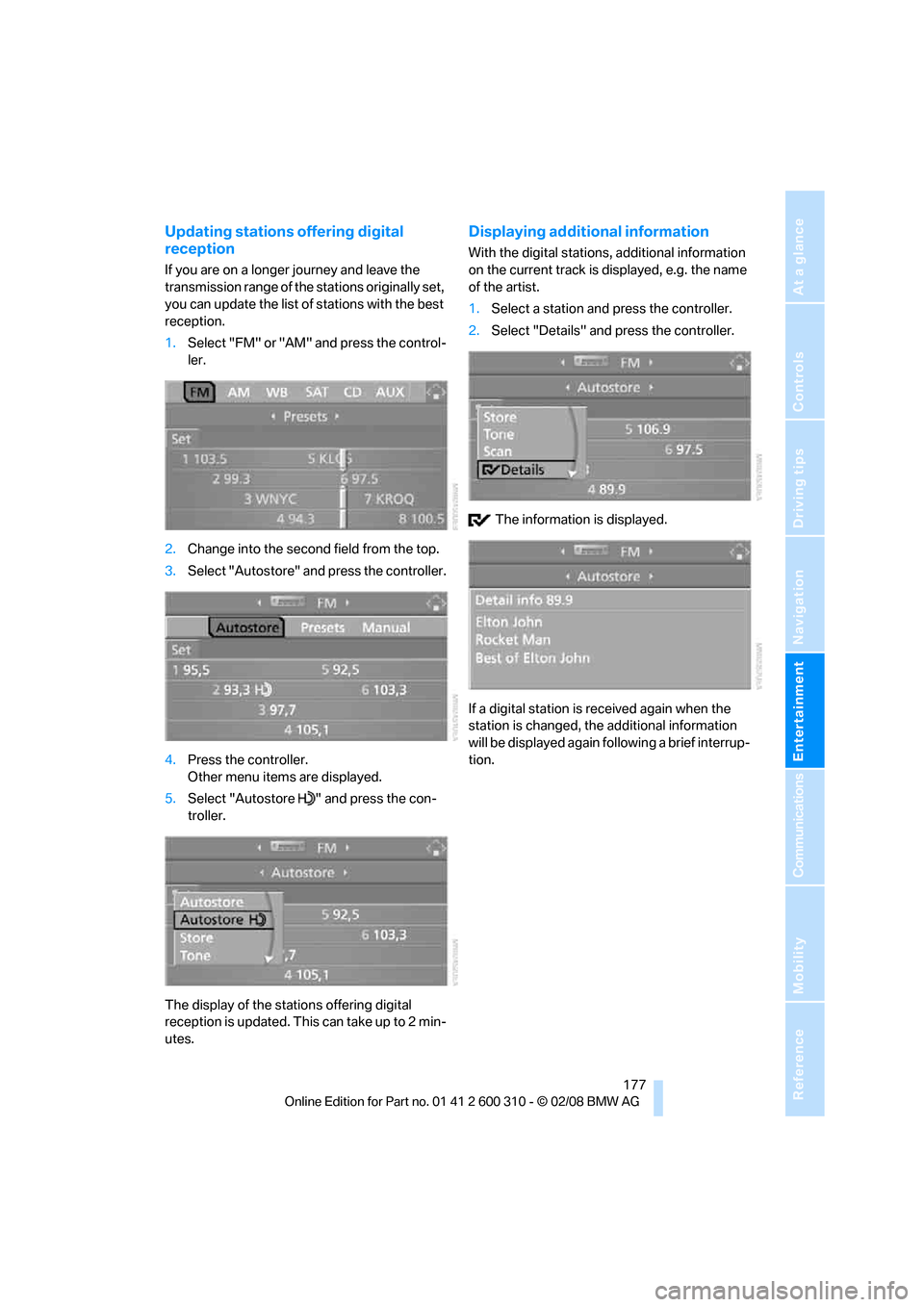
1.Select "FM" or "AM" and press the control-
ler.
2.Change into the second field from the top.
3.Select "Autostore" and press the controller.
4.Press the controller.
Other menu items are displayed.
5.Select "Autostore " and press the con-
troller.
The display of the stations offering digital
reception is updated. This can take up to 2 min-
utes.
Displaying additional information
With the digital stations, additional information
on the current track is displayed, e.g. the name
of the artist.
1.Select a station and press the controller.
2.Select "Details" and press the controller.
The information is displayed.
If a digital station is received again when the
station is changed, the additional information
will be displayed again following a brief interrup-
tion.
Page 181 of 292
Navigation
Entertainment
Driving tips
179Reference
At a glance
Controls
Communications
Mobility
Selecting and storing channel
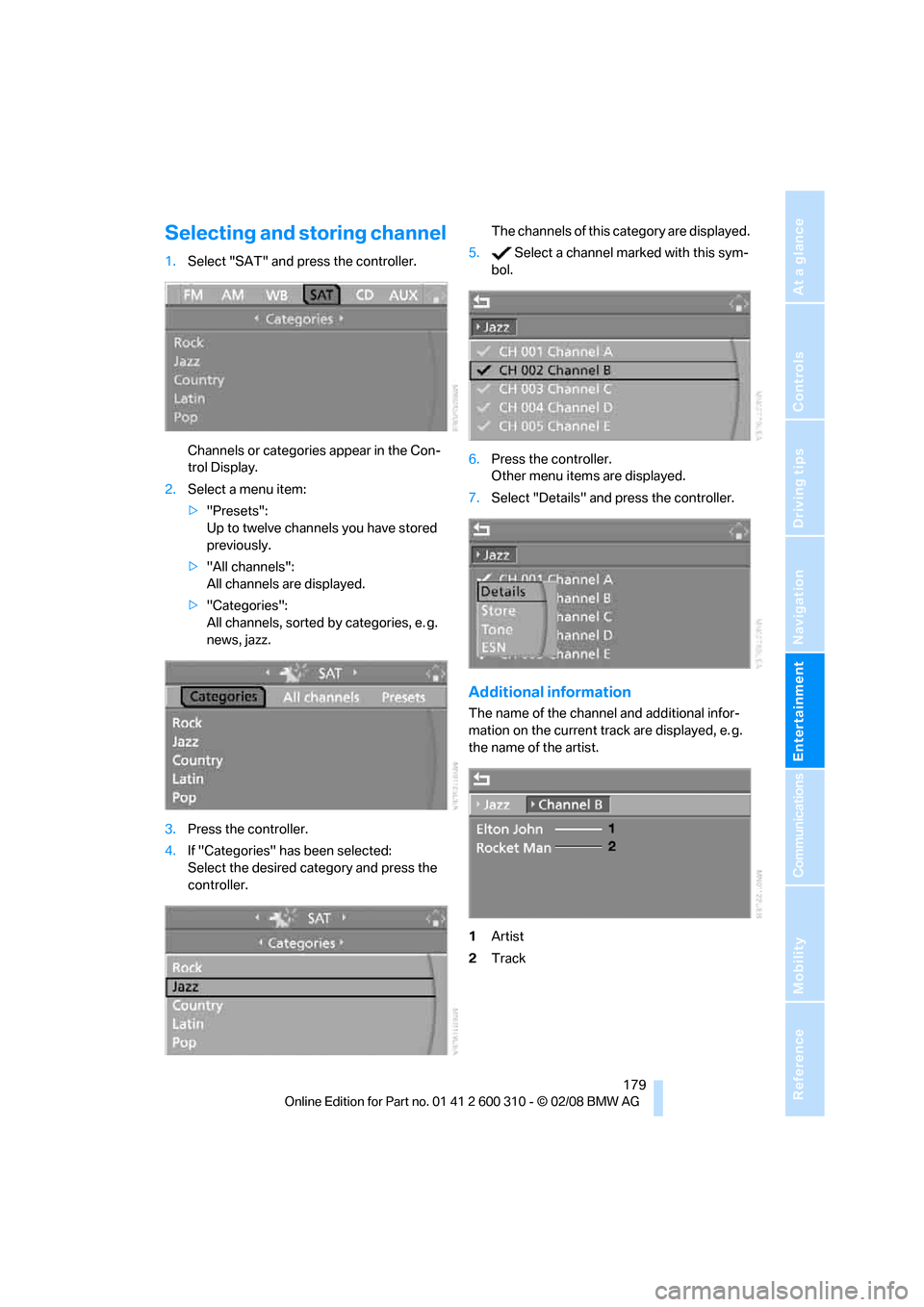
1.Select "SAT" and press the controller.
Channels or categories appear in the Con-
trol Display.
2.Select a menu item:
>"Presets":
Up to twelve channels you have stored
previously.
>"All channels":
All channels are displayed.
>"Categories":
All channels, sorted by categories, e. g.
news, jazz.
3.Press the controller.
4.If "Categories" has been selected:
Select the desired category and press the
controller.The channels of this category are displayed.
5. Select a channel marked with this sym-
bol.
6.Press the controller.
Other menu items are displayed.
7.Select "Details" and press the controller.
Additional information
The name of the channel and additional infor-
mation on the current track are displayed, e. g.
the name of the artist.
1Artist
2Track
Page 183 of 292
Navigation
Entertainment
Driving tips
181Reference
At a glance
Controls
Communications
Mobility
CD player and CD changer
Listening to CDs
Compressed audio files*
CDs with compressed audio files, i.e. MP3, can
be played by the CD player, but not by the CD
changer.
CD player: starting CD
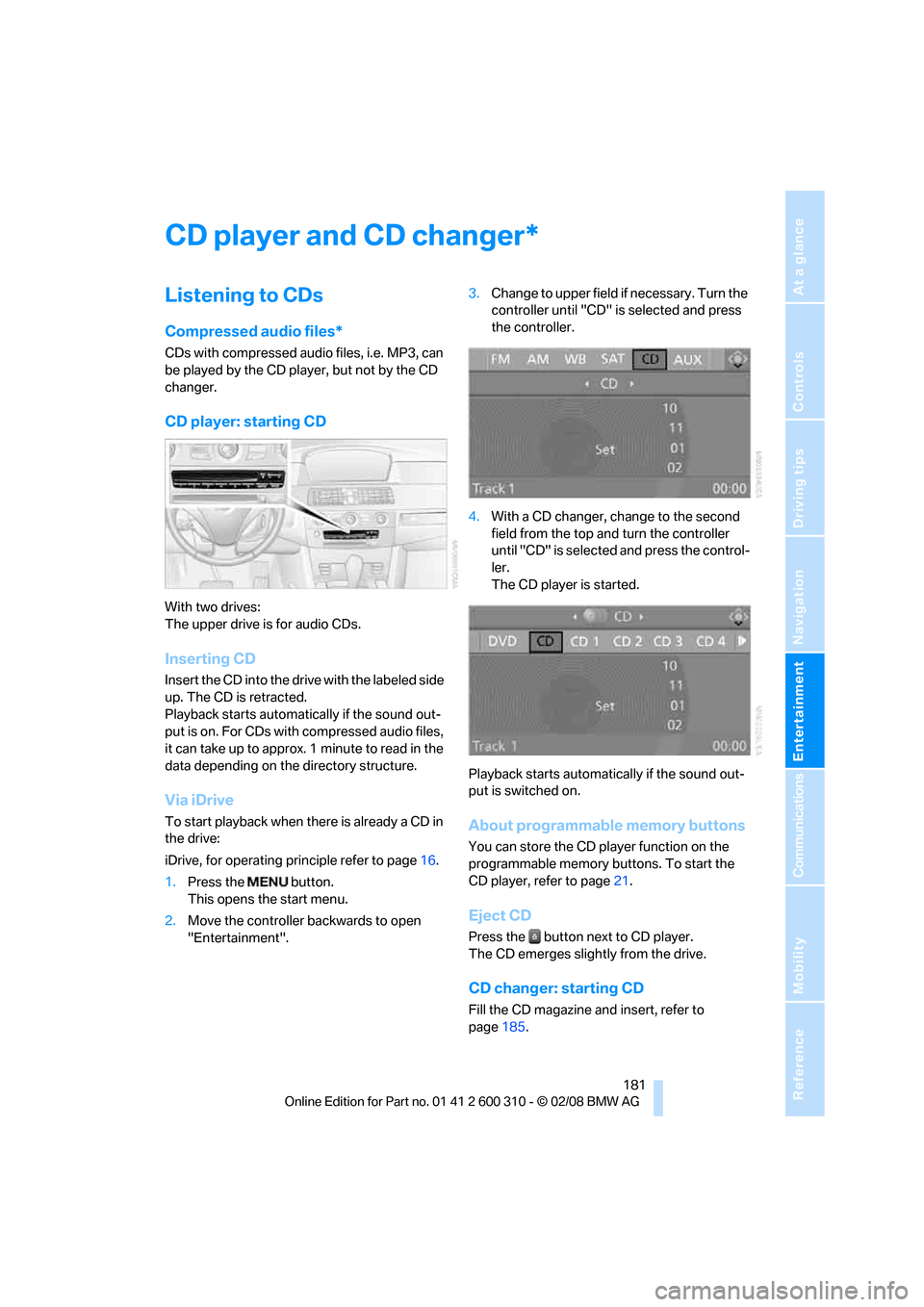
With two drives:
The upper drive is for audio CDs.
Inserting CD
Insert the CD into the drive with the labeled side
up. The CD is retracted.
Playback starts automatically if the sound out-
put is on. For CDs with compressed audio files,
it can take up to approx. 1 minute to read in the
data depending on the directory structure.
Via iDrive
To start playback when there is already a CD in
the drive:
iDrive, for operating principle refer to page16.
1.Press the button.
This opens the start menu.
2.Move the controller backwards to open
"Entertainment".3.Change to upper field if necessary. Turn the
controller until "CD" is selected and press
the controller.
4.With a CD changer, change to the second
field from the top and turn the controller
until "CD" is selected and press the control-
ler.
The CD player is started.
Playback starts automatically if the sound out-
put is switched on.About programmable memory buttons
You can store the CD player function on the
programmable memory buttons. To start the
CD player, refer to page21.
Eject CD
Press the button next to CD player.
The CD emerges slightly from the drive.
CD changer: starting CD
Fill the CD magazine and insert, refer to
page185.
*
Page 185 of 292
Navigation
Entertainment
Driving tips
183Reference
At a glance
Controls
Communications
Mobility
To exit from the menu:
Select the arrow and press the controller.
You can also store a particular track on the pro-
grammable memory buttons, refer to page21.
Displaying information on track*
With compressed audio files, you can display
any information stored on the current track, e.g.
the name of the artist.
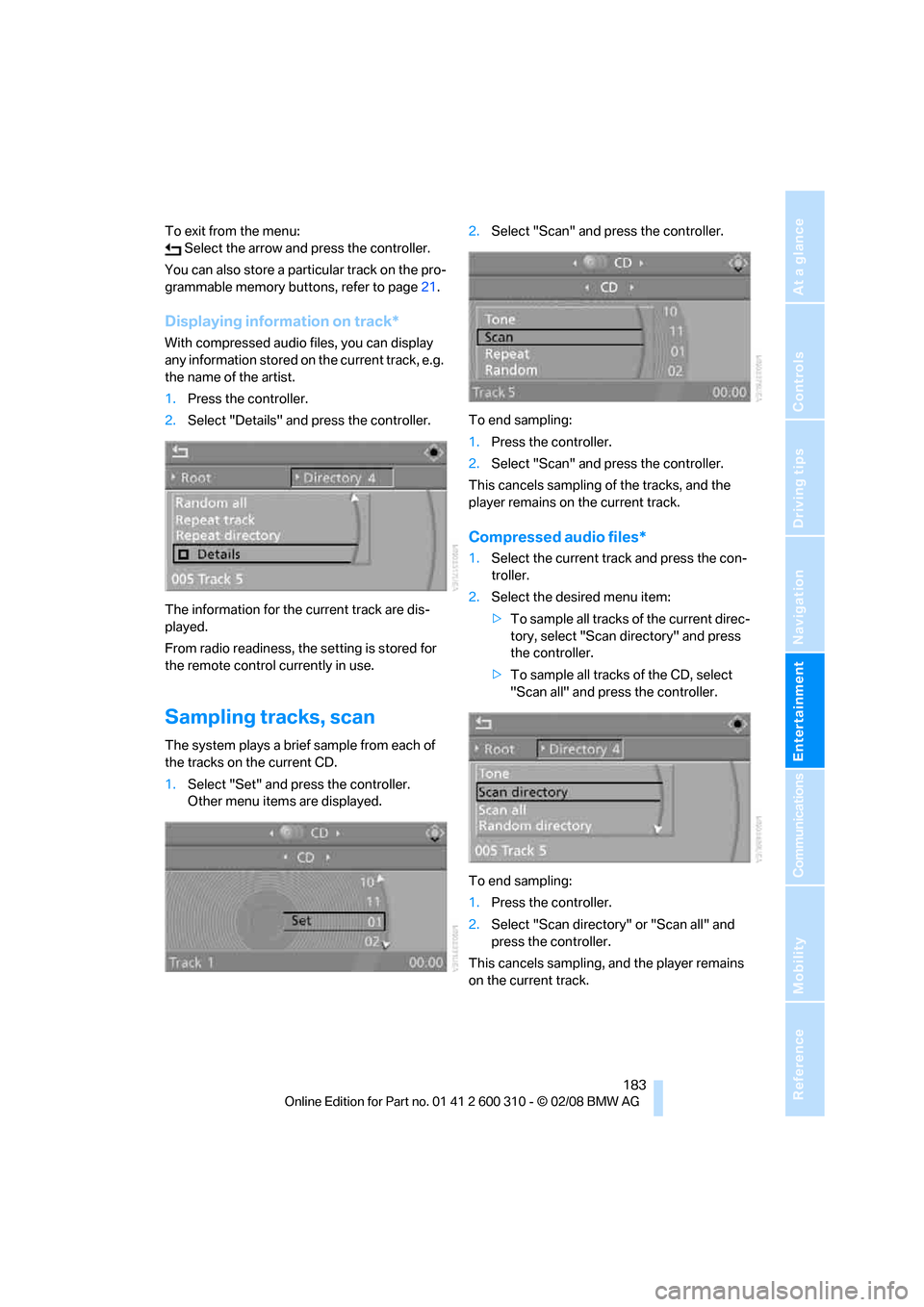
1.Press the controller.
2.Select "Details" and press the controller.
The information for the current track are dis-
played.
From radio readiness, the setting is stored for
the remote control currently in use.
Sampling tracks, scan
The system plays a brief sample from each of
the tracks on the current CD.
1.Select "Set" and press the controller.
Other menu items are displayed.2.Select "Scan" and press the controller.
To end sampling:
1.Press the controller.
2.Select "Scan" and press the controller.
This cancels sampling of the tracks, and the
player remains on the current track.
Compressed audio files*
1.Select the current track and press the con-
troller.
2.Select the desired menu item:
>To sample all tracks of the current direc-
tory, select "Scan directory" and press
the controller.
>To sample all tracks of the CD, select
"Scan all" and press the controller.
To end sampling:
1.Press the controller.
2.Select "Scan directory" or "Scan all" and
press the controller.
This cancels sampling, and the player remains
on the current track.
Page 187 of 292
Navigation
Entertainment
Driving tips
185Reference
At a glance
Controls
Communications
Mobility
Fast forward/reverse
Buttons next to CD player:
Press and hold the button for the corre-
sponding direction.
CD magazine
The BMW CD changer for six CDs is installed in
the glove compartment.
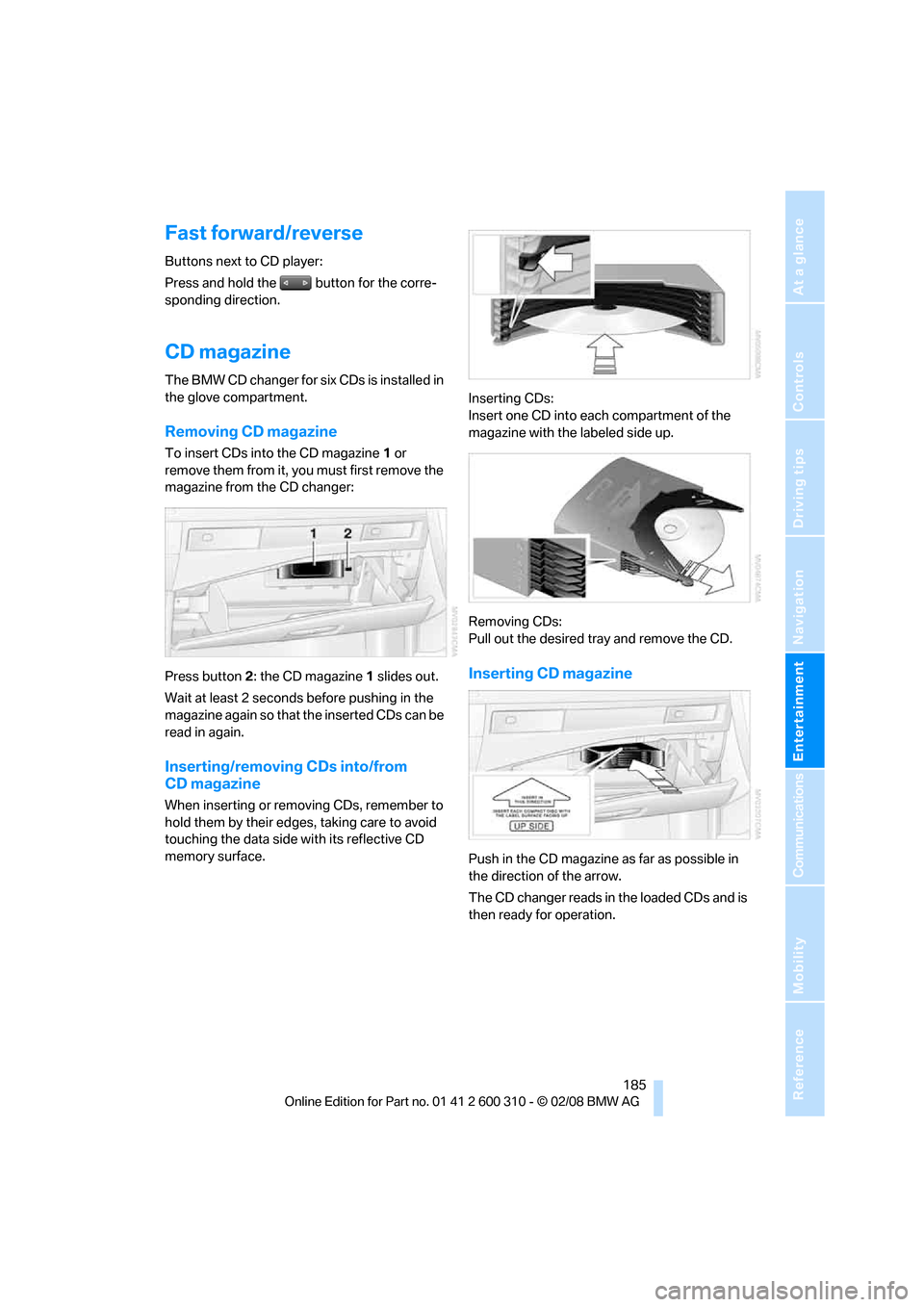
Removing CD magazine
To insert CDs into the CD magazine 1 or
remove them from it, you must first remove the
magazine from the CD changer:
Press button2: the CD magazine1 slides out.
Wait at least 2 seconds before pushing in the
magazine again so that the inserted CDs can be
read in again.
Inserting/removing CDs into/from
CD magazine
When inserting or removing CDs, remember to
hold them by their edges, taking care to avoid
touching the data side with its reflective CD
memory surface.Inserting CDs:
Insert one CD into each compartment of the
magazine with the labeled side up.
Removing CDs:
Pull out the desired tray and remove the CD.
Inserting CD magazine
Push in the CD magazine as far as possible in
the direction of the arrow.
The CD changer reads in the loaded CDs and is
then ready for operation.
Page 189 of 292
Navigation
Entertainment
Driving tips
187Reference
At a glance
Controls
Communications
Mobility
AUX-In connection
You can connect an external audio device, e.g.
an MP3 player, and play the sound via the vehi-
cle speakers. The sound can be adjusted via
iDrive.
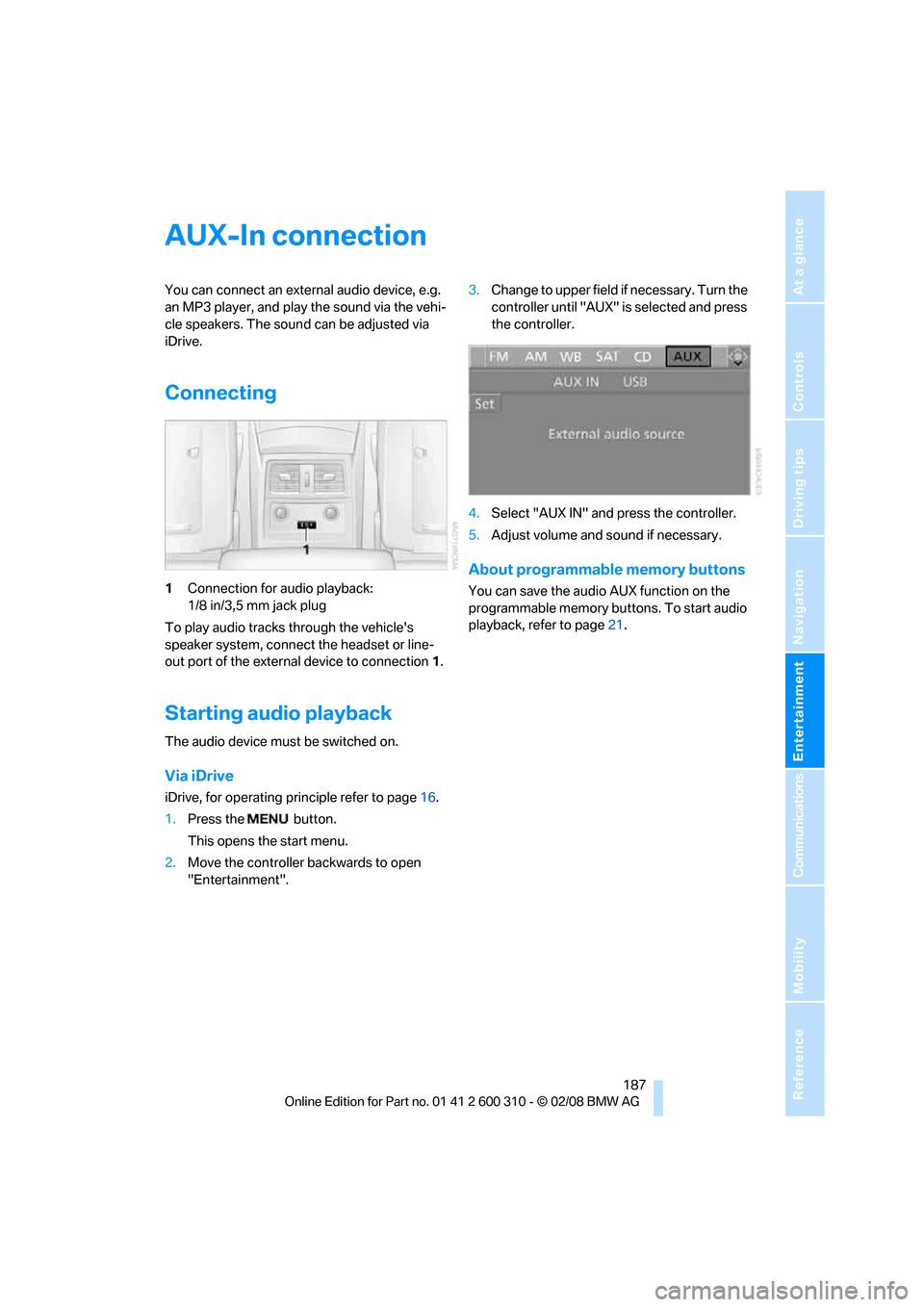
Connecting
1Connection for audio playback:
1/8 in/3,5 mm jack plug
To play audio tracks through the vehicle's
speaker system, connect the headset or line-
out port of the external device to connection 1.
Starting audio playback
The audio device must be switched on.
Via iDrive
iDrive, for operating principle refer to page16.
1.Press the button.
This opens the start menu.
2.Move the controller backwards to open
"Entertainment".3.Change to upper field if necessary. Turn the
controller until "AUX" is selected and press
the controller.
4.Select "AUX IN" and press the controller.
5.Adjust volume and sound if necessary.
About programmable memory buttons
You can save the audio AUX function on the
programmable memory buttons. To start audio
playback, refer to page21.
Page 191 of 292
Navigation
Entertainment
Driving tips
189Reference
At a glance
Controls
Communications
Mobility
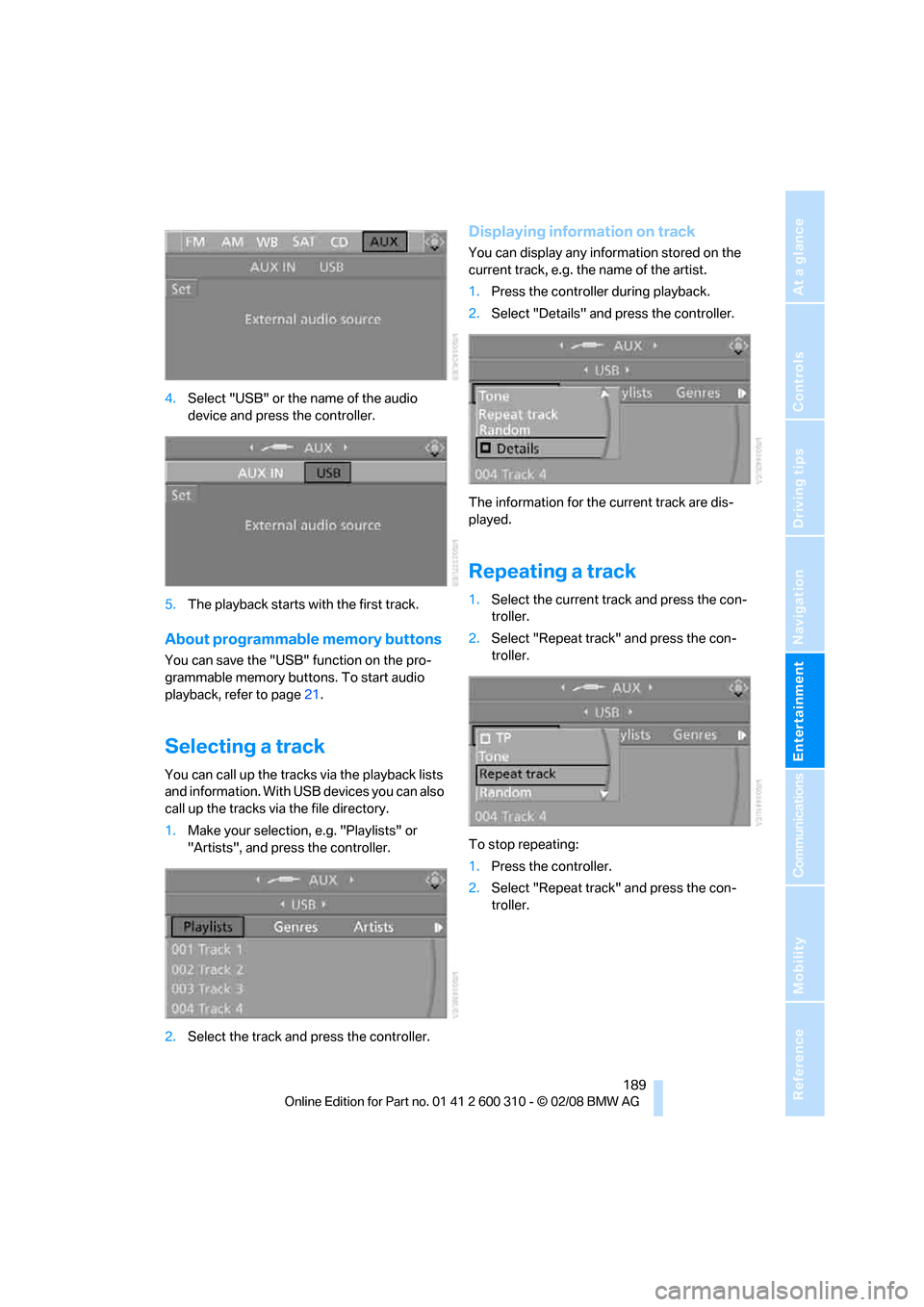
4.Select "USB" or the name of the audio
device and press the controller.
5.The playback starts with the first track.
About programmable memory buttons
You can save the "USB" function on the pro-
grammable memory buttons. To start audio
playback, refer to page21.
Selecting a track
You can call up the tracks via the playback lists
and information. With USB devices you can also
call up the tracks via the file directory.
1.Make your selection, e.g. "Playlists" or
"Artists", and press the controller.
2.Select the track and press the controller.
Displaying information on track
You can display any information stored on the
current track, e.g. the name of the artist.
1.Press the controller during playback.
2.Select "Details" and press the controller.
The information for the current track are dis-
played.
Repeating a track
1.Select the current track and press the con-
troller.
2.Select "Repeat track" and press the con-
troller.
To stop repeating:
1.Press the controller.
2.Select "Repeat track" and press the con-
troller.
Page 193 of 292

Navigation
Entertainment
Driving tips
191Reference
At a glance
Controls
Communications
Mobility
Page 197 of 292
195
Entertainment
Reference
At a glance
Controls
Driving tips Communications
Navigation
Mobility
mobile phone from the vehicle if you wish to
place a call with the mobile phone.
Commissioning
Pairing mobile phone in vehicle
The following prerequisites must be met:
>Suitable mobile phone: the mobile phone is
supported by the full mobile phone prepara-
tion package. Information on this subject is
also provided on the Internet at:
www.bmw.com
>The mobile phone is ready to operate.
>The Bluetooth link on the vehicle, refer to
page199, and on the mobile phone is
active.
>Depending on the mobile phone, the mobile
phone may need presetting: e.g. using the
following menu items:
>Bluetooth activated
>Connection not with confirmation
>Reconnect
>Depending on the mobile phone model, the
setting energy saving mode can, for exam-
ple, result in vehicle failing to detect the
paired mobile phone.
>For pairing, specify any desired number as
the Bluetooth passkey, e.g. 1. This Blue-
tooth passkey is no longer required follow-
ing successful pairing.
>The ignition is switched on.
Only pair the mobile phone with the vehi-
cle stopped, otherwise the passengers
and other road users can be endangered due to
a lack of attentiveness on the part of the
driver.<
Switching on ignition
1.Insert the remote control as far as possible
into the ignition lock.
2.Switch on the ignition by pressing the Start/
Stop button without depressing the brake
or clutch pedal.
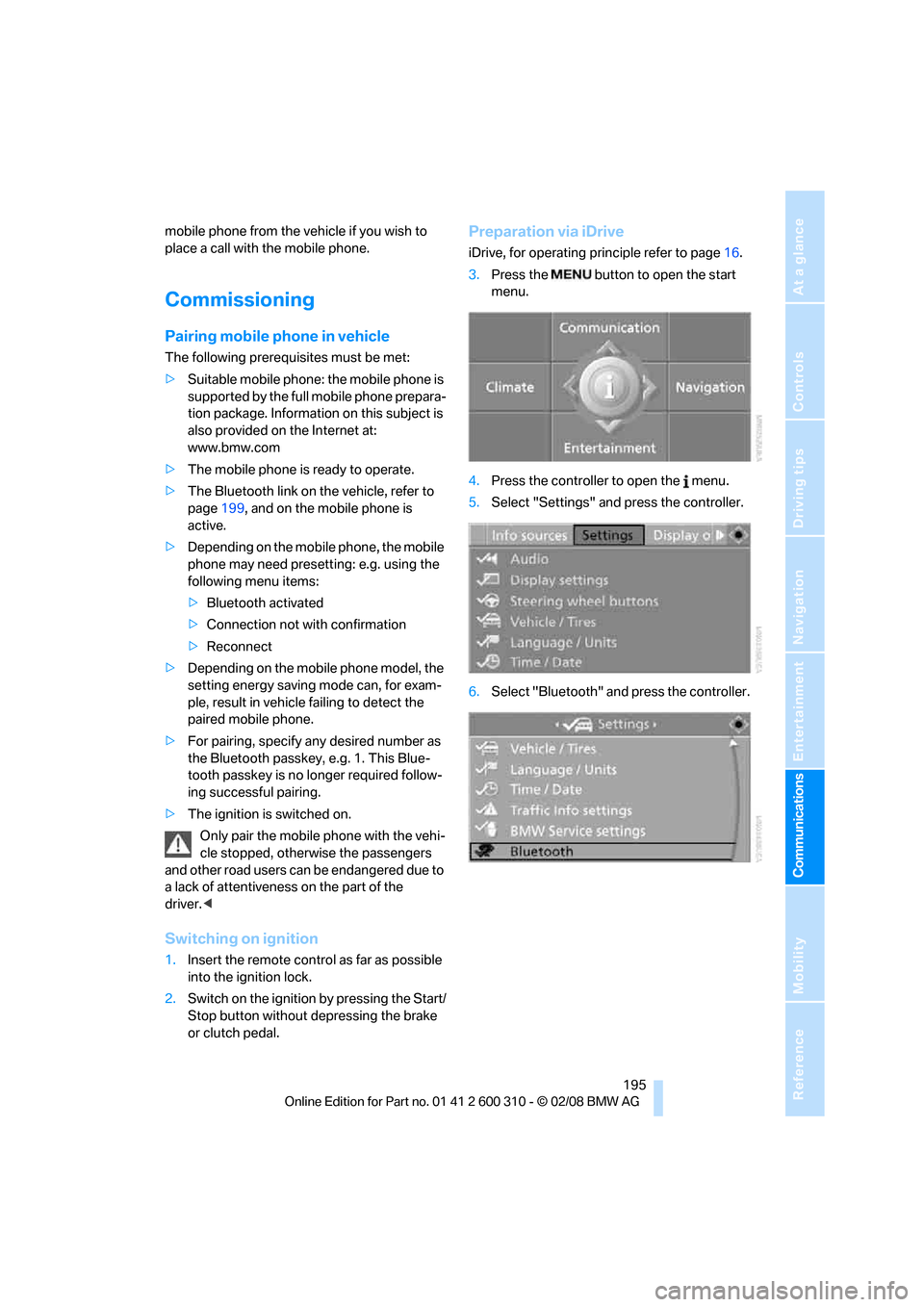
Preparation via iDrive
iDrive, for operating principle refer to page16.
3.Press the button to open the start
menu.
4.Press the controller to open the menu.
5.Select "Settings" and press the controller.
6.Select "Bluetooth" and press the controller.
Page 199 of 292
197
Entertainment
Reference
At a glance
Controls
Driving tips Communications
Navigation
Mobility
As soon as a mobile phone is detected by the
vehicle, the phone book entries stored on the
SIM card or on your mobile phone are transmit-
ted to your vehicle. This transmission is depen-
dent on your mobile phone, refer to the operat-
ing instructions of your mobile phone if
necessary, and can take several minutes.
If not all phone book entries are displayed:
>Transfer all phone book entries from the
SIM card to the mobile phone if necessary.
>It may not be possible to display phone
book entries with special characters.
Up to four mobile phones can be paired consec-
utively. When you pair a fifth mobile phone, the
pairing data of the mobile phone for which the
pairing data were stored first in the vehicle will
be deleted.
Checking if pairing is unsuccessful
>Is the mobile phone supported by the
mobile phone preparation package? Infor-
mation on this subject is also provided on
the Internet at: www.bmw.com.
>Do the Bluetooth passkeys on the mobile
phone and the vehicle match? The same
Bluetooth passkey must be entered both on
the mobile phone display and via iDrive.
>Have you required longer than 30 seconds
to enter the Bluetooth passkey?
>Only a limited number of devices can be
connected to the mobile phone. Delete the
connection to other devices if necessary.
>The mobile phone no longer reacts? Switch
the mobile phone off and then on again or
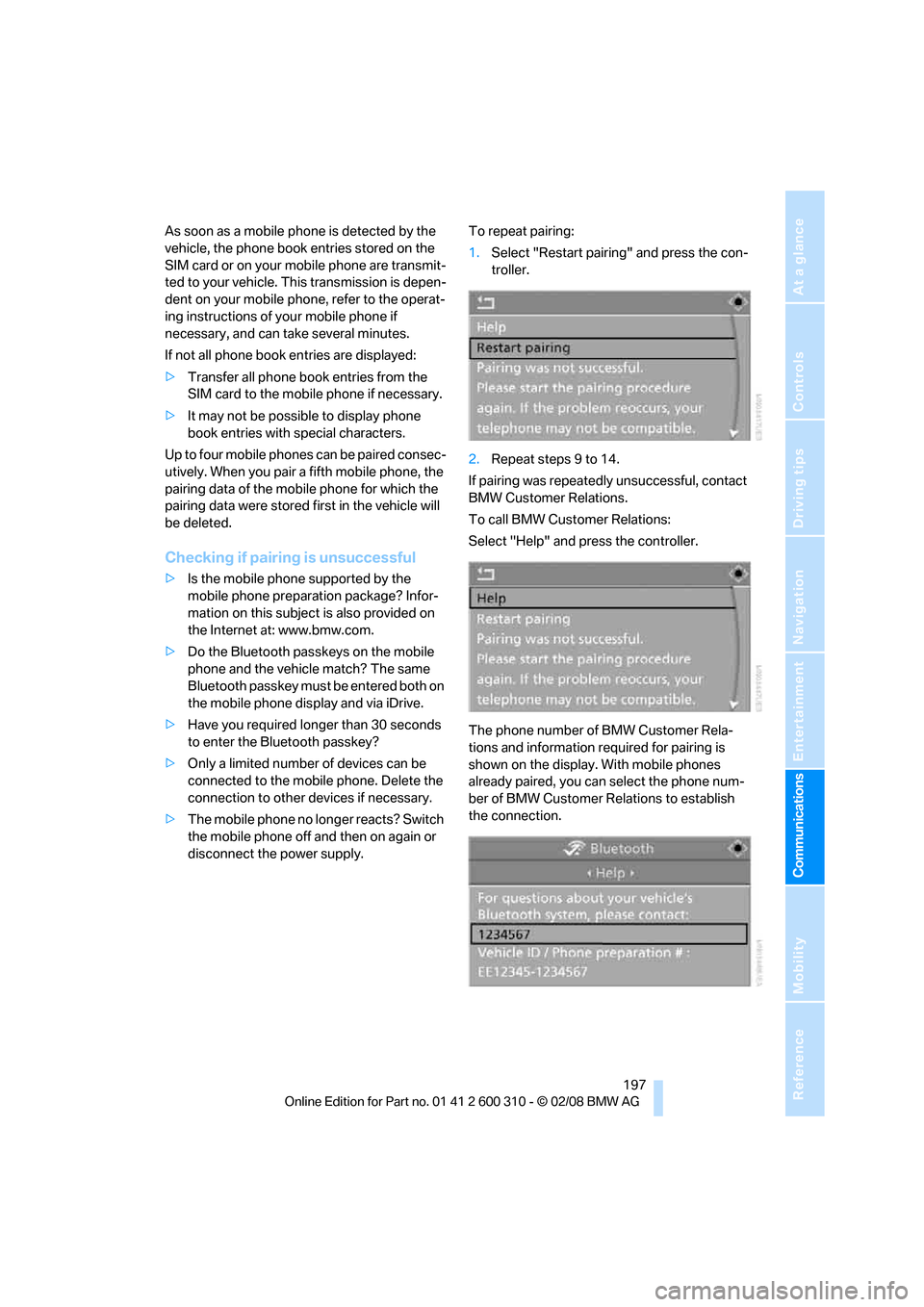
disconnect the power supply.To repeat pairing:
1.Select "Restart pairing" and press the con-
troller.
2.Repeat steps 9 to 14.
If pairing was repeatedly unsuccessful, contact
BMW Customer Relations.
To call BMW Customer Relations:
Select "Help" and press the controller.
The phone number of BMW Customer Rela-
tions and information required for pairing is
shown on the display. With mobile phones
already paired, you can select the phone num-
ber of BMW Customer Relations to establish
the connection.