navigation system BMW 525XI 2007 Repair Manual
[x] Cancel search | Manufacturer: BMW, Model Year: 2007, Model line: 525XI, Model: BMW 525XI 2007Pages: 273, PDF Size: 8.96 MB
Page 173 of 273
Navigation
Entertainment
Driving tips
171Reference
At a glance
Controls
Communications
Mobility
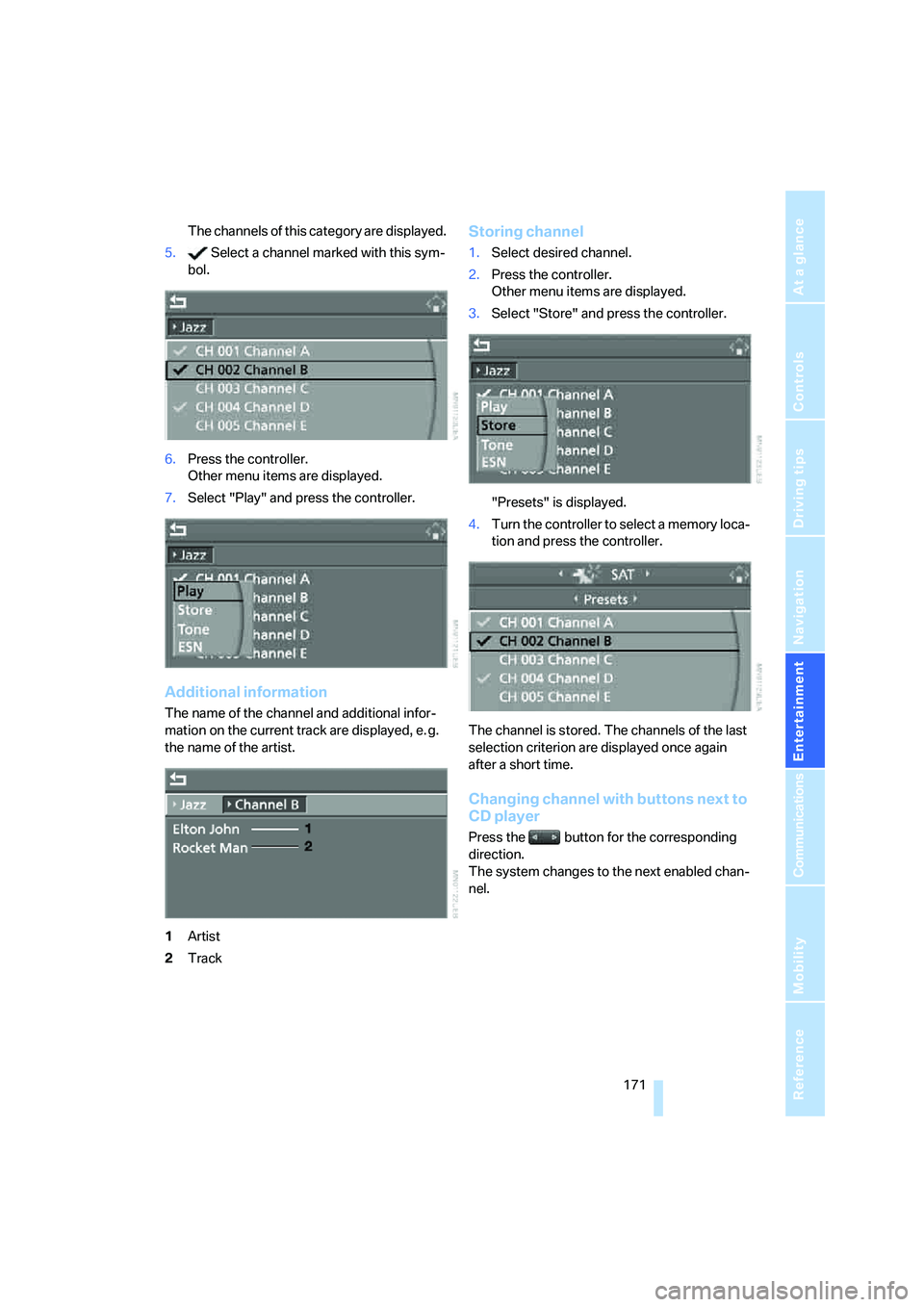
The channels of this category are displayed.
5. Select a channel marked with this sym-
bol.
6.Press the controller.
Other menu items are displayed.
7.Select "Play" and press the controller.
Additional information
The name of the channel and additional infor-
mation on the current track are displayed, e. g.
the name of the artist.
1Artist
2Track
Storing channel
1.Select desired channel.
2.Press the controller.
Other menu items are displayed.
3.Select "Store" and press the controller.
"Presets" is displayed.
4.Turn the controller to select a memory loca-
tion and press the controller.
The channel is stored. The channels of the last
selection criterion are displayed once again
after a short time.
Changing channel with buttons next to
CD player
Press the button for the corresponding
direction.
The system changes to the next enabled chan-
nel.
Page 177 of 273
Navigation
Entertainment
Driving tips
175Reference
At a glance
Controls
Communications
Mobility
To exit from the menu:
Select the arrow and press the controller.
Displaying information on track*
With compressed audio files, you can display
any information stored on the current track, e.g.
the name of the artist.
1.Press the controller.
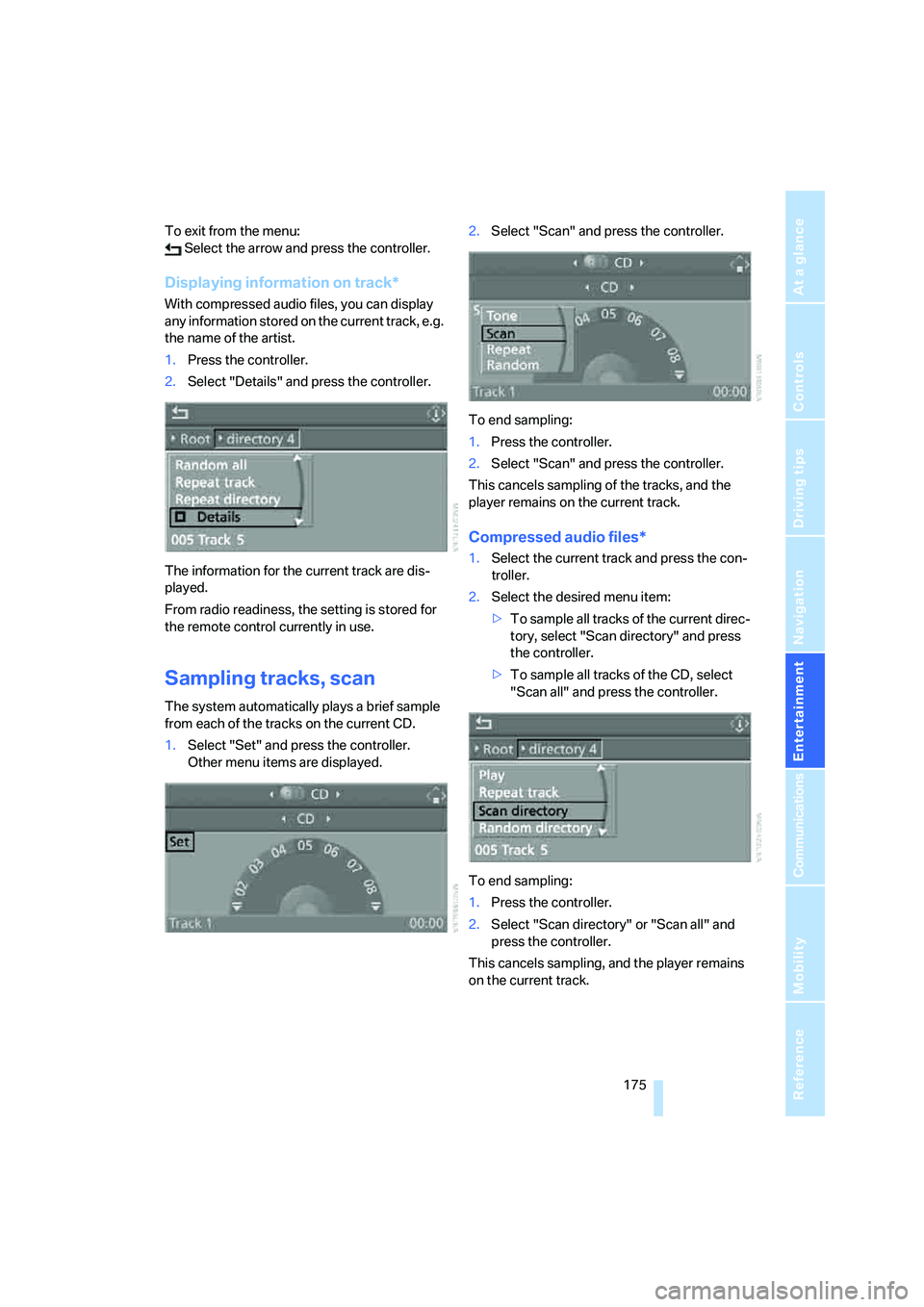
2.Select "Details" and press the controller.
The information for the current track are dis-
played.
From radio readiness, the setting is stored for
the remote control currently in use.
Sampling tracks, scan
The system automatically plays a brief sample
from each of the tracks on the current CD.
1.Select "Set" and press the controller.
Other menu items are displayed.2.Select "Scan" and press the controller.
To end sampling:
1.Press the controller.
2.Select "Scan" and press the controller.
This cancels sampling of the tracks, and the
player remains on the current track.
Compressed audio files*
1.Select the current track and press the con-
troller.
2.Select the desired menu item:
>To sample all tracks of the current direc-
tory, select "Scan directory" and press
the controller.
>To sample all tracks of the CD, select
"Scan all" and press the controller.
To end sampling:
1.Press the controller.
2.Select "Scan directory" or "Scan all" and
press the controller.
This cancels sampling, and the player remains
on the current track.
Page 181 of 273
Navigation
Entertainment
Driving tips
179Reference
At a glance
Controls
Communications
Mobility
External audio device
You can connect an external audio device, e.g.
an MP3 player, and play the sound via the vehi-
cle loudspeakers. The sound can be adjusted
via iDrive.
Connecting
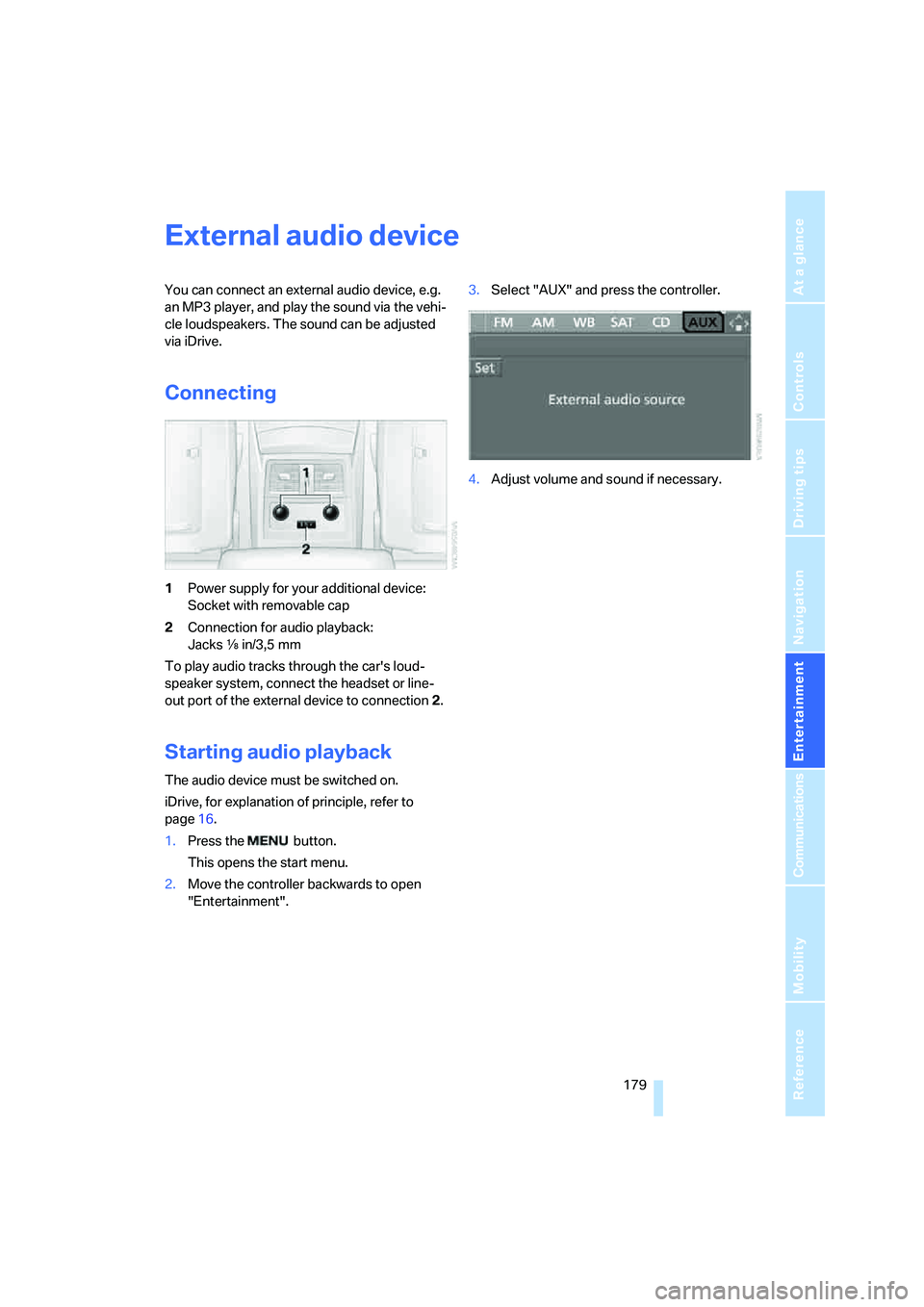
1Power supply for your additional device:
Socket with removable cap
2Connection for audio playback:
Jacks εin/3,5 mm
To play audio tracks through the car's loud-
speaker system, connect the headset or line-
out port of the external device to connection 2.
Starting audio playback
The audio device must be switched on.
iDrive, for explanation of principle, refer to
page16.
1.Press the button.
This opens the start menu.
2.Move the controller backwards to open
"Entertainment".3.Select "AUX" and press the controller.
4.Adjust volume and sound if necessary.
Page 185 of 273
183
Entertainment
Reference
At a glance
Controls
Driving tips Communications
Navigation
Mobility
Placing phone calls with BMW Assist
system*: BMW Assist calls
You can use the BMW Assist system via the
hands-free unit for BMW Assist calls.
When the status information "Communication"
or "BMW Assist" is displayed in "BMW Ser-
vice", only BMW Assist calls are possible.
It may not be possible to establish a telephone
connection using the mobile phone while a con-
nection is being established to BMW Assist or
while a call to BMW Assist is already in
progress. If this happens, you must log off the
mobile phone from the vehicle if you wish to
place a call with the mobile phone.
Commissioning
Logging on mobile phone on vehicle
The following prerequisites must be met:
>Suitable mobile phone: the mobile phone is
supported by the full mobile phone prepara-
tion package.
>The mobile phone is ready to operate.
>The Bluetooth link on the vehicle, refer to
page186, and on the mobile phone is
active.
>Depending on the mobile phone, preset-
tings on the mobile phone are necessary:
e.g. via the menu item Bluetooth activated
or the menu item Connection not with con-
firmation.
>Depending on the mobile phone model, the
setting energy saving mode can, for exam-
ple, result in vehicle failing to detect the
logged-on mobile phone.
>For logging on, specify any desired number
as the Bluetooth passkey, e.g. 1. This Blue-
tooth passkey is no longer required follow-
ing successful logon.
>The ignition is switched on.Only log on the mobile phone with the
vehicle stopped, otherwise the passen-
gers and other road users can be endangered
due to a lack of attentiveness on the part of the
driver.<
Switching on ignition
1.Insert the remote control as far as possible
into the ignition lock.
2.Switch on the ignition by pressing the Start/
Stop button without depressing the brake
or clutch pedal.
Preparation via iDrive
iDrive, for explanation of principle, refer to
page16.
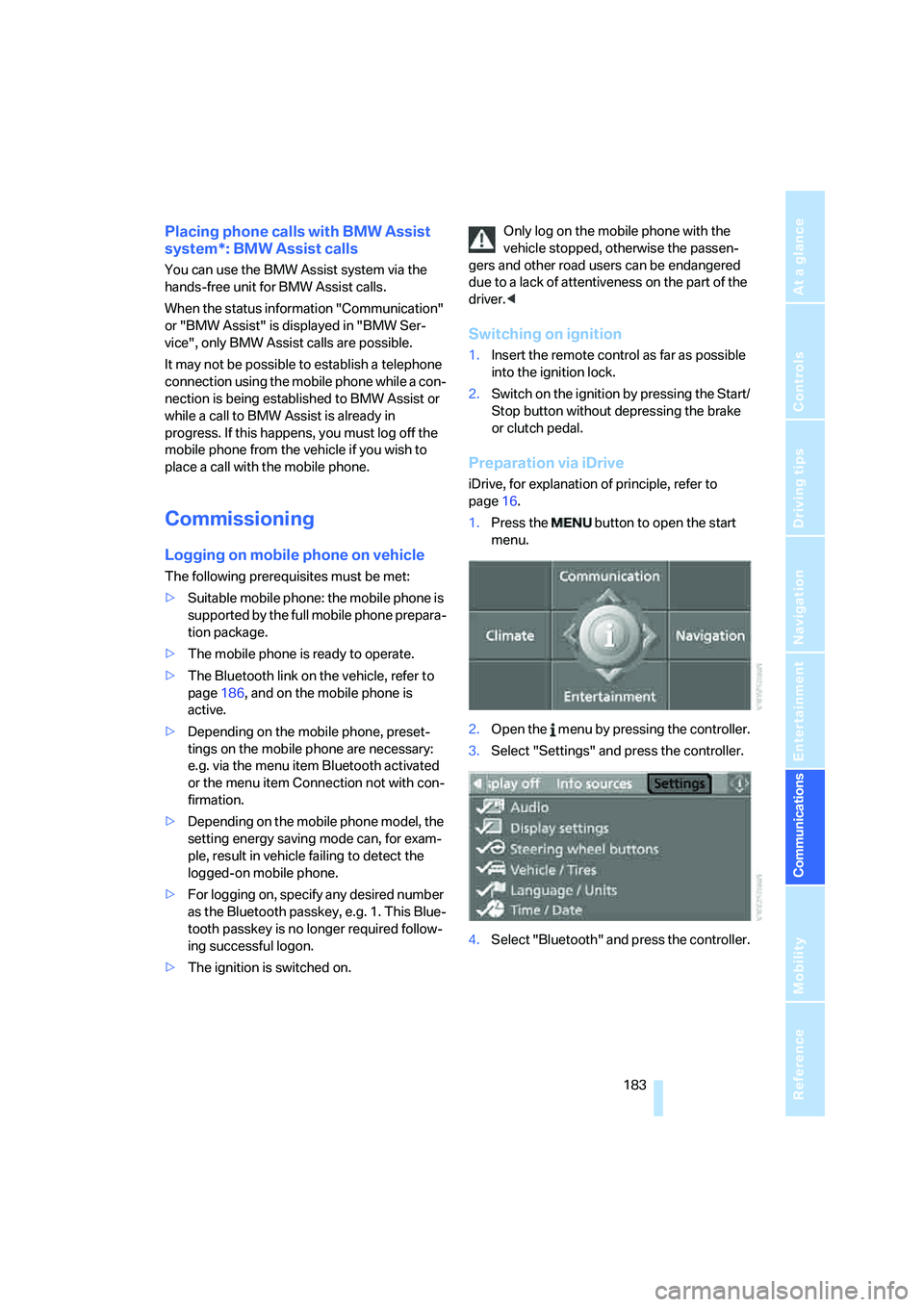
1.Press the button to open the start
menu.
2.Open the menu by pressing the controller.
3.Select "Settings" and press the controller.
4.Select "Bluetooth" and press the controller.
Page 189 of 273
187
Entertainment
Reference
At a glance
Controls
Driving tips Communications
Navigation
Mobility
When the ignition and radio readiness are
switched off, e.g. after removing the remote
control from the ignition lock, you can continue
an ongoing call via the hands-free system for no
more than 25 minutes.
Speech quality
If the person you are talking to cannot under-
stand you well, this may be due to excessively
loud background noises. The full mobile phone
preparation package can compensate for these
noises to a certain degree. To optimize the
speech quality during a call, we recommend
that you:
>Reduce background noises, e.g. by closing
the windows, reducing the air volume of the
automatic climate control or pointing the
front vent outlets downward
>Reduce volume of hands-free system
Requirements
The logon data of the mobile phone are stored
in the vehicle and the mobile phone is ready to
operate.
The engine is running or the ignition is switched
on.
The mobile phone is detected by the vehicle.
iDrive, for explanation of principle, refer to
page16.
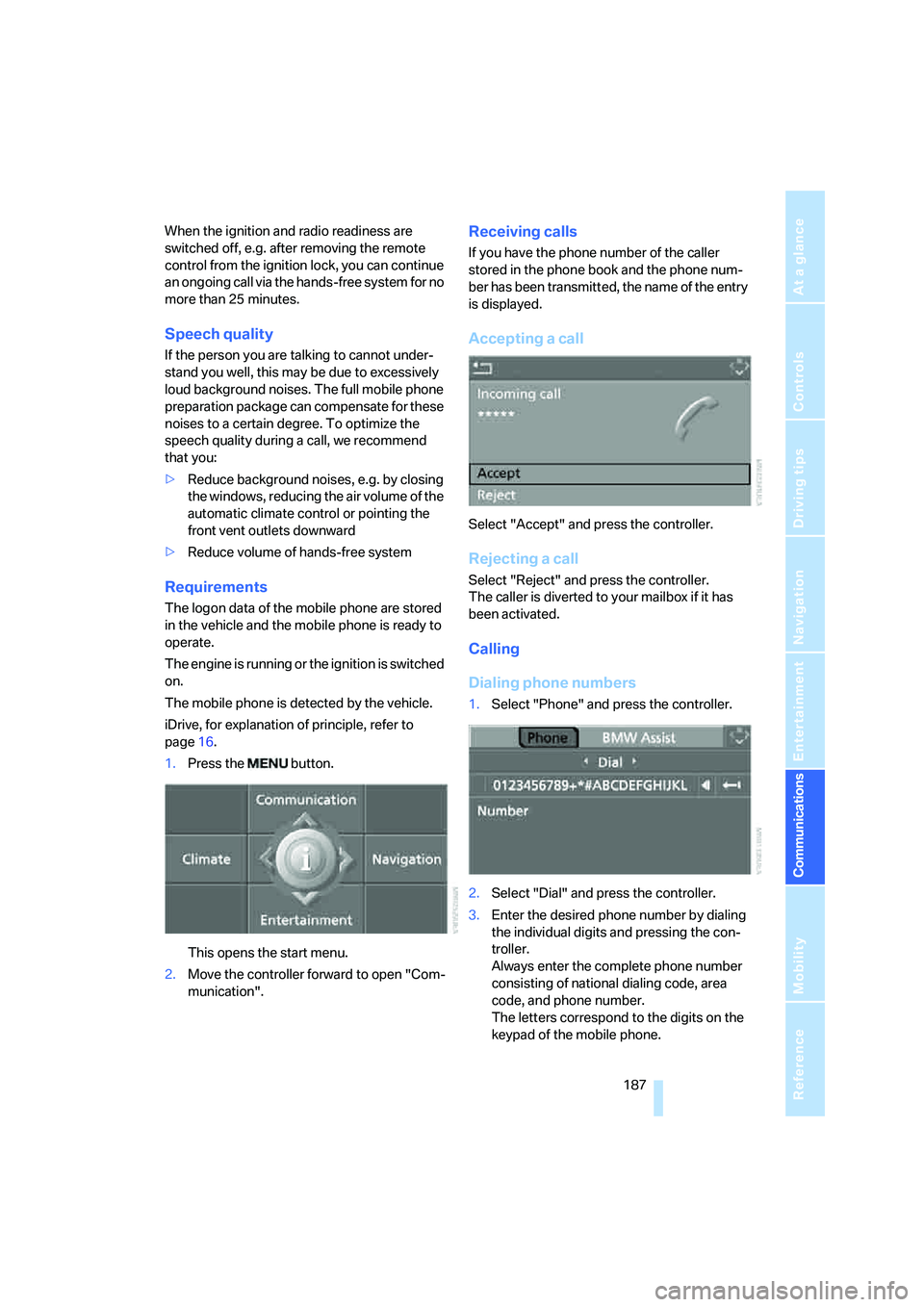
1.Press the button.
This opens the start menu.
2.Move the controller forward to open "Com-
munication".
Receiving calls
If you have the phone number of the caller
stored in the phone book and the phone num-
ber has been transmitted, the name of the entry
is displayed.
Accepting a call
Select "Accept" and press the controller.
Rejecting a call
Select "Reject" and press the controller.
The caller is diverted to your mailbox if it has
been activated.
Calling
Dialing phone numbers
1.Select "Phone" and press the controller.
2.Select "Dial" and press the controller.
3.Enter the desired phone number by dialing
the individual digits and pressing the con-
troller.
Always enter the complete phone number
consisting of national dialing code, area
code, and phone number.
The letters correspond to the digits on the
keypad of the mobile phone.
Page 191 of 273
189
Entertainment
Reference
At a glance
Controls
Driving tips Communications
Navigation
Mobility
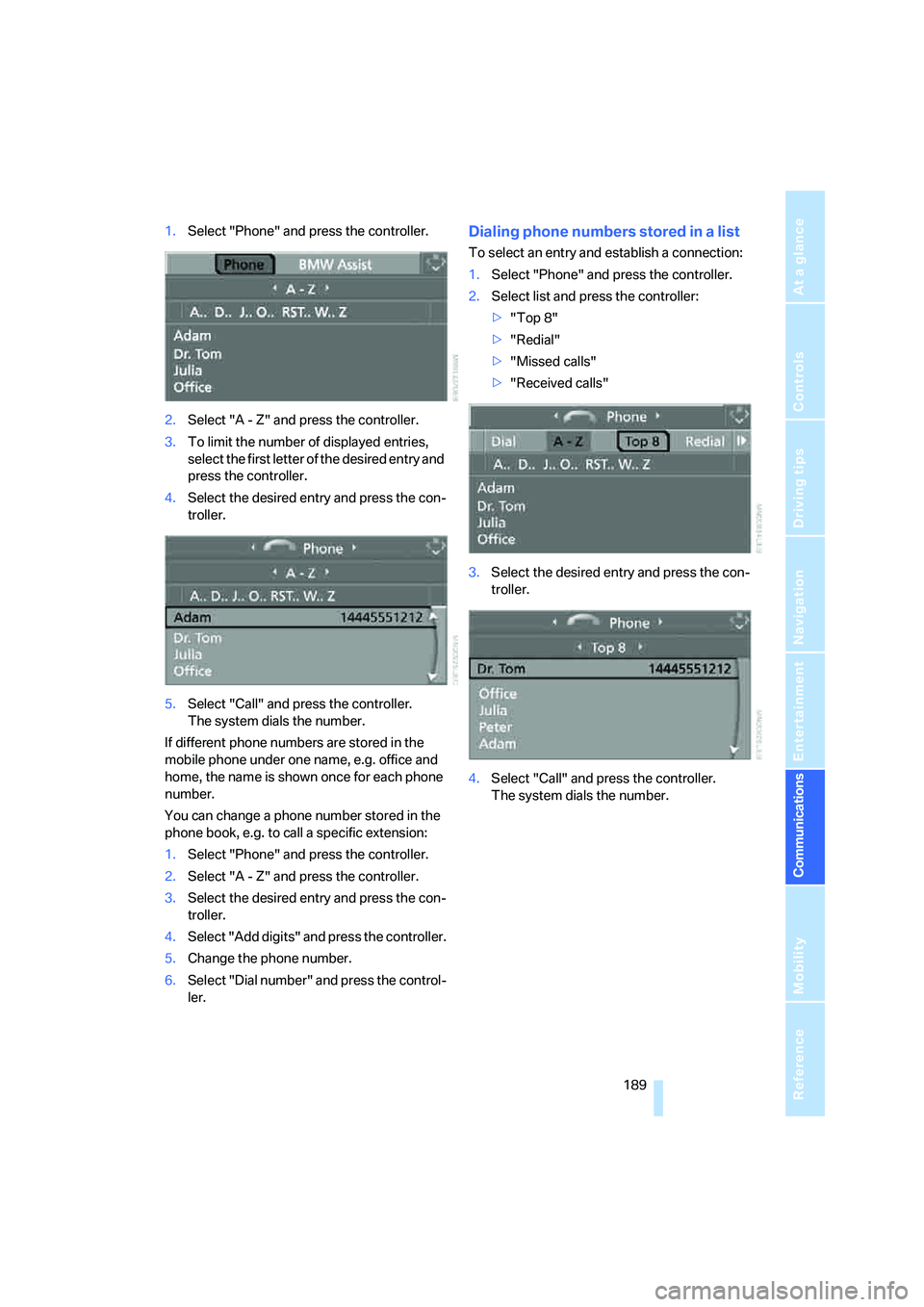
1.Select "Phone" and press the controller.
2.Select "A - Z" and press the controller.
3.To limit the number of displayed entries,
select the first letter of the desired entry and
press the controller.
4.Select the desired entry and press the con-
troller.
5.Select "Call" and press the controller.
The system dials the number.
If different phone numbers are stored in the
mobile phone under one name, e.g. office and
home, the name is shown once for each phone
number.
You can change a phone number stored in the
phone book, e.g. to call a specific extension:
1.Select "Phone" and press the controller.
2.Select "A - Z" and press the controller.
3.Select the desired entry and press the con-
troller.
4.Select "Add digits" and press the controller.
5.Change the phone number.
6.Select "Dial number" and press the control-
ler.Dialing phone numbers stored in a list
To select an entry and establish a connection:
1.Select "Phone" and press the controller.
2.Select list and press the controller:
>"Top 8"
>"Redial"
>"Missed calls"
>"Received calls"
3.Select the desired entry and press the con-
troller.
4.Select "Call" and press the controller.
The system dials the number.
Page 193 of 273
191
Entertainment
Reference
At a glance
Controls
Driving tips Communications
Navigation
Mobility
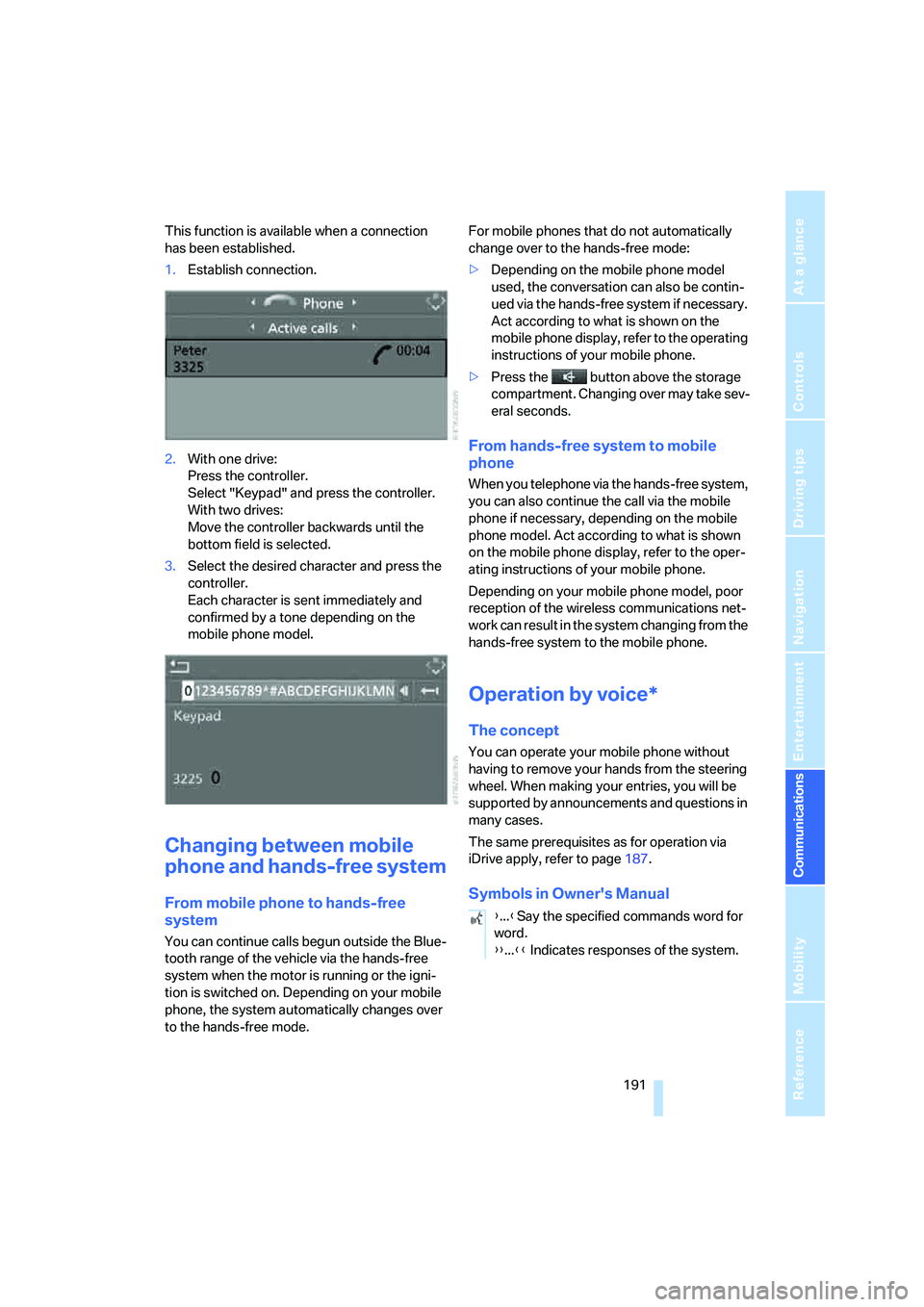
This function is available when a connection
has been established.
1.Establish connection.
2.With one drive:
Press the controller.
Select "Keypad" and press the controller.
With two drives:
Move the controller backwards until the
bottom field is selected.
3.Select the desired character
and press the
controller.
Each character is sent immediately and
confirmed by a tone depending on the
mobile phone model.
Changing between mobile
phone and hands-free system
From mobile phone to hands-free
system
You can continue calls begun outside the Blue-
tooth range of the vehicle via the hands-free
system when the motor is running or the igni-
tion is switched on. Depending on your mobile
phone, the system automatically changes over
to the hands-free mode.For mobile phones that do not automatically
change over to the hands-free mode:
>Depending on the mobile phone model
used, the conversation can also be contin-
ued via the hands-free system if necessary.
Act according to what is shown on the
mobile phone display, refer to the operating
instructions of your mobile phone.
>Press the button above the storage
compartment. Changing over may take sev-
eral seconds.
From hands-free system to mobile
phone
When you telephone via the hands-free system,
you can also continue the call via the mobile
phone if necessary, depending on the mobile
phone model. Act according to what is shown
on the mobile phone display, refer to the oper-
ating instructions of your mobile phone.
Depending on your mobile phone model, poor
reception of the wireless communications net-
work can result in the system changing from the
hands-free system to the mobile phone.
Operation by voice*
The concept
You can operate your mobile phone without
having to remove your hands from the steering
wheel. When making your entries, you will be
supported by announcements and questions in
many cases.
The same prerequisites as for operation via
iDrive apply, refer to page187.
Symbols in Owner's Manual
{...}Say the specified commands word for
word.
{{...}} Indicates responses of the system.
Page 195 of 273
193
Entertainment
Reference
At a glance
Controls
Driving tips Communications
Navigation
Mobility
Calling
Dialing phone numbers
Correcting phone number
After the last spoken sequence of digits has
been repeated by the system, you can delete
this sequence of digits.
The command {Correct number} can be
repeated as often as you like.
Deleting input
{Delete} is used to delete all the digits entered
so far.
Voice phone book
Operating by voice command requires a per-
sonal voice phone book. Names and phone
numbers of the voice phone book are indepen-
dent of the mobile-phone or SIM-card memory
of your mobile phone.
>With combined drives for audio CDs and
navigation DVDs, the entries are automati-
cally adopted from your mobile phone's
memory.
>With a single drive, the entries must be
entered by voice and are independent of
your mobile phone's memory. In this case, it
is not possible to use voice command either
to call phone numbers stored in the mobile
phone or to store new numbers.
Creating and editing voice phone
book*
Store entry:
An entry always consists of a name and phone
number.
Delete entry:
You can delete any entry from the voice phone
book.
Delete all entries:
{Delete phone book} deletes all entries in the
phone book.
Have entries read aloud and select:
You can have all the entries of your voice phone
book read aloud in the order of input and select
a certain entry to establish a connection: 1.{Dial number}.
The dialog for establishing a telephone
connection is opened.
2.Say the phone number.
For telephone calls abroad, say {Plus}
and then the country code.
3.{Dial}.
The connection to the desired sub-
scriber is established.
{Correct number}.
The digits are deleted.
1.{Save name}.
The dialog for storing a name is
opened.
2.Speak name and repeat entry upon
request.
The spoken length of the names in the
phone book must not exceed approx.
2seconds.
3.Say the phone number when prompted.
4.To store the phone number:
{Save}.
1.{Delete name}.
The dialog for deleting an entry is
opened.
2.Say the name when prompted.
3.Confirm the prompt with {Yes}.
1.{Delete phone book}.
The dialog for deleting phone book is
opened.
2.Confirm the prompt with {Yes}.
3.Confirm the repeated prompt with
{Yes}.
1.{Read phone book}.
The dialog for reading phone book is
opened.
2.{Dial number} when the desired entry is
read aloud.
Page 202 of 273
BMW Assist
200
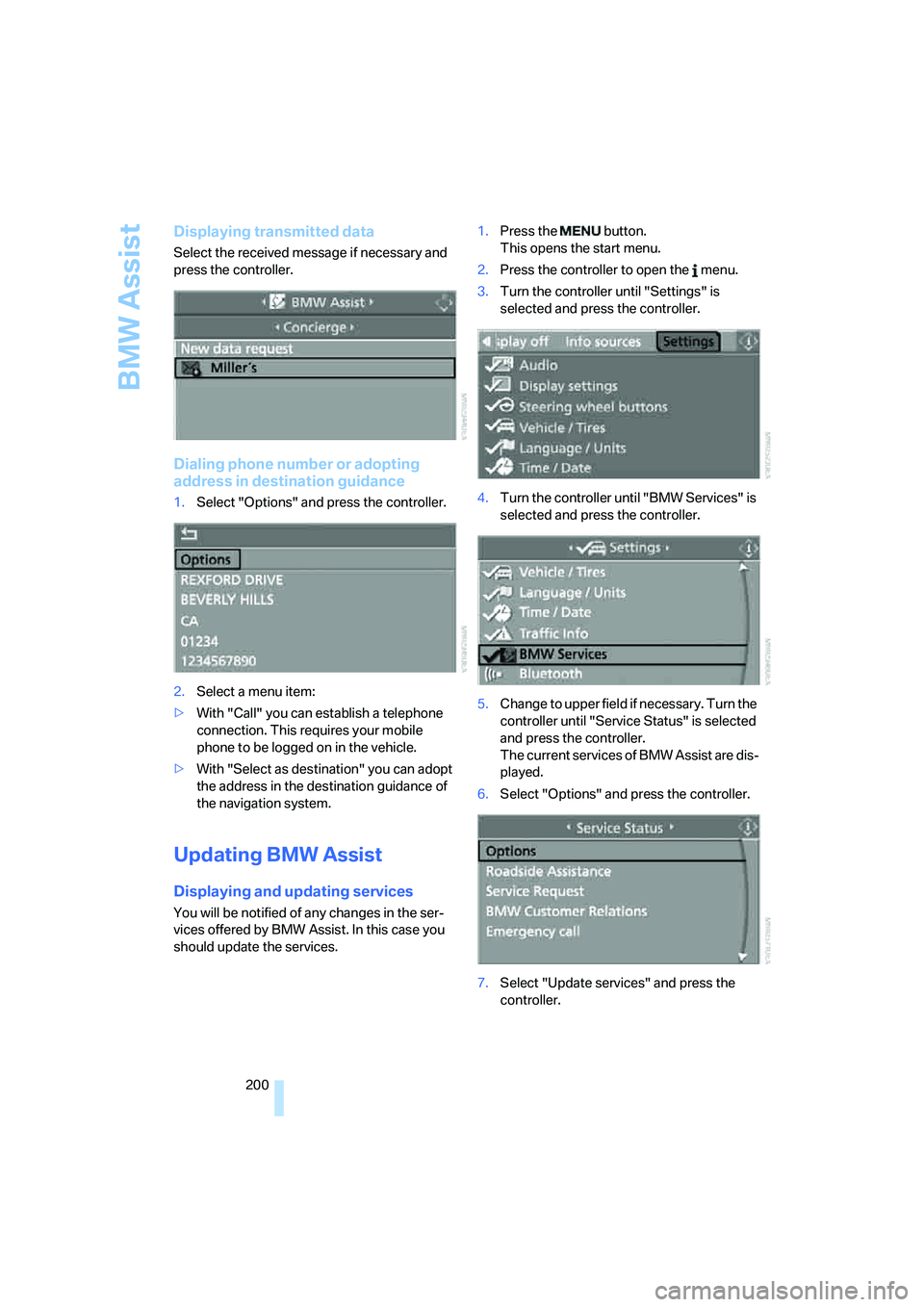
Displaying transmitted data
Select the received message if necessary and
press the controller.
Dialing phone number or adopting
address in destination guidance
1.Select "Options" and press the controller.
2.Select a menu item:
>With "Call" you can establish a telephone
connection. This requires your mobile
phone to be logged on in the vehicle.
>With "Select as destination" you can adopt
the address in the destination guidance of
the navigation system.
Updating BMW Assist
Displaying and updating services
You will be notified of any changes in the ser-
vices offered by BMW Assist. In this case you
should update the services.1.Press the button.
This opens the start menu.
2.Press the controller to open the menu.
3.Turn the controller until "Settings" is
selected and press the controller.
4.Turn the controller until "BMW Services" is
selected and press the controller.
5.Change to upper field if necessary. Turn the
controller until "Service Status" is selected
and press the controller.
The current services of BMW Assist are dis-
played.
6.Select "Options" and press the controller.
7.Select "Update services" and press the
controller.
Page 203 of 273
201
Entertainment
Reference
At a glance
Controls
Driving tips Communications
Navigation
Mobility
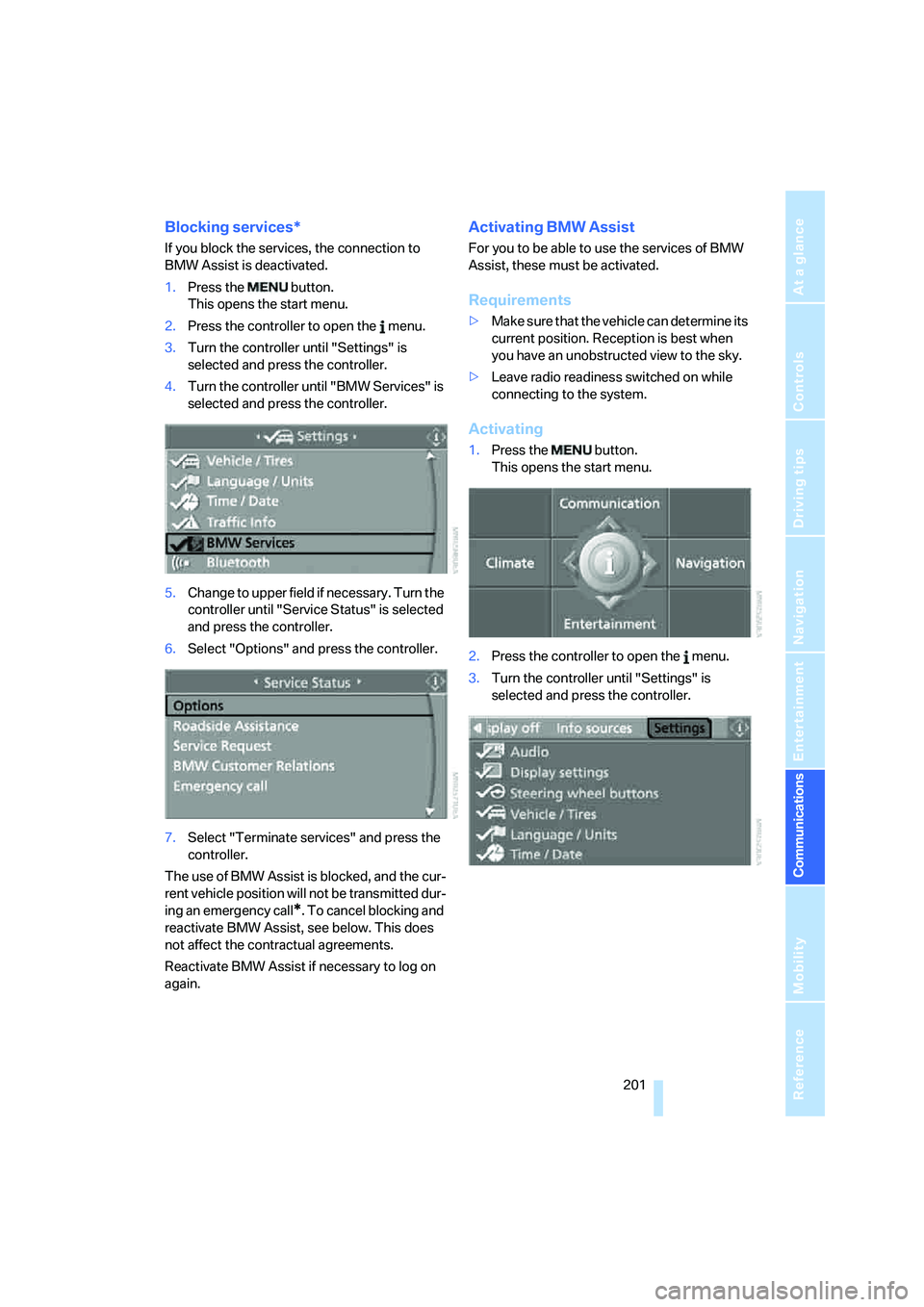
Blocking services*
If you block the services, the connection to
BMW Assist is deactivated.
1.Press the button.
This opens the start menu.
2.Press the controller to open the menu.
3.Turn the controller until "Settings" is
selected and press the controller.
4.Turn the controller until "BMW Services" is
selected and press the controller.
5.Change to upper field if necessary. Turn the
controller until "Service Status" is selected
and press the controller.
6.Select "Options" and press the controller.
7.Select "Terminate services" and press the
controller.
The use of BMW Assist is blocked, and the cur-
rent vehicle position will not be transmitted dur-
ing an emergency call
*. To cancel blocking and
reactivate BMW Assist, see below. This does
not affect the contractual agreements.
Reactivate BMW Assist if necessary to log on
again.
Activating BMW Assist
For you to be able to use the services of BMW
Assist, these must be activated.
Requirements
>Make sure that the vehicle can determine its
current position. Reception is best when
you have an unobstructed view to the sky.
>Leave radio readiness switched on while
connecting to the system.
Activating
1.Press the button.
This opens the start menu.
2.Press the controller to open the menu.
3.Turn the controller until "Settings" is
selected and press the controller.