language BMW 525XI 2007 Owners Manual
[x] Cancel search | Manufacturer: BMW, Model Year: 2007, Model line: 525XI, Model: BMW 525XI 2007Pages: 273, PDF Size: 8.96 MB
Page 24 of 273
Voice command system
22
Voice command system
The concept
The voice command system allows you to con-
trol operation of various vehicle systems with-
out ever removing your hands from the steering
wheel.
Individual menu items on the Control Display
can be spoken as commands. This frees you of
having to use the controller.
The voice command system transforms your
oral commands into control signals for the
selected systems and provides support in the
form of instructions or questions.
The voice command system uses a special
microphone located in the area of the interior
rearview mirror, refer to page14.
Precondition
Via iDrive, set the language that applies for the
voice command system in order to enable iden-
tification of the spoken commands. To set the
language of iDrive, refer to page85.
Symbols in Owner's Manual
Voice commands
Activating voice command system
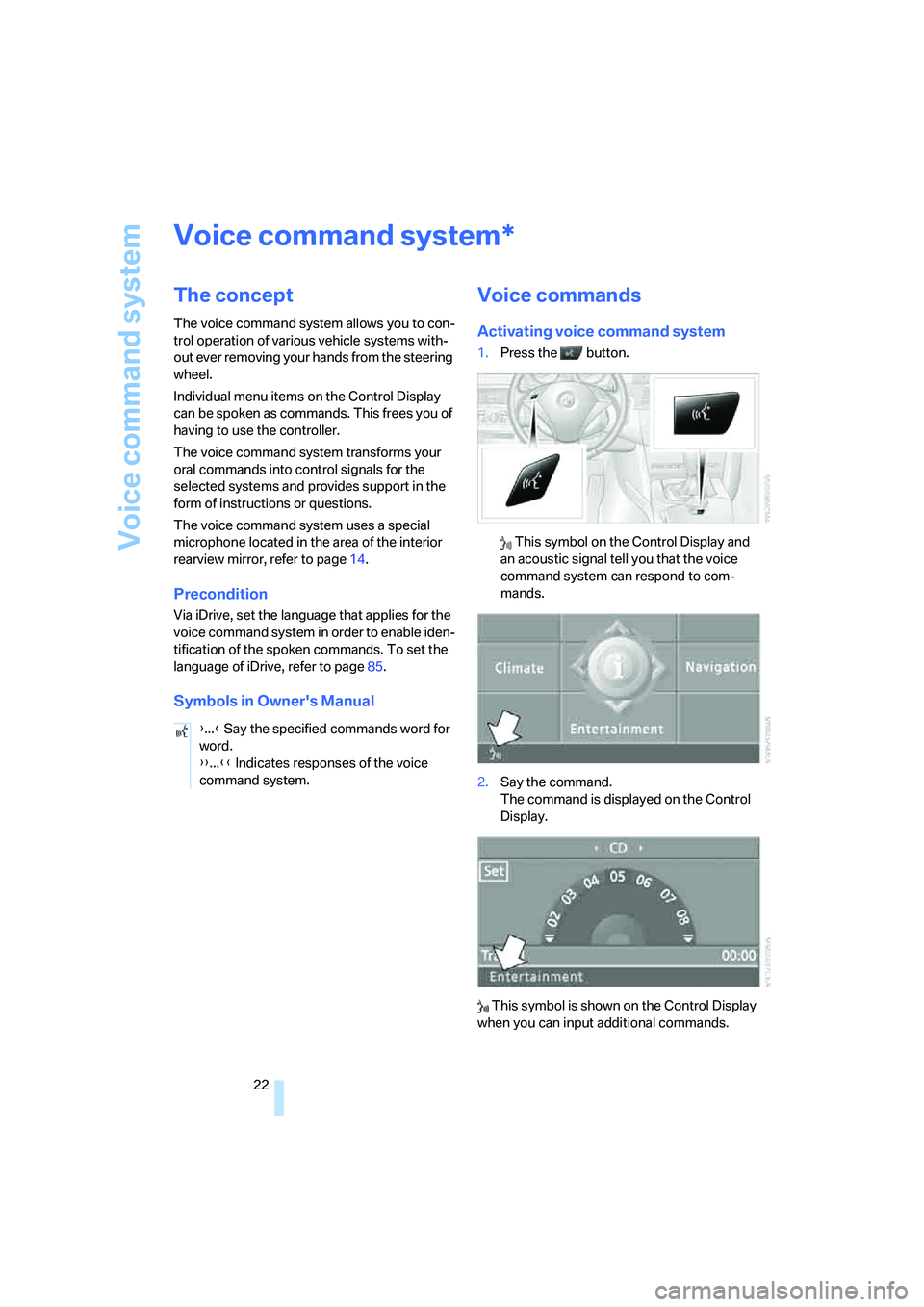
1.Press the button.
This symbol on the Control Display and
an acoustic signal tell you that the voice
command system can respond to com-
mands.
2.Say the command.
The command is displayed on the Control
Display.
This symbol is shown on the Control Display
when you can input additional commands.
*
{...} Say the specified commands word for
word.
{{...}} Indicates responses of the voice
command system.
Page 26 of 273
Voice command system
24
Notes
The mobile phone can also be operated
with voice commands, refer to
page191.<
For voice commands, bear the following in
mind:
>Say the commands and numbers smoothly
and at normal volume, avoiding excessive
emphasis and pauses. This also applies to
spelling when entering the destination.
>Always issue commands in the language of
the voice command system.
>When selecting a radio station, use the
common pronunciation of the station name.
>For entries in the voice-activated phone
book, only use names in the language of the
voice command system and no abbrevia-
tions.
>Keep the doors, windows and glass sun-
roof
* or panorama glass sunroof* closed to
avoid interfering outside noise.
>Avoid making other noise in the vehicle
while speaking.
Page 31 of 273
Controls
29Reference
At a glance
Driving tips
Communications
Navigation
Entertainment
Mobility
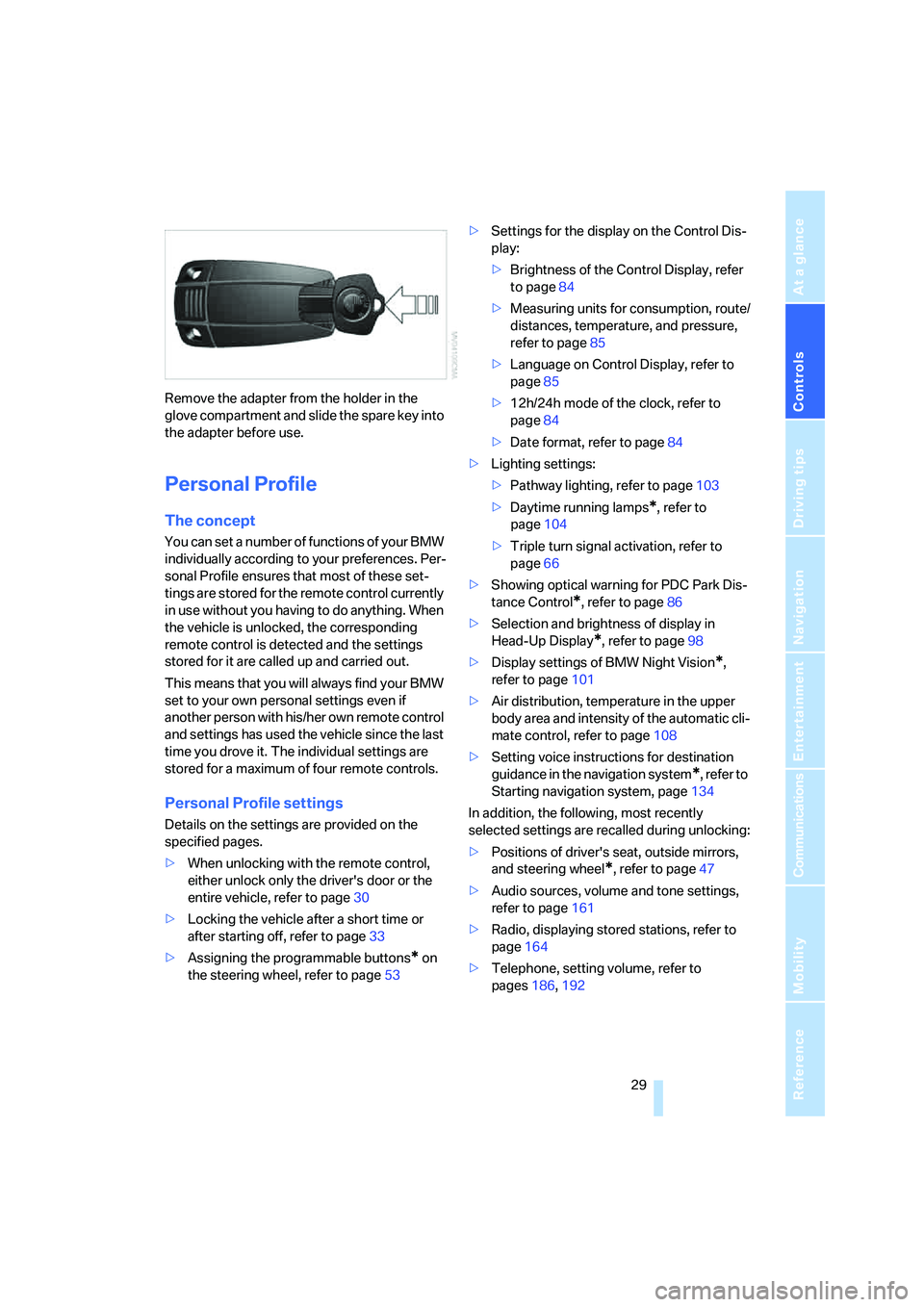
Remove the adapter from the holder in the
glove compartment and slide the spare key into
the adapter before use.
Personal Profile
The concept
You can set a number of functions of your BMW
individually according to your preferences. Per-
sonal Profile ensures that most of these set-
tings are stored for the remote control currently
in use without you having to do anything. When
the vehicle is unlocked, the corresponding
remote control is detected and the settings
stored for it are called up and carried out.
This means that you will always find your BMW
set to your own personal settings even if
another person with his/her own remote control
and settings has used the vehicle since the last
time you drove it. The individual settings are
stored for a maximum of four remote controls.
Personal Profile settings
Details on the settings are provided on the
specified pages.
>When unlocking with the remote control,
either unlock only the driver's door or the
entire vehicle, refer to page30
>Locking the vehicle after a short time or
after starting off, refer to page33
>Assigning the programmable buttons
* on
the steering wheel, refer to page53>Settings for the display on the Control Dis-
play:
>Brightness of the Control Display, refer
to page84
>Measuring units for consumption, route/
distances, temperature, and pressure,
refer to page85
>Language on Control Display, refer to
page85
>12h/24h mode of the clock, refer to
page84
>Date format, refer to page84
>Lighting settings:
>Pathway lighting, refer to page103
>Daytime running lamps
*, refer to
page104
>Triple turn signal activation, refer to
page66
>Showing optical warning for PDC Park Dis-
tance Control
*, refer to page86
>Selection and brightness of display in
Head-Up Display
*, refer to page98
>Display settings of BMW Night Vision
*,
refer to page101
>Air distribution, temperature in the upper
body area and intensity of the automatic cli-
mate control, refer to page108
>Setting voice instructions for destination
guidance in the navigation system
*, refer to
Starting navigation system, page134
In addition, the following, most recently
selected settings are recalled during unlocking:
>Positions of driver's seat, outside mirrors,
and steering wheel
*, refer to page47
>Audio sources, volume and tone settings,
refer to page161
>Radio, displaying stored stations, refer to
page164
>Telephone, setting volume, refer to
pages186,192
Page 87 of 273
Controls
85Reference
At a glance
Driving tips
Communications
Navigation
Entertainment
Mobility
5.Change to upper field if necessary. Turn the
controller until "Brightness" is selected and
press the controller.
6.If necessary, move the controller to the right
to select "Display".
7.Turn the controller until the desired setting
is selected.
The setting is stored for the remote control cur-
rently in use.
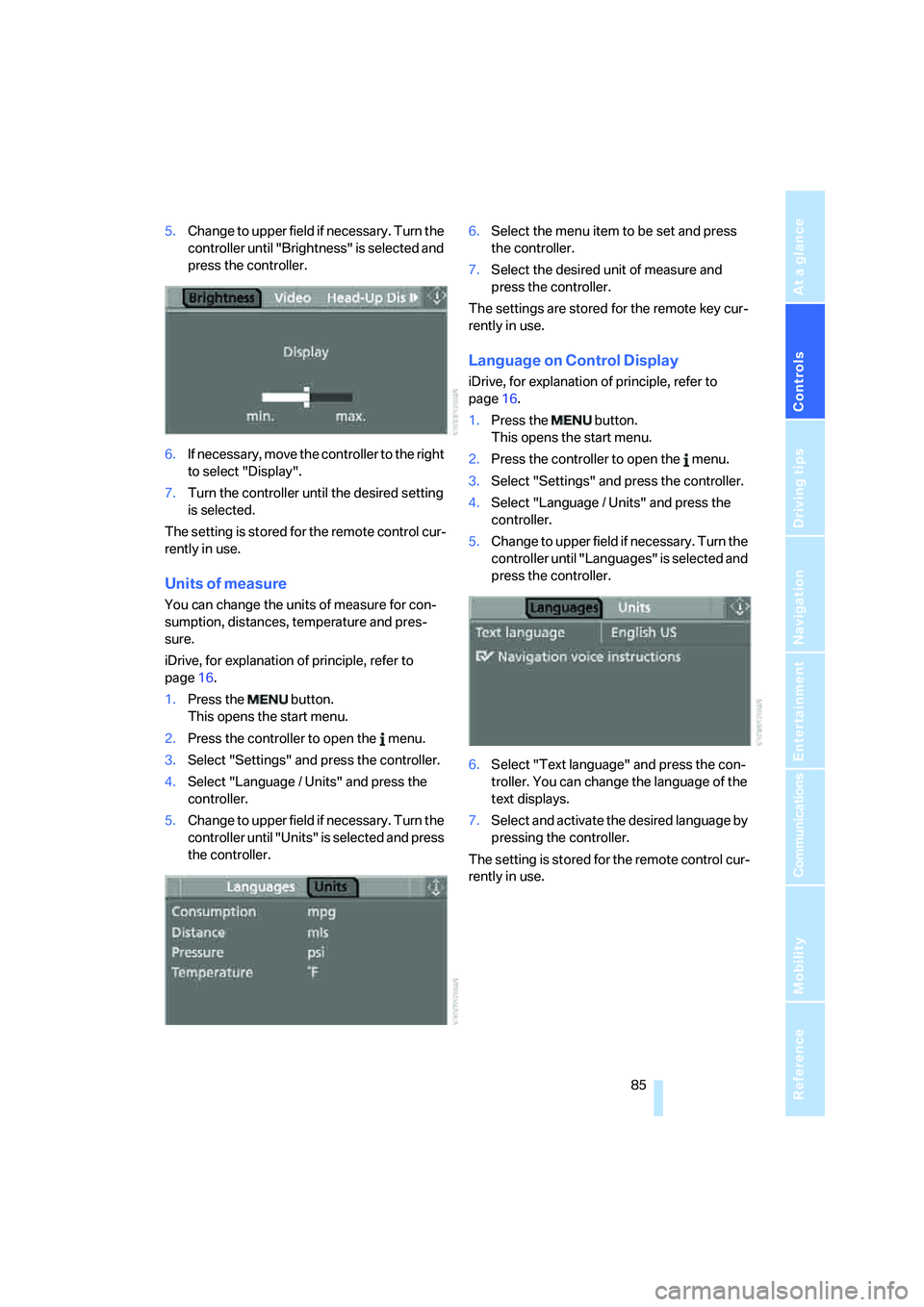
Units of measure
You can change the units of measure for con-
sumption, distances, temperature and pres-
sure.
iDrive, for explanation of principle, refer to
page16.
1.Press the button.
This opens the start menu.
2.Press the controller to open the menu.
3.Select "Settings" and press the controller.
4.Select "Language / Units" and press the
controller.
5.Change to upper field if necessary. Turn the
controller until "Units" is selected and press
the controller.6.Select the menu item to be set and press
the controller.
7.Select the desired unit of measure and
press the controller.
The settings are stored for the remote key cur-
rently in use.
Language on Control Display
iDrive, for explanation of principle, refer to
page16.
1.Press the button.
This opens the start menu.
2.Press the controller to open the menu.
3.Select "Settings" and press the controller.
4.Select "Language / Units" and press the
controller.
5.Change to upper field if necessary. Turn the
controller until "Languages" is selected and
press the controller.
6.Select "Text language" and press the con-
troller. You can change the language of the
text displays.
7.Select and activate the desired language by
pressing the controller.
The setting is stored for the remote control cur-
rently in use.
Page 141 of 273
Navigation
Driving tips
139Reference
At a glance
Controls
Communications
Entertainment
Mobility
Selecting country
1.Wait for the system to ask for the country of
destination.
Say the name of the country of destination in
the language of the voice command system.
Entering destination
The destination can be spelled or entered as an
entire word.
Spelling destination
To enter the destination, spell it using the
orthography of the country of destination.
Pronounce the letters smoothly and at normal
volume, avoiding excessive emphasis and
pauses.
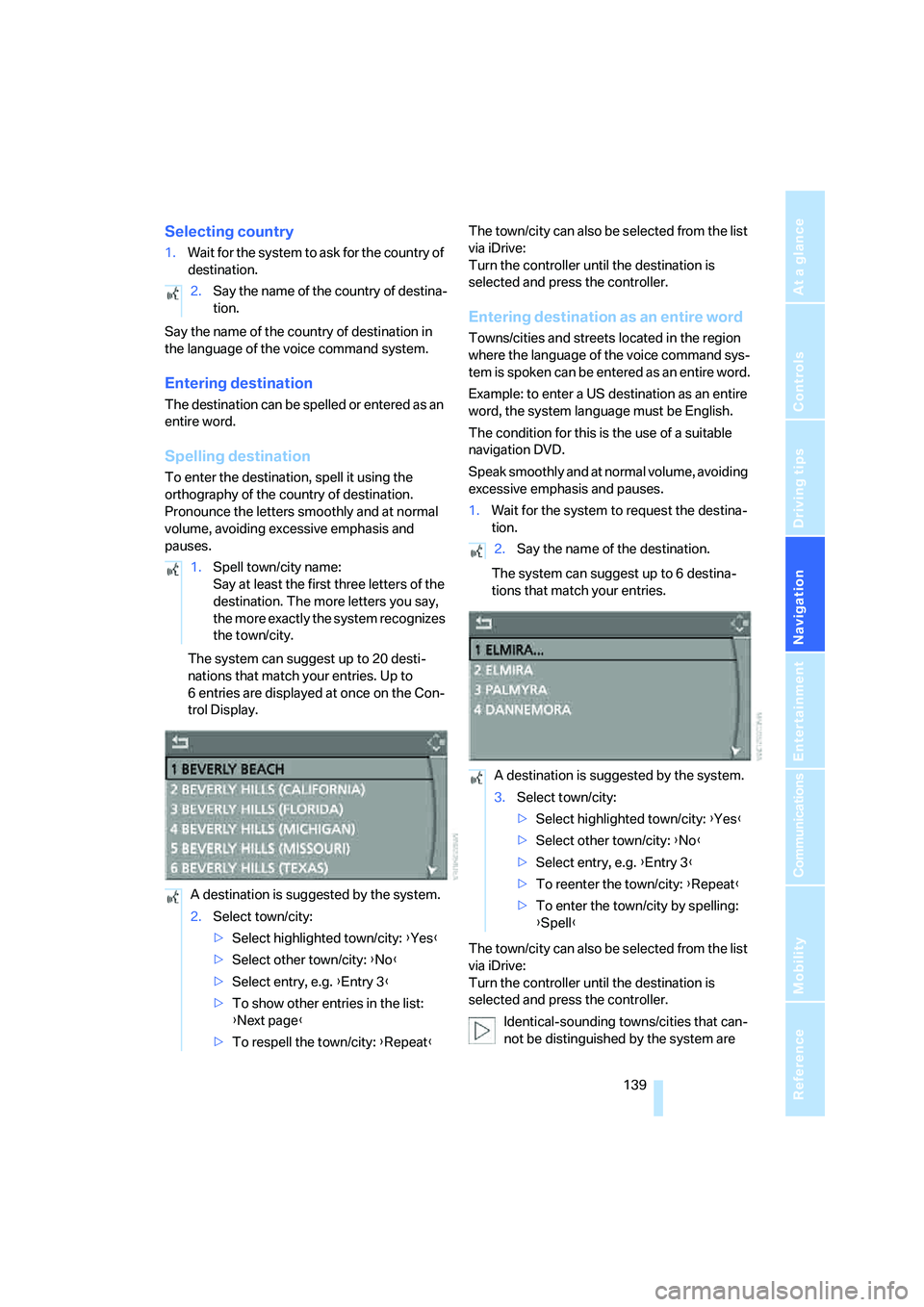
The system can suggest up to 20 desti-
nations that match your entries. Up to
6 entries are displayed at once on the Con-
trol Display.The town/city can also be selected from the list
via iDrive:
Turn the controller until the destination is
selected and press the controller.
Entering destination as an entire word
Towns/cities and streets located in the region
where the language of the voice command sys-
tem is spoken can be entered as an entire word.
Example: to enter a US destination as an entire
word, the system language must be English.
The condition for this is the use of a suitable
navigation DVD.
Speak smoothly and at normal volume, avoiding
excessive emphasis and pauses.
1.Wait for the system to request the destina-
tion.
The system can suggest up to 6 destina-
tions that match your entries.
The town/city can also be selected from the list
via iDrive:
Turn the controller until the destination is
selected and press the controller.
Identical-sounding towns/cities that can-
not be distinguished by the system are 2.Say the name of the country of destina-
tion.
1.Spell town/city name:
Say at least the first three letters of the
destination. The more letters you say,
the more exactly the system recognizes
the town/city.
A destination is suggested by the system.
2.Select town/city:
>Select highlighted town/city: {Yes}
>Select other town/city: {No}
>Select entry, e.g. {Entry 3}
>To show other entries in the list:
{Next page}
>To respell the town/city: {Repeat}
2.Say the name of the destination.
A destination is suggested by the system.
3.Select town/city:
>Select highlighted town/city: {Yes}
>Select other town/city: {No}
>Select entry, e.g. {Entry 3}
>To reenter the town/city: {Repeat}
>To enter the town/city by spelling:
{Spell}
Page 152 of 273
Destination guidance
150
Destination guidance via
voice instructions
Switching voice instructions on/off
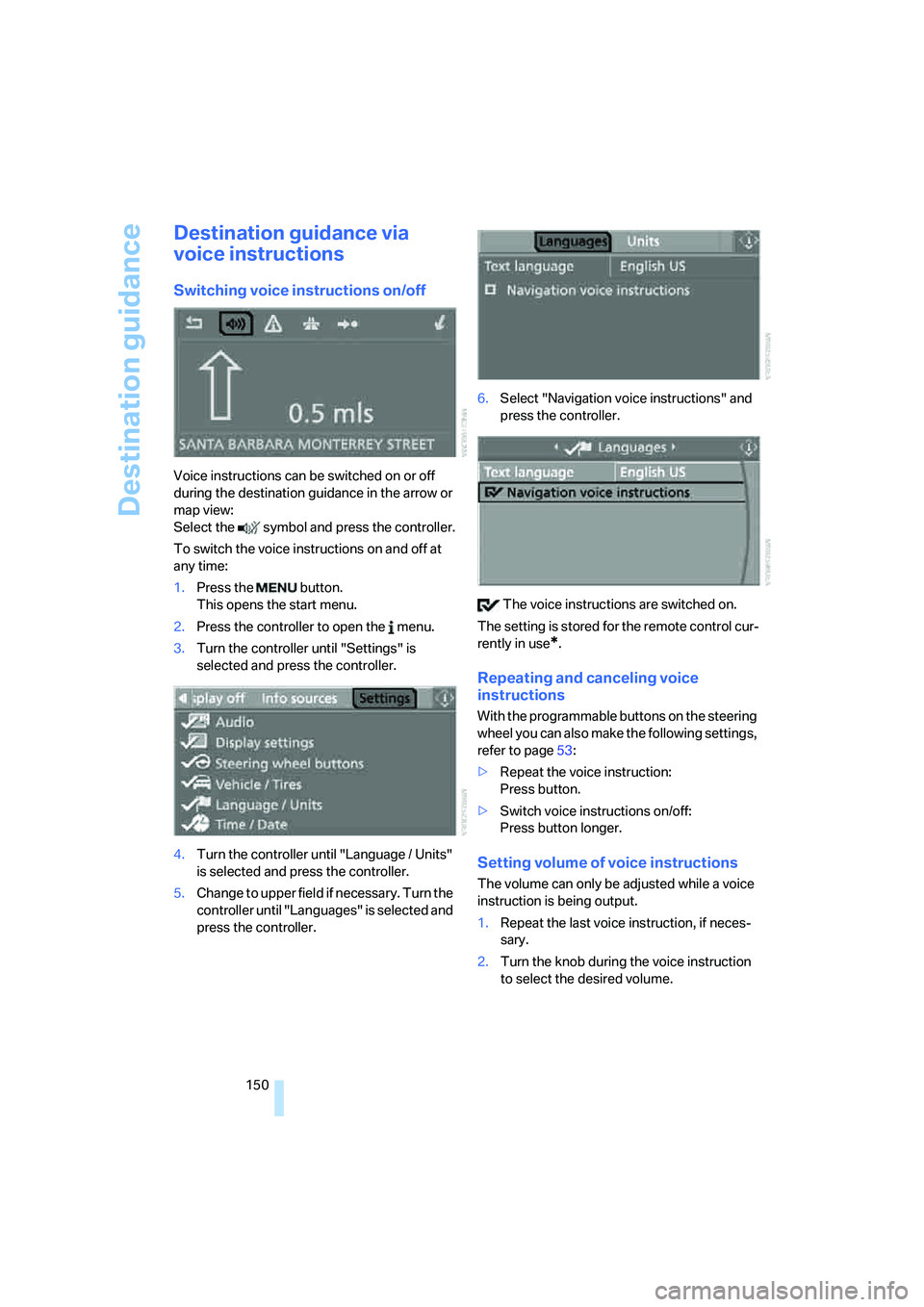
Voice instructions can be switched on or off
during the destination guidance in the arrow or
map view:
Select the symbol and press the controller.
To switch the voice instructions on and off at
any time:
1.Press the button.
This opens the start menu.
2.Press the controller to open the menu.
3.Turn the controller until "Settings" is
selected and press the controller.
4.Turn the controller until "Language / Units"
is selected and press the controller.
5.Change to upper field if necessary. Turn the
controller until "Languages" is selected and
press the controller.6.Select "Navigation voice instructions" and
press the controller.
The voice instructions are switched on.
The setting is stored for the remote control cur-
rently in use
*.
Repeating and canceling voice
instructions
With the programmable buttons on the steering
wheel you can also make the following settings,
refer to page53:
>Repeat the voice instruction:
Press button.
>Switch voice instructions on/off:
Press button longer.
Setting volume of voice instructions
The volume can only be adjusted while a voice
instruction is being output.
1.Repeat the last voice instruction, if neces-
sary.
2.Turn the knob during the voice instruction
to select the desired volume.
Page 196 of 273
Telephoning
194
Selecting an entry
The connection to the phone number of the
selected entry is established.
Redialing
The {Redial} command calls "Redial".
Notes
The commands in English were available
as of this printing. Other languages are
currently not available. To operate the mobile
phone via the voice command system, refer to
page22.<
Important for voice commands
For voice commands, keep the following in
mind:
>Issue the commands smoothly and at nor-
mal volume, avoiding excessive emphasis
and pauses.
>Keep the doors, windows and glass sunroof
closed to prevent interference from ambi-
ent noise.
>Avoid making other noise in the vehicle
while speaking.
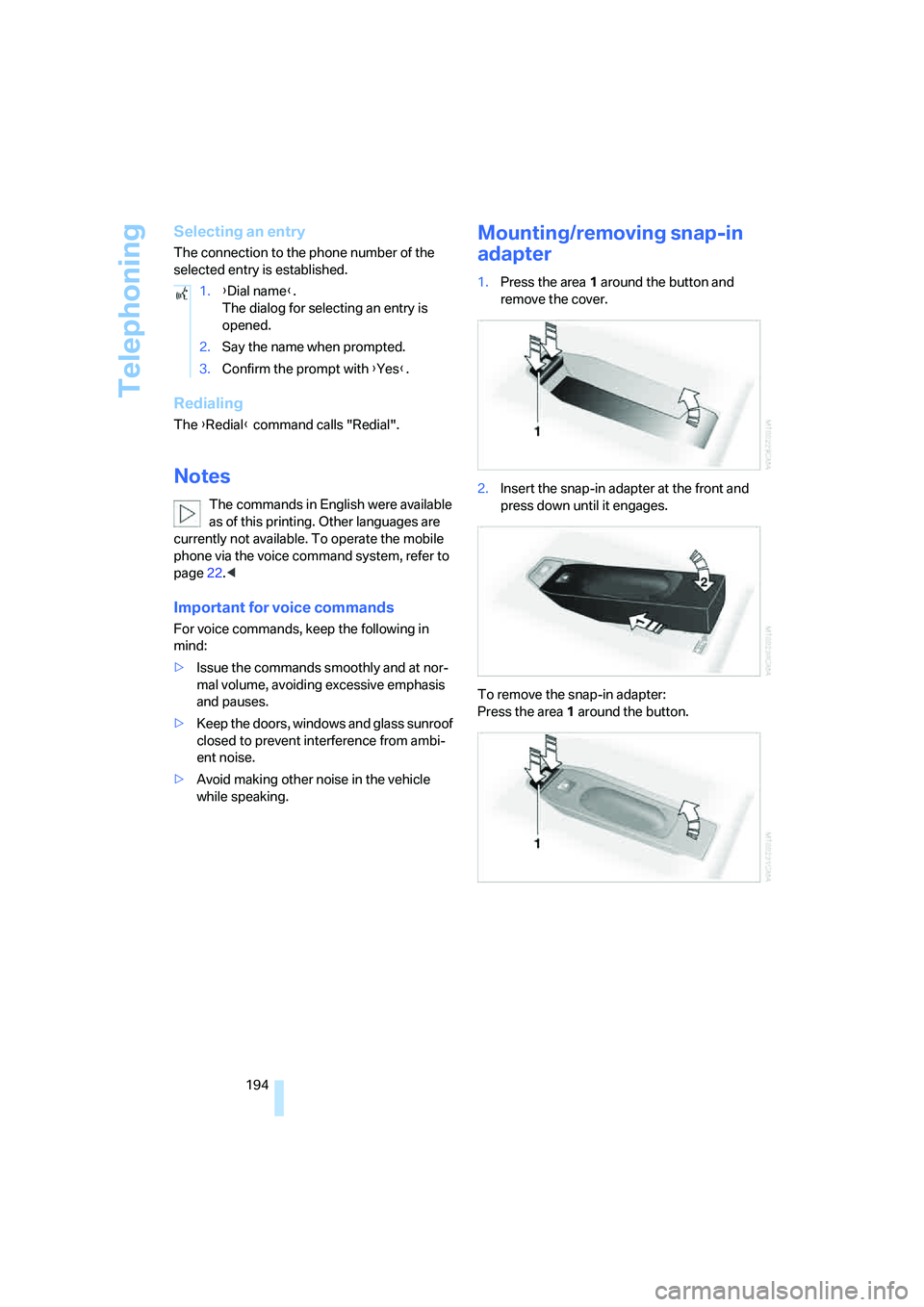
Mounting/removing snap-in
adapter
1.Press the area 1 around the button and
remove the cover.
2.Insert the snap-in adapter at the front and
press down until it engages.
To remove the snap-in adapter:
Press the area 1 around the button. 1.{Dial name}.
The dialog for selecting an entry is
opened.
2.Say the name when prompted.
3.Confirm the prompt with {Yes}.
Page 248 of 273
Short commands of voice command system
246
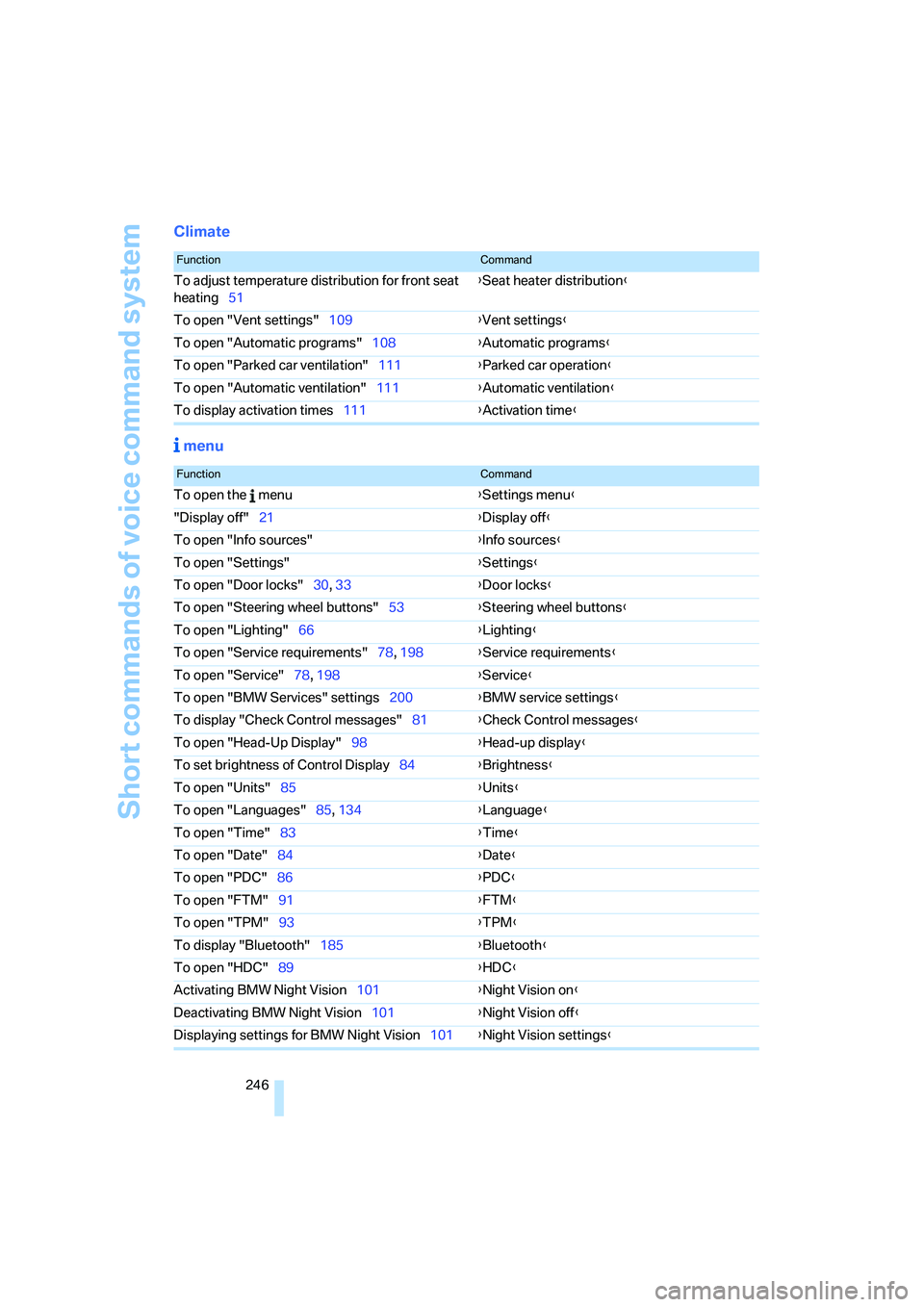
Climate
menu
FunctionCommand
To adjust temperature distribution for front seat
heating51{Seat heater distribution}
To open "Vent settings"109{Vent settings}
To open "Automatic programs"108{Automatic programs}
To open "Parked car ventilation"111{Parked car operation}
To open "Automatic ventilation"111{Automatic ventilation}
To display activation times111{Activation time}
FunctionCommand
To open the menu{Settings menu}
"Display off"21{Display off}
To open "Info sources"{Info sources}
To open "Settings"{Settings}
To open "Door locks"30, 33{Door locks}
To open "Steering wheel buttons"53{Steering wheel buttons}
To open "Lighting"66{Lighting}
To open "Service requirements"78, 198{Service requirements}
To open "Service"78, 198{Service}
To open "BMW Services" settings200{BMW service settings}
To display "Check Control messages"81{Check Control messages}
To open "Head-Up Display"98{Head-up display}
To set brightness of Control Display84{Brightness}
To open "Units"85{Units}
To open "Languages"85, 134{Language}
To open "Time"83{Time}
To open "Date"84{Date}
To open "PDC"86{PDC}
To open "FTM"91{FTM}
To open "TPM"
93{TPM}
To display "Bluetooth"185{Bluetooth}
To open "HDC"89{HDC}
Activating BMW Night Vision101{Night Vision on}
Deactivating BMW Night Vision101{Night Vision off}
Displaying settings for BMW Night Vision101{Night Vision settings}
Page 253 of 273
Reference 251
At a glance
Controls
Driving tips
Communications
Navigation
Entertainment
Mobility
Cargo bay
– capacity241
– emergency operation, refer
to Opening manually, Sports
Wagon36
– emergency release35
– expanding, Sports
Wagon120
– floor panel flap, refer to
Compartment in floor,
Sports Wagon121
– locking separately34
– opening/closing, refer to
Luggage compartment lid/
tailgate34
– opening from inside34
– opening from inside, Sports
Wagon35
– opening from outside34
– opening from outside,
Sports Wagon35
– opening with remote
control31
Cargo bay cover, refer to Roll-
up cover119
Caring for artificial leather,
refer to Caring for your
vehicle brochure
Caring for leather, refer to
Caring for your vehicle
brochure
Caring for light-alloy wheels,
refer to Caring for your
vehicle brochure
Caring for plastic, refer to the
Caring for your vehicle
brochure
Caring for the carpet, refer to
Caring for your vehicle
brochure
Caring for the vehicle finish,
refer to Caring for your
vehicle brochure
Car key, refer to Keys/remote
control28Car phone182
– installation location, refer to
Center armrest115
– refer to Mobile phone182
– refer to separate operating
instructions
Car radio, refer to Radio164
Car wash128
– also refer to Caring for your
vehicle brochure
– with comfort access40
Catalytic converter, refer to
Hot exhaust system126
"Categories"170
CBC Cornering Brake
Control87
CBS Condition Based
Service220
"CD"161,173
CD changer173
– controls160
– fast forward/reverse177
– installation location177
– random order176
– repeating a track
176
– sampling tracks175
– selecting a CD173
– selecting a track174
– switching on/off160
– tone control161
– volume161
CD player173
– controls160
– fast forward/reverse177
– random order176
– repeating a track176
– sampling a track175
– selecting a track174
– switching on/off160
– tone control161
– volume161
Center armrest
– front115
– rear118
Center brake lamp225
Center console14
"Central locking"30Central locking
– from inside33
– from outside30
Central locking system30
– comfort access38
Change "Route
preference"145
Changes, technical, refer to
For your own safety5
Changes, technical, refer to
Parts and accessories6
Changing language on
Control Display85
Changing scale for
navigation149
Changing units of measure on
Control Display85
Changing wheels214,226
CHECK button80
Check Control80
"Check Control
messages"81
Check Gas Cap207
Checking the air pressure,
refer to Tire inflation
pressure208
Child restraint fixing system
LATCH57
Child restraints55
Child restraint systems55
Child-safety lock58
Child seats, refer to
Transporting children
safely55
Chime, refer to Check
Control80
Chock226
Chrome parts, refer to Caring
for your vehicle brochure
Cigarette lighter117
Cigarette lighter socket, refer
to Connecting electrical
devices117
Cleaning, refer to Caring for
your vehicle brochure
"Climate"51,108
Page 259 of 273
Reference 257
At a glance
Controls
Driving tips
Communications
Navigation
Entertainment
Mobility
iDrive16
– assistance window20
– automatic climate control
with expanded scope108
– changing date and time83
– changing language85
– changing menu page19
– changing settings83
– changing units of measure
and display type85
– confirming selection or
entry19
– controller16
– controls16
– displays, menus17
– operating principle17
– selecting menu item19
– setting brightness84
– start menu17
– status information20
– symbols18
Ignition59
– switched off60
– switched on59
Ignition key, refer to Keys/
remote control28
Ignition key position 1, refer to
Radio readiness59
Ignition key position 2, refer to
Ignition on59
Ignition lock59
– starting engine with comfort
access40
i menu17
Imprint2
Indicator/warning lamps
– ABS Antilock Brake
System90
– active steering96
– airbags98
– brake system90
– DSC13,88
– DTC13,88
– Flat Tire Monitor92
– fog lamps13
– safety belt warning50
– TPM Tire Pressure
Monitor94Indicator and warning
lamps13
Inflation pressure, refer to Tire
inflation pressure208
Inflation pressure monitoring,
refer to Flat Tire Monitor91
Inflation pressure monitoring,
refer to TPM Tire Pressure
Monitor92
Info menu17
Information
– on another location141
– on current position141
– on destination location141
"Information" for
navigation141
Information menu, refer to
imenu17
"Information on
destination"142
Information service199
"Info sources"78
Initializing
– Flat Tire Monitor91
– radio, refer to Storing
stations166
– refer to Power failure229
– refer to Setting time and
date83
– seat, mirror and steering
wheel memory47
"Input map"140
Installation location
– CD changer177
– drive for navigation DVD134
– mobile phone115
Instructions for navigation
system, refer to Voice
instructions150
Instrument cluster12
Instrument illumination, refer
to Instrument lighting105
Instrument lighting105
Instrument panel, refer to
Cockpit10
Instrument panel, refer to
Instrument cluster12
Integrated key28Integrated universal remote
control113
Interesting destination for
navigation141
"Interim time"83
Interior lamps105
– switching on with remote
control31
Interior motion sensor38
– switching off38
Interior rearview mirror52
– automatic dimming
feature53
Interlock on automatic
transmission64
Intermittent mode of the
wipers66
J
Jacking points228
Joystick, refer to iDrive16
Jumpering, refer to Jump
starting232
Jump starting232
K
Keyless-Go, refer to Comfort
access38
Keyless opening and closing,
refer to Comfort access38
Key Memory, refer to Personal
Profile29
"Keypad"191
Keys28
– key-related settings, refer to
Personal Profile29
– spare key28
Kick-down
– automatic transmission with
Steptronic65
– SMG Sequential Manual
Transmission63
Knock control207