display BMW 525XI SEDAN 2006 Repair Manual
[x] Cancel search | Manufacturer: BMW, Model Year: 2006, Model line: 525XI SEDAN, Model: BMW 525XI SEDAN 2006Pages: 259, PDF Size: 8.9 MB
Page 136 of 259
Destination entry
134 3.Select "Enter address" and press the con-
troller.
The system also supports you with the follow-
ing features:
>If you do not enter a street, the system will
guide you to the downtown area of a town or
city.
>You can skip the entry of country and local-
ity if the current entries should be retained
for your new destination.
Selecting country
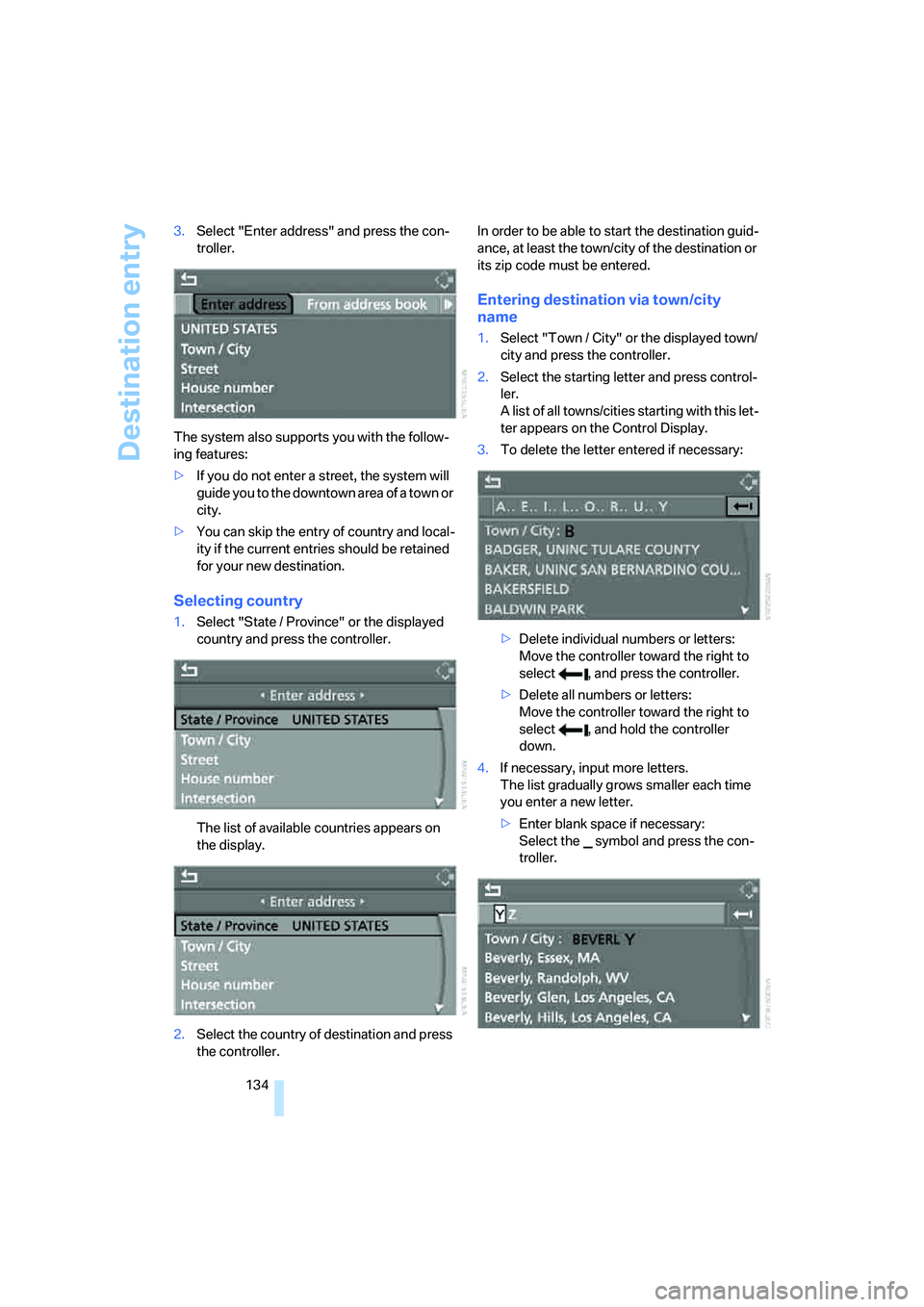
1.Select "State / Province" or the displayed
country and press the controller.
The list of available countries appears on
the display.
2.Select the country of destination and press
the controller.In order to be able to start the destination guid-
ance, at least the town/city of the destination or
its zip code must be entered.
Entering destination via town/city
name
1.Select "Town / City" or the displayed town/
city and press the controller.
2.Select the starting letter and press control-
ler.
A list of all towns/cities starting with this let-
ter appears on the Control Display.
3.To delete the letter entered if necessary:
>Delete individual numbers or letters:
Move the controller toward the right to
select , and press the controller.
>Delete all numbers or letters:
Move the controller toward the right to
select , and hold the controller
down.
4.If necessary, input more letters.
The list gradually grows smaller each time
you enter a new letter.
>Enter blank space if necessary:
Select the symbol and press the con-
troller.
Page 137 of 259
Navigation
Driving tips
135Reference
At a glance
Controls
Communications
Entertainment
Mobility
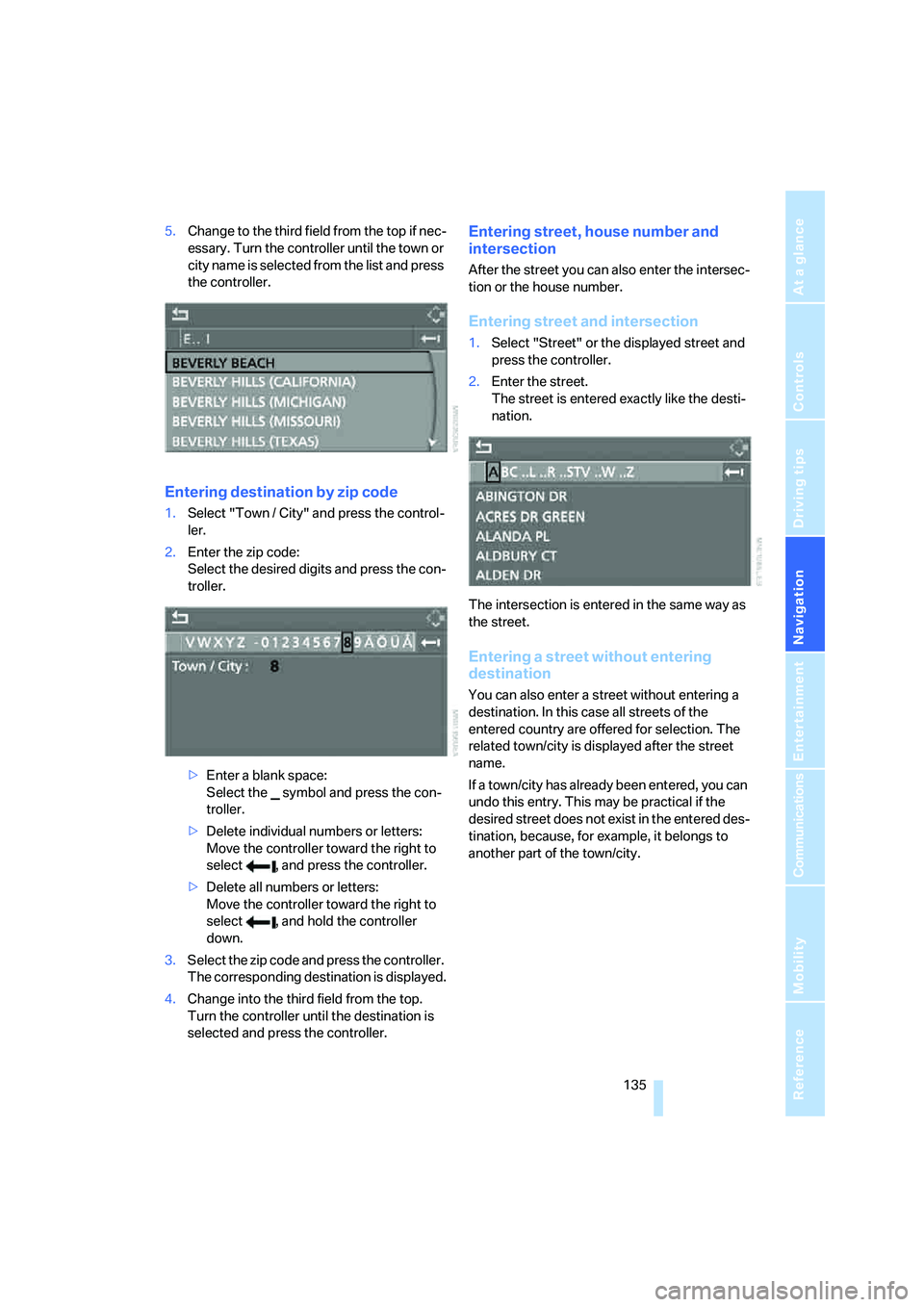
5.Change to the third field from the top if nec-
essary. Turn the controller until the town or
city name is selected from the list and press
the controller.
Entering destination by zip code
1.Select "Town / City" and press the control-
ler.
2.Enter the zip code:
Select the desired digits and press the con-
troller.
>Enter a blank space:
Select the symbol and press the con-
troller.
>Delete individual numbers or letters:
Move the controller toward the right to
select , and press the controller.
>Delete all numbers or letters:
Move the controller toward the right to
select , and hold the controller
down.
3.Select the zip code and press the controller.
The corresponding destination is displayed.
4.Change into the third field from the top.
Turn the controller until the destination is
selected and press the controller.
Entering street, house number and
intersection
After the street you can also enter the intersec-
tion or the house number.
Entering street and intersection
1.Select "Street" or the displayed street and
press the controller.
2.Enter the street.
The street is entered exactly like the desti-
nation.
The intersection is entered in the same way as
the street.
Entering a street without entering
destination
You can also enter a street without entering a
destination. In this case all streets of the
entered country are offered for selection. The
related town/city is displayed after the street
name.
If a town/city has already been entered, you can
undo this entry. This may be practical if the
desired street does not exist in the entered des-
tination, because, for example, it belongs to
another part of the town/city.
Page 139 of 259
Navigation
Driving tips
137Reference
At a glance
Controls
Communications
Entertainment
Mobility
Selecting country
Say the name of the destination country in the
language of the voice input system.
Entering destination
To enter the destination, spell it using the
orthography of the country of destination.
Say the letters smoothly and at normal volume,
avoiding excessive emphasis and pauses.
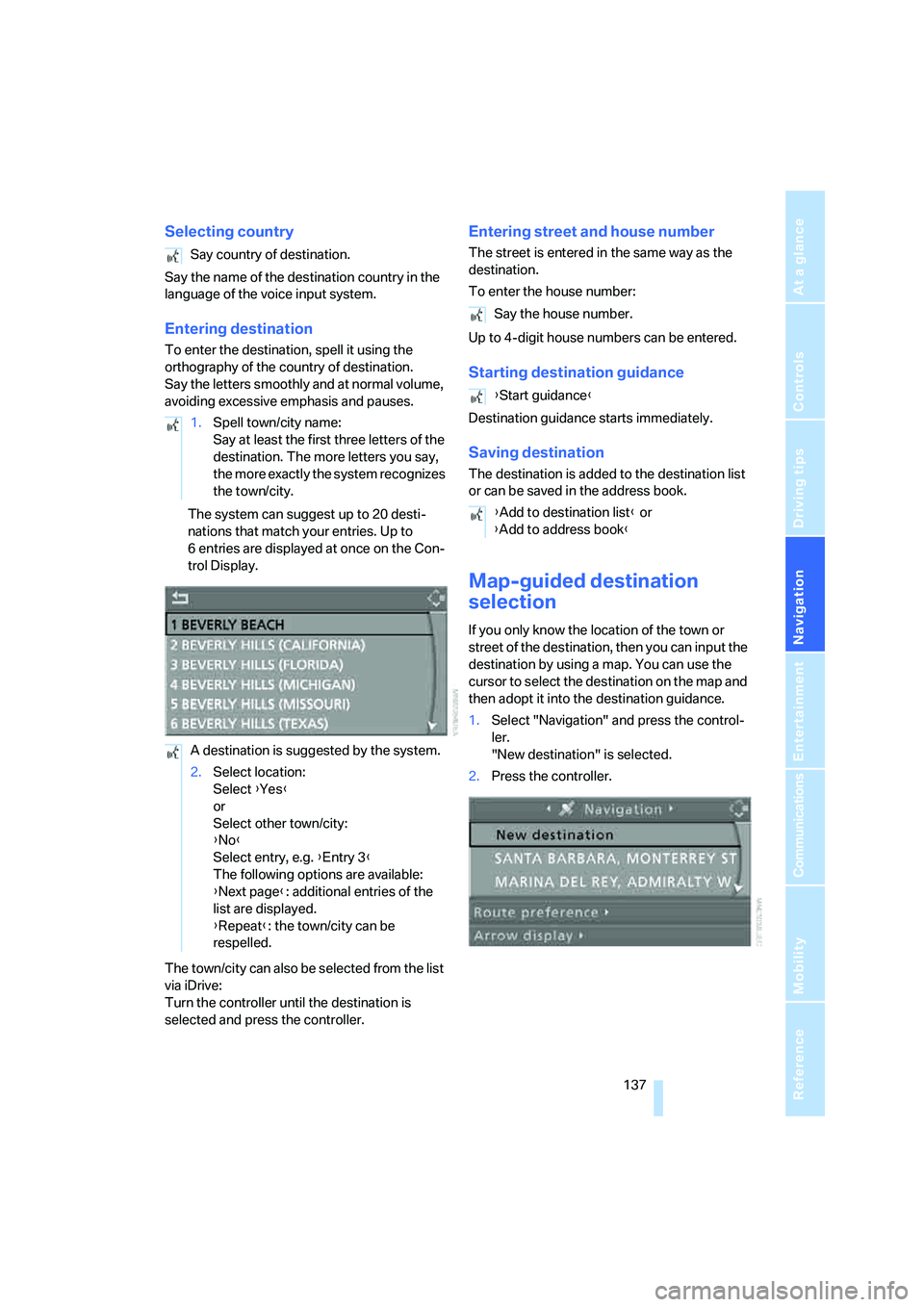
The system can suggest up to 20 desti-
nations that match your entries. Up to
6 entries are displayed at once on the Con-
trol Display.
The town/city can also be selected from the list
via iDrive:
Turn the controller until the destination is
selected and press the controller.
Entering street and house number
The street is entered in the same way as the
destination.
To enter the house number:
Up to 4-digit house numbers can be entered.
Starting destination guidance
Destination guidance starts immediately.
Saving destination
The destination is added to the destination list
or can be saved in the address book.
Map-guided destination
selection
If you only know the location of the town or
street of the destination, then you can input the
destination by using a map. You can use the
cursor to select the destination on the map and
then adopt it into the destination guidance.
1.Select "Navigation" and press the control-
ler.
"New destination" is selected.
2.Press the controller. Say country of destination.
1.Spell town/city name:
Say at least the first three letters of the
destination. The more letters you say,
the more exactly the system recognizes
the town/city.
A destination is suggested by the system.
2.Select location:
Select {Yes}
or
Select other town/city:
{No}
Select entry, e.g. {Entry 3}
The following options are available:
{Next page}: additional entries of the
list are displayed.
{Repeat}: the town/city can be
respelled.
Say the house number.
{Start guidance}
{Add to destination list} or
{Add to address book}
Page 140 of 259
Destination entry
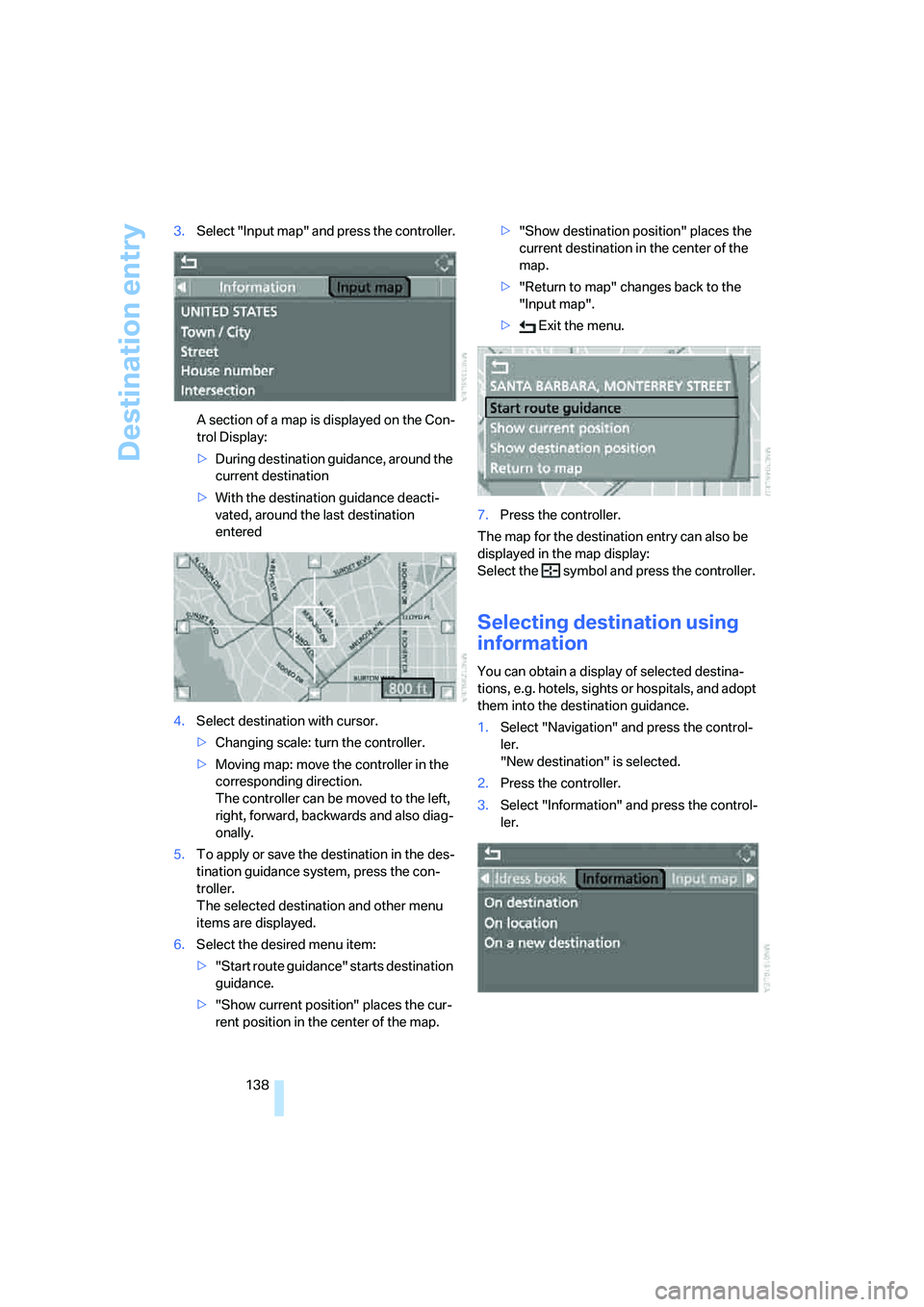
138 3.Select "Input map" and press the controller.
A section of a map is displayed on the Con-
trol Display:
>During destination guidance, around the
current destination
>With the destination guidance deacti-
vated, around the last destination
entered
4.Select destination with cursor.
>Changing scale: turn the controller.
>Moving map: move the controller in the
corresponding direction.
The controller can be moved to the left,
right, forward, backwards and also diag-
onally.
5.To apply or save the destination in the des-
tination guidance system, press the con-
troller.
The selected destination and other menu
items are displayed.
6.Select the desired menu item:
>"Start route guidance" starts destination
guidance.
>"Show current position" places the cur-
rent position in the center of the map.>"Show destination position" places the
current destination in the center of the
map.
>"Return to map" changes back to the
"Input map".
> Exit the menu.
7.Press the controller.
The map for the destination entry can also be
displayed in the map display:
Select the symbol and press the controller.
Selecting destination using
information
You can obtain a display of selected destina-
tions, e.g. hotels, sights or hospitals, and adopt
them into the destination guidance.
1.Select "Navigation" and press the control-
ler.
"New destination" is selected.
2.Press the controller.
3.Select "Information" and press the control-
ler.
Page 141 of 259
Navigation
Driving tips
139Reference
At a glance
Controls
Communications
Entertainment
Mobility
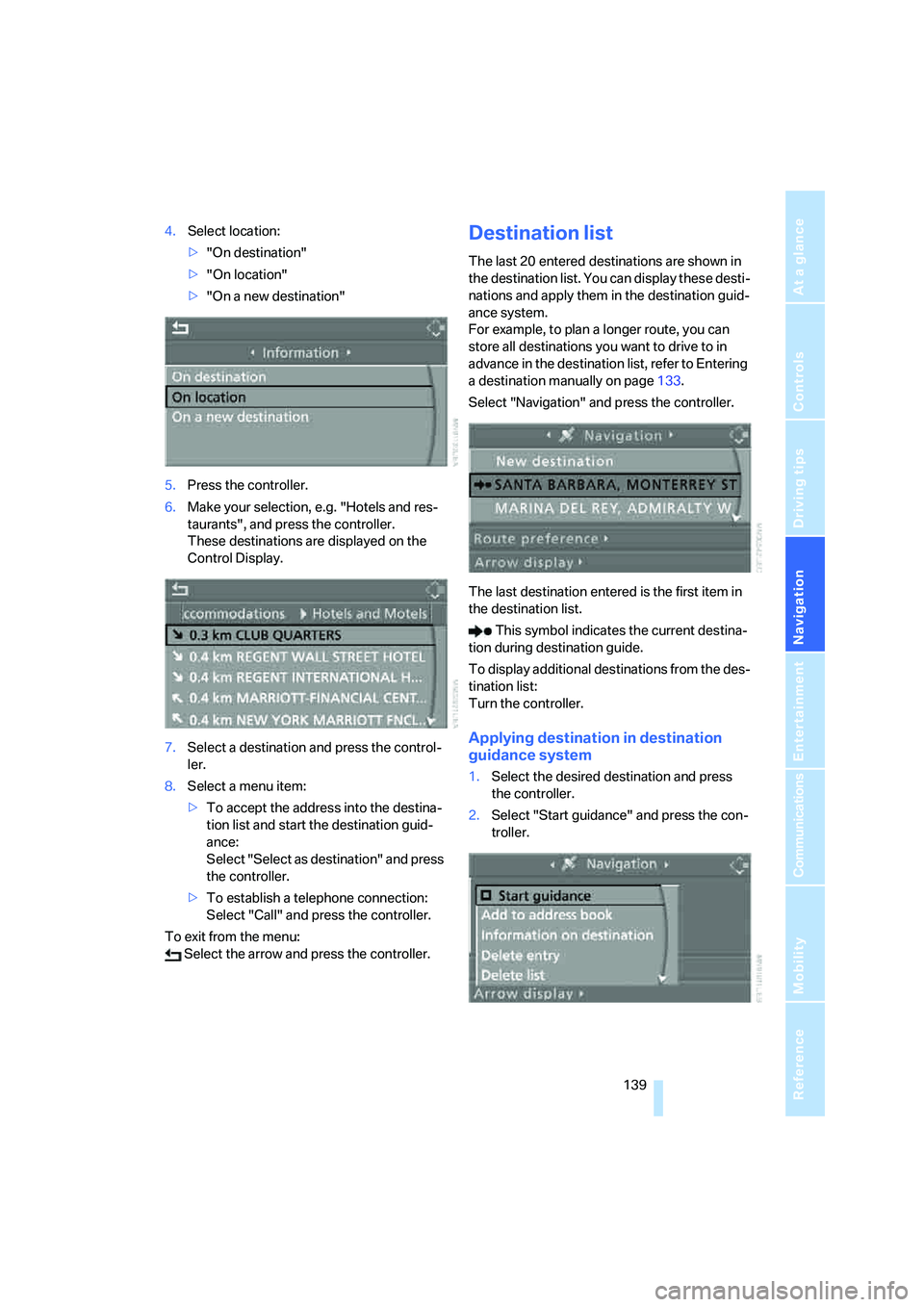
4.Select location:
>"On destination"
>"On location"
>"On a new destination"
5.Press the controller.
6.Make your selection, e.g. "Hotels and res-
taurants", and press the controller.
These destinations are displayed on the
Control Display.
7.Select a destination and press the control-
ler.
8.Select a menu item:
>To accept the address into the destina-
tion list and start the destination guid-
ance:
Select "Select as destination" and press
the controller.
>To establish a telephone connection:
Select "Call" and press the controller.
To exit from the menu:
Select the arrow and press the controller.Destination list
The last 20 entered destinations are shown in
the destination list. You can display these desti-
nations and apply them in the destination guid-
ance system.
For example, to plan a longer route, you can
store all destinations you want to drive to in
advance in the destination list, refer to Entering
a destination manually on page133.
Select "Navigation" and press the controller.
The last destination entered is the first item in
the destination list.
This symbol indicates the current destina-
tion during destination guide.
To display additional destinations from the des-
tination list:
Turn the controller.
Applying destination in destination
guidance system
1.Select the desired destination and press
the controller.
2.Select "Start guidance" and press the con-
troller.
Page 142 of 259
Destination entry
140
Editing destination list
1.Select the desired destination in the desti-
nation list and press the controller.
2.The selected destination can be edited:
>Save entry:
Select "Add to address book".
>Display information on destination:
Select "Information on destination".
>Delete entry:
Select "Delete entry".
>Delete all entries:
Select "Delete list". The destination
guidance is switched off.
>Change entry:
Select "Edit". For operation, refer to
Entering destination via town/city name,
page134.
3.Press the controller.
Address book
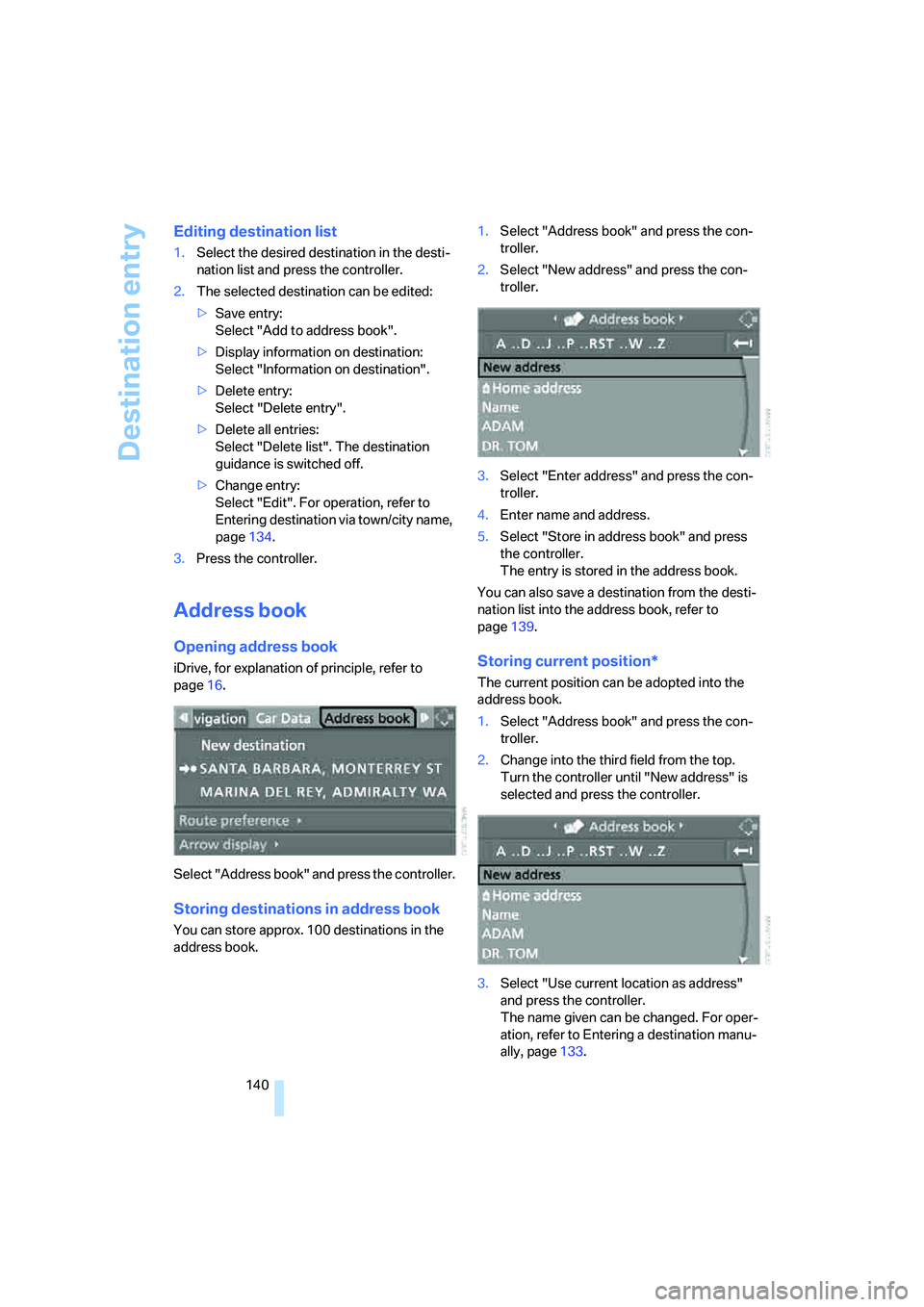
Opening address book
iDrive, for explanation of principle, refer to
page16.
Select "Address book" and press the controller.
Storing destinations in address book
You can store approx. 100 destinations in the
address book.1.Select "Address book" and press the con-
troller.
2.Select "New address" and press the con-
troller.
3.Select "Enter address" and press the con-
troller.
4.Enter name and address.
5.Select "Store in address book" and press
the controller.
The entry is stored in the address book.
You can also save a destination from the desti-
nation list into the address book, refer to
page139.
Storing current position*
The current position can be adopted into the
address book.
1.Select "Address book" and press the con-
troller.
2.Change into the third field from the top.
Turn the controller until "New address" is
selected and press the controller.
3.Select "Use current location as address"
and press the controller.
The name given can be changed. For oper-
ation, refer to Entering a destination manu-
ally, page133.
Page 143 of 259
Navigation
Driving tips
141Reference
At a glance
Controls
Communications
Entertainment
Mobility
4.Select "Store in address book" and press
the controller.
You can also enter your current position into the
address book if you have left the sector covered
by the navigation DVD. In this case, you must
enter a name.
Selecting destinations from address
book
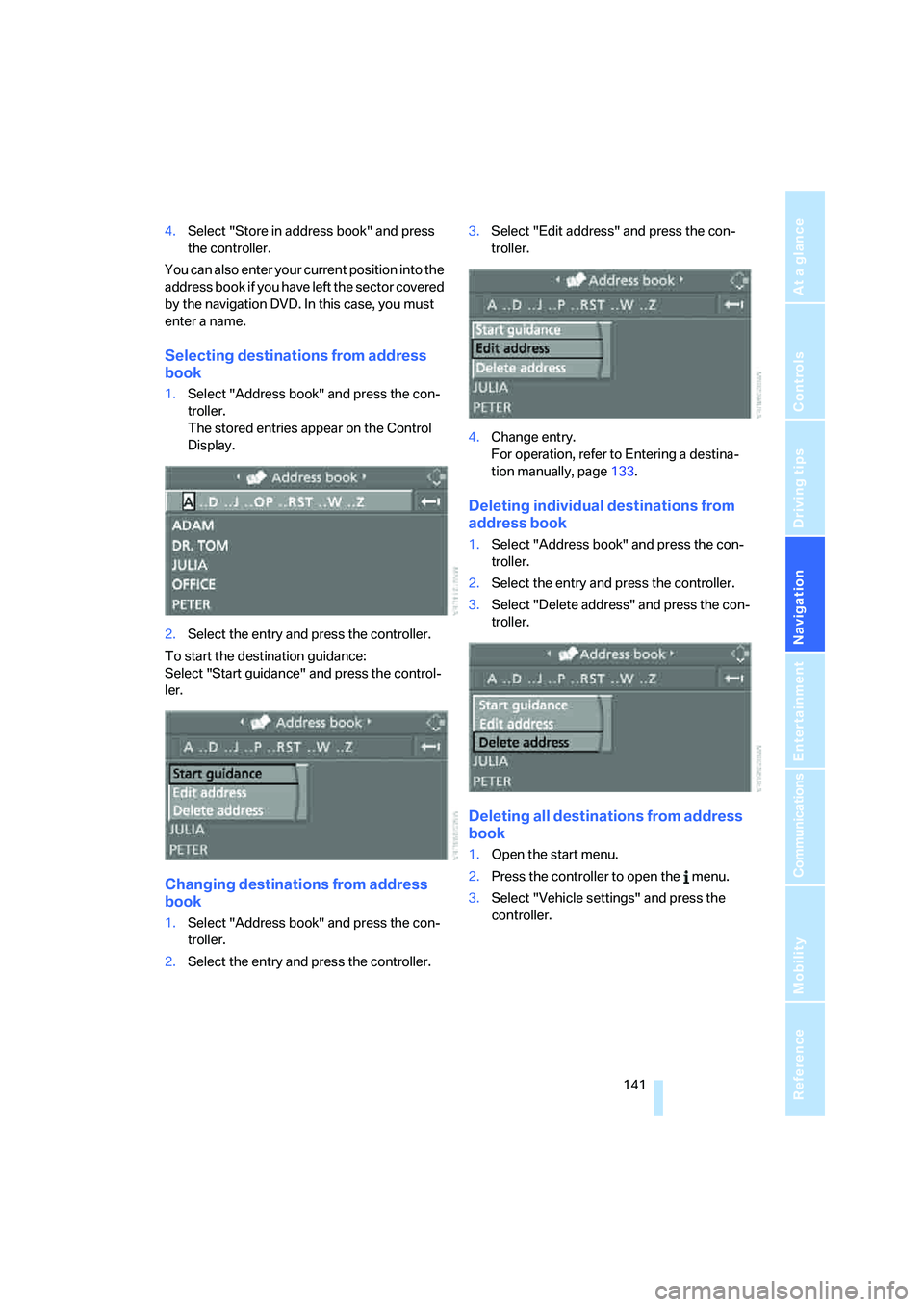
1.Select "Address book" and press the con-
troller.
The stored entries appear on the Control
Display.
2.Select the entry and press the controller.
To start the destination guidance:
Select "Start guidance" and press the control-
ler.
Changing destinations from address
book
1.Select "Address book" and press the con-
troller.
2.Select the entry and press the controller.3.Select "Edit address" and press the con-
troller.
4.Change entry.
For operation, refer to Entering a destina-
tion manually, page133.
Deleting individual destinations from
address book
1.Select "Address book" and press the con-
troller.
2.Select the entry and press the controller.
3.Select "Delete address" and press the con-
troller.
Deleting all destinations from address
book
1.Open the start menu.
2.Press the controller to open the menu.
3.Select "Vehicle settings" and press the
controller.
Page 144 of 259
Destination entry
142 4.Select "Delete data" and press the control-
ler.
5.Select "Delete address book" and press the
controller.
6.Select "Yes" and press the controller.
Storing home address
You can save your current position or the cur-
rent destination as the home address in the
address book. This entry occupies the second
position in the address book.
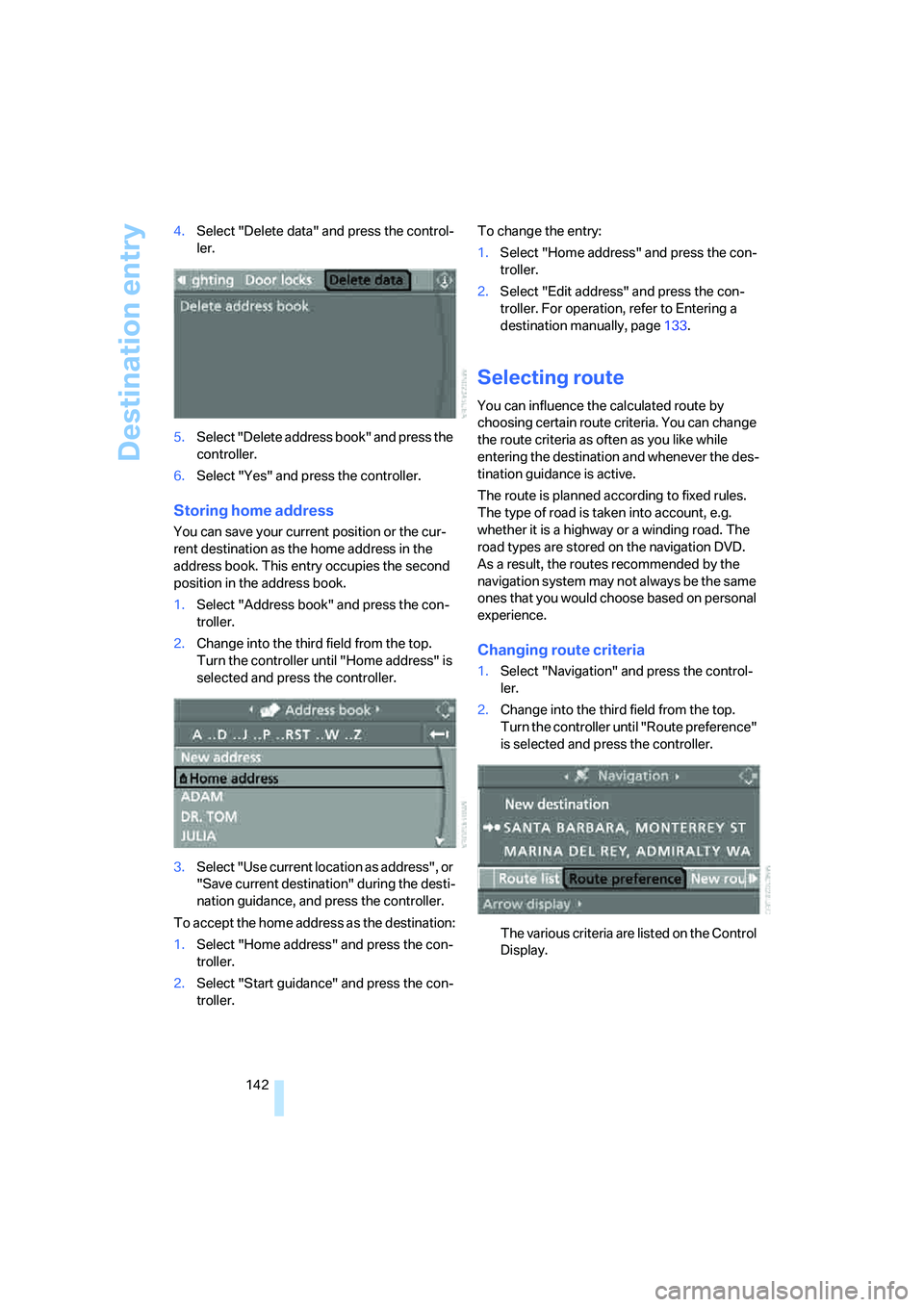
1.Select "Address book" and press the con-
troller.
2.Change into the third field from the top.
Turn the controller until "Home address" is
selected and press the controller.
3.Select "Use current location as address", or
"Save current destination" during the desti-
nation guidance, and press the controller.
To accept the home address as the destination:
1.Select "Home address" and press the con-
troller.
2.Select "Start guidance" and press the con-
troller.To change the entry:
1.Select "Home address" and press the con-
troller.
2.Select "Edit address" and press the con-
troller. For operation, refer to Entering a
destination manually, page133.
Selecting route
You can influence the calculated route by
choosing certain route criteria. You can change
the route criteria as often as you like while
entering the destination and whenever the des-
tination guidance is active.
The route is planned according to fixed rules.
The type of road is taken into account, e.g.
whether it is a highway or a winding road. The
road types are stored on the navigation DVD.
As a result, the routes recommended by the
navigation system may not always be the same
ones that you would choose based on personal
experience.
Changing route criteria
1.Select "Navigation" and press the control-
ler.
2.Change into the third field from the top.
Turn the controller until "Route preference"
is selected and press the controller.
The various criteria are listed on the Control
Display.
Page 146 of 259
Destination guidance
144
Destination guidance
Starting destination
guidance
iDrive, for explanation of principle, refer to
page16.
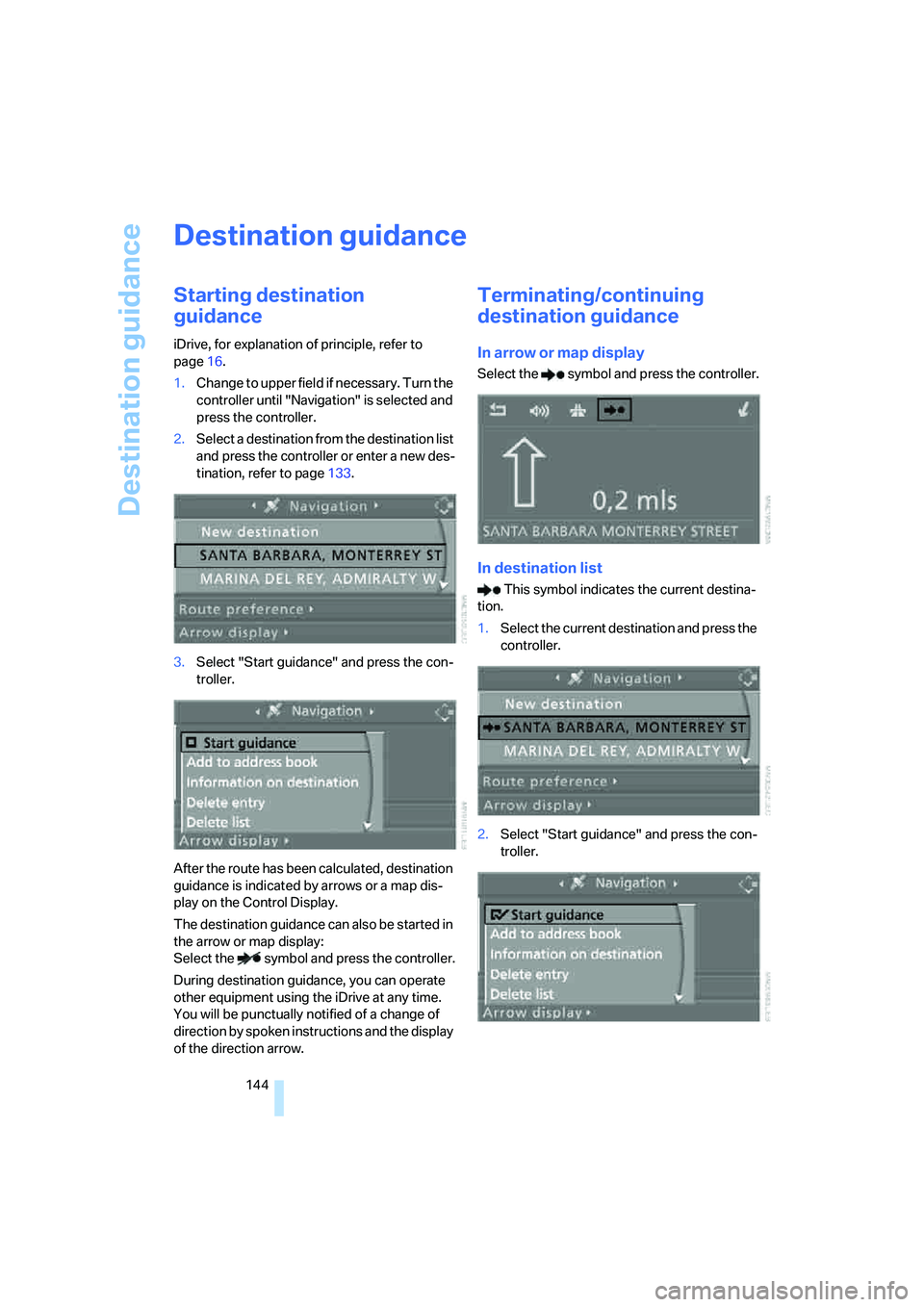
1.Change to upper field if necessary. Turn the
controller until "Navigation" is selected and
press the controller.
2.Select a destination from the destination list
and press the controller or enter a new des-
tination, refer to page133.
3.Select "Start guidance" and press the con-
troller.
After the route has been calculated, destination
guidance is indicated by arrows or a map dis-
play on the Control Display.
The destination guidance can also be started in
the arrow or map display:
Select the symbol and press the controller.
During destination guidance, you can operate
other equipment using the iDrive at any time.
You will be punctually notified of a change of
direction by spoken instructions and the display
of the direction arrow.
Terminating/continuing
destination guidance
In arrow or map display
Select the symbol and press the controller.
In destination list
This symbol indicates the current destina-
tion.
1.Select the current destination and press the
controller.
2.Select "Start guidance" and press the con-
troller.
Page 147 of 259
Navigation
Driving tips
145Reference
At a glance
Controls
Communications
Entertainment
Mobility
When you park the vehicle before reaching the
entered destination, the following the question
is displayed before beginning the next trip:
"Continue guidance to destination?".
The destination guidance starts automatically
after a short time.
To start the destination guidance:
Select "Yes" and press the controller.
Route display
You have the option of displaying various views
of the route during destination guidance.
From another menu, you can switch
directly to the screen last displayed,
refer to Comfort opening of menu items on
page18.<
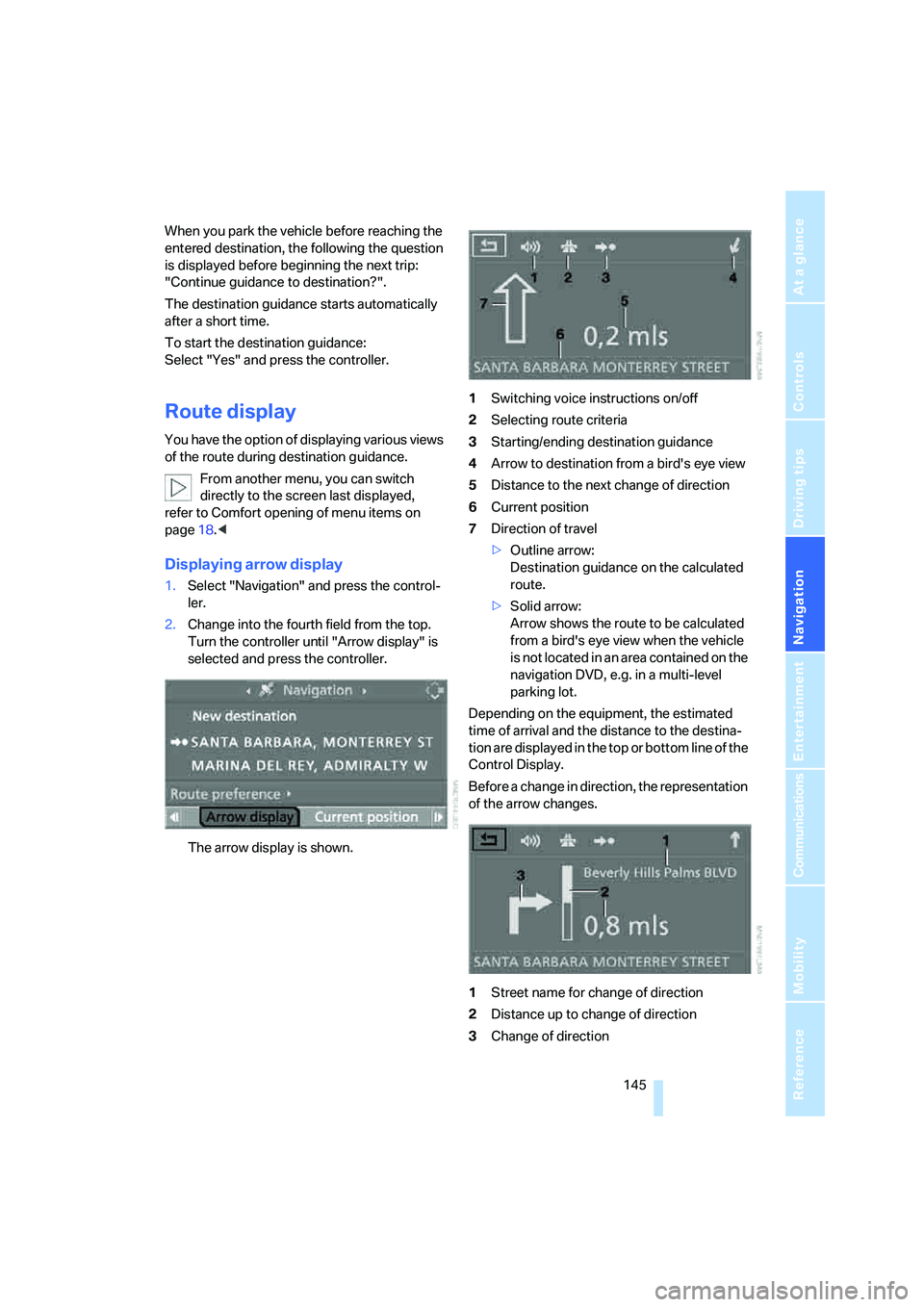
Displaying arrow display
1.Select "Navigation" and press the control-
ler.
2.Change into the fourth field from the top.
Turn the controller until "Arrow display" is
selected and press the controller.
The arrow display is shown.1Switching voice instructions on/off
2Selecting route criteria
3Starting/ending destination guidance
4Arrow to destination from a bird's eye view
5Distance to the next change of direction
6Current position
7Direction of travel
>Outline arrow:
Destination guidance on the calculated
route.
>Solid arrow:
Arrow shows the route to be calculated
from a bird's eye view when the vehicle
is not located in an area contained on the
navigation DVD, e.g. in a multi-level
parking lot.
Depending on the equipment, the estimated
time of arrival and the distance to the destina-
tion are displayed in the top or bottom line of the
Control Display.
Before a change in direction, the representation
of the arrow changes.
1Street name for change of direction
2Distance up to change of direction
3Change of direction