radio controls BMW 525XI TOURING 2007 E61 User Guide
[x] Cancel search | Manufacturer: BMW, Model Year: 2007, Model line: 525XI TOURING, Model: BMW 525XI TOURING 2007 E61Pages: 286, PDF Size: 9.31 MB
Page 103 of 286
Controls
101Reference
At a glance
Driving tips
Communications
Navigation
Entertainment
Mobility
Operational readiness of airbag system
From radio readiness, refer to page60, the
warning lamp lights up briefly, indicating the
operational readiness of the entire airbag sys-
tem and the safety belt tensioners.
Airbag system malfunction
>Warning lamp does not light up from radio
readiness.
>Warning lamp lights up continuously.
Have the airbag system checked immedi-
ately in case of a malfunction, otherwise
there is a danger that the airbag system may not
respond in the expected manner in an accident
despite an impact of corresponding intensity.<
Head-Up Display*
The concept
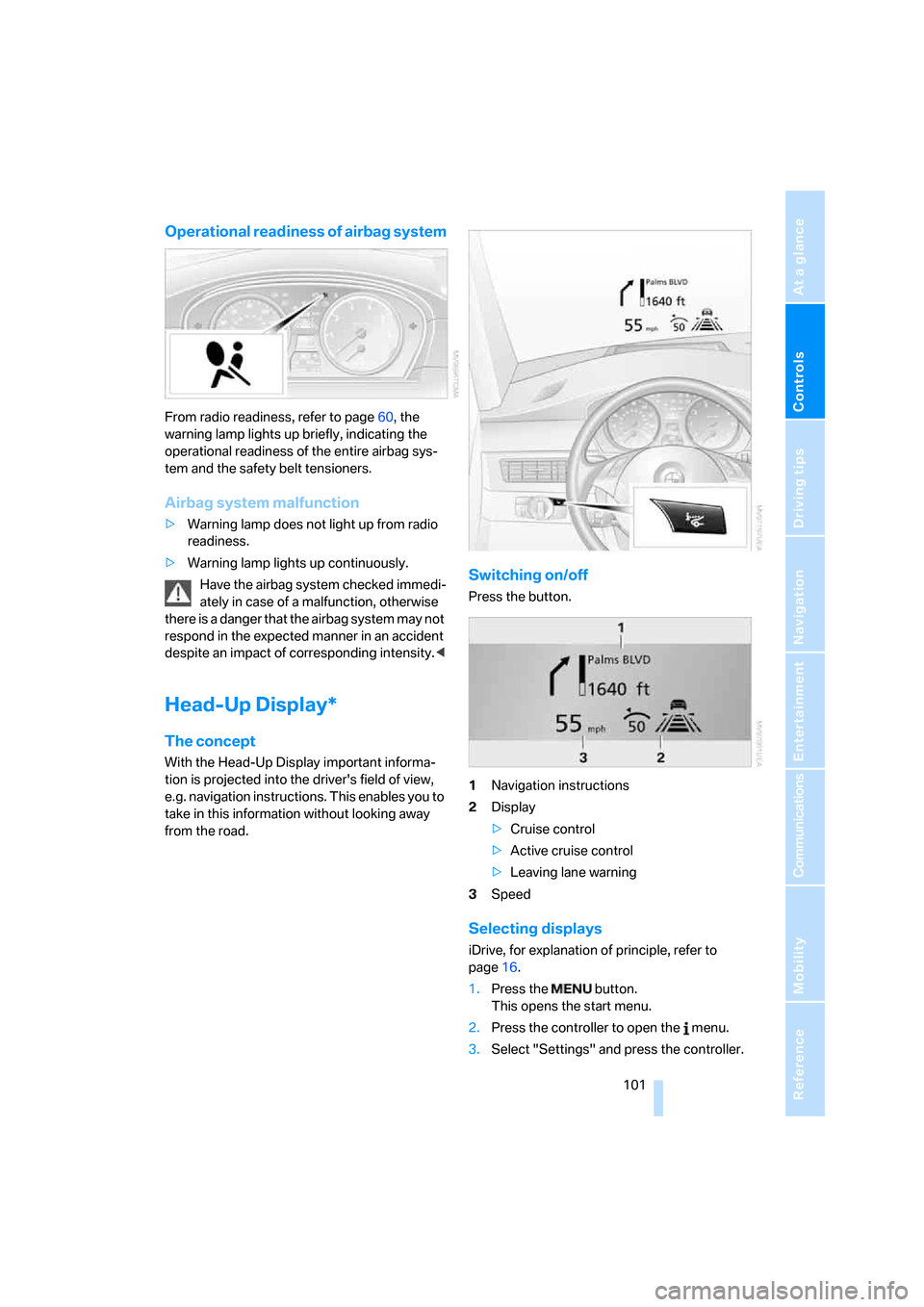
With the Head-Up Display important informa-
tion is projected into the driver's field of view,
e.g. navigation instructions. This enables you to
take in this information without looking away
from the road.
Switching on/off
Press the button.
1Navigation instructions
2Display
>Cruise control
>Active cruise control
>Leaving lane warning
3Speed
Selecting displays
iDrive, for explanation of principle, refer to
page16.
1.Press the button.
This opens the start menu.
2.Press the controller to open the menu.
3.Select "Settings" and press the controller.
Page 117 of 286
Controls
115Reference
At a glance
Driving tips
Communications
Navigation
Entertainment
Mobility
>at an outside temperature below 777/
256
The LED lights up when the function is
switched on.
From radio readiness the interior temperature,
the air volume and the air distribution can be
set.
Switching automatic climate control on
and off
1.Turn to the left to minimum air volume.
2.After approx. 1 second, turn to the left
again.
You switch on the system again by pressing any
button of the automatic climate control.
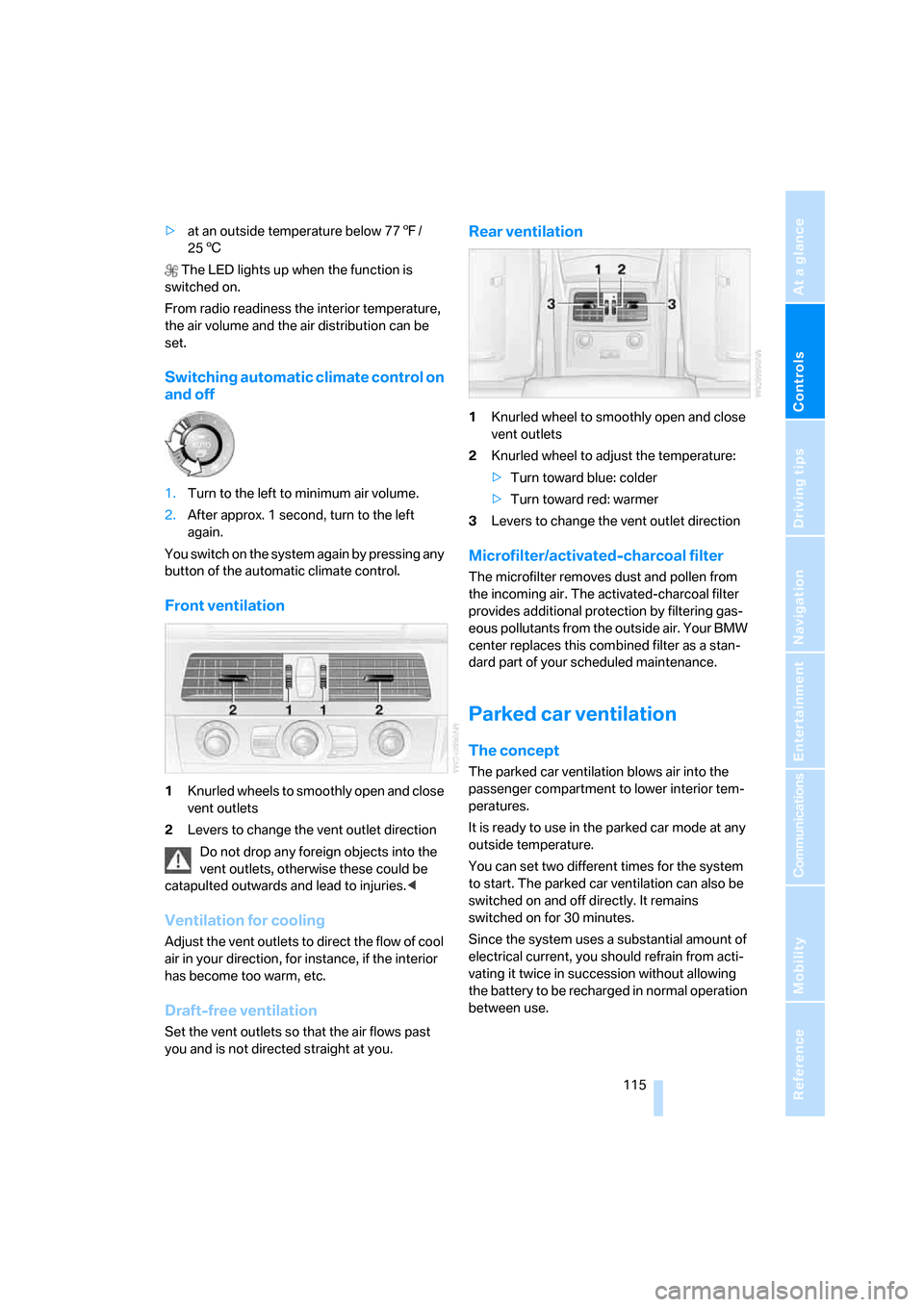
Front ventilation
1Knurled wheels to smoothly open and close
vent outlets
2Levers to change the vent outlet direction
Do not drop any foreign objects into the
vent outlets, otherwise these could be
catapulted outwards and lead to injuries.<
Ventilation for cooling
Adjust the vent outlets to direct the flow of cool
air in your direction, for instance, if the interior
has become too warm, etc.
Draft-free ventilation
Set the vent outlets so that the air flows past
you and is not directed straight at you.
Rear ventilation
1Knurled wheel to smoothly open and close
vent outlets
2Knurled wheel to adjust the temperature:
>Turn toward blue: colder
>Turn toward red: warmer
3Levers to change the vent outlet direction
Microfilter/activated-charcoal filter
The microfilter removes dust and pollen from
the incoming air. The activated-charcoal filter
provides additional protection by filtering gas-
eous pollutants from the outside air. Your BMW
center replaces this combined filter as a stan-
dard part of your scheduled maintenance.
Parked car ventilation
The concept
The parked car ventilation blows air into the
passenger compartment to lower interior tem-
peratures.
It is ready to use in the parked car mode at any
outside temperature.
You can set two different times for the system
to start. The parked car ventilation can also be
switched on and off directly. It remains
switched on for 30 minutes.
Since the system uses a substantial amount of
electrical current, you should refrain from acti-
vating it twice in succession without allowing
the battery to be recharged in normal operation
between use.
Page 168 of 286
On/off and tone
166
On/off and tone
The following audio sources have shared con-
trols and setting options:
>Professional
* radio or
Business radio
>CD player
>CD changer
*
Controls
The audio sources can be operated using:
>Buttons in the area of the CD player
>iDrive
>Buttons on steering wheel, refer to page11
>Programmable memory/direct selection
buttons, refer to page21
Buttons in area of CD player
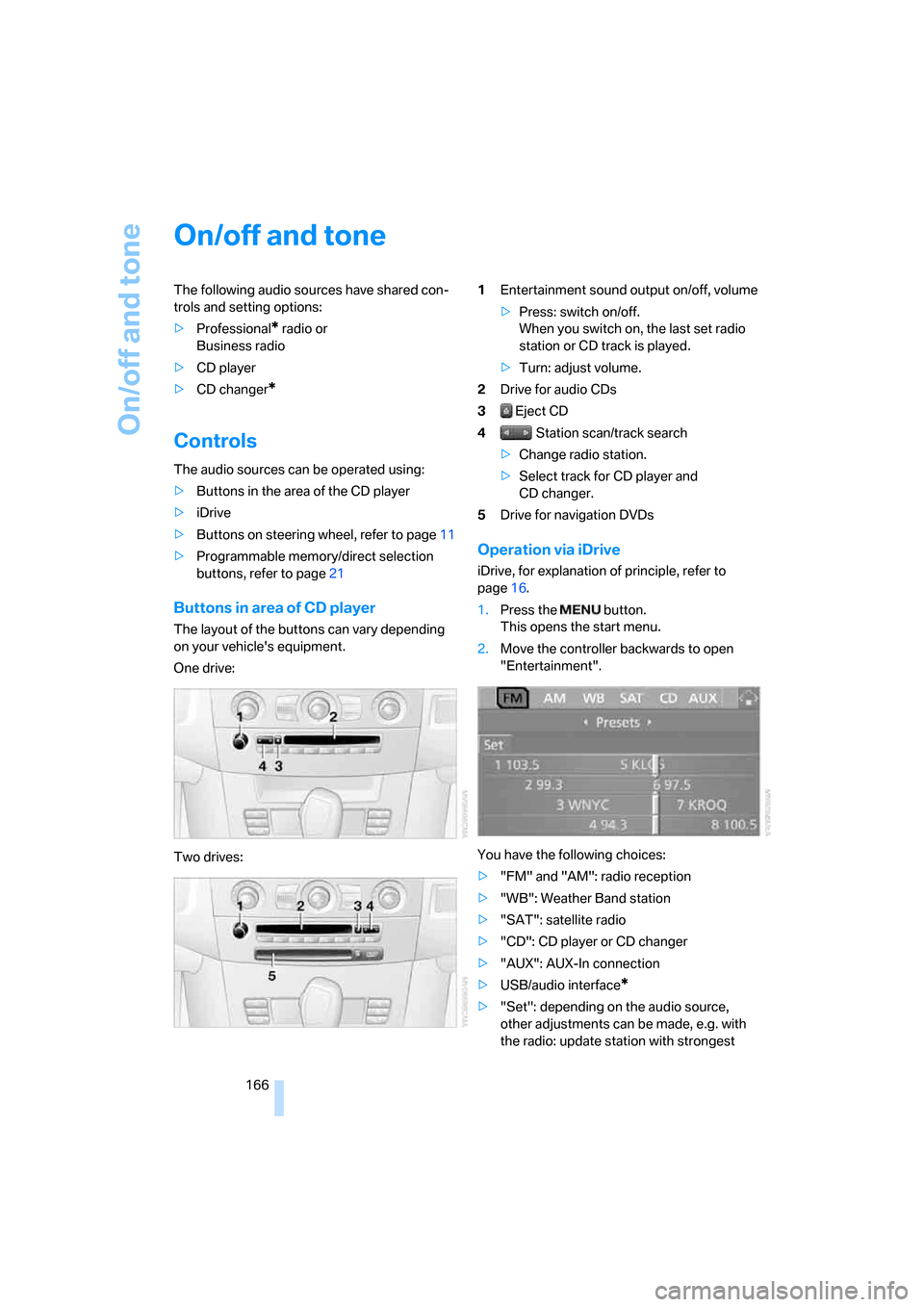
The layout of the buttons can vary depending
on your vehicle's equipment.
One drive:
Two drives:1Entertainment sound output on/off, volume
>Press: switch on/off.
When you switch on, the last set radio
station or CD track is played.
>Turn: adjust volume.
2Drive for audio CDs
3 Eject CD
4 Station scan/track search
>Change radio station.
>Select track for CD player and
CD changer.
5Drive for navigation DVDs
Operation via iDrive
iDrive, for explanation of principle, refer to
page16.
1.Press the button.
This opens the start menu.
2.Move the controller backwards to open
"Entertainment".
You have the following choices:
>"FM" and "AM": radio reception
>"WB": Weather Band station
>"SAT": satellite radio
>"CD": CD player or CD changer
>"AUX": AUX-In connection
>USB/audio interface
*
>"Set": depending on the audio source,
other adjustments can be made, e.g. with
the radio: update station with strongest
Page 169 of 286
Navigation
Entertainment
Driving tips
167Reference
At a glance
Controls
Communications
Mobility
reception, store station, tone control, sam-
ple stations.
From another menu, you can change
directly to the screen last displayed,
refer to Comfort opening of menu items,
page18.<
From radio readiness, the selected audio
source is stored for the remote control currently
in use.
Switching on/off
To switch the Entertainment sound output on
and off:
Press knob1 next to the CD player.
This symbol on the Control Display indi-
cates that sound output is switched off.
For a single drive, the sound output is available
for approx. 20 minutes with the ignition
switched off.
Switch on the sound output again for this pur-
pose.
Adjusting volume
Turn knob1 next to the CD player until the
desired volume is set.
You can also adjust the volume with buttons on
the steering wheel, refer to page11.
From radio readiness, the setting is stored for
the remote control currently in use.
Tone control
You can alter various tone settings, e. g. treble
and bass, or the speed-dependent volume
increase.
The tone settings are set for all audio sources at
once.
From radio readiness, the settings are stored
for the remote control currently in use.
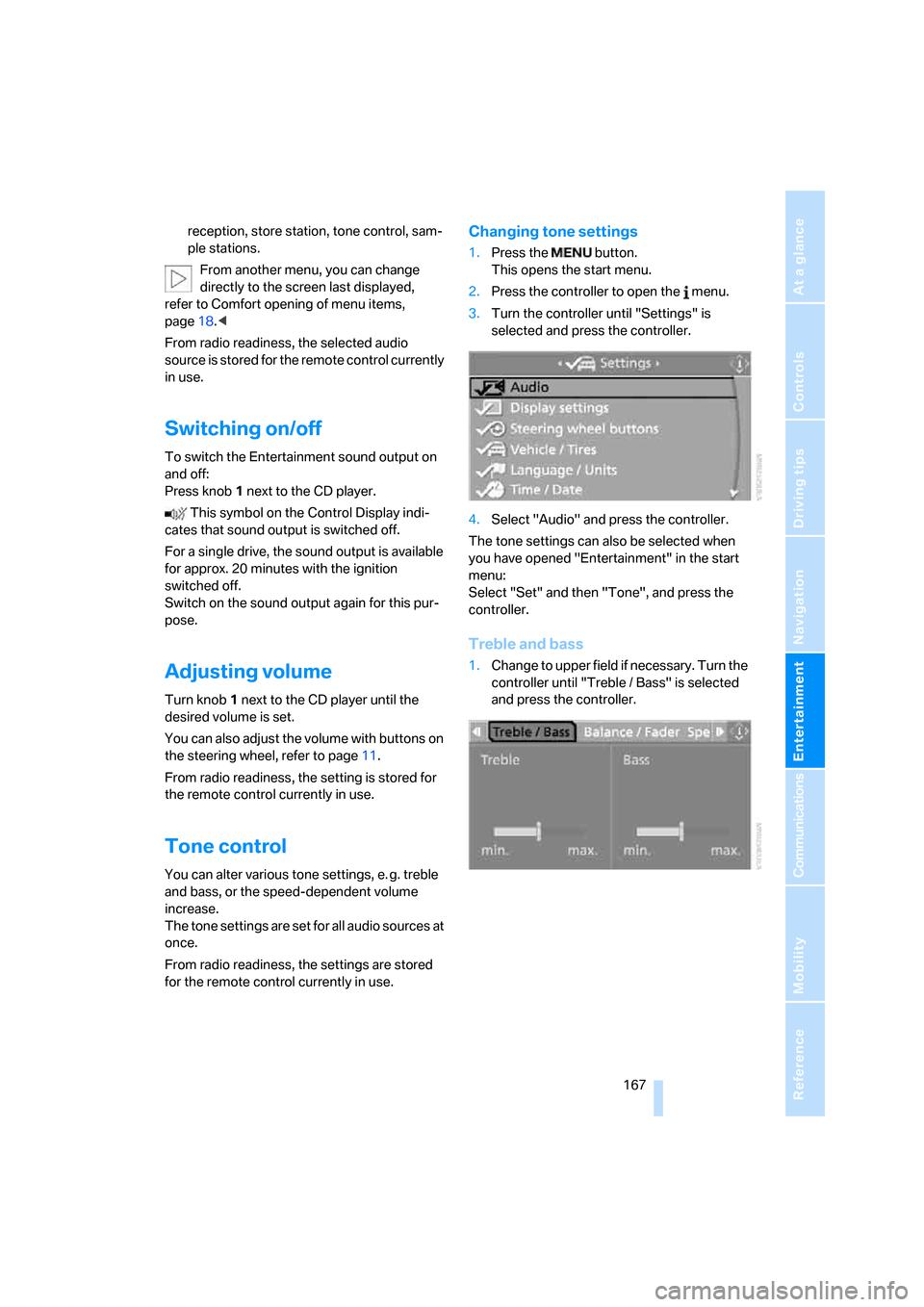
Changing tone settings
1.Press the button.
This opens the start menu.
2.Press the controller to open the menu.
3.Turn the controller until "Settings" is
selected and press the controller.
4.Select "Audio" and press the controller.
The tone settings can also be selected when
you have opened "Entertainment" in the start
menu:
Select "Set" and then "Tone", and press the
controller.
Treble and bass
1.Change to upper field if necessary. Turn the
controller until "Treble / Bass" is selected
and press the controller.
Page 173 of 286
Navigation
Entertainment
Driving tips
171Reference
At a glance
Controls
Communications
Mobility
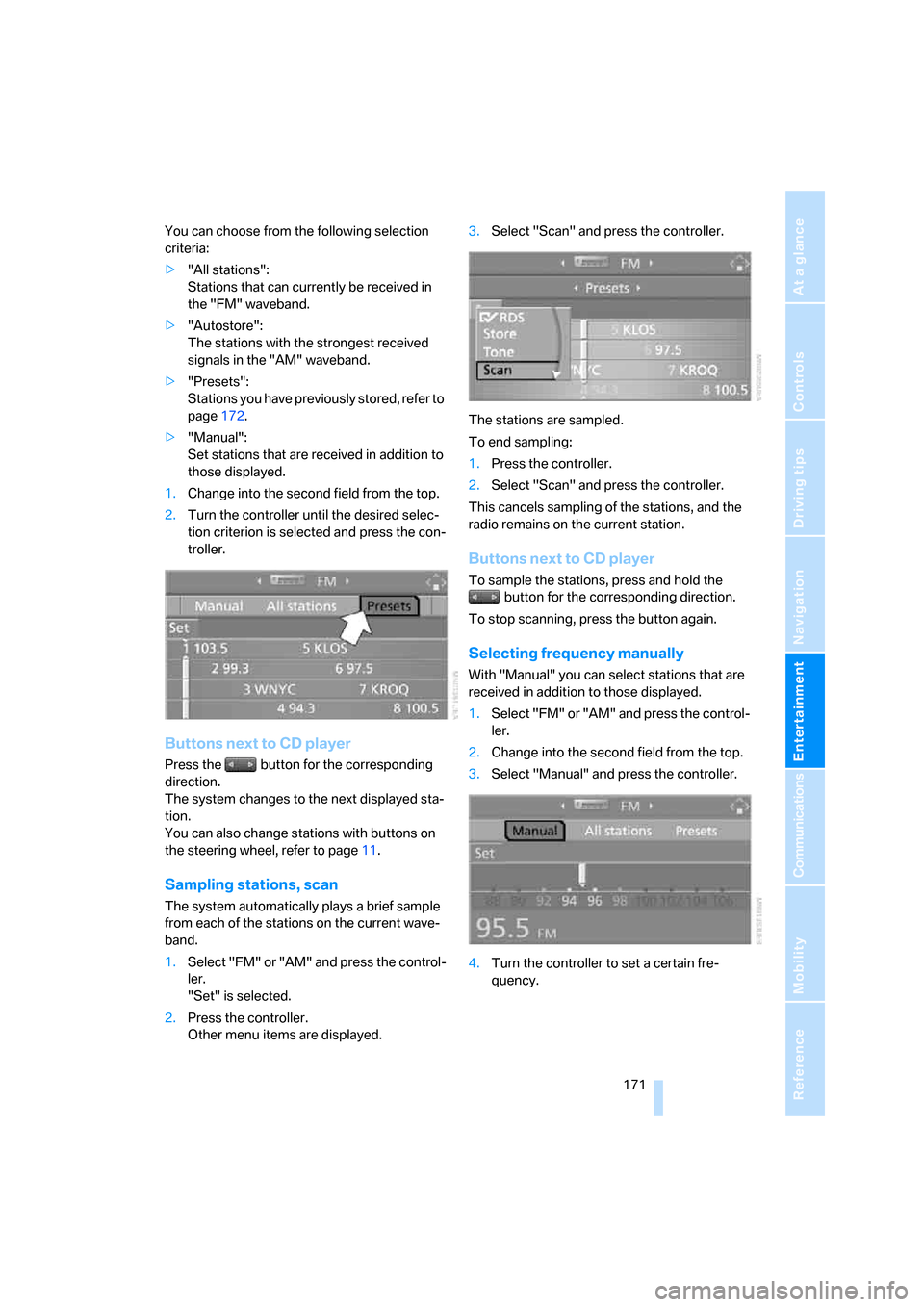
You can choose from the following selection
criteria:
>"All stations":
Stations that can currently be received in
the "FM" waveband.
>"Autostore":
The stations with the strongest received
signals in the "AM" waveband.
>"Presets":
Stations you have previously stored, refer to
page172.
>"Manual":
Set stations that are received in addition to
those displayed.
1.Change into the second field from the top.
2.Turn the controller until the desired selec-
tion criterion is selected and press the con-
troller.
Buttons next to CD player
Press the button for the corresponding
direction.
The system changes to the next displayed sta-
tion.
You can also change stations with buttons on
the steering wheel, refer to page11.
Sampling stations, scan
The system automatically plays a brief sample
from each of the stations on the current wave-
band.
1.Select "FM" or "AM" and press the control-
ler.
"Set" is selected.
2.Press the controller.
Other menu items are displayed.3.Select "Scan" and press the controller.
The stations are sampled.
To end sampling:
1.Press the controller.
2.Select "Scan" and press the controller.
This cancels sampling of the stations, and the
radio remains on the current station.
Buttons next to CD player
To sample the stations, press and hold the
button for the corresponding direction.
To stop scanning, press the button again.
Selecting frequency manually
With "Manual" you can select stations that are
received in addition to those displayed.
1.Select "FM" or "AM" and press the control-
ler.
2.Change into the second field from the top.
3.Select "Manual" and press the controller.
4.Turn the controller to set a certain fre-
quency.
Page 175 of 286
Navigation
Entertainment
Driving tips
173Reference
At a glance
Controls
Communications
Mobility
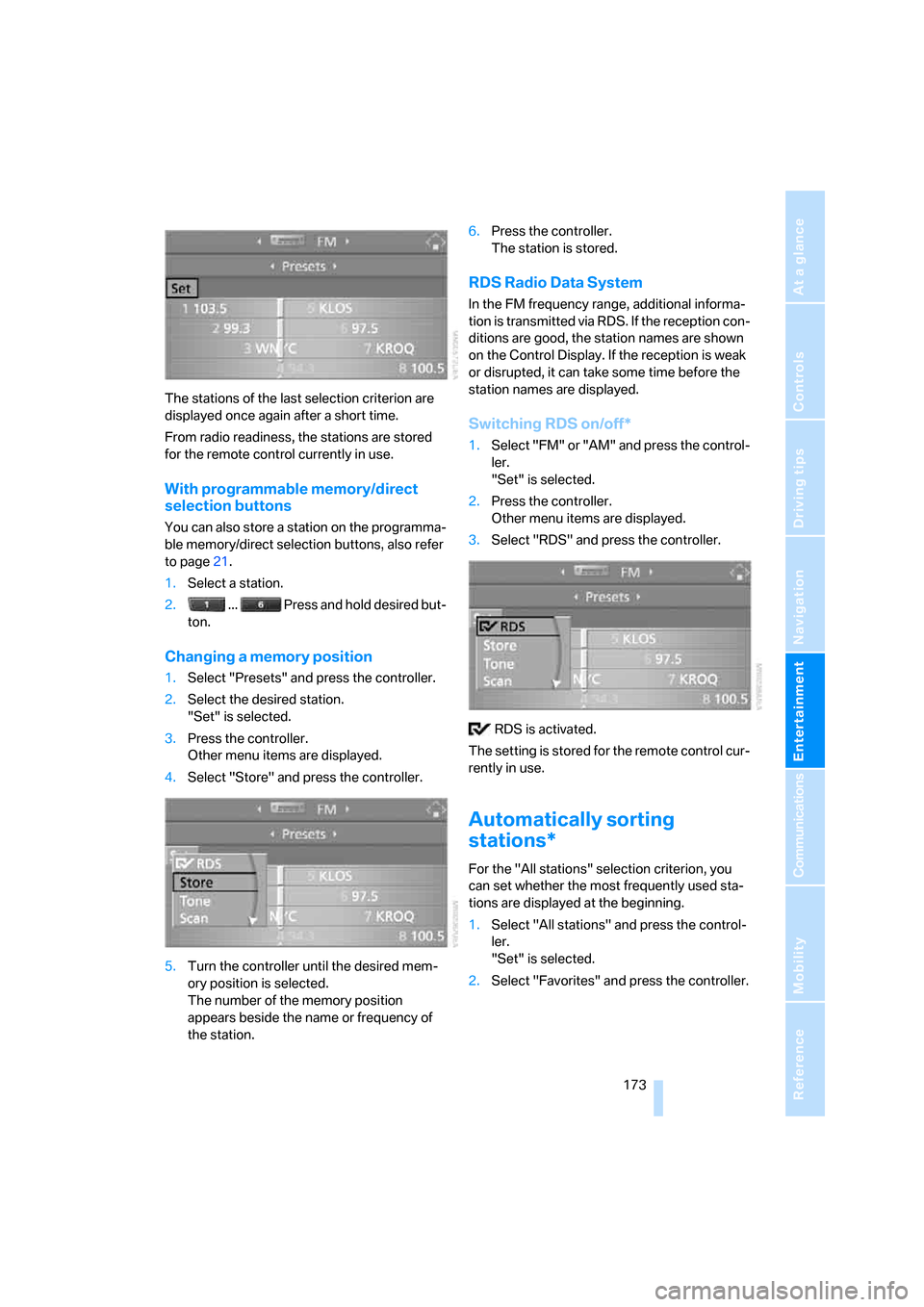
The stations of the last selection criterion are
displayed once again after a short time.
From radio readiness, the stations are stored
for the remote control currently in use.
With programmable memory/direct
selection buttons
You can also store a station on the programma-
ble memory/direct selection buttons, also refer
to page21.
1.Select a station.
2. ... Press and hold desired but-
ton.
Changing a memory position
1.Select "Presets" and press the controller.
2.Select the desired station.
"Set" is selected.
3.Press the controller.
Other menu items are displayed.
4.Select "Store" and press the controller.
5.Turn the controller until the desired mem-
ory position is selected.
The number of the memory position
appears beside the name or frequency of
the station.6.Press the controller.
The station is stored.
RDS Radio Data System
In the FM frequency range, additional informa-
tion is transmitted via RDS. If the reception con-
ditions are good, the station names are shown
on the Control Display. If the reception is weak
or disrupted, it can take some time before the
station names are displayed.
Switching RDS on/off*
1.Select "FM" or "AM" and press the control-
ler.
"Set" is selected.
2.Press the controller.
Other menu items are displayed.
3.Select "RDS" and press the controller.
RDS is activated.
The setting is stored for the remote control cur-
rently in use.
Automatically sorting
stations*
For the "All stations" selection criterion, you
can set whether the most frequently used sta-
tions are displayed at the beginning.
1.Select "All stations" and press the control-
ler.
"Set" is selected.
2.Select "Favorites" and press the controller.
Page 177 of 286
Navigation
Entertainment
Driving tips
175Reference
At a glance
Controls
Communications
Mobility
With some stations the digital signals are not
transmitted simultaneously with the analog sig-
nals. If you are in an area in which the selected
station is not continuously received digitally,
playback changes between analog and digital
reception. This can result in repetitions or inter-
ruptions. In this case it may be advisable to
deactivate digital radio reception.
Selecting programs of a digital station*
Some stations transmit several programs. To
select one of these programs:
1.Select "FM" or "AM" and press the control-
ler.
2.Select "Manual" and press the controller.
3.Select a station that is received digitally.
This symbol is displayed when a station
is being received digitally.
4. Switch to the next program of the dig-
ital station with the buttons on the radio or
the steering wheel.
Updating stations offering digital
reception
If you are on a longer journey and leave the
transmission range of the stations originally set,
you can update the list of stations with the best
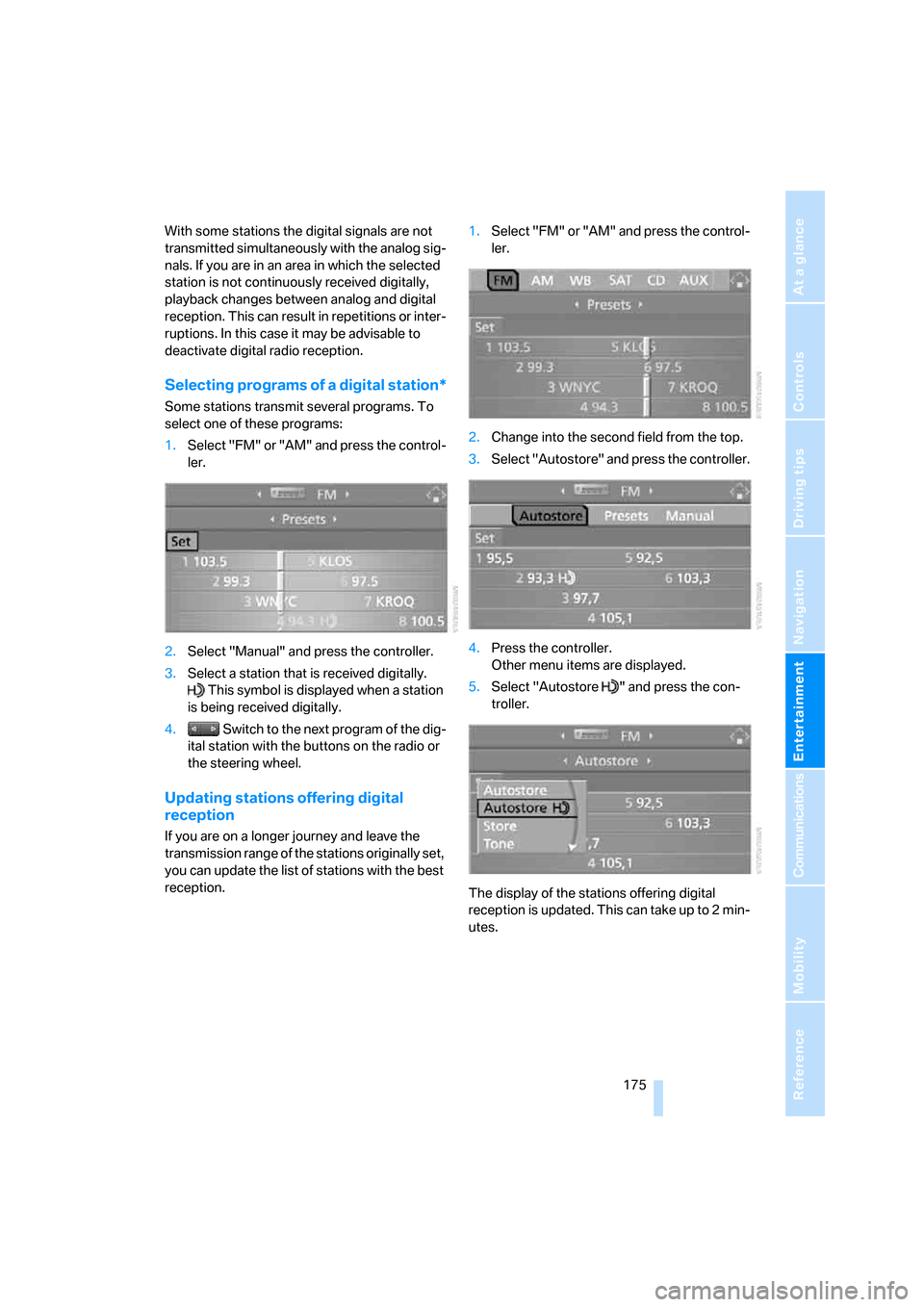
reception.1.Select "FM" or "AM" and press the control-
ler.
2.Change into the second field from the top.
3.Select "Autostore" and press the controller.
4.Press the controller.
Other menu items are displayed.
5.Select "Autostore " and press the con-
troller.
The display of the stations offering digital
reception is updated. This can take up to 2 min-
utes.
Page 183 of 286
Navigation
Entertainment
Driving tips
181Reference
At a glance
Controls
Communications
Mobility
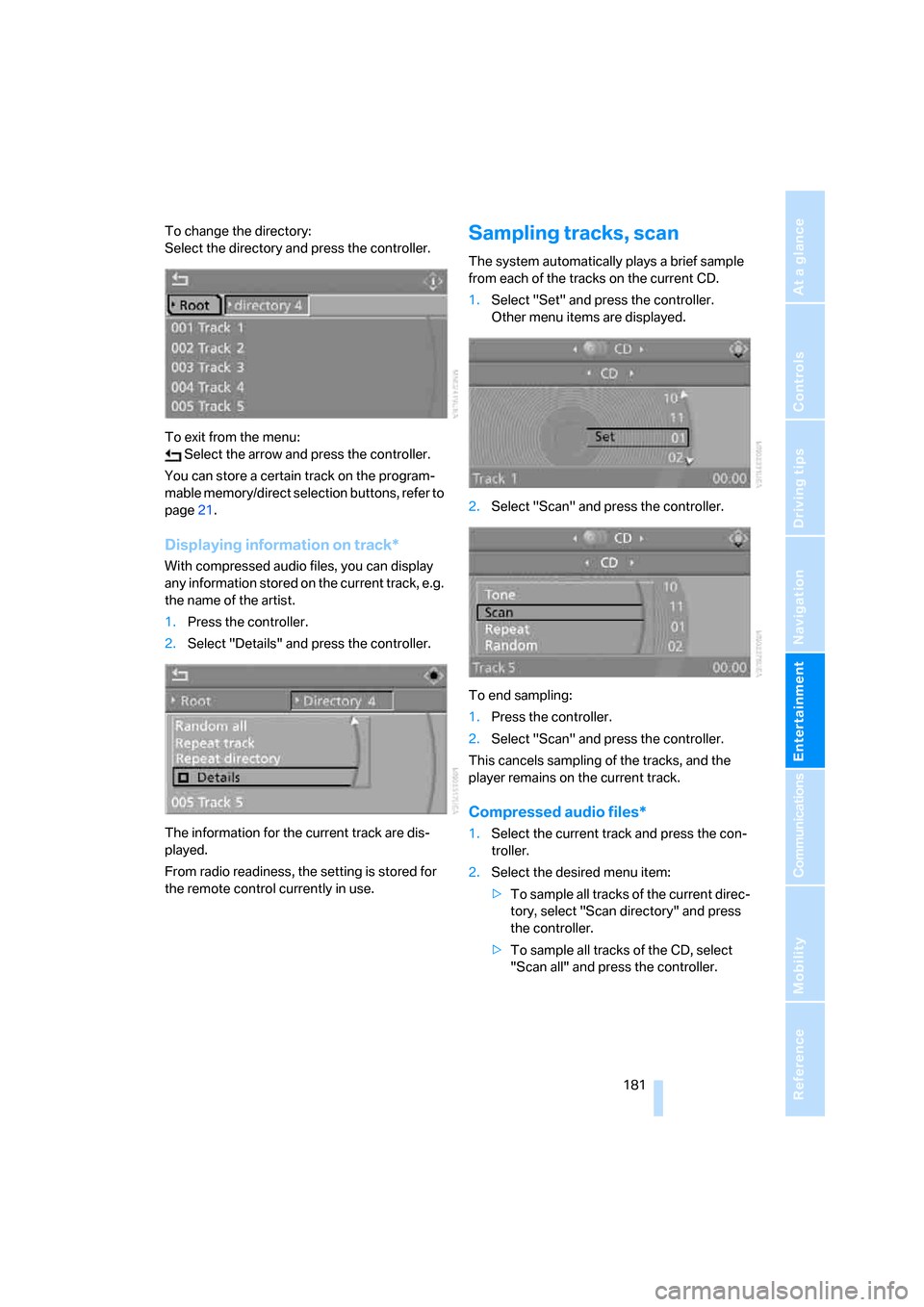
To change the directory:
Select the directory and press the controller.
To exit from the menu:
Select the arrow and press the controller.
You can store a certain track on the program-
mable memory/direct selection buttons, refer to
page21.
Displaying information on track*
With compressed audio files, you can display
any information stored on the current track, e.g.
the name of the artist.
1.Press the controller.
2.Select "Details" and press the controller.
The information for the current track are dis-
played.
From radio readiness, the setting is stored for
the remote control currently in use.
Sampling tracks, scan
The system automatically plays a brief sample
from each of the tracks on the current CD.
1.Select "Set" and press the controller.
Other menu items are displayed.
2.Select "Scan" and press the controller.
To end sampling:
1.Press the controller.
2.Select "Scan" and press the controller.
This cancels sampling of the tracks, and the
player remains on the current track.
Compressed audio files*
1.Select the current track and press the con-
troller.
2.Select the desired menu item:
>To sample all tracks of the current direc-
tory, select "Scan directory" and press
the controller.
>To sample all tracks of the CD, select
"Scan all" and press the controller.
Page 261 of 286
Reference 259
At a glance
Controls
Driving tips
Communications
Navigation
Entertainment
Mobility
Entertainment
FunctionCommand
Tone control167{Audio}
To switch on radio170{Radio on},
{FM} or
{AM}
To open "FM"170{FM menu}
To open "AM"170{AM menu}
To open "All stations"170{FM all stations}
To select radio station170{Station ...}, e.g. {Station WNYC}, or
{Choose station}
To open "Presets"170{FM presets} or
{AM presets}
To select preset radio station170{Preset ...}, e.g. {Preset 1}
To open "Manual"171{FM manual},
{AM manual} or
{Choose frequency},
{Frequency ... Megahertz}
To open strongest radio stations172{AM Autostore}
To open "WB"174{Weatherband menu}
To switch on weatherband 174{Weatherband on}
To select a weatherband station174{Choose weatherband station}
To open "SAT"177{SAT radio menu}
To switch on satellite radio177{SAT radio}
To open "Presets" of satellite radio178{SAT radio presets}
To open "All channels" of satellite radio177{SAT radio all channels}
To open "Categories" of satellite radio177{SAT radio categories}
To open CD player179{CD menu}
To switch on CD player179{CD}
To open CD changer180{CD changer menu}
To switch on CD changer180{CD changer}
To select a CD in the CD changer180{CD 1...6}
To select music track180{CD track ...}
To select a CD and music track in the CD
changer180{CD 1...6 track ...}
To switch on audio playback with external audio
device185{Audio Aux}
Page 265 of 286
Reference 263
At a glance
Controls
Driving tips
Communications
Navigation
Entertainment
Mobility
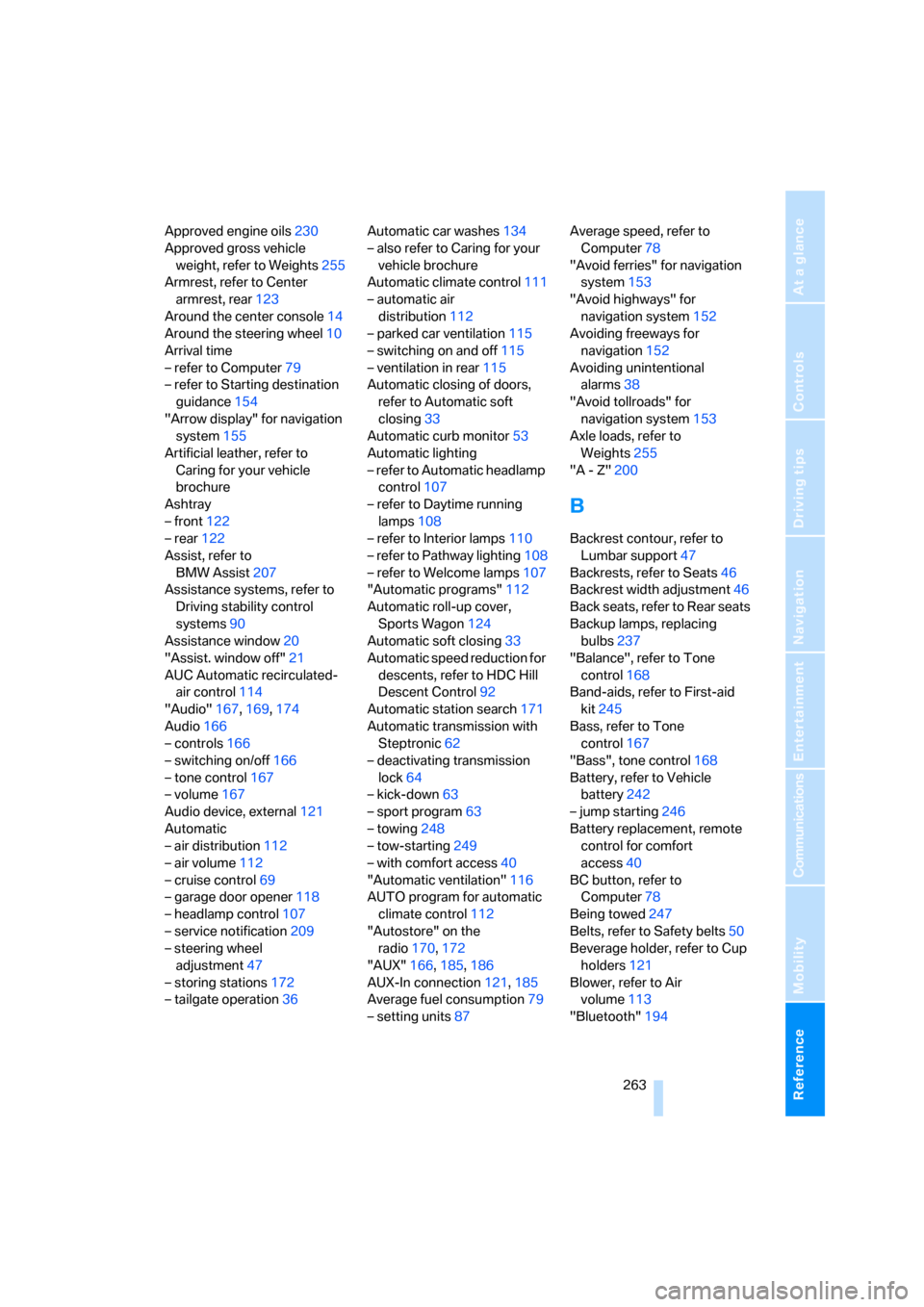
Approved engine oils230
Approved gross vehicle
weight, refer to Weights255
Armrest, refer to Center
armrest, rear123
Around the center console14
Around the steering wheel10
Arrival time
– refer to Computer79
– refer to Starting destination
guidance154
"Arrow display" for navigation
system155
Artificial leather, refer to
Caring for your vehicle
brochure
Ashtray
– front122
– rear122
Assist, refer to
BMW Assist207
Assistance systems, refer to
Driving stability control
systems90
Assistance window20
"Assist. window off"21
AUC Automatic recirculated-
air control114
"Audio"167,169,174
Audio166
– controls166
– switching on/off166
– tone control167
– volume167
Audio device, external121
Automatic
– air distribution112
– air volume112
– cruise control69
– garage door opener118
– headlamp control107
– service notification209
– steering wheel
adjustment47
– storing stations172
– tailgate operation36Automatic car washes134
– also refer to Caring for your
vehicle brochure
Automatic climate control111
– automatic air
distribution112
– parked car ventilation115
– switching on and off115
– ventilation in rear115
Automatic closing of doors,
refer to Automatic soft
closing33
Automatic curb monitor53
Automatic lighting
– refer to Automatic headlamp
control107
– refer to Daytime running
lamps108
– refer to Interior lamps110
– refer to Pathway lighting108
– refer to Welcome lamps107
"Automatic programs"112
Automatic roll-up cover,
Sports Wagon124
Automatic soft closing33
Automatic speed reduction for
descents, refer to HDC Hill
Descent Control92
Automatic station search171
Automatic transmission with
Steptronic62
– deactivating transmission
lock64
– kick-down63
– sport program63
– towing248
– tow-starting249
– with comfort access40
"Automatic ventilation"116
AUTO program for automatic
climate control112
"Autostore" on the
radio170,172
"AUX"166,185,186
AUX-In connection121,185
Average fuel consumption79
– setting units87Average speed, refer to
Computer78
"Avoid ferries" for navigation
system153
"Avoid highways" for
navigation system152
Avoiding freeways for
navigation152
Avoiding unintentional
alarms38
"Avoid tollroads" for
navigation system153
Axle loads, refer to
Weights255
"A - Z"200B
Backrest contour, refer to
Lumbar support47
Backrests, refer to Seats46
Backrest width adjustment46
Back seats, refer to Rear seats
Backup lamps, replacing
bulbs237
"Balance", refer to Tone
control168
Band-aids, refer to First-aid
kit245
Bass, refer to Tone
control167
"Bass", tone control168
Battery, refer to Vehicle
battery242
– jump starting246
Battery replacement, remote
control for comfort
access40
BC button, refer to
Computer78
Being towed247
Belts, refer to Safety belts50
Beverage holder, refer to Cup
holders121
Blower, refer to Air
volume113
"Bluetooth"194