Drive BMW 528I 2011 F10 User Guide
[x] Cancel search | Manufacturer: BMW, Model Year: 2011, Model line: 528I, Model: BMW 528I 2011 F10Pages: 304, PDF Size: 10.18 MB
Page 25 of 304
1. Press the button or move the controller
to the right repeatedly until the "Options"
menu is displayed.
2. "Display Owner's Manual"
Opening when a Check Control
message is displayed
Directly
from the Check Control message on the
Control Display:
"Display Owner's Manual"
Changing between a function and the
Owner's Manual
To change from a function, e.g., radio, to the
Owner's Manual on the Control Display and to
switch between the two displays:
1. Press the button or move the controller
to the right repeatedly until the
"Options"
menu is displayed.
2. "Display Owner's Manual"
3. Select the desired page in the Owner's
Manual.
4. Press
the button again to return to the
function displayed last.
5. Press the button to return to the page
of the Owner's Manual displayed last.
To switch back and forth repeatedly between
the function displayed last and the page of the
Owner's Manual displayed last, repeat steps 4
and 5. This opens a new panel every time.
Programmable memory
buttons
General information
The Owner's Manual can be stored on the pro‐
grammable memory buttons and called up di‐
rectly. Storing
1.
Select "Owner's Manual" via the iDrive.
2. Press the desired button for more
than 2 seconds.
Executing Press the button.
The Owner's Manual is displayed im‐
mediately. Seite 25
25Online Edition for Part no. 01 40 2 606 469 - 03 11 490
Reference Mobility Communication Entertainment Navigation Driving tips Controls
At a glance
Page 28 of 304
Opening and closing
Remote control/key
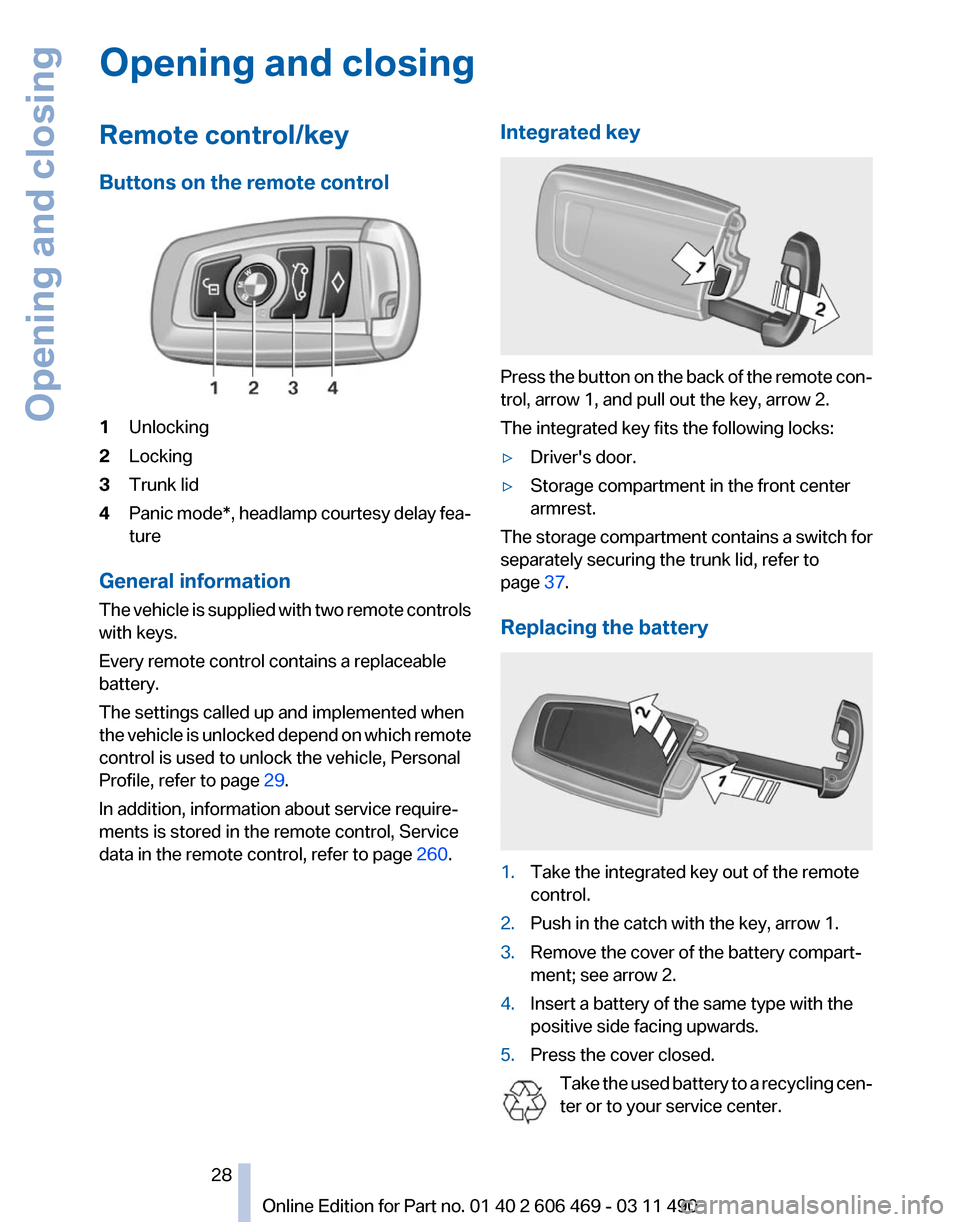
Buttons on the remote control
1
Unlocking
2 Locking
3 Trunk lid
4 Panic mode*, headlamp courtesy delay fea‐
ture
General information
The vehicle is supplied with two remote controls
with keys.
Every remote control contains a replaceable
battery.
The settings called up and implemented when
the vehicle is unlocked depend on which remote
control is used to unlock the vehicle, Personal
Profile, refer to page 29.
In addition, information about service require‐
ments is stored in the remote control, Service
data in the remote control, refer to page 260.Integrated key Press the button on the back of the remote con‐
trol, arrow 1, and pull out the key, arrow 2.
The integrated key fits the following locks:
▷
Driver's door.
▷ Storage compartment in the front center
armrest.
The storage compartment contains a switch for
separately securing the trunk lid, refer to
page 37.
Replacing the battery 1.
Take the integrated key out of the remote
control.
2. Push in the catch with the key, arrow 1.
3. Remove the cover of the battery compart‐
ment; see arrow 2.
4. Insert a battery of the same type with the
positive side facing upwards.
5. Press the cover closed.
Take the used battery to a recycling cen‐
ter or to your service center. Seite 28
28 Online Edition for Part no. 01 40 2 606 469 - 03 11 490
Opening and closing
Page 30 of 304
2.
"Profiles" 3.
Select a profile.
The profile that is opened is assigned to the re‐
mote control currently in use.
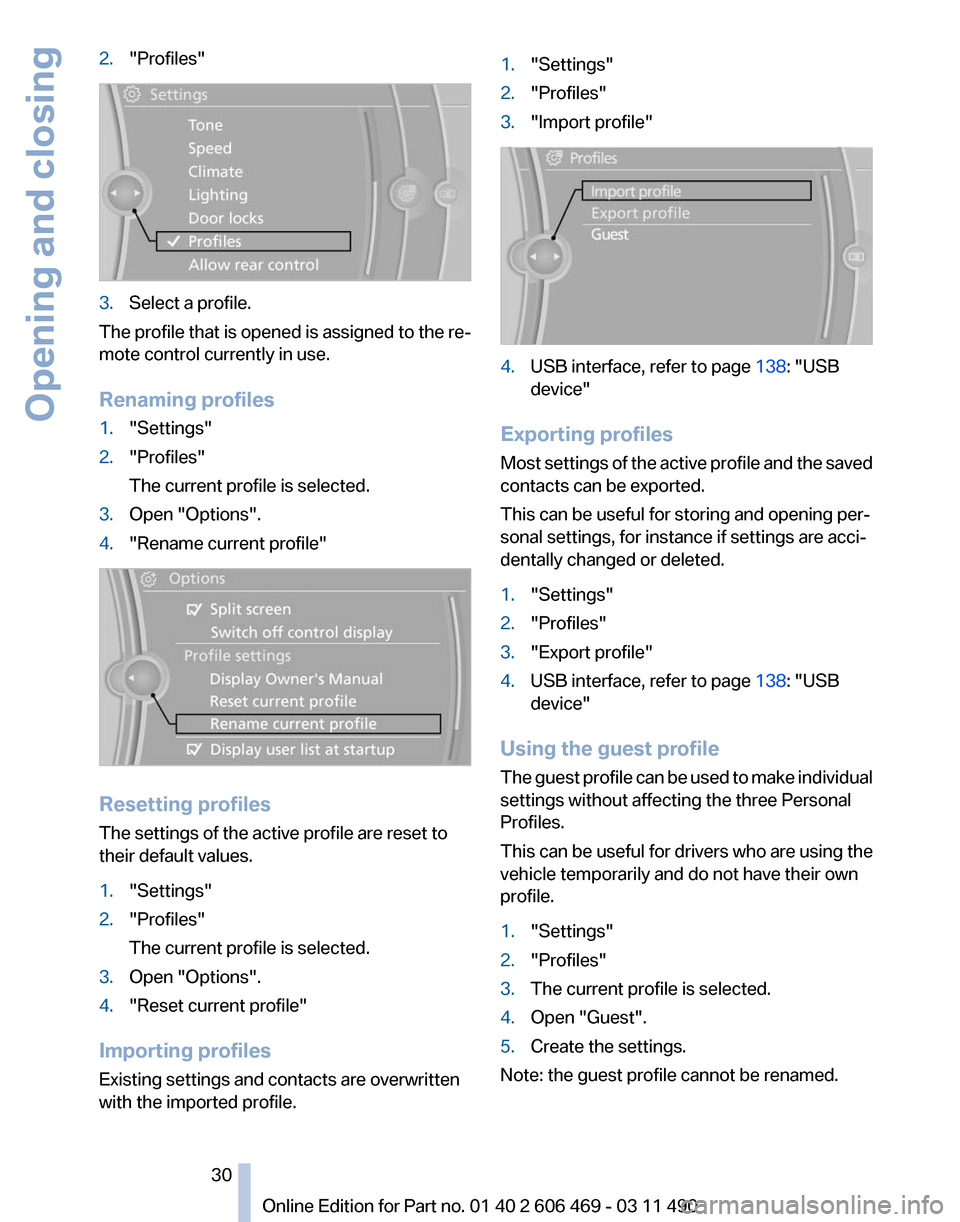
Renaming profiles
1. "Settings"
2. "Profiles"
The current profile is selected.
3. Open "Options".
4. "Rename current profile" Resetting profiles
The settings of the active profile are reset to
their default values.
1.
"Settings"
2. "Profiles"
The current profile is selected.
3. Open "Options".
4. "Reset current profile"
Importing profiles
Existing settings and contacts are overwritten
with the imported profile. 1.
"Settings"
2. "Profiles"
3. "Import profile" 4.
USB interface, refer to page 138: "USB
device"
Exporting profiles
Most settings of the active profile and the saved
contacts can be exported.
This can be useful for storing and opening per‐
sonal settings, for instance if settings are acci‐
dentally changed or deleted.
1. "Settings"
2. "Profiles"
3. "Export profile"
4. USB interface, refer to page 138: "USB
device"
Using the guest profile
The
guest profile can be used to make individual
settings without affecting the three Personal
Profiles.
This can be useful for drivers who are using the
vehicle temporarily and do not have their own
profile.
1. "Settings"
2. "Profiles"
3. The current profile is selected.
4. Open "Guest".
5. Create the settings.
Note: the guest profile cannot be renamed.
Seite 30
30 Online Edition for Part no. 01 40 2 606 469 - 03 11 490
Opening and closing
Page 31 of 304
Display profile list during start
The profile list can be displayed during each
start for selecting the desired profile.
1.
"Settings"
2. "Profiles"
3. Open "Options".
4. "Display user list at startup"
Personal Profile settings
The following functions and settings can be
stored in a profile.
More information on the settings can be found
under:
▷ Active Cruise Control: collision warning, re‐
fer to page 108.
▷ Exterior mirror position, refer to page 51.
▷ CD/Multimedia, refer to page 181: audio
source listened to last.
▷ Dynamic Driving Control: sport program, re‐
fer to page 99.
▷ Driver's seat position, refer to page 33: au‐
tomatic retrieval after unlocking.
▷ Programmable memory buttons, refer to
page 20: assignment.
▷ Head-up Display, refer to page 124: selec‐
tion, brightness and position of the display.
▷ Headlamp courtesy delay feature, refer to
page 80: time setting.
▷ Tone, refer to page 172: tone settings.
▷ Automatic climate control, refer to
page 126: settings.
▷ Steering wheel position, refer to page 53
▷ Navigation, refer to page 154: map views,
route criteria, voice output on/off.
▷ Night Vision with pedestrian detection, refer
to
page 122: selection of functions and type
of display.
▷ Daytime running lights*, refer to page 81:
current setting.
▷ Park Distance Control PDC, refer to
page 173:
adjusting the signal tone volume. ▷
Radio, refer to page 174: stored stations,
station listened to last, special settings.
▷ Backup camera, refer to page 113: selec‐
tion of functions and type of display.
▷ Side View, refer to page 117: selection of
the display type.
▷ Language on the Control Display, refer to
page 79.
▷ Lane departure warning, refer to page 91:
last setting, on/off.
▷ Active Blind Spot Detection, refer to
page 92: last setting, on/off.
▷ Triple turn signal activation, refer to
page 62.
▷ Locking the vehicle, refer to page 35: after
a brief period or after starting to drive.
Central locking system
The concept
The central locking system becomes active
when the driver's door is closed.
The system simultaneously engages and re‐
leases the locks on the following:
▷ Doors.
▷ Trunk lid.
▷ Fuel filler flap.
Operating from the outside
▷ Via the remote control.
▷ Via the driver's door lock*.
▷ Via the door handles*.
▷ Via the button in the trunk lid*.
The following takes place simultaneously when
locking/unlocking the vehicle via the remote
control:
▷ Anti-theft protection is switched on/off.
Doors cannot be unlocked using the lock
buttons or the door opener.
▷ The welcome lamps, interior lamps and
courtesy lamps* are switched on and off.
Seite 31
31Online Edition for Part no. 01 40 2 606 469 - 03 11 490
Reference Mobility Communication Entertainment Navigation Driving tips
Controls At a glance
Page 32 of 304
▷
The alarm system*, refer to page 39, is
armed or disarmed.
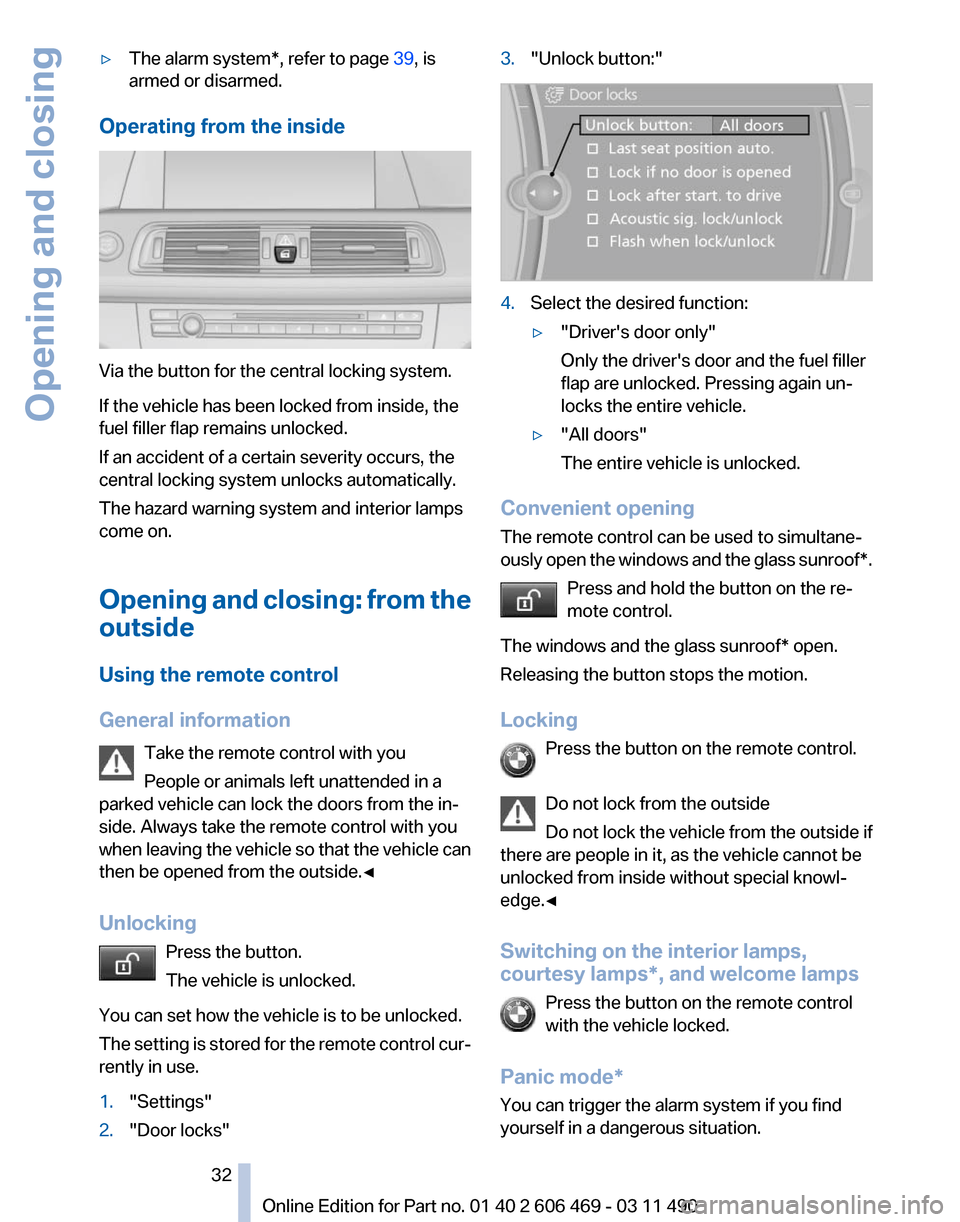
Operating from the inside Via the button for the central locking system.
If the vehicle has been locked from inside, the
fuel filler flap remains unlocked.
If an accident of a certain severity occurs, the
central locking system unlocks automatically.
The hazard warning system and interior lamps
come on.
Opening
and closing: from the
outside
Using the remote control
General information
Take the remote control with you
People or animals left unattended in a
parked vehicle can lock the doors from the in‐
side. Always take the remote control with you
when leaving the vehicle so that the vehicle can
then be opened from the outside.◀
Unlocking
Press the button.
The vehicle is unlocked.
You can set how the vehicle is to be unlocked.
The setting is stored for the remote control cur‐
rently in use.
1. "Settings"
2. "Door locks" 3.
"Unlock button:" 4.
Select the desired function:
▷"Driver's door only"
Only the driver's door and the fuel filler
flap are unlocked. Pressing again un‐
locks the entire vehicle.
▷ "All doors"
The entire vehicle is unlocked.
Convenient opening
The remote control can be used to simultane‐
ously
open the windows and the glass sunroof*.Press and hold the button on the re‐
mote control.
The windows and the glass sunroof* open.
Releasing the button stops the motion.
Locking Press the button on the remote control.
Do not lock from the outside
Do not lock the vehicle from the outside if
there are people in it, as the vehicle cannot be
unlocked from inside without special knowl‐
edge.◀
Switching on the interior lamps,
courtesy lamps*, and welcome lamps
Press the button on the remote control
with the vehicle locked.
Panic mode*
You can trigger the alarm system if you find
yourself in a dangerous situation. Seite 32
32 Online Edition for Part no. 01 40 2 606 469 - 03 11 490
Opening and closing
Page 33 of 304
Press the button on the remote control
for at least 3 seconds.
To switch off the alarm: press any button.
Switching on the headlamp courtesy
delay feature Briefly press the button on the remote
control.
The duration can be set in the Control Display.
Opening the trunk lid Press
the button on the remote control
for approx. 1 second and release.
The trunk lid opens, regardless of whether it was
previously locked or unlocked.
During opening, the trunk lid pivots back and up.
Ensure that adequate clearance is available be‐
fore opening.
In some vehicle equipment variants, the trunk lid
can only be opened using the remote control if
the vehicle was unlocked first.
To avoid locking yourself out of the vehicle, do
not place the remote control into the cargo area.
The trunk lid is locked again as soon as it is
pushed closed.
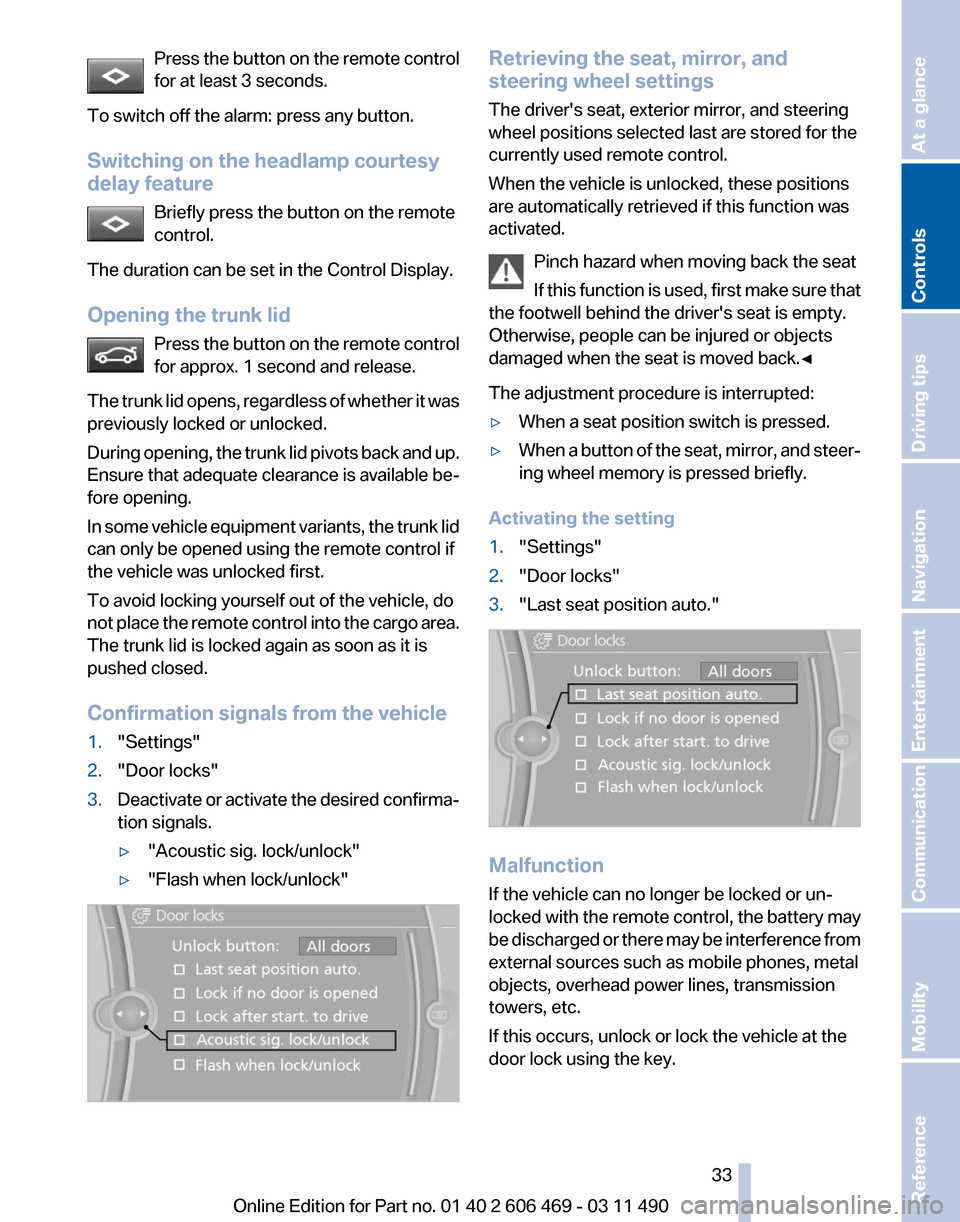
Confirmation signals from the vehicle
1. "Settings"
2. "Door locks"
3. Deactivate or activate the desired confirma‐
tion signals.
▷"Acoustic sig. lock/unlock"
▷ "Flash when lock/unlock" Retrieving the seat, mirror, and
steering wheel settings
The driver's seat, exterior mirror, and steering
wheel positions selected last are stored for the
currently used remote control.
When the vehicle is unlocked, these positions
are automatically retrieved if this function was
activated.
Pinch hazard when moving back the seat
If
this function is used, first make sure that
the footwell behind the driver's seat is empty.
Otherwise, people can be injured or objects
damaged when the seat is moved back.◀
The adjustment procedure is interrupted:
▷ When a seat position switch is pressed.
▷ When a button of the seat, mirror, and steer‐
ing wheel memory is pressed briefly.
Activating the setting
1. "Settings"
2. "Door locks"
3. "Last seat position auto." Malfunction
If the vehicle can no longer be locked or un‐
locked
with the remote control, the battery may
be discharged or there may be interference from
external sources such as mobile phones, metal
objects, overhead power lines, transmission
towers, etc.
If this occurs, unlock or lock the vehicle at the
door lock using the key. Seite 33
33Online Edition for Part no. 01 40 2 606 469 - 03 11 490
Reference Mobility Communication Entertainment Navigation Driving tips
Controls At a glance
Page 34 of 304
For US owners only
The transmitter and receiver units comply with
part 15 of the FCC/Federal Communication
Commission
regulations. Operation is governed
by the following:
FCC ID:
▷ LX8766S.
▷ LX8766E.
▷ LX8CAS.
▷ LX8CAS2.
▷ MYTCAS4.
Compliance statement:
This device complies with part 15 of the FCC
Rules. Operation is subject to the following two
conditions:
▷ This device may not cause harmful interfer‐
ence, and
▷ this device must accept any interference re‐
ceived, including interference that may
cause undesired operation.
Any unauthorized modifications or changes to
these devices could void the user's authority to
operate this equipment.
Using the door lock
General information Do not lock from the outside
Do
not lock the vehicle from the outside if
there are people in it, as the vehicle cannot be
unlocked from inside without special knowl‐
edge.◀ Remove the key before pulling the door
handle
Before pulling the outside door handle, remove
the
key to avoid damaging the paintwork and the
key.◀
In some country-specific versions, the alarm
system* is triggered if the vehicle is unlocked via
the door lock.
Manual operation
If an electrical malfunction occurs, lock or unlock
the vehicle using a key via the door lock on the
driver's door.
Locking the doors and trunk lid at
once*
In some vehicle equipment versions, only the
driver's door can be locked via the door lock.
To lock all doors and the trunk lid at once:
1. With the doors closed, lock the vehicle using
the button for the central locking system in
the interior.
2. Unlock and open the driver's or front pas‐
senger door.
3. Lock the vehicle.
▷Lock the driver's door using the
integrated key in the door lock, or
▷ Press down the lock button of the front
passenger
door and close the door from
the outside.
The fuel filler flap can only be locked using the
remote control. Seite 34
34 Online Edition for Part no. 01 40 2 606 469 - 03 11 490
Opening and closing
Page 35 of 304
Opening and closing: from the
inside
Unlocking and opening*
▷
Either unlock the doors together using the
button for the central locking system and
then
pull the door handle above the armrest
or
▷ Pull the door opener twice individually on
each door: the first time unlocks the door,
the second time opens it.
Locking and unlocking Press the button in the vehicle.
The doors and the trunk lid are locked
or
unlocked when the front doors are closed, but
they are not secured against theft.
The fuel filler flap remains unlocked.
Automatic locking
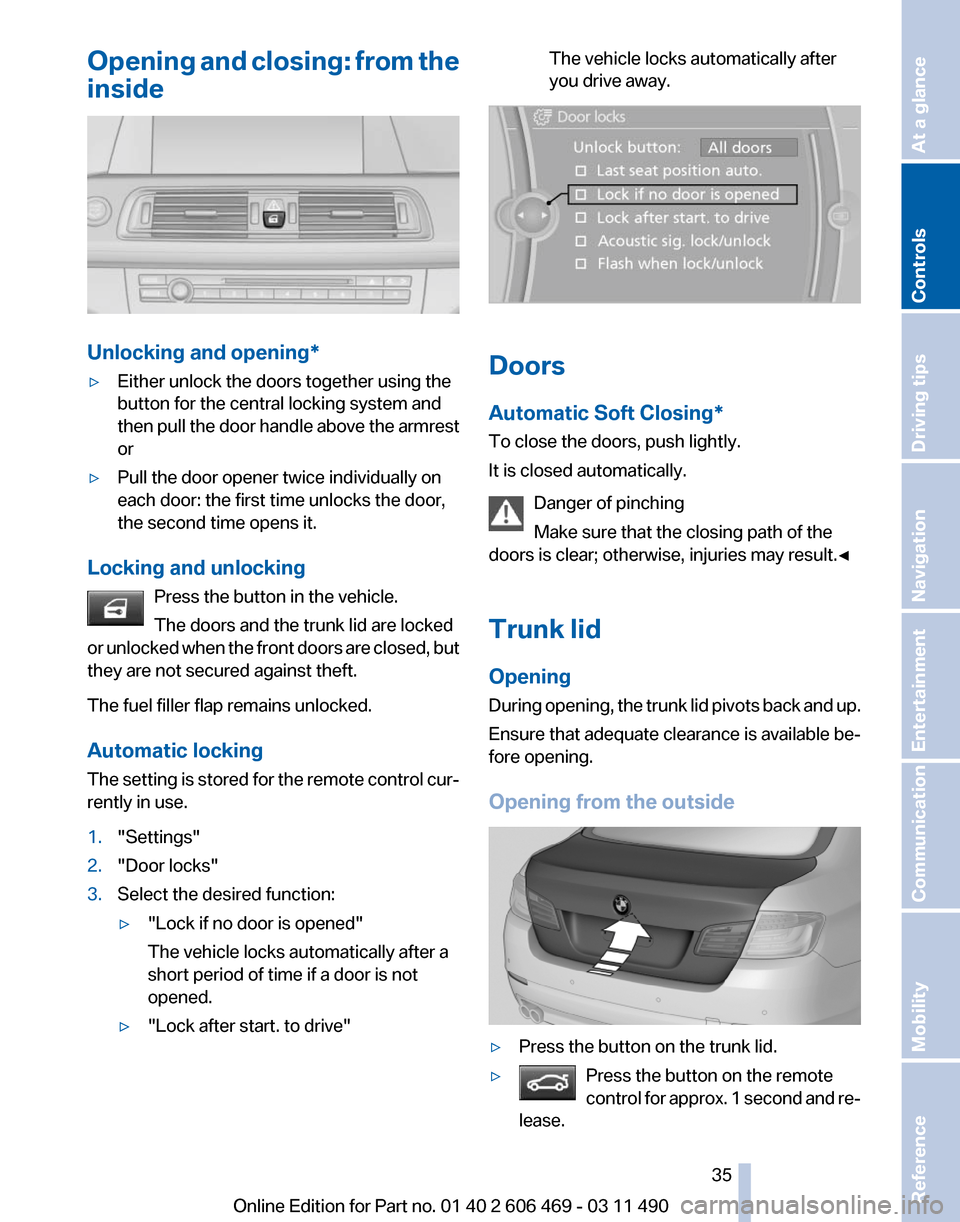
The setting is stored for the remote control cur‐
rently in use.
1. "Settings"
2. "Door locks"
3. Select the desired function:
▷"Lock if no door is opened"
The vehicle locks automatically after a
short period of time if a door is not
opened.
▷ "Lock after start. to drive" The vehicle locks automatically after
you drive away.
Doors
Automatic Soft Closing*
To close the doors, push lightly.
It is closed automatically.
Danger of pinching
Make sure that the closing path of the
doors is clear; otherwise, injuries may result.◀
Trunk lid
Opening
During
opening, the trunk lid pivots back and up.
Ensure that adequate clearance is available be‐
fore opening.
Opening from the outside ▷
Press the button on the trunk lid.
▷ Press the button on the remote
control
for approx. 1 second and re‐
lease. Seite 35
35Online Edition for Part no. 01 40 2 606 469 - 03 11 490
Reference Mobility Communication Entertainment Navigation Driving tips
Controls At a glance
Page 36 of 304
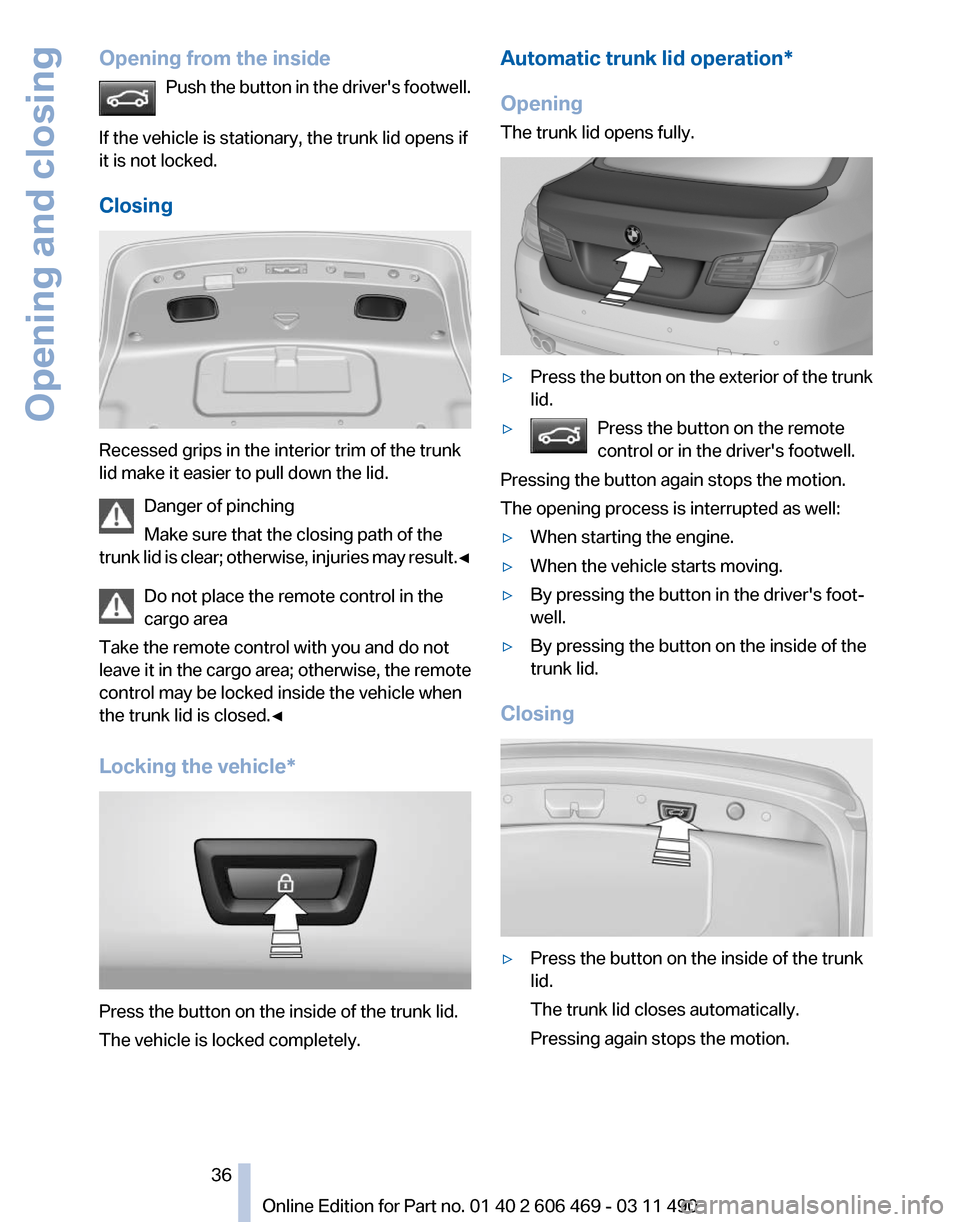
Opening from the inside
Push the button in the driver's footwell.
If the vehicle is stationary, the trunk lid opens if
it is not locked.
Closing Recessed grips in the interior trim of the trunk
lid make it easier to pull down the lid.
Danger of pinching
Make sure that the closing path of the
trunk
lid is clear; otherwise, injuries may result.◀Do not place the remote control in the
cargo area
Take the remote control with you and do not
leave it in the cargo area; otherwise, the remote
control may be locked inside the vehicle when
the trunk lid is closed.◀
Locking the vehicle* Press the button on the inside of the trunk lid.
The vehicle is locked completely. Automatic trunk lid operation*
Opening
The trunk lid opens fully.
▷
Press the button on the exterior of the trunk
lid.
▷ Press the button on the remote
control or in the driver's footwell. Pressing the button again stops the motion.
The opening process is interrupted as well:
▷
When starting the engine.
▷ When the vehicle starts moving.
▷ By pressing the button in the driver's foot‐
well.
▷ By pressing the button on the inside of the
trunk lid.
Closing ▷
Press the button on the inside of the trunk
lid.
The trunk lid closes automatically.
Pressing again stops the motion.
Seite 36
36 Online Edition for Part no. 01 40 2 606 469 - 03 11 490
Opening and closing
Page 41 of 304
Closing without the pinch protection
system
Danger of pinching
Monitor the closing process and make
sure
that the closing path of the window is clear;
otherwise, injuries may result.◀
For example, if there is an external danger or if
ice on the windows prevents a window from
closing normally, proceed as follows:
1. Pull the switch past the resistance point and
hold it there.
Pinch protection is limited and the window
reopens
slightly if the closing force exceeds
a certain value.
2. Pull the switch past the resistance point
again within approx. 4 seconds and hold it
there.
The window closes without pinch protec‐
tion.
Safety switch
The safety switch in the driver's door can be
used to prevent children, for example, from
opening
and closing the rear windows using the
switches in the rear.
Switching on and off
Press the button.
The LED lights up if the safety function
is switched on.
Safety switch for rear operation
Press the safety switch when transporting
children in the rear; otherwise, injury may result
if the windows are closed without supervision.◀
Roller sunblinds*
General information
If you are no longer able to move the roller sun‐
blind for the rear window after having activated
it a number of times in a row, the system is blocked for a limited time to prevent overheat‐
ing. Let the system cool.
The roller sunblind for the rear window cannot
be moved at low interior temperatures.
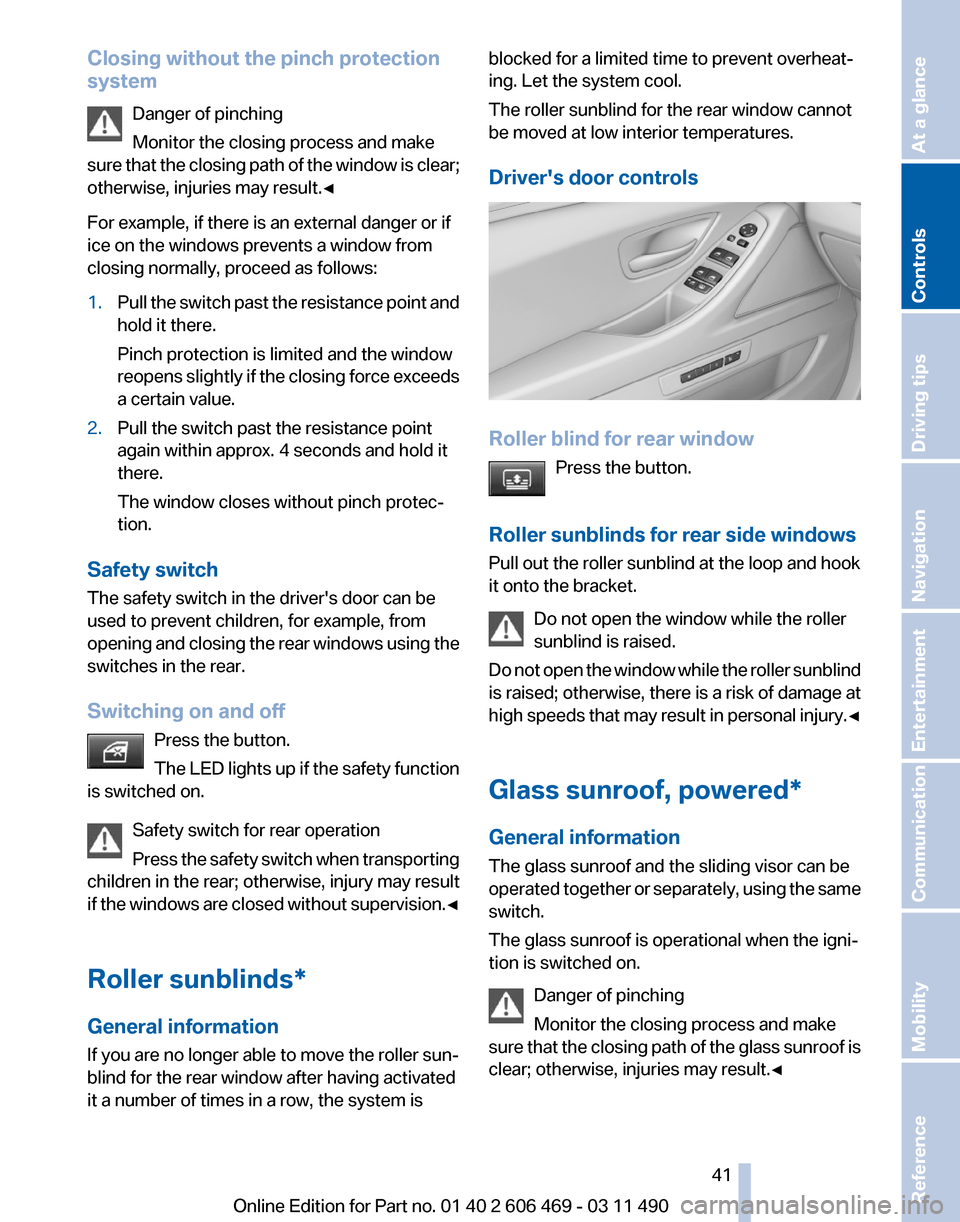
Driver's door controls
Roller blind for rear window
Press the button.
Roller sunblinds for rear side windows
Pull out the roller sunblind at the loop and hook
it onto the bracket. Do not open the window while the roller
sunblind is raised.
Do
not open the window while the roller sunblind
is raised; otherwise, there is a risk of damage at
high speeds that may result in personal injury.◀
Glass sunroof, powered*
General information
The glass sunroof and the sliding visor can be
operated together or separately, using the same
switch.
The glass sunroof is operational when the igni‐
tion is switched on.
Danger of pinching
Monitor the closing process and make
sure that the closing path of the glass sunroof is
clear; otherwise, injuries may result.◀ Seite 41
41Online Edition for Part no. 01 40 2 606 469 - 03 11 490
Reference Mobility Communication Entertainment Navigation Driving tips
Controls At a glance