display BMW 528I 2012 Owners Manual
[x] Cancel search | Manufacturer: BMW, Model Year: 2012, Model line: 528I, Model: BMW 528I 2012Pages: 335, PDF Size: 13.16 MB
Page 249 of 335
Using contact data
Contact data from appointments, tasks, text
messages, e-mails and notes can be saved or
selected, refer to page 249.
Reading the task out loud
Read the task out loud, refer to page 250.
Notes
Displaying notes1."Office"2."Notes"
All notes are displayed.
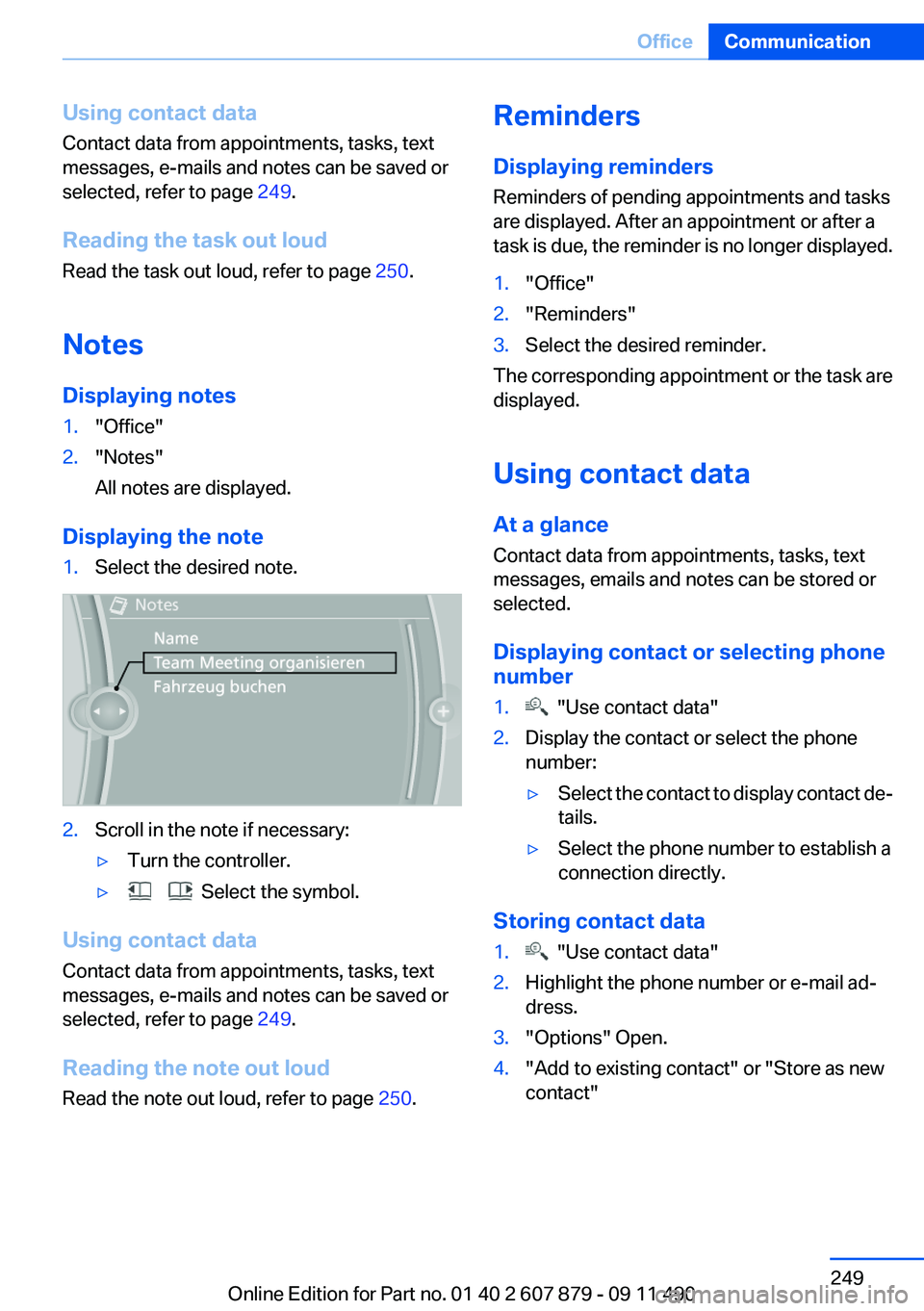
Displaying the note
1.Select the desired note.2.Scroll in the note if necessary:▷Turn the controller.▷ Select the symbol.
Using contact data
Contact data from appointments, tasks, text
messages, e-mails and notes can be saved or
selected, refer to page 249.
Reading the note out loud
Read the note out loud, refer to page 250.
Reminders
Displaying reminders
Reminders of pending appointments and tasks
are displayed. After an appointment or after a
task is due, the reminder is no longer displayed.1."Office"2."Reminders"3.Select the desired reminder.
The corresponding appointment or the task are
displayed.
Using contact data
At a glance
Contact data from appointments, tasks, text
messages, emails and notes can be stored or
selected.
Displaying contact or selecting phone
number
1. "Use contact data"2.Display the contact or select the phone
number:▷Select the contact to display contact de‐
tails.▷Select the phone number to establish a
connection directly.
Storing contact data
1. "Use contact data"2.Highlight the phone number or e-mail ad‐
dress.3."Options" Open.4."Add to existing contact" or "Store as new
contact"Seite 249OfficeCommunication249
Online Edition for Part no. 01 40 2 607 879 - 09 11 490
Page 250 of 335
Reading out loud
Text messages, e-mails, appointment entries,
tasks, and notes can be read out loud.1.Select the desired message, appointment,
task, or note.2. Select the symbol.
The following options are available during read‐
ing:
▷ "Pause"
Interrupt reading. Select again to restart
reading.▷ "Back to beginning"
Start reading message again from the be‐
ginning.▷ Select the symbol.
Skip a paragraph.▷ Select the symbol.
Go back one paragraph.▷To end reading, tilt the controller to the left.
What to do if...
Information on suitable mobile phones, refer to
page 230.
Appointments, tasks, notes, text messages, or
e-mails from the mobile phone are not dis‐
played.
▷The mobile phone is not capable of the
missing function or is not connected cor‐
rectly.▷The Office function is deactivated.▷The mobile phone is connected as an addi‐
tional phone.▷Appointments are older than 20 days or are
more than 50 days in the future.▷The tasks have been marked as completed
or have a due date that lies more than
90 days in the future.▷Depending on the number of stored ap‐
pointments, task notes, and messages in
the mobile phone, not all are displayed in the
vehicle.
Not all appointments and tasks from the mobile
phone are displayed at the right time?
▷The time zone, time or date is incorrectly set
on the Control Display and mobile phone.
The e-mail attachment is not displayed.
▷E-mails are transmitted without an attach‐
ment.
Entries are not displayed in full length.
▷Text were already transmitted from the mo‐
bile phone in a shortened form.▷Synchronization between the mobile phone
and vehicle may take several minutes.
The contact pictures are not being displayed?
▷Up to 200 contact pictures can be stored in
the vehicle.
The E-mail is displayed with a delay?
▷Check the e-mail settings on the mobile
phone and adjust if necessary.
If all points in this list have been checked and the
required function is still not available, contact
the hotline or service center.
Seite 250CommunicationOffice250
Online Edition for Part no. 01 40 2 607 879 - 09 11 490
Page 251 of 335
ContactsVehicle equipment
All standard, country-specific and optional
equipment that is offered in the model series is
described in this chapter. Therefore, equipment
is also described that is not available in a vehicle,
e. g., because of the selected optional equip‐
ment or country variant. This also applies for
safety-related functions and systems.
Note
If not equipped with mobile phone complete
preparation package.
General information
Contacts can be created and edited and the ad‐
dresses can be adopted as destinations for nav‐
igation.
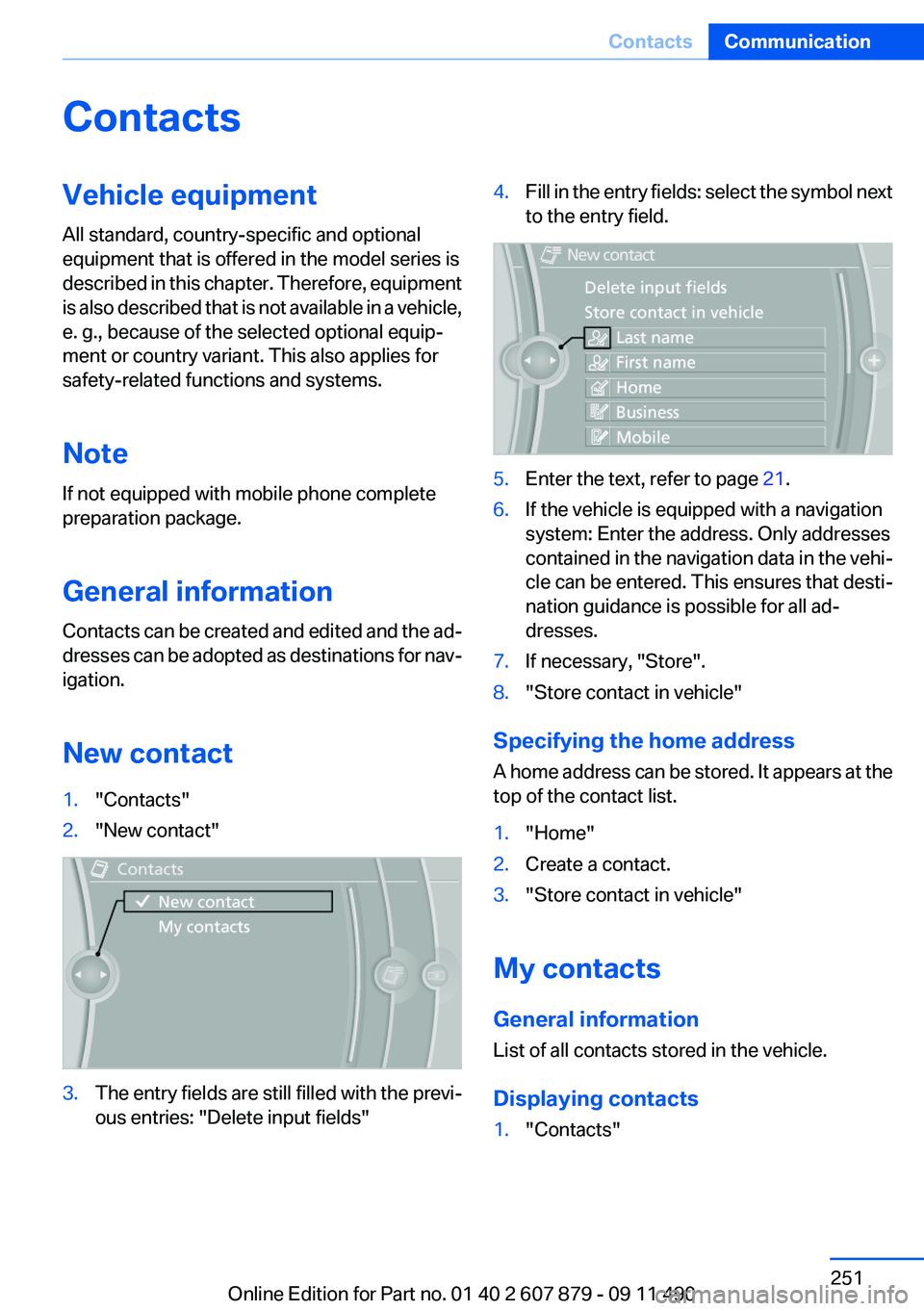
New contact1."Contacts"2."New contact"3.The entry fields are still filled with the previ‐
ous entries: "Delete input fields"4.Fill in the entry fields: select the symbol next
to the entry field.5.Enter the text, refer to page 21.6.If the vehicle is equipped with a navigation
system: Enter the address. Only addresses
contained in the navigation data in the vehi‐
cle can be entered. This ensures that desti‐
nation guidance is possible for all ad‐
dresses.7.If necessary, "Store".8."Store contact in vehicle"
Specifying the home address
A home address can be stored. It appears at the
top of the contact list.
1."Home"2.Create a contact.3."Store contact in vehicle"
My contacts
General information
List of all contacts stored in the vehicle.
Displaying contacts
1."Contacts"Seite 251ContactsCommunication251
Online Edition for Part no. 01 40 2 607 879 - 09 11 490
Page 252 of 335
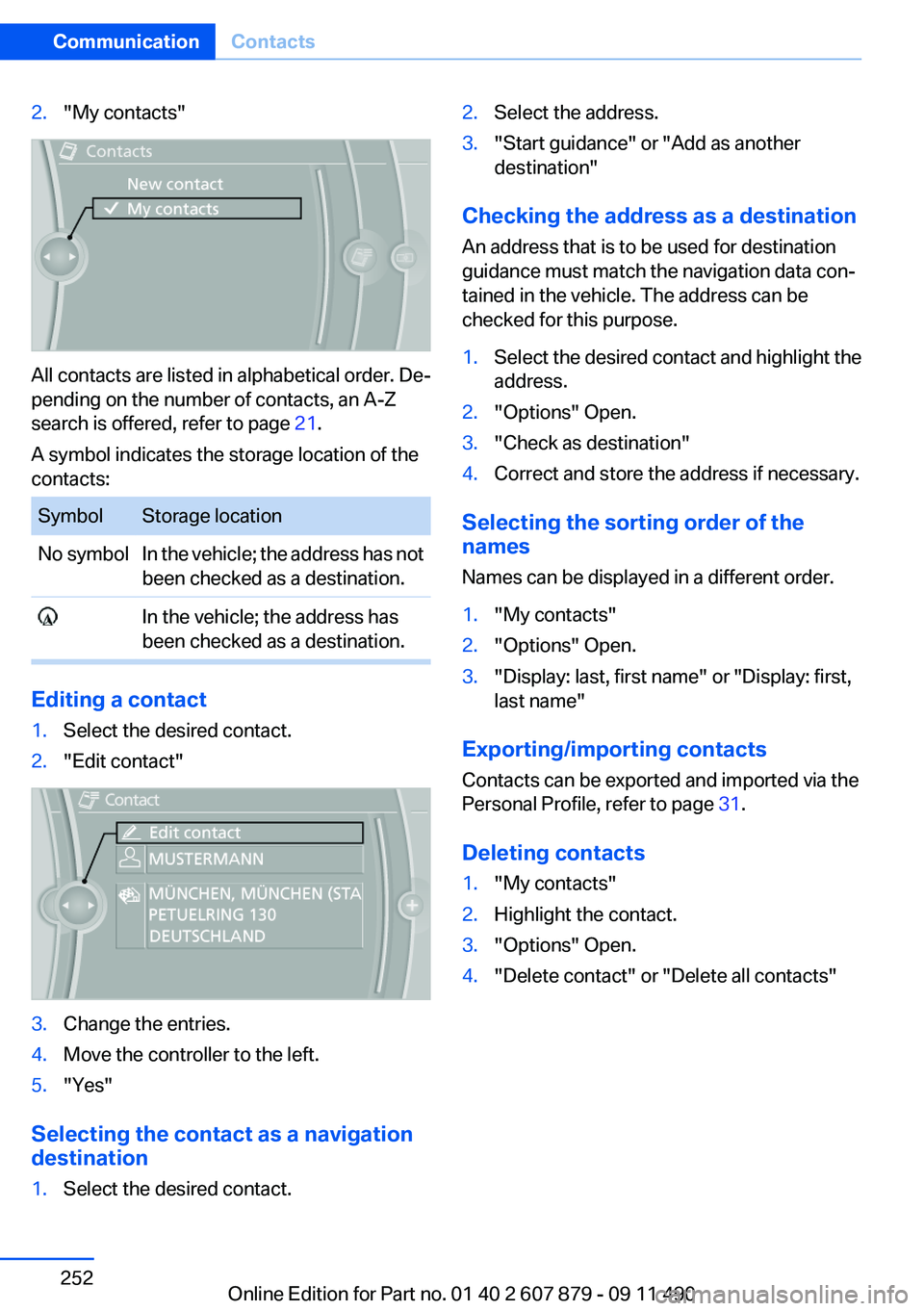
2."My contacts"
All contacts are listed in alphabetical order. De‐
pending on the number of contacts, an A-Z
search is offered, refer to page 21.
A symbol indicates the storage location of the
contacts:
SymbolStorage locationNo symbolIn the vehicle; the address has not
been checked as a destination. In the vehicle; the address has
been checked as a destination.
Editing a contact
1.Select the desired contact.2."Edit contact"3.Change the entries.4.Move the controller to the left.5."Yes"
Selecting the contact as a navigation
destination
1.Select the desired contact.2.Select the address.3."Start guidance" or "Add as another
destination"
Checking the address as a destination
An address that is to be used for destination
guidance must match the navigation data con‐
tained in the vehicle. The address can be
checked for this purpose.
1.Select the desired contact and highlight the
address.2."Options" Open.3."Check as destination"4.Correct and store the address if necessary.
Selecting the sorting order of the
names
Names can be displayed in a different order.
1."My contacts"2."Options" Open.3."Display: last, first name" or "Display: first,
last name"
Exporting/importing contacts
Contacts can be exported and imported via the
Personal Profile, refer to page 31.
Deleting contacts
1."My contacts"2.Highlight the contact.3."Options" Open.4."Delete contact" or "Delete all contacts"Seite 252CommunicationContacts252
Online Edition for Part no. 01 40 2 607 879 - 09 11 490
Page 255 of 335
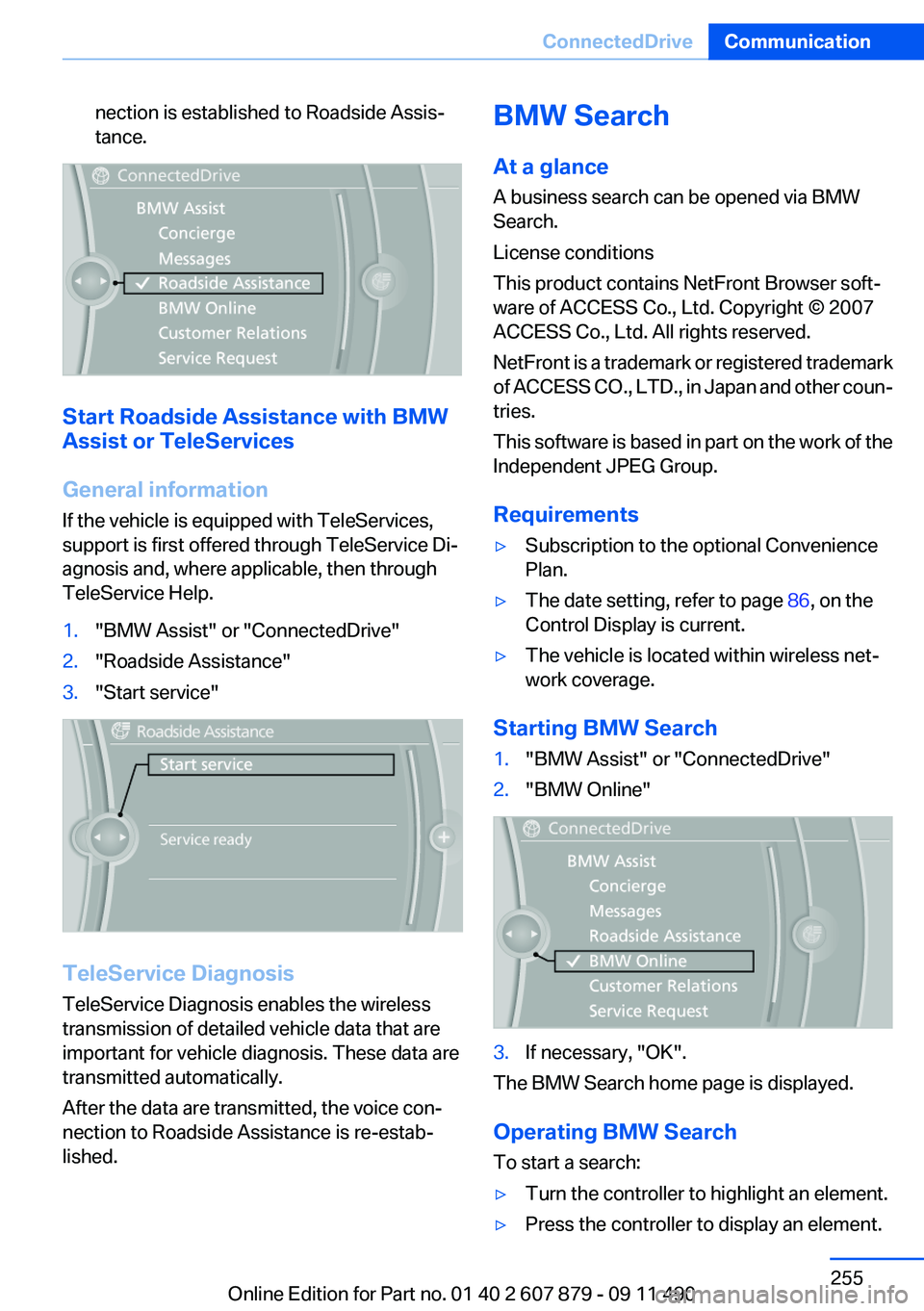
nection is established to Roadside Assis‐
tance.
Start Roadside Assistance with BMW
Assist or TeleServices
General information
If the vehicle is equipped with TeleServices,
support is first offered through TeleService Di‐
agnosis and, where applicable, then through
TeleService Help.
1."BMW Assist" or "ConnectedDrive"2."Roadside Assistance"3."Start service"
TeleService Diagnosis
TeleService Diagnosis enables the wireless
transmission of detailed vehicle data that are
important for vehicle diagnosis. These data are
transmitted automatically.
After the data are transmitted, the voice con‐
nection to Roadside Assistance is re-estab‐
lished.
BMW Search
At a glance
A business search can be opened via BMW
Search.
License conditions
This product contains NetFront Browser soft‐
ware of ACCESS Co., Ltd. Copyright © 2007
ACCESS Co., Ltd. All rights reserved.
NetFront is a trademark or registered trademark
of ACCESS CO., LTD., in Japan and other coun‐
tries.
This software is based in part on the work of the
Independent JPEG Group.
Requirements▷Subscription to the optional Convenience
Plan.▷The date setting, refer to page 86, on the
Control Display is current.▷The vehicle is located within wireless net‐
work coverage.
Starting BMW Search
1."BMW Assist" or "ConnectedDrive"2."BMW Online"3.If necessary, "OK".
The BMW Search home page is displayed.
Operating BMW Search
To start a search:
▷Turn the controller to highlight an element.▷Press the controller to display an element.Seite 255ConnectedDriveCommunication255
Online Edition for Part no. 01 40 2 607 879 - 09 11 490
Page 256 of 335
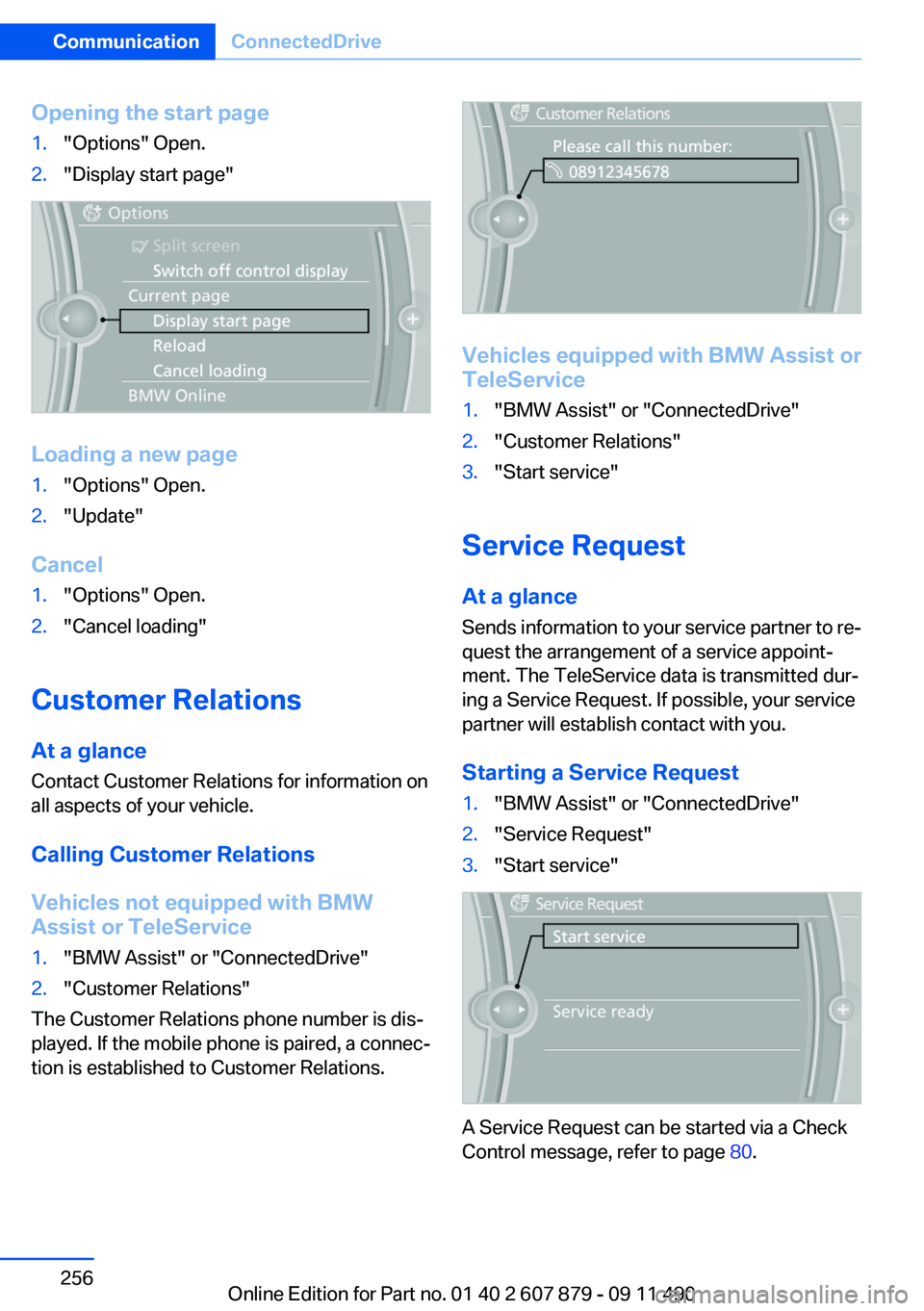
Opening the start page1."Options" Open.2."Display start page"
Loading a new page
1."Options" Open.2."Update"
Cancel
1."Options" Open.2."Cancel loading"
Customer Relations
At a glance
Contact Customer Relations for information on
all aspects of your vehicle.
Calling Customer Relations
Vehicles not equipped with BMW
Assist or TeleService
1."BMW Assist" or "ConnectedDrive"2."Customer Relations"
The Customer Relations phone number is dis‐
played. If the mobile phone is paired, a connec‐
tion is established to Customer Relations.
Vehicles equipped with BMW Assist or
TeleService
1."BMW Assist" or "ConnectedDrive"2."Customer Relations"3."Start service"
Service Request
At a glance
Sends information to your service partner to re‐
quest the arrangement of a service appoint‐
ment. The TeleService data is transmitted dur‐
ing a Service Request. If possible, your service
partner will establish contact with you.
Starting a Service Request
1."BMW Assist" or "ConnectedDrive"2."Service Request"3."Start service"
A Service Request can be started via a Check
Control message, refer to page 80.
Seite 256CommunicationConnectedDrive256
Online Edition for Part no. 01 40 2 607 879 - 09 11 490
Page 257 of 335
Automatic Service Request
The TeleService data necessary for servicing
the vehicle are automatically sent to your service
partner prior to the service deadline. If possible,
the service partner will contact you and a service
appointment can be arranged.
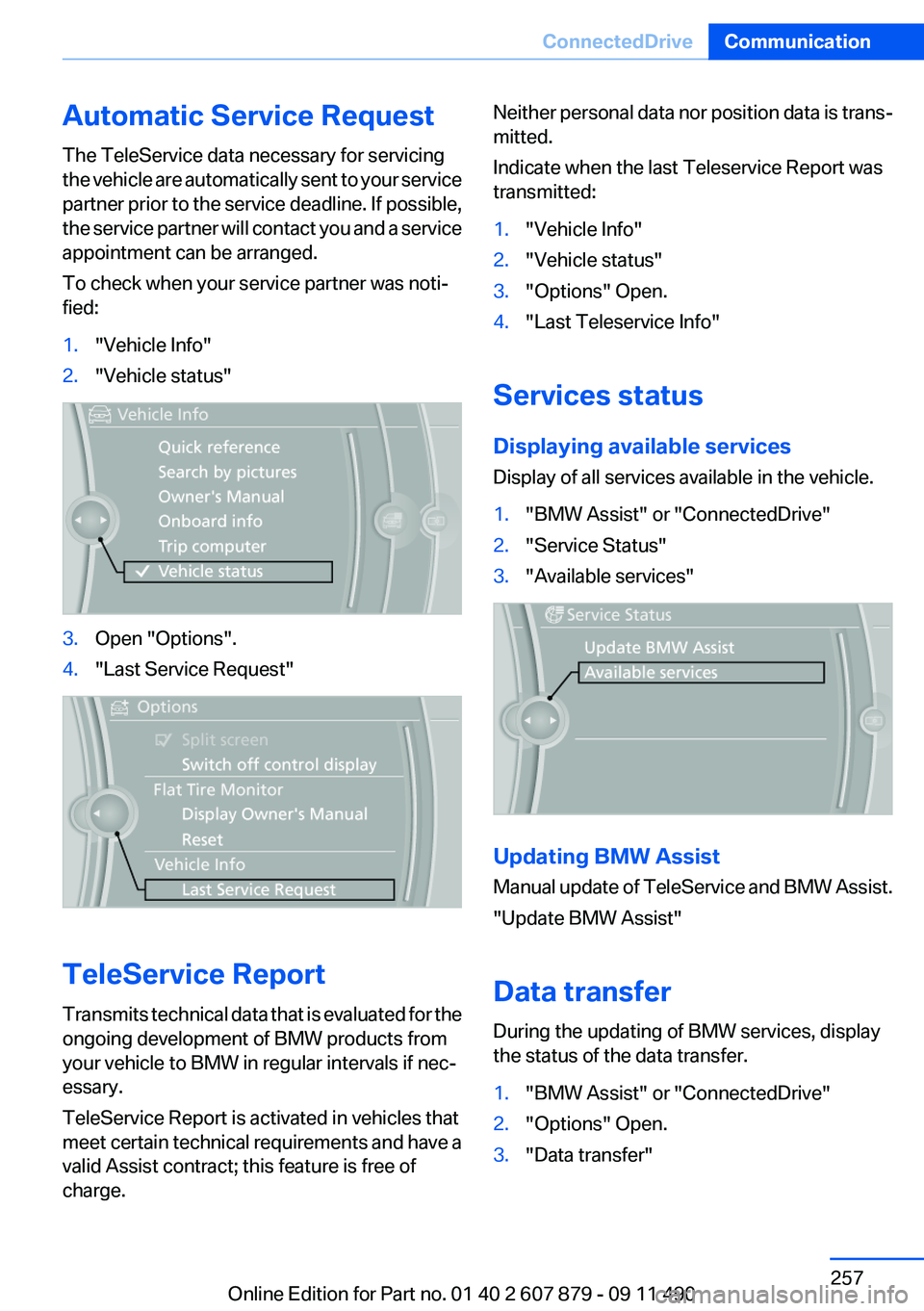
To check when your service partner was noti‐
fied:1."Vehicle Info"2."Vehicle status"3.Open "Options".4."Last Service Request"
TeleService Report
Transmits technical data that is evaluated for the
ongoing development of BMW products from
your vehicle to BMW in regular intervals if nec‐
essary.
TeleService Report is activated in vehicles that
meet certain technical requirements and have a
valid Assist contract; this feature is free of
charge.
Neither personal data nor position data is trans‐
mitted.
Indicate when the last Teleservice Report was
transmitted:1."Vehicle Info"2."Vehicle status"3."Options" Open.4."Last Teleservice Info"
Services status
Displaying available services
Display of all services available in the vehicle.
1."BMW Assist" or "ConnectedDrive"2."Service Status"3."Available services"
Updating BMW Assist
Manual update of TeleService and BMW Assist.
"Update BMW Assist"
Data transfer
During the updating of BMW services, display
the status of the data transfer.
1."BMW Assist" or "ConnectedDrive"2."Options" Open.3."Data transfer"Seite 257ConnectedDriveCommunication257
Online Edition for Part no. 01 40 2 607 879 - 09 11 490
Page 258 of 335
Apps
At a glance
Certain software applications of a suitable cell
phone can be integrated in the vehicle. These
software applications are displayed on the Con‐
trol Display.
Operation can be performed via iDrive.
Requirements▷The mobile phone is suitable.▷The cell phone operating system supports
the software applications of Apps.▷Software applications are installed on the
cell phone and ready to use.▷Corresponding mobile wireless contract.
Any additionally incurred costs are not a part
of Apps.▷Use only BMW approved software applica‐
tions; otherwise, it may result in malfunc‐
tions.
Information about suitable cell phones, available
software applications and their installation can
be found at www.bmw.com/connectivity or at
the service center.
Create the entries.
Make entries only when traffic and road
conditions allow. Otherwise, the vehicle occu‐
pants and other road users may be put in danger
because of the distraction from driving.
For reasons of safety, some software applica‐
tions are usable only while the vehicle is station‐
ary.◀
Use apps
1.Connect the cell phone via the snap-in
adapter or via the USB audio interface.2."ConnectedDrive"3.Select the desired software application.Displaying status
Information about the currently available soft‐
ware applications can be displayed.1."ConnectedDrive"2."BMW apps"
PlugIn
Selected functions of the cell phone are dis‐
played on the Control Display. Operation can be
performed via iDrive.
1.Connect cell phone via the snap-in adapter.2."ConnectedDrive"3."PlugIn"4."Activate PlugIn"5.Navigate to the displayed functions via the
controller and select, for example, a desired
category or track.
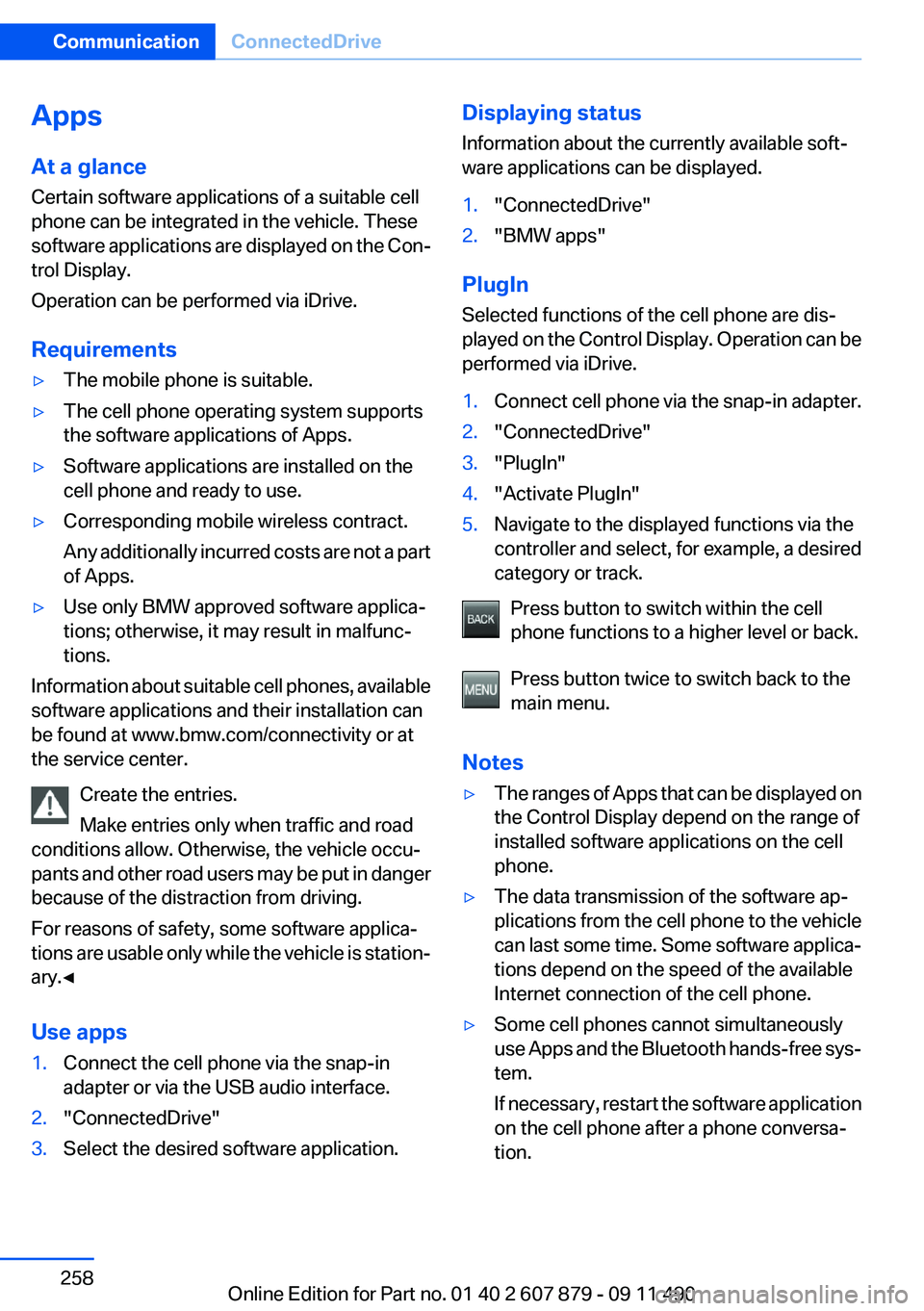
Press button to switch within the cell
phone functions to a higher level or back.
Press button twice to switch back to the
main menu.
Notes
▷The ranges of Apps that can be displayed on
the Control Display depend on the range of
installed software applications on the cell
phone.▷The data transmission of the software ap‐
plications from the cell phone to the vehicle
can last some time. Some software applica‐
tions depend on the speed of the available
Internet connection of the cell phone.▷Some cell phones cannot simultaneously
use Apps and the Bluetooth hands-free sys‐
tem.
If necessary, restart the software application
on the cell phone after a phone conversa‐
tion.Seite 258CommunicationConnectedDrive258
Online Edition for Part no. 01 40 2 607 879 - 09 11 490
Page 262 of 335
RefuelingVehicle equipment
All standard, country-specific and optional
equipment that is offered in the model series is
described in this chapter. Therefore, equipment
is also described that is not available in a vehicle,
e. g., because of the selected optional equip‐
ment or country variant. This also applies for
safety-related functions and systems.
General information Refuel promptly
Refuel below a range of 30 miles/50 km;
otherwise, engine functions are not ensured and
damage may occur.◀
Fuel cap
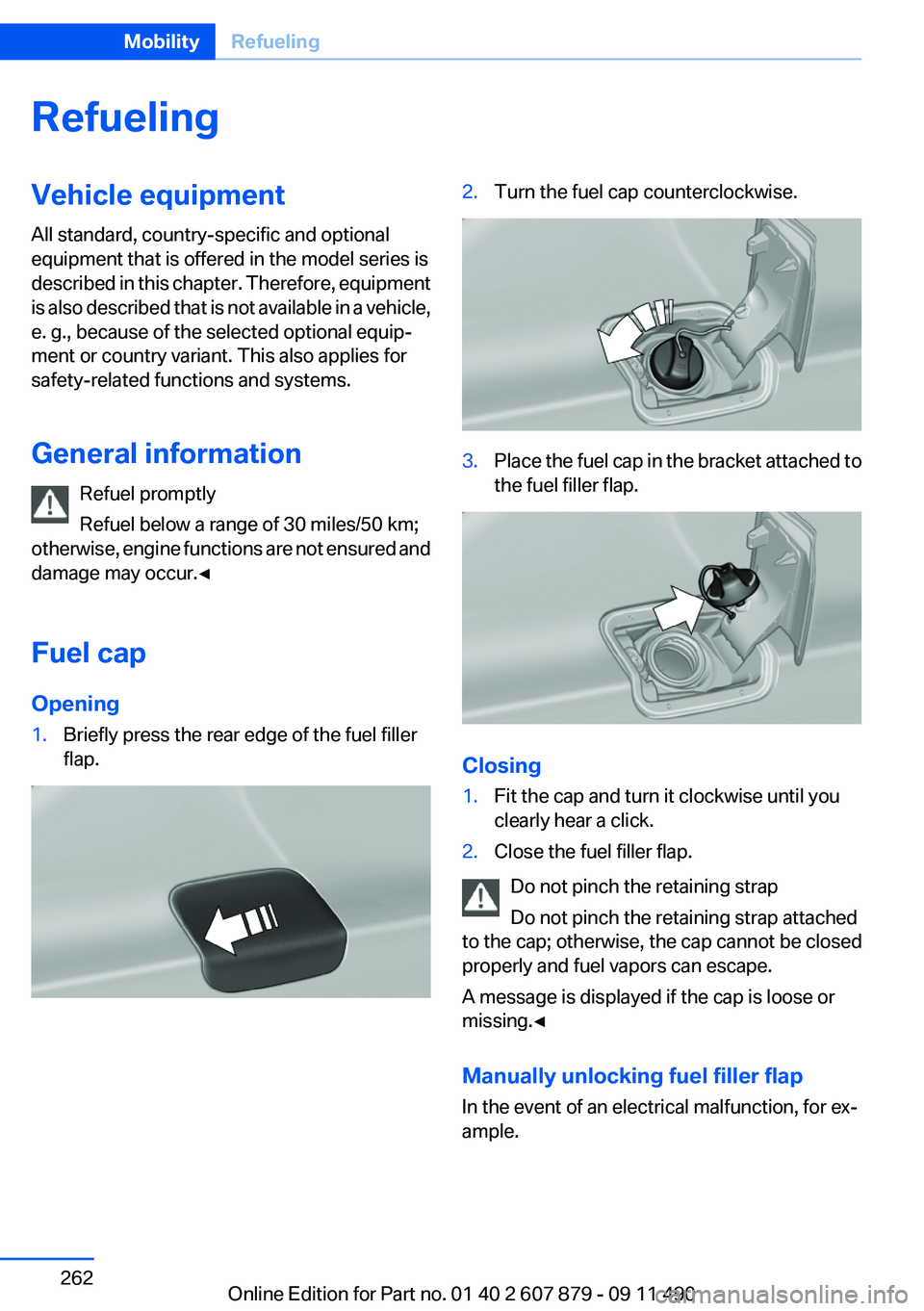
Opening1.Briefly press the rear edge of the fuel filler
flap.2.Turn the fuel cap counterclockwise.3.Place the fuel cap in the bracket attached to
the fuel filler flap.
Closing
1.Fit the cap and turn it clockwise until you
clearly hear a click.2.Close the fuel filler flap.
Do not pinch the retaining strap
Do not pinch the retaining strap attached
to the cap; otherwise, the cap cannot be closed
properly and fuel vapors can escape.
A message is displayed if the cap is loose or
missing.◀
Manually unlocking fuel filler flap
In the event of an electrical malfunction, for ex‐
ample.
Seite 262MobilityRefueling262
Online Edition for Part no. 01 40 2 607 879 - 09 11 490
Page 279 of 335
Recommended tire brands
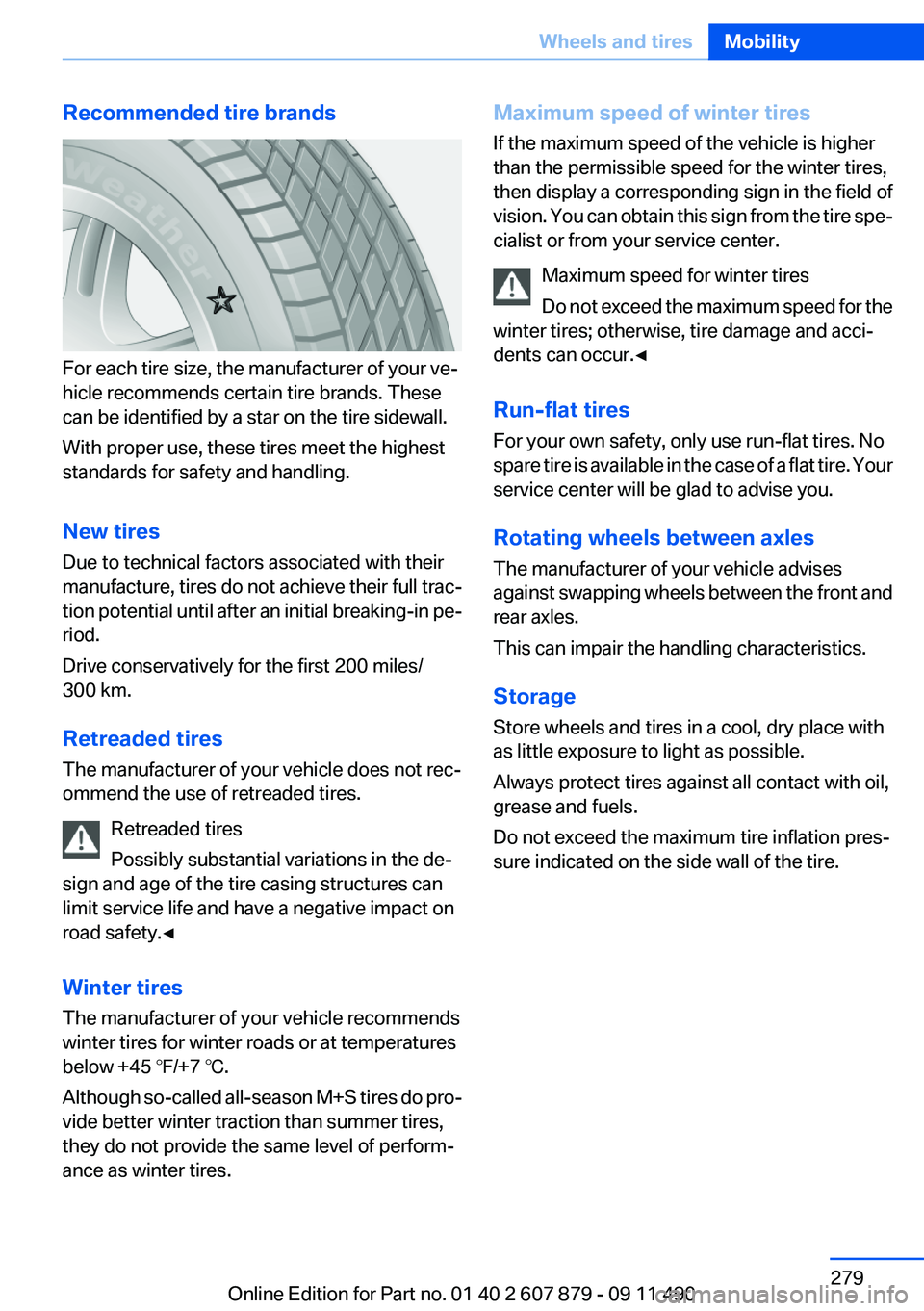
For each tire size, the manufacturer of your ve‐
hicle recommends certain tire brands. These
can be identified by a star on the tire sidewall.
With proper use, these tires meet the highest
standards for safety and handling.
New tires
Due to technical factors associated with their
manufacture, tires do not achieve their full trac‐
tion potential until after an initial breaking-in pe‐
riod.
Drive conservatively for the first 200 miles/
300 km.
Retreaded tires
The manufacturer of your vehicle does not rec‐
ommend the use of retreaded tires.
Retreaded tires
Possibly substantial variations in the de‐
sign and age of the tire casing structures can
limit service life and have a negative impact on
road safety.◀
Winter tires
The manufacturer of your vehicle recommends
winter tires for winter roads or at temperatures
below +45 ℉/+7 ℃.
Although so-called all-season M+S tires do pro‐
vide better winter traction than summer tires,
they do not provide the same level of perform‐
ance as winter tires.
Maximum speed of winter tires
If the maximum speed of the vehicle is higher
than the permissible speed for the winter tires,
then display a corresponding sign in the field of
vision. You can obtain this sign from the tire spe‐
cialist or from your service center.
Maximum speed for winter tires
Do not exceed the maximum speed for the
winter tires; otherwise, tire damage and acci‐
dents can occur.◀
Run-flat tires
For your own safety, only use run-flat tires. No
spare tire is available in the case of a flat tire. Your
service center will be glad to advise you.
Rotating wheels between axles
The manufacturer of your vehicle advises
against swapping wheels between the front and
rear axles.
This can impair the handling characteristics.
Storage
Store wheels and tires in a cool, dry place with
as little exposure to light as possible.
Always protect tires against all contact with oil,
grease and fuels.
Do not exceed the maximum tire inflation pres‐
sure indicated on the side wall of the tire.Seite 279Wheels and tiresMobility279
Online Edition for Part no. 01 40 2 607 879 - 09 11 490