light BMW 530I 2005 Owner's Manual
[x] Cancel search | Manufacturer: BMW, Model Year: 2005, Model line: 530I, Model: BMW 530I 2005Pages: 221, PDF Size: 8.19 MB
Page 64 of 221
Controls
63Reference
At a glance
Driving tips
Communication
Navigation
Entertainment
Mobility
Always remember that the range and abil-
ity of the system does have physical limi-
tations. It will not apply the brakes or decelerate
your vehicle when there is a slow-moving vehi-
cle, stopped vehicle or stationary object ahead
of you, as for example, at a traffic light or a
parked vehicle. Also, the system does not react
to oncoming traffic, pedestrians or other types
of potential traffic such as a rider on horseback.
It is also possible that the system may not
detect smaller moving objects such as motor-
cycles or bicycles. Be especially alert when
encountering any of these situations as the sys-
tem will neither automatically brake, nor provide
a warning to you. Also, be aware that every
decrease in the distance setting allows your
vehicle to come closer to a vehicle in front of
you and requires a heightened amount of alert-
ness.<
If while your vehicle is actively following a vehi-
cle in front of you and the vehicle ahead speeds
up or the lane ahead becomes clear, then your
vehicle will accelerate to the speed you have
selected. Be aware that changing to a clear,
unobstructed lane will also result in your vehicle
accelerating.
Be certain to deactivate the system when
you pull into an exit lane for a highway off-
ramp.<
Also, vehicles traveling in a staggered manner
on a highway may cause a delay in the system's
reaction to a vehicle in front of you or may cause
the system to react to a vehicle actually in the
lane next to you. Always be ready to take action
or apply the brakes if necessary.
Active cruise control can only decelerate the
vehicle to approx. 20 mph/30 km/h. If the sys-
tem reduces vehicle speed below 20 mph/
30 km/h or if DSC/ABS is engaged while driving,
the system will automatically deactivate.
Remember, the system cannot stop your
vehicle. In addition, the system is deacti-
vated whenever the driver applies the vehicle
brakes, shifts the transmission to neutral/N, or
deactivates DSC. After any deactivation, the
system will no longer automatically activate the
vehicle brakes, which means the driver must intervene and resume manual braking. You
should then reactivate the system only when
you are fully aware of the prior speed and dis-
tance settings.<
Active cruise control may brake when you
reduce the stored desired speed; however, the
driver must constantly monitor traffic and inter-
vene if necessary.
When you switch off the engine or ignition,
active cruise control is fully switched off, too,
and any settings you have selected are can-
celed.
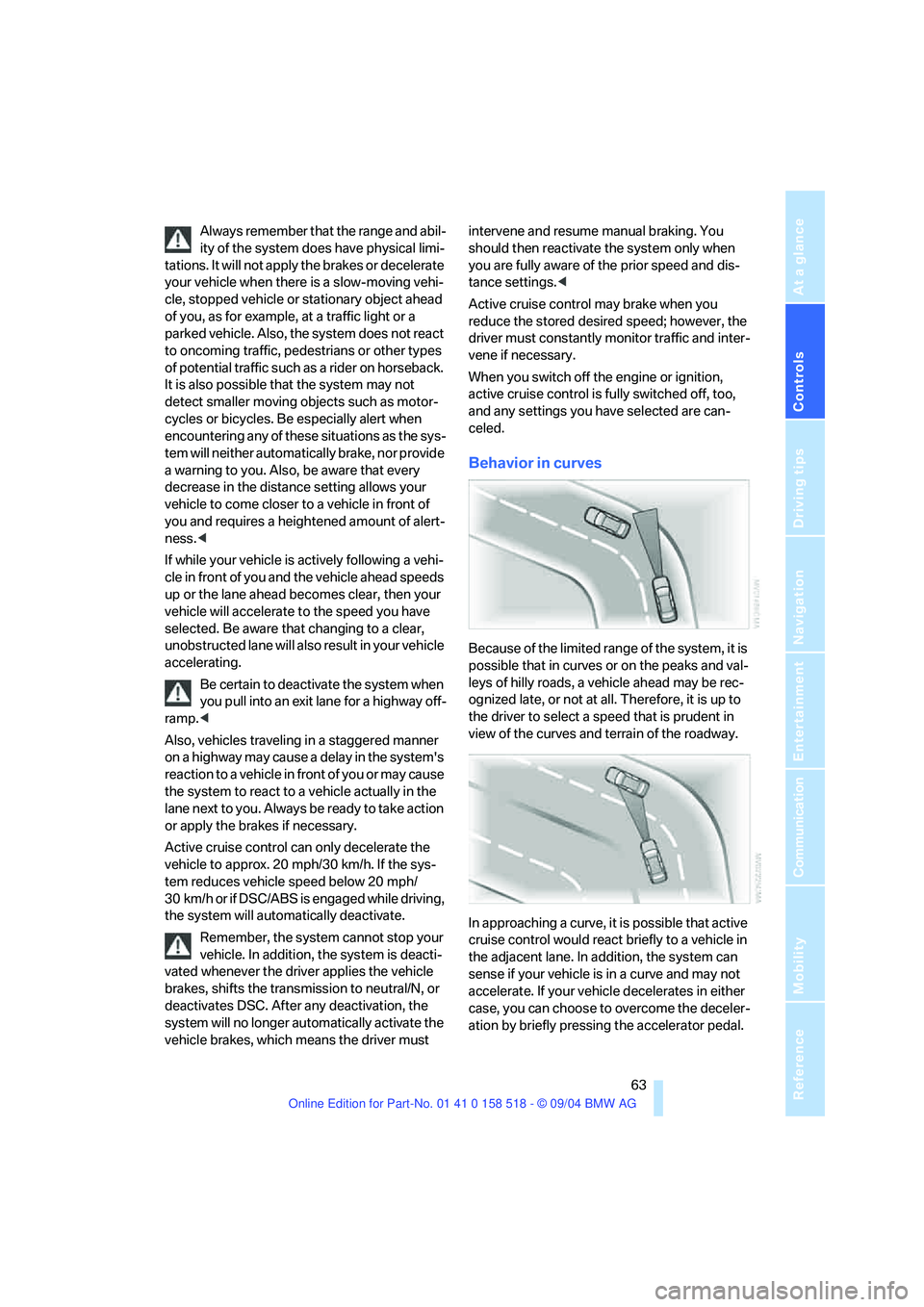
Behavior in curves
Because of the limited range of the system, it is
possible that in curves or on the peaks and val-
leys of hilly roads, a vehicle ahead may be rec-
ognized late, or not at all. Therefore, it is up to
the driver to select a speed that is prudent in
view of the curves and terrain of the roadway.
In approaching a curve, it is possible that active
cruise control would react briefly to a vehicle in
the adjacent lane. In addition, the system can
sense if your vehicle is in a curve and may not
accelerate. If your vehicle decelerates in either
case, you can choose to overcome the deceler-
ation by briefly pressing the accelerator pedal.
Page 65 of 221
Driving
64
Driver interventions
Anytime the driver presses down on the
accelerator pedal, any automatic braking
action by the system is interrupted until the
pedal is fully released. After doing this, release
the accelerator and the system again controls
your cruising speed and distance setting. While
driving with activated system, resting your foot
on the accelerator pedal will cause the system
not to brake even if necessary. Be certain that
floormats or other objects on the vehicle floor
do not interfere with movement of the accelera-
tor pedal.<
While active cruise control is capable of
braking your vehicle automatically when
you approach a slower vehicle ahead, it is
important to be aware that the ability of the sys-
tem to apply the brakes is also limited, particu-
larly if you are driving down a steep grade or
when you reduce your desired speed sharply.
The system cannot stop your vehicle. It uses
only a portion of braking system capacity and
does not utilize the full capacity of the vehicle
braking system. Therefore, the system cannot
decrease your speed for large differences in
speed between your vehicle and the vehicle
ahead. Examples: during emergency braking,
when you approach a vehicle traveling at a
much lower speed than your own speed such as
approaching a toll booth or when a much slower
vehicle cuts in front of you at close range.<
Whenever active cruise control
recognizes a situation that requires
driver braking because the system
capacity has been reached or has
been exceeded, the system alerts
the driver by flashing this symbol in the instru-
ment cluster and sounding a signal.
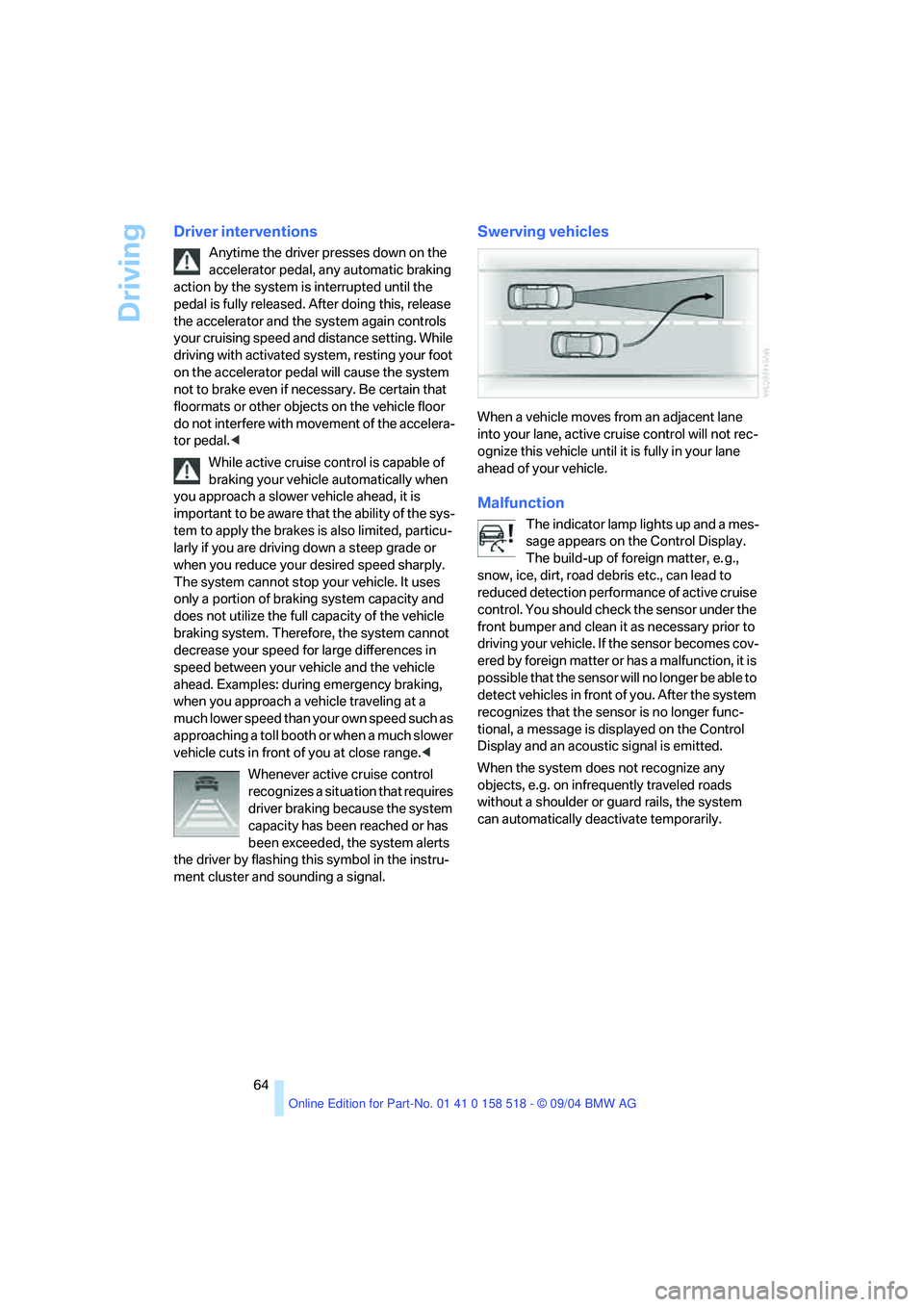
Swerving vehicles
When a vehicle moves from an adjacent lane
into your lane, active cruise control will not rec-
ognize this vehicle until it is fully in your lane
ahead of your vehicle.
Malfunction
The indicator lamp lights up and a mes-
sage appears on the Control Display.
The build-up of foreign matter, e. g.,
snow, ice, dirt, road debris etc., can lead to
reduced detection performance of active cruise
control. You should check the sensor under the
front bumper and clean it as necessary prior to
driving your vehicle. If the sensor becomes cov-
ered by foreign matter or has a malfunction, it is
possible that the sensor will no longer be able to
detect vehicles in front of you. After the system
recognizes that the sensor is no longer func-
tional, a message is displayed on the Control
Display and an acoustic signal is emitted.
When the system does not recognize any
objects, e.g. on infrequently traveled roads
without a shoulder or guard rails, the system
can automatically deactivate temporarily.
Page 67 of 221
Everything under control
66
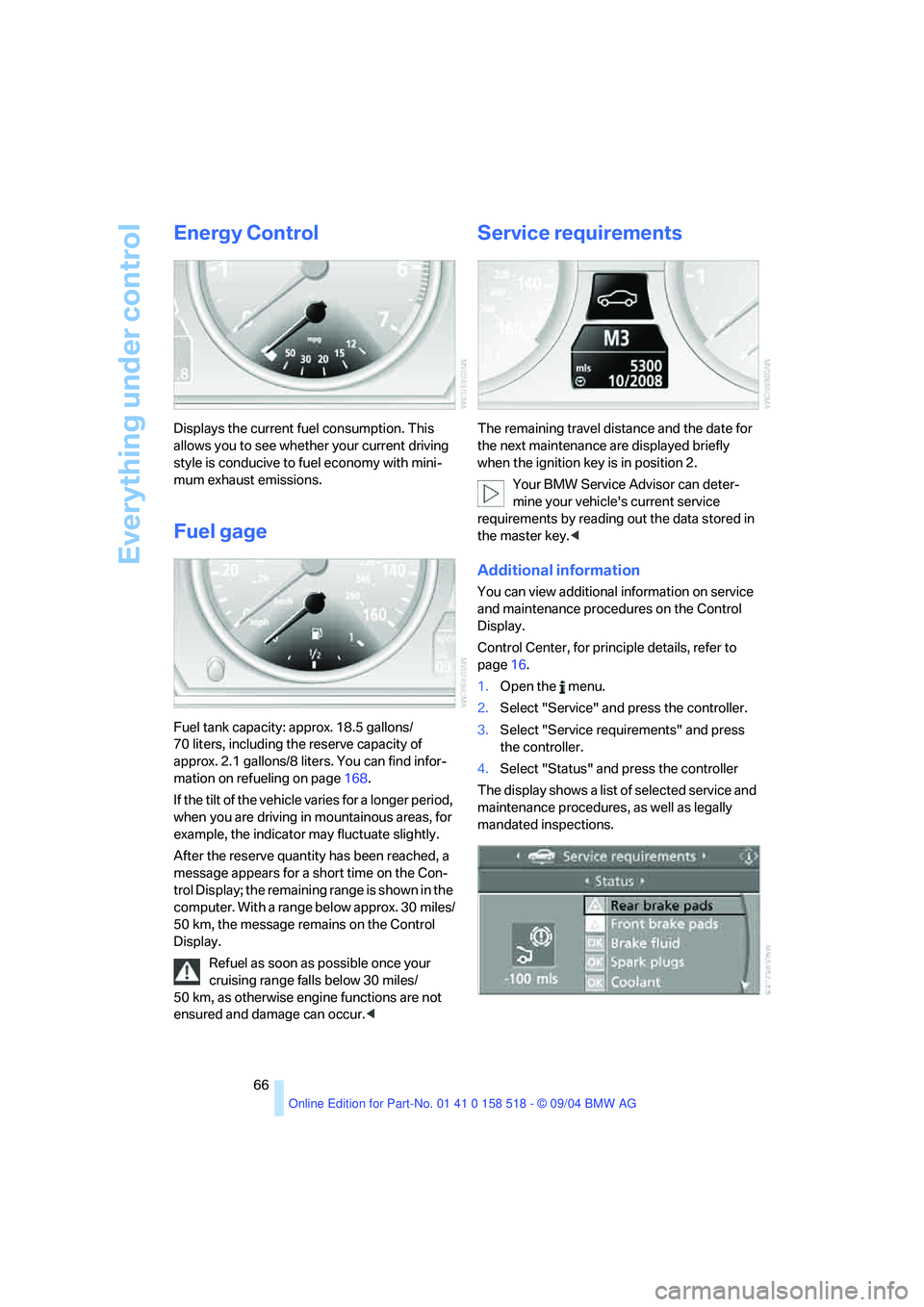
Energy Control
Displays the current fuel consumption. This
allows you to see whether your current driving
style is conducive to fuel economy with mini-
mum exhaust emissions.
Fuel gage
Fuel tank capacity: approx. 18.5 gallons/
70 liters, including the reserve capacity of
approx. 2.1 gallons/8 liters. You can find infor-
mation on refueling on page168.
If the tilt of the vehicle varies for a longer period,
when you are driving in mountainous areas, for
example, the indicator may fluctuate slightly.
After the reserve quantity has been reached, a
message appears for a short time on the Con-
trol Display; the remaining range is shown in the
computer. With a range below approx. 30 miles/
50 km, the message remains on the Control
Display.
Refuel as soon as possible once your
cruising range falls below 30 miles/
50 km, as otherwise engine functions are not
ensured and damage can occur.<
Service requirements
The remaining travel distance and the date for
the next maintenance are displayed briefly
when the ignition key is in position 2.
Your BMW Service Advisor can deter-
mine your vehicle's current service
requirements by reading out the data stored in
the master key.<
Additional information
You can view additional information on service
and maintenance procedures on the Control
Display.
Control Center, for principle details, refer to
page16.
1.Open the menu.
2.Select "Service" and press the controller.
3.Select "Service requirements" and press
the controller.
4.Select "Status" and press the controller
The display shows a list of selected service and
maintenance procedures, as well as legally
mandated inspections.
Page 68 of 221

Controls
67Reference
At a glance
Driving tips
Communication
Navigation
Entertainment
Mobility
Symbols
No service is currently required.
The deadline for service or a legally man-
dated inspection is approaching. Please
arrange a service appointment soon.
The service deadline has already passed.
You can request more detailed information on
every entry.
Select the entry and press the controller.
To exit from the menu:
Select the arrow and press the controller.
Entering dates for state emission and
vehicle inspections
Make sure the date on the Control Display is
always set correctly, refer to page74, as other-
wise the effectiveness of CBS Condition Based
Service is not ensured.
Control Center, for principle details, refer to
page16.
1.Open the menu.
2.Select "Service" and press the controller
3.Select "Service requirements" and press
the controller.
4.Select "Status" and press the controller5.Select "Emission inspect." or "State
inspection" and press the controller.
6.Select "Set service date" and press the
controller. The month is highlighted.
7.Turn the controller to make the adjustment.
8.Press the controller to apply the setting.
The year is highlighted.
9.Turn the controller to make the adjustment.
10.Press the controller to apply the setting.
The date entry is stored.
To exit from the menu:
Select the arrow and press the controller.
Check Control
The concept
The Check Control monitors functions in the
vehicle and issues a message if there is a mal-
function in the monitored systems.
Supplementary messages on the Control Dis-
play are intended to assist you in assessing the
severity of malfunctions; they provide you with
the information you need to decide on the best
way to respond.
Page 72 of 221
Controls
71Reference
At a glance
Driving tips
Communication
Navigation
Entertainment
Mobility
>Distance to destination:
>Entering a distance manually in the com-
puter, see below.
>Entering a destination in the navigation
system
*, refer to page115.
>Average speed
>Average fuel consumption
Trip computer*
Select "Trip computer" and press the control-
ler.
>Departure time
>Driving time
>Distance traveled
>Average speed
>Average fuel consumption
Trip computer, starting, stopping, or resetting
all values:
1.Select "Set" and press the controller.
2.Select the desired menu item.
3.Press the controller.
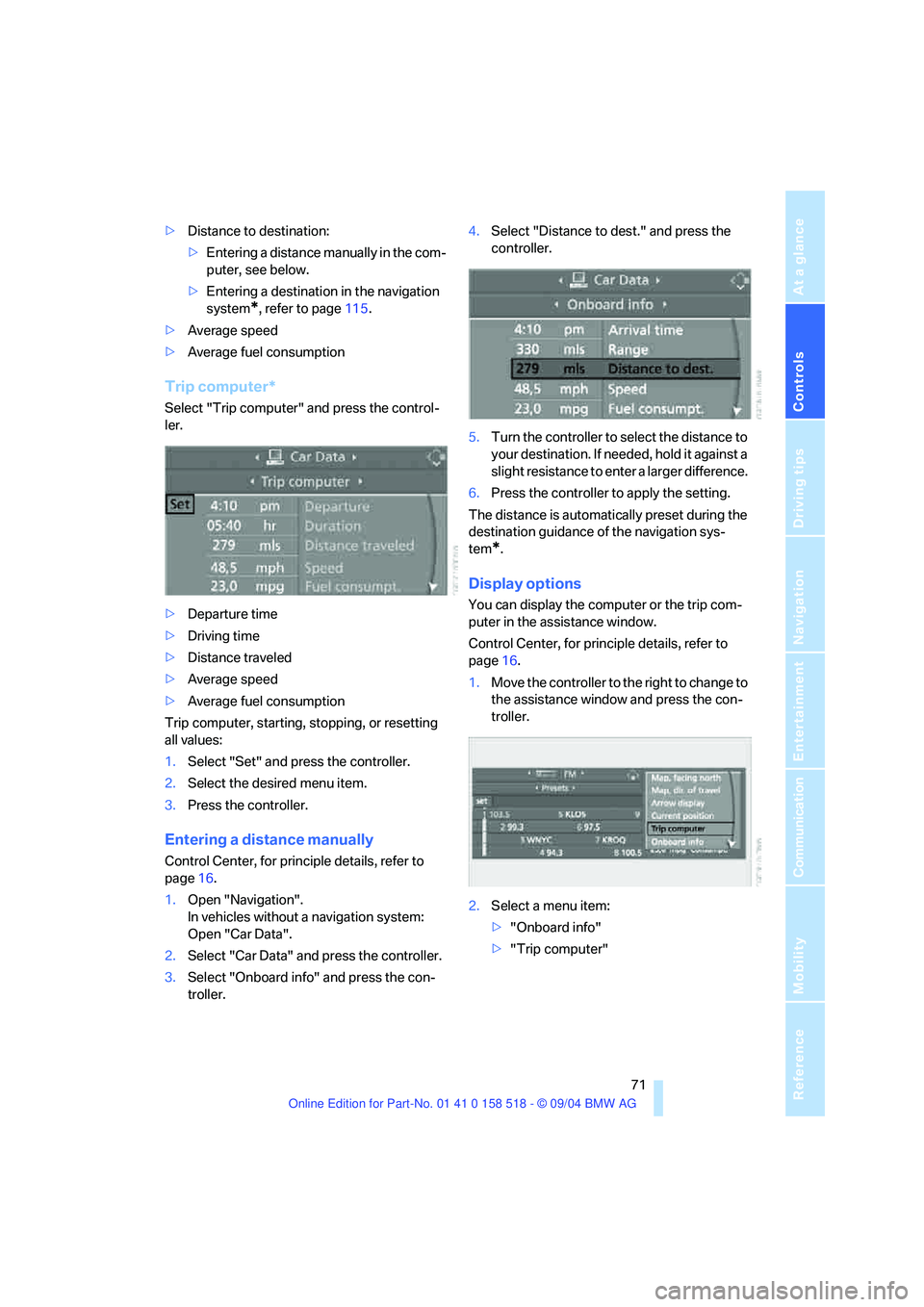
Entering a distance manually
Control Center, for principle details, refer to
page16.
1.Open "Navigation".
In vehicles without a navigation system:
Open "Car Data".
2.Select "Car Data" and press the controller.
3.Select "Onboard info" and press the con-
troller.4.Select "Distance to dest." and press the
controller.
5.Turn the controller to select the distance to
your destination. If needed, hold it against a
slight resistance to enter a larger difference.
6.Press the controller to apply the setting.
The distance is automatically preset during the
destination guidance of the navigation sys-
tem
*.
Display options
You can display the computer or the trip com-
puter in the assistance window.
Control Center, for principle details, refer to
page16.
1.Move the controller to the right to change to
the assistance window and press the con-
troller.
2.Select a menu item:
>"Onboard info"
>"Trip computer"
Page 73 of 221
Everything under control
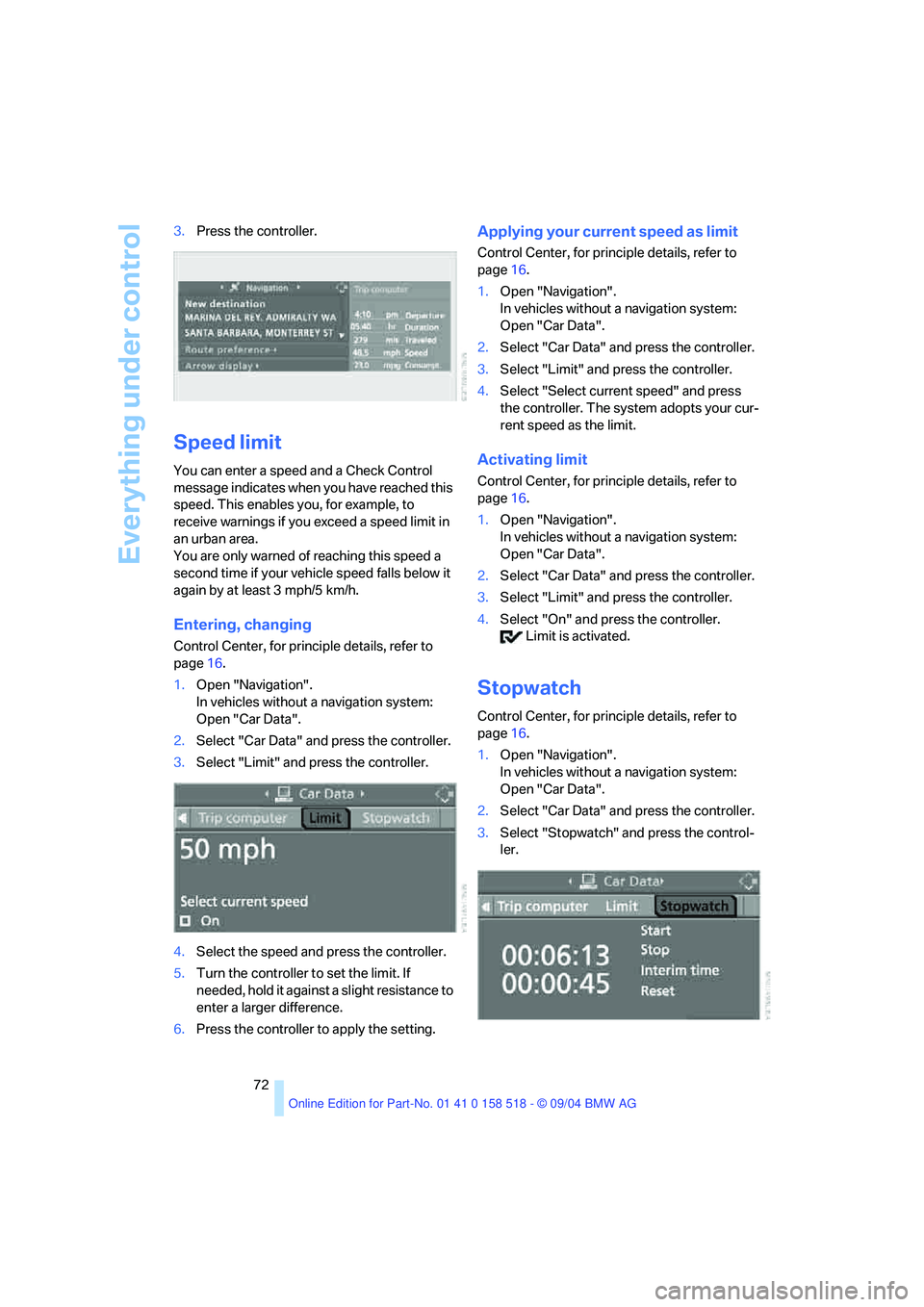
72 3.Press the controller.
Speed limit
You can enter a speed and a Check Control
message indicates when you have reached this
speed. This enables you, for example, to
receive warnings if you exceed a speed limit in
an urban area.
You are only warned of reaching this speed a
second time if your vehicle speed falls below it
again by at least 3 mph/5 km/h.
Entering, changing
Control Center, for principle details, refer to
page16.
1.Open "Navigation".
In vehicles without a navigation system:
Open "Car Data".
2.Select "Car Data" and press the controller.
3.Select "Limit" and press the controller.
4.Select the speed and press the controller.
5.Turn the controller to set the limit. If
needed, hold it against a slight resistance to
enter a larger difference.
6.Press the controller to apply the setting.
Applying your current speed as limit
Control Center, for principle details, refer to
page16.
1.Open "Navigation".
In vehicles without a navigation system:
Open "Car Data".
2.Select "Car Data" and press the controller.
3.Select "Limit" and press the controller.
4.Select "Select current speed" and press
the controller. The system adopts your cur-
rent speed as the limit.
Activating limit
Control Center, for principle details, refer to
page16.
1.Open "Navigation".
In vehicles without a navigation system:
Open "Car Data".
2.Select "Car Data" and press the controller.
3.Select "Limit" and press the controller.
4.Select "On" and press the controller.
Limit is activated.
Stopwatch
Control Center, for principle details, refer to
page16.
1.Open "Navigation".
In vehicles without a navigation system:
Open "Car Data".
2.Select "Car Data" and press the controller.
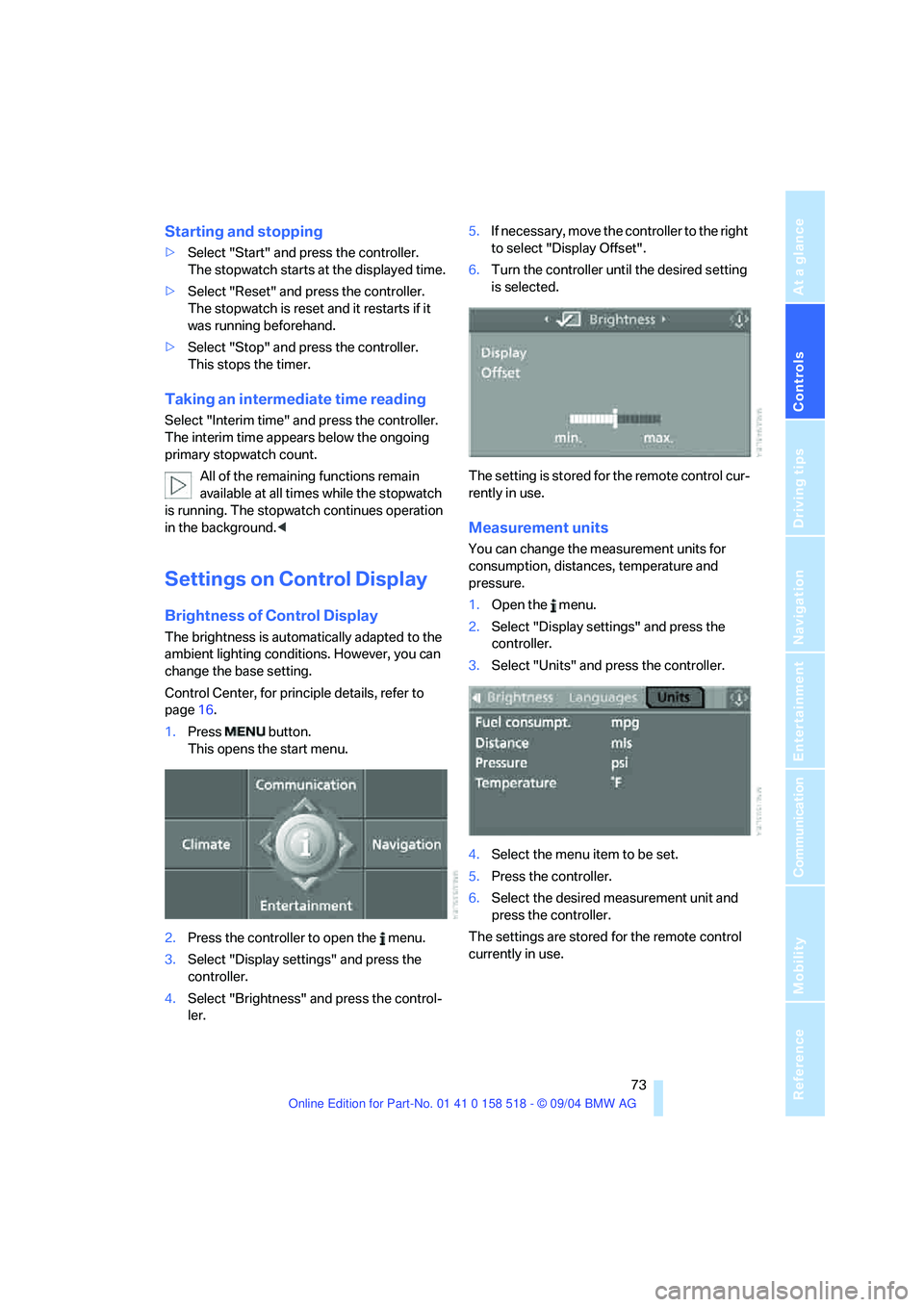
3.Select "Stopwatch" and press the control-
ler.
Page 74 of 221
Controls
73Reference
At a glance
Driving tips
Communication
Navigation
Entertainment
Mobility
Starting and stopping
>Select "Start" and press the controller.
The stopwatch starts at the displayed time.
>Select "Reset" and press the controller.
The stopwatch is reset and it restarts if it
was running beforehand.
>Select "Stop" and press the controller.
This stops the timer.
Taking an intermediate time reading
Select "Interim time" and press the controller.
The interim time appears below the ongoing
primary stopwatch count.
All of the remaining functions remain
available at all times while the stopwatch
is running. The stopwatch continues operation
in the background.<
Settings on Control Display
Brightness of Control Display
The brightness is automatically adapted to the
ambient lighting conditions. However, you can
change the base setting.
Control Center, for principle details, refer to
page16.
1.Press button.
This opens the start menu.
2.Press the controller to open the menu.
3.Select "Display settings" and press the
controller.
4.Select "Brightness" and press the control-
ler.5.If necessary, move the controller to the right
to select "Display Offset".
6.Turn the controller until the desired setting
is selected.
The setting is stored for the remote control cur-
rently in use.
Measurement units
You can change the measurement units for
consumption, distances, temperature and
pressure.
1.Open the menu.
2.Select "Display settings" and press the
controller.
3.Select "Units" and press the controller.
4.Select the menu item to be set.
5.Press the controller.
6.Select the desired measurement unit and
press the controller.
The settings are stored for the remote control
currently in use.
Page 75 of 221
Everything under control
74
Language on Control Display
Control Center, for principle details, refer to
page16.
1.Open the menu.
2.Select "Display settings" and press the
controller.
3.Select "Languages" and press the control-
ler.
4.Select "Text language" and press the con-
troller. You can change the language of the
text displays.
5.Select and activate the desired language by
pressing the controller.
The setting is stored for the remote control cur-
rently in use.
Setting time
Control Center, for principle details, refer to
page16.
1.Open the menu.
2.Select "Display settings" and press the
controller.
3.Select "Time" and press the controller.
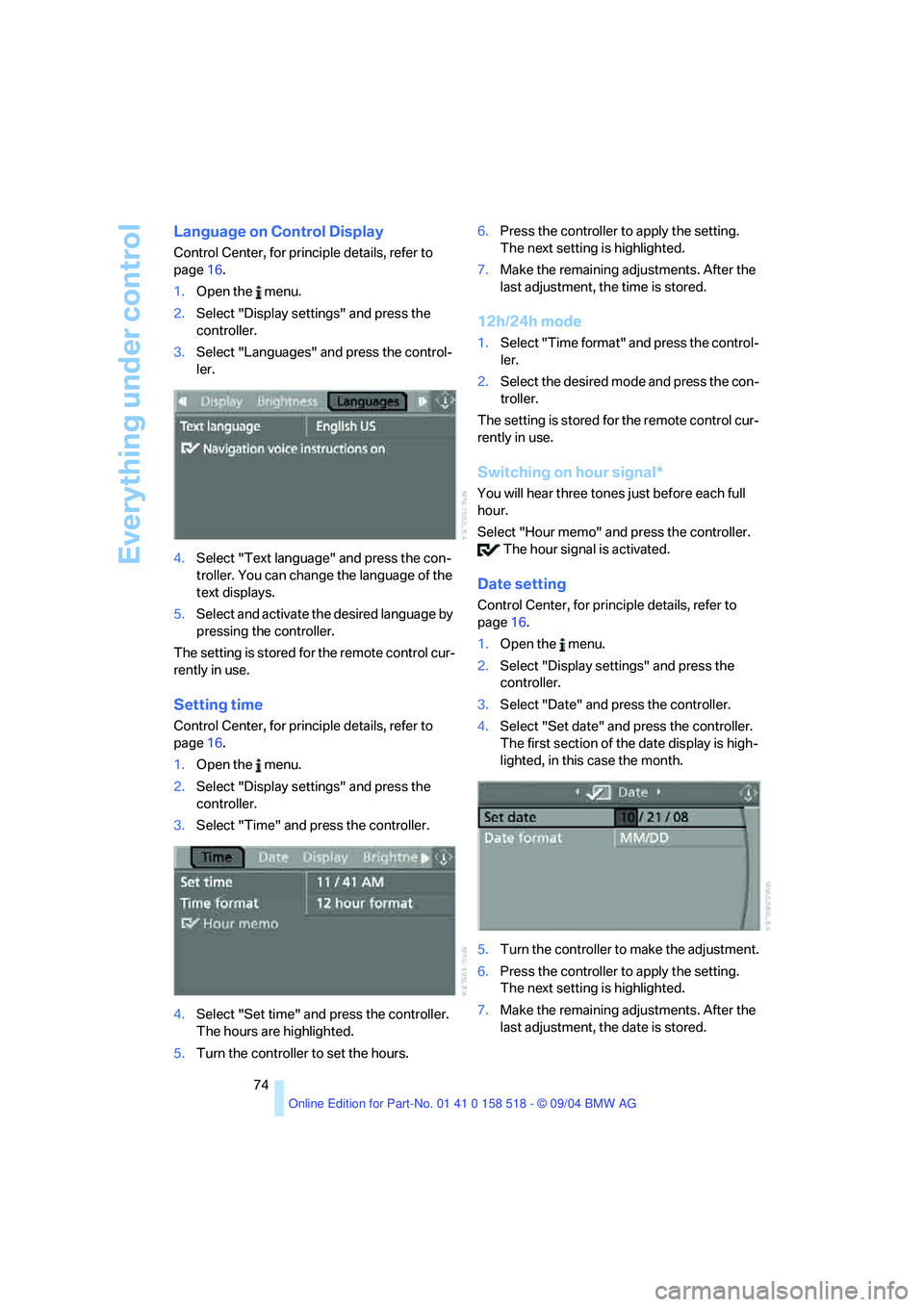
4.Select "Set time" and press the controller.
The hours are highlighted.
5.Turn the controller to set the hours.6.Press the controller to apply the setting.
The next setting is highlighted.
7.Make the remaining adjustments. After the
last adjustment, the time is stored.
12h/24h mode
1.Select "Time format" and press the control-
ler.
2.Select the desired mode and press the con-
troller.
The setting is stored for the remote control cur-
rently in use.
Switching on hour signal*
You will hear three tones just before each full
hour.
Select "Hour memo" and press the controller.
The hour signal is activated.
Date setting
Control Center, for principle details, refer to
page16.
1.Open the menu.
2.Select "Display settings" and press the
controller.
3.Select "Date" and press the controller.
4.Select "Set date" and press the controller.
The first section of the date display is high-
lighted, in this case the month.
5.Turn the controller to make the adjustment.
6.Press the controller to apply the setting.
The next setting is highlighted.
7.Make the remaining adjustments. After the
last adjustment, the date is stored.
Page 77 of 221
Technology for comfort, convenience and safety
76
Technology for comfort, convenience and
safety
PDC Park Distance Control*
The concept
The PDC assists you when you are parking.
Acoustic signals and an optical display
* alert
you to the approach of an object from behind
your vehicle. To measure the distance, there
are four ultrasonic sensors in each bumper. The
sensors at the front and at the two rear corners
have a range of approx. 24 in/60 cm; the rear
middle sensors have approx. 5 ft/1.50 m.
PDC is a parking aid that can indicate
objects when they are approached
slowly, as is usually the case when parking.
Avoid approaching an object at high speed, as
otherwise the physical circumstances would
mean that the system warning was too late.<
Automatic mode
When the ignition key is in position 2, the sys-
tem automatically assumes operational status
after a few seconds each time you shift into
reverse or move the selector lever into the R
position.
Wait this short period before driving. The sys-
tem switches itself off when you shift out of
reverse.
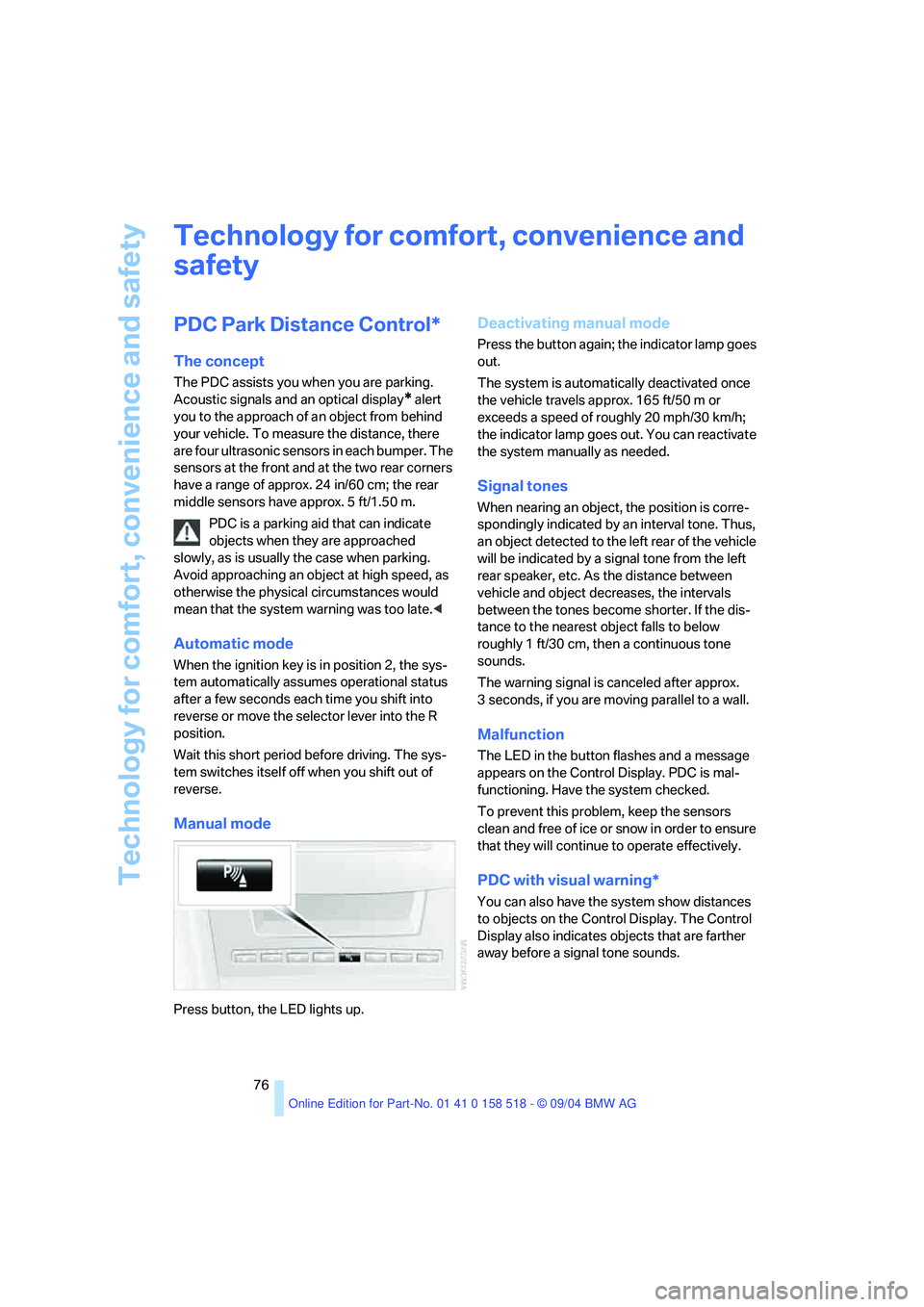
Manual mode
Press button, the LED lights up.
Deactivating manual mode
Press the button again; the indicator lamp goes
out.
The system is automatically deactivated once
the vehicle travels approx. 165 ft/50 m or
exceeds a speed of roughly 20 mph/30 km/h;
the indicator lamp goes out. You can reactivate
the system manually as needed.
Signal tones
When nearing an object, the position is corre-
spondingly indicated by an interval tone. Thus,
an object detected to the left rear of the vehicle
will be indicated by a signal tone from the left
rear speaker, etc. As the distance between
vehicle and object decreases, the intervals
between the tones become shorter. If the dis-
tance to the nearest object falls to below
roughly 1 ft/30 cm, then a continuous tone
sounds.
The warning signal is canceled after approx.
3 seconds, if you are moving parallel to a wall.
Malfunction
The LED in the button flashes and a message
appears on the Control Display. PDC is mal-
functioning. Have the system checked.
To prevent this problem, keep the sensors
clean and free of ice or snow in order to ensure
that they will continue to operate effectively.
PDC with visual warning*
You can also have the system show distances
to objects on the Control Display. The Control
Display also indicates objects that are farther
away before a signal tone sounds.
Page 79 of 221
Technology for comfort, convenience and safety
78
DSC Dynamic Stability Control
The system prevents traction loss in the driving
wheels when starting off and accelerating. DSC
also detects unstable driving conditions such
as a fishtailing rear end or sliding of the front
wheels. In these cases, DSC helps the vehicle
maintain a safe course within physical limits by
reducing engine output and through braking
actions in the individual wheels.
The DSC is operational every time you start the
engine.
The laws of physics cannot be repealed,
even with DSC. An appropriate driving
style always remains the responsibility of the
driver. Therefore, do not reduce the additional
safety margin again by taking risks.<
DTC Dynamic Traction Control
DTC is a version of DSC in which the drive out-
put is optimized for particular road conditions,
e.g. unplowed snow-covered roads. The sys-
tem assures the maximal drive output, but with
reduced driving stability. It is therefore neces-
sary to drive with appropriate caution.
You may find it useful to briefly activate DTC
under the following special circumstances:
>When driving on snowy inclines, in slush, or
on unplowed, snow-covered road surfaces
>When rocking a stuck vehicle free or start-
ing off in deep snow or on loose ground
>When driving with snow chains
Activating DTC
Press the button briefly; the DTC indicator lamp
in the instrument cluster lights up.
Deactivating DTC again
Press the button again; the DTC indicator lamp
in the instrument cluster goes out.
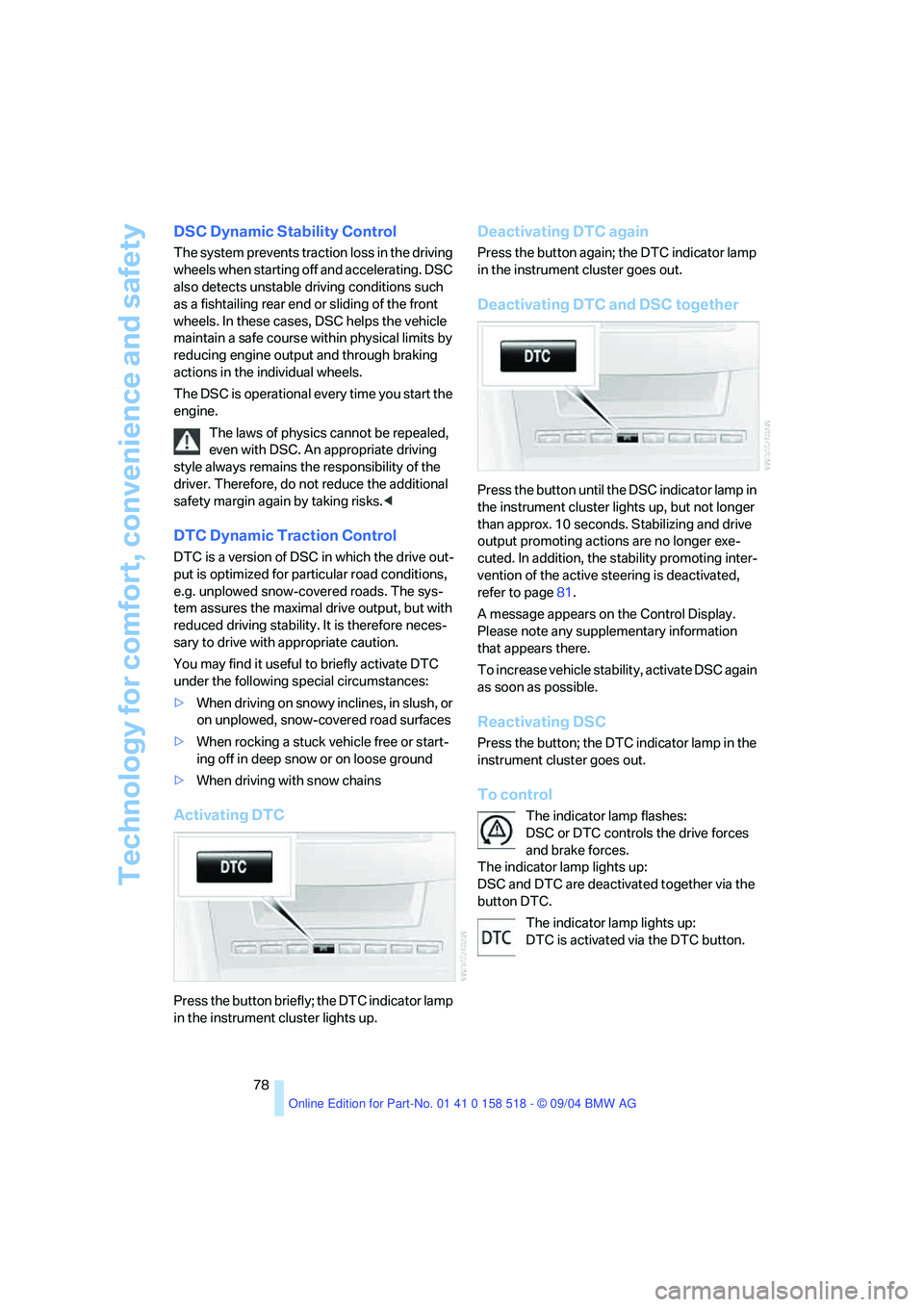
Deactivating DTC and DSC together
Press the button until the DSC indicator lamp in
the instrument cluster lights up, but not longer
than approx. 10 seconds. Stabilizing and drive
output promoting actions are no longer exe-
cuted. In addition, the stability promoting inter-
vention of the active steering is deactivated,
refer to page81.
A message appears on the Control Display.
Please note any supplementary information
that appears there.
To increase vehicle stability, activate DSC again
as soon as possible.
Reactivating DSC
Press the button; the DTC indicator lamp in the
instrument cluster goes out.
To control
The indicator lamp flashes:
DSC or DTC controls the drive forces
and brake forces.
The indicator lamp lights up:
DSC and DTC are deactivated together via the
button DTC.
The indicator lamp lights up:
DTC is activated via the DTC button.