Memory BMW 530I TOURING 2007 E61 Owner's Guide
[x] Cancel search | Manufacturer: BMW, Model Year: 2007, Model line: 530I TOURING, Model: BMW 530I TOURING 2007 E61Pages: 286, PDF Size: 9.31 MB
Page 185 of 286
Navigation
Entertainment
Driving tips
183Reference
At a glance
Controls
Communications
Mobility
>To play all tracks of the CD in random
order, select "Random all" and press the
controller.
To stop random function:
1.Press the controller.
2.Select "Random directory" or "Random all"
and press the controller.
Fast forward/reverse
Buttons next to CD player:
Press and hold the button for the corre-
sponding direction.
CD magazine
The BMW CD changer for six CDs is installed in
the glove compartment.
Removing CD magazine
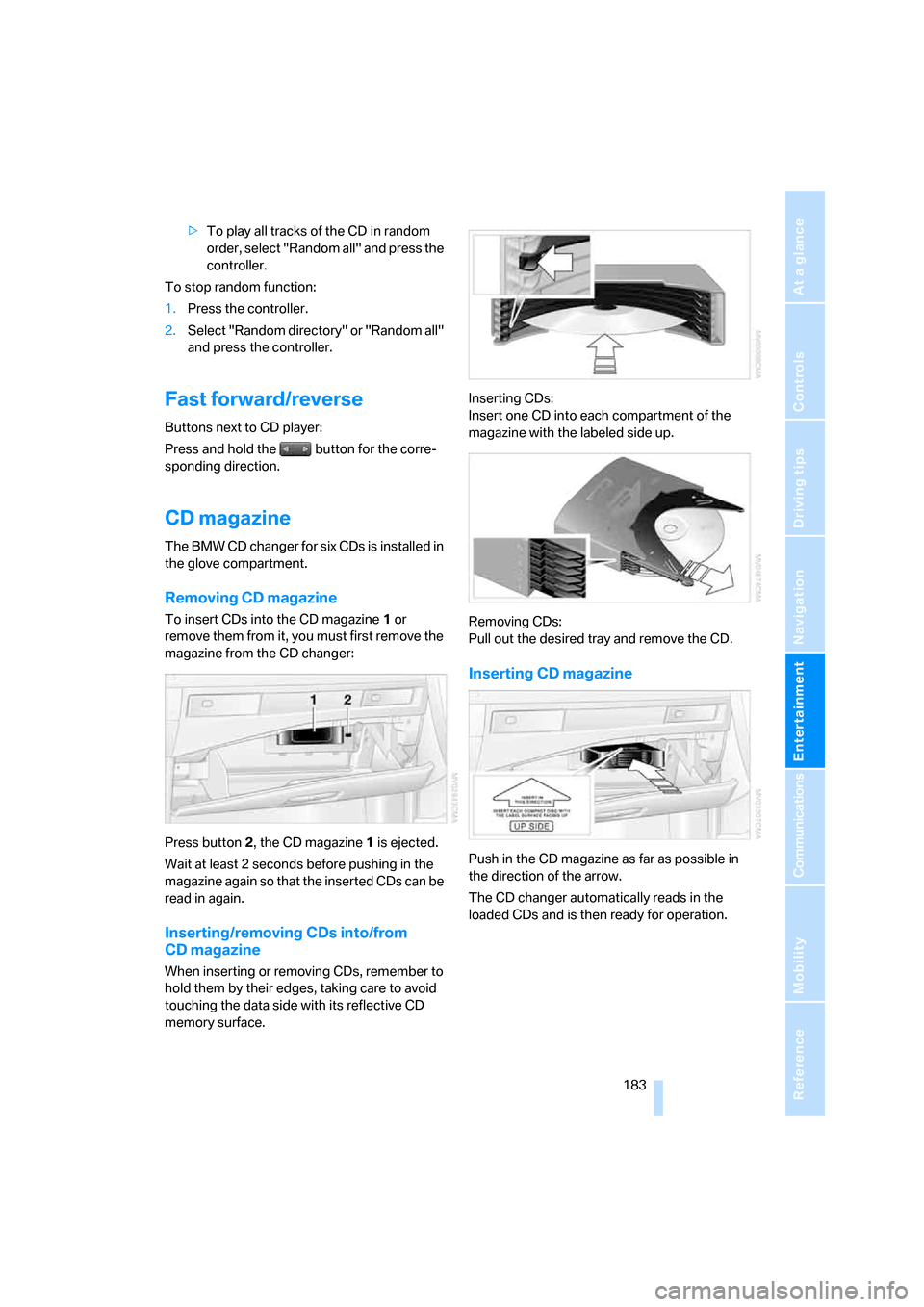
To insert CDs into the CD magazine 1 or
remove them from it, you must first remove the
magazine from the CD changer:
Press button2, the CD magazine1 is ejected.
Wait at least 2 seconds before pushing in the
magazine again so that the inserted CDs can be
read in again.
Inserting/removing CDs into/from
CD magazine
When inserting or removing CDs, remember to
hold them by their edges, taking care to avoid
touching the data side with its reflective CD
memory surface.Inserting CDs:
Insert one CD into each compartment of the
magazine with the labeled side up.
Removing CDs:
Pull out the desired tray and remove the CD.
Inserting CD magazine
Push in the CD magazine as far as possible in
the direction of the arrow.
The CD changer automatically reads in the
loaded CDs and is then ready for operation.
Page 187 of 286
Navigation
Entertainment
Driving tips
185Reference
At a glance
Controls
Communications
Mobility
AUX-In connection
You can connect an external audio device, e.g.
an MP3 player, and play the sound via the vehi-
cle loudspeakers. The sound can be adjusted
via iDrive.
Connecting
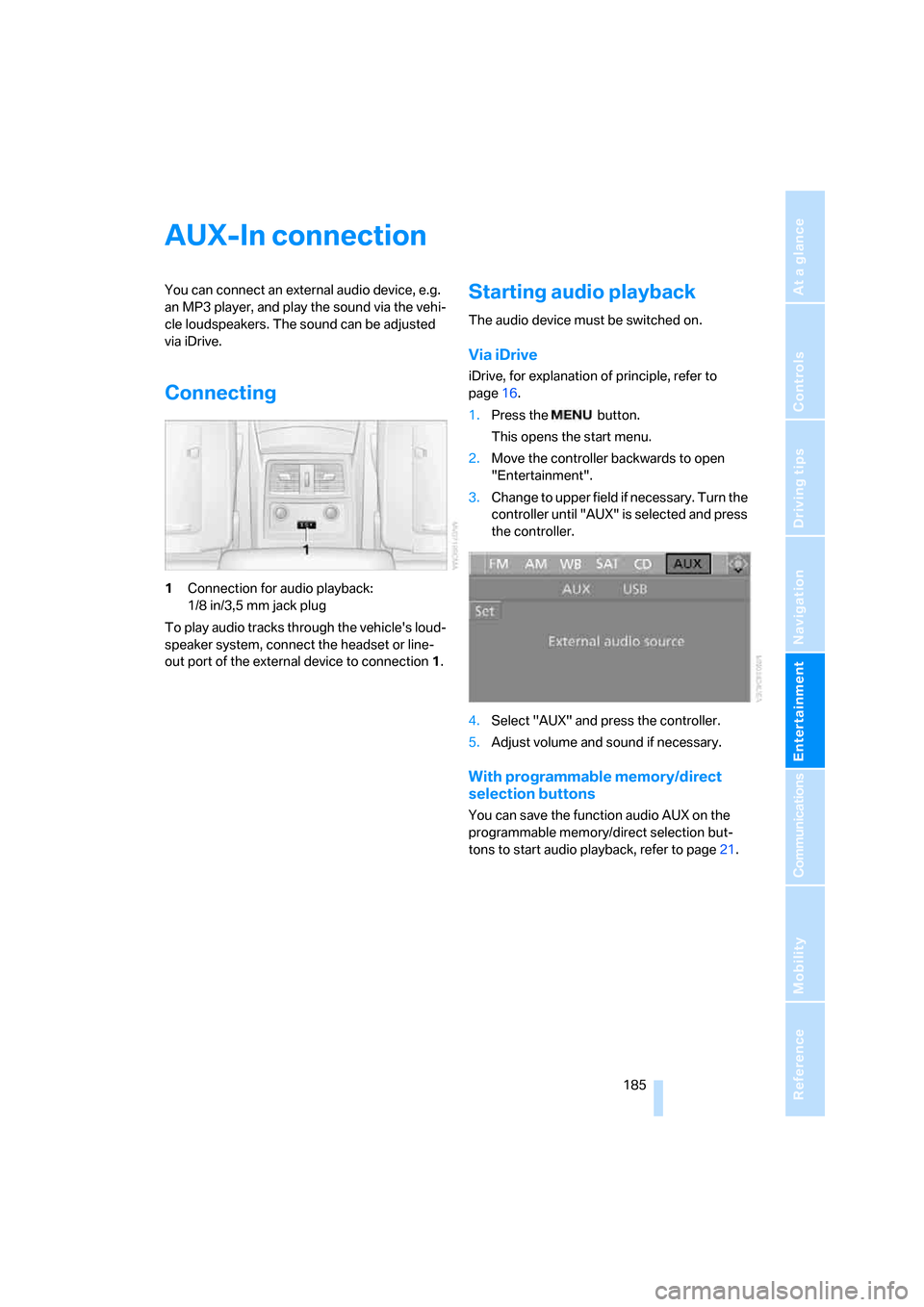
1Connection for audio playback:
1/8 in/3,5 mm jack plug
To play audio tracks through the vehicle's loud-
speaker system, connect the headset or line-
out port of the external device to connection 1.
Starting audio playback
The audio device must be switched on.
Via iDrive
iDrive, for explanation of principle, refer to
page16.
1.Press the button.
This opens the start menu.
2.Move the controller backwards to open
"Entertainment".
3.Change to upper field if necessary. Turn the
controller until "AUX" is selected and press
the controller.
4.Select "AUX" and press the controller.
5.Adjust volume and sound if necessary.
With programmable memory/direct
selection buttons
You can save the function audio AUX on the
programmable memory/direct selection but-
tons to start audio playback, refer to page21.
Page 188 of 286
USB/audio interface
186
USB/audio interface
You can connect audio devices to the USB/
audio interface, e.g. an iPod or a USB device
(MP3 player, USB memory stick). You can then
operate these with iDrive.
The common audio files, e.g. MP3, WMA, WAV
(PCM) and AAC, as well as playback lists in the
M3U format can be played back.
Due to the large number of audio devices avail-
able on the market, operation via the vehicle
cannot be ensured for every audio device.
Ask your BMW center which audio devices are
suitable.
Connecting
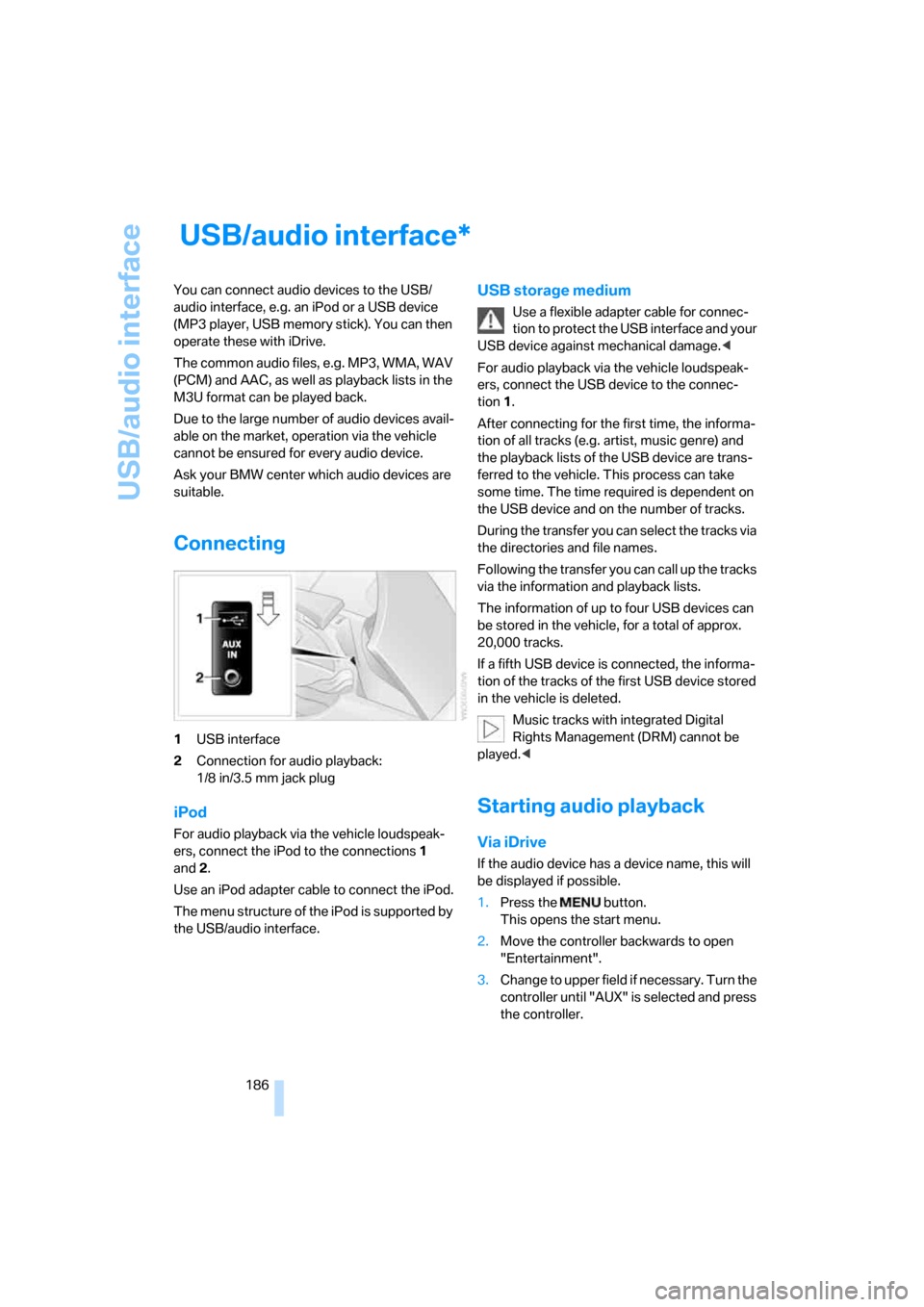
1USB interface
2Connection for audio playback:
1/8 in/3.5 mm jack plug
iPod
For audio playback via the vehicle loudspeak-
ers, connect the iPod to the connections1
and2.
Use an iPod adapter cable to connect the iPod.
The menu structure of the iPod is supported by
the USB/audio interface.
USB storage medium
Use a flexible adapter cable for connec-
tion to protect the USB interface and your
USB device against mechanical damage.<
For audio playback via the vehicle loudspeak-
ers, connect the USB device to the connec-
tion 1.
After connecting for the first time, the informa-
tion of all tracks (e.g. artist, music genre) and
the playback lists of the USB device are trans-
ferred to the vehicle. This process can take
some time. The time required is dependent on
the USB device and on the number of tracks.
During the transfer you can select the tracks via
the directories and file names.
Following the transfer you can call up the tracks
via the information and playback lists.
The information of up to four USB devices can
be stored in the vehicle, for a total of approx.
20,000 tracks.
If a fifth USB device is connected, the informa-
tion of the tracks of the first USB device stored
in the vehicle is deleted.
Music tracks with integrated Digital
Rights Management (DRM) cannot be
played.<
Starting audio playback
Via iDrive
If the audio device has a device name, this will
be displayed if possible.
1.Press the button.
This opens the start menu.
2.Move the controller backwards to open
"Entertainment".
3.Change to upper field if necessary. Turn the
controller until "AUX" is selected and press
the controller.
*
Page 189 of 286
Navigation
Entertainment
Driving tips
187Reference
At a glance
Controls
Communications
Mobility
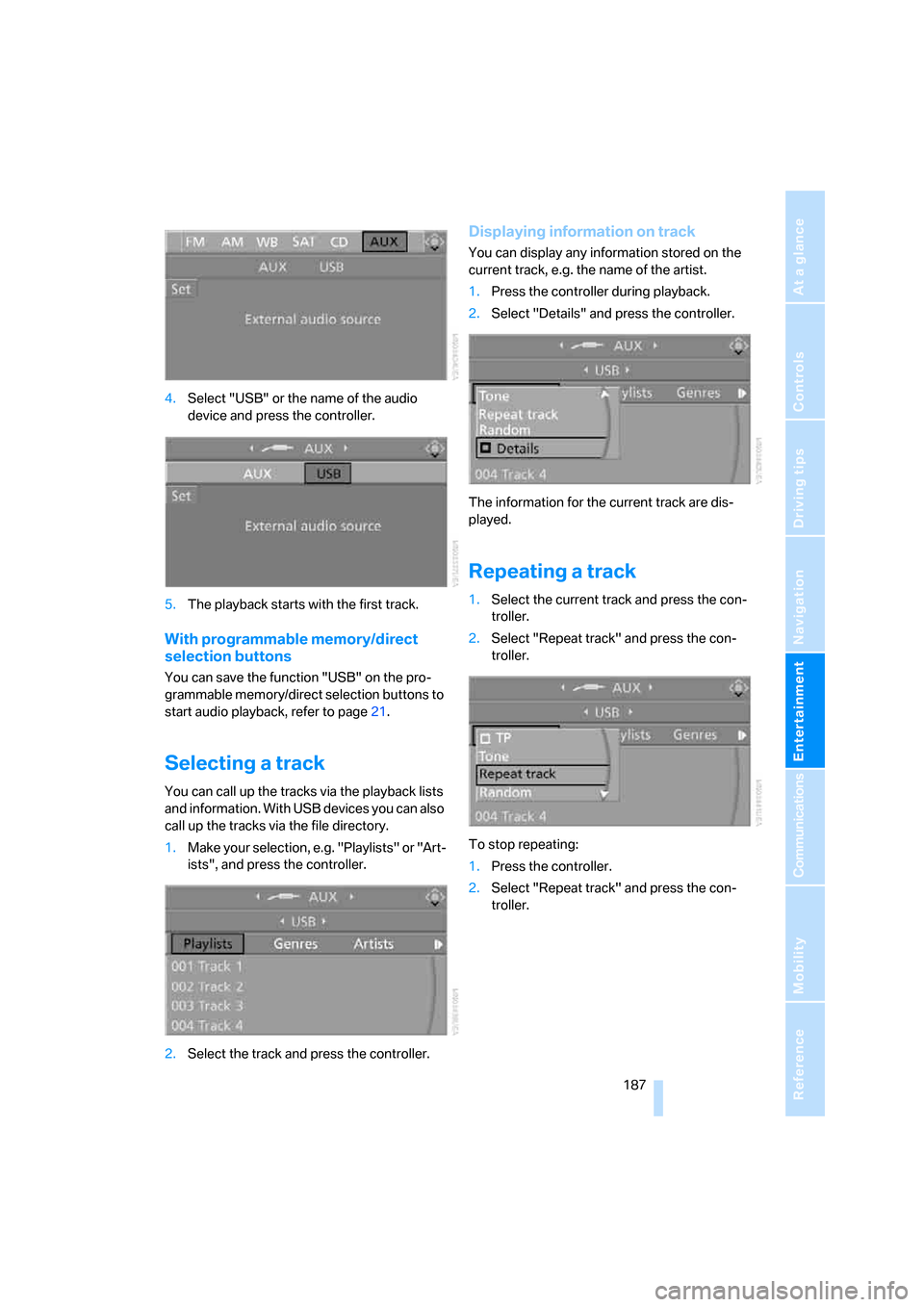
4.Select "USB" or the name of the audio
device and press the controller.
5.The playback starts with the first track.
With programmable memory/direct
selection buttons
You can save the function "USB" on the pro-
grammable memory/direct selection buttons to
start audio playback, refer to page21.
Selecting a track
You can call up the tracks via the playback lists
and information. With USB devices you can also
call up the tracks via the file directory.
1.Make your selection, e.g. "Playlists" or "Art-
ists", and press the controller.
2.Select the track and press the controller.
Displaying information on track
You can display any information stored on the
current track, e.g. the name of the artist.
1.Press the controller during playback.
2.Select "Details" and press the controller.
The information for the current track are dis-
played.
Repeating a track
1.Select the current track and press the con-
troller.
2.Select "Repeat track" and press the con-
troller.
To stop repeating:
1.Press the controller.
2.Select "Repeat track" and press the con-
troller.
Page 194 of 286
Telephoning
192
Telephoning
The concept
Your BMW is equipped with a full mobile phone
preparation package. After pairing a suitable
mobile phone in the vehicle once, you can oper-
ate the mobile phone via iDrive, with the buttons
on the steering wheel and by voice.
A mobile phone that has been paired once is
automatically detected again with the engine
running or the ignition switched on as soon as
it is in the vehicle interior. The logon data of up
to four mobile phones can be stored simulta-
neously. If several mobile phones are detected
simultaneously, the respective last mobile
phone paired can be operated via the vehicle.
Using a phone in your vehicle
Using snap-in adapter*
The so-called snap-in adapter, a mobile phone
cradle, enables the battery to be charged and
the mobile phone to be connected to the exter-
nal antenna of your vehicle. This ensures
improved network reception and a consistent
voice reproduction quality. Ask your BMW cen-
ter which mobile phones snap-in adapters are
offered for.
BMW discourages the use of mobile
phones or other mobile communications
devices inside the vehicle without a direct con-
nection to an outside antenna. Otherwise, the
vehicle electronics and mobile communication
device can influence one another. In addition,
there is no assurance that the radiation which
results from transmission will be dissipated
from the vehicle interior.<
For your safety
A car phone makes life more convenient in
many ways, and can even save lives in an emer-
gency. While you should consult your mobile
phone's separate operating instructions for a
detailed description of safety precautions and information, we request that you direct your
particular attention to the following:
Only make entries when the traffic situa-
tion allows you to do so. Do not hold the
mobile phone in your hand while you are driving;
use the hands-free system instead. If you do
not observe this precaution, your being dis-
tracted can endanger vehicle occupants and
other road users.<
Suitable mobile phones
Ask your BMW center which mobile phones
with a Bluetooth interface are supported by the
mobile phone preparation package or which
mobile phones snap-in adapters are available
for. These mobile phones support the functions
described in this Owner's Manual with a certain
software version. Malfunctions can occur with
other mobile phones.
Care instructions
You can find what you need to know about car-
ing for your mobile phone in the separate Caring
for your vehicle brochure and in the mobile
phone operating instructions.
Operating options
You can operate the mobile phone* using:
>Buttons on steering wheel, refer to
page12 11
>iDrive, refer to page16
>Voice commands, refer to page203
>Programmable memory/direct selection
buttons, refer to page21
Avoid operating a mobile phone detected by
the vehicle with the keypad of the mobile
phone, otherwise malfunctions can occur.
*
Page 201 of 286
199
Entertainment
Reference
At a glance
Controls
Driving tips Communications
Navigation
Mobility
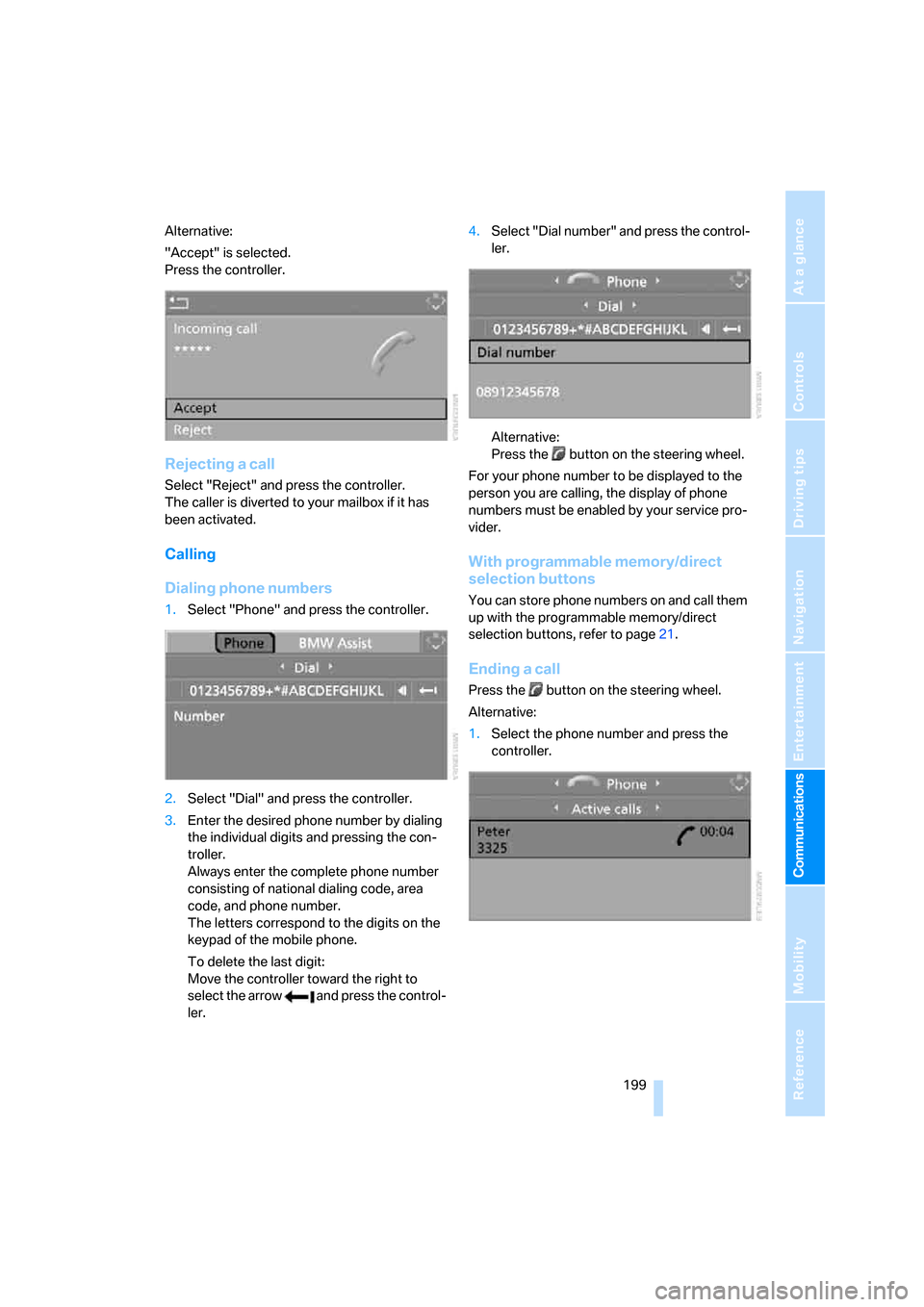
Alternative:
"Accept" is selected.
Press the controller.
Rejecting a call
Select "Reject" and press the controller.
The caller is diverted to your mailbox if it has
been activated.
Calling
Dialing phone numbers
1.Select "Phone" and press the controller.
2.Select "Dial" and press the controller.
3.Enter the desired phone number by dialing
the individual digits and pressing the con-
troller.
Always enter the complete phone number
consisting of national dialing code, area
code, and phone number.
The letters correspond to the digits on the
keypad of the mobile phone.
To delete the last digit:
Move the controller toward the right to
select the arrow and press the control-
ler.4.Select "Dial number" and press the control-
ler.
Alternative:
Press the button on the steering wheel.
For your phone number to be displayed to the
person you are calling, the display of phone
numbers must be enabled by your service pro-
vider.
With programmable memory/direct
selection buttons
You can store phone numbers on and call them
up with the programmable memory/direct
selection buttons, refer to page21.
Ending a call
Press the button on the steering wheel.
Alternative:
1.Select the phone number and press the
controller.
Page 206 of 286
Telephoning
204
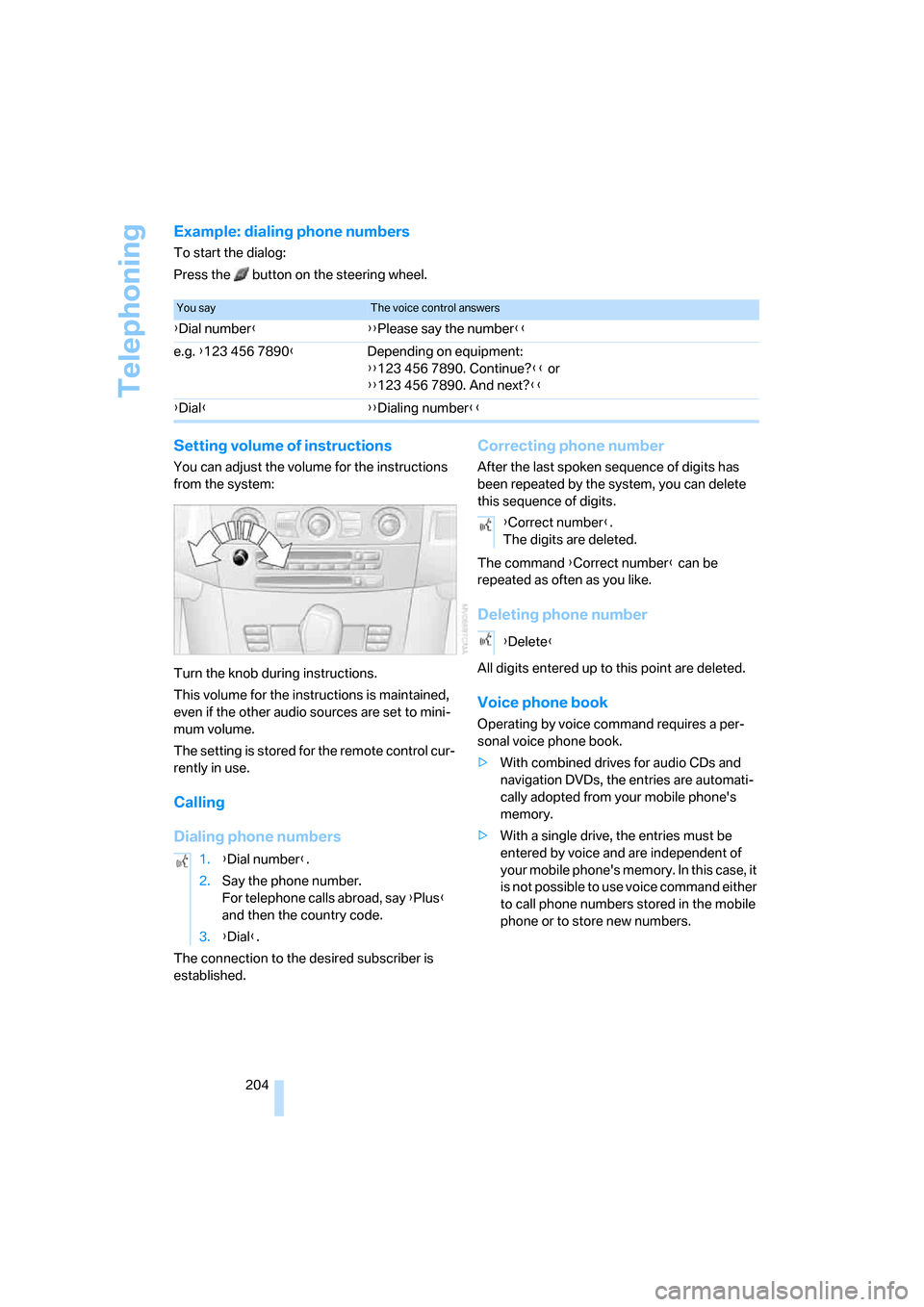
Example: dialing phone numbers
To start the dialog:
Press the button on the steering wheel.
Setting volume of instructions
You can adjust the volume for the instructions
from the system:
Turn the knob during instructions.
This volume for the instructions is maintained,
even if the other audio sources are set to mini-
mum volume.
The setting is stored for the remote control cur-
rently in use.
Calling
Dialing phone numbers
The connection to the desired subscriber is
established.
Correcting phone number
After the last spoken sequence of digits has
been repeated by the system, you can delete
this sequence of digits.
The command {Correct number} can be
repeated as often as you like.
Deleting phone number
All digits entered up to this point are deleted.
Voice phone book
Operating by voice command requires a per-
sonal voice phone book.
>With combined drives for audio CDs and
navigation DVDs, the entries are automati-
cally adopted from your mobile phone's
memory.
>With a single drive, the entries must be
entered by voice and are independent of
your mobile phone's memory. In this case, it
is not possible to use voice command either
to call phone numbers stored in the mobile
phone or to store new numbers.
You sayThe voice control answers
{Dial number}{{Please say the number}}
e.g. {123 456 7890}Depending on equipment:
{{123 456 7890. Continue?}} or
{{123 456 7890. And next?}}
{Dial}{{Dialing number}}
1.{Dial number}.
2.Say the phone number.
For telephone calls abroad, say {Plus}
and then the country code.
3.{Dial}.
{Correct number}.
The digits are deleted.
{Delete}
Page 244 of 286
Replacing components
242 3.Check and correct the tire inflation pressure
at the earliest opportunity.
Protect valve stems with valve stem
seal caps against dirt and contamina-
tion. Dirt in valve stems is a frequent source
of gradual air loss.<
4.Initialize the Flat Tire Monitor, refer to
page94, or reset the Tire Pressure Monitor,
refer to page96.
5.Replace the damaged tire as soon as possi-
ble and have the new wheel/tire balanced.
Driving with compact wheel
Drive reservedly and do not exceed a speed of
50 mph/80 km/h.
The driving characteristics change, for example
reduced track stability on braking, extended
braking distance, and altered self-steering
characteristics in the limit range. In conjunction
with winter tires, these characteristics are more
pronounced.
Only one compact wheel may be
mounted. You should re-equip with
wheels and tires of the original size as quickly as
possible.<
Vehicle battery
Battery care
The battery is 100 % maintenance-free, i.e., the
electrolyte will last for the life of the battery
when the vehicle is operated in a temperate cli-
ma te. Your BM W center will be glad to advise in
all matters concerning the battery.
Charging battery
Only charge the battery in the vehicle via the
terminals in the engine compartment with the
engine switched off. Connections, refer to
Jump starting on page246.
Disposal
Have old batteries disposed of by your
BMW center or hand them in to a recy-
cling center. Maintain the battery in an upright
position for transport and storage. Always
restrain the battery to prevent it from tipping
over during transport.<
Power failure
After a temporary power loss, the functioning of
some equipment may be limited and require
reinitialization. Individual settings are also lost
and must be updated:
>Seat, mirror and steering wheel memory
The positions must be stored again, refer to
page48.
>Time and Date
The values must be updated, refer to
page85.
>Radio
Stations must be stored again if necessary,
refer to page172.
>Navigation system
Wait until the system starts, refer to
page140.
Fuses
Never attempt to repair a blown fuse and
do not replace a defective fuse with a sub-
stitute of another color or amperage rating, as
this could lead to a circuit overload, ultimately
resulting in a fire in the vehicle.<
Sedan
Spare fuses, plastic tweezers and fuse alloca-
tion diagram are located in the compartment for
the onboard tool kit, refer to page234.
Sports Wagon
Spare fuses and a pair of plastic tweezers are
contained in the onboard tool kit, refer to
page234. A fuse allocation diagram is located
in the cargo bay behind the right-hand side
panel.
Page 273 of 286
Reference 271
At a glance
Controls
Driving tips
Communications
Navigation
Entertainment
Mobility
Inflation pressure, refer to Tire
inflation pressure218
Inflation pressure monitoring
– refer to Flat Tire Monitor94
– refer to TPM Tire Pressure
Monitor95
Info menu17
Information
– on another location147
– on current position147
– on destination location147
"Information" for navigation
system147
Information menu, refer to
imenu17
"Information on
destination"149
Information service210
"Info sources"80
Initializing
– Flat Tire Monitor94
– radio, refer to Storing
stations172
– refer to Power failure242
– refer to Setting time and
date85
– seat, mirror and steering
wheel memory47
"Input map"147
Installation location
– CD changer183
– drive for navigation DVD140
– mobile phone120
Instructions for navigation
system, refer to Voice
instructions157
Instrument cluster12
Instrument illumination, refer
to Instrument lighting110
Instrument lighting110
Instrument panel
– refer to Cockpit10
– refer to Instrument
cluster12
Integrated key28
Integrated universal remote
control118
Interesting destination for
navigation147"Interim time"85
Interior lamps110
– switching on with remote
control31
Interior motion sensor38
– switching off38
Interior rearview mirror53
– automatic dimming
feature53
Intermittent mode of the
wipers67
J
Jacking points241
Joystick
– refer to iDrive16
– refer to Selector lever,
selecting transmission
positions63
Jump starting246
K
Keyless-Go, refer to Comfort
access39
Keyless opening and closing,
refer to Comfort access39
Key Memory, refer to Personal
Profile29
"Keypad"202
Keys28
– key-related settings, refer to
Personal Profile29
– spare key28
Kick-down, automatic
transmission with
Steptronic63
Knock control217
L
Lamps, refer to Parking lamps/
low beams107
Lamps and bulbs235
Lane limit lines, refer to
Leaving lane warning105"Language / Units"87
– for navigation
system141,157
"Languages"87
– for navigation
system141,157
Lashing eyes, refer to
Securing cargo135
Last destinations, refer to
Destination list149
"Last seat pos."48
LATCH child restraint fixing
system58
Leaving lane warning105
LEDs light-emitting
diodes235
Length, refer to
Dimensions253
License plate lamp, replacing
bulbs239
Light-emitting diodes
LEDs235
Lighter122
"Lighting"66
Lighting
– instruments110
– lamps and bulbs235
– of the vehicle, refer to
Lamps107
Light switch107
"Limit"84
Loading
– securing cargo135
– stowing cargo135
– vehicle134
Load securing equipment,
refer to Securing cargo135
"Lock after driving"33
Locking31,33
– confirmation signals31
– from inside33
– from outside31
– without key, refer to Comfort
access39
Locking and unlocking doors
– confirmation signals31
– from inside33
– from outside30
Page 274 of 286
Everything from A to Z
272 Low beams107
– automatic107
– replacing bulbs236
Lower back support, refer to
Lumbar support47
Lug bolts241
– tightening torque, refer to
After mounting241
– wrench240
Luggage compartment, refer
to Cargo bay
Luggage compartment lid34
– emergency operation, refer
to Manual operation34
– emergency release35
– locking separately34
– opening from inside34
– opening from outside34
– unlocking and locking from
inside33
– unlocking manually34
Luggage compartment lid/
tailgate, comfort access39
Luggage net, refer to
Separation net125
Luggage rack, refer to Roof-
mounted luggage rack136
Lumbar support47
LW, waveband170
M
M+S tires, refer to Winter
tires227
Maintenance232
– refer to Service and
Warranty Information
Booklet for US models232
– refer to Service
requirements80
– refer to Warranty and
Service Guide Booklet for
Canadian models232
Malfunction warnings, refer to
Check Control82
Manual air distribution113
Manual mode, automatic
transmission with
Steptronic63"Manual" on the radio171
Manual operation
– door lock32
– driver's door32
– fuel filler door216
– glass sunroof43
– luggage compartment lid34
– panorama glass sunroof44
– transmission lock, automatic
transmission64
Manual transmission62
"Map direction of travel"156
Map display156
"Map facing north"156
Map for navigation
– changing scale156
– destination entry146
Map view facing north156
Master key, refer to Keys/
remote control28
Maximum cooling114
Maximum speed
– with compact wheel242
– with winter tires227
Measurements, refer to
Dimensions253
Memory, refer to Seat, mirror
and steering wheel
memory47
MENU, button refer to Start
menu17
Menus, refer to iDrive16
Message list for traffic
information159
Microfilter115
Microphone
– for mobile phone14
– for voice command
system14
Mirror dimming feature53
Mirrors52
– automatic curb monitor53
– folding in and out53
– heating53
– memory, refer to Seat, mirror
and steering wheel
memory47
"Missed calls"200
Missed calls201Mobile communications
devices in vehicle132
Mobile phone
– accepted calls201
– adjusting volume198
– calling199
– ending call199
– installation location, refer to
Center armrest120
– missed calls201
– operation by voice203
– operation via iDrive198
– redialing201
– refer to separate operating
instructions
– Top 8201
– touch tone dialing, refer to
Tone dialing method202
Mobile phone battery206
Mobile phones, use in the
interior, refer to Mobile
communications
devices132
Monitor, refer to iDrive16
Monitoring pressure of tires,
refer to Flat Tire Monitor94
"Monitor on / off"55
Most recent mobile phone
numbers201
MP3
– compressed audio files179
– USB/audio interface186
Multi-function steering wheel,
refer to Buttons on steering
wheel11
Multifunction switch
– refer to Turn signals/
headlamp flasher66
– refer to Wiper system67
Music tracks
– finding181
– random play sequence182
– sampling, scan181
"Mute on / off"55
MW, waveband170