USB BMW 535I GRAN TURISMO 2012 User Guide
[x] Cancel search | Manufacturer: BMW, Model Year: 2012, Model line: 535I GRAN TURISMO, Model: BMW 535I GRAN TURISMO 2012Pages: 321, PDF Size: 12.7 MB
Page 208 of 321
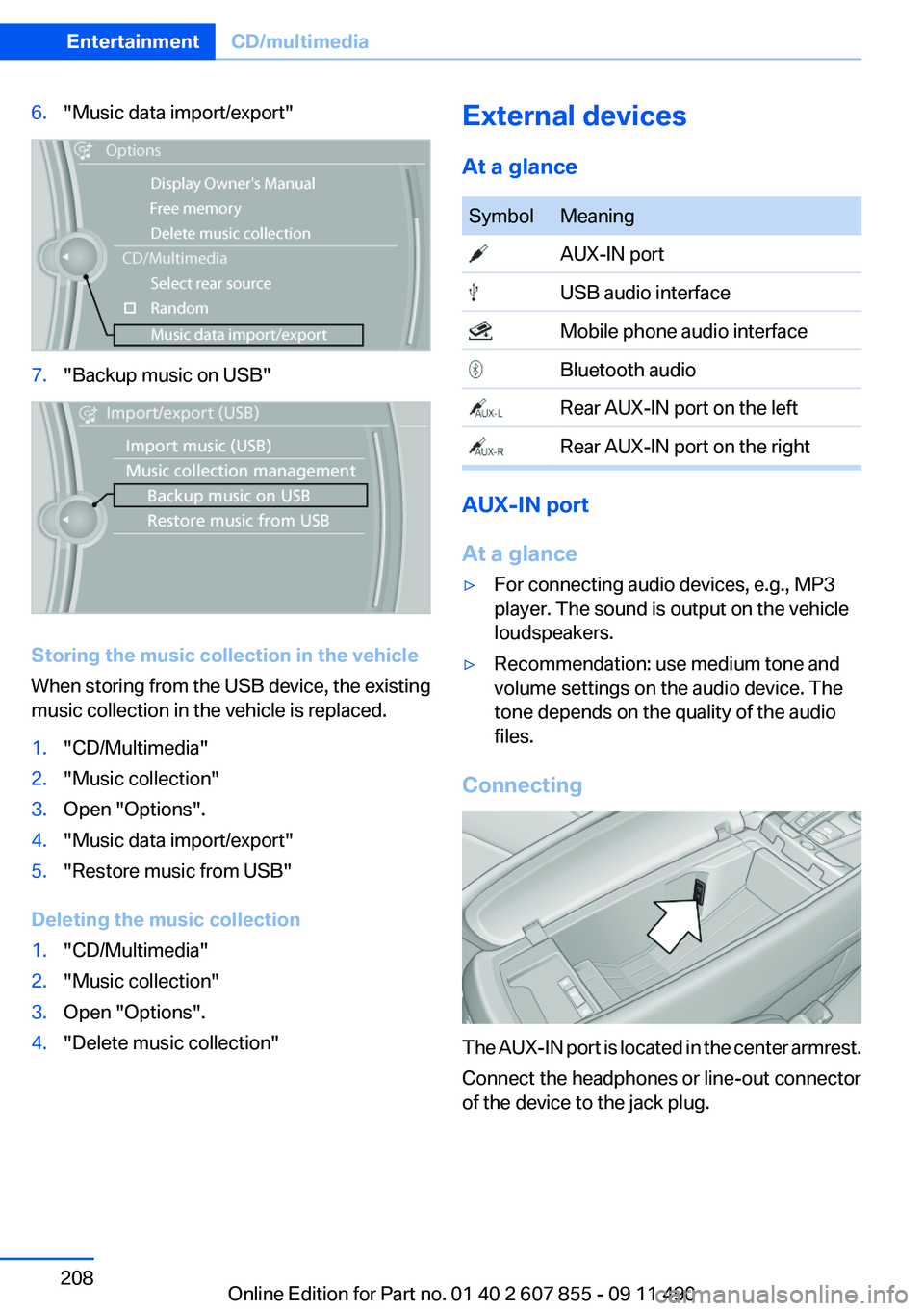
6."Music data import/export"7."Backup music on USB"
Storing the music collection in the vehicle
When storing from the USB device, the existing
music collection in the vehicle is replaced.
1."CD/Multimedia"2."Music collection"3.Open "Options".4."Music data import/export"5."Restore music from USB"
Deleting the music collection
1."CD/Multimedia"2."Music collection"3.Open "Options".4."Delete music collection"External devices
At a glanceSymbolMeaning AUX-IN port USB audio interface Mobile phone audio interface Bluetooth audio Rear AUX-IN port on the left Rear AUX-IN port on the right
AUX-IN port
At a glance
▷For connecting audio devices, e.g., MP3
player. The sound is output on the vehicle
loudspeakers.▷Recommendation: use medium tone and
volume settings on the audio device. The
tone depends on the quality of the audio
files.
Connecting
The AUX-IN port is located in the center armrest.
Connect the headphones or line-out connector
of the device to the jack plug.
Seite 208EntertainmentCD/multimedia208
Online Edition for Part no. 01 40 2 607 855 - 09 11 490
Page 209 of 321
Playback1.Connect the audio device, switch it on and
select a track on the audio device.2."CD/Multimedia"3.If necessary "External devices".4. "AUX front"
Volume
The volume of the sound output is dependent
on the audio device. If this volume differs mark‐
edly from the volume of the other audio sources,
it is advisable to adjust the volumes.
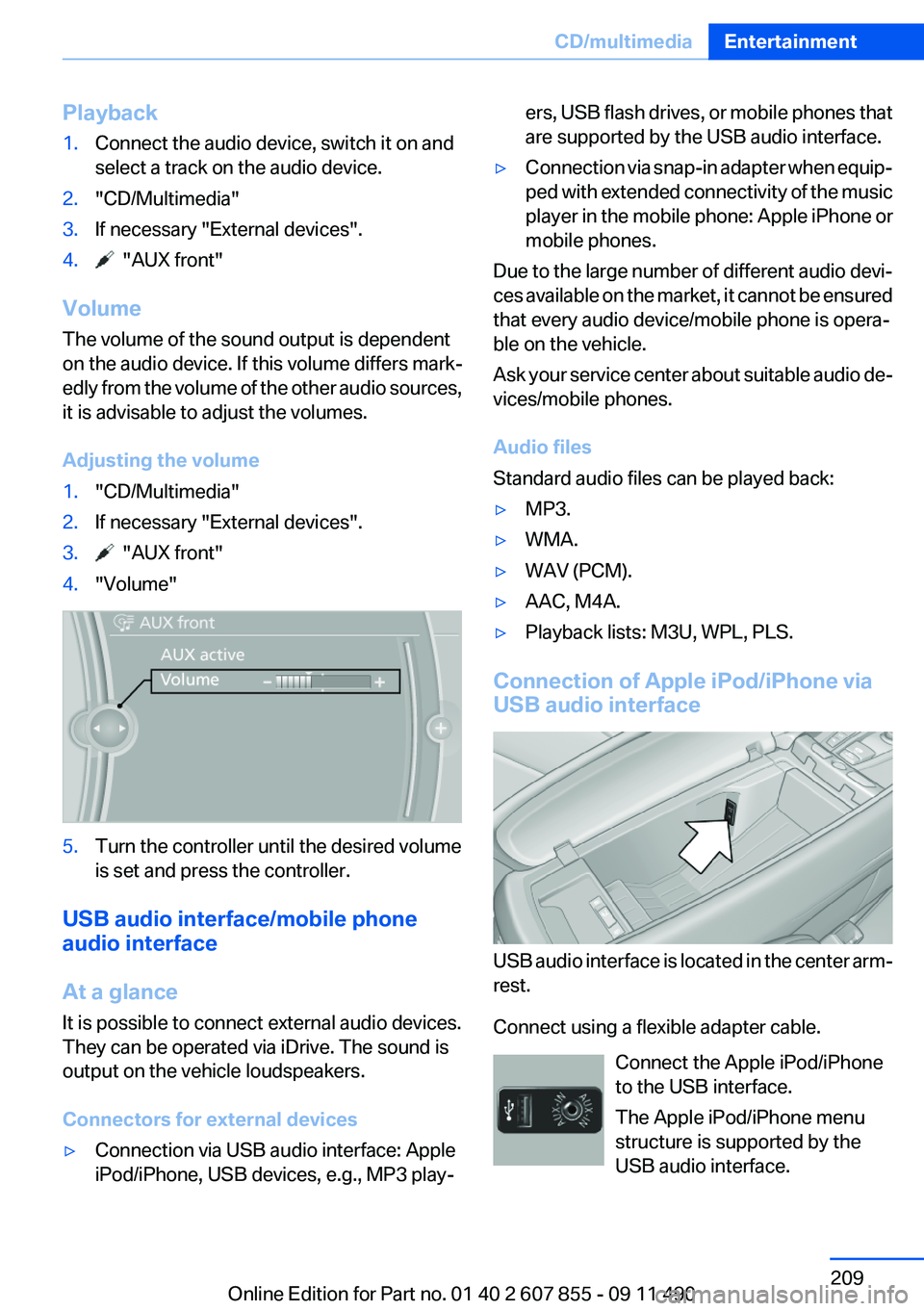
Adjusting the volume
1."CD/Multimedia"2.If necessary "External devices".3. "AUX front"4."Volume"5.Turn the controller until the desired volume
is set and press the controller.
USB audio interface/mobile phone
audio interface
At a glance
It is possible to connect external audio devices.
They can be operated via iDrive. The sound is
output on the vehicle loudspeakers.
Connectors for external devices
▷Connection via USB audio interface: Apple
iPod/iPhone, USB devices, e.g., MP3 play‐ers, USB flash drives, or mobile phones that
are supported by the USB audio interface.▷Connection via snap-in adapter when equip‐
ped with extended connectivity of the music
player in the mobile phone: Apple iPhone or
mobile phones.
Due to the large number of different audio devi‐
ces available on the market, it cannot be ensured
that every audio device/mobile phone is opera‐
ble on the vehicle.
Ask your service center about suitable audio de‐
vices/mobile phones.
Audio files
Standard audio files can be played back:
▷MP3.▷WMA.▷WAV (PCM).▷AAC, M4A.▷Playback lists: M3U, WPL, PLS.
Connection of Apple iPod/iPhone via
USB audio interface
USB audio interface is located in the center arm‐
rest.
Connect using a flexible adapter cable. Connect the Apple iPod/iPhone
to the USB interface.
The Apple iPod/iPhone menu
structure is supported by the
USB audio interface.
Seite 209CD/multimediaEntertainment209
Online Edition for Part no. 01 40 2 607 855 - 09 11 490
Page 210 of 321
Connection of a USB device via the
USB audio interface
USB audio interface is located in the center arm‐
rest.
Connect using a flexible adapter cable to protect
the USB audio interface and the USB device
against physical damage.
Connect the USB device to the
USB interface.
After connecting for the first time
Information on all music tracks, e.g. artist or type
of music, as well as playback lists are transmit‐
ted into the vehicle. This may take some time,
depending on the USB device and the number
of tracks.
During transmission, the tracks can be called up
via the file directory.
Number of tracks
Information from up to four USB devices or for
approx. 36,000 tracks can be stored in the ve‐
hicle. If a fifth device is connected or if more than
36,000 tracks are stored, information on exist‐
ing music tracks may be deleted.
Copy protection
Music tracks with integrated Digital Rights Man‐
agement (DRM) cannot be played.
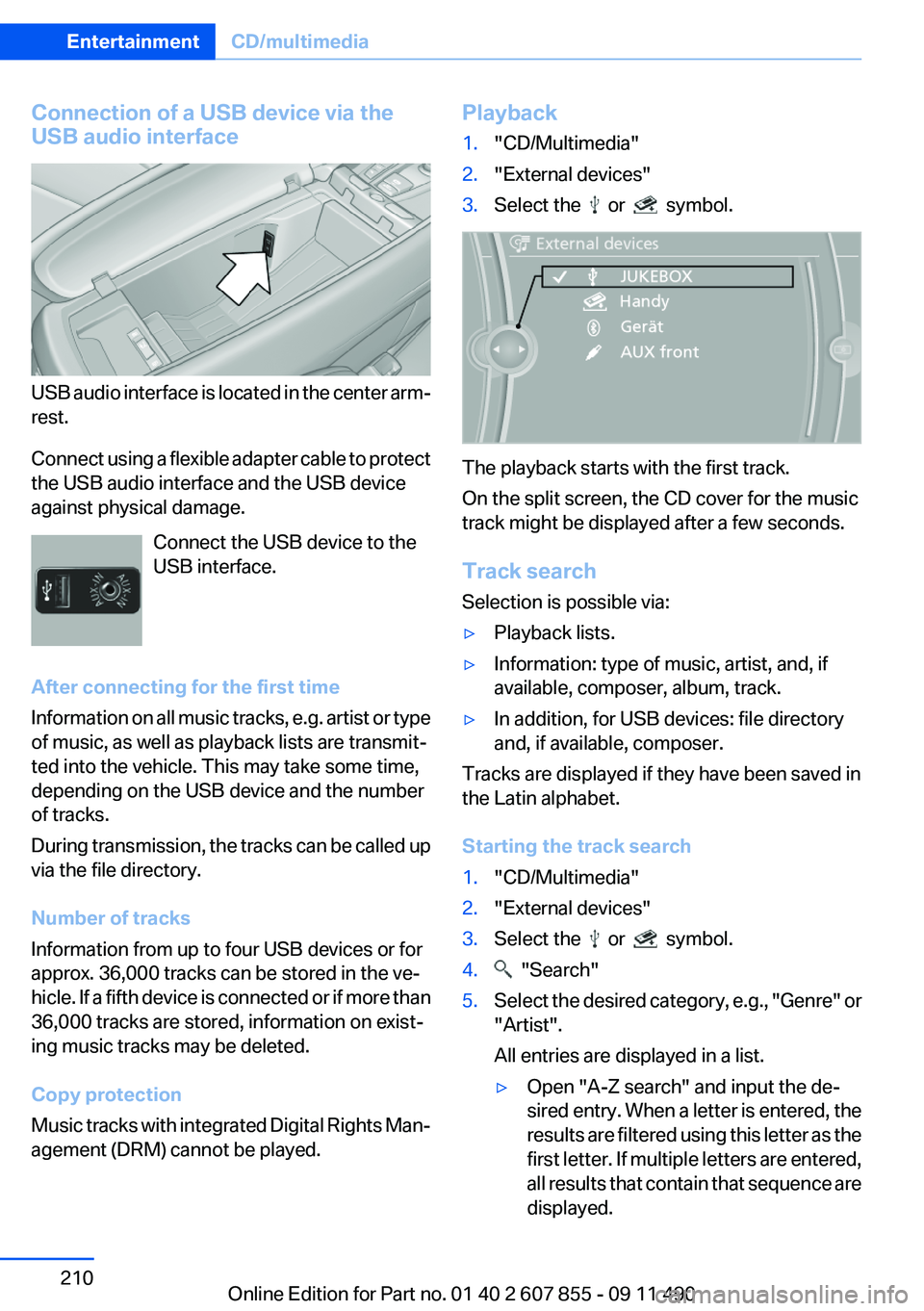
Playback1."CD/Multimedia"2."External devices"3.Select the or symbol.
The playback starts with the first track.
On the split screen, the CD cover for the music
track might be displayed after a few seconds.
Track search
Selection is possible via:
▷Playback lists.▷Information: type of music, artist, and, if
available, composer, album, track.▷In addition, for USB devices: file directory
and, if available, composer.
Tracks are displayed if they have been saved in
the Latin alphabet.
Starting the track search
1."CD/Multimedia"2."External devices"3.Select the or symbol.4. "Search"5.Select the desired category, e.g., "Genre" or
"Artist".
All entries are displayed in a list.▷Open "A-Z search" and input the de‐
sired entry. When a letter is entered, the
results are filtered using this letter as the
first letter. If multiple letters are entered,
all results that contain that sequence are
displayed.Seite 210EntertainmentCD/multimedia210
Online Edition for Part no. 01 40 2 607 855 - 09 11 490
Page 212 of 321
peratures; refer to the audio device operating
instructions.
Depending on the configuration of the audio
files, e.g., bit rates greater than 256 kbit/s, the
files may not play back correctly in each case.
Information on connection▷The connected audio device is supplied with
a max. power of 500 mA if supported by the
device. Therefore, do not additionally con‐
nect the device to a socket in the vehicle;
otherwise, playback may be compromised.▷Do not use force when plugging the con‐
nector into the USB interface.▷Do not connect devices such as fans or
lamps to the USB audio interface.▷Do not connect USB hard drives.▷Do not use the USB audio interface to re‐
charge external devices.
Bluetooth audio
At a glance
▷Music files on external devices such as audio
devices or mobile phones can be played
back via Bluetooth.
Use of a mobile phone as an audio source,
refer to page 227.▷The sound is output on the vehicle loud‐
speakers.▷The volume of the sound output is depend‐
ent on the device. If necessary, adjust the
volume on the device.▷Up to four external devices can be paired
with the vehicle.
Requirements
▷The device is suitable. Information under
www.bmwusa.com/bluetooth.▷The device is ready for operation.▷The ignition is switched on.▷Bluetooth is activated on the vehicle, refer to
page 227, and on the device.▷Bluetooth presettings must be made on the
device, such as for a connection without
confirmation or visibility; refer to the device
operating instructions.▷A number with at least four and a maximum
of 16 digits is defined as the Bluetooth pass‐
key. It is only required once for pairing.
Pairing and connecting
Pairing a device
To avoid becoming distracted and posing
an unnecessary hazard both to your own vehi‐
cle's occupants and to other road users, only
pair the device while the vehicle is stationary.◀
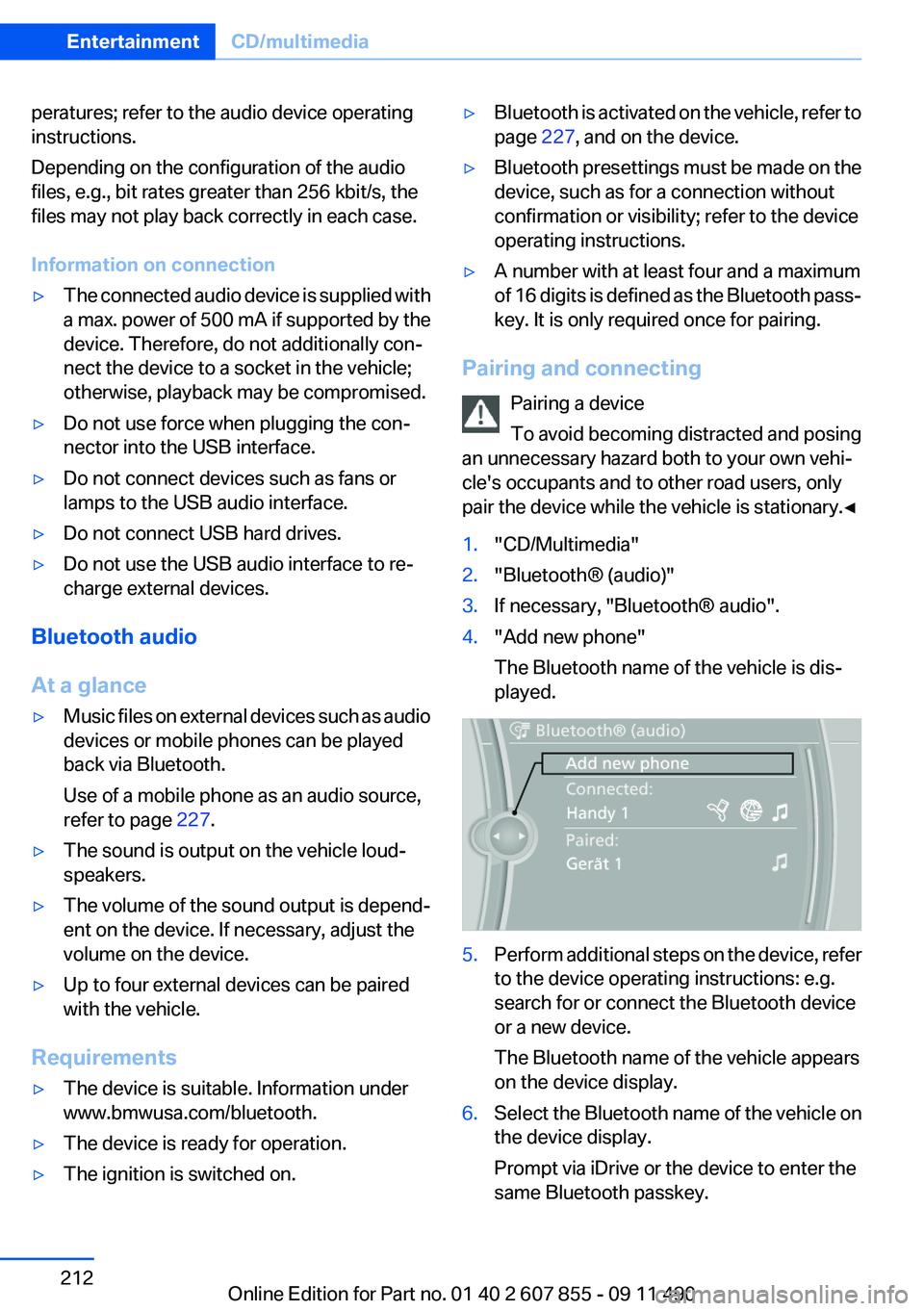
1."CD/Multimedia"2."Bluetooth® (audio)"3.If necessary, "Bluetooth® audio".4."Add new phone"
The Bluetooth name of the vehicle is dis‐
played.5.Perform additional steps on the device, refer
to the device operating instructions: e.g.
search for or connect the Bluetooth device
or a new device.
The Bluetooth name of the vehicle appears
on the device display.6.Select the Bluetooth name of the vehicle on
the device display.
Prompt via iDrive or the device to enter the
same Bluetooth passkey.Seite 212EntertainmentCD/multimedia212
Online Edition for Part no. 01 40 2 607 855 - 09 11 490
Page 215 of 321
Music files can only be played back softly.▷Adjust the volume settings on the device.
Playback is disturbed when buttons are pressed
or by other messages on the device.
▷Switch off the button tones and other signal
tones on the device.
Playback is interrupted by a telephone call or
traffic bulletin and is not resumed automatically.
▷Switch the radio off and on again.
Playback is not possible if the mobile phone is
connected both via Bluetooth Audio and via the
extended connectivity of the music player in the
mobile phone.
▷Disconnect one of the two connections; for
example, disconnect the audio connection,
refer to page 214, and restart playback.
If all points in this list have been checked and the
required function is still not available, please
contact the hotline or service center.
Software Update
The vehicle supports various external devices
depending on the current software version. With
a software update, the vehicle can support new
cell phones or new external devices.
The updating of the software is done via:
▷USB.
Updates and related current information is
available at www.bmw.com/update.
Displaying the current version
The currently installed software is displayed.
1."Settings"2."Software update"3."Show current version"
SelectDesired version to displayAdditional in‐
formation.
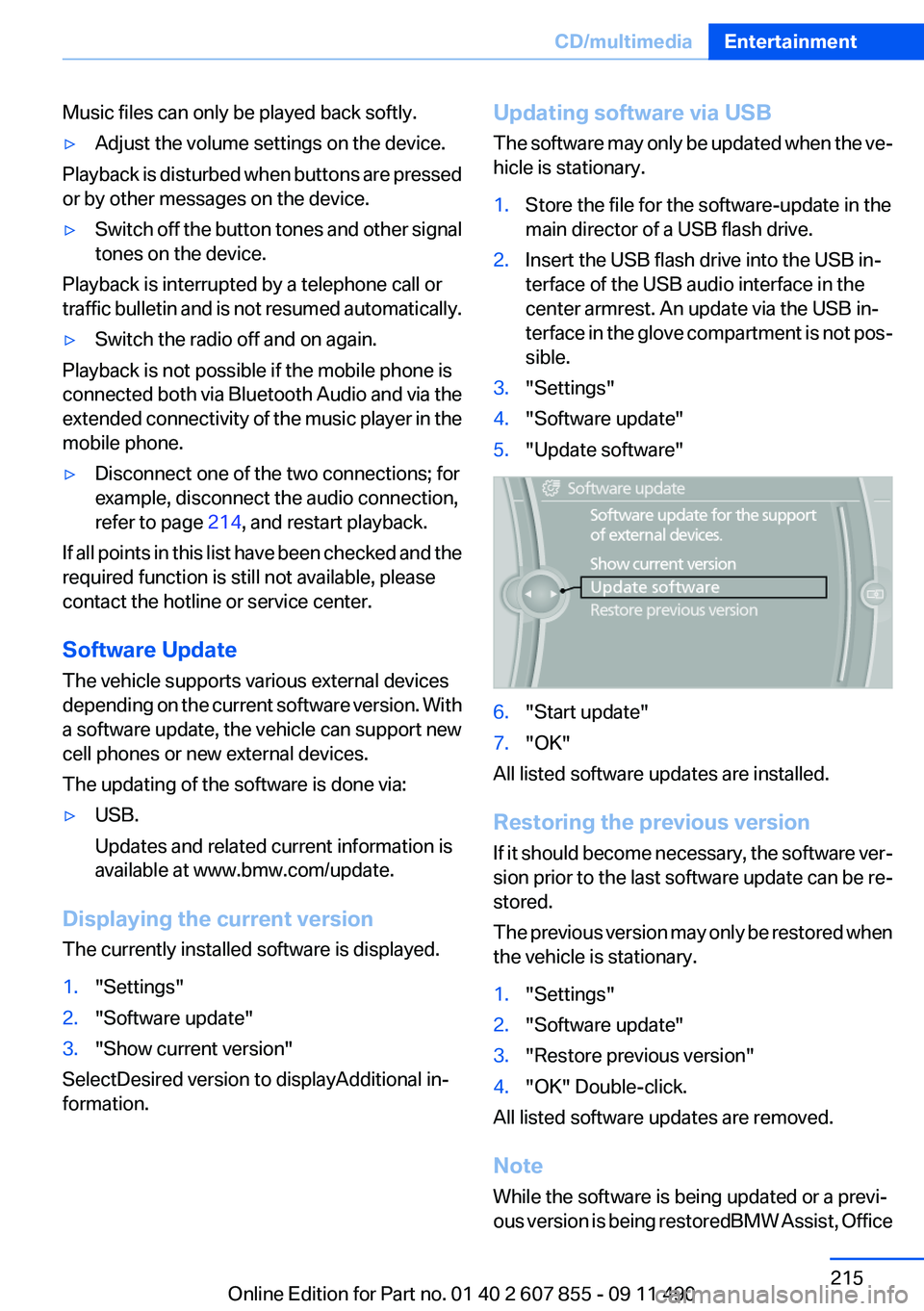
Updating software via USB
The software may only be updated when the ve‐
hicle is stationary.1.Store the file for the software-update in the
main director of a USB flash drive.2.Insert the USB flash drive into the USB in‐
terface of the USB audio interface in the
center armrest. An update via the USB in‐
terface in the glove compartment is not pos‐
sible.3."Settings"4."Software update"5."Update software"6."Start update"7."OK"
All listed software updates are installed.
Restoring the previous version
If it should become necessary, the software ver‐
sion prior to the last software update can be re‐
stored.
The previous version may only be restored when
the vehicle is stationary.
1."Settings"2."Software update"3."Restore previous version"4."OK" Double-click.
All listed software updates are removed.
Note
While the software is being updated or a previ‐
ous version is being restoredBMW Assist, Office
Seite 215CD/multimediaEntertainment215
Online Edition for Part no. 01 40 2 607 855 - 09 11 490
Page 219 of 321
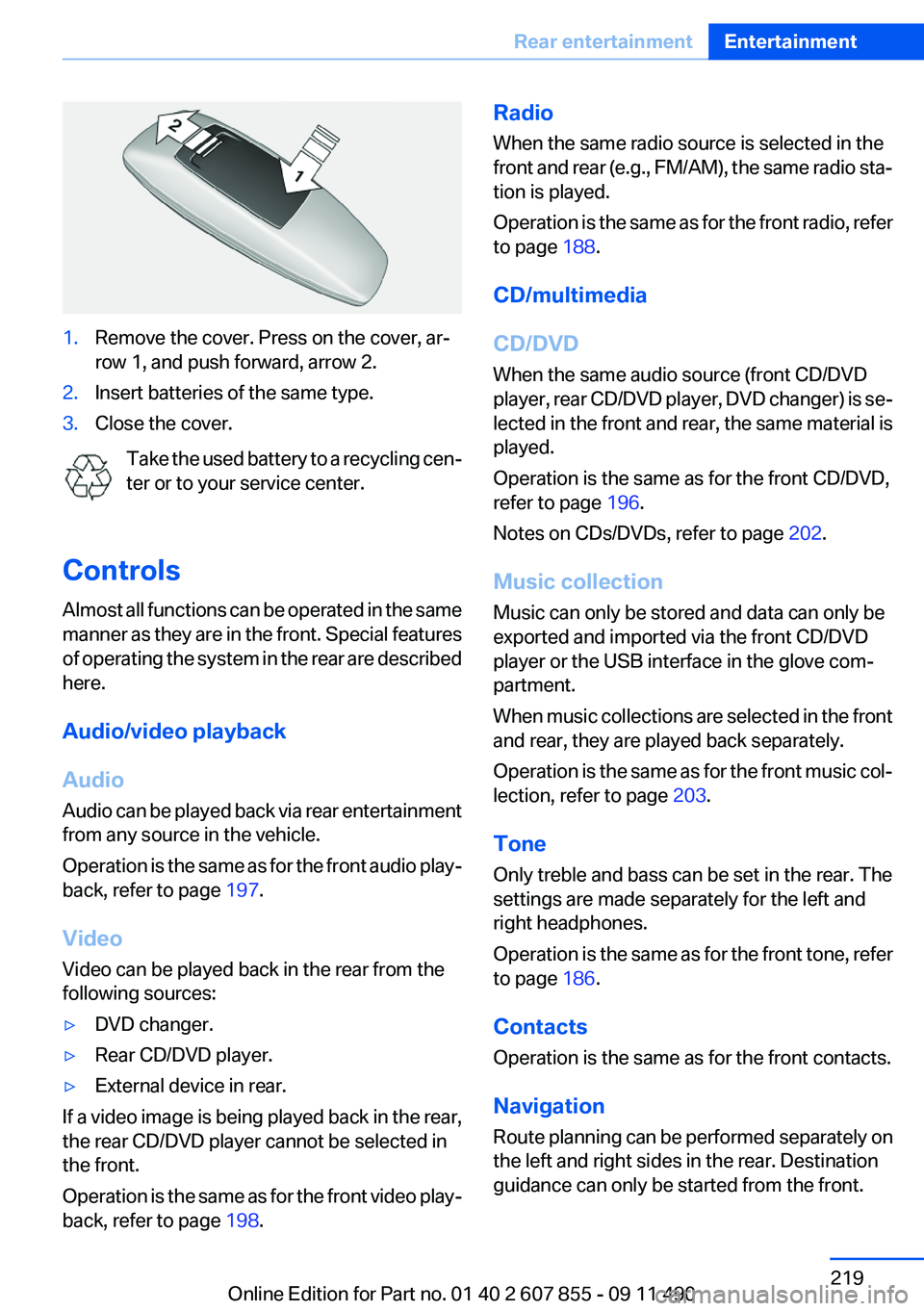
1.Remove the cover. Press on the cover, ar‐
row 1, and push forward, arrow 2.2.Insert batteries of the same type.3.Close the cover.
Take the used battery to a recycling cen‐
ter or to your service center.
Controls
Almost all functions can be operated in the same
manner as they are in the front. Special features
of operating the system in the rear are described
here.
Audio/video playback
Audio
Audio can be played back via rear entertainment
from any source in the vehicle.
Operation is the same as for the front audio play‐
back, refer to page 197.
Video
Video can be played back in the rear from the
following sources:
▷DVD changer.▷Rear CD/DVD player.▷External device in rear.
If a video image is being played back in the rear,
the rear CD/DVD player cannot be selected in
the front.
Operation is the same as for the front video play‐
back, refer to page 198.
Radio
When the same radio source is selected in the
front and rear (e.g., FM/AM), the same radio sta‐
tion is played.
Operation is the same as for the front radio, refer
to page 188.
CD/multimedia
CD/DVD
When the same audio source (front CD/DVD
player, rear CD/DVD player, DVD changer) is se‐
lected in the front and rear, the same material is
played.
Operation is the same as for the front CD/DVD,
refer to page 196.
Notes on CDs/DVDs, refer to page 202.
Music collection
Music can only be stored and data can only be
exported and imported via the front CD/DVD
player or the USB interface in the glove com‐
partment.
When music collections are selected in the front
and rear, they are played back separately.
Operation is the same as for the front music col‐
lection, refer to page 203.
Tone
Only treble and bass can be set in the rear. The
settings are made separately for the left and
right headphones.
Operation is the same as for the front tone, refer
to page 186.
Contacts
Operation is the same as for the front contacts.
Navigation
Route planning can be performed separately on
the left and right sides in the rear. Destination
guidance can only be started from the front.Seite 219Rear entertainmentEntertainment219
Online Edition for Part no. 01 40 2 607 855 - 09 11 490
Page 237 of 321
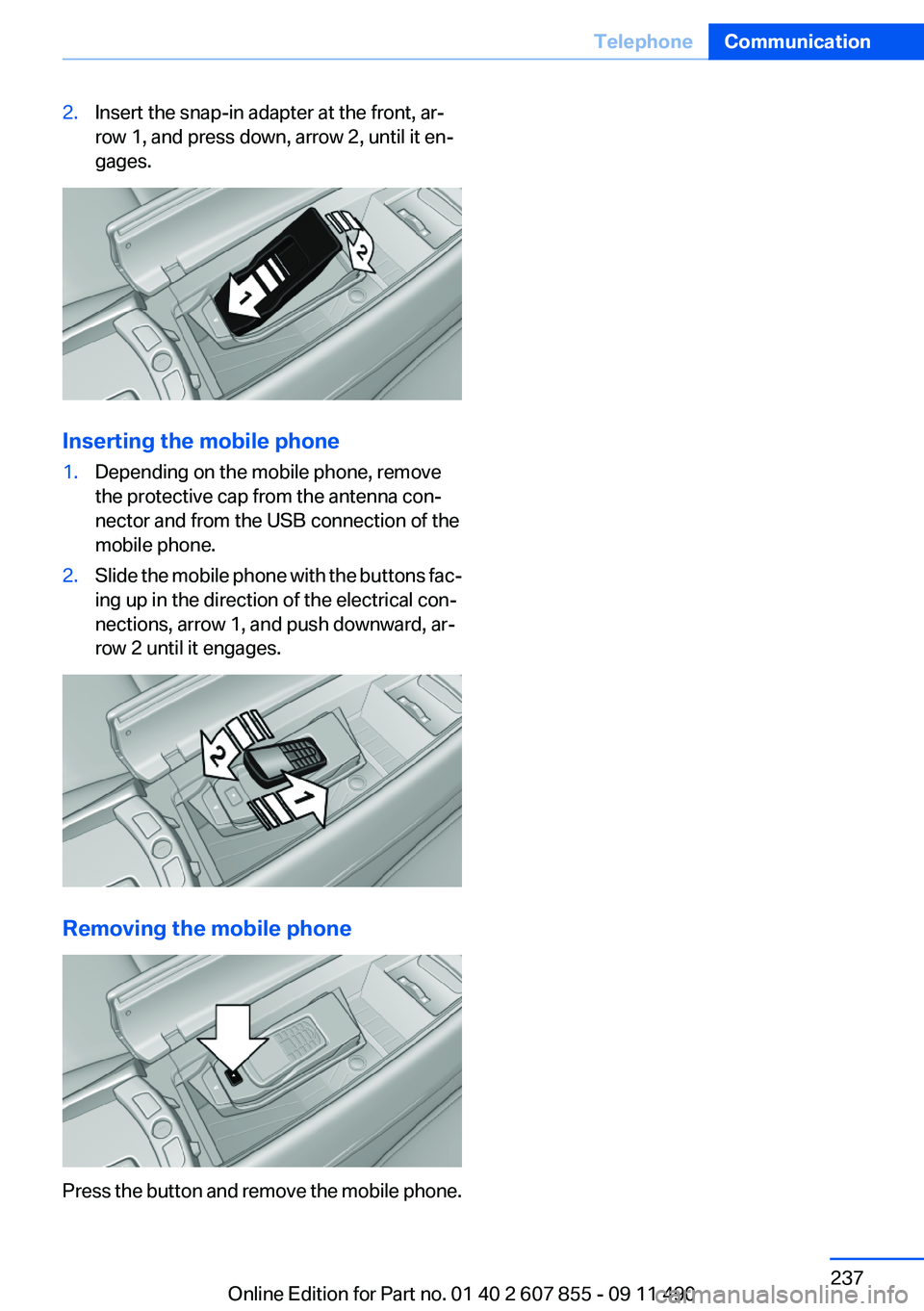
2.Insert the snap-in adapter at the front, ar‐
row 1, and press down, arrow 2, until it en‐
gages.
Inserting the mobile phone
1.Depending on the mobile phone, remove
the protective cap from the antenna con‐
nector and from the USB connection of the
mobile phone.2.Slide the mobile phone with the buttons fac‐
ing up in the direction of the electrical con‐
nections, arrow 1, and push downward, ar‐
row 2 until it engages.
Removing the mobile phone
Press the button and remove the mobile phone.
Seite 237TelephoneCommunication237
Online Edition for Part no. 01 40 2 607 855 - 09 11 490
Page 254 of 321
Apps
At a glance
Certain software applications of a suitable cell
phone can be integrated in the vehicle. These
software applications are displayed on the Con‐
trol Display.
Operation can be performed via iDrive.
Requirements▷The mobile phone is suitable.▷The cell phone operating system supports
the software applications of Apps.▷Software applications are installed on the
cell phone and ready to use.▷Corresponding mobile wireless contract.
Any additionally incurred costs are not a part
of Apps.▷Use only BMW approved software applica‐
tions; otherwise, it may result in malfunc‐
tions.
Information about suitable cell phones, available
software applications and their installation can
be found at www.bmw.com/connectivity or at
the service center.
Create the entries.
Make entries only when traffic and road
conditions allow. Otherwise, the vehicle occu‐
pants and other road users may be put in danger
because of the distraction from driving.
For reasons of safety, some software applica‐
tions are usable only while the vehicle is station‐
ary.◀
Use apps
1.Connect the cell phone via the snap-in
adapter or via the USB audio interface.2."ConnectedDrive"3.Select the desired software application.Displaying status
Information about the currently available soft‐
ware applications can be displayed.1."ConnectedDrive"2."BMW apps"
PlugIn
Selected functions of the cell phone are dis‐
played on the Control Display. Operation can be
performed via iDrive.
1.Connect cell phone via the snap-in adapter.2."ConnectedDrive"3."PlugIn"4."Activate PlugIn"5.Navigate to the displayed functions via the
controller and select, for example, a desired
category or track.
Press button to switch within the cell
phone functions to a higher level or back.
Press button twice to switch back to the
main menu.
Notes
▷The ranges of Apps that can be displayed on
the Control Display depend on the range of
installed software applications on the cell
phone.▷The data transmission of the software ap‐
plications from the cell phone to the vehicle
can last some time. Some software applica‐
tions depend on the speed of the available
Internet connection of the cell phone.▷Some cell phones cannot simultaneously
use Apps and the Bluetooth hands-free sys‐
tem.
If necessary, restart the software application
on the cell phone after a phone conversa‐
tion.Seite 254CommunicationConnectedDrive254
Online Edition for Part no. 01 40 2 607 855 - 09 11 490
Page 318 of 321
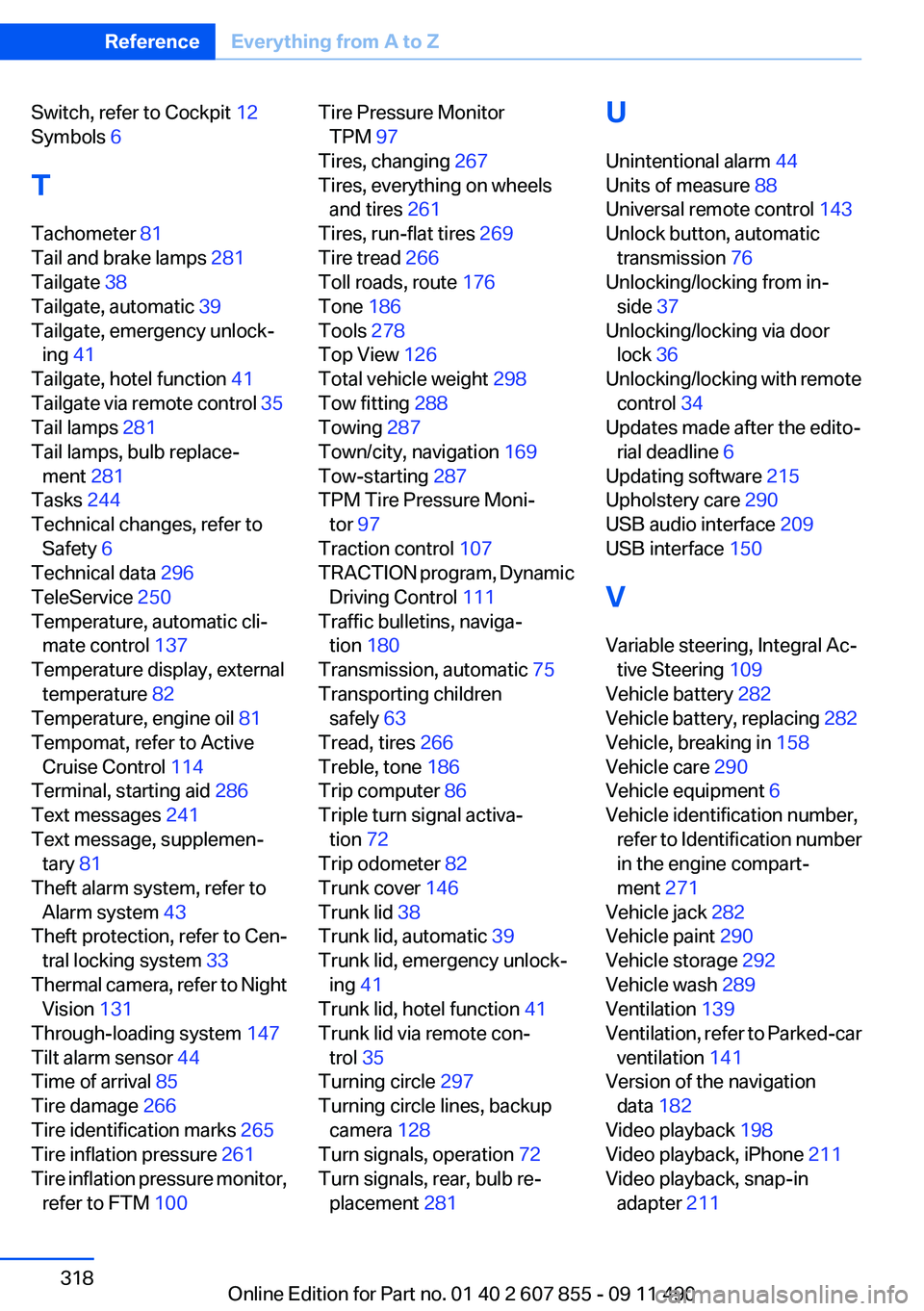
Switch, refer to Cockpit 12
Symbols 6
T
Tachometer 81
Tail and brake lamps 281
Tailgate 38
Tailgate, automatic 39
Tailgate, emergency unlock‐ ing 41
Tailgate, hotel function 41
Tailgate via remote control 35
Tail lamps 281
Tail lamps, bulb replace‐ ment 281
Tasks 244
Technical changes, refer to Safety 6
Technical data 296
TeleService 250
Temperature, automatic cli‐ mate control 137
Temperature display, external temperature 82
Temperature, engine oil 81
Tempomat, refer to Active Cruise Control 114
Terminal, starting aid 286
Text messages 241
Text message, supplemen‐ tary 81
Theft alarm system, refer to Alarm system 43
Theft protection, refer to Cen‐ tral locking system 33
Thermal camera, refer to Night Vision 131
Through-loading system 147
Tilt alarm sensor 44
Time of arrival 85
Tire damage 266
Tire identification marks 265
Tire inflation pressure 261
Tire inflation pressure monitor, refer to FTM 100 Tire Pressure Monitor
TPM 97
Tires, changing 267
Tires, everything on wheels and tires 261
Tires, run-flat tires 269
Tire tread 266
Toll roads, route 176
Tone 186
Tools 278
Top View 126
Total vehicle weight 298
Tow fitting 288
Towing 287
Town/city, navigation 169
Tow-starting 287
TPM Tire Pressure Moni‐ tor 97
Traction control 107
TRACTION program, Dynamic Driving Control 111
Traffic bulletins, naviga‐ tion 180
Transmission, automatic 75
Transporting children safely 63
Tread, tires 266
Treble, tone 186
Trip computer 86
Triple turn signal activa‐ tion 72
Trip odometer 82
Trunk cover 146
Trunk lid 38
Trunk lid, automatic 39
Trunk lid, emergency unlock‐ ing 41
Trunk lid, hotel function 41
Trunk lid via remote con‐ trol 35
Turning circle 297
Turning circle lines, backup camera 128
Turn signals, operation 72
Turn signals, rear, bulb re‐ placement 281 U
Unintentional alarm 44
Units of measure 88
Universal remote control 143
Unlock button, automatic transmission 76
Unlocking/locking from in‐ side 37
Unlocking/locking via door lock 36
Unlocking/locking with remote control 34
Updates made after the edito‐ rial deadline 6
Updating software 215
Upholstery care 290
USB audio interface 209
USB interface 150
V
Variable steering, Integral Ac‐ tive Steering 109
Vehicle battery 282
Vehicle battery, replacing 282
Vehicle, breaking in 158
Vehicle care 290
Vehicle equipment 6
Vehicle identification number, refer to Identification number
in the engine compart‐
ment 271
Vehicle jack 282
Vehicle paint 290
Vehicle storage 292
Vehicle wash 289
Ventilation 139
Ventilation, refer to Parked-car ventilation 141
Version of the navigation data 182
Video playback 198
Video playback, iPhone 211
Video playback, snap-in adapter 211 Seite 318ReferenceEverything from A to Z318
Online Edition for Part no. 01 40 2 607 855 - 09 11 490