reset BMW 535I GRAN TURISMO 2012 User Guide
[x] Cancel search | Manufacturer: BMW, Model Year: 2012, Model line: 535I GRAN TURISMO, Model: BMW 535I GRAN TURISMO 2012Pages: 321, PDF Size: 12.7 MB
Page 141 of 321
The cooling function is switched on automati‐
cally with the AUTO program.
Intensity of the AUTO program
With the AUTO program switched on, automatic
control of the air volume and air distribution can
be adjusted.
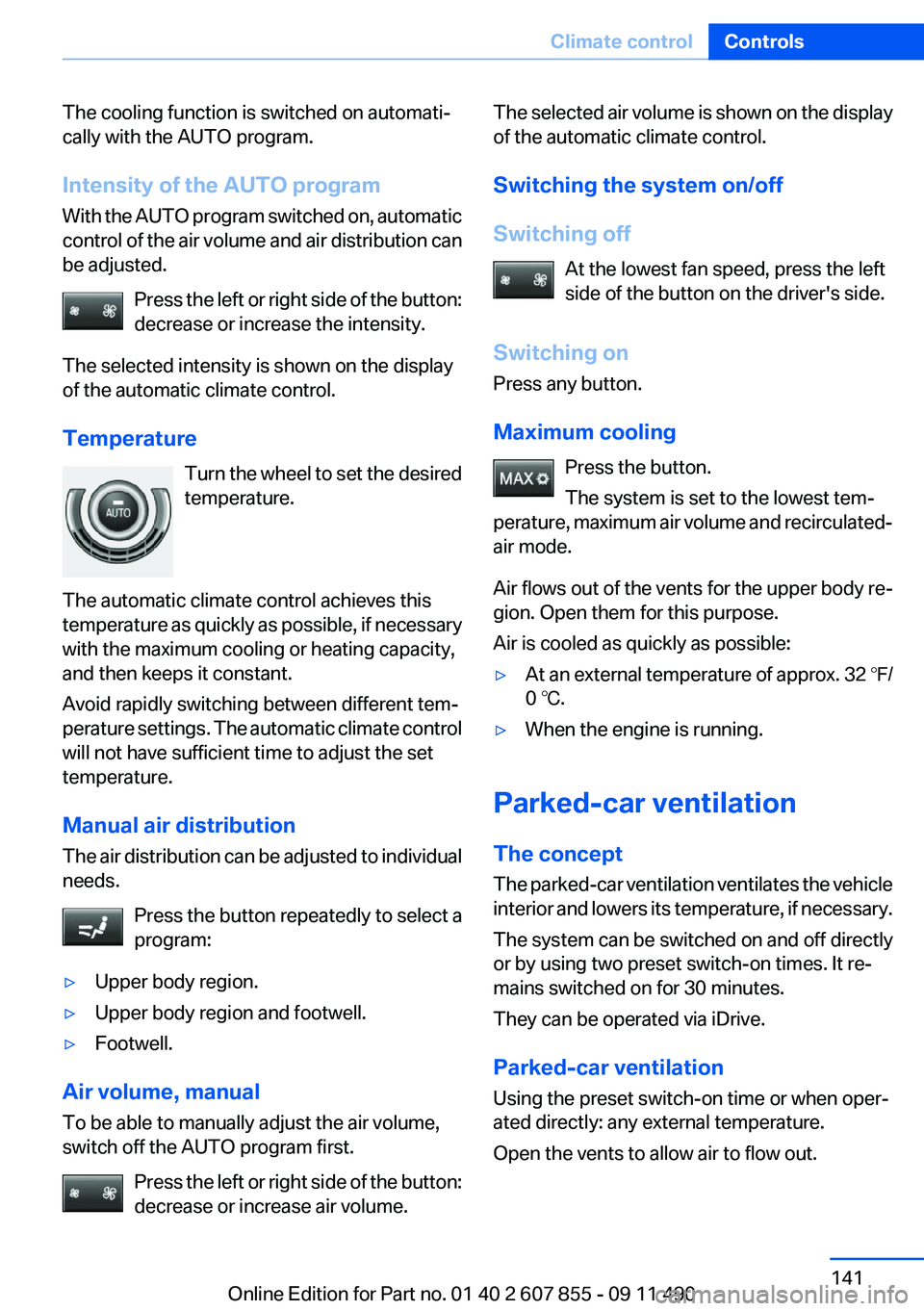
Press the left or right side of the button:
decrease or increase the intensity.
The selected intensity is shown on the display
of the automatic climate control.
Temperature Turn the wheel to set the desired
temperature.
The automatic climate control achieves this
temperature as quickly as possible, if necessary
with the maximum cooling or heating capacity,
and then keeps it constant.
Avoid rapidly switching between different tem‐
perature settings. The automatic climate control
will not have sufficient time to adjust the set
temperature.
Manual air distribution
The air distribution can be adjusted to individual
needs.
Press the button repeatedly to select a
program:▷Upper body region.▷Upper body region and footwell.▷Footwell.
Air volume, manual
To be able to manually adjust the air volume,
switch off the AUTO program first.
Press the left or right side of the button:
decrease or increase air volume.
The selected air volume is shown on the display
of the automatic climate control.
Switching the system on/off
Switching off At the lowest fan speed, press the left
side of the button on the driver's side.
Switching on
Press any button.
Maximum cooling Press the button.
The system is set to the lowest tem‐
perature, maximum air volume and recirculated-
air mode.
Air flows out of the vents for the upper body re‐
gion. Open them for this purpose.
Air is cooled as quickly as possible:▷At an external temperature of approx. 32 ℉/
0 ℃.▷When the engine is running.
Parked-car ventilation
The concept
The parked-car ventilation ventilates the vehicle
interior and lowers its temperature, if necessary.
The system can be switched on and off directly
or by using two preset switch-on times. It re‐
mains switched on for 30 minutes.
They can be operated via iDrive.
Parked-car ventilation
Using the preset switch-on time or when oper‐
ated directly: any external temperature.
Open the vents to allow air to flow out.
Seite 141Climate controlControls141
Online Edition for Part no. 01 40 2 607 855 - 09 11 490
Page 187 of 321
Multi-channel playback,
surround
Choose between stereo and multi-channel play‐
back, surround.
Setting multi-channel playback,
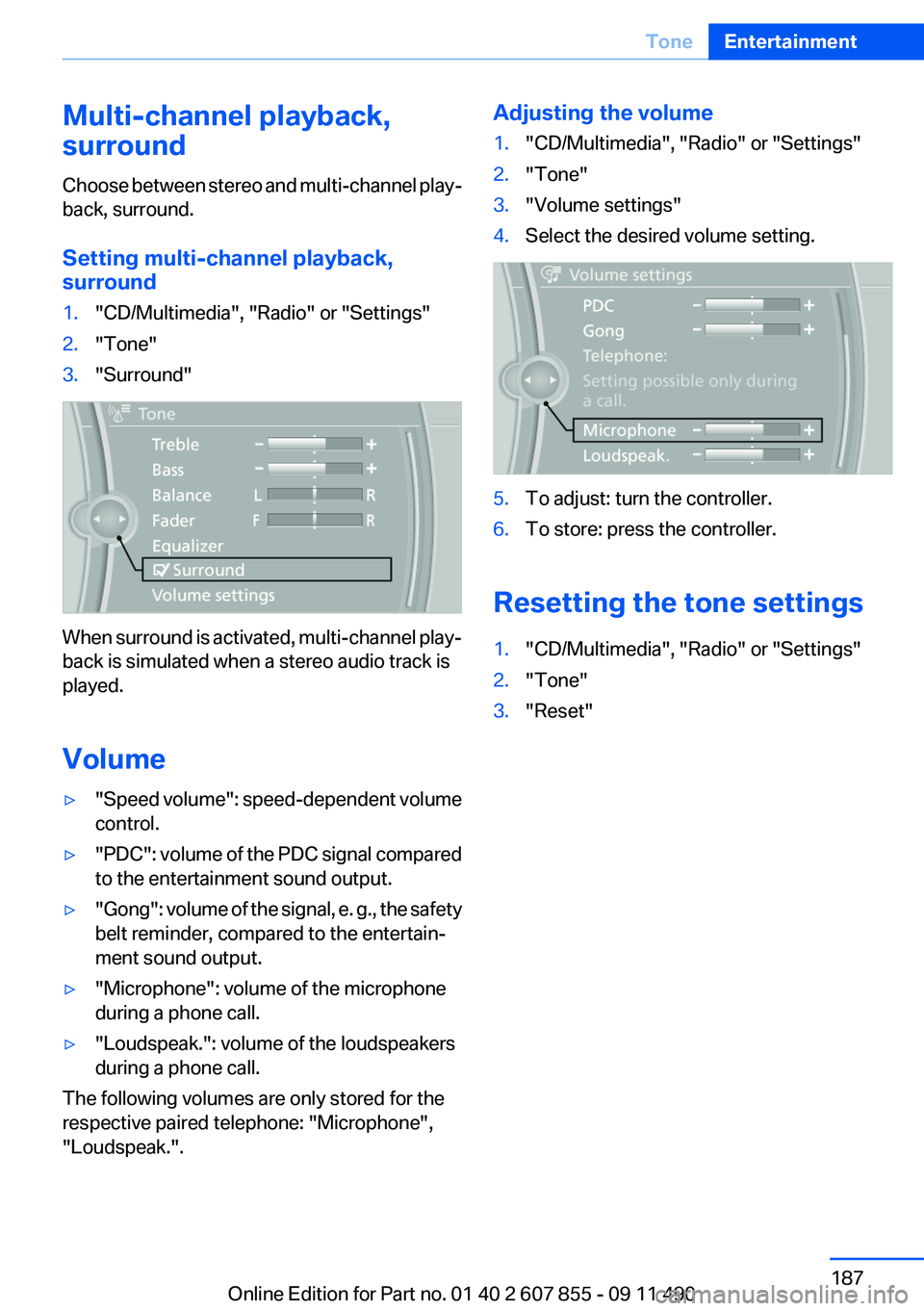
surround1."CD/Multimedia", "Radio" or "Settings"2."Tone"3."Surround"
When surround is activated, multi-channel play‐
back is simulated when a stereo audio track is
played.
Volume
▷" Speed volume": speed-dependent volume
control.▷"PDC" : volume of the PDC signal compared
to the entertainment sound output.▷"Gong" : volume of the signal, e. g., the safety
belt reminder, compared to the entertain‐
ment sound output.▷"Microphone": volume of the microphone
during a phone call.▷"Loudspeak.": volume of the loudspeakers
during a phone call.
The following volumes are only stored for the
respective paired telephone: "Microphone",
"Loudspeak.".
Adjusting the volume1."CD/Multimedia", "Radio" or "Settings"2."Tone"3."Volume settings"4.Select the desired volume setting.5.To adjust: turn the controller.6.To store: press the controller.
Resetting the tone settings
1."CD/Multimedia", "Radio" or "Settings"2."Tone"3."Reset"Seite 187ToneEntertainment187
Online Edition for Part no. 01 40 2 607 855 - 09 11 490
Page 194 of 321
The setting is stored for the remote control cur‐
rently in use.
Deleting favorites1."Satellite radio"2. "Manage favorites"3.Highlight the desired favorite.4.Open "Options".5."Delete entry"
Traffic Jump
Traffic and weather information for a selected
region is broadcast every few minutes.
Selecting a region
1."Radio"2."Satellite radio"3.Open "Options".4."Set jump"5.Select the desired region.
The region is stored for the remote control cur‐
rently in use.
Activating/deactivating the jump
1."Radio"2."Satellite radio"3. "Jump to:"
Information for the selected region is broadcast
as soon as it is available.
A new panel opens.
Canceling the Traffic Jump: "Cancel".
SymbolMeaning Information will be broadcast shortly. Information is currently being broad‐
cast.
Select one of the symbols to deactivate Traffic
Jump.
Automatic update
About twice a year, Sirius performs an update of
the channel names and positions. The update
takes place automatically and may take several
minutes.
Notes▷Reception may not be available in some sit‐
uations, such as under certain environmen‐
tal or topographic conditions. The satellite
radio has no influence on this.▷The signal may not be available in tunnels or
underground garages next to tall buildings
or near trees, mountains or other powerful
sources of radio interference.
Stored stations
General information
It is possible to store up to 40 stations.
Calling up a station
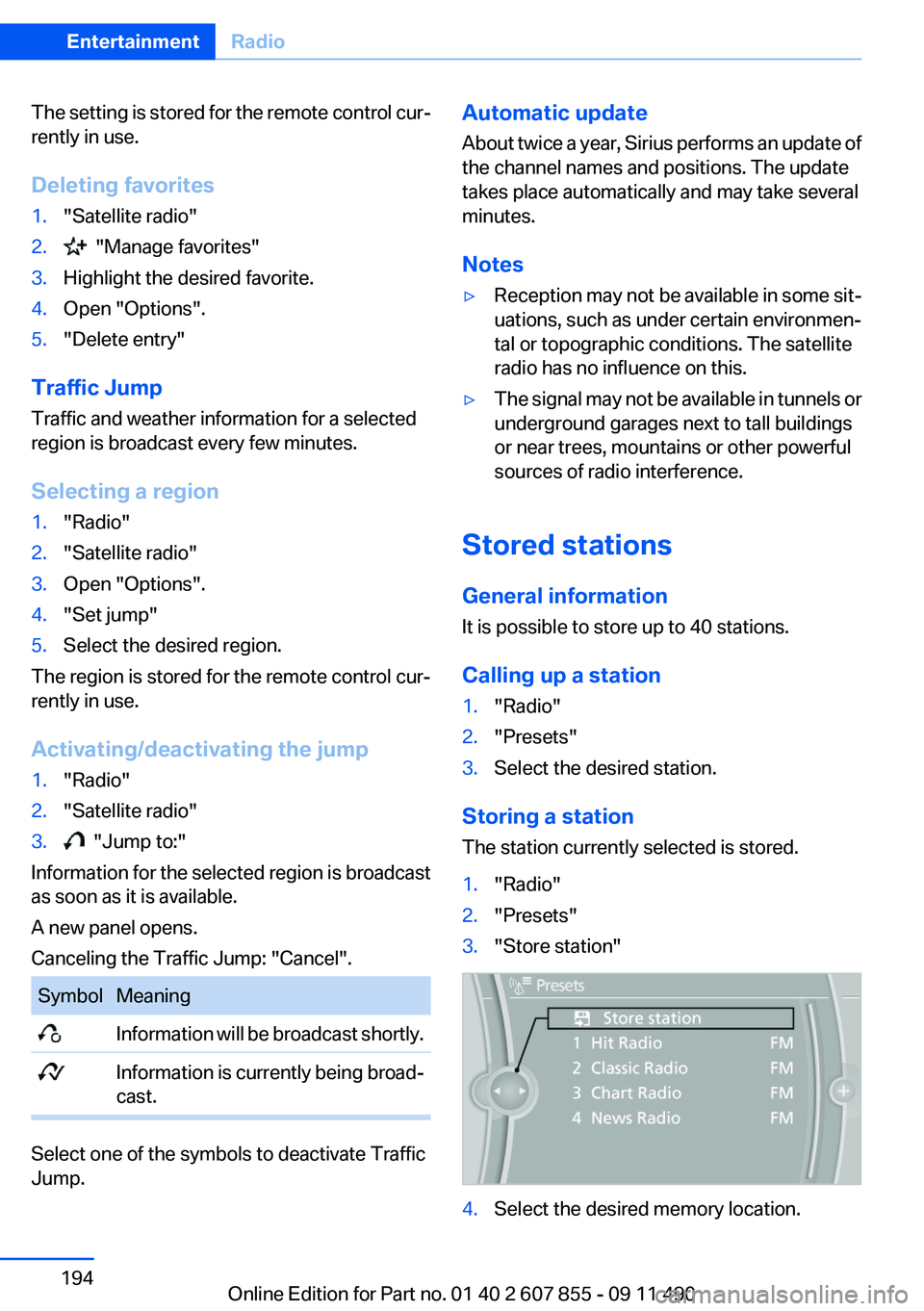
1."Radio"2."Presets"3.Select the desired station.
Storing a station
The station currently selected is stored.
1."Radio"2."Presets"3."Store station"4.Select the desired memory location.Seite 194EntertainmentRadio194
Online Edition for Part no. 01 40 2 607 855 - 09 11 490
Page 195 of 321
The list of stored stations is stored for the re‐
mote control currently in use.
The stations can also be stored on the program‐
mable memory buttons, refer to page 20.
Deleting a station1."Radio"2."Presets"3.Select the desired station.4."Options" Open.5."Delete entry"Seite 195RadioEntertainment195
Online Edition for Part no. 01 40 2 607 855 - 09 11 490
Page 212 of 321
peratures; refer to the audio device operating
instructions.
Depending on the configuration of the audio
files, e.g., bit rates greater than 256 kbit/s, the
files may not play back correctly in each case.
Information on connection▷The connected audio device is supplied with
a max. power of 500 mA if supported by the
device. Therefore, do not additionally con‐
nect the device to a socket in the vehicle;
otherwise, playback may be compromised.▷Do not use force when plugging the con‐
nector into the USB interface.▷Do not connect devices such as fans or
lamps to the USB audio interface.▷Do not connect USB hard drives.▷Do not use the USB audio interface to re‐
charge external devices.
Bluetooth audio
At a glance
▷Music files on external devices such as audio
devices or mobile phones can be played
back via Bluetooth.
Use of a mobile phone as an audio source,
refer to page 227.▷The sound is output on the vehicle loud‐
speakers.▷The volume of the sound output is depend‐
ent on the device. If necessary, adjust the
volume on the device.▷Up to four external devices can be paired
with the vehicle.
Requirements
▷The device is suitable. Information under
www.bmwusa.com/bluetooth.▷The device is ready for operation.▷The ignition is switched on.▷Bluetooth is activated on the vehicle, refer to
page 227, and on the device.▷Bluetooth presettings must be made on the
device, such as for a connection without
confirmation or visibility; refer to the device
operating instructions.▷A number with at least four and a maximum
of 16 digits is defined as the Bluetooth pass‐
key. It is only required once for pairing.
Pairing and connecting
Pairing a device
To avoid becoming distracted and posing
an unnecessary hazard both to your own vehi‐
cle's occupants and to other road users, only
pair the device while the vehicle is stationary.◀
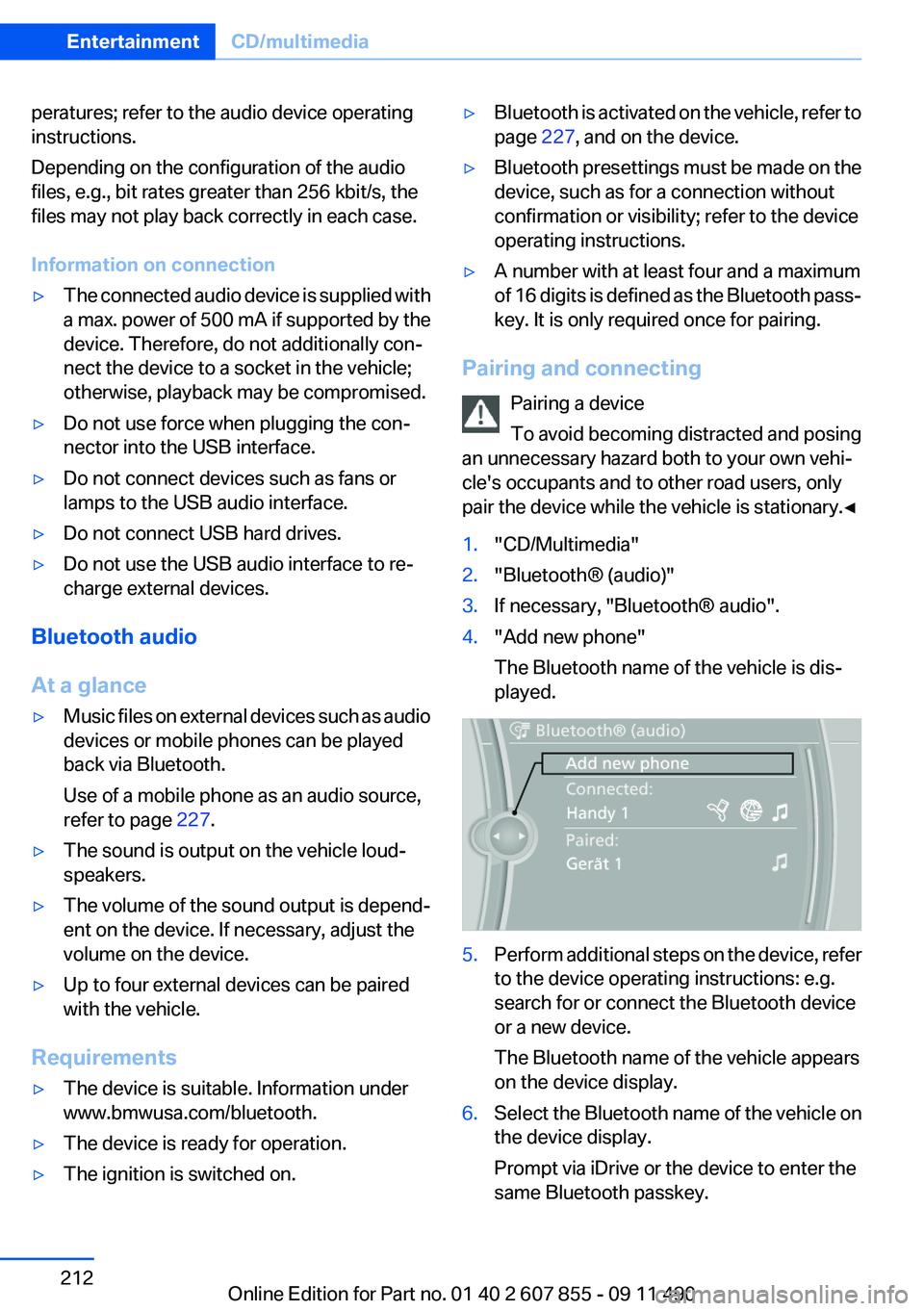
1."CD/Multimedia"2."Bluetooth® (audio)"3.If necessary, "Bluetooth® audio".4."Add new phone"
The Bluetooth name of the vehicle is dis‐
played.5.Perform additional steps on the device, refer
to the device operating instructions: e.g.
search for or connect the Bluetooth device
or a new device.
The Bluetooth name of the vehicle appears
on the device display.6.Select the Bluetooth name of the vehicle on
the device display.
Prompt via iDrive or the device to enter the
same Bluetooth passkey.Seite 212EntertainmentCD/multimedia212
Online Edition for Part no. 01 40 2 607 855 - 09 11 490
Page 227 of 321
Notes
At high temperatures, the charge function of the
mobile phone can be limited where appropriate
and the functions are no longer executed.
When the mobile phone is used via the vehicle,
heed the operating manual of the mobile phone.
Pairing/unpairing the mobile
phone
General information
The following functions are available:▷Use of a mobile phone as a telephone.▷Use of a mobile phone as an additional tele‐
phone.▷Use of a mobile phone as an audio source.▷Use of an audio device as an audio source,
refer to page 212.
Requirements
▷The mobile phone is suitable.▷The mobile phone is ready for operation.▷Bluetooth is activated in the vehicle and on
the mobile phone.▷Bluetooth presettings may need to be made
on the mobile phone, e.g., for a connection
without confirmation or visibility, refer to the
mobile phone operating instructions.▷Deactivate Bluetooth audio if necessary.▷A number with at least four and a maximum
of 16 digits was defined as the Bluetooth
passkey. It is only required once for pairing.▷The ignition is switched on.
Activating/deactivating Bluetooth
Bluetooth is not permitted everywhere. Comply
with all safety guidelines and regulations.
1."Telephone"2."Options" Open.3."Bluetooth®"Additional functions
Activating/deactivating the additional
functions
Activate the functions before pairing to be able
to use them in the vehicle. Information on suit‐
able mobile phones, refer to page 226, that sup‐
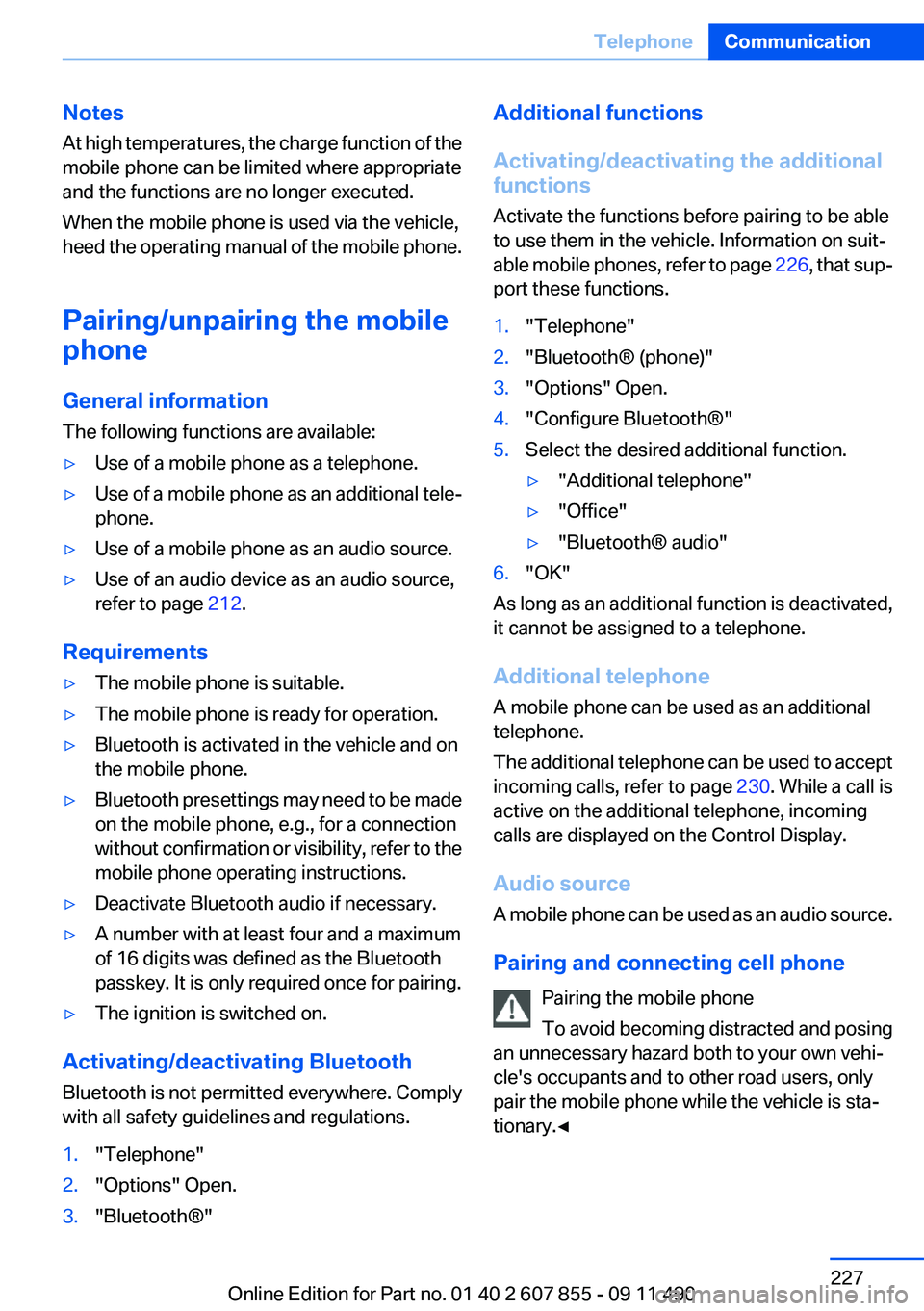
port these functions.1."Telephone"2."Bluetooth® (phone)"3."Options" Open.4."Configure Bluetooth®"5.Select the desired additional function.▷"Additional telephone"▷"Office"▷"Bluetooth® audio"6."OK"
As long as an additional function is deactivated,
it cannot be assigned to a telephone.
Additional telephone
A mobile phone can be used as an additional
telephone.
The additional telephone can be used to accept
incoming calls, refer to page 230. While a call is
active on the additional telephone, incoming
calls are displayed on the Control Display.
Audio source
A mobile phone can be used as an audio source.
Pairing and connecting cell phone Pairing the mobile phone
To avoid becoming distracted and posing
an unnecessary hazard both to your own vehi‐
cle's occupants and to other road users, only
pair the mobile phone while the vehicle is sta‐
tionary.◀
Seite 227TelephoneCommunication227
Online Edition for Part no. 01 40 2 607 855 - 09 11 490
Page 236 of 321
Deleting an entry1.›Delete name‹2.Say the name after being prompted to do so.3.Confirm the query with ›Yes‹.
Deleting all entries
1.›Delete phonebook‹
The dialog for deleting the phone book is
opened.2.Confirm the query with ›Yes‹.3.Confirm the query again with ›Yes‹.
Reading and selecting entries
1.›Read phonebook‹
The dialog for reading the phone book is
opened.2.Say ›Dial number‹ when the desired entry is
read.
Selecting an entry
1.›Dial name‹2.Say the name after being prompted to do so.3.Confirm the query with ›Yes‹.
Adjusting the volume
Turn the knob during an announcement.
▷The volume remains constant even if the
volume of other audio sources is changed.▷The volume is stored for the remote control
currently in use.
Notes
Do not use the voice operation to initiate an
Emergency Request. In stressful situations, the
voice and vocal pitch can change. This can un‐
necessarily delay the establishment of a tele‐
phone connection.
Instead, use the SOS button, refer to
page 284, in the vicinity of the interior mirror.
Environmental conditions▷Say the commands, numbers, and letters
smoothly and with normal volume, empha‐
sis, and speed.▷Always say commands in the language of
the system. The language for the mobile
phone voice operation is preset and cannot
be changed in the Control Display.▷Keep the doors, windows, and glass sun‐
roof closed to prevent noise interference.▷Avoid making other noise in the vehicle
while speaking.
Snap-in adapter
General information
Detailed information about snap-in adapter,
which supports the functions of the mobile
phone, available from the service center.
Notes
At high temperatures, the charge function of the
mobile phone can be limited where appropriate
and the functions are no longer executed.
When the mobile phone is used via the vehicle,
heed the operating manual of the mobile phone.
Installation position
In the center armrest.
Inserting the snap-in adapter
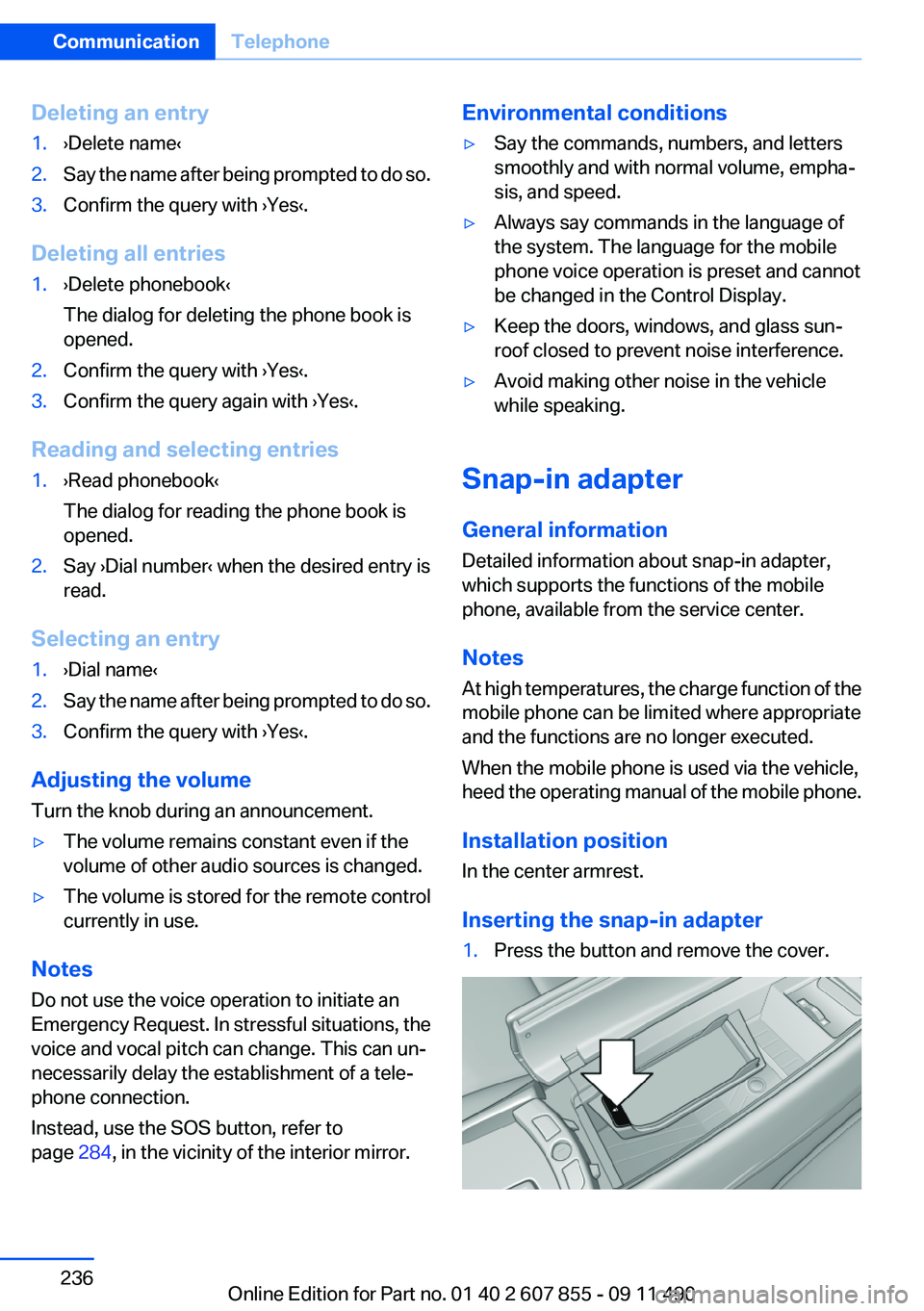
1.Press the button and remove the cover.Seite 236CommunicationTelephone236
Online Edition for Part no. 01 40 2 607 855 - 09 11 490
Page 305 of 321
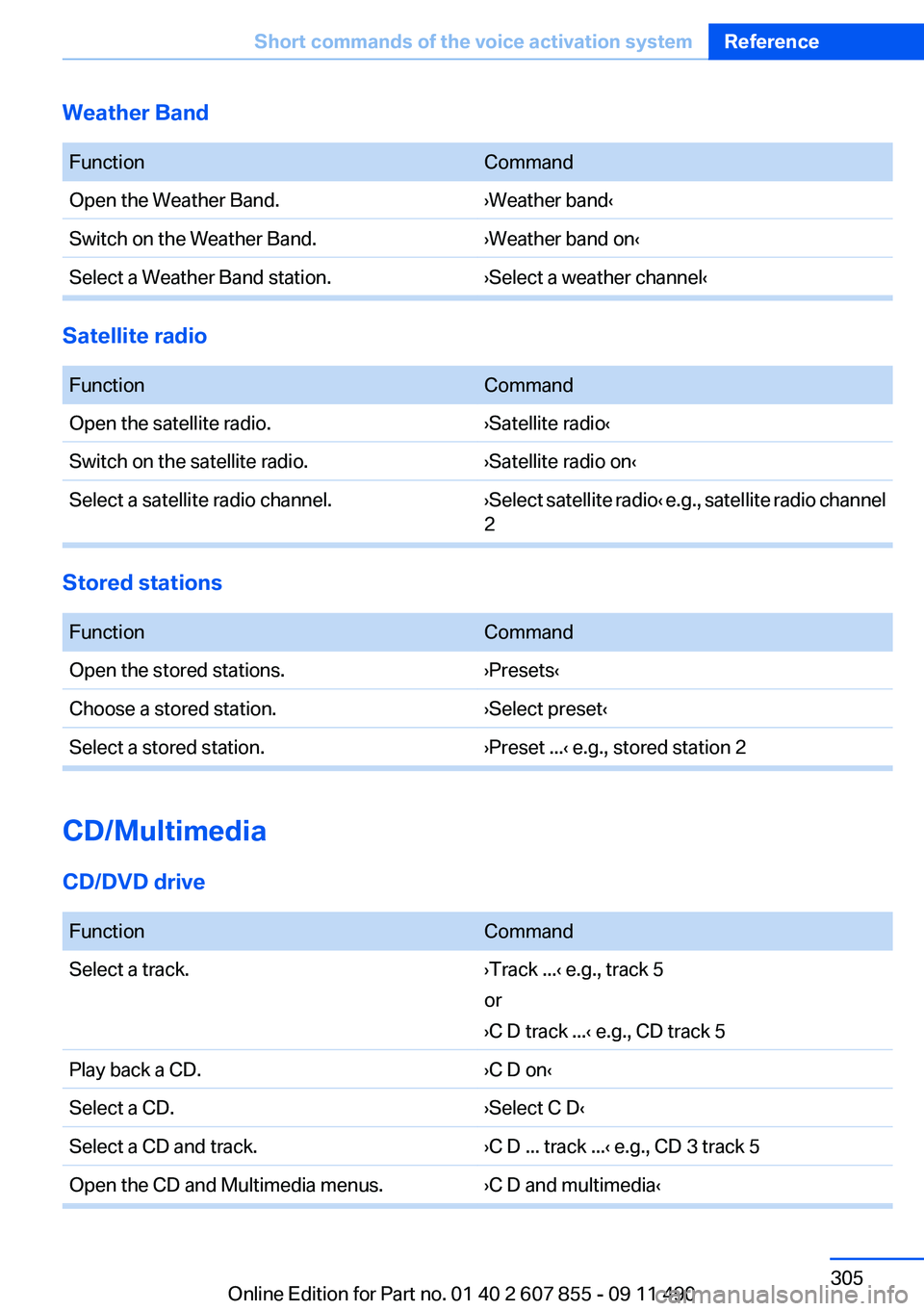
Weather Band
FunctionCommandOpen the Weather Band.›Weather band‹Switch on the Weather Band.›Weather band on‹Select a Weather Band station.›Select a weather channel‹
Satellite radio
FunctionCommandOpen the satellite radio.›Satellite radio‹Switch on the satellite radio.›Satellite radio on‹Select a satellite radio channel.› Select satellite radio ‹ e.g., satellite radio channel
2
Stored stations
FunctionCommandOpen the stored stations.›Presets‹Choose a stored station.›Select preset‹Select a stored station.›Preset ...‹ e.g., stored station 2
CD/Multimedia
CD/DVD drive
FunctionCommandSelect a track.›Track ...‹ e.g., track 5
or
›C D track ...‹ e.g., CD track 5Play back a CD.›C D on‹Select a CD.›Select C D‹Select a CD and track.›C D ... track ...‹ e.g., CD 3 track 5Open the CD and Multimedia menus.›C D and multimedia‹Seite 305Short commands of the voice activation systemReference305
Online Edition for Part no. 01 40 2 607 855 - 09 11 490
Page 316 of 321
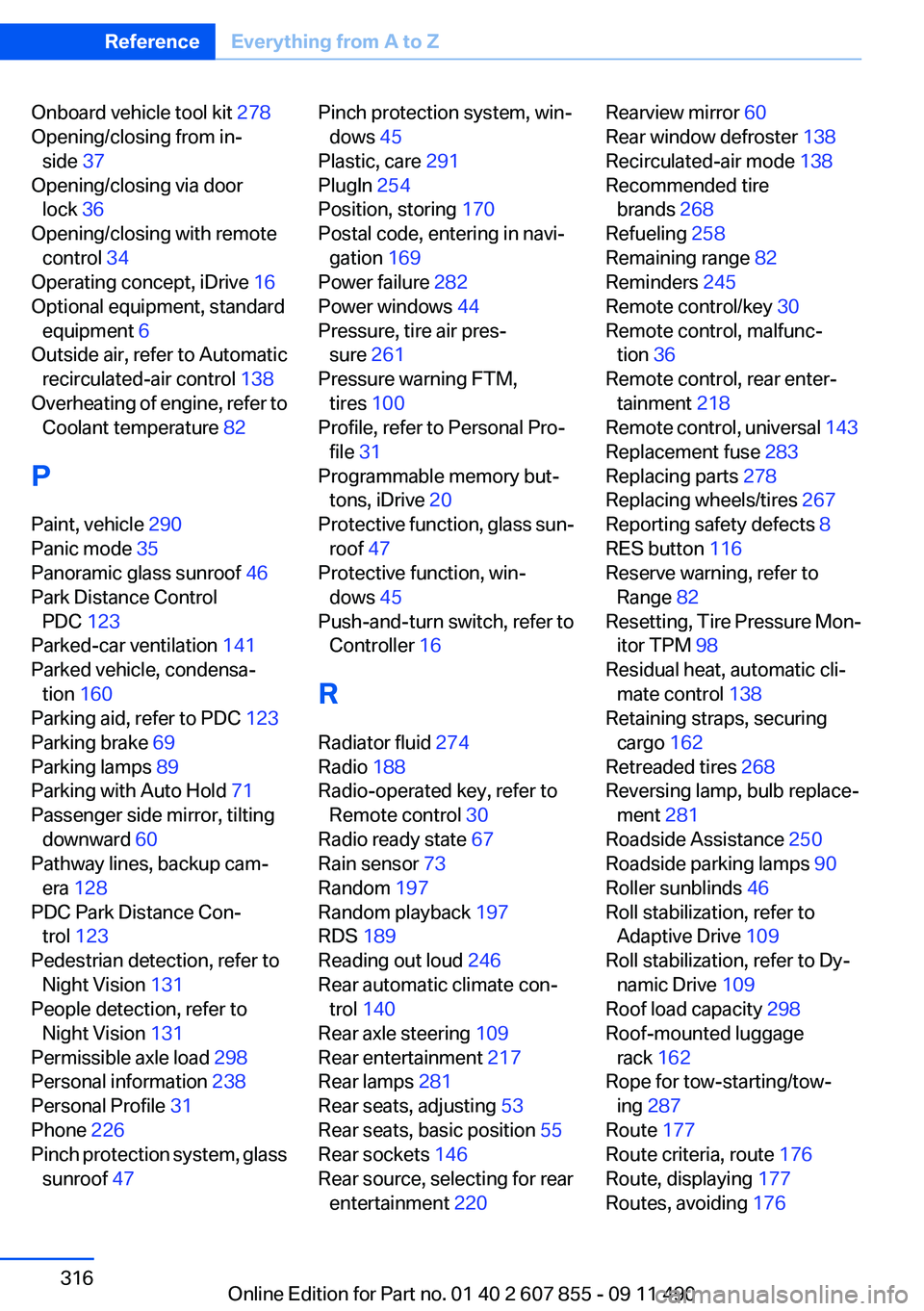
Onboard vehicle tool kit 278
Opening/closing from in‐ side 37
Opening/closing via door lock 36
Opening/closing with remote control 34
Operating concept, iDrive 16
Optional equipment, standard equipment 6
Outside air, refer to Automatic recirculated-air control 138
Overheating of engine, refer to Coolant temperature 82
P
Paint, vehicle 290
Panic mode 35
Panoramic glass sunroof 46
Park Distance Control PDC 123
Parked-car ventilation 141
Parked vehicle, condensa‐ tion 160
Parking aid, refer to PDC 123
Parking brake 69
Parking lamps 89
Parking with Auto Hold 71
Passenger side mirror, tilting downward 60
Pathway lines, backup cam‐ era 128
PDC Park Distance Con‐ trol 123
Pedestrian detection, refer to Night Vision 131
People detection, refer to Night Vision 131
Permissible axle load 298
Personal information 238
Personal Profile 31
Phone 226
Pinch protection system, glass sunroof 47 Pinch protection system, win‐
dows 45
Plastic, care 291
PlugIn 254
Position, storing 170
Postal code, entering in navi‐ gation 169
Power failure 282
Power windows 44
Pressure, tire air pres‐ sure 261
Pressure warning FTM, tires 100
Profile, refer to Personal Pro‐ file 31
Programmable memory but‐ tons, iDrive 20
Protective function, glass sun‐ roof 47
Protective function, win‐ dows 45
Push-and-turn switch, refer to Controller 16
R
Radiator fluid 274
Radio 188
Radio-operated key, refer to Remote control 30
Radio ready state 67
Rain sensor 73
Random 197
Random playback 197
RDS 189
Reading out loud 246
Rear automatic climate con‐ trol 140
Rear axle steering 109
Rear entertainment 217
Rear lamps 281
Rear seats, adjusting 53
Rear seats, basic position 55
Rear sockets 146
Rear source, selecting for rear entertainment 220 Rearview mirror 60
Rear window defroster 138
Recirculated-air mode 138
Recommended tire brands 268
Refueling 258
Remaining range 82
Reminders 245
Remote control/key 30
Remote control, malfunc‐ tion 36
Remote control, rear enter‐ tainment 218
Remote control, universal 143
Replacement fuse 283
Replacing parts 278
Replacing wheels/tires 267
Reporting safety defects 8
RES button 116
Reserve warning, refer to Range 82
Resetting, Tire Pressure Mon‐ itor TPM 98
Residual heat, automatic cli‐ mate control 138
Retaining straps, securing cargo 162
Retreaded tires 268
Reversing lamp, bulb replace‐ ment 281
Roadside Assistance 250
Roadside parking lamps 90
Roller sunblinds 46
Roll stabilization, refer to Adaptive Drive 109
Roll stabilization, refer to Dy‐ namic Drive 109
Roof load capacity 298
Roof-mounted luggage rack 162
Rope for tow-starting/tow‐ ing 287
Route 177
Route criteria, route 176
Route, displaying 177
Routes, avoiding 176 Seite 316ReferenceEverything from A to Z316
Online Edition for Part no. 01 40 2 607 855 - 09 11 490