change time BMW 550I XDRIVE 2011 User Guide
[x] Cancel search | Manufacturer: BMW, Model Year: 2011, Model line: 550I XDRIVE, Model: BMW 550I XDRIVE 2011Pages: 304, PDF Size: 10.18 MB
Page 110 of 304
3
Store speed*
4 Store, maintain/change speed
Switching on Press the button on the steering wheel.
The marking in the speedometer is set to the
current speed.
Cruise control can be used.
Switching off Deactivated or interrupted system
If the system is deactivated or interrupted,
actively intervene by braking and, if necessary,
with evasive maneuvers; otherwise, there is the
danger of an accident occurring.◀
Press the button.
▷ If active: press twice.
▷ If interrupted: press once.
The displays go out. The stored desired speed
is deleted.
Interrupting When active, press the button.
The system is automatically interrupted if:
▷ The brakes are applied.
▷ The clutch pedal is depressed.
▷ Transmission position D is disengaged.
▷ DTC Dynamic Traction Control is activated
or DSC is deactivated.
▷ DSC is actively controlling stability.
▷ HDC is activated.
Maintaining/storing the current speed Press the button.
When the system is switched on, the current
speed is maintained and stored as the desired
speed. It is displayed in the speedometer and briefly
displayed in the instrument cluster, Displays in
the speedometer, refer to page
111.
When cruise control is maintained or stored,
DSC
Dynamic Stability Control is switched on, if
necessary.
Change, maintain speed
The rocker switch can be pressed while inter‐
rupted to maintain and store the current speed.
Adapting the desired speed
Adapt the desired speed to the road con‐
ditions and be ready to brake at all times; other‐
wise, there is the danger of an accident occur‐
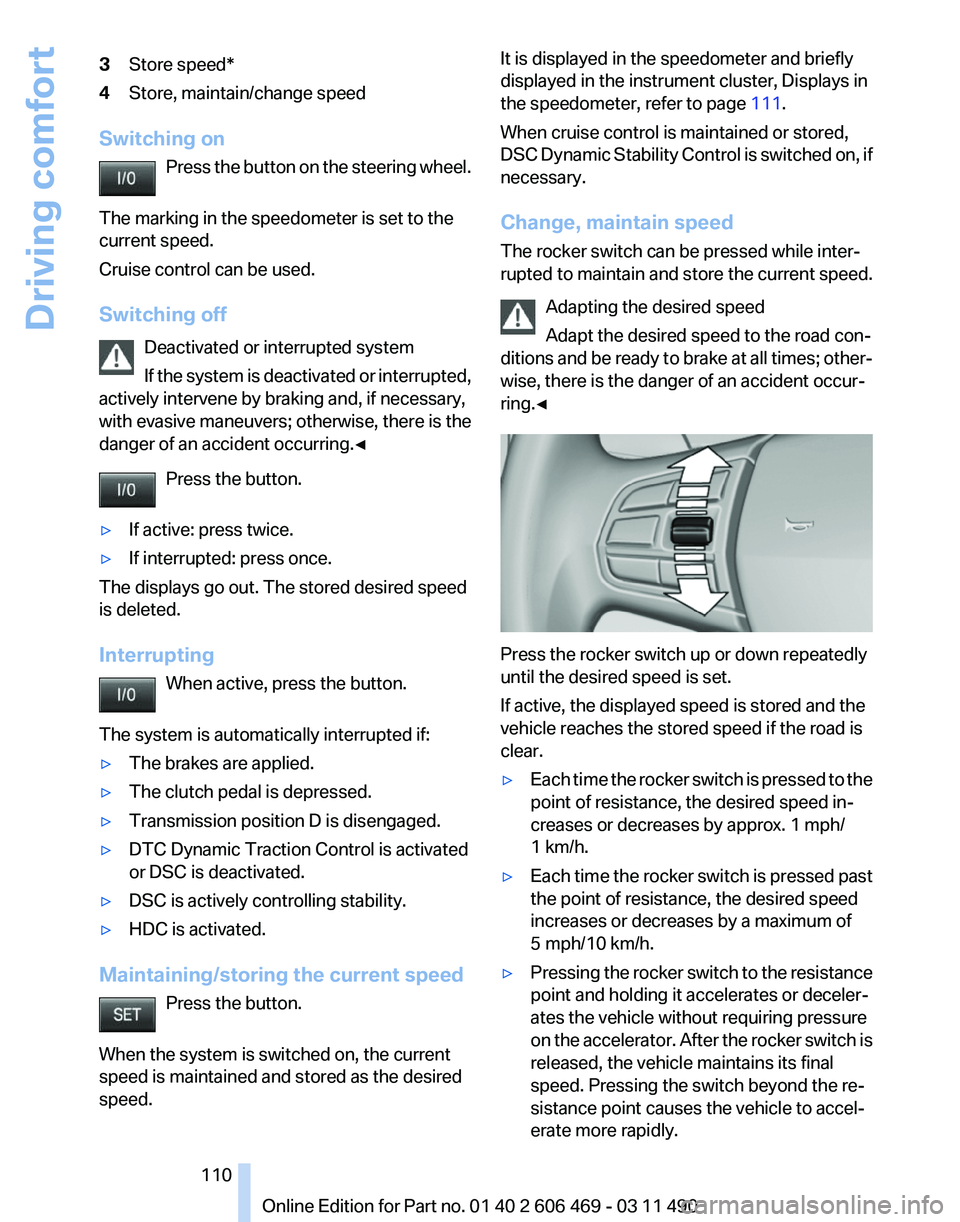
ring.◀ Press the rocker switch up or down repeatedly
until the desired speed is set.
If active, the displayed speed is stored and the
vehicle reaches the stored speed if the road is
clear.
▷
Each time the rocker switch is pressed to the
point of resistance, the desired speed in‐
creases or decreases by approx. 1 mph/
1 km/h.
▷ Each time the rocker switch is pressed past
the point of resistance, the desired speed
increases or decreases by a maximum of
5 mph/10 km/h.
▷ Pressing the rocker switch to the resistance
point and holding it accelerates or deceler‐
ates the vehicle without requiring pressure
on
the accelerator. After the rocker switch is
released, the vehicle maintains its final
speed. Pressing the switch beyond the re‐
sistance point causes the vehicle to accel‐
erate more rapidly. Seite 110
110 Online Edition for Part no. 01 40 2 606 469 - 03 11 490
Driving comfort
Page 120 of 304
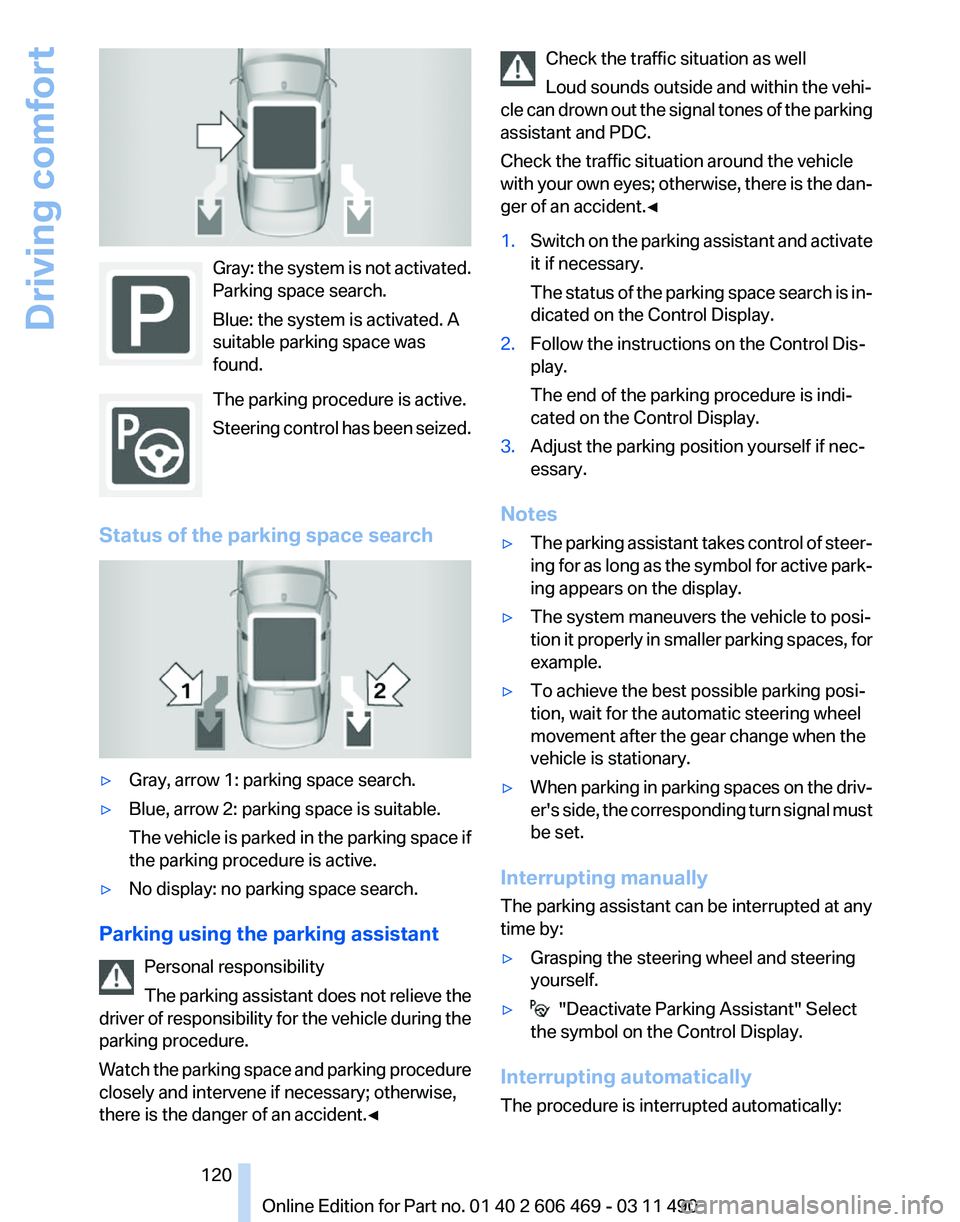
Gray: the system is not activated.
Parking space search.
Blue: the system is activated. A
suitable parking space was
found.
The parking procedure is active.
Steering
control has been seized.
Status of the parking space search ▷
Gray, arrow 1: parking space search.
▷ Blue, arrow 2: parking space is suitable.
The
vehicle is parked in the parking space if
the parking procedure is active.
▷ No display: no parking space search.
Parking using the parking assistant Personal responsibility
The
parking assistant does not relieve the
driver of responsibility for the vehicle during the
parking procedure.
Watch the parking space and parking procedure
closely and intervene if necessary; otherwise,
there is the danger of an accident.◀ Check the traffic situation as well
Loud sounds outside and within the vehi‐
cle
can drown out the signal tones of the parking
assistant and PDC.
Check the traffic situation around the vehicle
with your own eyes; otherwise, there is the dan‐
ger of an accident.◀
1. Switch on the parking assistant and activate
it if necessary.
The
status of the parking space search is in‐
dicated on the Control Display.
2. Follow the instructions on the Control Dis‐
play.
The end of the parking procedure is indi‐
cated on the Control Display.
3. Adjust the parking position yourself if nec‐
essary.
Notes
▷ The parking assistant takes control of steer‐
ing
for as long as the symbol for active park‐
ing appears on the display.
▷ The system maneuvers the vehicle to posi‐
tion
it properly in smaller parking spaces, for
example.
▷ To achieve the best possible parking posi‐
tion, wait for the automatic steering wheel
movement after the gear change when the
vehicle is stationary.
▷ When parking in parking spaces on the driv‐
er's
side, the corresponding turn signal must
be set.
Interrupting manually
The parking assistant can be interrupted at any
time by:
▷ Grasping the steering wheel and steering
yourself.
▷ "Deactivate Parking Assistant" Select
the symbol on the Control Display.
Interrupting automatically
The procedure is interrupted automatically: Seite 120
120 Online Edition for Part no. 01 40 2 606 469 - 03 11 490
Driving comfort
Page 128 of 304
▷
Left LED on, automatic recirculated-air con‐
trol: a sensor detects pollutants in the out‐
side air and controls the shut-off automati‐
cally.
▷ Right LED on, recirculated-air mode: the
supply of outside air into the vehicle is per‐
manently blocked.
If the windows are fogged over, switch off the
recirculated-air mode and press the AUTO but‐
ton on the driver's side to utilize the condensa‐
tion sensor. Make sure that air can flow onto the
windshield.
Continuous recirculated-air mode
The recirculated-air mode should not be
used for an extended period of time, as the air
quality inside the vehicle deteriorates steadily.◀
Cooling function
The passenger compartment can only be
cooled with the engine running.
Press the button.
The air is cooled and dehumidified and
– depending on the temperature setting –
warmed again.
Depending on the weather, the windshield may
fog up briefly when the engine is started.
The cooling function is switched on automati‐
cally with the AUTO program.
When using the automatic climate control, con‐
densation water, refer to page 148, develops
that exits underneath the vehicle.
Rear window defroster
Press the button.
The rear window defroster switches off
automatically after a certain period of time.
ALL program
Press the button.
The current settings on the driver's side
for temperature, air volume, air distribution, and
AUTO program are transferred to the front pas‐
senger side and to the left and right rear*. The program is switched off if the settings on
the front passenger side or in the rear* are
changed.
Residual heat
The
heat stored in the engine is used to heat the
interior.
Functional requirement
▷ Up to 20 minutes after the engine has been
switched off.
▷ Warm engine.
▷ The battery is sufficiently charged.
▷ External temperature below 77 ℉/25 ℃.
Switching on
1. Switch off the ignition.
2. Press the right side of the button on
the driver's side. is shown on the display of the automatic cli‐
mate control.
The
interior temperature, air volume and air dis‐
tribution can be adjusted with the ignition
switched on.
Switching off
At the lowest fan speed, press the left side of the
button on the driver's side. on the display of the automatic climate control
goes out.
Switching the system on/off
Switching off
▷ Complete system:
At the lowest fan speed, press the
left
side of the button on the driver's
side. ▷
On the front passenger side:
At the lowest fan speed, press the
left side of the button on the front
passenger side. Seite 128
128 Online Edition for Part no. 01 40 2 606 469 - 03 11 490
Climate control
Page 133 of 304
To do so:
▷
Read the instructions of the hand-held
transmitter.
▷ Press the memory button of the universal
remote control for an extended period.
If the LED flashes rapidly for a brief period and
then lights up continuously for approx. 2 sec‐
onds, the hand-held transmitter is equipped
with an alternating code system.
In this case, program the memory buttons as
described under Alternating-code hand-held
transmitters.
Alternating-code hand-held
transmitters
Please obtain information on synchronizing the
device
in the operating manual of the device be‐
ing set up.
Programming will be easier with the aid of a sec‐
ond person.
1. Park the vehicle within range of the remote-
controlled device.
2. Program the universal remote control as de‐
scribed above under Fixed-code hand-held
transmitters.
3. Press and hold the programmed button on
the
interior rearview mirror for approx. 5 sec‐
onds until the device to be adjusted is acti‐
vated.
If the device does not become activated,
press and hold the button and watch the
LED:
▷ If the LED lights up continuously, the
programming is completed. The device
should
become activated when the but‐
ton is pressed briefly.
▷ If the LED flashes for approx. 2 seconds
and then lights up continuously, con‐
tinue the programming procedure be‐
ginning with step 4.
4. Locate the button on the receiver of the de‐
vice to be set, e.g., on the drive. 5.
Press the button on the receiver of the de‐
vice
to be set. You have approx. 30 seconds
for the next step.
6. Press the programmed memory button of
the universal remote control three times.
The device can be operated when the engine is
running or the ignition is switched on.
Reassigning individual programs
1. Switch on the ignition.
2. Hold the hand-held transmitter a distance of
approx.
2 to 8 in/5 to 20 cm from the memory
buttons.
3. Press the memory button of the universal
remote control.
4. If the LED flashes slowly after approx.
20 seconds, press the transmit button on
the hand-held transmitter.
5. Release both buttons when the LED flashes
rapidly.
If
the LED does not flash rapidly after approx.
15 seconds, change the distance and repeat
the step.
Deleting all stored programs
Press the left and right memory buttons for ap‐
prox. 20 seconds until the LED flashes rapidly.
All stored programs are deleted.
The programs cannot be deleted individually.
Seite 133
133Online Edition for Part no. 01 40 2 606 469 - 03 11 490
Reference Mobility Communication Entertainment Navigation Driving tips
Controls At a glance
Page 161 of 304
Store the trip
Up to 30 trips can be stored in the trip list. If
necessary, delete existing trips to be able to
store new trips.
1.
Open "Options".
2. "Store trip"
3. Enter the name.
4. "OK"
Select the stored trip
1. "Navigation"
2. "Stored trips"
3. Select a stored trip.
4. "Start guidance"
Reversing the direction of travel
Intermediate destinations are displayed in re‐
verse order in the list.
1. "Map"
2. "Guidance"
3. Open "Options".
4. "Reverse order of trip dest."
Intermediate destination options
1. "Map"
2. "Guidance"
3. "Display all trip destinations"
4. Select an intermediate destination.
▷"Edit destination"
▷ "Reposition dest. in the trip": move an
intermediate destination to another po‐
sition in the list.
▷ "Delete dest. in the trip"
▷ "Go to next dest. in the trip"
Some options are not available for certain trips.
Delete the stored trip
1. "Stored trips"
2. Highlight the desired trip.
3. Open "Options".
4. "Delete all trips" or "Delete trip" With the Professional navigation
system: Open the last trip
1.
"Navigation"
2. "Stored trips"
3. "Last trip"
4. "Start guidance"
Destination guidance
Starting destination guidance
1. "Navigation"
2. Make a destination entry, refer to page 154.
3. "Accept destination"
4. "Start guidance"
▷ The route is shown on the Control Display.
▷ The distance to the destination/intermedi‐
ate
destination and the estimated time of ar‐
rival are displayed in the map view.
▷ The arrow view is shown in the instrument
cluster,
in the Head-up Display*, and on the
Control Display where appropriate.
Terminating destination guidance
1. "Navigation"
2. "Map"
3. "Guidance"
4. "Stop guidance"
Continuing destination guidance
If
the destination was not reached during the last
trip, destination guidance can be resumed.
"Resume guidance"
Route criteria
General information
▷ The route calculated can be influenced by
selecting certain criteria.
▷ The route criteria can be changed when the
destination is entered and during destina‐
tion guidance.
Seite 161
161Online Edition for Part no. 01 40 2 606 469 - 03 11 490
Reference Mobility Communication Entertainment
Navigation Driving tips Controls At a glance
Page 162 of 304
▷
Road types are part of the navigation data
and
are taken into consideration when plan‐
ning a route, e.g., avoid highways.
▷ The recommended route may differ from the
route
you would take based on personal ex‐
perience.
▷ The settings are stored for the remote con‐
trol currently in use.
▷ Destination guidance with traffic bulletins,
refer to page 167.
Changing the route criteria
1. "Navigation"
2. "Map"
3. "Route preference"
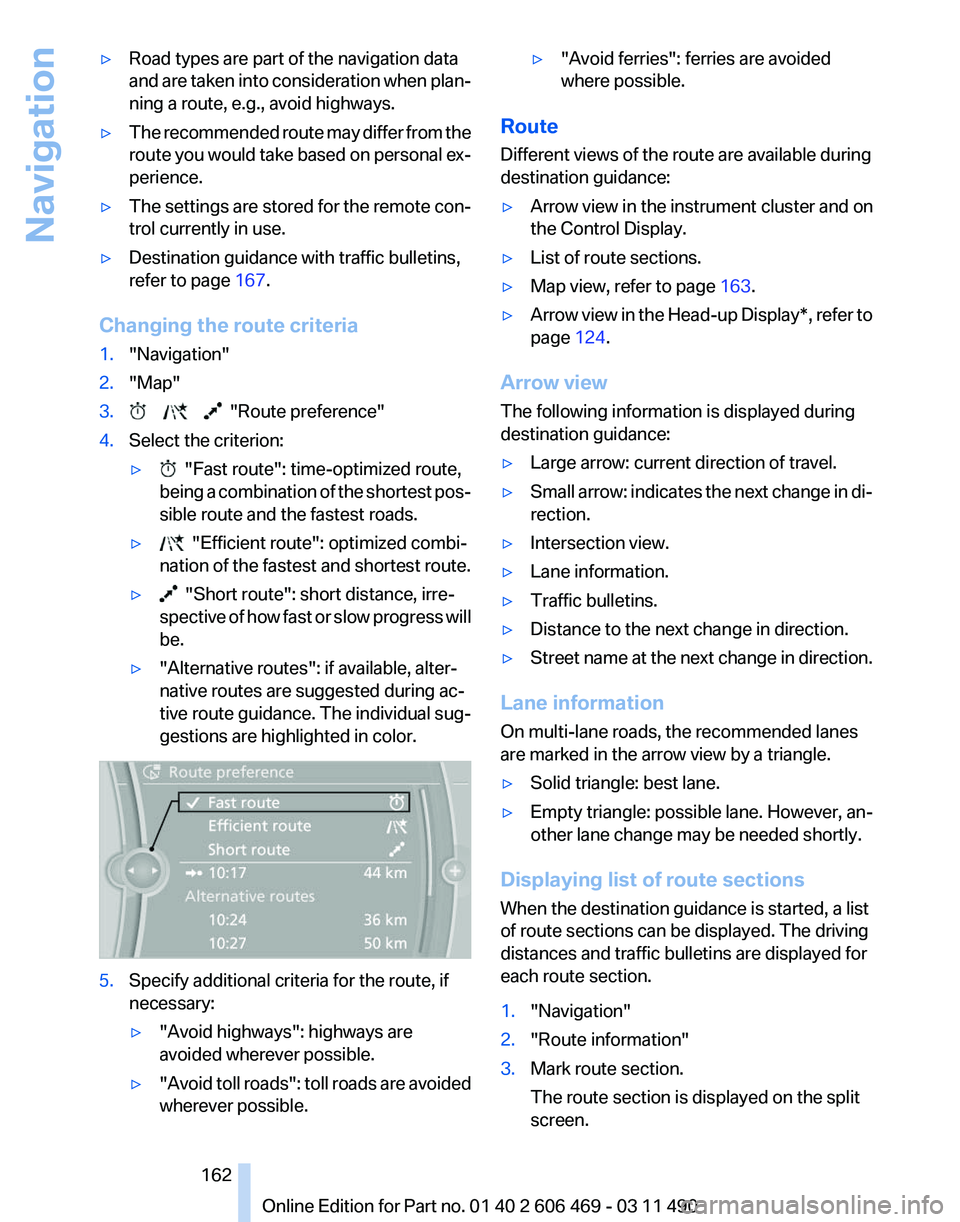
4. Select the criterion:
▷ "Fast route": time-optimized route,
being
a combination of the shortest pos‐
sible route and the fastest roads.
▷ "Efficient route": optimized combi‐
nation of the fastest and shortest route.
▷ "Short route": short distance, irre‐
spective
of how fast or slow progress will
be.
▷ "Alternative routes": if available, alter‐
native routes are suggested during ac‐
tive route guidance. The individual sug‐
gestions are highlighted in color. 5.
Specify additional criteria for the route, if
necessary:
▷"Avoid highways": highways are
avoided wherever possible.
▷ "Avoid
toll roads": toll roads are avoided
wherever possible. ▷
"Avoid ferries": ferries are avoided
where possible.
Route
Different views of the route are available during
destination guidance:
▷ Arrow view in the instrument cluster and on
the Control Display.
▷ List of route sections.
▷ Map view, refer to page 163.
▷ Arrow view in the Head-up Display*, refer to
page 124.
Arrow view
The following information is displayed during
destination guidance:
▷ Large arrow: current direction of travel.
▷ Small arrow: indicates the next change in di‐
rection.
▷ Intersection view.
▷ Lane information.
▷ Traffic bulletins.
▷ Distance to the next change in direction.
▷ Street name at the next change in direction.
Lane information
On multi-lane roads, the recommended lanes
are marked in the arrow view by a triangle.
▷ Solid triangle: best lane.
▷ Empty triangle: possible lane. However, an‐
other lane change may be needed shortly.
Displaying list of route sections
When the destination guidance is started, a list
of route sections can be displayed. The driving
distances and traffic bulletins are displayed for
each route section.
1. "Navigation"
2. "Route information"
3. Mark route section.
The route section is displayed on the split
screen.
Seite 162
162 Online Edition for Part no. 01 40 2 606 469 - 03 11 490
Navigation
Page 164 of 304
At a glance
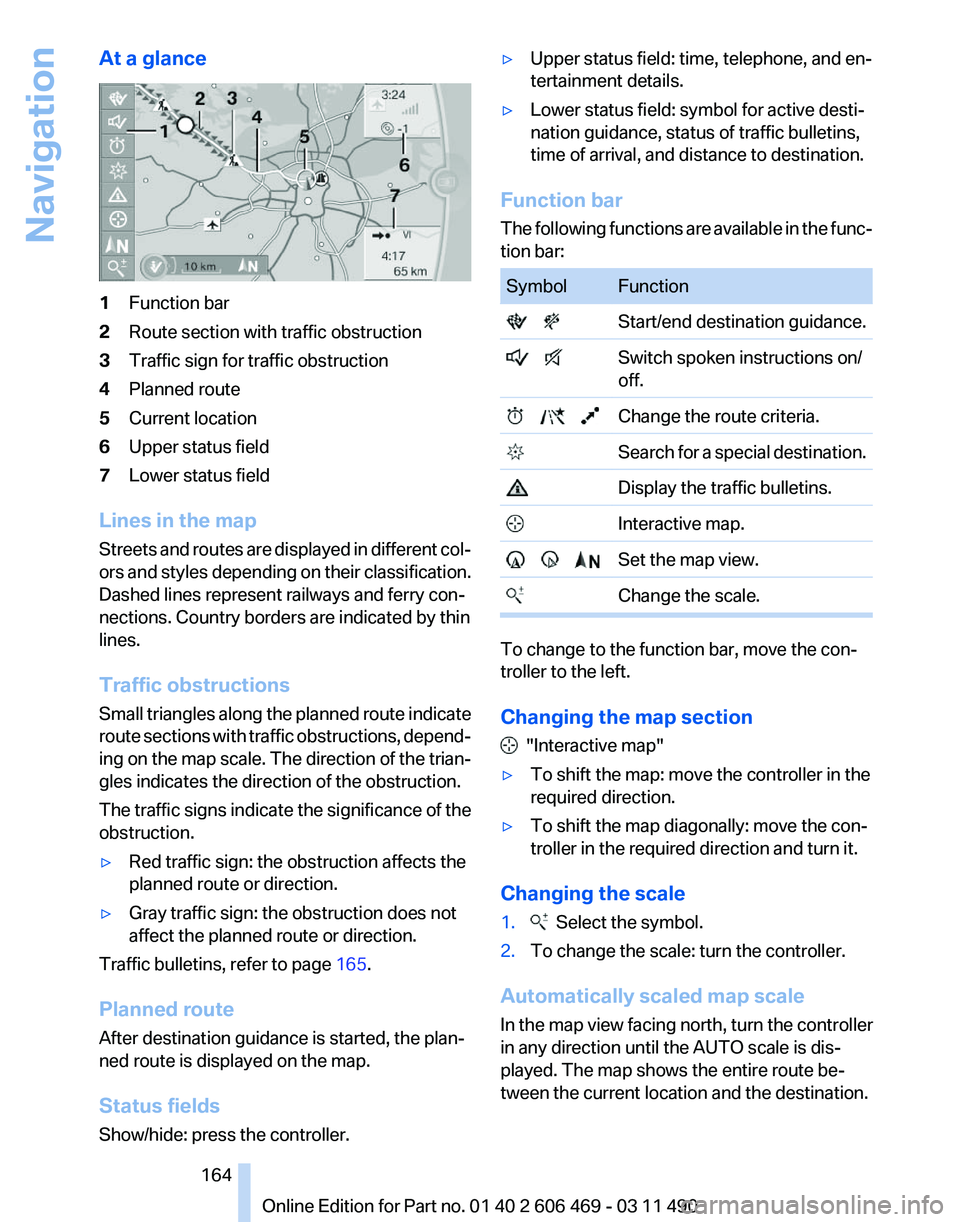
1
Function bar
2 Route section with traffic obstruction
3 Traffic sign for traffic obstruction
4 Planned route
5 Current location
6 Upper status field
7 Lower status field
Lines in the map
Streets and routes are displayed in different col‐
ors and styles depending on their classification.
Dashed lines represent railways and ferry con‐
nections. Country borders are indicated by thin
lines.
Traffic obstructions
Small triangles along the planned route indicate
route sections with traffic obstructions, depend‐
ing on the map scale. The direction of the trian‐
gles indicates the direction of the obstruction.
The traffic signs indicate the significance of the
obstruction.
▷ Red traffic sign: the obstruction affects the
planned route or direction.
▷ Gray traffic sign: the obstruction does not
affect the planned route or direction.
Traffic bulletins, refer to page 165.
Planned route
After destination guidance is started, the plan‐
ned route is displayed on the map.
Status fields
Show/hide: press the controller. ▷
Upper status field: time, telephone, and en‐
tertainment details.
▷ Lower status field: symbol for active desti‐
nation guidance, status of traffic bulletins,
time of arrival, and distance to destination.
Function bar
The
following functions are available in the func‐
tion bar: Symbol Function
Start/end destination guidance.
Switch spoken instructions on/
off. Change the route criteria.
Search for a special destination. Display the traffic bulletins.
Interactive map. Set the map view.
Change the scale. To change to the function bar, move the con‐
troller to the left.
Changing the map section
"Interactive map"
▷ To shift the map: move the controller in the
required direction.
▷ To shift the map diagonally: move the con‐
troller in the required direction and turn it.
Changing the scale
1. Select the symbol.
2. To change the scale: turn the controller.
Automatically scaled map scale
In the map view facing north, turn the controller
in any direction until the AUTO scale is dis‐
played. The map shows the entire route be‐
tween the current location and the destination.
Seite 164
164 Online Edition for Part no. 01 40 2 606 469 - 03 11 490
Navigation
Page 165 of 304
Settings for the map view
The settings are stored for the remote control
currently in use.
1.
"Navigation"
2. "Map"
3. Open "Options".
4. "Settings"
Set the map view.
▷ "Day/night mode"
Select and create the necessary settings
depending on the light conditions.
"Traffic conditions/gray map" active: the
setting is disregarded.
▷ With the Professional navigation system:
"Satellite images"
Depending on availability and resolution,
satellite images* are displayed in a scale of
approx. 1 mile to 600 miles/2 km to
1,000 km.
▷ "Perspective view in 3D"
Prominent areas that are contained in the
navigation data are displayed on the map in
3D.
▷ "Traffic conditions/gray map"
The map is optimized for displaying traffic
bulletins,
refer to page 165. Symbols for the
special destinations are no longer displayed.
Map view for split screen
The map view can be selected for the split
screen independently from the main screen.
1. Open "Options".
2. "Split screen"
3. Move the controller to the right repeatedly
until the split screen is selected.
4. Select "Split screen content" or the scale.
5. Select the map view.
▷"Arrow display"
▷ "Map facing north"
▷ "Map direction of travel"
▷ "Map view with perspective" ▷
"Position"
▷ "Exit ramp view": selected blind drive‐
ways
are displayed three dimensionally.
Setting in some cases will affect the dis‐
play in the Head-Up Display*.
▷ "Traffic conditions/gray map"
6. To change the scale: select the split screen
and turn the controller.
Traffic bulletins*
At a glance
▷ Display the traffic bulletins from radio sta‐
tions that broadcast the TI Traffic Informa‐
tion
of a traffic information service. Informa‐
tion on traffic obstructions and hazards is
updated continuously.
Certain BMW models equipped with navi‐
gation have the capability to display real-
time traffic information. If your system has
this capability the following additional terms
and conditions apply:
An End-User shall no longer have the right
to use the Traffic Data in the event that the
End-User is in material breach of the terms
and conditions contained herein.
A. Total Traffic Network, a division of Clear
Channel Broadcasting, Inc. (“Total Traffic
Network”) holds the rights to the traffic in‐
cident data and RDS-TMC network through
which it is delivered. You may not modify,
copy, scan or use any other method to re‐
produce, duplicate, republish, transmit or
distribute in any way any portion of traffic in‐
cident data. You agree to indemnify, defend
and hold harmless BMW of North America,
LLC. (“BMW NA”) and Total Traffic Net‐
work, Inrix, Inc (and their affiliates) against
any and all claims, damages, costs or other
expenses that arise directly or indirectly out
of (a) your unauthorized use of the traffic in‐
cident data or the RDS-TMC network, (b)
your violation of this directive and/or (c) any
unauthorized or unlawful activities by you in
connection herewith.
Seite 165
165Online Edition for Part no. 01 40 2 606 469 - 03 11 490
Reference Mobility Communication Entertainment
Navigation Driving tips Controls At a glance
Page 167 of 304
in the map using triangles or gray bars along the
calculated route.
▷
Red: congestion.
▷ Orange: stop-and-go traffic.
▷ Yellow: heavy traffic.
▷ Green: clear roads.
▷ Gray: general traffic bulletins, e.g., construc‐
tion site.
The displayed information depends on the par‐
ticular traffic information service.
Filtering traffic bulletins
You
can set which traffic bulletins appear on the
map.
1. "Navigation"
2. "Map"
3. Open "Options".
4. "Traffic Info categories"
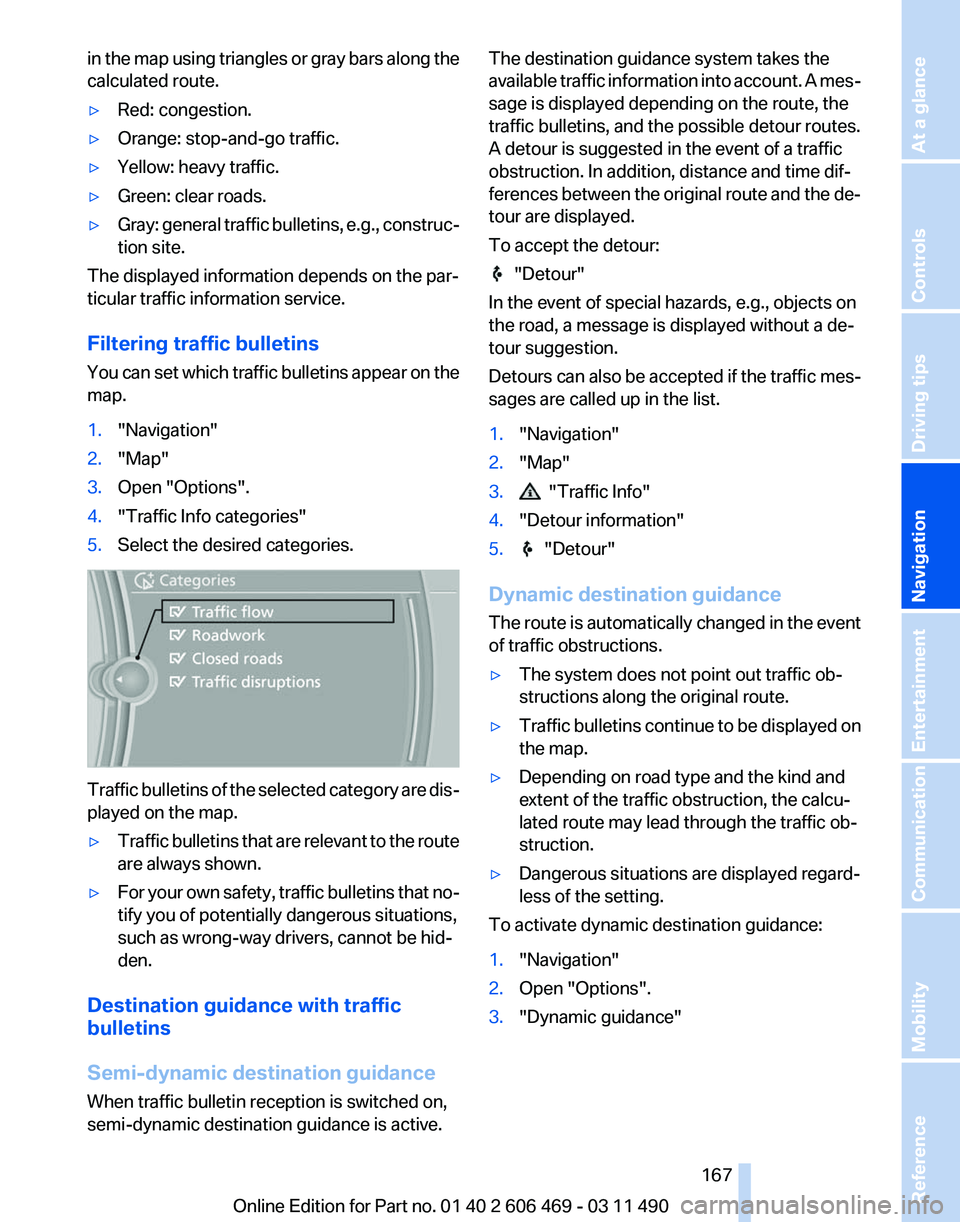
5. Select the desired categories. Traffic bulletins of the selected category are dis‐
played on the map.
▷
Traffic bulletins that are relevant to the route
are always shown.
▷ For your own safety, traffic bulletins that no‐
tify you of potentially dangerous situations,
such as wrong-way drivers, cannot be hid‐
den.
Destination guidance with traffic
bulletins
Semi-dynamic destination guidance
When traffic bulletin reception is switched on,
semi-dynamic destination guidance is active. The destination guidance system takes the
available
traffic information into account. A mes‐
sage is displayed depending on the route, the
traffic bulletins, and the possible detour routes.
A detour is suggested in the event of a traffic
obstruction. In addition, distance and time dif‐
ferences between the original route and the de‐
tour are displayed.
To accept the detour: "Detour"
In the event of special hazards, e.g., objects on
the road, a message is displayed without a de‐
tour suggestion.
Detours
can also be accepted if the traffic mes‐
sages are called up in the list.
1. "Navigation"
2. "Map"
3. "Traffic Info"
4. "Detour information"
5. "Detour"
Dynamic destination guidance
The
route is automatically changed in the event
of traffic obstructions.
▷ The system does not point out traffic ob‐
structions along the original route.
▷ Traffic bulletins continue to be displayed on
the map.
▷ Depending on road type and the kind and
extent of the traffic obstruction, the calcu‐
lated route may lead through the traffic ob‐
struction.
▷ Dangerous situations are displayed regard‐
less of the setting.
To activate dynamic destination guidance:
1. "Navigation"
2. Open "Options".
3. "Dynamic guidance"
Seite 167
167Online Edition for Part no. 01 40 2 606 469 - 03 11 490
Reference Mobility Communication Entertainment
Navigation Driving tips Controls At a glance
Page 176 of 304
Weather Band*
General information
The availability of the Weather Band and the
number of available channels can vary depend‐
ing on the region.
Switching on the Weather Band
1.
"Radio"
2. "Weather band"
3. Select the desired channel.
Additional information
Weather Band is a service of the National Oce‐
anic and Atmospheric Administration (NOAA).
Additional information on the Internet:
www.nws.noaa.gov.
Satellite radio
*
General information
The channels are offered in predefined pack‐
ages. The packages must be enabled by tele‐
phone.
Navigation bar overview Symbol Function
Change the list view.
Select the category.
Direct channel entry
Timeshift
Open the My Favorites category/
open a favorite. Manage the favorites.
Traffic Jump
The functions of the navigation bar symbols can
also be stored on the programmable memory
buttons, refer to page
20. Managing a subscription
To be able to enable or unsubscribe from the
channels, you must have reception. It is usually
at
its best when you have an unobstructed view
of the sky. The channel name is displayed in the
status line.
Enabling channels
The Unsubscribed Channels category contains
all disabled channels.
1. "Radio"
2. "Satellite radio"
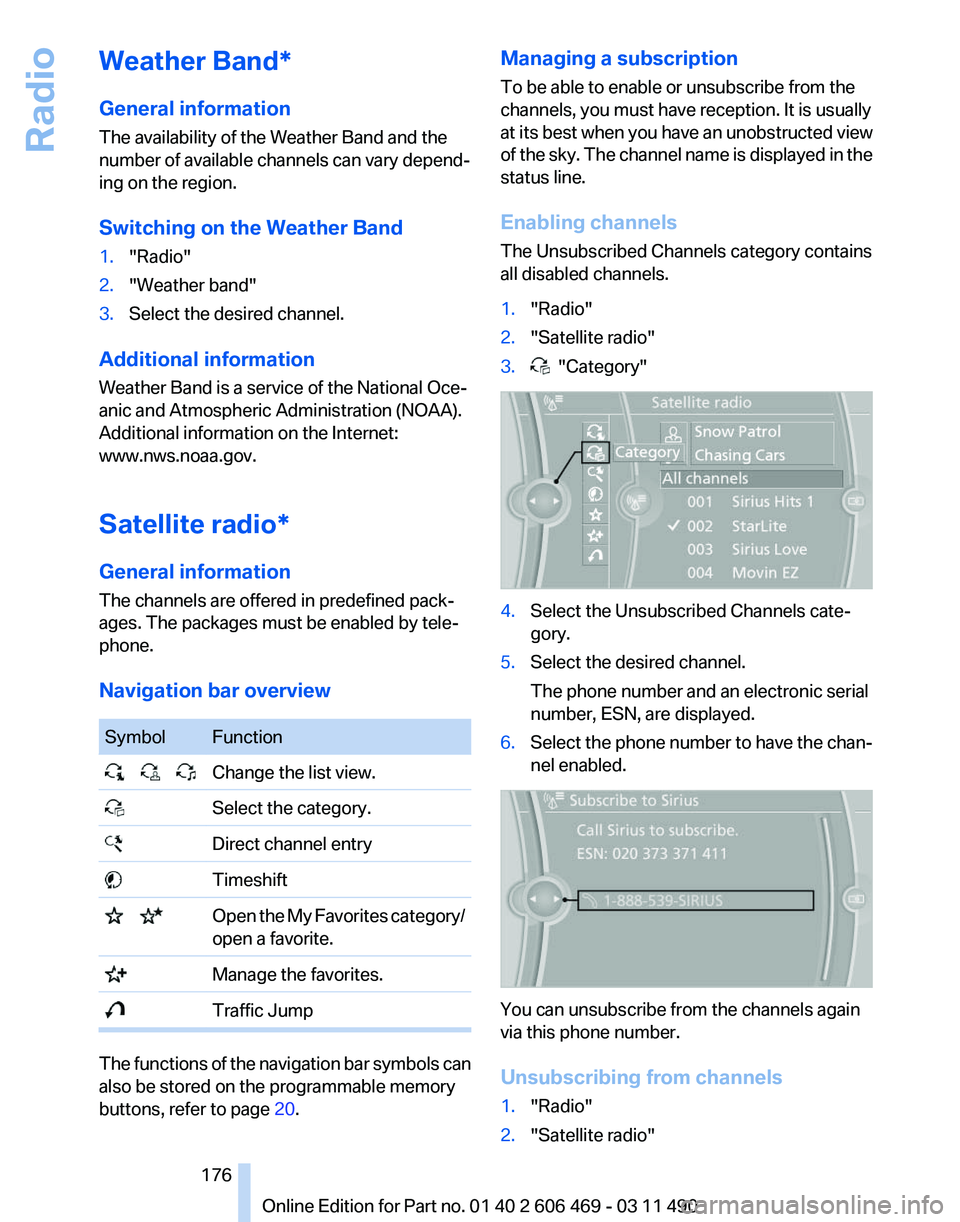
3. "Category"
4.
Select the Unsubscribed Channels cate‐
gory.
5. Select the desired channel.
The phone number and an electronic serial
number, ESN, are displayed.
6. Select the phone number to have the chan‐
nel enabled. You can unsubscribe from the channels again
via this phone number.
Unsubscribing from channels
1.
"Radio"
2. "Satellite radio"
Seite 176
176 Online Edition for Part no. 01 40 2 606 469 - 03 11 490
Radio