CD player BMW 6 SERIES 2007 User Guide
[x] Cancel search | Manufacturer: BMW, Model Year: 2007, Model line: 6 SERIES, Model: BMW 6 SERIES 2007Pages: 254, PDF Size: 7.32 MB
Page 168 of 254
CD player and CD changer
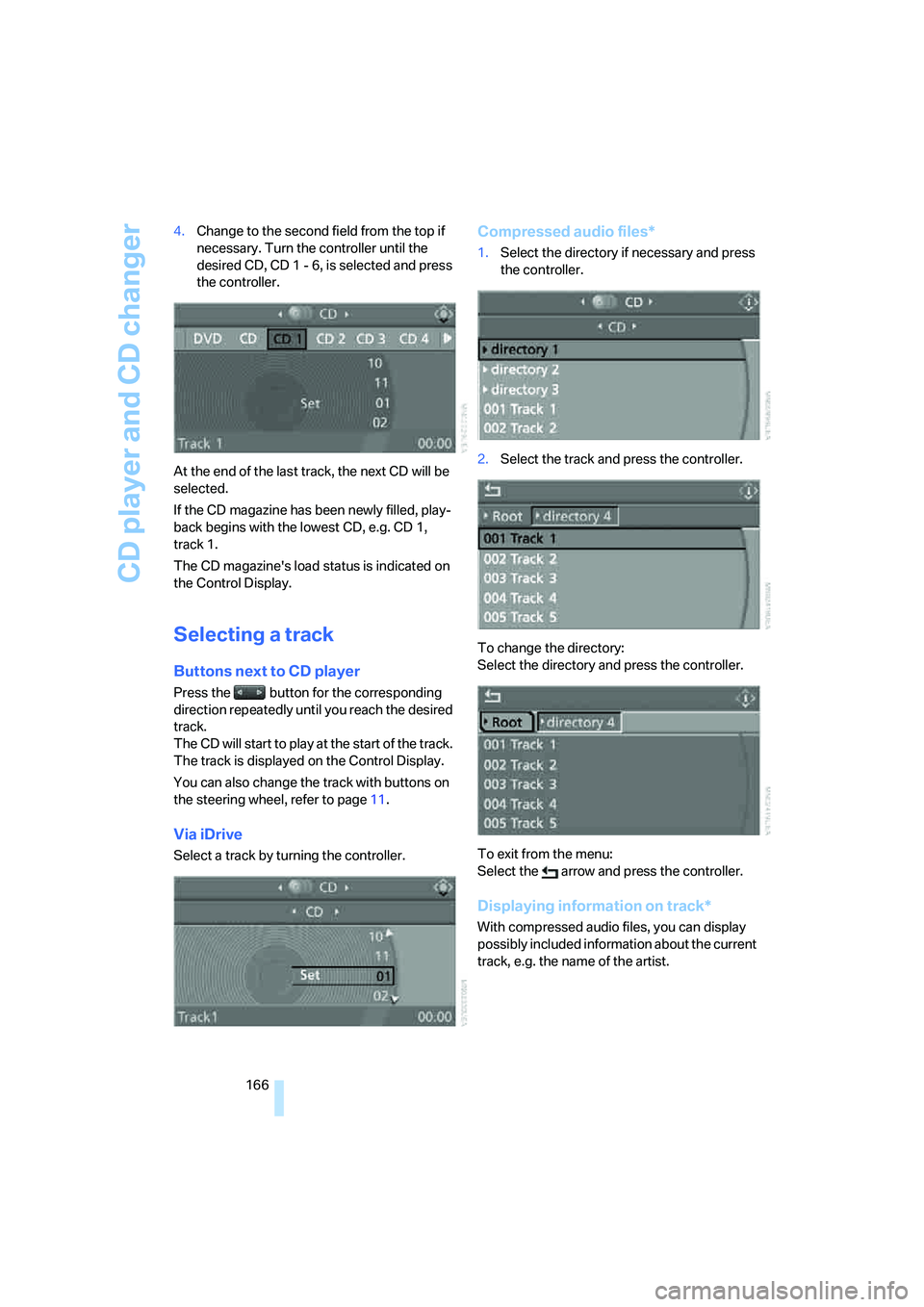
166 4.Change to the second field from the top if
necessary. Turn the controller until the
desired CD, CD 1 - 6, is selected and press
the controller.
At the end of the last track, the next CD will be
selected.
If the CD magazine has been newly filled, play-
back begins with the lowest CD, e.g. CD 1,
track 1.
The CD magazine's load status is indicated on
the Control Display.
Selecting a track
Buttons next to CD player
Press the button for the corresponding
direction repeatedly until you reach the desired
track.
The CD will start to play at the start of the track.
The track is displayed on the Control Display.
You can also change the track with buttons on
the steering wheel, refer to page11.
Via iDrive
Select a track by turning the controller.
Compressed audio files*
1.Select the directory if necessary and press
the controller.
2.Select the track and press the controller.
To change the directory:
Select the directory and press the controller.
To exit from the menu:
Select the arrow and press the controller.
Displaying information on track*
With compressed audio files, you can display
possibly included information about the current
track, e.g. the name of the artist.
Page 169 of 254
Navigation
Entertainment
Driving tips
167Reference
At a glance
Controls
Communications
Mobility
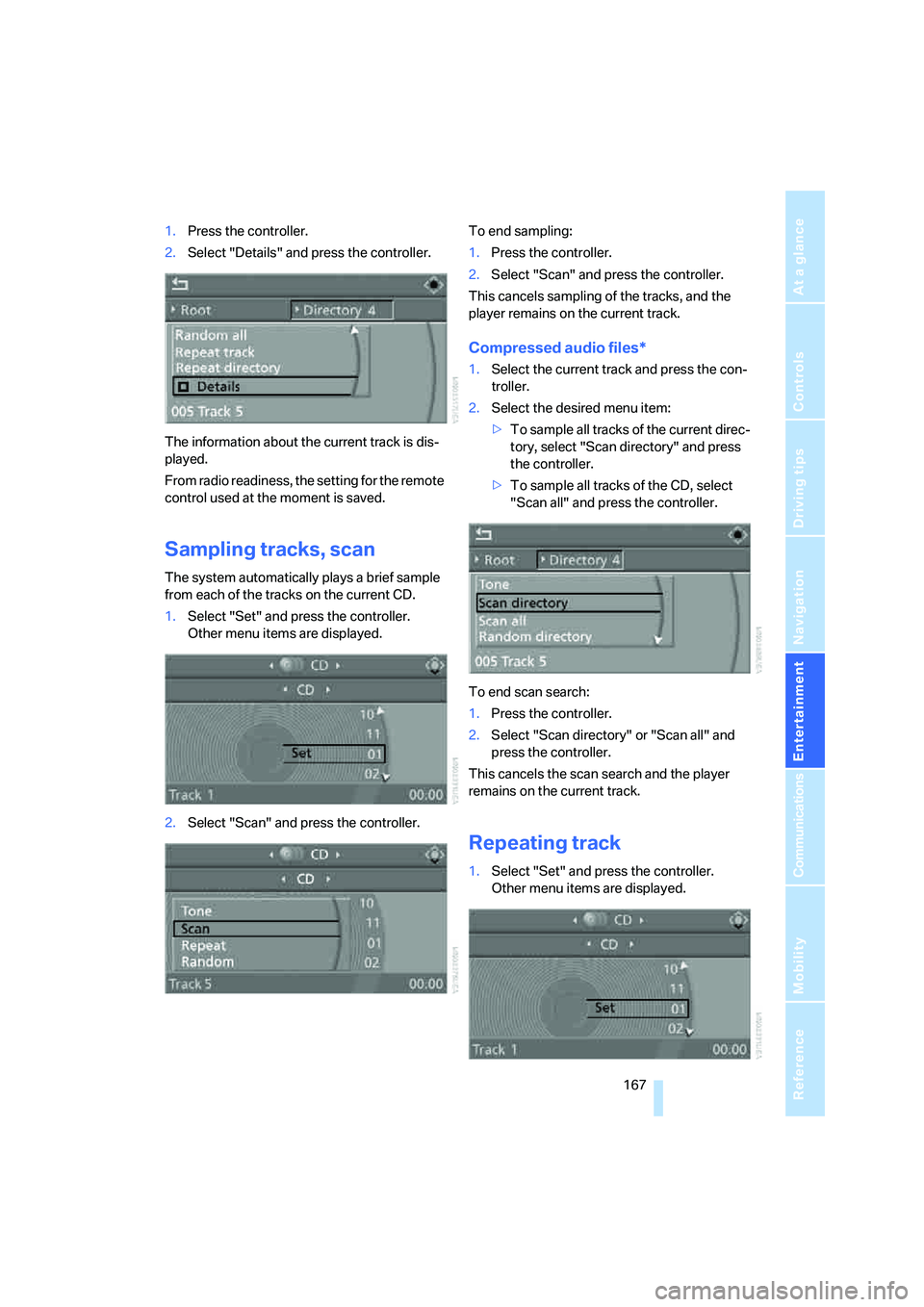
1.Press the controller.
2.Select "Details" and press the controller.
The information about the current track is dis-
played.
From radio readiness, the setting for the remote
control used at the moment is saved.
Sampling tracks, scan
The system automatically plays a brief sample
from each of the tracks on the current CD.
1.Select "Set" and press the controller.
Other menu items are displayed.
2.Select "Scan" and press the controller.To end sampling:
1.Press the controller.
2.Select "Scan" and press the controller.
This cancels sampling of the tracks, and the
player remains on the current track.
Compressed audio files*
1.Select the current track and press the con-
troller.
2.Select the desired menu item:
>To sample all tracks of the current direc-
tory, select "Scan directory" and press
the controller.
>To sample all tracks of the CD, select
"Scan all" and press the controller.
To end scan search:
1.Press the controller.
2.Select "Scan directory" or "Scan all" and
press the controller.
This cancels the scan search and the player
remains on the current track.
Repeating track
1.Select "Set" and press the controller.
Other menu items are displayed.
Page 170 of 254
CD player and CD changer
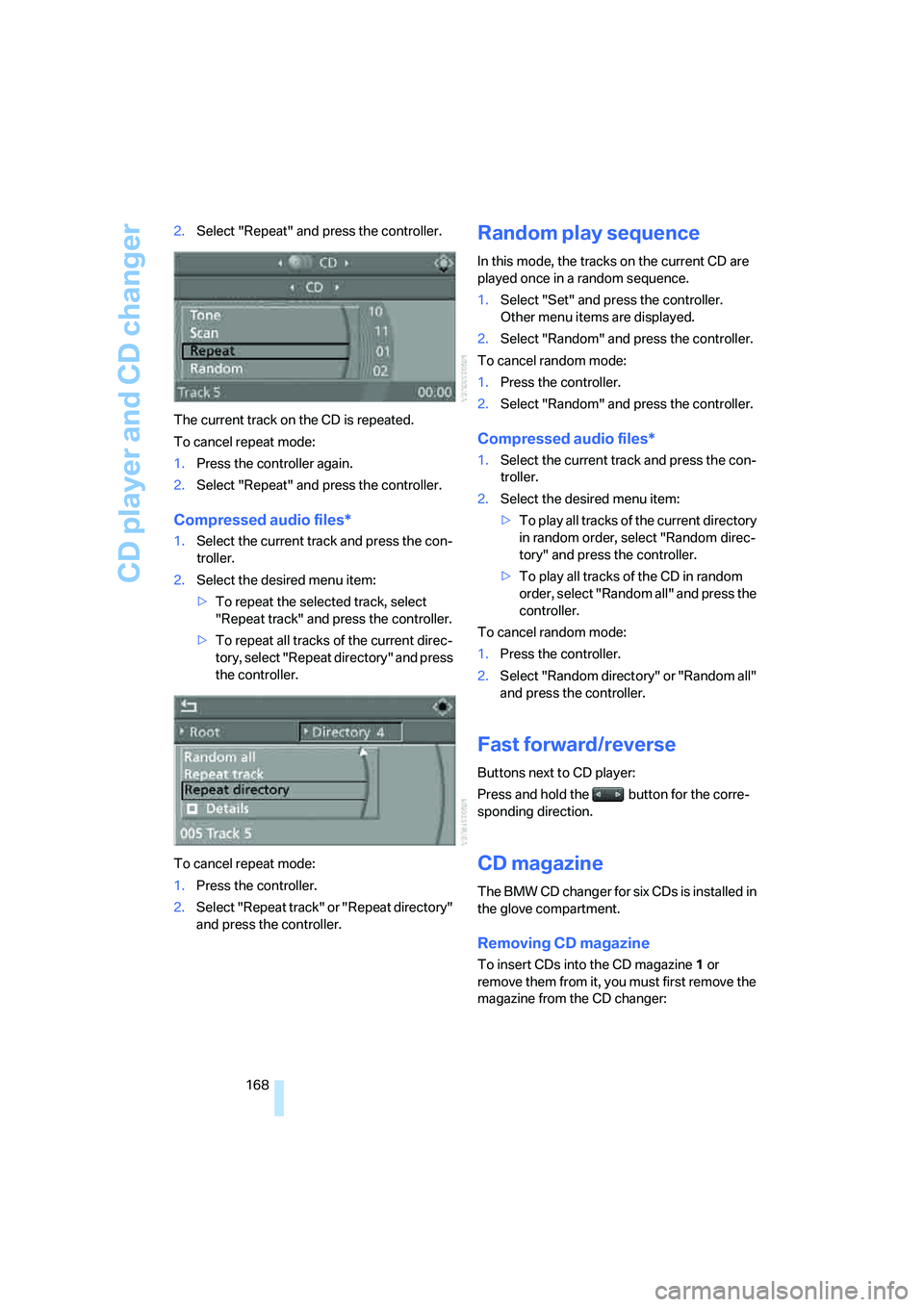
168 2.Select "Repeat" and press the controller.
The current track on the CD is repeated.
To cancel repeat mode:
1.Press the controller again.
2.Select "Repeat" and press the controller.
Compressed audio files*
1.Select the current track and press the con-
troller.
2.Select the desired menu item:
>To repeat the selected track, select
"Repeat track" and press the controller.
>To repeat all tracks of the current direc-
tory, select "Repeat directory" and press
the controller.
To cancel repeat mode:
1.Press the controller.
2.Select "Repeat track" or "Repeat directory"
and press the controller.
Random play sequence
In this mode, the tracks on the current CD are
played once in a random sequence.
1.Select "Set" and press the controller.
Other menu items are displayed.
2.Select "Random" and press the controller.
To cancel random mode:
1.Press the controller.
2.Select "Random" and press the controller.
Compressed audio files*
1.Select the current track and press the con-
troller.
2.Select the desired menu item:
>To pla y all tracks of the current directory
in random order, select "Random direc-
tory" and press the controller.
>To play all tracks of the CD in random
order, select "Random all" and press the
controller.
To cancel random mode:
1.Press the controller.
2.Select "Random directory" or "Random all"
and press the controller.
Fast forward/reverse
Buttons next to CD player:
Press and hold the button for the corre-
sponding direction.
CD magazine
The BMW CD changer for six CDs is installed in
the glove compartment.
Removing CD magazine
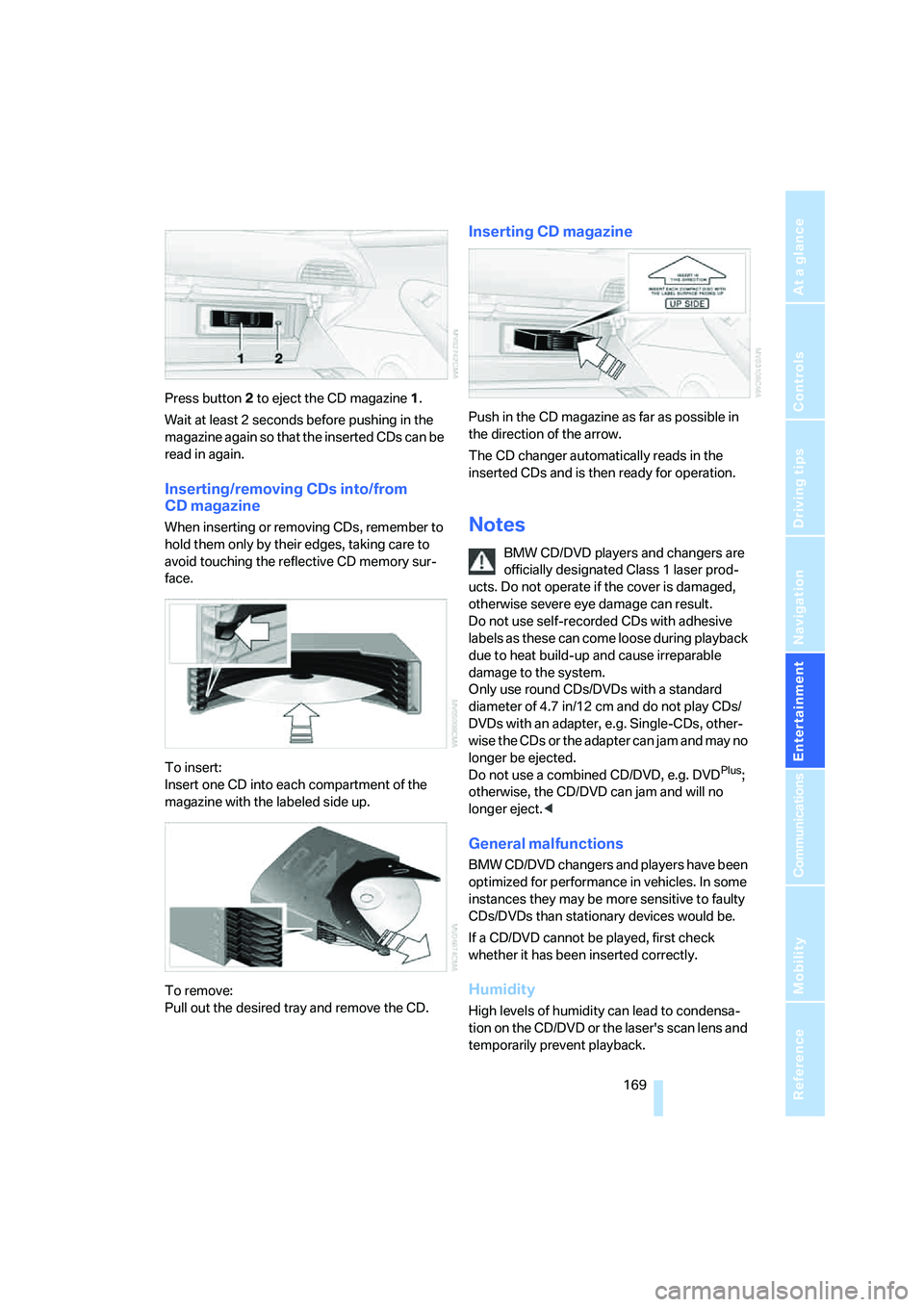
To insert CDs into the CD magazine 1 or
remove them from it, you must first remove the
magazine from the CD changer:
Page 171 of 254
Navigation
Entertainment
Driving tips
169Reference
At a glance
Controls
Communications
Mobility
Press button2 to eject the CD magazine1.
Wait at least 2 seconds before pushing in the
magazine again so that the inserted CDs can be
read in again.
Inserting/removing CDs into/from
CD magazine
When inserting or removing CDs, remember to
hold them only by their edges, taking care to
avoid touching the reflective CD memory sur-
face.
To insert:
Insert one CD into each compartment of the
magazine with the labeled side up.
To remove:
Pull out the desired tray and remove the CD.
Inserting CD magazine
Push in the CD magazine as far as possible in
the direction of the arrow.
The CD changer automatically reads in the
inserted CDs and is then ready for operation.
Notes
BMW CD/DVD players and changers are
officially designated Class 1 laser prod-
ucts. Do not operate if the cover is damaged,
otherwise severe eye damage can result.
Do not use self-recorded CDs with adhesive
labels as these can come loose during playback
due to heat build-up and cause irreparable
damage to the system.
Only use round CDs/DVDs with a standard
diameter of 4.7 in/12 cm and do not play CDs/
DVDs with an adapter, e.g. Single-CDs, other-
wise the CDs or the adapter can jam and may no
longer be ejected.
Do not use a combined CD/DVD, e.g. DVD
Plus;
otherwise, the CD/DVD can jam and will no
longer eject.<
General malfunctions
BMW CD/DVD changers and players have been
optimized for performance in vehicles. In some
instances they may be more sensitive to faulty
CDs/DVDs than stationary devices would be.
If a CD/DVD cannot be played, first check
whether it has been inserted correctly.
Humidity
High levels of humidity can lead to condensa-
tion on the CD/DVD or the laser's scan lens and
temporarily prevent playback.
Page 172 of 254
CD player and CD changer
170
Malfunctions with individual CDs/DVDs
If malfunctions occur only with particular CDs/
DVDs, this can be due to one of the following
causes.
Home-recorded CDs/DVDs
Possible reasons for malfunctions with self-
recorded CDs/DVDs are, e.g., inconsistent
data-creation or recording processes, or poor
quality or advanced age of the CD/DVD blank.
Label CDs/DVDs only on the top, using a marker
designed for this purpose.
Damaged CDs/DVDs
Avoid fingerprints dust, scratches, and mois-
ture.
Keep CDs/DVDs in a sleeve.
Do not subject CDs/DVDs to temperatures over
1227/506, high levels of humidity or direct
sunlight.
CDs/DVDs with copy protection
Manufacturers often provide CDs/DVDs with
copy protection. This can mean that some CDs/
DVDs cannot be played or can only be played to
a limited extent.
Care
If necessary, clean the reflective scanning side
of the CDs/DVDs with a commercially available
cleaning cloth by wiping in straight lines from
the center outward.
Page 173 of 254
Navigation
Entertainment
Driving tips
171Reference
At a glance
Controls
Communications
Mobility
AUX-In connection
You can connect an external audio device, e.g.
an MP3 player, and play the sound via the vehi-
cle loudspeakers. The sound can be adjusted
via iDrive.
Connecting
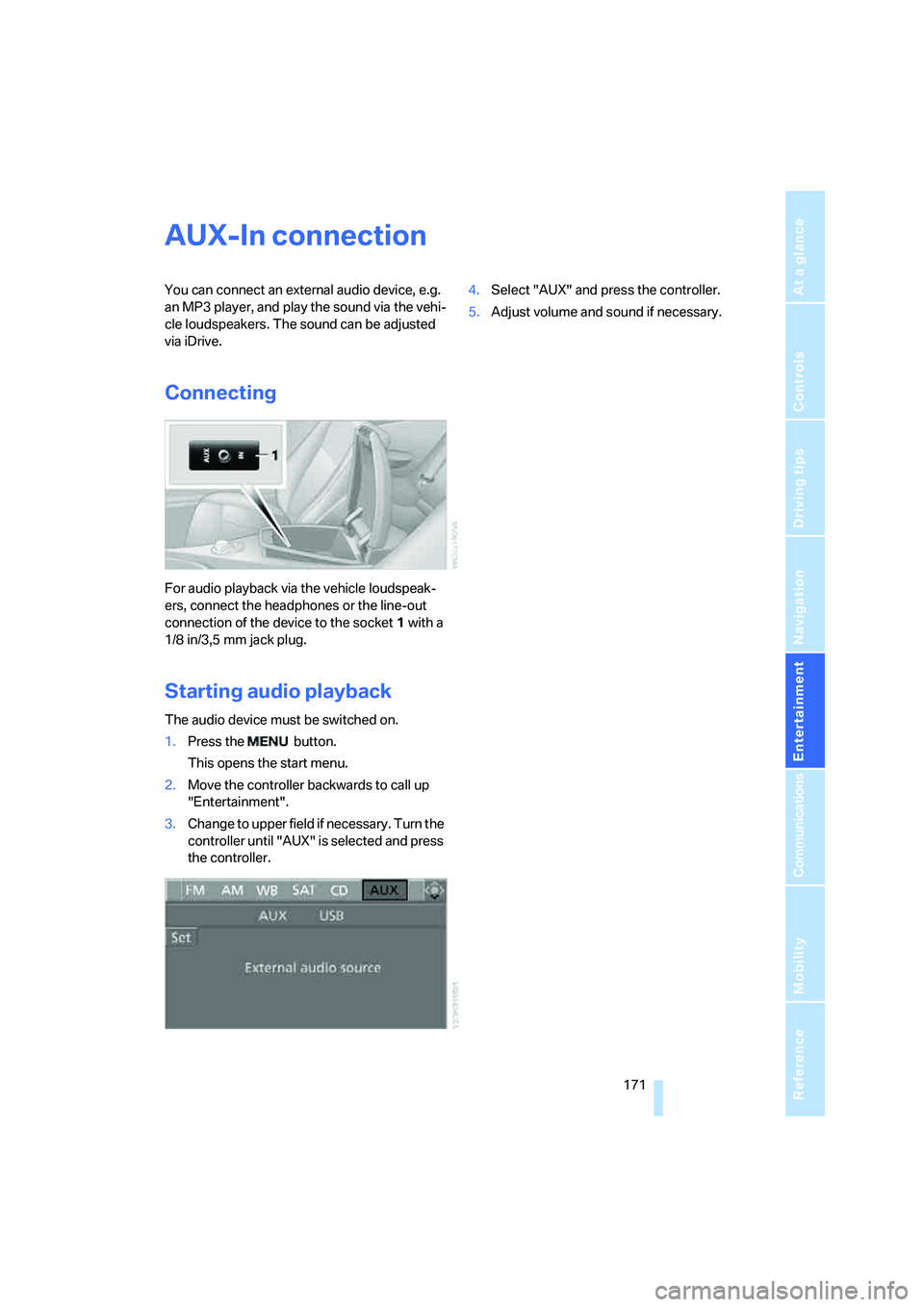
For audio playback via the vehicle loudspeak-
ers, connect the headphones or the line-out
connection of the device to the socket1 with a
1/8 in/3,5 mm jack plug.
Starting audio playback
The audio device must be switched on.
1.Press the button.
This opens the start menu.
2.Move the controller backwards to call up
"Entertainment".
3.Change to upper field if necessary. Turn the
controller until "AUX" is selected and press
the controller.4.Select "AUX" and press the controller.
5.Adjust volume and sound if necessary.
Page 231 of 254
Reference 229
At a glance
Controls
Driving tips
Communications
Navigation
Entertainment
Mobility
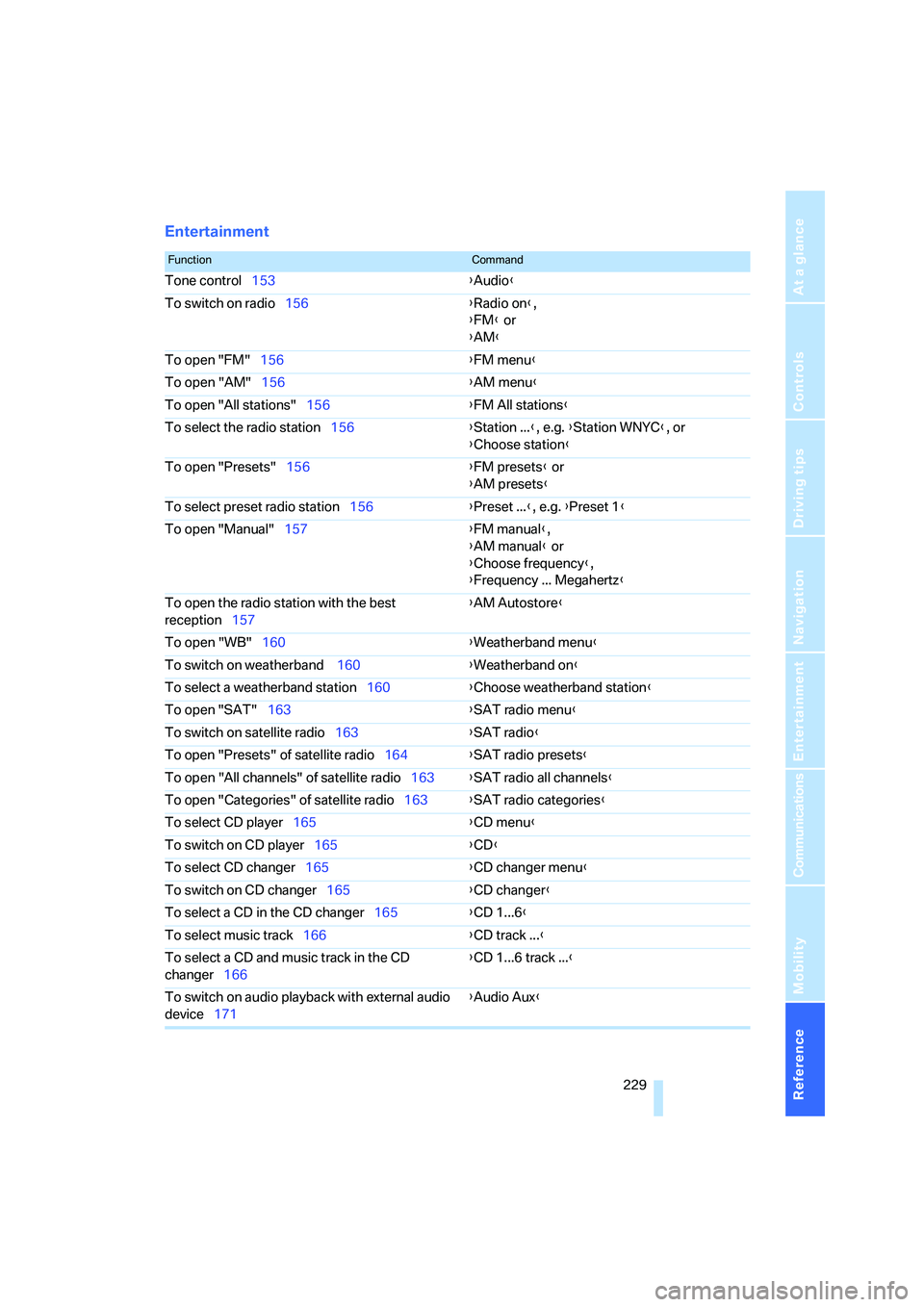
Entertainment
FunctionCommand
Tone control153{Audio}
To switch on radio156{Radio on},
{FM} or
{AM}
To open "FM"156{FM menu}
To open "AM"156{AM menu}
To open "All stations"156{FM All stations}
To select the radio station156{Station ...}, e.g. {Station WNYC}, or
{Choose station}
To open "Presets"156{FM presets} or
{AM presets}
To select preset radio station156{Preset ...}, e.g. {Preset 1}
To open "Manual"157{FM manual},
{AM manual} or
{Choose frequency},
{Frequency ... Megahertz}
To open the radio station with the best
reception157{AM Autostore}
To open "WB"160{Weatherband menu}
To switch on weatherband 160{Weatherband on}
To select a weatherband station160{Choose weatherband station
}
To open "SAT"163{SAT radio menu}
To switch on satellite radio163{SAT radio}
To open "Presets" of satellite radio164{SAT radio presets}
To open "All channels" of satellite radio163{SAT radio all channels}
To open "Categories" of satellite radio163{SAT radio categories}
To select CD player165{CD menu}
To switch on CD player165{CD}
To select CD changer165{CD changer menu}
To switch on CD changer165{CD changer}
To select a CD in the CD changer165{CD 1...6}
To select music track166{CD track ...}
To select a CD and music track in the CD
changer166{CD 1...6 track ...}
To switch on audio playback with external audio
device171{Audio Aux}
Page 237 of 254
Reference 235
At a glance
Controls
Driving tips
Communications
Navigation
Entertainment
Mobility
CD changer165
– controls152
– fast forward/reverse168
– installation location168
– random sequence168
– repeating a track167
– sampling a track167
– selecting a CD165
– selecting a track166
– switching on/off152
– tone control153
– volume153
CD player165
– controls152
– fast forward/reverse168
– random sequence168
– repeating a track167
– sampling a track167
– selecting a track166
– switching on/off152
– tone control153
– volume153
Center armrest, adjusting
height114
Center console14
"Central locking"30
Central locking
– from inside32
– from outside30
Central locking system30
– comfort access37
– hotel function33
Changes, technical, refer to
For your own safety6
Changing a wheel215
Changing language on
Control Display85
Changing scale for navigation
system display142
Changing units of measure on
Control Display85
Changing wheels204
CHECK button81
Check Control80
"Check Control
messages"81
Check Gas Cap198
Checking air pressure, refer to
Tire inflation pressure200Child-restraint fixing system
LATCH58
Child restraint systems57
Child seats, refer to
Transporting children
safely57
Chrome parts, refer to Caring
for your vehicle brochure
Cigarette lighter
116
Cigarette lighter socket, refer
to Connecting electrical
devices116
Cleaning, refer to Caring for
your vehicle brochure
"Climate"107
Clock75
– 12h/24h mode84
– hour signal84
– setting time and date83
Closing
– from inside32
– from outside30
Closing fuel filler cap198
Clothes hooks, Coupe115
Cockpit10
Cold start, refer to Starting
engine60
Comfort access37
– observe in car wash38
– replacing battery, remote
control38
Comfort closing
– windows, with comfort
access with Coupe37
– with comfort access37
Comfort operation
– convertible top31,32
– glass sunroof31,32
– windows31,32
"Communication"180,190
Compact disc
– refer to CD changer165
– refer to CD player165
Compartment for remote
control, refer to Ignition
lock59
Compartments, refer to
Storage compartments114
Compressed audio files165Computer76
– displays on Control
Display77
– hour signal84
"Concert hall", refer to Tone
control155
"Concierge"192
Condensation, refer to When
vehicle is parked122
Condition Based Service
CBS210
"Confirmation"31
Confirmation signals for
locking and unlocking31
Connecting car vacuum
cleaner, refer to Connecting
electrical devices116
Consumption display, refer to
Average fuel
consumption
76
Consumption statistics, refer
to Average fuel
consumption76
"Continue guidance to
destination?"141
"Contrast" with BMW Night
Vision101
Control Center, refer to
iDrive16
Control Display, refer to
iDrive16
– setting brightness84
– switching off/on21
Controller, refer to iDrive16
Controls, refer to Cockpit10
Convertible
– convertible program for
automatic climate
control107
– opening and closing
windows39
– rollover protection
system96
– top42
– wind deflector46
– window and convertible top
operation with comfort
access37
Page 239 of 254
Reference 237
At a glance
Controls
Driving tips
Communications
Navigation
Entertainment
Mobility
Display lighting, refer to
Instrument lighting104
"Display off"21
Displays
– on Control Display, refer to
iDrive16
– refer to Instrument
cluster12
"Display settings"85,98
Displays on the windshield,
refer to Head-Up Display97
Disposal
– battery of remote control
with comfort access38
– coolant209
– vehicle battery215
Distance, refer to
Computer77
Distance control, refer to
Active cruise control68
"Distance to dest."77
Distance to destination, refer
to Computer77
Distance warning, refer to
PDC Park Distance
Control86
Door entry lighting, refer to
Interior lamps104
Door key, refer to Keys/
remote control28
Door lock32
"Door locks"30,79
Doors
– manual operation32
– remote control31
DOT Quality Grades202
Draft-free ventilation110
"Driver's door only"30
Driving lamps, refer to Parking
lamps/low beams102
Driving route, refer to
Displaying route141
Driving stability control
systems87
Driving through water121
Driving tips, refer to General
driving notes120Drying the air, refer to Cooling
function108
DSC Dynamic Stability
Control88
– indicator lamp13,88
– malfunction89
DTC Dynamic Traction
Control88
– activating88
– indicator lamp13,89
DVD for navigation
126
Dynamic Drive89
Dynamic Driving Control64
"Dynamic route" for
navigation139
Dynamic Stability Control
DSC88
Dynamic Traction Control
DTC88
E
Easy entry, refer to Entering
rear52
Easy entry/exit55
Eject button, refer to Buttons
on CD player152
Electrical malfunction
– convertible top44
– door lock32
– driver's door32
– fuel filler door198
– glass sunroof41
– luggage compartment lid34
– storage compartment, hotel
function34
Electric convertible top42
Electric steering wheel
adjustment55
Electronic brake-force
distribution87
Electronic oil level check207
Emergency assistance, refer
to Roadside Assistance218
Emergency call217Emergency operation, refer to
Manual operation
– convertible top44
– door lock32
– driver's door32
– fuel filler door198
– glass sunroof41
– hotel function34
– luggage compartment lid34
– selector lever interlock,
automatic transmission64
Emergency release for
luggage compartment lid in
luggage compartment35
Emergency services, refer to
Roadside Assistance218
"Enable services"195
"End call"182
Engine
– breaking-in120
– overheated, refer to Coolant
temperature75
– starting60
– starting, comfort access37
– switching off60
– switching off when equipped
with Automatic
transmission, with comfort
access38
Engine compartment207
Engine coolant209
Engine oil
– adding208
– additives, refer to Approved
engine oils208
– approved oils208
– electronic oil level check207
– interval between changes,
refer to Service
requirements78
– oil change208
– oil grades, refer to Approved
engine oils208
– recommended oils208
– temperature76
– temperature gauge76
Page 240 of 254
Everything from A to Z
238 "Engine oil level"208
Engine overheating, refer to
Coolant temperature75
Engine starting, refer to
Starting engine60
"Enter address"128,136
Entering address128,131
Entering intersection,
navigation130
Entering rear52
Entering town/city for
navigation129
Entering town/city of
destination name129
Entering zip code for
navigation129
"Entertainment"152
Entertainment sound output
on/off153
Entry map for destination133
Equalizer, refer to Tone
control155
"Equalizer", tone control155
"ESN"162
ESP Electronic Stability
Program, refer to DSC
Dynamic Stability
Control88
Event data recorders211
Exhaust system, refer to Hot
exhaust system120
Exterior mirrors54
– adjusting54
– automatic dimming
feature54
– automatic heating54
– folding in and out54
– tilting down passenger-side
mirror54
External audio device114
Eye for tow-starting and
towing, refer to Tow
fitting219
Eyes for lashing, refer to
Securing cargo123
F
"Fader", refer to Tone
control154
Fader, refer to Tone
control154
Failure messages, refer to
Check Control80
False alarm
– refer to Avoiding
unintentional alarms36
– refer to Switching off
alarm36
Fastening safety belts, refer to
Safety belts53
Fastest route for
navigation138
Fast forward
– CD changer168
– CD player168
"Fast route" for
navigation138
"Favorites", calling up with
radio159
Filler neck for washer fluid67
Filter, refer to Microfilter/
activated-charcoal filter110
Fine wood, refer to Caring for
your vehicle brochure
First aid, refer to First-aid
kit218
First-aid kit218
Flashing, when locking and
unlocking, refer to Setting
confirmation signals31
Flashlight, refer to
Rechargeable flashlight113
Flat tire
– Flat Tire Monitor89
– refer to Run-flat tires204
– run-flat tires90,92,204
– Tire Pressure Monitor91
– warning lamp90,92
Flat Tire Monitor89
– false alarms90
– initializing system90
– limits of system90
– snow chains205
– warning lamp90Floor mats, refer to Caring for
your vehicle brochure
Floor mats/carpets, refer to
Caring for your vehicle
brochure
Fluid reservoir, refer to Filler
neck for washer fluid67
"FM", reception
range152,156
FM, waveband156
Fog lamps104
– indicator lamp13,104
Folding into raised position
convertible top
compartment floor,
Convertible35
Footbrake, refer to Braking
safely121
Footwell lighting, refer to
Interior lamps104
For specified oil grades, refer
to Approved engine oils208
For your own safety6
Freeway, refer to Route
criteria138
Front airbags94
Front passenger airbags
– deactivating95
– deactivating, refer to
Exception for front
passenger seat57
"FTM"90
FTM, refer to Flat Tire
Monitor89
Fuel
– average consumption76
– display76
– fuel specifications199
– high-quality brands199
– quality199
– specifications199
– tank contents, refer to
Capacities226
Fuel display, refer to Fuel
gauge76
Fuel filler door198
– releasing in the event of
electrical malfunction198
Fuel gauge76