AUX BMW 6 SERIES 2009 Owners Manual
[x] Cancel search | Manufacturer: BMW, Model Year: 2009, Model line: 6 SERIES, Model: BMW 6 SERIES 2009Pages: 272, PDF Size: 9.16 MB
Page 5 of 272
Reference
At a glance
Controls
Driving tips
Communications
Navigation
Entertainment
Mobility
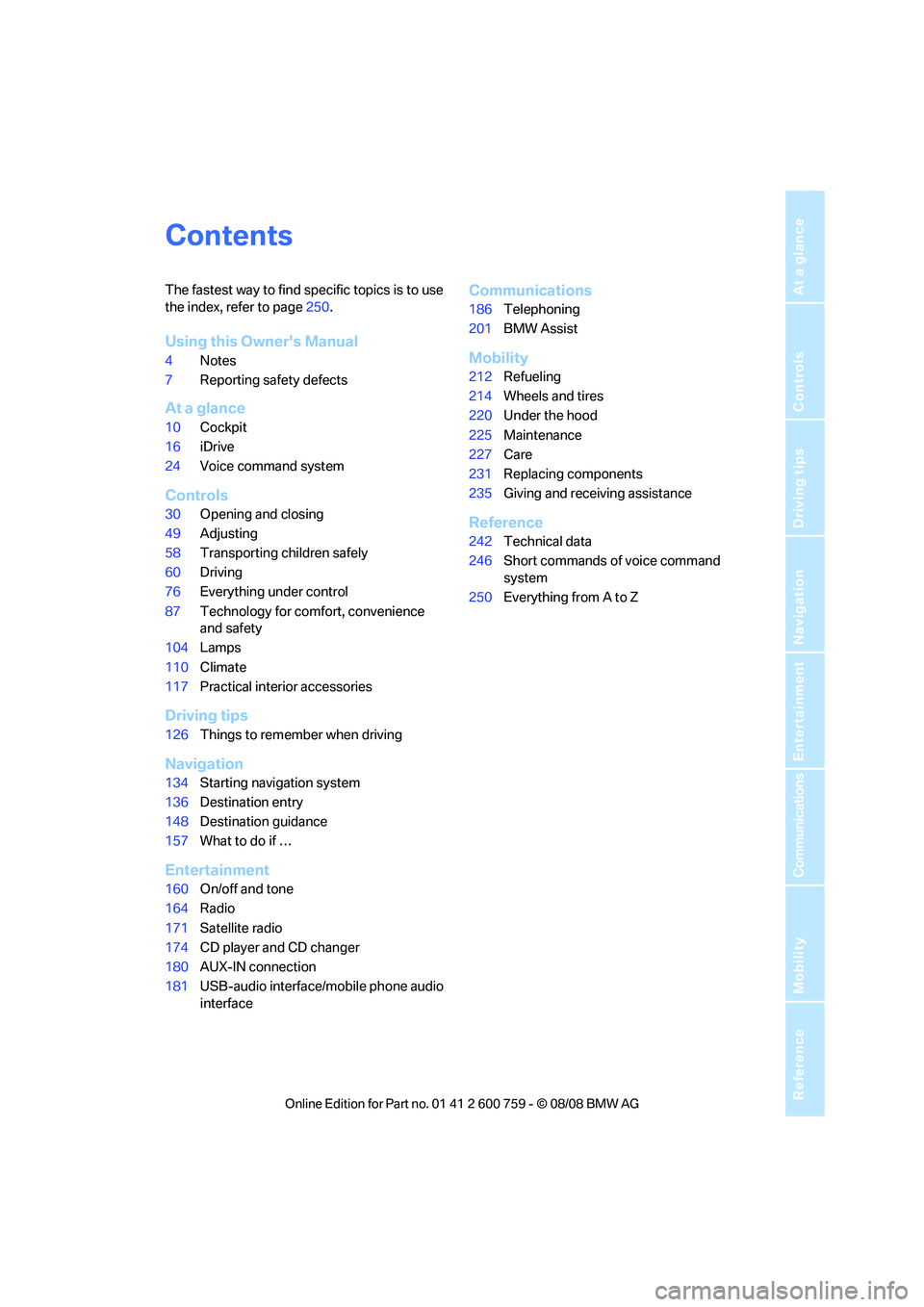
Contents
The fastest way to find specific topics is to use
the index, refer to page250.
Using this Owner's Manual
4Notes
7Reporting safety defects
At a glance
10Cockpit
16iDrive
24Voice command system
Controls
30Opening and closing
49Adjusting
58Transporting children safely
60Driving
76Everything under control
87Technology for comfort, convenience
and safety
104Lamps
110Climate
117Practical interior accessories
Driving tips
126Things to remember when driving
Navigation
134Starting navigation system
136Destination entry
148Destination guidance
157What to do if …
Entertainment
160On/off and tone
164Radio
171Satellite radio
174CD player and CD changer
180AUX-IN connection
181USB-audio interface/mobile phone audio
interface
Communications
186Telephoning
201BMW Assist
Mobility
212Refueling
214Wheels and tires
220Under the hood
225Maintenance
227Care
231Replacing components
235Giving and receiving assistance
Reference
242Technical data
246Short commands of voice command
system
250Everything from A to Z
Page 19 of 272
At a glance
17Reference
Controls
Driving tips
Communications
Navigation
Entertainment
Mobility
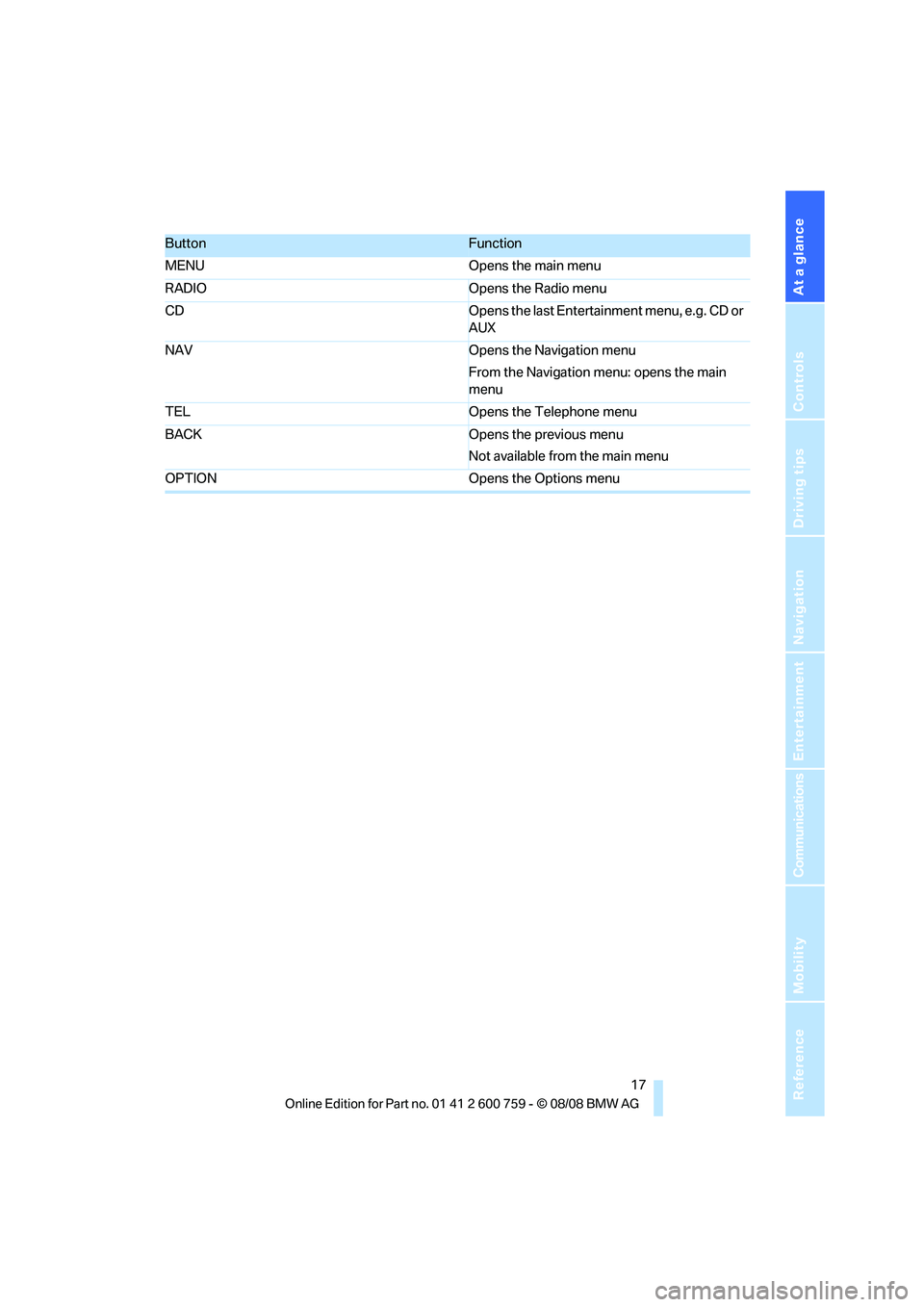
ButtonFunction
MENU Opens the main menu
RADIO Opens the Radio menu
CD Opens the last Entertainment menu, e.g. CD or
AUX
NAV Opens the Navigation menu
From the Navigation menu: opens the main
menu
TEL Opens the Telephone menu
BACK Opens the previous menu
Not available from the main menu
OPTION Opens the Options menu
Page 23 of 272
At a glance
21Reference
Controls
Driving tips
Communications
Navigation
Entertainment
Mobility
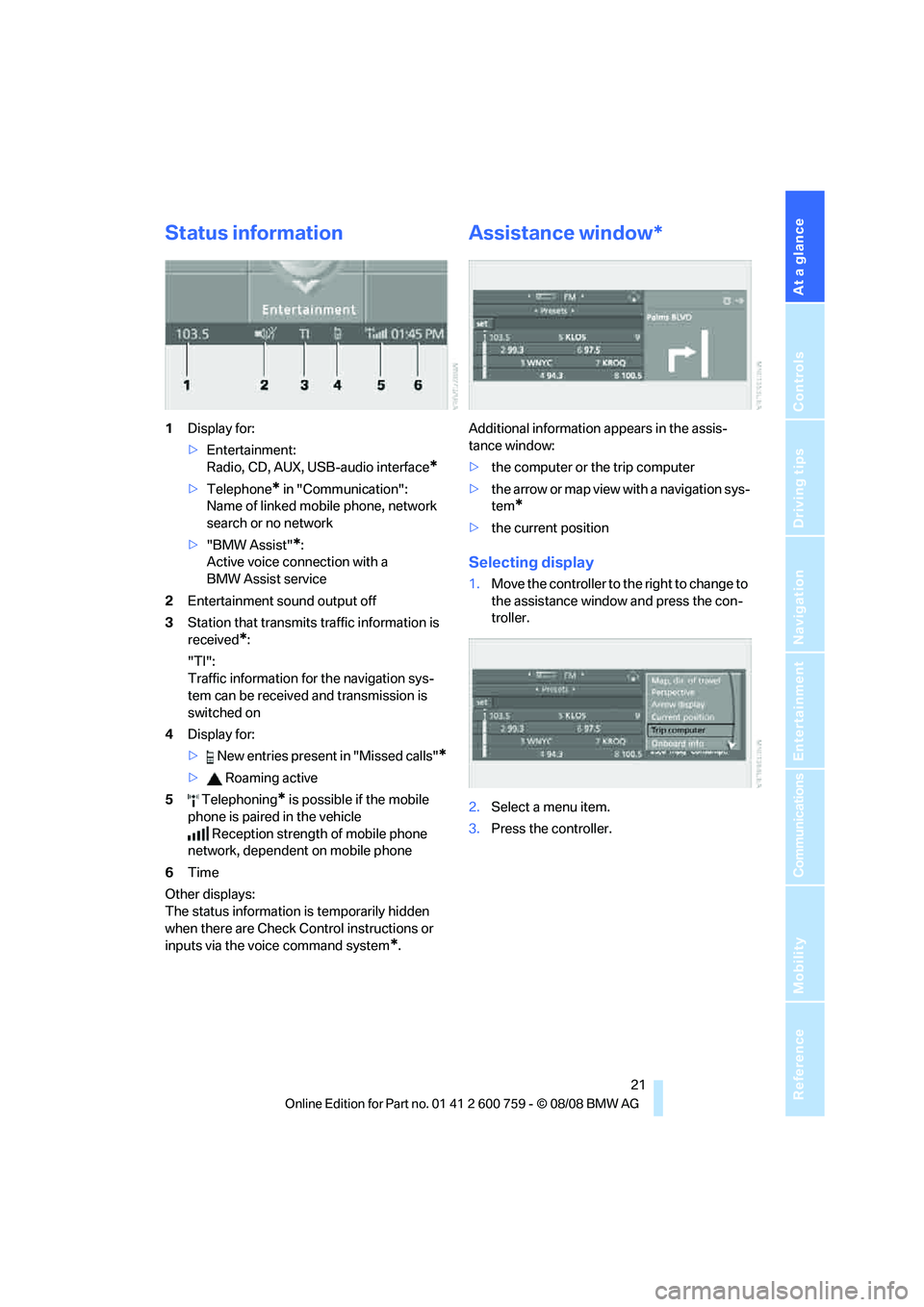
Status information
1Display for:
>Entertainment:
Radio, CD, AUX, USB-audio interface
*
>Telephone* in "Communication":
Name of linked mobile phone, network
search or no network
>"BMW Assist"
*:
Active voice connection with a
BMW Assist service
2Entertainment sound output off
3Station that transmits traffic information is
received
*:
"TI":
Traffic information for the navigation sys-
tem
can be received and transmission is
switched on
4Display for:
> New entries present in "Missed calls"
*
> Roaming active
5 Telephoning
* is possible if the mobile
phone is paired in the vehicle
Reception strength of mobile phone
network, dependent on mobile phone
6Time
Other displays:
The status information is temporarily hidden
when there are Check Control instructions or
inputs via the voice command system
*.
Assistance window*
Additional information appears in the assis-
tance window:
>the computer or the trip computer
>the arrow or map view with a navigation sys-
tem
*
>the current position
Selecting display
1.Move the controller to the right to change to
the assistance window and press the con-
troller.
2.Select a menu item.
3.Press the controller.
Page 24 of 272
iDrive
22
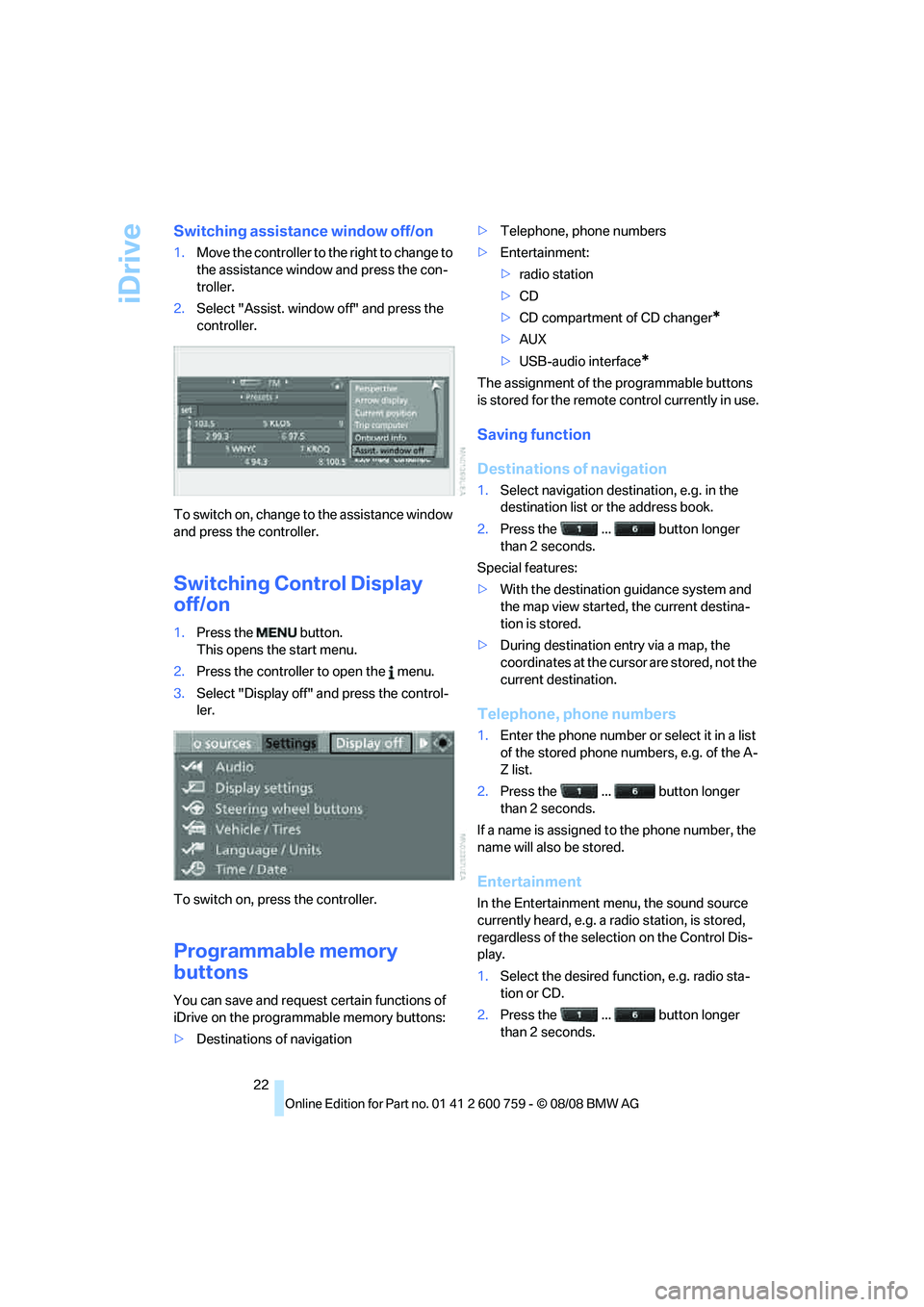
Switching assistance window off/on
1.Move the controller to the right to change to
the assistance window and press the con-
troller.
2.Select "Assist. window off" and press the
controller.
To switch on, change to the assistance window
and press the controller.
Switching Control Display
off/on
1.Press the button.
This opens the start menu.
2.Press the controller to open the menu.
3.Select "Display off" and press the control-
ler.
To switch on, press the controller.
Programmable memory
buttons
You can save and request certain functions of
iDrive on the programmable memory buttons:
>Destinations of navigation>Telephone, phone numbers
>Entertainment:
>radio station
>CD
>CD compartment of CD changer
*
>AUX
>USB-audio interface
*
The assignment of the programmable buttons
is stored for the remote control currently in use.
Saving function
Destinations of navigation
1.Select navigation destination, e.g. in the
destination list or the address book.
2.Press the ... button longer
than 2 seconds.
Special features:
>With the destination guidance system and
the map view started, the current destina-
tion is stored.
>During destination entry via a map, the
coordinates at the cursor are stored, not the
current destination.
Telephone, phone numbers
1.Enter the phone number or select it in a list
of the stored phone numbers, e.g. of the A-
Z list.
2.Press the ... button longer
than 2 seconds.
If a name is assigned to the phone number, the
name will also be stored.
Entertainment
In the Entertainment menu, the sound source
currently heard, e.g. a radio station, is stored,
regardless of the selection on the Control Dis-
play.
1.Select the desired function, e.g. radio sta-
tion or CD.
2.Press the ... button longer
than 2 seconds.
Page 128 of 272
Things to remember when driving
126
Things to remember when driving
Break-in period
Moving parts need breaking-in time to adjust to
each other. To ensure that your vehicle contin-
ues to provide optimized economy of operation
throughout an extended service life, we request
that you devote careful attention to the follow-
ing section.
Engine and differential
Always obey all official speed limits.
Up to 1,200 miles/2,000 km
Drive at changing engine and driving speeds,
however do not exceed 4,500 rpm or 100 mph/
160 km/h.
Avoid full-throttle operation and use of the
transmission's kick-down mode during these
initial miles.
From 1,200 miles/2,000 km
The engine and vehicle speed can gradually be
increased.
Tires
Due to technical factors associated with their
manufacture, tires do not achieve their full trac-
tion potential until after an initial break-in
period. Therefore, drive reservedly during the
first 200 miles/300 km.
Brake system
Brakes require an initial break-in period of
approx. 300 miles/500 km to achieve optimized
contact and wear patterns between brake pads
and rotors. Drive in a reserved manner during
this break-in period.
Clutch
The function of the clutch is only at its opti-
mized level after a distance driven of approx.
300 miles/500 km. During this break-in period,
engage the clutch gently.
Following part replacement
Observe the break-in instructions again if com-
ponents mentioned above must be replaced
after subsequent driving operation.
Saving fuel
The fuel consumption of your vehicle depends
on various factors. Through a few simple steps,
your driving style, and regular maintenance, you
can have a positive influence on your fuel con-
sumption and environmental impact.
Removing unnecessary cargo
Additional weight increases fuel consumption.
Removing add-on parts after use
Remove unneeded auxiliary mirrors, roof or rear
luggage racks after use. Add-on parts attached
to the vehicle impede the aerodynamics and
increase the fuel consumption.
Closing windows and glass sunroof
An open glass sunroof or open windows like-
wise increase the drag coefficient and therefore
the fuel consumption.
Checking tire inflation pressures
regularly
Check and correct the tire inflation pressure as
needed at least twice a month and before long
trips.
An insufficient tire inflation pressure increases
the rolling resistance and thus increases the
fuel consumption and tire wear.
Driving off immediately
Do not allow the engine to warm up by leaving it
running while the vehicle remains stationary.
Instead, begin to drive at a moderate engine
speed. This is the fastest way for the cold
engine to reach its operating temperature.
Page 162 of 272
On/off and tone
160
On/off and tone
The following audio sources have shared con-
trols and setting options:
>Professional
* radio or
Business radio
>CD player
>CD changer
*
Controls
The audio sources can be operated using:
>Buttons in the area of the CD player
>iDrive
>Buttons on steering wheel, refer to page11
>Programmable memory buttons, refer to
page22
Buttons near CD player
The layout of the buttons can vary depending
on your vehicle's equipment.
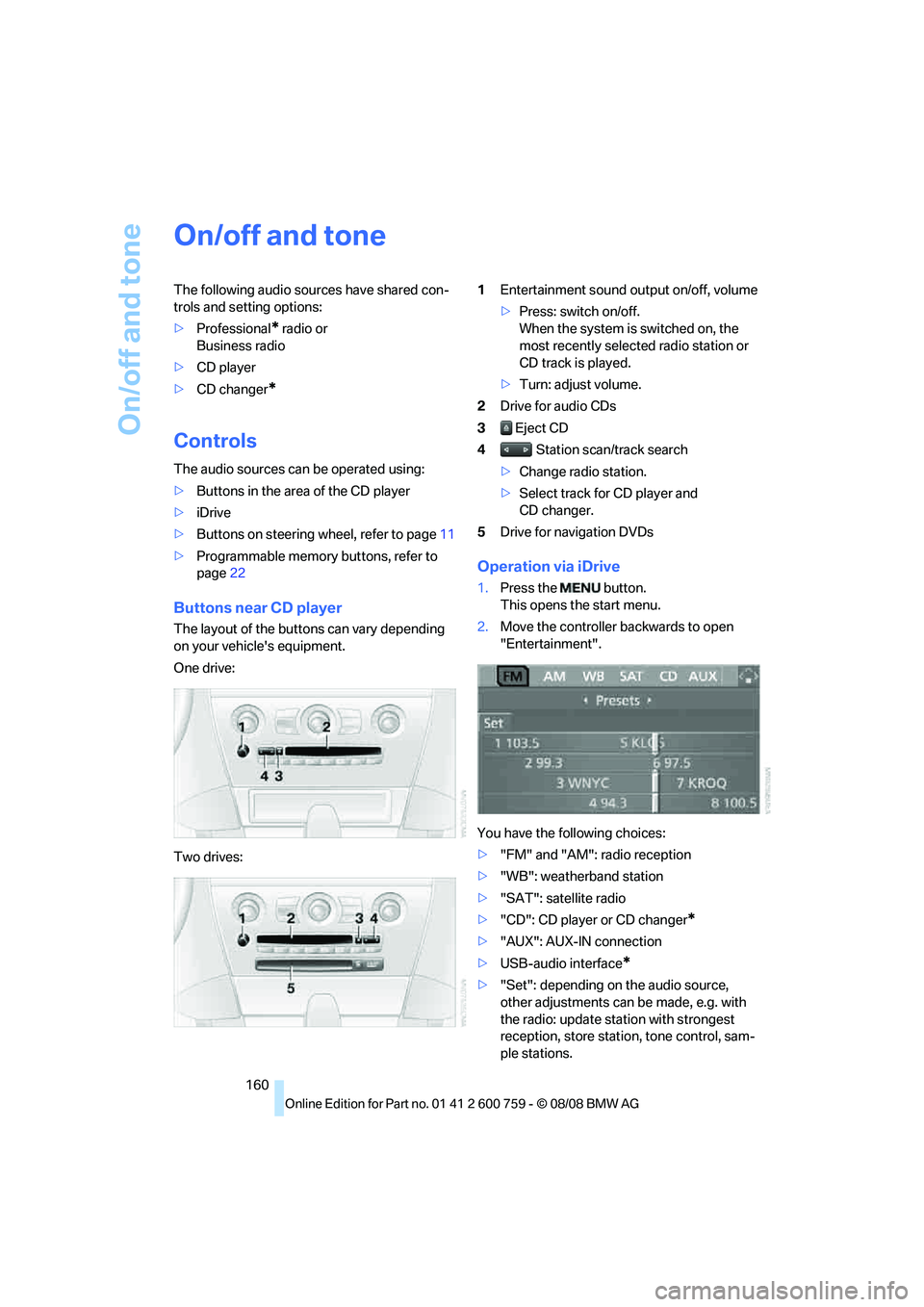
One drive:
Two drives:1Entertainment sound output on/off, volume
>Press: switch on/off.
When the system is switched on, the
most recently selected radio station or
CD track is played.
>Turn: adjust volume.
2Drive for audio CDs
3 Eject CD
4 Station scan/track search
>Change radio station.
>Select track for CD player and
CD changer.
5Drive for navigation DVDs
Operation via iDrive
1.Press the button.
This opens the start menu.
2.Move the controller backwards to open
"Entertainment".
You have the following choices:
>"FM" and "AM": radio reception
>"WB": weatherband station
>"SAT": satellite radio
>"CD": CD player or CD changer
*
>"AUX": AUX-IN connection
>USB-audio interface
*
>"Set": depending on the audio source,
other adjustments can be made, e.g. with
the radio: update station with strongest
reception, store station, tone control, sam-
ple stations.
Page 182 of 272
AUX-IN connection
180
AUX-IN connection
You can connect an external audio device, e.g.
an MP3 player, and play the sound via the vehi-
cle speakers. The sound can be adjusted via
iDrive.
Connecting
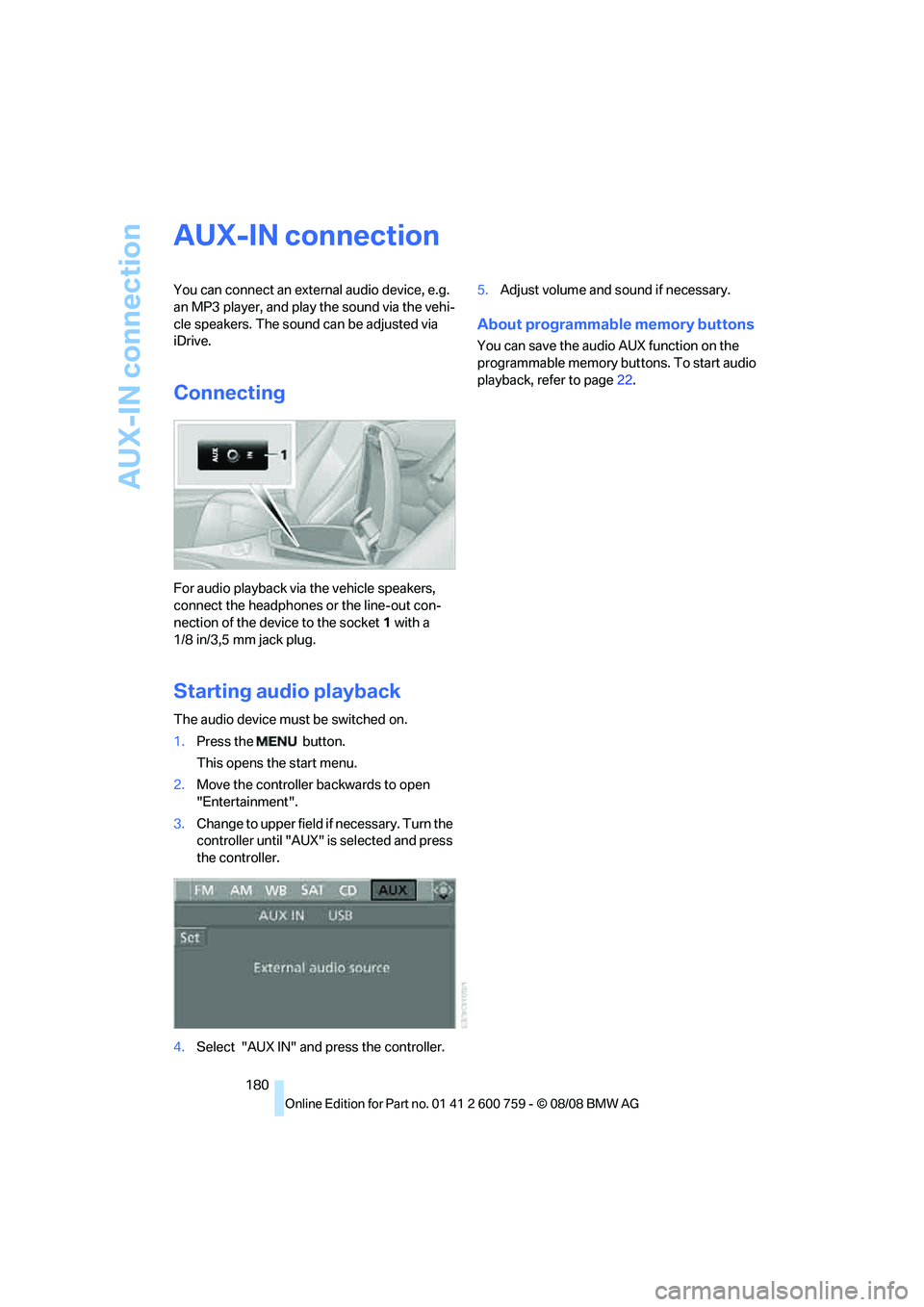
For audio playback via the vehicle speakers,
connect the headphones or the line-out con-
nection of the device to the socket1 with a
1/8 in/3,5 mm jack plug.
Starting audio playback
The audio device must be switched on.
1.Press the button.
This opens the start menu.
2.Move the controller backwards to open
"Entertainment".
3.Change to upper field if necessary. Turn the
controller until "AUX" is selected and press
the controller.
4.Select "AUX IN" and press the controller.5.Adjust volume and sound if necessary.
About programmable memory buttons
You can save the audio AUX function on the
programmable memory buttons. To start audio
playback, refer to page22.
Page 184 of 272
USB-audio interface/mobile phone audio interface
182 1.Press the button.
This opens the start menu.
2.Move the controller backwards to call up
"Entertainment".
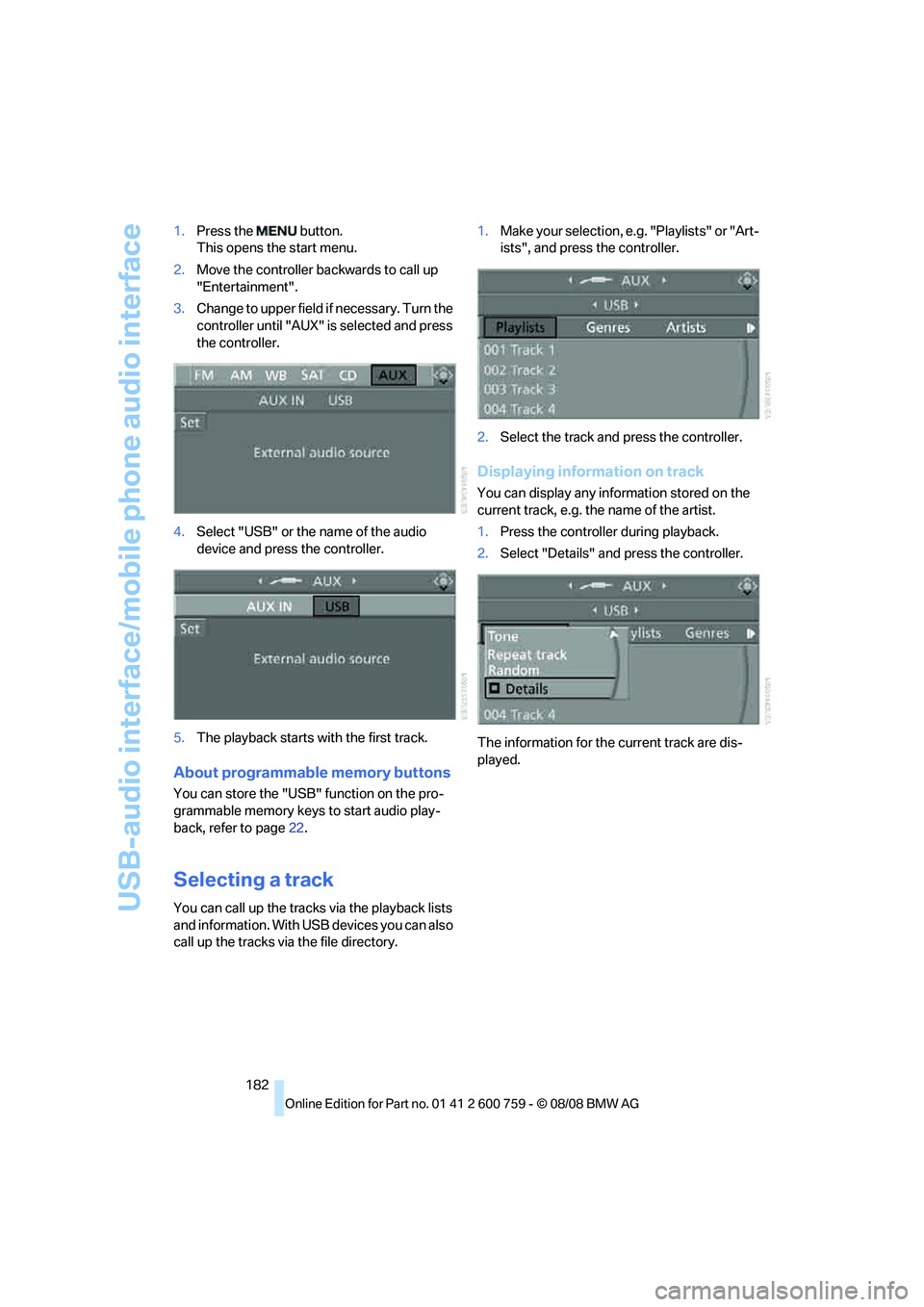
3.Change to upper field if necessary. Turn the
controller until "AUX" is selected and press
the controller.
4.Select "USB" or the name of the audio
device and press the controller.
5.The playback starts with the first track.
About programmable memory buttons
You can store the "USB" function on the pro-
grammable memory keys to start audio play-
back, refer to page22.
Selecting a track
You can call up the tracks via the playback lists
and information. With USB devices you can also
call up the tracks via the file directory.1.Make your selection, e.g. "Playlists" or "Art-
ists", and press the controller.
2.Select the track and press the controller.
Displaying information on track
You can display any information stored on the
current track, e.g. the name of the artist.
1.Press the controller during playback.
2.Select "Details" and press the controller.
The information for the current track are dis-
played.
Page 250 of 272
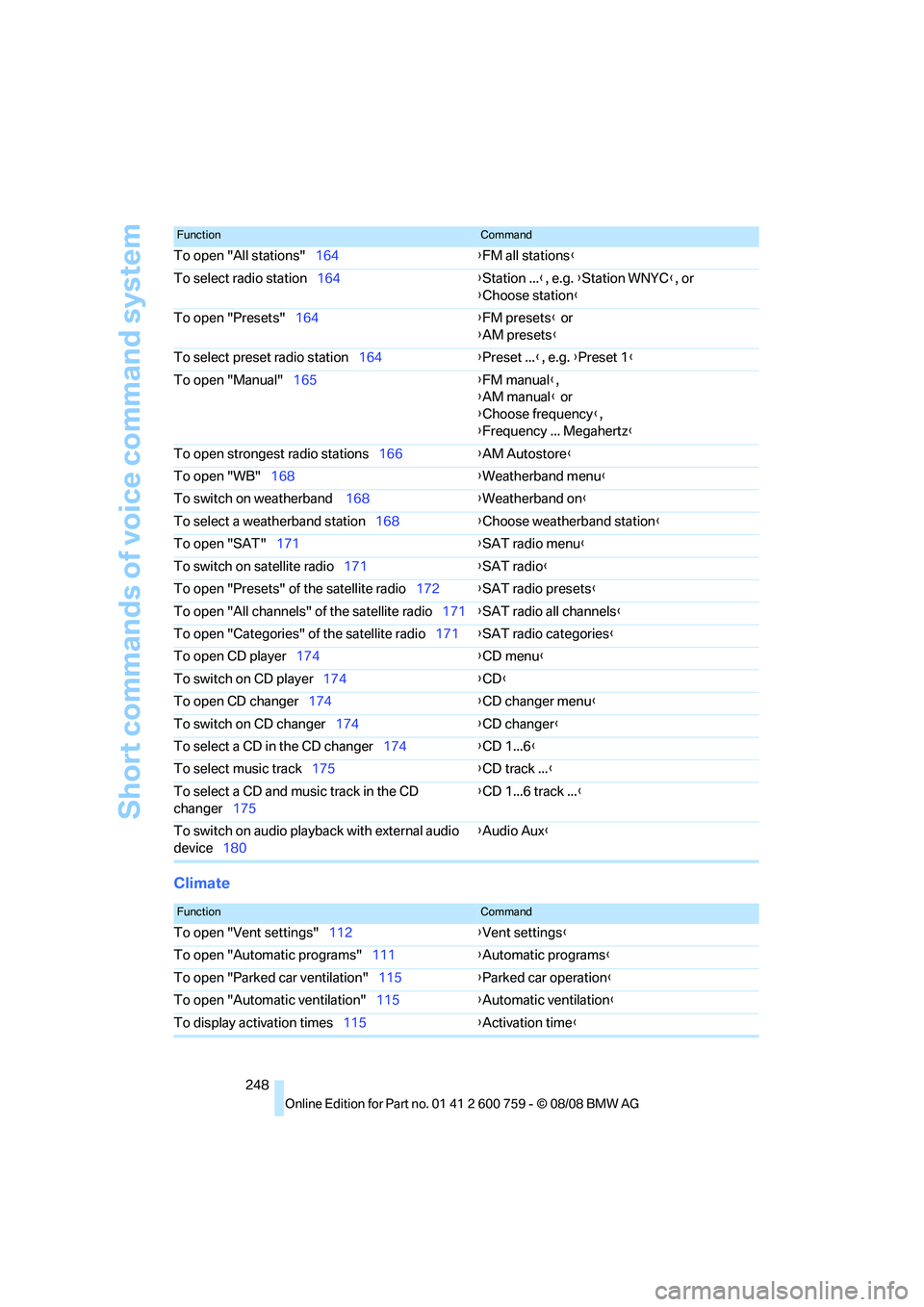
Short commands of voice command system
248
Climate
To open "All stations"164{FM all stations}
To select radio station164{Station ...}, e.g. {Station WNYC}, or
{Choose station}
To open "Presets"164{FM presets} or
{AM presets}
To select preset radio station164{Preset ...}, e.g. {Preset 1}
To open "Manual"165{FM manual},
{AM manual} or
{Choose frequency},
{Frequency ... Megahertz}
To open strongest radio stations166{AM Autostore}
To open "WB"168{Weatherband menu}
To switch on weatherband 168{Weatherband on}
To select a weatherband station168{Choose weatherband station}
To open "SAT"171{SAT radio menu}
To switch on satellite radio171{SAT radio}
To open "Presets" of the satellite radio172{SAT radio presets}
To open "All channels" of the satellite radio171{SAT radio all channels}
To open "Categories" of the satellite radio171{SAT radio categories}
To open CD player174{
CD menu}
To switch on CD player174{CD}
To open CD changer174{CD changer menu}
To switch on CD changer174{CD changer}
To select a CD in the CD changer174{CD 1...6}
To select music track175{CD track ...}
To select a CD and music track in the CD
changer175{CD 1...6 track ...}
To switch on audio playback with external audio
device180{Audio Aux}
FunctionCommand
FunctionCommand
To open "Vent settings"112{Vent settings}
To open "Automatic programs"111{Automatic programs}
To open "Parked car ventilation"115{Parked car operation}
To open "Automatic ventilation"115{Automatic ventilation}
To display activation times115{Activation time}
Page 253 of 272
Reference 251
At a glance
Controls
Driving tips
Communications
Navigation
Entertainment
Mobility
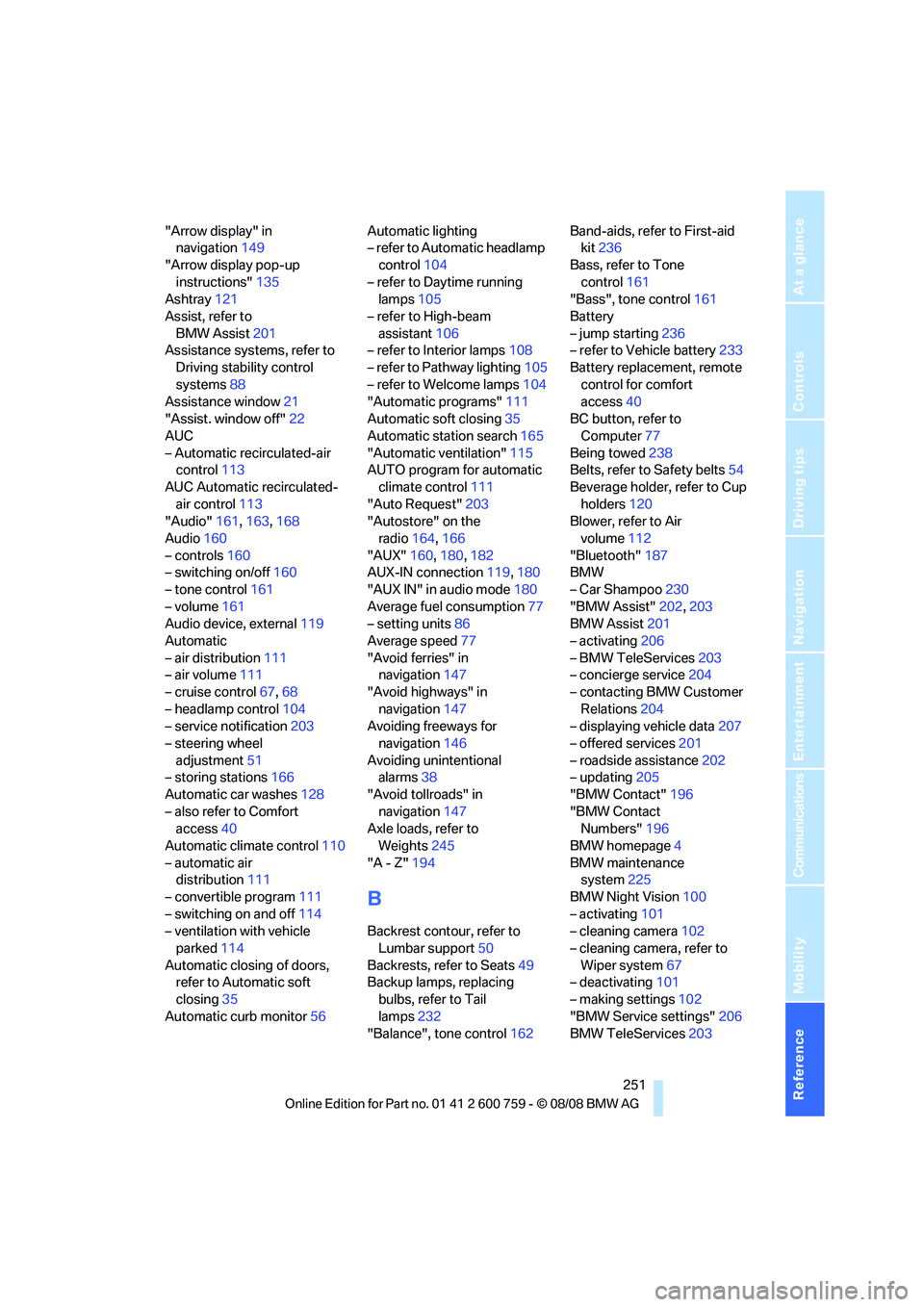
"Arrow display" in
navigation149
"Arrow display pop-up
instructions"135
Ashtray121
Assist, refer to
BMW Assist201
Assistance systems, refer to
Driving stability control
systems88
Assistance window21
"Assist. window off"22
AUC
– Automatic recirculated-air
control113
AUC Automatic recirculated-
air control113
"Audio"161,163,168
Audio160
– controls160
– switching on/off160
– tone control161
– volume161
Audio device, external119
Automatic
– air distribution111
– air volume111
– cruise control67,68
– headlamp control104
– service notification203
– steering wheel
adjustment51
– storing stations166
Automatic car washes128
– also refer to Comfort
access40
Automatic climate control110
– automatic air
distribution111
– convertible program111
– switching on and off114
– ventilation with vehicle
parked114
Automatic closing of doors,
refer to Automatic soft
closing35
Automatic curb monitor56Automatic lighting
– refer to Automatic headlamp
control104
– refer to Daytime running
lamps105
– refer to High-beam
assistant106
– refer to Interior lamps108
– refer to Pathway lighting105
– refer to Welcome lamps104
"Automatic programs"
111
Automatic soft closing35
Automatic station search165
"Automatic ventilation"115
AUTO program for automatic
climate control111
"Auto Request"203
"Autostore" on the
radio164,166
"AUX"160,180,182
AUX-IN connection119,180
"AUX IN" in audio mode180
Average fuel consumption77
– setting units86
Average speed77
"Avoid ferries" in
navigation147
"Avoid highways" in
navigation147
Avoiding freeways for
navigation146
Avoiding unintentional
alarms38
"Avoid tollroads" in
navigation147
Axle loads, refer to
Weights245
"A - Z"194
B
Backrest contour, refer to
Lumbar support50
Backrests, refer to Seats49
Backup lamps, replacing
bulbs, refer to Tail
lamps232
"Balance", tone control162Band-aids, refer to First-aid
kit236
Bass, refer to Tone
control161
"Bass", tone control161
Battery
– jump starting236
– refer to Vehicle battery233
Battery replacement, remote
control for comfort
access40
BC button, refer to
Computer77
Being towed238
Belts, refer to Safety belts54
Beverage holder, refer to Cup
holders120
Blower, refer to Air
volume112
"Bluetooth"187
BMW
– Car Shampoo230
"BMW Assist"202,203
BMW Assist201
– activating206
– BMW TeleServices203
– concierge service204
– contacting BMW Customer
Relations204
– displaying vehicle data207
– offered services201
– roadside assistance202
– updating205
"BMW Contact"196
"BMW Contact
Numbers"196
BMW homepage4
BMW maintenance
system225
BMW Night Vision100
– activating101
– cleaning camera102
– cleaning camera, refer to
Wiper system67
– deactivating101
– making settings102
"BMW Service settings"206
BMW TeleServices203