computer BMW 6 SERIES COUPE 2016 F13 Owner's Manual
[x] Cancel search | Manufacturer: BMW, Model Year: 2016, Model line: 6 SERIES COUPE, Model: BMW 6 SERIES COUPE 2016 F13Pages: 251, PDF Size: 7.22 MB
Page 19 of 251
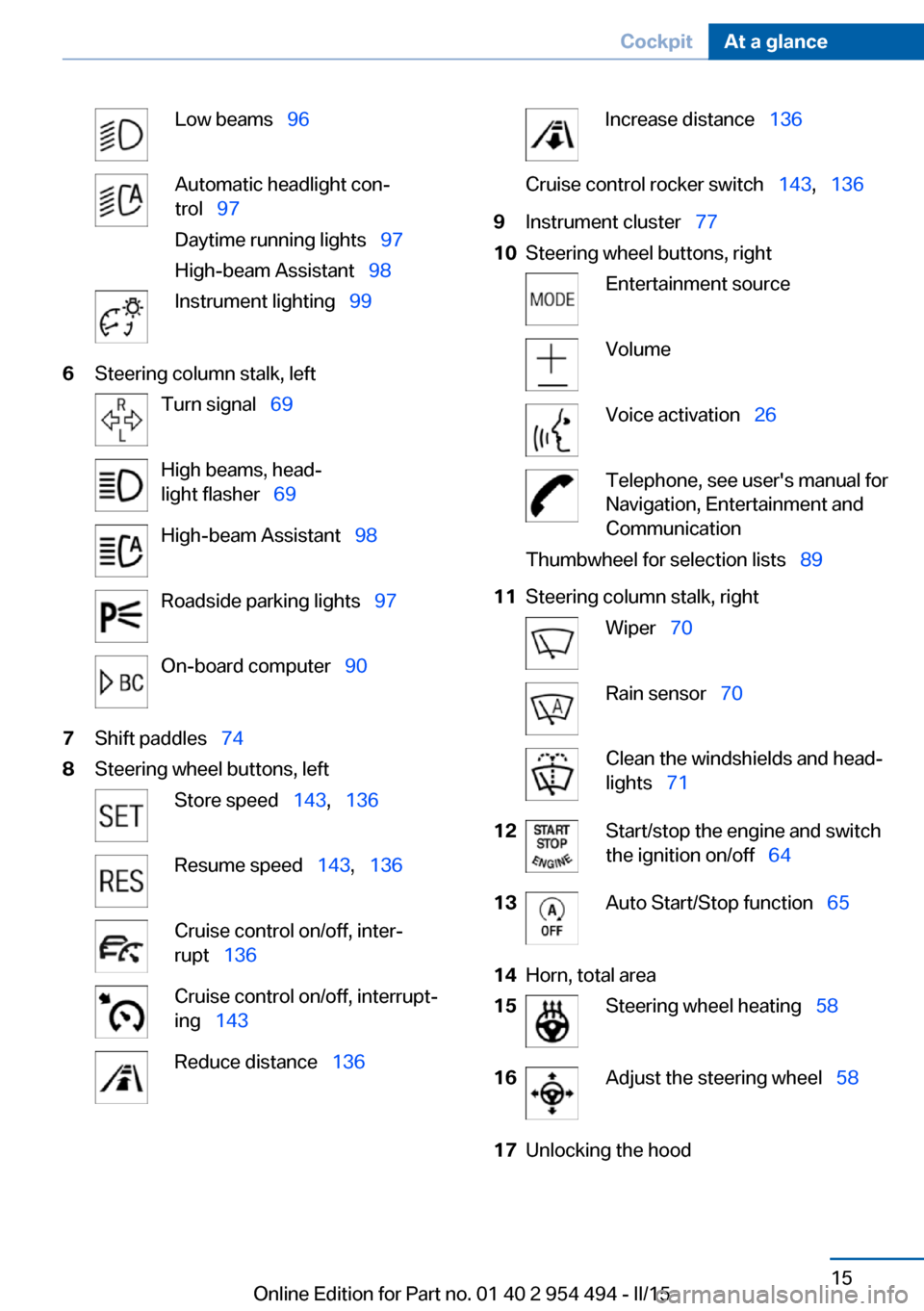
Low beams 96Automatic headlight con‐
trol 97
Daytime running lights 97
High-beam Assistant 98Instrument lighting 996Steering column stalk, leftTurn signal 69High beams, head‐
light flasher 69High-beam Assistant 98Roadside parking lights 97On-board computer 907Shift paddles 748Steering wheel buttons, leftStore speed 143, 136Resume speed 143, 136Cruise control on/off, inter‐
rupt 136Cruise control on/off, interrupt‐
ing 143Reduce distance 136Increase distance 136Cruise control rocker switch 143, 1369Instrument cluster 7710Steering wheel buttons, rightEntertainment sourceVolumeVoice activation 26Telephone, see user's manual for
Navigation, Entertainment and
CommunicationThumbwheel for selection lists 8911Steering column stalk, rightWiper 70Rain sensor 70Clean the windshields and head‐
lights 7112Start/stop the engine and switch
the ignition on/off 6413Auto Start/Stop function 6514Horn, total area15Steering wheel heating 5816Adjust the steering wheel 5817Unlocking the hoodSeite 15CockpitAt a glance15
Online Edition for Part no. 01 40 2 954 494 - II/15
Page 28 of 251
Deleting personal in the
vehicle
The concept
Depending on the usage, the vehicle saves
personal data, such as stored radio stations.
These personal data can be permanently de‐
leted through iDrive.
General information
Depending on the equipment package, the fol‐
lowing data can be deleted:▷Personal Profile settings.▷Stored radio stations.▷Stored Favorites buttons.▷Travel and computer information.▷Music collection.▷Navigation, e.g. stored destinations.▷Phone book.▷Online data, e.g. Favorites, cookies.▷Voice notes.▷Login accounts.▷RemoteApp smartphone tethering.
Altogether, the deletion of the data can take up
to 30 minutes.
Functional requirement Data can only be deleted while stationary.
Deleting data Heed and follow the instructions on the Con‐
trol Display.
1.Switch on the ignition.2."Settings"3.Open "Options".4."Delete personal data"5."Continue"6."OK"Entering letters and numbers
General information
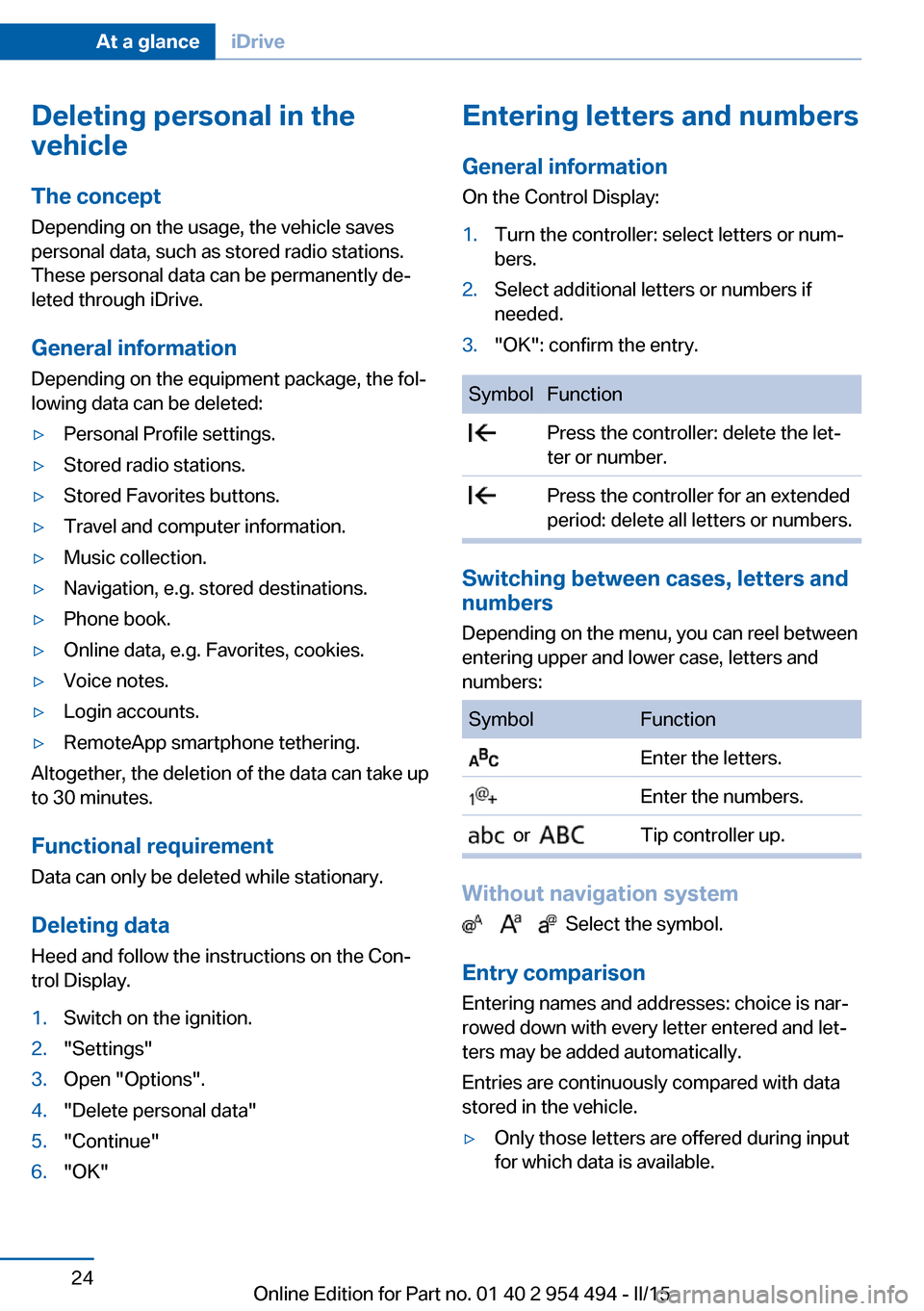
On the Control Display:1.Turn the controller: select letters or num‐
bers.2.Select additional letters or numbers if
needed.3."OK": confirm the entry.SymbolFunction Press the controller: delete the let‐
ter or number. Press the controller for an extended
period: delete all letters or numbers.
Switching between cases, letters and
numbers
Depending on the menu, you can reel between
entering upper and lower case, letters and
numbers:
SymbolFunction Enter the letters. Enter the numbers. or Tip controller up.
Without navigation system
Select the symbol.
Entry comparison Entering names and addresses: choice is nar‐
rowed down with every letter entered and let‐
ters may be added automatically.
Entries are continuously compared with data
stored in the vehicle.
▷Only those letters are offered during input
for which data is available.Seite 24At a glanceiDrive24
Online Edition for Part no. 01 40 2 954 494 - II/15
Page 81 of 251
DisplaysVehicle features and optionsThis chapter describes all standard, country-
specific and optional features offered with the
series. It also describes features that are not
necessarily available in your car, e. g., due tothe selected options or country versions. This
also applies to safety-related functions and
systems. The respectively applicable country
provisions must be observed when using the
respective features and systems.
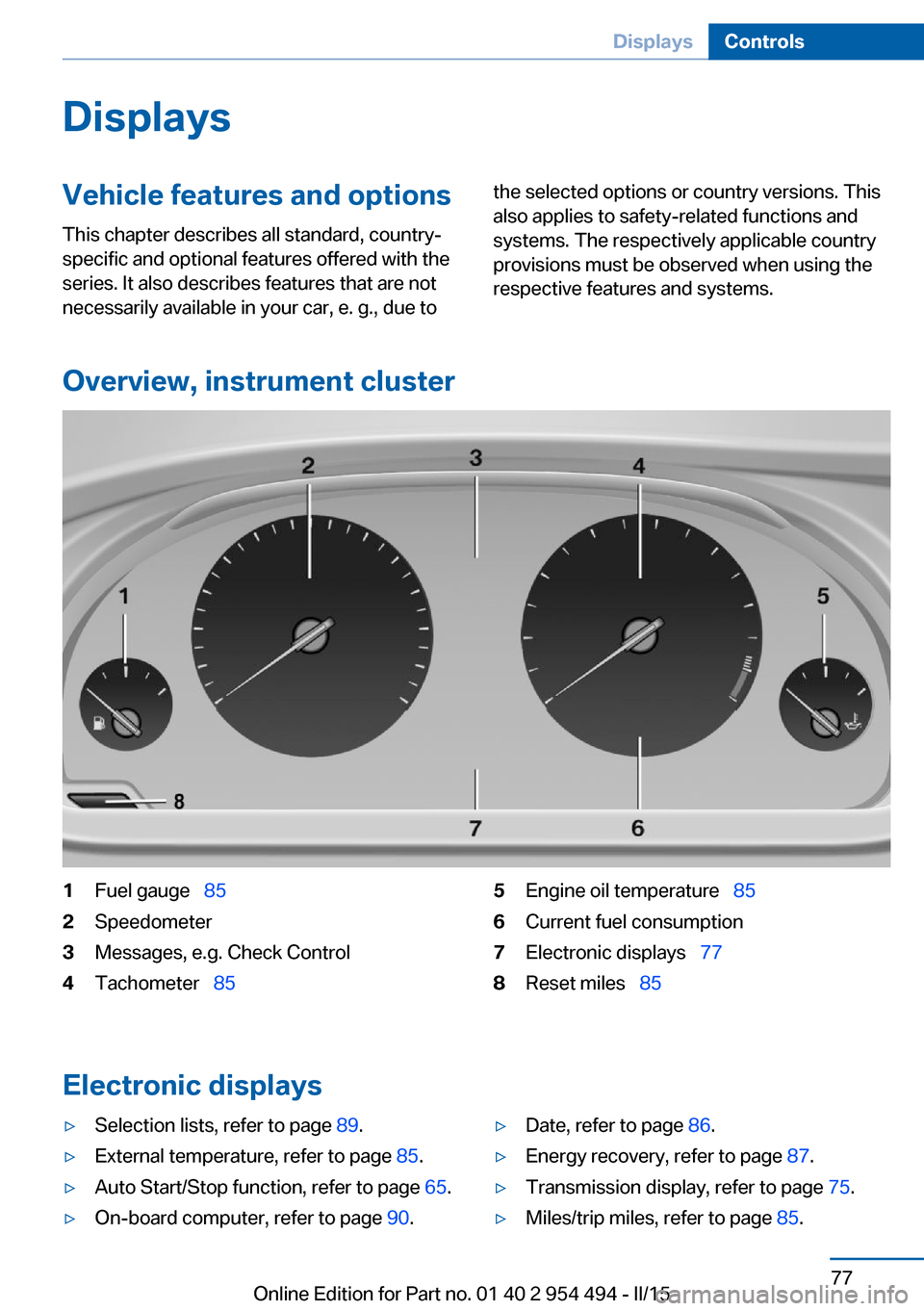
Overview, instrument cluster
1Fuel gauge 852Speedometer3Messages, e.g. Check Control4Tachometer 855Engine oil temperature 856Current fuel consumption7Electronic displays 778Reset miles 85
Electronic displays
▷Selection lists, refer to page 89.▷External temperature, refer to page 85.▷Auto Start/Stop function, refer to page 65.▷On-board computer, refer to page 90.▷Date, refer to page 86.▷Energy recovery, refer to page 87.▷Transmission display, refer to page 75.▷Miles/trip miles, refer to page 85.Seite 77DisplaysControls77
Online Edition for Part no. 01 40 2 954 494 - II/15
Page 83 of 251
7Computer 908Reset miles 85
Switching the change of display on and off
You can set whether the instrument display
automatically changes to the ECO PRO or
SPORT in the display when you switch driving
modes.1."Settings"2."Instrument cluster"3."ECO PRO Info"
Or"Driving mode view"
With Professional Navigation System:
switching zoom function on/off
You can program whether the current speed is
to appear enlarged in the speedometer.
On the Control Display:1."Settings"2."Instrument cluster"3."Magnifier function"
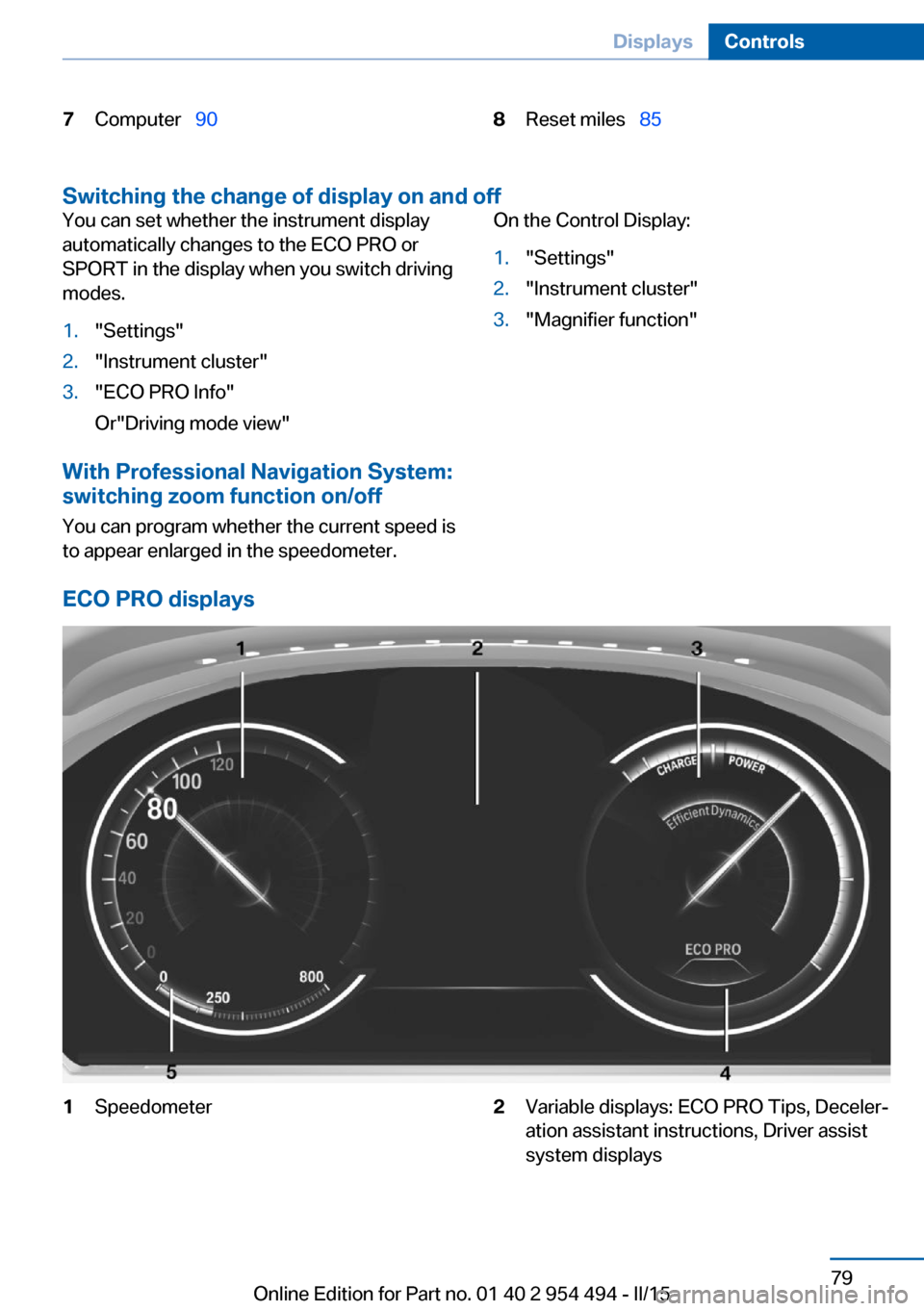
ECO PRO displays
1Speedometer2Variable displays: ECO PRO Tips, Deceler‐
ation assistant instructions, Driver assist
system displaysSeite 79DisplaysControls79
Online Edition for Part no. 01 40 2 954 494 - II/15
Page 88 of 251
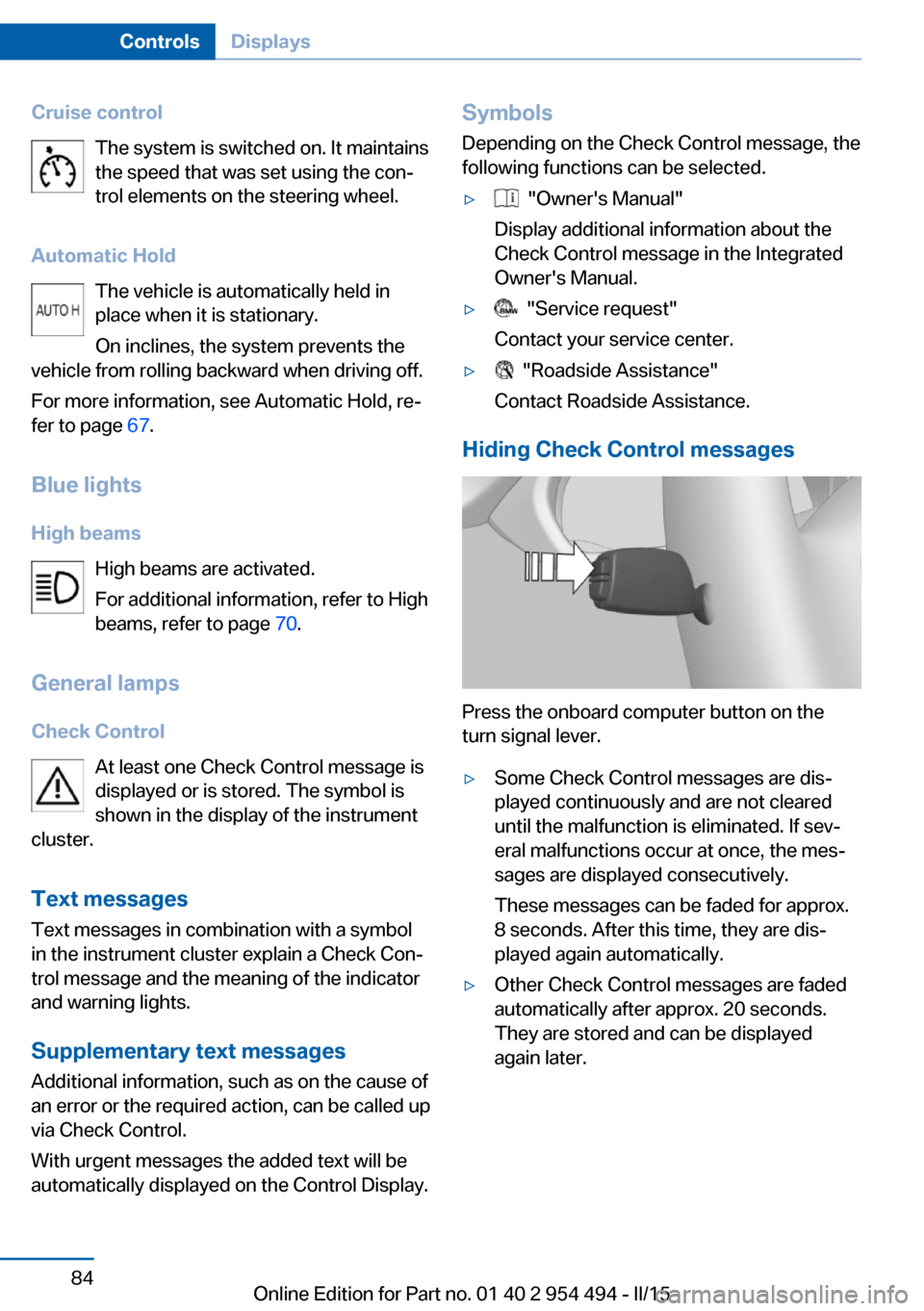
Cruise controlThe system is switched on. It maintains
the speed that was set using the con‐
trol elements on the steering wheel.
Automatic Hold The vehicle is automatically held in
place when it is stationary.
On inclines, the system prevents the
vehicle from rolling backward when driving off.
For more information, see Automatic Hold, re‐
fer to page 67.
Blue lights
High beams High beams are activated.
For additional information, refer to High
beams, refer to page 70.
General lamps
Check Control At least one Check Control message is
displayed or is stored. The symbol is
shown in the display of the instrument
cluster.
Text messagesText messages in combination with a symbol
in the instrument cluster explain a Check Con‐
trol message and the meaning of the indicator
and warning lights.
Supplementary text messages
Additional information, such as on the cause of
an error or the required action, can be called up
via Check Control.
With urgent messages the added text will be
automatically displayed on the Control Display.Symbols
Depending on the Check Control message, the
following functions can be selected.▷ "Owner's Manual"
Display additional information about the
Check Control message in the Integrated
Owner's Manual.▷ "Service request"
Contact your service center.▷ "Roadside Assistance"
Contact Roadside Assistance.
Hiding Check Control messages
Press the onboard computer button on the
turn signal lever.
▷Some Check Control messages are dis‐
played continuously and are not cleared
until the malfunction is eliminated. If sev‐
eral malfunctions occur at once, the mes‐
sages are displayed consecutively.
These messages can be faded for approx.
8 seconds. After this time, they are dis‐
played again automatically.▷Other Check Control messages are faded
automatically after approx. 20 seconds.
They are stored and can be displayed
again later.Seite 84ControlsDisplays84
Online Edition for Part no. 01 40 2 954 494 - II/15
Page 90 of 251
Therefore, drive carefully on bridges and
shaded roads, e.g., to avoid the increased risk
of an accident.◀
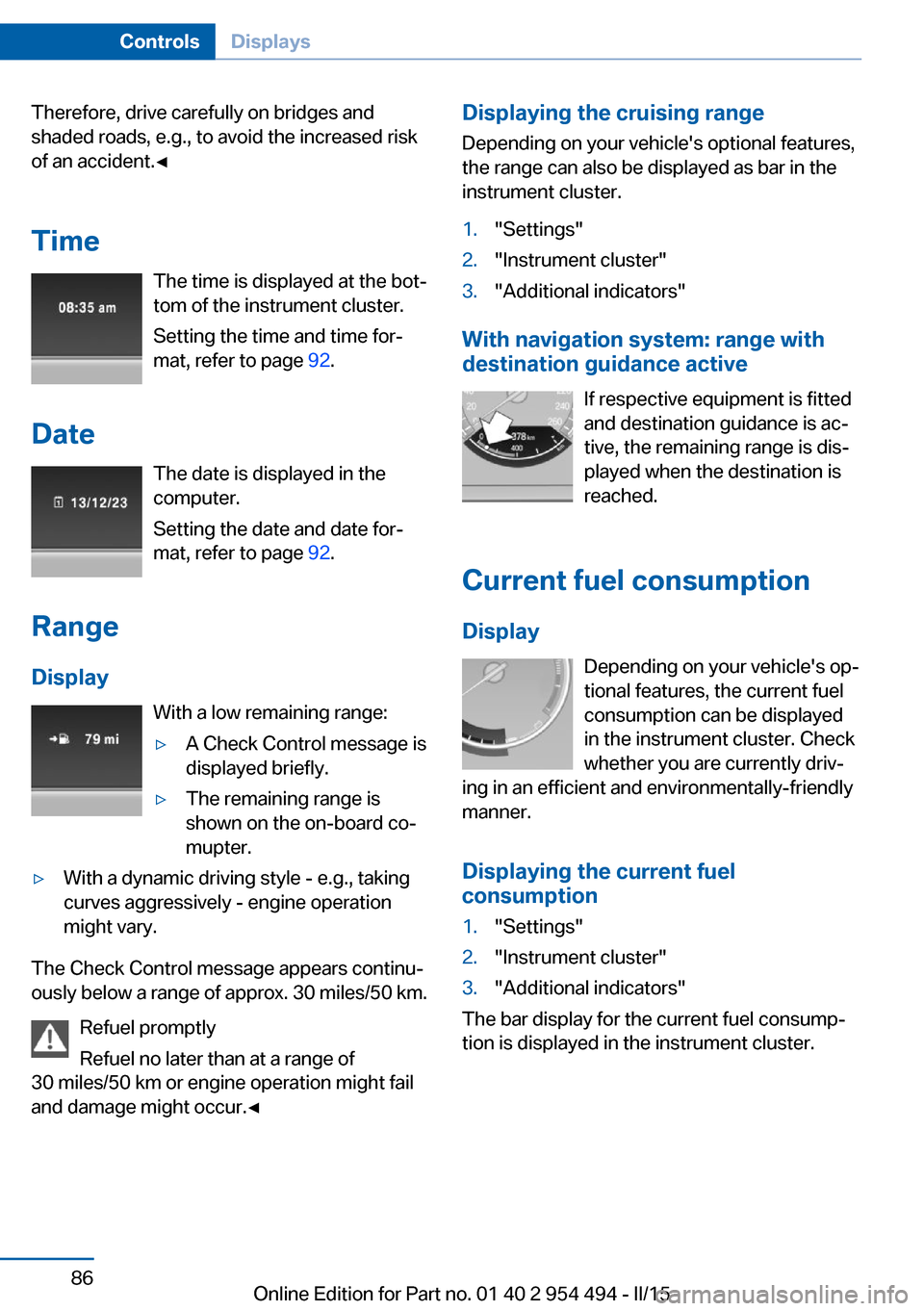
Time The time is displayed at the bot‐
tom of the instrument cluster.
Setting the time and time for‐
mat, refer to page 92.
Date The date is displayed in the
computer.
Setting the date and date for‐
mat, refer to page 92.
Range
Display With a low remaining range:▷A Check Control message is
displayed briefly.▷The remaining range is
shown on the on-board co‐
mupter.▷With a dynamic driving style - e.g., taking
curves aggressively - engine operation
might vary.
The Check Control message appears continu‐
ously below a range of approx. 30 miles/50 km.
Refuel promptly
Refuel no later than at a range of
30 miles/50 km or engine operation might fail
and damage might occur.◀
Displaying the cruising range
Depending on your vehicle's optional features,
the range can also be displayed as bar in the
instrument cluster.1."Settings"2."Instrument cluster"3."Additional indicators"
With navigation system: range with destination guidance active
If respective equipment is fitted
and destination guidance is ac‐
tive, the remaining range is dis‐ played when the destination is
reached.
Current fuel consumption
Display Depending on your vehicle's op‐
tional features, the current fuel
consumption can be displayed
in the instrument cluster. Check
whether you are currently driv‐
ing in an efficient and environmentally-friendly
manner.
Displaying the current fuel
consumption
1."Settings"2."Instrument cluster"3."Additional indicators"
The bar display for the current fuel consump‐
tion is displayed in the instrument cluster.
Seite 86ControlsDisplays86
Online Edition for Part no. 01 40 2 954 494 - II/15
Page 92 of 251
Gear shift indicatorThe conceptThe system recommends the most fuel effi‐
cient gear for the current driving situation.
Depending on the vehicle's features and coun‐
try version of the vehicle, the gear shift indica‐
tor is active in the manual mode of the Step‐
tronic transmission and with manual
transmission.
Suggestions to shift gear up or down are dis‐
played in the instrument cluster.
On vehicles without a gear shift indicator, the
engaged gear is displayed.
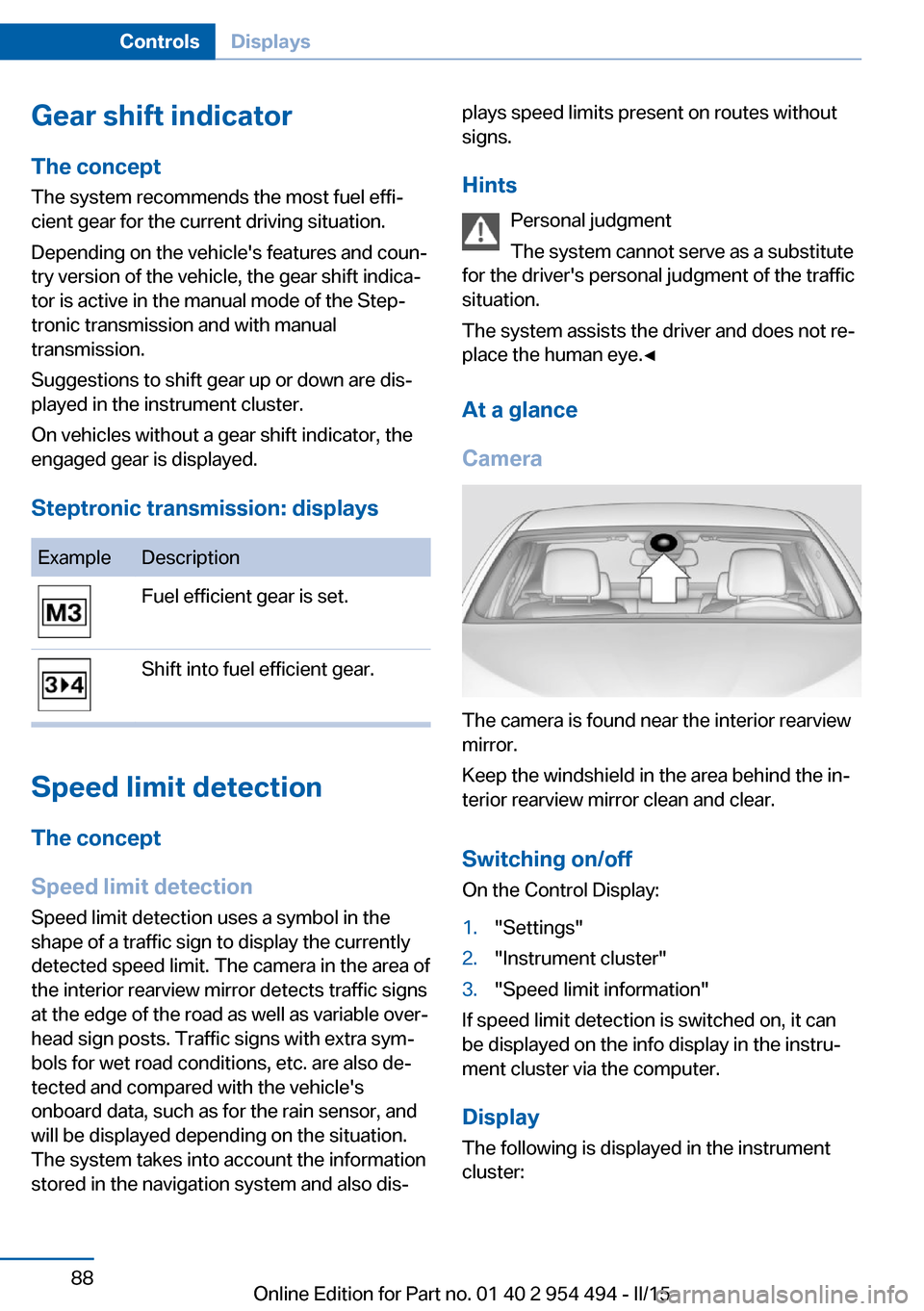
Steptronic transmission: displaysExampleDescriptionFuel efficient gear is set.Shift into fuel efficient gear.
Speed limit detection
The concept
Speed limit detection
Speed limit detection uses a symbol in the
shape of a traffic sign to display the currently
detected speed limit. The camera in the area of
the interior rearview mirror detects traffic signs
at the edge of the road as well as variable over‐
head sign posts. Traffic signs with extra sym‐
bols for wet road conditions, etc. are also de‐
tected and compared with the vehicle's
onboard data, such as for the rain sensor, and
will be displayed depending on the situation.
The system takes into account the information
stored in the navigation system and also dis‐
plays speed limits present on routes without
signs.
Hints Personal judgment
The system cannot serve as a substitute
for the driver's personal judgment of the traffic
situation.
The system assists the driver and does not re‐
place the human eye.◀
At a glance
Camera
The camera is found near the interior rearview
mirror.
Keep the windshield in the area behind the in‐
terior rearview mirror clean and clear.
Switching on/offOn the Control Display:
1."Settings"2."Instrument cluster"3."Speed limit information"
If speed limit detection is switched on, it can
be displayed on the info display in the instru‐
ment cluster via the computer.
Display The following is displayed in the instrument
cluster:
Seite 88ControlsDisplays88
Online Edition for Part no. 01 40 2 954 494 - II/15
Page 94 of 251
Using the thumbwheel, select the desired set‐
ting and confirm it by pushing the thumbwheel.
On-board computer
Indication in the info display The information from the com‐
puter is shown in the info display
in the instrument cluster.
Calling up information on the info
display
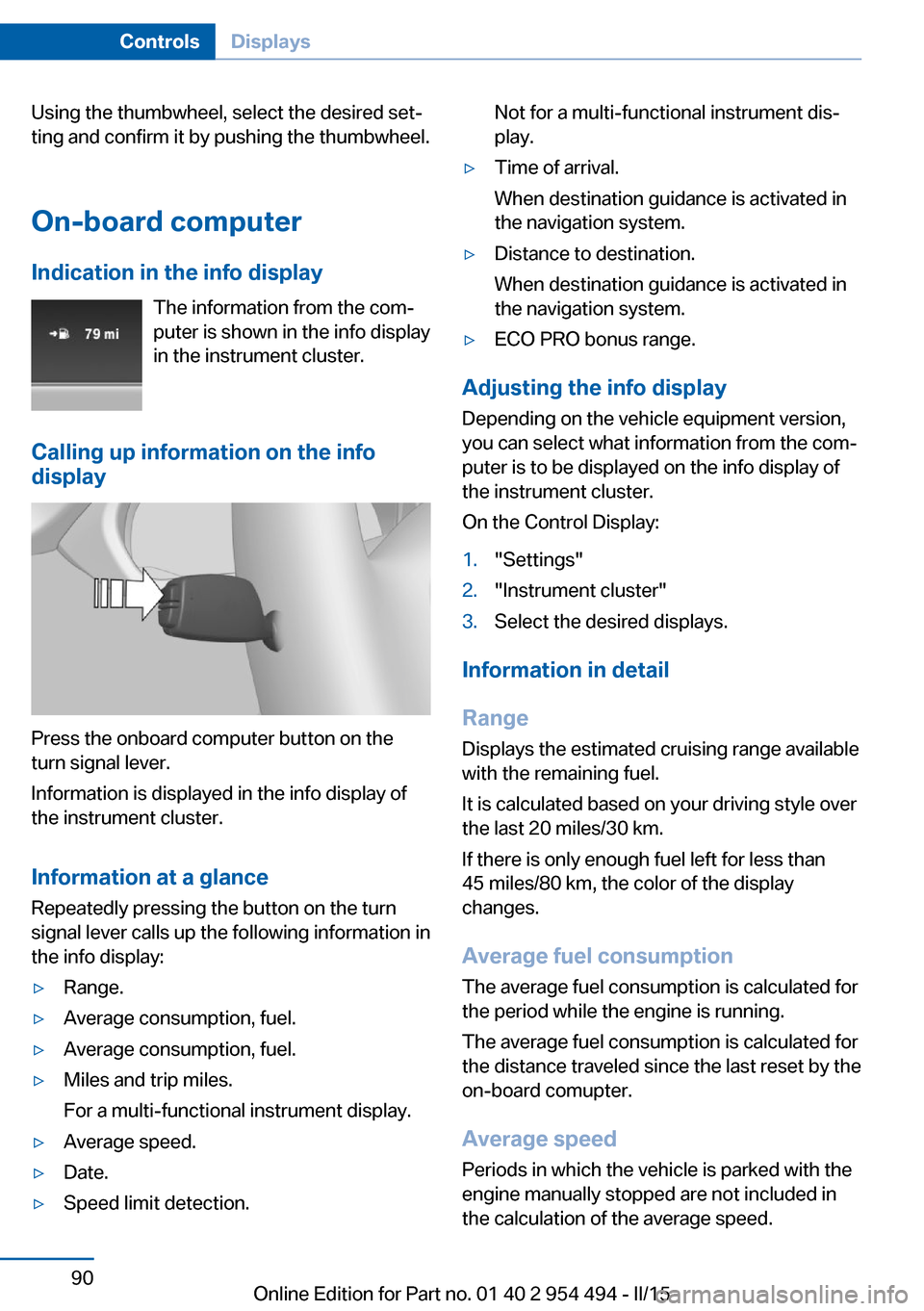
Press the onboard computer button on the
turn signal lever.
Information is displayed in the info display of
the instrument cluster.
Information at a glance
Repeatedly pressing the button on the turn
signal lever calls up the following information in
the info display:
▷Range.▷Average consumption, fuel.▷Average consumption, fuel.▷Miles and trip miles.
For a multi-functional instrument display.▷Average speed.▷Date.▷Speed limit detection.Not for a multi-functional instrument dis‐
play.▷Time of arrival.
When destination guidance is activated in
the navigation system.▷Distance to destination.
When destination guidance is activated in
the navigation system.▷ECO PRO bonus range.
Adjusting the info display
Depending on the vehicle equipment version,
you can select what information from the com‐
puter is to be displayed on the info display of
the instrument cluster.
On the Control Display:
1."Settings"2."Instrument cluster"3.Select the desired displays.
Information in detail
Range
Displays the estimated cruising range available
with the remaining fuel.
It is calculated based on your driving style over
the last 20 miles/30 km.
If there is only enough fuel left for less than
45 miles/80 km, the color of the display
changes.
Average fuel consumption
The average fuel consumption is calculated for
the period while the engine is running.
The average fuel consumption is calculated for
the distance traveled since the last reset by the
on-board comupter.
Average speed
Periods in which the vehicle is parked with the
engine manually stopped are not included in
the calculation of the average speed.
Seite 90ControlsDisplays90
Online Edition for Part no. 01 40 2 954 494 - II/15
Page 95 of 251
Resetting average values
Press and hold the onboard computer button
on the turn signal lever.
Distance to destination
The distance remaining to the destination is
displayed if a destination is entered in the navi‐
gation system before the trip is started.
The distance to the destination is adopted au‐
tomatically.
Time of arrival The estimated time of arrival is
displayed if a destination is en‐
tered in the navigation system
before the trip is started.
The time must be correctly set.
Speed limit detection Description of the speed limit detection, refer
to page 88, function.
Trip computer The vehicle features two types of board com‐
puters.▷"Onboard info": the values can be reset as
often as necessary.▷"Trip computer": the values provide an
overview of the current trip.
Resetting the trip computer
On the Control Display:
1."Vehicle info"2."Trip computer"3."Reset": all values are reset.
"Automatically reset": all values are reset
approx. 4 hours after the vehicle came to a
standstill.Display on the Control Display
Display the computer or trip computer on the
Control Display.1."Vehicle info"2."Onboard info" or "Trip computer"
Resetting the fuel consumption or
speed
On the Control Display:
1."Vehicle info"2."Onboard info"3."Consumpt." or "Speed"4."Yes"
Sport displays
The concept
On the Control Display, the current values for
performance and torque can be displayed if
the vehicle is appropriately equipped.
Displaying sport displays on the
Control Display
1."Vehicle info"2."Sport displays"
Speed warning
The concept Displays a speed, when reached, should cause
a warning to be issued.
The warning is repeated if the vehicle speed
drops below the set speed once by at least
3 mph/5 km/h.
Seite 91DisplaysControls91
Online Edition for Part no. 01 40 2 954 494 - II/15
Page 241 of 251
Blinds, sun protection 46
BMW Assist, see user's manual for Navigation, En‐
tertainment and Communi‐
cation
BMW Driver’s Guide App 6
BMW Homepage 6
BMW Internet page 6
BMW maintenance sys‐ tem 214
Bonus range, ECO PRO 181
Bottle holder, refer to Cu‐ pholder 171
Brake assistant 128
Brake assistant, adaptive 128
Brake discs, break-in 174
Brake force display 125
Brake lights, adaptive 125
Brake lights, brake force dis‐ play 125
Brake lights, bulb replace‐ ment 218
Brake pads, break-in 174
Braking, hints 175
Breakdown assistance 221
Break-in 174
Brightness of Control Dis‐ play 93
Bulb replacement, front 216
Bulb replacement, rear 218
Button, RES 139
Button, Start/Stop 63
Bypassing, refer to Jump- starting 223
C
California Proposition 65 Warning 7
Calling up mirror adjust‐ ment 43
Calling up seat adjust‐ ment 43
Calling up steering wheel ad‐ justment 43
Camera lenses, care 229 Camera, rearview cam‐
era 148
Camera, Side View 150
Camera, Top View 152
Can holder, refer to Cu‐ pholder 171
Car battery 219
Car care products 227
Care, displays 229
Care, vehicle 227
Cargo 177
Cargo area, storage compart‐ ments 171
Cargo, securing 178
Cargo straps, securing cargo 178
Car key, refer to Remote con‐ trol 34
Carpet, care 229
Car wash 226
Catalytic converter, refer to Hot exhaust system 174
CBS Condition Based Serv‐ ice 214
CD/Multimedia, see user's manual for Navigation, En‐
tertainment and Communi‐
cation
Center console 16
Central locking system 40
Central screen, refer to Con‐ trol Display 18
Changes, technical, refer to Safety 7
Changing parts 216
Changing wheels 219
Changing wheels/tires 200
Chassis number, see vehicle identification number 9
Check Control 81
Checking the engine oil level electronically 209
Checking the oil level elec‐ tronically 209
Children, seating position 59 Children, transporting
safely 59
Child restraint fixing sys‐ tem 59
Child restraint fixing system LATCH 61
Child restraint fixing systems, mounting 59
Child seat, mounting 59
Child seats 59
Chrome parts, care 228
Cigarette lighter 166
Cleaning displays 229
Climate control 157
Climate control laminated tinted safety glass 175
Climate control wind‐ shield 175
Clock 86
Closing/opening via door lock 39
Closing/opening with remote control 37
Clothes hooks 170
Coasting 183
Coasting with engine decou‐ pled, coasting 183
Coasting with idling en‐ gine 183
Combination reel, refer to Turn signals 69
Combination switch, refer to Wiper system 70
COMFORT+ program, Driving Dynamics Control 134
Comfort Access 41
COMFORT program, Driving Dynamics Control 134
Compressor 202
Computer, refer to On-board computer 90
Condensation on win‐ dows 158
Condensation under the vehi‐ cle 176 Seite 237Everything from A to ZReference237
Online Edition for Part no. 01 40 2 954 494 - II/15