navigation BMW 6 SERIES GRAN COUPE 2017 User Guide
[x] Cancel search | Manufacturer: BMW, Model Year: 2017, Model line: 6 SERIES GRAN COUPE, Model: BMW 6 SERIES GRAN COUPE 2017Pages: 261, PDF Size: 5.24 MB
Page 82 of 261
▷Messages, e.g. Check Control, refer to
page 85.▷Current fuel consumption, refer to
page 90.▷Navigation display, see Owner's Manual for
Navigation, Entertainment and Communi‐
cation.▷Range, refer to page 90.▷Status, Driving Dynamics Control, refer to
page 137.▷Service requirements, refer to page 91.▷Speed limit detection, refer to page 92.▷Time, refer to page 90.
Multifunctional instrument display
The concept
The instrument display is a variable display. In
the event of a program change, the display
rendition adapts to the respective program
through the Driving Dynamics Control. The
change of the display type can be deactivated
via iDrive.Some of the displays in the instrument display
may differ from the way they are shown in this
Owner's Manual.
Overview
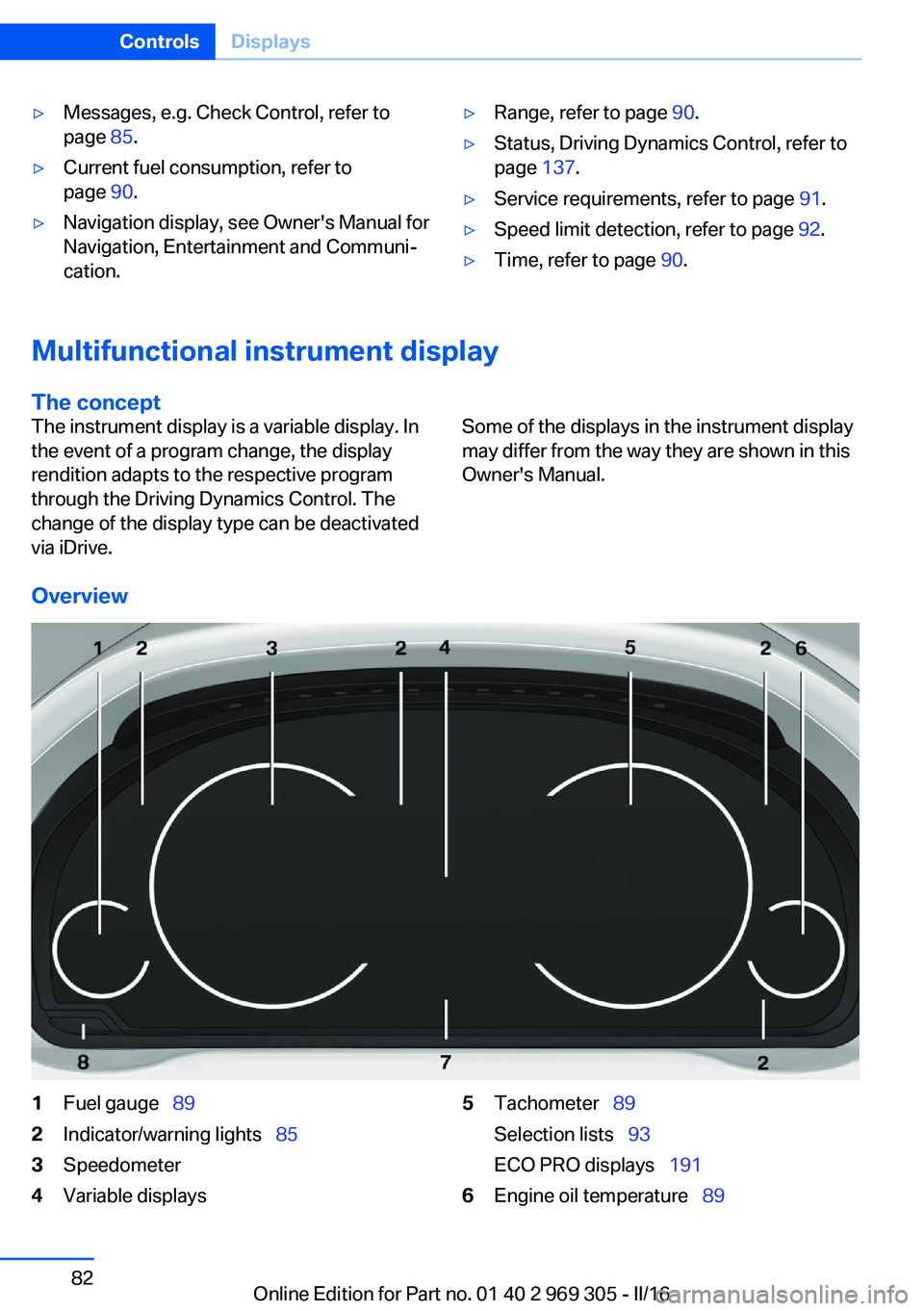
1Fuel gauge 892Indicator/warning lights 853Speedometer4Variable displays5Tachometer 89
Selection lists 93
ECO PRO displays 1916Engine oil temperature 89Seite 82ControlsDisplays82
Online Edition for Part no. 01 40 2 969 305 - II/16
Page 83 of 261
7Onboard computer 948Reset miles 89Switching the change of display on
and off
You can set whether the instrument display
automatically changes to the ECO PRO or
SPORT in the display when you switch driving
modes.
On the Control Display:1."Settings"2."Instrument cluster"3."ECO PRO Info"Or "Driving mode view"
With Professional Navigation System:
switching zoom function on/off
You can program whether the current speed is
to appear enlarged in the speedometer.
On the Control Display:
1."Settings"2."Instrument cluster"3."Magnifier function"
ECO PRO displays
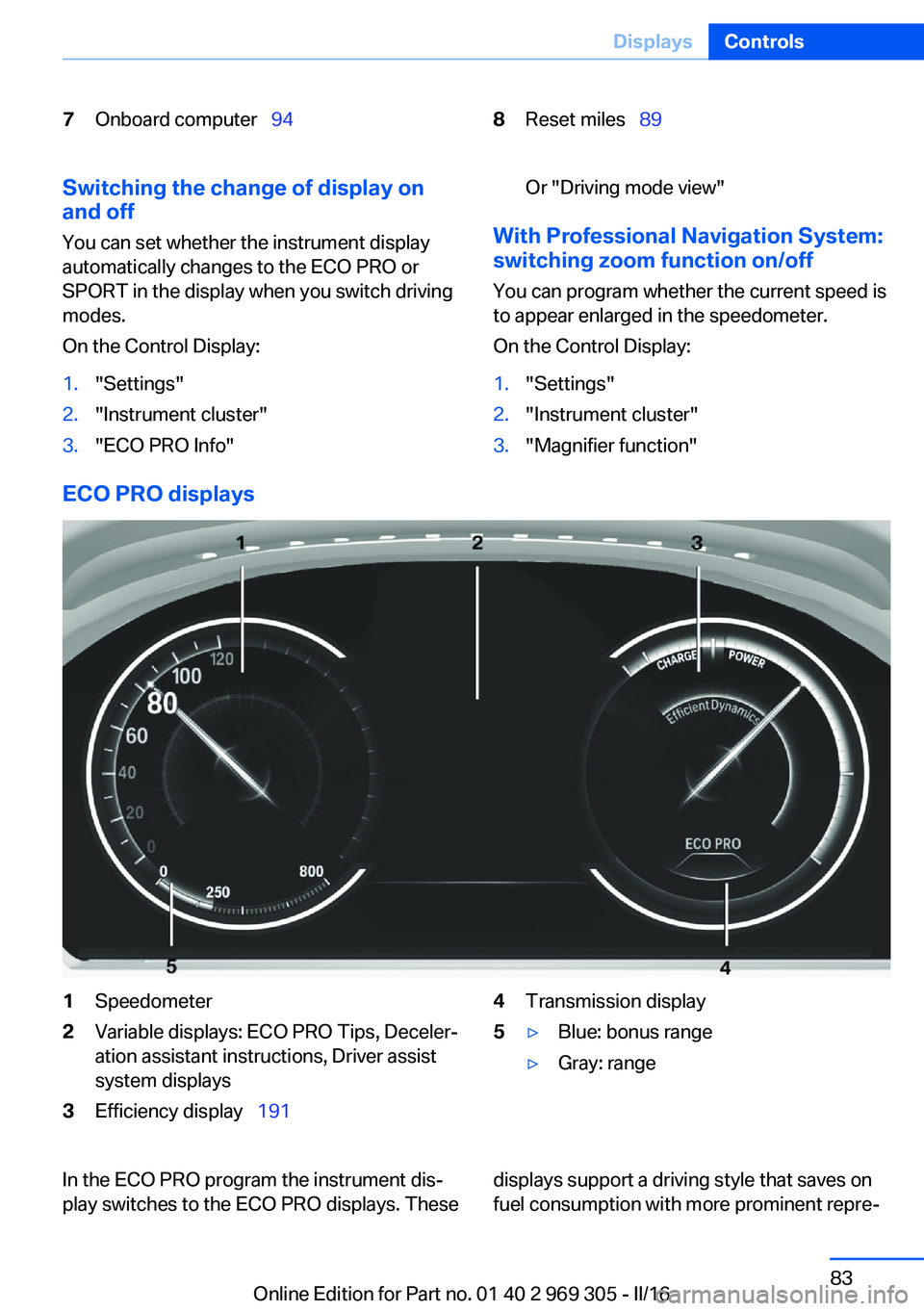
1Speedometer2Variable displays: ECO PRO Tips, Deceler‐
ation assistant instructions, Driver assist
system displays3Efficiency display 1914Transmission display5▷Blue: bonus range▷Gray: rangeIn the ECO PRO program the instrument dis‐
play switches to the ECO PRO displays. Thesedisplays support a driving style that saves on
fuel consumption with more prominent repre‐Seite 83DisplaysControls83
Online Edition for Part no. 01 40 2 969 305 - II/16
Page 90 of 261
WARNING
Even at temperatures above +37 ℉/+3 ℃
there can be a danger of icy roads, e.g., on
bridges or shady sections of road. There is risk
of an accident. Adjust your driving style to the
weather conditions at low temperatures.◀
Time The time is displayed at the bot‐
tom of the instrument cluster.
The time can be set on the Con‐
trol Display.
Date The date is displayed in the on‐
board computer.
The date and date format can be
set on the Control Display.
Range Display With a low remaining range:▷A Check Control message is
displayed briefly.▷The remaining range is
shown on the onboard com‐
puter.▷With a dynamic driving style, for example
taking curves aggressively, the engine
function is not always ensured.
The Check Control message appears continu‐
ously below a range of approx. 30 miles/50 km.
ATTENTION
With a range of less than 30 miles/50 km
it is possible that the engine will no longer have
sufficient fuel. Engine functions are not en‐
sured anymore. There is a risk of damage to
property. Refuel promptly.◀
Displaying the cruising range Depending on your vehicle's optional features,
the range can also be displayed as bar in the
instrument cluster.1."Settings"2."Instrument cluster"3."Additional indicators"
With navigation system: range with destination guidance active
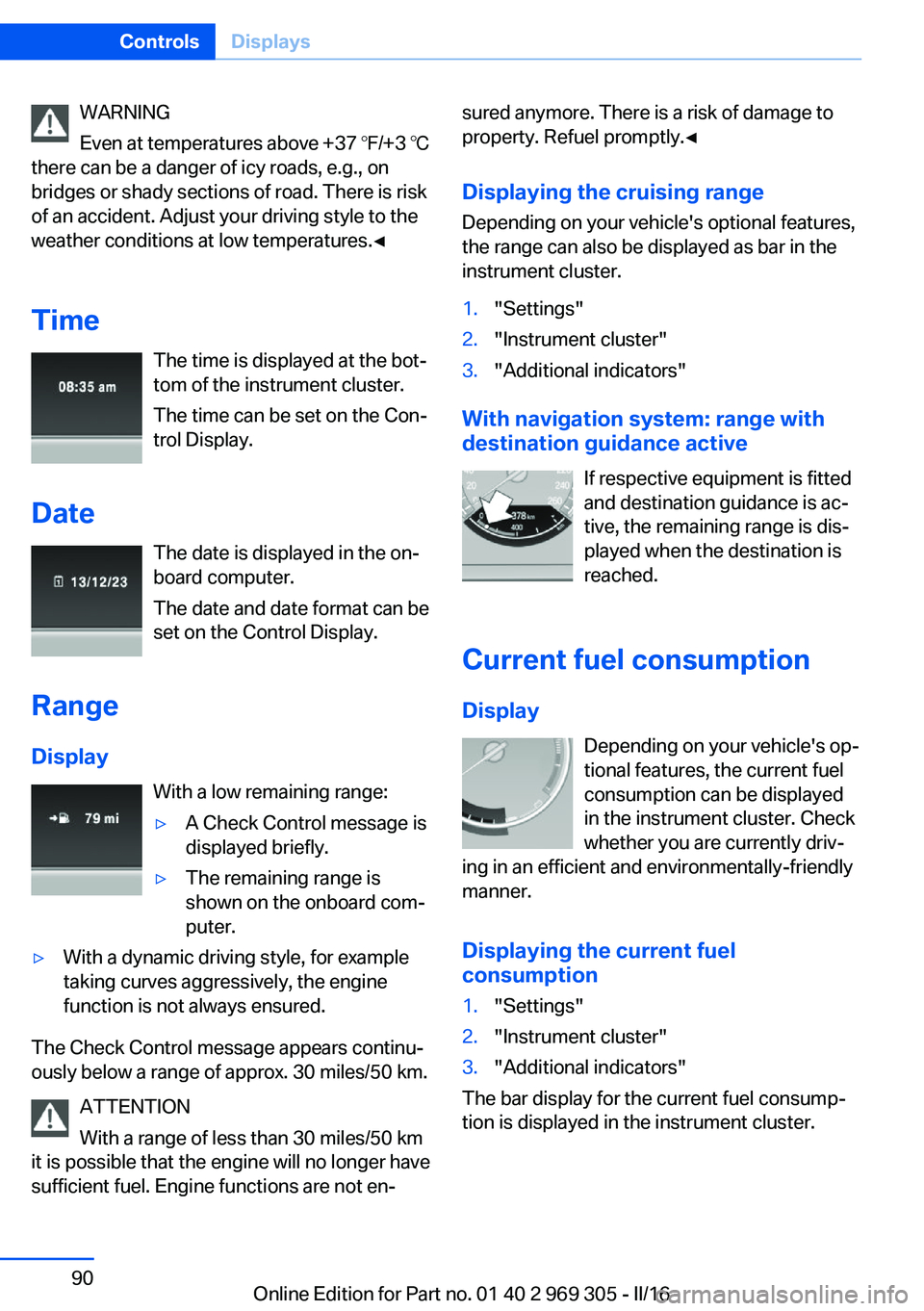
If respective equipment is fitted
and destination guidance is ac‐
tive, the remaining range is dis‐ played when the destination is
reached.
Current fuel consumption
Display Depending on your vehicle's op‐
tional features, the current fuel
consumption can be displayed
in the instrument cluster. Check
whether you are currently driv‐
ing in an efficient and environmentally-friendly
manner.
Displaying the current fuel
consumption
1."Settings"2."Instrument cluster"3."Additional indicators"
The bar display for the current fuel consump‐
tion is displayed in the instrument cluster.
Seite 90ControlsDisplays90
Online Edition for Part no. 01 40 2 969 305 - II/16
Page 92 of 261
Gear shift indicatorThe conceptThe system recommends the most fuel effi‐
cient gear for the current driving situation.
General information
Depending on the vehicle's features and coun‐
try version of the vehicle, the gear shift indica‐
tor is active in the manual mode of the Step‐
tronic transmission.
Suggestions to shift gear up or down are dis‐
played in the instrument cluster.
On vehicles without a gear shift indicator, the
engaged gear is displayed.
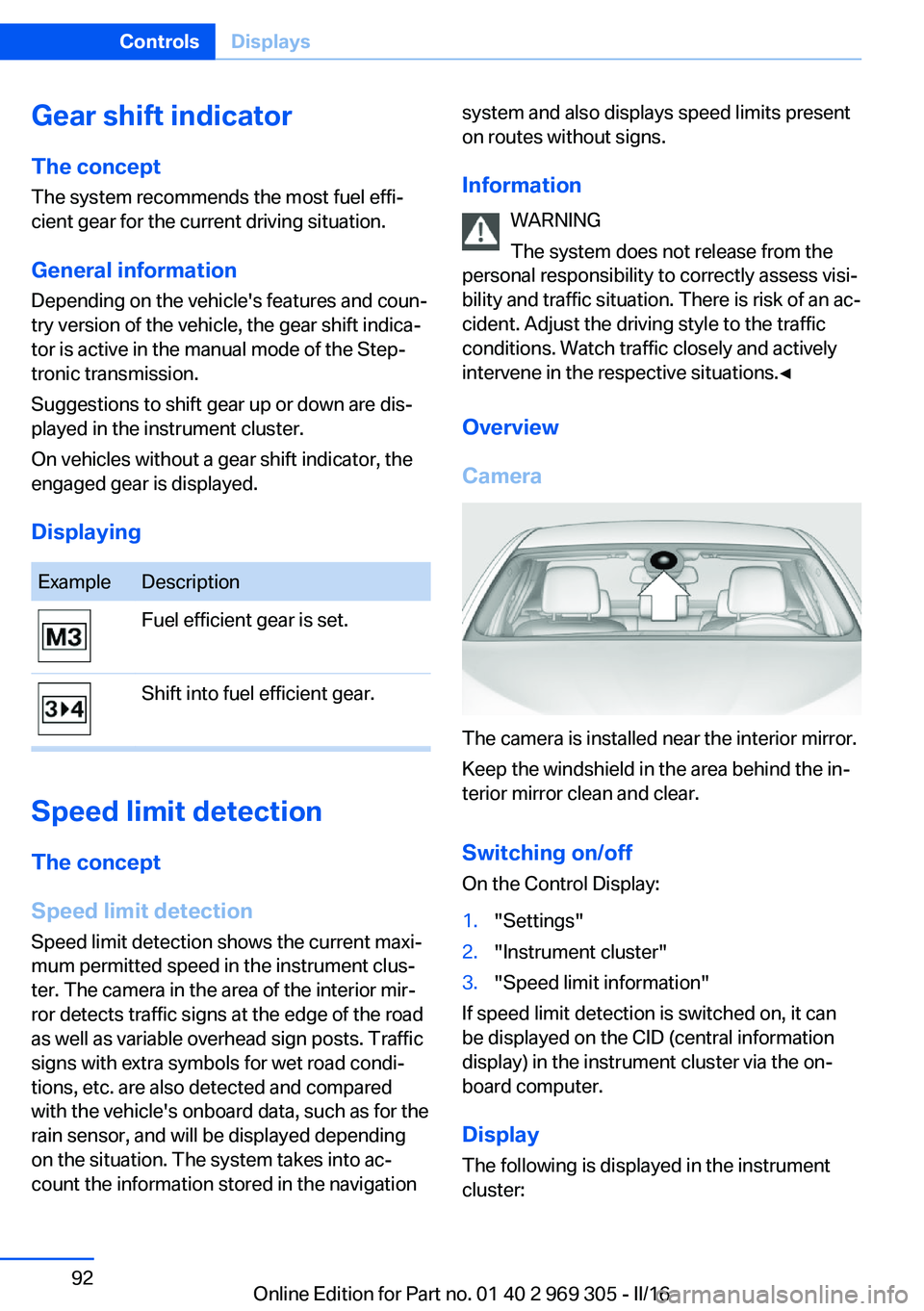
DisplayingExampleDescriptionFuel efficient gear is set.Shift into fuel efficient gear.
Speed limit detection
The concept
Speed limit detection
Speed limit detection shows the current maxi‐
mum permitted speed in the instrument clus‐
ter. The camera in the area of the interior mir‐
ror detects traffic signs at the edge of the road
as well as variable overhead sign posts. Traffic
signs with extra symbols for wet road condi‐
tions, etc. are also detected and compared
with the vehicle's onboard data, such as for the
rain sensor, and will be displayed depending
on the situation. The system takes into ac‐
count the information stored in the navigation
system and also displays speed limits present
on routes without signs.
Information WARNING
The system does not release from the
personal responsibility to correctly assess visi‐
bility and traffic situation. There is risk of an ac‐
cident. Adjust the driving style to the traffic
conditions. Watch traffic closely and actively
intervene in the respective situations.◀
Overview
Camera
The camera is installed near the interior mirror.
Keep the windshield in the area behind the in‐
terior mirror clean and clear.
Switching on/off On the Control Display:
1."Settings"2."Instrument cluster"3."Speed limit information"
If speed limit detection is switched on, it can
be displayed on the CID (central information
display) in the instrument cluster via the on‐
board computer.
Display
The following is displayed in the instrument
cluster:
Seite 92ControlsDisplays92
Online Edition for Part no. 01 40 2 969 305 - II/16
Page 93 of 261
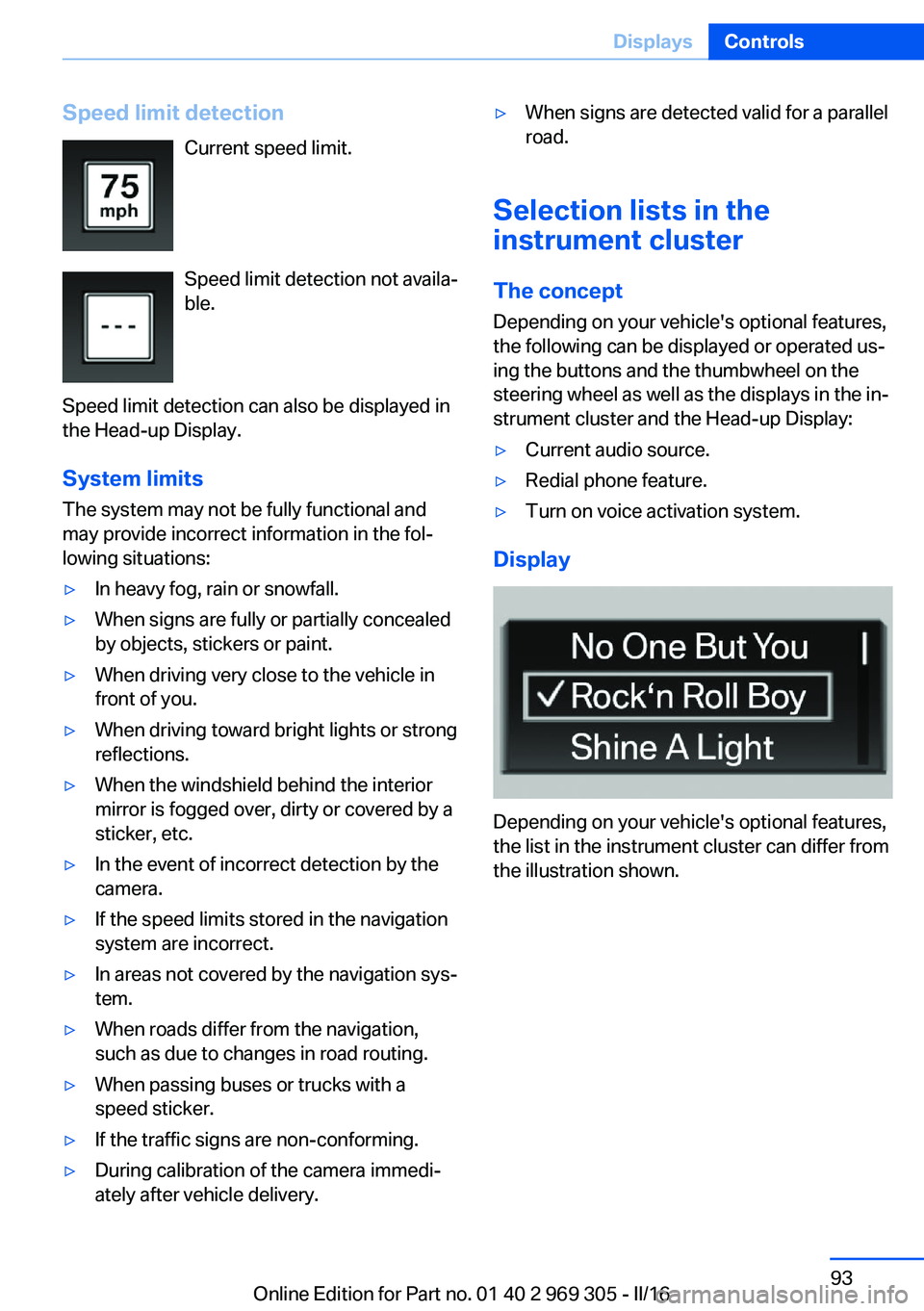
Speed limit detectionCurrent speed limit.
Speed limit detection not availa‐
ble.
Speed limit detection can also be displayed in
the Head-up Display.
System limits
The system may not be fully functional and
may provide incorrect information in the fol‐
lowing situations:▷In heavy fog, rain or snowfall.▷When signs are fully or partially concealed
by objects, stickers or paint.▷When driving very close to the vehicle in
front of you.▷When driving toward bright lights or strong
reflections.▷When the windshield behind the interior
mirror is fogged over, dirty or covered by a
sticker, etc.▷In the event of incorrect detection by the
camera.▷If the speed limits stored in the navigation
system are incorrect.▷In areas not covered by the navigation sys‐
tem.▷When roads differ from the navigation,
such as due to changes in road routing.▷When passing buses or trucks with a
speed sticker.▷If the traffic signs are non-conforming.▷During calibration of the camera immedi‐
ately after vehicle delivery.▷When signs are detected valid for a parallel
road.
Selection lists in the
instrument cluster
The concept Depending on your vehicle's optional features,
the following can be displayed or operated us‐
ing the buttons and the thumbwheel on the
steering wheel as well as the displays in the in‐
strument cluster and the Head-up Display:
▷Current audio source.▷Redial phone feature.▷Turn on voice activation system.
Display
Depending on your vehicle's optional features,
the list in the instrument cluster can differ from
the illustration shown.
Seite 93DisplaysControls93
Online Edition for Part no. 01 40 2 969 305 - II/16
Page 94 of 261
Activating a list and adjusting the
setting
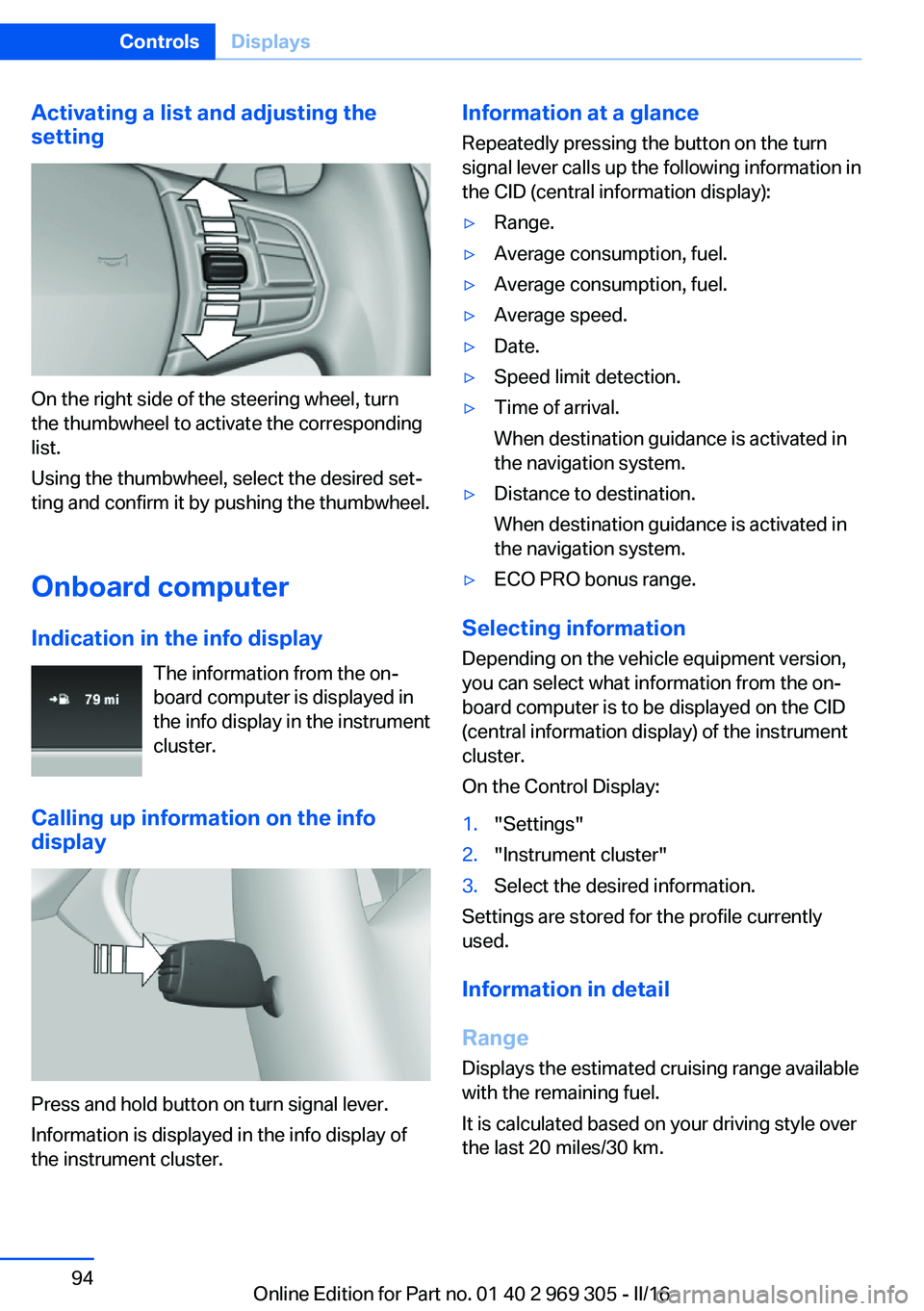
On the right side of the steering wheel, turn
the thumbwheel to activate the corresponding
list.
Using the thumbwheel, select the desired set‐
ting and confirm it by pushing the thumbwheel.
Onboard computer
Indication in the info display The information from the on‐
board computer is displayed in
the info display in the instrument
cluster.
Calling up information on the info
display
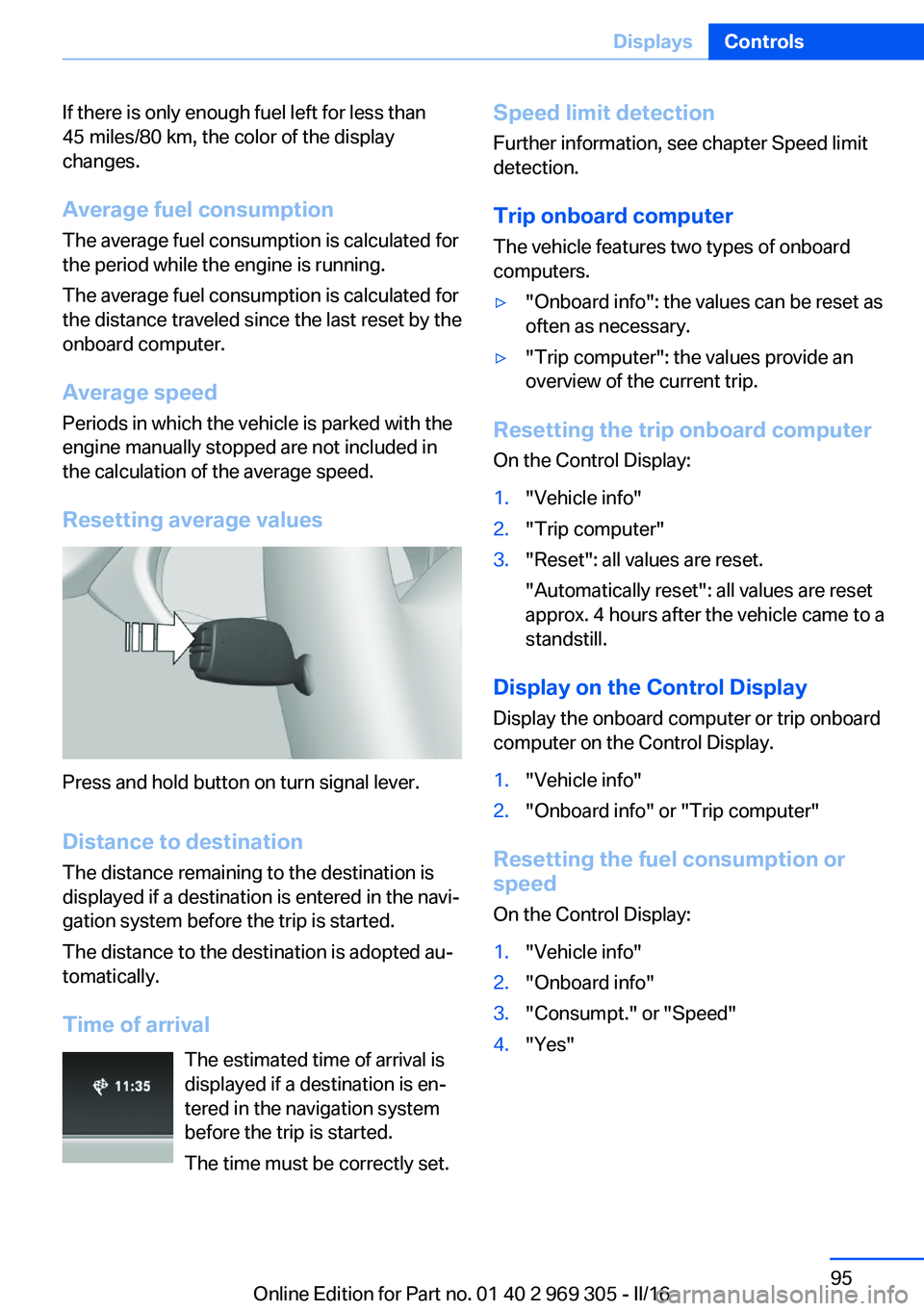
Press and hold button on turn signal lever.
Information is displayed in the info display of
the instrument cluster.
Information at a glance
Repeatedly pressing the button on the turn
signal lever calls up the following information in
the CID (central information display):▷Range.▷Average consumption, fuel.▷Average consumption, fuel.▷Average speed.▷Date.▷Speed limit detection.▷Time of arrival.
When destination guidance is activated in
the navigation system.▷Distance to destination.
When destination guidance is activated in
the navigation system.▷ECO PRO bonus range.
Selecting information
Depending on the vehicle equipment version,
you can select what information from the on‐
board computer is to be displayed on the CID
(central information display) of the instrument
cluster.
On the Control Display:
1."Settings"2."Instrument cluster"3.Select the desired information.
Settings are stored for the profile currently
used.
Information in detail
Range
Displays the estimated cruising range available
with the remaining fuel.
It is calculated based on your driving style over
the last 20 miles/30 km.
Seite 94ControlsDisplays94
Online Edition for Part no. 01 40 2 969 305 - II/16
Page 95 of 261
If there is only enough fuel left for less than
45 miles/80 km, the color of the display
changes.
Average fuel consumption
The average fuel consumption is calculated for
the period while the engine is running.
The average fuel consumption is calculated for
the distance traveled since the last reset by the
onboard computer.
Average speed
Periods in which the vehicle is parked with the
engine manually stopped are not included in
the calculation of the average speed.
Resetting average values
Press and hold button on turn signal lever.
Distance to destination
The distance remaining to the destination is
displayed if a destination is entered in the navi‐
gation system before the trip is started.
The distance to the destination is adopted au‐
tomatically.
Time of arrival The estimated time of arrival is
displayed if a destination is en‐
tered in the navigation system
before the trip is started.
The time must be correctly set.
Speed limit detection
Further information, see chapter Speed limit
detection.
Trip onboard computer
The vehicle features two types of onboard
computers.▷"Onboard info": the values can be reset as
often as necessary.▷"Trip computer": the values provide an
overview of the current trip.
Resetting the trip onboard computer
On the Control Display:
1."Vehicle info"2."Trip computer"3."Reset": all values are reset.
"Automatically reset": all values are reset
approx. 4 hours after the vehicle came to a
standstill.
Display on the Control Display
Display the onboard computer or trip onboard
computer on the Control Display.
1."Vehicle info"2."Onboard info" or "Trip computer"
Resetting the fuel consumption or
speed
On the Control Display:
1."Vehicle info"2."Onboard info"3."Consumpt." or "Speed"4."Yes"Seite 95DisplaysControls95
Online Edition for Part no. 01 40 2 969 305 - II/16
Page 98 of 261
2."GPS tracking"3."GPS tracking"
Head-up Display
The concept This system projects important information
into the driver's field of vision, e. g., the speed.
The driver can get information without averting
his or her eyes from the road.
Information Follow the instructions for cleaning the Head-
up Display, refer to page 242.
Overview
Display visibility
The visibility of the displays in the Head-up
Display is influenced by the following factors:
▷Certain sitting positions.▷Objects on the cover of the Head-up Dis‐
play.▷Sunglasses with certain polarization filters.▷Wet roads.▷Unfavorable light conditions.
If the image is distorted, have the basic set‐
tings checked by a dealer’s service center or
another qualified service center or repair shop.
Switching on/off
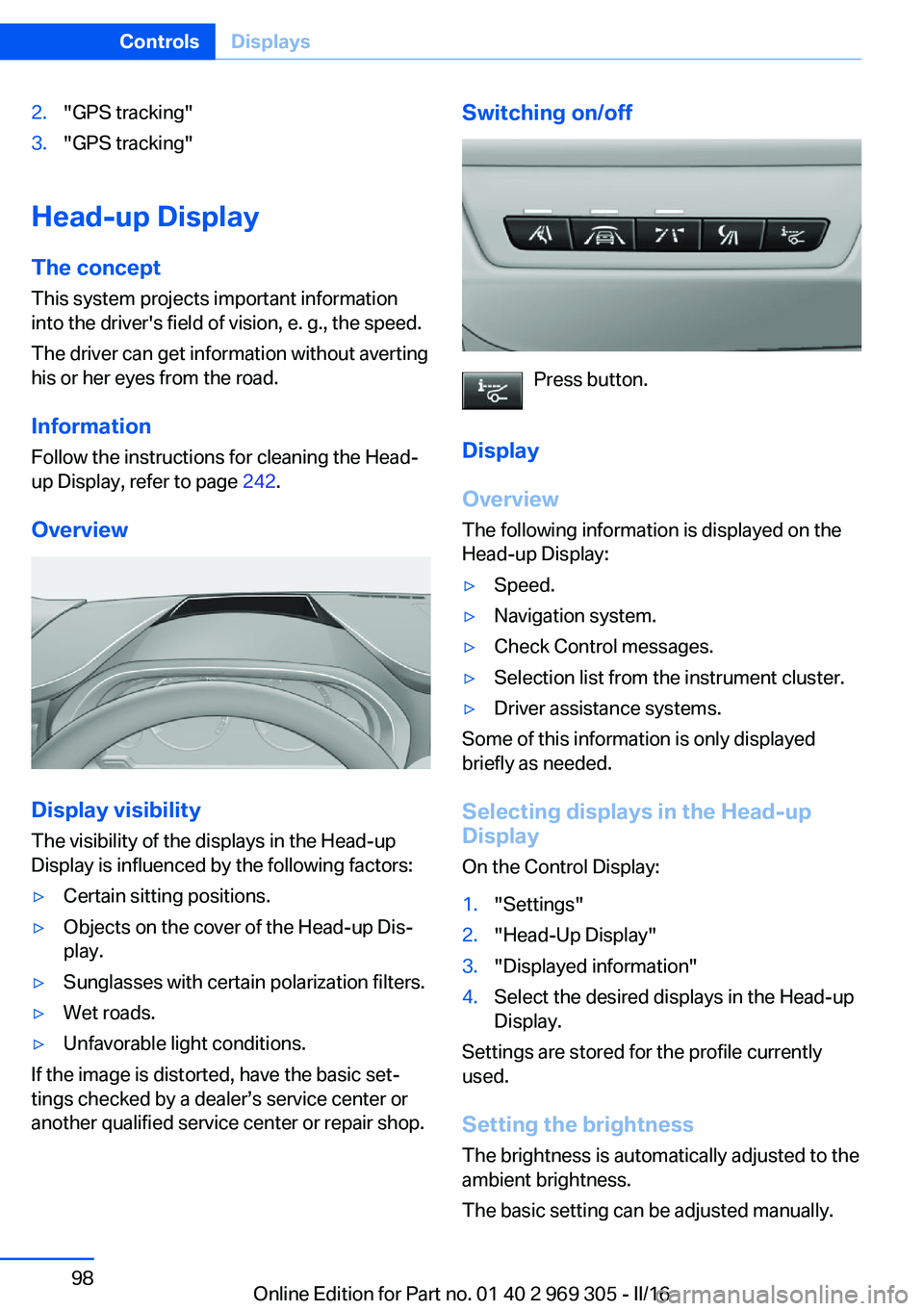
Press button.
Display
Overview
The following information is displayed on the
Head-up Display:
▷Speed.▷Navigation system.▷Check Control messages.▷Selection list from the instrument cluster.▷Driver assistance systems.
Some of this information is only displayed
briefly as needed.
Selecting displays in the Head-up
Display
On the Control Display:
1."Settings"2."Head-Up Display"3."Displayed information"4.Select the desired displays in the Head-up
Display.
Settings are stored for the profile currently
used.
Setting the brightness The brightness is automatically adjusted to the
ambient brightness.
The basic setting can be adjusted manually.
Seite 98ControlsDisplays98
Online Edition for Part no. 01 40 2 969 305 - II/16
Page 251 of 261
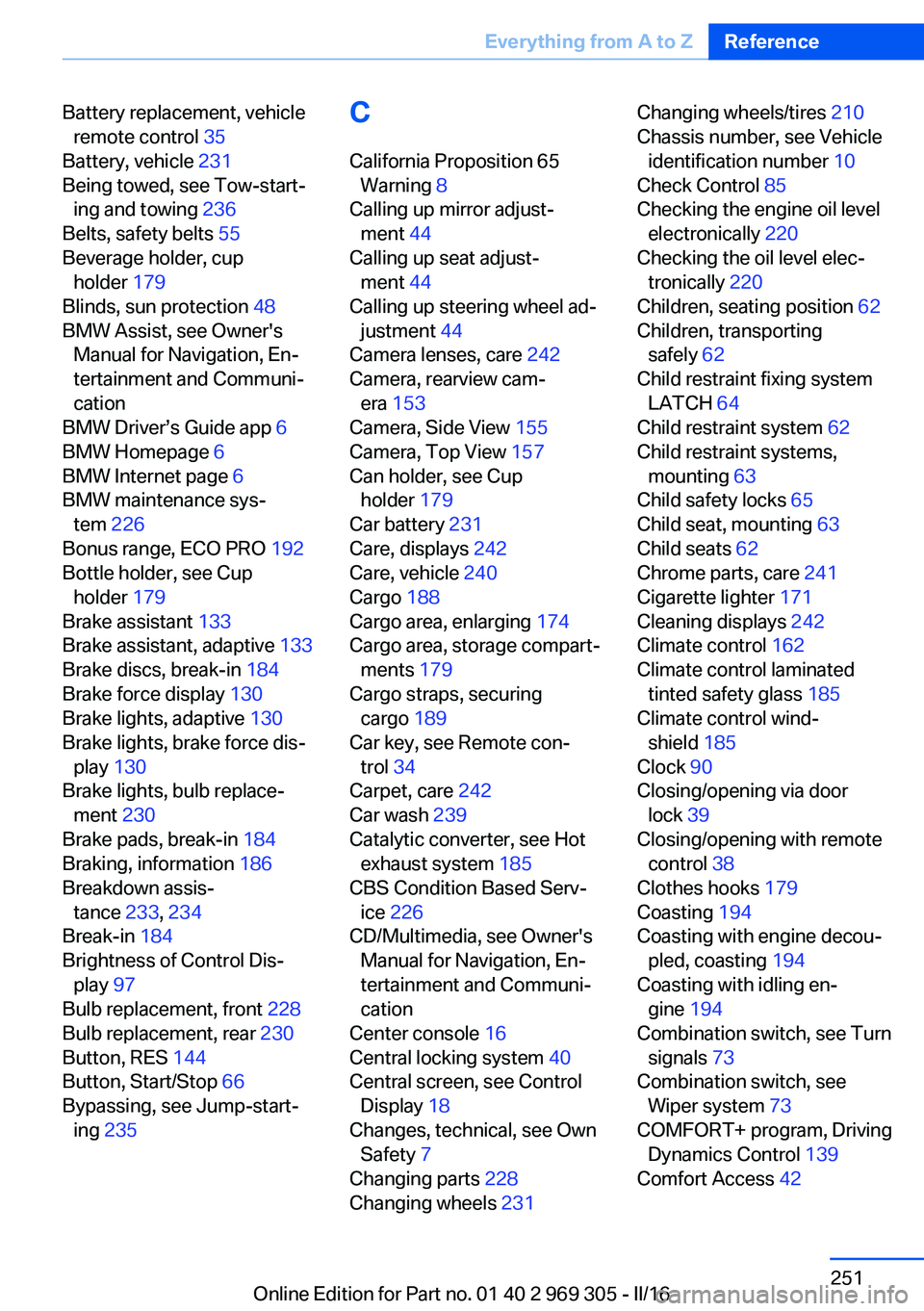
Battery replacement, vehicleremote control 35
Battery, vehicle 231
Being towed, see Tow-start‐ ing and towing 236
Belts, safety belts 55
Beverage holder, cup holder 179
Blinds, sun protection 48
BMW Assist, see Owner's Manual for Navigation, En‐
tertainment and Communi‐
cation
BMW Driver’s Guide app 6
BMW Homepage 6
BMW Internet page 6
BMW maintenance sys‐ tem 226
Bonus range, ECO PRO 192
Bottle holder, see Cup holder 179
Brake assistant 133
Brake assistant, adaptive 133
Brake discs, break-in 184
Brake force display 130
Brake lights, adaptive 130
Brake lights, brake force dis‐ play 130
Brake lights, bulb replace‐ ment 230
Brake pads, break-in 184
Braking, information 186
Breakdown assis‐ tance 233, 234
Break-in 184
Brightness of Control Dis‐ play 97
Bulb replacement, front 228
Bulb replacement, rear 230
Button, RES 144
Button, Start/Stop 66
Bypassing, see Jump-start‐ ing 235 C
California Proposition 65 Warning 8
Calling up mirror adjust‐ ment 44
Calling up seat adjust‐ ment 44
Calling up steering wheel ad‐ justment 44
Camera lenses, care 242
Camera, rearview cam‐ era 153
Camera, Side View 155
Camera, Top View 157
Can holder, see Cup holder 179
Car battery 231
Care, displays 242
Care, vehicle 240
Cargo 188
Cargo area, enlarging 174
Cargo area, storage compart‐ ments 179
Cargo straps, securing cargo 189
Car key, see Remote con‐ trol 34
Carpet, care 242
Car wash 239
Catalytic converter, see Hot exhaust system 185
CBS Condition Based Serv‐ ice 226
CD/Multimedia, see Owner's Manual for Navigation, En‐
tertainment and Communi‐
cation
Center console 16
Central locking system 40
Central screen, see Control Display 18
Changes, technical, see Own Safety 7
Changing parts 228
Changing wheels 231 Changing wheels/tires 210
Chassis number, see Vehicle identification number 10
Check Control 85
Checking the engine oil level electronically 220
Checking the oil level elec‐ tronically 220
Children, seating position 62
Children, transporting safely 62
Child restraint fixing system LATCH 64
Child restraint system 62
Child restraint systems, mounting 63
Child safety locks 65
Child seat, mounting 63
Child seats 62
Chrome parts, care 241
Cigarette lighter 171
Cleaning displays 242
Climate control 162
Climate control laminated tinted safety glass 185
Climate control wind‐ shield 185
Clock 90
Closing/opening via door lock 39
Closing/opening with remote control 38
Clothes hooks 179
Coasting 194
Coasting with engine decou‐ pled, coasting 194
Coasting with idling en‐ gine 194
Combination switch, see Turn signals 73
Combination switch, see Wiper system 73
COMFORT+ program, Driving Dynamics Control 139
Comfort Access 42 Seite 251Everything from A to ZReference251
Online Edition for Part no. 01 40 2 969 305 - II/16
Page 252 of 261
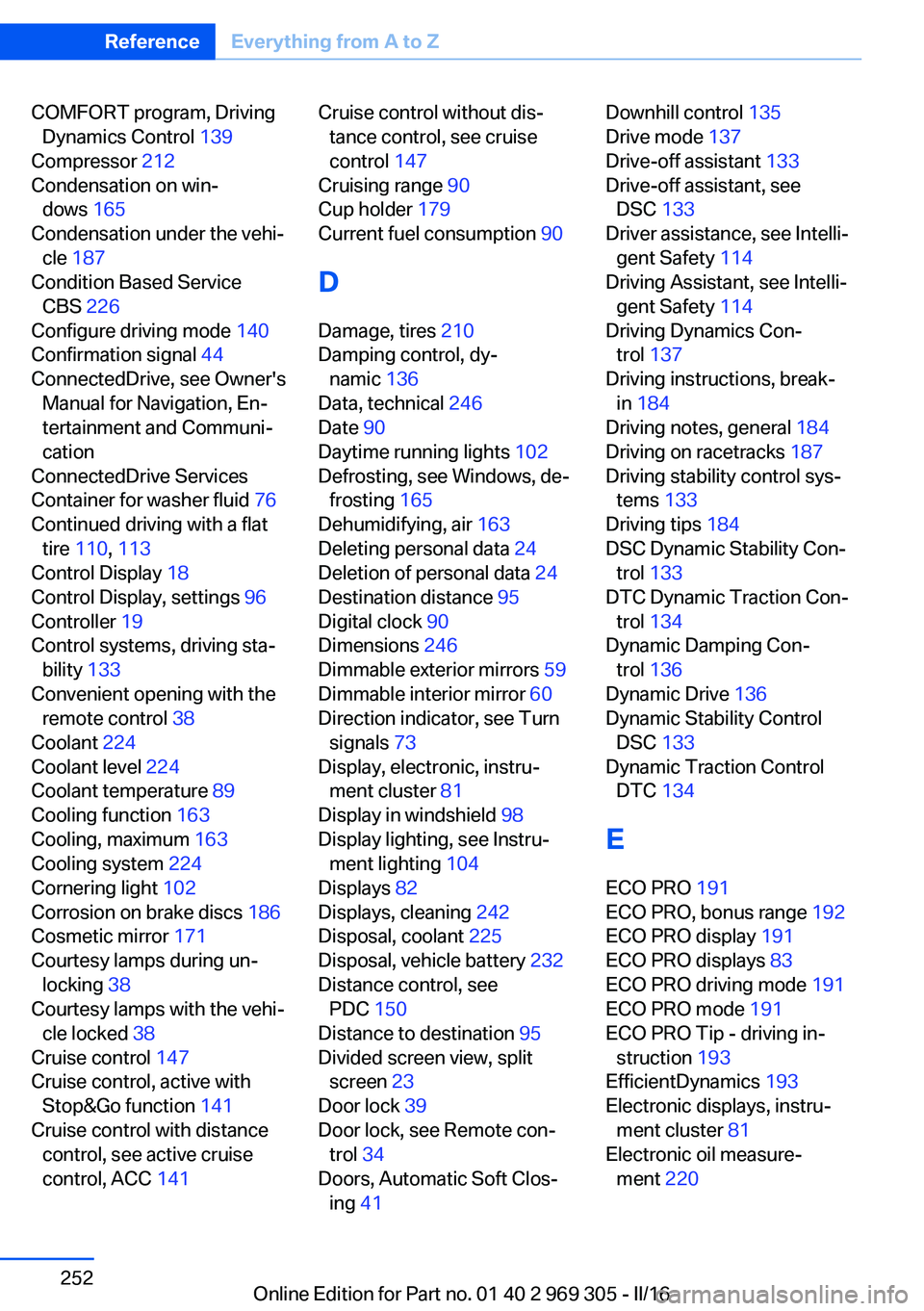
COMFORT program, DrivingDynamics Control 139
Compressor 212
Condensation on win‐ dows 165
Condensation under the vehi‐ cle 187
Condition Based Service CBS 226
Configure driving mode 140
Confirmation signal 44
ConnectedDrive, see Owner's Manual for Navigation, En‐
tertainment and Communi‐
cation
ConnectedDrive Services
Container for washer fluid 76
Continued driving with a flat tire 110 , 113
Control Display 18
Control Display, settings 96
Controller 19
Control systems, driving sta‐ bility 133
Convenient opening with the remote control 38
Coolant 224
Coolant level 224
Coolant temperature 89
Cooling function 163
Cooling, maximum 163
Cooling system 224
Cornering light 102
Corrosion on brake discs 186
Cosmetic mirror 171
Courtesy lamps during un‐ locking 38
Courtesy lamps with the vehi‐ cle locked 38
Cruise control 147
Cruise control, active with Stop&Go function 141
Cruise control with distance control, see active cruise
control, ACC 141 Cruise control without dis‐
tance control, see cruise
control 147
Cruising range 90
Cup holder 179
Current fuel consumption 90
D
Damage, tires 210
Damping control, dy‐ namic 136
Data, technical 246
Date 90
Daytime running lights 102
Defrosting, see Windows, de‐ frosting 165
Dehumidifying, air 163
Deleting personal data 24
Deletion of personal data 24
Destination distance 95
Digital clock 90
Dimensions 246
Dimmable exterior mirrors 59
Dimmable interior mirror 60
Direction indicator, see Turn signals 73
Display, electronic, instru‐ ment cluster 81
Display in windshield 98
Display lighting, see Instru‐ ment lighting 104
Displays 82
Displays, cleaning 242
Disposal, coolant 225
Disposal, vehicle battery 232
Distance control, see PDC 150
Distance to destination 95
Divided screen view, split screen 23
Door lock 39
Door lock, see Remote con‐ trol 34
Doors, Automatic Soft Clos‐ ing 41 Downhill control 135
Drive mode 137
Drive-off assistant 133
Drive-off assistant, see DSC 133
Driver assistance, see Intelli‐ gent Safety 114
Driving Assistant, see Intelli‐ gent Safety 114
Driving Dynamics Con‐ trol 137
Driving instructions, break- in 184
Driving notes, general 184
Driving on racetracks 187
Driving stability control sys‐ tems 133
Driving tips 184
DSC Dynamic Stability Con‐ trol 133
DTC Dynamic Traction Con‐ trol 134
Dynamic Damping Con‐ trol 136
Dynamic Drive 136
Dynamic Stability Control DSC 133
Dynamic Traction Control DTC 134
E
ECO PRO 191
ECO PRO, bonus range 192
ECO PRO display 191
ECO PRO displays 83
ECO PRO driving mode 191
ECO PRO mode 191
ECO PRO Tip - driving in‐ struction 193
EfficientDynamics 193
Electronic displays, instru‐ ment cluster 81
Electronic oil measure‐ ment 220 Seite 252ReferenceEverything from A to Z252
Online Edition for Part no. 01 40 2 969 305 - II/16