change time BMW 640I CONVERTIBLE 2012 Owner's Manual
[x] Cancel search | Manufacturer: BMW, Model Year: 2012, Model line: 640I CONVERTIBLE, Model: BMW 640I CONVERTIBLE 2012Pages: 282, PDF Size: 8.25 MB
Page 173 of 282
CD/multimedia
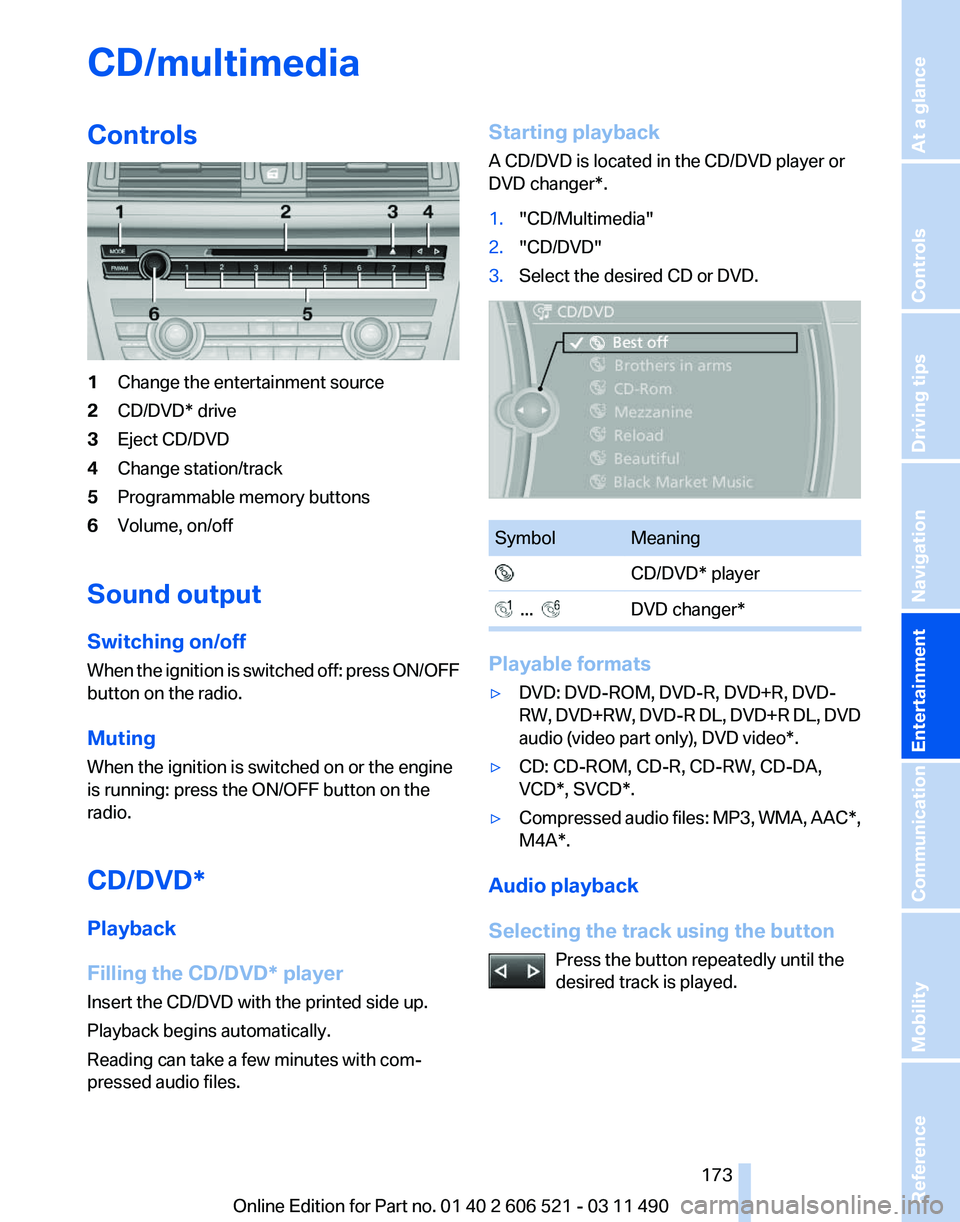
Controls
1
Change the entertainment source
2 CD/DVD* drive
3 Eject CD/DVD
4 Change station/track
5 Programmable memory buttons
6 Volume, on/off
Sound output
Switching on/off
When
the ignition is switched off: press ON/OFF
button on the radio.
Muting
When the ignition is switched on or the engine
is running: press the ON/OFF button on the
radio.
CD/DVD*
Playback
Filling the CD/DVD* player
Insert the CD/DVD with the printed side up.
Playback begins automatically.
Reading can take a few minutes with com‐
pressed audio files. Starting playback
A CD/DVD is located in the CD/DVD player or
DVD changer*.
1.
"CD/Multimedia"
2. "CD/DVD"
3. Select the desired CD or DVD. Symbol Meaning
CD/DVD* player ... DVD changer*
Playable formats
▷
DVD: DVD-ROM, DVD-R, DVD+R, DVD-
RW,
DVD+RW, DVD-R DL, DVD+R DL, DVD
audio (video part only), DVD video*.
▷ CD: CD-ROM, CD-R, CD-RW, CD-DA,
VCD*, SVCD*.
▷ Compressed audio files: MP3, WMA, AAC*,
M4A*.
Audio playback
Selecting the track using the button Press the button repeatedly until the
desired track is played. Seite 173
173Online Edition for Part no. 01 40 2 606 521 - 03 11 490
Reference Mobility Communication
Entertainment Navigation Driving tips Controls At a glance
Page 174 of 282

Selecting a track via iDrive
Audio CDs
Select the desired track to begin playback.
CDs/DVDs* with compressed audio files
Depending on the data, some letters and num‐
bers of the CD/DVD may not be displayed cor‐
rectly.
1.
Select the directory if necessary.
To change to a higher level directory: move
the controller to the left. 2.
Select the desired track to begin playback. Displaying information on the track
If information about a track has been stored, it is
displayed automatically:
▷
Interpret.
▷ Album track.
▷ Number of tracks on the CD/DVD*.
▷ File name of track.
Random playback
1. "CD/Multimedia"
2. "CD/DVD"
3. Select the desired CD or DVD*.
4. Open "Options".
5. "Random" CDs/DVDs* with compressed audio files: All
tracks in the selected directory are played in
random order.
Random mode is switched off when the audio
source is changed and the ignition is switched
off.
Fast forward/reverse
Press and hold the button. Seite 174
174 Online Edition for Part no. 01 40 2 606 521 - 03 11 490CD/multimedia
Page 176 of 282
2. "DVD menu"
The
DVD menu is displayed. The display de‐
pends on the contents of the DVD.
3. To select menu items: move the controller
and press it.
To change to the video menu: turn the controller
and press it.
DVD/VCD settings
For some DVDs, settings can only be made via
the DVD menu; refer also to the information on
the DVD.
Selecting the language
*
The languages that are available depend on the
DVD.
1. Turn the controller during playback.
2. Open "Options".
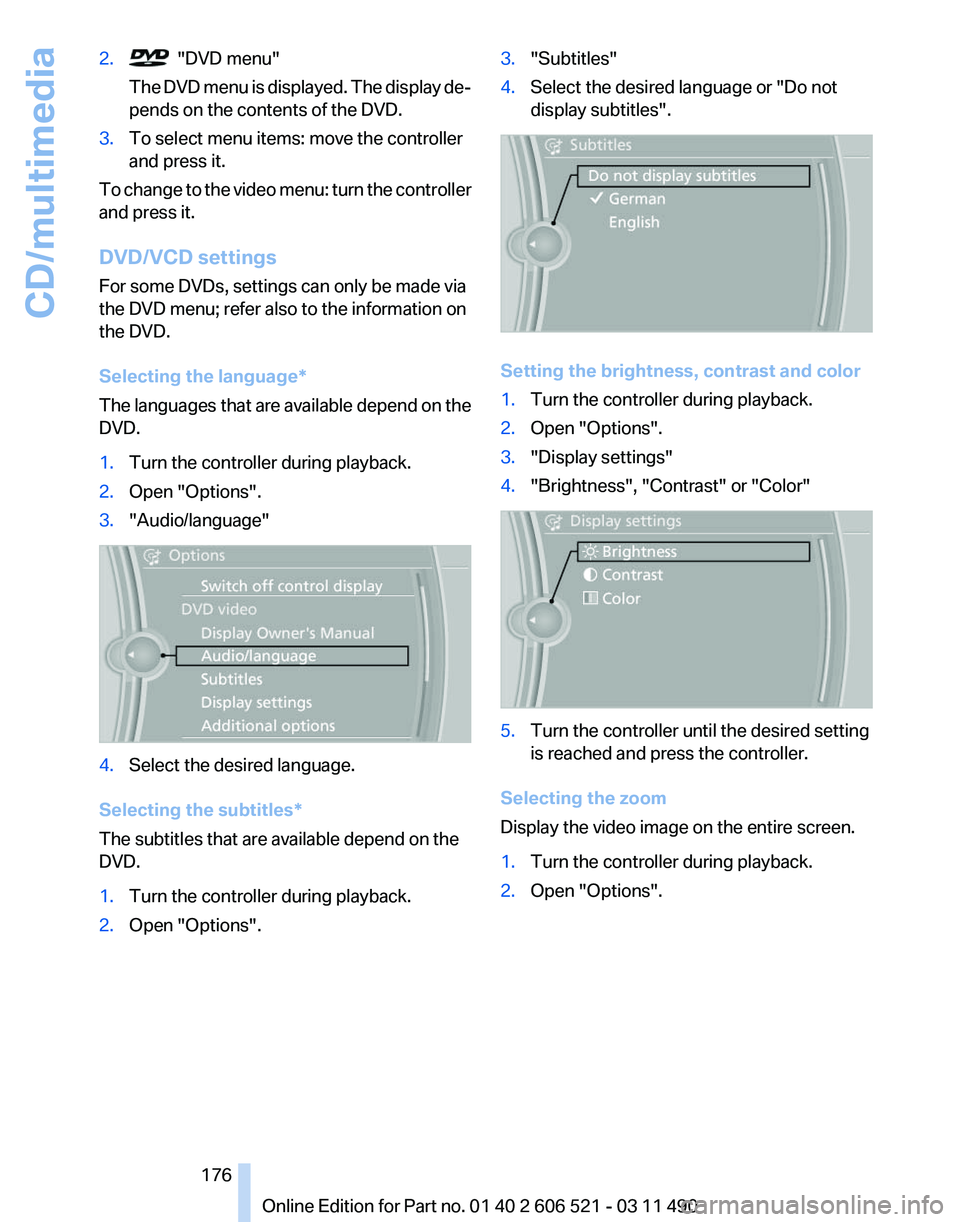
3. "Audio/language" 4.
Select the desired language.
Selecting the subtitles*
The subtitles that are available depend on the
DVD.
1. Turn the controller during playback.
2. Open "Options". 3.
"Subtitles"
4. Select the desired language or "Do not
display subtitles". Setting the brightness, contrast and color
1.
Turn the controller during playback.
2. Open "Options".
3. "Display settings"
4. "Brightness", "Contrast" or "Color" 5.
Turn the controller until the desired setting
is reached and press the controller.
Selecting the zoom
Display the video image on the entire screen.
1. Turn the controller during playback.
2. Open "Options".
Seite 176
176 Online Edition for Part no. 01 40 2 606 521 - 03 11 490
CD/multimedia
Page 178 of 282
Sliding in CDs/DVDs
Do not insert the CD/DVD until the LEDs
on
the DVD slot are flashing; otherwise, the CD/
DVD or the DVD changer could be damaged.
Do not continue to push on the CD/DVD; this
may cause it to jam and prevent it from being
able to eject again.◀
Filling all empty DVD compartments
1. Hold the button down.
The LEDs on the empty CD compartments
flash.
2. Wait for the LEDs on the DVD slot to begin
flashing
and then insert each CD or DVD into
the center of the slot.
The CDs/DVDs are drawn in automatically
and placed into the vacant compartments.
Sliding in CDs/DVDs
Do not insert the CD/DVD until the LEDs
on
the DVD slot are flashing; otherwise, the CD/
DVD or the DVD changer could be damaged.
Do not continue to push on the CD/DVD; this
may cause it to jam and prevent it from being
able to eject again.◀
After they are inserted, it may take several mi‐
nutes for the CDs/DVDs to be read in.
Removing a single CD/DVD
1. Press the button.
2. Select the DVD compartment.
The CD/DVD is partially ejected.
3. Remove the CD/DVD.
Removing all CDs/DVDs
1. Hold the button down.
2. Remove the CDs/DVDs.
Malfunctions
If
all LEDs on the DVD changer are flashing rap‐
idly, a malfunction has occurred. To eliminate the malfunction:
1.
Press one of the buttons:
▷ ▷
The CD/DVD last inserted is ejected.
2. Remove the CD/DVD.
The DVD changer is functional again after the
LEDs stop flashing rapidly.
Audio playback*
The audio track of a DVD can be played back
even if video playback is not possible in the ve‐
hicle.
Only
the main film without the previews or extras
can be played back.
Starting playback
A DVD is located in the DVD changer.
1. "CD/Multimedia"
2. "CD/DVD"
3. Select the desired DVD.
Selecting a chapter using the button Press the button repeatedly until the
desired chapter is played.
Selecting a chapter using iDrive
1. "CD/Multimedia"
2. "CD/DVD"
3. Select the desired DVD.
4. Select the desired chapter.
Fast forward/reverse Press and hold the button.
Selecting the language
*
The languages that are available depend on the
DVD. Seite 178
178 Online Edition for Part no. 01 40 2 606 521 - 03 11 490
CD/multimedia
Page 179 of 282
1.
"CD/Multimedia"
2. "CD/DVD"
3. Select the desired DVD.
4. Open "Options".
5. "Audio/language"
6. Select the desired language.
Notes
CD/DVD player and changer Do not remove the cover
BMW CD/DVD players and changers are
officially designated Class 1 laser products. Do
not operate if the cover is damaged; otherwise,
severe eye damage may occur.◀
CDs and DVDs
Use of CDs/DVDs
▷Do not use self-recorded CDs/DVDs
with labels applied, as these can be‐
come detached during playback due
to
heat buildup and can cause irrepar‐
able damage to the device.
▷ Only use round CDs/DVDs with a standard
diameter of 4.7 in/12 cm and do not play
CDs/DVDs
with an adapter, e.g., single CDs;
otherwise, the CDs or the adapter may jam
and no longer eject.
▷ Do not use combined CDs/DVDs, e.g., DVD
Plus, as the CDs/DVDs can jam and will no
longer eject.◀
General malfunctions
▷ CD/DVD changers and players have been
optimized for performance in vehicles. In
some
instances they may be more sensitive
to faulty CDs/DVDs than stationary devices
would be.
▷ If a CD/DVD cannot be played, first check
whether it has been inserted correctly. Humidity
High
levels of humidity can lead to condensation
on the CD/DVD or the laser's scan lens, and
temporarily prevent playback.
Malfunctions involving individual CDs/
DVDs
If malfunctions occur only with particular CDs/
DVDs, this can be due to one of the following
causes:
Home-recorded CDs/DVDs
▷ Possible reasons for malfunctions with
home-recorded
CDs/DVDs are inconsistent
data creation or recording processes, or
poor quality or old age of the blank CD/DVD.
▷ Only label CDs/DVDs on the upper side with
a pen intended for this purpose.
Damage
▷ Avoid fingerprints, dust, scratches and
moisture.
▷ Store CDs/DVDs in a sleeve.
▷ Do not subject CDs/DVDs to temperatures
over 122 ℉/50 ℃, high humidity or direct
sunlight.
CDs/DVDs with copy protection
CDs/DVDs are often provided with a copy pro‐
tection feature by the manufacturer. This can
mean
that some CDs/DVDs cannot be played or
can only be played to a limited extent.
MACROVISION
This product contains copyrighted technology
that is based on multiple registered US patents
and the intellectual property of the Macrovision
Corporation and other manufacturers. The use
of this copy protection must be approved by
Macrovision. Media protected by this product -
unless otherwise agreed with Macrovision - may
only be used for private purposes. Copying of
this technology is prohibited.
Seite 179
179Online Edition for Part no. 01 40 2 606 521 - 03 11 490
Reference Mobility Communication
Entertainment Navigation Driving tips Controls At a glance
Page 183 of 282
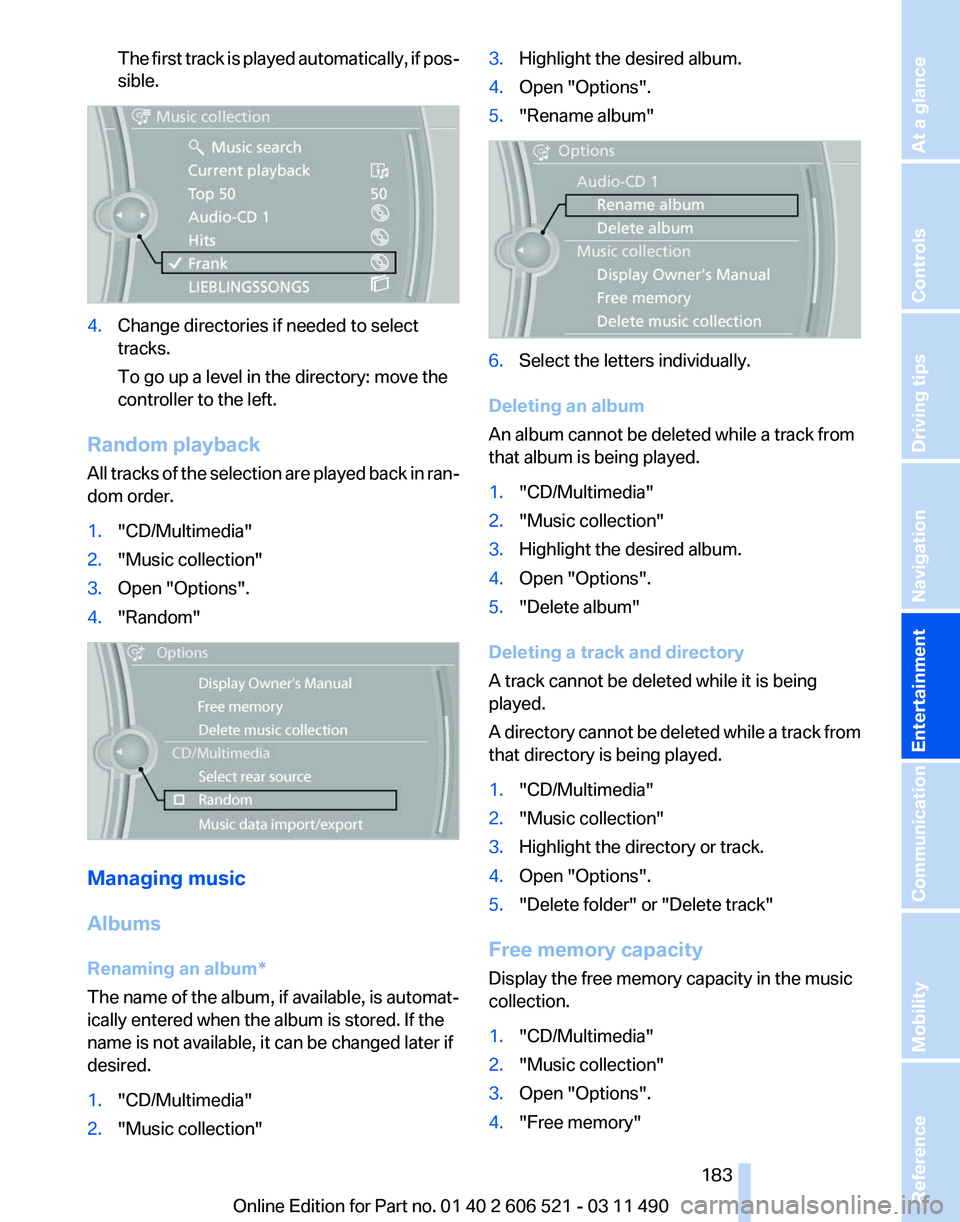
The first track is played automatically, if pos‐
sible.
4.
Change directories if needed to select
tracks.
To go up a level in the directory: move the
controller to the left.
Random playback
All tracks of the selection are played back in ran‐
dom order.
1. "CD/Multimedia"
2. "Music collection"
3. Open "Options".
4. "Random" Managing music
Albums
Renaming an album
*
The name of the album, if available, is automat‐
ically entered when the album is stored. If the
name is not available, it can be changed later if
desired.
1. "CD/Multimedia"
2. "Music collection" 3.
Highlight the desired album.
4. Open "Options".
5. "Rename album" 6.
Select the letters individually.
Deleting an album
An album cannot be deleted while a track from
that album is being played.
1. "CD/Multimedia"
2. "Music collection"
3. Highlight the desired album.
4. Open "Options".
5. "Delete album"
Deleting a track and directory
A track cannot be deleted while it is being
played.
A
directory cannot be deleted while a track from
that directory is being played.
1. "CD/Multimedia"
2. "Music collection"
3. Highlight the directory or track.
4. Open "Options".
5. "Delete folder" or "Delete track"
Free memory capacity
Display the free memory capacity in the music
collection.
1. "CD/Multimedia"
2. "Music collection"
3. Open "Options".
4. "Free memory"
Seite 183
183Online Edition for Part no. 01 40 2 606 521 - 03 11 490
Reference Mobility Communication
Entertainment Navigation Driving tips Controls At a glance
Page 187 of 282
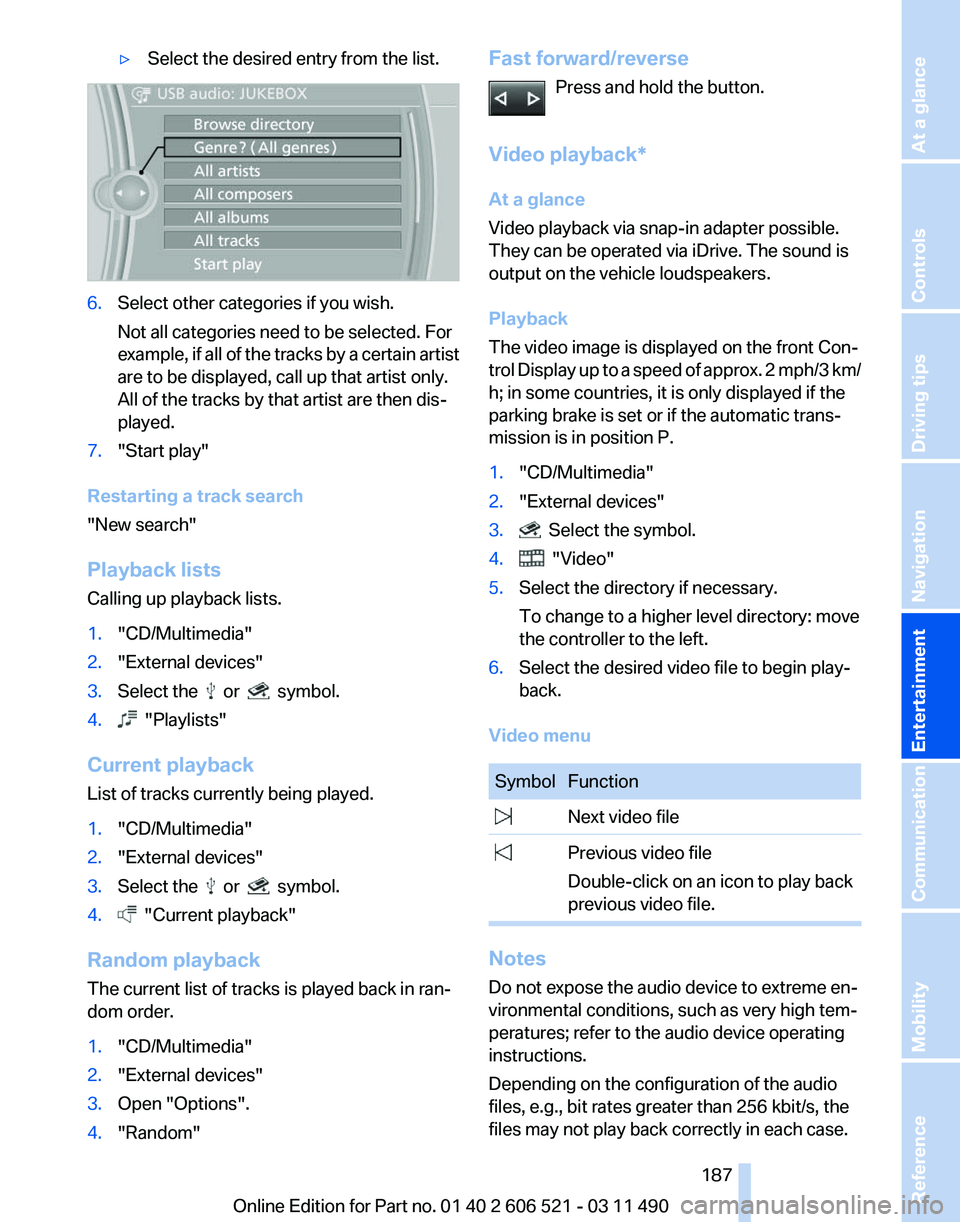
▷
Select the desired entry from the list. 6.
Select other categories if you wish.
Not all categories need to be selected. For
example,
if all of the tracks by a certain artist
are to be displayed, call up that artist only.
All of the tracks by that artist are then dis‐
played.
7. "Start play"
Restarting a track search
"New search"
Playback lists
Calling up playback lists.
1. "CD/Multimedia"
2. "External devices"
3. Select the or symbol.
4. "Playlists"
Current playback
List of tracks currently being played.
1. "CD/Multimedia"
2. "External devices"
3. Select the or symbol.
4. "Current playback"
Random playback
The current list of tracks is played back in ran‐
dom order.
1. "CD/Multimedia"
2. "External devices"
3. Open "Options".
4. "Random" Fast forward/reverse
Press and hold the button.
Video playback*
At a glance
Video playback via snap-in adapter possible.
They can be operated via iDrive. The sound is
output on the vehicle loudspeakers.
Playback
The video image is displayed on the front Con‐
trol
Display up to a speed of approx. 2 mph/3 km/
h; in some countries, it is only displayed if the
parking brake is set or if the automatic trans‐
mission is in position P.
1. "CD/Multimedia"
2. "External devices"
3. Select the symbol.
4. "Video"
5. Select the directory if necessary.
To change to a higher level directory: move
the controller to the left.
6. Select the desired video file to begin play‐
back.
Video menu Symbol Function
Next video file
Previous video file
Double-click on an icon to play back
previous video file. Notes
Do not expose the audio device to extreme en‐
vironmental conditions, such as very high tem‐
peratures; refer to the audio device operating
instructions.
Depending on the configuration of the audio
files, e.g., bit rates greater than 256 kbit/s, the
files may not play back correctly in each case. Seite 187
187Online Edition for Part no. 01 40 2 606 521 - 03 11 490
Reference Mobility Communication
Entertainment Navigation Driving tips Controls At a glance
Page 189 of 282
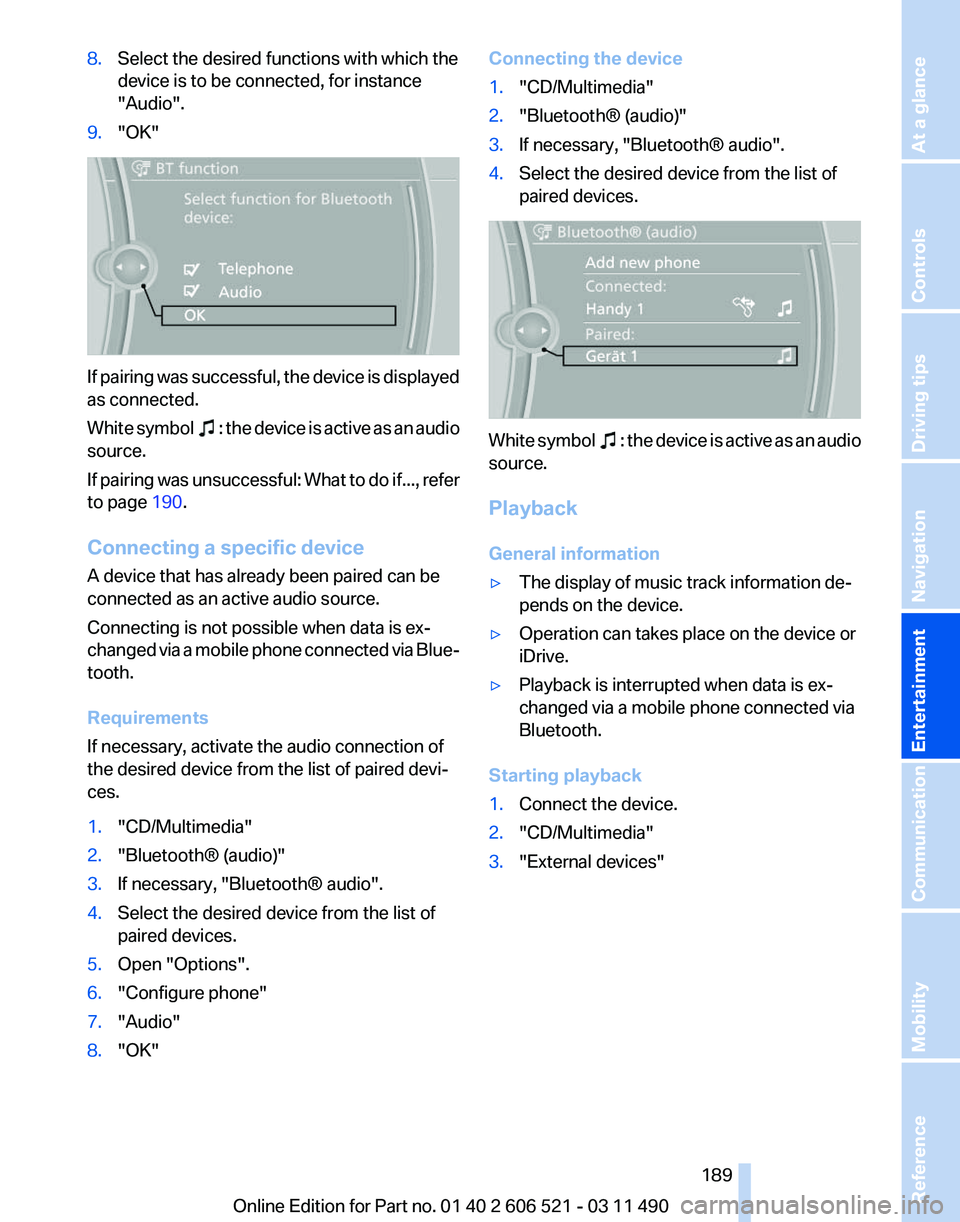
8.
Select the desired functions with which the
device is to be connected, for instance
"Audio".
9. "OK" If pairing was successful, the device is displayed
as connected.
White
symbol : the device is active as an audio
source.
If
pairing was unsuccessful: What to do if..., refer
to page 190.
Connecting a specific device
A device that has already been paired can be
connected as an active audio source.
Connecting is not possible when data is ex‐
changed via a mobile phone connected via Blue‐
tooth.
Requirements
If necessary, activate the audio connection of
the desired device from the list of paired devi‐
ces.
1. "CD/Multimedia"
2. "Bluetooth® (audio)"
3. If necessary, "Bluetooth® audio".
4. Select the desired device from the list of
paired devices.
5. Open "Options".
6. "Configure phone"
7. "Audio"
8. "OK" Connecting the device
1.
"CD/Multimedia"
2. "Bluetooth® (audio)"
3. If necessary, "Bluetooth® audio".
4. Select the desired device from the list of
paired devices. White symbol : the device is active as an audio
source.
Playback
General information
▷ The display of music track information de‐
pends on the device.
▷ Operation can takes place on the device or
iDrive.
▷ Playback is interrupted when data is ex‐
changed via a mobile phone connected via
Bluetooth.
Starting playback
1. Connect the device.
2. "CD/Multimedia"
3. "External devices"
Seite 189
189Online Edition for Part no. 01 40 2 606 521 - 03 11 490
Reference Mobility Communication
Entertainment Navigation Driving tips Controls At a glance
Page 244 of 282
Do not touch the bulbs
Do not touch the glass of new bulbs with
your bare hands, as even minute amounts of
contamination will burn into the bulb's surface
and reduce its service life.
Use
a clean tissue, cloth or something similar, or
hold the bulb by its base.◀
Light-emitting diodes (LEDs)
Light-emitting diodes installed behind a cover
serve as the light source for controls, display el‐
ements and other equipment.
These light-emitting diodes, which are related
to conventional lasers, are officially designated
as Class 1 light-emitting diodes.
Do not remove the covers
Do not remove the covers, and never stare
into the unfiltered light for several hours; other‐
wise, irritation of the retina could result.◀
Headlamp glass
Condensation can form on the inside of the ex‐
ternal lamps in cool or humid weather. When the
light is switched on, the condensation evapo‐
rates after a short time. The headlamp glasses
do not need to be changed.
If there is a large amount of moisture, e.g., water
droplets form in the lamp, have it checked by
your service center.
Front lamps, bulb replacement
Xenon headlamps
Because of the long life of these bulbs, the like‐
lihood of failure is very low. Switching the lamps
on and off frequently shortens their life.
If a bulb fails, switch on the front fog lamps* and
continue the trip with great care. Comply with
local regulations.
Do not perform work/bulb replacement on
xenon headlamps
Have any work on the xenon lighting system, in‐
cluding bulb replacement, performed only by a
service center. Due to the high voltage present in the system,
there
is the danger of fatal injuries if work is car‐
ried out improperly.◀
For checking and adjusting headlamp aim,
please contact your BMW center.
LEDs or light modules
The following lamps are equipped with LED
technology or are designed as light modules:
▷ Parking lamps and roadside parking lamps
▷ Turn signal lamps
▷ Front fog lamps*
▷ Daytime running lights*
Contact your service center in the event of a
malfunction.
Follow the general instructions on lamps and
bulbs, refer to page 243.
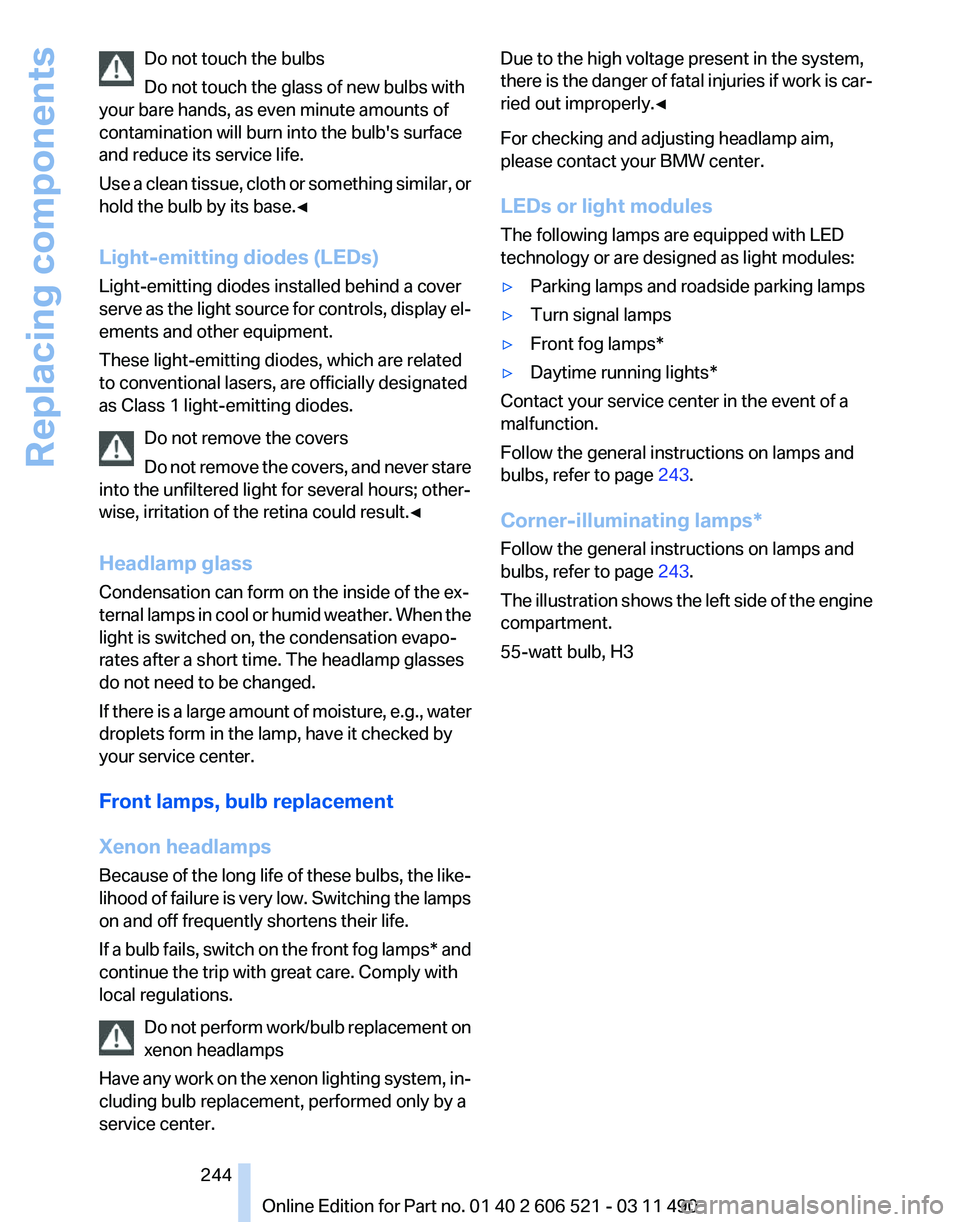
Corner-illuminating lamps
*
Follow the general instructions on lamps and
bulbs, refer to page 243.
The illustration shows the left side of the engine
compartment.
55-watt bulb, H3
Seite 244
244 Online Edition for Part no. 01 40 2 606 521 - 03 11 490
Replacing components
Page 274 of 282
Cooling system
239
Corrosion on brake discs 140
Cruise control 106
Cruising range 74
Cupholder 133
Current fuel consumption 75
Current location, storing 148
Customer Relations 221
D
Damage, tires 232
Damping control, dy‐ namic 102
Data, technical 260
Date 76
Daytime running lights 85
Defrosting, refer to Windows, defrosting 124
Destination distance 77
Destination guidance 153
Destination guidance with in‐ termediate destinations 152
Destination input, naviga‐ tion 146
Digital clock 76
Digital radio 167
Dimensions 260
Dimmable interior rearview mirror 60
Direction indicator, refer to Turn signals 69
Display in front wind‐ shield 121
Display,
instrument cluster 74
Display lighting, refer to Instru‐ ment lighting 87
Displays 14
Displays, cleaning 257
Disposal, coolant 240
Disposal, vehicle battery 247
Distance control, refer to PDC 107
Distance to destination 77
Divided screen view, split screen 23
Door lock, refer to Remote control 32 Doors, Automatic Soft Clos‐
ing 40
Drive-off assistant 101
Drive-off assistant, refer to DSC 101
Driving instructions, breaking in 138
Driving notes, general 138
Driving stability control sys‐ tems 101
Driving tips 138
DSC Dynamic Stability Con‐ trol 101
DTC Dynamic Traction Con‐ trol 101
DVD/CD 173
DVD/CD notes 179
DVD changer 177
DVD settings 176
DVDs, storing 180
DVD, video 175
Dynamic Damping Con‐ trol 102
Dynamic destination guid‐ ance 159
Dynamic Drive 102
Dynamic Driving Control 103
Dynamic Stability Control DSC 101
Dynamic Traction Control DTC 101
E
EfficientDynamics, refer to Saving fuel 141
Electronic displays, instru‐ ment cluster 16
Electronic engine oil level check 238
Electronic Stability Program ESP, refer to DSC 101
Emergency detection, remote control 33
Emergency
operation, conver‐
tible top 47
Emergency release, door lock 39 Emergency release, fuel filler
flap 226
Emergency Request 248
Emergency service, refer to Roadside Assistance 249
Emergency start function, en‐ gine start 33
Emergency unlocking, trunk lid 41
Energy Control 75
Energy recovery 76
Engine compartment 236
Engine compartment, working in 236
Engine coolant 239
Engine oil 238
Engine oil, adding 238
Engine oil additives 239
Engine oil filler neck 238
Engine oil temperature 75
Engine oil types, alterna‐ tive 239
Engine oil types, ap‐ proved 239
Engine start during malfunc‐ tion 33
Engine start, refer to Starting the engine 66
Engine start, Starting aid 249
Engine stop 66
Engine temperature 75
Entering/exiting
vehicle, assis‐
tance, steering wheel 61
Equalizer 164
Equipment, interior 128
ESP Electronic Stability Pro‐ gram, refer to DSC 101
Exchanging wheels/tires 233
Exhaust system 138
Exterior mirror, automatic dim‐ ming feature, dimmable exte‐
rior mirrors 60
Exterior mirrors 59
External devices 184
External start 249
External temperature dis‐ play 75
Seite 274
274 Online Edition for Part no. 01 40 2 606 521 - 03 11 490
Everything from A to Z