USB BMW 640I COUPE 2012 User Guide
[x] Cancel search | Manufacturer: BMW, Model Year: 2012, Model line: 640I COUPE, Model: BMW 640I COUPE 2012Pages: 303, PDF Size: 11.32 MB
Page 201 of 303
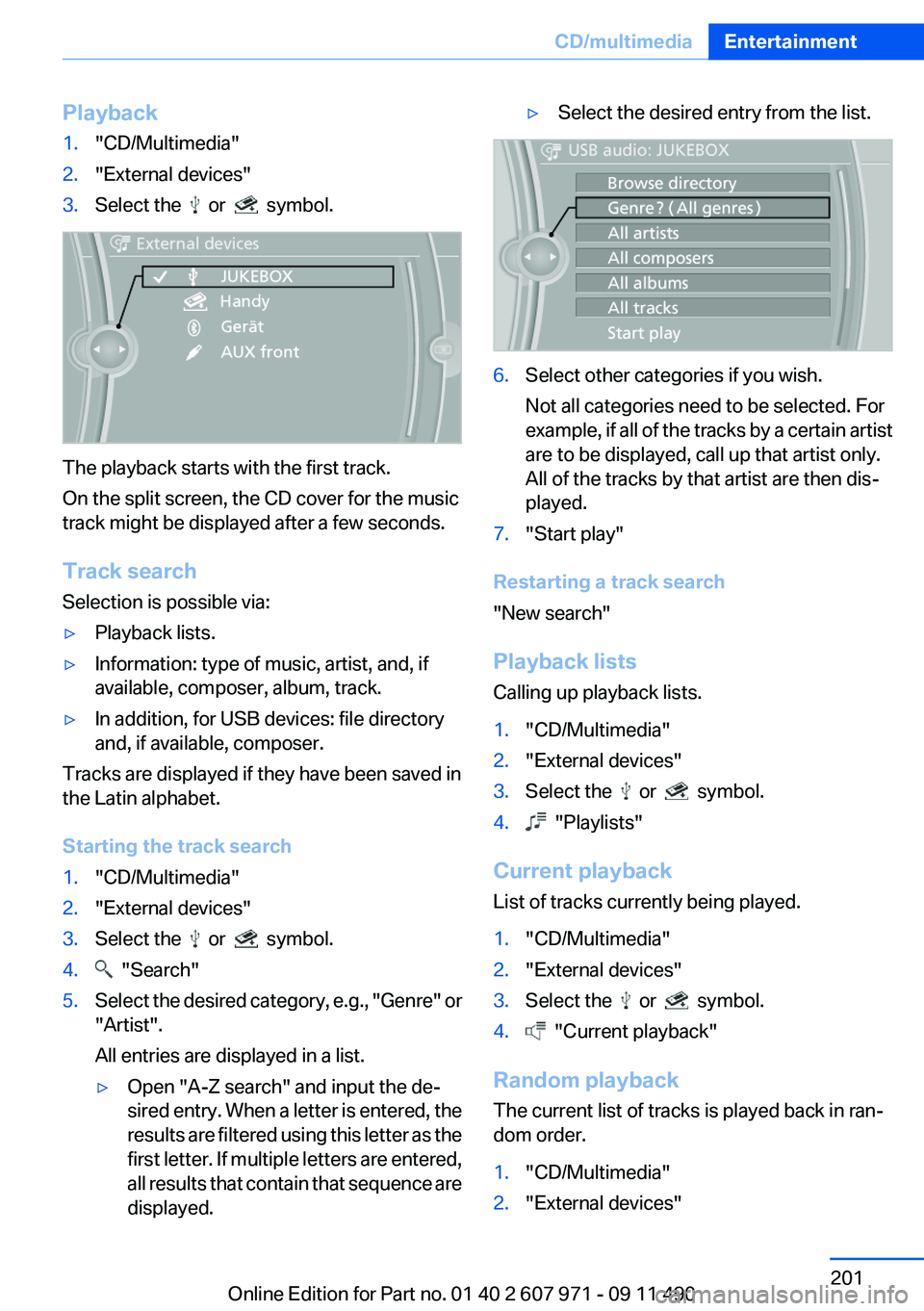
Playback1."CD/Multimedia"2."External devices"3.Select the or symbol.
The playback starts with the first track.
On the split screen, the CD cover for the music
track might be displayed after a few seconds.
Track search
Selection is possible via:
▷Playback lists.▷Information: type of music, artist, and, if
available, composer, album, track.▷In addition, for USB devices: file directory
and, if available, composer.
Tracks are displayed if they have been saved in
the Latin alphabet.
Starting the track search
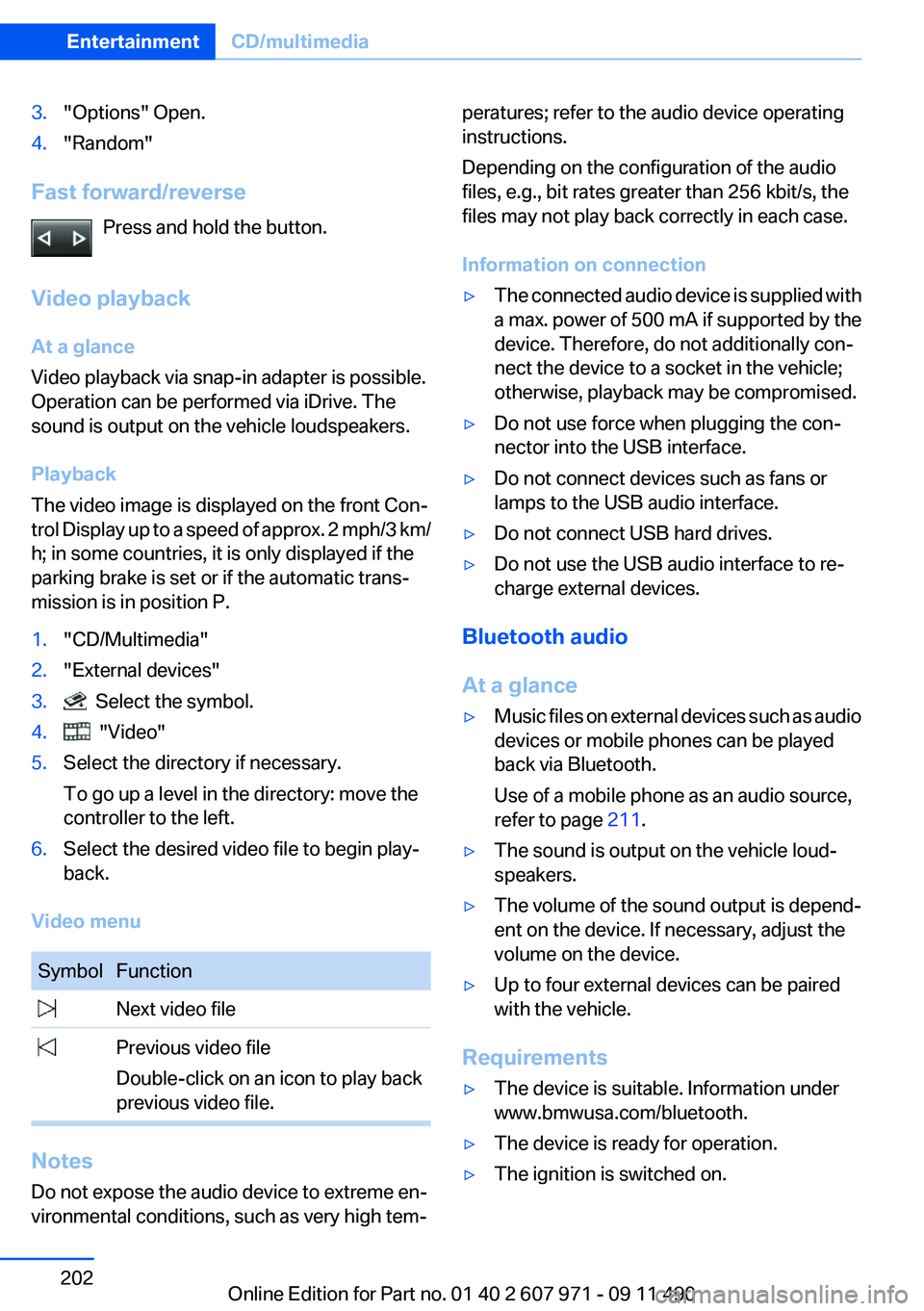
1."CD/Multimedia"2."External devices"3.Select the or symbol.4. "Search"5.Select the desired category, e.g., "Genre" or
"Artist".
All entries are displayed in a list.▷Open "A-Z search" and input the de‐
sired entry. When a letter is entered, the
results are filtered using this letter as the
first letter. If multiple letters are entered,
all results that contain that sequence are
displayed.▷Select the desired entry from the list.6.Select other categories if you wish.
Not all categories need to be selected. For
example, if all of the tracks by a certain artist
are to be displayed, call up that artist only.
All of the tracks by that artist are then dis‐
played.7."Start play"
Restarting a track search
"New search"
Playback lists
Calling up playback lists.
1."CD/Multimedia"2."External devices"3.Select the or symbol.4. "Playlists"
Current playback
List of tracks currently being played.
1."CD/Multimedia"2."External devices"3.Select the or symbol.4. "Current playback"
Random playback
The current list of tracks is played back in ran‐
dom order.
1."CD/Multimedia"2."External devices"Seite 201CD/multimediaEntertainment201
Online Edition for Part no. 01 40 2 607 971 - 09 11 490
Page 202 of 303
3."Options" Open.4."Random"
Fast forward/reversePress and hold the button.
Video playback
At a glance
Video playback via snap-in adapter is possible.
Operation can be performed via iDrive. The
sound is output on the vehicle loudspeakers.
Playback
The video image is displayed on the front Con‐
trol Display up to a speed of approx. 2 mph/3 km/
h; in some countries, it is only displayed if the
parking brake is set or if the automatic trans‐
mission is in position P.
1."CD/Multimedia"2."External devices"3. Select the symbol.4. "Video"5.Select the directory if necessary.
To go up a level in the directory: move the
controller to the left.6.Select the desired video file to begin play‐
back.
Video menu
SymbolFunction Next video file Previous video file
Double-click on an icon to play back
previous video file.
Notes
Do not expose the audio device to extreme en‐
vironmental conditions, such as very high tem‐
peratures; refer to the audio device operating
instructions.
Depending on the configuration of the audio
files, e.g., bit rates greater than 256 kbit/s, the
files may not play back correctly in each case.
Information on connection▷The connected audio device is supplied with
a max. power of 500 mA if supported by the
device. Therefore, do not additionally con‐
nect the device to a socket in the vehicle;
otherwise, playback may be compromised.▷Do not use force when plugging the con‐
nector into the USB interface.▷Do not connect devices such as fans or
lamps to the USB audio interface.▷Do not connect USB hard drives.▷Do not use the USB audio interface to re‐
charge external devices.
Bluetooth audio
At a glance
▷Music files on external devices such as audio
devices or mobile phones can be played
back via Bluetooth.
Use of a mobile phone as an audio source,
refer to page 211.▷The sound is output on the vehicle loud‐
speakers.▷The volume of the sound output is depend‐
ent on the device. If necessary, adjust the
volume on the device.▷Up to four external devices can be paired
with the vehicle.
Requirements
▷The device is suitable. Information under
www.bmwusa.com/bluetooth.▷The device is ready for operation.▷The ignition is switched on.Seite 202EntertainmentCD/multimedia202
Online Edition for Part no. 01 40 2 607 971 - 09 11 490
Page 205 of 303
Unpairing a device1."CD/Multimedia"2."Bluetooth® (audio)"3.If necessary, "Bluetooth® audio".4.Highlight the device that is to be unpaired.5.Open "Options".6."Remove phone from list"
What to do if...
Information on suitable devices can be found at
www.bmwusa.com/bluetooth.
Suitable mobile phones, refer to page 210.
The device is not supported by the vehicle.
▷Perform a software update, refer to
page 205, if needed.
The device could not be paired or connected.
▷Do the Bluetooth passkeys on the device
and the vehicle match? Enter the same
passkey on the device and via iDrive.▷Did it take longer than 30 seconds to enter
the passkey? Repeat the pairing procedure.▷Are too many Bluetooth devices connected
to the device or vehicle? Delete connections
with other devices if necessary.▷Is the mobile phone in power-save mode or
does it have only a limited remaining battery
life? Charge the mobile phone in the snap-
in adapter or via the charging cable.▷Depending on the mobile phone, it is possi‐
ble that only one device can be connected
to the vehicle. Unpair the connected device
from the vehicle and pair and connect only
one device.▷The device no longer reacts? Switch the de‐
vice off and on again.▷Repeat the pairing procedure.
Music cannot be played back.
▷Start the program for playing back music
data on the device and select a track on the
device if necessary.▷Switch the radio off and on again.Music files can only be played back softly.▷Adjust the volume settings on the device.
Playback is disturbed when buttons are pressed
or by other messages on the device.
▷Switch off the button tones and other signal
tones on the device.
Playback is interrupted by a telephone call or
traffic bulletin and is not resumed automatically.
▷Switch the radio off and on again.
Playback is not possible if the mobile phone is
connected both via Bluetooth Audio and via the
extended connectivity of the music player in the
mobile phone.
▷Disconnect one of the two connections; for
example, disconnect the audio connection,
refer to page 204, and restart playback.
If all points in this list have been checked and the
required function is still not available, please
contact the hotline or service center.
Software Update
The vehicle supports various external devices
depending on the current software version. With
a software update, the vehicle can support new
cell phones or new external devices.
The updating of the software is done via:
▷USB.
Updates and related current information is
available at www.bmw.com/update.
Displaying the current version
The currently installed software is displayed.
1."Settings"2."Software update"3."Show current version"
SelectDesired version to displayAdditional in‐
formation.
Seite 205CD/multimediaEntertainment205
Online Edition for Part no. 01 40 2 607 971 - 09 11 490
Page 206 of 303
Updating software via USB
The software may only be updated when the ve‐
hicle is stationary.1.Store the file for the software-update in the
main director of a USB flash drive.2.Insert the USB flash drive into the USB in‐
terface of the USB audio interface in the
center armrest. An update via the USB in‐
terface in the glove compartment is not pos‐
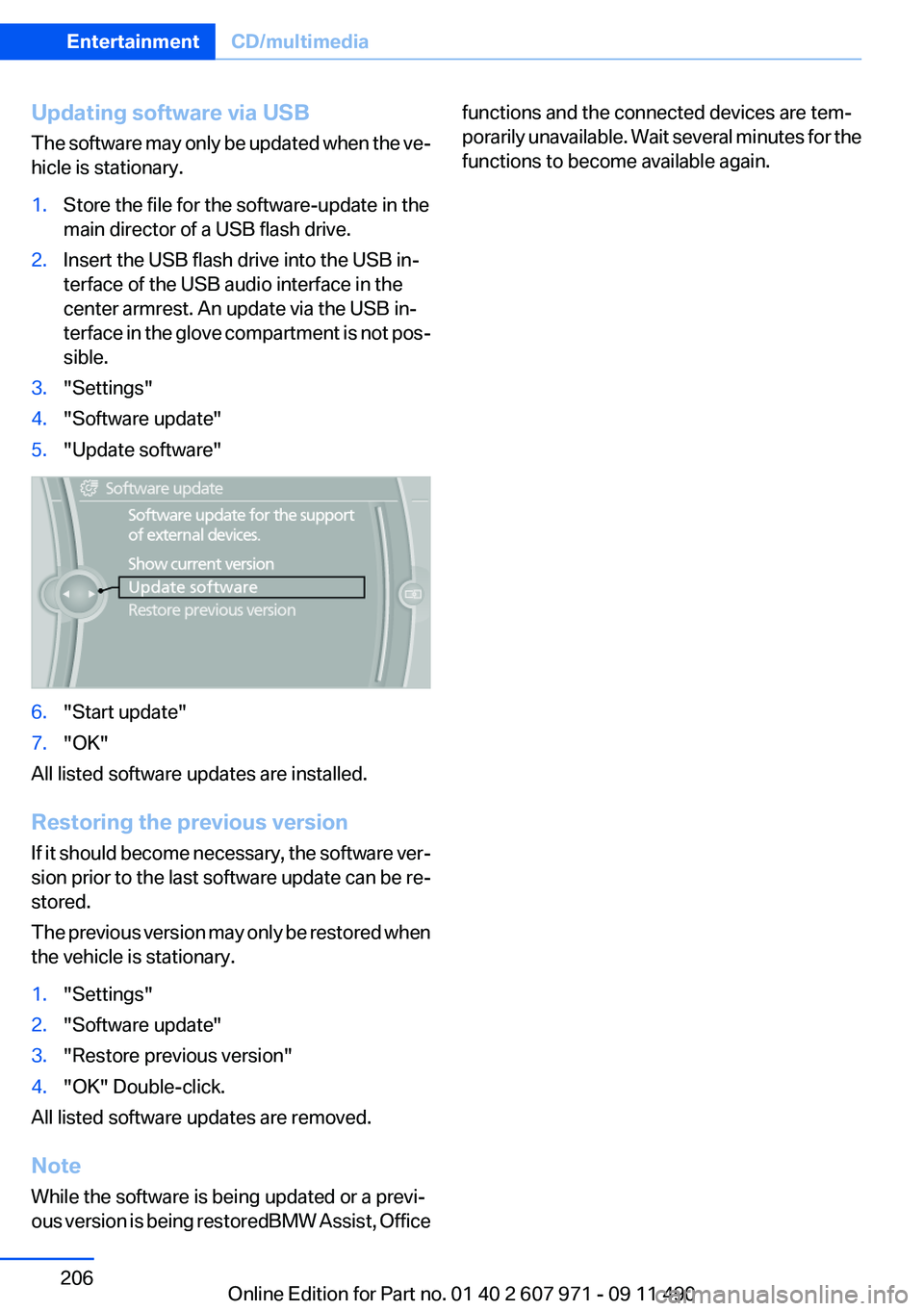
sible.3."Settings"4."Software update"5."Update software"6."Start update"7."OK"
All listed software updates are installed.
Restoring the previous version
If it should become necessary, the software ver‐
sion prior to the last software update can be re‐
stored.
The previous version may only be restored when
the vehicle is stationary.
1."Settings"2."Software update"3."Restore previous version"4."OK" Double-click.
All listed software updates are removed.
Note
While the software is being updated or a previ‐
ous version is being restoredBMW Assist, Office
functions and the connected devices are tem‐
porarily unavailable. Wait several minutes for the
functions to become available again.Seite 206EntertainmentCD/multimedia206
Online Edition for Part no. 01 40 2 607 971 - 09 11 490
Page 221 of 303
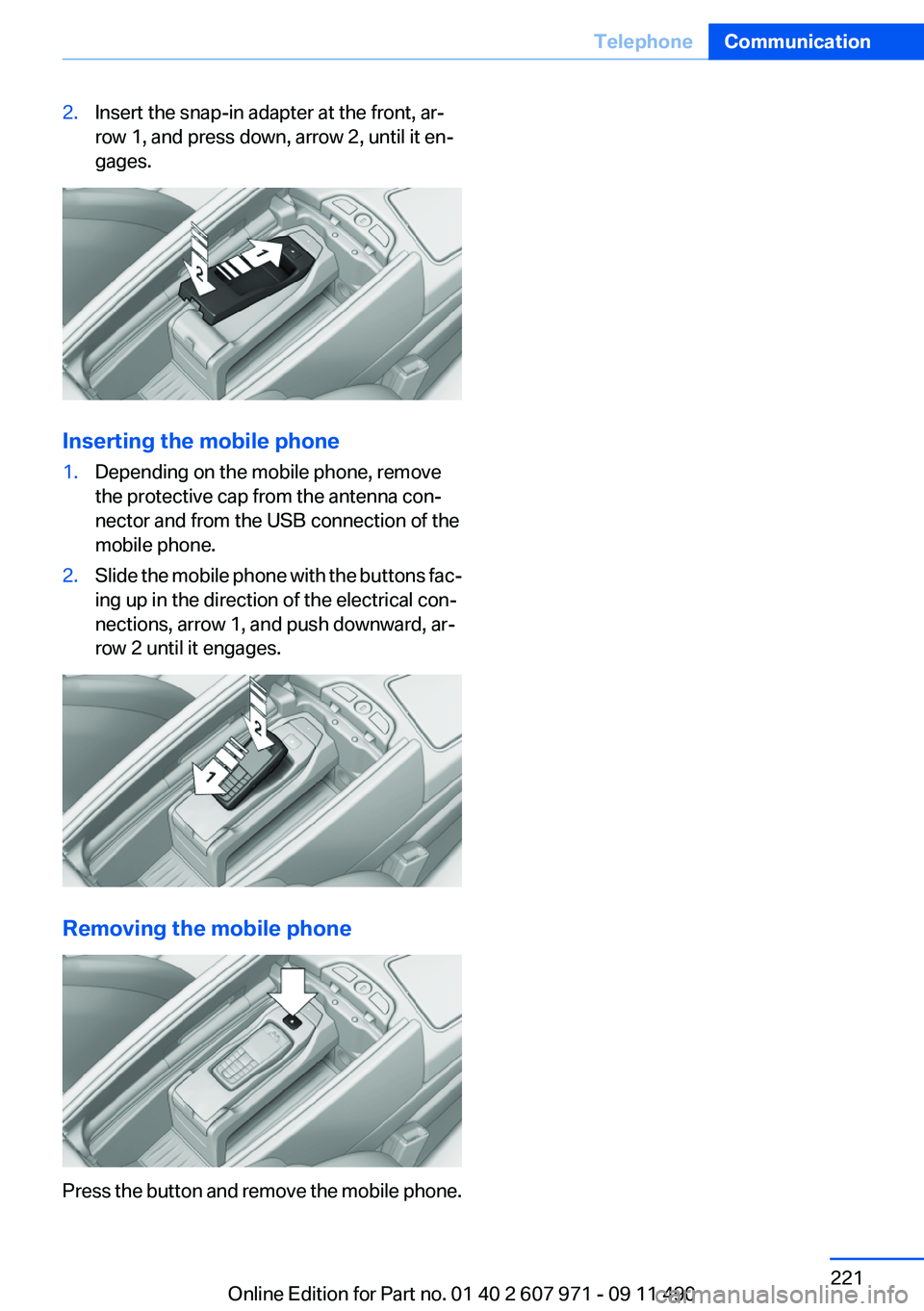
2.Insert the snap-in adapter at the front, ar‐
row 1, and press down, arrow 2, until it en‐
gages.
Inserting the mobile phone
1.Depending on the mobile phone, remove
the protective cap from the antenna con‐
nector and from the USB connection of the
mobile phone.2.Slide the mobile phone with the buttons fac‐
ing up in the direction of the electrical con‐
nections, arrow 1, and push downward, ar‐
row 2 until it engages.
Removing the mobile phone
Press the button and remove the mobile phone.
Seite 221TelephoneCommunication221
Online Edition for Part no. 01 40 2 607 971 - 09 11 490
Page 238 of 303
Apps
At a glance
Certain software applications of a suitable cell
phone can be integrated in the vehicle. These
software applications are displayed on the Con‐
trol Display.
Operation can be performed via iDrive.
Requirements▷The mobile phone is suitable.▷The cell phone operating system supports
the software applications of Apps.▷Software applications are installed on the
cell phone and ready to use.▷Corresponding mobile wireless contract.
Any additionally incurred costs are not a part
of Apps.▷Use only BMW approved software applica‐
tions; otherwise, it may result in malfunc‐
tions.
Information about suitable cell phones, available
software applications and their installation can
be found at www.bmw.com/connectivity or at
the service center.
Create the entries.
Make entries only when traffic and road
conditions allow. Otherwise, the vehicle occu‐
pants and other road users may be put in danger
because of the distraction from driving.
For reasons of safety, some software applica‐
tions are usable only while the vehicle is station‐
ary.◀
Use apps
1.Connect the cell phone via the snap-in
adapter or via the USB audio interface.2."ConnectedDrive"3.Select the desired software application.Displaying status
Information about the currently available soft‐
ware applications can be displayed.1."ConnectedDrive"2."BMW apps"
PlugIn
Selected functions of the cell phone are dis‐
played on the Control Display. Operation can be
performed via iDrive.
1.Connect cell phone via the snap-in adapter.2."ConnectedDrive"3."PlugIn"4."Activate PlugIn"5.Navigate to the displayed functions via the
controller and select, for example, a desired
category or track.
Press button to switch within the cell
phone functions to a higher level or back.
Press button twice to switch back to the
main menu.
Notes
▷The ranges of Apps that can be displayed on
the Control Display depend on the range of
installed software applications on the cell
phone.▷The data transmission of the software ap‐
plications from the cell phone to the vehicle
can last some time. Some software applica‐
tions depend on the speed of the available
Internet connection of the cell phone.▷Some cell phones cannot simultaneously
use Apps and the Bluetooth hands-free sys‐
tem.
If necessary, restart the software application
on the cell phone after a phone conversa‐
tion.Seite 238CommunicationConnectedDrive238
Online Edition for Part no. 01 40 2 607 971 - 09 11 490
Page 300 of 303
Theft protection, refer to Cen‐tral locking system 33
Thermal camera, refer to Night Vision 126
Thigh support 46
Tilt alarm sensor 41
Tilt glass roof 43
Tilt, seats 45
Time of arrival 77
Tire damage 251
Tire identification marks 249
Tire inflation pressure 245
Tire inflation pressure monitor, refer to FTM 92
Tire Pressure Monitor TPM 89
Tires, changing 251
Tires, everything on wheels and tires 245
Tires, run-flat tires 253
Tire tread 251
Toll roads, route 166
Tone 176
Tools 262
Top View 120
Total vehicle weight 281
Tow fitting 271
Towing 270
Town/city, navigation 159
Tow-starting 270
Tow truck 270
TPM Tire Pressure Moni‐ tor 89
Traction control 99
TRACTION program, Dynamic Driving Control 103
Traffic bulletins, naviga‐ tion 170
Transmission, automatic 66
Transmission, manual 66
Transporting children safely 54
Tread, tires 251
Treble, tone 176
Trip computer 77 Triple turn signal activa‐
tion 63
Trip odometer 73
Truck for tow-starting/tow‐ ing 270
Trunk lid 38
Trunk lid, emergency unlock‐ ing 39
Trunk lid, hotel function 38
Trunk lid via remote con‐ trol 35
Turning circle 281
Turning circle lines, backup camera 119
Turn signals, front, bulb re‐ placement 263
Turn signals, operation 63
Turn signals, rear, bulb re‐ placement 264
U
Unintentional alarm 41
Units of measure 79
Universal remote control 136
Unlock button, automatic transmission 67
Unlocking/locking from in‐ side 37
Unlocking/locking via door lock 36
Unlocking/locking with remote control 34
Updates made after the edito‐ rial deadline 6
Updating software 205
Upholstery care 275
USB audio interface 199
USB interface 141
V
Variable steering, Integral Ac‐ tive Steering 101
Vehicle battery 265
Vehicle battery, replacing 265 Vehicle, breaking in 146
Vehicle care 274
Vehicle equipment 6
Vehicle identification number, refer to Identification number
in the engine compart‐
ment 255
Vehicle jack 265
Vehicle paint 274
Vehicle storage 276
Vehicle wash 273
Ventilation 134
Ventilation, refer to Parked-car ventilation 134
Version of the navigation data 172
Video playback 189
Video playback, iPhone 202
Video playback, snap-in adapter 202
Voice activation, mobile phone 218
Voice activation, short com‐ mands 283
Voice activation system 22
Volume, setting 176
W
Warning lamps 70
Warning messages, refer to Check Control 70
Warning triangle 268
Washer fluid 66
Washer fluid reservoir, ca‐ pacity 282
Washer nozzles, wind‐ shield 65
Washer system 64
Washing, vehicle 273
Water on roads 147
Weather Band 181
Weights 281
Welcome lamps 81
Wheel base, vehicle 281
Wheels, changing 251 Seite 300ReferenceEverything from A to Z300
Online Edition for Part no. 01 40 2 607 971 - 09 11 490