navigation BMW 640I GRAN COUPE 2013 Owner's Guide
[x] Cancel search | Manufacturer: BMW, Model Year: 2013, Model line: 640I GRAN COUPE, Model: BMW 640I GRAN COUPE 2013Pages: 305, PDF Size: 11.87 MB
Page 187 of 305
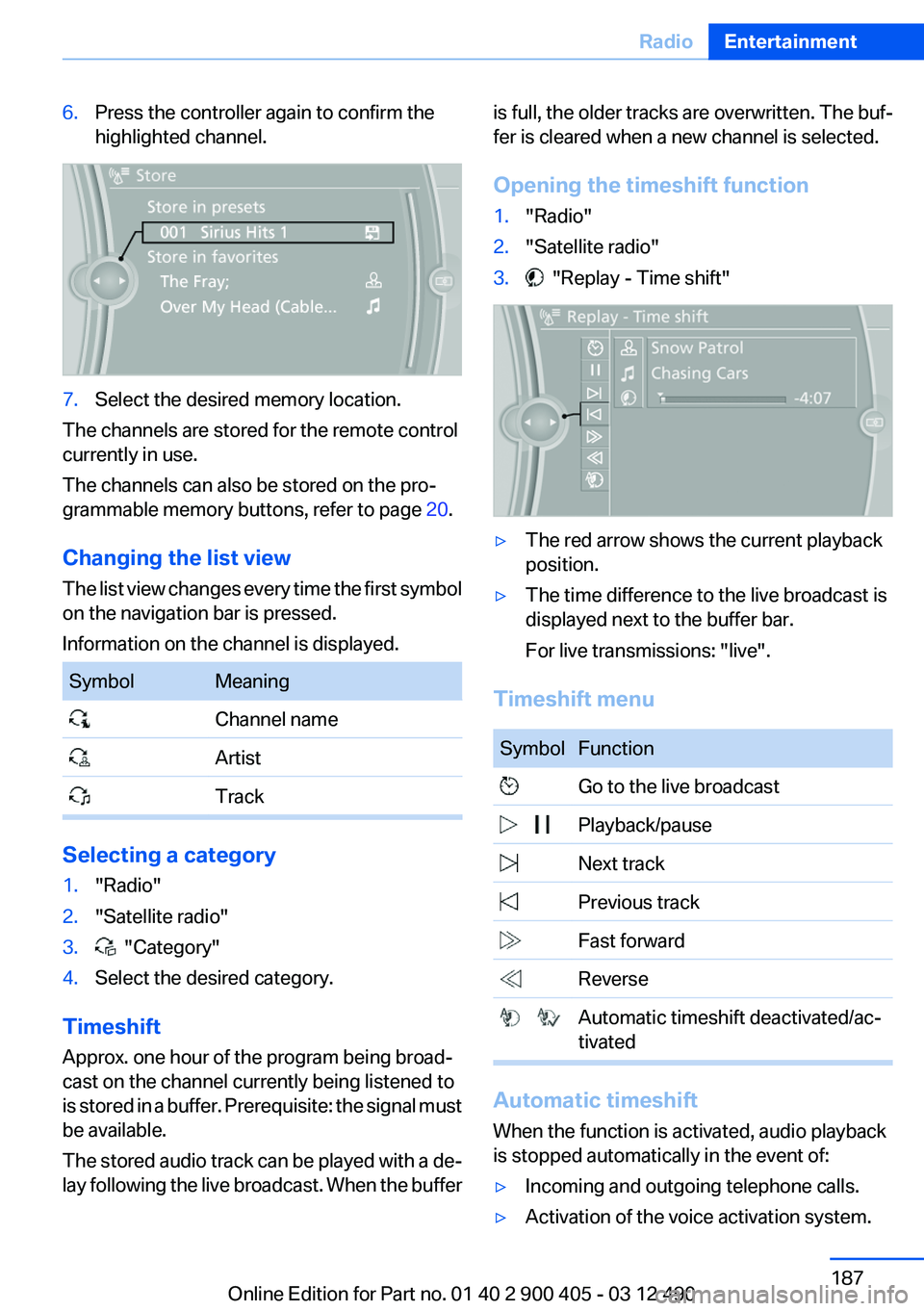
6.Press the controller again to confirm the
highlighted channel.7.Select the desired memory location.
The channels are stored for the remote control
currently in use.
The channels can also be stored on the pro‐
grammable memory buttons, refer to page 20.
Changing the list view
The list view changes every time the first symbol
on the navigation bar is pressed.
Information on the channel is displayed.
SymbolMeaning Channel name Artist Track
Selecting a category
1."Radio"2."Satellite radio"3. "Category"4.Select the desired category.
Timeshift
Approx. one hour of the program being broad‐
cast on the channel currently being listened to
is stored in a buffer. Prerequisite: the signal must
be available.
The stored audio track can be played with a de‐
lay following the live broadcast. When the buffer
is full, the older tracks are overwritten. The buf‐
fer is cleared when a new channel is selected.
Opening the timeshift function1."Radio"2."Satellite radio"3. "Replay - Time shift"▷The red arrow shows the current playback
position.▷The time difference to the live broadcast is
displayed next to the buffer bar.
For live transmissions: "live".
Timeshift menu
SymbolFunction Go to the live broadcast Playback/pause Next track Previous track Fast forward Reverse Automatic timeshift deactivated/ac‐
tivated
Automatic timeshift
When the function is activated, audio playback
is stopped automatically in the event of:
▷Incoming and outgoing telephone calls.▷Activation of the voice activation system.Seite 187RadioEntertainment187
Online Edition for Part no. 01 40 2 900 405 - 03 12 490
Page 227 of 305
Contacts
Note
If equipped with full mobile phone preparation
package.
At a glance
Contacts can be created and edited. The con‐
tacts from the mobile phone are displayed as
well if this function is supported by the mobile
phone. Addresses can be adopted as destina‐
tions for navigation and the phone numbers can
be dialed.
Displaying contacts
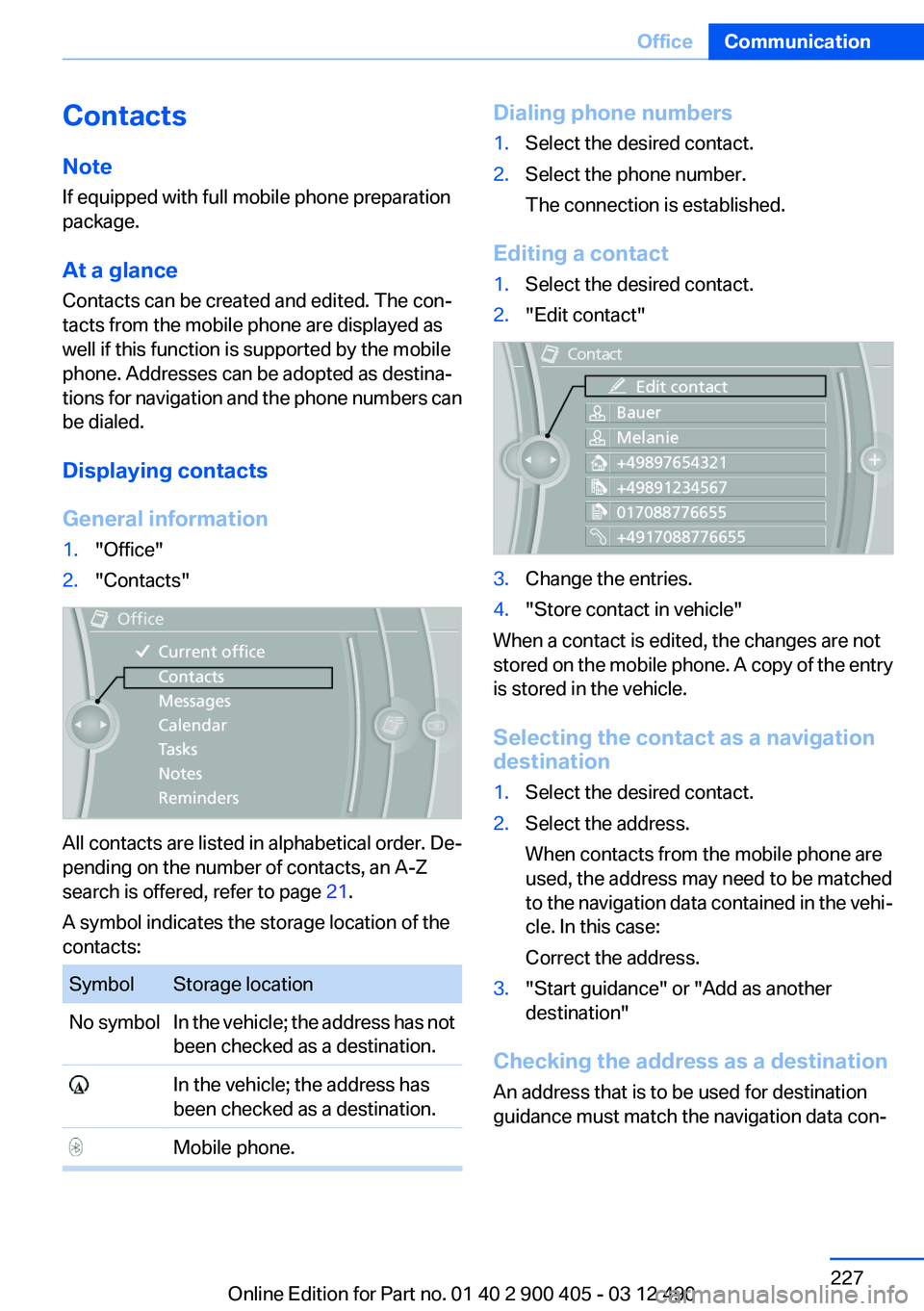
General information1."Office"2."Contacts"
All contacts are listed in alphabetical order. De‐
pending on the number of contacts, an A-Z
search is offered, refer to page 21.
A symbol indicates the storage location of the
contacts:
SymbolStorage locationNo symbolIn the vehicle; the address has not
been checked as a destination. In the vehicle; the address has
been checked as a destination. Mobile phone.Dialing phone numbers1.Select the desired contact.2.Select the phone number.
The connection is established.
Editing a contact
1.Select the desired contact.2."Edit contact"3.Change the entries.4."Store contact in vehicle"
When a contact is edited, the changes are not
stored on the mobile phone. A copy of the entry
is stored in the vehicle.
Selecting the contact as a navigation
destination
1.Select the desired contact.2.Select the address.
When contacts from the mobile phone are
used, the address may need to be matched
to the navigation data contained in the vehi‐
cle. In this case:
Correct the address.3."Start guidance" or "Add as another
destination"
Checking the address as a destination
An address that is to be used for destination
guidance must match the navigation data con‐
Seite 227OfficeCommunication227
Online Edition for Part no. 01 40 2 900 405 - 03 12 490
Page 228 of 305
tained in the vehicle. The address can be
checked for this purpose.1.Select the desired contact and highlight the
address.2.Open "Options".3."Check as destination"4.Correct and store the address if necessary.
If the address is corrected and stored, a copy of
it is stored in the vehicle. The address is not
changed on the mobile phone.
New contact
General information
A contact can have up to 8 phone numbers,
2 addresses, 3 e-mail addresses and one Inter‐
net address.
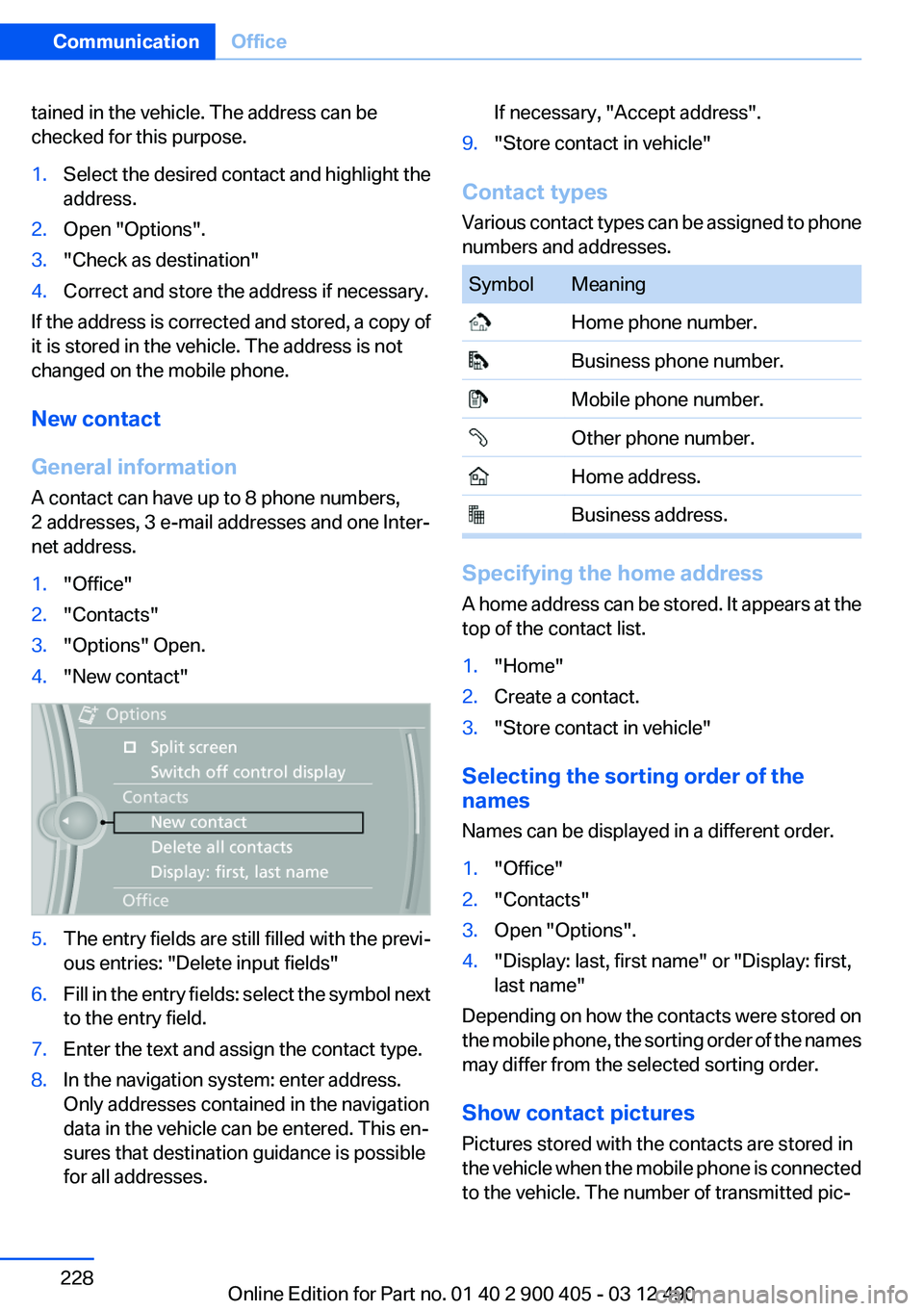
1."Office"2."Contacts"3."Options" Open.4."New contact"5.The entry fields are still filled with the previ‐
ous entries: "Delete input fields"6.Fill in the entry fields: select the symbol next
to the entry field.7.Enter the text and assign the contact type.8.In the navigation system: enter address.
Only addresses contained in the navigation
data in the vehicle can be entered. This en‐
sures that destination guidance is possible
for all addresses.If necessary, "Accept address".9."Store contact in vehicle"
Contact types
Various contact types can be assigned to phone
numbers and addresses.
SymbolMeaning Home phone number. Business phone number. Mobile phone number. Other phone number. Home address. Business address.
Specifying the home address
A home address can be stored. It appears at the
top of the contact list.
1."Home"2.Create a contact.3."Store contact in vehicle"
Selecting the sorting order of the
names
Names can be displayed in a different order.
1."Office"2."Contacts"3.Open "Options".4."Display: last, first name" or "Display: first,
last name"
Depending on how the contacts were stored on
the mobile phone, the sorting order of the names
may differ from the selected sorting order.
Show contact pictures
Pictures stored with the contacts are stored in
the vehicle when the mobile phone is connected
to the vehicle. The number of transmitted pic‐
Seite 228CommunicationOffice228
Online Edition for Part no. 01 40 2 900 405 - 03 12 490
Page 235 of 305
ContactsVehicle equipment
All standard, country-specific and optional
equipment that is offered in the model series is
described in this chapter. Therefore, equipment
is also described that is not available in a vehicle,
e. g., because of the selected optional equip‐
ment or country variant. This also applies for
safety-related functions and systems.
Note
If not equipped with mobile phone complete
preparation package.
General information
Contacts can be created and edited and the ad‐
dresses can be adopted as destinations for nav‐
igation.
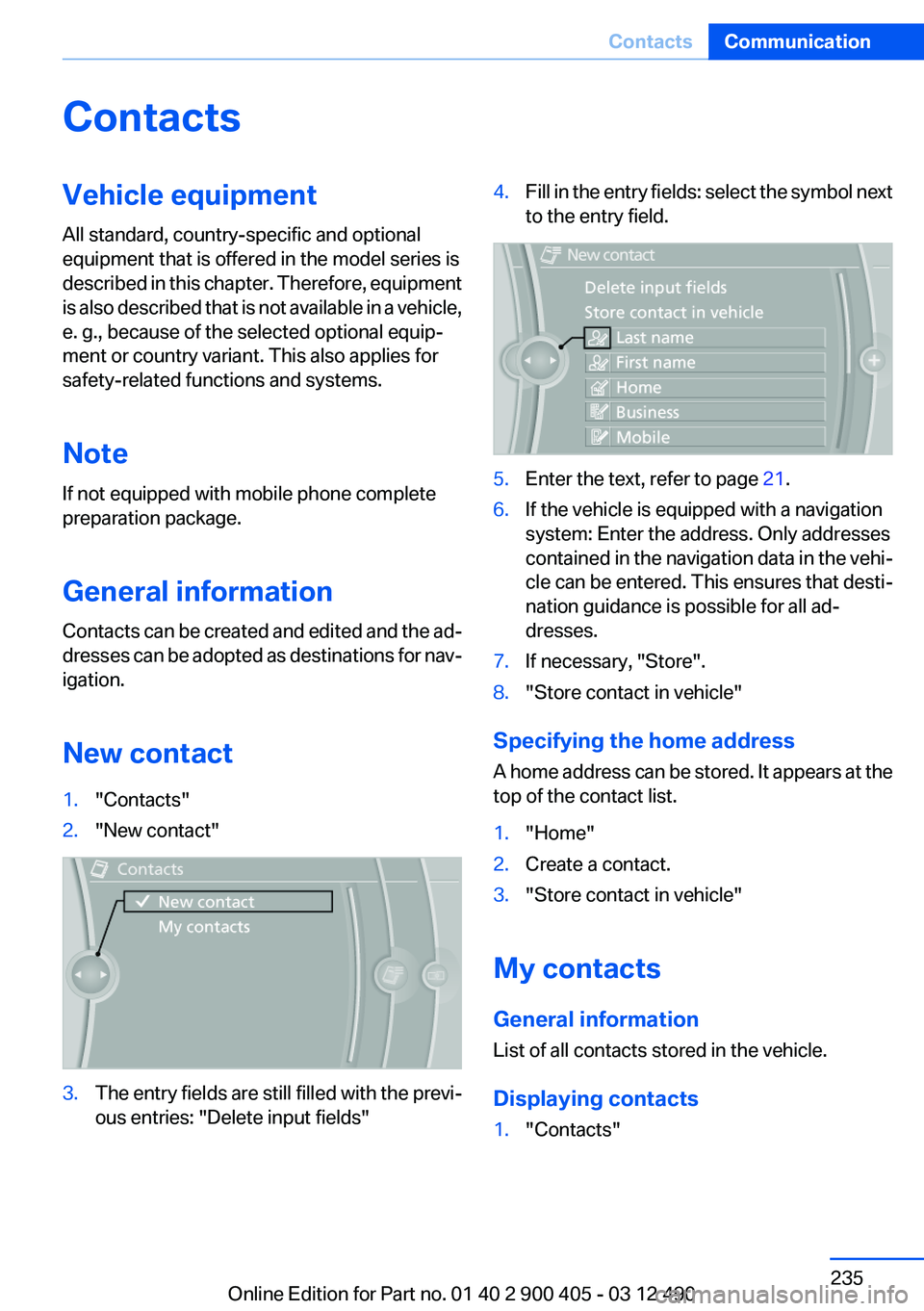
New contact1."Contacts"2."New contact"3.The entry fields are still filled with the previ‐
ous entries: "Delete input fields"4.Fill in the entry fields: select the symbol next
to the entry field.5.Enter the text, refer to page 21.6.If the vehicle is equipped with a navigation
system: Enter the address. Only addresses
contained in the navigation data in the vehi‐
cle can be entered. This ensures that desti‐
nation guidance is possible for all ad‐
dresses.7.If necessary, "Store".8."Store contact in vehicle"
Specifying the home address
A home address can be stored. It appears at the
top of the contact list.
1."Home"2.Create a contact.3."Store contact in vehicle"
My contacts
General information
List of all contacts stored in the vehicle.
Displaying contacts
1."Contacts"Seite 235ContactsCommunication235
Online Edition for Part no. 01 40 2 900 405 - 03 12 490
Page 236 of 305
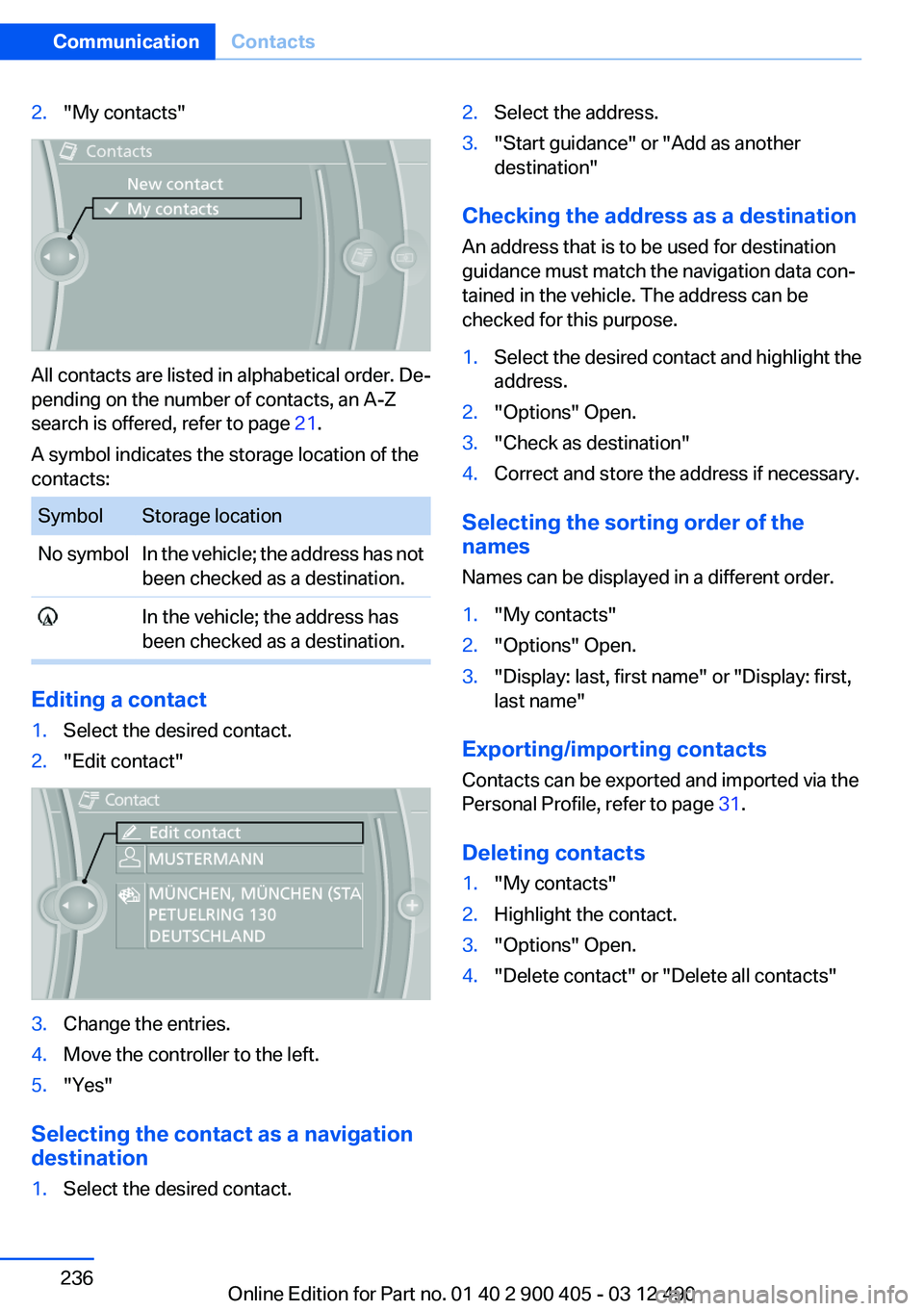
2."My contacts"
All contacts are listed in alphabetical order. De‐
pending on the number of contacts, an A-Z
search is offered, refer to page 21.
A symbol indicates the storage location of the
contacts:
SymbolStorage locationNo symbolIn the vehicle; the address has not
been checked as a destination. In the vehicle; the address has
been checked as a destination.
Editing a contact
1.Select the desired contact.2."Edit contact"3.Change the entries.4.Move the controller to the left.5."Yes"
Selecting the contact as a navigation
destination
1.Select the desired contact.2.Select the address.3."Start guidance" or "Add as another
destination"
Checking the address as a destination
An address that is to be used for destination
guidance must match the navigation data con‐
tained in the vehicle. The address can be
checked for this purpose.
1.Select the desired contact and highlight the
address.2."Options" Open.3."Check as destination"4.Correct and store the address if necessary.
Selecting the sorting order of the
names
Names can be displayed in a different order.
1."My contacts"2."Options" Open.3."Display: last, first name" or "Display: first,
last name"
Exporting/importing contacts
Contacts can be exported and imported via the
Personal Profile, refer to page 31.
Deleting contacts
1."My contacts"2.Highlight the contact.3."Options" Open.4."Delete contact" or "Delete all contacts"Seite 236CommunicationContacts236
Online Edition for Part no. 01 40 2 900 405 - 03 12 490
Page 268 of 305
2.Unscrew the lug bolt.
Remove the adapter after screwing the lug bolt
back on.
Vehicle battery
Maintenance
The battery is maintenance-free, i.e., the elec‐
trolyte will last for the life of the battery.
Your service center will be glad to advise you on
questions regarding the battery.
Battery replacement Use approved vehicle batteries only
Only use vehicle batteries that have been
approved for your vehicle by the manufacturer;
otherwise, the vehicle could be damaged and
systems or functions may not be fully availa‐
ble.◀
After a battery replacement, have the battery
registered on the vehicle by your service center
to ensure that all comfort functions are fully
available and that any Check Control messages
are no longer displayed.
Charging the battery
Note Do not plug the charger into the socket
Do not connect battery chargers to the
factory-installed sockets in the vehicle. Doing so
may result in damage to the vehicle.◀
Starting aid terminals
In the vehicle, only charge the battery via the
starting aid terminals, refer to page 272, in the
engine compartment with the engine off.
Power failure
After a temporary power loss, some equipment
needs to be reinitialized.
Individual settings need to be reprogrammed:▷Seat, mirror, and steering wheel memory:
store the positions again.▷Time: update.▷Date: update.▷Radio station: save again.▷Navigation system: wait for the operability of
the navigation.
Disposing of old batteries
Have old batteries disposed of by your
service center or bring them to a recy‐
cling center.
Maintain the battery in an upright position for
transport and storage. Secure the battery so
that it does not tip over during transport.
Fuses
Notes Replacing fuses
Never attempt to repair a blown fuse and
do not replace a defective fuse with a substitute
of another color or amperage rating; this could
lead to a circuit overload, ultimately resulting in
a fire in the vehicle.◀
Plastic tweezers and information on the fuse
types and locations are stored in the fuse box in
the cargo area.
Seite 268MobilityReplacing components268
Online Edition for Part no. 01 40 2 900 405 - 03 12 490
Page 287 of 305
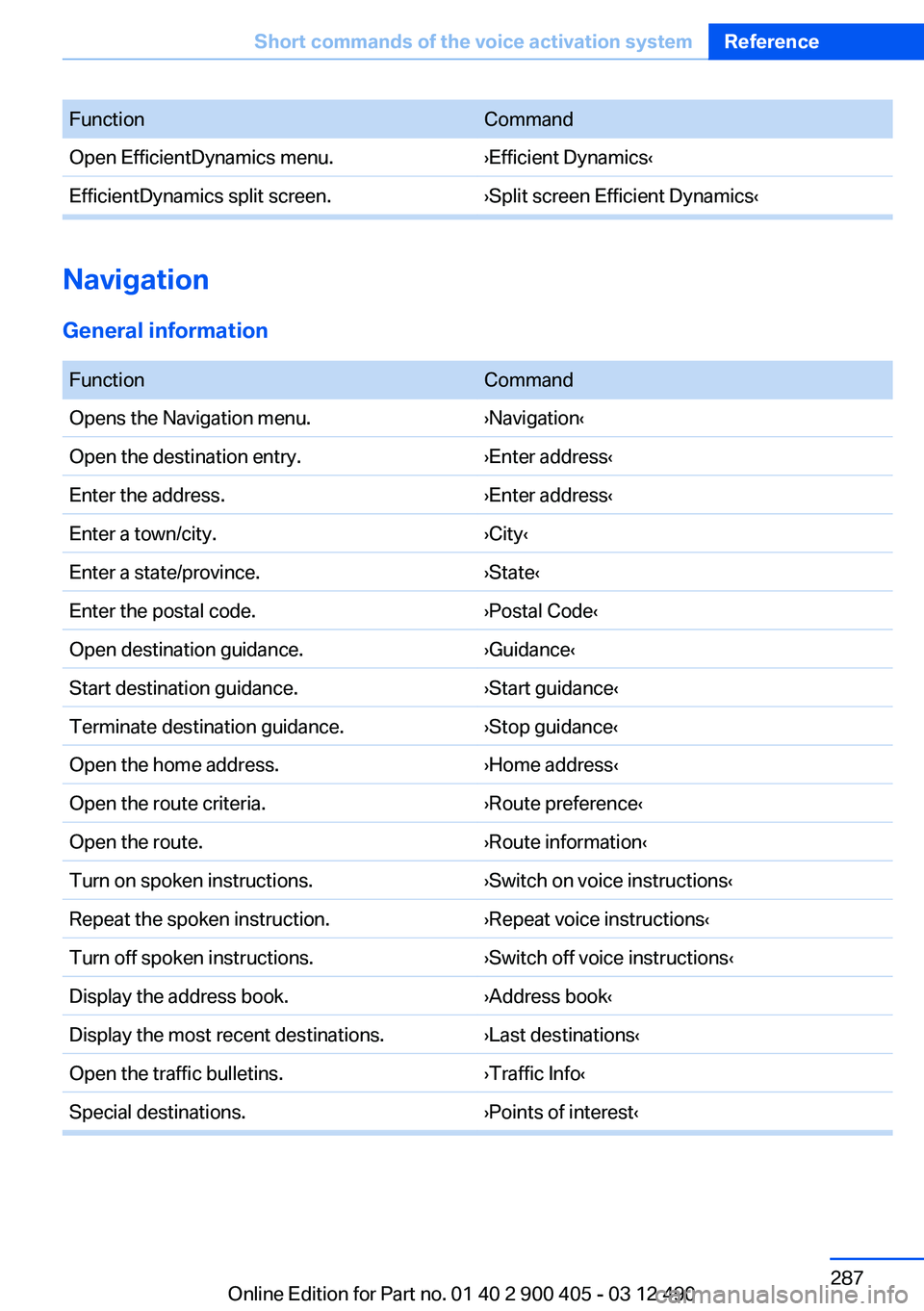
FunctionCommandOpen EfficientDynamics menu.›Efficient Dynamics‹EfficientDynamics split screen.›Split screen Efficient Dynamics‹
Navigation
General information
FunctionCommandOpens the Navigation menu.›Navigation‹Open the destination entry.›Enter address‹Enter the address.›Enter address‹Enter a town/city.›City‹Enter a state/province.›State‹Enter the postal code.›Postal Code‹Open destination guidance.›Guidance‹Start destination guidance.›Start guidance‹Terminate destination guidance.›Stop guidance‹Open the home address.›Home address‹Open the route criteria.›Route preference‹Open the route.›Route information‹Turn on spoken instructions.›Switch on voice instructions‹Repeat the spoken instruction.›Repeat voice instructions‹Turn off spoken instructions.›Switch off voice instructions‹Display the address book.›Address book‹Display the most recent destinations.›Last destinations‹Open the traffic bulletins.›Traffic Info‹Special destinations.›Points of interest‹Seite 287Short commands of the voice activation systemReference287
Online Edition for Part no. 01 40 2 900 405 - 03 12 490
Page 294 of 305
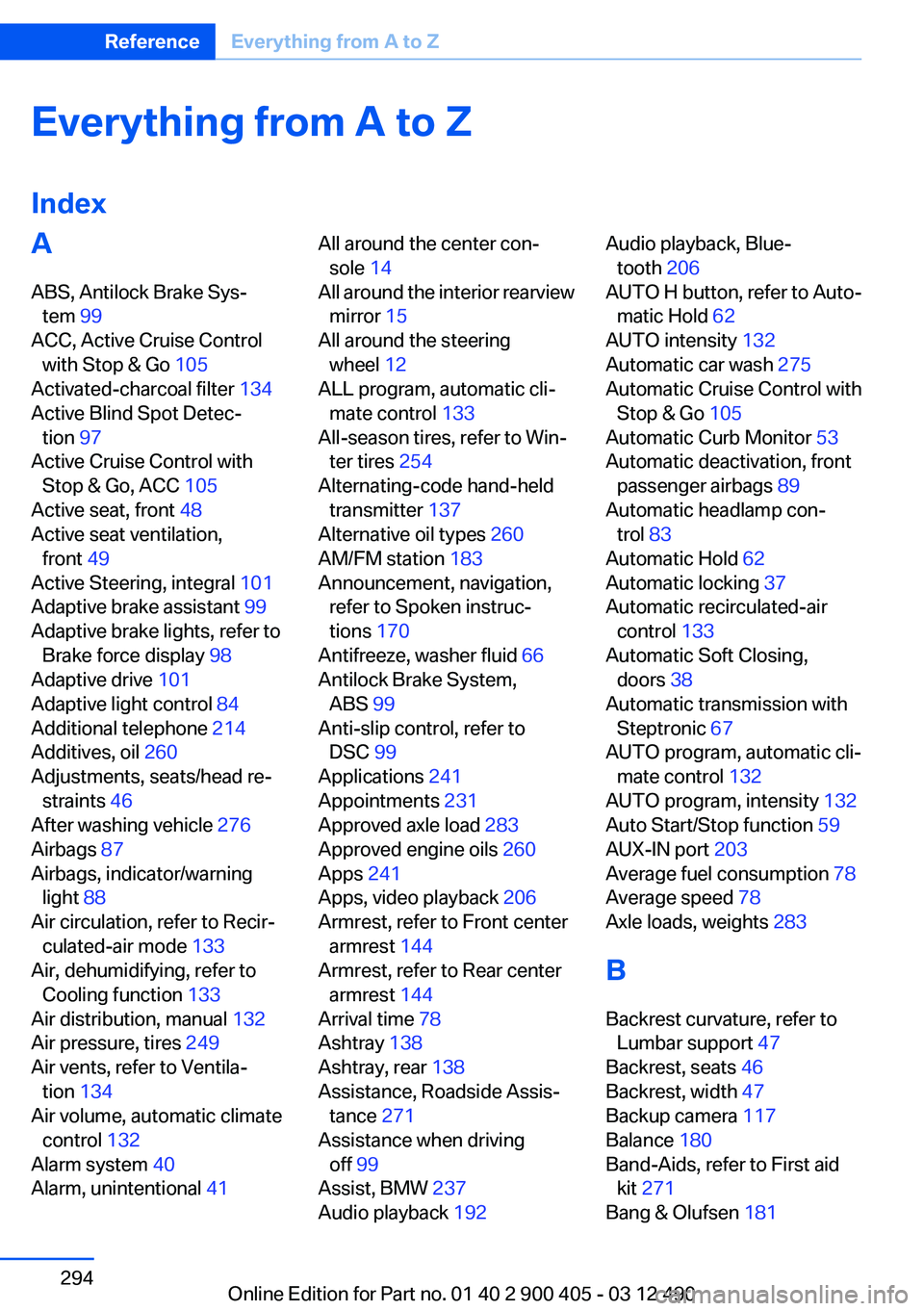
Everything from A to Z
IndexA
ABS, Antilock Brake Sys‐ tem 99
ACC, Active Cruise Control with Stop & Go 105
Activated-charcoal filter 134
Active Blind Spot Detec‐ tion 97
Active Cruise Control with Stop & Go, ACC 105
Active seat, front 48
Active seat ventilation, front 49
Active Steering, integral 101
Adaptive brake assistant 99
Adaptive brake lights, refer to Brake force display 98
Adaptive drive 101
Adaptive light control 84
Additional telephone 214
Additives, oil 260
Adjustments, seats/head re‐ straints 46
After washing vehicle 276
Airbags 87
Airbags, indicator/warning light 88
Air circulation, refer to Recir‐ culated-air mode 133
Air, dehumidifying, refer to Cooling function 133
Air distribution, manual 132
Air pressure, tires 249
Air vents, refer to Ventila‐ tion 134
Air volume, automatic climate control 132
Alarm system 40
Alarm, unintentional 41 All around the center con‐
sole 14
All around the interior rearview mirror 15
All around the steering wheel 12
ALL program, automatic cli‐ mate control 133
All-season tires, refer to Win‐ ter tires 254
Alternating-code hand-held transmitter 137
Alternative oil types 260
AM/FM station 183
Announcement, navigation, refer to Spoken instruc‐
tions 170
Antifreeze, washer fluid 66
Antilock Brake System, ABS 99
Anti-slip control, refer to DSC 99
Applications 241
Appointments 231
Approved axle load 283
Approved engine oils 260
Apps 241
Apps, video playback 206
Armrest, refer to Front center armrest 144
Armrest, refer to Rear center armrest 144
Arrival time 78
Ashtray 138
Ashtray, rear 138
Assistance, Roadside Assis‐ tance 271
Assistance when driving off 99
Assist, BMW 237
Audio playback 192 Audio playback, Blue‐
tooth 206
AUTO H button, refer to Auto‐ matic Hold 62
AUTO intensity 132
Automatic car wash 275
Automatic Cruise Control with Stop & Go 105
Automatic Curb Monitor 53
Automatic deactivation, front passenger airbags 89
Automatic headlamp con‐ trol 83
Automatic Hold 62
Automatic locking 37
Automatic recirculated-air control 133
Automatic Soft Closing, doors 38
Automatic transmission with Steptronic 67
AUTO program, automatic cli‐ mate control 132
AUTO program, intensity 132
Auto Start/Stop function 59
AUX-IN port 203
Average fuel consumption 78
Average speed 78
Axle loads, weights 283
B
Backrest curvature, refer to Lumbar support 47
Backrest, seats 46
Backrest, width 47
Backup camera 117
Balance 180
Band-Aids, refer to First aid kit 271
Bang & Olufsen 181 Seite 294ReferenceEverything from A to Z294
Online Edition for Part no. 01 40 2 900 405 - 03 12 490
Page 297 of 305
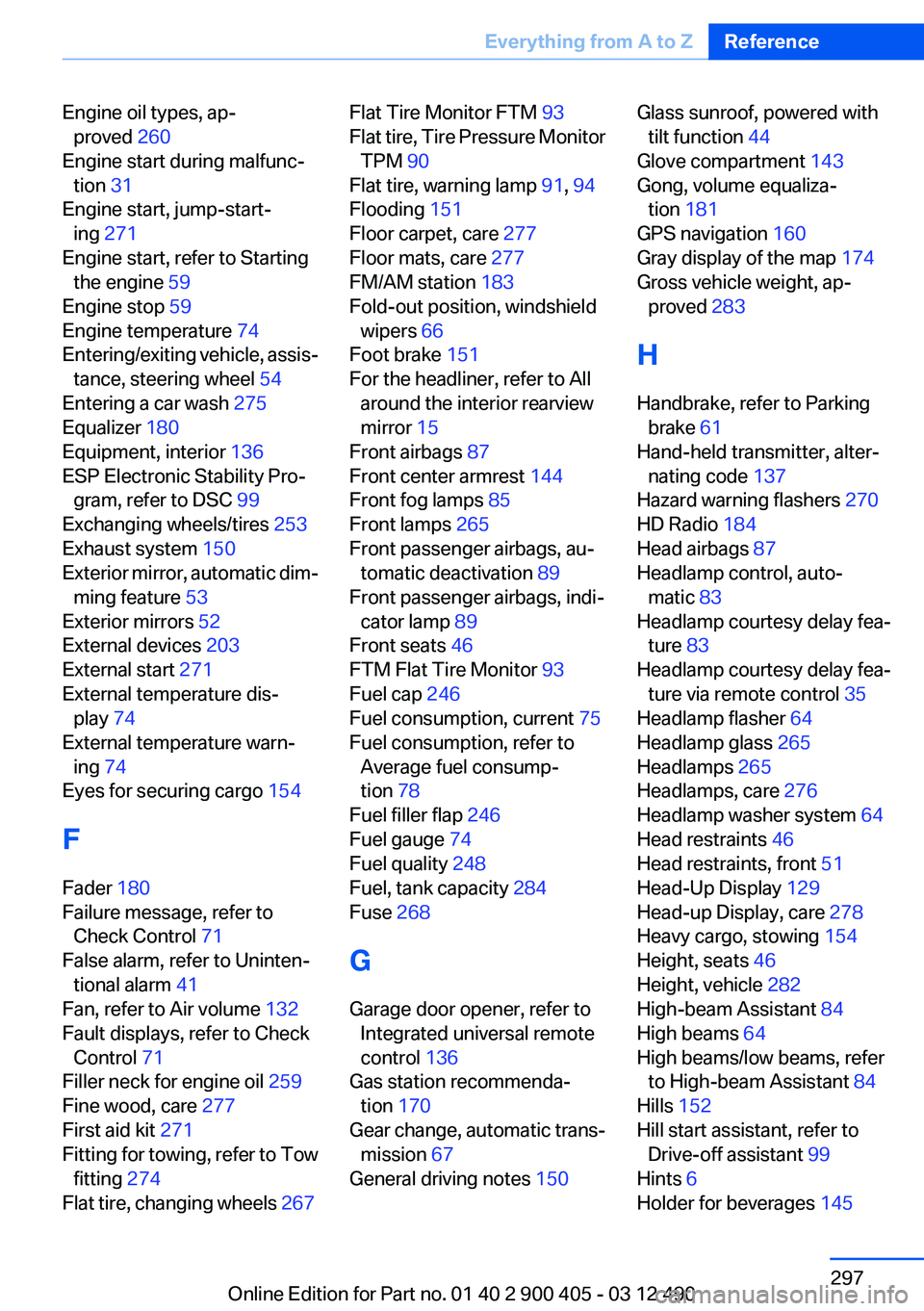
Engine oil types, ap‐proved 260
Engine start during malfunc‐ tion 31
Engine start, jump-start‐ ing 271
Engine start, refer to Starting the engine 59
Engine stop 59
Engine temperature 74
Entering/exiting vehicle, assis‐ tance, steering wheel 54
Entering a car wash 275
Equalizer 180
Equipment, interior 136
ESP Electronic Stability Pro‐ gram, refer to DSC 99
Exchanging wheels/tires 253
Exhaust system 150
Exterior mirror, automatic dim‐ ming feature 53
Exterior mirrors 52
External devices 203
External start 271
External temperature dis‐ play 74
External temperature warn‐ ing 74
Eyes for securing cargo 154
F
Fader 180
Failure message, refer to Check Control 71
False alarm, refer to Uninten‐ tional alarm 41
Fan, refer to Air volume 132
Fault displays, refer to Check Control 71
Filler neck for engine oil 259
Fine wood, care 277
First aid kit 271
Fitting for towing, refer to Tow fitting 274
Flat tire, changing wheels 267 Flat Tire Monitor FTM 93
Flat tire, Tire Pressure Monitor TPM 90
Flat tire, warning lamp 91, 94
Flooding 151
Floor carpet, care 277
Floor mats, care 277
FM/AM station 183
Fold-out position, windshield wipers 66
Foot brake 151
For the headliner, refer to All around the interior rearview
mirror 15
Front airbags 87
Front center armrest 144
Front fog lamps 85
Front lamps 265
Front passenger airbags, au‐ tomatic deactivation 89
Front passenger airbags, indi‐ cator lamp 89
Front seats 46
FTM Flat Tire Monitor 93
Fuel cap 246
Fuel consumption, current 75
Fuel consumption, refer to Average fuel consump‐
tion 78
Fuel filler flap 246
Fuel gauge 74
Fuel quality 248
Fuel, tank capacity 284
Fuse 268
G
Garage door opener, refer to Integrated universal remote
control 136
Gas station recommenda‐ tion 170
Gear change, automatic trans‐ mission 67
General driving notes 150 Glass sunroof, powered with
tilt function 44
Glove compartment 143
Gong, volume equaliza‐ tion 181
GPS navigation 160
Gray display of the map 174
Gross vehicle weight, ap‐ proved 283
H
Handbrake, refer to Parking brake 61
Hand-held transmitter, alter‐ nating code 137
Hazard warning flashers 270
HD Radio 184
Head airbags 87
Headlamp control, auto‐ matic 83
Headlamp courtesy delay fea‐ ture 83
Headlamp courtesy delay fea‐ ture via remote control 35
Headlamp flasher 64
Headlamp glass 265
Headlamps 265
Headlamps, care 276
Headlamp washer system 64
Head restraints 46
Head restraints, front 51
Head-Up Display 129
Head-up Display, care 278
Heavy cargo, stowing 154
Height, seats 46
Height, vehicle 282
High-beam Assistant 84
High beams 64
High beams/low beams, refer to High-beam Assistant 84
Hills 152
Hill start assistant, refer to Drive-off assistant 99
Hints 6
Holder for beverages 145 Seite 297Everything from A to ZReference297
Online Edition for Part no. 01 40 2 900 405 - 03 12 490
Page 298 of 305
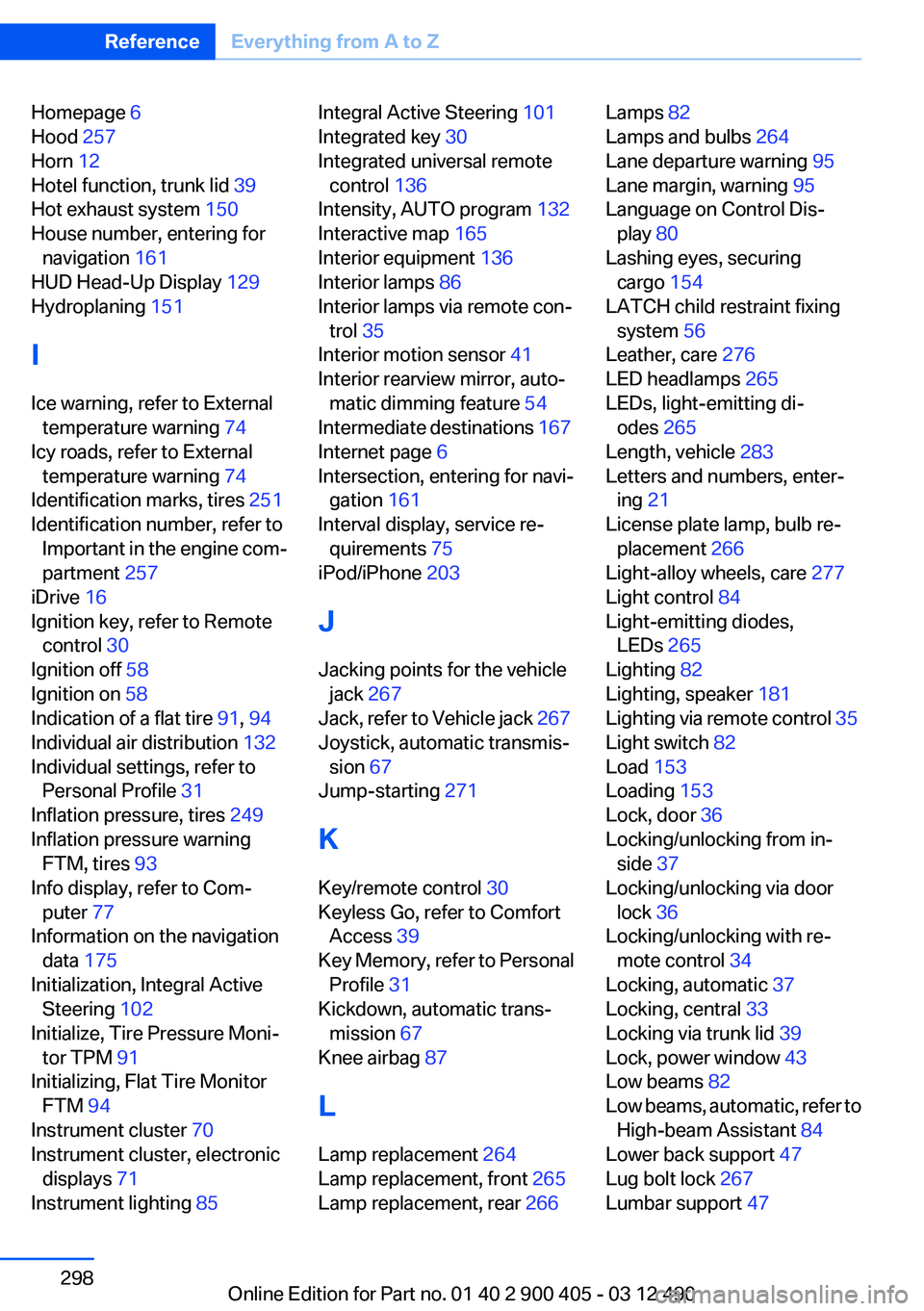
Homepage 6
Hood 257
Horn 12
Hotel function, trunk lid 39
Hot exhaust system 150
House number, entering for navigation 161
HUD Head-Up Display 129
Hydroplaning 151
I
Ice warning, refer to External temperature warning 74
Icy roads, refer to External temperature warning 74
Identification marks, tires 251
Identification number, refer to Important in the engine com‐
partment 257
iDrive 16
Ignition key, refer to Remote control 30
Ignition off 58
Ignition on 58
Indication of a flat tire 91, 94
Individual air distribution 132
Individual settings, refer to Personal Profile 31
Inflation pressure, tires 249
Inflation pressure warning FTM, tires 93
Info display, refer to Com‐ puter 77
Information on the navigation data 175
Initialization, Integral Active Steering 102
Initialize, Tire Pressure Moni‐ tor TPM 91
Initializing, Flat Tire Monitor FTM 94
Instrument cluster 70
Instrument cluster, electronic displays 71
Instrument lighting 85 Integral Active Steering 101
Integrated key 30
Integrated universal remote control 136
Intensity, AUTO program 132
Interactive map 165
Interior equipment 136
Interior lamps 86
Interior lamps via remote con‐ trol 35
Interior motion sensor 41
Interior rearview mirror, auto‐ matic dimming feature 54
Intermediate destinations 167
Internet page 6
Intersection, entering for navi‐ gation 161
Interval display, service re‐ quirements 75
iPod/iPhone 203
J
Jacking points for the vehicle jack 267
Jack, refer to Vehicle jack 267
Joystick, automatic transmis‐ sion 67
Jump-starting 271
K
Key/remote control 30
Keyless Go, refer to Comfort Access 39
Key Memory, refer to Personal Profile 31
Kickdown, automatic trans‐ mission 67
Knee airbag 87
L
Lamp replacement 264
Lamp replacement, front 265
Lamp replacement, rear 266 Lamps 82
Lamps and bulbs 264
Lane departure warning 95
Lane margin, warning 95
Language on Control Dis‐ play 80
Lashing eyes, securing cargo 154
LATCH child restraint fixing system 56
Leather, care 276
LED headlamps 265
LEDs, light-emitting di‐ odes 265
Length, vehicle 283
Letters and numbers, enter‐ ing 21
License plate lamp, bulb re‐ placement 266
Light-alloy wheels, care 277
Light control 84
Light-emitting diodes, LEDs 265
Lighting 82
Lighting, speaker 181
Lighting via remote control 35
Light switch 82
Load 153
Loading 153
Lock, door 36
Locking/unlocking from in‐ side 37
Locking/unlocking via door lock 36
Locking/unlocking with re‐ mote control 34
Locking, automatic 37
Locking, central 33
Locking via trunk lid 39
Lock, power window 43
Low beams 82
Low beams, automatic, refer to High-beam Assistant 84
Lower back support 47
Lug bolt lock 267
Lumbar support 47 Seite 298ReferenceEverything from A to Z298
Online Edition for Part no. 01 40 2 900 405 - 03 12 490