radio BMW 645CI COUPE 2004 E63 User Guide
[x] Cancel search | Manufacturer: BMW, Model Year: 2004, Model line: 645CI COUPE, Model: BMW 645CI COUPE 2004 E63Pages: 216, PDF Size: 3.46 MB
Page 128 of 216
On/off and tone
126
On/off and tone
The following equipment has shared con-
trols and setting options:
>Radio Business
>CD player
>CD changer
*.
Controls
The audio sources can be operated using:
>Buttons on the CD player
>Control Center
>Buttons on the steering wheel, refer to
page 11.
Buttons on CD player
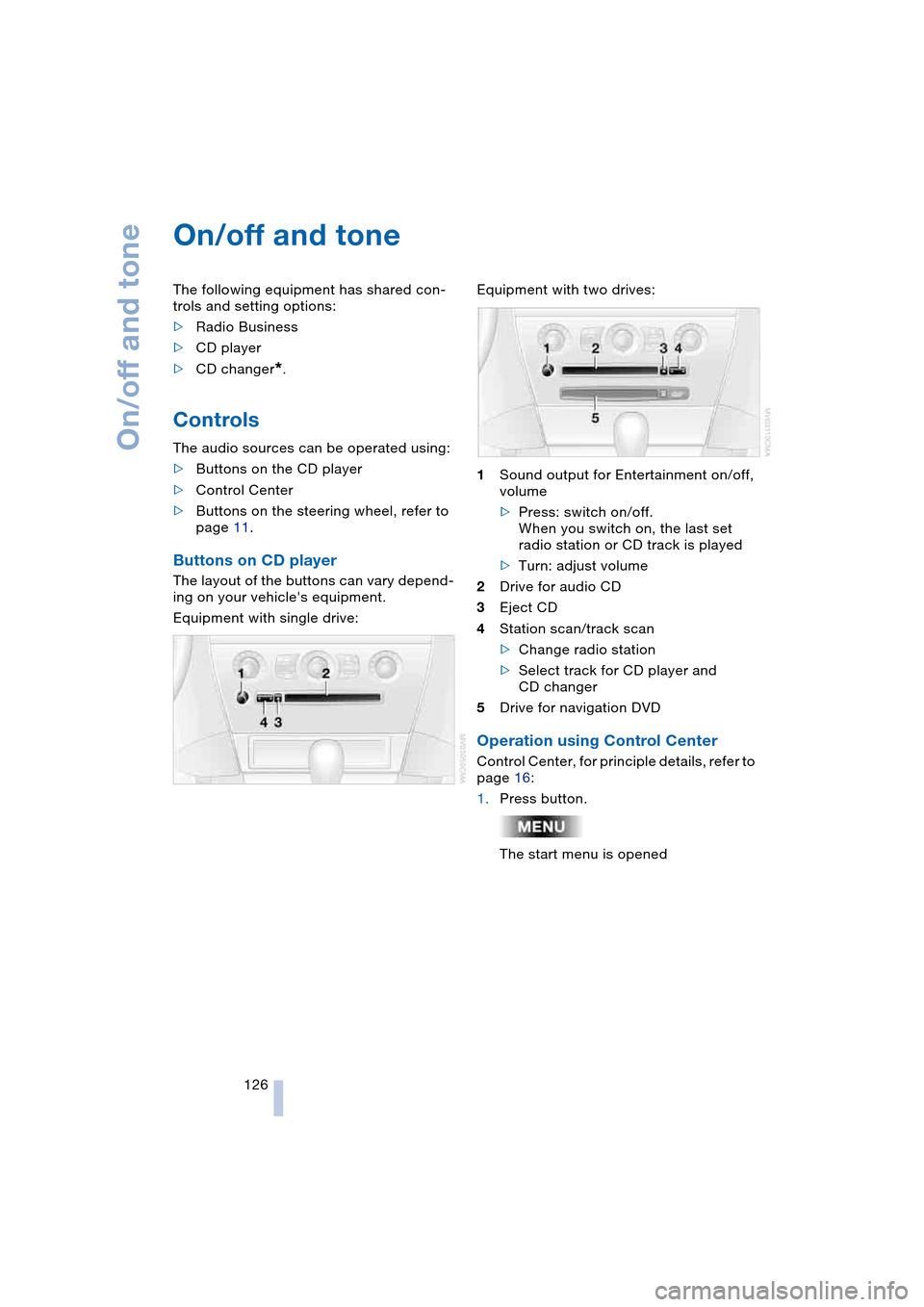
The layout of the buttons can vary depend-
ing on your vehicle's equipment.
Equipment with single drive:Equipment with two drives:
1Sound output for Entertainment on/off,
volume
>Press: switch on/off.
When you switch on, the last set
radio station or CD track is played
>Turn: adjust volume
2Drive for audio CD
3Eject CD
4Station scan/track scan
>Change radio station
>Select track for CD player and
CD changer
5Drive for navigation DVD
Operation using Control Center
Control Center, for principle details, refer to
page 16:
1.Press button.
The start menu is opened
Page 129 of 216
Navigation
Entertainment
Driving tips
127Reference
At a glance
Controls
Communications
Mobility
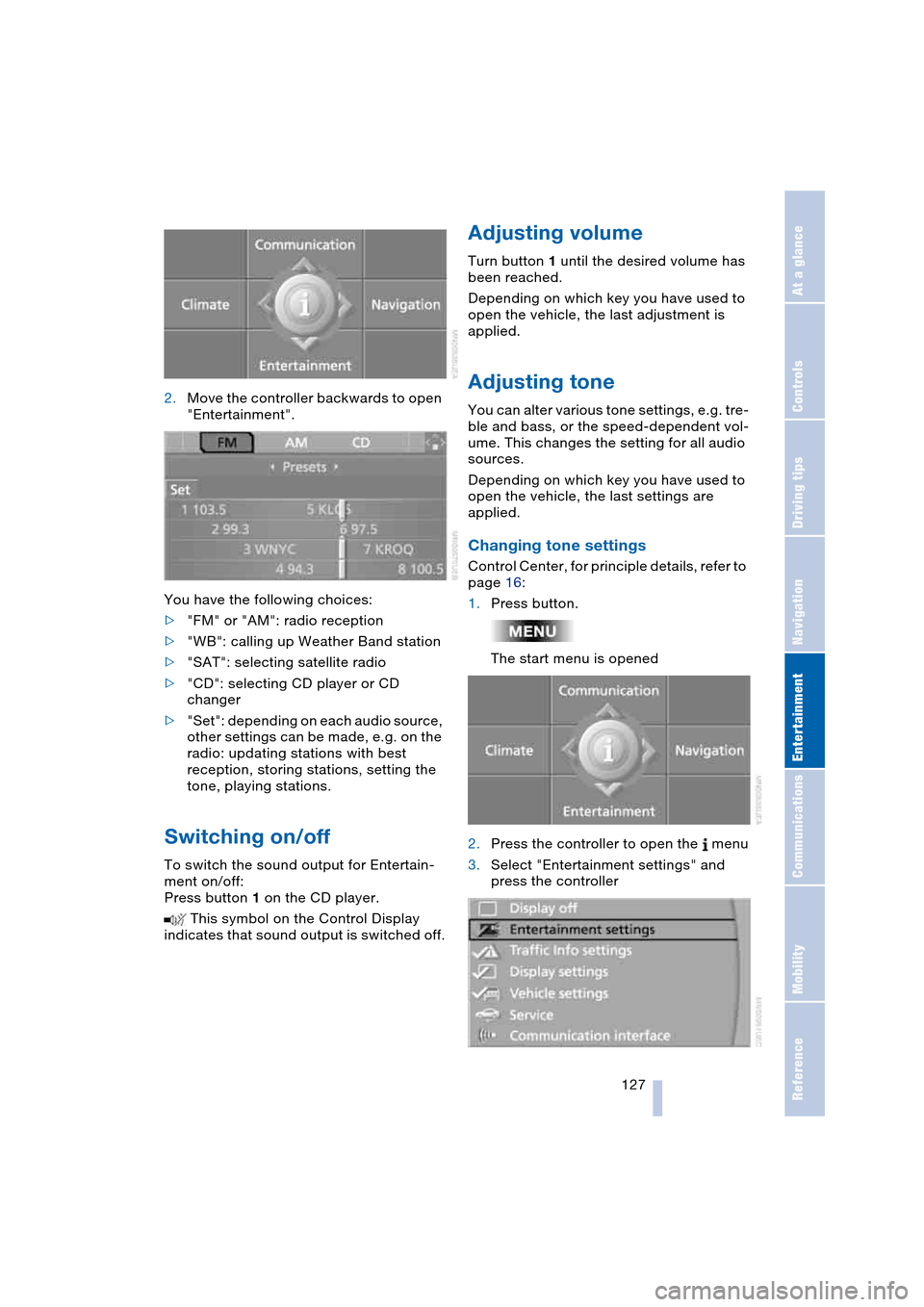
2.Move the controller backwards to open
"Entertainment".
You have the following choices:
>"FM" or "AM": radio reception
>"WB": calling up Weather Band station
>"SAT": selecting satellite radio
>"CD": selecting CD player or CD
changer
>"Set": depending on each audio source,
other settings can be made, e.g. on the
radio: updating stations with best
reception, storing stations, setting the
tone, playing stations.
Switching on/off
To switch the sound output for Entertain-
ment on/off:
Press button 1 on the CD player.
This symbol on the Control Display
indicates that sound output is switched off.
Adjusting volume
Turn button 1 until the desired volume has
been reached.
Depending on which key you have used to
open the vehicle, the last adjustment is
applied.
Adjusting tone
You can alter various tone settings, e.g. tre-
ble and bass, or the speed-dependent vol-
ume. This changes the setting for all audio
sources.
Depending on which key you have used to
open the vehicle, the last settings are
applied.
Changing tone settings
Control Center, for principle details, refer to
page 16:
1.Press button.
The start menu is opened
2.Press the controller to open the menu
3.Select "Entertainment settings" and
press the controller
Page 132 of 216
Radio
130
Radio
Your radio provides reception of the FM
and AM wavebands.
Listening to the radio
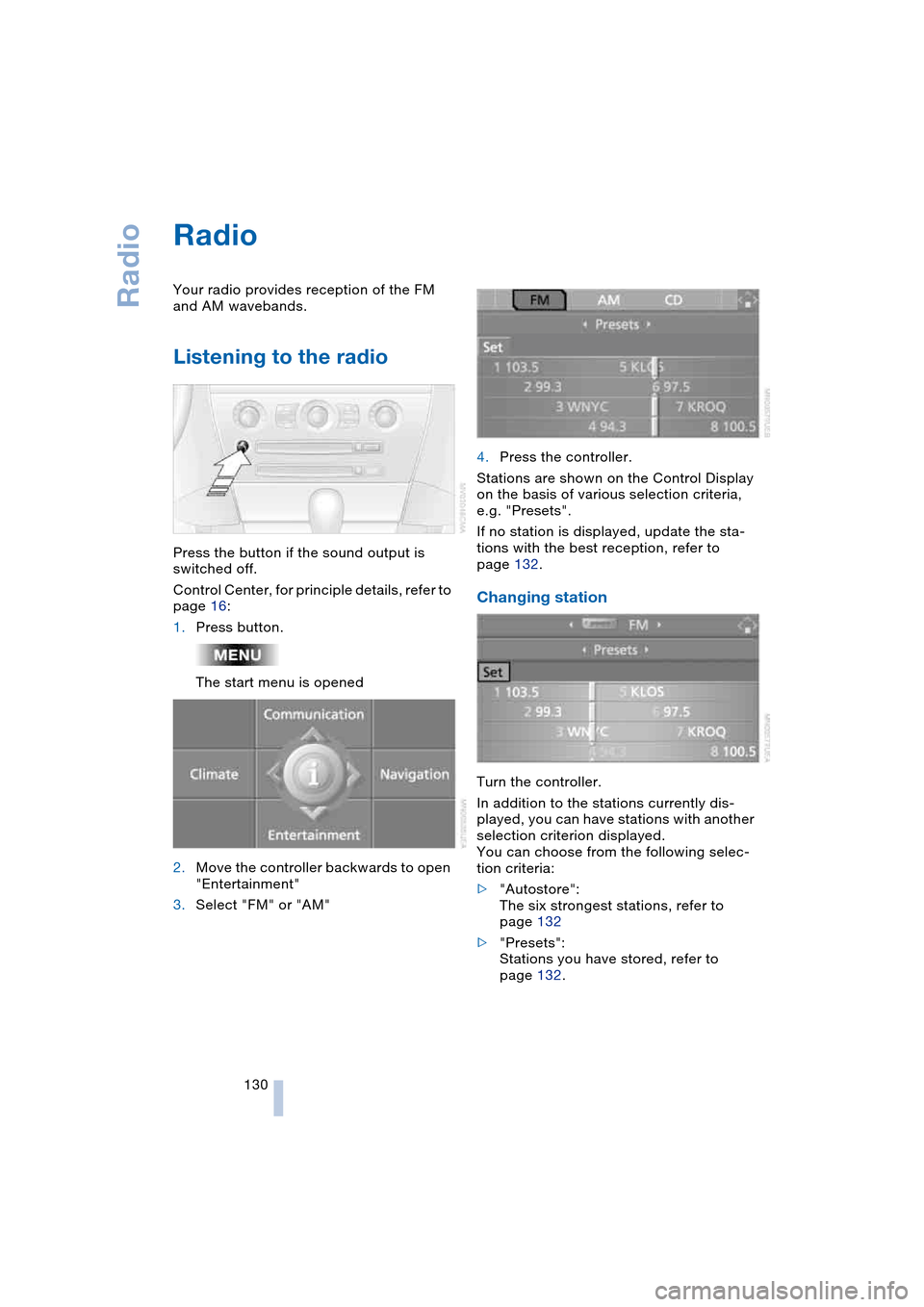
Press the button if the sound output is
switched off.
Control Center, for principle details, refer to
page 16:
1.Press button.
The start menu is opened
2.Move the controller backwards to open
"Entertainment"
3.Select "FM" or "AM"4.Press the controller.
Stations are shown on the Control Display
on the basis of various selection criteria,
e.g. "Presets".
If no station is displayed, update the sta-
tions with the best reception, refer to
page 132.
Changing station
Turn the controller.
In addition to the stations currently dis-
played, you can have stations with another
selection criterion displayed.
You can choose from the following selec-
tion criteria:
>"Autostore":
The six strongest stations, refer to
page 132
>"Presets":
Stations you have stored, refer to
page 132.
Page 133 of 216
Navigation
Entertainment
Driving tips
131Reference
At a glance
Controls
Communications
Mobility
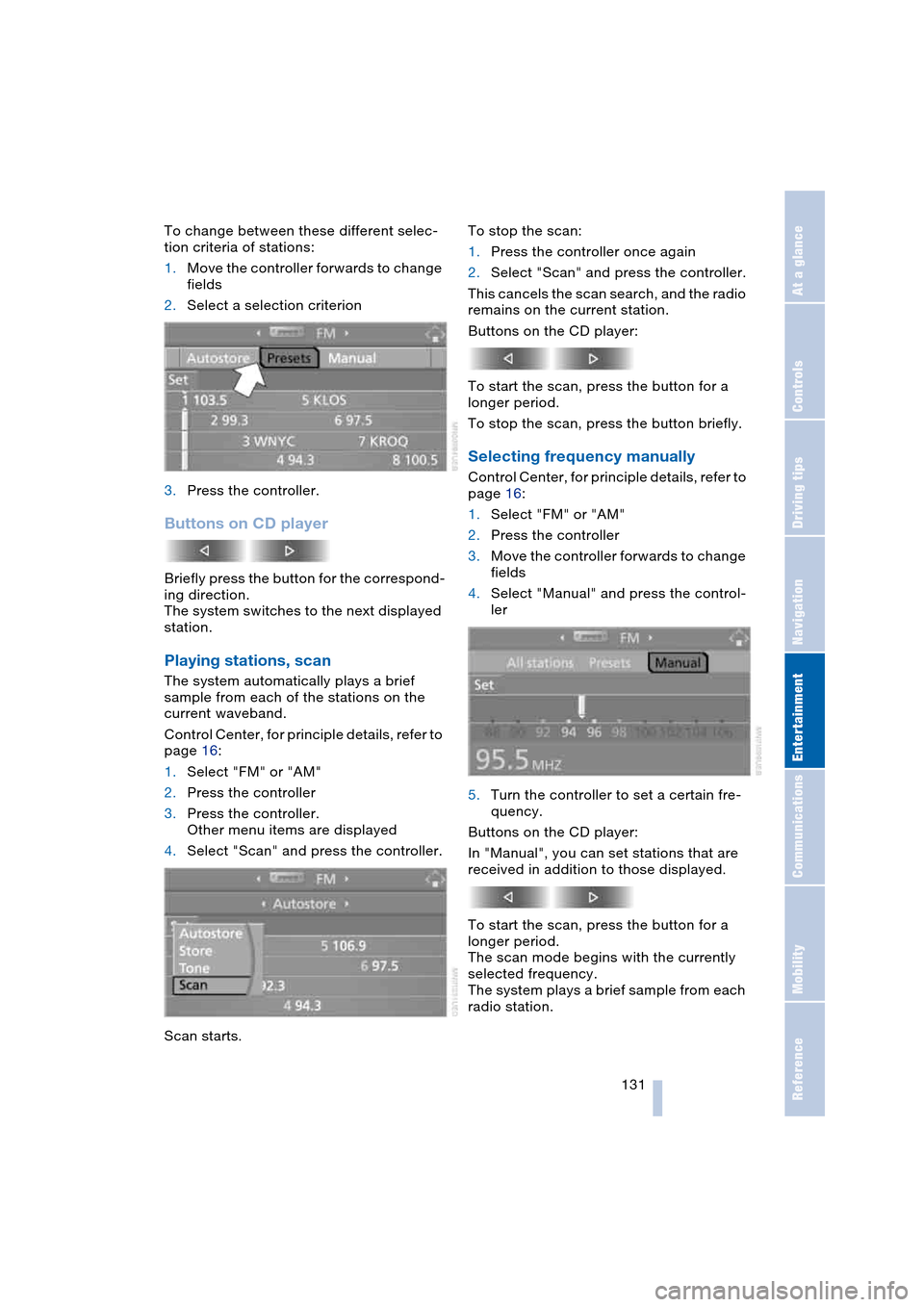
To change between these different selec-
tion criteria of stations:
1.Move the controller forwards to change
fields
2.Select a selection criterion
3.Press the controller.
Buttons on CD player
Briefly press the button for the correspond-
ing direction.
The system switches to the next displayed
station.
Playing stations, scan
The system automatically plays a brief
sample from each of the stations on the
current waveband.
Control Center, for principle details, refer to
page 16:
1.Select "FM" or "AM"
2.Press the controller
3.Press the controller.
Other menu items are displayed
4.Select "Scan" and press the controller.
Scan starts.To stop the scan:
1.Press the controller once again
2.Select "Scan" and press the controller.
This cancels the scan search, and the radio
remains on the current station.
Buttons on the CD player:
To start the scan, press the button for a
longer period.
To stop the scan, press the button briefly.
Selecting frequency manually
Control Center, for principle details, refer to
page 16:
1.Select "FM" or "AM"
2.Press the controller
3.Move the controller forwards to change
fields
4.Select "Manual" and press the control-
ler
5.Turn the controller to set a certain fre-
quency.
Buttons on the CD player:
In "Manual", you can set stations that are
received in addition to those displayed.
To start the scan, press the button for a
longer period.
The scan mode begins with the currently
selected frequency.
The system plays a brief sample from each
radio station.
Page 134 of 216
Radio
132 To stop the scan at the desired frequency
or station:
Press button.
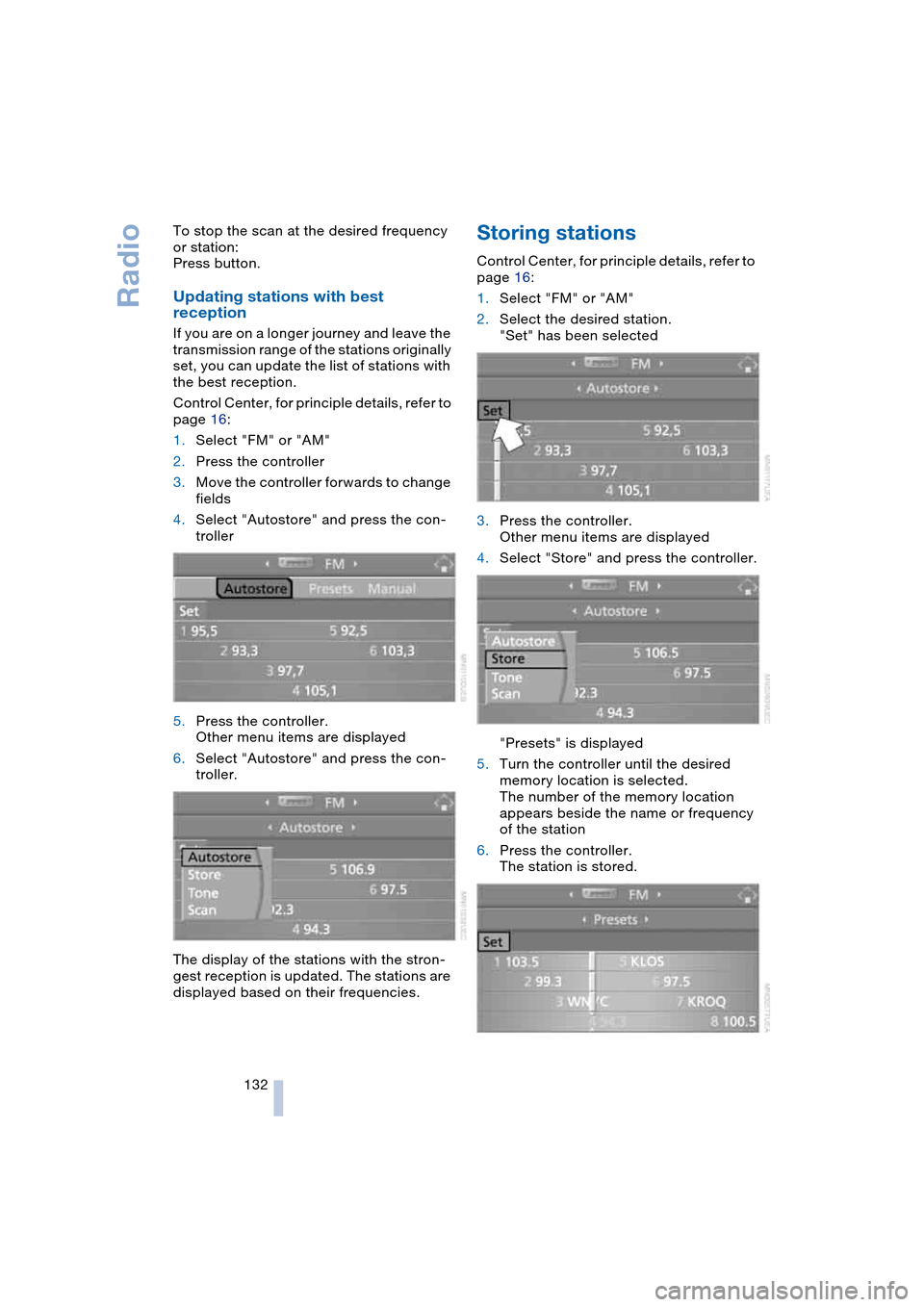
Updating stations with best
reception
If you are on a longer journey and leave the
transmission range of the stations originally
set, you can update the list of stations with
the best reception.
Control Center, for principle details, refer to
page 16:
1.Select "FM" or "AM"
2.Press the controller
3.Move the controller forwards to change
fields
4.Select "Autostore" and press the con-
troller
5.Press the controller.
Other menu items are displayed
6.Select "Autostore" and press the con-
troller.
The display of the stations with the stron-
gest reception is updated. The stations are
displayed based on their frequencies.
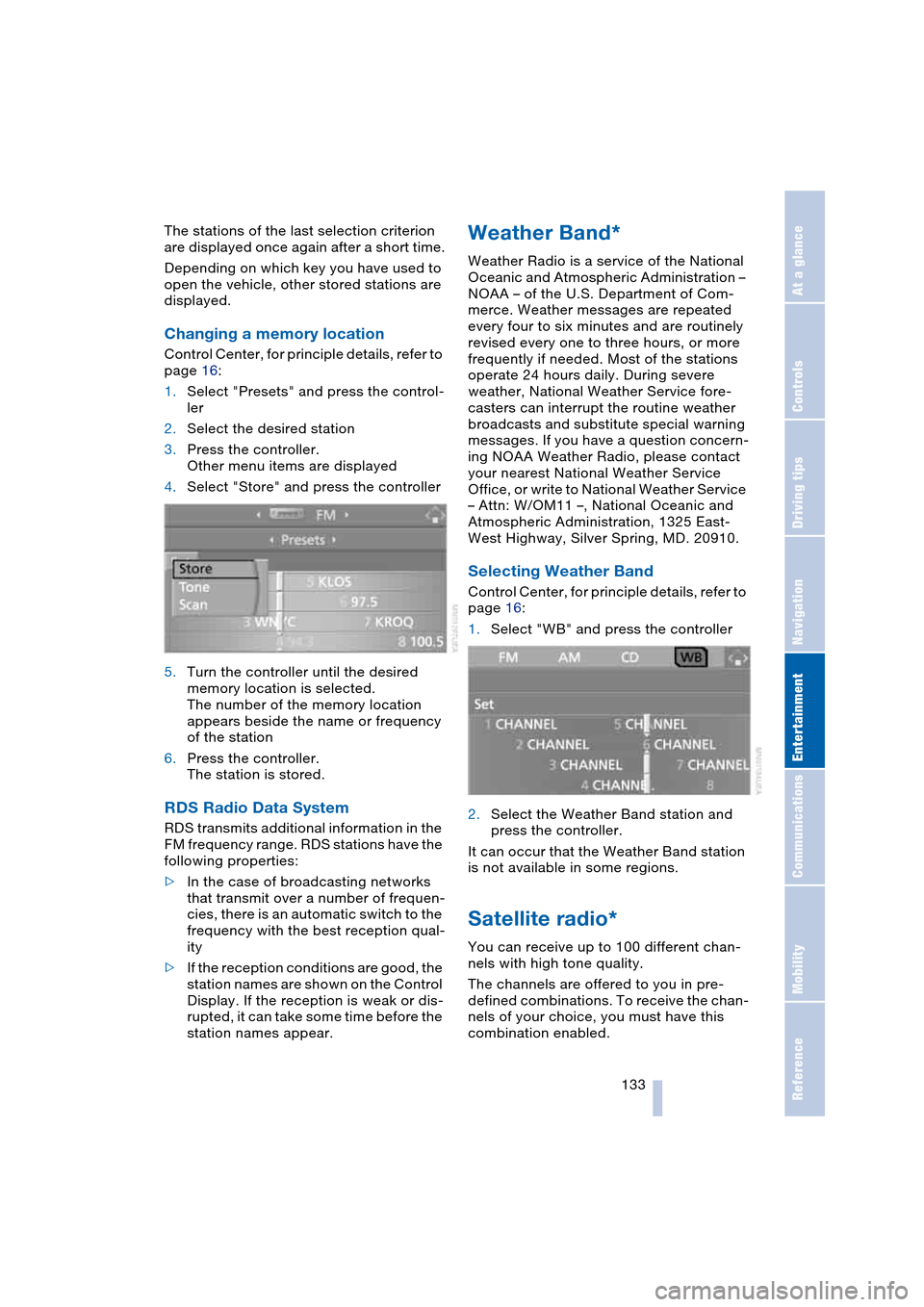
Storing stations
Control Center, for principle details, refer to
page 16:
1.Select "FM" or "AM"
2.Select the desired station.
"Set" has been selected
3.Press the controller.
Other menu items are displayed
4.Select "Store" and press the controller.
"Presets" is displayed
5.Turn the controller until the desired
memory location is selected.
The number of the memory location
appears beside the name or frequency
of the station
6.Press the controller.
The station is stored.
Page 135 of 216
Navigation
Entertainment
Driving tips
133Reference
At a glance
Controls
Communications
Mobility
The stations of the last selection criterion
are displayed once again after a short time.
Depending on which key you have used to
open the vehicle, other stored stations are
displayed.
Changing a memory location
Control Center, for principle details, refer to
page 16:
1.Select "Presets" and press the control-
ler
2.Select the desired station
3.Press the controller.
Other menu items are displayed
4.Select "Store" and press the controller
5.Turn the controller until the desired
memory location is selected.
The number of the memory location
appears beside the name or frequency
of the station
6.Press the controller.
The station is stored.
RDS Radio Data System
RDS transmits additional information in the
FM frequency range. RDS stations have the
following properties:
>In the case of broadcasting networks
that transmit over a number of frequen-
cies, there is an automatic switch to the
frequency with the best reception qual-
ity
>If the reception conditions are good, the
station names are shown on the Control
Display. If the reception is weak or dis-
rupted, it can take some time before the
station names appear.
Weather Band*
Weather Radio is a service of the National
Oceanic and Atmospheric Administration –
NOAA – of the U.S. Department of Com-
merce. Weather messages are repeated
every four to six minutes and are routinely
revised every one to three hours, or more
frequently if needed. Most of the stations
operate 24 hours daily. During severe
weather, National Weather Service fore-
casters can interrupt the routine weather
broadcasts and substitute special warning
messages. If you have a question concern-
ing NOAA Weather Radio, please contact
your nearest National Weather Service
Office, or write to National Weather Service
– Attn: W/OM11 –, National Oceanic and
Atmospheric Administration, 1325 East-
West Highway, Silver Spring, MD. 20910.
Selecting Weather Band
Control Center, for principle details, refer to
page 16:
1.Select "WB" and press the controller
2.Select the Weather Band station and
press the controller.
It can occur that the Weather Band station
is not available in some regions.
Satellite radio*
You can receive up to 100 different chan-
nels with high tone quality.
The channels are offered to you in pre-
defined combinations. To receive the chan-
nels of your choice, you must have this
combination enabled.
Page 136 of 216
Radio
134 You may experience signal drops and
muting events related to this new
technology.<
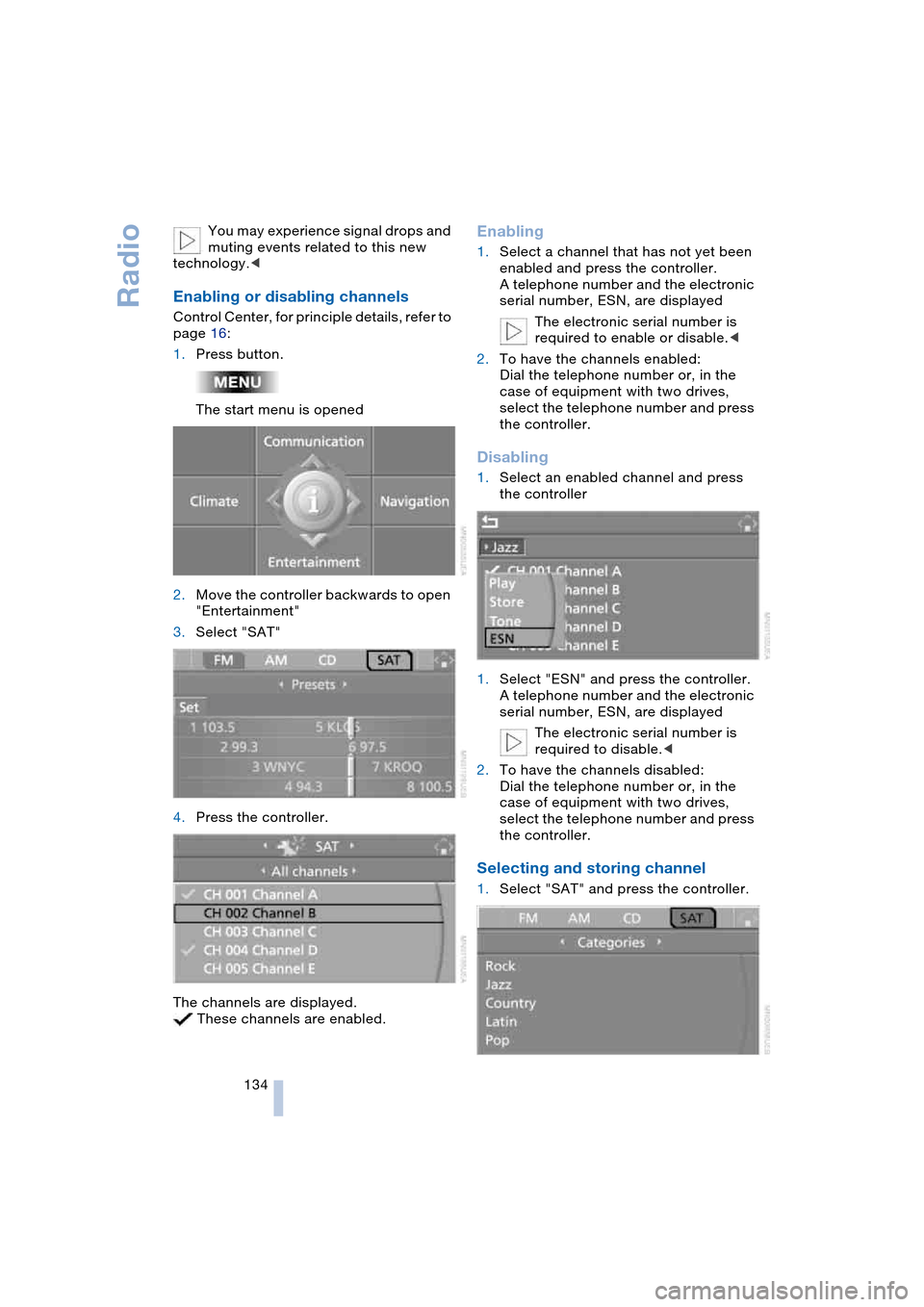
Enabling or disabling channels
Control Center, for principle details, refer to
page 16:
1.Press button.
The start menu is opened
2.Move the controller backwards to open
"Entertainment"
3.Select "SAT"
4.Press the controller.
The channels are displayed.
These channels are enabled.
Enabling
1.Select a channel that has not yet been
enabled and press the controller.
A telephone number and the electronic
serial number, ESN, are displayed
The electronic serial number is
required to enable or disable.<
2.To have the channels enabled:
Dial the telephone number or, in the
case of equipment with two drives,
select the telephone number and press
the controller.
Disabling
1.Select an enabled channel and press
the controller
1.Select "ESN" and press the controller.
A telephone number and the electronic
serial number, ESN, are displayed
The electronic serial number is
required to disable.<
2.To have the channels disabled:
Dial the telephone number or, in the
case of equipment with two drives,
select the telephone number and press
the controller.
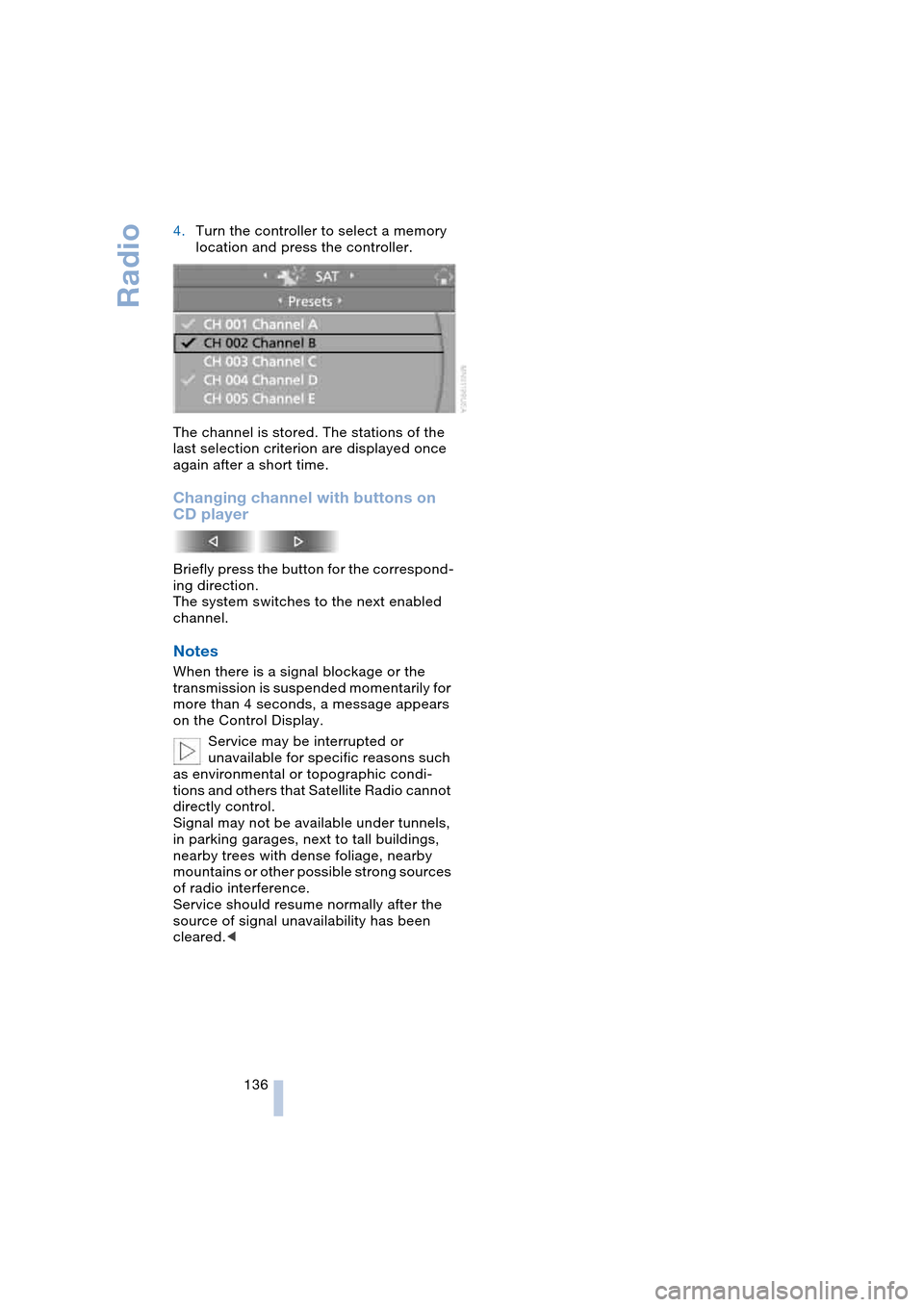
Selecting and storing channel
1.Select "SAT" and press the controller.
Page 138 of 216
Radio
136 4.Turn the controller to select a memory
location and press the controller.
The channel is stored. The stations of the
last selection criterion are displayed once
again after a short time.
Changing channel with buttons on
CD player
Briefly press the button for the correspond-
ing direction.
The system switches to the next enabled
channel.
Notes
When there is a signal blockage or the
transmission is suspended momentarily for
more than 4 seconds, a message appears
on the Control Display.
Service may be interrupted or
unavailable for specific reasons such
as environmental or topographic condi-
tions and others that Satellite Radio cannot
directly control.
Signal may not be available under tunnels,
in parking garages, next to tall buildings,
nearby trees with dense foliage, nearby
mountains or other possible strong sources
of radio interference.
Service should resume normally after the
source of signal unavailability has been
cleared.<
Page 184 of 216
Replacing components
182 >Active steering
The system is deactivated and has to be
initialized, refer to page 80. Until then,
greater steering wheel movement is
required
>Seat, mirror and steering wheel
memory
The position must be newly stored,
refer to page 44
>Time and date
The settings must be updated, refer to
page 73
>Radio
Radio stations have to be stored again,
refer to page 132
>Navigation system
Wait to see what happens with the
functional capability, refer to page 122.
Fuses
Never attempt to repair a blown fuse,
and do not replace a defective fuse
with a substitute of another color or amper-
age rating, as this could lead to overloading
of the wiring, ultimately resulting in a fire in
the vehicle.<
Information on the fuse assignment is
located below the bracket for the onboard
tool kit, see below.
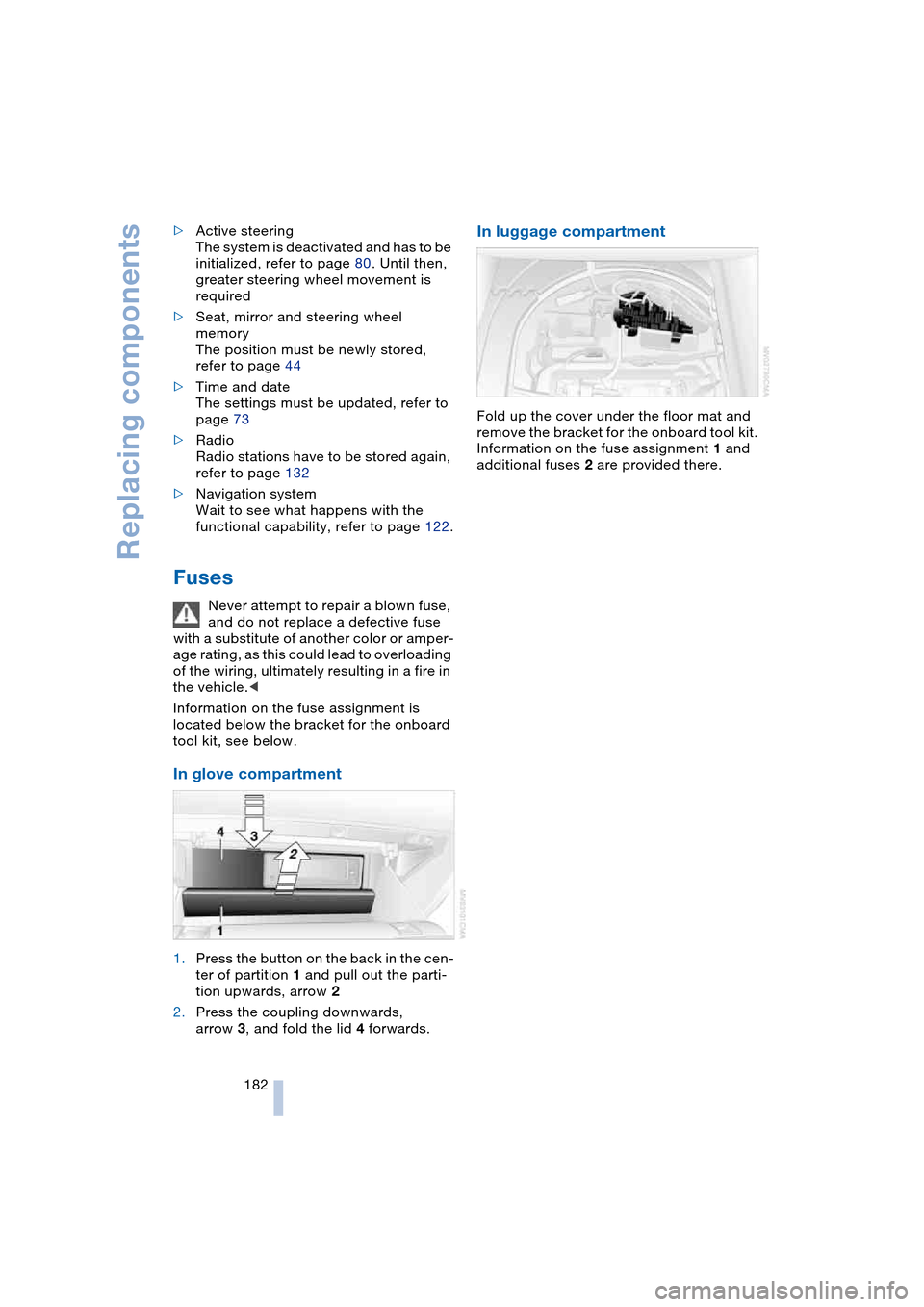
In glove compartment
1.Press the button on the back in the cen-
ter of partition 1 and pull out the parti-
tion upwards, arrow 2
2.Press the coupling downwards,
arrow 3, and fold the lid 4 forwards.
In luggage compartment
Fold up the cover under the floor mat and
remove the bracket for the onboard tool kit.
Information on the fuse assignment 1 and
additional fuses 2 are provided there.
Page 197 of 216
Reference 195
At a glance
Controls
Driving tips
Communications
Navigation
Entertainment
Mobility
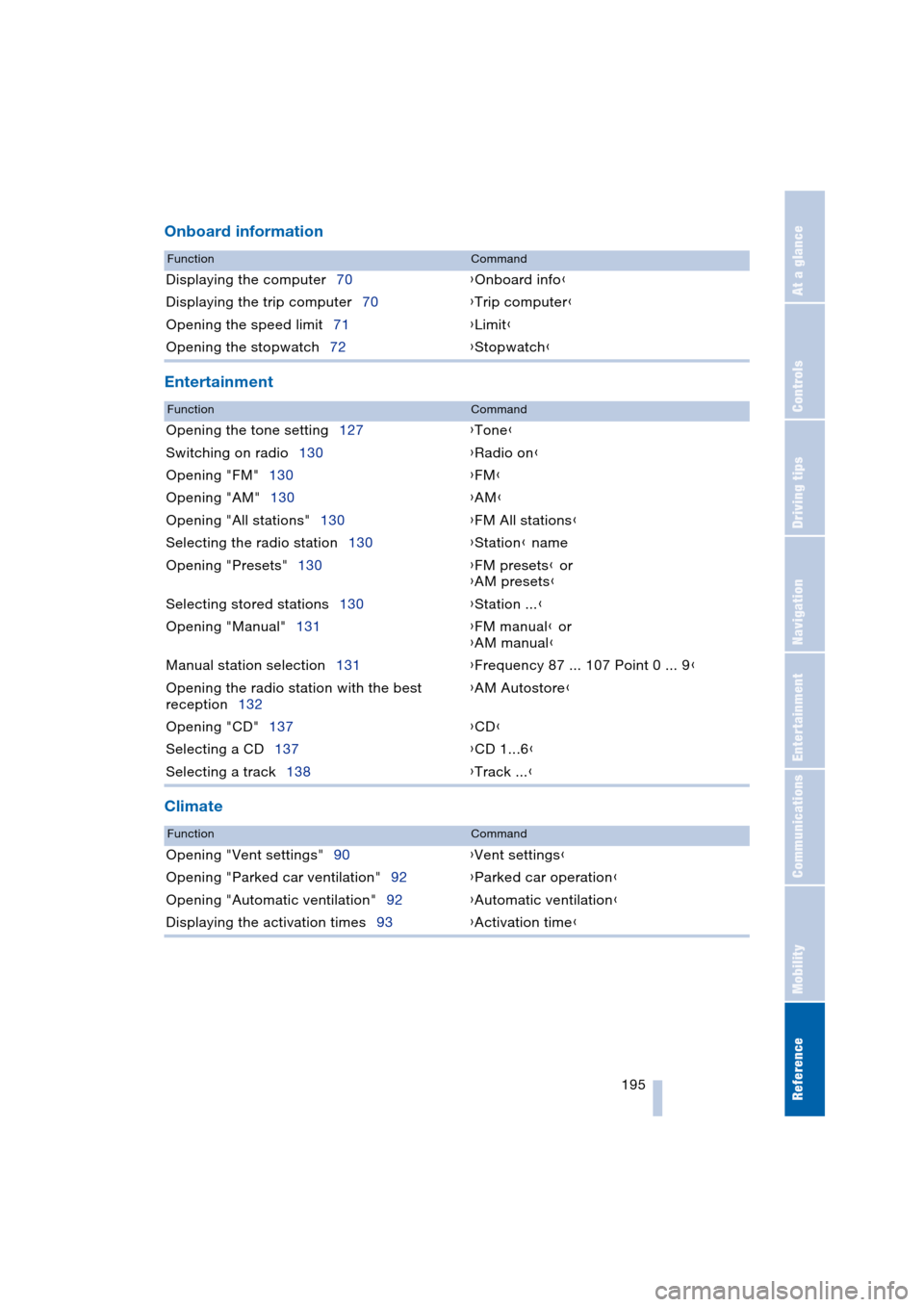
Onboard information
Entertainment
Climate
FunctionCommand
Displaying the computer70{Onboard info}
Displaying the trip computer70{Trip computer}
Opening the speed limit71{Limit}
Opening the stopwatch72{Stopwatch}
FunctionCommand
Opening the tone setting127{Tone}
Switching on radio130{Radio on}
Opening "FM"130{FM}
Opening "AM"130{AM}
Opening "All stations"130{FM All stations}
Selecting the radio station130{Station} name
Opening "Presets"130{FM presets} or
{AM presets}
Selecting stored stations130{Station ...}
Opening "Manual"131{FM manual} or
{AM manual}
Manual station selection131{Frequency 87 ... 107 Point 0 ... 9}
Opening the radio station with the best
reception132{AM Autostore}
Opening "CD"137{CD}
Selecting a CD137{CD 1...6}
Selecting a track138{Track ...}
FunctionCommand
Opening "Vent settings"90{Vent settings}
Opening "Parked car ventilation"92{Parked car operation}
Opening "Automatic ventilation"92{Automatic ventilation}
Displaying the activation times93{Activation time}