display BMW 645I COUPE 2005 E63 Repair Manual
[x] Cancel search | Manufacturer: BMW, Model Year: 2005, Model line: 645I COUPE, Model: BMW 645I COUPE 2005 E63Pages: 217, PDF Size: 7.92 MB
Page 126 of 217
Navigation
Driving tips
125Reference
At a glance
Controls
Communications
Entertainment
Mobility
Terminating/continuing
destination guidance
Control Center, for principle details, refer to
page16.
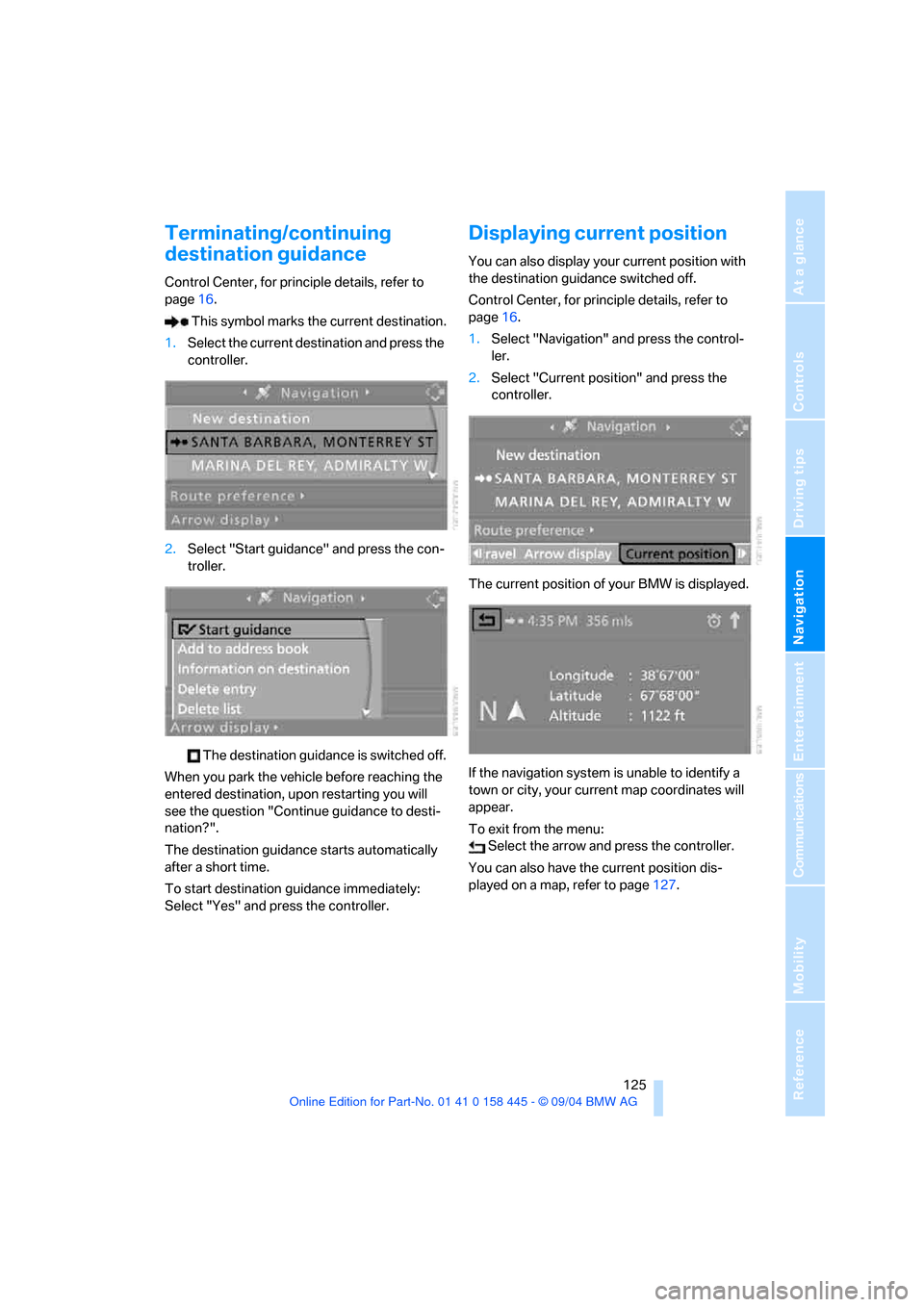
This symbol marks the current destination.
1.Select the current destination and press the
controller.
2.Select "Start guidance" and press the con-
troller.
The destination guidance is switched off.
When you park the vehicle before reaching the
entered destination, upon restarting you will
see the question "Continue guidance to desti-
nation?".
The destination guidance starts automatically
after a short time.
To start destination guidance immediately:
Select "Yes" and press the controller.
Displaying current position
You can also display your current position with
the destination guidance switched off.
Control Center, for principle details, refer to
page16.
1.Select "Navigation" and press the control-
ler.
2.Select "Current position" and press the
controller.
The current position of your BMW is displayed.
If the navigation system is unable to identify a
town or city, your current map coordinates will
appear.
To exit from the menu:
Select the arrow and press the controller.
You can also have the current position dis-
played on a map, refer to page127.
Page 127 of 217
Destination guidance
126
Destination guidance
through voice instructions
Switching voice instructions on/off
Control Center, for principle details, refer to
page16.
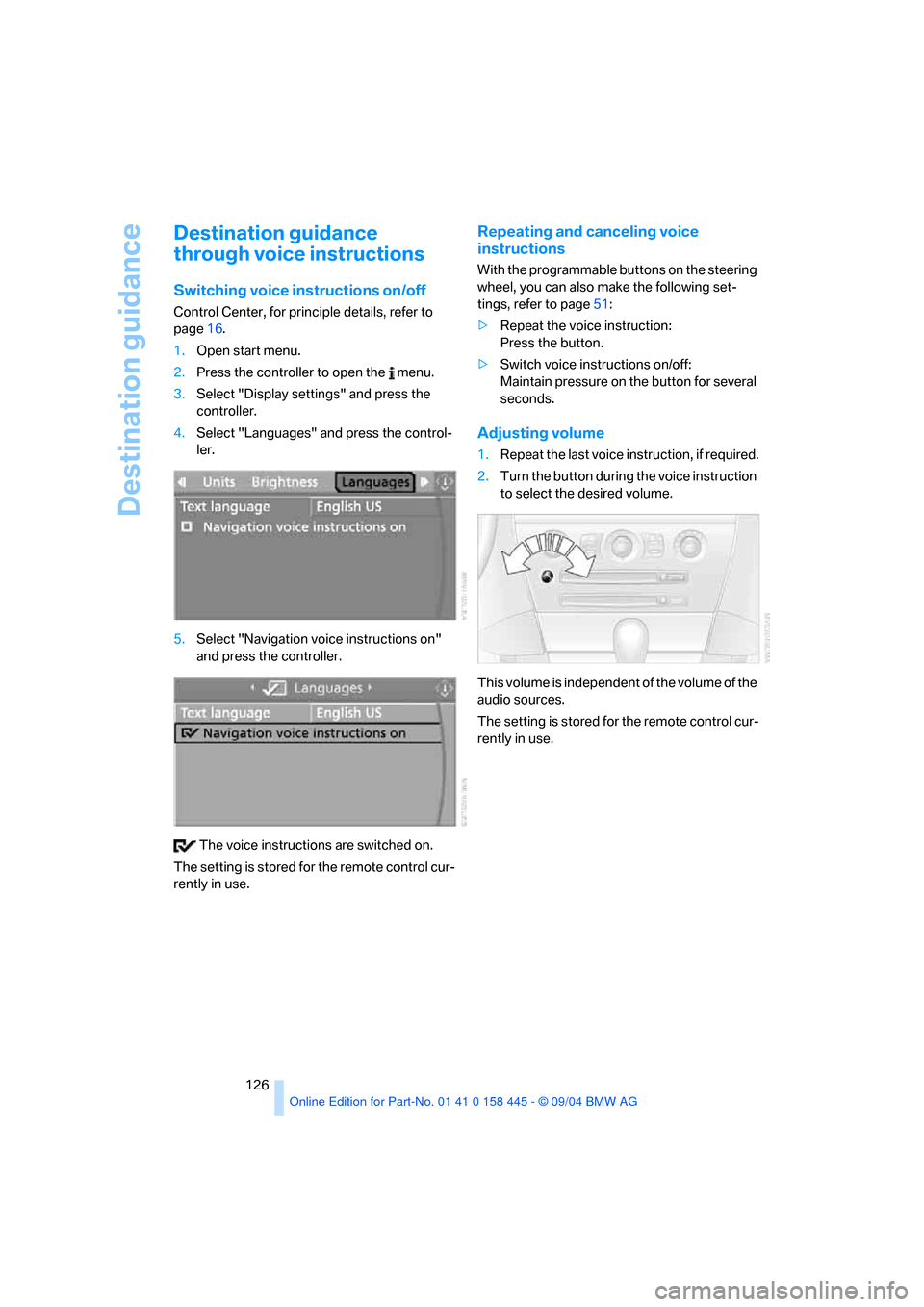
1.Open start menu.
2.Press the controller to open the menu.
3.Select "Display settings" and press the
controller.
4.Select "Languages" and press the control-
ler.
5.Select "Navigation voice instructions on"
and press the controller.
The voice instructions are switched on.
The setting is stored for the remote control cur-
rently in use.
Repeating and canceling voice
instructions
With the programmable buttons on the steering
wheel, you can also make the following set-
tings, refer to page51:
>Repeat the voice instruction:
Press the button.
>Switch voice instructions on/off:
Maintain pressure on the button for several
seconds.
Adjusting volume
1.Repeat the last voice instruction, if required.
2.Turn the button during the voice instruction
to select the desired volume.
This volume is independent of the volume of the
audio sources.
The setting is stored for the remote control cur-
rently in use.
Page 128 of 217
Navigation
Driving tips
127Reference
At a glance
Controls
Communications
Entertainment
Mobility
Displaying route
You have the option of displaying various views
of the route during destination guidance.
Displaying arrow view
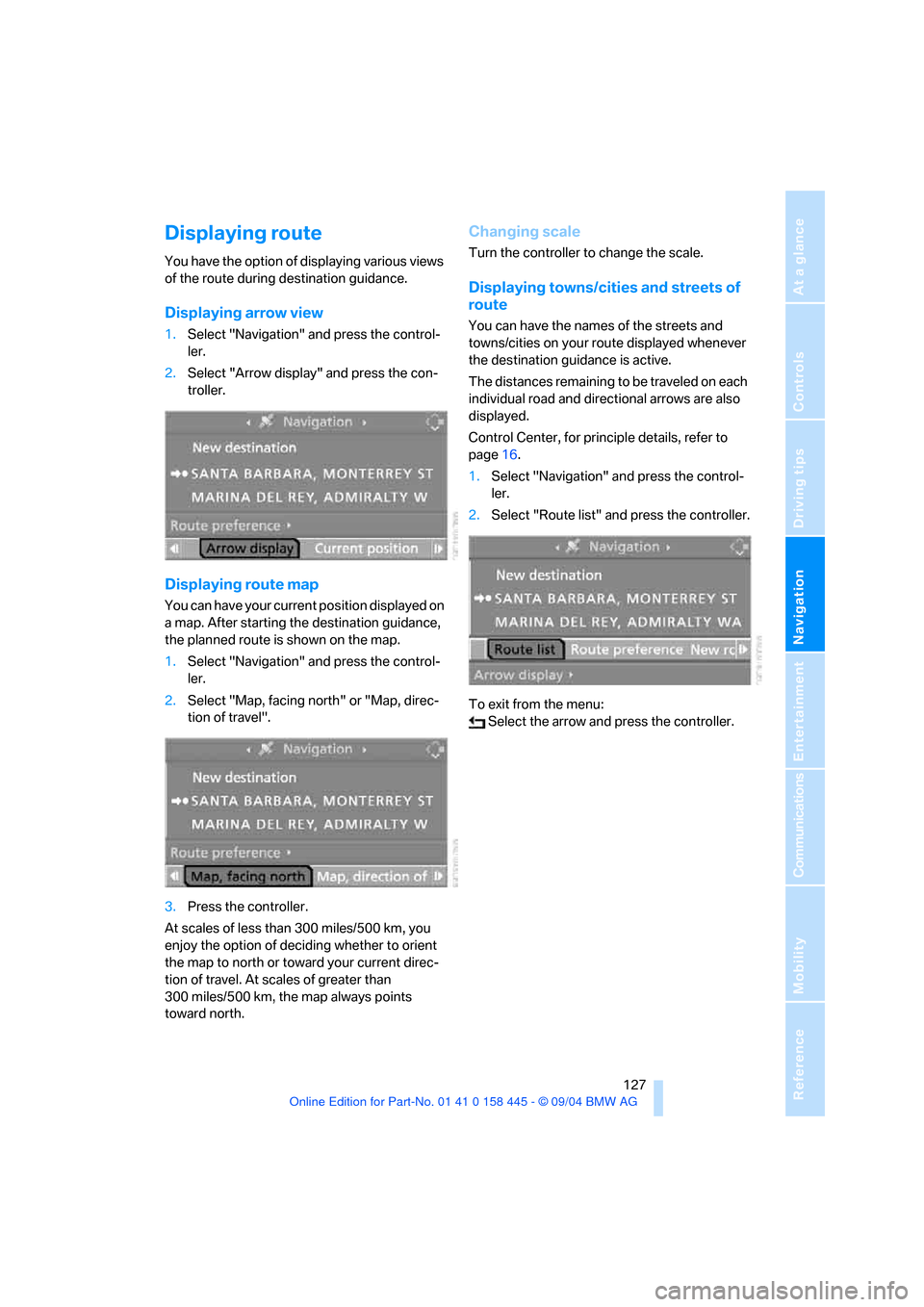
1.Select "Navigation" and press the control-
ler.
2.Select "Arrow display" and press the con-
troller.
Displaying route map
You can have your current position displayed on
a map. After starting the destination guidance,
the planned route is shown on the map.
1.Select "Navigation" and press the control-
ler.
2.Select "Map, facing north" or "Map, direc-
tion of travel".
3.Press the controller.
At scales of less than 300 miles/500 km, you
enjoy the option of deciding whether to orient
the map to north or toward your current direc-
tion of travel. At scales of greater than
300 miles/500 km, the map always points
toward north.
Changing scale
Turn the controller to change the scale.
Displaying towns/cities and streets of
route
You can have the names of the streets and
towns/cities on your route displayed whenever
the destination guidance is active.
The distances remaining to be traveled on each
individual road and directional arrows are also
displayed.
Control Center, for principle details, refer to
page16.
1.Select "Navigation" and press the control-
ler.
2.Select "Route list" and press the controller.
To exit from the menu:
Select the arrow and press the controller.
Page 130 of 217
Navigation
Driving tips
129Reference
At a glance
Controls
Communications
Entertainment
Mobility
What to do if …
What to do if …
>a navigation DVD is inserted, but the
request to insert the DVD is displayed on
the Control Display?
The navigation DVD may not be the right
DVD for the navigation system. The DVD is
labeled accordingly.
>you request the current position of your
vehicle, but do not receive a precise dis-
play?
The system is unable to receive enough
GPS signals at your current position owing
to obstructions, your current position is not
yet available on your navigation DVD, or the
system is in the process of calculating your
current position. As a rule, reception is
guaranteed under a clear sky.
>the destination guidance does not accept a
destination?
The data of the destination is not stored on
the navigation DVD that is loaded. Select a
destination that is as close as possible to
the original.
>the destination guidance does not accept
an address without the street name?
On the navigation DVD, no downtown area
can be determined for the city or town
entered. Enter any street, or a destination
such as the railway station etc., then start
the destination guidance.>you want to enter a destination for the des-
tination guidance, but it is not possible to
select the letters for your desired entry?
The data of the destination is not stored on
the navigation DVD that is loaded. In this
case, the system will not offer you any let-
ters to choose from. Select a destination
that is as close as possible to the original.
>the system stops furnishing directions on
which way to turn as you approach intersec-
tions?
You are driving in an area that has not yet
been completely recorded on the naviga-
tion DVD. Instead of an arrow indicating a
turn, you will see an arrow which indicates
the general direction of your planned route.
Or you have left the recommended route
and the system requires a few seconds to
calculate a new recommended route.
>the navigation system does not react to
entries?
If the battery was disconnected, it then
takes up to 10 minutes before the system is
once again operational.
Page 134 of 217
Navigation
Entertainment
Driving tips
133Reference
At a glance
Controls
Communications
Mobility
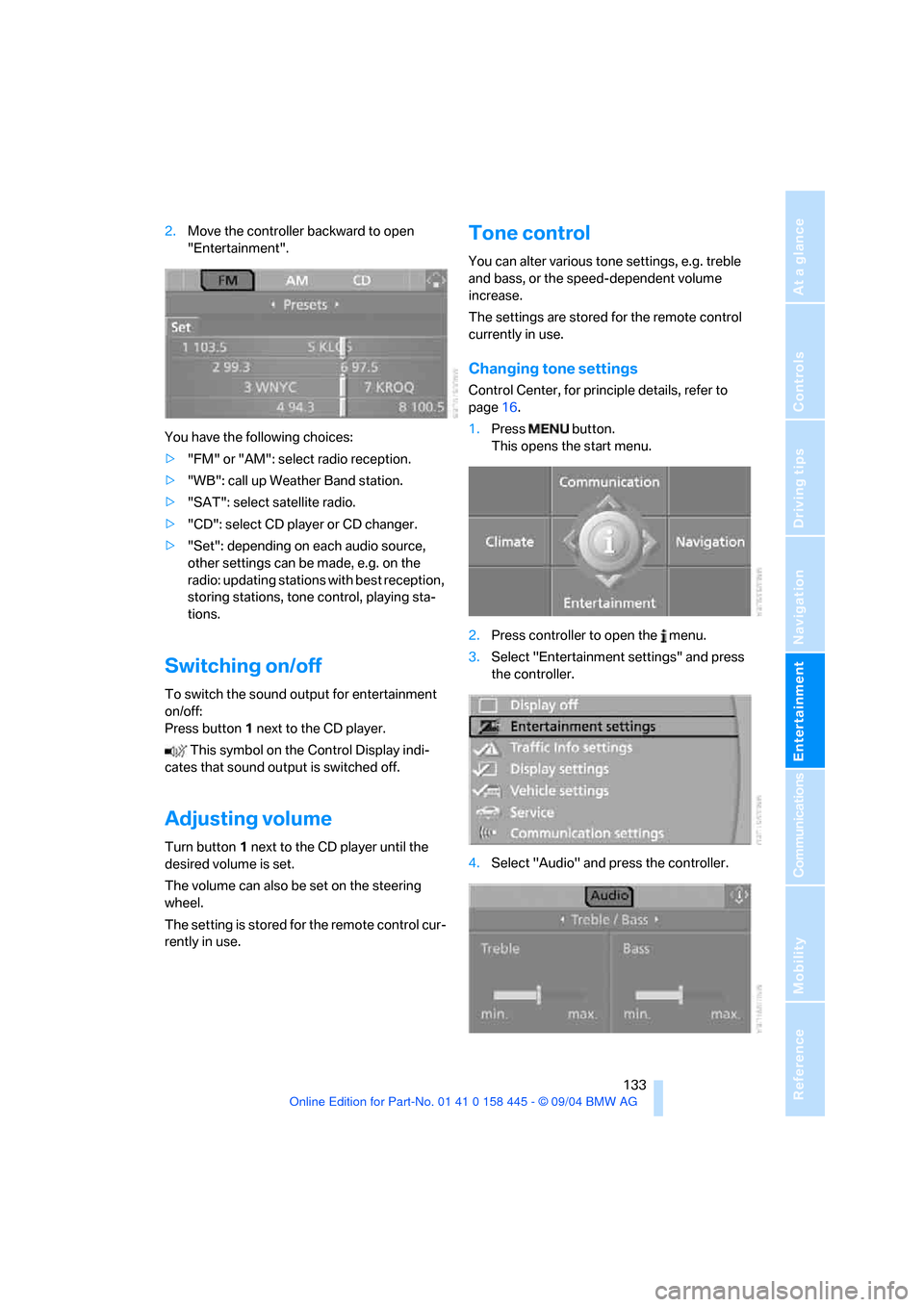
2.Move the controller backward to open
"Entertainment".
You have the following choices:
>"FM" or "AM": select radio reception.
>"WB": call up Weather Band station.
>"SAT": select satellite radio.
>"CD": select CD player or CD changer.
>"Set": depending on each audio source,
other settings can be made, e.g. on the
radio: updating stations with best reception,
storing stations, tone control, playing sta-
tions.
Switching on/off
To switch the sound output for entertainment
on/off:
Press button1 next to the CD player.
This symbol on the Control Display indi-
cates that sound output is switched off.
Adjusting volume
Turn button1 next to the CD player until the
desired volume is set.
The volume can also be set on the steering
wheel.
The setting is stored for the remote control cur-
rently in use.
Tone control
You can alter various tone settings, e.g. treble
and bass, or the speed-dependent volume
increase.
The settings are stored for the remote control
currently in use.
Changing tone settings
Control Center, for principle details, refer to
page16.
1.Press button.
This opens the start menu.
2.Press controller to open the menu.
3.Select "Entertainment settings" and press
the controller.
4.Select "Audio" and press the controller.
Page 137 of 217
Radio
136
Radio
Your radio provides reception of the FM and AM
wavebands.
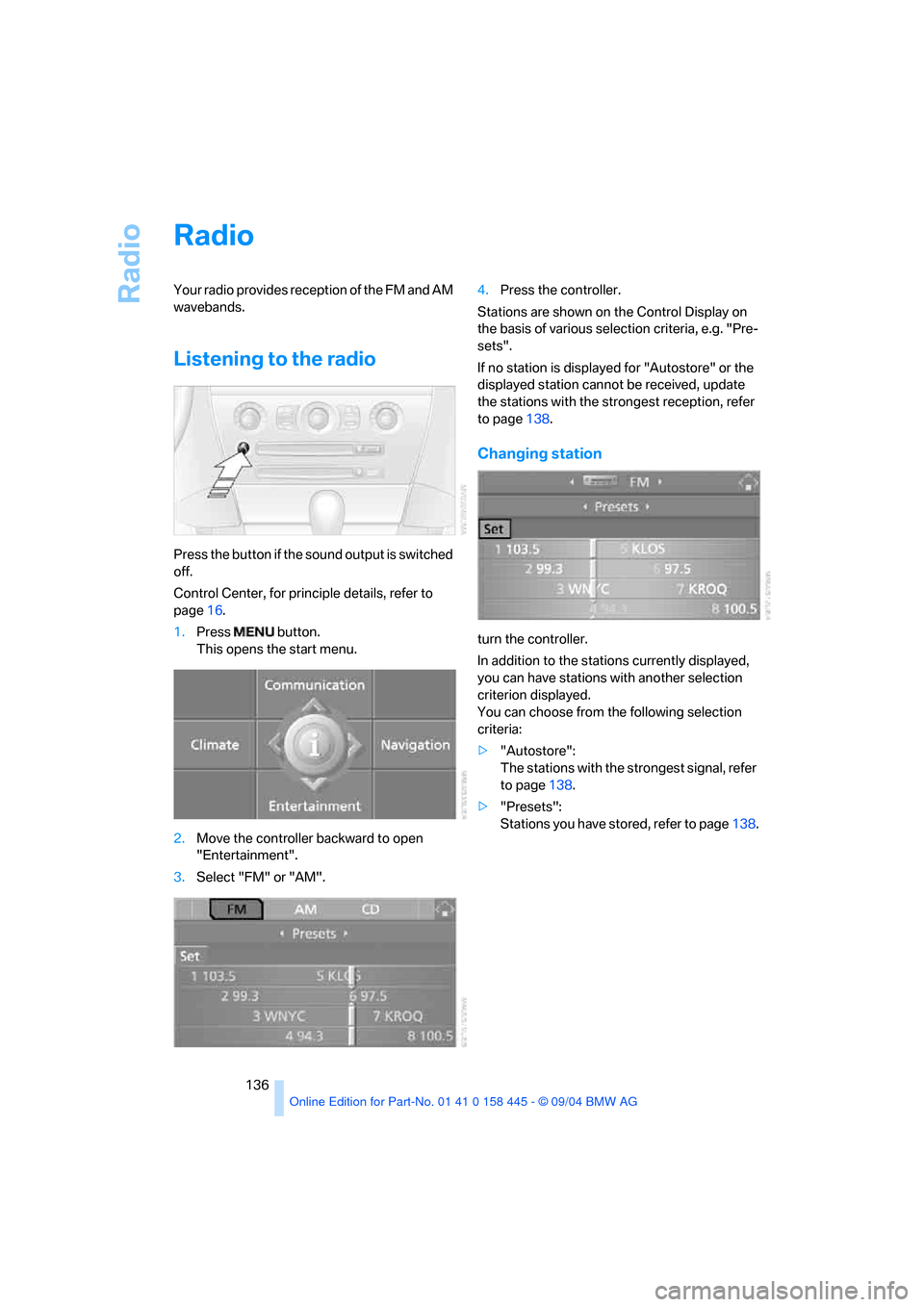
Listening to the radio
Press the button if the sound output is switched
off.
Control Center, for principle details, refer to
page16.
1.Press button.
This opens the start menu.
2.Move the controller backward to open
"Entertainment".
3.Select "FM" or "AM".4.Press the controller.
Stations are shown on the Control Display on
the basis of various selection criteria, e.g. "Pre-
sets".
If no station is displayed for "Autostore" or the
displayed station cannot be received, update
the stations with the strongest reception, refer
to page138.
Changing station
turn the controller.
In addition to the stations currently displayed,
you can have stations with another selection
criterion displayed.
You can choose from the following selection
criteria:
>"Autostore":
The stations with the strongest signal, refer
to page138.
>"Presets":
Stations you have stored, refer to page138.
Page 138 of 217
Navigation
Entertainment
Driving tips
137Reference
At a glance
Controls
Communications
Mobility
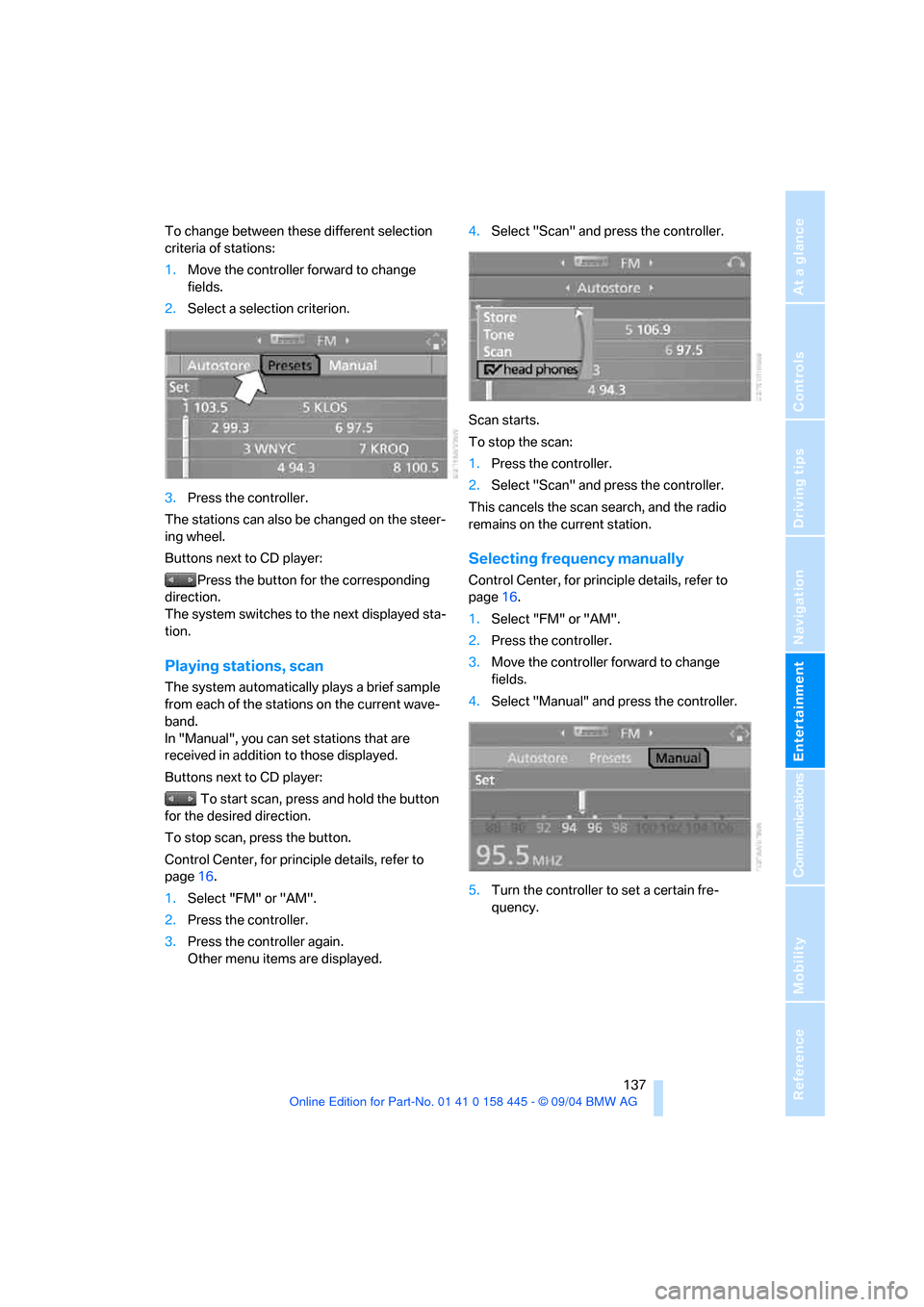
To change between these different selection
criteria of stations:
1.Move the controller forward to change
fields.
2.Select a selection criterion.
3.Press the controller.
The stations can also be changed on the steer-
ing wheel.
Buttons next to CD player:
Press the button for the corresponding
direction.
The system switches to the next displayed sta-
tion.
Playing stations, scan
The system automatically plays a brief sample
from each of the stations on the current wave-
band.
In "Manual", you can set stations that are
received in addition to those displayed.
Buttons next to CD player:
To start scan, press and hold the button
for the desired direction.
To stop scan, press the button.
Control Center, for principle details, refer to
page16.
1.Select "FM" or "AM".
2.Press the controller.
3.Press the controller again.
Other menu items are displayed.4.Select "Scan" and press the controller.
Scan starts.
To stop the scan:
1.Press the controller.
2.Select "Scan" and press the controller.
This cancels the scan search, and the radio
remains on the current station.
Selecting frequency manually
Control Center, for principle details, refer to
page16.
1.Select "FM" or "AM".
2.Press the controller.
3.Move the controller forward to change
fields.
4.Select "Manual" and press the controller.
5.Turn the controller to set a certain fre-
quency.
Page 139 of 217
Radio
138
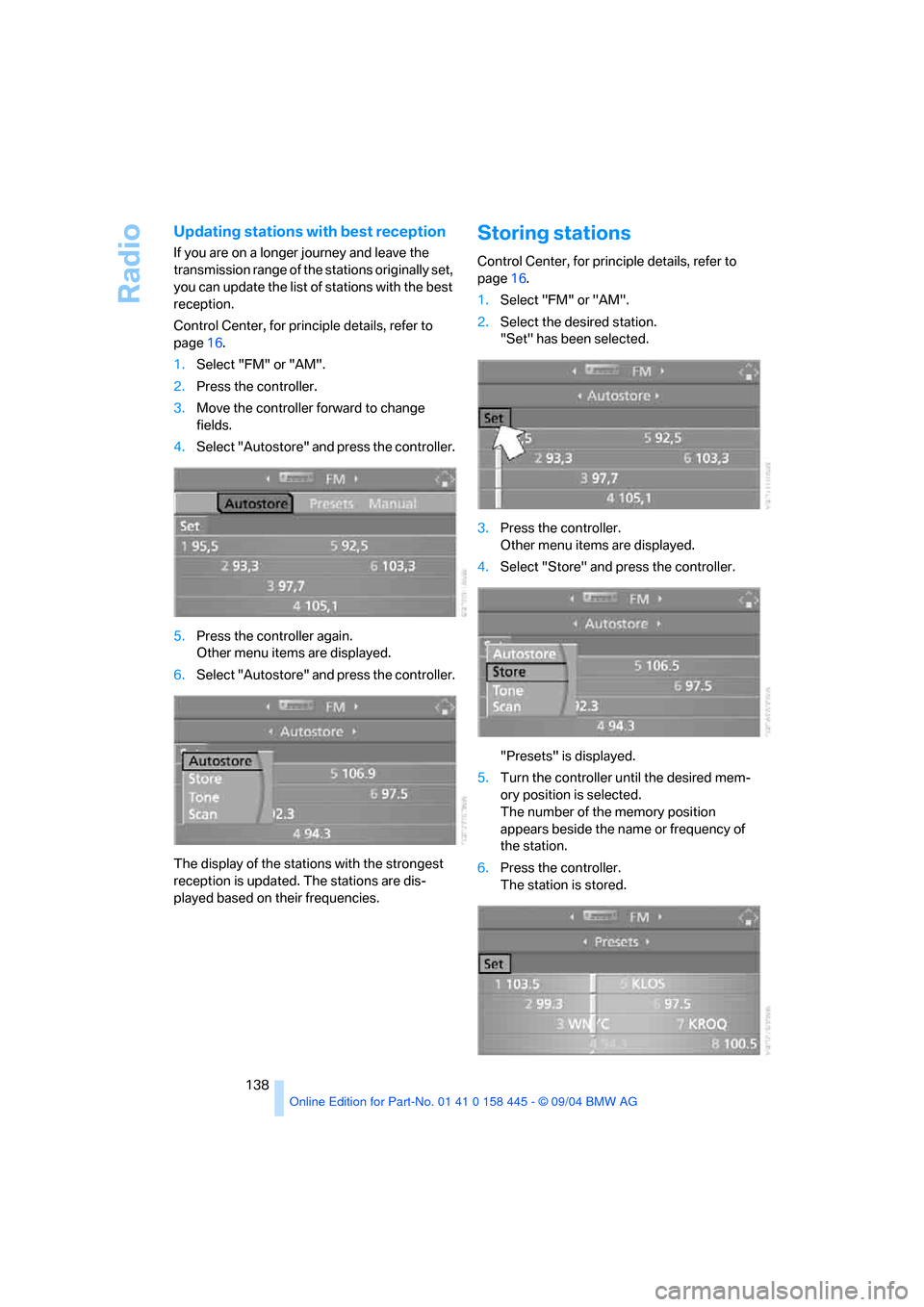
Updating stations with best reception
If you are on a longer journey and leave the
transmission range of the stations originally set,
you can update the list of stations with the best
reception.
Control Center, for principle details, refer to
page16.
1.Select "FM" or "AM".
2.Press the controller.
3.Move the controller forward to change
fields.
4.Select "Autostore" and press the controller.
5.Press the controller again.
Other menu items are displayed.
6.Select "Autostore" and press the controller.
The display of the stations with the strongest
reception is updated. The stations are dis-
played based on their frequencies.
Storing stations
Control Center, for principle details, refer to
page16.
1.Select "FM" or "AM".
2.Select the desired station.
"Set" has been selected.
3.Press the controller.
Other menu items are displayed.
4.Select "Store" and press the controller.
"Presets" is displayed.
5.Turn the controller until the desired mem-
ory position is selected.
The number of the memory position
appears beside the name or frequency of
the station.
6.Press the controller.
The station is stored.
Page 140 of 217
Navigation
Entertainment
Driving tips
139Reference
At a glance
Controls
Communications
Mobility
The stations of the last selection criterion are
displayed again after a short time.
The stations are stored for the remote control
currently in use.
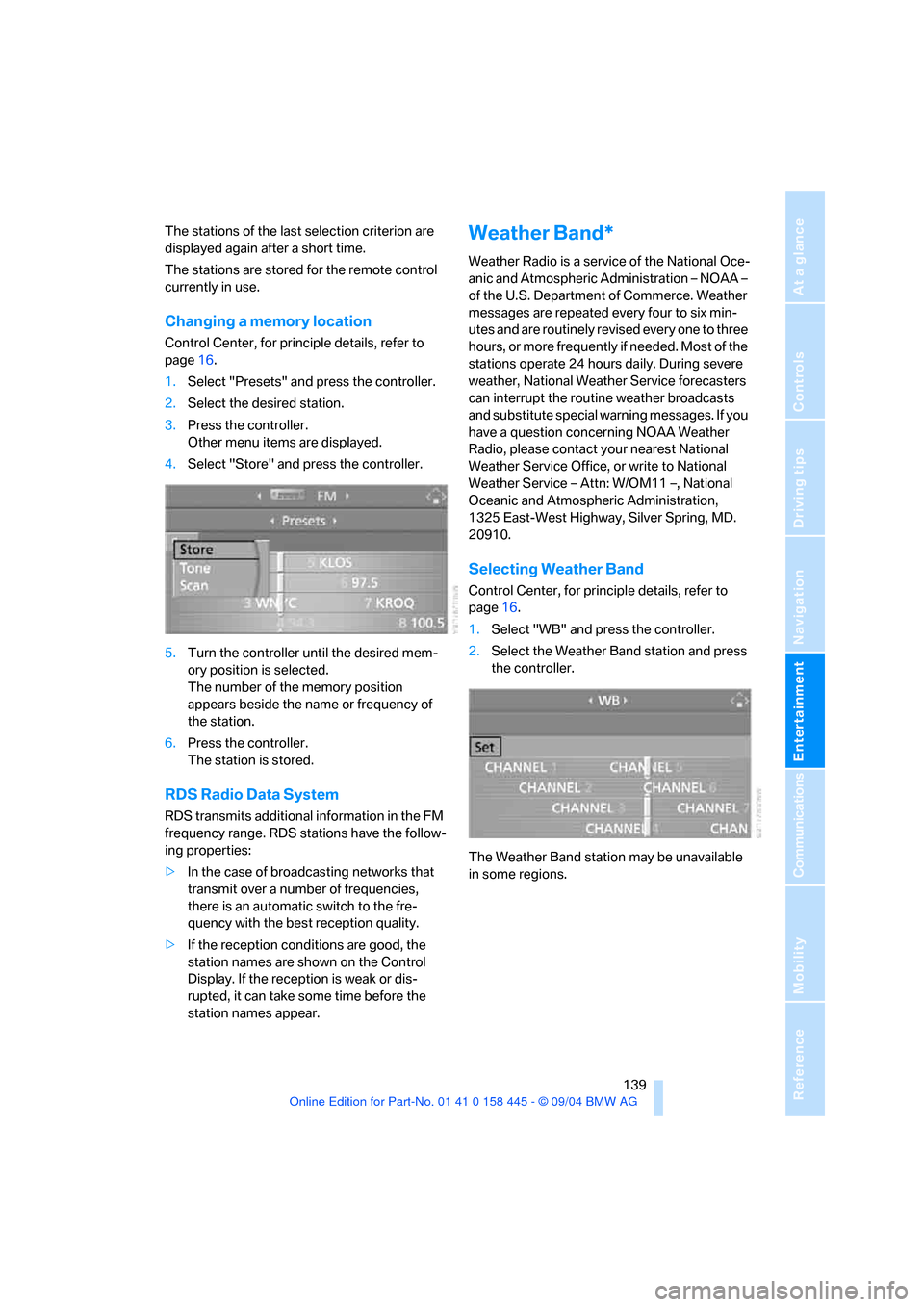
Changing a memory location
Control Center, for principle details, refer to
page16.
1.Select "Presets" and press the controller.
2.Select the desired station.
3.Press the controller.
Other menu items are displayed.
4.Select "Store" and press the controller.
5.Turn the controller until the desired mem-
ory position is selected.
The number of the memory position
appears beside the name or frequency of
the station.
6.Press the controller.
The station is stored.
RDS Radio Data System
RDS transmits additional information in the FM
frequency range. RDS stations have the follow-
ing properties:
>In the case of broadcasting networks that
transmit over a number of frequencies,
there is an automatic switch to the fre-
quency with the best reception quality.
>If the reception conditions are good, the
station names are shown on the Control
Display. If the reception is weak or dis-
rupted, it can take some time before the
station names appear.
Weather Band*
Weather Radio is a service of the National Oce-
anic and Atmospheric Administration – NOAA –
of the U.S. Department of Commerce. Weather
messages are repeated every four to six min-
utes and are routinely revised every one to three
hours, or more frequently if needed. Most of the
stations operate 24 hours daily. During severe
weather, National Weather Service forecasters
can interrupt the routine weather broadcasts
and substitute special warning messages. If you
have a question concerning NOAA Weather
Radio, please contact your nearest National
Weather Service Office, or write to National
Weather Service – Attn: W/OM11 –, National
Oceanic and Atmospheric Administration,
1325 East-West Highway, Silver Spring, MD.
20910.
Selecting Weather Band
Control Center, for principle details, refer to
page16.
1.Select "WB" and press the controller.
2.Select the Weather Band station and press
the controller.
The Weather Band station may be unavailable
in some regions.
Page 141 of 217
Radio
140
Satellite radio*
You can receive up to 100 different channels
with high sound quality.
The channels are offered to you in predefined
packages. To receive the channels of your
choice, you must have this package enabled.
You may experience signal drops and
muting events related to this new tech-
nology.<
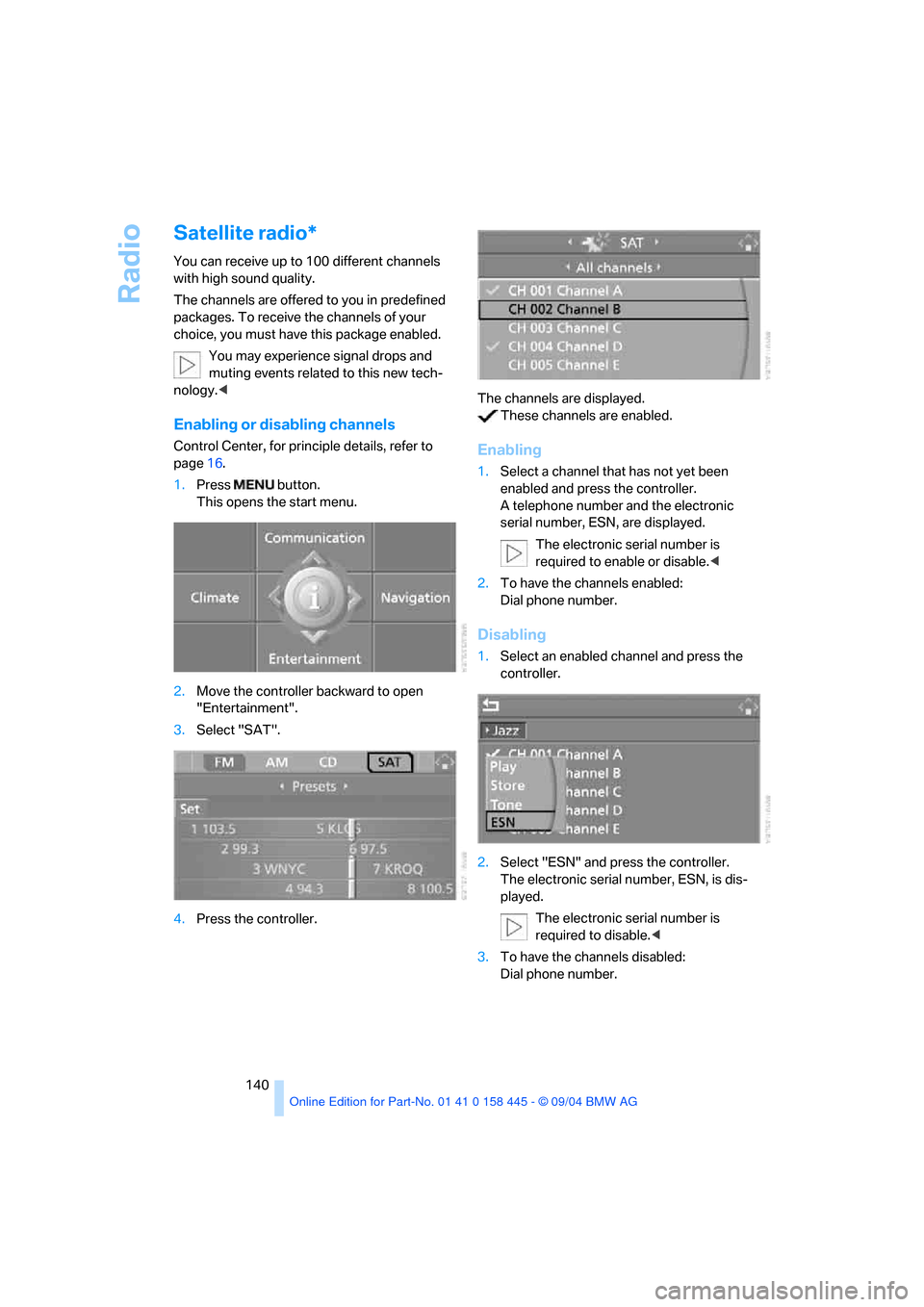
Enabling or disabling channels
Control Center, for principle details, refer to
page16.
1.Press button.
This opens the start menu.
2.Move the controller backward to open
"Entertainment".
3.Select "SAT".
4.Press the controller.The channels are displayed.
These channels are enabled.Enabling
1.Select a channel that has not yet been
enabled and press the controller.
A telephone number and the electronic
serial number, ESN, are displayed.
The electronic serial number is
required to enable or disable.<
2.To have the channels enabled:
Dial phone number.
Disabling
1.Select an enabled channel and press the
controller.
2.Select "ESN" and press the controller.
The electronic serial number, ESN, is dis-
played.
The electronic serial number is
required to disable.<
3.To have the channels disabled:
Dial phone number.