change time BMW 650I CONVERTIBLE 2007 E64 Owner's Guide
[x] Cancel search | Manufacturer: BMW, Model Year: 2007, Model line: 650I CONVERTIBLE, Model: BMW 650I CONVERTIBLE 2007 E64Pages: 254, PDF Size: 7.93 MB
Page 143 of 254
Navigation
Driving tips
141Reference
At a glance
Controls
Communications
Entertainment
Mobility
If the destination was not reached before the
end of the last trip, upon restarting you will
see the question:
"Continue guidance to destination?".
The destination guidance starts automatically
after a short time.
To start destination guidance immediately:
Select "Yes" and press the controller.
Displaying route
You have the option of displaying various views
of the route during destination guidance.
From another menu, you can change
directly to the screen last displayed,
refer to Comfort opening of menu items,
page18.<
Displaying arrow display
1.Select "Navigation" and press the control-
ler.
2.Change into the fourth field from the top.
Turn the controller until "Arrow display" is
selected and press the controller.
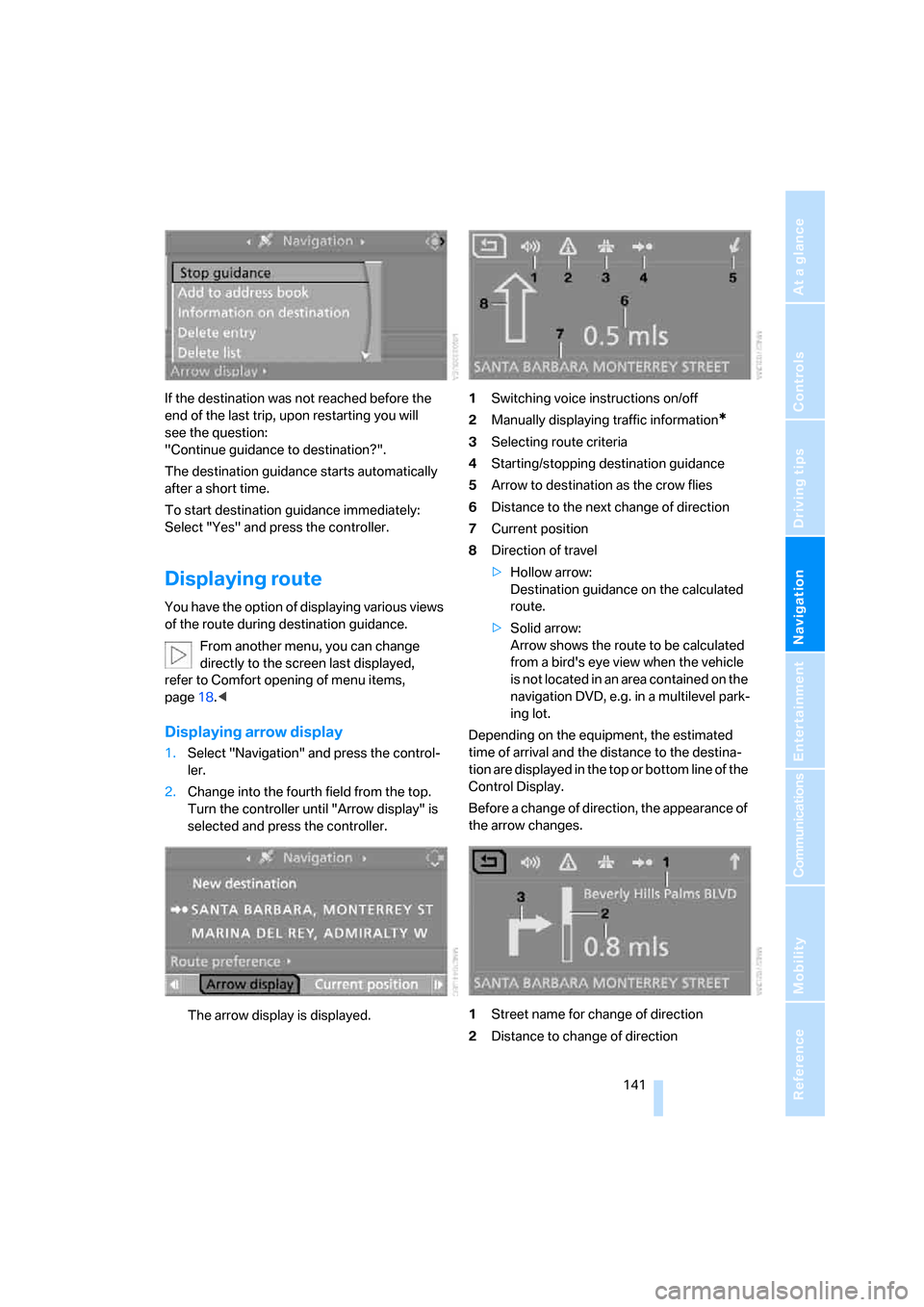
The arrow display is displayed.1Switching voice instructions on/off
2Manually displaying traffic information
*
3Selecting route criteria
4Starting/stopping destination guidance
5Arrow to destination as the crow flies
6Distance to the next change of direction
7Current position
8Direction of travel
>Hollow arrow:
Destination guidance on the calculated
route.
>Solid arrow:
Arrow shows the route to be calculated
from a bird's eye view when the vehicle
is not located in an area contained on the
navigation DVD, e.g. in a multilevel park-
ing lot.
Depending on the equipment, the estimated
time of arrival and the distance to the destina-
tion are displayed in the top or bottom line of the
Control Display.
Before a change of direction, the appearance of
the arrow changes.
1Street name for change of direction
2Distance to change of direction
Page 144 of 254
Destination guidance
142 3Change of direction
To exit from the menu:
Select the arrow and press the controller.
Displaying map view
You can have your current position displayed on
a map. After starting the destination guidance,
the planned route is shown on the map.
1.Select "Navigation" and press the control-
ler.
2.Change into the fourth field from the top.
Turn the controller until the desired map
view is selected:
>"Map facing north"
>"Map direction of travel"
>"Perspective"
3.Press the controller.
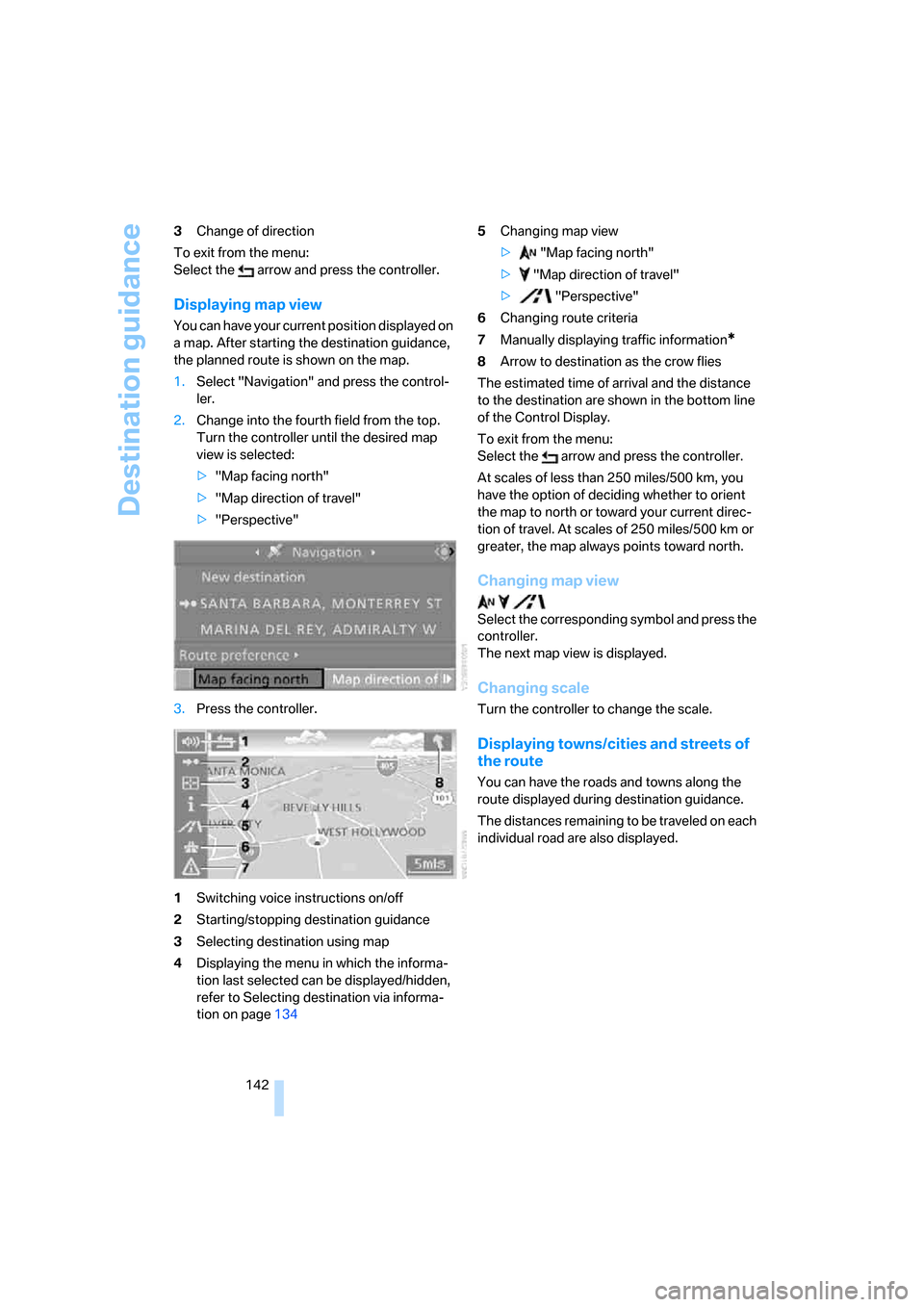
1Switching voice instructions on/off
2Starting/stopping destination guidance
3Selecting destination using map
4Displaying the menu in which the informa-
tion last selected can be displayed/hidden,
refer to Selecting destination via informa-
tion on page1345Changing map view
> "Map facing north"
> "Map direction of travel"
> "Perspective"
6Changing route criteria
7Manually displaying traffic information*
8Arrow to destination as the crow flies
The estimated time of arrival and the distance
to the destination are shown in the bottom line
of the Control Display.
To exit from the menu:
Select the arrow and press the controller.
At scales of less than 250 miles/500 km, you
have the option of deciding whether to orient
the map to north or toward your current direc-
tion of travel. At scales of 250 miles/500 km or
greater, the map always points toward north.
Changing map view
Select the corresponding symbol and press the
controller.
The next map view is displayed.
Changing scale
Turn the controller to change the scale.
Displaying towns/cities and streets of
the route
You can have the roads and towns along the
route displayed during destination guidance.
The distances remaining to be traveled on each
individual road are also displayed.
Page 145 of 254
Navigation
Driving tips
143Reference
At a glance
Controls
Communications
Entertainment
Mobility
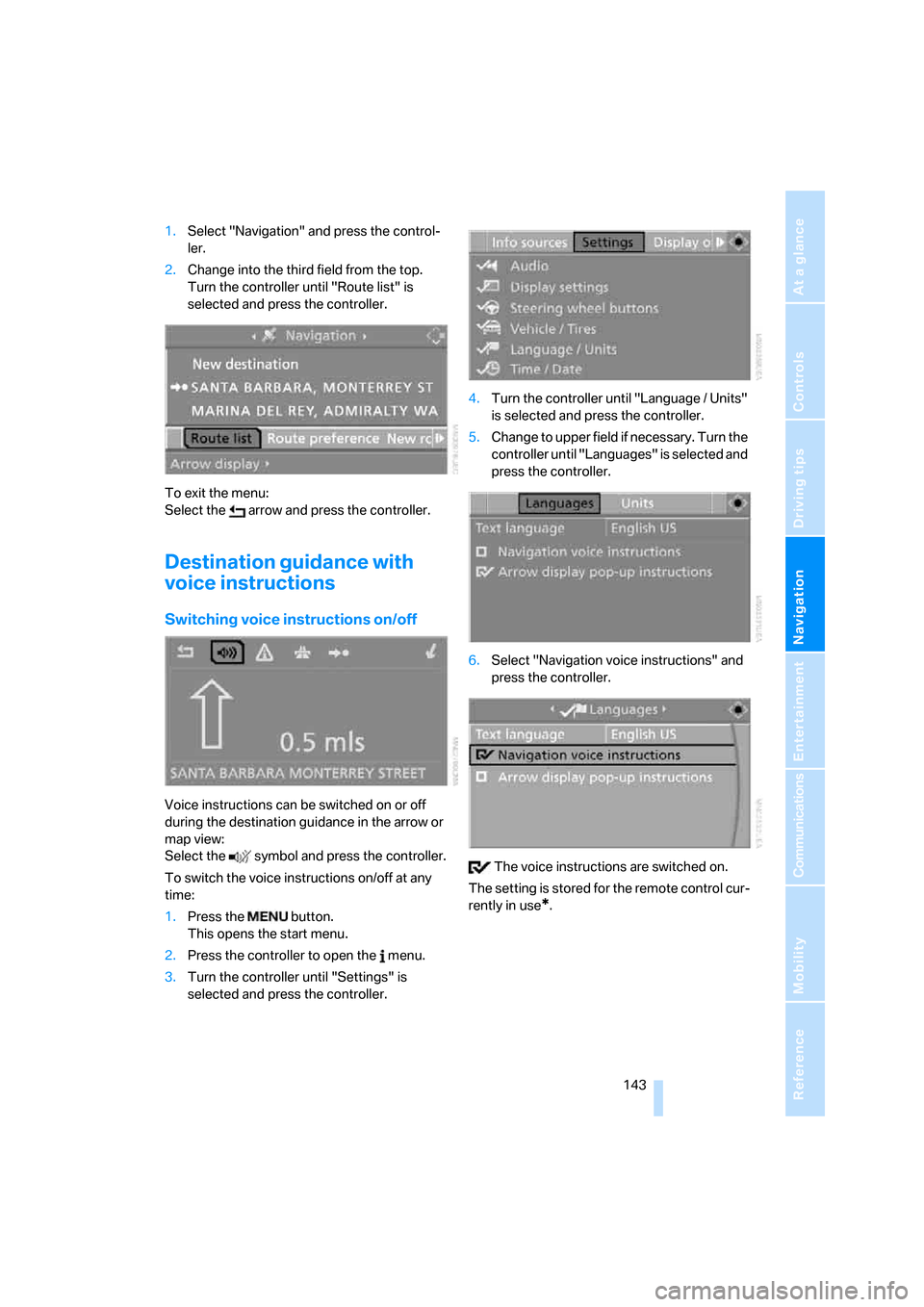
1.Select "Navigation" and press the control-
ler.
2.Change into the third field from the top.
Turn the controller until "Route list" is
selected and press the controller.
To exit the menu:
Select the arrow and press the controller.
Destination guidance with
voice instructions
Switching voice instructions on/off
Voice instructions can be switched on or off
during the destination guidance in the arrow or
map view:
Select the symbol and press the controller.
To switch the voice instructions on/off at any
time:
1.Press the button.
This opens the start menu.
2.Press the controller to open the menu.
3.Turn the controller until "Settings" is
selected and press the controller.4.Turn the controller until "Language / Units"
is selected and press the controller.
5.Change to upper field if necessary. Turn the
controller until "Languages" is selected and
press the controller.
6.Select "Navigation voice instructions" and
press the controller.
The voice instructions are switched on.
The setting is stored for the remote control cur-
rently in use
*.
Page 160 of 254
Radio
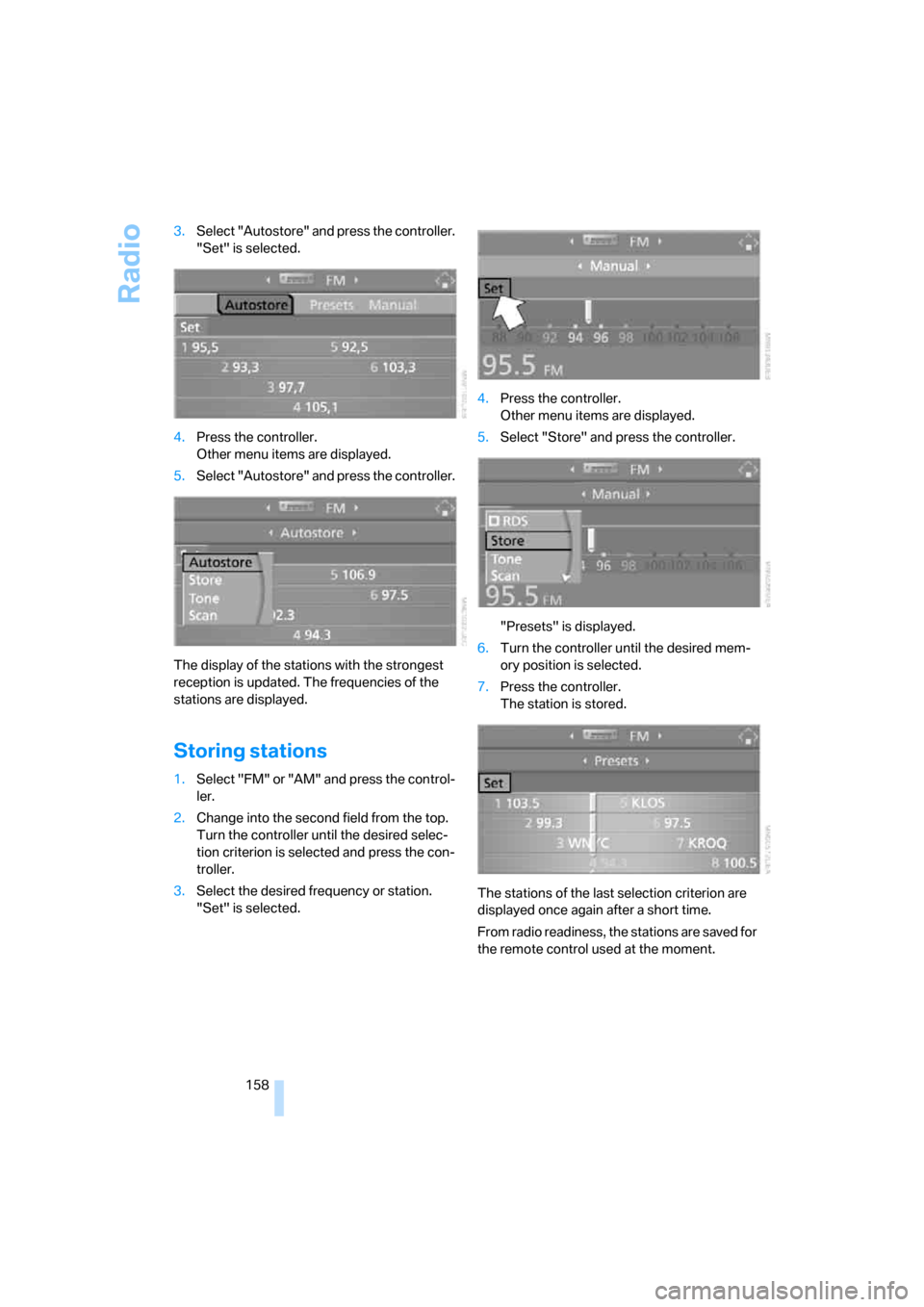
158 3.Select "Autostore" and press the controller.
"Set" is selected.
4.Press the controller.
Other menu items are displayed.
5.Select "Autostore" and press the controller.
The display of the stations with the strongest
reception is updated. The frequencies of the
stations are displayed.
Storing stations
1.Select "FM" or "AM" and press the control-
ler.
2.Change into the second field from the top.
Turn the controller until the desired selec-
tion criterion is selected and press the con-
troller.
3.Select the desired frequency or station.
"Set" is selected.4.Press the controller.
Other menu items are displayed.
5.Select "Store" and press the controller.
"Presets" is displayed.
6.Turn the controller until the desired mem-
ory position is selected.
7.Press the controller.
The station is stored.
The stations of the last selection criterion are
displayed once again after a short time.
From radio readiness, the stations are saved for
the remote control used at the moment.
Page 166 of 254
Radio
164
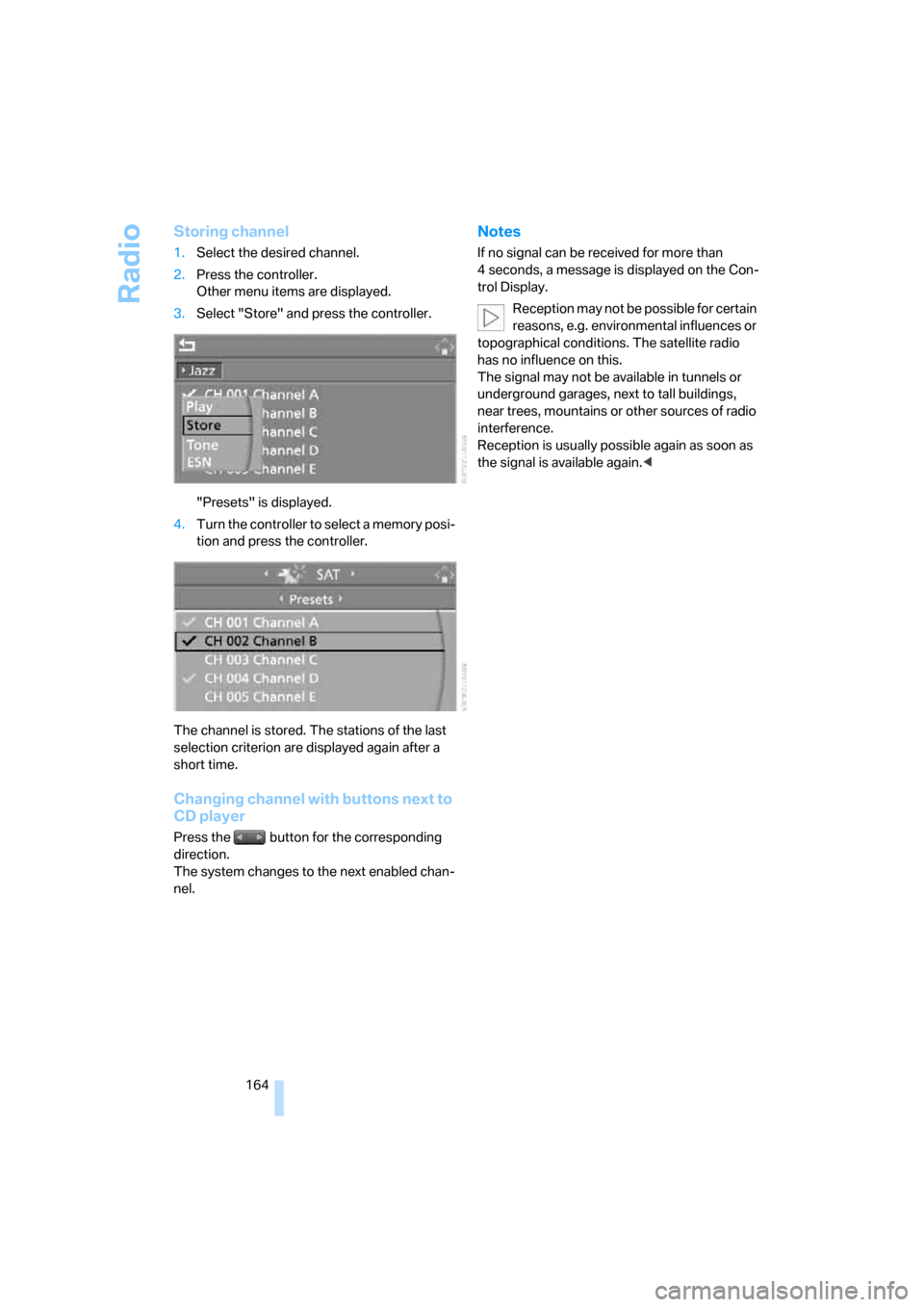
Storing channel
1.Select the desired channel.
2.Press the controller.
Other menu items are displayed.
3.Select "Store" and press the controller.
"Presets" is displayed.
4.Turn the controller to select a memory posi-
tion and press the controller.
The channel is stored. The stations of the last
selection criterion are displayed again after a
short time.
Changing channel with buttons next to
CD player
Press the button for the corresponding
direction.
The system changes to the next enabled chan-
nel.
Notes
If no signal can be received for more than
4 seconds, a message is displayed on the Con-
trol Display.
Reception may not be possible for certain
reasons, e.g. environmental influences or
topographical conditions. The satellite radio
has no influence on this.
The signal may not be available in tunnels or
underground garages, next to tall buildings,
near trees, mountains or other sources of radio
interference.
Reception is usually possible again as soon as
the signal is available again.<
Page 179 of 254
177
Entertainment
Reference
At a glance
Controls
Driving tips Communications
Navigation
Mobility
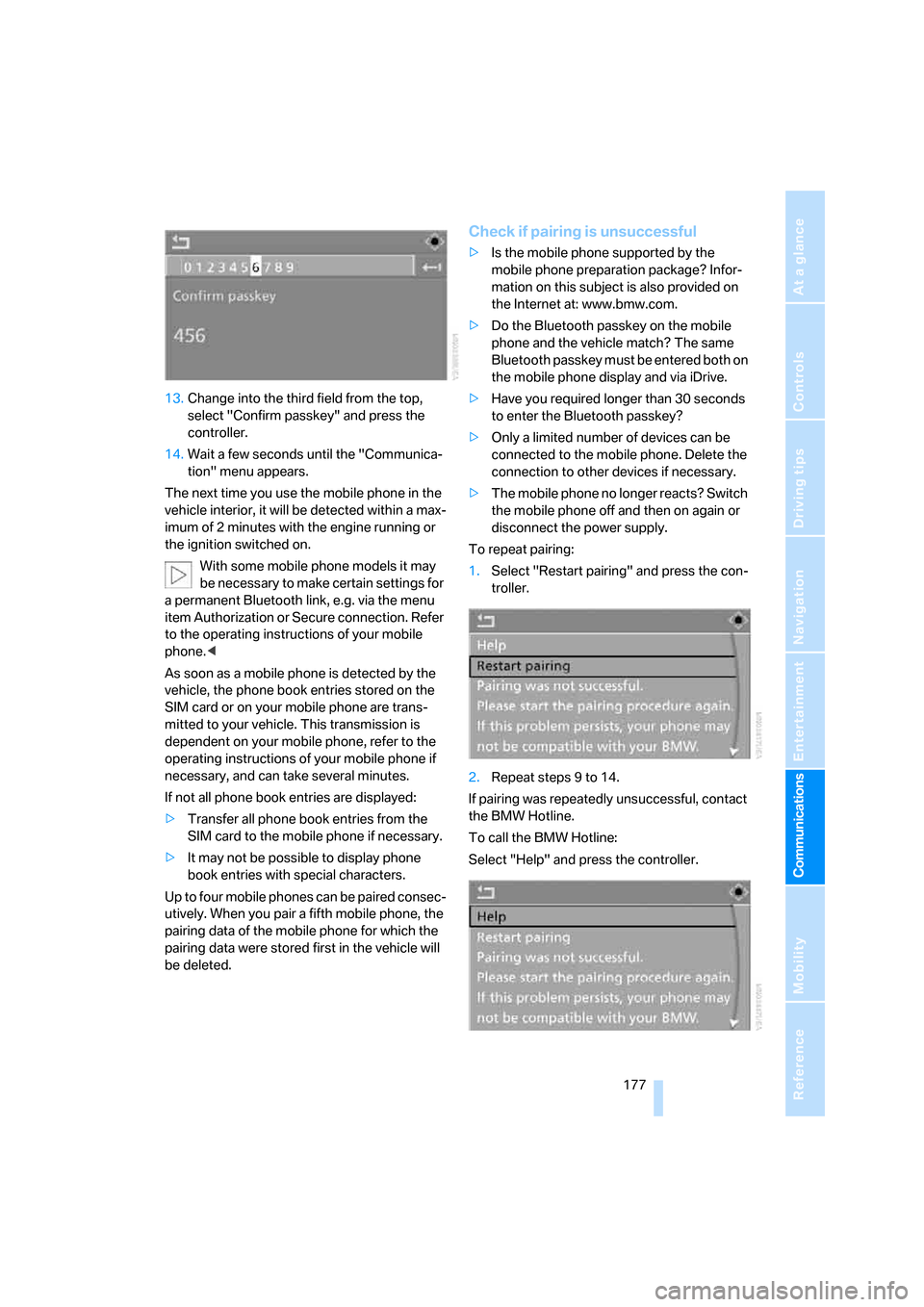
13.Change into the third field from the top,
select "Confirm passkey" and press the
controller.
14.Wait a few seconds until the "Communica-
tion" menu appears.
The next time you use the mobile phone in the
vehicle interior, it will be detected within a max-
imum of 2 minutes with the engine running or
the ignition switched on.
With some mobile phone models it may
be necessary to make certain settings for
a permanent Bluetooth link, e.g. via the menu
item Authorization or Secure connection. Refer
to the operating instructions of your mobile
phone.<
As soon as a mobile phone is detected by the
vehicle, the phone book entries stored on the
SIM card or on your mobile phone are trans-
mitted to your vehicle. This transmission is
dependent on your mobile phone, refer to the
operating instructions of your mobile phone if
necessary, and can take several minutes.
If not all phone book entries are displayed:
>Transfer all phone book entries from the
SIM card to the mobile phone if necessary.
>It may not be possible to display phone
book entries with special characters.
Up to four mobile phones can be paired consec-
utively. When you pair a fifth mobile phone, the
pairing data of the mobile phone for which the
pairing data were stored first in the vehicle will
be deleted.
Check if pairing is unsuccessful
>Is the mobile phone supported by the
mobile phone preparation package? Infor-
mation on this subject is also provided on
the Internet at: www.bmw.com.
>Do the Bluetooth passkey on the mobile
phone and the vehicle match? The same
Bluetooth passkey must be entered both on
the mobile phone display and via iDrive.
>Have you required longer than 30 seconds
to enter the Bluetooth passkey?
>Only a limited number of devices can be
connected to the mobile phone. Delete the
connection to other devices if necessary.
>The mobile phone no longer reacts? Switch
the mobile phone off and then on again or
disconnect the power supply.
To repeat pairing:
1.Select "Restart pairing" and press the con-
troller.
2.Repeat steps 9 to 14.
If pairing was repeatedly unsuccessful, contact
the BMW Hotline.
To call the BMW Hotline:
Select "Help" and press the controller.
Page 237 of 254
Reference 235
At a glance
Controls
Driving tips
Communications
Navigation
Entertainment
Mobility
CD changer165
– controls152
– fast forward/reverse168
– installation location168
– random sequence168
– repeating a track167
– sampling a track167
– selecting a CD165
– selecting a track166
– switching on/off152
– tone control153
– volume153
CD player165
– controls152
– fast forward/reverse168
– random sequence168
– repeating a track167
– sampling a track167
– selecting a track166
– switching on/off152
– tone control153
– volume153
Center armrest, adjusting
height114
Center console14
"Central locking"30
Central locking
– from inside32
– from outside30
Central locking system30
– comfort access37
– hotel function33
Changes, technical, refer to
For your own safety6
Changing a wheel215
Changing language on
Control Display85
Changing scale for navigation
system display142
Changing units of measure on
Control Display85
Changing wheels204
CHECK button81
Check Control80
"Check Control
messages"81
Check Gas Cap198
Checking air pressure, refer to
Tire inflation pressure200Child-restraint fixing system
LATCH58
Child restraint systems57
Child seats, refer to
Transporting children
safely57
Chrome parts, refer to Caring
for your vehicle brochure
Cigarette lighter
116
Cigarette lighter socket, refer
to Connecting electrical
devices116
Cleaning, refer to Caring for
your vehicle brochure
"Climate"107
Clock75
– 12h/24h mode84
– hour signal84
– setting time and date83
Closing
– from inside32
– from outside30
Closing fuel filler cap198
Clothes hooks, Coupe115
Cockpit10
Cold start, refer to Starting
engine60
Comfort access37
– observe in car wash38
– replacing battery, remote
control38
Comfort closing
– windows, with comfort
access with Coupe37
– with comfort access37
Comfort operation
– convertible top31,32
– glass sunroof31,32
– windows31,32
"Communication"180,190
Compact disc
– refer to CD changer165
– refer to CD player165
Compartment for remote
control, refer to Ignition
lock59
Compartments, refer to
Storage compartments114
Compressed audio files165Computer76
– displays on Control
Display77
– hour signal84
"Concert hall", refer to Tone
control155
"Concierge"192
Condensation, refer to When
vehicle is parked122
Condition Based Service
CBS210
"Confirmation"31
Confirmation signals for
locking and unlocking31
Connecting car vacuum
cleaner, refer to Connecting
electrical devices116
Consumption display, refer to
Average fuel
consumption
76
Consumption statistics, refer
to Average fuel
consumption76
"Continue guidance to
destination?"141
"Contrast" with BMW Night
Vision101
Control Center, refer to
iDrive16
Control Display, refer to
iDrive16
– setting brightness84
– switching off/on21
Controller, refer to iDrive16
Controls, refer to Cockpit10
Convertible
– convertible program for
automatic climate
control107
– opening and closing
windows39
– rollover protection
system96
– top42
– wind deflector46
– window and convertible top
operation with comfort
access37
Page 242 of 254
Everything from A to Z
240
I
IBOC, refer to High Definition
Radio160
Ice, refer to Outside
temperature warning75
ID3-Tag, refer to Information
about track166
Identification mark
– recommended tire
brands204
– run-flat tires204
– tire coding202
iDrive16
– adjusting brightness84
– assistance window20
– changing date and time83
– changing language85
– changing menu page19
– changing settings83
– changing units of measure
and display form85
– controller16
– controls16
– displays, menus17
– operating principle17
– selecting menu item19
– selecting or confirming
entry19
– start menu17
– status information20
– symbols18
Ignition59
– switched off59
– switched on59
Ignition key, refer to Keys/
remote control28
Ignition key position 1, refer to
Radio readiness59
Ignition key position 2, refer to
Ignition on59
Ignition lock59
– starting engine with comfort
access38
i menu17
Imprint2Indicator/warning lamps
– ABS Antilock Brake
System89
– active steering94
– airbags96
– brake system89
– DSC13,88
– DTC13,89
– Flat Tire Monitor90
– fog lamps13,104
– handbrake13,61
– safety belt warning53
– TPM Tire Pressure
Monitor92
Indicator and warning lamps,
overview13
Inflation pressure, refer to Tire
inflation pressure200
Inflation pressure monitoring
– refer to Flat Tire Monitor89
– refer to Tire Pressure
Monitor91
Info menu17
Information
– on another location134
– on current position134
– on town/city of
destination134
"Information" for navigation
system134
Information menu, refer to
imenu17
"Information on
destination"135
Information service192
"Info sources"78
Initializing
– Flat Tire Monitor90
– radio, refer to Storing
stations158
– refer to Power failure215
– seat, mirror and steering
wheel memory50
– time and date83
"Input map"133
Installation location
– CD changer168
– drive for navigation DVD126Instructions for navigation
system, refer to Voice
instructions143
Instrument cluster12
Instrument illumination, refer
to Instrument lighting104
Instrument lighting104
Instrument panel
– refer to Cockpit10
– refer to Instrument
cluster12
Integrated key28
Integrated universal remote
control112
Interesting destination for
navigation134
"Interim time"83
Interior lamps104
– switching on with remote
control31
Interior motion sensor36
– switching off36
Interior rearview mirror,
automatic dimming
feature
54
Interlock on automatic
transmission63
Intermittent wiper mode66
J
Jacking points215
Joystick, refer to iDrive16
Jump starting218
K
Keyless-Go, refer to Comfort
access37
Keyless opening and closing,
refer to Comfort access37
Key Memory, refer to Personal
Profile29
"Keypad"184
Keys28
– key-related settings, refer to
Personal Profile29
– spare key28
Page 245 of 254
Reference 243
At a glance
Controls
Driving tips
Communications
Navigation
Entertainment
Mobility
Neck support, refer to Front
head restraints51
"New address" for navigation
system136
"New destination"128,133
New remote controls28
"New route"144
New wheels and tires204
"Next entertainment
source"56
Night Vision, refer to
BMW Night Vision99
Night vision device, refer to
BMW Night Vision99
"Night Vision off"101
"Night Vision on / off"56
Nozzles
– refer to Ventilation109
– refer to Windshield washer
nozzles67
Nylon rope, refer to Tow-
starting and towing219
O
OBD socket, refer to Socket
for OBD Onboard
Diagnostics interface211
Octane ratings, refer to Fuel
specifications199
Odometer75
Oil, refer to Engine oil207
Oil change intervals
– refer to Service
requirements78
– refer to the Service and
Warranty Information
Booklet for US models or to
the Warranty and Service
Guide Booklet for Canadian
models
"On a new destination" for
navigation system134
"Onboard info"77
Onboard monitor, refer to
iDrive16
Onboard tool kit212
"On destination"134
"On location"134Opening and closing
– comfort access37
– from inside32
– from outside30
– using door lock32
– using the remote control30
Operating principle, iDrive17
Operation by voice for mobile
phone185
– adjusting volume186
– canceling185
– commands185
– correcting phone
number186
– dialing phone number186
– placing a call186
– redialing187
– voice phone book186
"Options"193
Orientation menu, refer to
Start menu17
Outside air, refer to AUC
Automatic recirculated-air
control109
Outside temperature
display75
– changing unit of measure85
Overview
– operating principle17
– radio control152
– screen display20
P
Panic mode31
Park Distance Control PDC86
"Parked car operation"110
"Parked car ventilation"110
Parked car ventilation
– activating activation
times111
– setting activation time110
– switching on and off
directly110
Parked car ventilation system,
LED106
Parking, vehicle60
Parking aid, refer to PDC Park
Distance Control86Parking assistant, refer to
PDC Park Distance
Control86
Parking brake, refer to
Handbrake61
Parking lamps102
– replacing bulbs213
Parts and accessories6
Passenger-side exterior
mirror, tilting down54
"Pathway lighting"103
Pathway lighting102
"PDC"87
"PDC display on"87
PDC Park Distance Control86
Personal Profile29
"Perspective"142
"Phone"176,178,181
Phone book180
– changing entry182
– creating and editing voice
phone book186
– deleting all entries183
– deleting entry183
– dialing phone number182
Phone numbers
– deleting from phone
book183
– dialing181
– most recent numbers183
– selecting in phone book183
– Top 8183
Pinch protection system
– glass sunroof41
– power windows40
Plasters, refer to First-aid
kit218
Plastic, refer to Caring for your
vehicle brochure
"Play" on the radio163
Plugin unit for remote control,
refer to Ignition lock59
Pollen, refer to Microfilter/
activated-charcoal filter
110
Position
– displaying148
– storing136
Power failure215
Page 246 of 254
Everything from A to Z
244 Power windows, refer to
Windows39
"Presets" on the
radio156,163
Presetting parked car
ventilation activation
times110
Pressure, tires200
Pressure monitoring of tires,
refer to TPM Tire Pressure
Monitor91
"Profile"195
Programmable buttons on
steering wheel55
Protective function, refer to
Pinch protection system
– glass sunroof41
– windows40
R
Radiator fluid, refer to
Coolant209
Radio
– Autostore157
– controls152
– High Definition Radio160
– sampling stations157
– satellite radio162
– selecting frequency
manually157
– selecting
waveband152,156
– station search157
– station selection156
– station with best
reception157
– storing stations158
– switching on/off152
– tone control153
– volume153
– Weather Band, refer to
Weather news flashes160
Radio key, refer to Keys/
remote control28
Radio position, refer to Radio
readiness59Radio readiness59
– switched off59
– switched on59
– with comfort access38
Radio stations, storing158
Rain sensor, windshield wiper
system66
"Random", random play
sequence168
"Random all" in audio
mode168
"Random directory" in audio
mode168
Random play sequence
– CD changer168
– CD player168
"RDS"159
Reading lamps105
Rear lamps, refer to Tail
lamps214
Rearview mirrors, refer to
Mirrors54
Rear window
– heating108
– opening and closing40
"Received calls"182
Reception
– quality159
– radio stations159
– regional station157
Reception quality of mobile
phone, refer to Status
information20
Rechargeable flashlight113
Recirculated-air mode, refer
to AUC Automatic
recirculated-air control109
Recirculation of air, refer to
AUC Automatic
recirculated-air control109
Reclining seat, refer to
Seats49
Recording times, refer to
Stopwatch83
"Redial" for mobile phone182
Redialing with mobile
phone187
Reflectors, refer to Tail
lamps214Refueling198
Releasing, hood206
Releasing the locks, refer to
Unlocking37
"Relock door if not
opened"33
Remaining distance, refer to
Cruising range76
Remaining distance to
destination, refer to
Computer77
Remote control28
– battery replacement38
– comfort access37
– garage-door opener112
– luggage compartment lid31
– malfunction31,38
Removing condensation from
windows108
"Repeat directory" in audio
mode168
"Repeat" in audio mode168
"Repeat track" in audio
mode168
Replacement fuses216
Replacement remote control,
refer to New remote
controls28
Replacing bulbs, refer to
Lamps and bulbs212
Replacing tires, changing a
wheel215
Reporting safety defects7
Required fuel199
Reserve warning, refer to Fuel
gauge76
"Reset"90,92
– stopwatch83
– tone settings155
Reset, refer to Resetting tone
settings155
Residual heat109
Restraint systems
– for children57
– refer to Safety belts53
Retreaded tires
204
Reverse, fast
– CD changer168
– CD player168