audio BMW 650I CONVERTIBLE 2009 E64 Owner's Guide
[x] Cancel search | Manufacturer: BMW, Model Year: 2009, Model line: 650I CONVERTIBLE, Model: BMW 650I CONVERTIBLE 2009 E64Pages: 272, PDF Size: 9.16 MB
Page 183 of 272
Navigation
Entertainment
Driving tips
181Reference
At a glance
Controls
Communications
Mobility
USB-audio interface/mobile phone audio
interface
You can connect audio devices, e. g. an iPod/
iPhone or a USB device (MP3 player, USB flash
drive), to the USB-audio interface. You can then
operate these via iDrive.
When using an iPhone / mobile phone as a
music player, connect the device to the snap-in
adapter, refer to the separate operating instruc-
tions. Playback is only possible if a device is not
connected to the USB-audio interface.
The system can play back common audio files,
e.g. MP3, WMA, WAV (PCM) and AAC, as well
as playback lists in the M3U format.
Due to the large number of audio devices avail-
able on the market, operation via the vehicle
cannot be ensured for every audio device.
Ask your BMW center which audio devices are
suitable.
Connecting
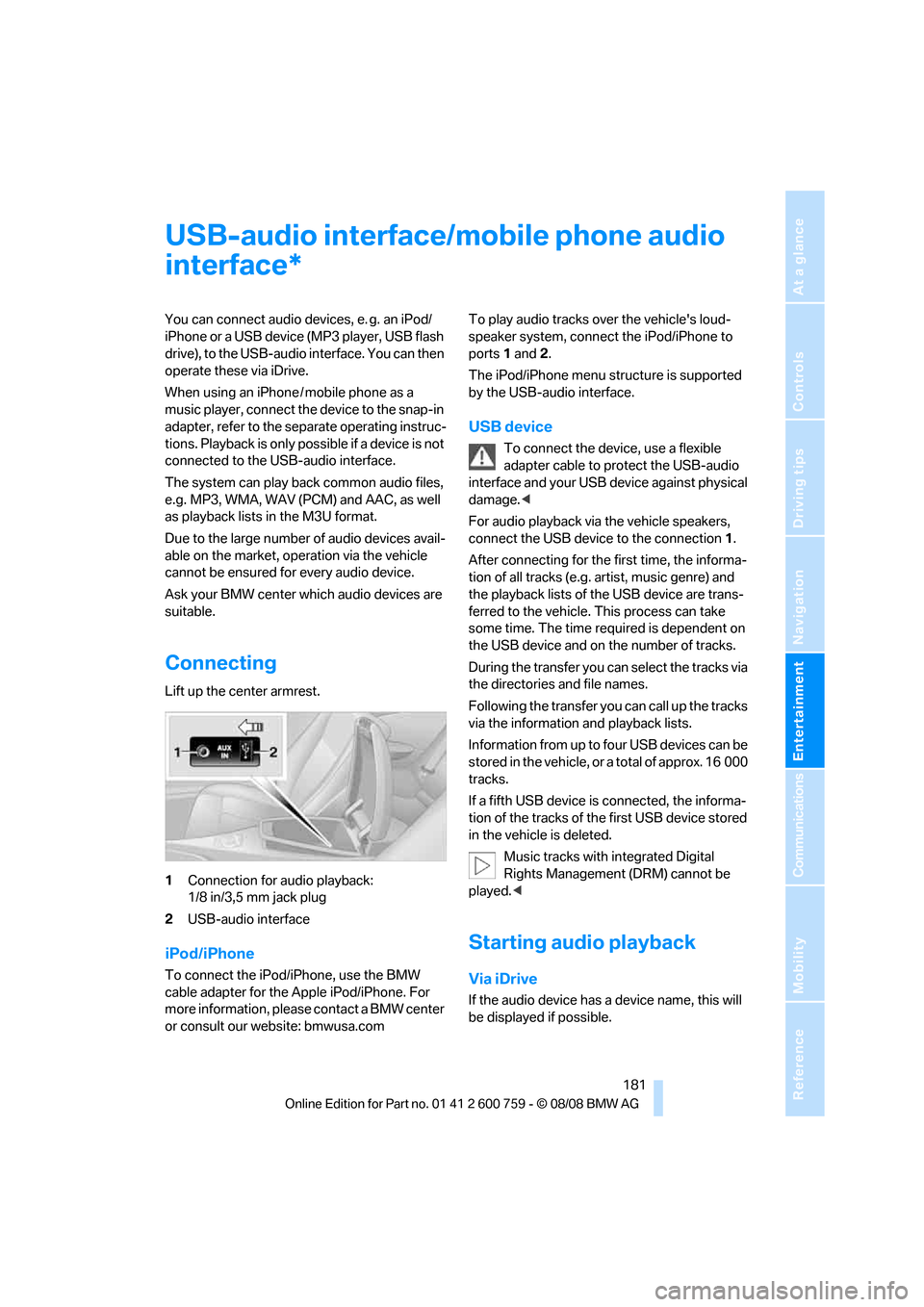
Lift up the center armrest.
1Connection for audio playback:
1/8 in/3,5 mm jack plug
2USB-audio interface
iPod/iPhone
To connect the iPod/iPhone, use the BMW
cable adapter for the Apple iPod/iPhone. For
more information, please contact a BMW center
or consult our website: bmwusa.comTo play audio tracks over the vehicle's loud-
speaker system, connect the iPod/iPhone to
ports 1 and 2.
The iPod/iPhone menu structure is supported
by the USB-audio interface.
USB device
To connect the device, use a flexible
adapter cable to protect the USB-audio
interface and your USB device against physical
damage.<
For audio playback via the vehicle speakers,
connect the USB device to the connection 1.
After connecting for the first time, the informa-
tion of all tracks (e.g. artist, music genre) and
the playback lists of the USB device are trans-
ferred to the vehicle. This process can take
some time. The time required is dependent on
the USB device and on the number of tracks.
During the transfer you can select the tracks via
the directories and file names.
Following the transfer you can call up the tracks
via the information and playback lists.
Information from up to four USB devices can be
stored in the vehicle, or a total of approx. 16 000
tracks.
If a fifth USB device is connected, the informa-
tion of the tracks of the first USB device stored
in the vehicle is deleted.
Music tracks with integrated Digital
Rights Management (DRM) cannot be
played.<
Starting audio playback
Via iDrive
If the audio device has a device name, this will
be displayed if possible.
*
Page 184 of 272
USB-audio interface/mobile phone audio interface
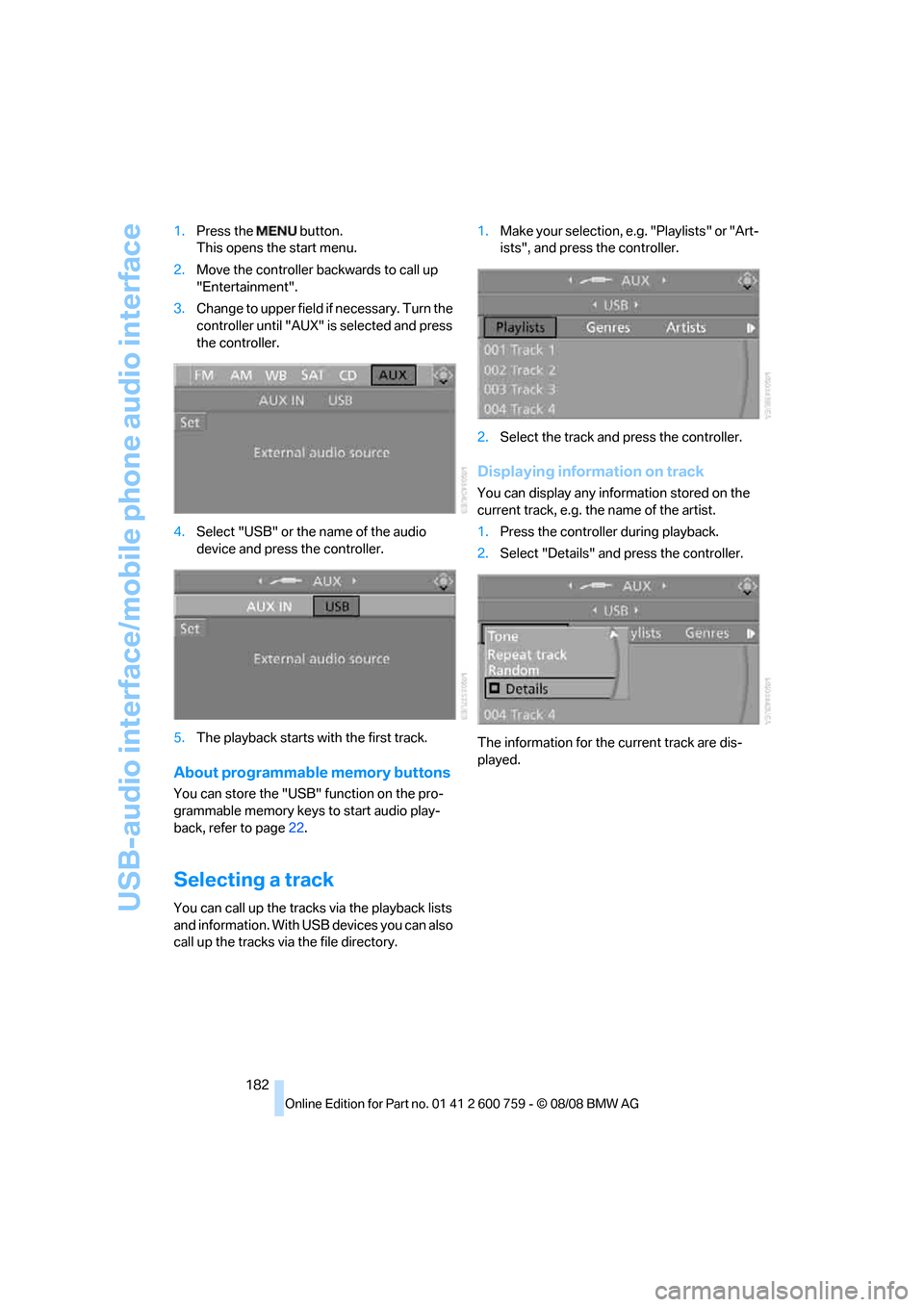
182 1.Press the button.
This opens the start menu.
2.Move the controller backwards to call up
"Entertainment".
3.Change to upper field if necessary. Turn the
controller until "AUX" is selected and press
the controller.
4.Select "USB" or the name of the audio
device and press the controller.
5.The playback starts with the first track.
About programmable memory buttons
You can store the "USB" function on the pro-
grammable memory keys to start audio play-
back, refer to page22.
Selecting a track
You can call up the tracks via the playback lists
and information. With USB devices you can also
call up the tracks via the file directory.1.Make your selection, e.g. "Playlists" or "Art-
ists", and press the controller.
2.Select the track and press the controller.
Displaying information on track
You can display any information stored on the
current track, e.g. the name of the artist.
1.Press the controller during playback.
2.Select "Details" and press the controller.
The information for the current track are dis-
played.
Page 185 of 272
Navigation
Entertainment
Driving tips
183Reference
At a glance
Controls
Communications
Mobility
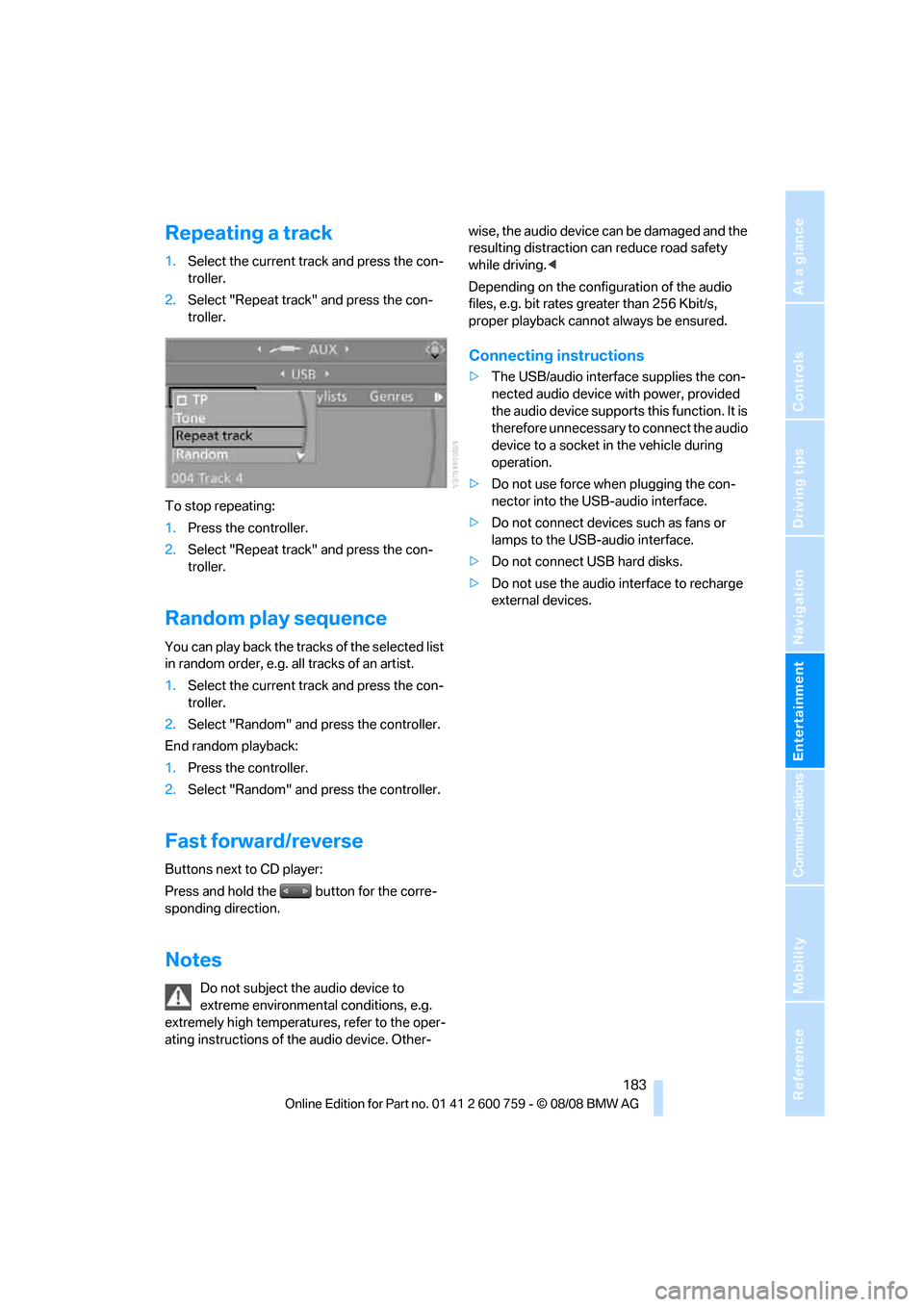
Repeating a track
1.Select the current track and press the con-
troller.
2.Select "Repeat track" and press the con-
troller.
To stop repeating:
1.Press the controller.
2.Select "Repeat track" and press the con-
troller.
Random play sequence
You can play back the tracks of the selected list
in random order, e.g. all tracks of an artist.
1.Select the current track and press the con-
troller.
2.Select "Random" and press the controller.
End random playback:
1.Press the controller.
2.Select "Random" and press the controller.
Fast forward/reverse
Buttons next to CD player:
Press and hold the button for the corre-
sponding direction.
Notes
Do not subject the audio device to
extreme environmental conditions, e.g.
extremely high temperatures, refer to the oper-
ating instructions of the audio device. Other-wise, the audio device can be damaged and the
resulting distraction can reduce road safety
while driving.<
Depending on the configuration of the audio
files, e.g. bit rates greater than 256 Kbit/s,
proper playback cannot always be ensured.
Connecting instructions
>The USB/audio interface supplies the con-
nected audio device with power, provided
the audio device supports this function. It is
therefore unnecessary to connect the audio
device to a socket in the vehicle during
operation.
>Do not use force when plugging the con-
nector into the USB-audio interface.
>Do not connect devices such as fans or
lamps to the USB-audio interface.
>Do not connect USB hard disks.
>Do not use the audio interface to recharge
external devices.
Page 194 of 272
Telephoning
192
Adjusting volume
Turn the knob during a call to select the desired
volume.
This volume for the hands-free system is main-
tained, even if the other audio sources are set to
minimum volume.
You can also adjust the volume with the buttons
on the steering wheel, refer to page11.
The setting is stored for the remote control cur-
rently in use.
Operation via iDrive
You can operate the following functions via
iDrive:
>Accepting/refusing a call
>Dialing phone numbers
>Dialing phone numbers from the phone
book
>Dialing stored phone numbers, e.g. from the
list of accepted calls.
>Ending a call
When the ignition is switched off or in radio
readiness, e.g. after taking the remote control
out of the ignition lock, you can continue an
ongoing call via the hands-free system for sev-
eral minutes.
Speech quality
If the person you are talking to cannot under-
stand you well, this may be due to excessively
loud background noises. The full mobile phone
preparation package can compensate for these
noises to a certain degree. To optimize the speech quality during a call, we recommend
that you:
>Reduce background noises, e.g. by closing
the windows, reducing the air volume of the
automatic climate control or pointing the
opened front vent outlets downward
>Reduce volume of hands-free system
Requirements
>The logon data of the mobile phone are
stored in the vehicle and the mobile phone
is ready to operate.
>The engine is running or the ignition is
switched on.
>The mobile phone is detected by the vehi-
cle.
Opening Communication
Many of the functions described below are con-
trolled using the "Communication" menu.
iDrive, for operating principle refer to page16.
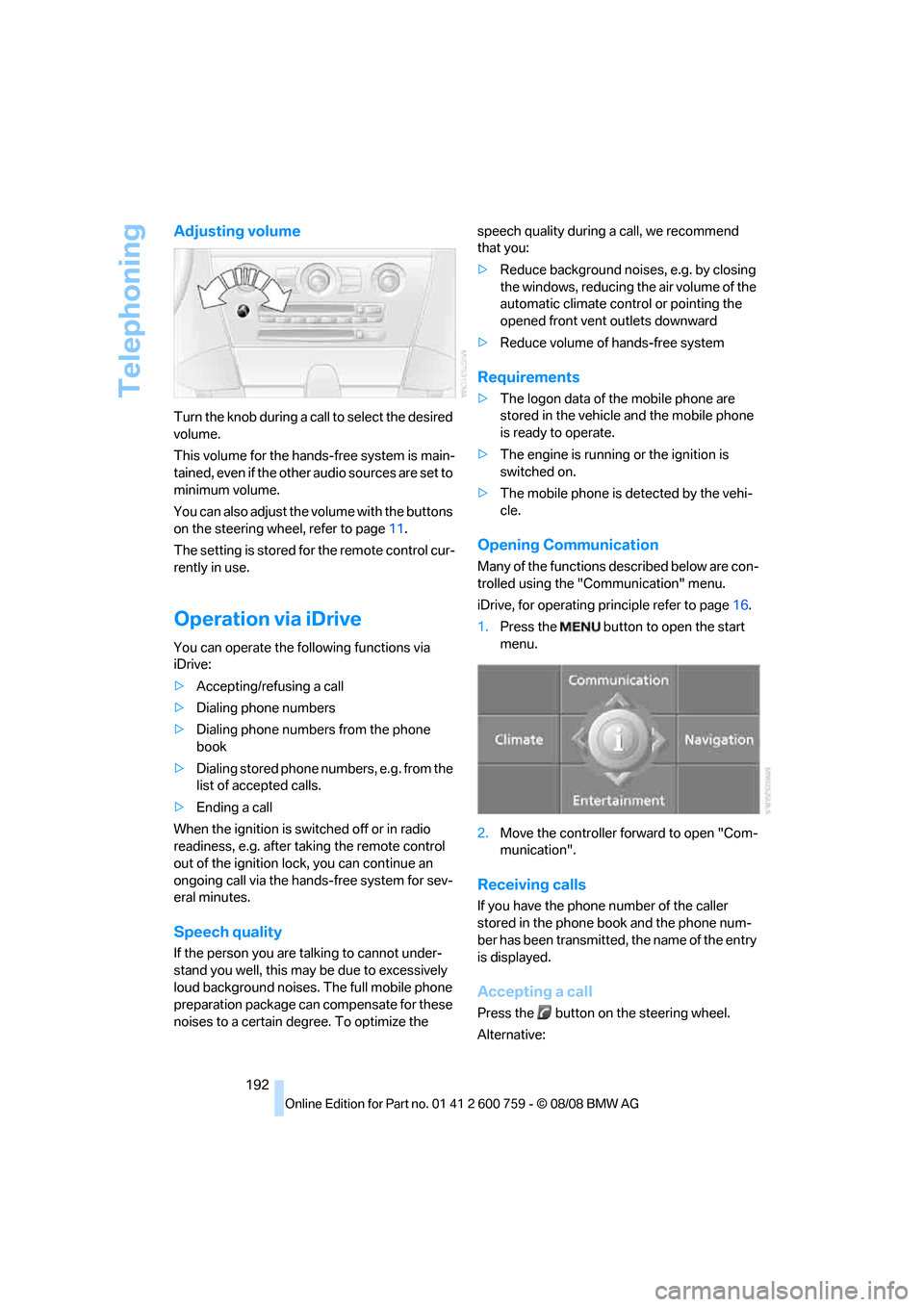
1.Press the button to open the start
menu.
2.Move the controller forward to open "Com-
munication".
Receiving calls
If you have the phone number of the caller
stored in the phone book and the phone num-
ber has been transmitted, the name of the entry
is displayed.
Accepting a call
Press the button on the steering wheel.
Alternative:
Page 200 of 272
Telephoning
198
Setting volume of instructions
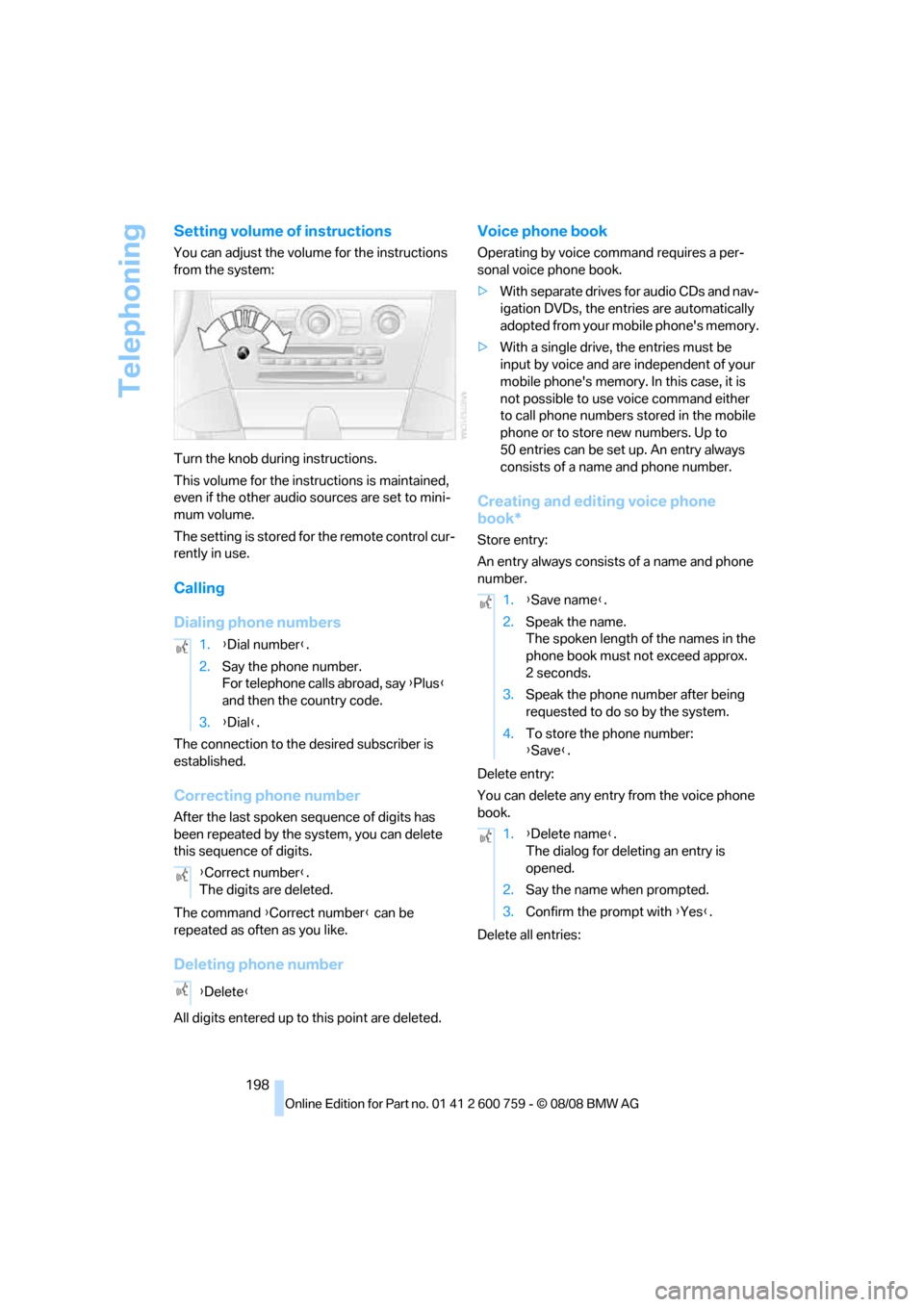
You can adjust the volume for the instructions
from the system:
Turn the knob during instructions.
This volume for the instructions is maintained,
even if the other audio sources are set to mini-
mum volume.
The setting is stored for the remote control cur-
rently in use.
Calling
Dialing phone numbers
The connection to the desired subscriber is
established.
Correcting phone number
After the last spoken sequence of digits has
been repeated by the system, you can delete
this sequence of digits.
The command {Correct number} can be
repeated as often as you like.
Deleting phone number
All digits entered up to this point are deleted.
Voice phone book
Operating by voice command requires a per-
sonal voice phone book.
>With separate drives for audio CDs and nav-
igation DVDs, the entries are automatically
adopted from your mobile phone's memory.
>With a single drive, the entries must be
input by voice and are independent of your
mobile phone's memory. In this case, it is
not possible to use voice command either
to call phone numbers stored in the mobile
phone or to store new numbers. Up to
50 entries can be set up. An entry always
consists of a name and phone number.
Creating and editing voice phone
book*
Store entry:
An entry always consists of a name and phone
number.
Delete entry:
You can delete any entry from the voice phone
book.
Delete all entries: 1.{Dial number}.
2.Say the phone number.
For telephone calls abroad, say {Plus}
and then the country code.
3.{Dial}.
{Correct number}.
The digits are deleted.
{Delete}
1.{Save name}.
2.Speak the name.
The spoken length of the names in the
phone book must not exceed approx.
2seconds.
3.Speak the phone number after being
requested to do so by the system.
4.To store the phone number:
{Save}.
1.{Delete name}.
The dialog for deleting an entry is
opened.
2.Say the name when prompted.
3.Confirm the prompt with {Yes}.
Page 249 of 272
Reference 247
At a glance
Controls
Driving tips
Communications
Navigation
Entertainment
Mobility
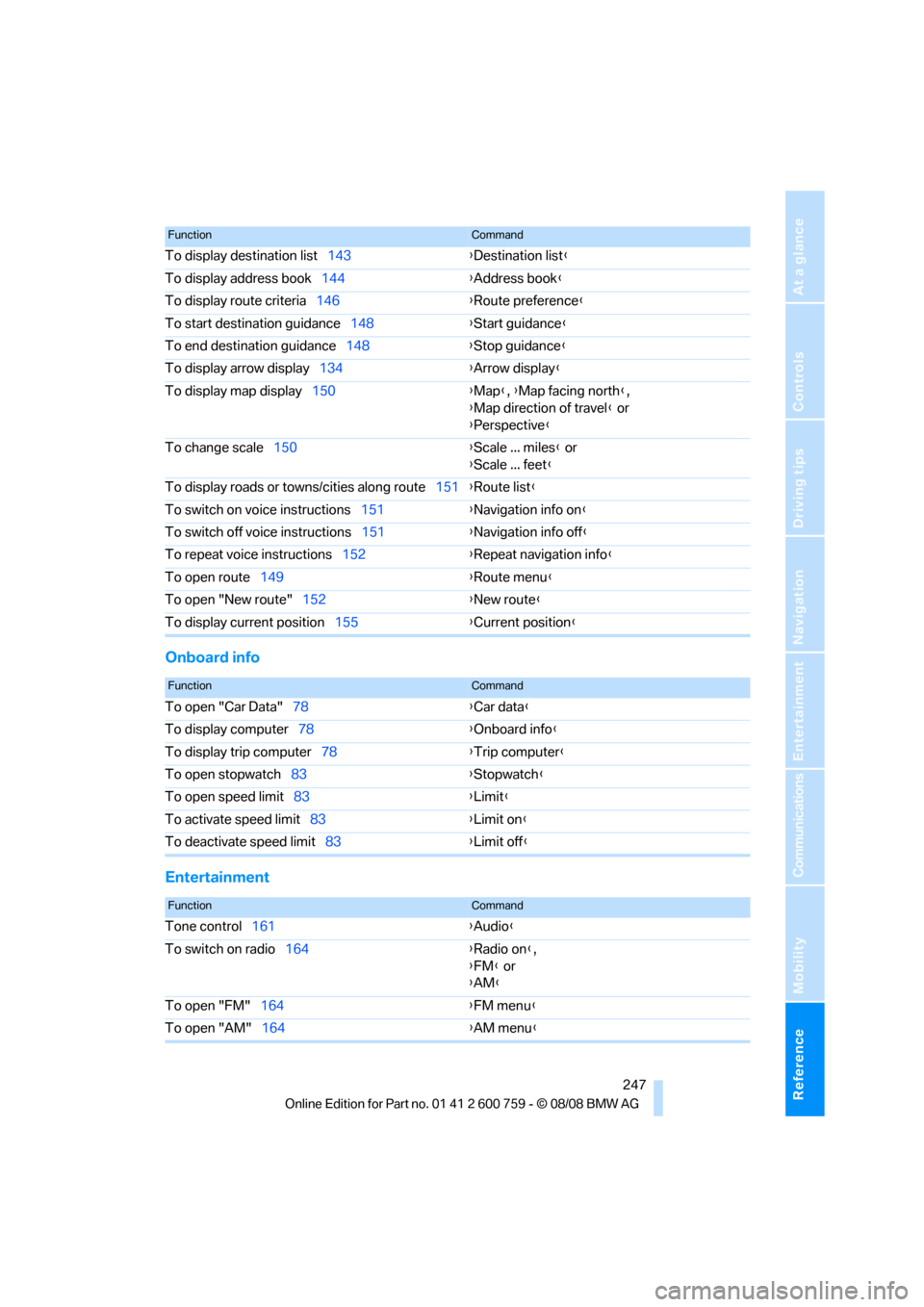
Onboard info
Entertainment
To display destination list143{Destination list}
To display address book144{Address book}
To display route criteria146{Route preference}
To start destination guidance148{Start guidance}
To end destination guidance148{Stop guidance}
To display arrow display134{Arrow display}
To display map display150{Map}, {Map facing north},
{Map direction of travel} or
{Perspective}
To change scale150{Scale ... miles} or
{Scale ... feet}
To display roads or towns/cities along route151{Route list}
To switch on voice instructions151{Navigation info on}
To switch off voice instructions151{Navigation info off}
To repeat voice instructions152{Repeat navigation info}
To open route149{Route menu}
To open "New route"152{New route}
To display current position155{Current position}
FunctionCommand
FunctionCommand
To open "Car Data"78{Car data}
To display computer78{Onboard info}
To display trip computer78{Trip computer}
To open stopwatch83{Stopwatch}
To open speed limit83{Limit}
To activate speed limit83{Limit on}
To deactivate speed limit83{Limit off}
FunctionCommand
Tone control161{Audio}
To switch on radio164{Radio on},
{FM} or
{AM}
To open "FM"164{FM menu}
To open "AM"164{AM menu}
Page 250 of 272
Short commands of voice command system
248
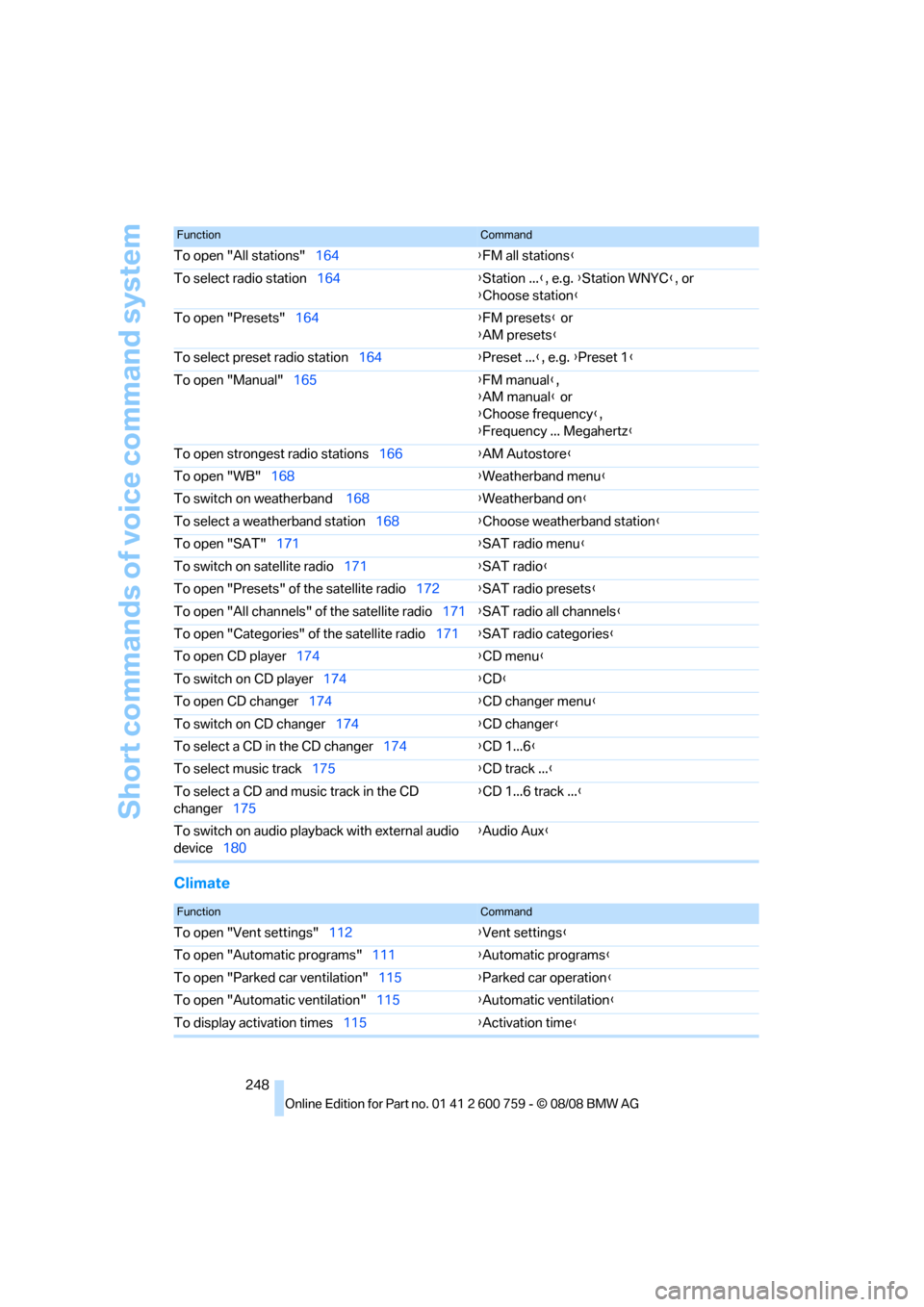
Climate
To open "All stations"164{FM all stations}
To select radio station164{Station ...}, e.g. {Station WNYC}, or
{Choose station}
To open "Presets"164{FM presets} or
{AM presets}
To select preset radio station164{Preset ...}, e.g. {Preset 1}
To open "Manual"165{FM manual},
{AM manual} or
{Choose frequency},
{Frequency ... Megahertz}
To open strongest radio stations166{AM Autostore}
To open "WB"168{Weatherband menu}
To switch on weatherband 168{Weatherband on}
To select a weatherband station168{Choose weatherband station}
To open "SAT"171{SAT radio menu}
To switch on satellite radio171{SAT radio}
To open "Presets" of the satellite radio172{SAT radio presets}
To open "All channels" of the satellite radio171{SAT radio all channels}
To open "Categories" of the satellite radio171{SAT radio categories}
To open CD player174{
CD menu}
To switch on CD player174{CD}
To open CD changer174{CD changer menu}
To switch on CD changer174{CD changer}
To select a CD in the CD changer174{CD 1...6}
To select music track175{CD track ...}
To select a CD and music track in the CD
changer175{CD 1...6 track ...}
To switch on audio playback with external audio
device180{Audio Aux}
FunctionCommand
FunctionCommand
To open "Vent settings"112{Vent settings}
To open "Automatic programs"111{Automatic programs}
To open "Parked car ventilation"115{Parked car operation}
To open "Automatic ventilation"115{Automatic ventilation}
To display activation times115{Activation time}
Page 252 of 272
Everything from A to Z
250
Everything from A to Z
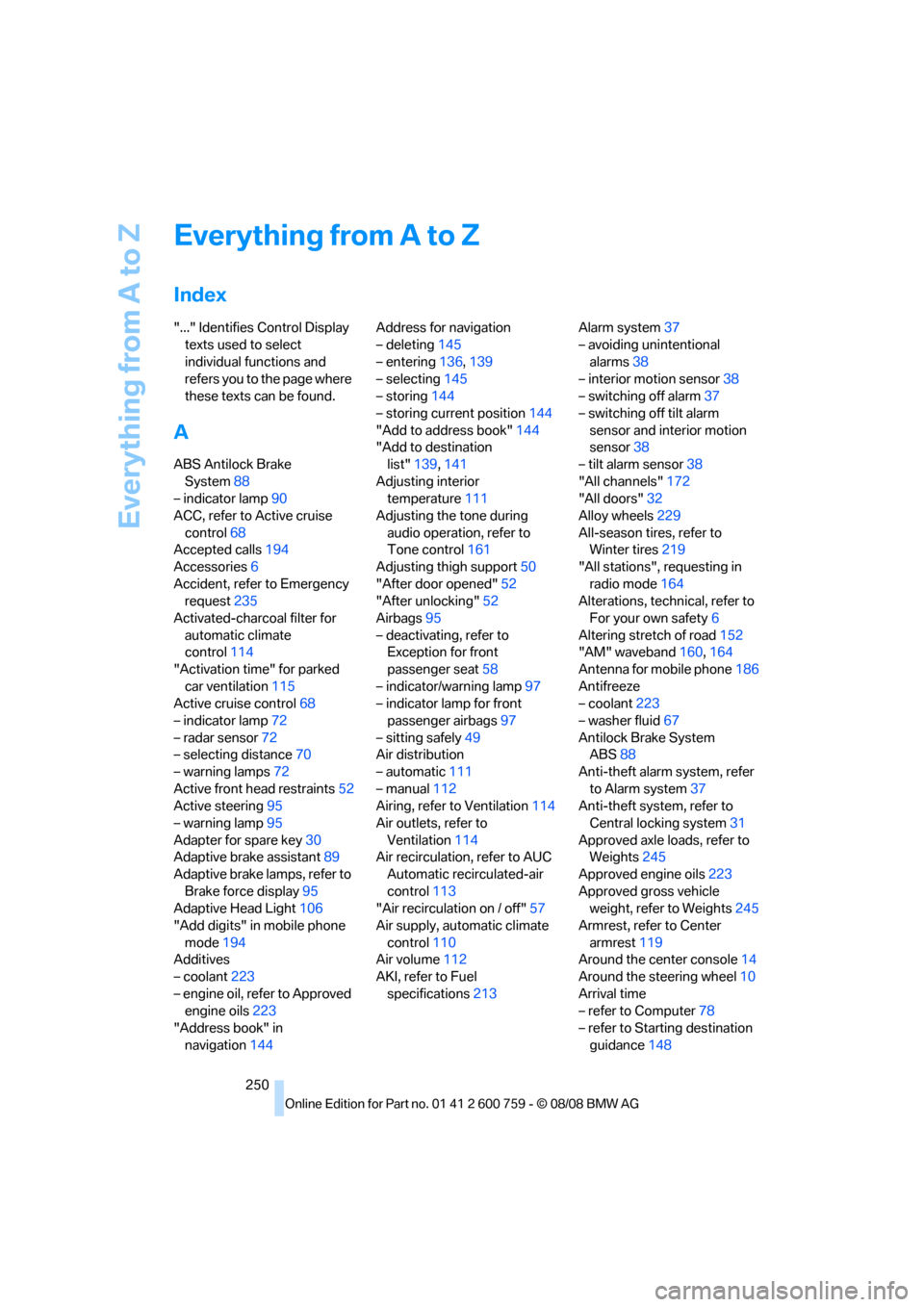
Index
"..." Identifies Control Display
texts used to select
individual functions and
refers you to the page where
these texts can be found.
A
ABS Antilock Brake
System88
– indicator lamp90
ACC, refer to Active cruise
control68
Accepted calls194
Accessories6
Accident, refer to Emergency
request235
Activated-charcoal filter for
automatic climate
control114
"Activation time" for parked
car ventilation115
Active cruise control68
– indicator lamp72
– radar sensor72
– selecting distance70
– warning lamps72
Active front head restraints52
Active steering95
– warning lamp95
Adapter for spare key30
Adaptive brake assistant89
Adaptive brake lamps, refer to
Brake force display95
Adaptive Head Light106
"Add digits" in mobile phone
mode194
Additives
– coolant223
– engine oil, refer to Approved
engine oils223
"Address book" in
navigation144Address for navigation
– deleting145
– entering136,139
– selecting145
– storing144
– storing current position144
"Add to address book"144
"Add to destination
list"139,141
Adjusting interior
temperature111
Adjusting the tone during
audio operation, refer to
Tone control161
Adjusting thigh support50
"After door opened"52
"After unlocking"52
Airbags95
– deactivating, refer to
Exception for front
passenger seat58
– indicator/warning lamp97
– indicator lamp for front
passenger airbags97
– sitting safely49
Air distribution
– automatic111
– manual112
Airing, refer to Ventilation114
Air outlets, refer to
Ventilation114
Air recirculation, refer to AUC
Automatic recirculated-air
control113
"Air recirculation on / off"57
Air supply, automatic climate
control110
Air volume112
AKI, refer to Fuel
specifications213Alarm system37
– avoiding unintentional
alarms38
– interior motion sensor38
– switching off alarm37
– switching off tilt alarm
sensor and interior motion
sensor38
– tilt alarm sensor38
"All channels"172
"All doors"32
Alloy wheels229
All-season tires, refer to
Winter tires219
"All stations", requesting in
radio mode164
Alterations, technical, refer to
For your own safety6
Altering stretch of road152
"AM" waveband160,164
Antenna for mobile phone186
Antifreeze
– coolant223
– washer fluid67
Antilock Brake System
ABS88
Anti-theft alarm system, refer
to Alarm system37
Anti-theft system, refer to
Central locking system31
Approved axle loads, refer to
Weights245
Approved engine oils223
Approved gross vehicle
weight, refer to Weights245
Armrest, refer to Center
armrest119
Around the center console14
Around the steering wheel10
Arrival time
– refer to Computer78
– refer to Starting destination
guidance148
Page 253 of 272
Reference 251
At a glance
Controls
Driving tips
Communications
Navigation
Entertainment
Mobility
"Arrow display" in
navigation149
"Arrow display pop-up
instructions"135
Ashtray121
Assist, refer to
BMW Assist201
Assistance systems, refer to
Driving stability control
systems88
Assistance window21
"Assist. window off"22
AUC
– Automatic recirculated-air
control113
AUC Automatic recirculated-
air control113
"Audio"161,163,168
Audio160
– controls160
– switching on/off160
– tone control161
– volume161
Audio device, external119
Automatic
– air distribution111
– air volume111
– cruise control67,68
– headlamp control104
– service notification203
– steering wheel
adjustment51
– storing stations166
Automatic car washes128
– also refer to Comfort
access40
Automatic climate control110
– automatic air
distribution111
– convertible program111
– switching on and off114
– ventilation with vehicle
parked114
Automatic closing of doors,
refer to Automatic soft
closing35
Automatic curb monitor56Automatic lighting
– refer to Automatic headlamp
control104
– refer to Daytime running
lamps105
– refer to High-beam
assistant106
– refer to Interior lamps108
– refer to Pathway lighting105
– refer to Welcome lamps104
"Automatic programs"
111
Automatic soft closing35
Automatic station search165
"Automatic ventilation"115
AUTO program for automatic
climate control111
"Auto Request"203
"Autostore" on the
radio164,166
"AUX"160,180,182
AUX-IN connection119,180
"AUX IN" in audio mode180
Average fuel consumption77
– setting units86
Average speed77
"Avoid ferries" in
navigation147
"Avoid highways" in
navigation147
Avoiding freeways for
navigation146
Avoiding unintentional
alarms38
"Avoid tollroads" in
navigation147
Axle loads, refer to
Weights245
"A - Z"194
B
Backrest contour, refer to
Lumbar support50
Backrests, refer to Seats49
Backup lamps, replacing
bulbs, refer to Tail
lamps232
"Balance", tone control162Band-aids, refer to First-aid
kit236
Bass, refer to Tone
control161
"Bass", tone control161
Battery
– jump starting236
– refer to Vehicle battery233
Battery replacement, remote
control for comfort
access40
BC button, refer to
Computer77
Being towed238
Belts, refer to Safety belts54
Beverage holder, refer to Cup
holders120
Blower, refer to Air
volume112
"Bluetooth"187
BMW
– Car Shampoo230
"BMW Assist"202,203
BMW Assist201
– activating206
– BMW TeleServices203
– concierge service204
– contacting BMW Customer
Relations204
– displaying vehicle data207
– offered services201
– roadside assistance202
– updating205
"BMW Contact"196
"BMW Contact
Numbers"196
BMW homepage4
BMW maintenance
system225
BMW Night Vision100
– activating101
– cleaning camera102
– cleaning camera, refer to
Wiper system67
– deactivating101
– making settings102
"BMW Service settings"206
BMW TeleServices203
Page 255 of 272
Reference 253
At a glance
Controls
Driving tips
Communications
Navigation
Entertainment
Mobility
Car wash61,128
– refer to Before driving into a
car wash128
– with comfort access40
Car washes227
Catalytic converter, refer to
Hot exhaust system127
"Categories"172
CBC Cornering Brake
Control88
CBS Condition Based
Service225
"CD"160,174
CD changer174
– controls160
– fast forward/reverse178
– installation location178
– random sequence177
– repeating a track177
– sampling tracks176
– selecting a CD174
– selecting a track175
– switching on/off160
– tone control161
– volume161
CD player174
– controls160
– fast forward/reverse178
– random sequence177
– repeating a track177
– sampling a track176
– selecting a track175
– switching on/off160
– tone control161
– volume161
Center armrest, adjusting
height119
Center console14
"Central locking"32
Central locking
– from inside34
– from outside32
Central locking system31
– comfort access38
– hotel function35
Changes, technical, refer to
For your own safety6
Changing language on
Control Display86Changing scale for
navigation150
Changing units of measure on
Control Display86
Changing wheels
218,233
CHECK button82
Check Control81
"Check Control
messages"82
Check Gas Cap212
Checking air pressure, refer to
Tire inflation pressure214
Child restraint fixing system
LATCH58
Child restraint systems58
Child seats, refer to
Transporting children
safely58
Chrome-plated parts230
Chrome polish230
Cigarette lighter121
Cigarette lighter socket, refer
to Connecting electrical
devices121
Cleaning your BMW, refer to
Care227
"Climate"111
Clock76
– 12h/24h format85
– hour signal85
– setting time and date84
Closing
– from inside34
– from outside32
Closing fuel filler cap212
Clothes hooks, Coupe120
Cockpit10
Cold start, refer to Starting
engine61
Combined instrument, refer to
Instrument cluster12
Comfort access38
– observe in car wash40
– replacing battery, remote
control40
Comfort closing
– windows, with comfort
access with Coupe39
– with comfort access39"Communi-
cation"192,202,203
Compact Disc
– refer to CD changer174
– refer to CD player174
Compartment for remote
control, refer to Ignition
lock60
Compartments, refer to
Storage compartments120
Compressed audio files174
Computer77
– displays on Control
Display
78
– hour signal85
"Concert hall", tone
control162
"Concierge"205
Concierge service204
Condensation, refer to When
vehicle is parked128
Condition Based Service
CBS225
"Confirmation"33
Confirmation signals for
locking and unlocking33
Connecting car vacuum
cleaner, refer to Connecting
electrical devices121
Consumption display, refer to
Average fuel
consumption77
Consumption statistics, refer
to Average fuel
consumption77
"Continue guidance to
destination?"149
"Contrast" with BMW Night
Vision102
Control Center, refer to
iDrive16
Control Display, refer to
iDrive16
– setting brightness85
– switching off/on22
Controller, refer to iDrive16
Controls, refer to Cockpit10