tow BMW 650I COUPE 2007 E63 Owner's Guide
[x] Cancel search | Manufacturer: BMW, Model Year: 2007, Model line: 650I COUPE, Model: BMW 650I COUPE 2007 E63Pages: 254, PDF Size: 7.93 MB
Page 132 of 254
Destination entry
130 >Enter a blank space:
Select the symbol and press the con-
troller.
>Delete individual digits or letters:
Move the controller toward the right to
select and press the controller.
>Delete all digits or letters:
Move the controller toward the right to
select and press the controller
longer.
3.Select the zip code and press the controller.
The corresponding town/city of destination
is displayed.
4.Change into the third field from the top.
Turn the controller until the town/city of
destination is selected and press the con-
troller.
Entering street, house number and
intersection
After the street you can also enter the intersec-
tion or the house number.
Entering street and intersection
1.Select "Street" or the displayed street and
press the controller.
2.Enter the street.
The street is entered in exactly the same
way as the town/city of destination.
The intersection is entered in the same way as
the street.
Entering a street without entering
town/city of destination
You can also enter a street without entering a
town/city of destination. In this case all streets
of the entered country are offered for selection.
The related town/city is displayed after the
street name.
If a town/city has already been entered, you can
undo this entry. This may be practical if the
desired street does not exist in the entered
town/city of destination, because, for example,
it belongs to another part of the town/city.
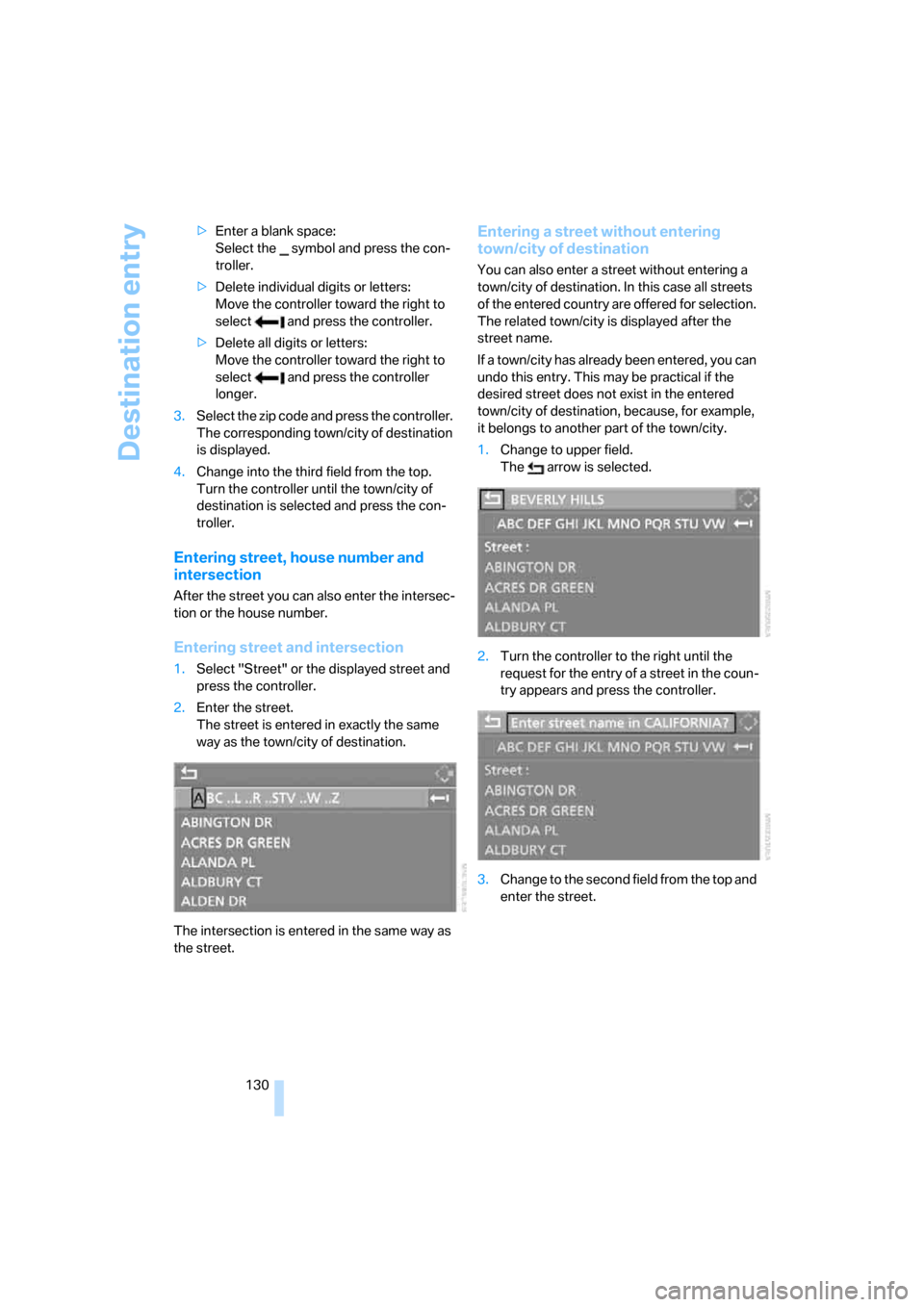
1.Change to upper field.
The arrow is selected.
2.Turn the controller to the right until the
request for the entry of a street in the coun-
try appears and press the controller.
3.Change to the second field from the top and
enter the street.
Page 133 of 254
Navigation
Driving tips
131Reference
At a glance
Controls
Communications
Entertainment
Mobility
Entering house number
All house numbers stored for the street on the
navigation DVD can be entered.
1.Select "House number" and press the con-
troller.
2.Enter the house number:
Select the individual digits and press the
controller.
3.Change into the third field from the top.
Turn the controller until the house number
is selected and press the controller.
Starting destination guidance with
manual destination entry
>Select "Start guidance" and press the con-
troller.
Destination guidance starts immediately.
>If destination guidance is not to be started
immediately:
Select "Add to destination list" and press
the controller.
The destination is stored in the destination
list, refer to page135.
Entering destination via
voice*
You can enter a desired destination with the
voice command system. When entering the
destination, it is possible to change between
voice command and iDrive at any time. Reacti-
vate the voice command function for this pur-
pose if necessary.
With {Options} you can have the system
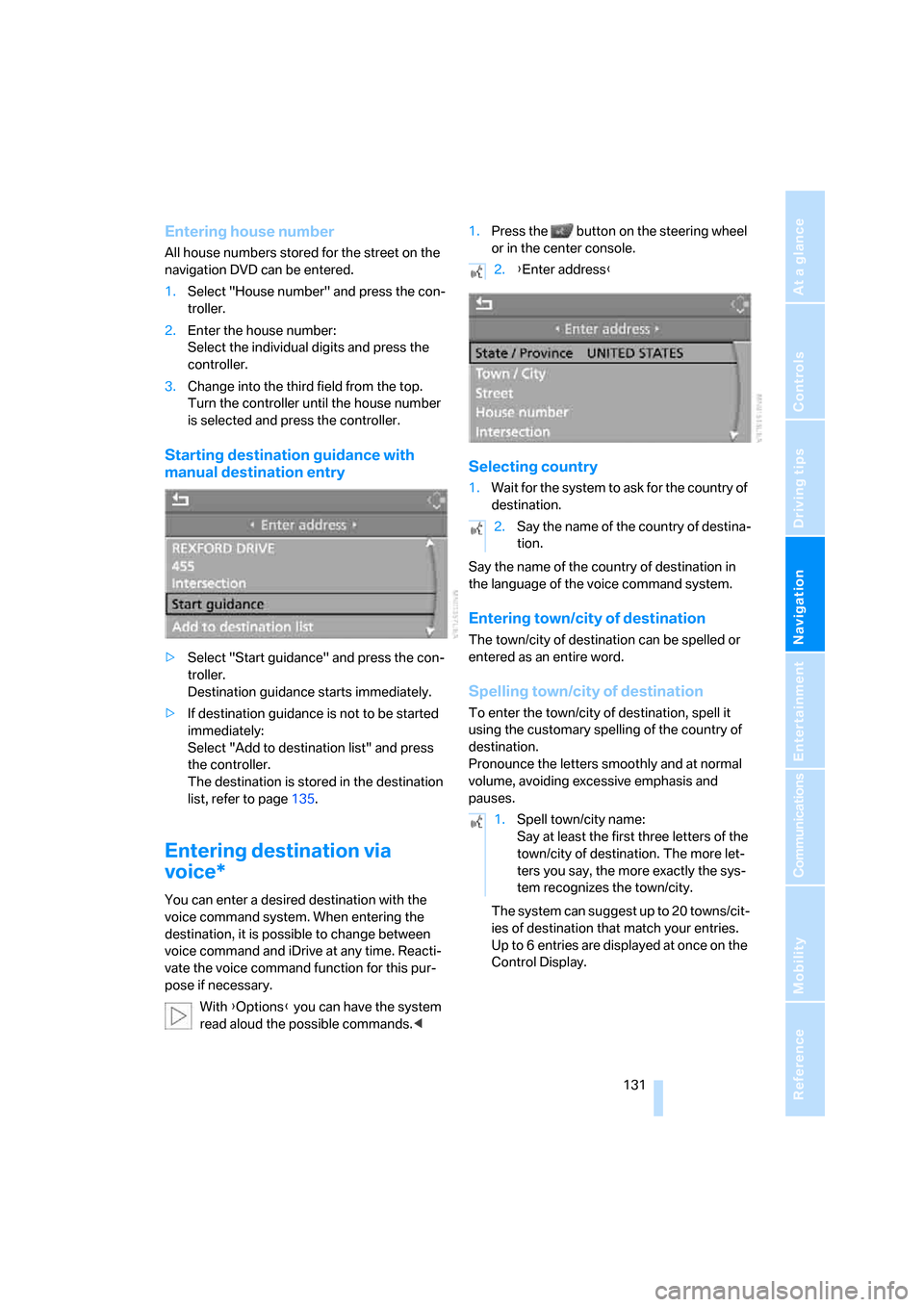
read aloud the possible commands.<1.Press the button on the steering wheel
or in the center console.
Selecting country
1.Wait for the system to ask for the country of
destination.
Say the name of the country of destination in
the language of the voice command system.
Entering town/city of destination
The town/city of destination can be spelled or
entered as an entire word.
Spelling town/city of destination
To enter the town/city of destination, spell it
using the customary spelling of the country of
destination.
Pronounce the letters smoothly and at normal
volume, avoiding excessive emphasis and
pauses.
The system can suggest up to 20 towns/cit-
ies of destination that match your entries.
Up to 6 entries are displayed at once on the
Control Display.
2.{Enter address}
2.Say the name of the country of destina-
tion.
1.Spell town/city name:
Say at least the first three letters of the
town/city of destination. The more let-
ters you say, the more exactly the sys-
tem recognizes the town/city.
Page 134 of 254
Destination entry
132 The town/city can also be selected from the list
via iDrive:
Turn the controller until the town/city of desti-
nation is selected and press the controller.
Entering the destination as an entire
word*
Towns/cities of destination and streets located
in the region where the language of the voice
command system is spoken can be entered as
an entire word.
Example: to enter a US town/city of destination
as an entire word, the system language must be
English.
The condition for this is the use of a suitable
navigation DVD.
Speak smoothly and at normal volume, avoiding
excessive emphasis and pauses.
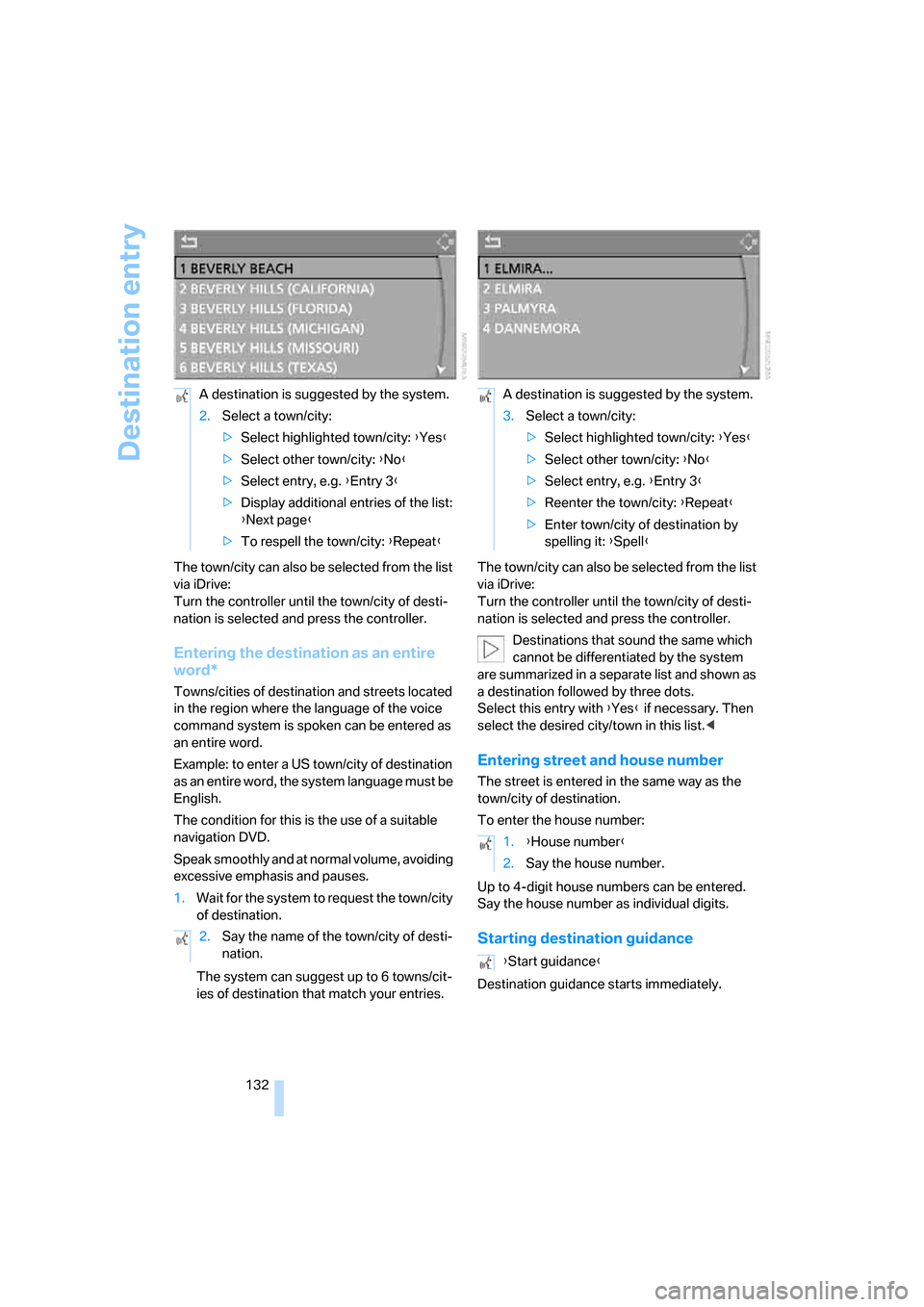
1.Wait for the system to request the town/city
of destination.
The system can suggest up to 6 towns/cit-
ies of destination that match your entries.The town/city can also be selected from the list
via iDrive:
Turn the controller until the town/city of desti-
nation is selected and press the controller.
Destinations that sound the same which
cannot be differentiated by the system
are summarized in a separate list and shown as
a destination followed by three dots.
Select this entry with {Yes} if necessary. Then
select the desired city/town in this list.<
Entering street and house number
The street is entered in the same way as the
town/city of destination.
To enter the house number:
Up to 4-digit house numbers can be entered.
Say the house number as individual digits.
Starting destination guidance
Destination guidance starts immediately. A destination is suggested by the system.
2.Select a town/city:
>Select highlighted town/city: {Yes}
>Select other town/city: {No}
>Select entry, e.g. {Entry 3}
>Display additional entries of the list:
{Next page}
>To respell the town/city: {Repeat}
2.Say the name of the town/city of desti-
nation.
A destination is suggested by the system.
3.Select a town/city:
>Select highlighted town/city: {Yes}
>Select other town/city: {No}
>Select entry, e.g. {Entry 3}
>Reenter the town/city: {Repeat}
>Enter town/city of destination by
spelling it: {Spell}
1.{House number}
2.Say the house number.
{Start guidance}
Page 135 of 254
Navigation
Driving tips
133Reference
At a glance
Controls
Communications
Entertainment
Mobility
Saving destination
The destination is added to the destination list
or can be saved in the address book.
Map-guided destination
selection
If you only know the location of the town/city or
street of the destination, then you can input the
destination by using a map. You can use the
cursor to select the destination on the map and
then adopt it into the destination guidance.
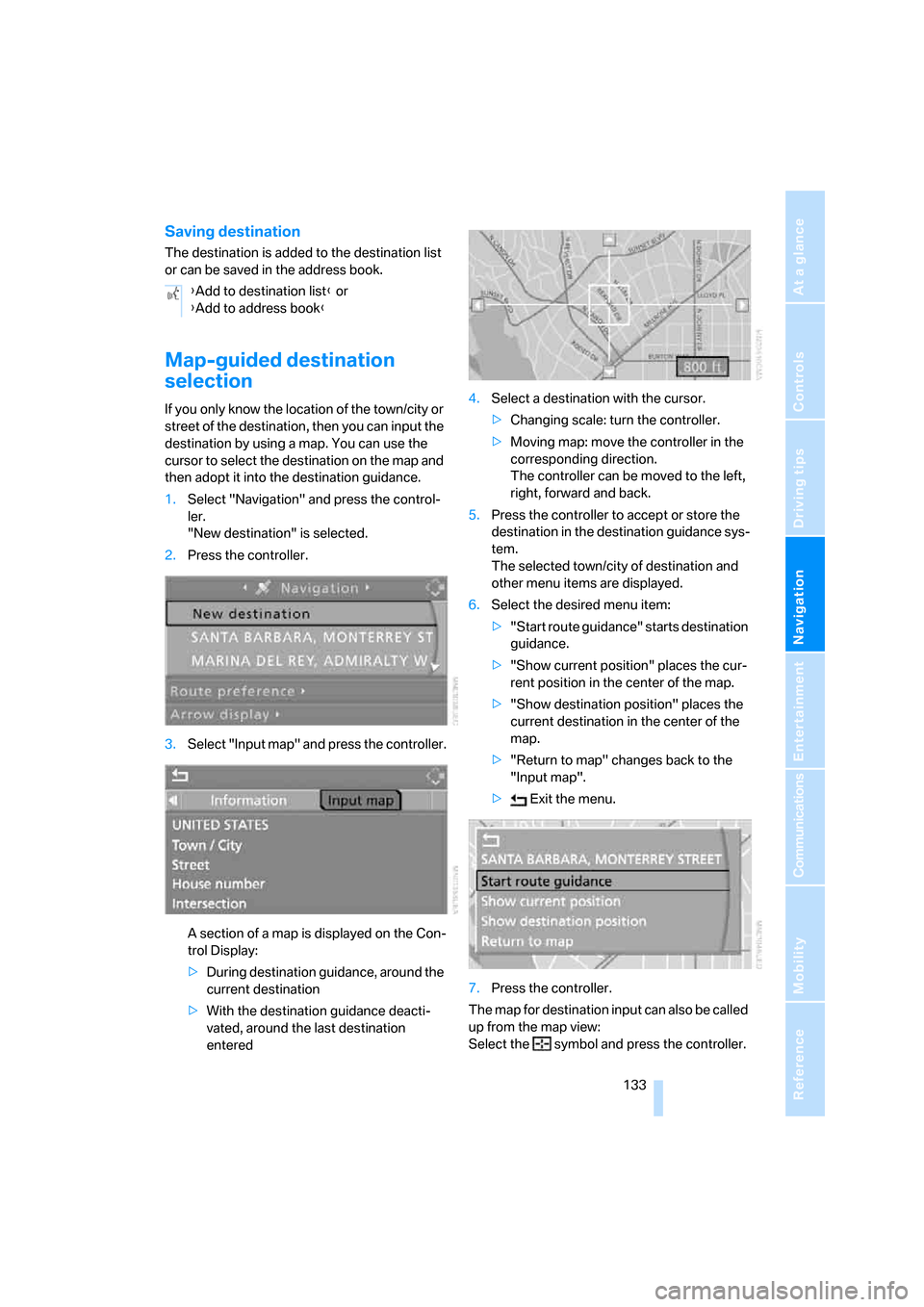
1.Select "Navigation" and press the control-
ler.
"New destination" is selected.
2.Press the controller.
3.Select "Input map" and press the controller.
A section of a map is displayed on the Con-
trol Display:
>During destination guidance, around the
current destination
>With the destination guidance deacti-
vated, around the last destination
entered4.Select a destination with the cursor.
>Changing scale: turn the controller.
>Moving map: move the controller in the
corresponding direction.
The controller can be moved to the left,
right, forward and back.
5.Press the controller to accept or store the
destination in the destination guidance sys-
tem.
The selected town/city of destination and
other menu items are displayed.
6.Select the desired menu item:
>"Start route guidance" starts destination
guidance.
>"Show current position" places the cur-
rent position in the center of the map.
>"Show destination position" places the
current destination in the center of the
map.
>"Return to map" changes back to the
"Input map".
> Exit the menu.
7.Press the controller.
The map for destination input can also be called
up from the map view:
Select the symbol and press the controller. {Add to destination list} or
{Add to address book}
Page 137 of 254
Navigation
Driving tips
135Reference
At a glance
Controls
Communications
Entertainment
Mobility
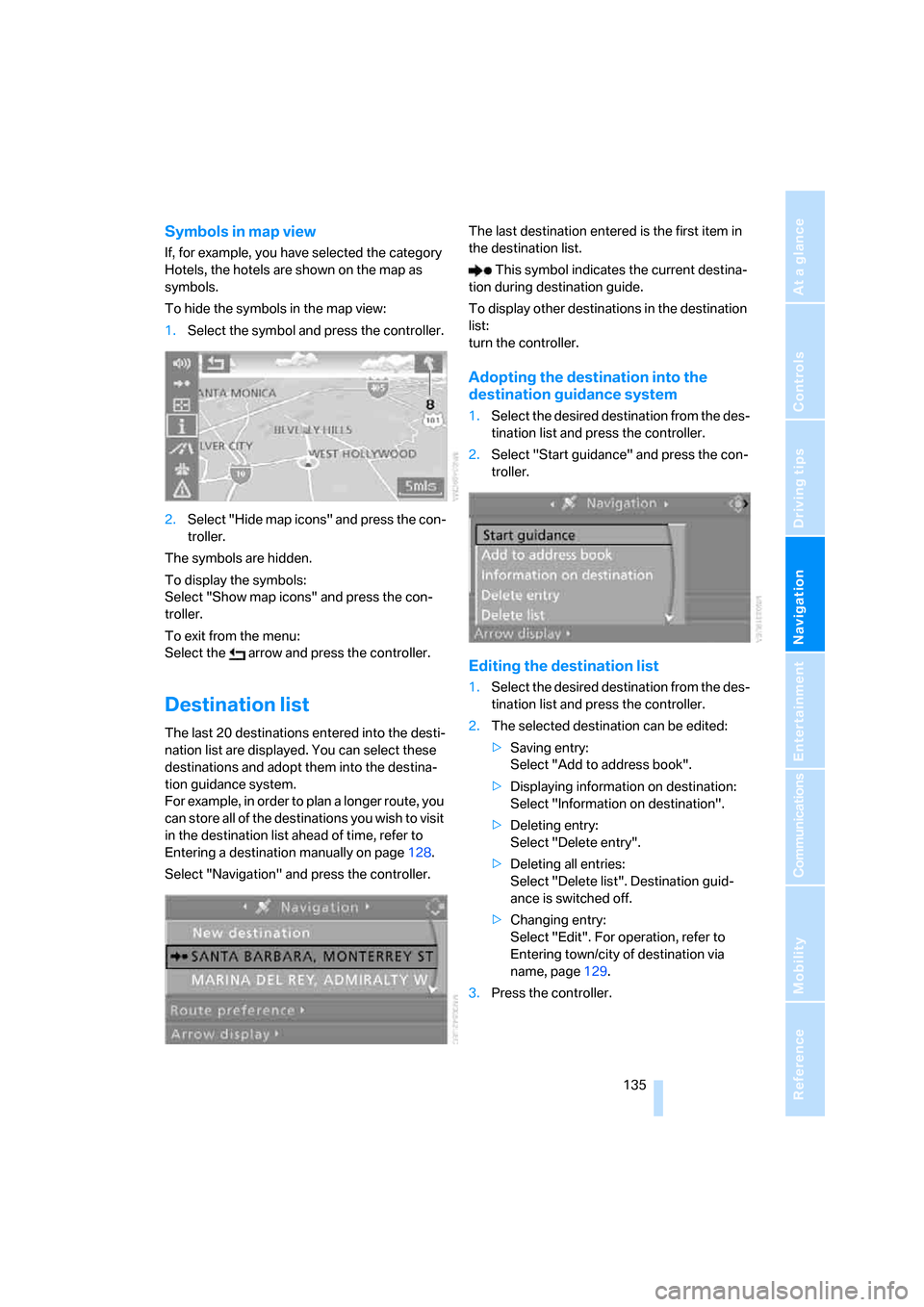
Symbols in map view
If, for example, you have selected the category
Hotels, the hotels are shown on the map as
symbols.
To hide the symbols in the map view:
1.Select the symbol and press the controller.
2.Select "Hide map icons" and press the con-
troller.
The symbols are hidden.
To display the symbols:
Select "Show map icons" and press the con-
troller.
To exit from the menu:
Select the arrow and press the controller.
Destination list
The last 20 destinations entered into the desti-
nation list are displayed. You can select these
destinations and adopt them into the destina-
tion guidance system.
For example, in order to plan a longer route, you
can store all of the destinations you wish to visit
in the destination list ahead of time, refer to
Entering a destination manually on page128.
Select "Navigation" and press the controller.The last destination entered is the first item in
the destination list.
This symbol indicates the current destina-
tion during destination guide.
To display other destinations in the destination
list:
turn the controller.
Adopting the destination into the
destination guidance system
1.Select the desired destination from the des-
tination list and press the controller.
2.Select "Start guidance" and press the con-
troller.
Editing the destination list
1.Select the desired destination from the des-
tination list and press the controller.
2.The selected destination can be edited:
>Saving entry:
Select "Add to address book".
>Displaying information on destination:
Select "Information on destination".
>Deleting entry:
Select "Delete entry".
>Deleting all entries:
Select "Delete list". Destination guid-
ance is switched off.
>Changing entry:
Select "Edit". For operation, refer to
Entering town/city of destination via
name, page129.
3.Press the controller.
Page 141 of 254
Navigation
Driving tips
139Reference
At a glance
Controls
Communications
Entertainment
Mobility
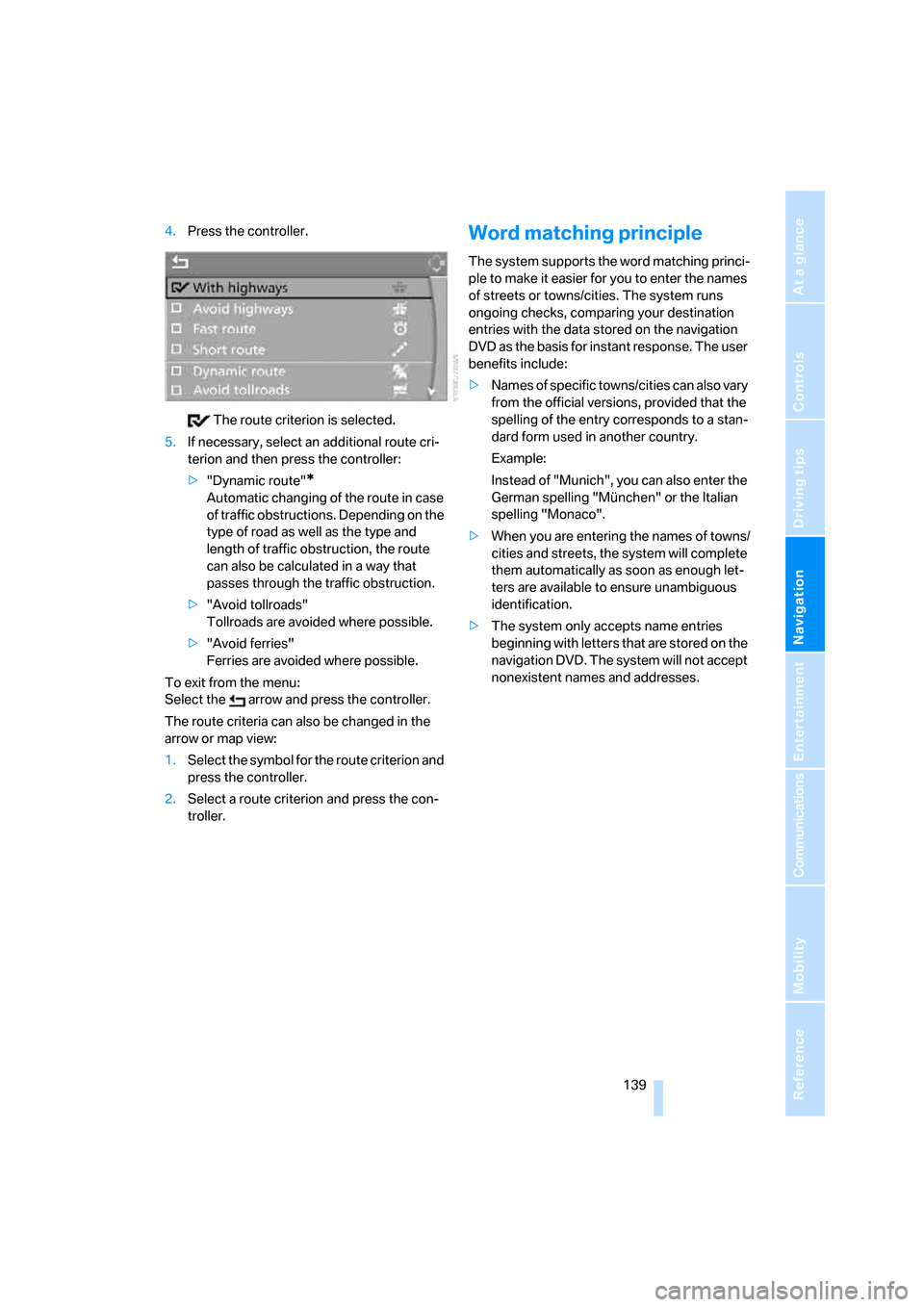
4.Press the controller.
The route criterion is selected.
5.If necessary, select an additional route cri-
terion and then press the controller:
>"Dynamic route"
*
Automatic changing of the route in case
of traffic obstructions. Depending on the
type of road as well as the type and
length of traffic obstruction, the route
can also be calculated in a way that
passes through the traffic obstruction.
>"Avoid tollroads"
Tollroads are avoided where possible.
>"Avoid ferries"
Ferries are avoided where possible.
To exit from the menu:
Select the arrow and press the controller.
The route criteria can also be changed in the
arrow or map view:
1.Select the symbol for the route criterion and
press the controller.
2.Select a route criterion and press the con-
troller.
Word matching principle
The system supports the word matching princi-
ple to make it easier for you to enter the names
of streets or towns/cities. The system runs
ongoing checks, comparing your destination
entries with the data stored on the navigation
DVD as the basis for instant response. The user
benefits include:
>Names of specific towns/cities can also vary
from the official versions, provided that the
spelling of the entry corresponds to a stan-
dard form used in another country.
Example:
Instead of "Munich", you can also enter the
German spelling "München" or the Italian
spelling "Monaco".
>When you are entering the names of towns/
cities and streets, the system will complete
them automatically as soon as enough let-
ters are available to ensure unambiguous
identification.
>The system only accepts name entries
beginning with letters that are stored on the
navigation DVD. The system will not accept
nonexistent names and addresses.
Page 144 of 254
Destination guidance
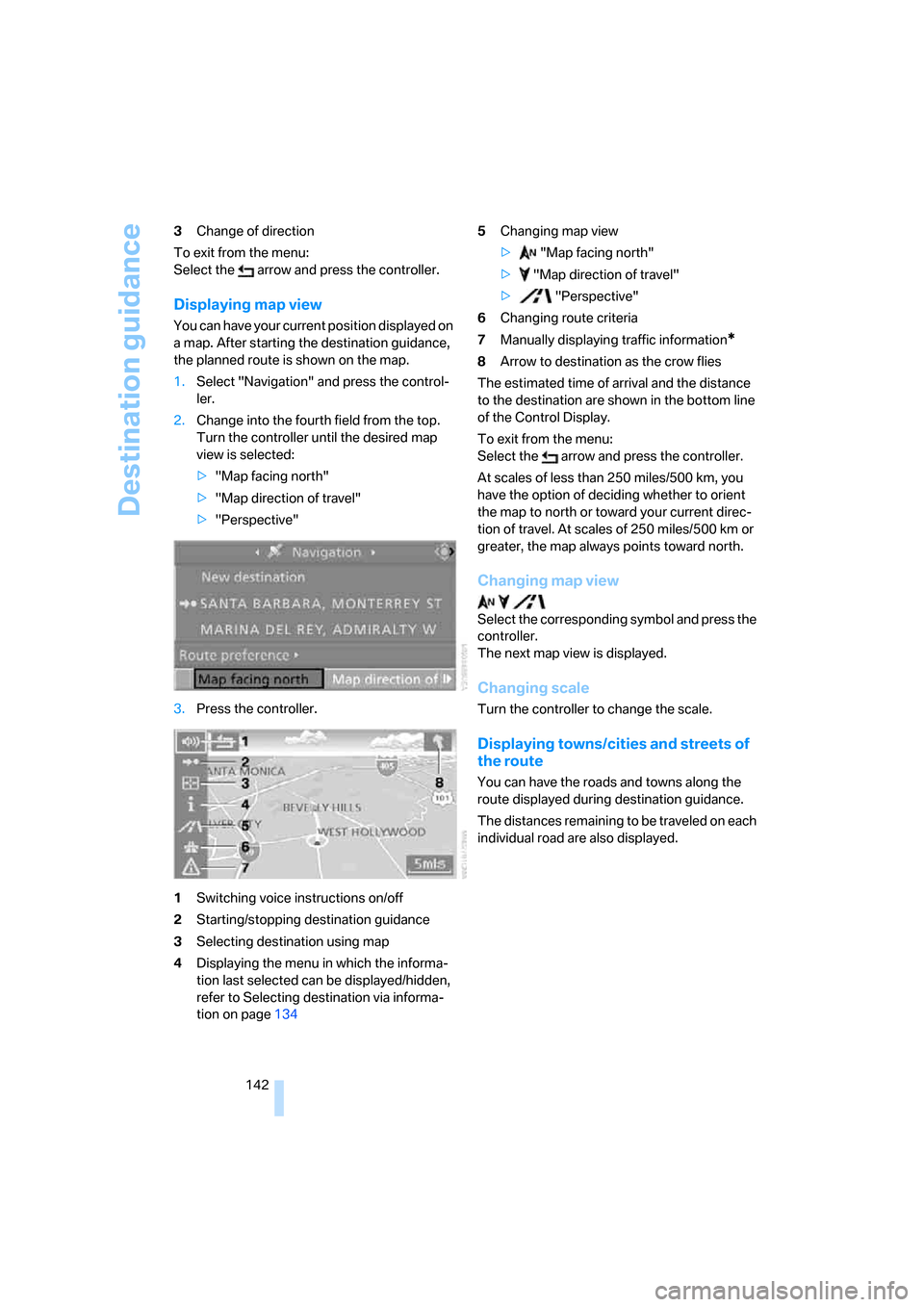
142 3Change of direction
To exit from the menu:
Select the arrow and press the controller.
Displaying map view
You can have your current position displayed on
a map. After starting the destination guidance,
the planned route is shown on the map.
1.Select "Navigation" and press the control-
ler.
2.Change into the fourth field from the top.
Turn the controller until the desired map
view is selected:
>"Map facing north"
>"Map direction of travel"
>"Perspective"
3.Press the controller.
1Switching voice instructions on/off
2Starting/stopping destination guidance
3Selecting destination using map
4Displaying the menu in which the informa-
tion last selected can be displayed/hidden,
refer to Selecting destination via informa-
tion on page1345Changing map view
> "Map facing north"
> "Map direction of travel"
> "Perspective"
6Changing route criteria
7Manually displaying traffic information*
8Arrow to destination as the crow flies
The estimated time of arrival and the distance
to the destination are shown in the bottom line
of the Control Display.
To exit from the menu:
Select the arrow and press the controller.
At scales of less than 250 miles/500 km, you
have the option of deciding whether to orient
the map to north or toward your current direc-
tion of travel. At scales of 250 miles/500 km or
greater, the map always points toward north.
Changing map view
Select the corresponding symbol and press the
controller.
The next map view is displayed.
Changing scale
Turn the controller to change the scale.
Displaying towns/cities and streets of
the route
You can have the roads and towns along the
route displayed during destination guidance.
The distances remaining to be traveled on each
individual road are also displayed.
Page 150 of 254
Destination guidance
148
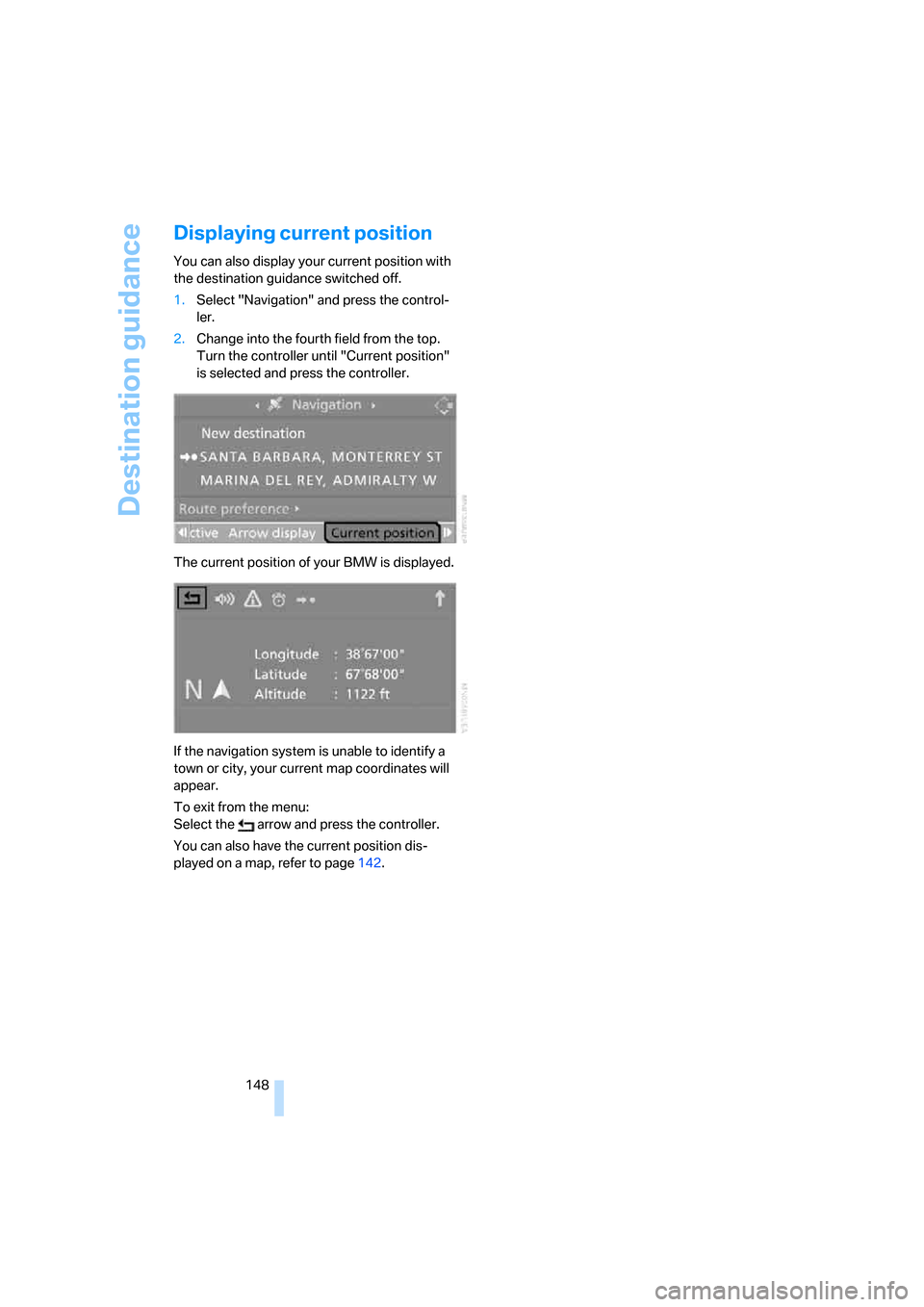
Displaying current position
You can also display your current position with
the destination guidance switched off.
1.Select "Navigation" and press the control-
ler.
2.Change into the fourth field from the top.
Turn the controller until "Current position"
is selected and press the controller.
The current position of your BMW is displayed.
If the navigation system is unable to identify a
town or city, your current map coordinates will
appear.
To exit from the menu:
Select the arrow and press the controller.
You can also have the current position dis-
played on a map, refer to page142.
Page 151 of 254
Navigation
Driving tips
149Reference
At a glance
Controls
Communications
Entertainment
Mobility
What to do if …
What to do if …
>a navigation DVD is inserted, but the
request to insert the DVD is displayed on
the Control Display?
The navigation DVD may not be the right
DVD for the navigation system. The DVD is
labeled accordingly.
>you request the current position of your
vehicle, but do not receive a precise dis-
play?
The system is unable to receive enough
GPS signals at your current position due to
obstructions, your position is not yet avail-
able on your navigation DVD, or the system
is in the process of calculating your posi-
tion. As a rule, reception is guaranteed in
the open air.
>the destination guidance does not accept a
destination?
The data of the destination is not stored on
the navigation DVD that is loaded. Select a
destination that is as close as possible to
the original.
>the destination guidance does not accept a
destination without the street name?
On the navigation DVD, no downtown area
can be determined for the city or town
entered. Enter any street, or a destination
such as the railway station etc., then start
the destination guidance.
>you want to enter a destination for the des-
tination guidance, but it is not possible to
select the letters for your desired entry?
The data of the destination is not stored on
the navigation DVD that is loaded. In this
case, the system will not offer you any let-
ters to choose from. Select a destination
that is as close as possible to the original.>the system stops furnishing directions on
which way to turn as you approach intersec-
tions?
You are driving in an area that has not yet
been completely recorded on the naviga-
tion DVD. Instead of an arrow indicating a
turn, you will see an arrow which indicates
the general direction of your planned route.
Or you have left the recommended route
and the system requires a few seconds to
calculate a new recommended route.
>the navigation system does not react to
entries?
If the battery has just been reconnected
after having been disconnected, it then
takes up to 10 minutes before the system is
once again operational.
Page 183 of 254
181
Entertainment
Reference
At a glance
Controls
Driving tips Communications
Navigation
Mobility
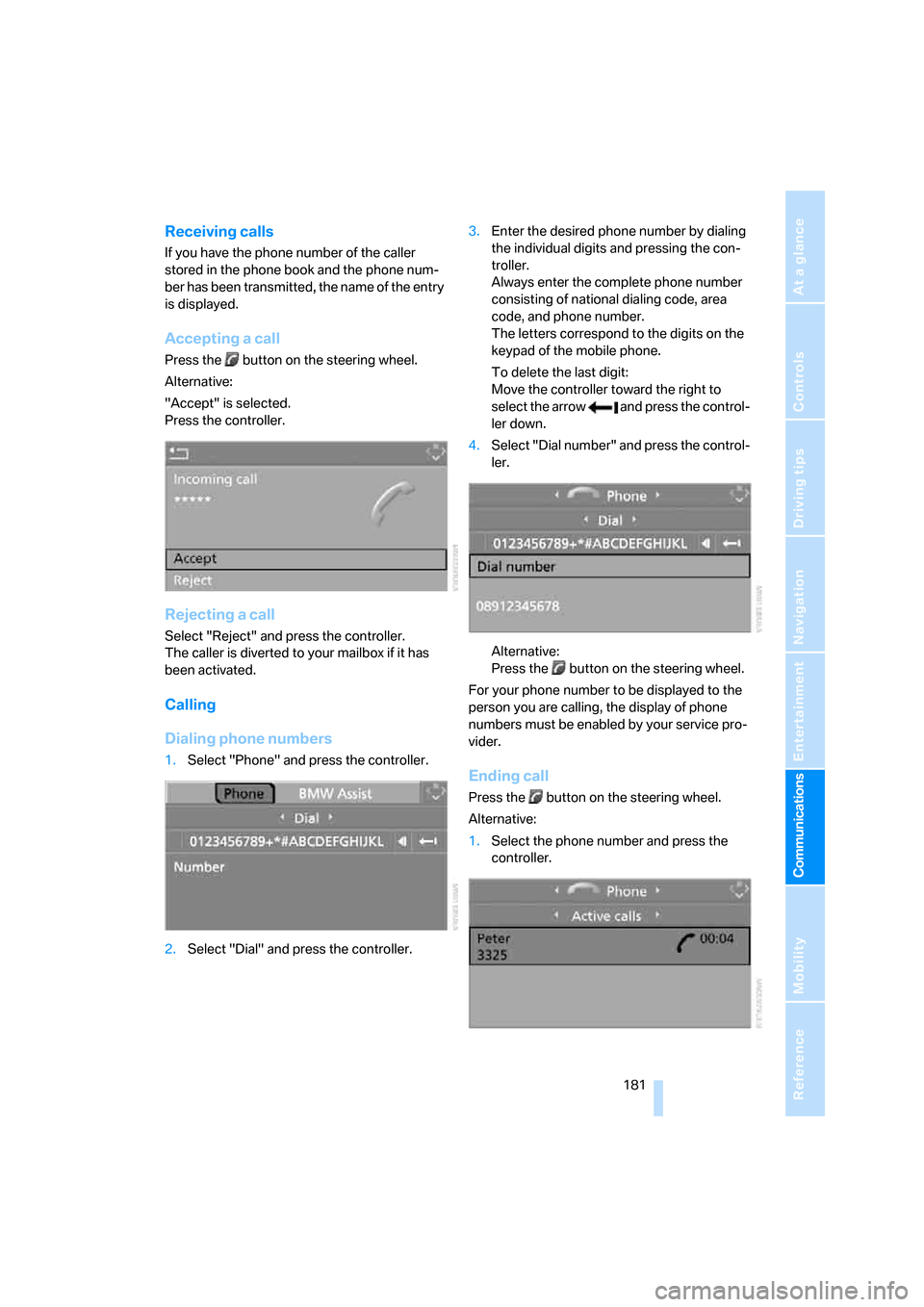
Receiving calls
If you have the phone number of the caller
stored in the phone book and the phone num-
ber has been transmitted, the name of the entry
is displayed.
Accepting a call
Press the button on the steering wheel.
Alternative:
"Accept" is selected.
Press the controller.
Rejecting a call
Select "Reject" and press the controller.
The caller is diverted to your mailbox if it has
been activated.
Calling
Dialing phone numbers
1.Select "Phone" and press the controller.
2.Select "Dial" and press the controller.3.Enter the desired phone number by dialing
the individual digits and pressing the con-
troller.
Always enter the complete phone number
consisting of national dialing code, area
code, and phone number.
The letters correspond to the digits on the
keypad of the mobile phone.
To delete the last digit:
Move the controller toward the right to
select the arrow and press the control-
ler down.
4.Select "Dial number" and press the control-
ler.
Alternative:
Press the button on the steering wheel.
For your phone number to be displayed to the
person you are calling, the display of phone
numbers must be enabled by your service pro-
vider.
Ending call
Press the button on the steering wheel.
Alternative:
1.Select the phone number and press the
controller.