sat nav BMW 650I COUPE 2008 E63 Owner's Manual
[x] Cancel search | Manufacturer: BMW, Model Year: 2008, Model line: 650I COUPE, Model: BMW 650I COUPE 2008 E63Pages: 264, PDF Size: 9.07 MB
Page 5 of 264
Reference
At a glance
Controls
Driving tips
Communications
Navigation
Entertainment
Mobility
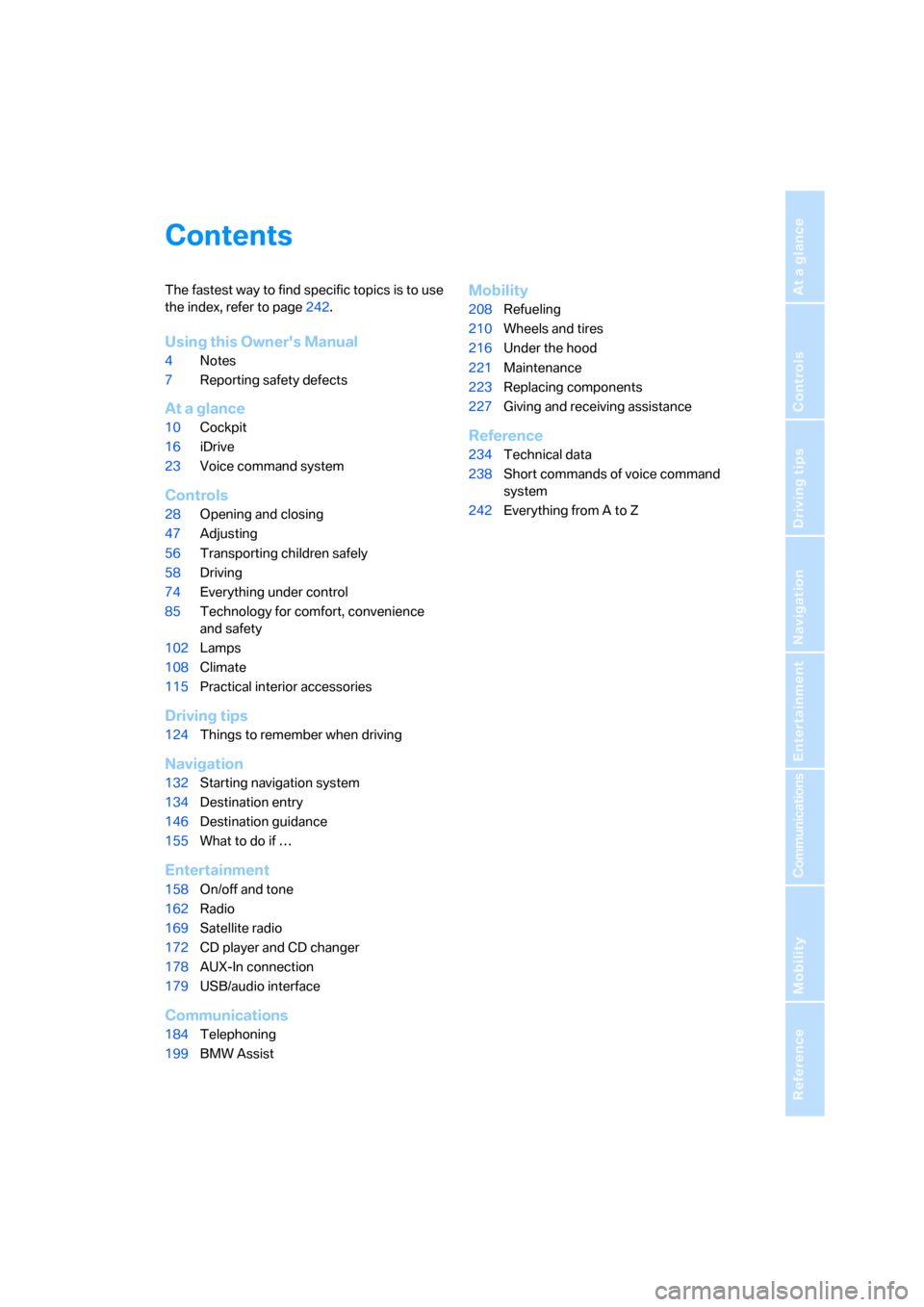
Contents
The fastest way to find specific topics is to use
the index, refer to page242.
Using this Owner's Manual
4Notes
7Reporting safety defects
At a glance
10Cockpit
16iDrive
23Voice command system
Controls
28Opening and closing
47Adjusting
56Transporting children safely
58Driving
74Everything under control
85Technology for comfort, convenience
and safety
102Lamps
108Climate
115Practical interior accessories
Driving tips
124Things to remember when driving
Navigation
132Starting navigation system
134Destination entry
146Destination guidance
155What to do if …
Entertainment
158On/off and tone
162Radio
169Satellite radio
172CD player and CD changer
178AUX-In connection
179USB/audio interface
Communications
184Telephoning
199BMW Assist
Mobility
208Refueling
210Wheels and tires
216Under the hood
221Maintenance
223Replacing components
227Giving and receiving assistance
Reference
234Technical data
238Short commands of voice command
system
242Everything from A to Z
Page 17 of 264
At a glance
15Reference
Controls
Driving tips
Communications
Navigation
Entertainment
Mobility
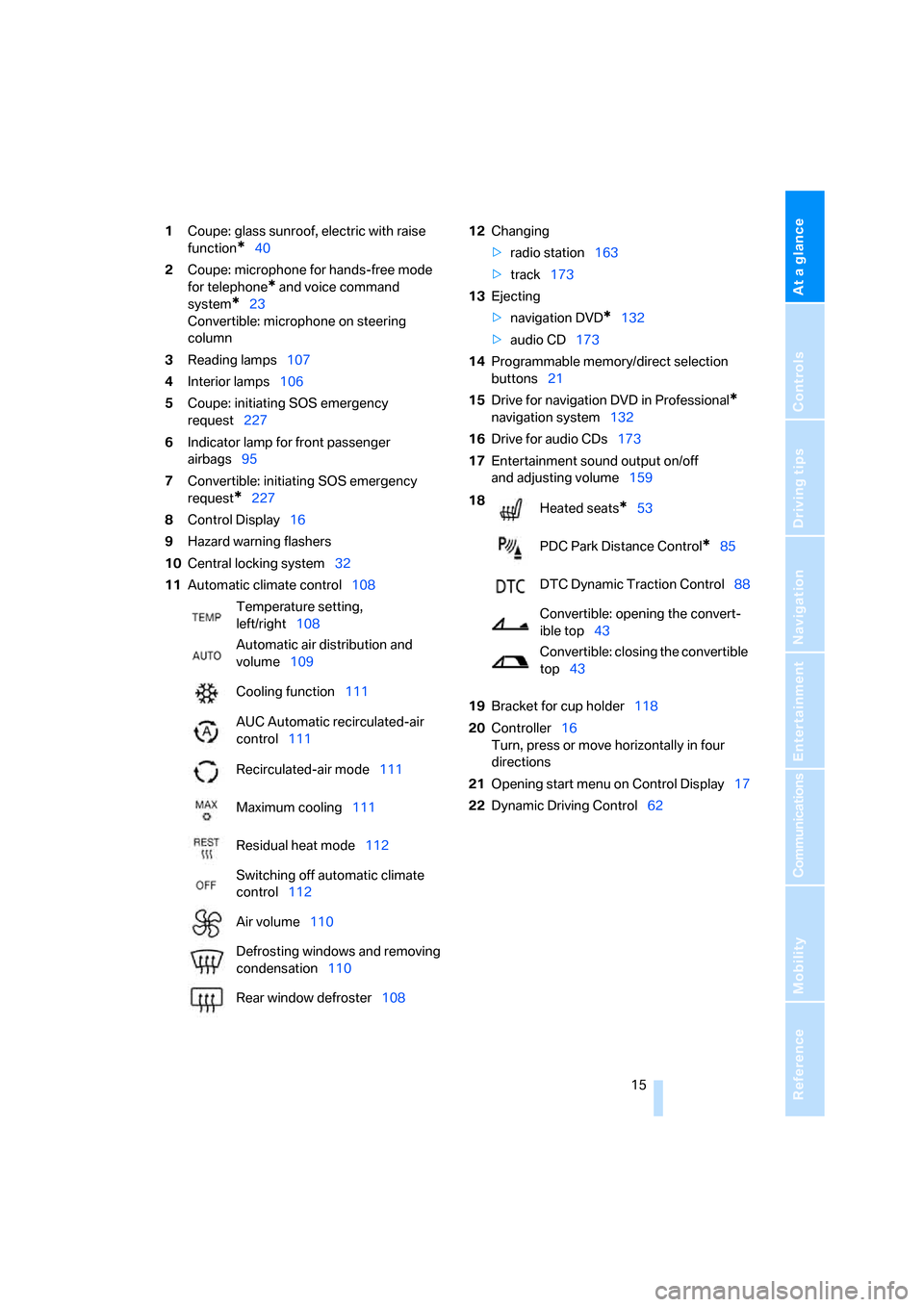
1Coupe: glass sunroof, electric with raise
function
*40
2Coupe: microphone for hands-free mode
for telephone
* and voice command
system
*23
Convertible: microphone on steering
column
3Reading lamps107
4Interior lamps106
5Coupe: initiating SOS emergency
request227
6Indicator lamp
for front passenger
airbags95
7Convertible: initiating SOS emergency
request
*227
8Control Display16
9Hazard warning flashers
10Central locking system32
11Automatic climate control10812Changing
>radio station163
>track173
13Ejecting
>navigation DVD
*132
>audio CD173
14Programmable memory/direct selection
buttons21
15Drive for navigation DVD in Professional
*
navigation system132
16Drive for audio CDs173
17Entertainment sound output on/off
and adjusting volume159
19Bracket for cup holder118
20Controller16
Turn, press or move horizontally in four
directions
21Opening start menu on Control Display17
22Dynamic Driving Control62 Temperature setting,
left/right108
Automatic air distribution and
volume109
Cooling function111
AUC Automatic recirculated-air
control111
Recirculated-air mode111
Maximum cooling111
Residual heat mode112
Switching off automatic climate
control112
Air volume110
Defrosting windows and removing
condensation110
Rear window defroster108
18
Heated seats*53
PDC Park Distance Control
*85
DTC Dynamic Traction Control88
Convertible: opening the convert-
ible top43
Convertible: closing the convertible
top43
Page 111 of 264
Controls
109Reference
At a glance
Driving tips
Communications
Navigation
Entertainment
Mobility
16Air grill for interior temperature sensor –
please keep clear and unobstructed
The current setting for air distribution is dis-
played on the Control Display.
A congenial climate
The AUTO program offers the optimum air dis-
tribution and air volume for virtually all condi-
tions, refer to AUTO program below. Now you
only need to select an interior temperature that
you find pleasant.
The following sections contain more detailed
information on the available setting options.
Most settings are stored for the remote control
currently in use, also refer to Personal Profile
settings on page29.
AUTO program
The AUTO program handles the
adjustment of air volume and air
distribution to the windshield and
side windows, in the direction of
the upper body and in the footwell.
It also adapts your instructions for the tempera-
ture to outside influences throughout the year.
The cooling is switched on automatically with
the AUTO program. At the same time, a con-
densation sensor controls the program in such
a way that window condensation is prevented
as much as possible.
Intensity of AUTO program
You can adjust the intensity of the AUTO pro-
gram by repeatedly pressing the AUTO button.
The respective current setting is briefly dis-
played on the Control Display when the button
is pressed.
You can also adjust the intensity of the AUTO
program via iDrive.
iDrive, for operating principle refer to page16.
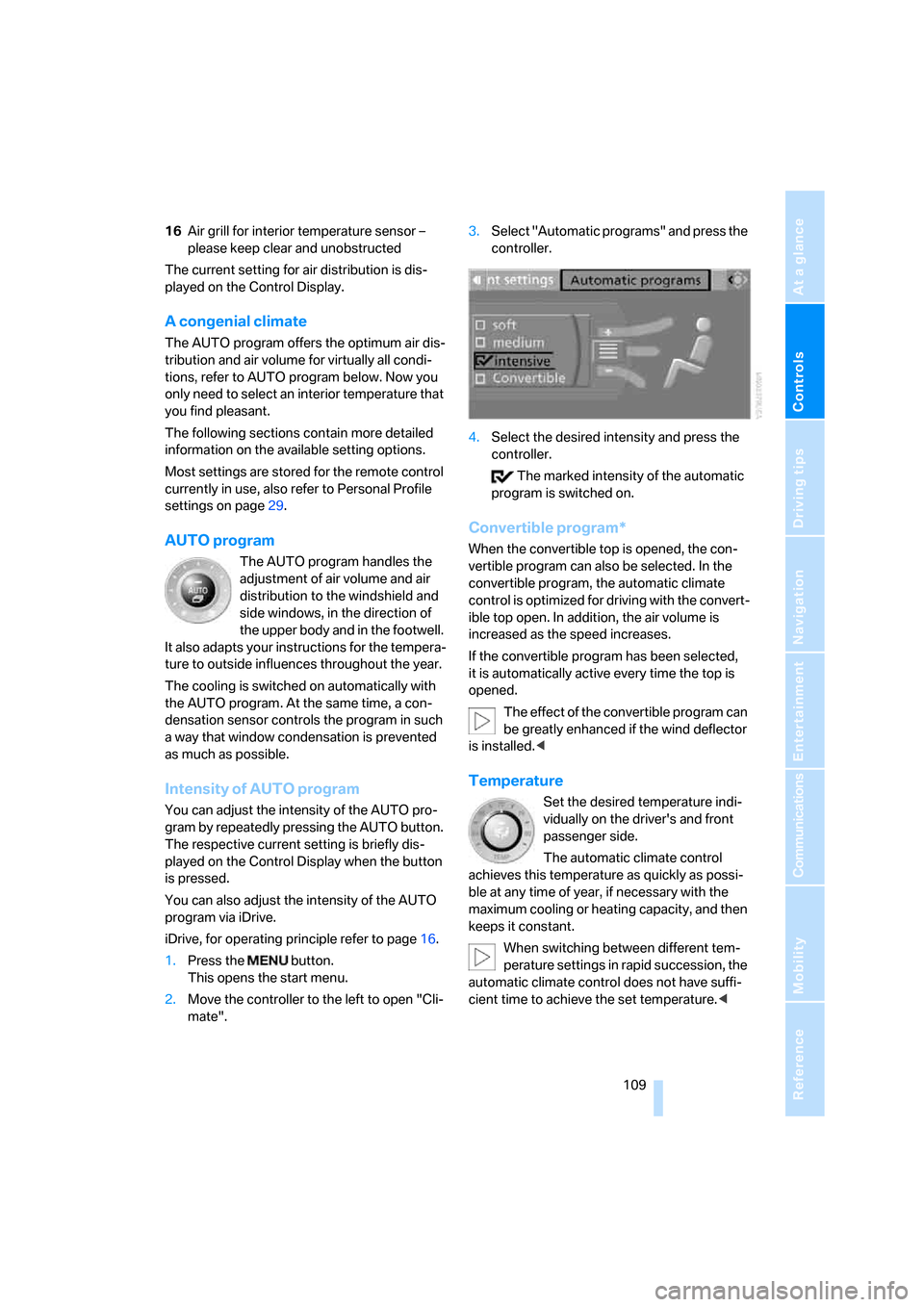
1.Press the button.
This opens the start menu.
2.Move the controller to the left to open "Cli-
mate".3.Select "Automatic programs" and press the
controller.
4.Select the desired intensity and press the
controller.
The marked intensity of the automatic
program is switched on.
Convertible program*
When the convertible top is opened, the con-
vertible program can also be selected. In the
convertible program, the automatic climate
control is optimized for driving with the convert-
ible top open. In addition, the air volume is
increased as the speed increases.
If the convertible program has been selected,
it is automatically active every time the top is
opened.
The effect of the convertible program can
be greatly enhanced if the wind deflector
is installed.<
Temperature
Set the desired temperature indi-
vidually on the driver's and front
passenger side.
The automatic climate control
achieves this temperature as quickly as possi-
ble at any time of year, if necessary with the
maximum cooling or heating capacity, and then
keeps it constant.
When switching between different tem-
perature settings in rapid succession, the
automatic climate control does not have suffi-
cient time to achieve the set temperature.<
Page 134 of 264
Starting navigation system
132
Starting navigation system
Your navigation system can use satellites to
ascertain the precise position of your vehicle
and guide you reliably to any destination you
enter.
Navigation DVD
The navigation system requires a special navi-
gation DVD. The latest version is available at
your BMW center.
Inserting navigation DVD
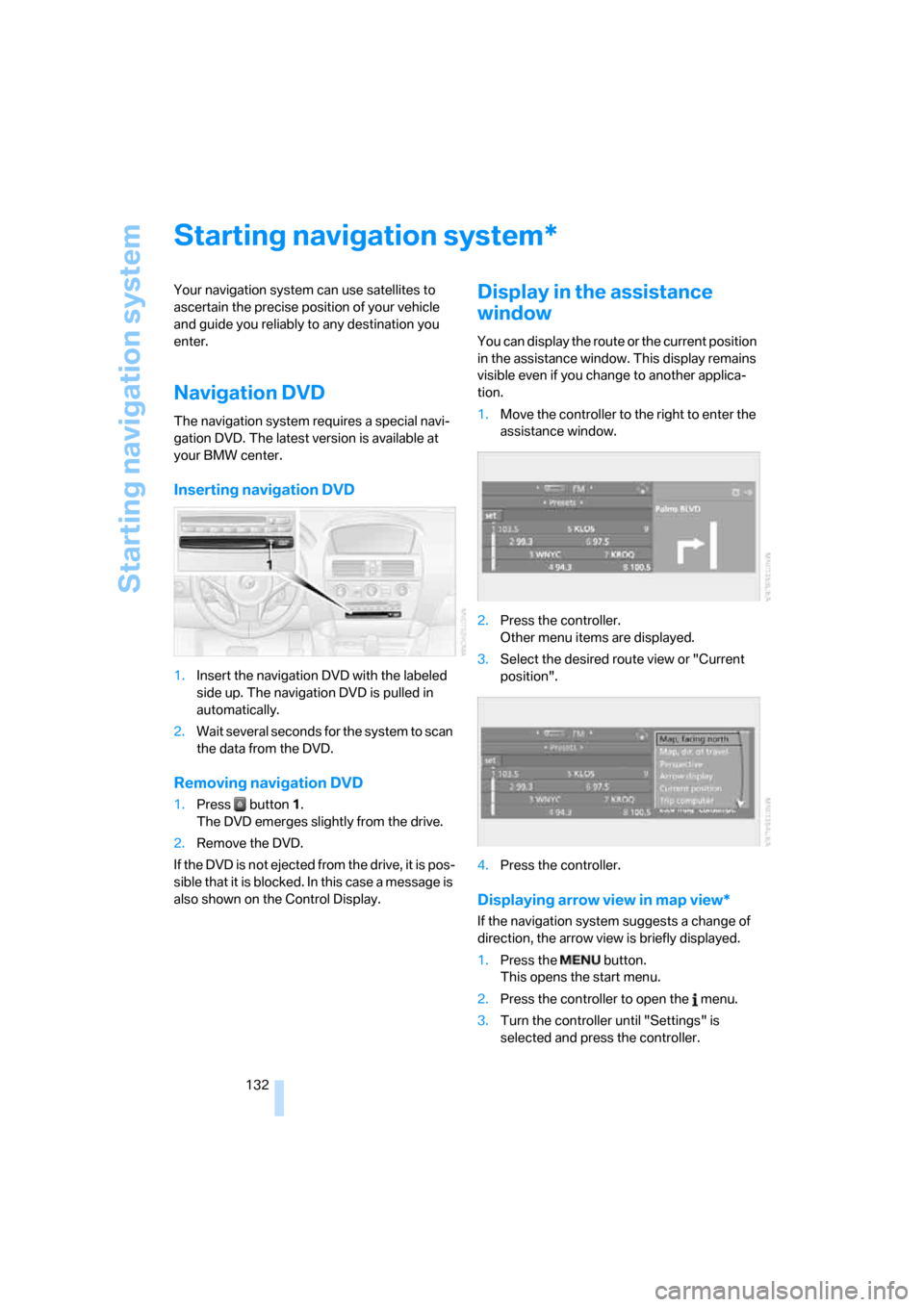
1.Insert the navigation DVD with the labeled
side up. The navigation DVD is pulled in
automatically.
2.Wait several seconds for the system to scan
the data from the DVD.
Removing navigation DVD
1.Press button 1.
The DVD emerges slightly from the drive.
2.Remove the DVD.
If the DVD is not ejected from the drive, it is pos-
sible that it is blocked. In this case a message is
also shown on the Control Display.
Display in the assistance
window
You can display the route or the current position
in the assistance window. This display remains
visible even if you change to another applica-
tion.
1.Move the controller to the right to enter the
assistance window.
2.Press the controller.
Other menu items are displayed.
3.Select the desired route view or "Current
position".
4.Press the controller.
Displaying arrow view in map view*
If the navigation system suggests a change of
direction, the arrow view is briefly displayed.
1.Press the button.
This opens the start menu.
2.Press the controller to open the menu.
3.Turn the controller until "Settings" is
selected and press the controller.
*
Page 160 of 264
On/off and tone
158
On/off and tone
The following audio sources have shared
controls and setting options:
>Professional
* radio or
Business radio
>CD player
>CD changer
*
Controls
The audio sources can be operated using:
>Buttons in the area of the CD player
>iDrive
>Buttons on steering wheel, refer to page11
>Programmable memory/direct selection
buttons, refer to page21
Buttons near CD player
The layout of the buttons can vary depending
on your vehicle's equipment.
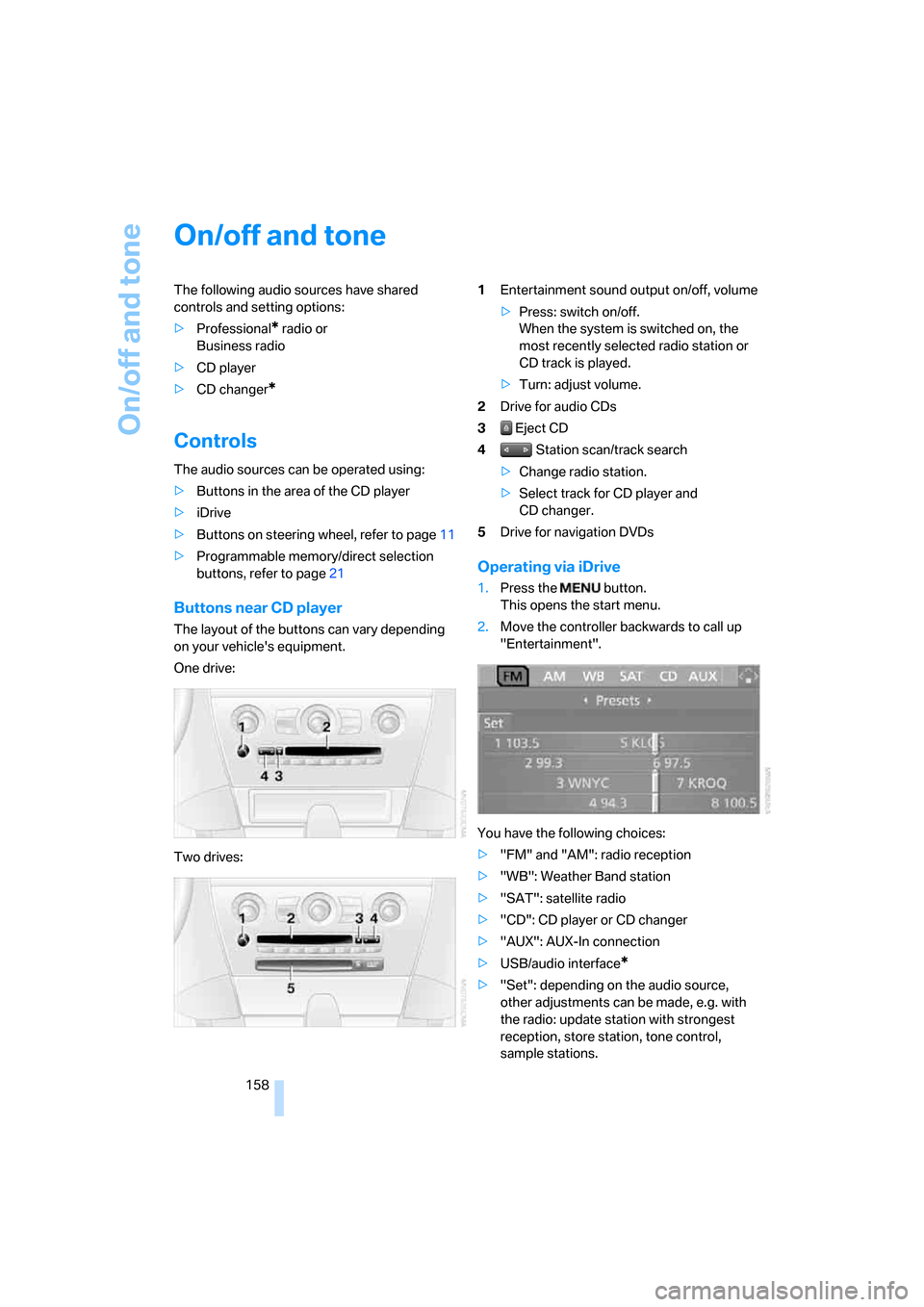
One drive:
Two drives:1Entertainment sound output on/off, volume
>Press: switch on/off.
When the system is switched on, the
most recently selected radio station or
CD track is played.
>Turn: adjust volume.
2Drive for audio CDs
3 Eject CD
4 Station scan/track search
>Change radio station.
>Select track for CD player and
CD changer.
5Drive for navigation DVDs
Operating via iDrive
1.Press the button.
This opens the start menu.
2.Move the controller backwards to call up
"Entertainment".
You have the following choices:
>"FM" and "AM": radio reception
>"WB": Weather Band station
>"SAT": satellite radio
>"CD": CD player or CD changer
>"AUX": AUX-In connection
>USB/audio interface
*
>"Set": depending on the audio source,
other adjustments can be made, e.g. with
the radio: update station with strongest
reception, store station, tone control,
sample stations.
Page 171 of 264
Navigation
Entertainment
Driving tips
169Reference
At a glance
Controls
Communications
Mobility
Satellite radio
You can receive up to 100 different channels
with high sound quality.
The channels are offered to you in predefined
packages. To receive the channels of your
choice, you must have this package enabled.
With this new technology the signal may
fail, causing interruptions in reception.<
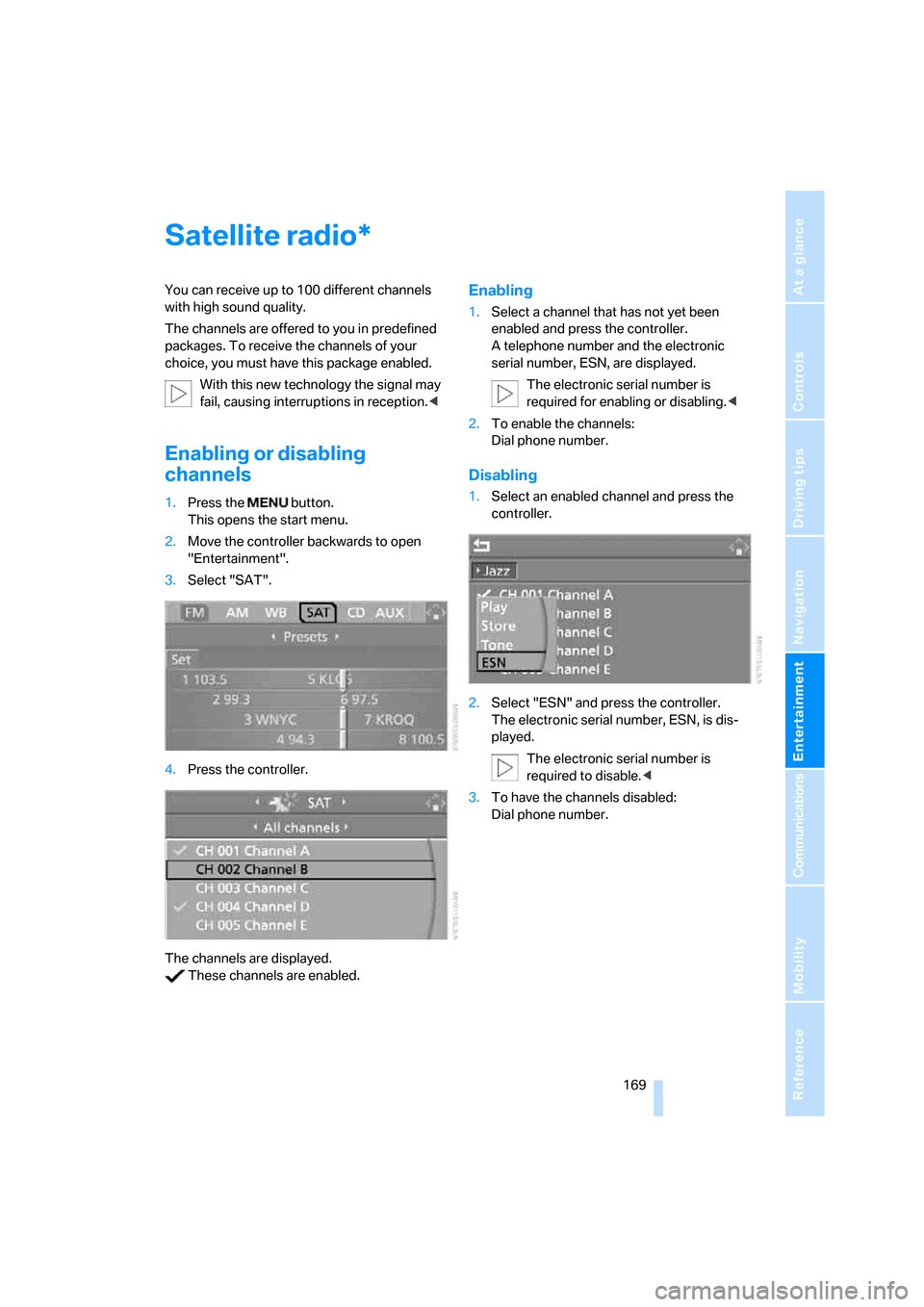
Enabling or disabling
channels
1.Press the button.
This opens the start menu.
2.Move the controller backwards to open
"Entertainment".
3.Select "SAT".
4.Press the controller.
The channels are displayed.
These channels are enabled.
Enabling
1.Select a channel that has not yet been
enabled and press the controller.
A telephone number and the electronic
serial number, ESN, are displayed.
The electronic serial number is
required for enabling or disabling.<
2.To enable the channels:
Dial phone number.
Disabling
1.Select an enabled channel and press the
controller.
2.Select "ESN" and press the controller.
The electronic serial number, ESN, is dis-
played.
The electronic serial number is
required to disable.<
3.To have the channels disabled:
Dial phone number.
*
Page 173 of 264

Navigation
Entertainment
Driving tips
171Reference
At a glance
Controls
Communications
Mobility
Storing channel
1.Select the desired channel.
2.Press the controller.
Other menu items are displayed.
3.Select "Store" and press the controller.
"Presets" is displayed.
4.Turn the controller to select a memory posi-
tion and press the controller.
The channel is stored. The stations of the last
selection criterion are displayed again after a
short time.
Changing channel with buttons next to
CD player
Press the button for the corresponding
direction.
The system changes to the next enabled chan-
nel.
Notes
If no signal can be received for more than
4 seconds, a message is displayed on the Con-
trol Display.
Reception may not be possible for certain
reasons, e.g. environmental influences or
topographical conditions. The satellite radio
has no influence on this.
The signal may not be available in tunnels or
underground garages, next to tall buildings,
near trees, mountains or other sources of radio
interference.
Reception is usually possible again as soon as
the signal is available again.<
Page 197 of 264
195
Entertainment
Reference
At a glance
Controls
Driving tips Communications
Navigation
Mobility
Changing between mobile
phone and hands-free system
From mobile phone to hands-free
system*
You can continue calls begun outside the Blue-
tooth range of the vehicle via the hands-free
system when the engine is running or the igni-
tion is switched on. Depending on your mobile
phone, the system automatically switches over
to the hands-free mode.
For mobile phones that do not automatically
switch over to the hands-free mode:
>Depending on the mobile phone model
used, the conversation can be continued via
the hands-free system if necessary. Follow
the instructions displayed on the mobile
phone display, refer to the operating
instructions of your mobile phone.
>Press the button above the storage
compartment. Switching over may take
several seconds.
From hands-free system to mobile
phone
When you telephone via the hands-free system,
you can also continue the call via the mobile
phone if necessary, depending on the mobile
phone model. Act according to what is shown
on the mobile phone display, refer to the oper-
ating instructions of your mobile phone.
As an alternative, you can deactivate the Blue-
tooth link.
Depending on your mobile phone model, poor
reception of the wireless communications net-
work can result in the system switching from
the hands-free system to the mobile phone.
Operation by voice*
The concept
You can operate your mobile phone without
having to remove your hands from the steering
wheel. When making your entries, you will be
supported by announcements or questions in
many cases.
The same prerequisites as for operation via
iDrive apply, refer to page190.
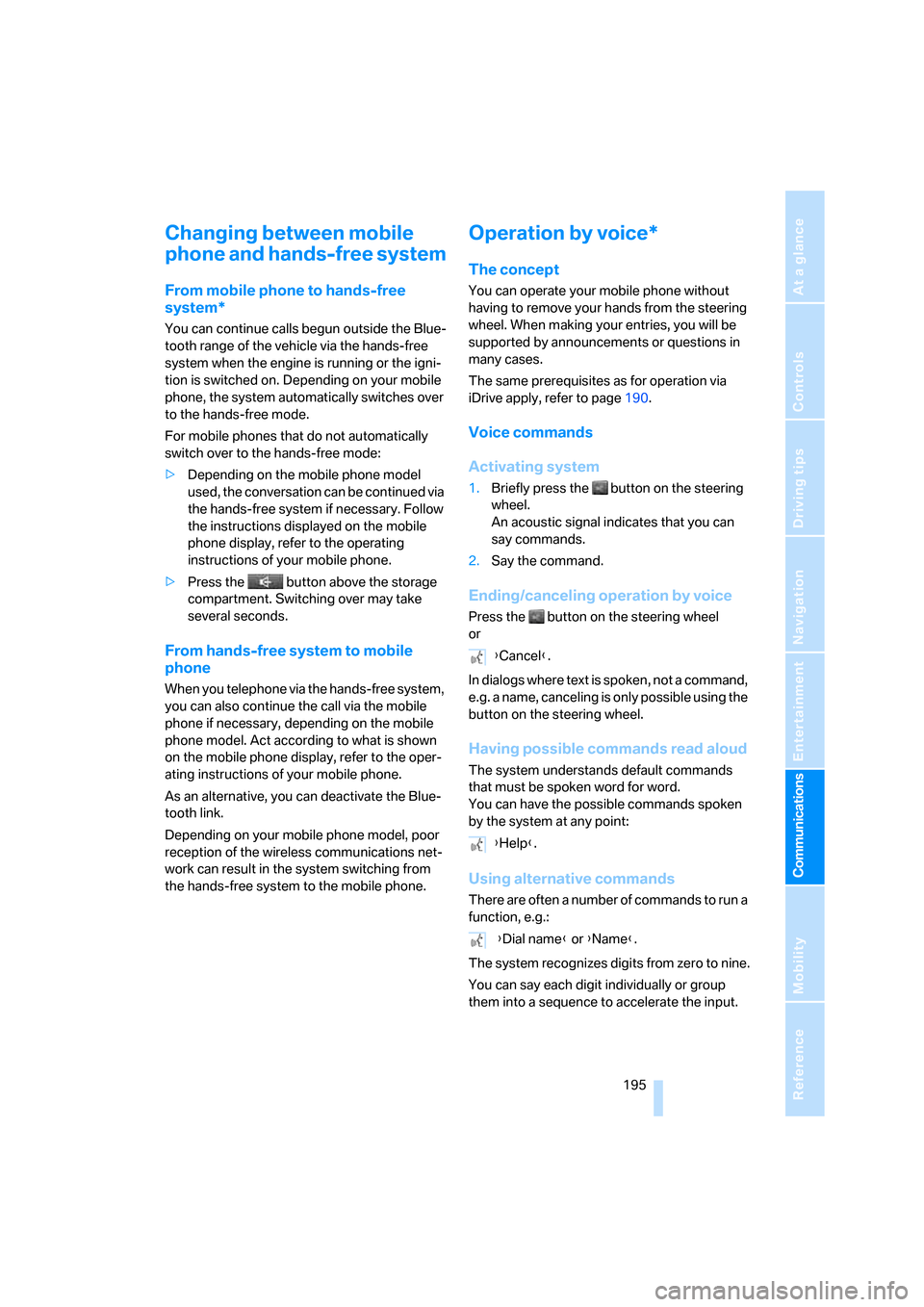
Voice commands
Activating system
1.Briefly press the button on the steering
wheel.
An acoustic signal indicates that you can
say commands.
2.Say the command.
Ending/canceling operation by voice
Press the button on the steering wheel
or
In dialogs where text is spoken, not a command,
e.g. a name, canceling is only possible using the
button on the steering wheel.
Having possible commands read aloud
The system understands default commands
that must be spoken word for word.
You can have the possible commands spoken
by the system at any point:
Using alternative commands
There are often a number of commands to run a
function, e.g.:
The system recognizes digits from zero to nine.
You can say each digit individually or group
them into a sequence to accelerate the input.
{Cancel}.
{Help}.
{Dial name} or {Name}.
Page 247 of 264
Reference 245
At a glance
Controls
Driving tips
Communications
Navigation
Entertainment
Mobility
CD changer172
– controls158
– fast forward/reverse176
– installation location176
– random sequence175
– repeating a track175
– sampling a track174
– selecting a CD173
– selecting a track173
– switching on/off158
– tone control159
– volume159
CD player172
– controls158
– fast forward/reverse176
– random sequence175
– repeating a track175
– sampling a track174
– selecting a track173
– switching on/off158
– tone control159
– volume159
Center armrest, adjusting
height117
Center console14
"Central locking"30
Central locking
– from inside32
– from outside30
Central locking system30
– comfort access36
– hotel function33
Changes, technical, refer to
For your own safety6
Changing a wheel225
Changing language on
Control Display84
Changing scale for navigation
system display148
Changing units of measure on
Control Display84
Changing wheels214
CHECK button80
Check Control79
"Check Control
messages"80
Check Gas Cap208
Checking air pressure, refer to
Tire inflation pressure210Child-restraint fixing system
LATCH56
Child restraint systems56
Child seats, refer to
Transporting children
safely56
Chrome parts, refer to Caring
for your vehicle brochure
Cigarette lighter
119
Cigarette lighter socket, refer
to Connecting electrical
devices119
Cleaning, refer to Caring for
your vehicle brochure
"Climate"109
Clock74
– 12h/24h format83
– hour signal83
– setting time and date82
Closing
– from inside32
– from outside30
Closing fuel filler cap208
Clothes hooks, Coupe118
Cockpit10
Cold start, refer to Starting
engine59
Comfort access36
– observe in car wash38
– replacing battery, remote
control38
Comfort closing
– windows, with comfort
access with Coupe37
– with comfort access37
"Communication"190,200
Compact disc
– refer to CD changer172
– refer to CD player172
Compartment for remote
control, refer to Ignition
lock58
Compartments, refer to
Storage compartments117
Compressed audio files172
Computer75
– displays on Control
Display76
– hour signal83"Concert hall", refer to Tone
control161
"Concierge"202
Concierge service202
Condensation, refer to When
vehicle is parked126
Condition Based Service
CBS221
"Confirmation"31
Confirmation signals for
locking and unlocking31
Connecting car vacuum
cleaner, refer to Connecting
electrical devices119
Consumption display, refer to
Average fuel
consumption75
Consumption statistics, refer
to Average fuel
consumption75
"Continue guidance to
destination?"147
"Contrast" with BMW Night
Vision100
Control Center, refer to
iDrive16
Control Display, refer to
iDrive16
– setting brightness83
– switching off/on21
Controller, refer to iDrive16
Controls, refer to Cockpit10
Convenient operation
– convertible top31,32
– glass sunroof31,32
– windows31,32
Convertible
– convertible program for
automatic climate
control109
– opening and closing
windows39
– rollover protection
system96
– top42
– wind deflector45
– window and convertible top
operation with comfort
access37
Page 248 of 264
Everything from A to Z
246 Convertible top
– care, refer to Caring for your
vehicle brochure
– closing manually43
– convenient operation32
– emergency closing43
– opening and closing43
Coolant219
– checking level220
– temperature74
Cooling, maximum111
Cooling function, automatic
climate control111
Cooling system, refer to
Coolant219
Copyright2
Cornering Brake Control
CBC86
Country of destination for
navigation135
Courtesy lamps, refer to
Interior lamps106
Cradle for telephone or mobile
phone117
Cruise control65
– active cruise control66
Cruising range75
Cup holders15,118
Curb weight, refer to
Weights237
"Current position"153
Current position
– displaying153
– entering142
– storing142
"Curve mode" with
BMW Night Vision100
"Customer
Relations"194,202
Cylinders, refer to Engine
data234
D
Dashboard, refer to
Cockpit10
Data, technical234
– capacities237
– dimensions235
– engine234
– measurements235
– weights237
"Date"83
Date74
– date format83
– setting83
"Date format"83
"Daytime running
lamps"103,106
Daytime running lamps103
– replacing bulbs224
DBC Dynamic Brake Control
– warning lamp88
"Deactivated"50
Decommissioning the vehicle,
refer to Caring for your
vehicle brochure
Defect, tires
– refer to Flat Tire Monitor89
– refer to Tire Pressure
Monitor90
Defrosting windows110
Defrosting windows and
removing condensation110
Defrosting windshield, refer to
Defrosting windows110
Defrost position, refer to
Defrosting windows110
"Delete address book" for
navigation system143
"Delete all numbers" for
mobile phone193
"Delete data" for navigation
system143
"Delete" for mobile
phone193
Destination address
– deleting143
– entering134,137Destination for navigation
– destination list141
– entering via voice137
– entry134
– home address144
– selecting from address
book142
– selecting using
information140
– storing142
Destination guidance146
– bypassing route
sections150
– canceling voice
instructions55
– changing specified
route144
– displaying route147
– distance and arrival146
– interrupting146
– starting146
– terminating/continuing146
– voice instructions149
– volume of voice
instructions150
Destination list for
navigation141
Destinations recently driven
to141
"Details" in audio
mode174,180
"Dial" for mobile phone191
"Dial number"191
"Diamond button"55
Digital clock74
Digital radio, refer to High
Definition Radio166
Dimensions
– Convertible236
– Coupe235
Directional indicators, refer to
Turn signals63
Direction instructions, refer to
Voice instructions149
Directory, refer to Phone
book192
Directory for navigation, refer
to Address book142