TELEPHONE BMW 650I COUPE 2009 E63 User Guide
[x] Cancel search | Manufacturer: BMW, Model Year: 2009, Model line: 650I COUPE, Model: BMW 650I COUPE 2009 E63Pages: 272, PDF Size: 9.16 MB
Page 145 of 272
Navigation
Driving tips
143Reference
At a glance
Controls
Communications
Entertainment
Mobility
Select the symbol and press the
controller.
>To establish a telephone connection:
Select the symbol and press the con-
troller.
>To display additional destinations:
Select the symbol and press the
controller.
>To start a new search:
Select the symbol and press the con-
troller.
To exit the menu:
Select the arrow and press the controller.
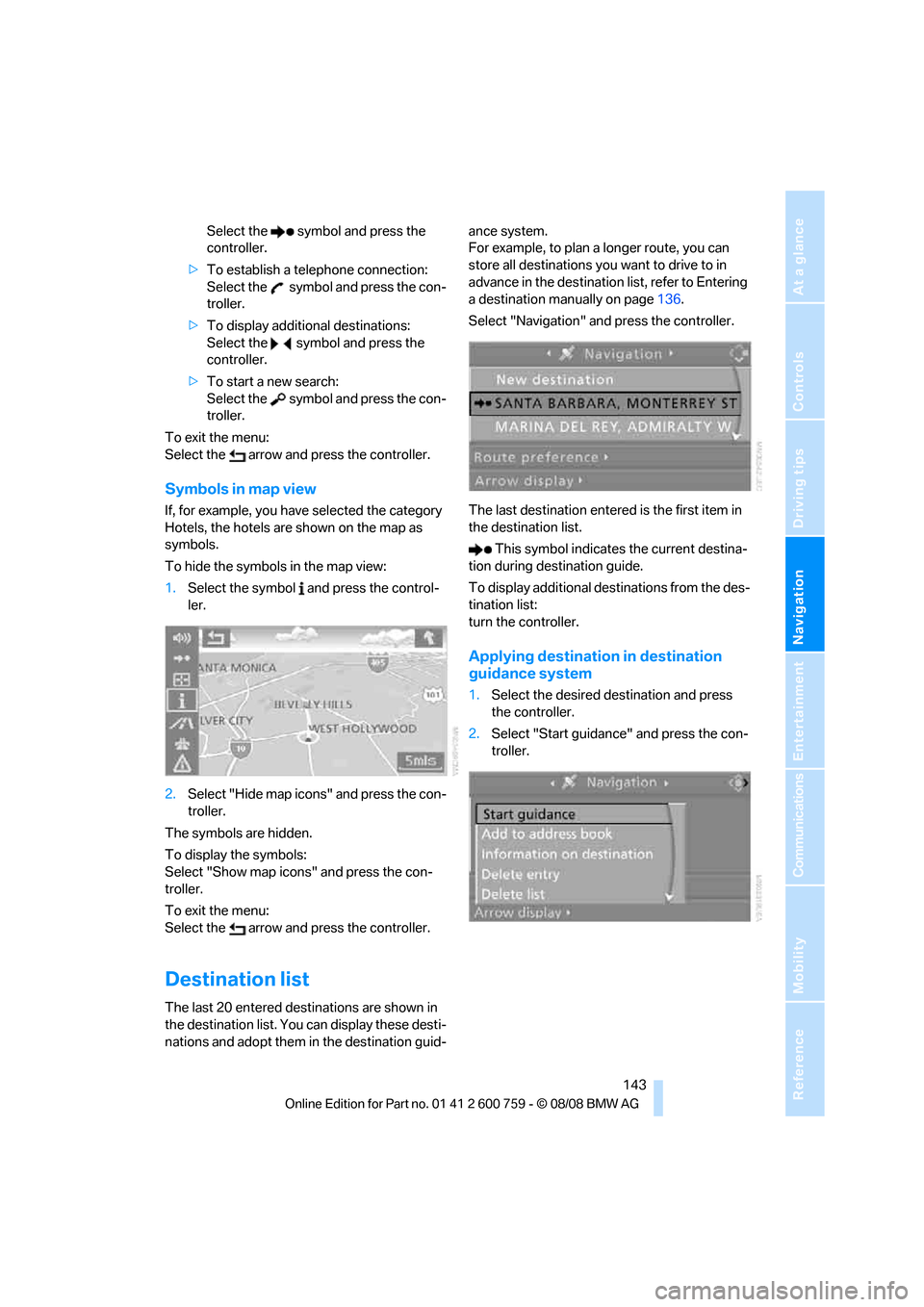
Symbols in map view
If, for example, you have selected the category
Hotels, the hotels are shown on the map as
symbols.
To hide the symbols in the map view:
1.Select the symbol and press the control-
ler.
2.Select "Hide map icons" and press the con-
troller.
The symbols are hidden.
To display the symbols:
Select "Show map icons" and press the con-
troller.
To exit the menu:
Select the arrow and press the controller.
Destination list
The last 20 entered destinations are shown in
the destination list. You can display these desti-
nations and adopt them in the destination guid-ance system.
For example, to plan a longer route, you can
store all destinations you want to drive to in
advance in the destination list, refer to Entering
a destination manually on page136.
Select "Navigation" and press the controller.
The last destination entered is the first item in
the destination list.
This symbol indicates the current destina-
tion during destination guide.
To display additional destinations from the des-
tination list:
turn the controller.
Applying destination in destination
guidance system
1.Select the desired destination and press
the controller.
2.Select "Start guidance" and press the con-
troller.
Page 173 of 272
Navigation
Entertainment
Driving tips
171Reference
At a glance
Controls
Communications
Mobility
Satellite radio
You can receive over 100 different channels
with high sound quality.
The channels are offered to you in predefined
packages. To receive the channels of your
choice, you must have this package enabled.
With this new technology the signal may
fail, causing interruptions in reception.<
Enabling or disabling
channels
1.Press the button.
This opens the start menu.
2.Move the controller backwards to open
"Entertainment".
3.Select "SAT".
4.Press the controller.
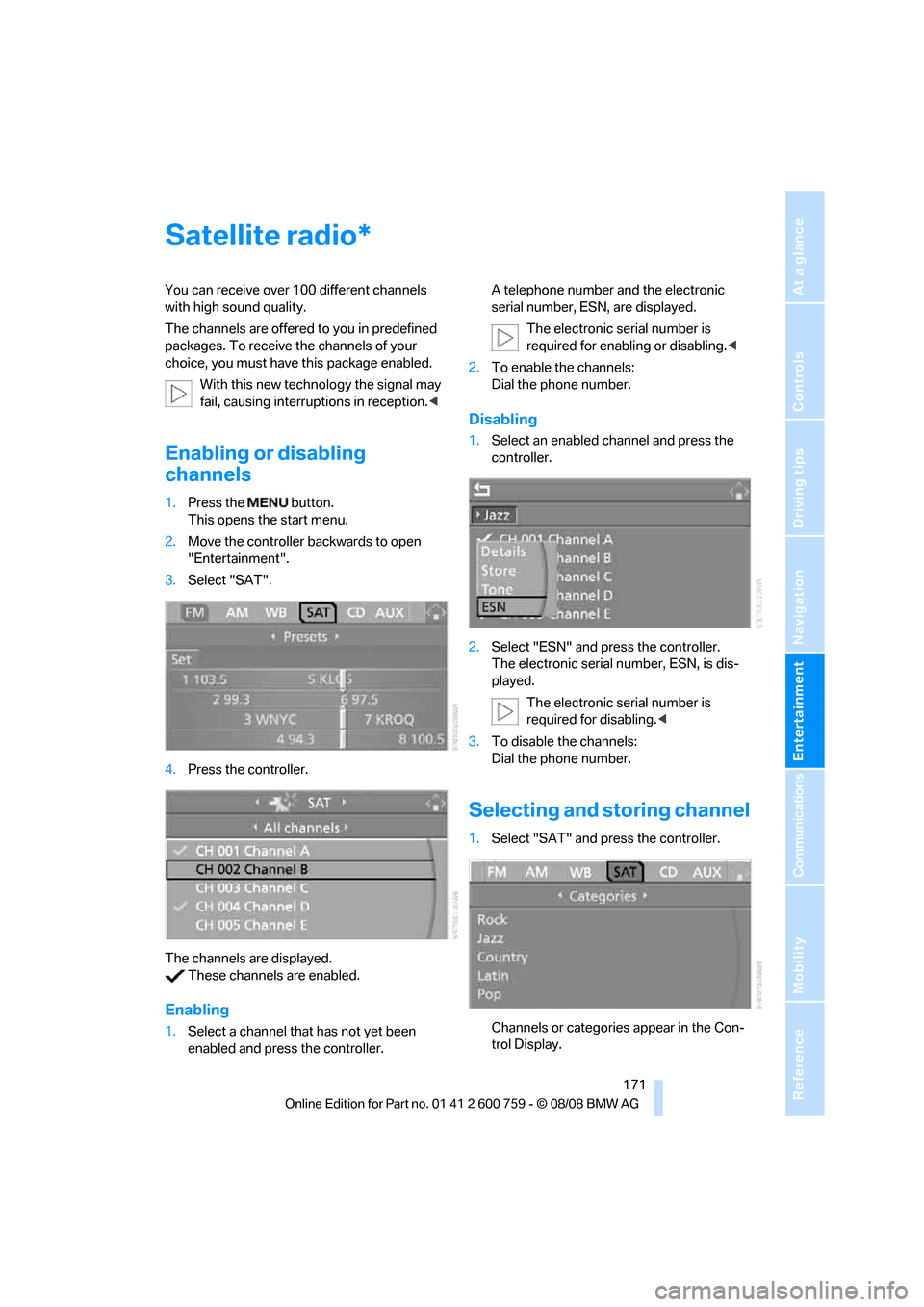
The channels are displayed.
These channels are enabled.
Enabling
1.Select a channel that has not yet been
enabled and press the controller.A telephone number and the electronic
serial number, ESN, are displayed.
The electronic serial number is
required for enabling or disabling.<
2.To enable the channels:
Dial the phone number.
Disabling
1.Select an enabled channel and press the
controller.
2.Select "ESN" and press the controller.
The electronic serial number, ESN, is dis-
played.
The electronic serial number is
required for disabling.<
3.To disable the channels:
Dial the phone number.
Selecting and storing channel
1.Select "SAT" and press the controller.
Channels or categories appear in the Con-
trol Display.
*
Page 188 of 272
Telephoning
186
Telephoning
The concept
Your BMW is equipped with a full mobile phone
preparation package. After pairing a suitable
mobile phone in the vehicle once, you can oper-
ate the mobile phone via iDrive, with the buttons
on the steering wheel and by voice.
A mobile phone that has been paired once is
automatically detected again with the engine
running or the ignition switched on as soon as
it is in the vehicle interior. The logon data of up
to four mobile phones can be stored simulta-
neously. If several mobile phones are detected
simultaneously, the respective last mobile
phone paired can be operated via the vehicle.
Using a phone in your vehicle
Using snap-in adapter*
The so-called snap-in adapter, a mobile phone
cradle, enables the battery to be charged and
the mobile phone to be connected to the exter-
nal antenna of your vehicle. This ensures
improved network reception and a consistent
voice reproduction quality. Ask your BMW cen-
ter which mobile phones snap-in adapters are
offered for.
For your safety
A car phone makes life more convenient in
many ways, and can even save lives in an emer-
gency. While you should consult your mobile
phone's separate operating instructions for a
detailed description of safety precautions and
information, we request that you direct your
particular attention to the following:
Only make entries when traffic conditions
allow you to do so. Do not hold the mobile
phone in your hand while you are driving; use
the hands-free system instead. If you do not
observe this precaution, your being distracted
can endanger vehicle occupants and other road
users.<
Suitable mobile phones
Ask your BMW center which mobile phones
with a Bluetooth interface are supported by the
mobile phone preparation package or which
mobile phones snap-in adapters are available
for. These mobile phones support the functions
described in this Owner's Manual with a certain
software version. Malfunctions can occur with
other mobile phones.
Care instructions
You can find valuable information on this topic
under Care, starting on page206 and the sepa-
rate operating instructions for the mobile
phone.
Operating options
You can operate the mobile phone* using:
>Buttons on steering wheel, refer to page11
>iDrive, refer to page16
>Voice commands, refer to page197
>Programmable memory buttons, refer to
page22
Avoid operating a mobile phone detected by
the vehicle with the keypad of the mobile
phone, otherwise malfunctions can occur.
Placing phone calls with BMW Assist
system*: BMW Assist calls
You can use the BMW Assist system via the
hands-free unit for BMW Assist calls.
When the status information "BMW Assist" or
"BMW Service" is displayed in "Communica-
tion", only BMW Assist calls are possible.
It may not be possible to establish a telephone
connection using the mobile phone while a con-
nection is being established to BMW Assist or
while a call to BMW Assist is already in
progress. If this happens, you must log off the
*
Page 196 of 272
Telephoning
194 2."End call" is selected:
Press the controller.
Dialing a phone number from phone
book or a phone number stored in a list
Phone numbers you have called, incoming calls
and the entries of the phone book are stored in
lists when the mobile phone is connected to the
vehicle via Bluetooth. If the caller is entered in
the phone book, the name of the entry is dis-
played instead of the phone number.
You can select the desired subscriber from the
list and establish the connection.
Five lists are available:
>"A - Z"
The entries in your mobile phone's phone
book, consisting of names and phone num-
bers, are sorted alphabetically.
>"Top 8"
The eight numbers dialed most frequently
from the "A - Z" phone book are automati-
cally stored in the Top 8 list.
>"Redial"
The last eight phone numbers you dialed
are automatically stored. The last number
dialed is at the top of the list.
>"Missed calls"
The phone numbers of the last eight calls
that were not accepted are stored. This
requires the telephone number of the caller
to have been sent.
>"Received calls"
The phone numbers of the last eight
accepted calls are stored. This requires the
telephone number of the caller to have been
sent.
Dialing a phone number from phone
book
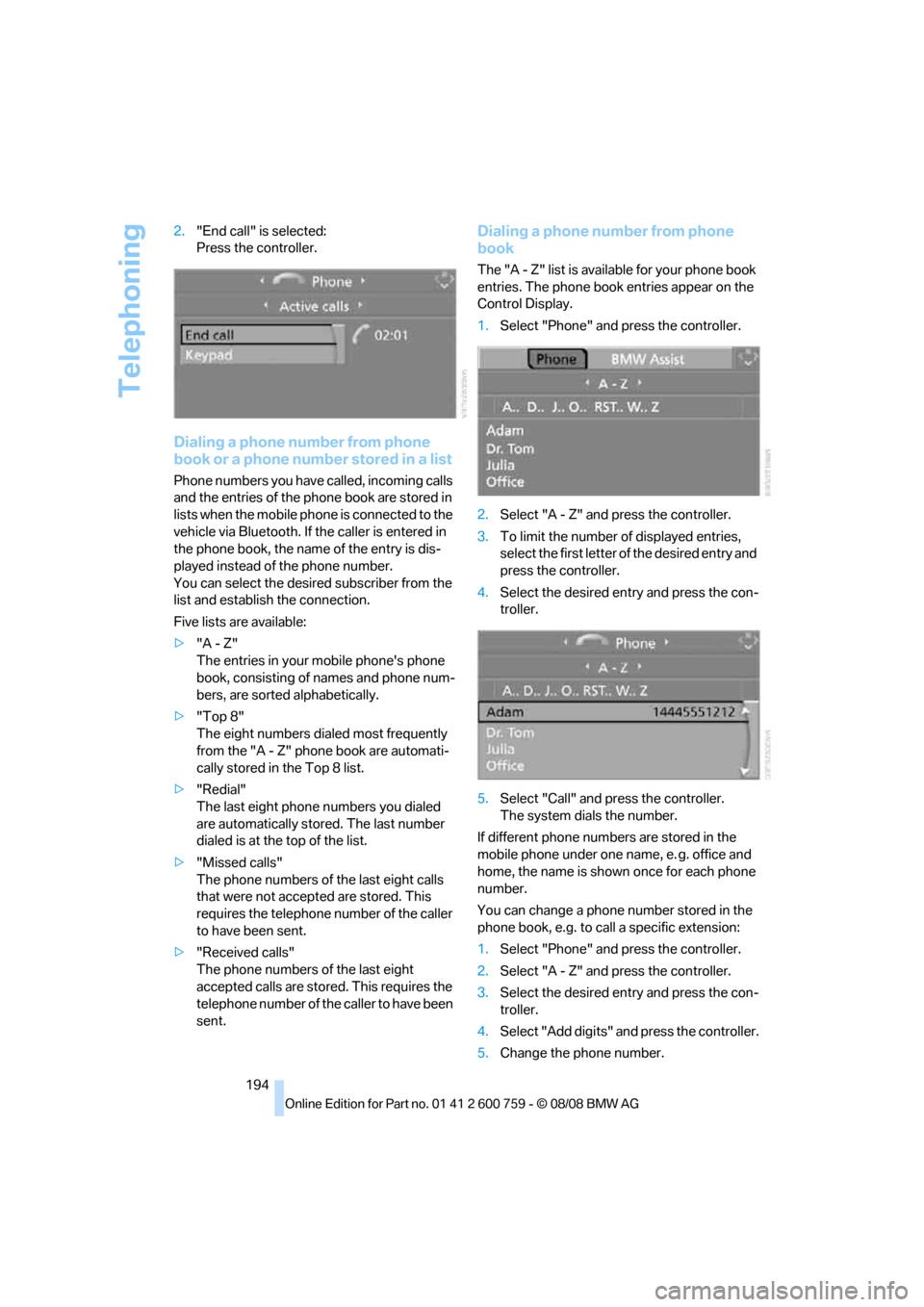
The "A - Z" list is available for your phone book
entries. The phone book entries appear on the
Control Display.
1.Select "Phone" and press the controller.
2.Select "A - Z" and press the controller.
3.To limit the number of displayed entries,
select the first letter of the desired entry and
press the controller.
4.Select the desired entry and press the con-
troller.
5.Select "Call" and press the controller.
The system dials the number.
If different phone numbers are stored in the
mobile phone under one name, e. g. office and
home, the name is shown once for each phone
number.
You can change a phone number stored in the
phone book, e.g. to call a specific extension:
1.Select "Phone" and press the controller.
2.Select "A - Z" and press the controller.
3.Select the desired entry and press the con-
troller.
4.Select "Add digits" and press the controller.
5.Change the phone number.
Page 199 of 272
197
Entertainment
Reference
At a glance
Controls
Driving tips Communications
Navigation
Mobility
For mobile phones that do not automatically
change over to the hands-free mode:
Depending on the mobile phone model used,
the conversation can be continued via the
hands-free system if necessary. Refer to the
display on your mobile phone and/or your
mobile phone's operating instructions.
From hands-free system to mobile
phone
When you telephone via the hands-free system,
you can also continue the call via the mobile
phone if necessary, depending on the mobile
phone model. Act according to what is shown
on the mobile phone display, refer to the oper-
ating instructions of your mobile phone.
As an alternative, you can deactivate the Blue-
tooth link.
Depending on your mobile phone model, poor
reception of the wireless communications net-
work can result in the system changing from the
hands-free system to the mobile phone.
Operation by voice*
The concept
You can operate your mobile phone without
having to remove your hands from the steering
wheel. When making your entries, you will be
supported by announcements or questions in
many cases.
The same prerequisites as for operation via
iDrive apply, refer to page192.
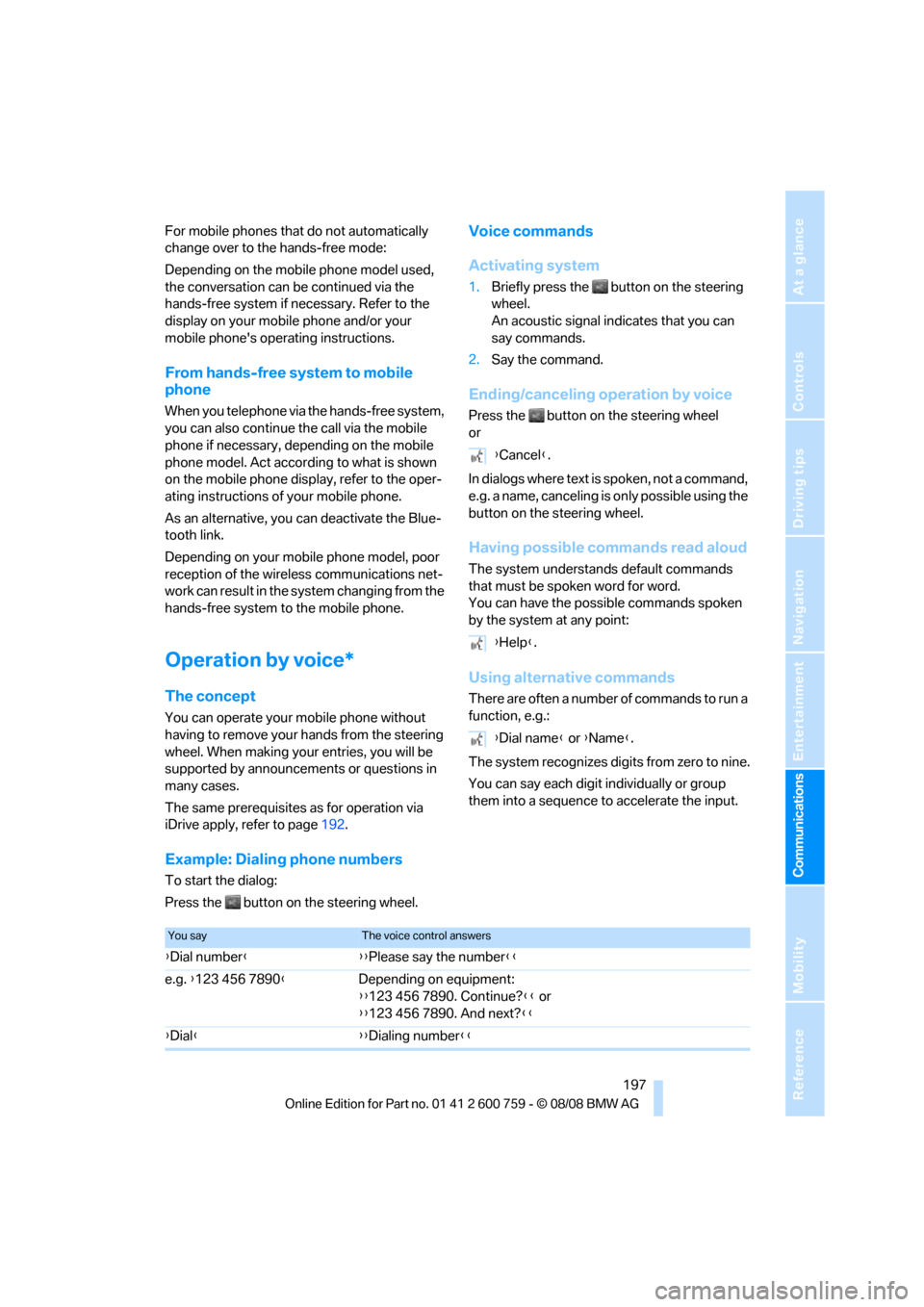
Voice commands
Activating system
1.Briefly press the button on the steering
wheel.
An acoustic signal indicates that you can
say commands.
2.Say the command.
Ending/canceling operation by voice
Press the button on the steering wheel
or
In dialogs where text is spoken, not a command,
e.g. a name, canceling is only possible using the
button on the steering wheel.
Having possible commands read aloud
The system understands default commands
that must be spoken word for word.
You can have the possible commands spoken
by the system at any point:
Using alternative commands
There are often a number of commands to run a
function, e.g.:
The system recognizes digits from zero to nine.
You can say each digit individually or group
them into a sequence to accelerate the input.
Example: Dialing phone numbers
To start the dialog:
Press the button on the steering wheel.{Cancel}.
{Help}.
{Dial name} or {Name}.
You sayThe voice control answers
{Dial number}{{Please say the number}}
e.g. {123 456 7890}Depending on equipment:
{{123 456 7890. Continue?}} or
{{123 456 7890. And next?}}
{Dial}{{Dialing number}}
Page 200 of 272
Telephoning
198
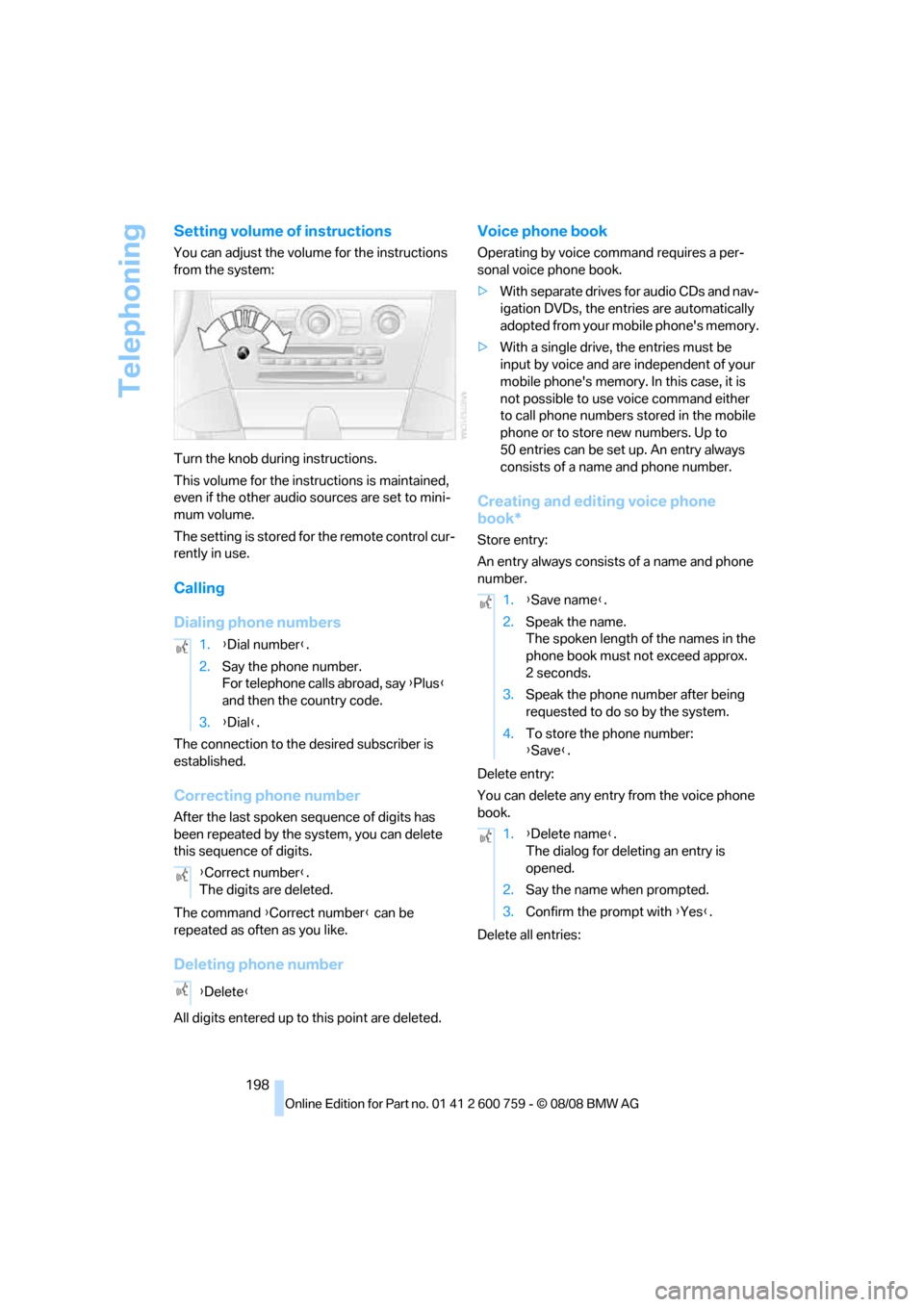
Setting volume of instructions
You can adjust the volume for the instructions
from the system:
Turn the knob during instructions.
This volume for the instructions is maintained,
even if the other audio sources are set to mini-
mum volume.
The setting is stored for the remote control cur-
rently in use.
Calling
Dialing phone numbers
The connection to the desired subscriber is
established.
Correcting phone number
After the last spoken sequence of digits has
been repeated by the system, you can delete
this sequence of digits.
The command {Correct number} can be
repeated as often as you like.
Deleting phone number
All digits entered up to this point are deleted.
Voice phone book
Operating by voice command requires a per-
sonal voice phone book.
>With separate drives for audio CDs and nav-
igation DVDs, the entries are automatically
adopted from your mobile phone's memory.
>With a single drive, the entries must be
input by voice and are independent of your
mobile phone's memory. In this case, it is
not possible to use voice command either
to call phone numbers stored in the mobile
phone or to store new numbers. Up to
50 entries can be set up. An entry always
consists of a name and phone number.
Creating and editing voice phone
book*
Store entry:
An entry always consists of a name and phone
number.
Delete entry:
You can delete any entry from the voice phone
book.
Delete all entries: 1.{Dial number}.
2.Say the phone number.
For telephone calls abroad, say {Plus}
and then the country code.
3.{Dial}.
{Correct number}.
The digits are deleted.
{Delete}
1.{Save name}.
2.Speak the name.
The spoken length of the names in the
phone book must not exceed approx.
2seconds.
3.Speak the phone number after being
requested to do so by the system.
4.To store the phone number:
{Save}.
1.{Delete name}.
The dialog for deleting an entry is
opened.
2.Say the name when prompted.
3.Confirm the prompt with {Yes}.
Page 207 of 272
205
Entertainment
Reference
At a glance
Controls
Driving tips Communications
Navigation
Mobility
directly through the BMW Assist concierge ser-
vice.
The concierge service must be enabled sepa-
rately by the BMW Assist Response Center.
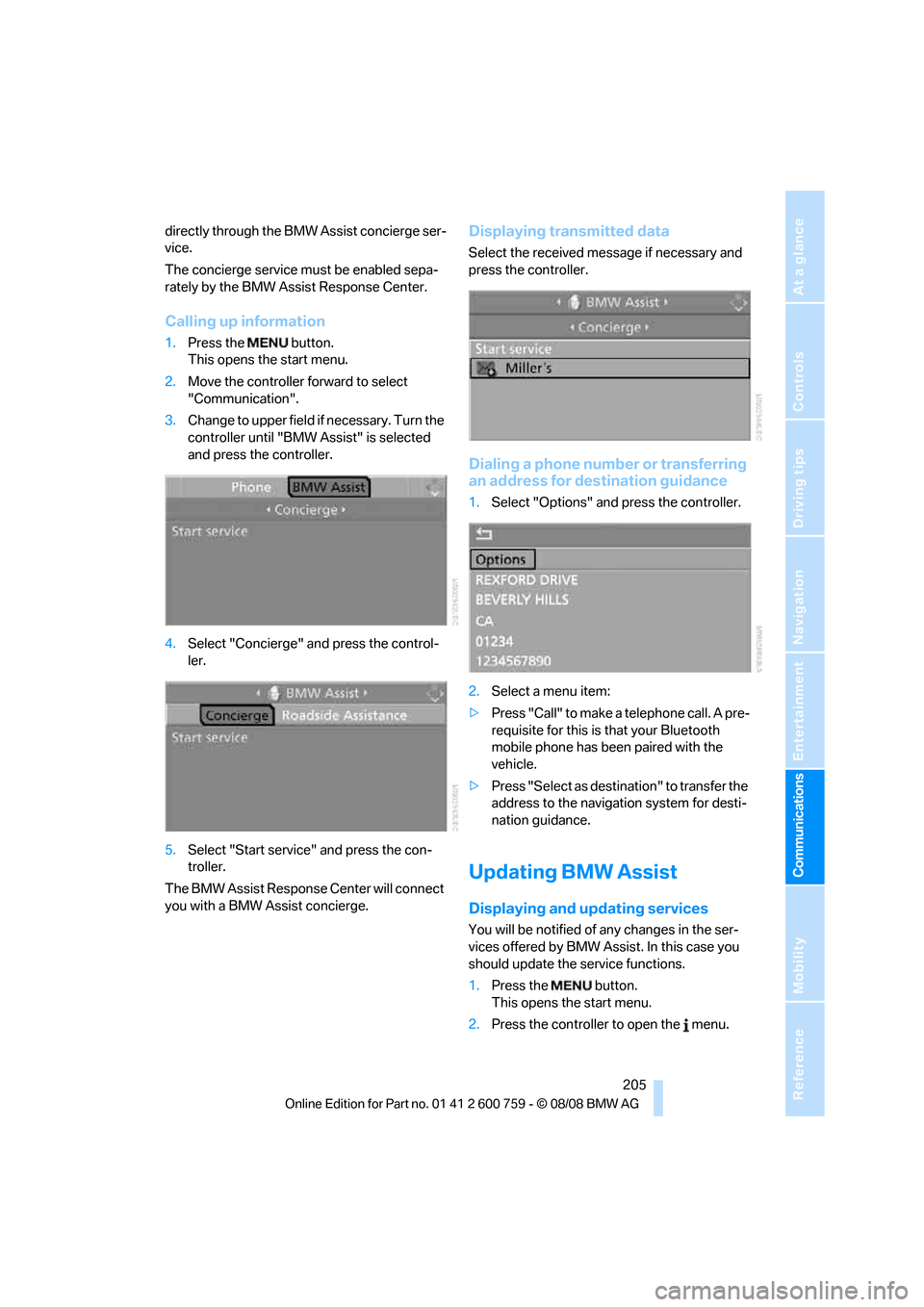
Calling up information
1.Press the button.
This opens the start menu.
2.Move the controller forward to select
"Communication".
3.Change to upper field if necessary. Turn the
controller until "BMW Assist" is selected
and press the controller.
4.Select "Concierge" and press the control-
ler.
5.Select "Start service" and press the con-
troller.
The BMW Assist Response Center will connect
you with a BMW Assist concierge.
Displaying transmitted data
Select the received message if necessary and
press the controller.
Dialing a phone number or transferring
an address for destination guidance
1.Select "Options" and press the controller.
2.Select a menu item:
>Press "Call" to make a telephone call. A pre-
requisite for this is that your Bluetooth
mobile phone has been paired with the
vehicle.
>Press "Select as destination" to transfer the
address to the navigation system for desti-
nation guidance.
Updating BMW Assist
Displaying and updating services
You will be notified of any changes in the ser-
vices offered by BMW Assist. In this case you
should update the service functions.
1.Press the button.
This opens the start menu.
2.Press the controller to open the menu.
Page 254 of 272
Everything from A to Z
252 BMW TeleServices services
– displaying204
– updating204
BMW website4
Bottle holder, refer to Cup
holders120
Bracket for telephone or
mobile phone
– refer to Snap-in adapter199
Brake assistant88
– adaptive89
Brake force display95
Brake lamps
– replacing bulbs, refer to Tail
lamps232
– two-stage95
Brake rotors
– breaking-in126
– refer to Braking safely128
Brakes
– ABS Antilock Brake
System88
– brake force display95
– breaking-in126
– CBC Cornering Brake
Control88
– handbrake62
– refer to Braking safely128
Brake system126
– brake pads126
– brake rotors128
– breaking-in126
– warning lamp13,90
Braking
– electronic brake-force
distribution88
Braking safely128
Breakdown services, refer to
Roadside Assistance236
Breaking-in brake pads126
Breaking-in the clutch126
Breaking-in the differential,
refer to Engine and
differential126
Break-in period126
"Brightness"86,99
Brightness of Control
Display85"Brightness" with BMW Night
Vision102
Button for starting engine,
refer to Start/Stop button60
Buttons on steering wheel11
C
California Proposition 65
Warning6
Call194,205
– accepting192
– displaying accepted195
– ending193
– in absence195
– rejecting193
– starting193
Calling
– by entering phone
number193
– from phone book194
– from Top 8 list195
– redialing195
Can holder, refer to Cup
holders120
Capacities245
Car battery, refer to Vehicle
battery233
"Car Data"78Care227
– car-care products227
– carpets229
– car washes227
– CD/DVD player230
– chrome components229
– convertible top228
– displays230
– exterior227
– fine wooden
components230
– hand washing228
– headlamps228
– high-pressure cleaning
jets227
– interior229
– leather229
– light-alloy wheels229
– paint228
– plastic components230
– rubber gaskets229
– safety belts230
– sensors and cameras230
– upholstery and cloth-
covered paneling229
– windows228
– wiper blades228
Cargo bay
– capacity245
– emergency release37
– opening/closing, refer to
Luggage compartment
lid36
– opening from inside36
– opening from outside
36
– opening with remote
control33
Caring for the vehicle
finish228
Car key, refer to Keys/remote
control30
Car phone186
– installation location, refer to
Center armrest119
– refer to Mobile phone186
– refer to separate operating
instructions
Car radio, refer to Radio164
Car Shampoo230
Page 256 of 272
Everything from A to Z
254 Convenient operation
– convertible top33,34
– glass sunroof32,34
– windows32,34
Convertible
– convertible program for
automatic climate
control111
– opening and closing
windows41
– rollover protection
system97
– top44
– wind deflector47
Convertible top
– closing manually45
– convenient operation34
– emergency closing45
– opening and closing44
Convertible top care228
Coolant223
– checking level224
– temperature76
Cooling, maximum113
Cooling fluid, refer to
Coolant223
Cooling function, automatic
climate control113
Cooling system, refer to
Coolant223
Copyright2
Cornering Brake Control
CBC88
Country of destination for
navigation137
Courtesy lamps, refer to
Interior lamps108
Cradle for telephone or mobile
phone119
Cruise control67
– active cruise control68
Cruising range77
Cup holders15,120
Curb weight, refer to
Weights245
"Current position"155Current position
– displaying155
– entering144
– storing144
"Curve mode" with BMW
Night Vision102
"Customer
Relations"196,204
Cylinders, refer to Engine
data
242
D
Dashboard, refer to
Cockpit10
Dashboard lighting, refer to
Instrument lighting108
Data, technical242
– dimensions243
– engine242
– weights245
"Date"85
Date76
– date format85
– setting85
"Date format"85
"Daytime running
lamps"105,108
Daytime running lamps105
– replacing bulbs232
"Deactivated"52
Defect
– door lock34
– glass sunroof43
– luggage compartment lid36
– tires, refer to Flat Tire
Monitor90
– tires, refer to Tire Pressure
Monitor92
Defrosting windows112
Defrosting windows and
removing condensation112
Defrosting windshield, refer to
Defrosting windows112
Defrost position, refer to
Defrosting windows112
"Delete address book" in
navigation146"Delete all numbers" in mobile
phone mode195
"Delete data" in
navigation146
"Delete" in mobile phone
mode195
Destination address
– deleting145
– entering136,139
Destination for navigation
– destination list143
– entering via voice139
– entry136
– selecting from address
book145
– selecting using
information142
– storing144
Destination guidance148
– bypassing route
sections152
– canceling voice
instructions57
– changing specified
route
146
– displaying route149
– distance and arrival148
– interrupting148
– starting148
– terminating/continuing148
– voice instructions151
– volume of voice
instructions152
Destination list for
navigation143
Destinations recently driven
to143
"Details" in audio
mode176,182
"Details" in radio mode172
"Detour" in navigation155
"Dial" in mobile phone
mode193
"Dial number"193
"Diamond button"57
Digital clock76
Digital radio, refer to High
Definition Radio168
Page 267 of 272
Reference 265
At a glance
Controls
Driving tips
Communications
Navigation
Entertainment
Mobility
Steering wheel
– adjustment56
– automatic adjustment, refer
to Easy entry/exit56
– automatic adjustment, refer
to Steering wheel
memory51
– buttons on steering
wheel11
– heating56
– lock, refer to Ignition lock60
– memory51
– programmable buttons57
"Steering wheel buttons"57
Steering with variable ratio,
refer to Active steering95
Steptronic, refer to Sport
automatic transmission62
"Stop" for stopwatch84
"Stopwatch"84
Stopwatch83
Storage compartments120
"Store in address book" in
navigation144
"Store" in radio
mode167,172
Storing230
Storing current position144
Storing radio stations166
Storing sitting position, refer
to Seat, mirror and steering
wheel memory51
Storing tires219
Storing your vehicle230
"Street" in destination
entry138
Summer tires, refer to Wheels
and tires214
"Surround Settings", tone
control162
SW, waveband164
Switches, refer to Cockpit10
Switching automatically
between high beams and
low beams, refer to High-
beam assistant106
Switching off
– engine61Switching on
– audio160
– CD changer160
– CD player160
– radio160
Switching on hour signal85
Swiveling headlamps, refer to
Adaptive Head Light106
Symbols4
– indicator/warning lamps13
– navigation system154
– status information21
– traffic information with
navigation system152
T
Tachometer76
Tail lamps232
– replacing bulbs232
Tank capacity
– also refer to Capacities245
– fuel tank capacity212
Target cursor for
navigation141
Technical alterations, refer to
For your own safety6
Technical data242
– capacities245
– dimensions243
Telematics, refer to
BMW Assist201
Telephone
– installation location, refer to
Center armrest119
– refer to Mobile phone186
– refer to separate operating
instructions
"Telephone list"57
Temperature
– adjusting in upper body
region112
– adjusting with automatic
climate control111
– changing units of
measure86
– refer to Coolant
temperature76Temperature display
– changing units of
measure86
– outside temperature76
– outside temperature
warning76
Temperature gauge
– engine oil77
Tempomat, refer to Cruise
control67
"Text language"86
"Theater", tone control162
The individual vehicle5
Tilt alarm sensor38
– switching off38
Tilting down of passenger-
side mirror56
"Time"85
"Time / Date"84
"Time format"85
Timer, refer to Preselecting
activation times115
"Timer 2" for parked-car
ventilation115
"Timer 1" for parked-car
ventilation115
Tire inflation pressure214
Tire pressure
– loss92,93
Tire Pressure Monitor
TPM92
Tire Quality Grading
216
Tire replacement
– new wheels and tires218