phone BMW 650I COUPE 2009 E63 User Guide
[x] Cancel search | Manufacturer: BMW, Model Year: 2009, Model line: 650I COUPE, Model: BMW 650I COUPE 2009 E63Pages: 272, PDF Size: 9.16 MB
Page 26 of 272
Voice command system
24
Voice command system
The concept
The voice command system allows you to con-
trol operation of various vehicle systems with-
out taking your hands off the steering wheel.
Individual menu items on the Control Display
can be spoken as commands. This frees you of
having to use the controller.
The voice command system transforms your
oral commands into control signals for the
selected systems and provides support in the
form of instructions or questions.
The voice command system includes a special
microphone.
The microphone is located:
>Near the interior rearview mirror in the
Coupe, refer to page14
>On the steering column in the Convertible
Precondition
Via iDrive, set the language that applies for the
voice command system in order to enable iden-
tification of the spoken commands. To set the
language of iDrive, refer to page86.
Symbols in Owner's Manual
Voice commands
Activating voice command system
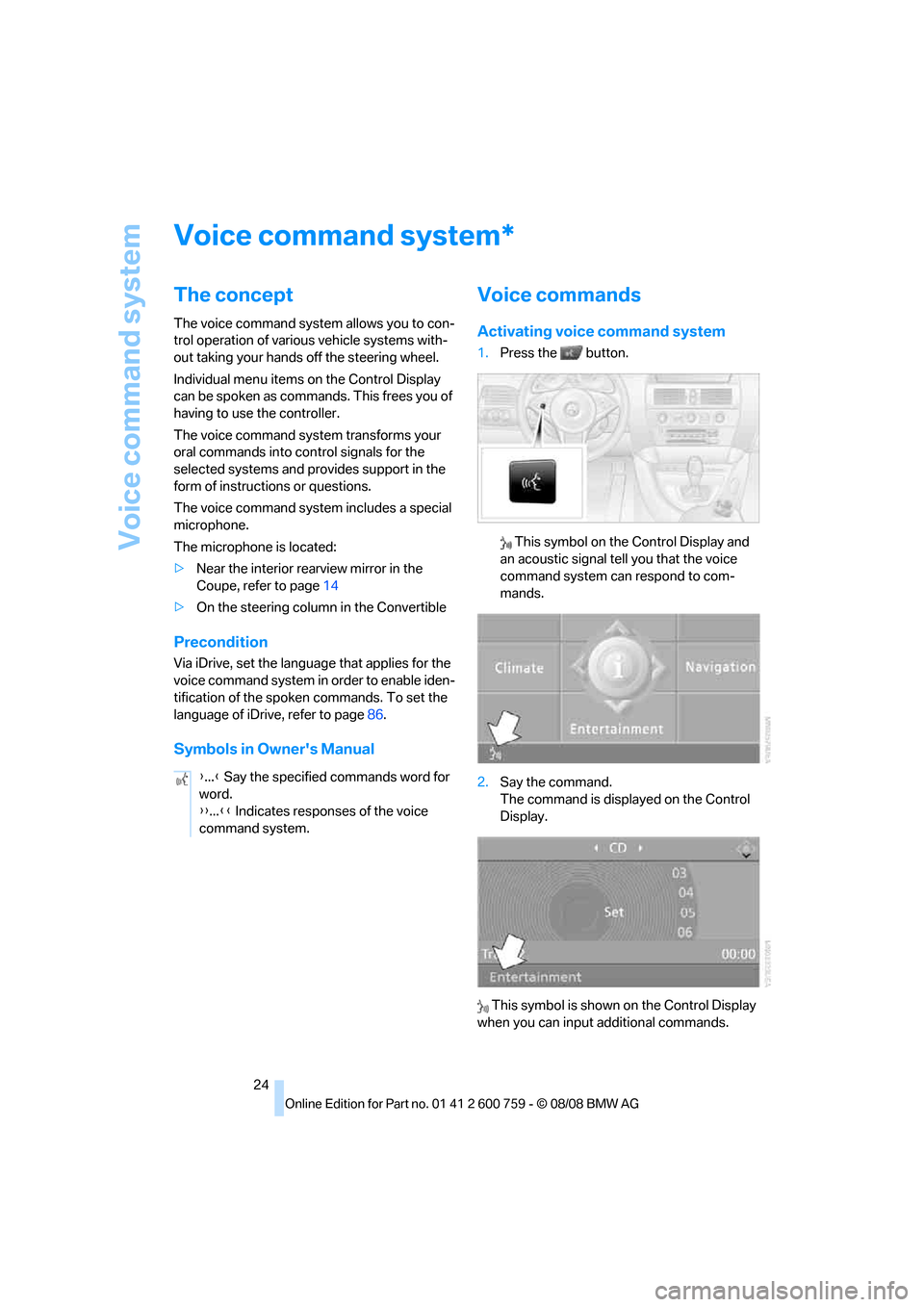
1.Press the button.
This symbol on the Control Display and
an acoustic signal tell you that the voice
command system can respond to com-
mands.
2.Say the command.
The command is displayed on the Control
Display.
This symbol is shown on the Control Display
when you can input additional commands.
*
{...} Say the specified commands word for
word.
{{...}} Indicates responses of the voice
command system.
Page 28 of 272
Voice command system
26
Notes
The mobile phone can also be operated
with voice commands, refer to
page197.<
For voice commands, bear the following in
mind:
>Say the commands and numbers smoothly
and at normal volume, avoiding excessive
emphasis and pauses. This also applies to
spelling when entering the destination.
>Always issue commands in the language of
the voice command system.
>When selecting a radio station, use the
common pronunciation of the station name.
>For entries in the voice-activated phone
book, only use names in the language of the
voice command system and do not use
abbreviations.
>Keep the doors, windows and glass sun-
roof
* or convertible top closed to prevent
interference from ambient noise.
>Avoid background noises in the vehicle
while speaking.
Page 33 of 272
Controls
31Reference
At a glance
Driving tips
Communications
Navigation
Entertainment
Mobility
the vehicle is unlocked, the corresponding
remote control is detected and the settings
stored for it are called up and carried out.
This means that you will always find your BMW
set to your own personal settings even if
another person with his/her own remote control
and settings has used the vehicle since the last
time you drove it. The individual settings are
stored for a maximum of four remote controls,
for two with comfort access
*.
Personal Profile settings
Details on the settings are provided on the
specified pages.
>Behavior of the central locking system
when unlocking vehicle, refer to page32
>Automatic locking of the vehicle, refer to
page34
>Programming buttons on steering wheel,
refer to page57
>Displays on Control Display:
>12h/24h clock mode, refer to page85
>Date format, refer to page85
>Brightness of the Control Display, refer
to page85
>Units of measure for consumption,
route/distances, temperature and pres-
sure, refer to page86
>Language on the Control Display, refer
to page86
>Lighting settings:
>Triple turn signal activation, refer to
page66
>Welcome lamps, refer to page104
>Pathway lighting, refer to page105
>Daytime running lamps
*, refer to
page105
>High-beam assistant
*, refer to page106
>PDC Park Distance Control
*: optical warn-
ing, refer to page87
>Head-Up Display
*: selection and bright-
ness of display, refer to page98>BMW Night Vision
*: display settings, refer
to page102
>Automatic climate control: for AUTO pro-
gram and intensity, cooling function, and
automatic recirculated air control/recircu-
lated air mode, temperature, air distribution,
temperature in the upper body region, refer
to page111
>Navigation system
*: voice instructions for
destination guidance, refer to page151
In addition, the following, most recently
selected settings are recalled during unlocking:
>Programmable memory buttons: selecting
stored functions, refer to page22
>Driver's seat, exterior-mirror and steering-
wheel position, refer to page51
>Audio sources: volume and tone settings,
refer to page161
>Radio: display of stored stations, refer to
page164
>Phone: adjusting volume, refer to page192
Central locking system
The concept
The central locking system functions when the
driver's door is closed.
The system simultaneously engages and
releases the locks on the following:
>Doors
>Compartment in the front center console
>Luggage compartment lid
>Fuel filler door
Operating from outside
>Via the remote control
>Using door lock
>With comfort access
* via the door handles
These actions operate the anti-theft system
* at
the same time. It prevents the doors from being
unlocked using the lock buttons or door han-
dles. The interior lamps and the courtesy
lamps
* are also switched on and off with the
Page 59 of 272
Controls
57Reference
At a glance
Driving tips
Communications
Navigation
Entertainment
Mobility
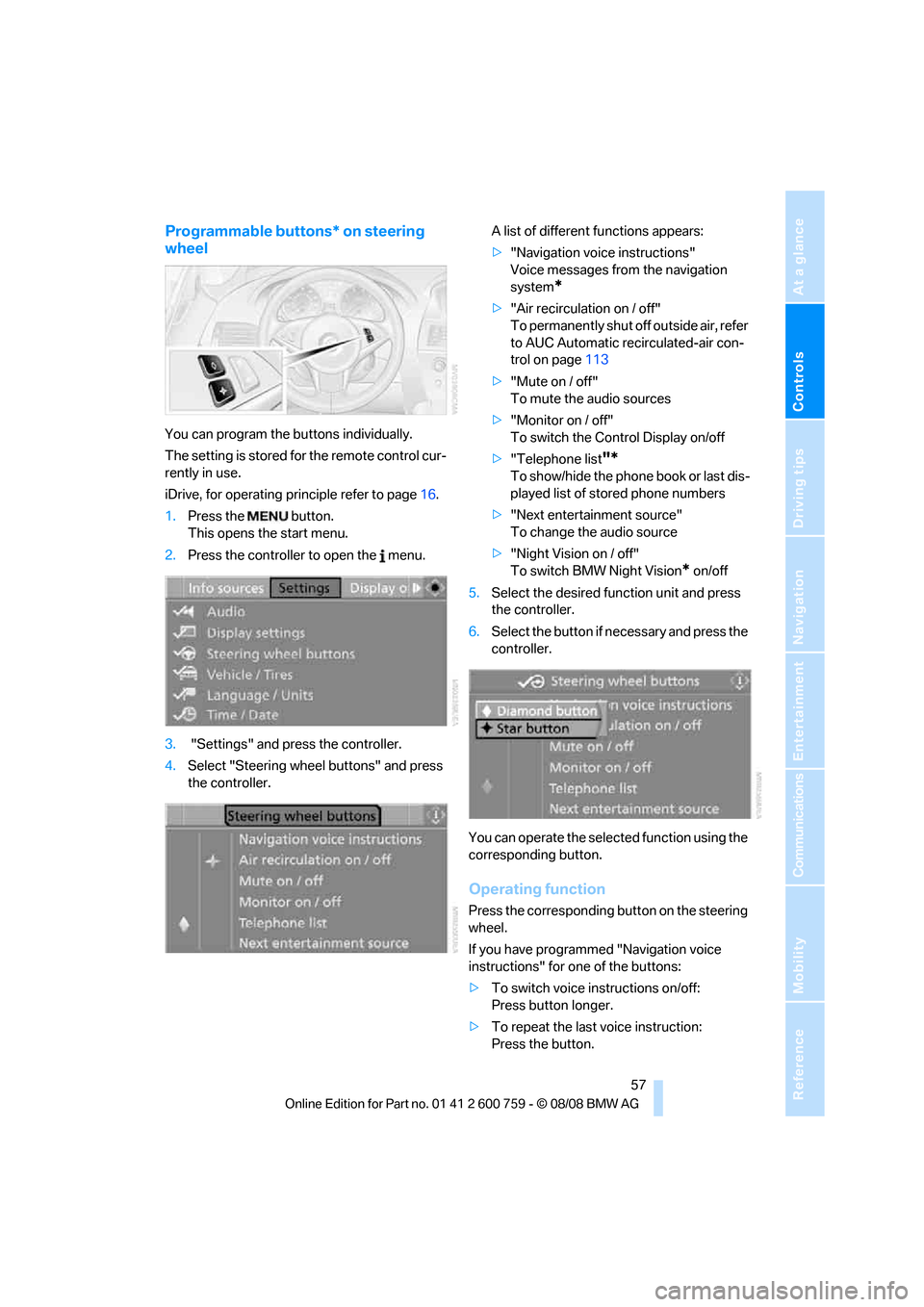
Programmable buttons* on steering
wheel
You can program the buttons individually.
The setting is stored for the remote control cur-
rently in use.
iDrive, for operating principle refer to page16.
1.Press the button.
This opens the start menu.
2.Press the controller to open the menu.
3. "Settings" and press the controller.
4.Select "Steering wheel buttons" and press
the controller.A list of different functions appears:
>"Navigation voice instructions"
Voice messages from the navigation
system
*
>"Air recirculation on / off"
To permanently shut off outside air, refer
to AUC Automatic recirculated-air con-
trol on page113
>"Mute on / off"
To mute the audio sources
>"Monitor on / off"
To switch the Control Display on/off
>"Telephone list
"*
To show/hide the phone book or last dis-
played list of stored phone numbers
>"Next entertainment source"
To change the audio source
>"Night Vision on / off"
To switch BMW Night Vision
* on/off
5.Select the desired function unit and press
the controller.
6.Select the button if necessary and press the
controller.
You can operate the selected function using the
corresponding button.
Operating function
Press the corresponding button on the steering
wheel.
If you have programmed "Navigation voice
instructions" for one of the buttons:
>To switch voice instructions on/off:
Press button longer.
>To repeat the last voice instruction:
Press the button.
Page 121 of 272
Controls
119Reference
At a glance
Driving tips
Communications
Navigation
Entertainment
Mobility
close the glove compartment immediately after
use.<
Closing
Fold up the lid.
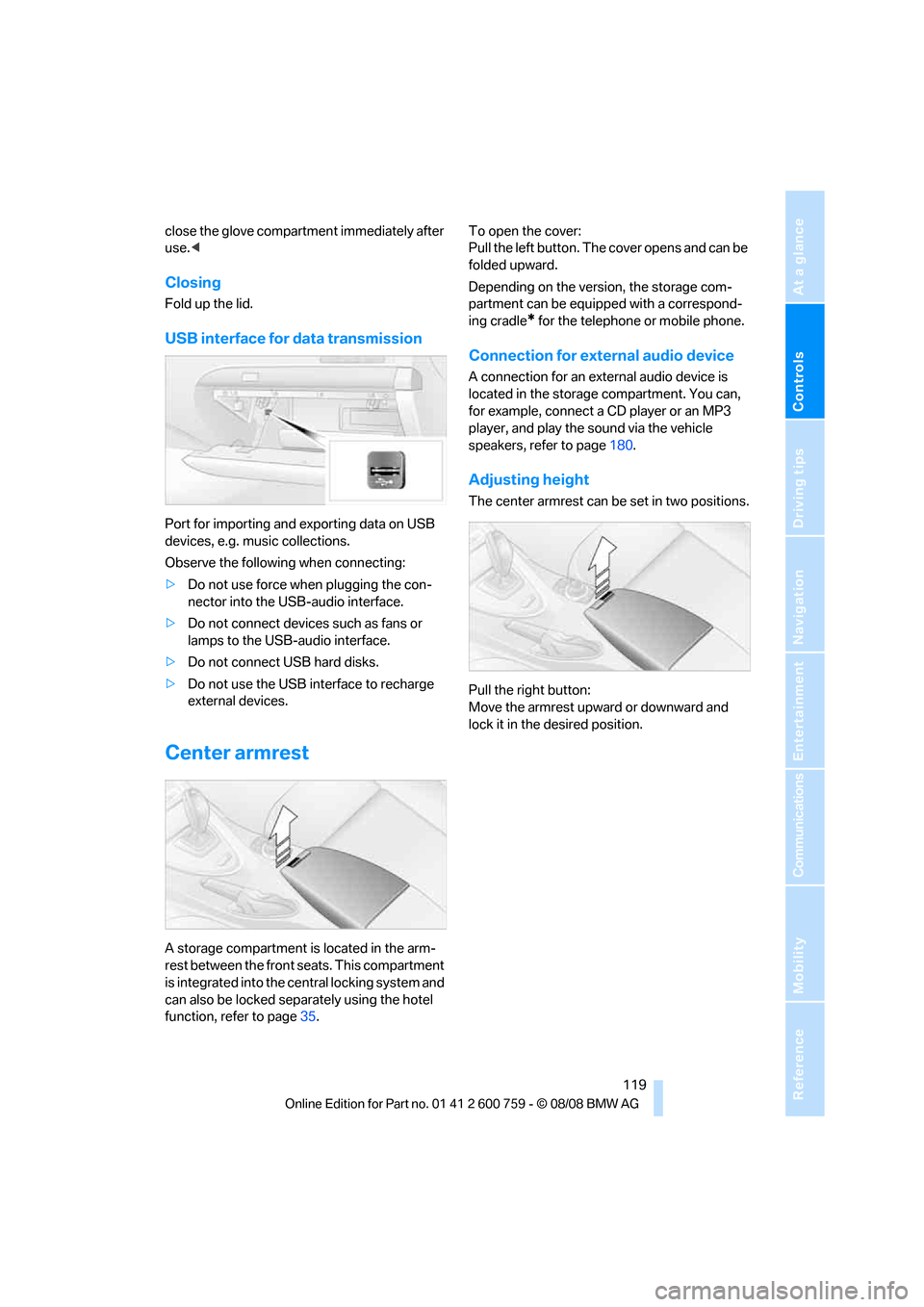
USB interface for data transmission
Port for importing and exporting data on USB
devices, e.g. music collections.
Observe the following when connecting:
>Do not use force when plugging the con-
nector into the USB-audio interface.
>Do not connect devices such as fans or
lamps to the USB-audio interface.
>Do not connect USB hard disks.
>Do not use the USB interface to recharge
external devices.
Center armrest
A storage compartment is located in the arm-
rest between the front seats. This compartment
is integrated into the central locking system and
can also be locked separately using the hotel
function, refer to page35.To open the cover:
Pull the left button. The cover opens and can be
folded upward.
Depending on the version, the storage com-
partment can be equipped with a correspond-
ing cradle
* for the telephone or mobile phone.
Connection for external audio device
A connection for an external audio device is
located in the storage compartment. You can,
for example, connect a CD player or an MP3
player, and play the sound via the vehicle
speakers, refer to page180.
Adjusting height
The center armrest can be set in two positions.
Pull the right button:
Move the armrest upward or downward and
lock it in the desired position.
Page 145 of 272
Navigation
Driving tips
143Reference
At a glance
Controls
Communications
Entertainment
Mobility
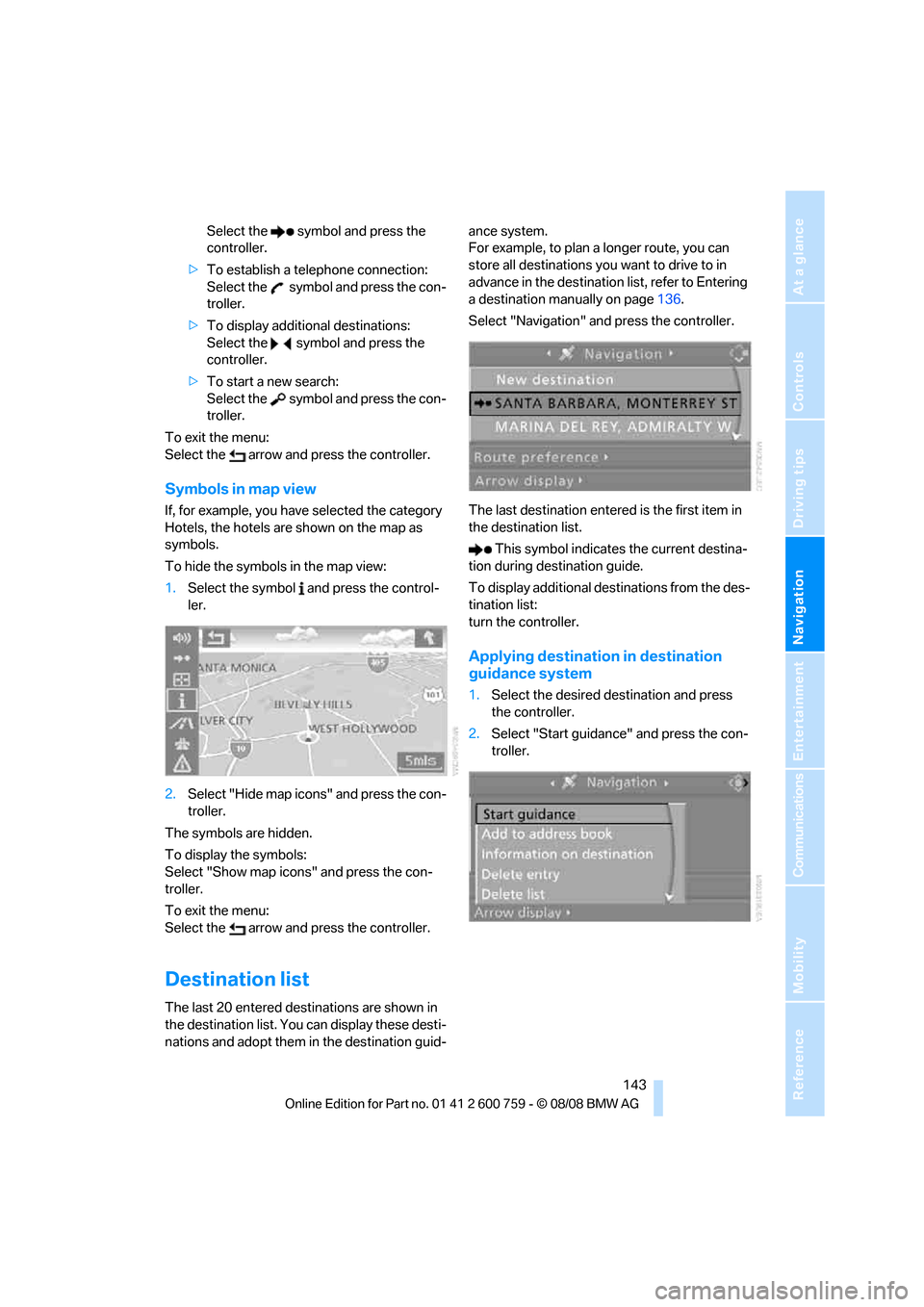
Select the symbol and press the
controller.
>To establish a telephone connection:
Select the symbol and press the con-
troller.
>To display additional destinations:
Select the symbol and press the
controller.
>To start a new search:
Select the symbol and press the con-
troller.
To exit the menu:
Select the arrow and press the controller.
Symbols in map view
If, for example, you have selected the category
Hotels, the hotels are shown on the map as
symbols.
To hide the symbols in the map view:
1.Select the symbol and press the control-
ler.
2.Select "Hide map icons" and press the con-
troller.
The symbols are hidden.
To display the symbols:
Select "Show map icons" and press the con-
troller.
To exit the menu:
Select the arrow and press the controller.
Destination list
The last 20 entered destinations are shown in
the destination list. You can display these desti-
nations and adopt them in the destination guid-ance system.
For example, to plan a longer route, you can
store all destinations you want to drive to in
advance in the destination list, refer to Entering
a destination manually on page136.
Select "Navigation" and press the controller.
The last destination entered is the first item in
the destination list.
This symbol indicates the current destina-
tion during destination guide.
To display additional destinations from the des-
tination list:
turn the controller.
Applying destination in destination
guidance system
1.Select the desired destination and press
the controller.
2.Select "Start guidance" and press the con-
troller.
Page 173 of 272
Navigation
Entertainment
Driving tips
171Reference
At a glance
Controls
Communications
Mobility
Satellite radio
You can receive over 100 different channels
with high sound quality.
The channels are offered to you in predefined
packages. To receive the channels of your
choice, you must have this package enabled.
With this new technology the signal may
fail, causing interruptions in reception.<
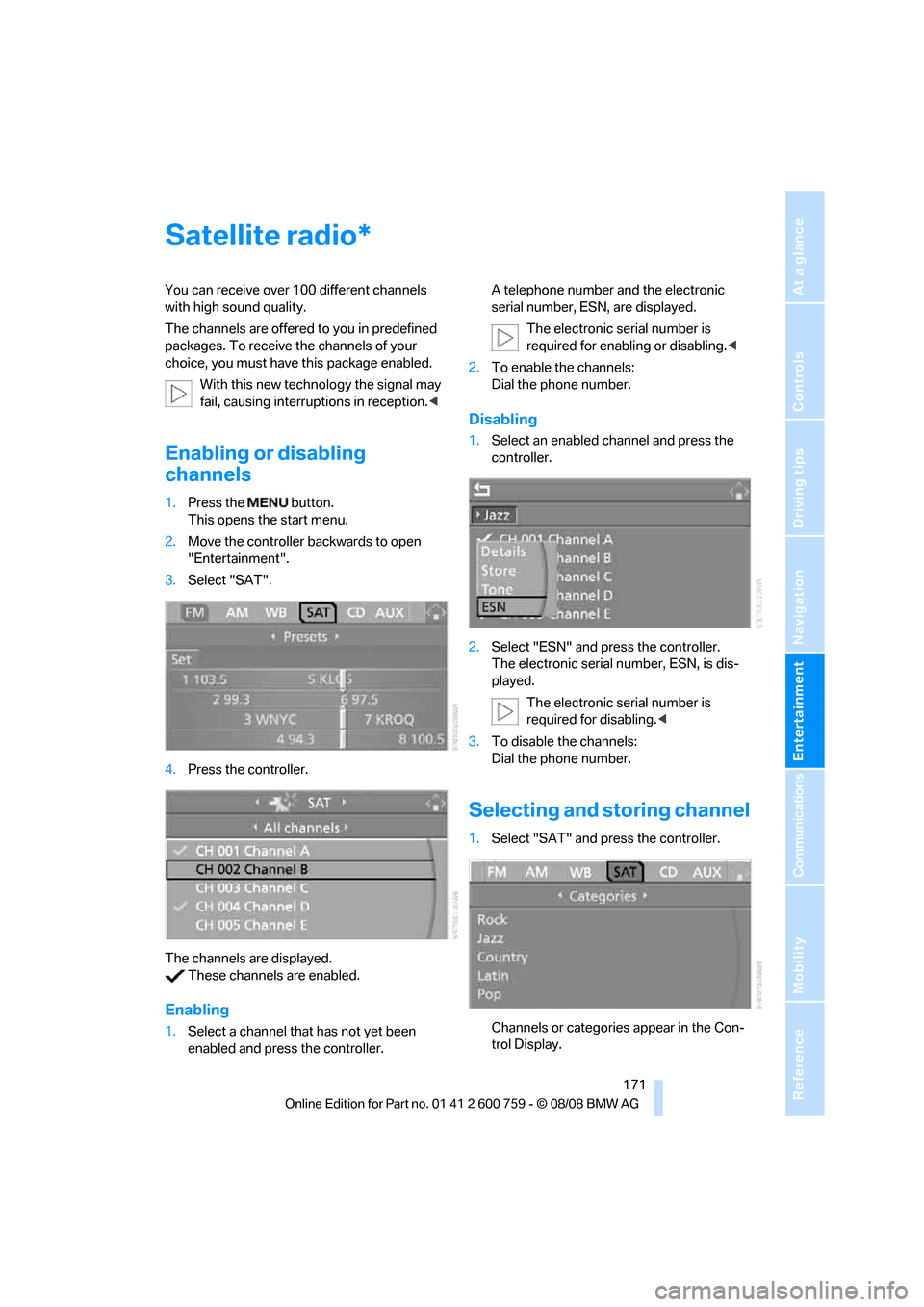
Enabling or disabling
channels
1.Press the button.
This opens the start menu.
2.Move the controller backwards to open
"Entertainment".
3.Select "SAT".
4.Press the controller.
The channels are displayed.
These channels are enabled.
Enabling
1.Select a channel that has not yet been
enabled and press the controller.A telephone number and the electronic
serial number, ESN, are displayed.
The electronic serial number is
required for enabling or disabling.<
2.To enable the channels:
Dial the phone number.
Disabling
1.Select an enabled channel and press the
controller.
2.Select "ESN" and press the controller.
The electronic serial number, ESN, is dis-
played.
The electronic serial number is
required for disabling.<
3.To disable the channels:
Dial the phone number.
Selecting and storing channel
1.Select "SAT" and press the controller.
Channels or categories appear in the Con-
trol Display.
*
Page 182 of 272
AUX-IN connection
180
AUX-IN connection
You can connect an external audio device, e.g.
an MP3 player, and play the sound via the vehi-
cle speakers. The sound can be adjusted via
iDrive.
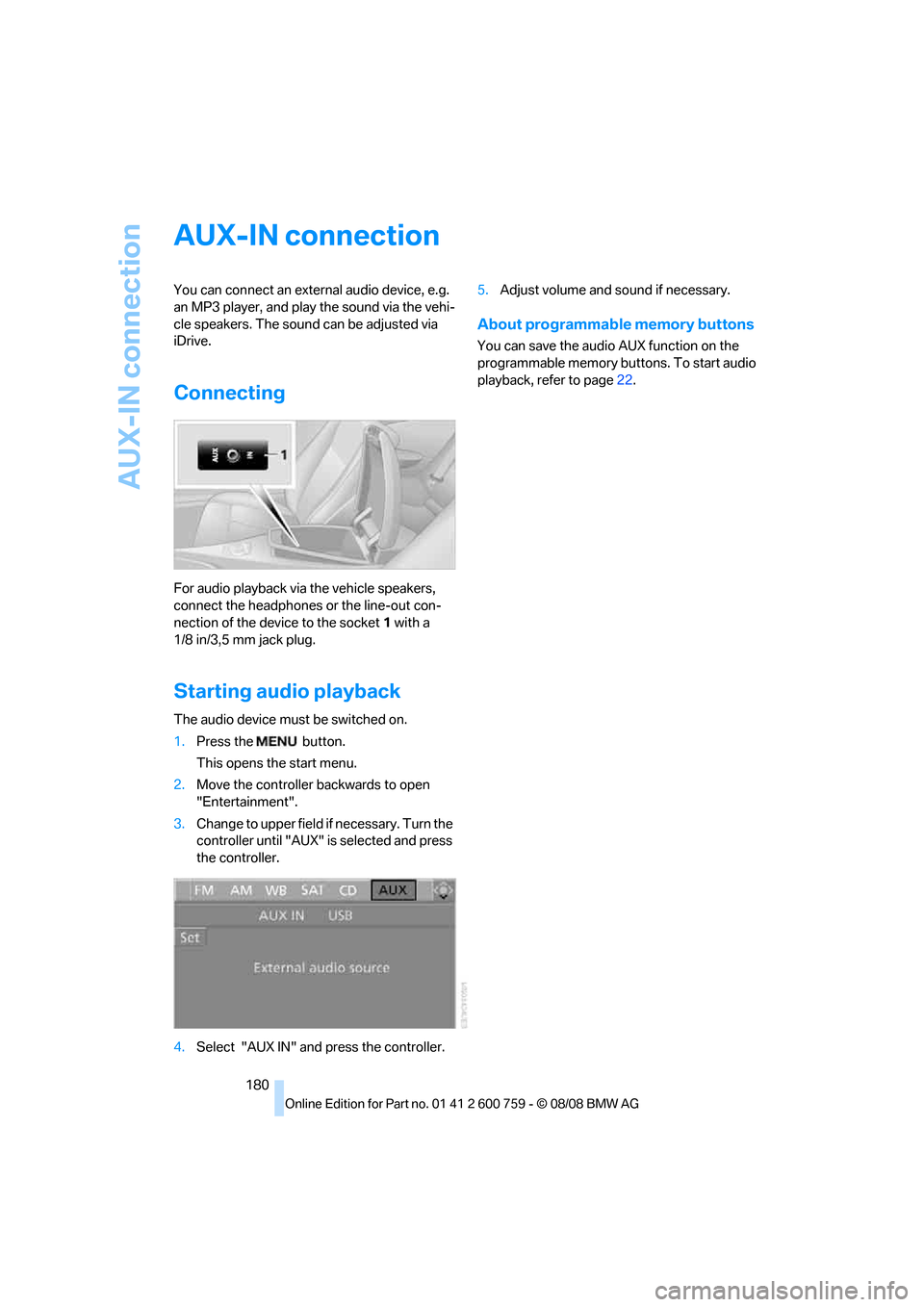
Connecting
For audio playback via the vehicle speakers,
connect the headphones or the line-out con-
nection of the device to the socket1 with a
1/8 in/3,5 mm jack plug.
Starting audio playback
The audio device must be switched on.
1.Press the button.
This opens the start menu.
2.Move the controller backwards to open
"Entertainment".
3.Change to upper field if necessary. Turn the
controller until "AUX" is selected and press
the controller.
4.Select "AUX IN" and press the controller.5.Adjust volume and sound if necessary.
About programmable memory buttons
You can save the audio AUX function on the
programmable memory buttons. To start audio
playback, refer to page22.
Page 183 of 272
Navigation
Entertainment
Driving tips
181Reference
At a glance
Controls
Communications
Mobility
USB-audio interface/mobile phone audio
interface
You can connect audio devices, e. g. an iPod/
iPhone or a USB device (MP3 player, USB flash
drive), to the USB-audio interface. You can then
operate these via iDrive.
When using an iPhone / mobile phone as a
music player, connect the device to the snap-in
adapter, refer to the separate operating instruc-
tions. Playback is only possible if a device is not
connected to the USB-audio interface.
The system can play back common audio files,
e.g. MP3, WMA, WAV (PCM) and AAC, as well
as playback lists in the M3U format.
Due to the large number of audio devices avail-
able on the market, operation via the vehicle
cannot be ensured for every audio device.
Ask your BMW center which audio devices are
suitable.
Connecting
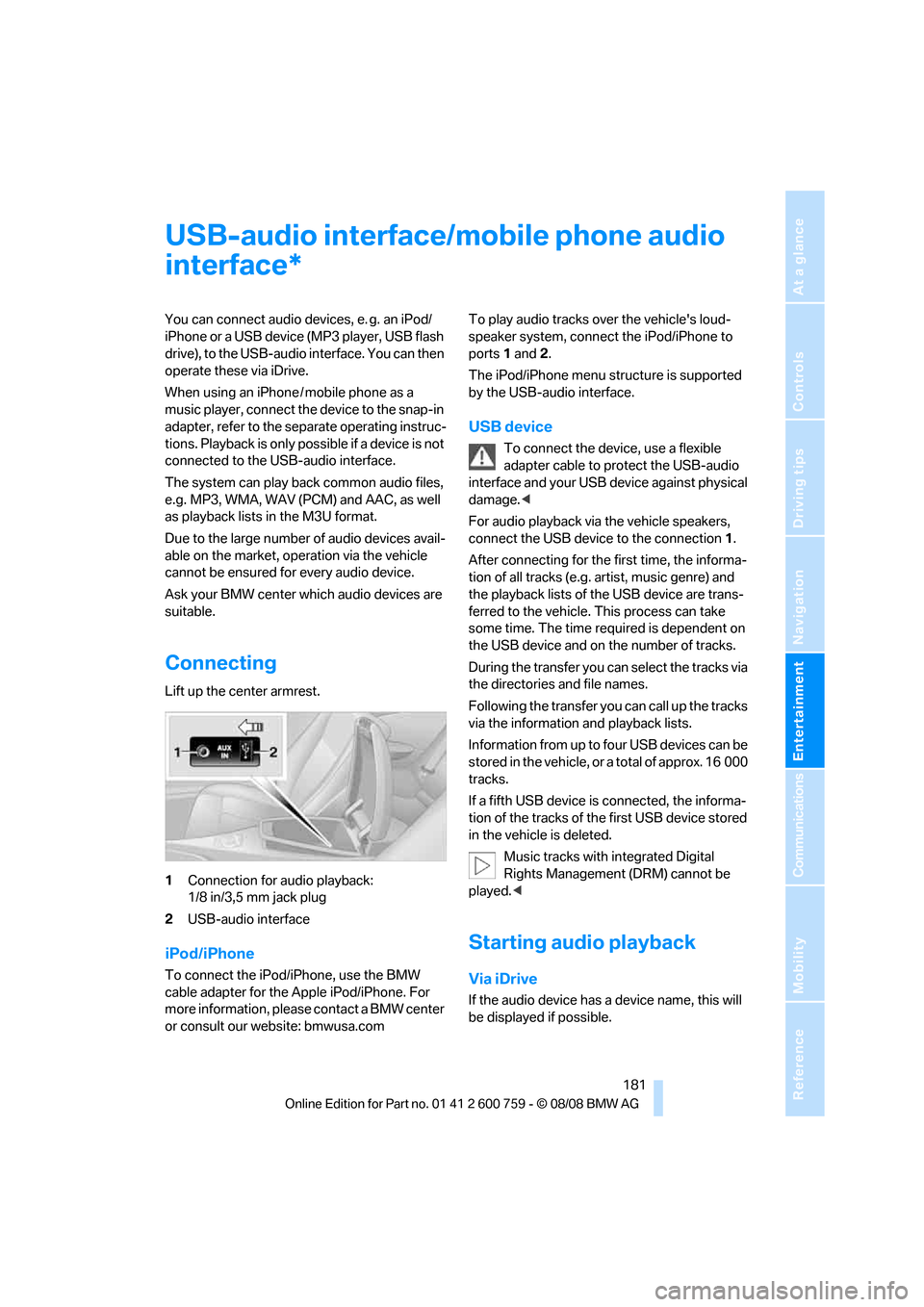
Lift up the center armrest.
1Connection for audio playback:
1/8 in/3,5 mm jack plug
2USB-audio interface
iPod/iPhone
To connect the iPod/iPhone, use the BMW
cable adapter for the Apple iPod/iPhone. For
more information, please contact a BMW center
or consult our website: bmwusa.comTo play audio tracks over the vehicle's loud-
speaker system, connect the iPod/iPhone to
ports 1 and 2.
The iPod/iPhone menu structure is supported
by the USB-audio interface.
USB device
To connect the device, use a flexible
adapter cable to protect the USB-audio
interface and your USB device against physical
damage.<
For audio playback via the vehicle speakers,
connect the USB device to the connection 1.
After connecting for the first time, the informa-
tion of all tracks (e.g. artist, music genre) and
the playback lists of the USB device are trans-
ferred to the vehicle. This process can take
some time. The time required is dependent on
the USB device and on the number of tracks.
During the transfer you can select the tracks via
the directories and file names.
Following the transfer you can call up the tracks
via the information and playback lists.
Information from up to four USB devices can be
stored in the vehicle, or a total of approx. 16 000
tracks.
If a fifth USB device is connected, the informa-
tion of the tracks of the first USB device stored
in the vehicle is deleted.
Music tracks with integrated Digital
Rights Management (DRM) cannot be
played.<
Starting audio playback
Via iDrive
If the audio device has a device name, this will
be displayed if possible.
*
Page 184 of 272
USB-audio interface/mobile phone audio interface
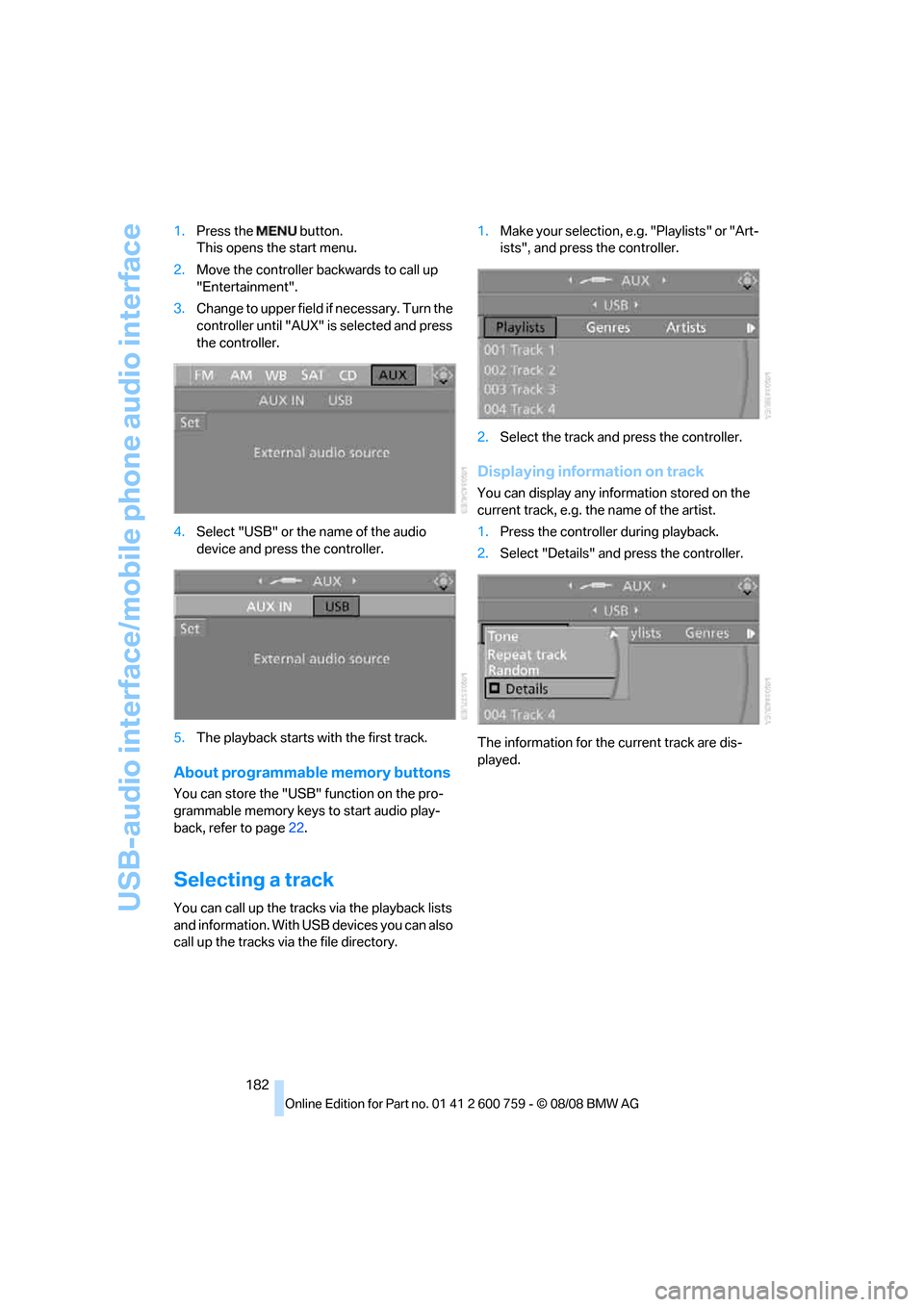
182 1.Press the button.
This opens the start menu.
2.Move the controller backwards to call up
"Entertainment".
3.Change to upper field if necessary. Turn the
controller until "AUX" is selected and press
the controller.
4.Select "USB" or the name of the audio
device and press the controller.
5.The playback starts with the first track.
About programmable memory buttons
You can store the "USB" function on the pro-
grammable memory keys to start audio play-
back, refer to page22.
Selecting a track
You can call up the tracks via the playback lists
and information. With USB devices you can also
call up the tracks via the file directory.1.Make your selection, e.g. "Playlists" or "Art-
ists", and press the controller.
2.Select the track and press the controller.
Displaying information on track
You can display any information stored on the
current track, e.g. the name of the artist.
1.Press the controller during playback.
2.Select "Details" and press the controller.
The information for the current track are dis-
played.