light BMW 650I COUPE 2010 E63 Repair Manual
[x] Cancel search | Manufacturer: BMW, Model Year: 2010, Model line: 650I COUPE, Model: BMW 650I COUPE 2010 E63Pages: 252, PDF Size: 8.4 MB
Page 156 of 252
CD/DVD player and CD changer
154
CD/DVD player and CD changer
CD/DVD playback
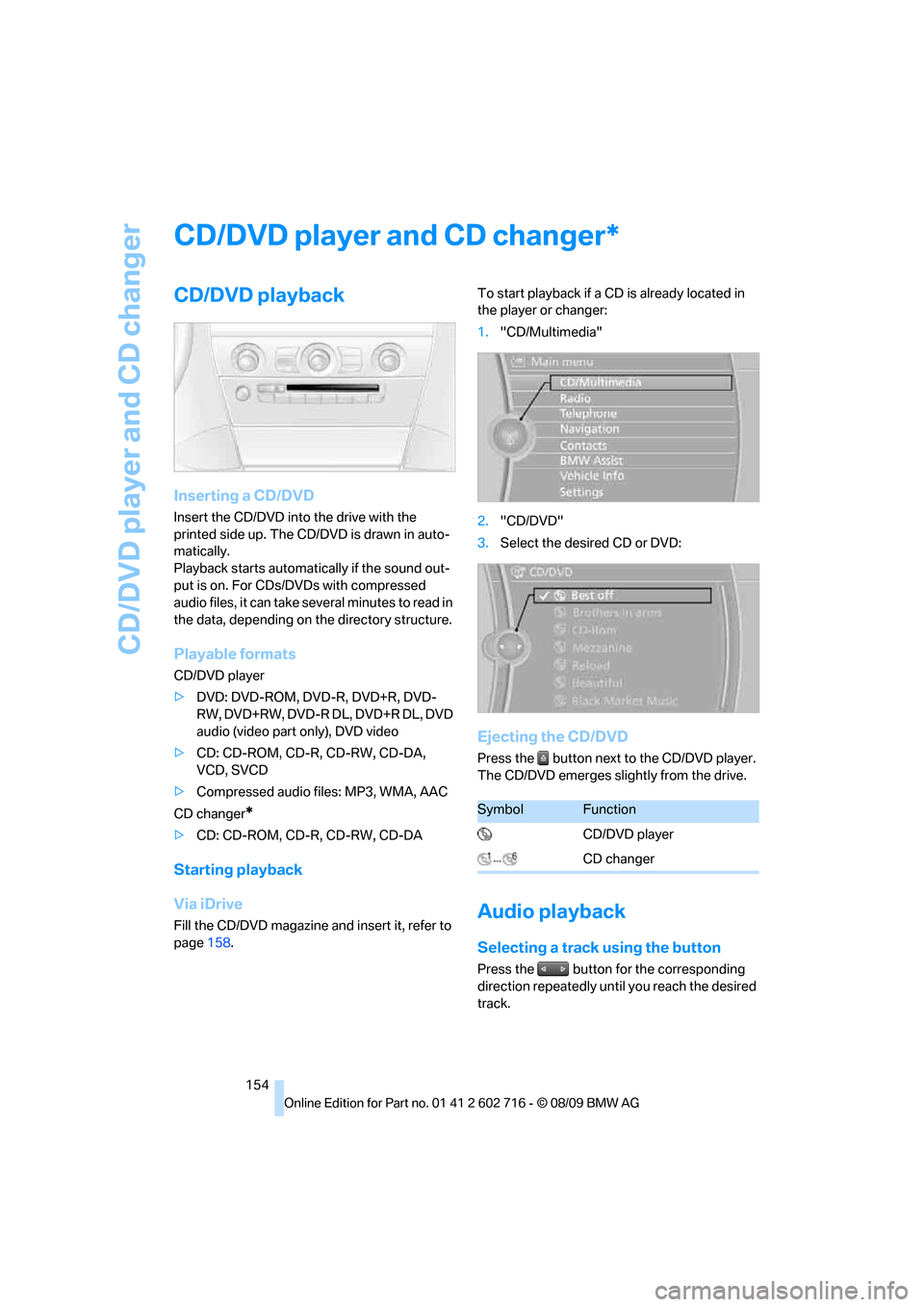
Inserting a CD/DVD
Insert the CD/DVD into the drive with the
printed side up. The CD/DVD is drawn in auto-
matically.
Playback starts automatically if the sound out-
put is on. For CDs/DVDs with compressed
audio files, it can take several minutes to read in
the data, depending on the directory structure.
Playable formats
CD/DVD player
>DVD: DVD-ROM, DVD-R, DVD+R, DVD-
RW, DVD+RW, DVD-R DL, DVD+R DL, DVD
audio (video part only), DVD video
>CD: CD-ROM, CD-R, CD-RW, CD-DA,
VCD, SVCD
>Compressed audio files: MP3, WMA, AAC
CD changer
*
>CD: CD-ROM, CD-R, CD-RW, CD-DA
Starting playback
Via iDrive
Fill the CD/DVD magazine and insert it, refer to
page158.To start playback if a CD is already located in
the player or changer:
1."CD/Multimedia"
2."CD/DVD"
3.Select the desired CD or DVD:
Ejecting the CD/DVD
Press the button next to the CD/DVD player.
The CD/DVD emerges slightly from the drive.
Audio playback
Selecting a track using the button
Press the button for the corresponding
direction repeatedly until you reach the desired
track.
*
SymbolFunction
CD/DVD player
CD changer
Page 161 of 252
Navigation
Entertainment
Driving tips
159Reference
At a glance
Controls
Communications
Mobility
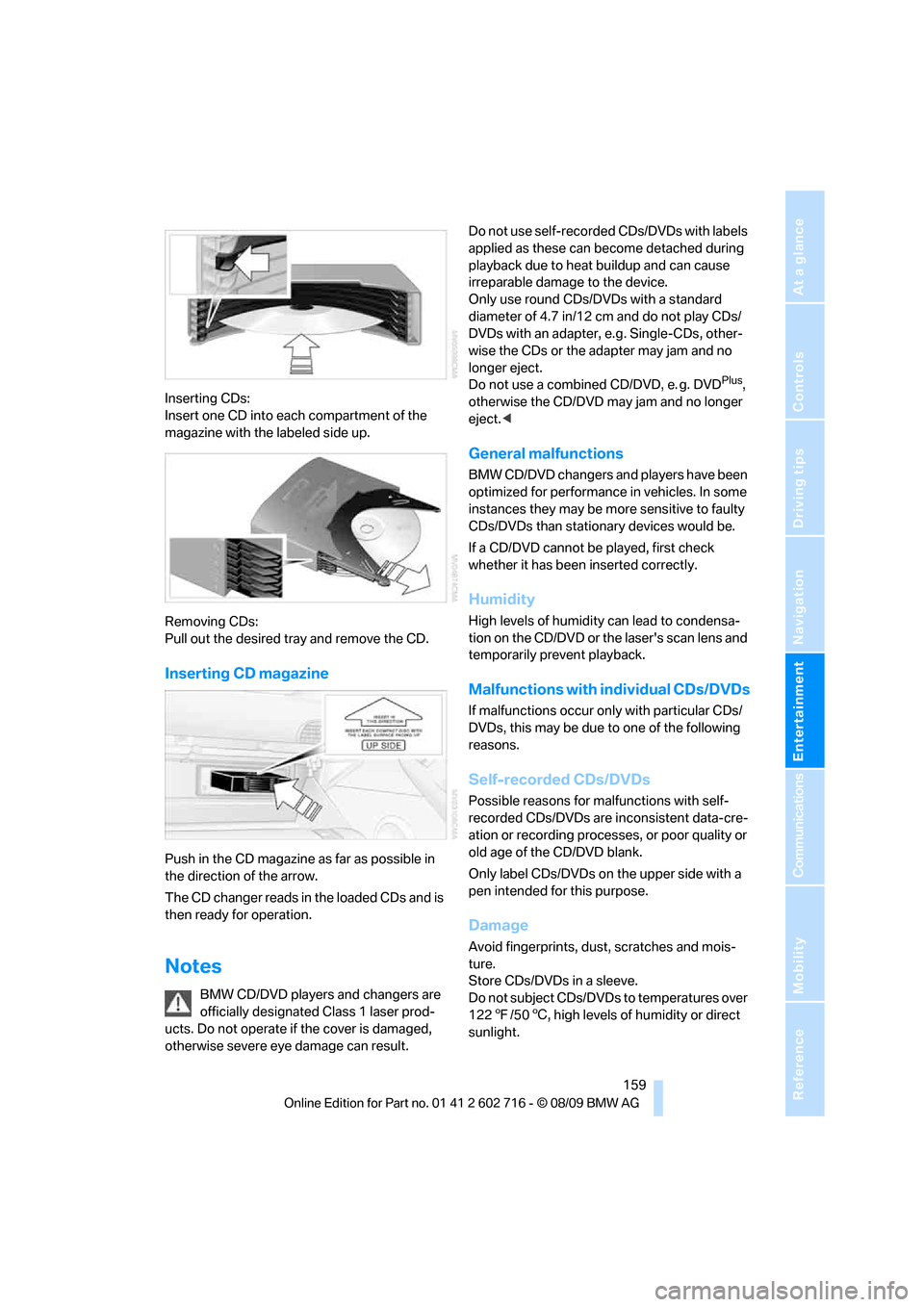
Inserting CDs:
Insert one CD into each compartment of the
magazine with the labeled side up.
Removing CDs:
Pull out the desired tray and remove the CD.
Inserting CD magazine
Push in the CD magazine as far as possible in
the direction of the arrow.
The CD changer reads in the loaded CDs and is
then ready for operation.
Notes
BMW CD/DVD players and changers are
officially designated Class 1 laser prod-
ucts. Do not operate if the cover is damaged,
otherwise severe eye damage can result.Do not use self-recorded CDs/DVDs with labels
applied as these can become detached during
playback due to heat buildup and can cause
irreparable damage to the device.
Only use round CDs/DVDs with a standard
diameter of 4.7 in/12 cm and do not play CDs/
DVDs with an adapter, e.g. Single-CDs, other-
wise the CDs or the adapter may jam and no
longer eject.
Do not use a combined CD/DVD, e. g. DVD
Plus,
otherwise the CD/DVD may jam and no longer
eject.<
General malfunctions
BMW CD/DVD changers and players have been
optimized for performance in vehicles. In some
instances they may be more sensitive to faulty
CDs/DVDs than stationary devices would be.
If a CD/DVD cannot be played, first check
whether it has been inserted correctly.
Humidity
High levels of humidity can lead to condensa-
tion on the CD/DVD or the laser's scan lens and
temporarily prevent playback.
Malfunctions with individual CDs/DVDs
If malfunctions occur only with particular CDs/
DVDs, this may be due to one of the following
reasons.
Self-recorded CDs/DVDs
Possible reasons for malfunctions with self-
recorded CDs/DVDs are inconsistent data-cre-
ation or recording processes, or poor quality or
old age of the CD/DVD blank.
Only label CDs/DVDs on the upper side with a
pen intended for this purpose.
Damage
Avoid fingerprints, dust, scratches and mois-
ture.
Store CDs/DVDs in a sleeve.
Do not subject CDs/DVDs to temperatures over
1227/506, high levels of humidity or direct
sunlight.
Page 166 of 252
Music collection
164 Depending on the album, the tracks or the
subdirectories of the album are displayed.
The first track is played automatically, if
possible.
4.To select tracks, change directories if
needed. To go up one level in the directory,
move the controller to the left.
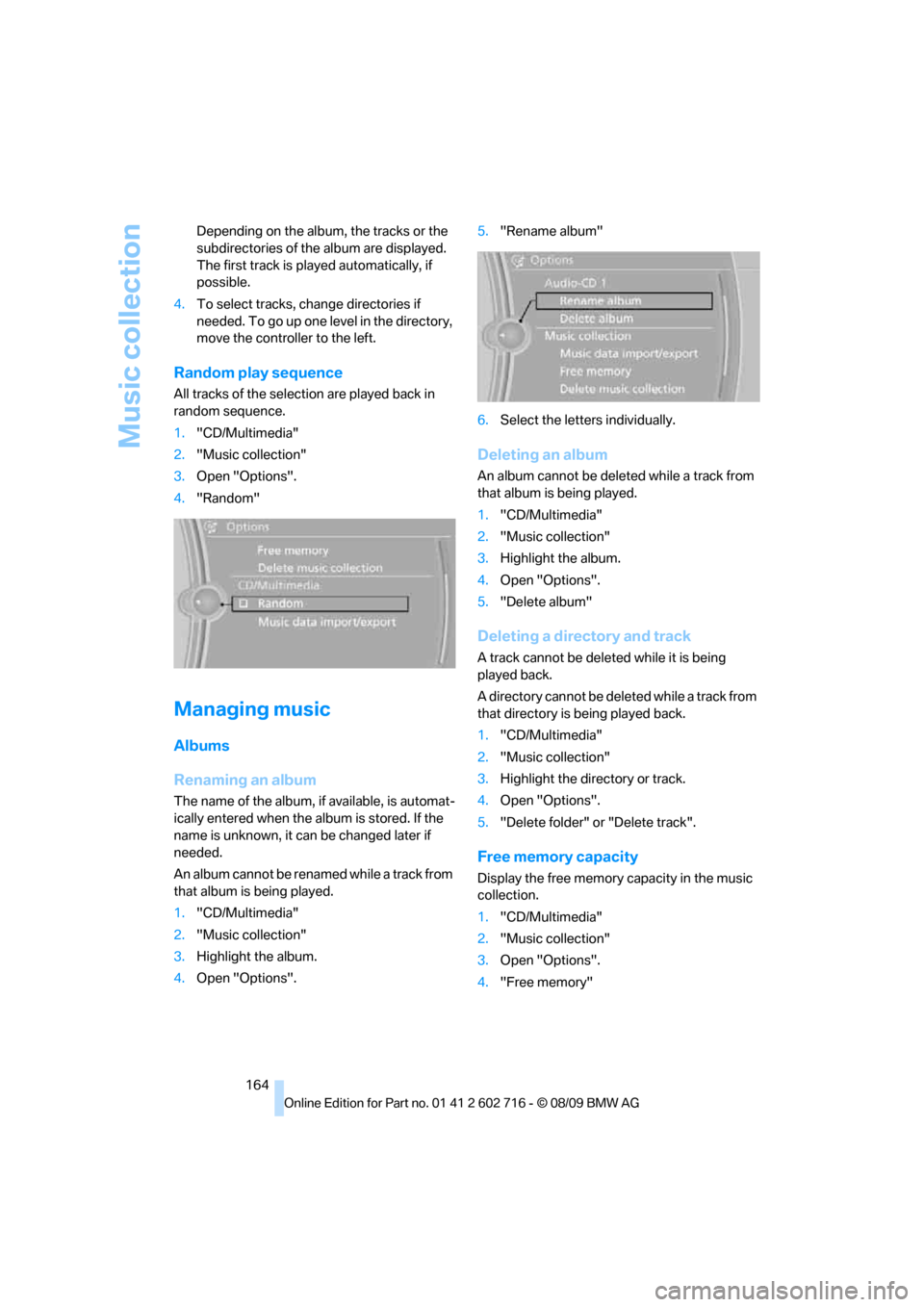
Random play sequence
All tracks of the selection are played back in
random sequence.
1."CD/Multimedia"
2."Music collection"
3.Open "Options".
4."Random"
Managing music
Albums
Renaming an album
The name of the album, if available, is automat-
ically entered when the album is stored. If the
name is unknown, it can be changed later if
needed.
An album cannot be renamed while a track from
that album is being played.
1."CD/Multimedia"
2."Music collection"
3.Highlight the album.
4.Open "Options".5."Rename album"
6.Select the letters individually.
Deleting an album
An album cannot be deleted while a track from
that album is being played.
1."CD/Multimedia"
2."Music collection"
3.Highlight the album.
4.Open "Options".
5."Delete album"
Deleting a directory and track
A track cannot be deleted while it is being
played back.
A directory cannot be deleted while a track from
that directory is being played back.
1."CD/Multimedia"
2."Music collection"
3.Highlight the directory or track.
4.Open "Options".
5."Delete folder" or "Delete track".
Free memory capacity
Display the free memory capacity in the music
collection.
1."CD/Multimedia"
2."Music collection"
3.Open "Options".
4."Free memory"
Page 176 of 252
Telephone
174 mobile phone if necessary, and can take
several minutes.
>Four mobile phones can be paired.
>Specific settings may be necessary in some
mobile phones, e.g. authorization or a
secure connection, refer to the mobile
phone operating instructions.
If not all phone book entries are displayed:
>Transfer all phone book entries from the
SIM card to the mobile phone if necessary.
>It may not be possible to display phone
book entries with special characters.
Checking if pairing is unsuccessful
>Is the mobile phone supported by the
mobile phone preparation package? Infor-
mation on this subject is also provided on
the Internet at: www.bmw.com/bluetooth.
>Do the Bluetooth passkeys on the mobile
phone and the vehicle match? The same
Bluetooth passkey must be entered both on
the mobile phone display and via iDrive.
>Have you required longer than 30 seconds
to enter the Bluetooth passkey? Then
repeat the pairing procedure.
>Are too many Bluetooth devices connected
to the mobile phone? If so, delete the con-
nections with other devices on the mobile
phone.
>The mobile phone no longer reacts? Switch
the mobile phone off and then on again or
disconnect the power supply.
>Repeat the pairing procedure.
>If all items on the list have been checked
and the mobile phone still cannot be paired,
please contact Customer Relations.
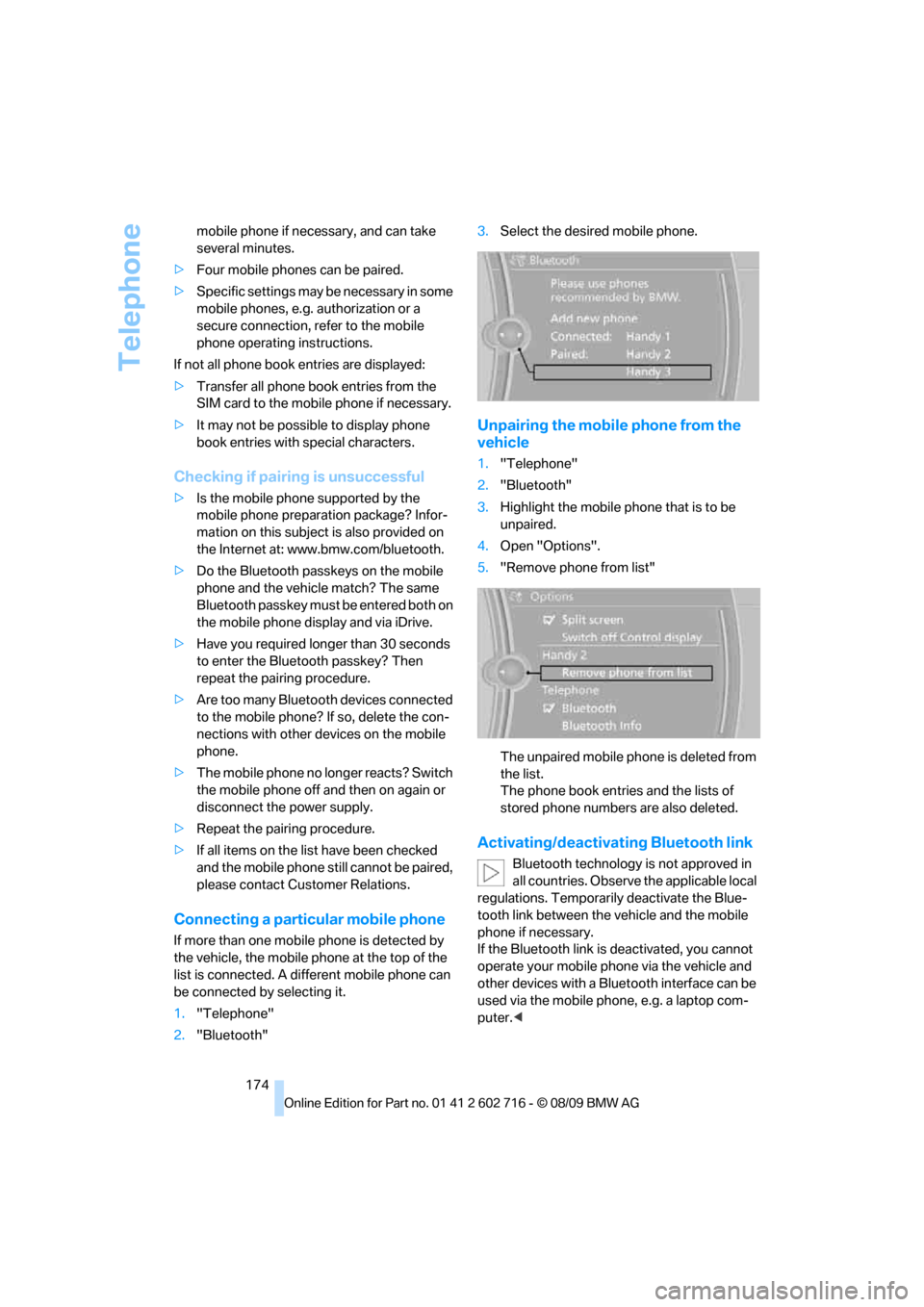
Connecting a particular mobile phone
If more than one mobile phone is detected by
the vehicle, the mobile phone at the top of the
list is connected. A different mobile phone can
be connected by selecting it.
1."Telephone"
2."Bluetooth"3.Select the desired mobile phone.
Unpairing the mobile phone from the
vehicle
1."Telephone"
2."Bluetooth"
3.Highlight the mobile phone that is to be
unpaired.
4.Open "Options".
5."Remove phone from list"
The unpaired mobile phone is deleted from
the list.
The phone book entries and the lists of
stored phone numbers are also deleted.
Activating/deactivating Bluetooth link
Bluetooth technology is not approved in
all countries. Observe the applicable local
regulations. Temporarily deactivate the Blue-
tooth link between the vehicle and the mobile
phone if necessary.
If the Bluetooth link is deactivated, you cannot
operate your mobile phone via the vehicle and
other devices with a Bluetooth interface can be
used via the mobile phone, e.g. a laptop com-
puter.<
Page 179 of 252
177
Entertainment
Reference
At a glance
Controls
Driving tips Communications
Navigation
Mobility
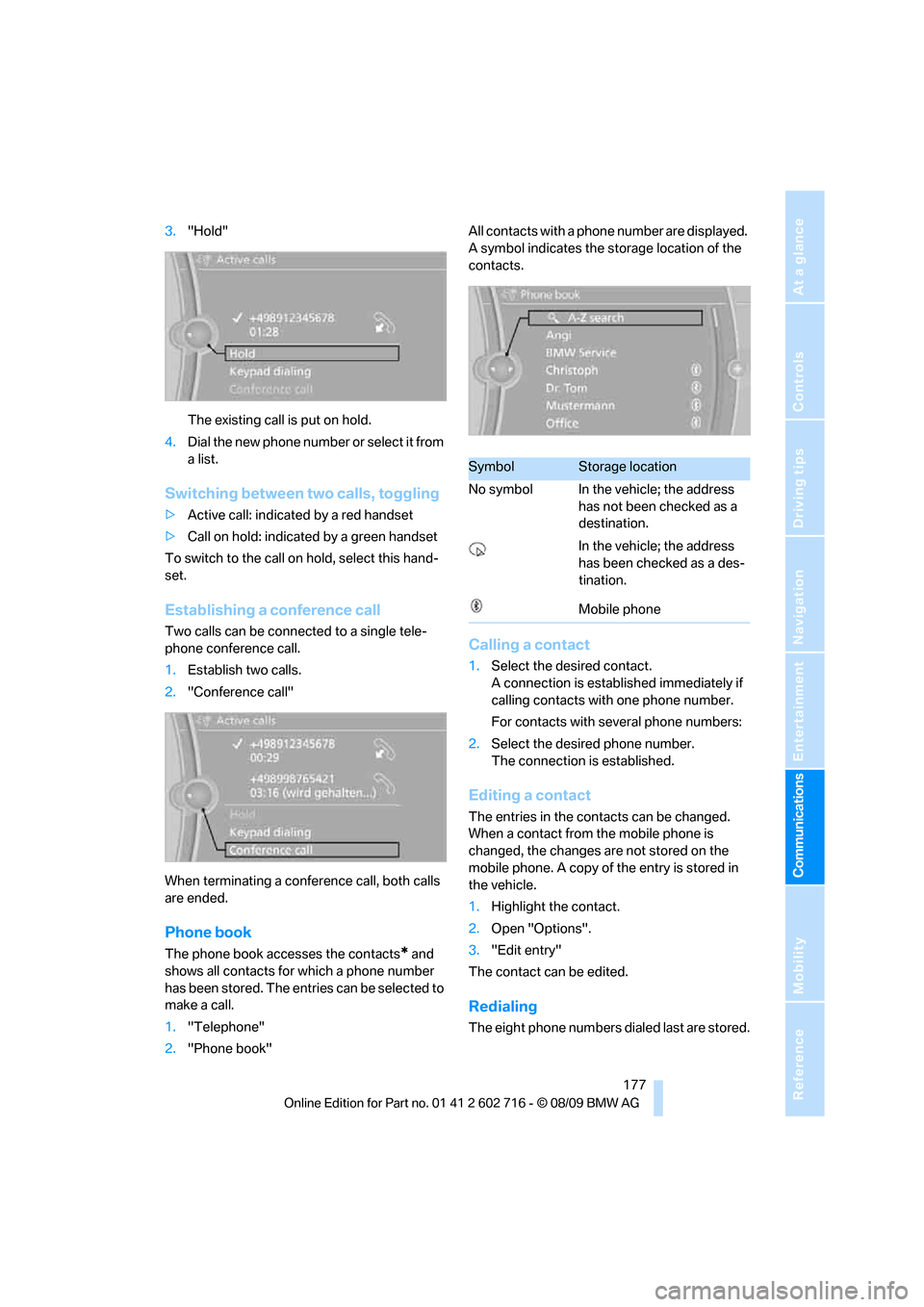
3."Hold"
The existing call is put on hold.
4.Dial the new phone number or select it from
a list.
Switching between two calls, toggling
>Active call: indicated by a red handset
>Call on hold: indicated by a green handset
To switch to the call on hold, select this hand-
set.
Establishing a conference call
Two calls can be connected to a single tele-
phone conference call.
1.Establish two calls.
2."Conference call"
When terminating a conference call, both calls
are ended.
Phone book
The phone book accesses the contacts* and
shows all contacts for which a phone number
has been stored. The entries can be selected to
make a call.
1."Telephone"
2."Phone book"All contacts with a phone number are displayed.
A symbol indicates the storage location of the
contacts.
Calling a contact
1.Select the desired contact.
A connection is established immediately if
calling contacts with one phone number.
For contacts with several phone numbers:
2.Select the desired phone number.
The connection is established.
Editing a contact
The entries in the contacts can be changed.
When a contact from the mobile phone is
changed, the changes are not stored on the
mobile phone. A copy of the entry is stored in
the vehicle.
1.Highlight the contact.
2.Open "Options".
3."Edit entry"
The contact can be edited.
Redialing
The eight phone numbers dialed last are stored.
SymbolStorage location
No symbol In the vehicle; the address
has not been checked as a
destination.
In the vehicle; the address
has been checked as a des-
tination.
Mobile phone
Page 180 of 252
Telephone
178
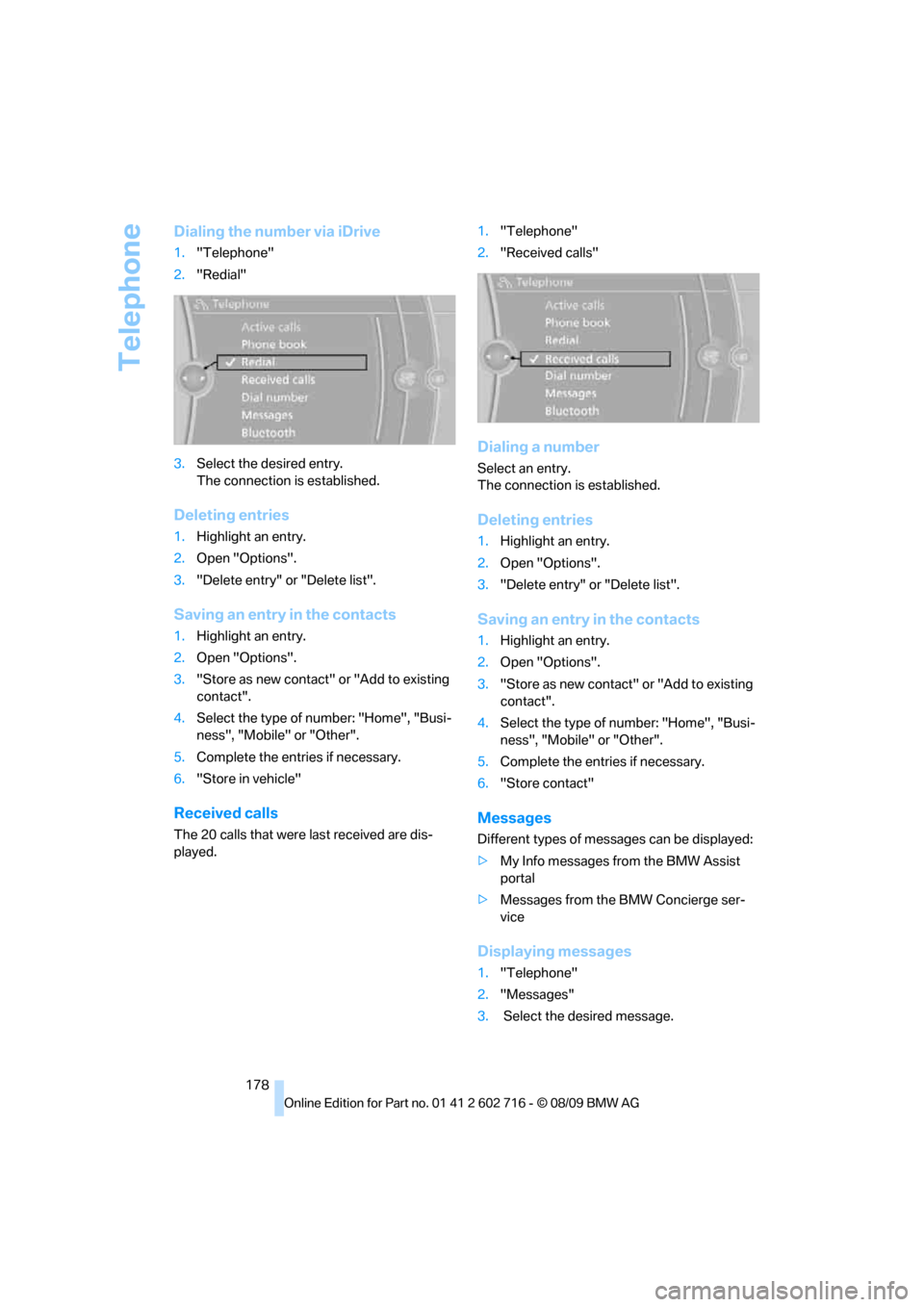
Dialing the number via iDrive
1."Telephone"
2."Redial"
3.Select the desired entry.
The connection is established.
Deleting entries
1.Highlight an entry.
2.Open "Options".
3."Delete entry" or "Delete list".
Saving an entry in the contacts
1.Highlight an entry.
2.Open "Options".
3."Store as new contact" or "Add to existing
contact".
4.Select the type of number: "Home", "Busi-
ness", "Mobile" or "Other".
5.Complete the entries if necessary.
6."Store in vehicle"
Received calls
The 20 calls that were last received are dis-
played.1."Telephone"
2."Received calls"
Dialing a number
Select an entry.
The connection is established.
Deleting entries
1.Highlight an entry.
2.Open "Options".
3."Delete entry" or "Delete list".
Saving an entry in the contacts
1.Highlight an entry.
2.Open "Options".
3."Store as new contact" or "Add to existing
contact".
4.Select the type of number: "Home", "Busi-
ness", "Mobile" or "Other".
5.Complete the entries if necessary.
6."Store contact"
Messages
Different types of messages can be displayed:
>My Info messages from the BMW Assist
portal
>Messages from the BMW Concierge ser-
vice
Displaying messages
1."Telephone"
2."Messages"
3. Select the desired message.
Page 187 of 252
185
Entertainment
Reference
At a glance
Controls
Driving tips Communications
Navigation
Mobility
search is offered. A symbol indicates the stor-
age location of the contacts:
Displaying the detailed view*
Select the desired contact.
All fields that have been filled in for that contact
are displayed.
Selecting a contact as the navigation
destination
1."My contacts"
2.Select the desired contact.
3.Select the desired address.
Contacts from the mobile phone
* may contain
addresses that do not match the navigation
data contained in the vehicle and thus cannot
be used for destination guidance. In this case:
Manually correct the address.
Checking the address as a destination*
An address that is to be used for destination
guidance must match the navigation data con-
tained in the vehicle. An address that is stored
on the mobile phone can be corrected to match
to the navigation data.
1.Select the desired contact and highlight the
address.
2.Open "Options".
3."Check as destination"
4.Correct and store the address, if necessary.
After an address has been corrected, the con-
tact can be stored in the vehicle. The address is
not changed on the mobile phone.
Dialing a phone number*
1."My contacts"
2.Select the desired contact.
3.Select the desired phone number.
The connection is established.
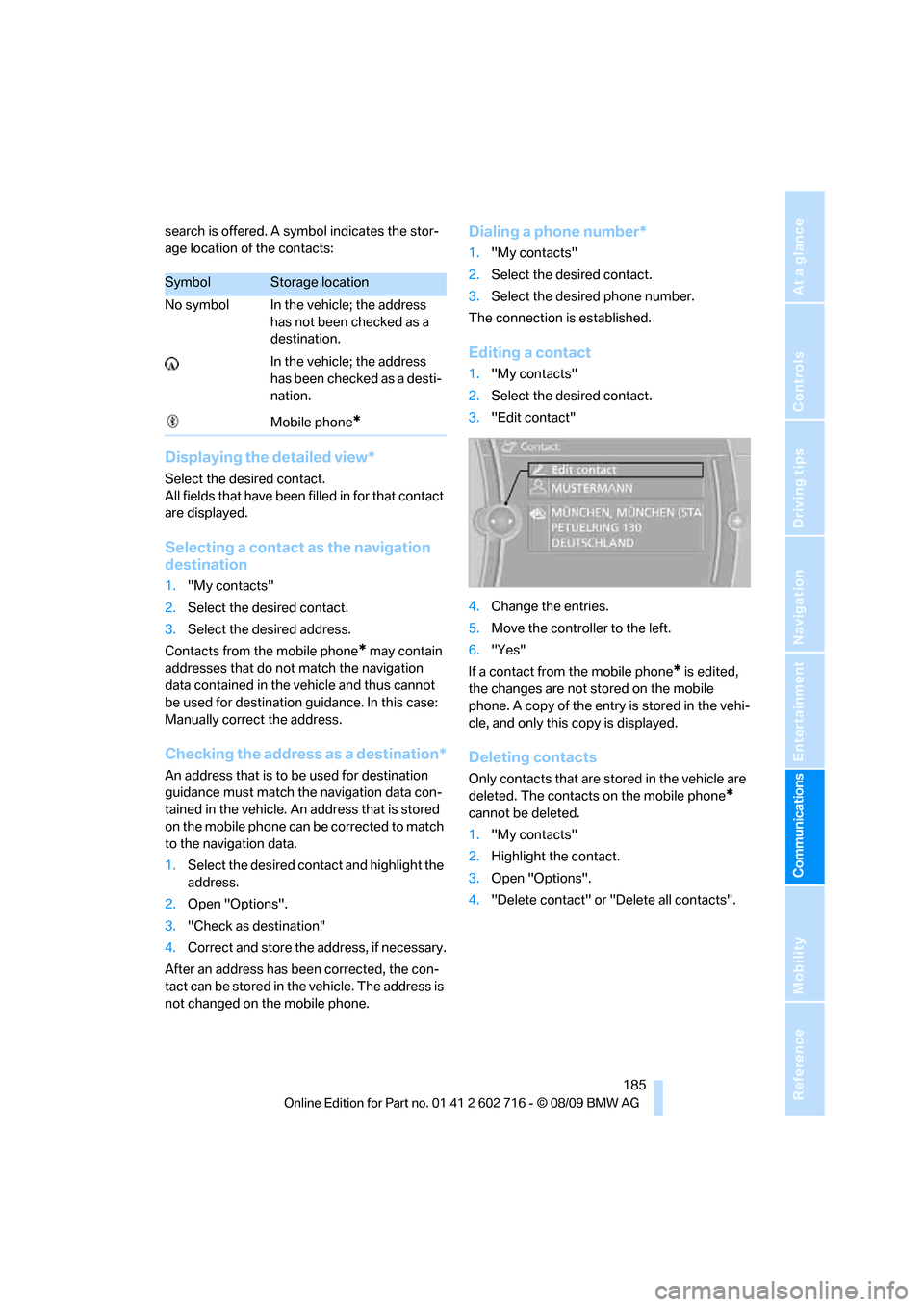
Editing a contact
1."My contacts"
2.Select the desired contact.
3."Edit contact"
4.Change the entries.
5.Move the controller to the left.
6."Yes"
If a contact from the mobile phone
* is edited,
the changes are not stored on the mobile
phone. A copy of the entry is stored in the vehi-
cle, and only this copy is displayed.
Deleting contacts
Only contacts that are stored in the vehicle are
deleted. The contacts on the mobile phone
*
cannot be deleted.
1."My contacts"
2.Highlight the contact.
3.Open "Options".
4."Delete contact" or "Delete all contacts".
SymbolStorage location
No symbol In the vehicle; the address
has not been checked as a
destination.
In the vehicle; the address
has been checked as a desti-
nation.
Mobile phone
*
Page 191 of 252
189
Entertainment
Reference
At a glance
Controls
Driving tips Communications
Navigation
Mobility
3.Select "OK", if necessary.
The BMW Search start page is displayed.
Using BMW Search
To select and display content:
>Turn the controller to highlight an element.
>Press the controller to display an element.
Opening the start page
1.Open "Options".
2."Home"
Loading a new page
1.Open "Options".
2."Reload"
Cancel
1.Open "Options".
2."Cancel loading"
Customer Relations
At a glance
Contact BMW Customer Relations for informa-
tion on all aspects of your vehicle.
Calling Customer Relations
Vehicle equipped with BMW Assist or
TeleService
1."BMW Assist"
2."Customer Relations"
3."Start service"A voice connection is established to BMW Cus-
tomer Relations.
Vehicle not equipped with BMW Assist
or TeleService
1."BMW Assist"
2."Customer Relations"
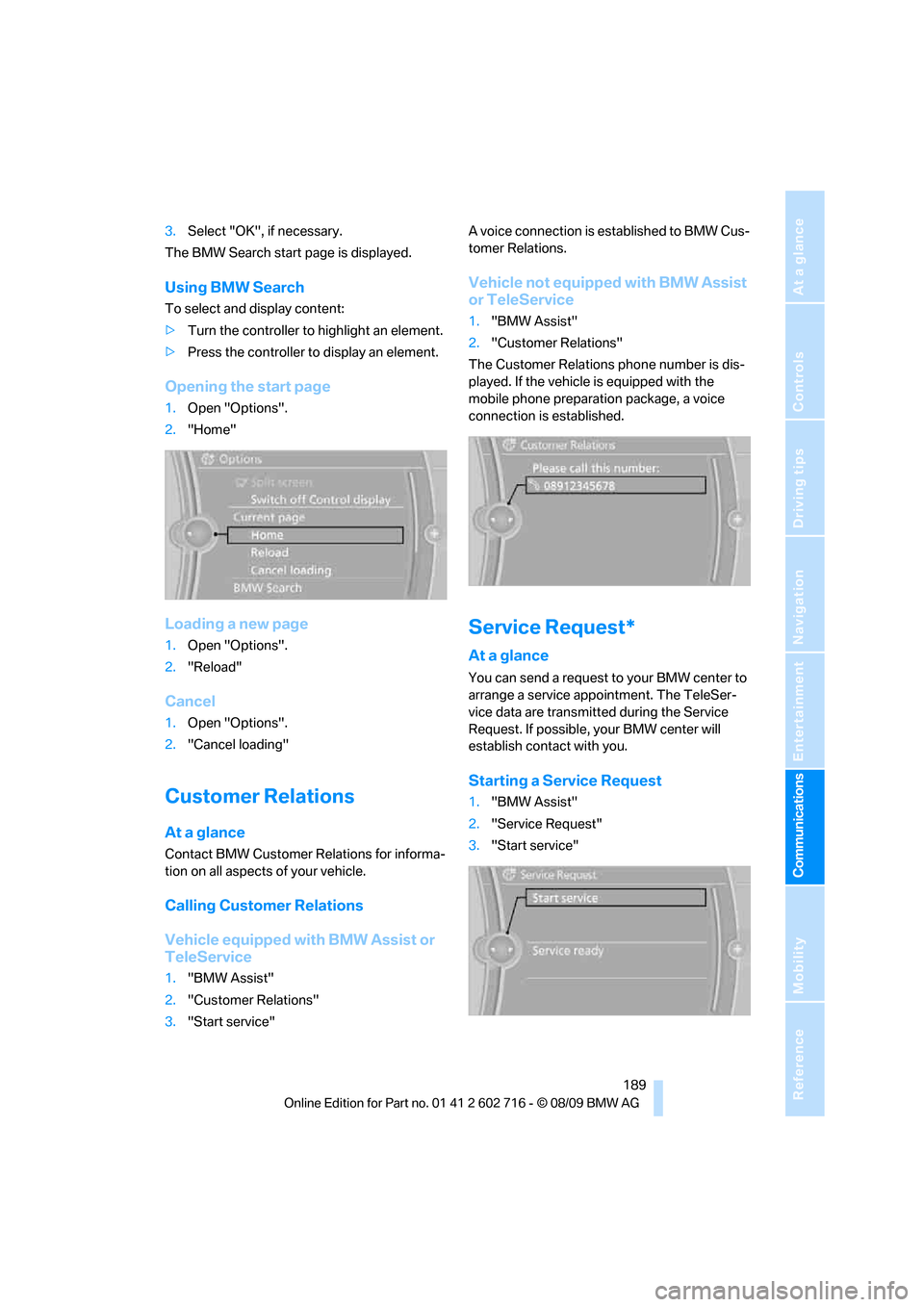
The Customer Relations phone number is dis-
played. If the vehicle is equipped with the
mobile phone preparation package, a voice
connection is established.
Service Request*
At a glance
You can send a request to your BMW center to
arrange a service appointment. The TeleSer-
vice data are transmitted during the Service
Request. If possible, your BMW center will
establish contact with you.
Starting a Service Request
1."BMW Assist"
2."Service Request"
3."Start service"
Page 203 of 252
Mobility
201Reference
At a glance
Controls
Driving tips
Communications
Navigation
Entertainment
Recommended tire brands
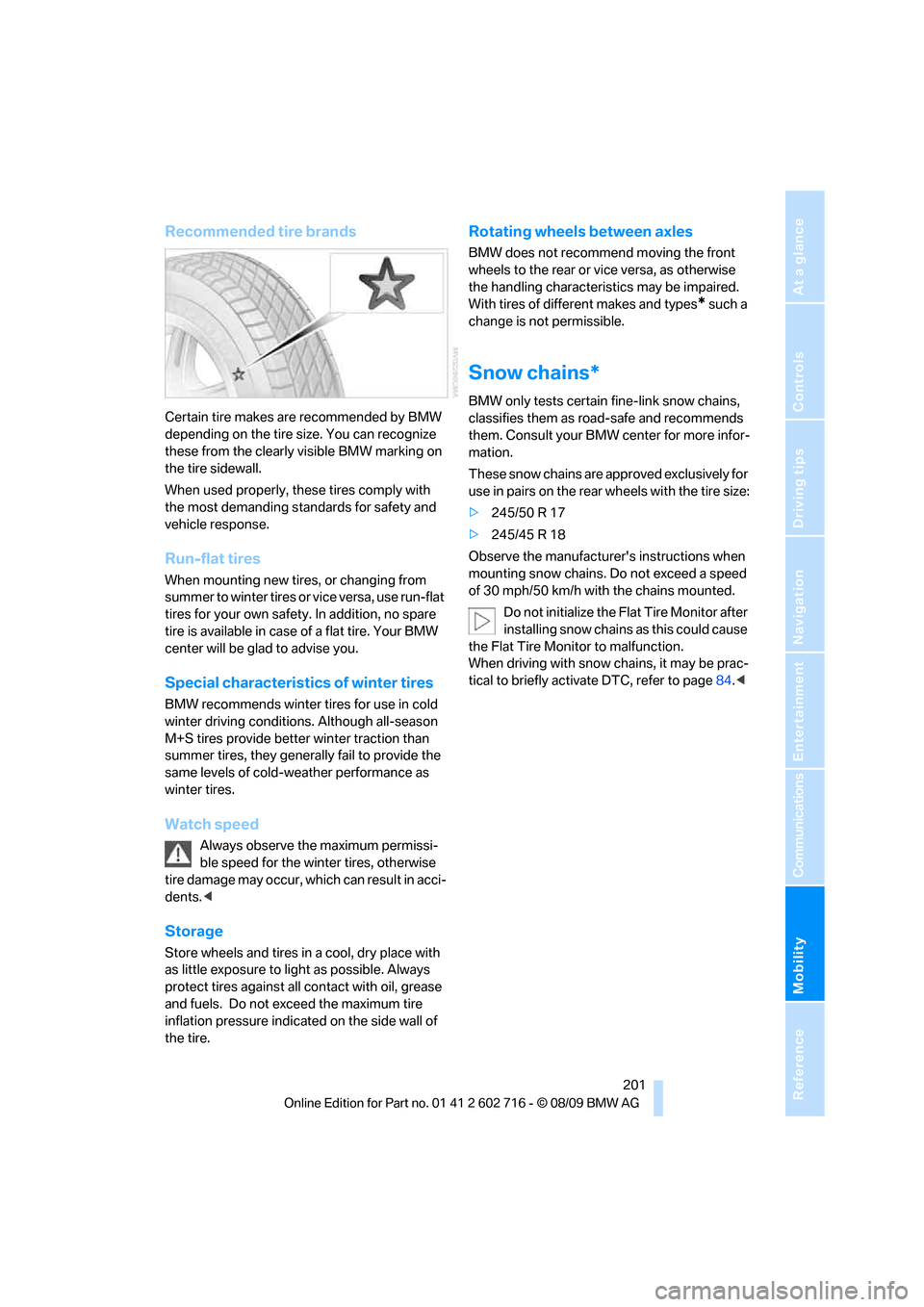
Certain tire makes are recommended by BMW
depending on the tire size. You can recognize
these from the clearly visible BMW marking on
the tire sidewall.
When used properly, these tires comply with
the most demanding standards for safety and
vehicle response.
Run-flat tires
When mounting new tires, or changing from
summer to winter tires or vice versa, use run-flat
tires for your own safety. In addition, no spare
tire is available in case of a flat tire. Your BMW
center will be glad to advise you.
Special characteristics of winter tires
BMW recommends winter tires for use in cold
winter driving conditions. Although all-season
M+S tires provide better winter traction than
summer tires, they generally fail to provide the
same levels of cold-weather performance as
winter tires.
Watch speed
Always observe the maximum permissi-
ble speed for the winter tires, otherwise
tire damage may occur, which can result in acci-
dents.<
Storage
Store wheels and tires in a cool, dry place with
as little exposure to light as possible. Always
protect tires against all contact with oil, grease
and fuels. Do not exceed the maximum tire
inflation pressure indicated on the side wall of
the tire.
Rotating wheels between axles
BMW does not recommend moving the front
wheels to the rear or vice versa, as otherwise
the handling characteristics may be impaired.
With tires of different makes and types
* such a
change is not permissible.
Snow chains*
BMW only tests certain fine-link snow chains,
classifies them as road-safe and recommends
them. Consult your BMW center for more infor-
mation.
These snow chains are approved exclusively for
use in pairs on the rear wheels with the tire size:
>245/50 R 17
>245/45 R 18
Observe the manufacturer's instructions when
mounting snow chains. Do not exceed a speed
of 30 mph/50 km/h with the chains mounted.
Do not initialize the Flat Tire Monitor after
installing snow chains as this could cause
the Flat Tire Monitor to malfunction.
When driving with snow chains, it may be prac-
tical to briefly activate DTC, refer to page84.<
Page 209 of 252
Mobility
207Reference
At a glance
Controls
Driving tips
Communications
Navigation
Entertainment
Socket for OBD Onboard
Diagnostics interface
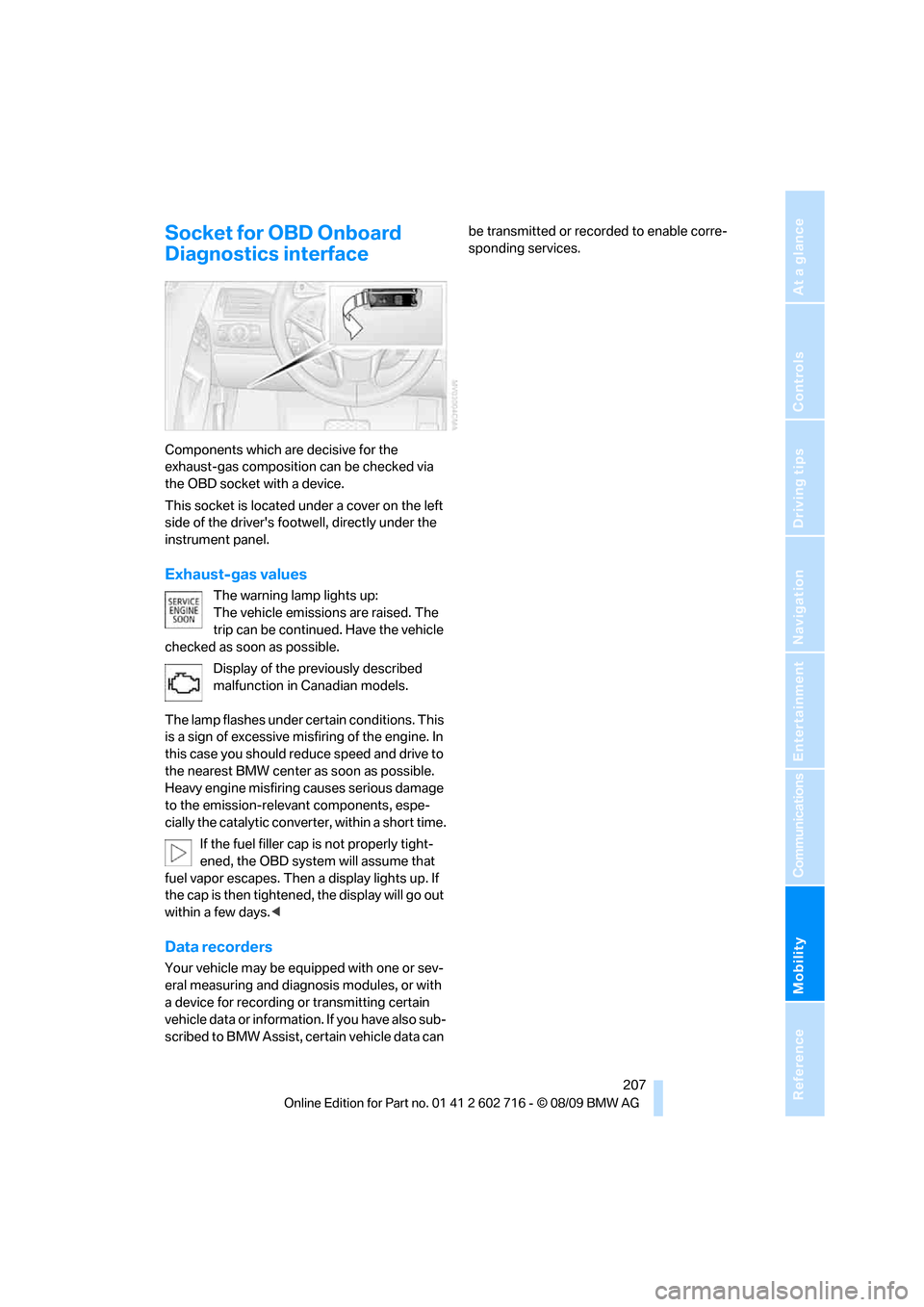
Components which are decisive for the
exhaust-gas composition can be checked via
the OBD socket with a device.
This socket is located under a cover on the left
side of the driver's footwell, directly under the
instrument panel.
Exhaust-gas values
The warning lamp lights up:
The vehicle emissions are raised. The
trip can be continued. Have the vehicle
checked as soon as possible.
Display of the previously described
malfunction in Canadian models.
The lamp flashes under certain conditions. This
is a sign of excessive misfiring of the engine. In
this case you should reduce speed and drive to
the nearest BMW center as soon as possible.
Heavy engine misfiring causes serious damage
to the emission-relevant components, espe-
cially the catalytic converter, within a short time.
If the fuel filler cap is not properly tight-
ened, the OBD system will assume that
fuel vapor escapes. Then a display lights up. If
the cap is then tightened, the display will go out
within a few days.<
Data recorders
Your vehicle may be equipped with one or sev-
eral measuring and diagnosis modules, or with
a device for recording or transmitting certain
vehicle data or information. If you have also sub-
scribed to BMW Assist, certain vehicle data can be transmitted or recorded to enable corre-
sponding services.