buttons BMW 650I COUPE 2010 E63 Owner's Manual
[x] Cancel search | Manufacturer: BMW, Model Year: 2010, Model line: 650I COUPE, Model: BMW 650I COUPE 2010 E63Pages: 252, PDF Size: 8.4 MB
Page 11 of 252
At a glance
This overview of buttons, switches and displays
is intended to familiarize you with your vehicle's
operating environment.
The section will also assist you in becoming
acquainted with the control concepts
and options available for operating
the various systems.
At a glance
Page 13 of 252
At a glance
11Reference
Controls
Driving tips
Communications
Navigation
Entertainment
Mobility
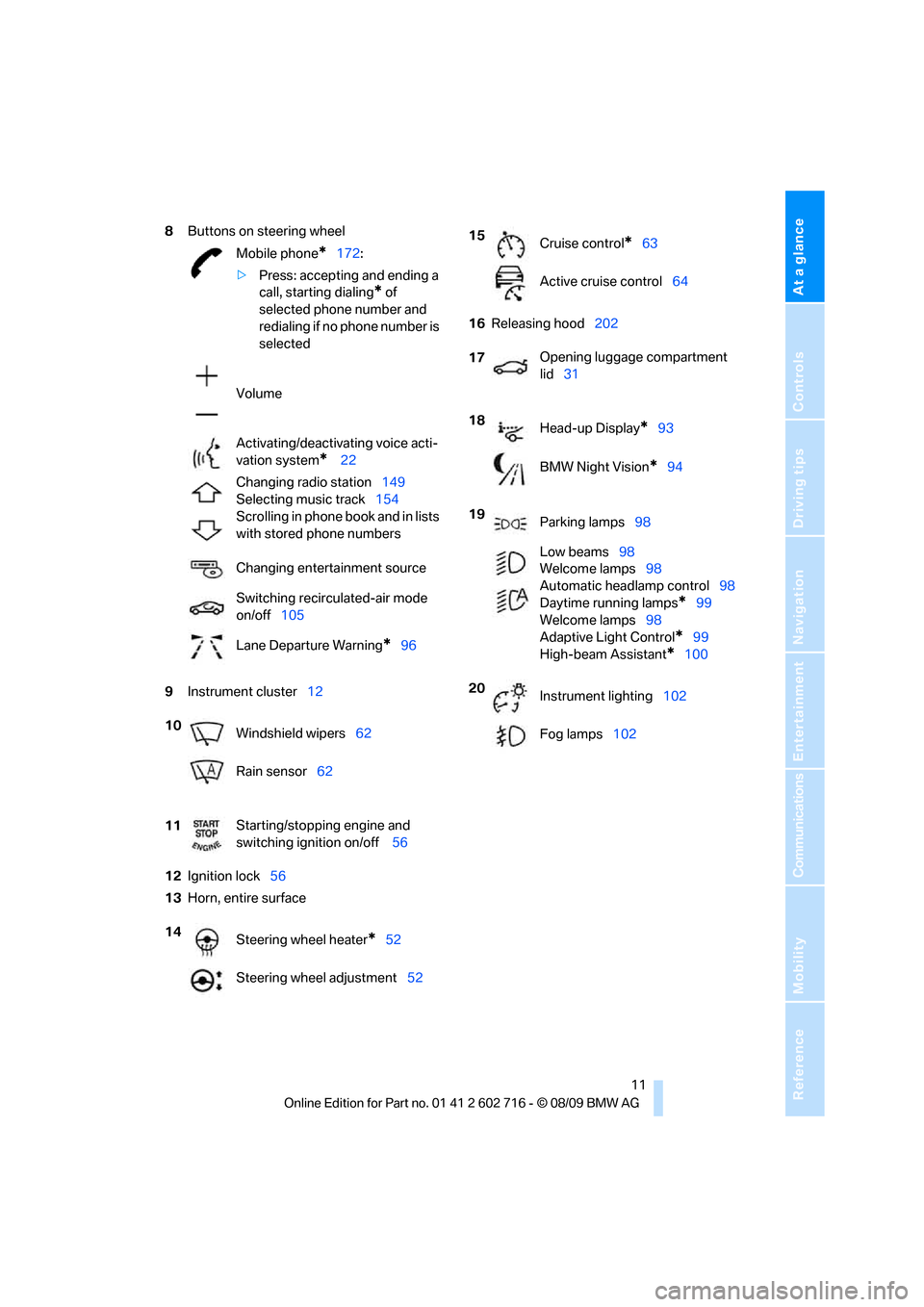
8Buttons on steering wheel
9Instrument cluster12
12Ignition lock56
13Horn, entire surface16Releasing hood202 Mobile phone
*172:
>Press: accepting and ending a
call, starting dialing
* of
selected phone number and
redialing if no phone number is
selected
Volume
Activating/deactivating voice acti-
vation system
* 22
Changing radio station149
Selecting music track154
Scrolling in phone book and in lists
with stored phone numbers
Changing entertainment source
Switching recirculated-air mode
on/off105
Lane Departure Warning
*96
10
Windshield wipers62
Rain sensor62
11Starting/stopping engine and
switching ignition on/off 56
14
Steering wheel heater
*52
Steering wheel adjustment52
15
Cruise control*63
Active cruise control64
17Opening luggage compartment
lid31
18
Head-up Display
*93
BMW Night Vision
*94
19
Parking lamps98
Low beams98
Welcome lamps98
Automatic headlamp control98
Daytime running lamps
*99
Welcome lamps98
Adaptive Light Control
*99
High-beam Assistant
*100
20
Instrument lighting102
Fog lamps102
Page 17 of 252
At a glance
15Reference
Controls
Driving tips
Communications
Navigation
Entertainment
Mobility
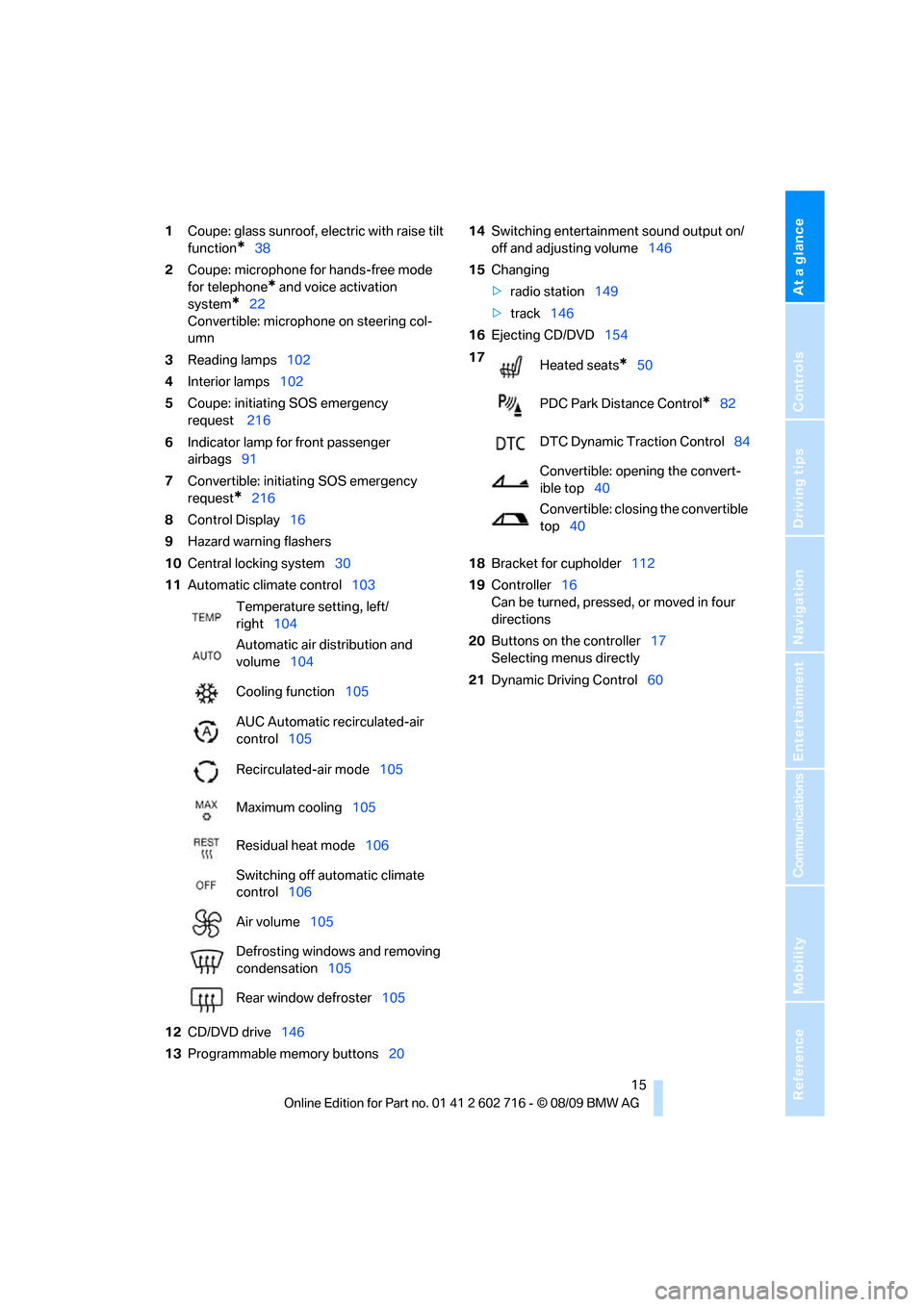
1Coupe: glass sunroof, electric with raise tilt
function
*38
2Coupe: microphone for hands-free mode
for telephone
* and voice activation
system
*22
Convertible: microphone on steering col-
umn
3Reading lamps102
4Interior lamps102
5Coupe: initiating SOS emergency
request
216
6Indicator lamp
for front passenger
airbags91
7Convertible: initiating SOS emergency
request
*216
8Control Display16
9Hazard warning flashers
10Central locking system30
11Automatic climate control103
12CD/DVD drive146
13Programmable memory buttons2014Switching entertainment sound output on/
off and adjusting volume146
15Changing
>radio station149
>track146
16Ejecting CD/DVD154
18Bracket for cupholder112
19Controller16
Can be turned, pressed, or moved in four
directions
20Buttons on the controller17
Selecting menus directly
21Dynamic Driving Control60 Temperature setting, left/
right104
Automatic air distribution and
volume104
Cooling function105
AUC Automatic recirculated-air
control105
Recirculated-air mode105
Maximum cooling105
Residual heat mode106
Switching off automatic climate
control106
Air volume105
Defrosting windows and removing
condensation105
Rear window defroster105
17
Heated seats*50
PDC Park Distance Control
*82
DTC Dynamic Traction Control84
Convertible: opening the convert-
ible top40
Convertible: closing the convertible
top40
Page 18 of 252
iDrive
16
iDrive
iDrive combines the functions of a large number
of switches. This allows these functions to be
operated from a central position. The following
section provides an introduction to basic menu navigation. The control of the individual func-
tions is described in connection with the rele-
vant equipment.
Controls
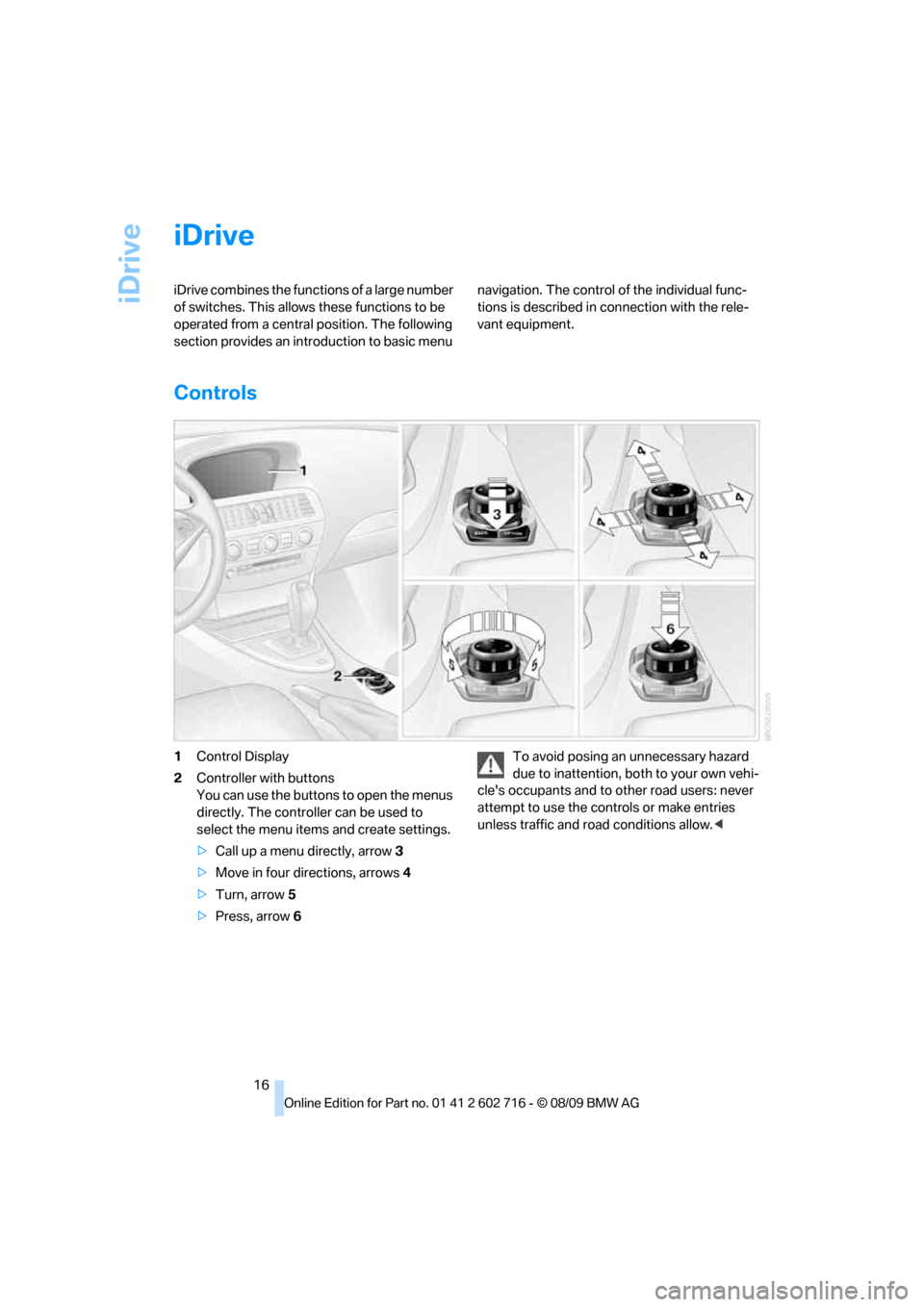
1Control Display
2Controller with buttons
You can use the buttons to open the menus
directly. The controller can be used to
select the menu items and create settings.
>Call up a menu directly, arrow3
>Move in four directions, arrows4
>Turn, arrow5
>Press, arrow6To avoid posing an unnecessary hazard
due to inattention, both to your own vehi-
cle's occupants and to other road users: never
attempt to use the controls or make entries
unless traffic and road conditions allow.<
Page 19 of 252
At a glance
17Reference
Controls
Driving tips
Communications
Navigation
Entertainment
Mobility
Basic operation
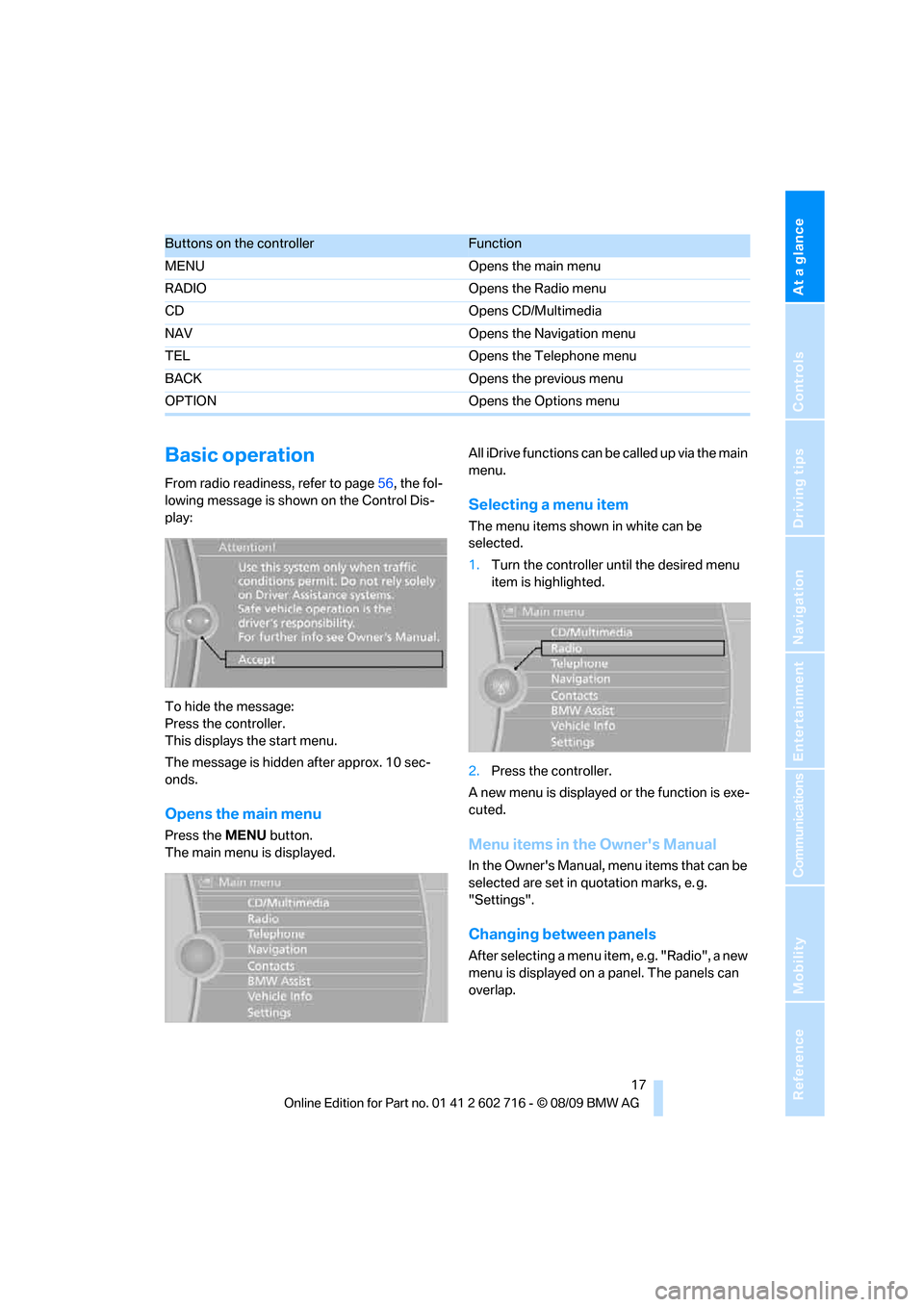
From radio readiness, refer to page56, the fol-
lowing message is shown on the Control Dis-
play:
To hide the message:
Press the controller.
This displays the start menu.
The message is hidden after approx. 10 sec-
onds.
Opens the main menu
Press the MENU button.
The main menu is displayed.All iDrive functions can be called up via the main
menu.
Selecting a menu item
The menu items shown in white can be
selected.
1.Turn the controller until the desired menu
item is highlighted.
2.Press the controller.
A new menu is displayed or the function is exe-
cuted.
Menu items in the Owner's Manual
In the Owner's Manual, menu items that can be
selected are set in quotation marks, e. g.
"Settings".
Changing between panels
After selecting a menu item, e.g. "Radio", a new
menu is displayed on a panel. The panels can
overlap.
Buttons on the controllerFunction
MENU Opens the main menu
RADIO Opens the Radio menu
CD Opens CD/Multimedia
NAV Opens the Navigation menu
TEL Opens the Telephone menu
BACK Opens the previous menu
OPTION Opens the Options menu
Page 22 of 252
iDrive
20
Selecting the display for the split
screen content
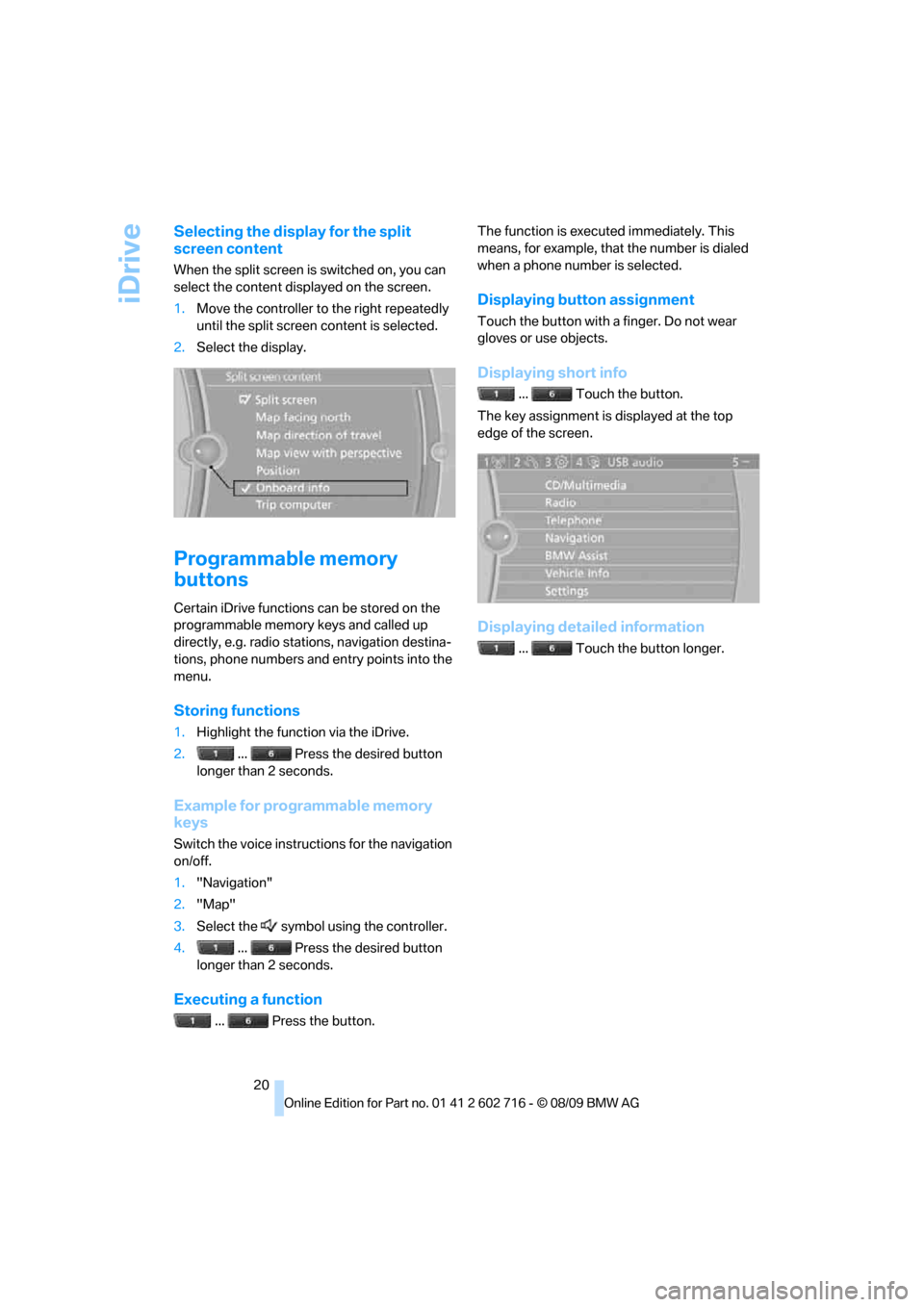
When the split screen is switched on, you can
select the content displayed on the screen.
1.Move the controller to the right repeatedly
until the split screen content is selected.
2.Select the display.
Programmable memory
buttons
Certain iDrive functions can be stored on the
programmable memory keys and called up
directly, e.g. radio stations, navigation destina-
tions, phone numbers and entry points into the
menu.
Storing functions
1.Highlight the function via the iDrive.
2.... Press the desired button
longer than 2 seconds.
Example for programmable memory
keys
Switch the voice instructions for the navigation
on/off.
1."Navigation"
2."Map"
3.Select the symbol using the controller.
4.... Press the desired button
longer than 2 seconds.
Executing a function
... Press the button.The function is executed immediately. This
means, for example, that the number is dialed
when a phone number is selected.
Displaying button assignment
Touch the button with a finger. Do not wear
gloves or use objects.
Displaying short info
... Touch the button.
The key assignment is displayed at the top
edge of the screen.
Displaying detailed information
... Touch the button longer.
Page 29 of 252
Controls
27Reference
At a glance
Driving tips
Communications
Navigation
Entertainment
Mobility
the vehicle is unlocked, the corresponding
remote control is detected and the settings
stored for it are called up and carried out.
This means that you will always find your BMW
set to your own personal settings even if
another person with his/her own remote control
and settings has used the vehicle since the last
time you drove it. The individual settings are
stored for a maximum of four remote controls,
for two with Comfort Access
*.
Personal Profile settings
Details on the settings are provided on the
specified pages.
>Behavior of the central locking system
when unlocking vehicle, refer to page28
>Automatic locking of the vehicle, refer to
page30
>Displays on Control Display:
>12h/24h clock mode, refer to page77
>Date format, refer to page77
>Brightness of the Control Display, refer
to page81
>Units of measure for consumption,
route/distances, temperature and pres-
sure, refer to page74
>Language on the Control Display, refer
to page80
>Lighting settings:
>Triple turn signal activation, refer to
page62
>Welcome lamps, refer to page98
>Pathway lighting, refer to page99
>Daytime running lamps
*, refer to
page99
>High-beam Assistant
*, refer to
page100
>PDC Park Distance Control
*: optical warn-
ing, refer to page82
>Head-up Display
*: selection and brightness
of display, refer to page93
>BMW Night Vision
*: display settings, refer
to page96>Automatic climate control: for AUTO pro-
gram and intensity, cooling function, and
automatic recirculated air control/recircu-
lated air mode, temperature, air distribution,
temperature in the upper body region, refer
to page104
>Navigation system
*: voice instructions for
destination guidance, refer to page137
In addition, the following, most recently
selected settings are recalled during unlocking:
>Programmable memory buttons: selecting
stored functions, refer to page20
>Driver's seat, exterior-mirror and steering-
wheel position, refer to page47
>Audio sources: volume and tone settings,
refer to page146
>Radio: display of stored stations, refer to
page151
>Phone: adjusting volume, refer to page175
Central locking system
The concept
The central locking system functions when the
driver's door is closed.
The system simultaneously engages and
releases the locks on the following:
>Doors
>Compartment in the front center console
>Luggage compartment lid
>Fuel filler flap
Operating from outside
>Via the remote control
>Using door lock
>With Comfort Access
* via the door handles
These actions operate the anti-theft system
* at
the same time. It prevents the doors from being
unlocked using the lock buttons or door han-
dles. The interior lamps and the courtesy
lamps
* are also switched on and off with the
remote control. The alarm system
is armed/dis-
armed at the same time.
Page 36 of 252
Opening and closing
34 objects, e.g. leaves, can trigger false alarms,
refer to Avoiding unintentional alarms.
Avoiding unintentional alarms
The tilt alarm sensor and interior motion sensor
may be switched off at the same time. This pre-
vents unintentional alarms, e.g. in the following
situations:
>In two-level garages
>When transporting on car-carrying trains,
by sea or on a trailer
>When animals are to remain in the vehicle
Switching off tilt alarm sensor and
interior motion sensor
Press the button on the remote control
again as soon as the vehicle is locked.
The indicator lamp lights up briefly and then
flashes continuously. The tilt alarm sensor and
the interior motion sensor are switched off until
the next time the vehicle is unlocked and subse-
quently locked again.
Comfort Access*
Comfort Access allows you to access your vehi-
cle without having to hold the remote control in
your hand. It is sufficient to carry the remote
control with you, e.g. in your jacket pocket. The
vehicle automatically detects the associated
remote control in the immediate vicinity or in
the interior.
Comfort Access supports the following func-
tions:
>Unlocking/locking vehicle
>Convenient closing with Coupe
>Opening luggage compartment lid sepa-
rately
>Starting engine
Functional requirement
>The vehicle or the luggage compartment lid
can only be locked if the vehicle detects that
the remote control you are carrying is out-
side the vehicle.>The next unlocking and locking cycle is not
possible until after approx. 2 seconds.
>The engine can only be started if the vehicle
detects that the remote control is located in
the vehicle.
Comparison with ordinary remote
control
You can control the functions mentioned previ-
ously with the Comfort Access or by pressing
the buttons on the remote control. Therefore,
please familiarize yourself with the information
on opening and closing beginning on page26
beforehand.
The special features when using Comfort
Access are described in the following.
Should a short delay occur when opening
or closing the windows, the glass sunroof
or the convertible top, the system is checking
whether a remote control is located in the vehi-
cle. Please repeat opening or closing if neces-
sary.<
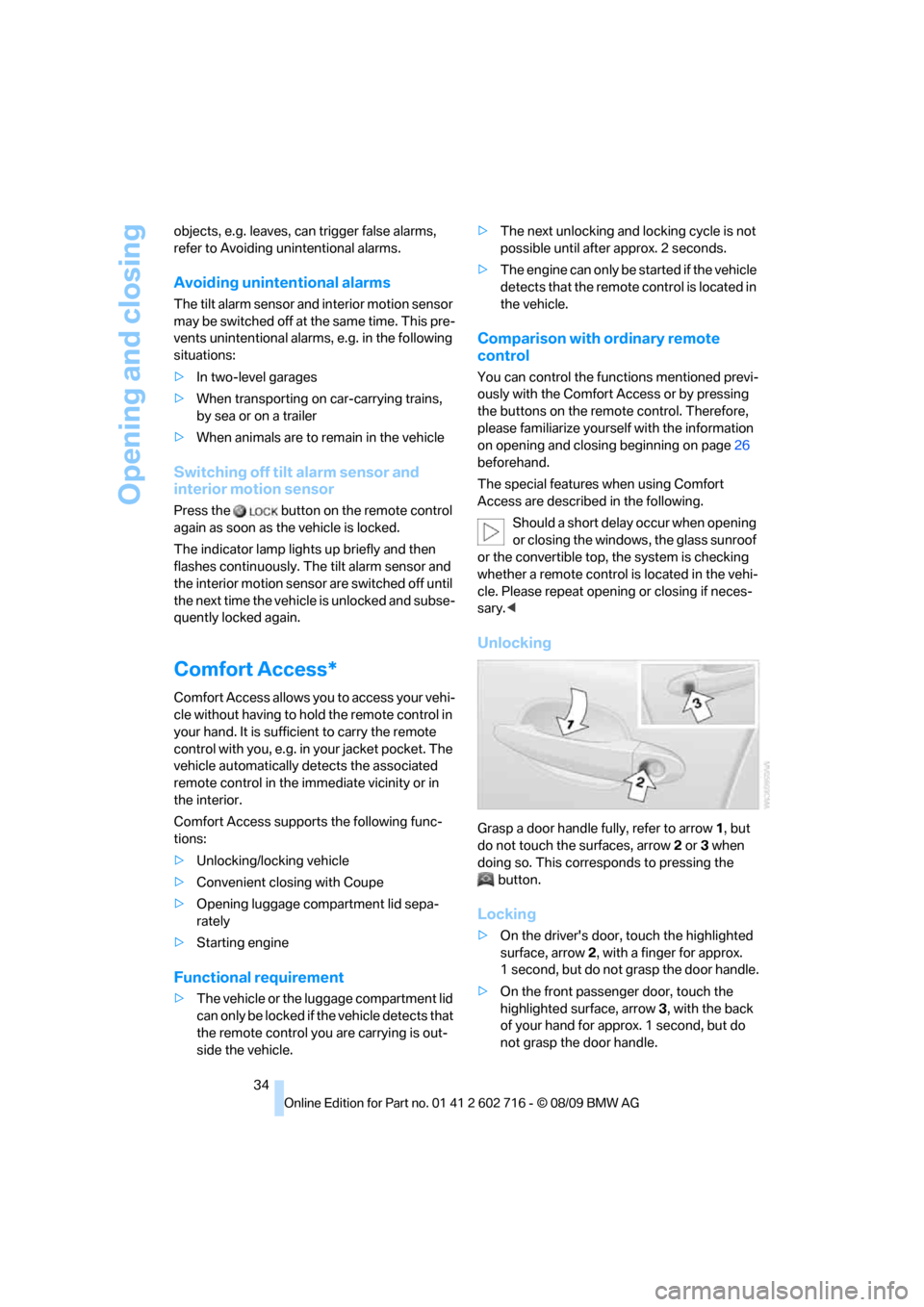
Unlocking
Grasp a door handle fully, refer to arrow1, but
do not touch the surfaces, arrow2 or 3 when
doing so. This corresponds to pressing the
button.
Locking
>On the driver's door, touch the highlighted
surface, arrow2, with a finger for approx.
1 second, but do not grasp the door handle.
>On the front passenger door, touch the
highlighted surface, arrow3, with the back
of your hand for approx. 1 second, but do
not grasp the door handle.
Page 37 of 252
Controls
35Reference
At a glance
Driving tips
Communications
Navigation
Entertainment
Mobility
This corresponds to pressing the
button.
Please make sure that the ignition and all
electronic systems/consumers are
switched off before locking to save the bat-
tery.<
Coupe: Convenient closing
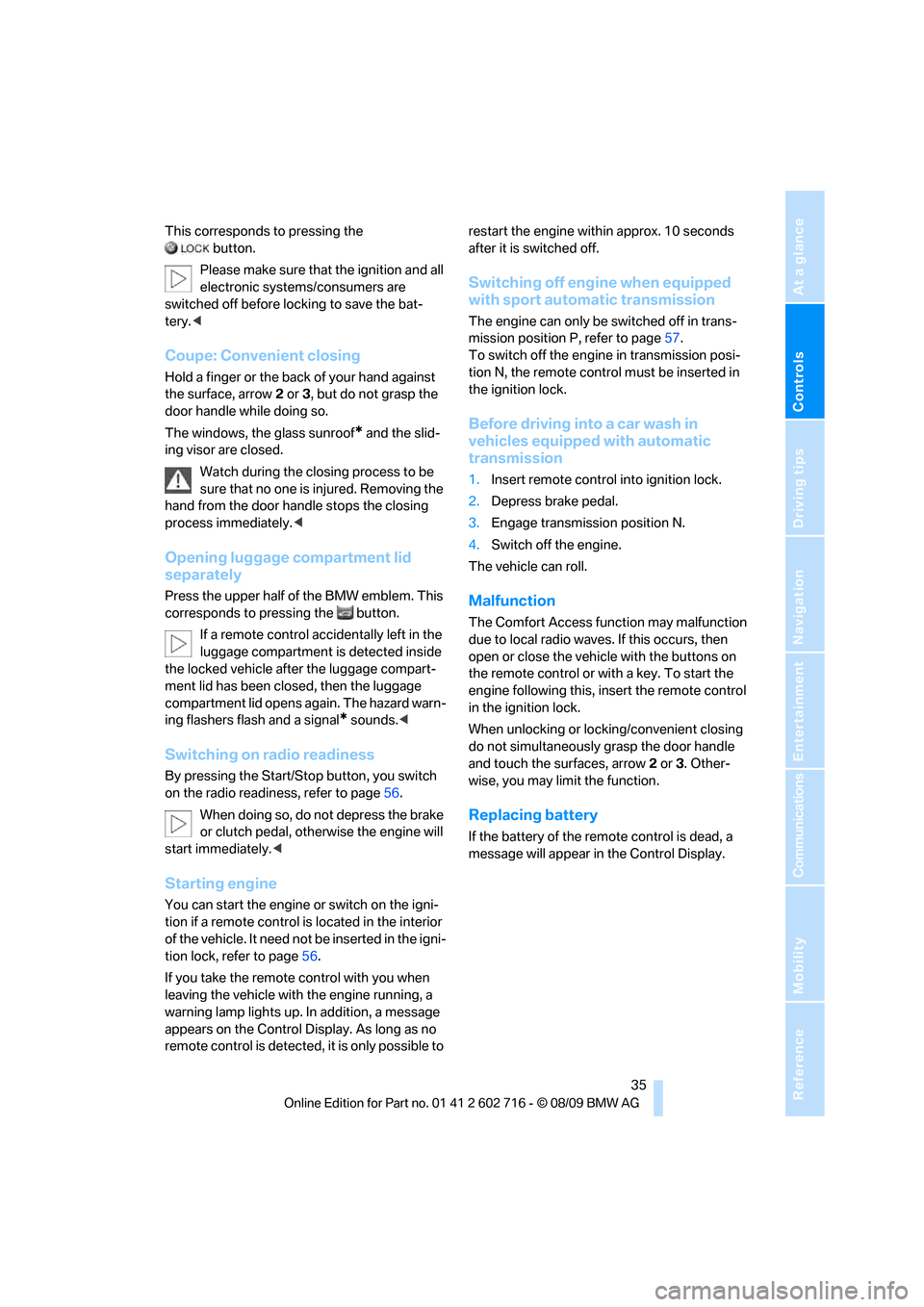
Hold a finger or the back of your hand against
the surface, arrow2 or 3, but do not grasp the
door handle while doing so.
The windows, the glass sunroof
* and the slid-
ing visor are closed.
Watch during the closing process to be
sure that no one is injured. Removing the
hand from the door handle stops the closing
process immediately.<
Opening luggage compartment lid
separately
Press the upper half of the BMW emblem. This
corresponds to pressing the button.
If a remote control accidentally left in the
luggage compartment is detected inside
the locked vehicle after the luggage compart-
ment lid has been closed, then the luggage
compartment lid opens again. The hazard warn-
ing flashers flash and a signal
* sounds.<
Switching on radio readiness
By pressing the Start/Stop button, you switch
on the radio readiness, refer to page56.
When doing so, do not depress the brake
or clutch pedal, otherwise the engine will
start immediately.<
Starting engine
You can start the engine or switch on the igni-
tion if a remote control is located in the interior
of the vehicle. It need not be inserted in the igni-
tion lock, refer to page56.
If you take the remote control with you when
leaving the vehicle with the engine running, a
warning lamp lights up. In addition, a message
appears on the Control Display. As long as no
remote control is detected, it is only possible to restart the engine within approx. 10 seconds
after it is switched off.
Switching off engine when equipped
with sport automatic transmission
The engine can only be switched off in trans-
mission position P, refer to page57.
To switch off the engine in transmission posi-
tion N, the remote control must be inserted in
the ignition lock.
Before driving into a car wash in
vehicles equipped with automatic
transmission
1.Insert remote control into ignition lock.
2.Depress brake pedal.
3.Engage transmission position N.
4.Switch off the engine.
The vehicle can roll.
Malfunction
The Comfort Access function may malfunction
due to local radio waves. If this occurs, then
open or close the vehicle with the buttons on
the remote control or with a key. To start the
engine following this, insert the remote control
in the ignition lock.
When unlocking or locking/convenient closing
do not simultaneously grasp the door handle
and touch the surfaces, arrow2 or 3. Other-
wise, you may limit the function.
Replacing battery
If the battery of the remote control is dead, a
message will appear in the Control Display.
Page 43 of 252
Controls
41Reference
At a glance
Driving tips
Communications
Navigation
Entertainment
Mobility
Interruption
The automatic sequence of movements is
interrupted if the button for top operation is
released. The sequence can be continued in
the desired direction by pressing the appropri-
ate button.
If the opening or closing action is interrupted for
a longer period, the convertible top remains in
that position for approx. 15 minutes before it
slowly moves to a stable position.
A convertible top which is not completely
opened or closed presents a danger.
Do not interrupt and continue the closing action
several times in succession; otherwise, the top
mechanism can be damaged.<
If the convertible top is not completely
open or closed, then the luggage com-
partment lid cannot be opened.<
Convenient opening and closing with
remote control and via door lock
Refer to pages28 and30.
Closing manually
Only close the convertible top manually if
absolutely necessary; never open it man-
ually. The convertible top compartment lid can-
not be locked in the event of an electrical mal-
function and would open while the vehicle is
being driven.
Improper handling can lead to damage.<
Before closing
1.Open luggage compartment lid.
2.Take the Allen wrench and the screwdriver
from the onboard tool kit, refer to page212.
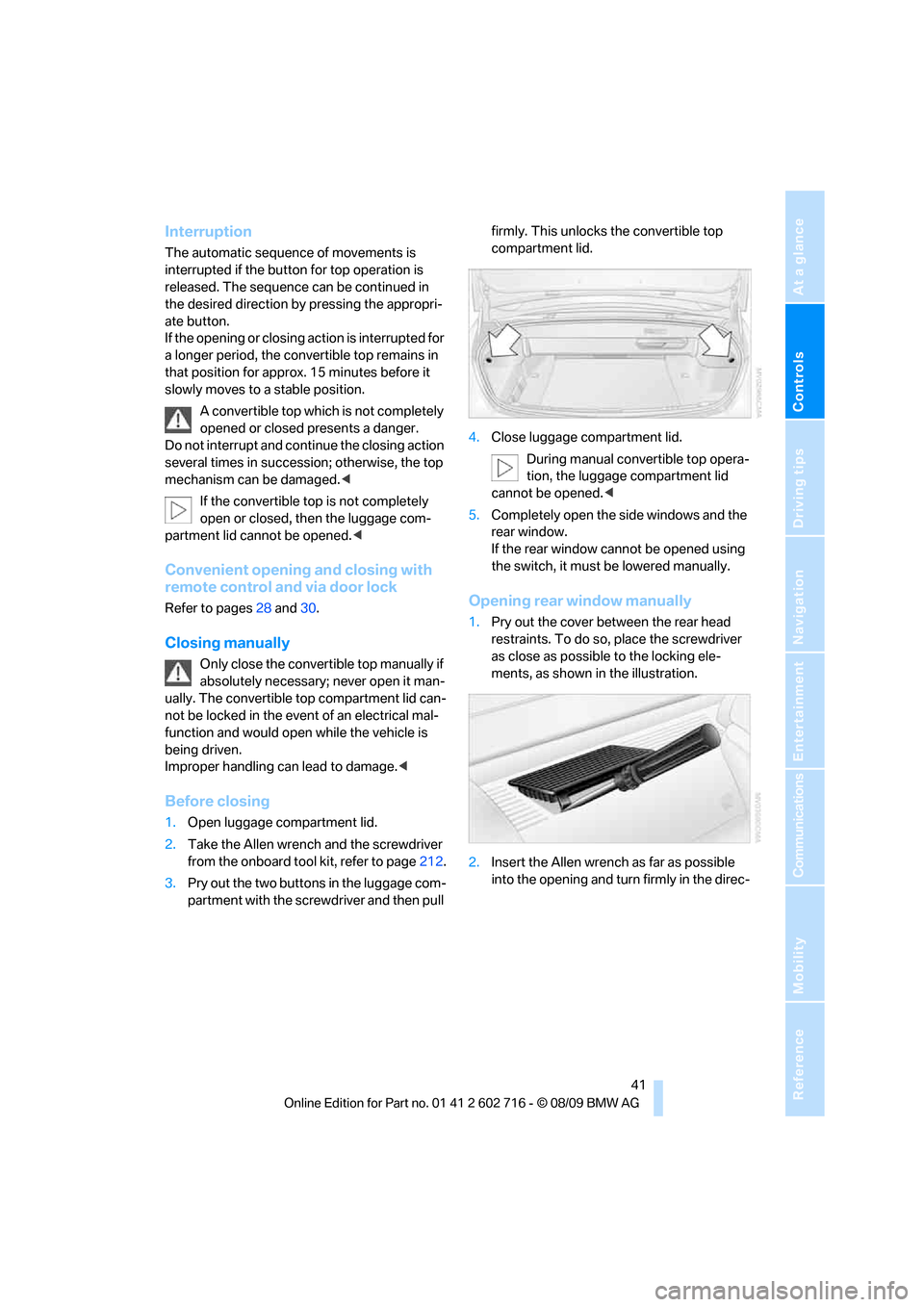
3.Pry out the two buttons in the luggage com-
partment with the screwdriver and then pull firmly. This unlocks the convertible top
compartment lid.
4.Close luggage compartment lid.
During manual convertible top opera-
tion, the luggage compartment lid
cannot be opened.<
5.Completely open the side windows and the
rear window.
If the rear window cannot be opened using
the switch, it must be lowered manually.
Opening rear window manually
1.Pry out the cover between the rear head
restraints. To do so, place the screwdriver
as close as possible to the locking ele-
ments, as shown in the illustration.
2.Insert the Allen wrench as far as possible
into the opening and turn firmly in the direc-