display BMW 650I COUPE&CONVERTIBLE 2006 Manual Online
[x] Cancel search | Manufacturer: BMW, Model Year: 2006, Model line: 650I COUPE&CONVERTIBLE, Model: BMW 650I COUPE&CONVERTIBLE 2006Pages: 242, PDF Size: 8.47 MB
Page 153 of 242
Radio
152 the routine weather news and transmits special
warning messages instead. If you have a ques-
tion about NOAA Weather Radio, please con-
tact the nearest office of the National Weather
Service. Details are also provided on the Inter-
net at www.nws.noaa.gov.
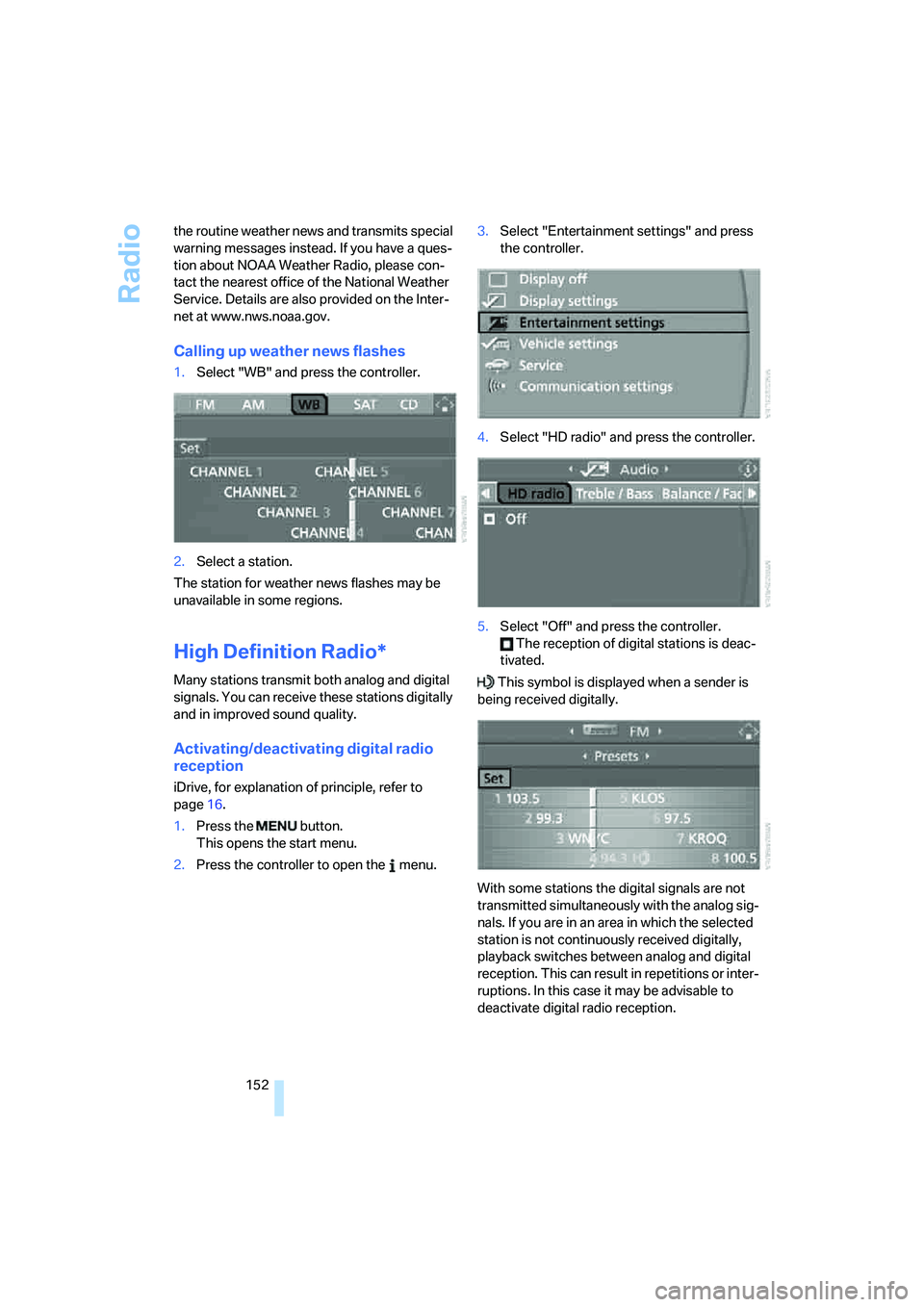
Calling up weather news flashes
1.Select "WB" and press the controller.
2.Select a station.
The station for weather news flashes may be
unavailable in some regions.
High Definition Radio*
Many stations transmit both analog and digital
signals. You can receive these stations digitally
and in improved sound quality.
Activating/deactivating digital radio
reception
iDrive, for explanation of principle, refer to
page16.
1.Press the button.
This opens the start menu.
2.Press the controller to open the menu.3.Select "Entertainment settings" and press
the controller.
4.Select "HD radio" and press the controller.
5.Select "Off" and press the controller.
The reception of digital stations is deac-
tivated.
This symbol is displayed when a sender is
being received digitally.
With some stations the digital signals are not
transmitted simultaneously with the analog sig-
nals. If you are in an area in which the selected
station is not continuously received digitally,
playback switches between analog and digital
reception. This can result in repetitions or inter-
ruptions. In this case it may be advisable to
deactivate digital radio reception.
Page 154 of 242
Navigation
Entertainment
Driving tips
153Reference
At a glance
Controls
Communications
Mobility
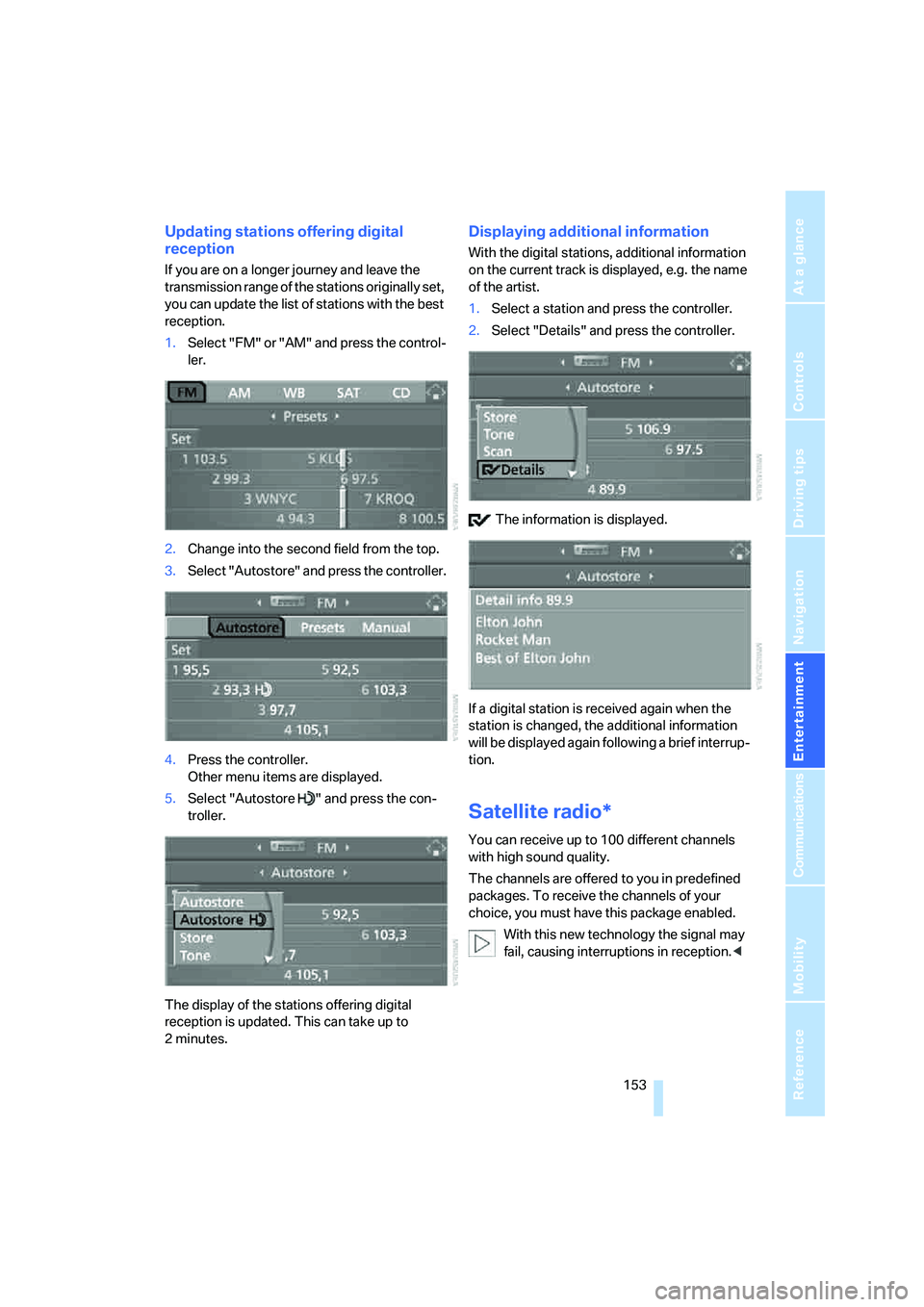
Updating stations offering digital
reception
If you are on a longer journey and leave the
transmission range of the stations originally set,
you can update the list of stations with the best
reception.
1.Select "FM" or "AM" and press the control-
ler.
2.Change into the second field from the top.
3.Select "Autostore" and press the controller.
4.Press the controller.
Other menu items are displayed.
5.Select "Autostore " and press the con-
troller.
The display of the stations offering digital
reception is updated. This can take up to
2minutes.
Displaying additional information
With the digital stations, additional information
on the current track is displayed, e.g. the name
of the artist.
1.Select a station and press the controller.
2.Select "Details" and press the controller.
The information is displayed.
If a digital station is received again when the
station is changed, the additional information
will be displayed again following a brief interrup-
tion.
Satellite radio*
You can receive up to 100 different channels
with high sound quality.
The channels are offered to you in predefined
packages. To receive the channels of your
choice, you must have this package enabled.
With this new technology the signal may
fail, causing interruptions in reception.<
Page 155 of 242
Radio
154
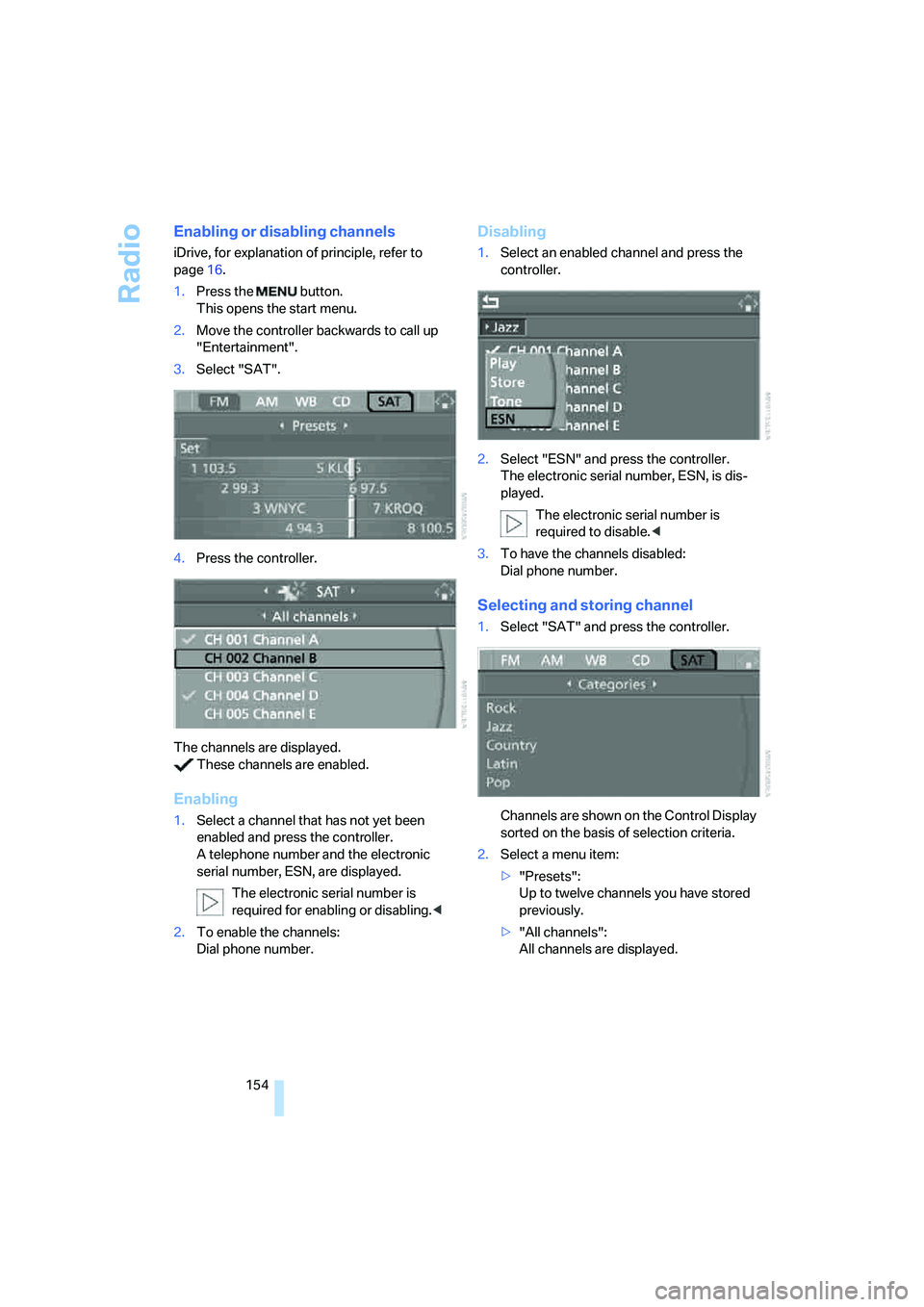
Enabling or disabling channels
iDrive, for explanation of principle, refer to
page16.
1.Press the button.
This opens the start menu.
2.Move the controller backwards to call up
"Entertainment".
3.Select "SAT".
4.Press the controller.
The channels are displayed.
These channels are enabled.
Enabling
1.Select a channel that has not yet been
enabled and press the controller.
A telephone number and the electronic
serial number, ESN, are displayed.
The electronic serial number is
required for enabling or disabling.<
2.To enable the channels:
Dial phone number.
Disabling
1.Select an enabled channel and press the
controller.
2.Select "ESN" and press the controller.
The electronic serial number, ESN, is dis-
played.
The electronic serial number is
required to disable.<
3.To have the channels disabled:
Dial phone number.
Selecting and storing channel
1.Select "SAT" and press the controller.
Channels are shown on the Control Display
sorted on the basis of selection criteria.
2.Select a menu item:
>"Presets":
Up to twelve channels you have stored
previously.
>"All channels":
All channels are displayed.
Page 156 of 242
Navigation
Entertainment
Driving tips
155Reference
At a glance
Controls
Communications
Mobility
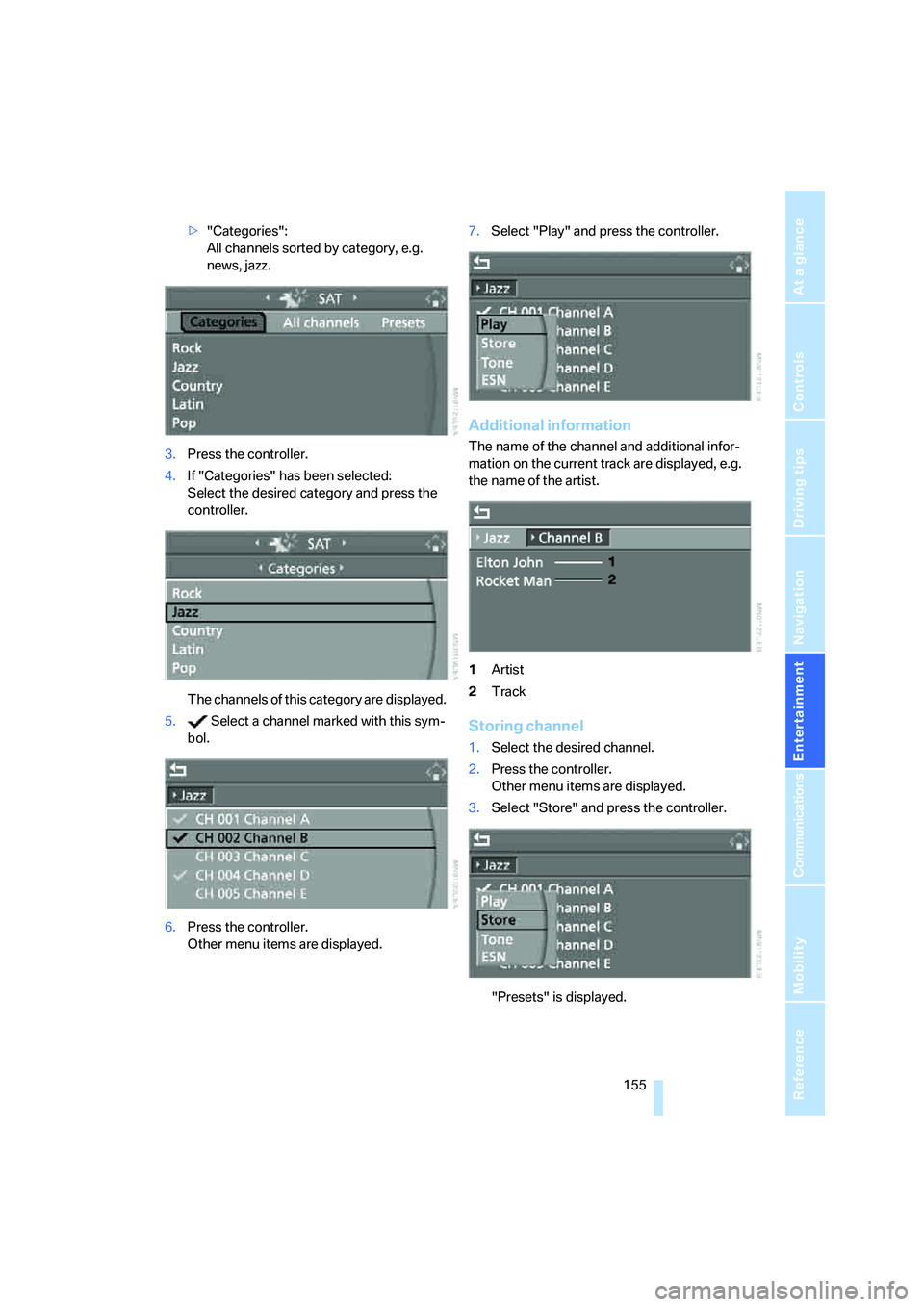
>"Categories":
All channels sorted by category, e.g.
news, jazz.
3.Press the controller.
4.If "Categories" has been selected:
Select the desired category and press the
controller.
The channels of this category are displayed.
5. Select a channel marked with this sym-
bol.
6.Press the controller.
Other menu items are displayed.7.Select "Play" and press the controller.
Additional information
The name of the channel and additional infor-
mation on the current track are displayed, e.g.
the name of the artist.
1Artist
2Track
Storing channel
1.Select the desired channel.
2.Press the controller.
Other menu items are displayed.
3.Select "Store" and press the controller.
"Presets" is displayed.
Page 157 of 242
Radio
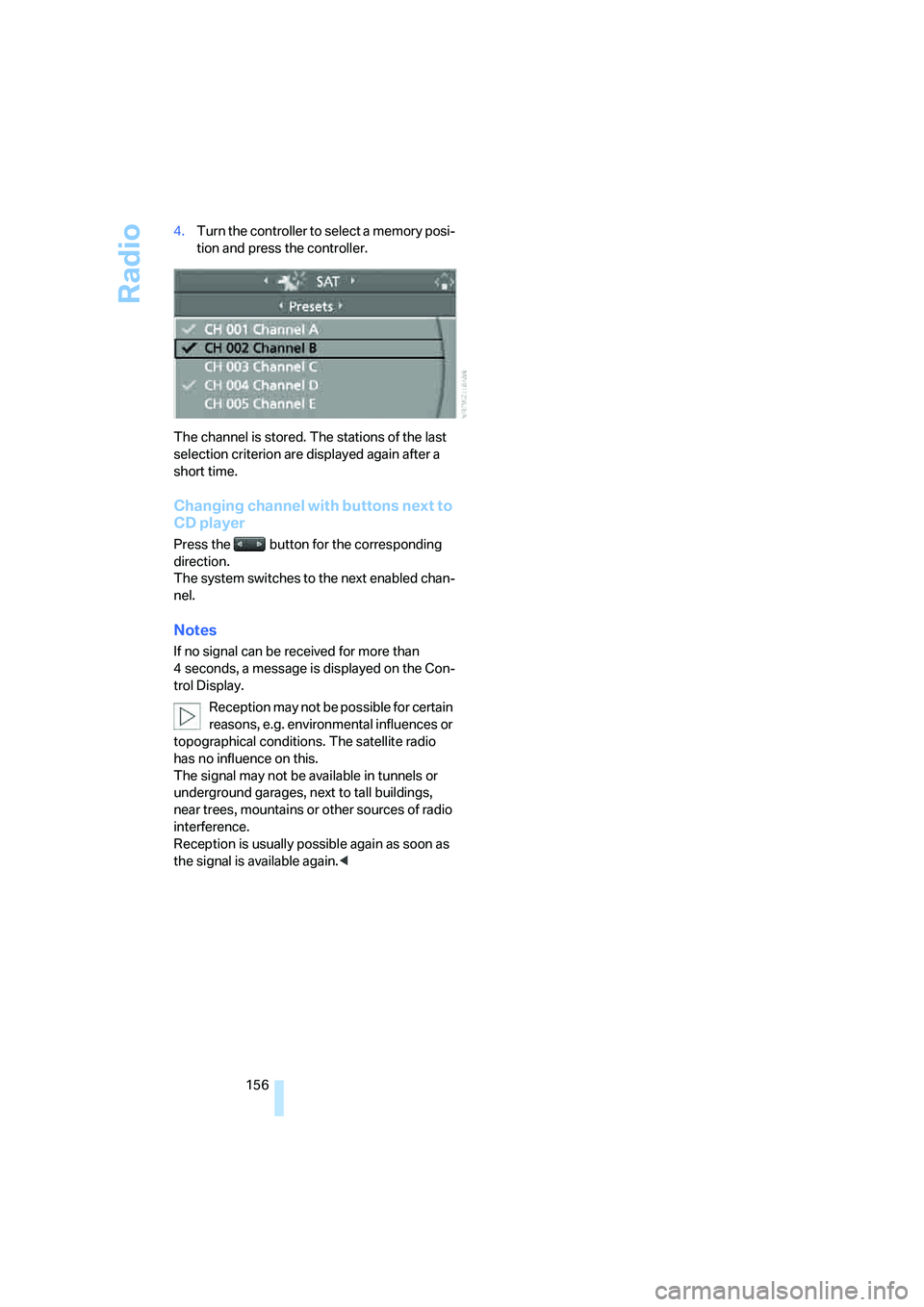
156 4.Turn the controller to select a memory posi-
tion and press the controller.
The channel is stored. The stations of the last
selection criterion are displayed again after a
short time.
Changing channel with buttons next to
CD player
Press the button for the corresponding
direction.
The system switches to the next enabled chan-
nel.
Notes
If no signal can be received for more than
4 seconds, a message is displayed on the Con-
trol Display.
Reception may not be possible for certain
reasons, e.g. environmental influences or
topographical conditions. The satellite radio
has no influence on this.
The signal may not be available in tunnels or
underground garages, next to tall buildings,
near trees, mountains or other sources of radio
interference.
Reception is usually possible again as soon as
the signal is available again.<
Page 159 of 242
CD player and CD changer
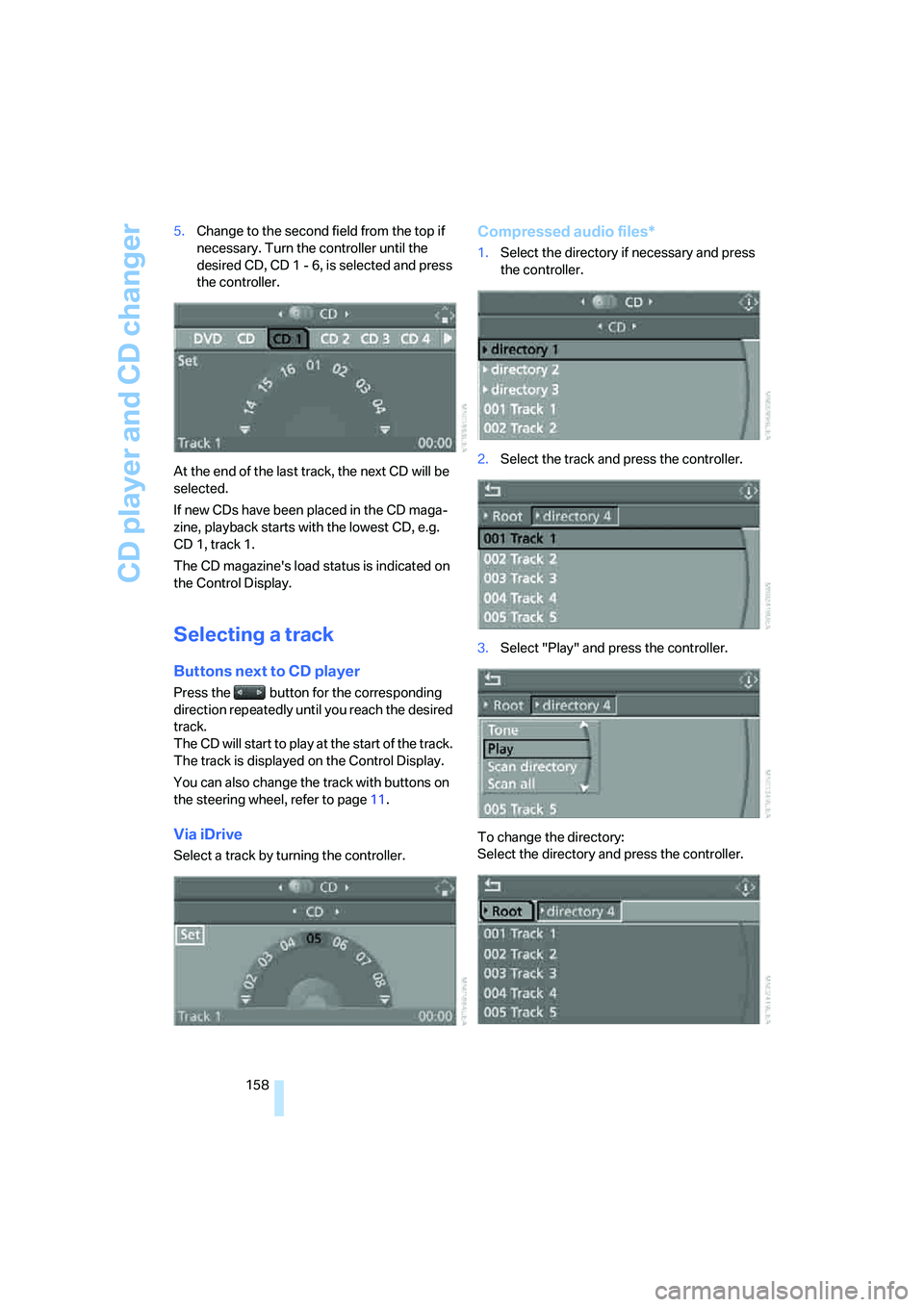
158 5.Change to the second field from the top if
necessary. Turn the controller until the
desired CD, CD 1 - 6, is selected and press
the controller.
At the end of the last track, the next CD will be
selected.
If new CDs have been placed in the CD maga-
zine, playback starts with the lowest CD, e.g.
CD 1, track 1.
The CD magazine's load status is indicated on
the Control Display.
Selecting a track
Buttons next to CD player
Press the button for the corresponding
direction repeatedly until you reach the desired
track.
The CD will start to play at the start of the track.
The track is displayed on the Control Display.
You can also change the track with buttons on
the steering wheel, refer to page11.
Via iDrive
Select a track by turning the controller.
Compressed audio files*
1.Select the directory if necessary and press
the controller.
2.Select the track and press the controller.
3.Select "Play" and press the controller.
To change the directory:
Select the directory and press the controller.
Page 160 of 242
Navigation
Entertainment
Driving tips
159Reference
At a glance
Controls
Communications
Mobility
To exit from the menu:
Select the arrow and press the controller.
Displaying information on track*
With compressed audio files, you can display
possibly included information about the current
track, e.g. the name of the artist.
1.Press the controller.
2.Select "Details" and press the controller.
The information about the current track is dis-
played.
The setting is stored for the remote control cur-
rently in use.
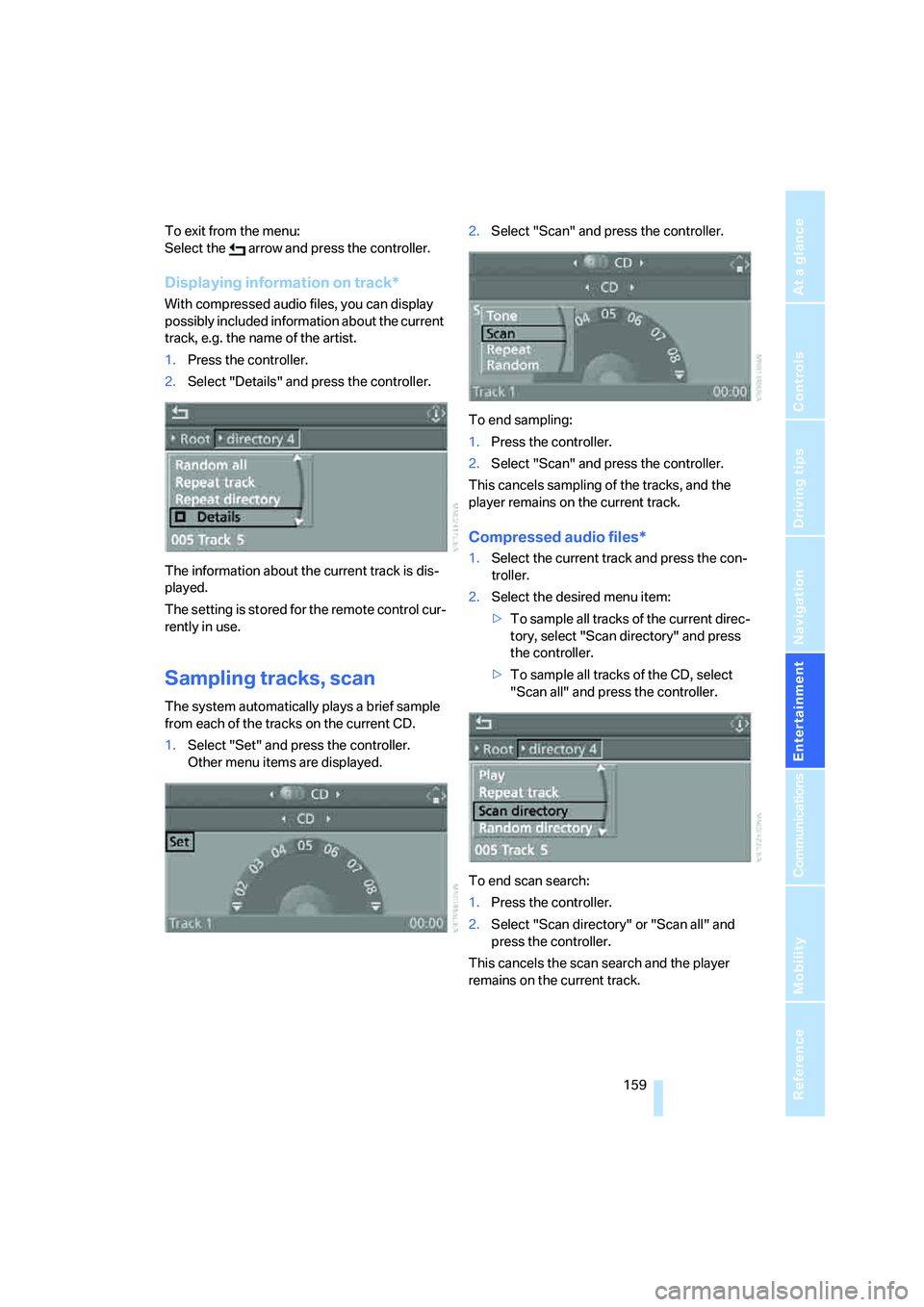
Sampling tracks, scan
The system automatically plays a brief sample
from each of the tracks on the current CD.
1.Select "Set" and press the controller.
Other menu items are displayed.2.Select "Scan" and press the controller.
To end sampling:
1.Press the controller.
2.Select "Scan" and press the controller.
This cancels sampling of the tracks, and the
player remains on the current track.
Compressed audio files*
1.Select the current track and press the con-
troller.
2.Select the desired menu item:
>To sample all tracks of the current direc-
tory, select "Scan directory" and press
the controller.
>To sample all tracks of the CD, select
"Scan all" and press the controller.
To end scan search:
1.Press the controller.
2.Select "Scan directory" or "Scan all" and
press the controller.
This cancels the scan search and the player
remains on the current track.
Page 161 of 242
CD player and CD changer
160
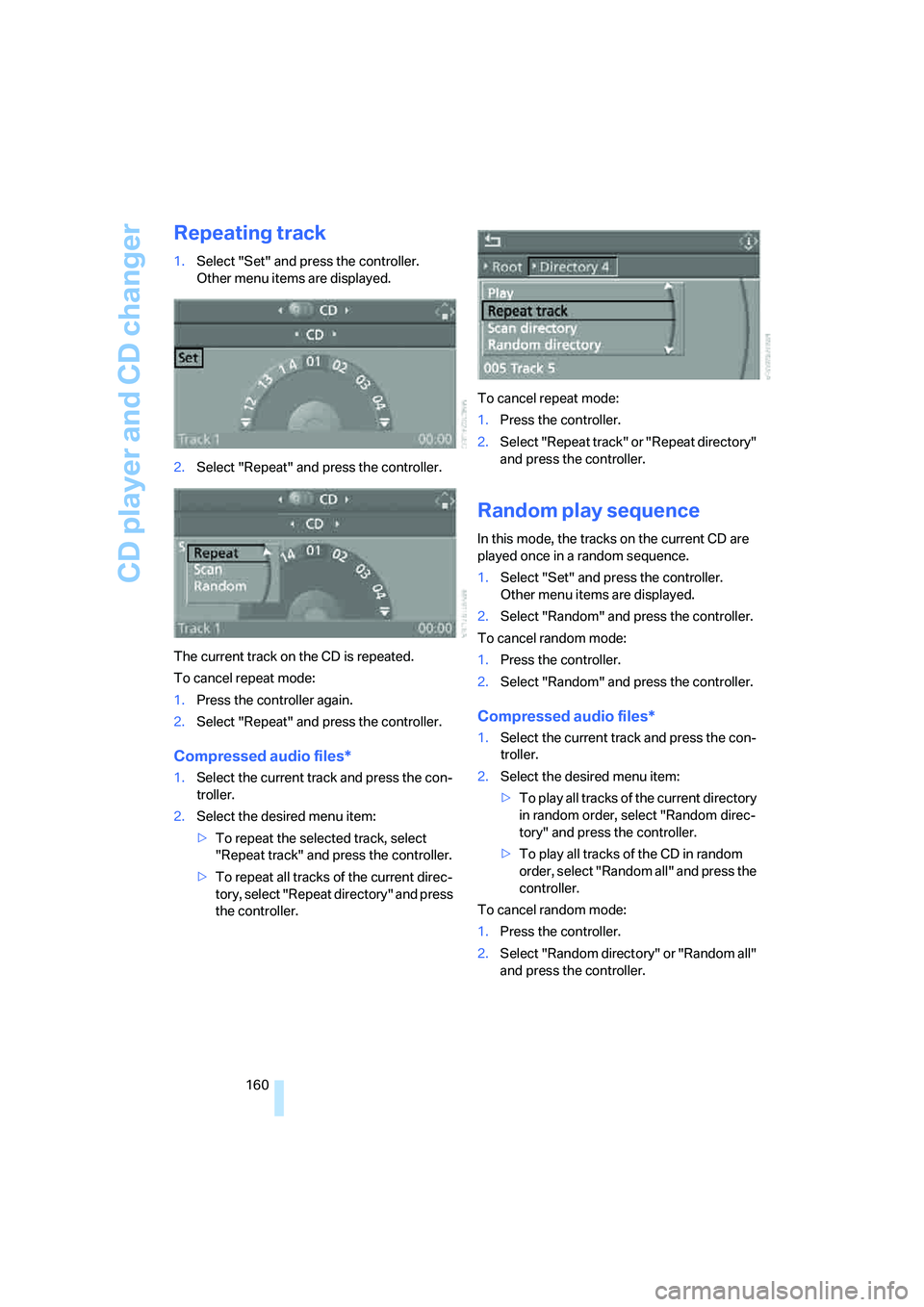
Repeating track
1.Select "Set" and press the controller.
Other menu items are displayed.
2.Select "Repeat" and press the controller.
The current track on the CD is repeated.
To cancel repeat mode:
1.Press the controller again.
2.Select "Repeat" and press the controller.
Compressed audio files*
1.Select the current track and press the con-
troller.
2.Select the desired menu item:
>To repeat the selected track, select
"Repeat track" and press the controller.
>To repeat all tracks of the current direc-
tory, select "Repeat directory" and press
the controller.To cancel repeat mode:
1.Press the controller.
2.Select "Repeat track" or "Repeat directory"
and press the controller.
Random play sequence
In this mode, the tracks on the current CD are
played once in a random sequence.
1.Select "Set" and press the controller.
Other menu items are displayed.
2.Select "Random" and press the controller.
To cancel random mode:
1.Press the controller.
2.Select "Random" and press the controller.
Compressed audio files*
1.Select the current track and press the con-
troller.
2.Select the desired menu item:
>To pla y all tracks of the current directory
in random order, select "Random direc-
tory" and press the controller.
>To play all tracks of the CD in random
order, select "Random all" and press the
controller.
To cancel random mode:
1.Press the controller.
2.Select "Random directory" or "Random all"
and press the controller.
Page 168 of 242
167
Entertainment
Reference
At a glance
Controls
Driving tips Communications
Navigation
Mobility
Making calls with car phone:
BMW Assist calls
You can use the car phone via the handsfree
system for BMW Assist calls.
When the status information "BMW Assist" or
"BMW Service" is displayed in "Communica-
tion", only BMW Assist calls are possible.
It may not be possible to establish a telephone
connection using the mobile phone while a con-
nection is being established to BMW Assist
or while a call to BMW Assist is already in
progress. If this happens, you must unpair the
mobile phone and the vehicle if you wish to
place a call with the mobile phone.
Initial operation
Logging on mobile phone on vehicle
The following prerequisites must be met:
>The mobile phone is ready to operate.
>The Bluetooth links of the vehicle, refer to
page169, and the mobile phone are active.
>Depending on the mobile phone, presets in
the mobile phone are required: e.g. acti-
vated via the menu item Bluetooth or the
menu item Connection not with confirma-
tion.
>To log on, specify any desired number as
the Bluetooth passkey, e.g. 1. This Blue-
tooth passkey is no longer required follow-
ing successful logon.
>The ignition is switched on.
Only log on the mobile phone with the
vehicle stopped; otherwise you may
become distracted and inadvertently endanger
your passengers and other road users.<
Switching on ignition
1.Insert the remote control as far as possible
into the ignition lock.
2.S w i t c h o n t h e s w i t c h o n i g n i t i o n b y p r e s s i n g
the Start/Stop button without depressing
the brake or clutch pedal.
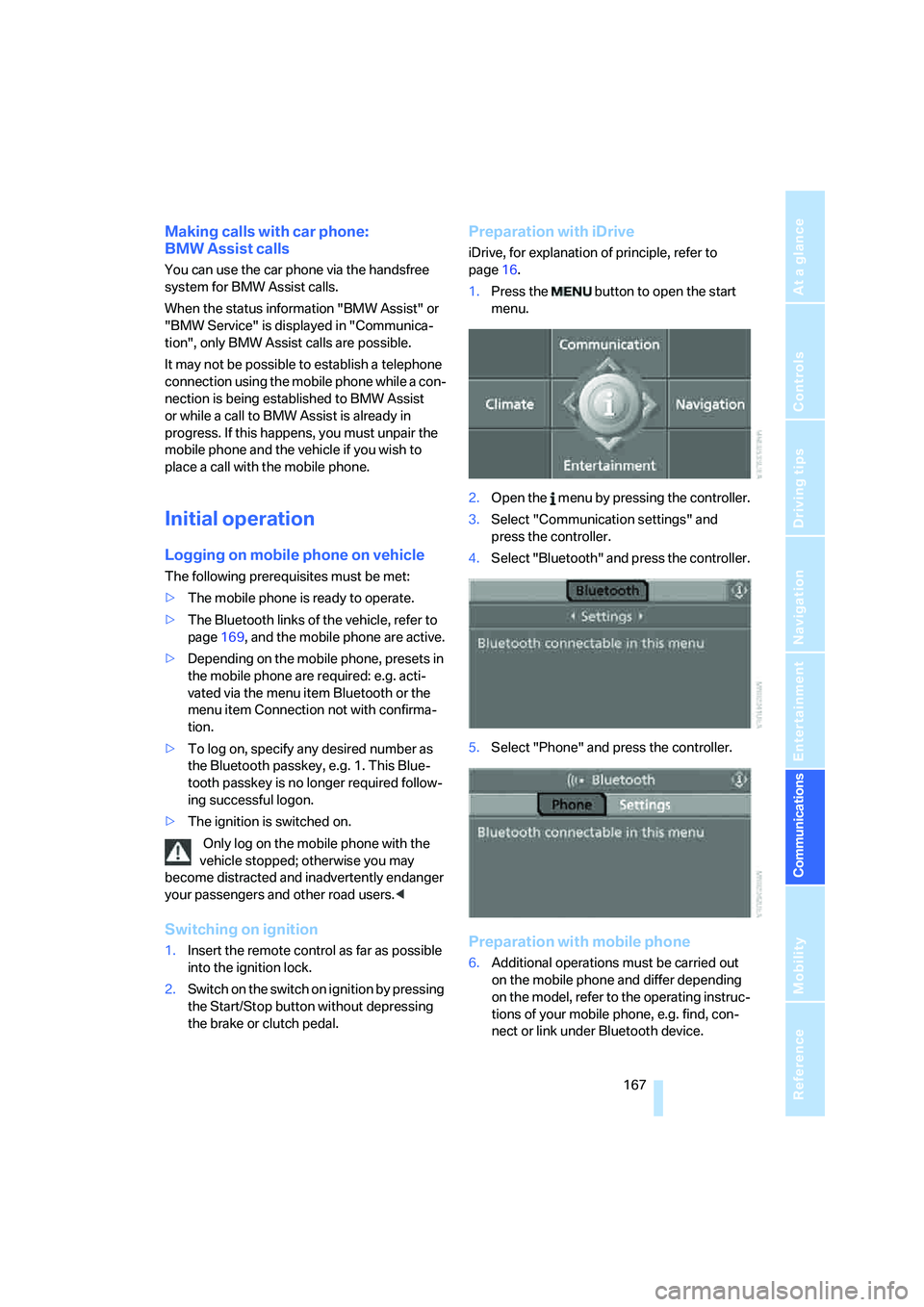
Preparation with iDrive
iDrive, for explanation of principle, refer to
page16.
1.Press the button to open the start
menu.
2.Open the menu by pressing the controller.
3.Select "Communication settings" and
press the controller.
4.Select "Bluetooth" and press the controller.
5.Select "Phone" and press the controller.
Preparation with mobile phone
6.Additional operations must be carried out
on the mobile phone and differ depending
on the model, refer to the operating instruc-
tions of your mobile phone, e.g. find, con-
nect or link under Bluetooth device.
Page 169 of 242
Telephoning
168
Logging on
Depending on your mobile phone, first, the dis-
play of your mobile phone and then the Control
Display will ask you to enter the Bluetooth pass-
key you specified.
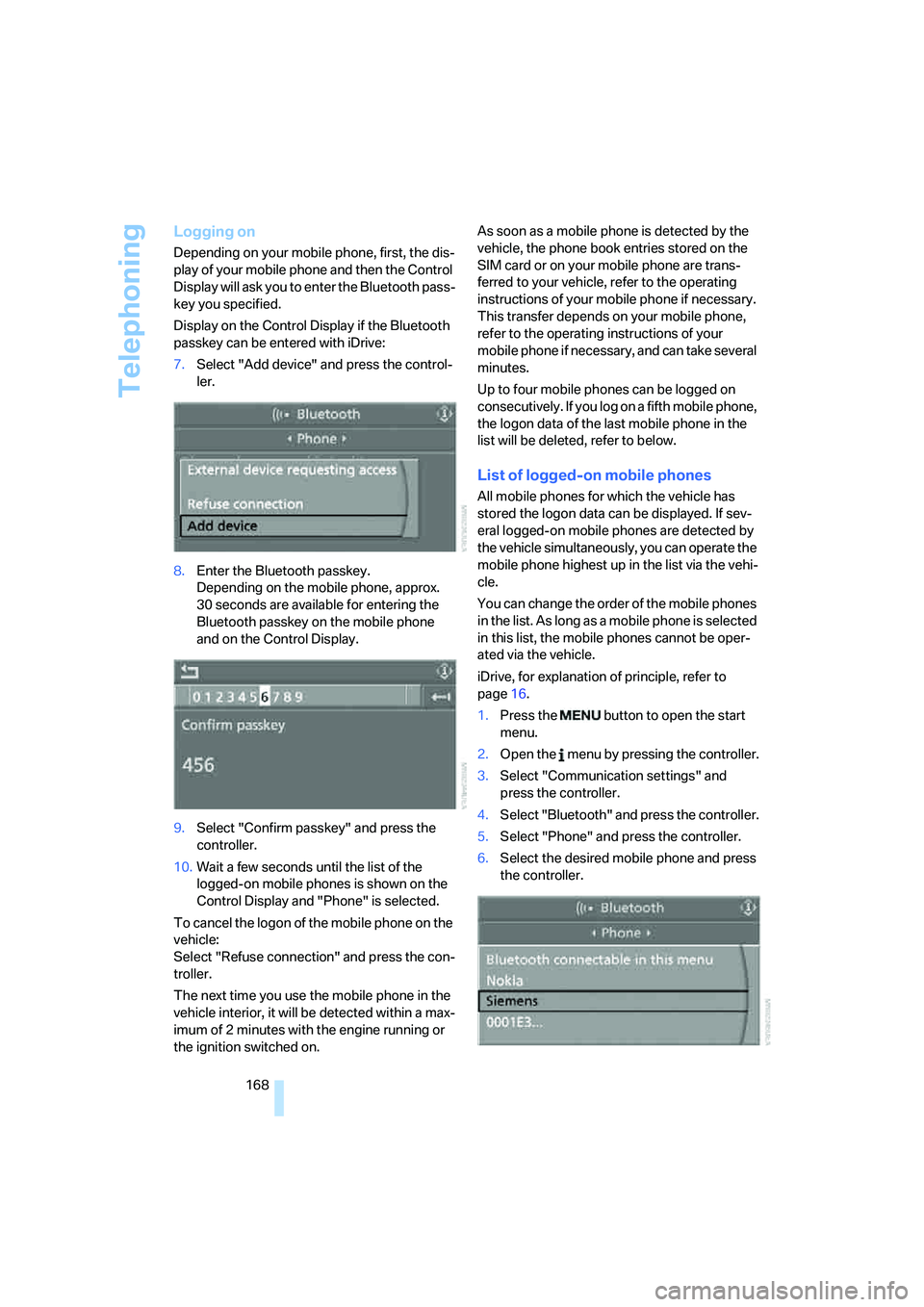
Display on the Control Display if the Bluetooth
passkey can be entered with iDrive:
7.Select "Add device" and press the control-
ler.
8.Enter the Bluetooth passkey.
Depending on the mobile phone, approx.
30 seconds are available for entering the
Bluetooth passkey on the mobile phone
and on the Control Display.
9.Select "Confirm passkey" and press the
controller.
10.Wait a few seconds until the list of the
logged-on mobile phones is shown on the
Control Display and "Phone" is selected.
To cancel the logon of the mobile phone on the
vehicle:
Select "Refuse connection" and press the con-
troller.
The next time you use the mobile phone in the
vehicle interior, it will be detected within a max-
imum of 2 minutes with the engine running or
the ignition switched on.As soon as a mobile phone is detected by the
vehicle, the phone book entries stored on the
SIM card or on your mobile phone are trans-
ferred to your vehicle, refer to the operating
instructions of your mobile phone if necessary.
This transfer depends on your mobile phone,
refer to the operating instructions of your
mobile phone if necessary, and can take several
minutes.
Up to four mobile phones can be logged on
consecutively. If you log on a fifth mobile phone,
the logon data of the last mobile phone in the
list will be deleted, refer to below.
List of logged-on mobile phones
All mobile phones for which the vehicle has
stored the logon data can be displayed. If sev-
eral logged-on mobile phones are detected by
the vehicle simultaneously, you can operate the
mobile phone highest up in the list via the vehi-
cle.
You can change the order of the mobile phones
in the list. As long as a mobile phone is selected
in this list, the mobile phones cannot be oper-
ated via the vehicle.
iDrive, for explanation of principle, refer to
page16.
1.Press the button to open the start
menu.
2.Open the menu by pressing the controller.
3.Select "Communication settings" and
press the controller.
4.Select "Bluetooth" and press the controller.
5.Select "Phone" and press the controller.
6.Select the desired mobile phone and press
the controller.