navigation BMW 650I XDRIVE CONVERTIBLE 2012 User Guide
[x] Cancel search | Manufacturer: BMW, Model Year: 2012, Model line: 650I XDRIVE CONVERTIBLE, Model: BMW 650I XDRIVE CONVERTIBLE 2012Pages: 282, PDF Size: 8.25 MB
Page 23 of 282
Additional symbols
Symbol Meaning
Spoken instructions* are switched
off. Request of the current vehicle posi‐
tion*. Split screen*
General information
Additional information can be displayed on the
right side of the split screen, e.g., information
from the computer.
In the divided screen view, the so-called split
screen, this information remains visible even
when you change to another menu.
Switching the split screen on and off
1.
Press the button.
2. "Split screen"
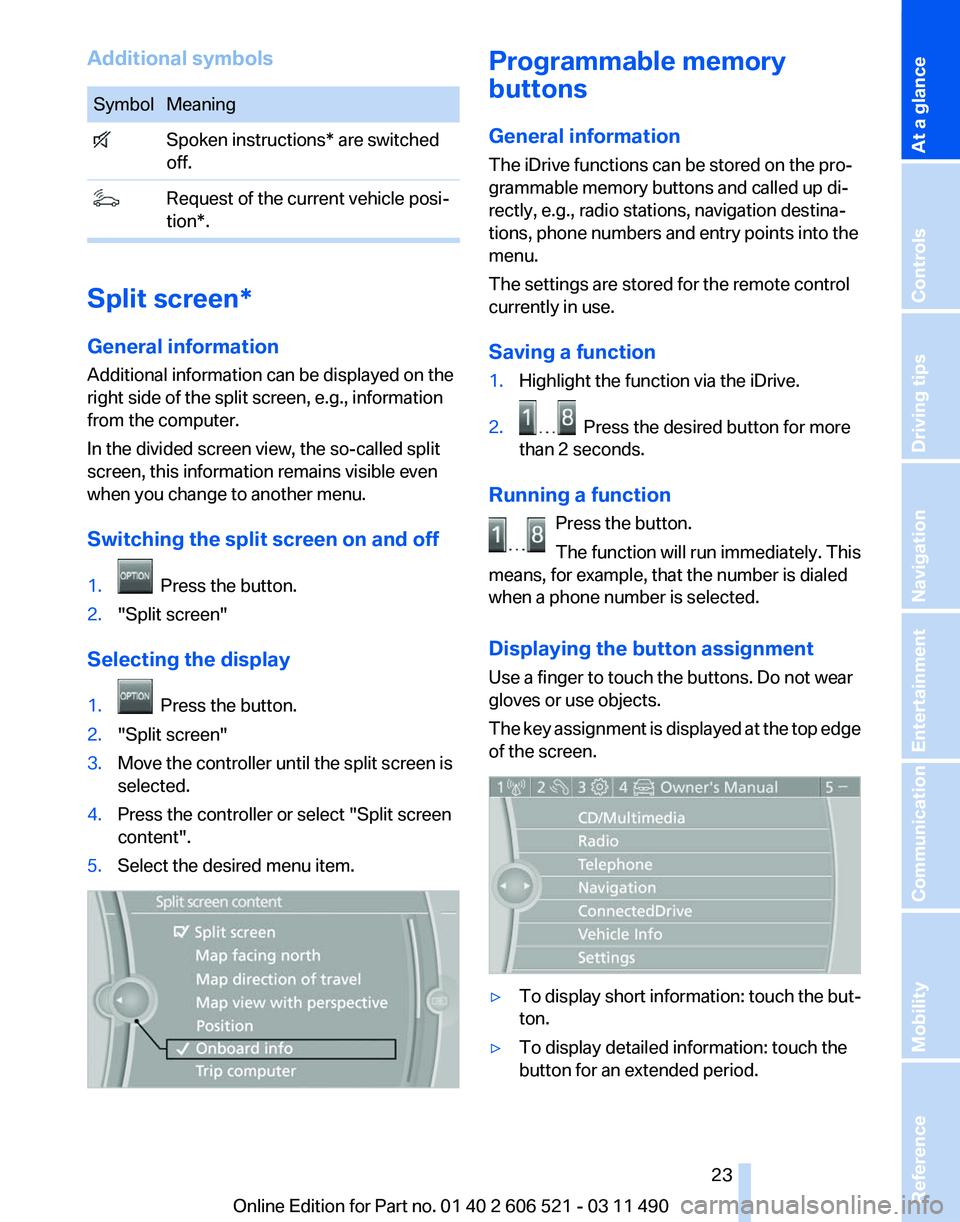
Selecting the display
1. Press the button.
2. "Split screen"
3. Move the controller until the split screen is
selected.
4. Press the controller or select "Split screen
content".
5. Select the desired menu item. Programmable memory
buttons
General information
The iDrive functions can be stored on the pro‐
grammable memory buttons and called up di‐
rectly, e.g., radio stations, navigation destina‐
tions, phone numbers and entry points into the
menu.
The settings are stored for the remote control
currently in use.
Saving a function
1.
Highlight the function via the iDrive.
2. Press the desired button for more
than 2 seconds.
Running a function Press the button.
The function will run immediately. This
means, for example, that the number is dialed
when a phone number is selected.
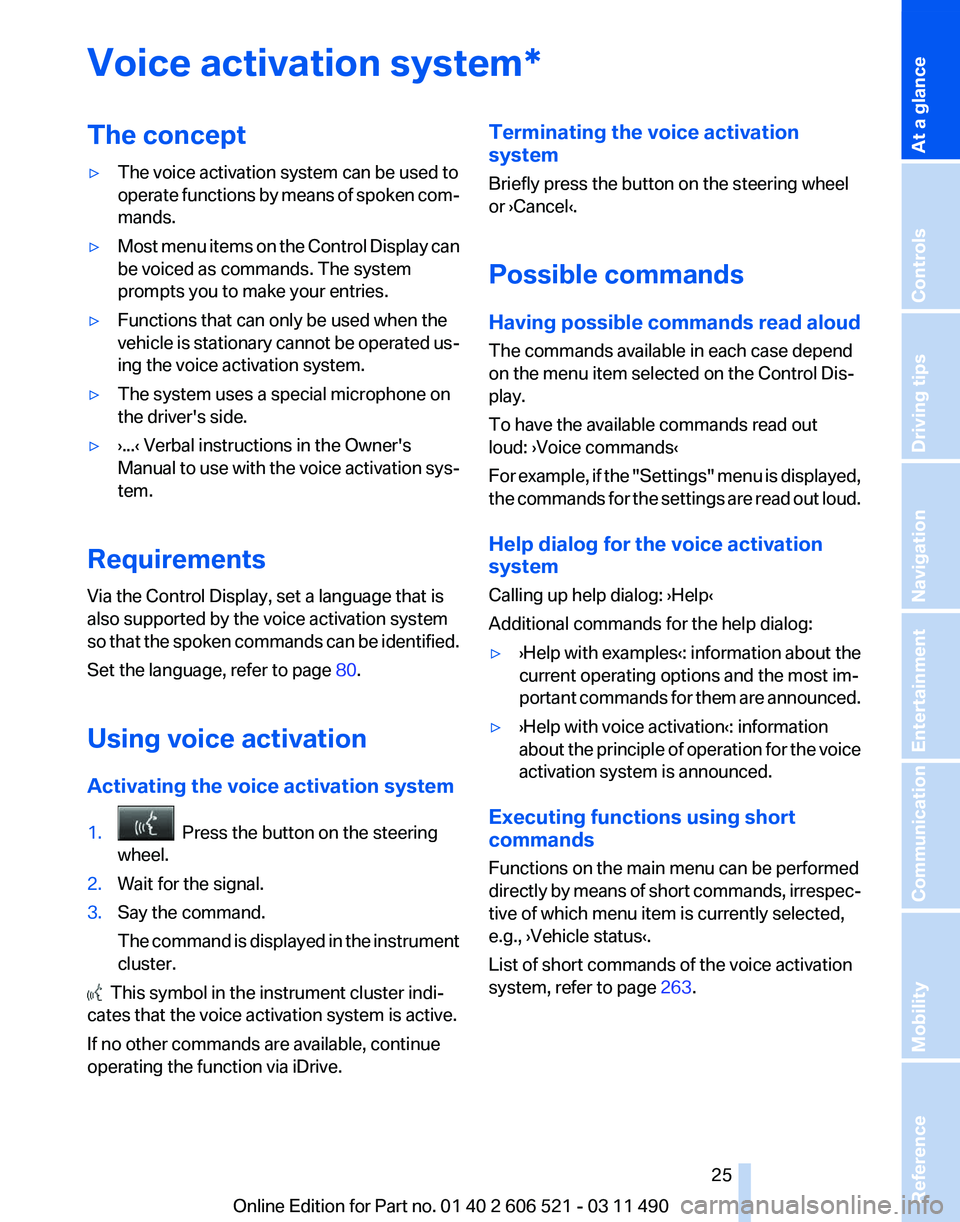
Displaying the button assignment
Use a finger to touch the buttons. Do not wear
gloves or use objects.
The
key assignment is displayed at the top edge
of the screen. ▷
To display short information: touch the but‐
ton.
▷ To display detailed information: touch the
button for an extended period. Seite 23
23Online Edition for Part no. 01 40 2 606 521 - 03 11 490
Reference Mobility Communication Entertainment Navigation Driving tips Controls
At a glance
Page 25 of 282
Voice activation system*
The concept
▷
The voice activation system can be used to
operate
functions by means of spoken com‐
mands.
▷ Most menu items on the Control Display can
be voiced as commands. The system
prompts you to make your entries.
▷ Functions that can only be used when the
vehicle
is stationary cannot be operated us‐
ing the voice activation system.
▷ The system uses a special microphone on
the driver's side.
▷ ›...‹ Verbal instructions in the Owner's
Manual
to use with the voice activation sys‐
tem.
Requirements
Via the Control Display, set a language that is
also supported by the voice activation system
so
that the spoken commands can be identified.
Set the language, refer to page 80.
Using voice activation
Activating the voice activation system
1. Press the button on the steering
wheel.
2. Wait for the signal.
3. Say the command.
The
command is displayed in the instrument
cluster. This symbol in the instrument cluster indi‐
cates that the voice activation system is active.
If no other commands are available, continue
operating the function via iDrive. Terminating the voice activation
system
Briefly press the button on the steering wheel
or ›Cancel‹.
Possible commands
Having possible commands read aloud
The commands available in each case depend
on the menu item selected on the Control Dis‐
play.
To have the available commands read out
loud: ›Voice commands‹
For
example, if the "Settings" menu is displayed,
the commands for the settings are read out loud.
Help dialog for the voice activation
system
Calling up help dialog: ›Help‹
Additional commands for the help dialog:
▷ ›Help with examples‹: information about the
current operating options and the most im‐
portant
commands for them are announced.
▷ ›Help with voice activation‹: information
about
the principle of operation for the voice
activation system is announced.
Executing functions using short
commands
Functions on the main menu can be performed
directly
by means of short commands, irrespec‐
tive of which menu item is currently selected,
e.g., ›Vehicle status‹.
List of short commands of the voice activation
system, refer to page 263.
Seite 25
25Online Edition for Part no. 01 40 2 606 521 - 03 11 490
Reference Mobility Communication Entertainment Navigation Driving tips Controls
At a glance
Page 27 of 282
Integrated Owner's Manual in the vehicle
The integrated Owner's Manual can be dis‐
played on the Control Display. The equipment
and functions that are in the vehicle are descri‐
bed therein.
Components of the
integrated Owner's Manual
The integrated Owner's Manual consists of
three parts, which offer various levels of infor‐
mation or access possibilities.
Quick Reference Guide
Located
in the Quick Reference is important in‐
formation for the operation of the vehicle, the
operation of basic vehicle functions or for what
to do in the event of a flat tire. This information
can also be displayed during driving.
Search by pictures
Information and descriptions based on illustra‐
tions can be searched via search by pictures.
This is helpful, for example, if the description of
an outfitting package that cannot be named is
needed.
Owner's Manual
Information and descriptions can be searched
by direct entry of a search term via the index.
Select components
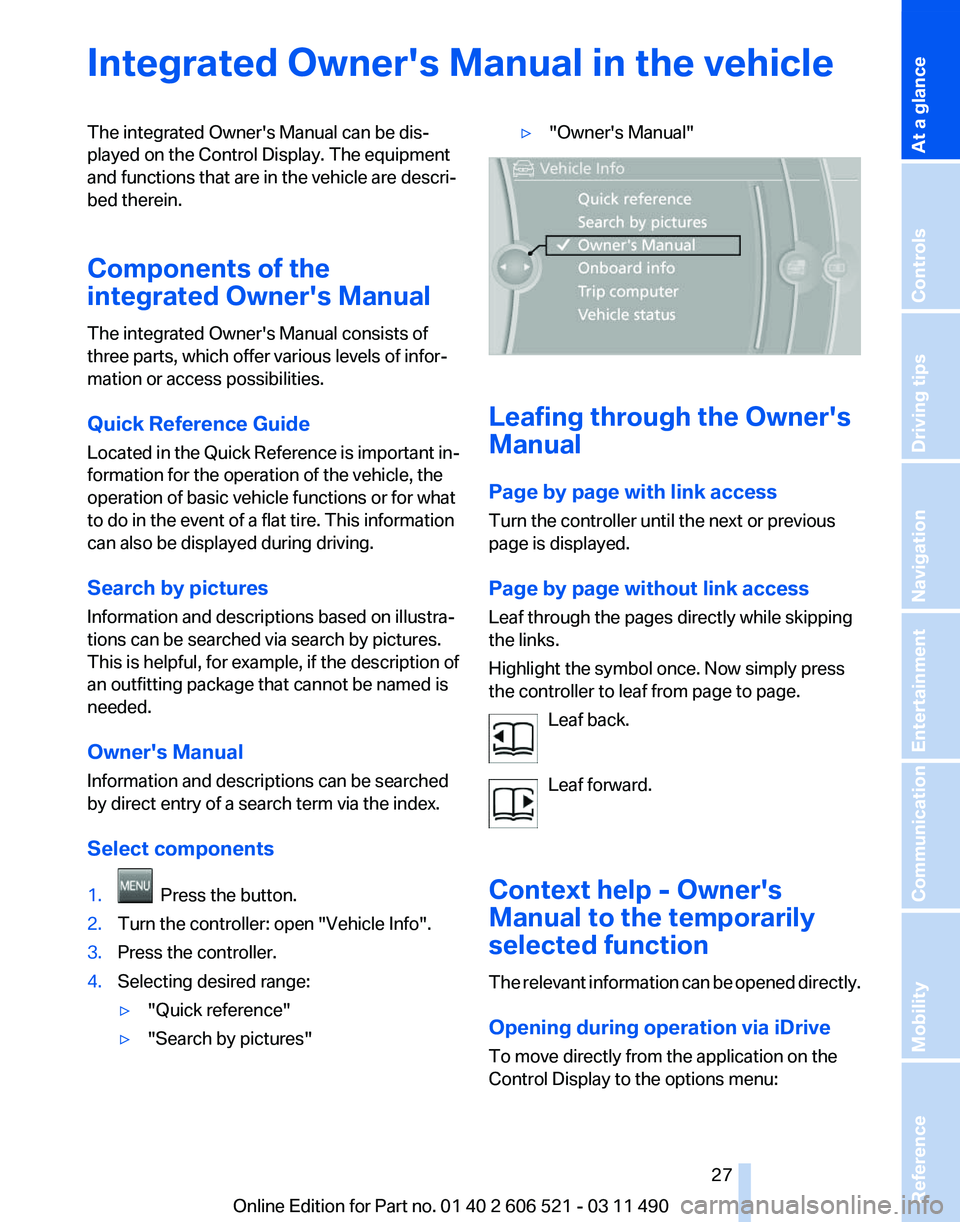
1. Press the button.
2. Turn the controller: open "Vehicle Info".
3. Press the controller.
4. Selecting desired range:
▷"Quick reference"
▷ "Search by pictures" ▷
"Owner's Manual" Leafing through the Owner's
Manual
Page by page with link access
Turn the controller until the next or previous
page is displayed.
Page by page without link access
Leaf through the pages directly while skipping
the links.
Highlight the symbol once. Now simply press
the controller to leaf from page to page.
Leaf back.
Leaf forward.
Context help - Owner's
Manual to the temporarily
selected function
The
relevant information can be opened directly.
Opening during operation via iDrive
To move directly from the application on the
Control Display to the options menu: Seite 27
27Online Edition for Part no. 01 40 2 606 521 - 03 11 490
Reference Mobility Communication Entertainment Navigation Driving tips Controls
At a glance
Page 29 of 282

Seite 2929Online Edition for Part no. 01 40 2 606 521 - 03 11 490
Reference Mobility Communication Entertainment Navigation Driving tips Controls
At a glance
Page 33 of 282
New remote controls
You can obtain new remote controls from your
service center.
Loss of the remote controls
Lost remote controls can be blocked by your
service center.
Emergency
detection of remote control
It is possible to switch on the ignition or start the
engine in situations such as the following:
▷ Interference of radio transmission to remote
control by external sources.
▷ Discharged battery in the remote control.
A Check Control message is displayed if an at‐
tempt is made to switch on the ignition or start
the engine.
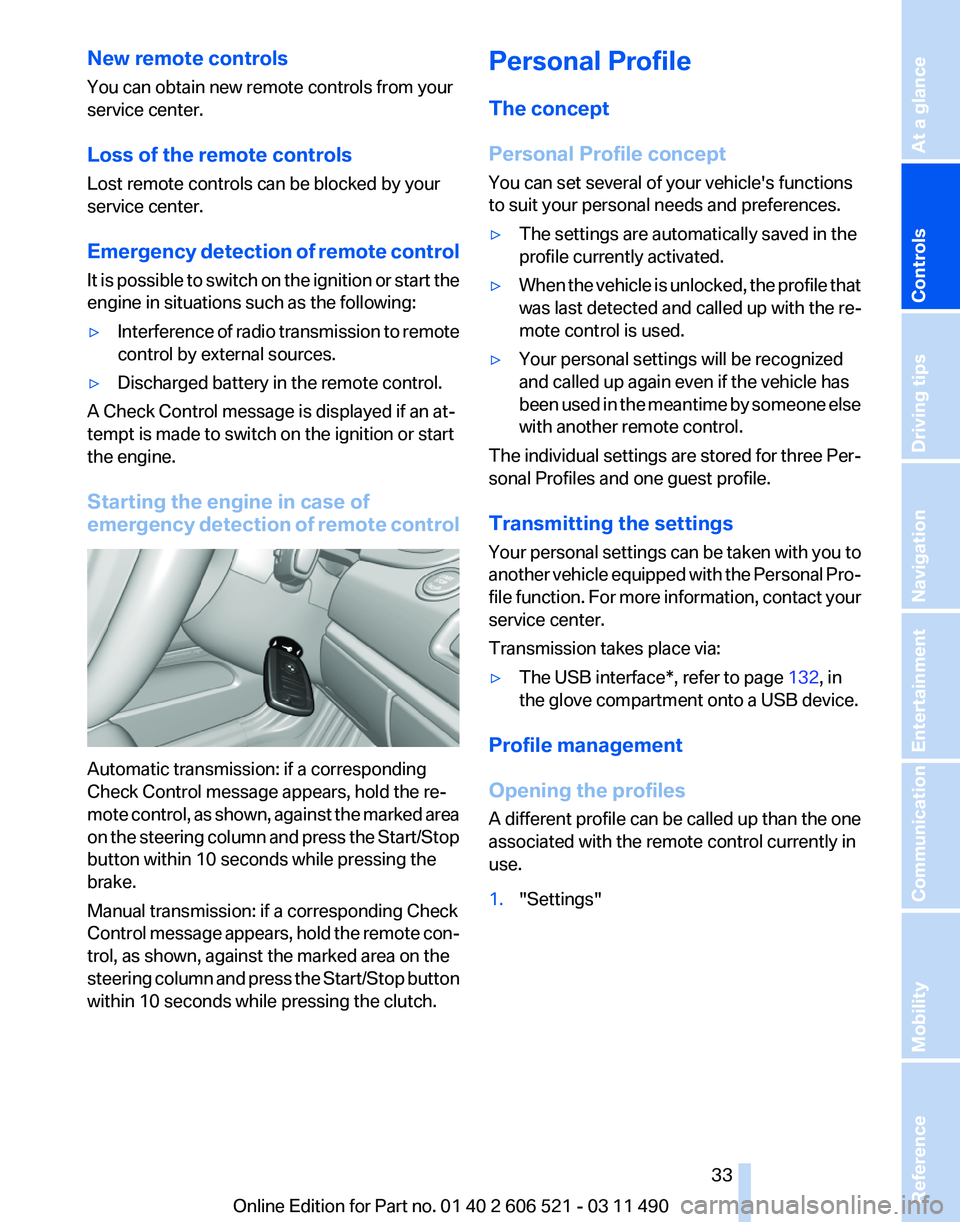
Starting the engine in case of
emergency
detection of remote controlAutomatic transmission: if a corresponding
Check Control message appears, hold the re‐
mote
control, as shown, against the marked area
on the steering column and press the Start/Stop
button within 10 seconds while pressing the
brake.
Manual transmission: if a corresponding Check
Control message appears, hold the remote con‐
trol, as shown, against the marked area on the
steering column and press the Start/Stop button
within 10 seconds while pressing the clutch. Personal Profile
The concept
Personal Profile concept
You can set several of your vehicle's functions
to suit your personal needs and preferences.
▷
The settings are automatically saved in the
profile currently activated.
▷ When the vehicle is unlocked, the profile that
was last detected and called up with the re‐
mote control is used.
▷ Your personal settings will be recognized
and called up again even if the vehicle has
been
used in the meantime by someone else
with another remote control.
The individual settings are stored for three Per‐
sonal Profiles and one guest profile.
Transmitting the settings
Your
personal settings can be taken with you to
another vehicle equipped with the Personal Pro‐
file function. For more information, contact your
service center.
Transmission takes place via:
▷ The USB interface*, refer to page 132, in
the glove compartment onto a USB device.
Profile management
Opening the profiles
A
different profile can be called up than the one
associated with the remote control currently in
use.
1. "Settings"
Seite 33
33Online Edition for Part no. 01 40 2 606 521 - 03 11 490
Reference Mobility Communication Entertainment Navigation Driving tips
Controls At a glance
Page 35 of 282
Display profile list during start
The profile list can be displayed during each
start for selecting the desired profile.
1.
"Settings"
2. "Profiles"
3. Open "Options".
4. "Display user list at startup"
Personal Profile settings
The following functions and settings can be
stored in a profile.
More information on the settings can be found
under:
▷ Exterior mirror position, refer to page 59.
▷ CD/Multimedia, refer to page 173: audio
source listened to last.
▷ Dynamic Driving Control: sport program, re‐
fer to page 104.
▷ Driver's seat position, refer to page 37: au‐
tomatic retrieval after unlocking.
▷ Programmable memory buttons, refer to
page 23: assignment.
▷ Head-up Display, refer to page 121: selec‐
tion, brightness and position of the display.
▷ Headlamp courtesy delay feature, refer to
page 84: time setting.
▷ Tone, refer to page 164: tone settings.
▷ Automatic climate control, refer to
page 123: settings.
▷ Steering wheel position, refer to page 60.
▷ Navigation, refer to page 146: map views,
route criteria, voice output on/off.
▷ Night Vision with pedestrian detection, refer
to
page 118: selection of functions and type
of display.
▷ Daytime running lights*, refer to page 85:
current setting.
▷ Park Distance Control PDC, refer to
page 165:
adjusting the signal tone volume.
▷ Radio, refer to page 166: stored stations,
station listened to last, special settings. ▷
Backup camera, refer to page 110: selec‐
tion of functions and type of display.
▷ Side View, refer to page 114: selection of
the display type.
▷ Language on the Control Display, refer to
page 80.
▷ Lane departure warning, refer to page 97:
last setting, on/off.
▷ Active Blind Spot Detection, refer to
page 98: last setting, on/off.
▷ Triple turn signal activation, refer to
page 69.
▷ Locking the vehicle, refer to page 39: after
a brief period or after starting to drive.
Central locking system
The concept
The central locking system becomes active
when the driver's door is closed.
The system simultaneously engages and re‐
leases the locks on the following:
▷ Doors.
▷ Compartment in the center armrest.
▷ Trunk lid.
▷ Fuel filler flap.
Operating from the outside
▷ Via the remote control.
▷ Via the driver's door lock*.
▷ Via the door handles*.
▷ Via the button in the trunk lid*.
The following takes place simultaneously when
locking/unlocking the vehicle via the remote
control:
▷ Anti-theft protection is switched on/off.
Doors cannot be unlocked using the lock
buttons or the door opener.
▷ The welcome lamps, interior lamps and
courtesy lamps* are switched on and off.
▷ The alarm system*, refer to page 42, is
armed or disarmed.
Seite 35
35Online Edition for Part no. 01 40 2 606 521 - 03 11 490
Reference Mobility Communication Entertainment Navigation Driving tips
Controls At a glance
Page 37 of 282
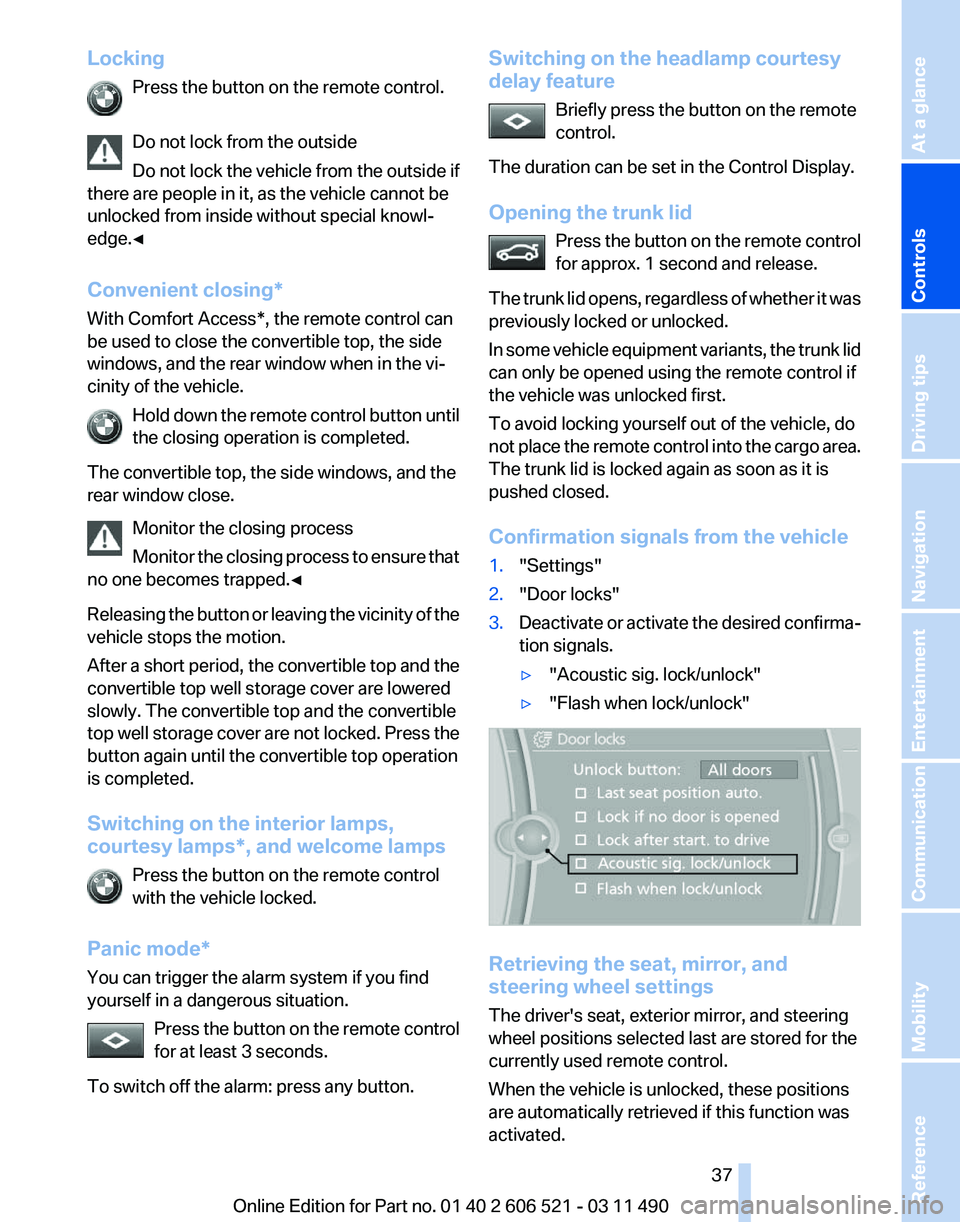
Locking
Press the button on the remote control.
Do not lock from the outside
Do
not lock the vehicle from the outside if
there are people in it, as the vehicle cannot be
unlocked from inside without special knowl‐
edge.◀
Convenient closing*
With Comfort Access*, the remote control can
be used to close the convertible top, the side
windows, and the rear window when in the vi‐
cinity of the vehicle.
Hold down the remote control button until
the closing operation is completed.
The convertible top, the side windows, and the
rear window close. Monitor the closing process
Monitor the closing process to ensure that
no one becomes trapped.◀
Releasing the button or leaving the vicinity of the
vehicle stops the motion.
After a short period, the convertible top and the
convertible top well storage cover are lowered
slowly. The convertible top and the convertible
top well storage cover are not locked. Press the
button again until the convertible top operation
is completed.
Switching on the interior lamps,
courtesy lamps*, and welcome lamps
Press the button on the remote control
with the vehicle locked.
Panic mode*
You can trigger the alarm system if you find
yourself in a dangerous situation. Press the button on the remote control
for at least 3 seconds.
To switch off the alarm: press any button. Switching on the headlamp courtesy
delay feature
Briefly press the button on the remote
control.
The duration can be set in the Control Display.
Opening the trunk lid Press
the button on the remote control
for approx. 1 second and release.
The trunk lid opens, regardless of whether it was
previously locked or unlocked.
In some vehicle equipment variants, the trunk lid
can only be opened using the remote control if
the vehicle was unlocked first.
To avoid locking yourself out of the vehicle, do
not place the remote control into the cargo area.
The trunk lid is locked again as soon as it is
pushed closed.
Confirmation signals from the vehicle
1. "Settings"
2. "Door locks"
3. Deactivate or activate the desired confirma‐
tion signals.
▷"Acoustic sig. lock/unlock"
▷ "Flash when lock/unlock" Retrieving the seat, mirror, and
steering wheel settings
The driver's seat, exterior mirror, and steering
wheel positions selected last are stored for the
currently used remote control.
When the vehicle is unlocked, these positions
are automatically retrieved if this function was
activated. Seite 37
37Online Edition for Part no. 01 40 2 606 521 - 03 11 490
Reference Mobility Communication Entertainment Navigation Driving tips
Controls At a glance
Page 39 of 282
Manual operation
If
an electrical malfunction occurs, lock or unlock
the vehicle using a key via the door lock on the
driver's door.
Locking the doors and trunk lid at
once*
In some vehicle equipment versions, only the
driver's door can be locked via the door lock.
To lock all doors and the trunk lid at once:
1. With the doors closed, lock the vehicle using
the button for the central locking system in
the interior.
2. Unlock and open the driver's or front pas‐
senger door.
3. Lock the vehicle.
▷Lock the driver's door using the
integrated key in the door lock, or
▷ Press down the lock button of the front
passenger
door and close the door from
the outside.
The fuel filler flap can only be locked using the
remote control.
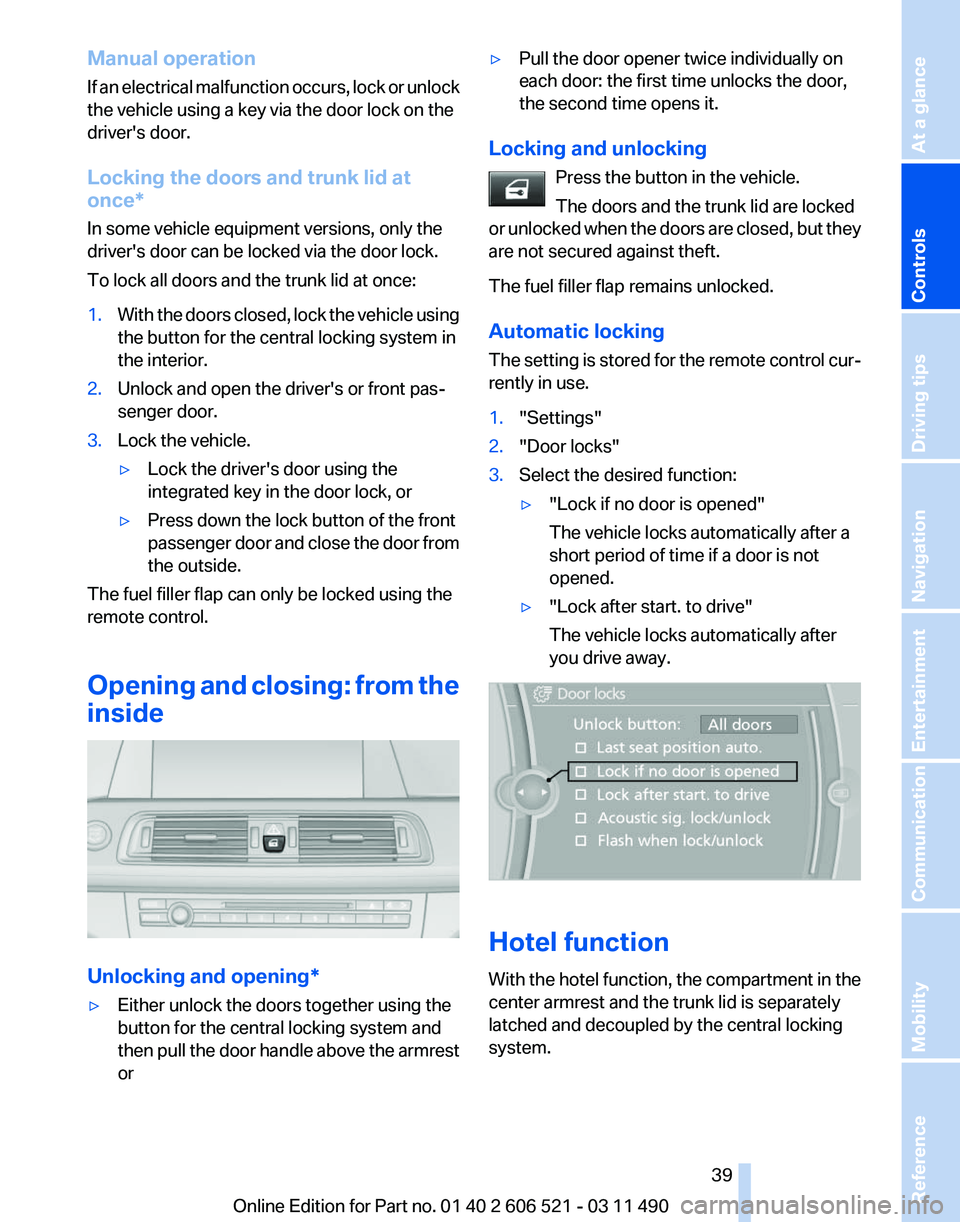
Opening
and closing: from the
inside Unlocking and opening*
▷
Either unlock the doors together using the
button for the central locking system and
then
pull the door handle above the armrest
or ▷
Pull the door opener twice individually on
each door: the first time unlocks the door,
the second time opens it.
Locking and unlocking Press the button in the vehicle.
The doors and the trunk lid are locked
or
unlocked when the doors are closed, but they
are not secured against theft.
The fuel filler flap remains unlocked.
Automatic locking
The setting is stored for the remote control cur‐
rently in use.
1. "Settings"
2. "Door locks"
3. Select the desired function:
▷"Lock if no door is opened"
The vehicle locks automatically after a
short period of time if a door is not
opened.
▷ "Lock after start. to drive"
The vehicle locks automatically after
you drive away. Hotel function
With
the hotel function, the compartment in the
center armrest and the trunk lid is separately
latched and decoupled by the central locking
system. Seite 39
39Online Edition for Part no. 01 40 2 606 521 - 03 11 490
Reference Mobility Communication Entertainment Navigation Driving tips
Controls At a glance
Page 41 of 282
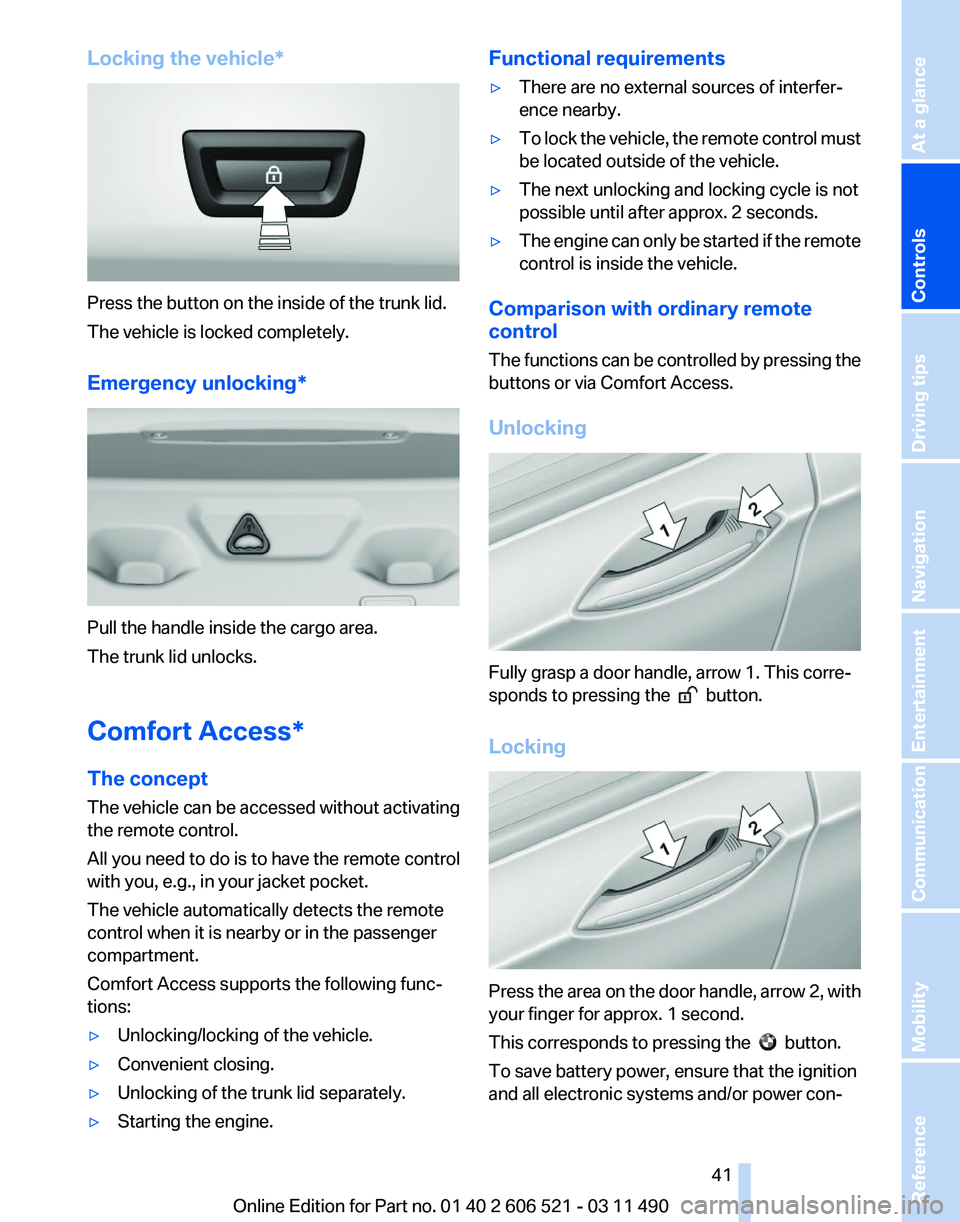
Locking the vehicle*
Press the button on the inside of the trunk lid.
The vehicle is locked completely.
Emergency unlocking*
Pull the handle inside the cargo area.
The trunk lid unlocks.
Comfort Access*
The concept
The vehicle can be accessed without activating
the remote control.
All you need to do is to have the remote control
with you, e.g., in your jacket pocket.
The vehicle automatically detects the remote
control when it is nearby or in the passenger
compartment.
Comfort Access supports the following func‐
tions:
▷
Unlocking/locking of the vehicle.
▷ Convenient closing.
▷ Unlocking of the trunk lid separately.
▷ Starting the engine. Functional requirements
▷
There are no external sources of interfer‐
ence nearby.
▷ To lock the vehicle, the remote control must
be located outside of the vehicle.
▷ The next unlocking and locking cycle is not
possible until after approx. 2 seconds.
▷ The engine can only be started if the remote
control is inside the vehicle.
Comparison with ordinary remote
control
The
functions can be controlled by pressing the
buttons or via Comfort Access.
Unlocking Fully grasp a door handle, arrow 1. This corre‐
sponds to pressing the
button.
Locking Press the area on the door handle, arrow 2, with
your finger for approx. 1 second.
This corresponds to pressing the
button.
To save battery power, ensure that the ignition
and all electronic systems and/or power con‐
Seite 41
41Online Edition for Part no. 01 40 2 606 521 - 03 11 490
Reference Mobility Communication Entertainment Navigation Driving tips
Controls At a glance
Page 43 of 282
Switching off the alarm
▷
Unlock the vehicle using the remote control.
▷ With Comfort Access: If you are carrying the
remote control with you, pull on the door
handle.
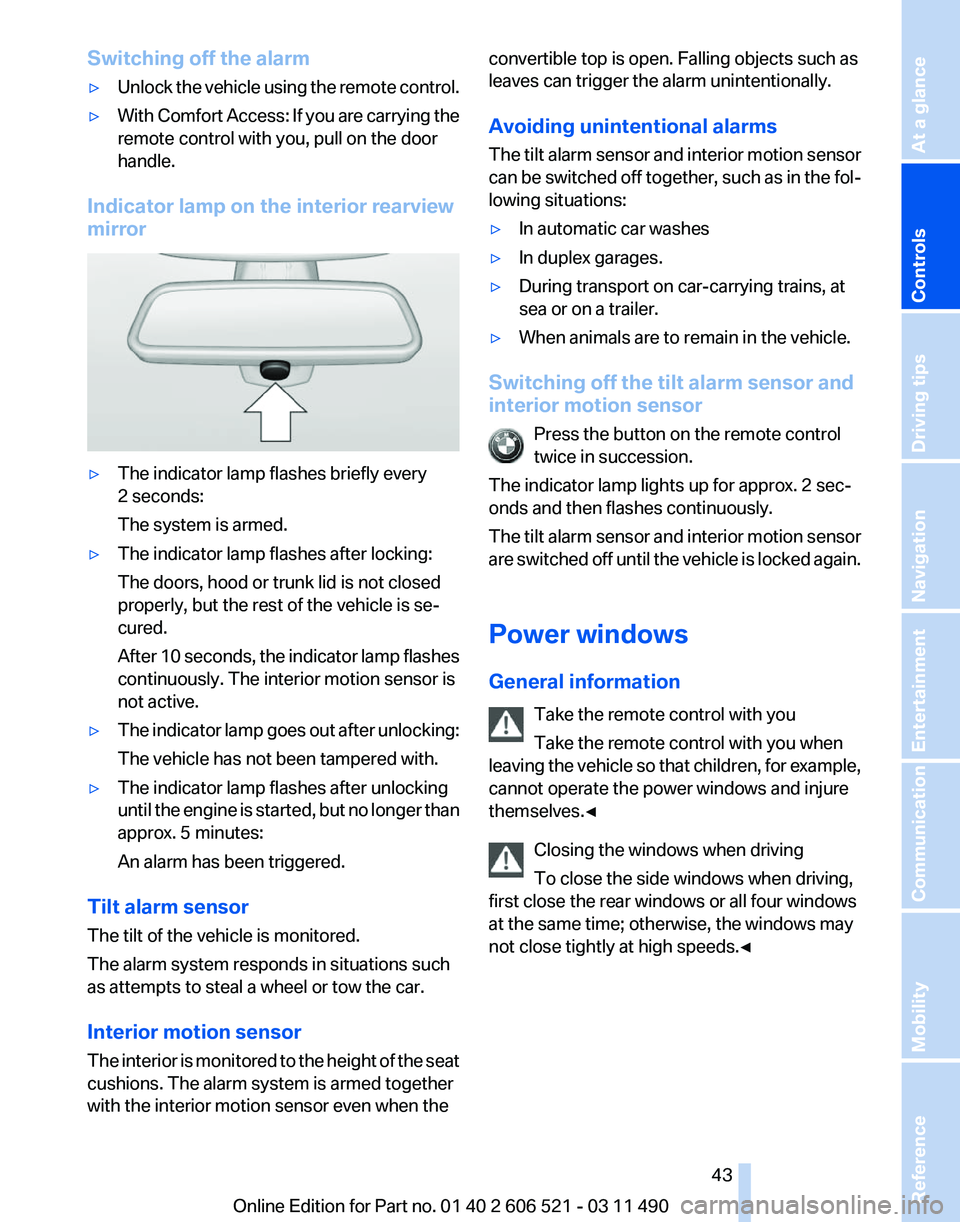
Indicator lamp on the interior rearview
mirror ▷
The indicator lamp flashes briefly every
2 seconds:
The system is armed.
▷ The indicator lamp flashes after locking:
The doors, hood or trunk lid is not closed
properly, but the rest of the vehicle is se‐
cured.
After
10 seconds, the indicator lamp flashes
continuously. The interior motion sensor is
not active.
▷ The indicator lamp goes out after unlocking:
The vehicle has not been tampered with.
▷ The indicator lamp flashes after unlocking
until
the engine is started, but no longer than
approx. 5 minutes:
An alarm has been triggered.
Tilt alarm sensor
The tilt of the vehicle is monitored.
The alarm system responds in situations such
as attempts to steal a wheel or tow the car.
Interior motion sensor
The
interior is monitored to the height of the seat
cushions. The alarm system is armed together
with the interior motion sensor even when the convertible top is open. Falling objects such as
leaves can trigger the alarm unintentionally.
Avoiding unintentional alarms
The
tilt alarm sensor and interior motion sensor
can be switched off together, such as in the fol‐
lowing situations:
▷ In automatic car washes
▷ In duplex garages.
▷ During transport on car-carrying trains, at
sea or on a trailer.
▷ When animals are to remain in the vehicle.
Switching off the tilt alarm sensor and
interior motion sensor Press the button on the remote control
twice in succession.
The indicator lamp lights up for approx. 2 sec‐
onds and then flashes continuously.
The
tilt alarm sensor and interior motion sensor
are switched off until the vehicle is locked again.
Power windows
General information
Take the remote control with you
Take the remote control with you when
leaving the vehicle so that children, for example,
cannot operate the power windows and injure
themselves.◀
Closing the windows when driving
To close the side windows when driving,
first close the rear windows or all four windows
at the same time; otherwise, the windows may
not close tightly at high speeds.◀ Seite 43
43Online Edition for Part no. 01 40 2 606 521 - 03 11 490
Reference Mobility Communication Entertainment Navigation Driving tips
Controls At a glance