Meter BMW 740LI 2012 F02 User Guide
[x] Cancel search | Manufacturer: BMW, Model Year: 2012, Model line: 740LI, Model: BMW 740LI 2012 F02Pages: 299, PDF Size: 8.49 MB
Page 107 of 299
Reduce distance
Press the button repeatedly until the
desired distance is set.
The
selected distance, refer to page 108, is dis‐
played in the instrument cluster.
Increase distance
Press the button repeatedly until the
desired distance is set.
The selected distance, refer to page 108, is dis‐
played in the instrument cluster.
Calling up the desired speed and
distance
While driving
Press the button with the system
switched on.
In the following cases, the stored speed value is
deleted and cannot be called up again:
▷ When the system is switched off.
▷ When the ignition is switched off.
While standing Before leaving the vehicle, secure it
against rolling.
Before leaving the vehicle with the engine run‐
ning, engage position P of the automatic trans‐
mission
and apply the parking brake. Otherwise,
the vehicle may begin to roll.◀
The system brought the vehicle to a complete
standstill.
▷ Green mark in the speedometer during a
brief idle phase:
The vehicle ahead of you drives away while
the mark is green: your vehicle accelerates
without anything having to be done.
▷ Switch to orange of the mark in the speed‐
ometer after approx. 2 sec.:
The
vehicle ahead of you drives away, while
the mark is orange: in order to accelerate,
briefly press the accelerator or press the
RES button or SET button. Rolling bars in the distance indicator mean that
the vehicle ahead of you has driven off.
You actively braked your vehicle to a halt by
pressing on the brake pedal and it is standing
behind another vehicle:
1.
Press the button to call up a stored
desired speed.
2. Release the brake pedal.
3. Press on the accelerator briefly, or press the
RES button or the rocker switch when the
vehicle ahead of you drives away.
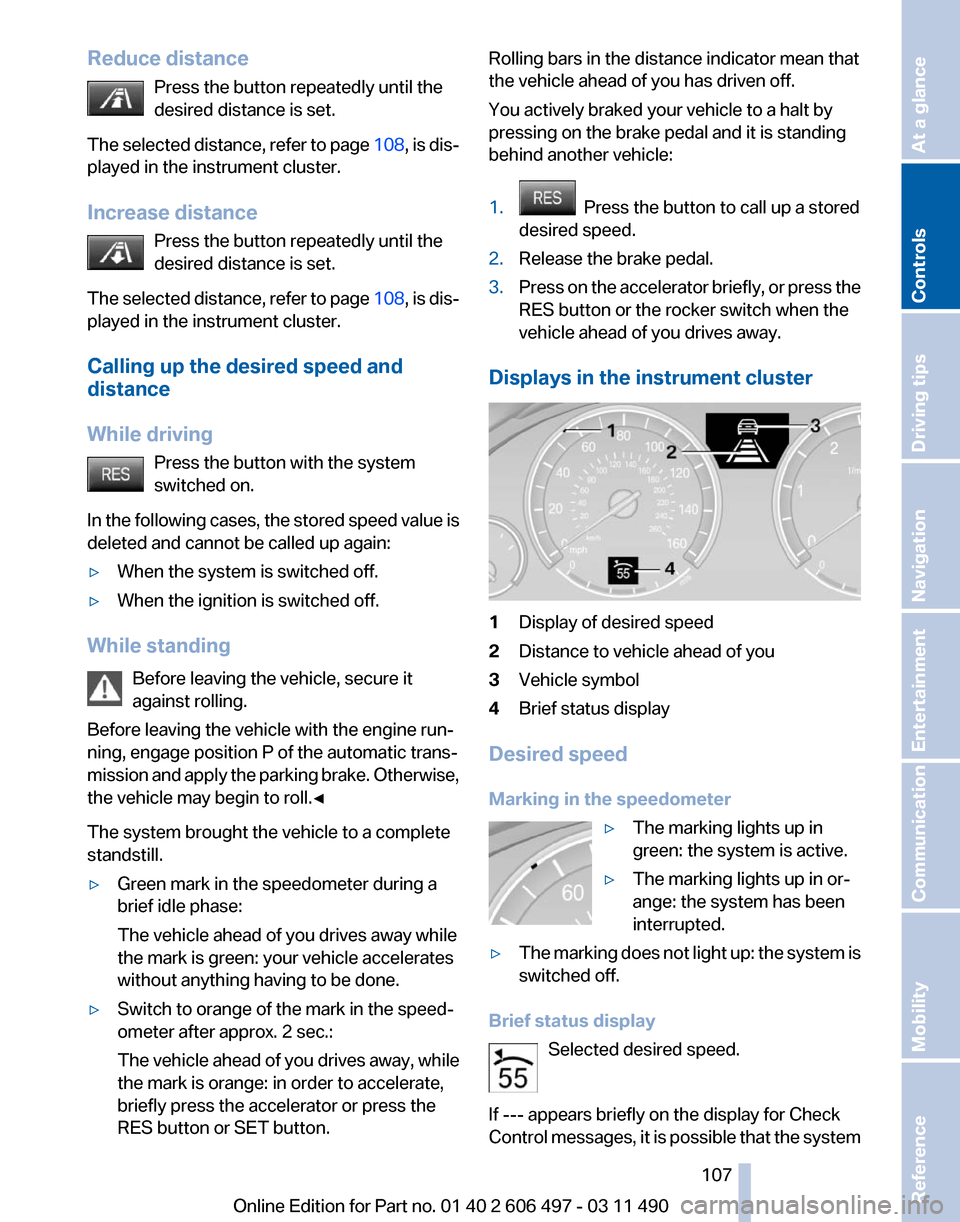
Displays in the instrument cluster 1
Display of desired speed
2 Distance to vehicle ahead of you
3 Vehicle symbol
4 Brief status display
Desired speed
Marking in the speedometer ▷The marking lights up in
green: the system is active.
▷ The marking lights up in or‐
ange: the system has been
interrupted.
▷ The marking does not light up: the system is
switched off.
Brief status display Selected desired speed.
If --- appears briefly on the display for Check
Control
messages, it is possible that the system Seite 107
107Online Edition for Part no. 01 40 2 606 497 - 03 11 490
Reference Mobility Communication Entertainment Navigation Driving tips
Controls At a glance
Page 112 of 299
Otherwise, you could lose control of the vehicle
and cause an accident.◀
Controls
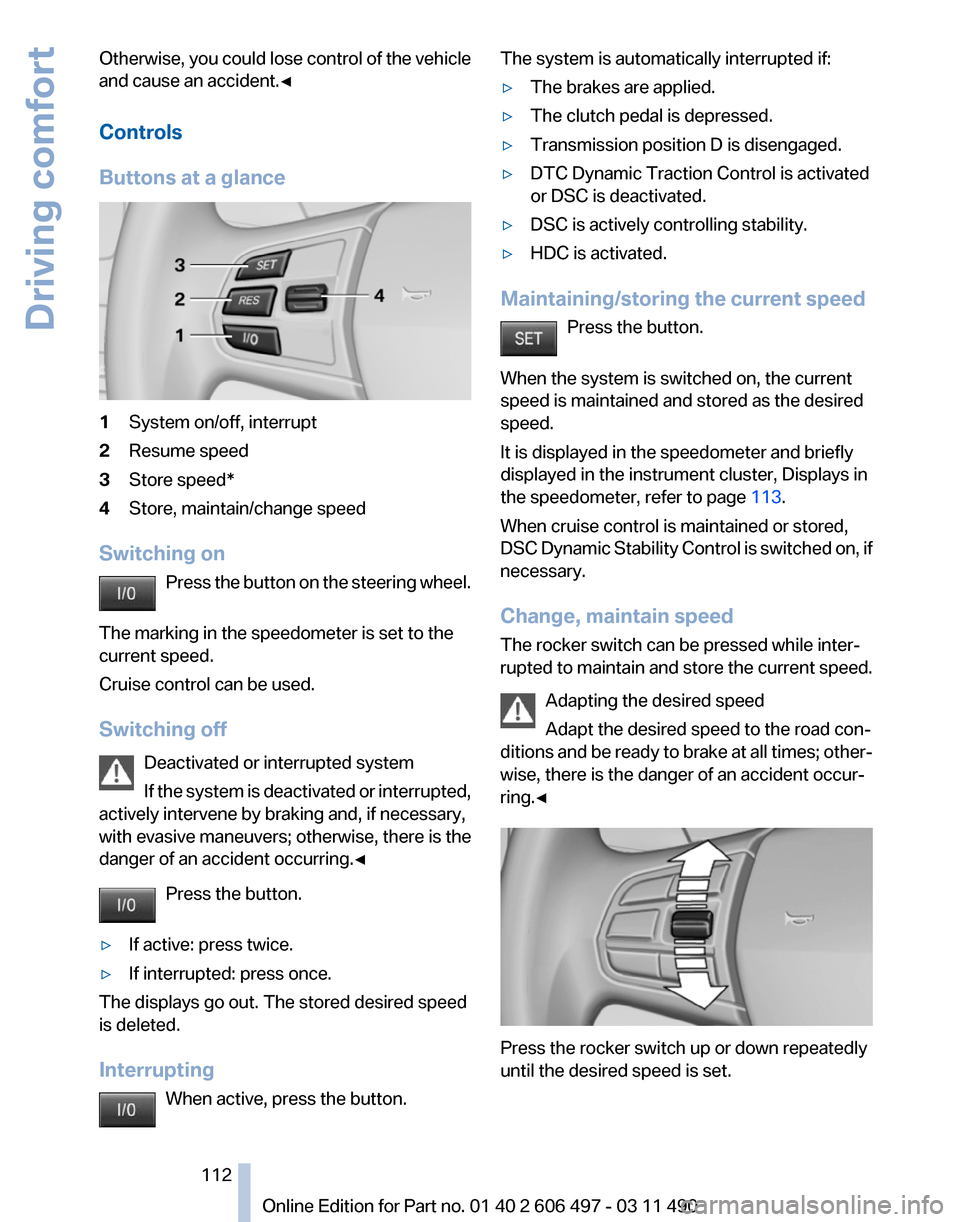
Buttons at a glance
1
System on/off, interrupt
2 Resume speed
3 Store speed*
4 Store, maintain/change speed
Switching on Press the button on the steering wheel.
The marking in the speedometer is set to the
current speed.
Cruise control can be used.
Switching off Deactivated or interrupted system
If the system is deactivated or interrupted,
actively intervene by braking and, if necessary,
with evasive maneuvers; otherwise, there is the
danger of an accident occurring.◀
Press the button.
▷ If active: press twice.
▷ If interrupted: press once.
The displays go out. The stored desired speed
is deleted.
Interrupting When active, press the button. The system is automatically interrupted if:
▷
The brakes are applied.
▷ The clutch pedal is depressed.
▷ Transmission position D is disengaged.
▷ DTC Dynamic Traction Control is activated
or DSC is deactivated.
▷ DSC is actively controlling stability.
▷ HDC is activated.
Maintaining/storing the current speed Press the button.
When the system is switched on, the current
speed is maintained and stored as the desired
speed.
It is displayed in the speedometer and briefly
displayed in the instrument cluster, Displays in
the speedometer, refer to page 113.
When cruise control is maintained or stored,
DSC
Dynamic Stability Control is switched on, if
necessary.
Change, maintain speed
The rocker switch can be pressed while inter‐
rupted to maintain and store the current speed.
Adapting the desired speed
Adapt the desired speed to the road con‐
ditions and be ready to brake at all times; other‐
wise, there is the danger of an accident occur‐
ring.◀ Press the rocker switch up or down repeatedly
until the desired speed is set. Seite 112
112 Online Edition for Part no. 01 40 2 606 497 - 03 11 490
Driving comfort
Page 113 of 299
If active, the displayed speed is stored and the
vehicle reaches the stored speed if the road is
clear.
▷
Each time the rocker switch is pressed to the
point of resistance, the desired speed in‐
creases or decreases by approx. 1 mph/
1 km/h.
▷ Each time the rocker switch is pressed past
the point of resistance, the desired speed
increases or decreases by a maximum of
5 mph/10 km/h.
▷ Pressing the rocker switch to the resistance
point and holding it accelerates or deceler‐
ates the vehicle without requiring pressure
on
the accelerator. After the rocker switch is
released, the vehicle maintains its final
speed. Pressing the switch beyond the re‐
sistance point causes the vehicle to accel‐
erate more rapidly.
Resuming the desired speed Press the button.
The stored speed is reached and maintained.
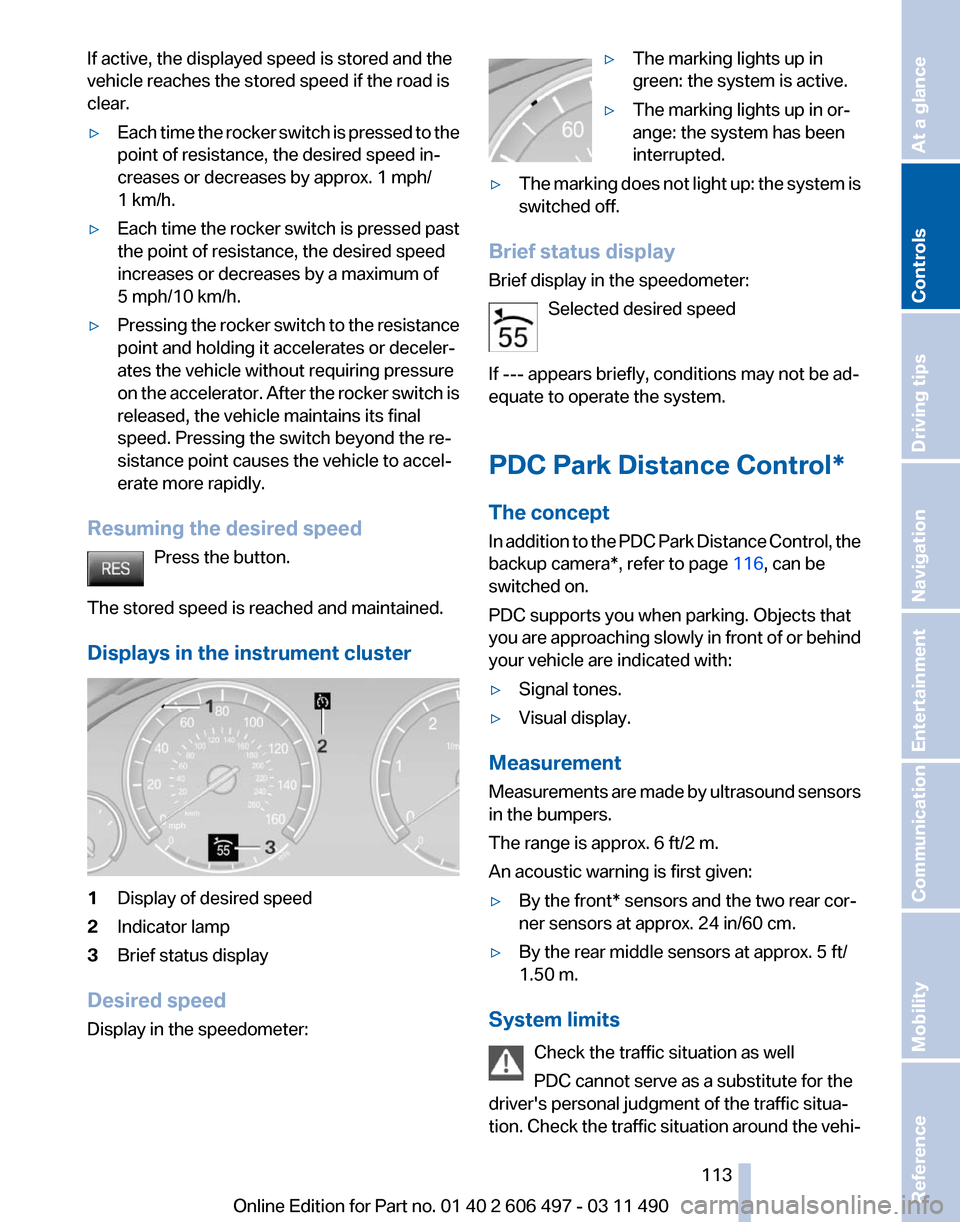
Displays in the instrument cluster 1
Display of desired speed
2 Indicator lamp
3 Brief status display
Desired speed
Display in the speedometer: ▷
The marking lights up in
green: the system is active.
▷ The marking lights up in or‐
ange: the system has been
interrupted.
▷ The marking does not light up: the system is
switched off.
Brief status display
Brief display in the speedometer: Selected desired speed
If --- appears briefly, conditions may not be ad‐
equate to operate the system.
PDC Park Distance Control*
The concept
In
addition to the PDC Park Distance Control, the
backup camera*, refer to page 116, can be
switched on.
PDC supports you when parking. Objects that
you are approaching slowly in front of or behind
your vehicle are indicated with:
▷ Signal tones.
▷ Visual display.
Measurement
Measurements
are made by ultrasound sensors
in the bumpers.
The range is approx. 6 ft/2 m.
An acoustic warning is first given:
▷ By the front* sensors and the two rear cor‐
ner sensors at approx. 24 in/60 cm.
▷ By the rear middle sensors at approx. 5 ft/
1.50 m.
System limits Check the traffic situation as well
PDC cannot serve as a substitute for the
driver's personal judgment of the traffic situa‐
tion.
Check the traffic situation around the vehi‐ Seite 113
113Online Edition for Part no. 01 40 2 606 497 - 03 11 490
Reference Mobility Communication Entertainment Navigation Driving tips
Controls At a glance
Page 161 of 299
Bypassing a section of the route
Calculate a new route for a route section.
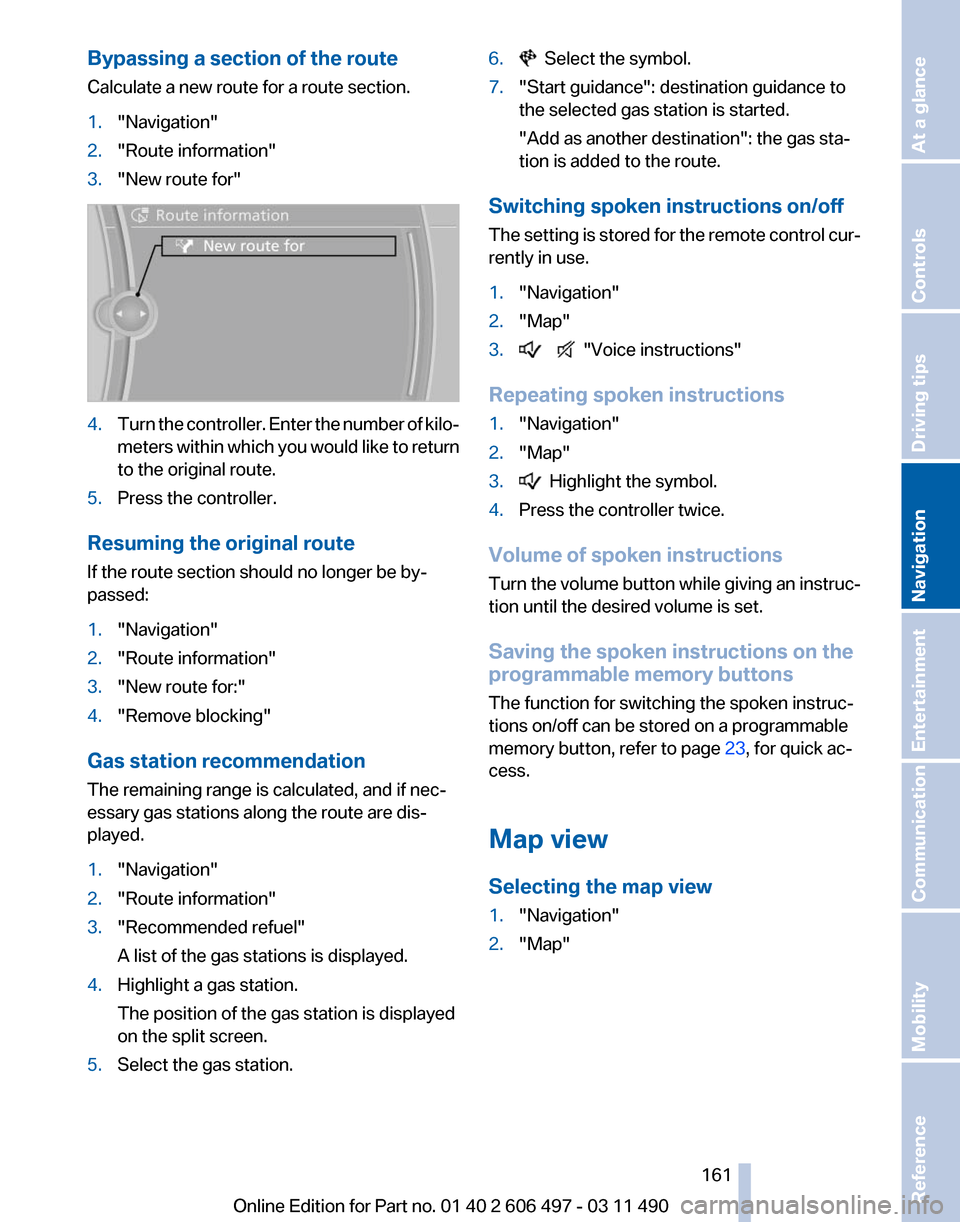
1.
"Navigation"
2. "Route information"
3. "New route for" 4.
Turn the controller. Enter the number of kilo‐
meters
within which you would like to return
to the original route.
5. Press the controller.
Resuming the original route
If the route section should no longer be by‐
passed:
1. "Navigation"
2. "Route information"
3. "New route for:"
4. "Remove blocking"
Gas station recommendation
The remaining range is calculated, and if nec‐
essary gas stations along the route are dis‐
played.
1. "Navigation"
2. "Route information"
3. "Recommended refuel"
A list of the gas stations is displayed.
4. Highlight a gas station.
The position of the gas station is displayed
on the split screen.
5. Select the gas station. 6. Select the symbol.
7. "Start guidance": destination guidance to
the selected gas station is started.
"Add as another destination"
: the gas sta‐
tion is added to the route.
Switching spoken instructions on/off
The
setting is stored for the remote control cur‐
rently in use.
1. "Navigation"
2. "Map"
3. "Voice instructions"
Repeating spoken instructions
1. "Navigation"
2. "Map"
3. Highlight the symbol.
4. Press the controller twice.
Volume of spoken instructions
Turn
the volume button while giving an instruc‐
tion until the desired volume is set.
Saving the spoken instructions on the
programmable memory buttons
The function for switching the spoken instruc‐
tions on/off can be stored on a programmable
memory button, refer to page 23, for quick ac‐
cess.
Map view
Selecting the map view
1. "Navigation"
2. "Map"
Seite 161
161Online Edition for Part no. 01 40 2 606 497 - 03 11 490
Reference Mobility Communication Entertainment
Navigation Driving tips Controls At a glance
Page 185 of 299
1.
"CD/Multimedia"
2. "CD/DVD"
3. Select the desired DVD.
4. Open "Options".
5. "Audio/language"
6. Select the desired language.
Notes
CD/DVD player and changer Do not remove the cover
BMW CD/DVD players and changers are
officially designated Class 1 laser products. Do
not operate if the cover is damaged; otherwise,
severe eye damage may occur.◀
CDs and DVDs
Use of CDs/DVDs
▷Do not use self-recorded CDs/DVDs
with labels applied, as these can be‐
come detached during playback due
to
heat buildup and can cause irrepar‐
able damage to the device.
▷ Only use round CDs/DVDs with a standard
diameter of 4.7 in/12 cm and do not play
CDs/DVDs
with an adapter, e.g., single CDs;
otherwise, the CDs or the adapter may jam
and no longer eject.
▷ Do not use combined CDs/DVDs, e.g., DVD
Plus, as the CDs/DVDs can jam and will no
longer eject.◀
General malfunctions
▷ CD/DVD changers and players have been
optimized for performance in vehicles. In
some
instances they may be more sensitive
to faulty CDs/DVDs than stationary devices
would be.
▷ If a CD/DVD cannot be played, first check
whether it has been inserted correctly. Humidity
High
levels of humidity can lead to condensation
on the CD/DVD or the laser's scan lens, and
temporarily prevent playback.
Malfunctions involving individual CDs/
DVDs
If malfunctions occur only with particular CDs/
DVDs, this can be due to one of the following
causes:
Home-recorded CDs/DVDs
▷ Possible reasons for malfunctions with
home-recorded
CDs/DVDs are inconsistent
data creation or recording processes, or
poor quality or old age of the blank CD/DVD.
▷ Only label CDs/DVDs on the upper side with
a pen intended for this purpose.
Damage
▷ Avoid fingerprints, dust, scratches and
moisture.
▷ Store CDs/DVDs in a sleeve.
▷ Do not subject CDs/DVDs to temperatures
over 122 ℉/50 ℃, high humidity or direct
sunlight.
CDs/DVDs with copy protection
CDs/DVDs are often provided with a copy pro‐
tection feature by the manufacturer. This can
mean
that some CDs/DVDs cannot be played or
can only be played to a limited extent.
MACROVISION
This product contains copyrighted technology
that is based on multiple registered US patents
and the intellectual property of the Macrovision
Corporation and other manufacturers. The use
of this copy protection must be approved by
Macrovision. Media protected by this product -
unless otherwise agreed with Macrovision - may
only be used for private purposes. Copying of
this technology is prohibited.
Seite 185
185Online Edition for Part no. 01 40 2 606 497 - 03 11 490
Reference Mobility Communication
Entertainment Navigation Driving tips Controls At a glance
Page 248 of 299
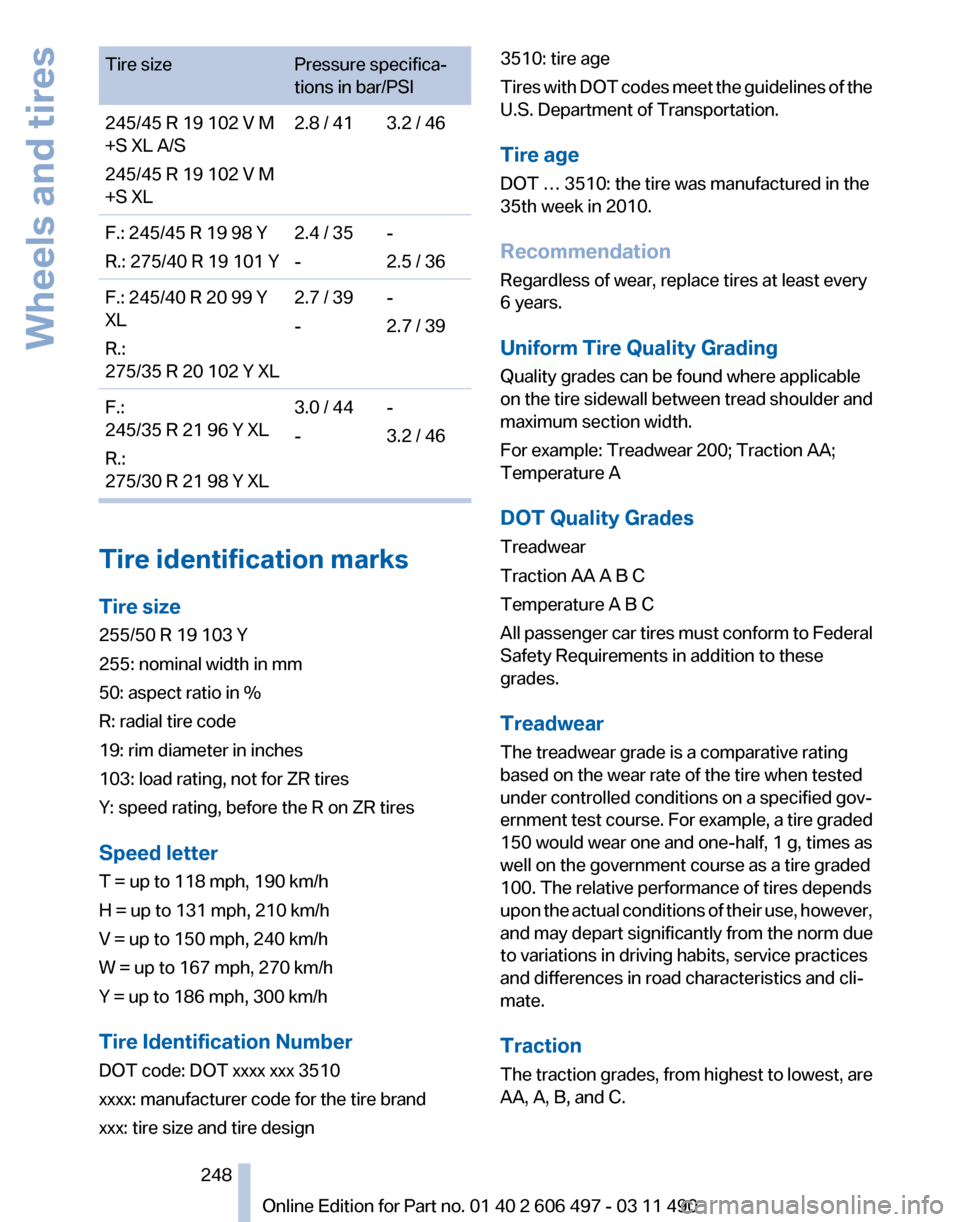
Tire size
Pressure specifica‐
tions in bar/PSI
245/45 R 19 102 V M
+S XL A/S
245/45 R 19 102 V M
+S XL 2.8 / 41 3.2 / 46
F.: 245/45 R 19 98 Y
R.: 275/40 R 19 101 Y 2.4 / 35
--
2.5 / 36
F.: 245/40 R 20 99 Y
XL
R.:
275/35 R 20 102 Y XL 2.7 / 39
-
-
2.7 / 39
F.:
245/35 R 21 96 Y XL
R.:
275/30 R 21 98 Y XL 3.0 / 44
-
-
3.2 / 46 Tire identification marks
Tire size
255/50 R 19 103 Y
255: nominal width in mm
50: aspect ratio in %
R: radial tire code
19: rim diameter in inches
103: load rating, not for ZR tires
Y: speed rating, before the R on ZR tires
Speed letter
T = up to 118 mph, 190 km/h
H = up to 131 mph, 210 km/h
V = up to 150 mph, 240 km/h
W = up to 167 mph, 270 km/h
Y = up to 186 mph, 300 km/h
Tire Identification Number
DOT code: DOT xxxx xxx 3510
xxxx: manufacturer code for the tire brand
xxx: tire size and tire design 3510: tire age
Tires
with DOT codes meet the guidelines of the
U.S. Department of Transportation.
Tire age
DOT … 3510: the tire was manufactured in the
35th week in 2010.
Recommendation
Regardless of wear, replace tires at least every
6 years.
Uniform Tire Quality Grading
Quality grades can be found where applicable
on the tire sidewall between tread shoulder and
maximum section width.
For example: Treadwear 200; Traction AA;
Temperature A
DOT Quality Grades
Treadwear
Traction AA A B C
Temperature A B C
All passenger car tires must conform to Federal
Safety Requirements in addition to these
grades.
Treadwear
The treadwear grade is a comparative rating
based on the wear rate of the tire when tested
under controlled conditions on a specified gov‐
ernment test course. For example, a tire graded
150 would wear one and one-half, 1 g, times as
well on the government course as a tire graded
100. The relative performance of tires depends
upon the actual conditions of their use, however,
and may depart significantly from the norm due
to variations in driving habits, service practices
and differences in road characteristics and cli‐
mate.
Traction
The traction grades, from highest to lowest, are
AA, A, B, and C.
Seite 248
248 Online Edition for Part no. 01 40 2 606 497 - 03 11 490
Wheels and tires
Page 277 of 299
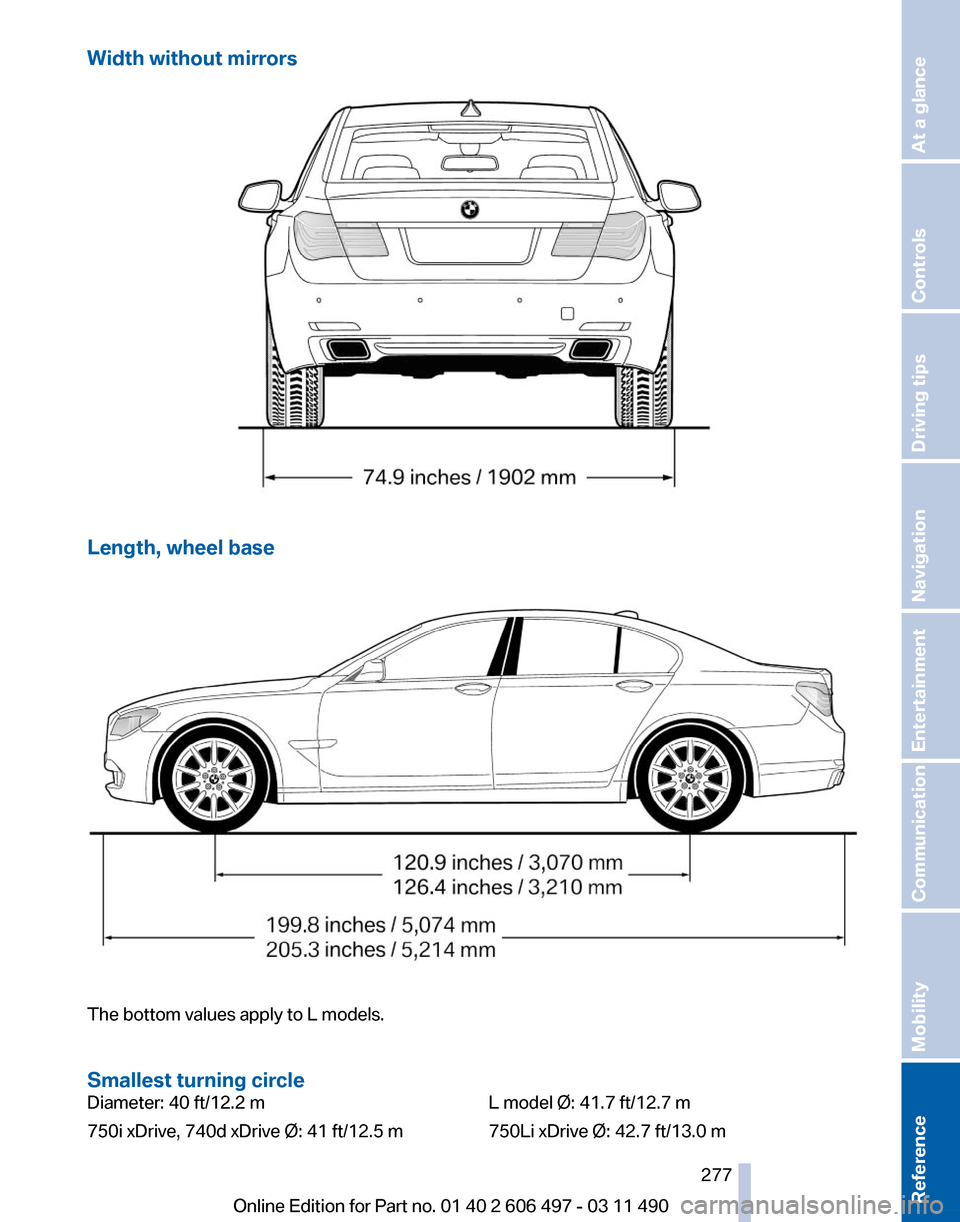
Width without mirrors
Length, wheel base
The bottom values apply to L models.
Smallest turning circle
Diameter: 40 ft/12.2 m
750i xDrive, 740d xDrive Ø: 41 ft/12.5 m
L model Ø: 41.7 ft/12.7 m
750Li xDrive Ø: 42.7 ft/13.0 m
Seite 277
277Online Edition for Part no. 01 40 2 606 497 - 03 11 490
Reference Mobility Communication Entertainment Navigation Driving tips Controls At a glance
Page 282 of 299
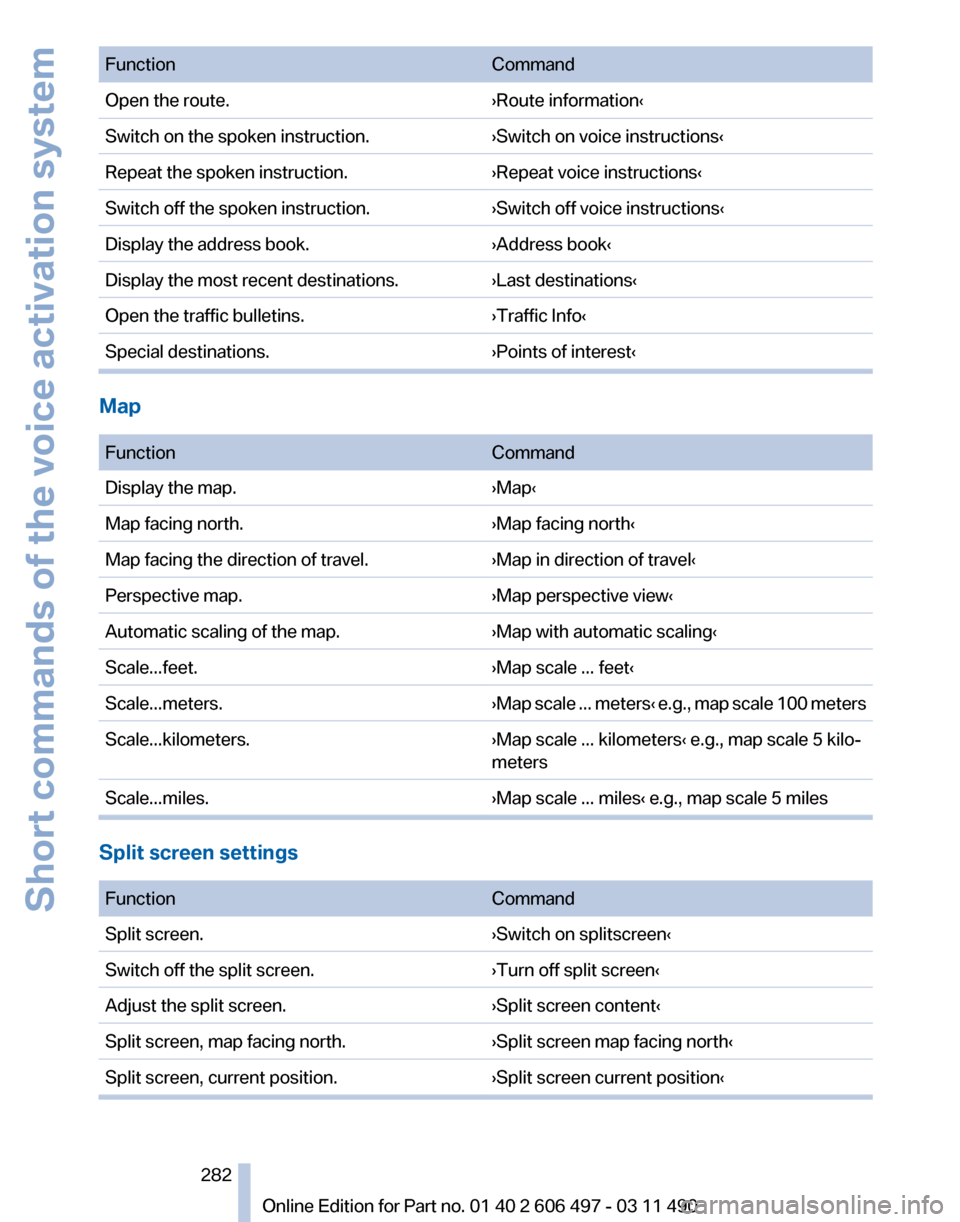
Function
Command
Open the route. ›Route information‹
Switch on the spoken instruction. ›Switch on voice instructions‹
Repeat the spoken instruction. ›Repeat voice instructions‹
Switch off the spoken instruction. ›Switch off voice instructions‹
Display the address book. ›Address book‹
Display the most recent destinations. ›Last destinations‹
Open the traffic bulletins. ›Traffic Info‹
Special destinations. ›Points of interest‹Map
Function
Command
Display the map. ›Map‹
Map facing north. ›Map facing north‹
Map facing the direction of travel. ›Map in direction of travel‹
Perspective map. ›Map perspective view‹
Automatic scaling of the map. ›Map with automatic scaling‹
Scale...feet. ›Map scale ... feet‹
Scale...meters. ›Map scale ... meters‹ e.g., map scale 100 meters
Scale...kilometers. ›Map scale ... kilometers‹ e.g., map scale 5 kilo‐
meters
Scale...miles. ›Map scale ... miles‹ e.g., map scale 5 milesSplit screen settings
Function
Command
Split screen. ›Switch on splitscreen‹
Switch off the split screen. ›Turn off split screen‹
Adjust the split screen. ›Split screen content‹
Split screen, map facing north. ›Split screen map facing north‹
Split screen, current position. ›Split screen current position‹ Seite 282
282 Online Edition for Part no. 01 40 2 606 497 - 03 11 490
Short commands of the voice activation system
Page 283 of 299
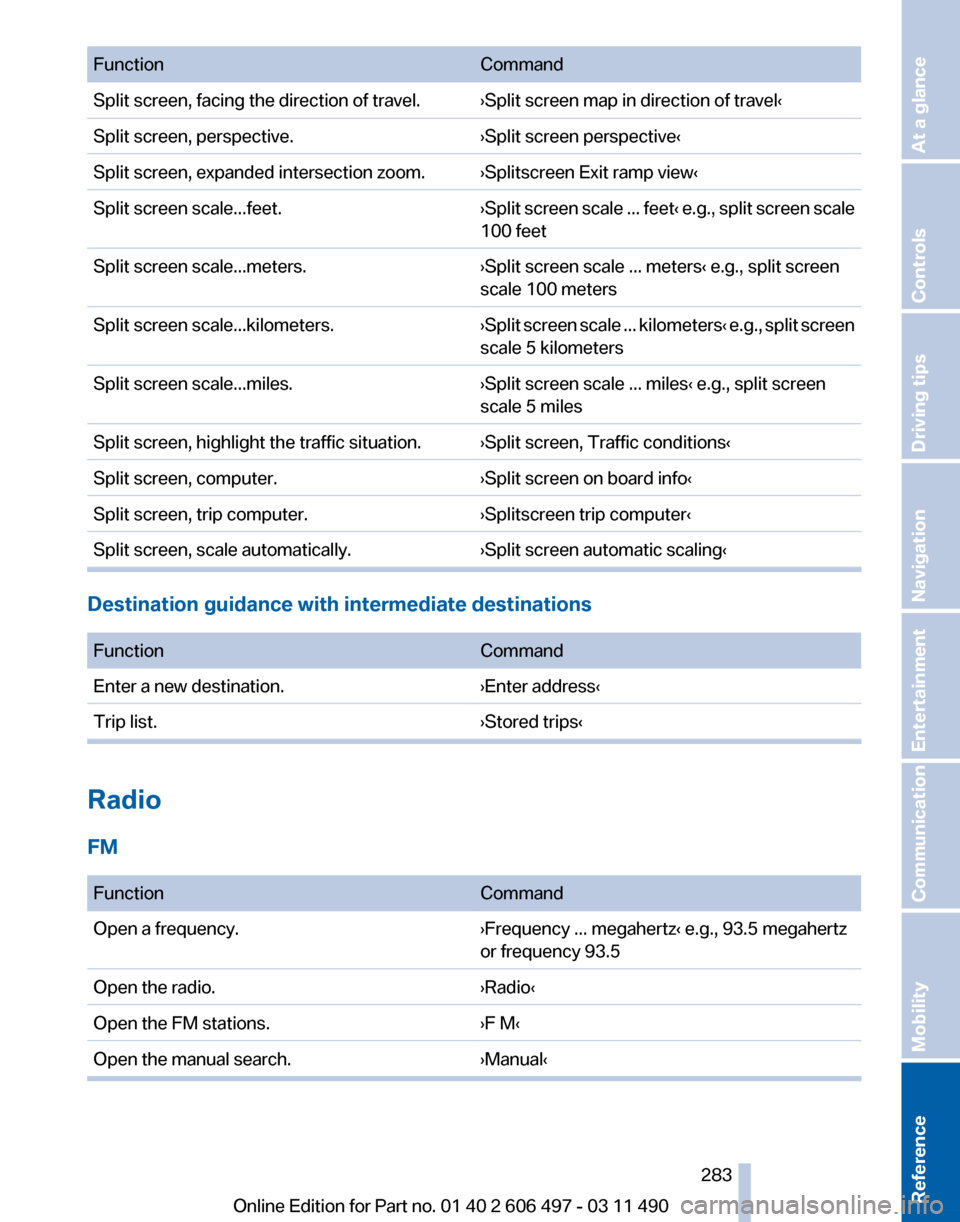
Function
Command
Split screen, facing the direction of travel. ›Split screen map in direction of travel‹
Split screen, perspective. ›Split screen perspective‹
Split screen, expanded intersection zoom. ›Splitscreen Exit ramp view‹
Split screen scale...feet. ›Split screen scale ... feet‹ e.g., split screen scale
100 feet
Split screen scale...meters. ›Split screen scale ... meters‹ e.g., split screen
scale 100 meters
Split screen scale...kilometers. ›Split
screen scale ... kilometers‹ e.g., split screen
scale 5 kilometers
Split screen scale...miles. ›Split screen scale ... miles‹ e.g., split screen
scale 5 miles
Split screen, highlight the traffic situation. ›Split screen, Traffic conditions‹
Split screen, computer. ›Split screen on board info‹
Split screen, trip computer. ›Splitscreen trip computer‹
Split screen, scale automatically. ›Split screen automatic scaling‹Destination guidance with intermediate destinations
Function
Command
Enter a new destination. ›Enter address‹
Trip list. ›Stored trips‹Radio
FM
Function
Command
Open a frequency. ›Frequency ... megahertz‹ e.g., 93.5 megahertz
or frequency 93.5
Open the radio. ›Radio‹
Open the FM stations. ›F M‹
Open the manual search. ›Manual‹ Seite 283
283Online Edition for Part no. 01 40 2 606 497 - 03 11 490
Reference Mobility Communication Entertainment Navigation Driving tips Controls At a glance
Page 293 of 299
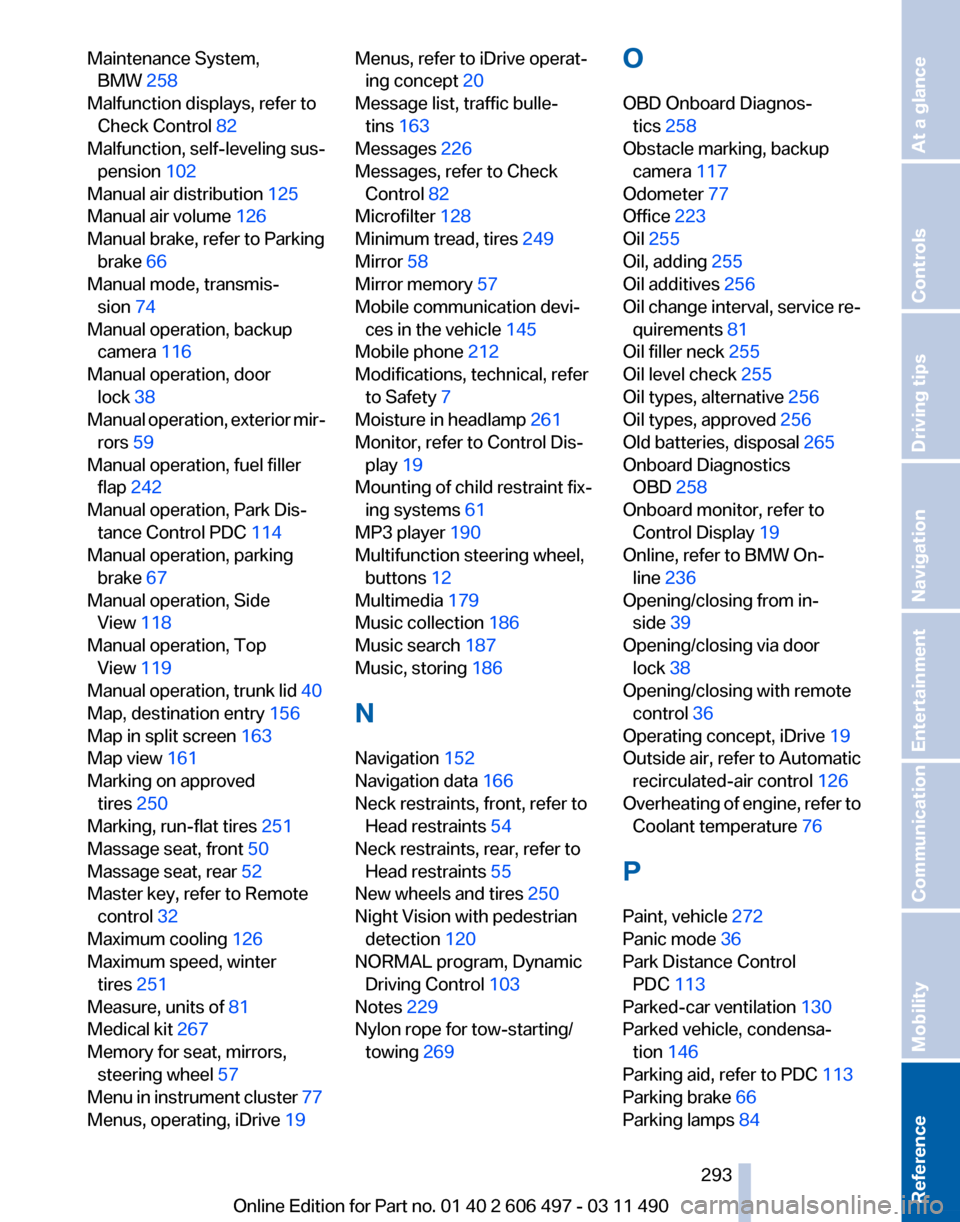
Maintenance System,
BMW 258
Malfunction displays, refer to Check Control 82
Malfunction, self-leveling sus‐ pension 102
Manual air distribution 125
Manual air volume 126
Manual brake, refer to Parking brake 66
Manual mode, transmis‐ sion 74
Manual operation, backup camera 116
Manual operation, door lock 38
Manual
operation, exterior mir‐
rors 59
Manual operation, fuel filler flap 242
Manual operation, Park Dis‐ tance Control PDC 114
Manual operation, parking brake 67
Manual operation, Side View 118
Manual operation, Top View 119
Manual operation, trunk lid 40
Map, destination entry 156
Map in split screen 163
Map view 161
Marking on approved tires 250
Marking, run-flat tires 251
Massage seat, front 50
Massage seat, rear 52
Master key, refer to Remote control 32
Maximum cooling 126
Maximum speed, winter tires 251
Measure, units of 81
Medical kit 267
Memory for seat, mirrors, steering wheel 57
Menu in instrument cluster 77
Menus, operating, iDrive 19 Menus, refer to iDrive operat‐
ing concept 20
Message list, traffic bulle‐ tins 163
Messages 226
Messages, refer to Check Control 82
Microfilter 128
Minimum tread, tires 249
Mirror 58
Mirror memory 57
Mobile communication devi‐ ces in the vehicle 145
Mobile phone 212
Modifications, technical, refer to Safety 7
Moisture in headlamp 261
Monitor, refer to Control Dis‐ play 19
Mounting of child restraint fix‐ ing systems 61
MP3 player 190
Multifunction steering wheel, buttons 12
Multimedia 179
Music collection 186
Music search 187
Music, storing 186
N
Navigation 152
Navigation data 166
Neck restraints, front, refer to Head restraints 54
Neck restraints, rear, refer to Head restraints 55
New wheels and tires 250
Night Vision with pedestrian detection 120
NORMAL program, Dynamic Driving Control 103
Notes 229
Nylon rope for tow-starting/ towing 269 O
OBD Onboard Diagnos‐
tics 258
Obstacle marking, backup camera 117
Odometer 77
Office 223
Oil 255
Oil, adding 255
Oil additives 256
Oil
change interval, service re‐
quirements 81
Oil filler neck 255
Oil level check 255
Oil types, alternative 256
Oil types, approved 256
Old batteries, disposal 265
Onboard Diagnostics OBD 258
Onboard monitor, refer to Control Display 19
Online, refer to BMW On‐ line 236
Opening/closing from in‐ side 39
Opening/closing via door lock 38
Opening/closing with remote control 36
Operating concept, iDrive 19
Outside air, refer to Automatic recirculated-air control 126
Overheating of engine, refer to Coolant temperature 76
P
Paint, vehicle 272
Panic mode 36
Park Distance Control PDC 113
Parked-car ventilation 130
Parked vehicle, condensa‐ tion 146
Parking aid, refer to PDC 113
Parking brake 66
Parking lamps 84
Seite 293
293Online Edition for Part no. 01 40 2 606 497 - 03 11 490
Reference Mobility Communication Entertainment Navigation Driving tips Controls At a glance