change time BMW 745i 2005 E65 User Guide
[x] Cancel search | Manufacturer: BMW, Model Year: 2005, Model line: 745i, Model: BMW 745i 2005 E65Pages: 239, PDF Size: 8.03 MB
Page 94 of 239
Technology for comfort, convenience and safety
92
PDC with visual warning
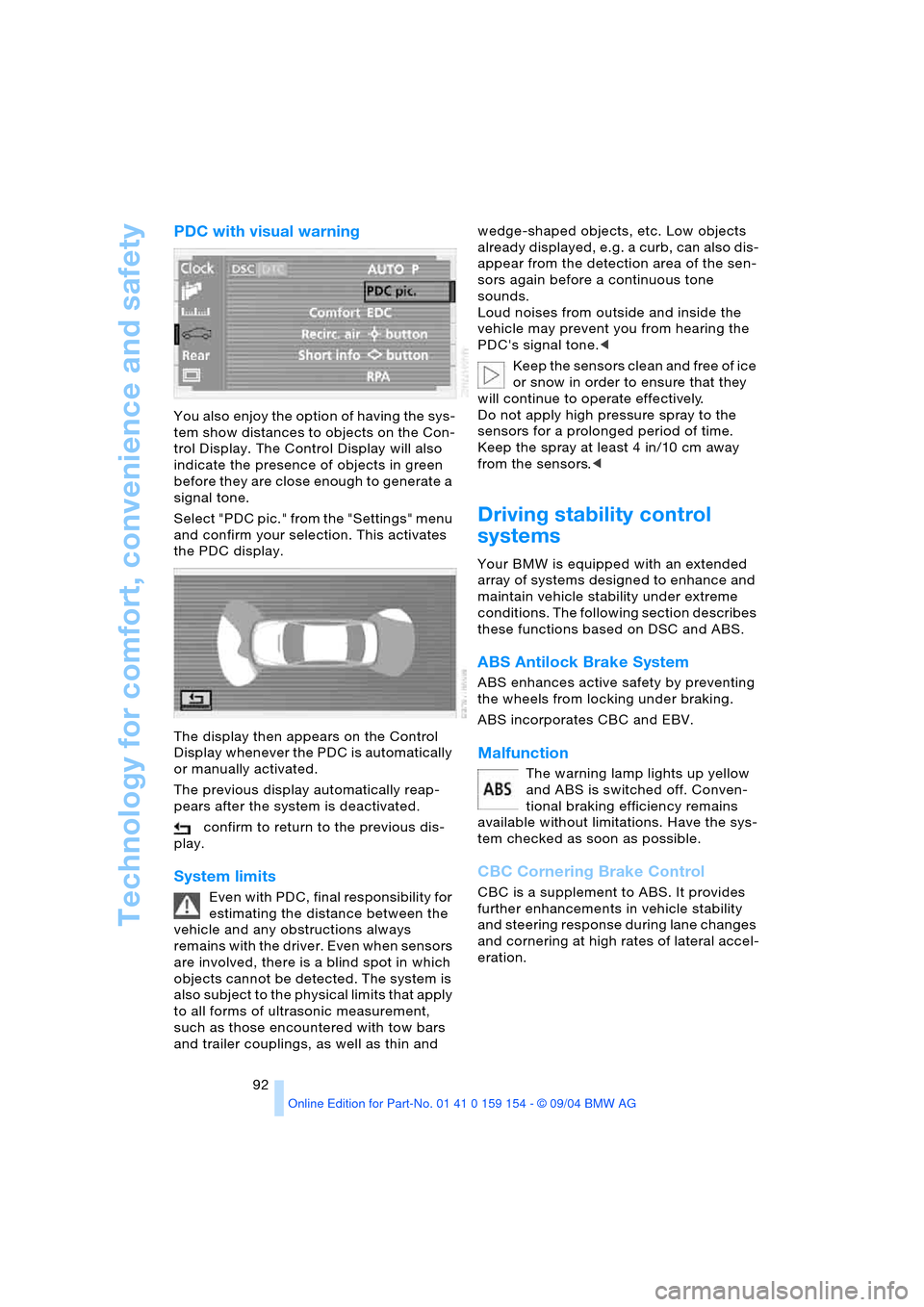
You also enjoy the option of having the sys-
tem show distances to objects on the Con-
trol Display. The Control Display will also
indicate the presence of objects in green
before they are close enough to generate a
signal tone.
Select "PDC pic." from the "Settings" menu
and confirm your selection. This activates
the PDC display.
The display then appears on the Control
Display whenever the PDC is automatically
or manually activated.
The previous display automatically reap-
pears after the system is deactivated.
confirm to return to the previous dis-
play.
System limits
Even with PDC, final responsibility for
estimating the distance between the
vehicle and any obstructions always
remains with the driver. Even when sensors
are involved, there is a blind spot in which
objects cannot be detected. The system is
also subject to the physical limits that apply
to all forms of ultrasonic measurement,
such as those encountered with tow bars
and trailer couplings, as well as thin and wedge-shaped objects, etc. Low objects
already displayed, e.g. a curb, can also dis-
appear from the detection area of the sen-
sors again before a continuous tone
sounds.
Loud noises from outside and inside the
vehicle may prevent you from hearing the
PDC's signal tone.<
Keep the sensors clean and free of ice
or snow in order to ensure that they
will continue to operate effectively.
Do not apply high pressure spray to the
sensors for a prolonged period of time.
Keep the spray at least 4 in/10 cm away
from the sensors.<
Driving stability control
systems
Your BMW is equipped with an extended
array of systems designed to enhance and
maintain vehicle stability under extreme
conditions. The following section describes
these functions based on DSC and ABS.
ABS Antilock Brake System
ABS enhances active safety by preventing
the wheels from locking under braking.
ABS incorporates CBC and EBV.
Malfunction
The warning lamp lights up yellow
and ABS is switched off. Conven-
tional braking efficiency remains
available without limitations. Have the sys-
tem checked as soon as possible.
CBC Cornering Brake Control
CBC is a supplement to ABS. It provides
further enhancements in vehicle stability
and steering response during lane changes
and cornering at high rates of lateral accel-
eration.
Page 97 of 239
Controls
95Reference
At a glance
Driving tips
Communications
Navigation
Entertainment
Mobility
Have the system checked as soon as pos-
sible.
Display of the previously described
malfunction on Canadian models.
Dynamic Drive
The concept
Dynamic Drive minimizes body roll and
optimizes vehicle stability during cornering
and evasive maneuvers.
Active stabilizers at the front and rear axles
form the basis for Dynamic Drive. Suspen-
sion compliance adapts to suit driving con-
ditions, varying from performance-oriented
during cornering to smooth and comfort-
oriented when the vehicle is proceeding in
a straight line.
The system assumes operational status
each time you start the engine.
Driving with Dynamic Drive
During vehicle operation, the system con-
tinuously runs through closed-loop control
cycles lasting only fractions of a second.
Malfunction
The warning lamp lights up, accom-
panied by a status message in the
Check Control. Please take note of
the additional information on the Control
Display. A malfunction has occurred in the
system. Have the system checked as soon
as possible.
If the Dynamic Drive system switches
off in response to malfunction, please
remember to adapt your speed accord-
ingly, especially in curves.
The suspension will be noticeably softer
and the vehicle will display a greater ten-
dency to tilt during cornering and in cross-
winds.
If a Check Control message stating that you
should stop appears in addition to the red
symbol, stop immediately and switch off
the engine. In this case the oil level in the
reservoir may have dropped below the min-imum, possibly owing to a leak in the
hydraulic system.
Please observe the additional instructions
provided on the Control Display.<
EDC Electronic Damping
Control*
The suspension responds to changes in
factors such as road surface, or operating
conditions such as steering and braking, by
adapting to the new conditions within frac-
tions of a second.
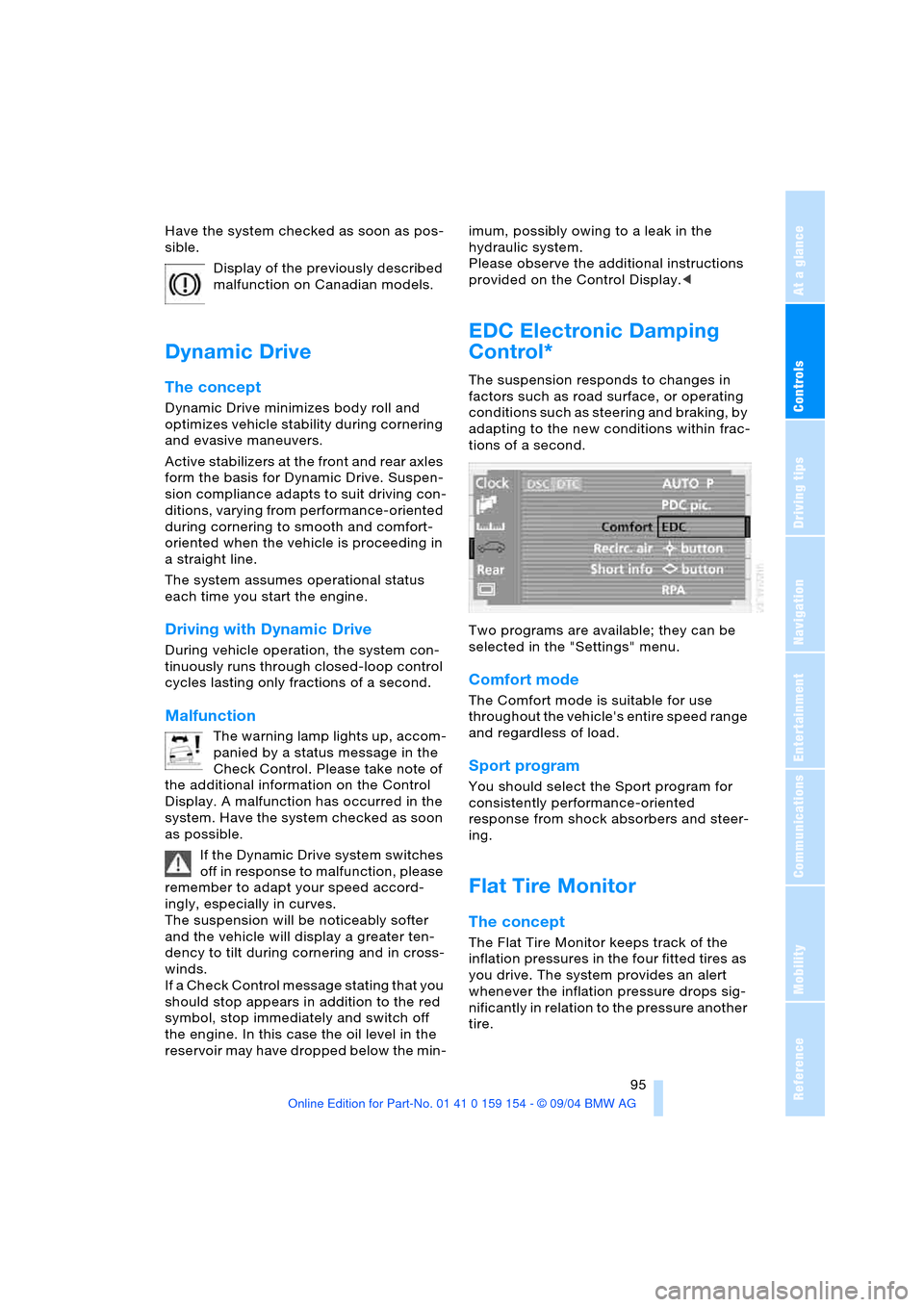
Two programs are available; they can be
selected in the "Settings" menu.
Comfort mode
The Comfort mode is suitable for use
throughout the vehicle's entire speed range
and regardless of load.
Sport program
You should select the Sport program for
consistently performance-oriented
response from shock absorbers and steer-
ing.
Flat Tire Monitor
The concept
The Flat Tire Monitor keeps track of the
inflation pressures in the four fitted tires as
you drive. The system provides an alert
whenever the inflation pressure drops sig-
nificantly in relation to the pressure another
tire.
Page 102 of 239
Lamps
100
Lamps
Parking lamps/low beams
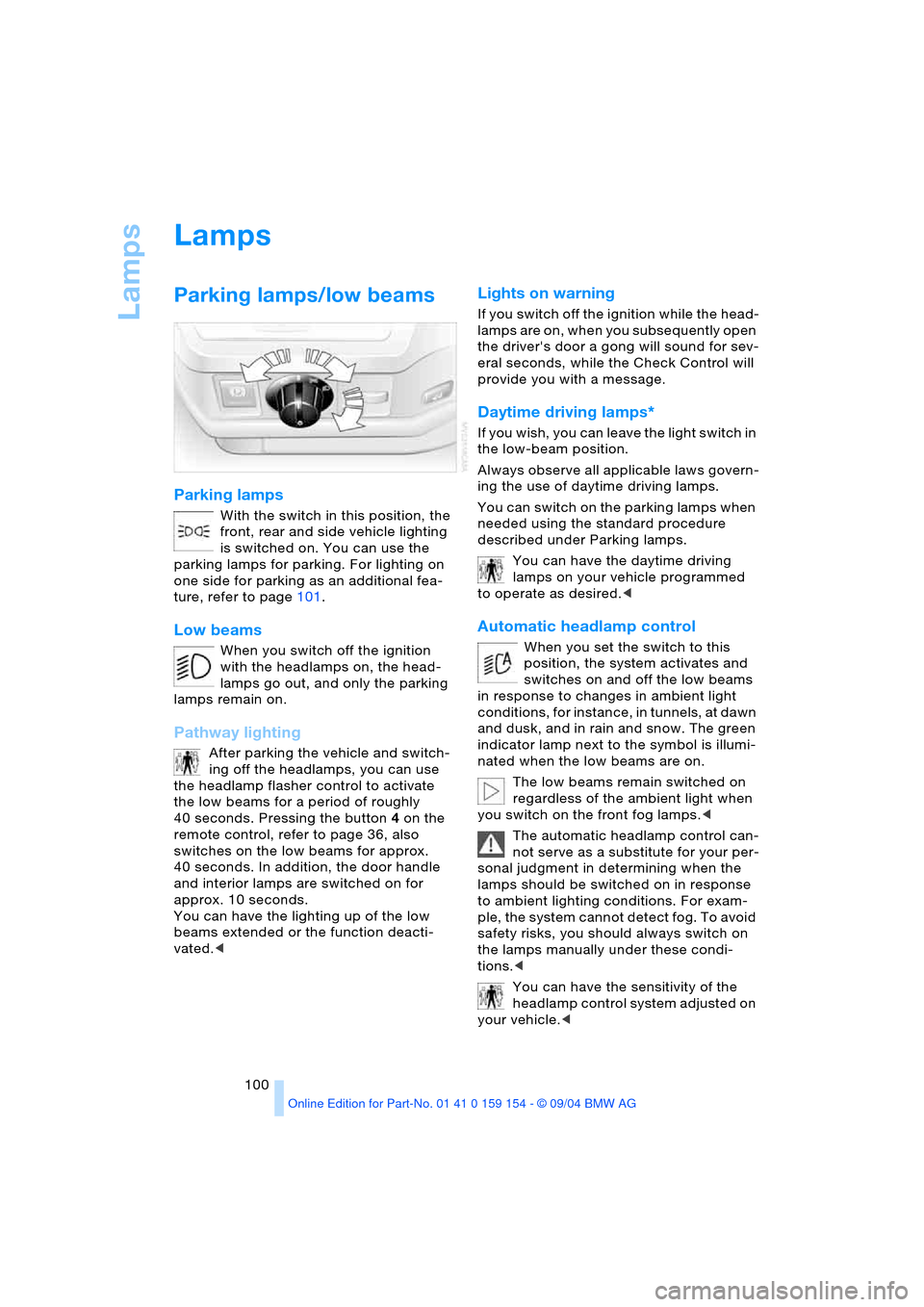
Parking lamps
With the switch in this position, the
front, rear and side vehicle lighting
is switched on. You can use the
parking lamps for parking. For lighting on
one side for parking as an additional fea-
ture, refer to page101.
Low beams
When you switch off the ignition
with the headlamps on, the head-
lamps go out, and only the parking
lamps remain on.
Pathway lighting
After parking the vehicle and switch-
ing off the headlamps, you can use
the headlamp flasher control to activate
the low beams for a period of roughly
40 seconds. Pressing the button 4 on the
remote control, refer to page 36, also
switches on the low beams for approx.
40 seconds. In addition, the door handle
and interior lamps are switched on for
approx. 10 seconds.
You can have the lighting up of the low
beams extended or the function deacti-
vated.<
Lights on warning
If you switch off the ignition while the head-
lamps are on, when you subsequently open
the driver's door a gong will sound for sev-
eral seconds, while the Check Control will
provide you with a message
.
Daytime driving lamps*
If you wish, you can leave the light switch in
the low-beam position.
Always observe all applicable laws govern-
ing the use of daytime driving lamps.
You can switch on the parking lamps when
needed using the standard procedure
described under Parking lamps.
You can have the daytime driving
lamps on your vehicle programmed
to operate as desired.<
Automatic headlamp control
When you set the switch to this
position, the system activates and
switches on and off the low beams
in response to changes in ambient light
conditions, for instance, in tunnels, at dawn
and dusk, and in rain and snow. The green
indicator lamp next to the symbol is illumi-
nated when the low beams are on.
The low beams remain switched on
regardless of the ambient light when
you switch on the front fog lamps.<
The automatic headlamp control can-
not serve as a substitute for your per-
sonal judgment in determining when the
lamps should be switched on in response
to ambient lighting conditions. For exam-
ple, the system cannot detect fog. To avoid
safety risks, you should always switch on
the lamps manually under these condi-
tions.<
You can have the sensitivity of the
headlamp control system adjusted on
your vehicle.<
Page 114 of 239
Practical interior accessories
112
Practical interior accessories
Integrated universal remote
control*
The concept
The integrated universal remote control can
replace as many as three hand-held trans-
mitters for various remote-controlled
accessories, such as door openers and
house alarm systems. The integrated uni-
versal remote control registers and stores
signals from the original hand-held trans-
mitters.
The signal of an original hand-held trans-
mitter can be programmed on one of the
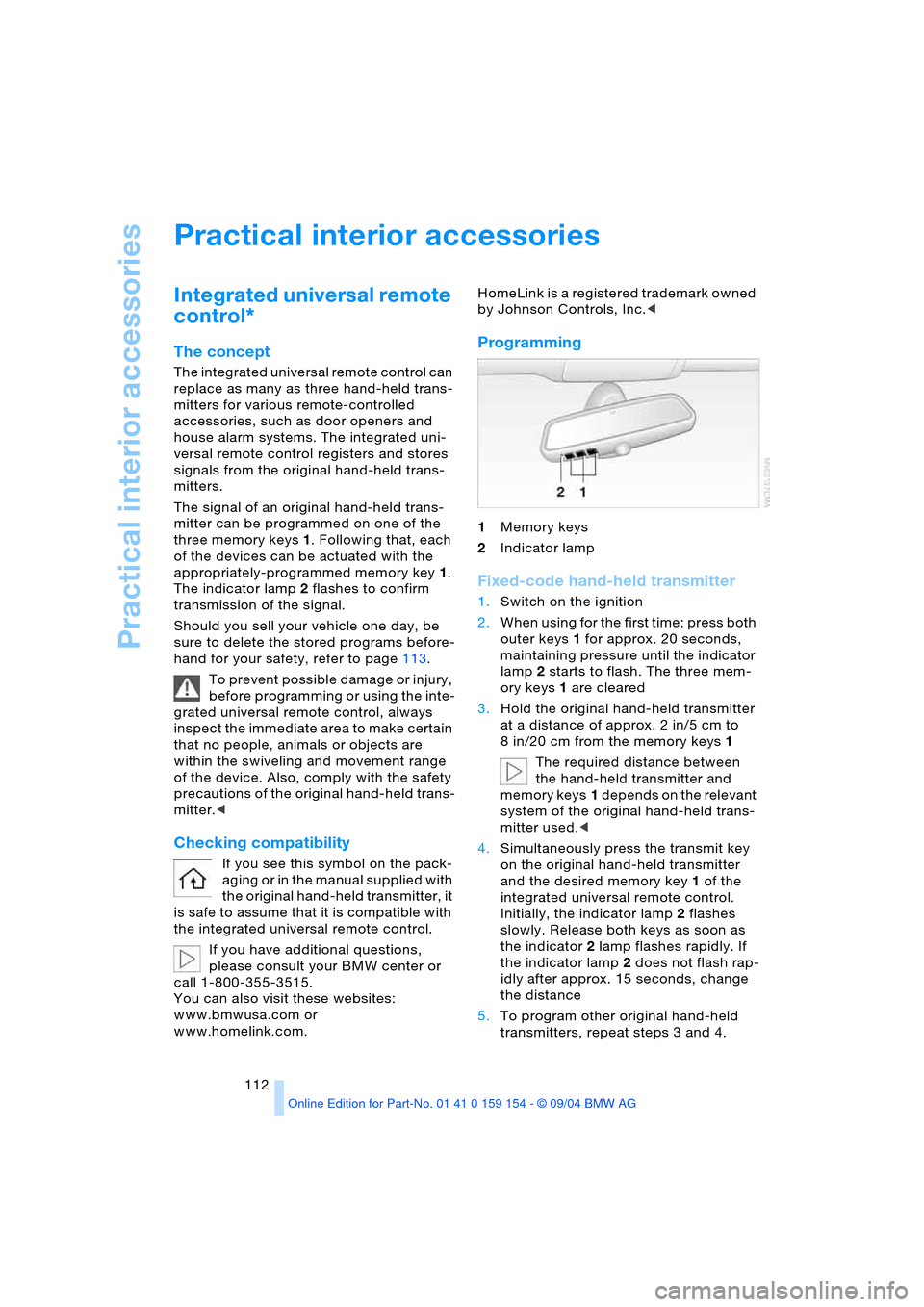
three memory keys1. Following that, each
of the devices can be actuated with the
appropriately-programmed memory key1.
The indicator lamp 2 flashes to confirm
transmission of the signal.
Should you sell your vehicle one day, be
sure to delete the stored programs before-
hand for your safety, refer to page113.
To prevent possible damage or injury,
before programming or using the inte-
grated universal remote control, always
inspect the immediate area to make certain
that no people, animals or objects are
within the swiveling and movement range
of the device. Also, comply with the safety
precautions of the original hand-held trans-
mitter.<
Checking compatibility
If you see this symbol on the pack-
aging or in the manual supplied with
the original hand-held transmitter, it
is safe to assume that it is compatible with
the integrated universal remote control.
If you have additional questions,
please consult your BMW center or
call 1-800-355-3515.
You can also visit these websites:
www.bmwusa.com or
www.homelink.com. HomeLink is a registered trademark owned
by Johnson Controls, Inc.<
Programming
1Memory keys
2Indicator lamp
Fixed-code hand-held transmitter
1.Switch on the ignition
2.When using for the first time: press both
outer keys1 for approx. 20 seconds,
maintaining pressure until the indicator
lamp2 starts to flash. The three mem-
ory keys1 are cleared
3.Hold the original hand-held transmitter
at a distance of approx. 2 in/5 cm to
8 in/20 cm from the memory keys1
The required distance between
the hand-held transmitter and
memory keys1 depends on the relevant
system of the original hand-held trans-
mitter used.<
4.Simultaneously press the transmit key
on the original hand-held transmitter
and the desired memory key1 of the
integrated universal remote control.
Initially, the indicator lamp2 flashes
slowly. Release both keys as soon as
the indicator 2 lamp flashes rapidly. If
the indicator lamp2 does not flash rap-
idly after approx. 15 seconds, change
the distance
5.To program other original hand-held
transmitters, repeat steps 3 and 4.
Page 139 of 239
Navigation
Driving tips
137Reference
At a glance
Controls
Communications
Entertainment
Mobility
Destination list
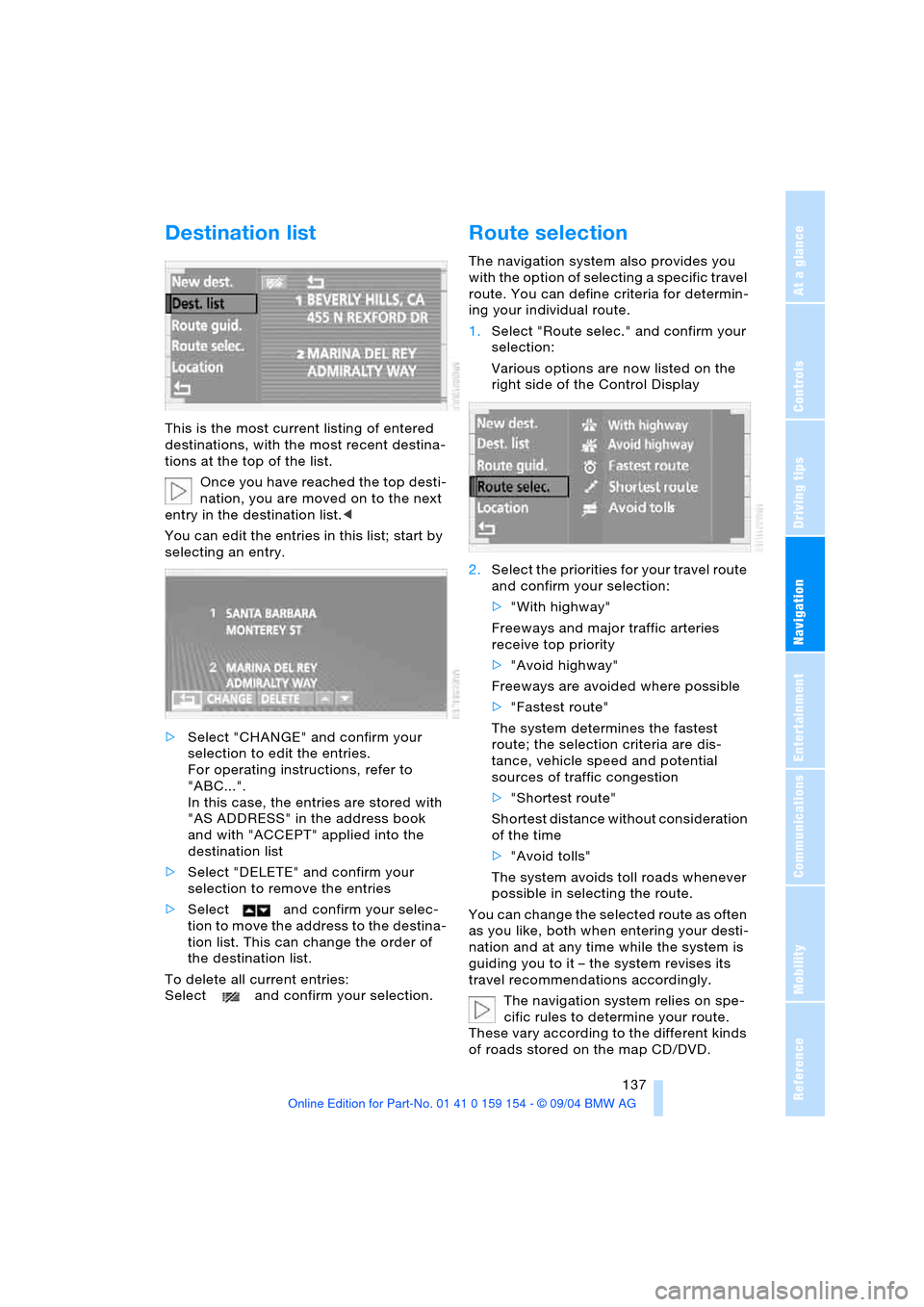
This is the most current listing of entered
destinations, with the most recent destina-
tions at the top of the list.
Once you have reached the top desti-
nation, you are moved on to the next
entry in the destination list.<
You can edit the entries in this list; start by
selecting an entry.
>Select "CHANGE" and confirm your
selection to edit the entries.
For operating instructions, refer to
"ABC...".
In this case, the entries are stored with
"AS ADDRESS" in the address book
and with "ACCEPT" applied into the
destination list
>Select "DELETE" and confirm your
selection to remove the entries
>Select and confirm your selec-
tion to move the address to the destina-
tion list. This can change the order of
the destination list.
To delete all current entries:
Select and confirm your selection.
Route selection
The navigation system also provides you
with the option of selecting a specific travel
route. You can define criteria for determin-
ing your individual route.
1.Select "Route selec." and confirm your
selection:
Various options are now listed on the
right side of the Control Display
2.Select the priorities for your travel route
and confirm your selection:
>"With highway"
Freeways and major traffic arteries
receive top priority
>"Avoid highway"
Freeways are avoided where possible
>"Fastest route"
The system determines the fastest
route; the selection criteria are dis-
tance, vehicle speed and potential
sources of traffic congestion
>"Shortest route"
Shortest distance without consideration
of the time
>"Avoid tolls"
The system avoids toll roads whenever
possible in selecting the route.
You can change the selected route as often
as you like, both when entering your desti-
nation and at any time while the system is
guiding you to it – the system revises its
travel recommendations accordingly.
The navigation system relies on spe-
cific rules to determine your route.
These vary according to the different kinds
of roads stored on the map CD/DVD.
Page 141 of 239
Navigation
Driving tips
139Reference
At a glance
Controls
Communications
Entertainment
Mobility
Destination guidance
Starting destination
guidance
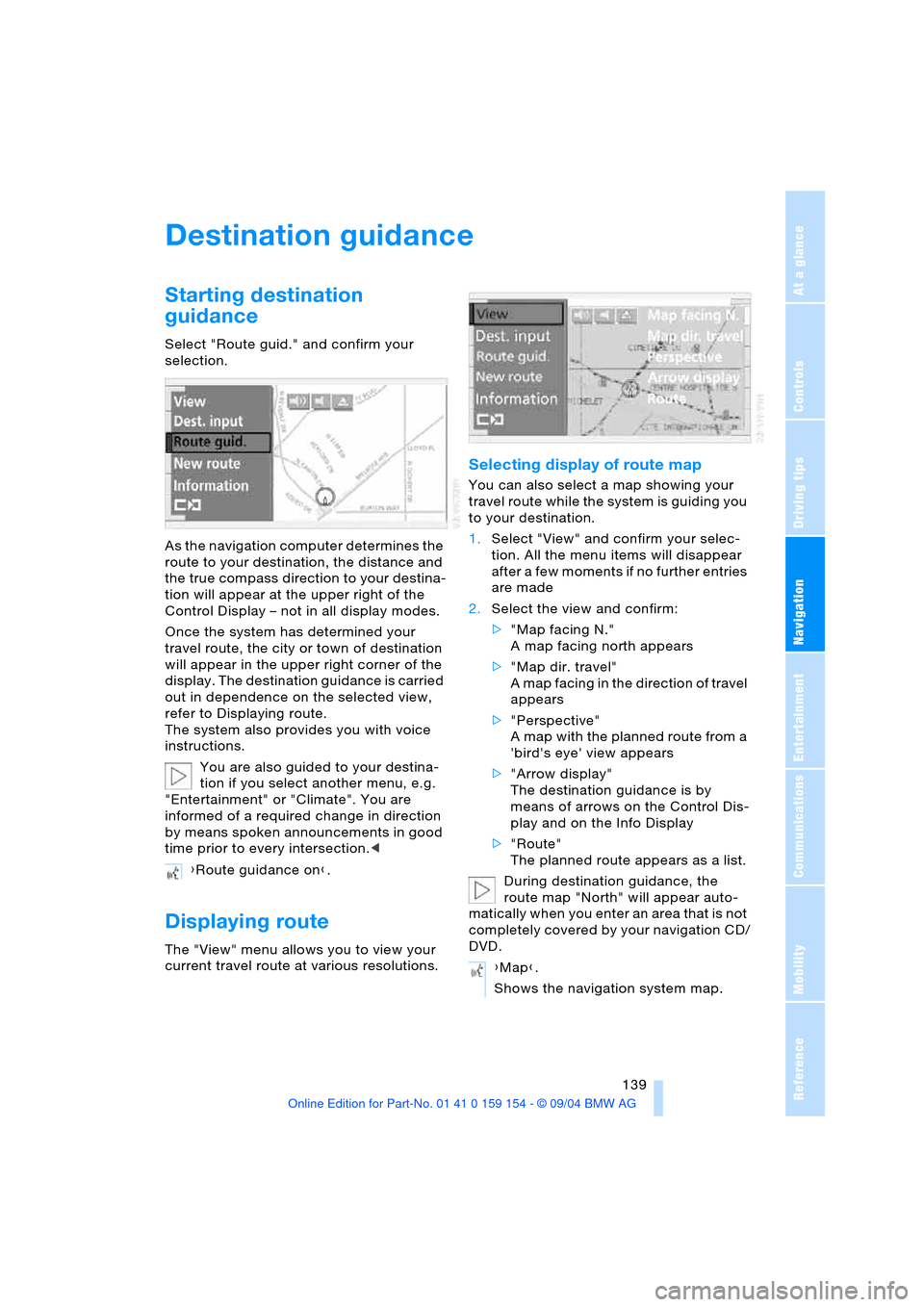
Select "Route guid." and confirm your
selection.
As the navigation computer determines the
route to your destination, the distance and
the true compass direction to your destina-
tion will appear at the upper right of the
Control Display – not in all display modes.
Once the system has determined your
travel route, the city or town of destination
will appear in the upper right corner of the
display. The destination guidance is carried
out in dependence on the selected view,
refer to Displaying route.
The system also provides you with voice
instructions.
You are also guided to your destina-
tion if you select another menu, e.g.
"Entertainment" or "Climate". You are
informed of a required change in direction
by means spoken announcements in good
time prior to every intersection.<
Displaying route
The "View" menu allows you to view your
current travel route at various resolutions.
Selecting display of route map
You can also select a map showing your
travel route while the system is guiding you
to your destination.
1.Select "View" and confirm your selec-
tion. All the menu items will disappear
after a few moments if no further entries
are made
2.Select the view and confirm:
>"Map facing N."
A map facing north appears
>"Map dir. travel"
A map facing in the direction of travel
appears
>"Perspective"
A map with the planned route from a
'bird's eye' view appears
>"Arrow display"
The destination guidance is by
means of arrows on the Control Dis-
play and on the Info Display
>"Route"
The planned route appears as a list.
During destination guidance, the
route map "North" will appear auto-
matically when you enter an area that is not
completely covered by your navigation CD/
DVD. {Route guidance on}.
{Map}.
Shows the navigation system map.
Page 142 of 239
Destination guidance
140
Changing scale
Turn the controller to adjust the scale.
The map scale is provided at the lower right
of the Control Display.
Altering display direction
1.Select "View" and confirm your selec-
tion. All the menu items will disappear
after a few moments if no further entries
are made
2.Select "Map dir. travel" or "Map facing
N." and confirm your selection.
Canceling route map
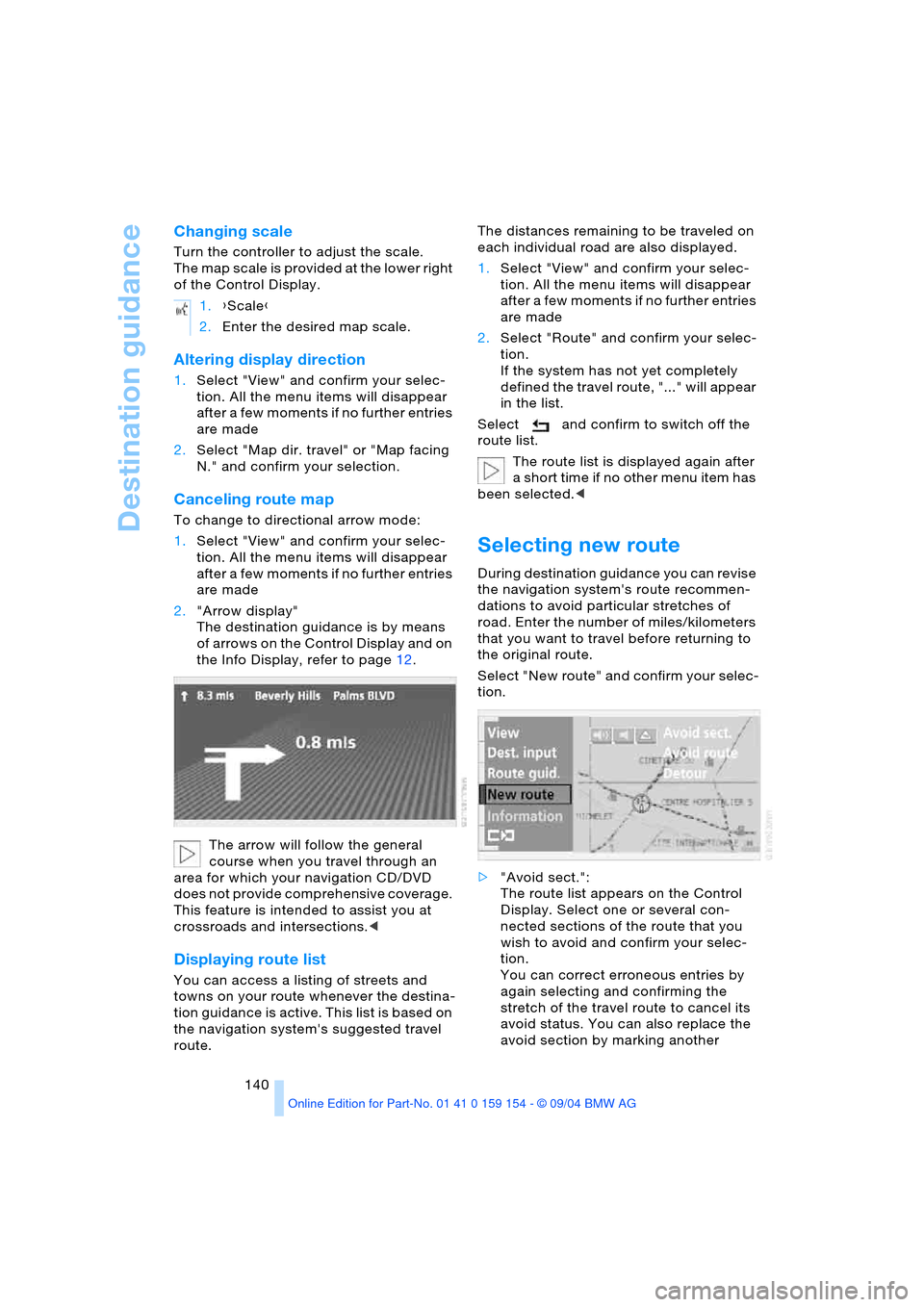
To change to directional arrow mode:
1.Select "View" and confirm your selec-
tion. All the menu items will disappear
after a few moments if no further entries
are made
2."Arrow display"
The destination guidance is by means
of arrows on the Control Display and on
the Info Display, refer to page12.
The arrow will follow the general
course when you travel through an
area for which your navigation CD/DVD
does not provide comprehensive coverage.
This feature is intended to assist you at
crossroads and intersections.<
Displaying route list
You can access a listing of streets and
towns on your route whenever the destina-
tion guidance is active. This list is based on
the navigation system's suggested travel
route.The distances remaining to be traveled on
each individual road are also displayed.
1.Select "View" and confirm your selec-
tion. All the menu items will disappear
after a few moments if no further entries
are made
2.Select "Route" and confirm your selec-
tion.
If the system has not yet completely
defined the travel route, "..." will appear
in the list.
Select and confirm to switch off the
route list.
The route list is displayed again after
a short time if no other menu item has
been selected.<
Selecting new route
During destination guidance you can revise
the navigation system's route recommen-
dations to avoid particular stretches of
road. Enter the number of miles/kilometers
that you want to travel before returning to
the original route.
Select "New route" and confirm your selec-
tion.
>"Avoid sect.":
The route list appears on the Control
Display. Select one or several con-
nected sections of the route that you
wish to avoid and confirm your selec-
tion.
You can correct erroneous entries by
again selecting and confirming the
stretch of the travel route to cancel its
avoid status. You can also replace the
avoid section by marking another 1.{Scale}
2.Enter the desired map scale.
Page 145 of 239
Navigation
Driving tips
143Reference
At a glance
Controls
Communications
Entertainment
Mobility
Voice command system address
book
Storing addresses
The first destination in the destination list
can be stored in this address book:
It is always the case that only the first entry
in the destination list can be saved. To save
other addresses, change the destination
list accordingly, refer to page 137.
The house number is not stored in the
address book of the voice command
system.<
Selecting an address
Home address
Deleting addresses
To delete individual entries:To delete all current entries:
Current position
Display of current position
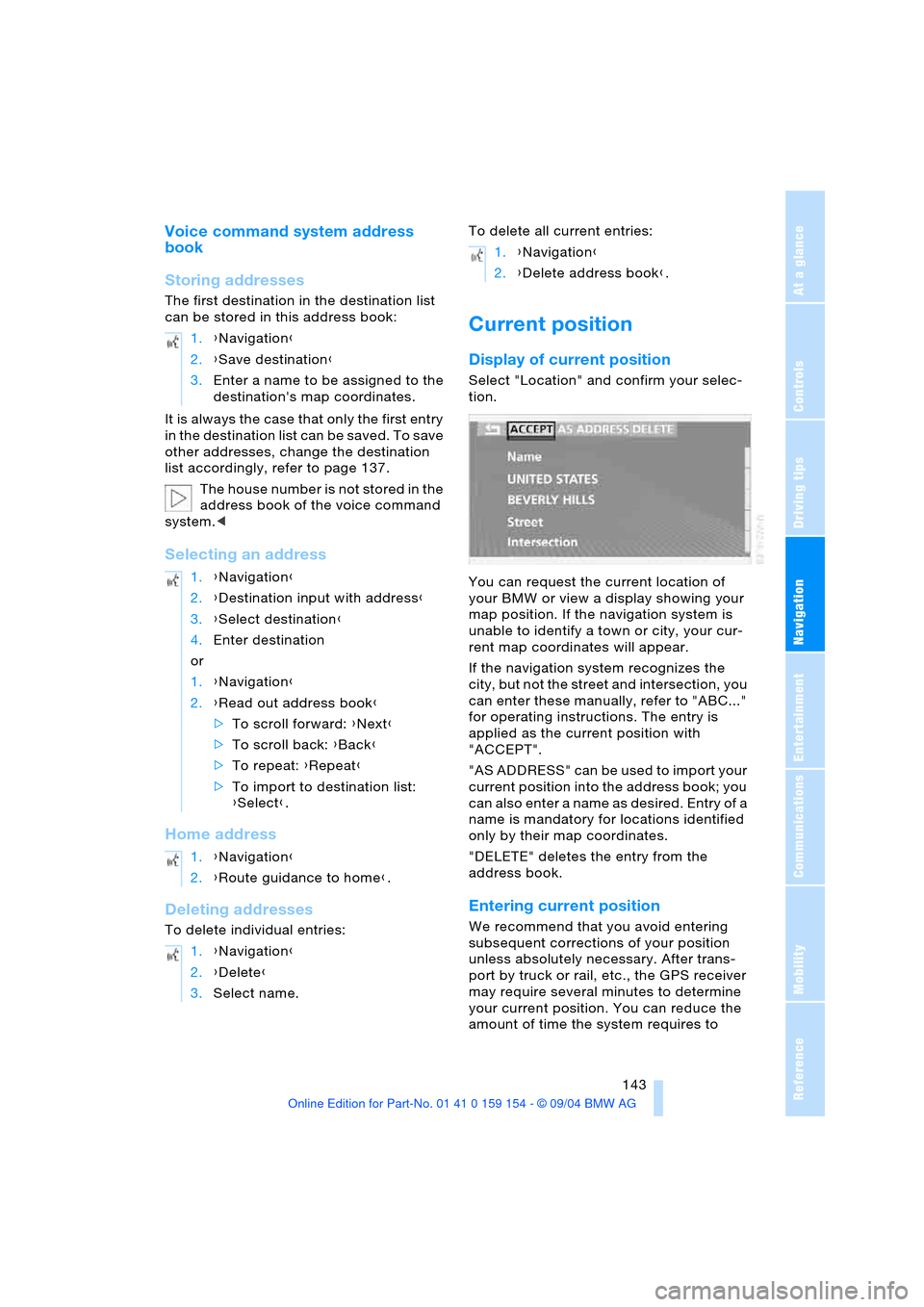
Select "Location" and confirm your selec-
tion.
You can request the current location of
your BMW or view a display showing your
map position. If the navigation system is
unable to identify a town or city, your cur-
rent map coordinates will appear.
If the navigation system recognizes the
city, but not the street and intersection, you
can enter these manually, refer to "ABC..."
for operating instructions. The entry is
applied as the current position with
"ACCEPT".
" A S A D D R E S S " c a n b e u s e d t o i m p o r t y o u r
current position into the address book; you
can also enter a name as desired. Entry of a
name is mandatory for locations identified
only by their map coordinates.
"DELETE" deletes the entry from the
address book.
Entering current position
We recommend that you avoid entering
subsequent corrections of your position
unless absolutely necessary. After trans-
port by truck or rail, etc., the GPS receiver
may require several minutes to determine
your current position. You can reduce the
amount of time the system requires to 1.{Navigation}
2.{Save destination}
3.Enter a name to be assigned to the
destination's map coordinates.
1.{Navigation}
2.{Destination input with address}
3.{Select destination}
4.Enter destination
or
1.{Navigation}
2.{Read out address book}
>To scroll forward: {Next}
>To scroll back: {Back}
>To repeat: {Repeat}
>To import to destination list:
{Select}.
1.{Navigation}
2.{Route guidance to home}.
1.{Navigation}
2.{Delete}
3.Select name.
1.{Navigation}
2.{Delete address book}.
Page 158 of 239
Radio
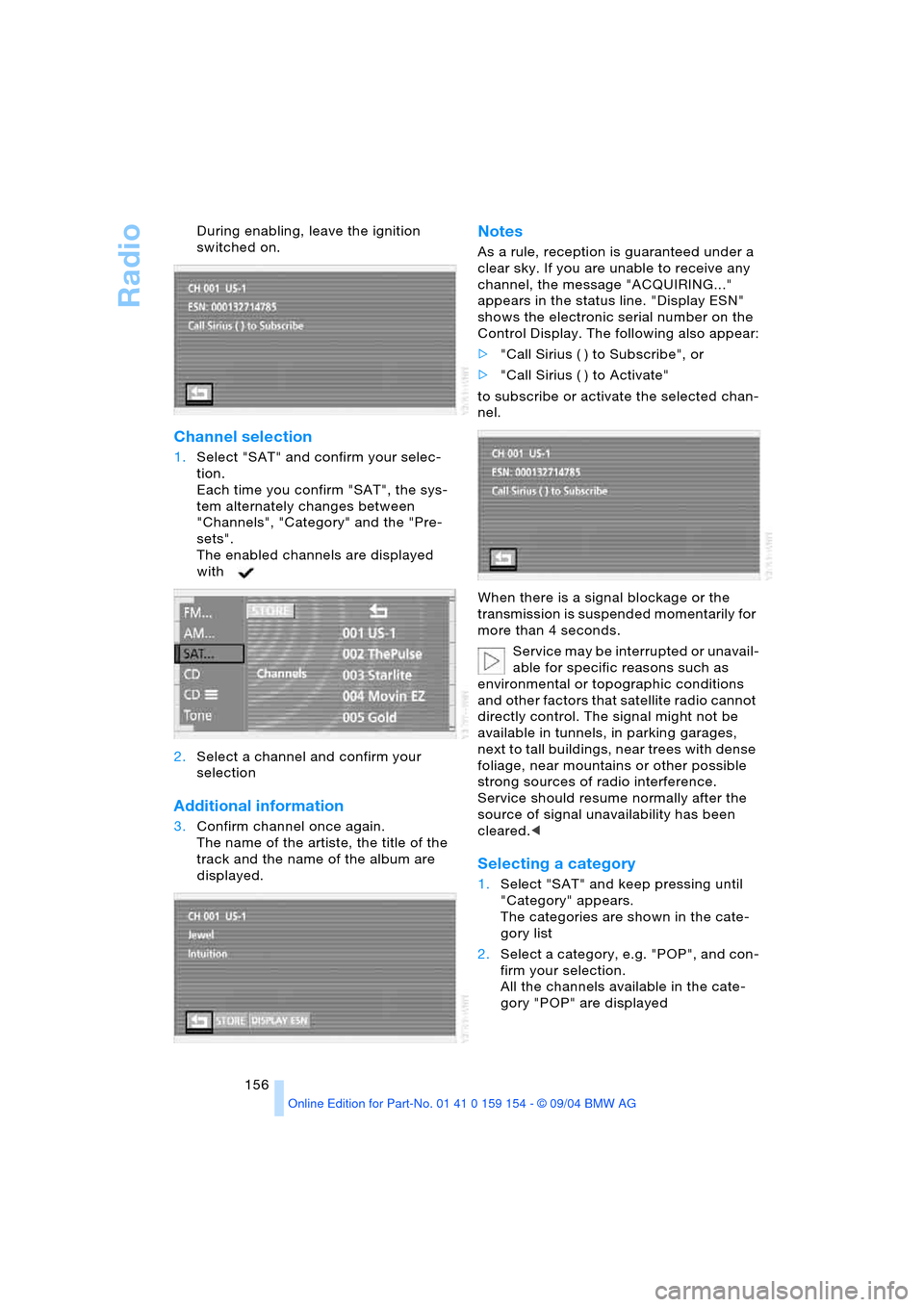
156 During enabling, leave the ignition
switched on.
Channel selection
1.Select "SAT" and confirm your selec-
tion.
Each time you confirm "SAT", the sys-
tem alternately changes between
"Channels", "Category" and the "Pre-
sets".
The enabled channels are displayed
with
2.Select a channel and confirm your
selection
Additional information
3.Confirm channel once again.
The name of the artiste, the title of the
track and the name of the album are
displayed.
Notes
As a rule, reception is guaranteed under a
clear sky. If you are unable to receive any
channel, the message "ACQUIRING..."
appears in the status line. "Display ESN"
shows the electronic serial number on the
Control Display. The following also appear:
>"Call Sirius ( ) to Subscribe", or
>"Call Sirius ( ) to Activate"
to subscribe or activate the selected chan-
nel.
When there is a signal blockage or the
transmission is suspended momentarily for
more than 4 seconds.
Service may be interrupted or unavail-
able for specific reasons such as
environmental or topographic conditions
and other factors that satellite radio cannot
directly control. The signal might not be
available in tunnels, in parking garages,
next to tall buildings, near trees with dense
foliage, near mountains or other possible
strong sources of radio interference.
Service should resume normally after the
source of signal unavailability has been
cleared.<
Selecting a category
1.Select "SAT" and keep pressing until
"Category" appears.
The categories are shown in the cate-
gory list
2.Select a category, e.g. "POP", and con-
firm your selection.
All the channels available in the cate-
gory "POP" are displayed
Page 163 of 239
Navigation
Entertainment
Driving tips
161Reference
At a glance
Controls
Communications
Mobility
If the CD magazine has been newly filled,
playback begins with the lowest CD, e.g.
CD 1, track 1.
Volume adjustment, refer to page149.
Tone control, refer to page149.
If you play self-recorded audio CDs,
faults, e.g. drop-outs, can occur, or
the CD is not played at all.<
Status displays
The CD magazine's load status is indicated
on the Control Display.
If the display fails to detect a CD that
you have loaded in the magazine,
check to ensure that the CD has been
inserted correctly and inspect it for signs of
defects.<
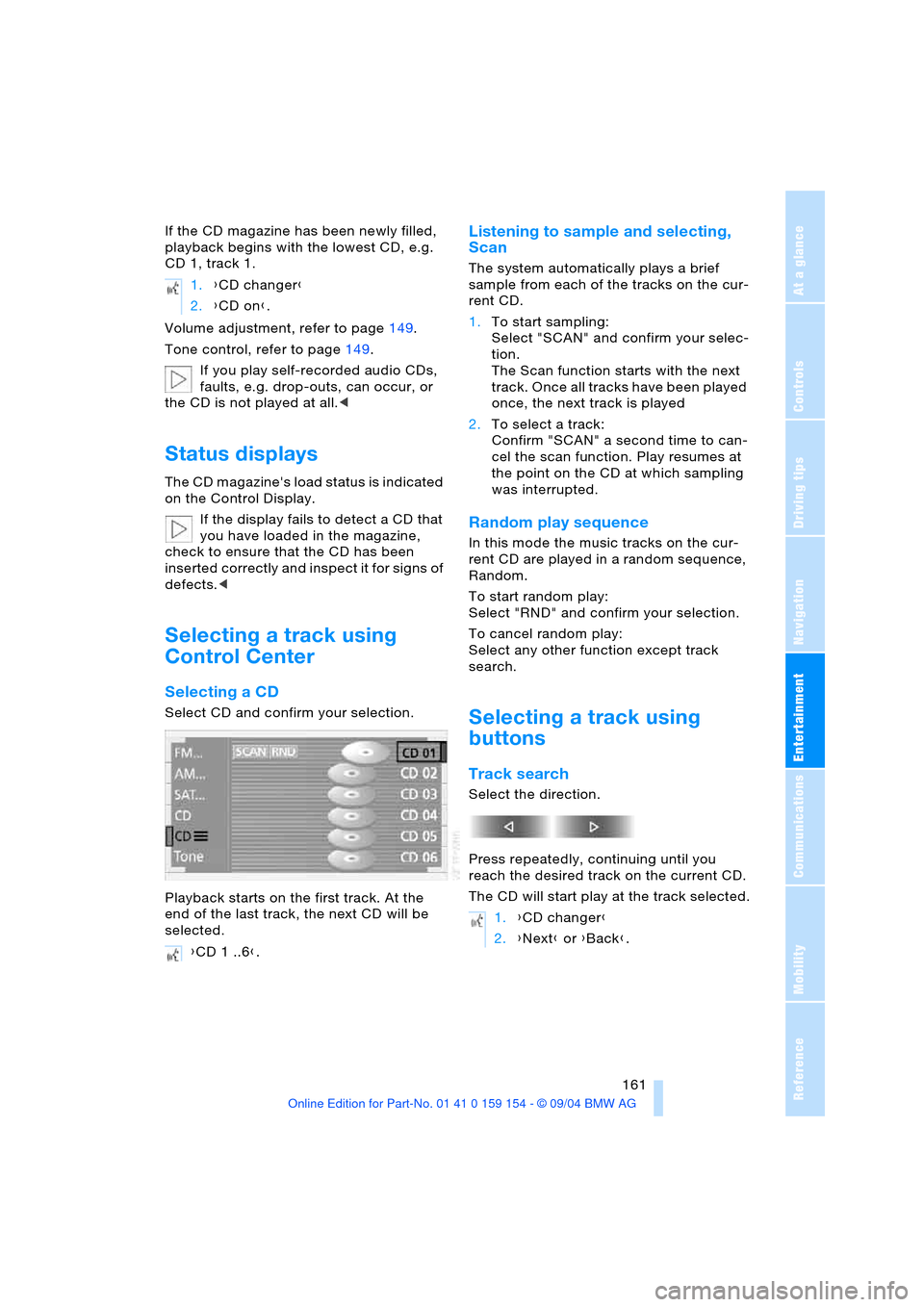
Selecting a track using
Control Center
Selecting a CD
Select CD and confirm your selection.
Playback starts on the first track. At the
end of the last track, the next CD will be
selected.
Listening to sample and selecting,
Scan
The system automatically plays a brief
sample from each of the tracks on the cur-
rent CD.
1.To start sampling:
Select "SCAN" and confirm your selec-
tion.
The Scan function starts with the next
track. Once all tracks have been played
once, the next track is played
2.To select a track:
Confirm "SCAN" a second time to can-
cel the scan function. Play resumes at
the point on the CD at which sampling
was interrupted.
Random play sequence
In this mode the music tracks on the cur-
rent CD are played in a random sequence,
Random.
To start random play:
Select "RND" and confirm your selection.
To cancel random play:
Select any other function except track
search.
Selecting a track using
buttons
Track search
Select the direction.
Press repeatedly, continuing until you
reach the desired track on the current CD.
The CD will start play at the track selected. 1.{CD changer}
2.{CD on}.
{CD 1 ..6}.
1.{CD changer}
2.{Next} or {Back}.