Dvd BMW 745i 2006 E65 Owner's Guide
[x] Cancel search | Manufacturer: BMW, Model Year: 2006, Model line: 745i, Model: BMW 745i 2006 E65Pages: 247, PDF Size: 8.66 MB
Page 168 of 247
CD changer
166 Using the voice command system:
Displaying information on track
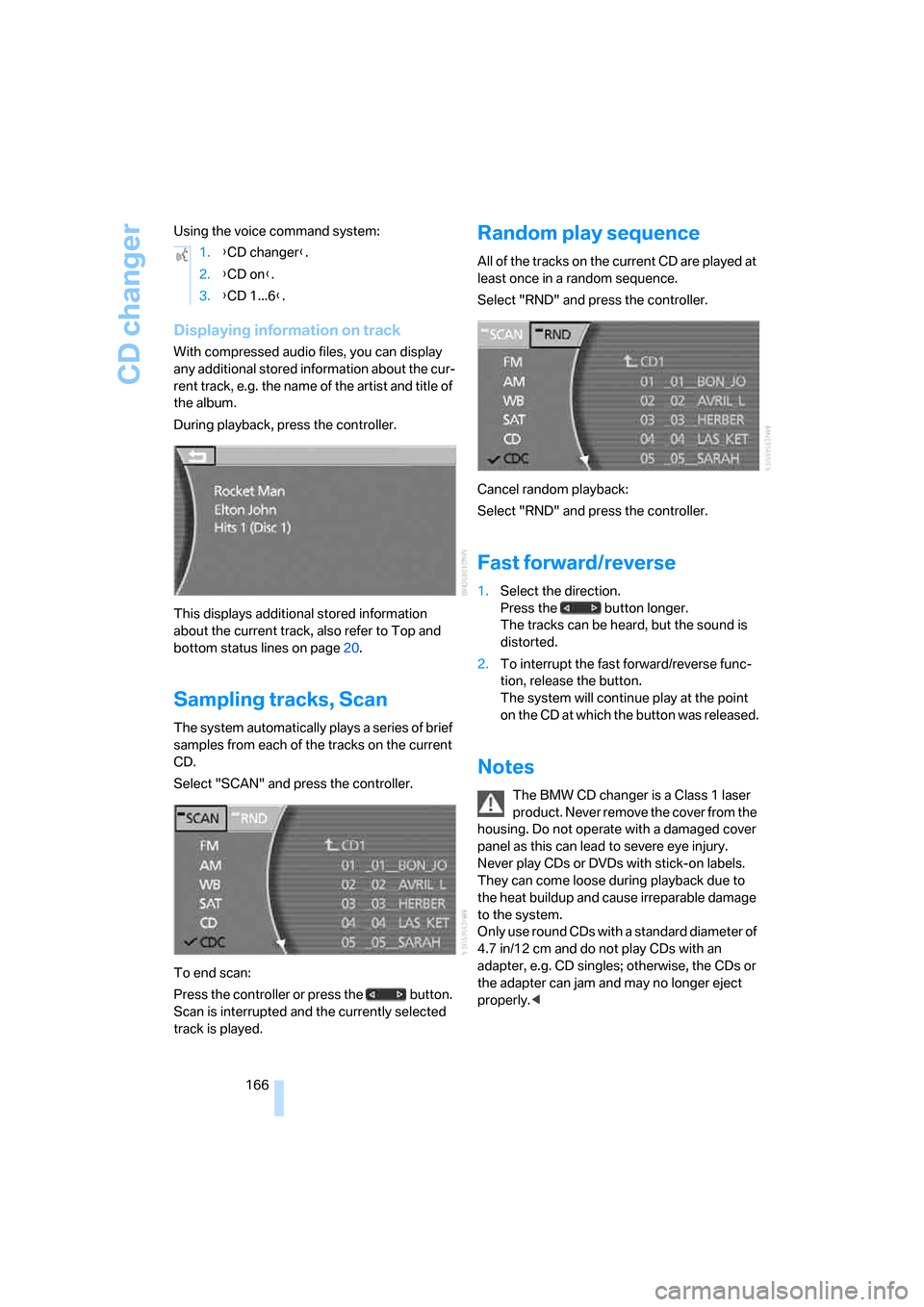
With compressed audio files, you can display
any additional stored information about the cur-
rent track, e.g. the name of the artist and title of
the album.
During playback, press the controller.
This displays additional stored information
about the current track, also refer to Top and
bottom status lines on page20.
Sampling tracks, Scan
The system automatically plays a series of brief
samples from each of the tracks on the current
CD.
Select "SCAN" and press the controller.
To end scan:
Press the controller or press the button.
Scan is interrupted and the currently selected
track is played.
Random play sequence
All of the tracks on the current CD are played at
least once in a random sequence.
Select "RND" and press the controller.
Cancel random playback:
Select "RND" and press the controller.
Fast forward/reverse
1.Select the direction.
Press the button longer.
The tracks can be heard, but the sound is
distorted.
2.To interrupt the fast forward/reverse func-
tion, release the button.
The system will continue play at the point
on the CD at which the button was released.
Notes
The BMW CD changer is a Class 1 laser
product. Never remove the cover from the
housing. Do not operate with a damaged cover
panel as this can lead to severe eye injury.
Never play CDs or DVDs with stick-on labels.
They can come loose during playback due to
the heat buildup and cause irreparable damage
to the system.
Only use round CDs with a standard diameter of
4.7 in/12 cm and do not play CDs with an
adapter, e.g. CD singles; otherwise, the CDs or
the adapter can jam and may no longer eject
properly.< 1.{CD changer}.
2.{CD on}.
3.{CD 1...6}.
Page 170 of 247
DVD changer
168
DVD changer
Installation location
The BMW DVD changer for six DVDs or audio
CDs is mounted behind the left side trim panel
in the luggage compartment.
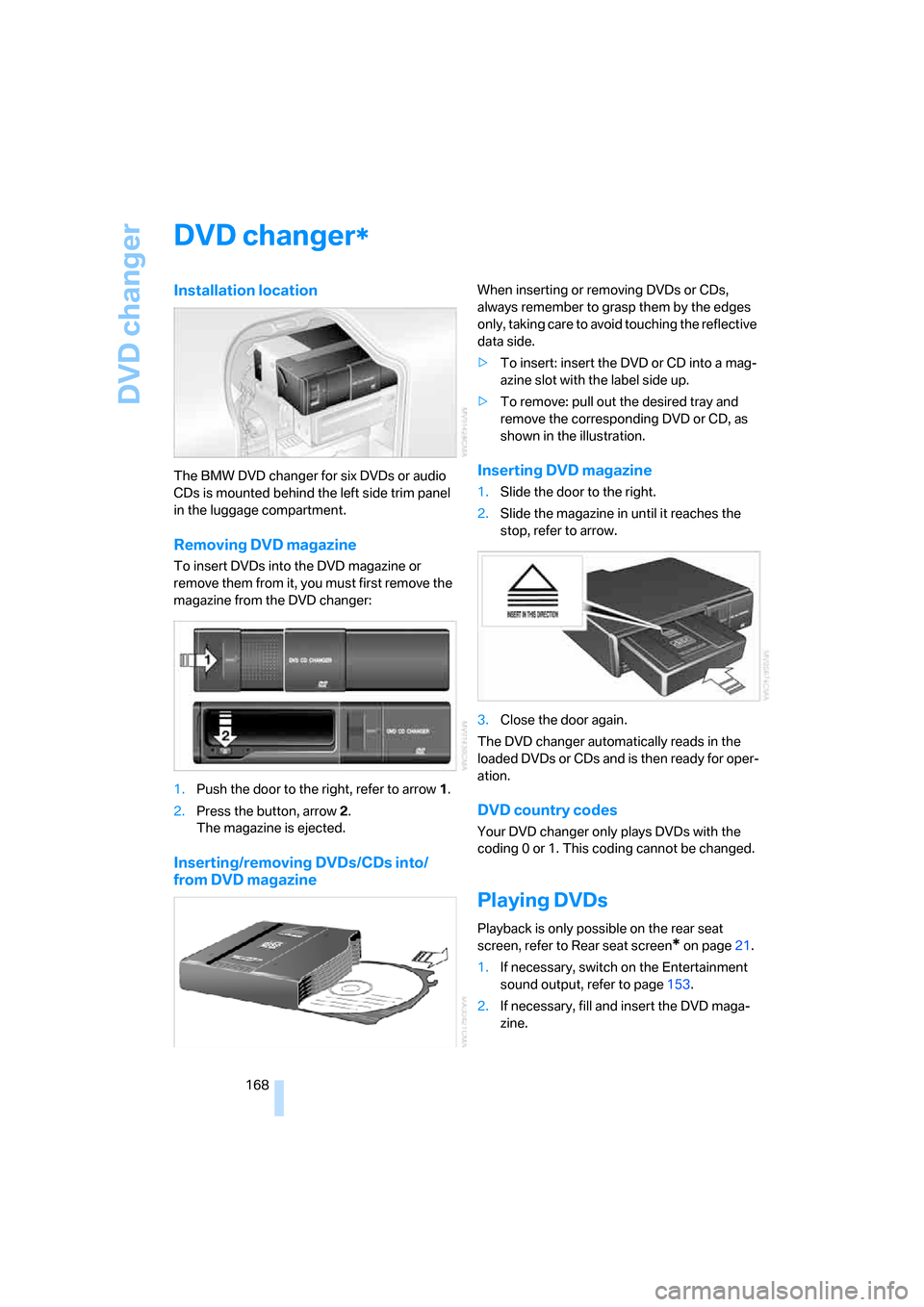
Removing DVD magazine
To insert DVDs into the DVD magazine or
remove them from it, you must first remove the
magazine from the DVD changer:
1.Push the door to the right, refer to arrow1.
2.Press the button, arrow2.
The magazine is ejected.
Inserting/removing DVDs/CDs into/
from DVD magazine
When inserting or removing DVDs or CDs,
always remember to grasp them by the edges
only, taking care to avoid touching the reflective
data side.
>To insert: insert the DVD or CD into a mag-
azine slot with the label side up.
>To remove: pull out the desired tray and
remove the corresponding DVD or CD, as
shown in the illustration.
Inserting DVD magazine
1.Slide the door to the right.
2.Slide the magazine in until it reaches the
stop, refer to arrow.
3.Close the door again.
The DVD changer automatically reads in the
loaded DVDs or CDs and is then ready for oper-
ation.
DVD country codes
Your DVD changer only plays DVDs with the
coding 0 or 1. This coding cannot be changed.
Playing DVDs
Playback is only possible on the rear seat
screen, refer to Rear seat screen
* on page21.
1.If necessary, switch on the Entertainment
sound output, refer to page153.
2.If necessary, fill and insert the DVD maga-
zine.
*
Page 171 of 247
Navigation
Entertainment
Driving tips
169Reference
At a glance
Controls
Communications
Mobility
3.Press the button to open the start
menu.
4.Move the controller toward "Entertain-
ment".
5.Select "DVD" and press the controller.
After a few seconds, play will resume at the
point where playback was previously inter-
rupted.
The DVD magazine's load status is indicated on
the Control Display.
If the display fails to detect a DVD that you
have loaded into the magazine, check to
ensure that the DVD has been inserted cor-
rectly and inspect it for signs of defects.
If there are audio CDs in the DVD magazine,
these will not be displayed in the DVD menu,
but instead in the CD changer menu.<
Using the voice command system:
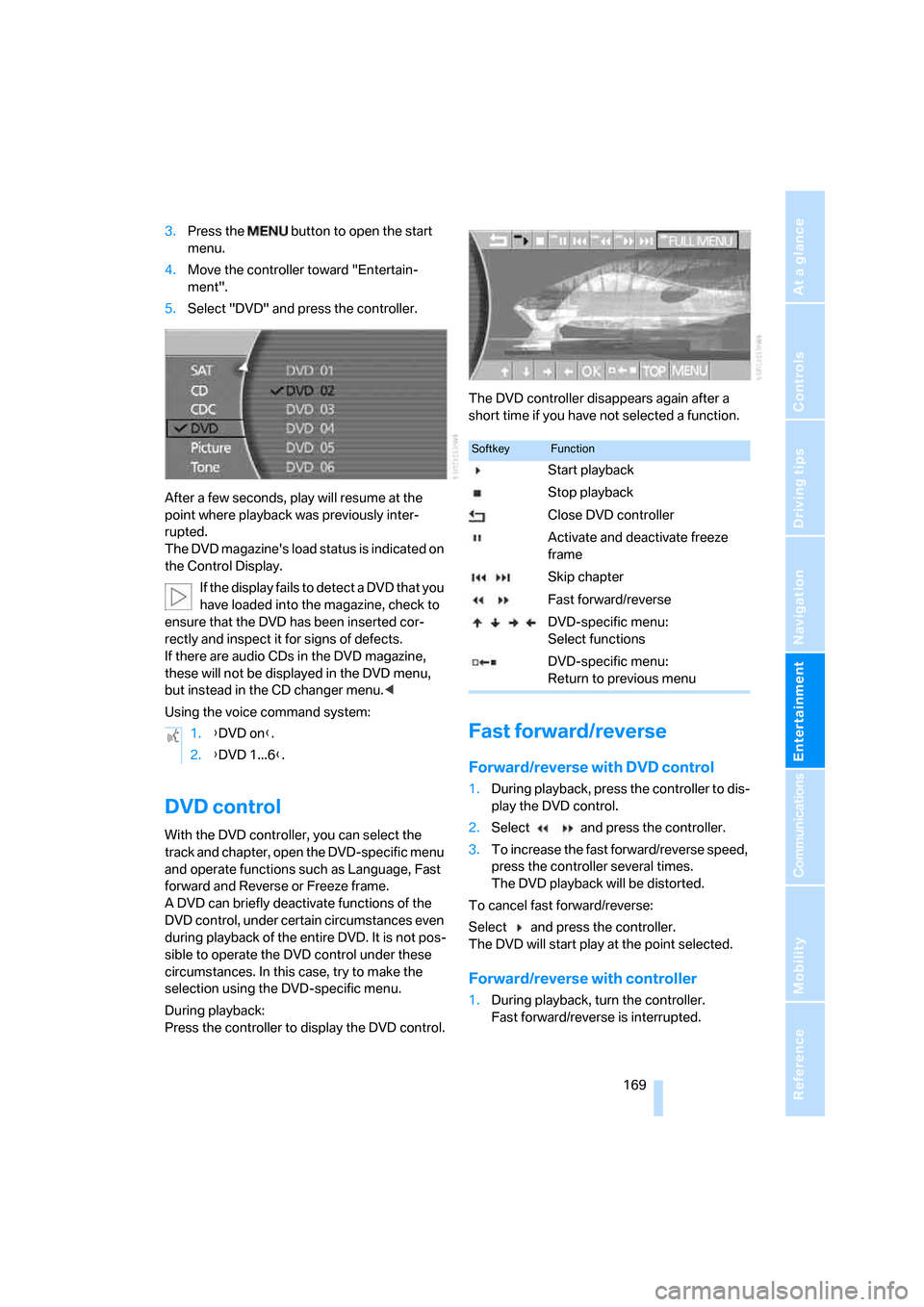
DVD control
With the DVD controller, you can select the
track and chapter, open the DVD-specific menu
and operate functions such as Language, Fast
forward and Reverse or Freeze frame.
A DVD can briefly deactivate functions of the
DVD control, under certain circumstances even
during playback of the entire DVD. It is not pos-
sible to operate the DVD control under these
circumstances. In this case, try to make the
selection using the DVD-specific menu.
During playback:
Press the controller to display the DVD control.The DVD controller disappears again after a
short time if you have not selected a function.
Fast forward/reverse
Forward/reverse with DVD control
1.During playback, press the controller to dis-
play the DVD control.
2.Select and press the controller.
3.To increase the fast forward/reverse speed,
press the controller several times.
The DVD playback will be distorted.
To cancel fast forward/reverse:
Select and press the controller.
The DVD will start play at the point selected.
Forward/reverse with controller
1.During playback, turn the controller.
Fast forward/reverse is interrupted. 1.{DVD on}.
2.{DVD 1...6}.
SoftkeyFunction
Start playback
Stop playback
Close DVD controller
Activate and deactivate freeze
frame
Skip chapter
Fast forward/reverse
DVD-specific menu:
Select functions
DVD-specific menu:
Return to previous menu
Page 172 of 247
DVD changer
170 2.Turn the controller further.
The speed is increased.
3.Release the controller.
Fast forward/reverse is interrupted. The
system will continue play at the point on the
DVD at which the controller was released.
Skip chapter
You can change to the next or previous chapter
during playback.
1.During playback, press the controller to dis-
play the DVD control.
2.Select and press repeatedly until
you reach the desired chapter.
or:
Press the button on the left or right
repeatedly until you reach the desired chapter.
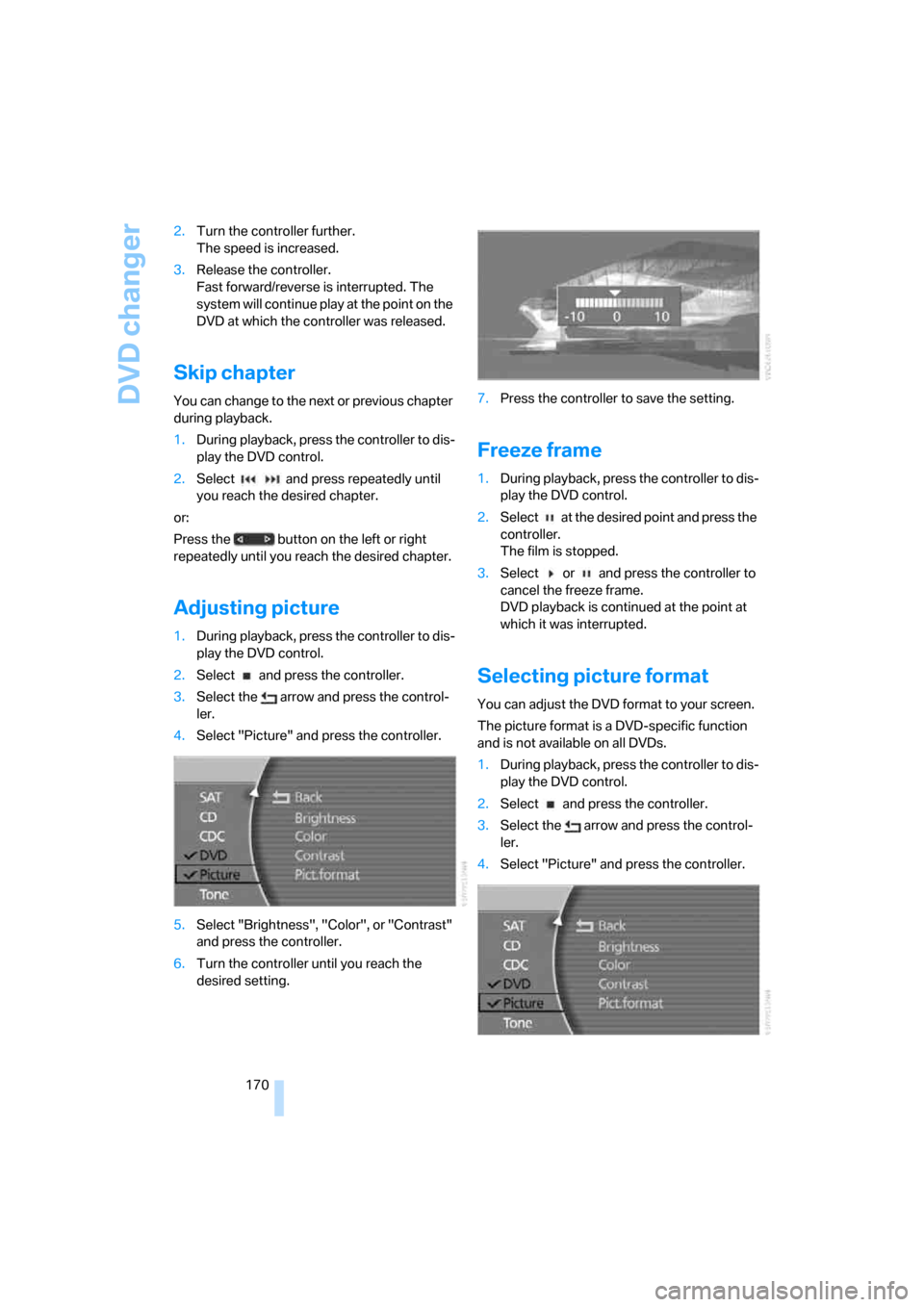
Adjusting picture
1.During playback, press the controller to dis-
play the DVD control.
2.Select and press the controller.
3.Select the arrow and press the control-
ler.
4.Select "Picture" and press the controller.
5.Select "Brightness", "Color", or "Contrast"
and press the controller.
6.Turn the controller until you reach the
desired setting.7.Press the controller to save the setting.
Freeze frame
1.During playback, press the controller to dis-
play the DVD control.
2.Select at the desired point and press the
controller.
The film is stopped.
3.Select or and press the controller to
cancel the freeze frame.
DVD playback is continued at the point at
which it was interrupted.
Selecting picture format
You can adjust the DVD format to your screen.
The picture format is a DVD-specific function
and is not available on all DVDs.
1.During playback, press the controller to dis-
play the DVD control.
2.Select and press the controller.
3.Select the arrow and press the control-
ler.
4.Select "Picture" and press the controller.
Page 173 of 247
Navigation
Entertainment
Driving tips
171Reference
At a glance
Controls
Communications
Mobility
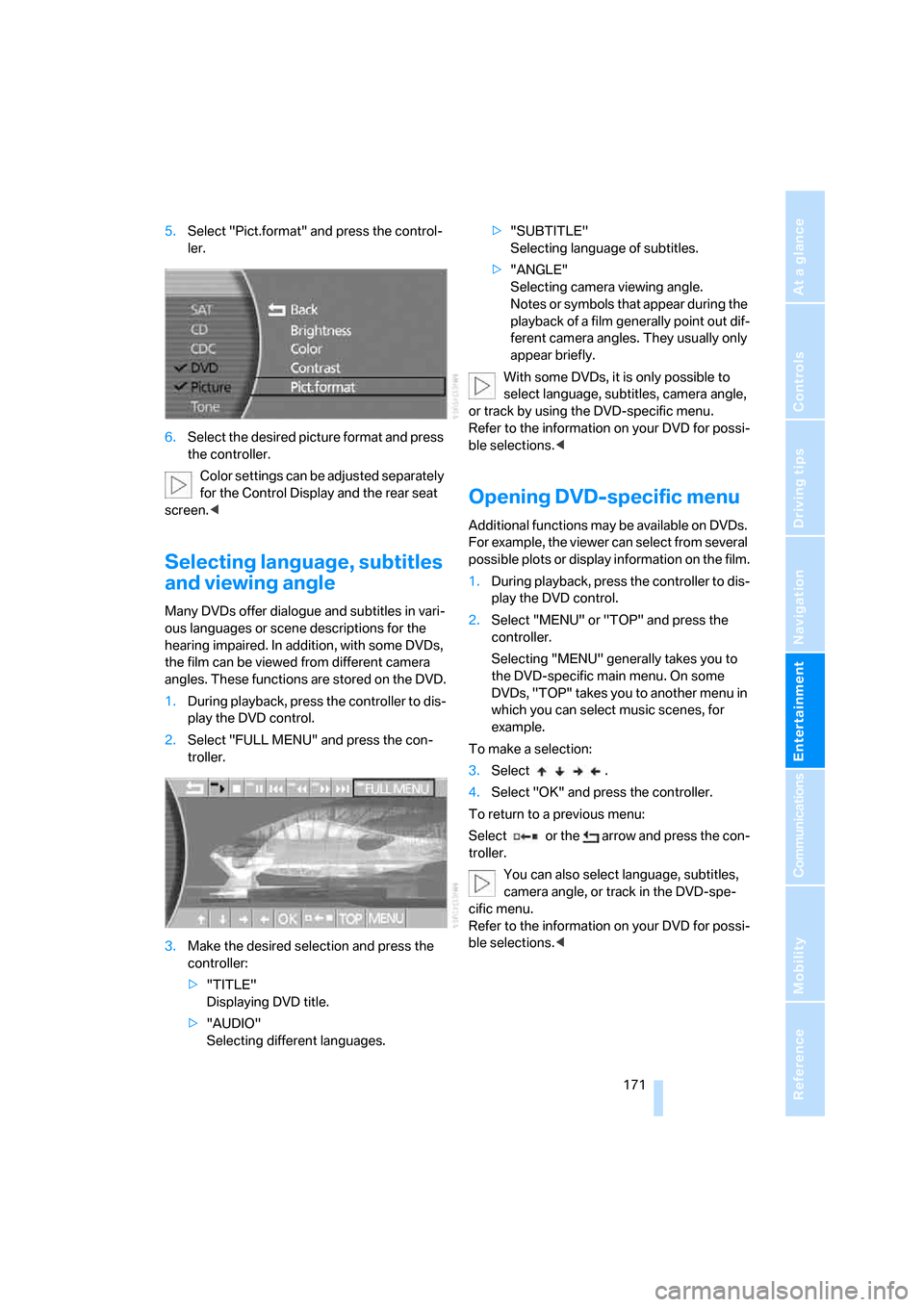
5.Select "Pict.format" and press the control-
ler.
6.Select the desired picture format and press
the controller.
Color settings can be adjusted separately
for the Control Display and the rear seat
screen.<
Selecting language, subtitles
and viewing angle
Many DVDs offer dialogue and subtitles in vari-
ous languages or scene descriptions for the
hearing impaired. In addition, with some DVDs,
the film can be viewed from different camera
angles. These functions are stored on the DVD.
1.During playback, press the controller to dis-
play the DVD control.
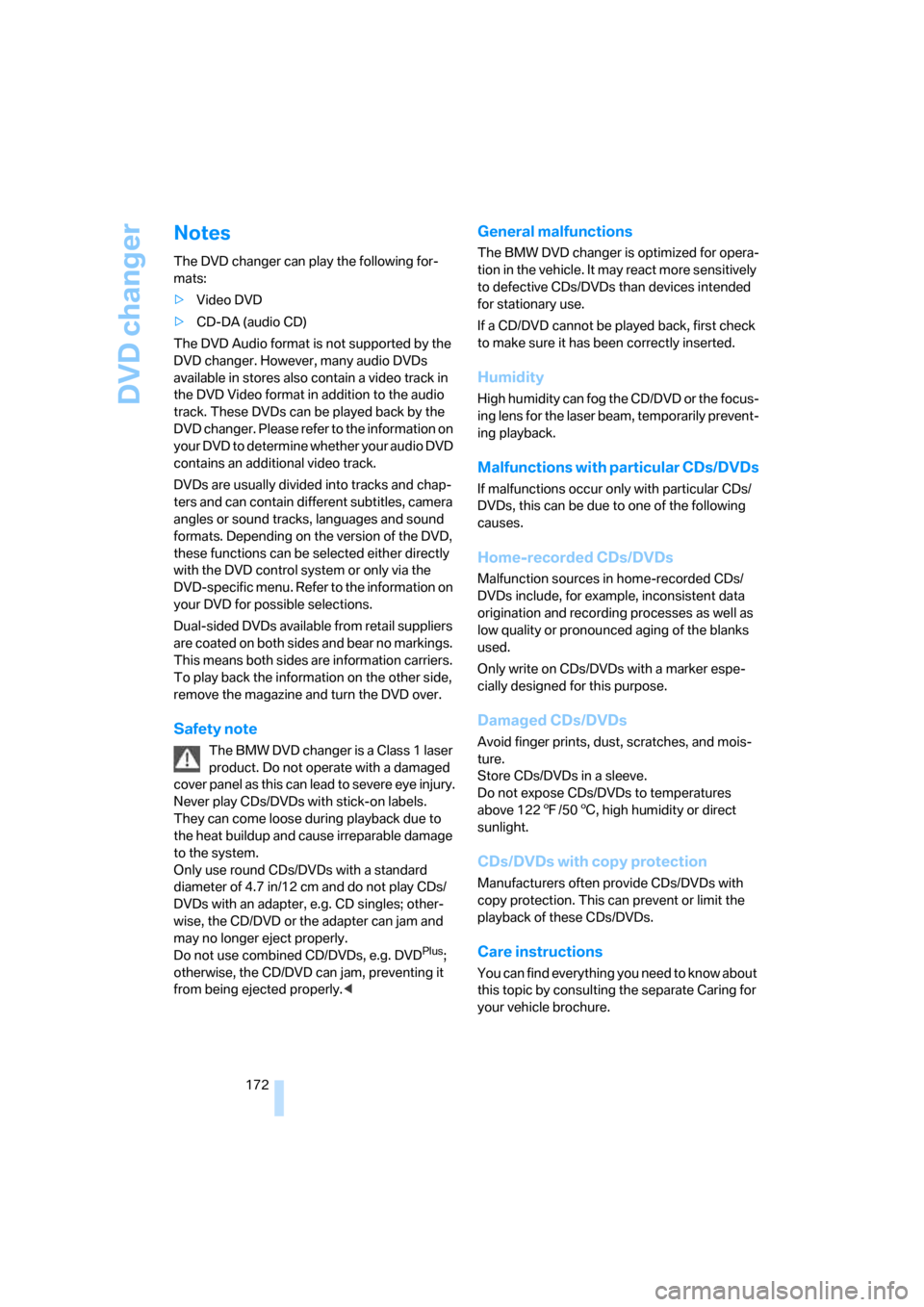
2.Select "FULL MENU" and press the con-
troller.
3.Make the desired selection and press the
controller:
>"TITLE"
Displaying DVD title.
>"AUDIO"
Selecting different languages.>"SUBTITLE"
Selecting language of subtitles.
>"ANGLE"
Selecting camera viewing angle.
Notes or symbols that appear during the
playback of a film generally point out dif-
ferent camera angles. They usually only
appear briefly.
With some DVDs, it is only possible to
select language, subtitles, camera angle,
or track by using the DVD-specific menu.
Refer to the information on your DVD for possi-
ble selections.<
Opening DVD-specific menu
Additional functions may be available on DVDs.
For example, the viewer can select from several
possible plots or display information on the film.
1.During playback, press the controller to dis-
play the DVD control.
2.Select "MENU" or "TOP" and press the
controller.
Selecting "MENU" generally takes you to
the DVD-specific main menu. On some
DVDs, "TOP" takes you to another menu in
which you can select music scenes, for
example.
To make a selection:
3.Select .
4.Select "OK" and press the controller.
To return to a previous menu:
Select or the arrow and press the con-
troller.
You can also select language, subtitles,
camera angle, or track in the DVD-spe-
cific menu.
Refer to the information on your DVD for possi-
ble selections.<
Page 174 of 247
DVD changer
172
Notes
The DVD changer can play the following for-
mats:
>Video DVD
>CD-DA (audio CD)
The DVD Audio format is not supported by the
DVD changer. However, many audio DVDs
available in stores also contain a video track in
the DVD Video format in addition to the audio
track. These DVDs can be played back by the
DVD changer. Please refer to the information on
your DVD to determine whether your audio DVD
contains an additional video track.
DVDs are usually divided into tracks and chap-
ters and can contain different subtitles, camera
angles or sound tracks, languages and sound
formats. Depending on the version of the DVD,
these functions can be selected either directly
with the DVD control system or only via the
DVD-specific menu. Refer to the information on
your DVD for possible selections.
Dual-sided DVDs available from retail suppliers
are coated on both sides and bear no markings.
This means both sides are information carriers.
To play back the information on the other side,
remove the magazine and turn the DVD over.
Safety note
The BMW DVD changer is a Class 1 laser
product. Do not operate with a damaged
cover panel as this can lead to severe eye injury.
Never play CDs/DVDs with stick-on labels.
They can come loose during playback due to
the heat buildup and cause irreparable damage
to the system.
Only use round CDs/DVDs with a standard
diameter of 4.7 in/12 cm and do not play CDs/
DVDs with an adapter, e.g. CD singles; other-
wise, the CD/DVD or the adapter can jam and
may no longer eject properly.
Do not use combined CD/DVDs, e.g. DVD
Plus;
otherwise, the CD/DVD can jam, preventing it
from being ejected properly.<
General malfunctions
The BMW DVD changer is optimized for opera-
tion in the vehicle. It may react more sensitively
to defective CDs/DVDs than devices intended
for stationary use.
If a CD/DVD cannot be played back, first check
to make sure it has been correctly inserted.
Humidity
High humidity can fog the CD/DVD or the focus-
ing lens for the laser beam, temporarily prevent-
ing playback.
Malfunctions with particular CDs/DVDs
If malfunctions occur only with particular CDs/
DVDs, this can be due to one of the following
causes.
Home-recorded CDs/DVDs
Malfunction sources in home-recorded CDs/
DVDs include, for example, inconsistent data
origination and recording processes as well as
low quality or pronounced aging of the blanks
used.
Only write on CDs/DVDs with a marker espe-
cially designed for this purpose.
Damaged CDs/DVDs
Avoid finger prints, dust, scratches, and mois-
ture.
Store CDs/DVDs in a sleeve.
Do not expose CDs/DVDs to temperatures
above 1227/506, high humidity or direct
sunlight.
CDs/DVDs with copy protection
Manufacturers often provide CDs/DVDs with
copy protection. This can prevent or limit the
playback of these CDs/DVDs.
Care instructions
You can find everything you need to know about
this topic by consulting the separate Caring for
your vehicle brochure.
Page 180 of 247
Telephone overview
178
Touch tone dialing
The touch tone code is required for access to
network services or for controlling devices, e.g.
remote checking of an answering machine.
This function is available when a connection
has been established.
Emergency call with
emergency call button*
When the vehicle is equipped with the full
mobile phone preparation package, you can
trigger an emergency call via the emergency
call button on the headliner.
Conditions for an emergency call:
>BMW Assist is activated.
>Radio ready state is activated.
>The wireless communications network is
available.
>The emergency call system is operable.
Initiating an emergency call
1.To open the protective cover:
Briefly press the protective cover.
2.Press the emergency call button for at least
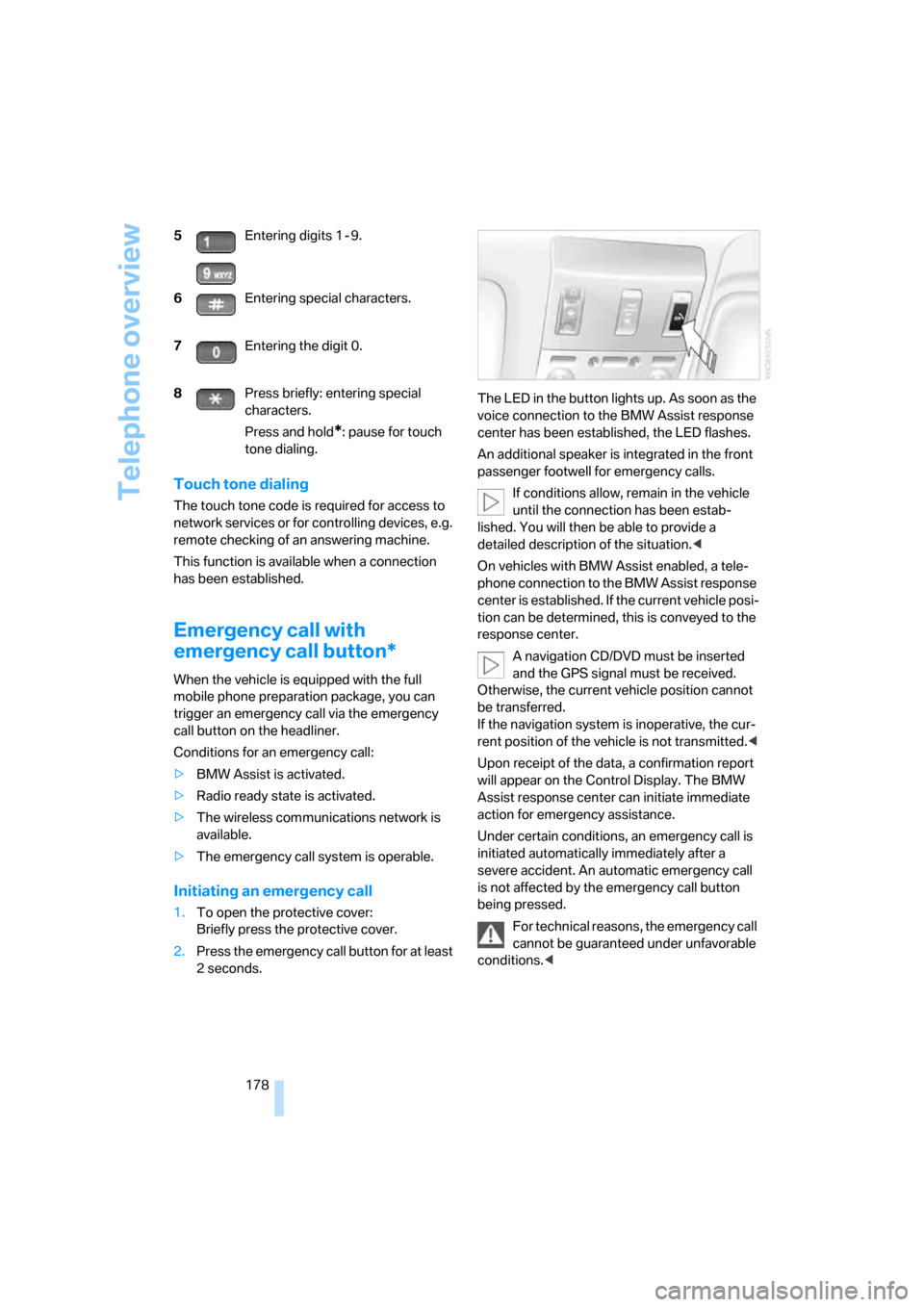
2seconds.The LED in the button lights up. As soon as the
voice connection to the BMW Assist response
center has been established, the LED flashes.
An additional speaker is integrated in the front
passenger footwell for emergency calls.
If conditions allow, remain in the vehicle
until the connection has been estab-
lished. You will then be able to provide a
detailed description of the situation.<
On vehicles with BMW Assist enabled, a tele-
phone connection to the BMW Assist response
center is established. If the current vehicle posi-
tion can be determined, this is conveyed to the
response center.
A navigation CD/DVD must be inserted
and the GPS signal must be received.
Otherwise, the current vehicle position cannot
be transferred.
If the navigation system is inoperative, the cur-
rent position of the vehicle is not transmitted.<
Upon receipt of the data, a confirmation report
will appear on the Control Display. The BMW
Assist response center can initiate immediate
action for emergency assistance.
Under certain conditions, an emergency call is
initiated automatically immediately after a
severe accident. An automatic emergency call
is not affected by the emergency call button
being pressed.
For technical reasons, the emergency call
cannot be guaranteed under unfavorable
conditions.< 5Entering digits 1 - 9.
6Entering special characters.
7Entering the digit 0.
8Press briefly: entering special
characters.
Press and hold
*: pause for touch
tone dialing.
Page 213 of 247
Mobility
211Reference
At a glance
Controls
Driving tips
Communications
Navigation
Entertainment
After mounting
1.Tighten the lug bolts in a diagonal pattern.
To ensure safety, always have the
lug bolts checked with a calibrated
torque wrench as soon as possible to
ensure that they are tightened to the speci-
fied torque. The tightening torque is
100lbft/140Nm.<
2.Reverse the removal sequence when stor-
ing the wheel and tools in the vehicle.
3.Check and correct the tire inflation pressure
at the earliest opportunity.
Protect valve stems and valve stem
seal caps from dirt and contamina-
tion. Dirt in valve stems is a frequent source
of gradual air loss.<
4.Reinitialize the Flat Tire Monitor, refer to
page90, or reset the Tire Pressure Monitor,
refer to page92.
5.Replace the damaged tire as soon as possi-
ble and have the new wheel/tire balanced.
Driving with spare tire
On certain wheel-tire combinations, the
size of the spare tire differs from that of
the rest of the tires. The spare tire is fully capa-
ble of running in all load and speed ranges.
However, to recreate the original conditions,
the tire should be replaced as soon as possi-
ble.<
Vehicle battery
Maintenance
The battery is 100 % maintenance-free, i.e., the
electrolyte will last for the life of the battery
when the vehicle is operated in a temperate cli-
mate. Your BMW center will be happy to advise
you on all questions concerning the battery.
Charging battery
Charge the battery in the vehicle only via the
terminals in the engine compartment and with
the engine off. Connections, refer to Jump
starting on page213.
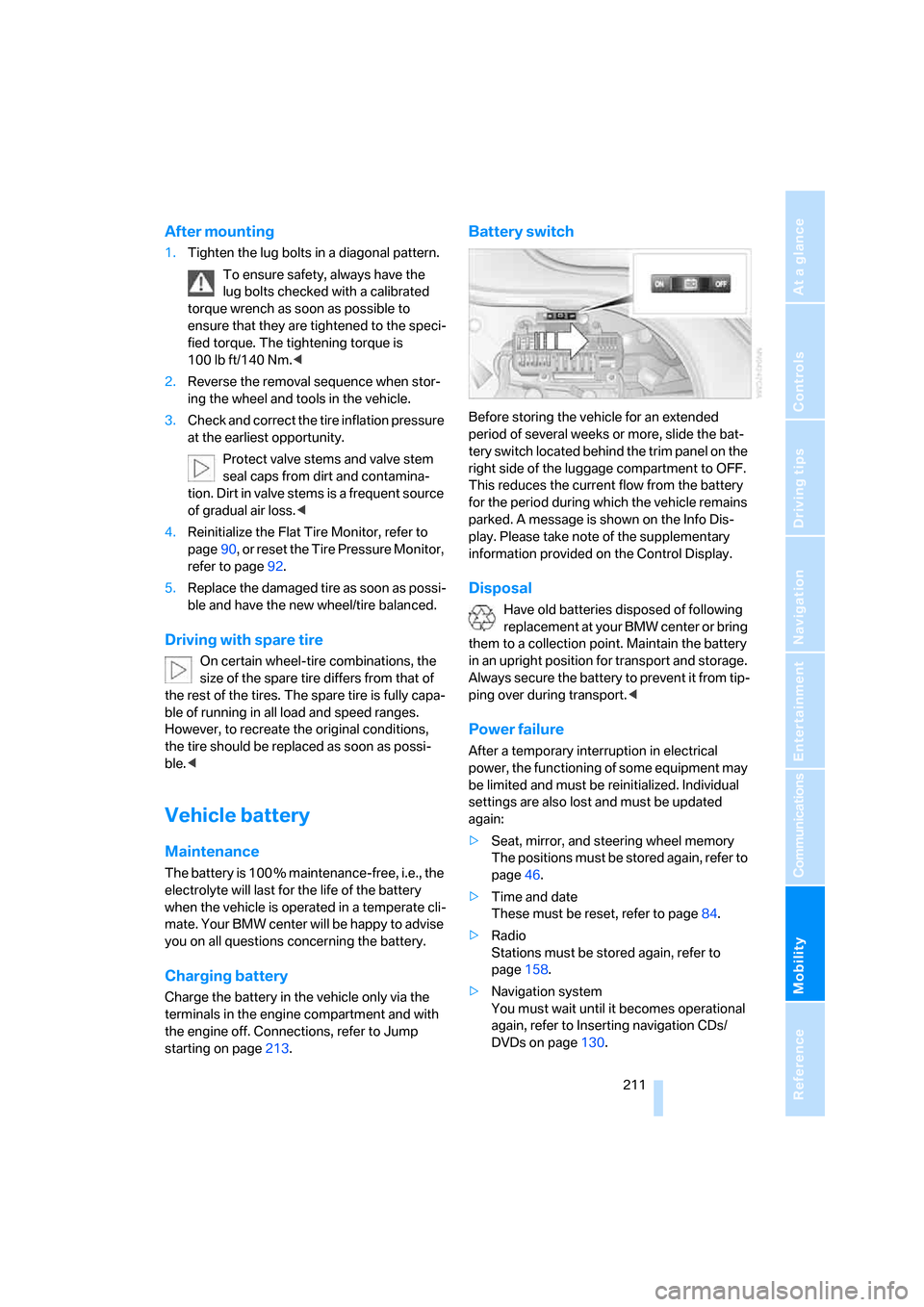
Battery switch
Before storing the vehicle for an extended
period of several weeks or more, slide the bat-
tery switch located behind the trim panel on the
right side of the luggage compartment to OFF.
This reduces the current flow from the battery
for the period during which the vehicle remains
parked. A message is shown on the Info Dis-
play. Please take note of the supplementary
information provided on the Control Display.
Disposal
Have old batteries disposed of following
replacement at your BMW center or bring
them to a collection point. Maintain the battery
in an upright position for transport and storage.
Always secure the battery to prevent it from tip-
ping over during transport.<
Power failure
After a temporary interruption in electrical
power, the functioning of some equipment may
be limited and must be reinitialized. Individual
settings are also lost and must be updated
again:
>Seat, mirror, and steering wheel memory
The positions must be stored again, refer to
page46.
>Time and date
These must be reset, refer to page84.
>Radio
Stations must be stored again, refer to
page158.
>Navigation system
You must wait until it becomes operational
again, refer to Inserting navigation CDs/
DVDs on page130.
Page 225 of 247
Reference 223
At a glance
Controls
Driving tips
Communications
Navigation
Entertainment
Mobility
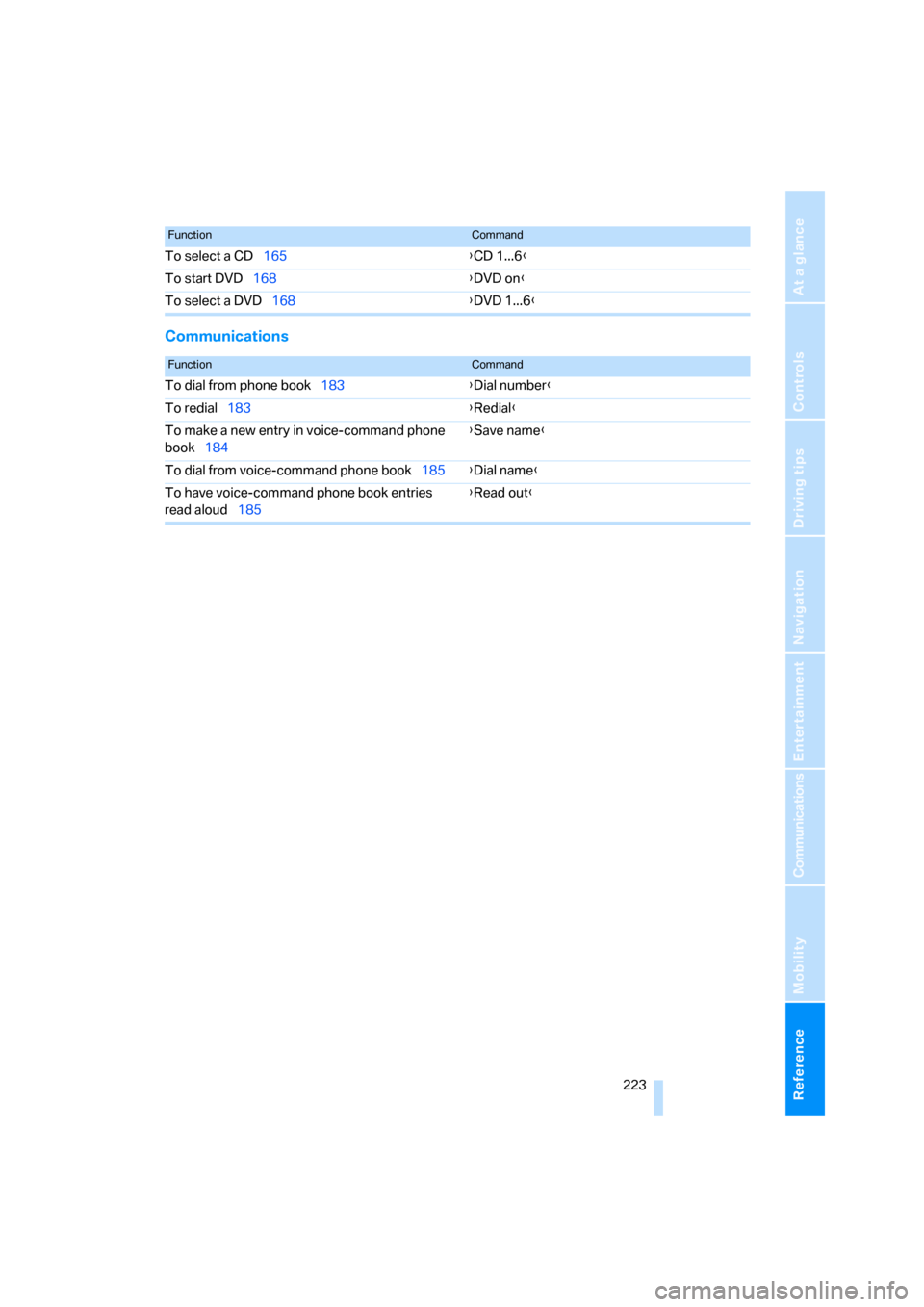
Communications
To select a CD165{CD 1...6}
To start DVD168{DVD on}
To select a DVD168{DVD 1...6}
FunctionCommand
FunctionCommand
To dial from phone book183{Dial number}
To redial183{Redial}
To make a new entry in voice-command phone
book184{Save name}
To dial from voice-command phone book185{Dial name}
To have voice-command phone book entries
read aloud185{Read out}
Page 226 of 247
Everything from A to Z
224
Everything from A to Z
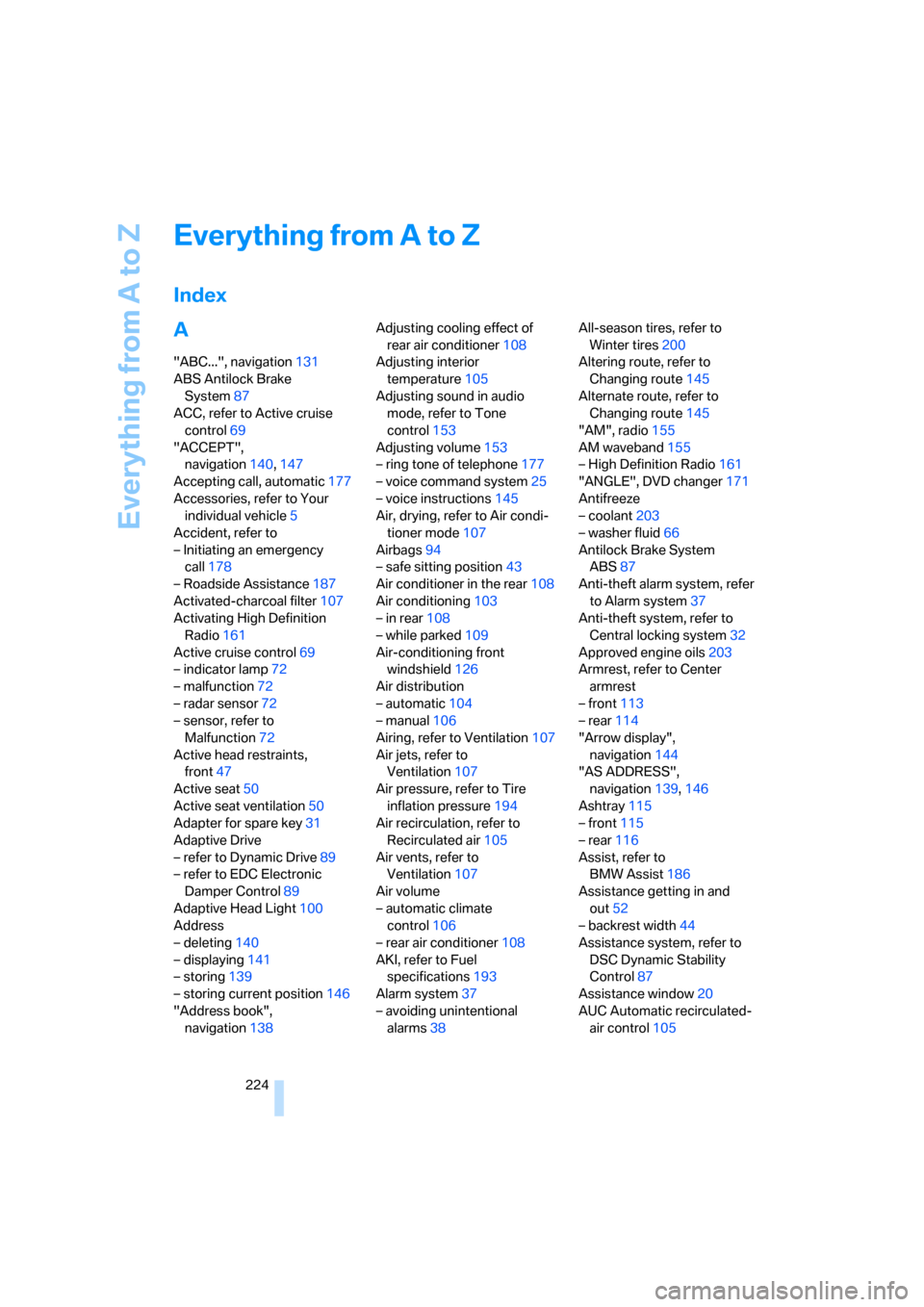
Index
A
"ABC...", navigation131
ABS Antilock Brake
System87
ACC, refer to Active cruise
control69
"ACCEPT",
navigation140,147
Accepting call, automatic177
Accessories, refer to Your
individual vehicle5
Accident, refer to
– Initiating an emergency
call178
– Roadside Assistance187
Activated-charcoal filter107
Activating High Definition
Radio161
Active cruise control69
– indicator lamp72
– malfunction72
– radar sensor72
– sensor, refer to
Malfunction72
Active head restraints,
front47
Active seat50
Active seat ventilation50
Adapter for spare key31
Adaptive Drive
– refer to Dynamic Drive89
– refer to EDC Electronic
Damper Control89
Adaptive Head Light100
Address
– deleting140
– displaying141
– storing139
– storing current position146
"Address book",
navigation138Adjusting cooling effect of
rear air conditioner108
Adjusting interior
temperature105
Adjusting sound in audio
mode, refer to Tone
control153
Adjusting volume153
– ring tone of telephone177
– voice command system25
– voice instructions145
Air, drying, refer to Air condi-
tioner mode107
Airbags94
– safe sitting position43
Air conditioner in the rear108
Air conditioning103
– in rear108
– while parked109
Air-conditioning front
windshield126
Air distribution
– automatic104
– manual106
Airing, refer to Ventilation107
Air jets, refer to
Ventilation107
Air pressure, refer to Tire
inflation pressure194
Air recirculation, refer to
Recirculated air105
Air vents, refer to
Ventilation107
Air volume
– automatic climate
control106
– rear air conditioner108
AKI, refer to Fuel
specifications193
Alarm system37
– avoiding unintentional
alarms38All-season tires, refer to
Winter tires200
Altering route, refer to
Changing route145
Alternate route, refer to
Changing route145
"AM", radio155
AM waveband155
– High Definition Radio161
"ANGLE", DVD changer171
Antifreeze
– coolant203
– washer fluid66
Antilock Brake System
ABS87
Anti-theft alarm system, refer
to Alarm system37
Anti-theft system, refer to
Central locking system32
Approved engine oils203
Armrest, refer to Center
armrest
– front113
– rear114
"Arrow display",
navigation144
"AS ADDRESS",
navigation139,146
Ashtray115
– front115
– rear116
Assist, refer to
BMW Assist186
Assistance getting in and
out52
– backrest width44
Assistance system, refer to
DSC Dynamic Stability
Control87
Assistance window20
AUC Automatic recirculated-
air control105