Starting BMW 745i 2006 E65 Owner's Guide
[x] Cancel search | Manufacturer: BMW, Model Year: 2006, Model line: 745i, Model: BMW 745i 2006 E65Pages: 247, PDF Size: 8.66 MB
Page 132 of 247
Starting navigation system
130
Starting navigation system
Your navigation system can use satellites to
ascertain the precise position of your vehicle
and guide you reliably to any destination you
enter.
Navigation CD/DVD
Installation location navigation drive
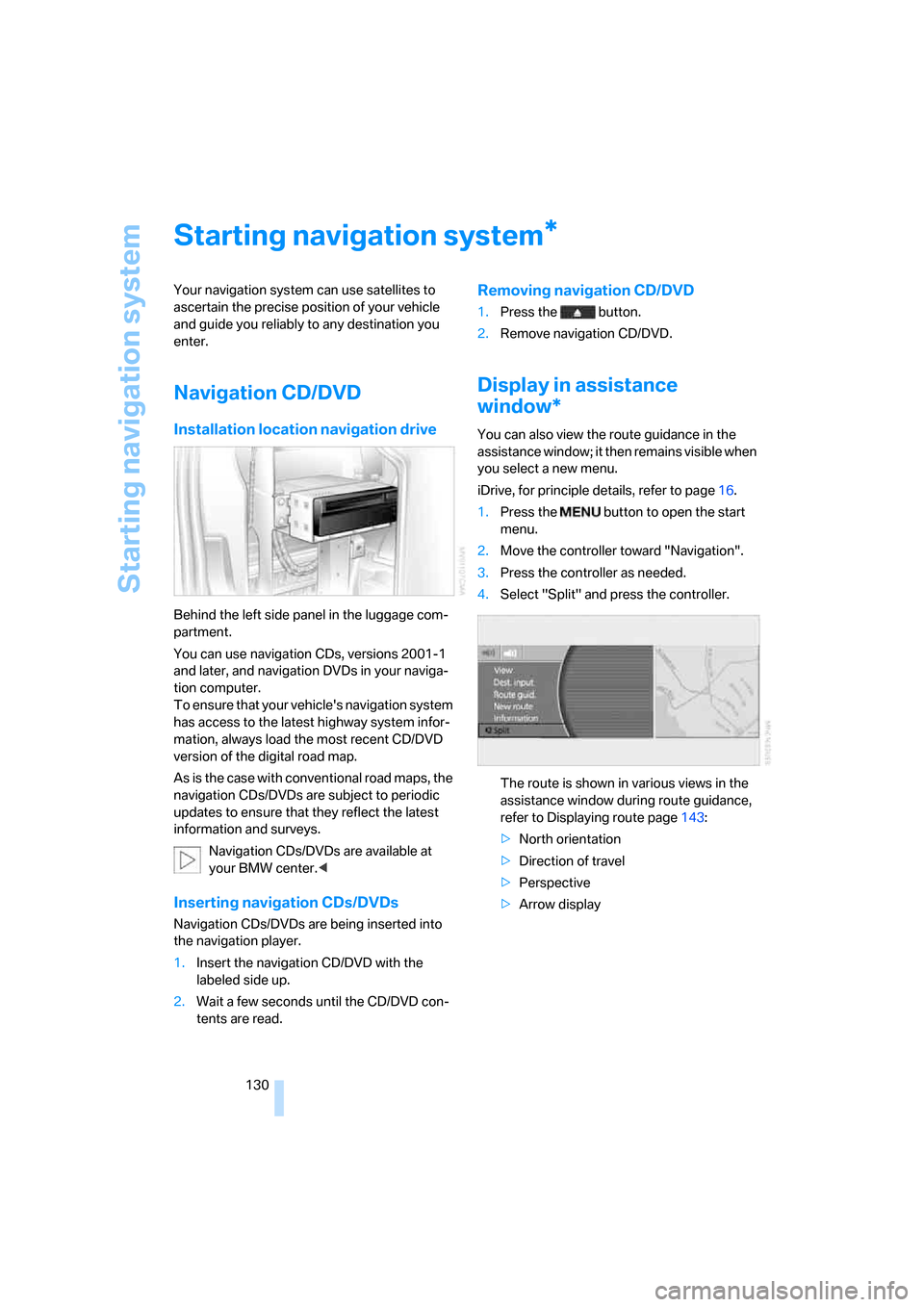
Behind the left side panel in the luggage com-
partment.
You can use navigation CDs, versions 2001-1
and later, and navigation DVDs in your naviga-
tion computer.
To ensure that your vehicle's navigation system
has access to the latest highway system infor-
mation, always load the most recent CD/DVD
version of the digital road map.
As is the case with conventional road maps, the
navigation CDs/DVDs are subject to periodic
updates to ensure that they reflect the latest
information and surveys.
Navigation CDs/DVDs are available at
your BMW center.<
Inserting navigation CDs/DVDs
Navigation CDs/DVDs are being inserted into
the navigation player.
1.Insert the navigation CD/DVD with the
labeled side up.
2.Wait a few seconds until the CD/DVD con-
tents are read.
Removing navigation CD/DVD
1.Press the button.
2.Remove navigation CD/DVD.
Display in assistance
window*
You can also view the route guidance in the
assistance window; it then remains visible when
you select a new menu.
iDrive, for principle details, refer to page16.
1.Press the button to open the start
menu.
2.Move the controller toward "Navigation".
3.Press the controller as needed.
4.Select "Split" and press the controller.
The route is shown in various views in the
assistance window during route guidance,
refer to Displaying route page143:
>North orientation
>Direction of travel
>Perspective
>Arrow display
*
Page 134 of 247
Destination input
132 >You can skip the entry of country and city if
the existing entries should be retained for
your new destination.
Using the voice command system:
Entering name
You do not absolutely have to enter a name to
use route guidance or to store an address in the
list, but assigning each address a name can
make it easier for you to recognize the
addresses in a list.
1.Select "Name" and press the controller.
2.Turn to select the letters, then confirm your
selections by pressing.
>To enter a blank space:
Select the symbol and press the
controller.
>To delete the last letter entered:
Select the symbol and press the con-
troller.
>To cancel selection:
Select the arrow and press the con-
troller.
3.Select the name shown in the lower half of
the Control Display and press the controller.
Selecting country
When the name of a country appears in white
letters on the Control Display, this indicates that
data for more than one country is stored on the
navigation CD/DVD.
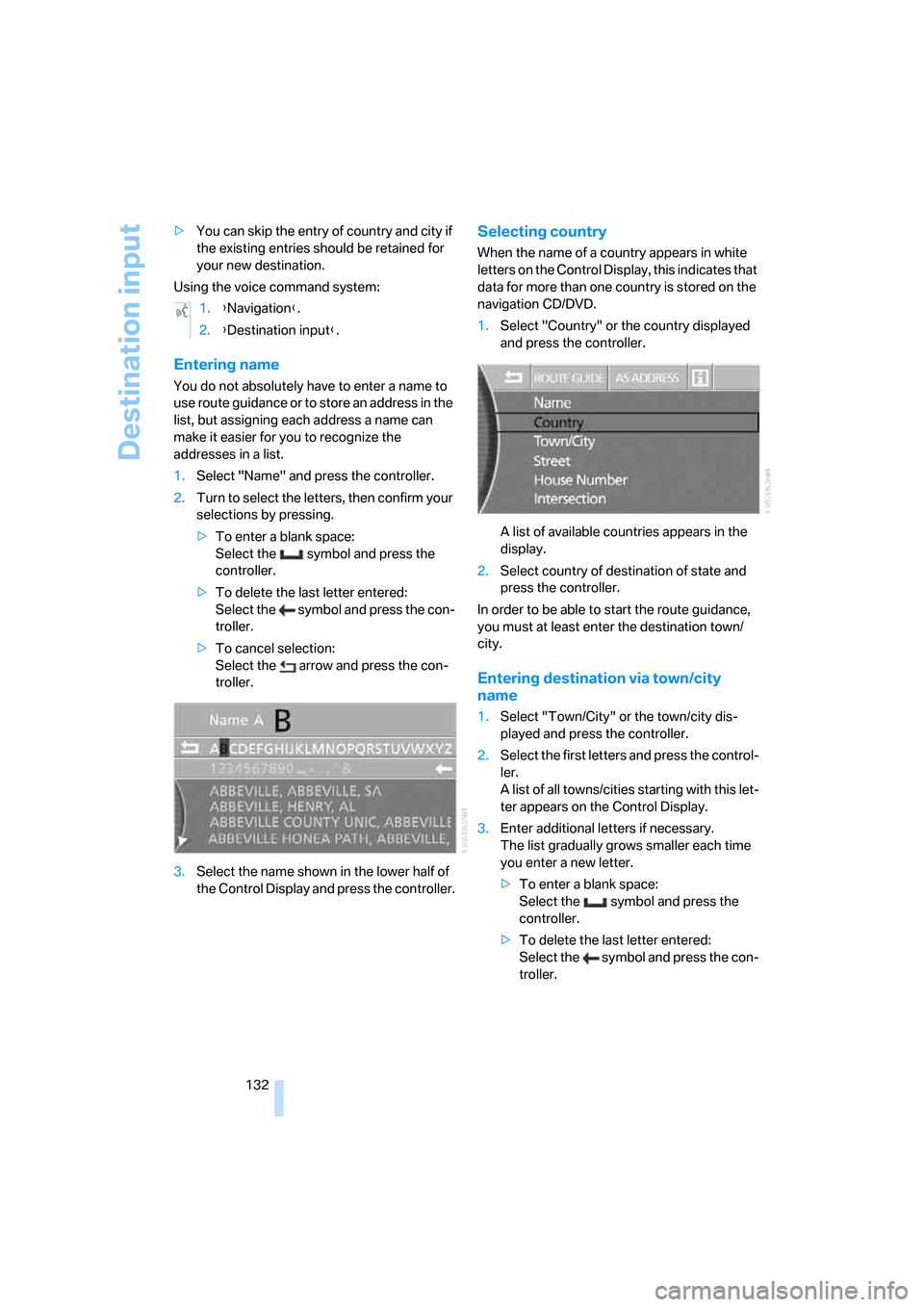
1.Select "Country" or the country displayed
and press the controller.
A list of available countries appears in the
display.
2.Select country of destination of state and
press the controller.
In order to be able to start the route guidance,
you must at least enter the destination town/
city.
Entering destination via town/city
name
1.Select "Town/City" or the town/city dis-
played and press the controller.
2.Select the first letters and press the control-
ler.
A list of all towns/cities starting with this let-
ter appears on the Control Display.
3.Enter additional letters if necessary.
The list gradually grows smaller each time
you enter a new letter.
>To enter a blank space:
Select the symbol and press the
controller.
>To delete the last letter entered:
Select the symbol and press the con-
troller. 1.{Navigation}.
2.{Destination input}.
Page 136 of 247
Destination input
134
Entering intersection
The intersection is entered in the same way as
the street.
Entering house number
You can enter the house number if the naviga-
tion CD/DVD supports this function.
1.Select "House Number" and press the con-
troller.
2.Enter the house number:
Select numbers individually and press the
controller each time.
>To delete last digit or letter:
Select the symbol and press the con-
troller.
>To cancel selection:
Select the arrow and press the con-
troller.
If the house number entered is not stored
on the navigation CD/DVD, then the closest
possible number is entered.
3.Select "Enter" and press the controller.
Starting route guidance with manual
destination input
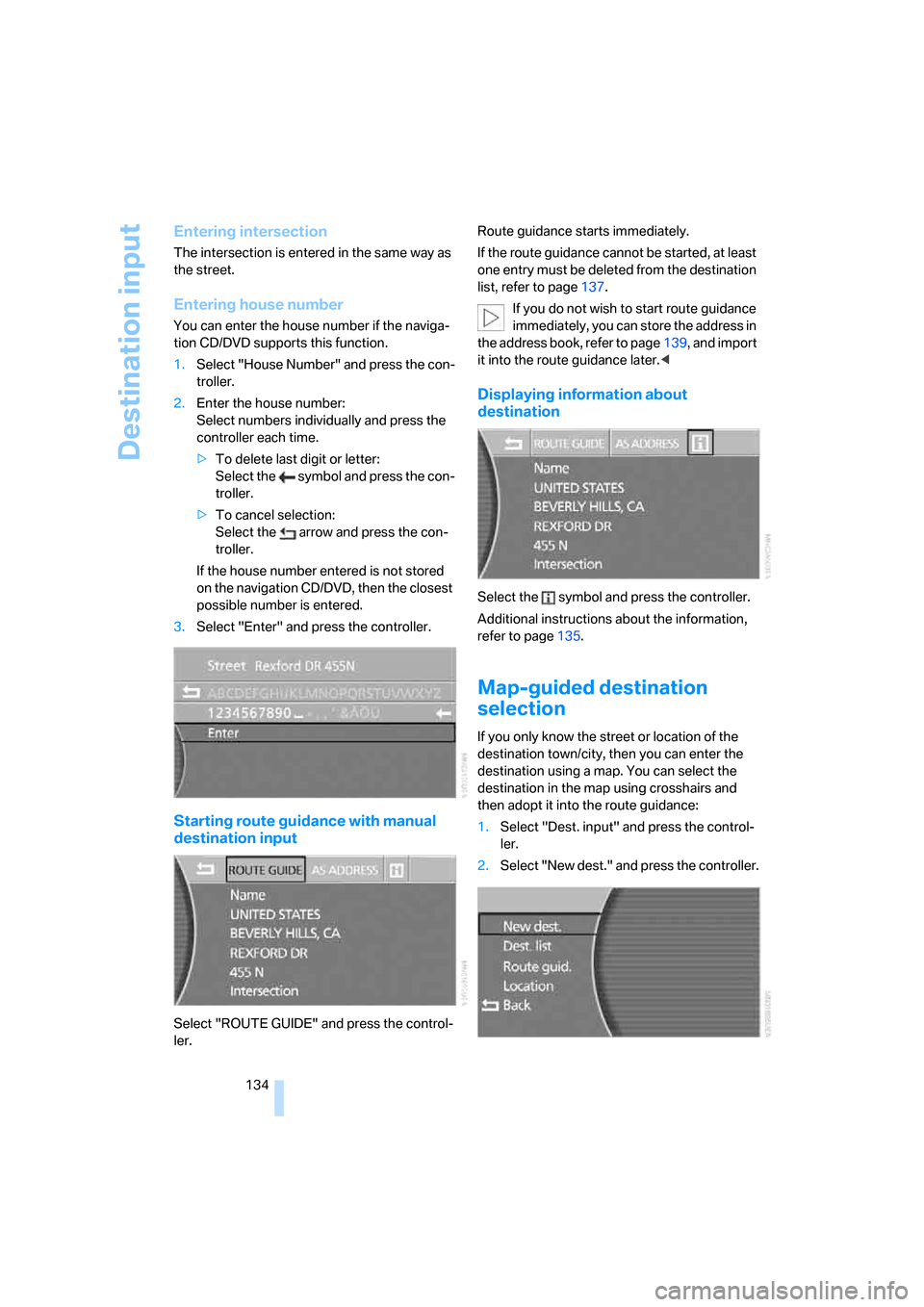
Select "ROUTE GUIDE" and press the control-
ler.Route guidance starts immediately.
If the route guidance cannot be started, at least
one entry must be deleted from the destination
list, refer to page137.
If you do not wish to start route guidance
immediately, you can store the address in
the address book, refer to page139, and import
it into the route guidance later.<
Displaying information about
destination
Select the symbol and press the controller.
Additional instructions about the information,
refer to page135.
Map-guided destination
selection
If you only know the street or location of the
destination town/city, then you can enter the
destination using a map. You can select the
destination in the map using crosshairs and
then adopt it into the route guidance:
1.Select "Dest. input" and press the control-
ler.
2.Select "New dest." and press the controller.
Page 145 of 247
Navigation
Driving tips
143Reference
At a glance
Controls
Communications
Entertainment
Mobility
Route guidance
Starting route guidance
The route guidance is started for the first desti-
nation in the destination list, refer to page137.
There must be at least one destination in the
destination list.
iDrive, for principle details, refer to page16.
1.Press the button to open the start
menu.
2.Move the controller toward "Navigation".
3.Press the controller as needed.
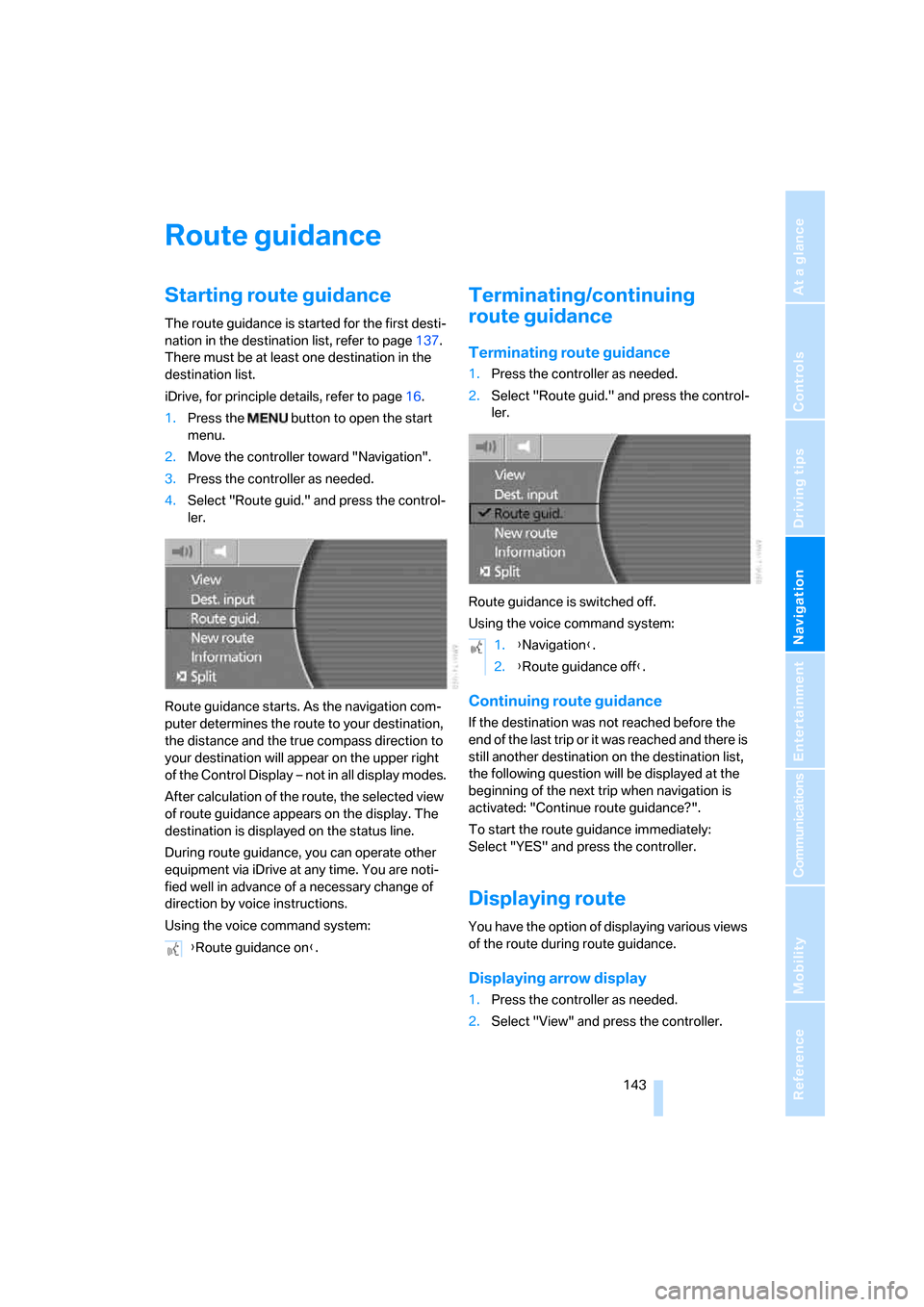
4.Select "Route guid." and press the control-
ler.
Route guidance starts. As the navigation com-
puter determines the route to your destination,
the distance and the true compass direction to
your destination will appear on the upper right
of the Control Display – not in all display modes.
After calculation of the route, the selected view
of route guidance appears on the display. The
destination is displayed on the status line.
During route guidance, you can operate other
equipment via iDrive at any time. You are noti-
fied well in advance of a necessary change of
direction by voice instructions.
Using the voice command system:
Terminating/continuing
route guidance
Terminating route guidance
1.Press the controller as needed.
2.Select "Route guid." and press the control-
ler.
Route guidance is switched off.
Using the voice command system:
Continuing route guidance
If the destination was not reached before the
end of the last trip or it was reached and there is
still another destination on the destination list,
the following question will be displayed at the
beginning of the next trip when navigation is
activated: "Continue route guidance?".
To start the route guidance immediately:
Select "YES" and press the controller.
Displaying route
You have the option of displaying various views
of the route during route guidance.
Displaying arrow display
1.Press the controller as needed.
2.Select "View" and press the controller. {Route guidance on}.
1.{Navigation}.
2.{Route guidance off}.
Page 146 of 247
Route guidance
144 3.Select "Arrow display" and press the con-
troller.
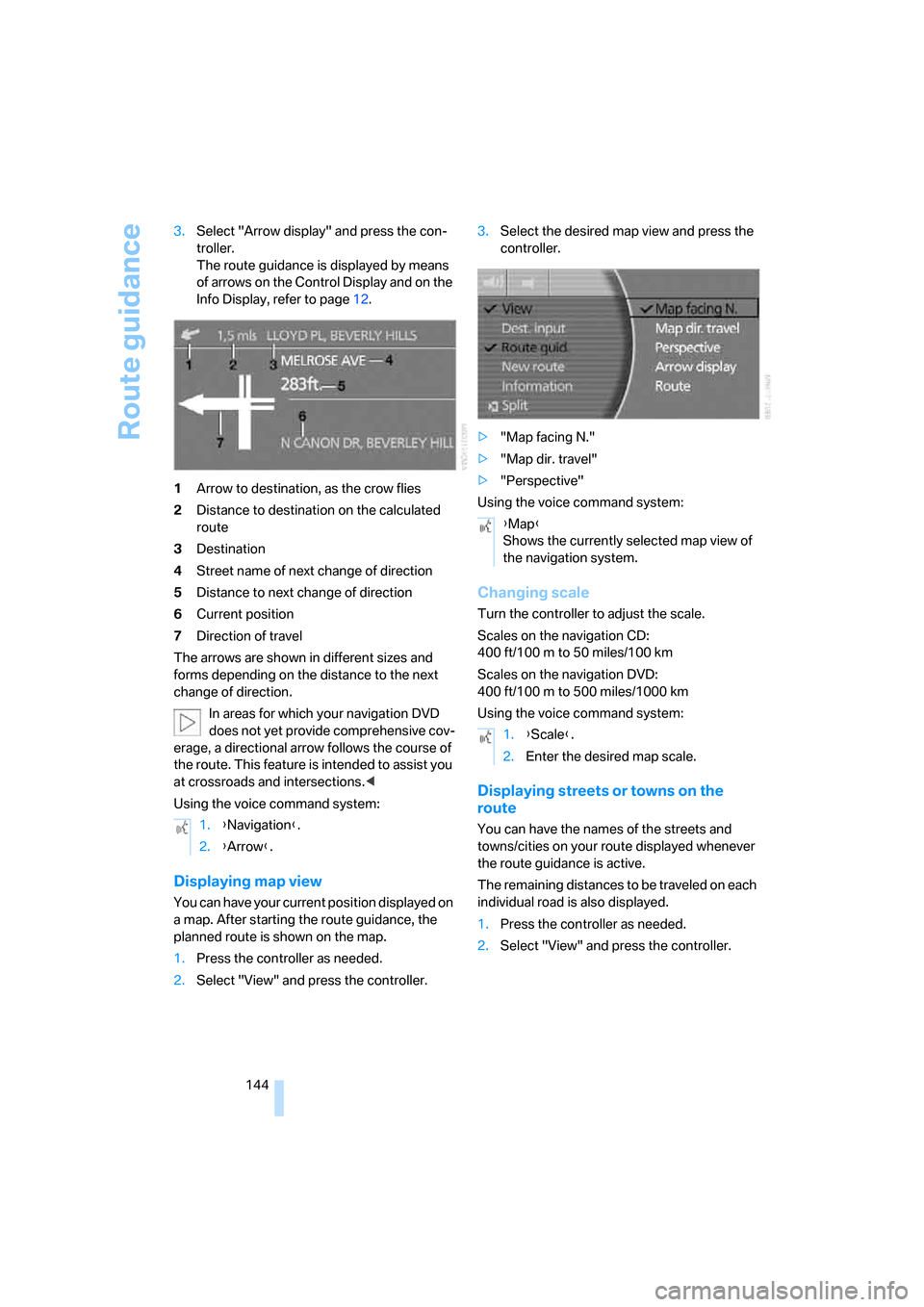
The route guidance is displayed by means
of arrows on the Control Display and on the
Info Display, refer to page12.
1Arrow to destination, as the crow flies
2Distance to destination on the calculated
route
3Destination
4Street name of next change of direction
5Distance to next change of direction
6Current position
7Direction of travel
The arrows are shown in different sizes and
forms depending on the distance to the next
change of direction.
In areas for which your navigation DVD
does not yet provide comprehensive cov-
erage, a directional arrow follows the course of
the route. This feature is intended to assist you
at crossroads and intersections.<
Using the voice command system:
Displaying map view
You can have your current position displayed on
a map. After starting the route guidance, the
planned route is shown on the map.
1.Press the controller as needed.
2.Select "View" and press the controller.3.Select the desired map view and press the
controller.
>"Map facing N."
>"Map dir. travel"
>"Perspective"
Using the voice command system:
Changing scale
Turn the controller to adjust the scale.
Scales on the navigation CD:
400 ft/100 m to 50 miles/100 km
Scales on the navigation DVD:
400ft/100m to 500miles/1000km
Using the voice command system:
Displaying streets or towns on the
route
You can have the names of the streets and
towns/cities on your route displayed whenever
the route guidance is active.
The remaining distances to be traveled on each
individual road is also displayed.
1.Press the controller as needed.
2.Select "View" and press the controller. 1.{Navigation}.
2.{Arrow}.
{Map}
Shows the currently selected map view of
the navigation system.
1.{Scale}.
2.Enter the desired map scale.
Page 181 of 247
179
Entertainment
Reference
At a glance
Controls
Driving tips Communications
Navigation
Mobility
Getting started
Inserting mobile phone
If you insert or remove the mobile phone during
a call, the call may be interrupted depending on
the mobile phone model.
1.Remove the protective cap from the mobile
phone's antenna connector if necessary, so
that the mobile phone can engage in the
snap-in adapter.
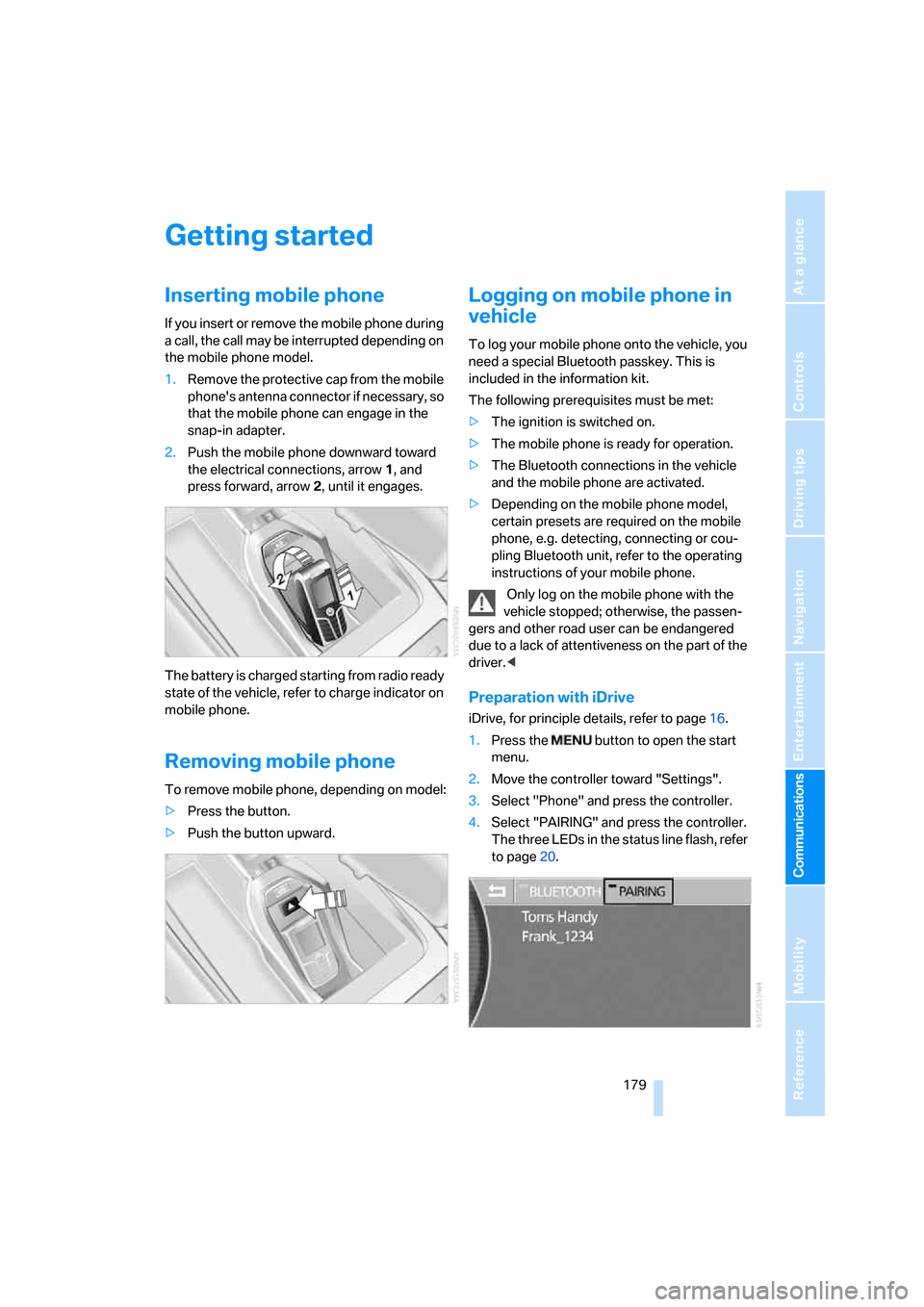
2.Push the mobile phone downward toward
the electrical connections, arrow1, and
press forward, arrow2, until it engages.
The battery is charged starting from radio ready
state of the vehicle, refer to charge indicator on
mobile phone.
Removing mobile phone
To remove mobile phone, depending on model:
>Press the button.
>Push the button upward.
Logging on mobile phone in
vehicle
To log your mobile phone onto the vehicle, you
need a special Bluetooth passkey. This is
included in the information kit.
The following prerequisites must be met:
>The ignition is switched on.
>The mobile phone is ready for operation.
>The Bluetooth connections in the vehicle
and the mobile phone are activated.
>Depending on the mobile phone model,
certain presets are required on the mobile
phone, e.g. detecting, connecting or cou-
pling Bluetooth unit, refer to the operating
instructions of your mobile phone.
Only log on the mobile phone with the
vehicle stopped; otherwise, the passen-
gers and other road user can be endangered
due to a lack of attentiveness on the part of the
driver.<
Preparation with iDrive
iDrive, for principle details, refer to page16.
1.Press the button to open the start
menu.
2.Move the controller toward "Settings".
3.Select "Phone" and press the controller.
4.Select "PAIRING" and press the controller.
The three LEDs in the status line flash, refer
to page20.
Page 195 of 247
Mobility
193Reference
At a glance
Controls
Driving tips
Communications
Navigation
Entertainment
Fuel specifications
Do not use leaded gasoline; otherwise,
permanent damage to the catalytic con-
verter will result.<
Required fuel
Super Premium Gasoline/AKI 91
This gasoline is highly recommended.
However, you may also use gasoline with a
lower AKI rating. The minimum AKI rating is 87.
If you use gasoline with this minimum AKI rat-
ing, the engine may produce knocking sounds
when starting at high outside temperatures.
This has no effect on the engine life.
Use high-quality brands
Field experience has indicated significant dif-
ferences in fuel quality: volatility, composition,
additives, etc., among gasolines offered for sale
in the United States and Canada. Fuels contain-
ing up to and including 10Ξ ethanol or other
oxygenates with up to 2.8Ξ oxygen by weight,
that is, 15Ξ MTBE or 3Ξ methanol plus an
equivalent amount of co-solvent, will not void
the applicable warranties with respect to
defects in materials or workmanship.
The use of poor-quality fuels may result in
drivability, starting and stalling problems,
especially under certain environmental condi-
tions such as high ambient temperature and
high altitude.
Should you encounter drivability problems
which you suspect could be related to the fuel
you are using, we recommend that you respond
by switching to a recognized high-quality brand
such as gasoline that is advertised as Top Tier
Detergent Gasoline.
Failure to comply with these recommendations
may result in unscheduled maintenance.<
Page 196 of 247
Wheels and tires
194
Wheels and tires
Tire inflation pressure
Information for your safety
The condition of the tires and the maintenance
of the specified tire pressure are crucial not only
to the tire's service life, but also to driving com-
fort and most importantly, driving safety.
Checking pressure
Only check tire inflation pressure when the tires
are cold. This means after a maximum of
1,25 miles/2 km driving or when the vehicle has
been parked for at least 2 hours. When tires are
warm, the tire inflation pressure increases.
Check the tire inflation pressure regularly
and correct it as needed, including the
spare wheel: at least twice a month and before
starting long trips. If you fail to observe this pre-
caution, you may be driving on tires with incor-
rect tire pressures, a condition that can not only
compromise your vehicle's driving stability, but
also lead to tire damage and the risk of an acci-
dent. Do not drive with deflated, i.e. flat tires,
except run-flat tires. A flat tire will seriously
impair your vehicle's handling and braking
response. Attempts to drive on a flat tire can
lead to loss of control over the vehicle.<
After correcting the tire inflation pressure,
reinitialize the Flat Tire Monitor, refer to
page90, or reset the Tire Pressure Monitor,
refer to page92.<
Pressure specifications
The tables below provide all the correct inflation
pressures for the specified tire sizes at ambient
temperature.
The inflation pressures apply to the tire
sizes and tire brands respectively
approved and recommended by BMW; a list of
these is available from your BMW center.
>Tire sizes for your vehicle
>Load conditions
>Maximum allowable driving speed
Tire inflation pressures for driving
up to 100 mph/160 km/h
For normal driving up to 100 mph/160 km/h
adjust pressures to the respective tire inflation
pressures listed on the following pages in the
column for traveling speeds up to a max. of
100 mph/160 km/h to achieve optimum driving
comfort.
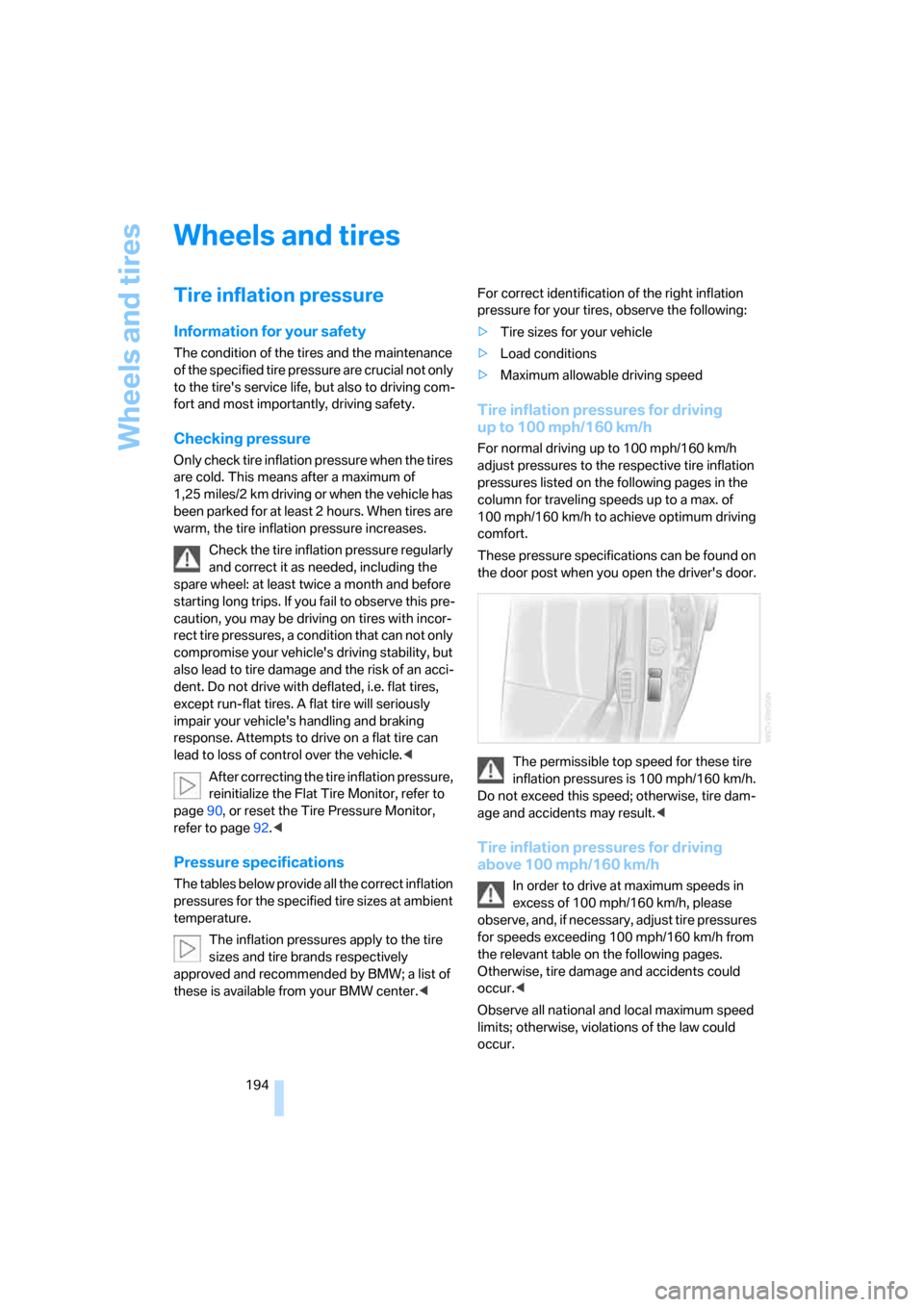
These pressure specifications can be found on
the door post when you open the driver's door.
The permissible top speed for these tire
inflation pressures is 100 mph/160 km/h.
Do not exceed this speed; otherwise, tire dam-
age and accidents may result.<
Tire inflation pressures for driving
above 100 mph/160 km/h
In order to drive at maximum speeds in
excess of 100 mph/160 km/h, please
observe, and, if necessary, adjust tire pressures
for speeds exceeding 100 mph/160 km/h from
the relevant table on the following pages.
Otherwise, tire damage and accidents could
occur.<
Observe all national and local maximum speed
limits; otherwise, violations of the law could
occur.
Page 204 of 247
Under the hood
202
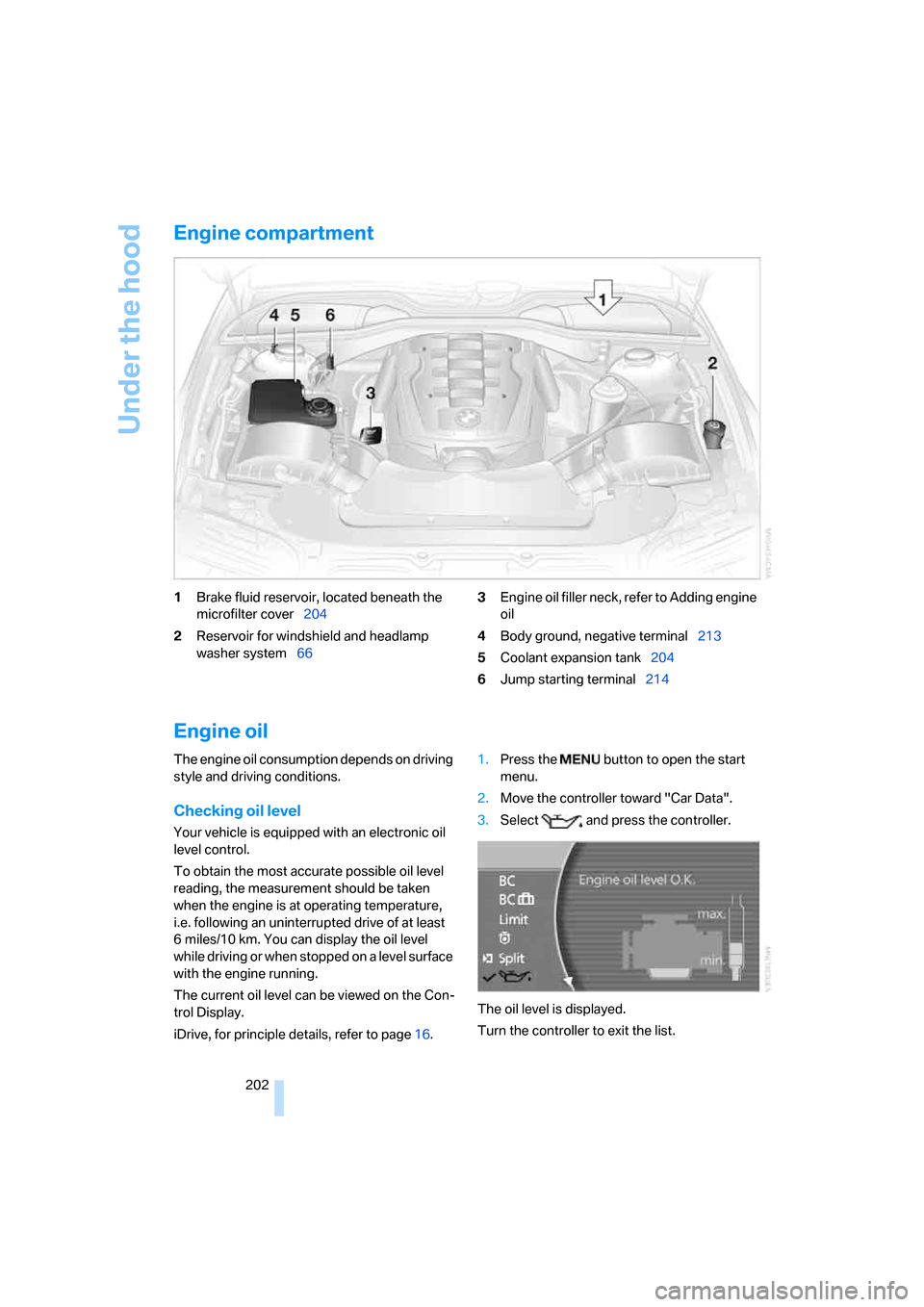
Engine compartment
1Brake fluid reservoir, located beneath the
microfilter cover204
2Reservoir for windshield and headlamp
washer system663Engine oil filler neck, refer to Adding engine
oil
4Body ground, negative terminal213
5Coolant expansion tank204
6Jump starting terminal214
Engine oil
The engine oil consumption depends on driving
style and driving conditions.
Checking oil level
Your vehicle is equipped with an electronic oil
level control.
To obtain the most accurate possible oil level
reading, the measurement should be taken
when the engine is at operating temperature,
i.e. following an uninterrupted drive of at least
6 miles/10 km. You can display the oil level
while driving or when stopped on a level surface
with the engine running.
The current oil level can be viewed on the Con-
trol Display.
iDrive, for principle details, refer to page16.1.Press the button to open the start
menu.
2.Move the controller toward "Car Data".
3.Select and press the controller.
The oil level is displayed.
Turn the controller to exit the list.
Page 213 of 247
Mobility
211Reference
At a glance
Controls
Driving tips
Communications
Navigation
Entertainment
After mounting
1.Tighten the lug bolts in a diagonal pattern.
To ensure safety, always have the
lug bolts checked with a calibrated
torque wrench as soon as possible to
ensure that they are tightened to the speci-
fied torque. The tightening torque is
100lbft/140Nm.<
2.Reverse the removal sequence when stor-
ing the wheel and tools in the vehicle.
3.Check and correct the tire inflation pressure
at the earliest opportunity.
Protect valve stems and valve stem
seal caps from dirt and contamina-
tion. Dirt in valve stems is a frequent source
of gradual air loss.<
4.Reinitialize the Flat Tire Monitor, refer to
page90, or reset the Tire Pressure Monitor,
refer to page92.
5.Replace the damaged tire as soon as possi-
ble and have the new wheel/tire balanced.
Driving with spare tire
On certain wheel-tire combinations, the
size of the spare tire differs from that of
the rest of the tires. The spare tire is fully capa-
ble of running in all load and speed ranges.
However, to recreate the original conditions,
the tire should be replaced as soon as possi-
ble.<
Vehicle battery
Maintenance
The battery is 100 % maintenance-free, i.e., the
electrolyte will last for the life of the battery
when the vehicle is operated in a temperate cli-
mate. Your BMW center will be happy to advise
you on all questions concerning the battery.
Charging battery
Charge the battery in the vehicle only via the
terminals in the engine compartment and with
the engine off. Connections, refer to Jump
starting on page213.
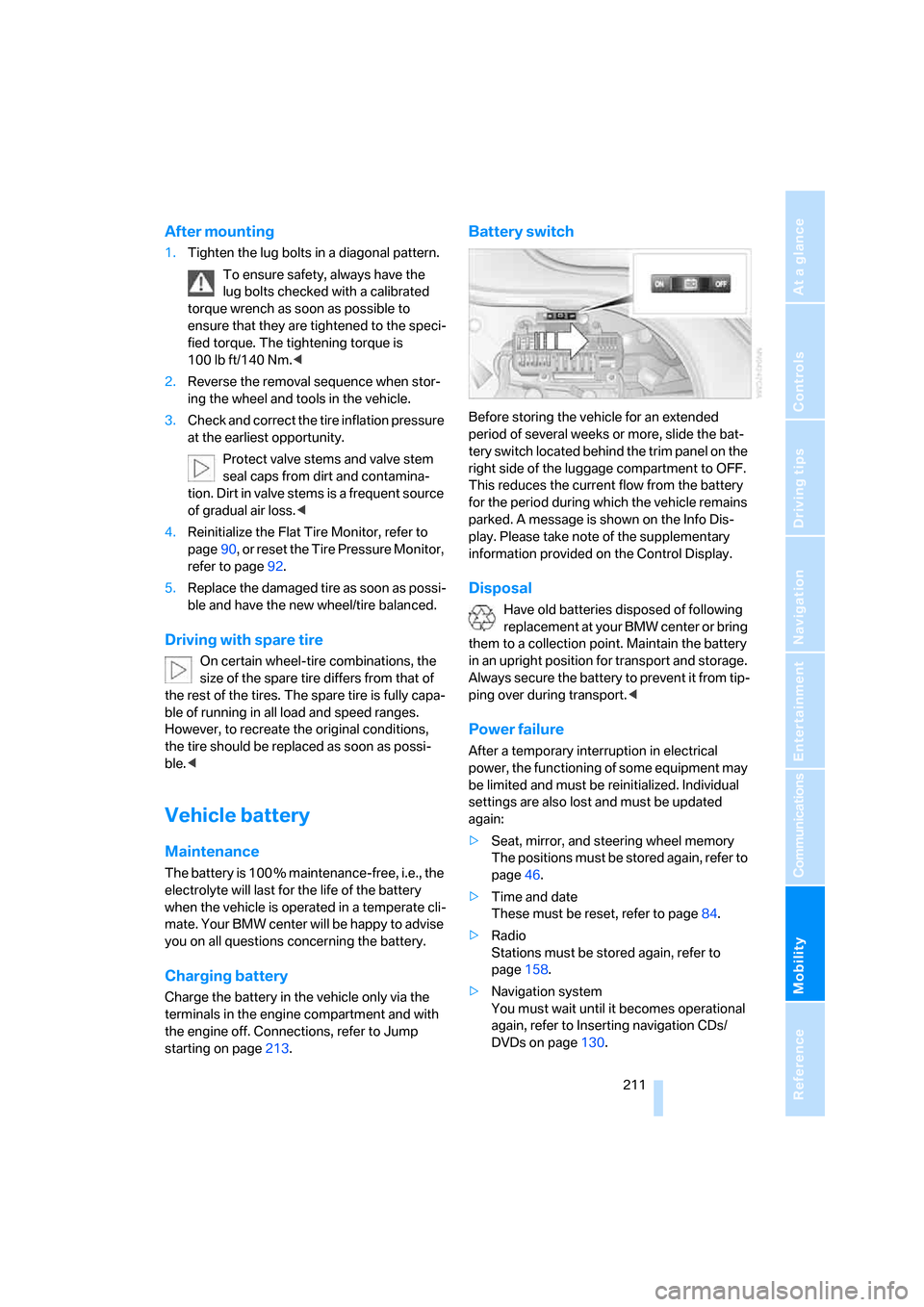
Battery switch
Before storing the vehicle for an extended
period of several weeks or more, slide the bat-
tery switch located behind the trim panel on the
right side of the luggage compartment to OFF.
This reduces the current flow from the battery
for the period during which the vehicle remains
parked. A message is shown on the Info Dis-
play. Please take note of the supplementary
information provided on the Control Display.
Disposal
Have old batteries disposed of following
replacement at your BMW center or bring
them to a collection point. Maintain the battery
in an upright position for transport and storage.
Always secure the battery to prevent it from tip-
ping over during transport.<
Power failure
After a temporary interruption in electrical
power, the functioning of some equipment may
be limited and must be reinitialized. Individual
settings are also lost and must be updated
again:
>Seat, mirror, and steering wheel memory
The positions must be stored again, refer to
page46.
>Time and date
These must be reset, refer to page84.
>Radio
Stations must be stored again, refer to
page158.
>Navigation system
You must wait until it becomes operational
again, refer to Inserting navigation CDs/
DVDs on page130.