audio BMW 745Li 2004 E66 User Guide
[x] Cancel search | Manufacturer: BMW, Model Year: 2004, Model line: 745Li, Model: BMW 745Li 2004 E66Pages: 232, PDF Size: 5.27 MB
Page 163 of 232
Navigation
Entertainment
Driving tips
161Reference
At a glance
Controls
Communications
Mobility
If the CD magazine has been newly filled,
playback begins with the lowest CD, e.g.
CD 1, track 1.
Volume adjustment, refer to page 149.
Tone control, refer to page 149.
If you play self-recorded audio CDs,
faults, e.g. drop-outs, can occur, or
the CD is not played at all.<
Status displays
The CD magazine's load status is indicated
on the Control Display.
If the display fails to detect a CD that
you have loaded in the magazine,
check to ensure that the CD has been
inserted correctly and inspect it for signs
of defects.<
Selecting a track using the
Control Center
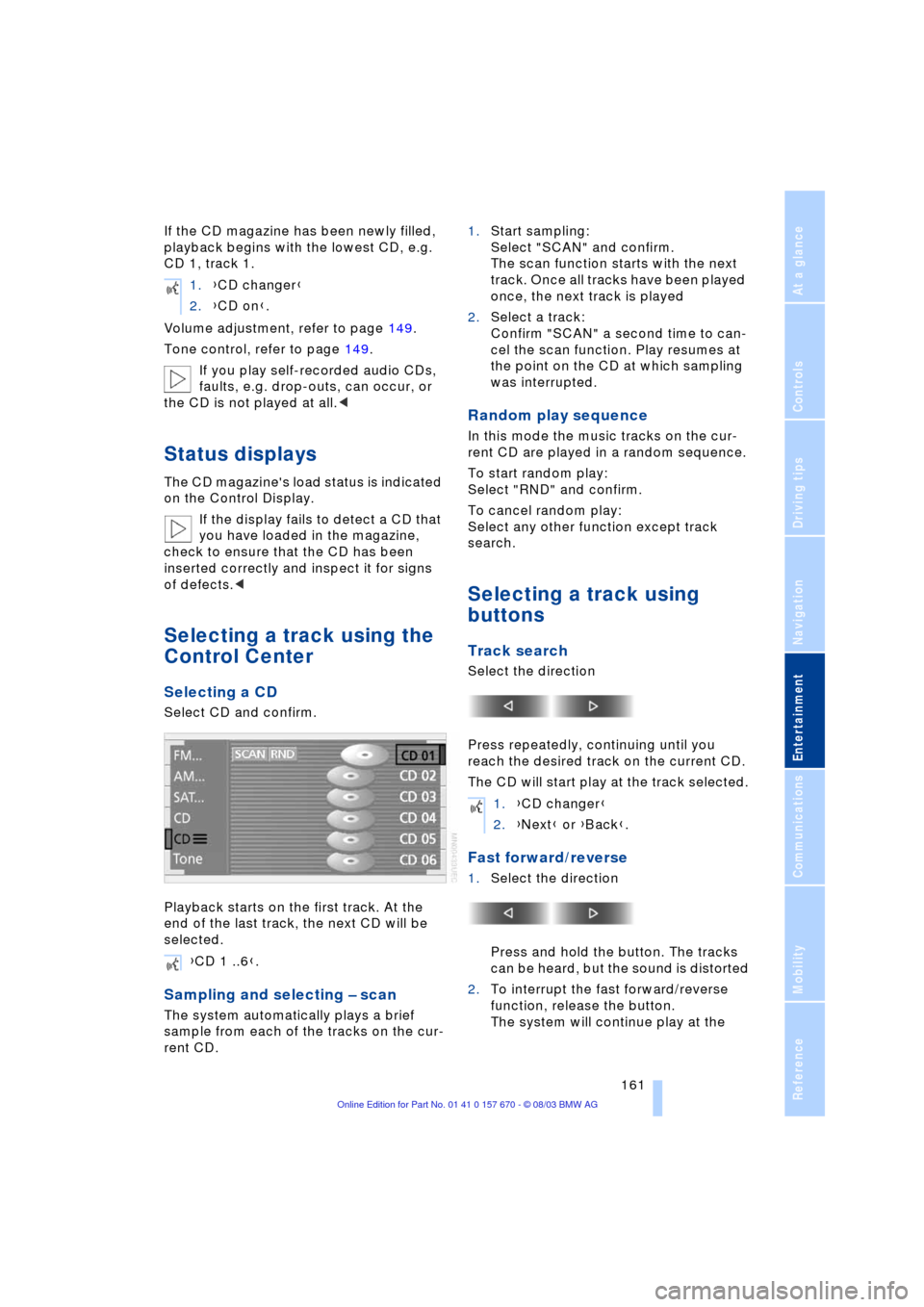
Selecting a CD
Select CD and confirm.
Playback starts on the first track. At the
end of the last track, the next CD will be
selected.
Sampling and selecting Ð scan
The system automatically plays a brief
sample from each of the tracks on the cur-
rent CD.1.Start sampling:
Select "SCAN" and confirm.
The scan function starts with the next
track. Once all tracks have been played
once, the next track is played
2.Select a track:
Confirm "SCAN" a second time to can-
cel the scan function. Play resumes at
the point on the CD at which sampling
was interrupted.
Random play sequence
In this mode the music tracks on the cur-
rent CD are played in a random sequence.
To start random play:
Select "RND" and confirm.
To cancel random play:
Select any other function except track
search.
Selecting a track using
buttons
Track search
Select the direction
Press repeatedly, continuing until you
reach the desired track on the current CD.
The CD will start play at the track selected.
Fast forward/reverse
1.Select the direction
Press and hold the button. The tracks
can be heard, but the sound is distorted
2.To interrupt the fast forward/reverse
function, release the button.
The system will continue play at the 1.{CD changer}
2.{CD on}.
{CD 1 ..6}.
1.{CD changer}
2.{Next} or {Back}.
Page 164 of 232
CD changer
162 point on the CD at which the button was
released.
Selecting music track
Malfunctions
The BMW CD changer is a Class 1
laser product. Never remove the
cover from the housing. Do not operate the
unit if the cover is damaged. Operation
without the cover can lead to serious eye
injury from invisible laser beams.
Always refer all repair and maintenance
operations to qualified technicians.
With self-recorded CDs, labels applied
later can become detached during play-
back due to the development of heat, caus-
ing irreparable damage to the device.<
To prevent CDs from being copied
illegally, they are often provided with
copy protection by the manufacturer.
Under certain circumstances, this can pre-
vent or restrict the playing of CDs on your
CD changer. In this case please contact the
CD dealer or manufacturer.<
If you play self-recorded audio CDs, faults,
e.g. drop-outs, can occur, or the CD is not
played at all.
High levels of humidity inside the
player can condense on the laser's
scan lens and temporarily prevent it from
reading the CD.< 1.{CD changer}
2.{Track 1 ..30}.
Page 165 of 232
Navigation
Entertainment
Driving tips
163Reference
At a glance
Controls
Communications
Mobility
TV
For your own safety, the TV picture is only
shown on the rear screen.
The system is designed for reception
of analog television. Due to the quality
of mobile reception, reduced picture qual-
ity can result depending on the position
and network coverage in spite of the highly
advanced reception technology used.
A change in vehicle positions can result
in improved reception quality in many
cases.<
Television
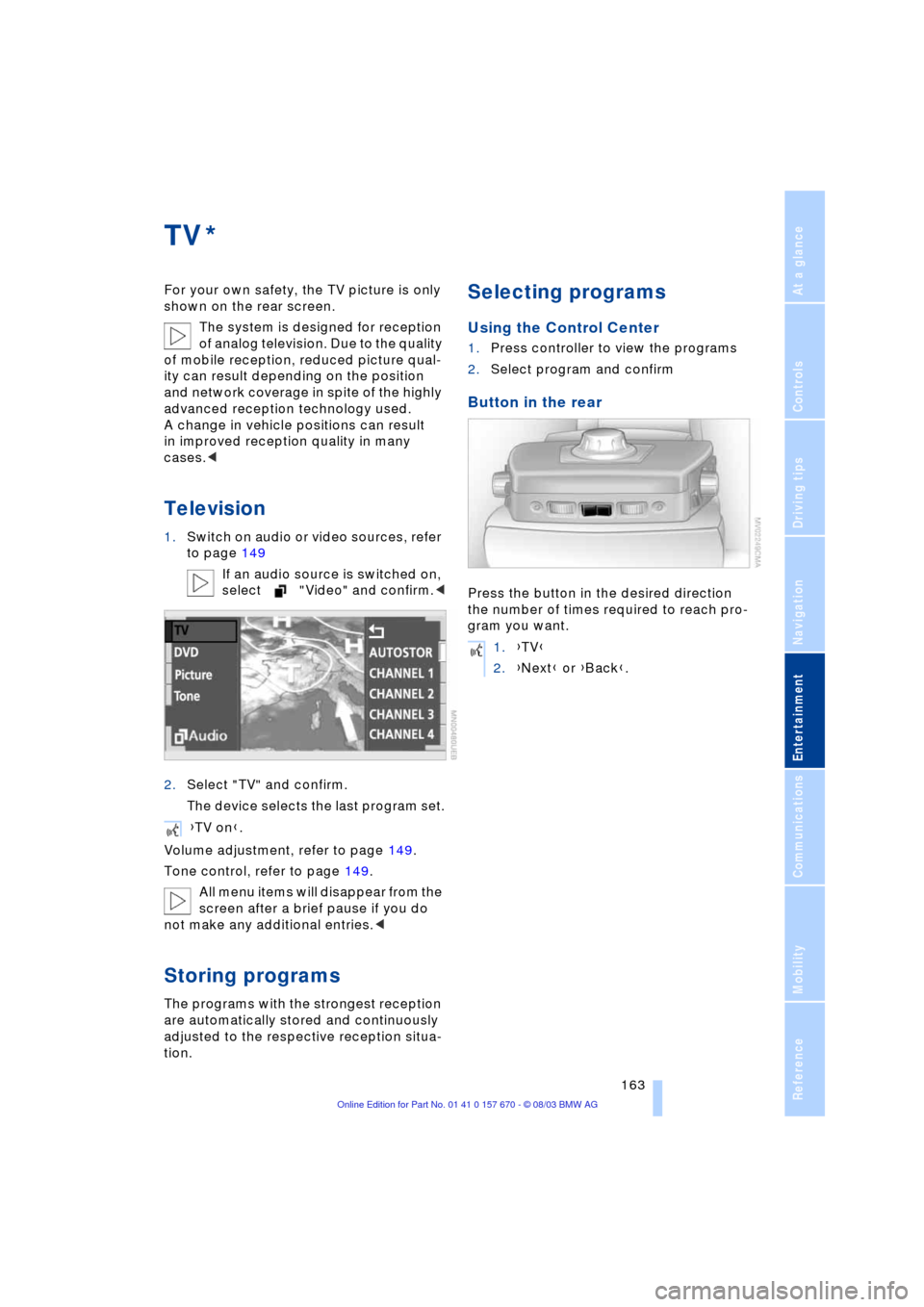
1.Switch on audio or video sources, refer
to page 149
If an audio source is switched on,
select "Video" and confirm.<
2.Select "TV" and confirm.
The device selects the last program set.
Volume adjustment, refer to page 149.
Tone control, refer to page 149.
All menu items will disappear from the
screen after a brief pause if you do
not make any additional entries.<
Storing programs
The programs with the strongest reception
are automatically stored and continuously
adjusted to the respective reception situa-
tion.
Selecting programs
Using the Control Center
1.Press controller to view the programs
2.Select program and confirm
Button in the rear
Press the button in the desired direction
the number of times required to reach pro-
gram you want.
*
{TV on}.
1.{TV}
2.{Next} or {Back}.
Page 167 of 232
Navigation
Entertainment
Driving tips
165Reference
At a glance
Controls
Communications
Mobility
DVD changer
Location
The BMW DVD changer for 6 DVDs or
audio CDs is mounted behind the left side
trim panel in the luggage compartment.
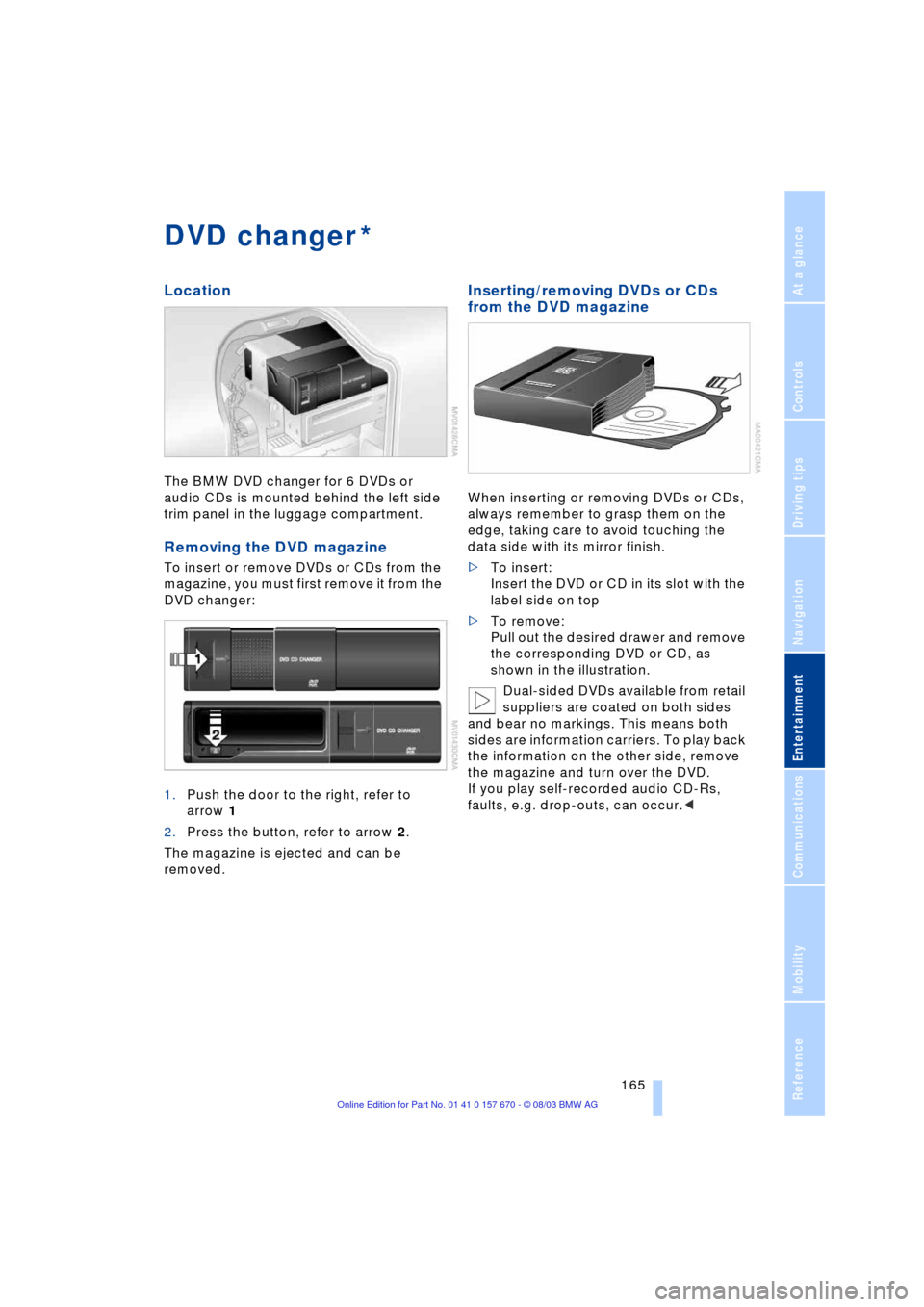
Removing the DVD magazine
To insert or remove DVDs or CDs from the
magazine, you must first remove it from the
DVD changer:
1.Push the door to the right, refer to
arrow 1
2.Press the button, refer to arrow 2.
The magazine is ejected and can be
removed.
Inserting/removing DVDs or CDs
from the DVD magazine
When inserting or removing DVDs or CDs,
always remember to grasp them on the
edge, taking care to avoid touching the
data side with its mirror finish.
>To insert:
Insert the DVD or CD in its slot with the
label side on top
>To remove:
Pull out the desired drawer and remove
the corresponding DVD or CD, as
shown in the illustration.
Dual-sided DVDs available from retail
suppliers are coated on both sides
and bear no markings. This means both
sides are information carriers. To play back
the information on the other side, remove
the magazine and turn over the DVD.
If you play self-recorded audio CD-Rs,
faults, e.g. drop-outs, can occur.<
*
Page 168 of 232
DVD changer
166
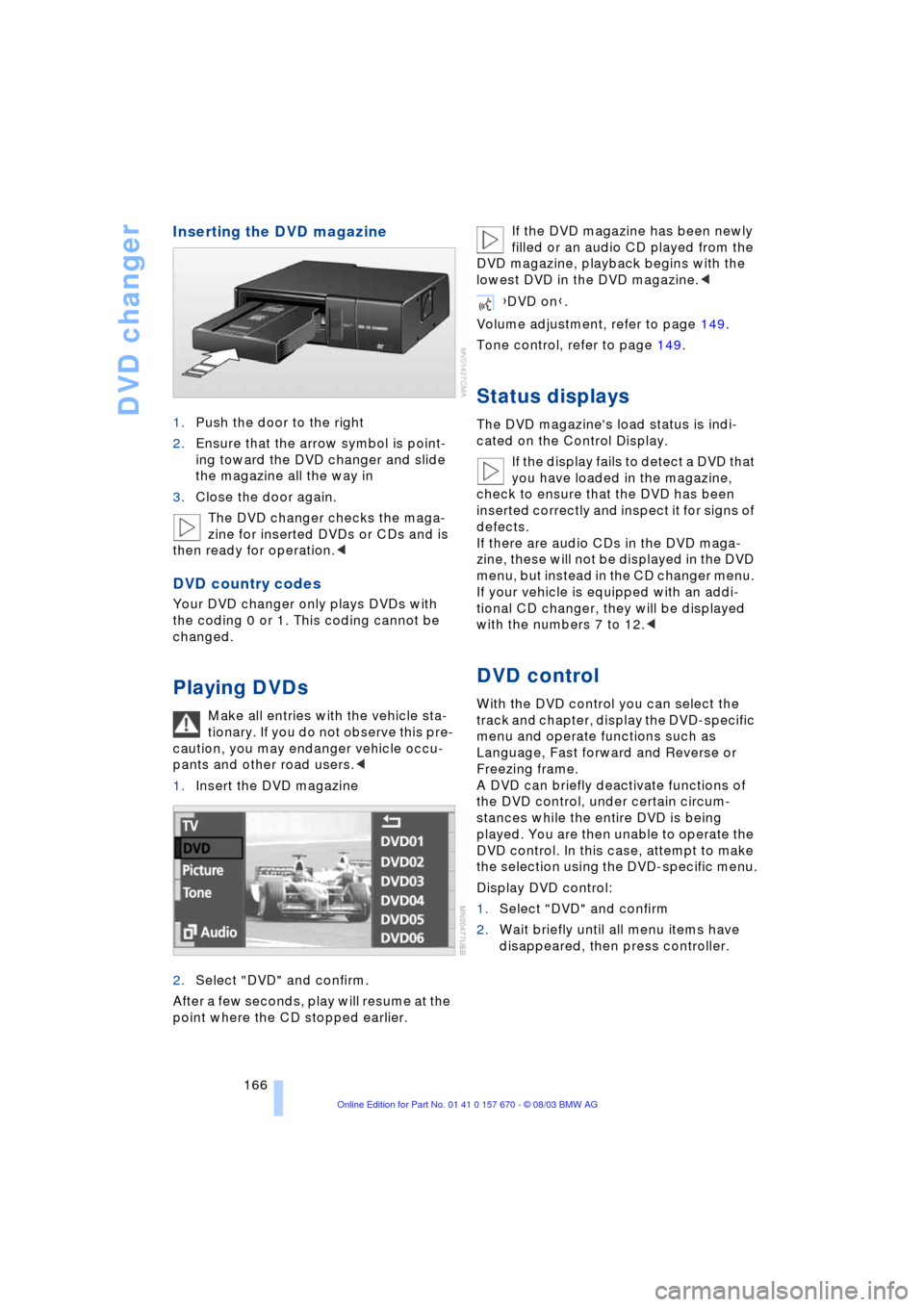
Inserting the DVD magazine
1.Push the door to the right
2.Ensure that the arrow symbol is point-
ing toward the DVD changer and slide
the magazine all the way in
3.Close the door again.
The DVD changer checks the maga-
zine for inserted DVDs or CDs and is
then ready for operation.<
DVD country codes
Your DVD changer only plays DVDs with
the coding 0 or 1. This coding cannot be
changed.
Playing DVDs
Make all entries with the vehicle sta-
tionary. If you do not observe this pre-
caution, you may endanger vehicle occu-
pants and other road users.<
1.Insert the DVD magazine
2.Select "DVD" and confirm.
After a few seconds, play will resume at the
point where the CD stopped earlier.If the DVD magazine has been newly
filled or an audio CD played from the
DVD magazine, playback begins with the
lowest DVD in the DVD magazine.<
Volume adjustment, refer to page 149.
Tone control, refer to page 149.
Status displays
The DVD magazine's load status is indi-
cated on the Control Display.
If the display fails to detect a DVD that
you have loaded in the magazine,
check to ensure that the DVD has been
inserted correctly and inspect it for signs of
defects.
If there are audio CDs in the DVD maga-
zine, these will not be displayed in the DVD
menu, but instead in the CD changer menu.
If your vehicle is equipped with an addi-
tional CD changer, they will be displayed
with the numbers 7 to 12.<
DVD control
With the DVD control you can select the
track and chapter, display the DVD-specific
menu and operate functions such as
Language, Fast forward and Reverse or
Freezing frame.
A DVD can briefly deactivate functions of
the DVD control, under certain circum-
stances while the entire DVD is being
played. You are then unable to operate the
DVD control. In this case, attempt to make
the selection using the DVD-specific menu.
Display DVD control:
1.Select "DVD" and confirm
2.Wait briefly until all menu items have
disappeared, then press controller.
{DVD on}.
Page 170 of 232
DVD changer
168 and confirm repeatedly, continuing until
you reach the desired chapter
or with buttons
Select the direction
Press repeatedly, continuing until you
reach the desired chapter on the current
DVD.
Playback begins at the chapter selected.
Adjusting the picture
1.During playback, press controller
2.Select and confirm
3.Adjust the picture, refer to page 164.
Freezing frame
1.Display DVD control, refer to page 166
2.At the desired position, select
and confirm.
The film is stopped
3.To restart the DVD:
Select or and confirm.
DVD playback is continued at the point
at which it was interrupted.
Selecting picture format
You can adjust the DVD format to your
screen.
The picture format is a DVD-specific func-
tion and is not offered by all DVDs.
1.Display DVD control, refer to page 166
2.Select and confirm
3.Select and confirm
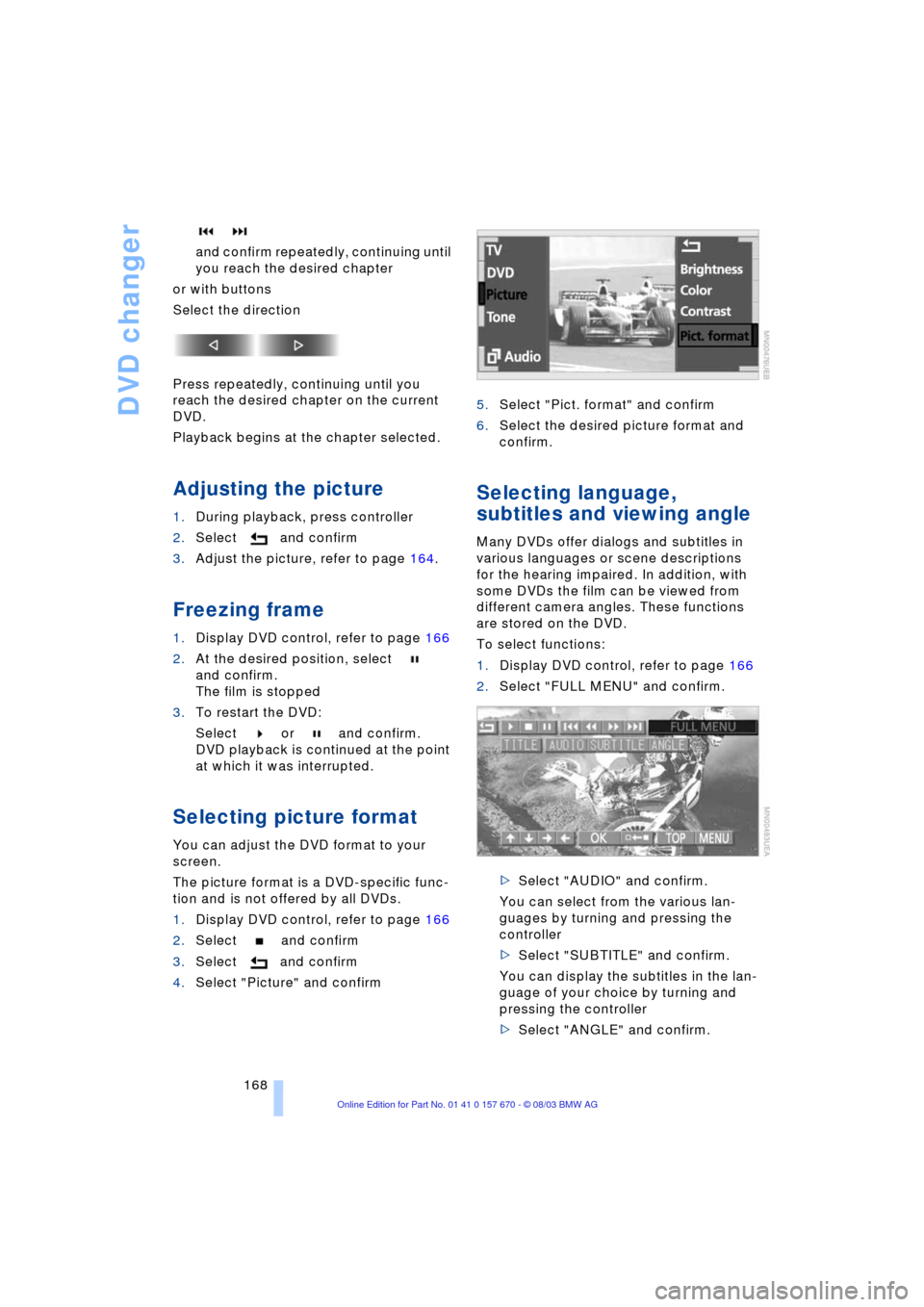
4.Select "Picture" and confirm5.Select "Pict. format" and confirm
6.Select the desired picture format and
confirm.
Selecting language,
subtitles and viewing angle
Many DVDs offer dialogs and subtitles in
various languages or scene descriptions
for the hearing impaired. In addition, with
some DVDs the film can be viewed from
different camera angles. These functions
are stored on the DVD.
To select functions:
1.Display DVD control, refer to page 166
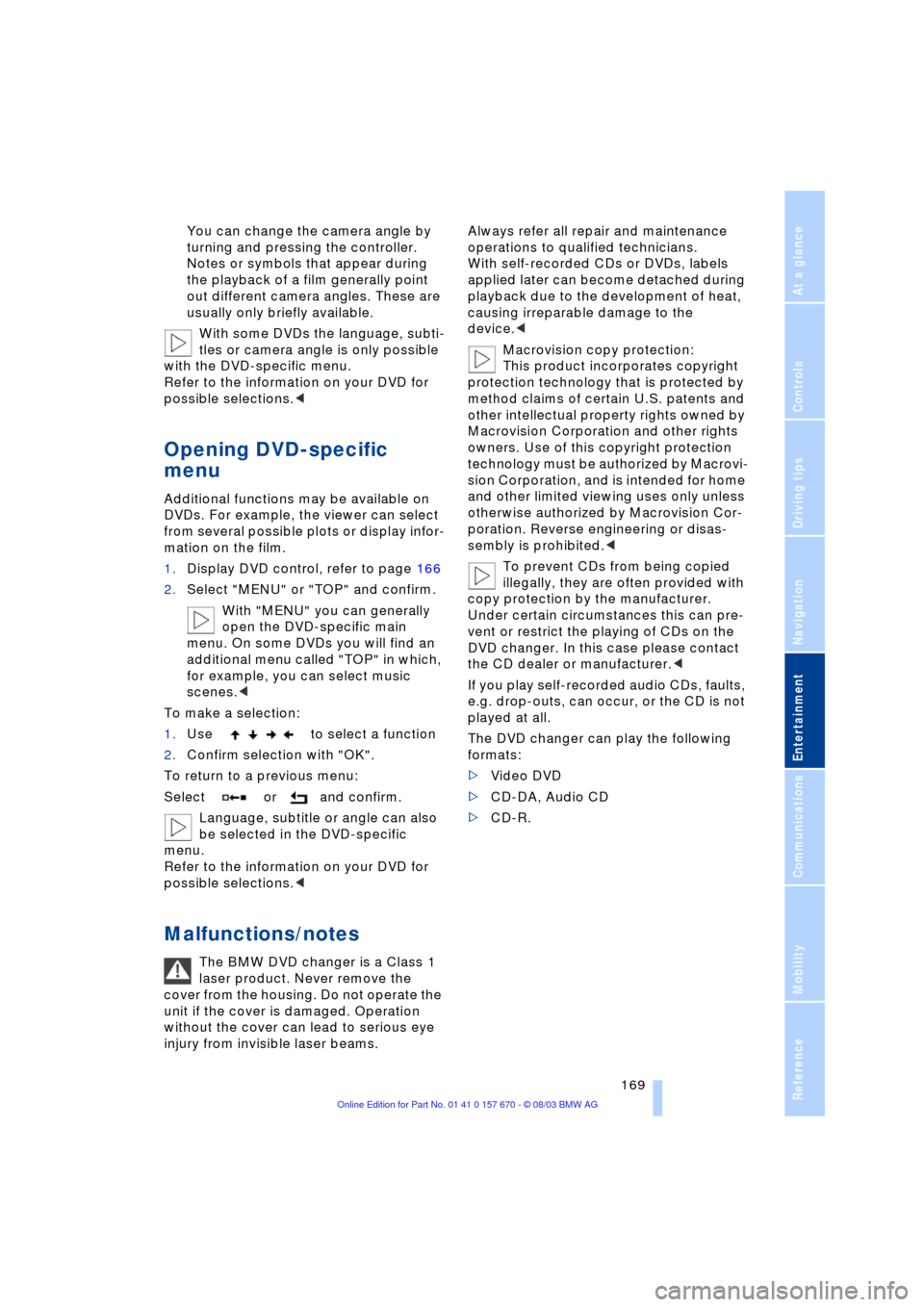
2.Select "FULL MENU" and confirm.
>Select "AUDIO" and confirm.
You can select from the various lan-
guages by turning and pressing the
controller
>Select "SUBTITLE" and confirm.
You can display the subtitles in the lan-
guage of your choice by turning and
pressing the controller
>Select "ANGLE" and confirm.
Page 171 of 232
Navigation
Entertainment
Driving tips
169Reference
At a glance
Controls
Communications
Mobility
You can change the camera angle by
turning and pressing the controller.
Notes or symbols that appear during
the playback of a film generally point
out different camera angles. These are
usually only briefly available.
With some DVDs the language, subti-
tles or camera angle is only possible
with the DVD-specific menu.
Refer to the information on your DVD for
possible selections.<
Opening DVD-specific
menu
Additional functions may be available on
DVDs. For example, the viewer can select
from several possible plots or display infor-
mation on the film.
1.Display DVD control, refer to page 166
2.Select "MENU" or "TOP" and confirm.
With "MENU" you can generally
open the DVD-specific main
menu. On some DVDs you will find an
additional menu called "TOP" in which,
for example, you can select music
scenes.<
To make a selection:
1.Use to select a function
2.Confirm selection with "OK".
To return to a previous menu:
Select or and confirm.
Language, subtitle or angle can also
be selected in the DVD-specific
menu.
Refer to the information on your DVD for
possible selections.<
Malfunctions/notes
The BMW DVD changer is a Class 1
laser product. Never remove the
cover from the housing. Do not operate the
unit if the cover is damaged. Operation
without the cover can lead to serious eye
injury from invisible laser beams.Always refer all repair and maintenance
operations to qualified technicians.
With self-recorded CDs or DVDs, labels
applied later can become detached during
playback due to the development of heat,
causing irreparable damage to the
device.<
Macrovision copy protection:
This product incorporates copyright
protection technology that is protected by
method claims of certain U.S. patents and
other intellectual property rights owned by
Macrovision Corporation and other rights
owners. Use of this copyright protection
technology must be authorized by Macrovi-
sion Corporation, and is intended for home
and other limited viewing uses only unless
otherwise authorized by Macrovision Cor-
poration. Reverse engineering or disas-
sembly is prohibited.<
To prevent CDs from being copied
illegally, they are often provided with
copy protection by the manufacturer.
Under certain circumstances this can pre-
vent or restrict the playing of CDs on the
DVD changer. In this case please contact
the CD dealer or manufacturer.<
If you play self-recorded audio CDs, faults,
e.g. drop-outs, can occur, or the CD is not
played at all.
The DVD changer can play the following
formats:
>Video DVD
>CD-DA, Audio CD
>CD-R.
Page 172 of 232

DVD changer
170 The DVD Audio format is not sup-
ported by the DVD changer. However,
many audio DVDs available in stores also
contain a video track in the DVD Video for-
mat in addition to the audio track. These
DVDs can be played back by the DVD
changer. Please refer to the information on
your DVD to determine whether your audio
DVD contains an additional video track.
DVDs are usually divided into tracks and
chapters and can contain different subti-
tles, camera angles or sound tracks, lan-
guages and sound formats. Depending on
the version of the DVD, these functions can
be selected either directly with the DVD
control system or only via the DVD-specific
menu. Refer to the information on your DVD
for possible selections.
High levels of humidity inside the player
can condense on the laser's scan lens and
prevent it from reading the DVD.<
Page 179 of 232
177
Entertainment
Reference
At a glance
Controls
Driving tips Communications
Navigation
Mobility
Hands-free system
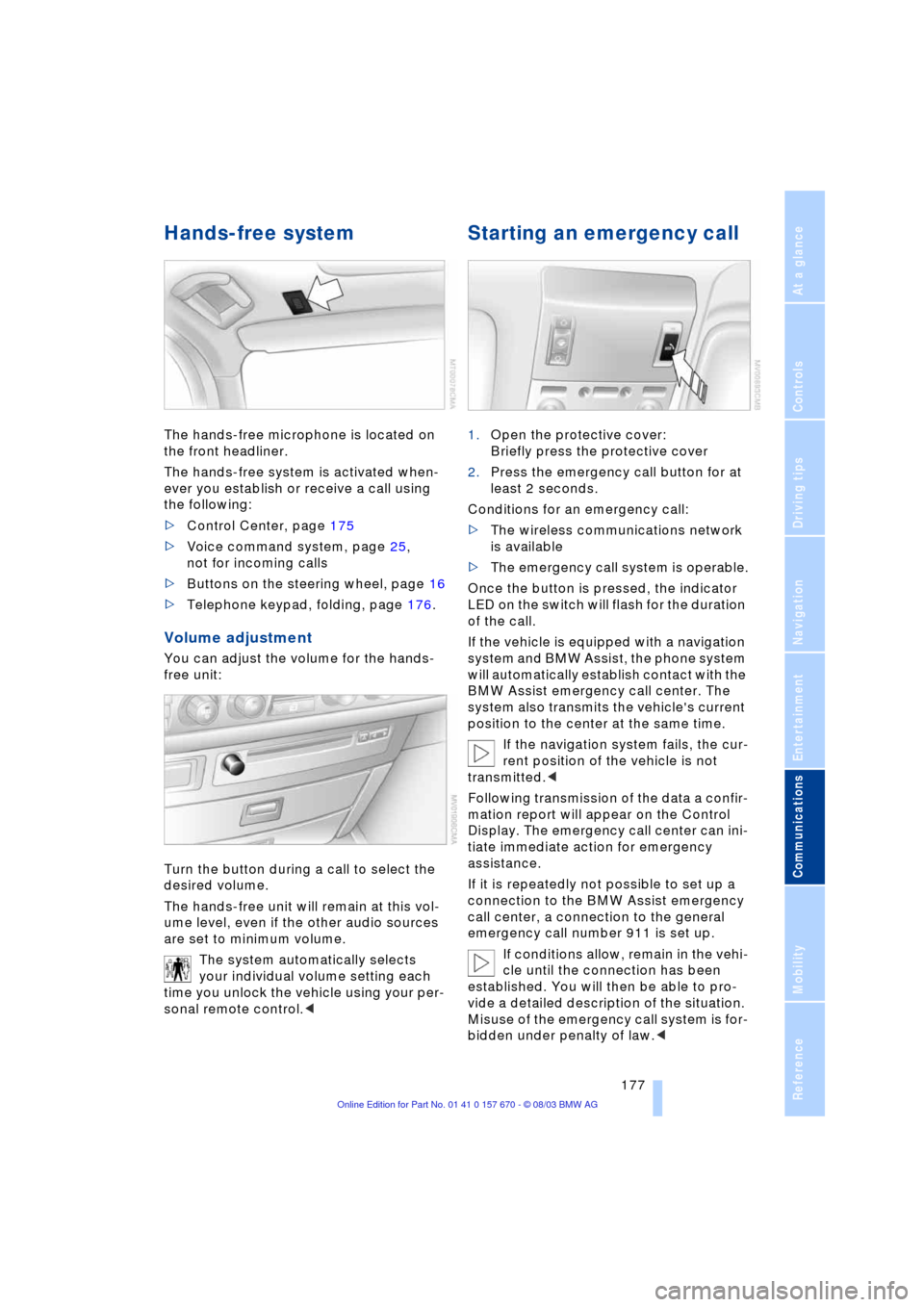
The hands-free microphone is located on
the front headliner.
The hands-free system is activated when-
ever you establish or receive a call using
the following:
>Control Center, page 175
>Voice command system, page 25,
not for incoming calls
>Buttons on the steering wheel, page 16
>Telephone keypad, folding, page 176.
Volume adjustment
You can adjust the volume for the hands-
free unit:
Turn the button during a call to select the
desired volume.
The hands-free unit will remain at this vol-
ume level, even if the other audio sources
are set to minimum volume.
The system automatically selects
your individual volume setting each
time you unlock the vehicle using your per-
sonal remote control.<
Starting an emergency call
1.Open the protective cover:
Briefly press the protective cover
2.Press the emergency call button for at
least 2 seconds.
Conditions for an emergency call:
>The wireless communications network
is available
>The emergency call system is operable.
Once the button is pressed, the indicator
LED on the switch will flash for the duration
of the call.
If the vehicle is equipped with a navigation
system and BMW Assist, the phone system
will automatically establish contact with the
BMW Assist emergency call center. The
system also transmits the vehicle's current
position to the center at the same time.
If the navigation system fails, the cur-
rent position of the vehicle is not
transmitted.<
Following transmission of the data a confir-
mation report will appear on the Control
Display. The emergency call center can ini-
tiate immediate action for emergency
assistance.
If it is repeatedly not possible to set up a
connection to the BMW Assist emergency
call center, a connection to the general
emergency call number 911 is set up.
If conditions allow, remain in the vehi-
cle until the connection has been
established. You will then be able to pro-
vide a detailed description of the situation.
Misuse of the emergency call system is for-
bidden under penalty of law.<
Page 218 of 232
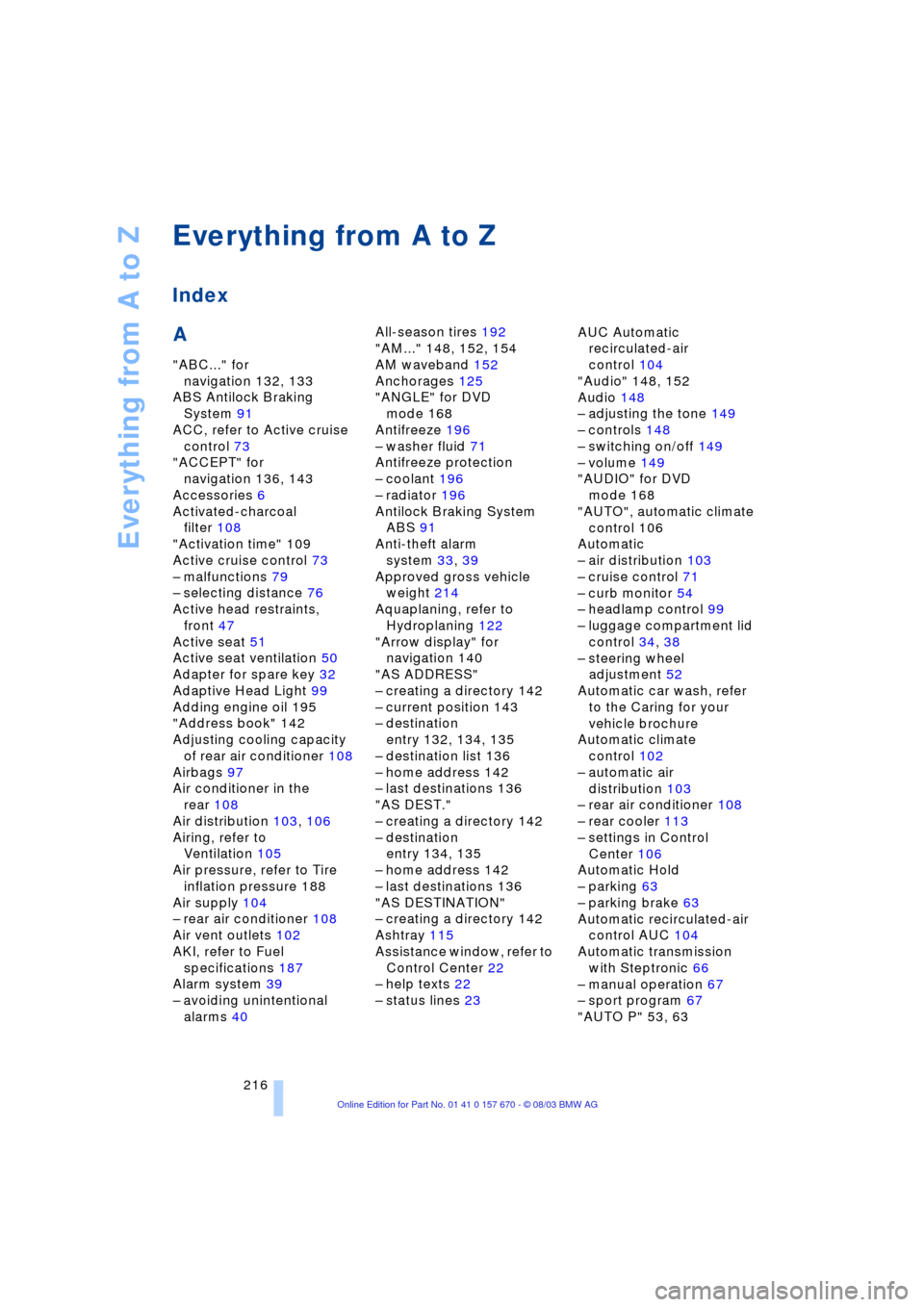
Everything from A to Z
216
A
"ABC..." for
navigation 132, 133
ABS Antilock Braking
System 91
ACC, refer to Active cruise
control 73
"ACCEPT" for
navigation 136, 143
Accessories 6
Activated-charcoal
filter 108
"Activation time" 109
Active cruise control 73
Ð malfunctions 79
Ð selecting distance 76
Active head restraints,
front 47
Active seat 51
Active seat ventilation 50
Adapter for spare key 32
Adaptive Head Light 99
Adding engine oil 195
"Address book" 142
Adjusting cooling capacity
of rear air conditioner 108
Airbags 97
Air conditioner in the
rear 108
Air distribution 103, 106
Airing, refer to
Ventilation 105
Air pressure, refer to Tire
inflation pressure 188
Air supply 104
Ð rear air conditioner 108
Air vent outlets 102
AKI, refer to Fuel
specifications 187
Alarm system 39
Ð avoiding unintentional
alarms 40All-season tires 192
"AM..." 148, 152, 154
AM waveband 152
Anchorages 125
"ANGLE" for DVD
mode 168
Antifreeze 196
Ð washer fluid 71
Antifreeze protection
Ð coolant 196
Ð radiator 196
Antilock Braking System
ABS 91
Anti-theft alarm
system 33, 39
Approved gross vehicle
weight 214
Aquaplaning, refer to
Hydroplaning 122
"Arrow display" for
navigation 140
"AS ADDRESS"
Ð creating a directory 142
Ð current position 143
Ð destination
entry 132, 134, 135
Ð destination list 136
Ð home address 142
Ð last destinations 136
"AS DEST."
Ð creating a directory 142
Ð destination
entry 134, 135
Ð home address 142
Ð last destinations 136
"AS DESTINATION"
Ð creating a directory 142
Ashtray 115
Assistance window, refer to
Control Center 22
Ð help texts 22
Ð status lines 23AUC Automatic
recirculated-air
control 104
"Audio" 148, 152
Audio 148
Ð adjusting the tone 149
Ð controls 148
Ð switching on/off 149
Ð volume 149
"AUDIO" for DVD
mode 168
"AUTO", automatic climate
control 106
Automatic
Ð air distribution 103
Ð cruise control 71
Ð curb monitor 54
Ð headlamp control 99
Ð luggage compartment lid
control 34, 38
Ð steering wheel
adjustment 52
Automatic car wash, refer
to the Caring for your
vehicle brochure
Automatic climate
control 102
Ð automatic air
distribution 103
Ð rear air conditioner 108
Ð rear cooler 113
Ð settings in Control
Center 106
Automatic Hold
Ð parking 63
Ð parking brake 63
Automatic recirculated-air
control AUC 104
Automatic transmission
with Steptronic 66
Ð manual operation 67
Ð sport program 67
"AUTO P" 53, 63
Everything from A to Z
Index