stop start BMW 745LI SEDAN 2002 User Guide
[x] Cancel search | Manufacturer: BMW, Model Year: 2002, Model line: 745LI SEDAN, Model: BMW 745LI SEDAN 2002Pages: 208, PDF Size: 6.33 MB
Page 93 of 208
Technology for comfort, convenience and safety
92 Active stabilizers at the front and rear axles
form the basis for Dynamic Drive. Suspen-
sion compliance adapts to suit driving
conditions, varying from performance-
oriented during cornering to smooth and
comfort-oriented when the vehicle is
proceeding in a straight line.
The system assumes operational status
each time you start the engine.
Driving with Dynamic Drive During vehicle operation, the system
continuously runs through closed-loop
control cycles lasting only fractions of a
second. In case of malfunction
The symbol will light up, accompa-
nied by a status message in the
Check Control panel. Please take
note of the additional information in the
Control Display panel.
You can find more detailed information on
the Check Control starting on page 80.
If the Dynamic Drive system switches
off in response to malfunction, please
remember to adapt your speed accord-
ingly, especially in curves.
The suspension will be noticeably softer
and the vehicle will display a greater
tendency to tilt during cornering and in
crosswinds.
If a status message appears in the Check
Control panel, accompanied by a red
symbol, the hydraulic fluid in the reservoir
may have fallen to below the minimum
level, possibly owing to leakage in the
hydraulic system. Stop the vehicle and
switch off the engine immediately.
Please observe the additional instructions
provided in the Control Display panel.<
EDC Electronic Damping
Control*
The suspension responds to changes in
factors such as road surface, or operating
conditions such as steering and braking, by
adapting to the new conditions within frac-
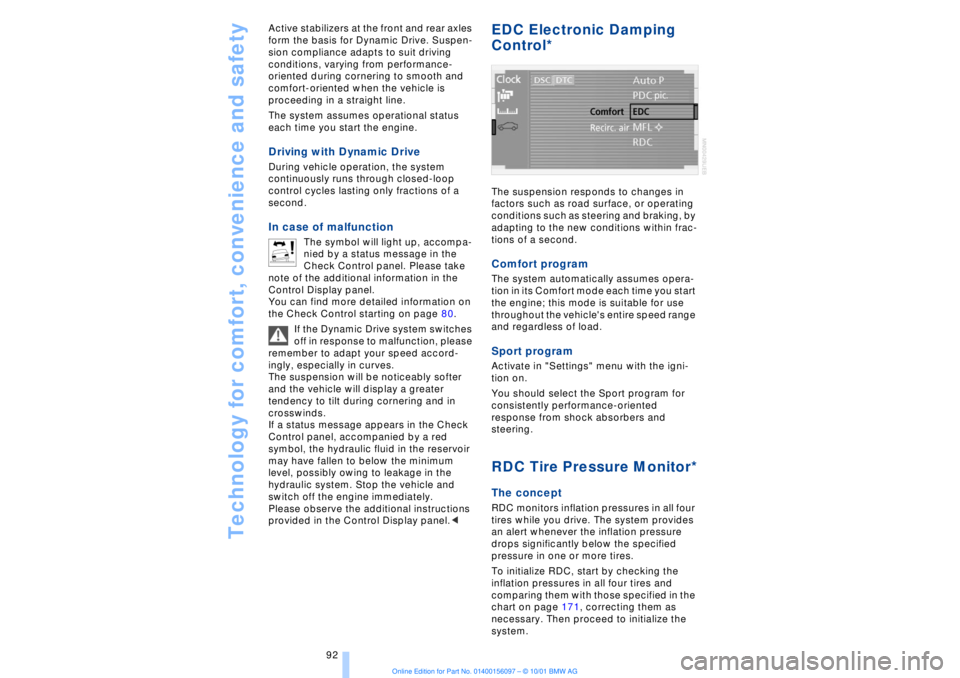
tions of a second.Comfort program The system automatically assumes opera-
tion in its Comfort mode each time you start
the engine; this mode is suitable for use
throughout the vehicle's entire speed range
and regardless of load. Sport programActivate in "Settings" menu with the igni-
tion on.
You should select the Sport program for
consistently performance-oriented
response from shock absorbers and
steering. RDC Tire Pressure Monitor*The conceptRDC monitors inflation pressures in all four
tires while you drive. The system provides
an alert whenever the inflation pressure
drops significantly below the specified
pressure in one or more tires.
To initialize RDC, start by checking the
inflation pressures in all four tires and
comparing them with those specified in the
chart on page 171, correcting them as
necessary. Then proceed to initialize the
system.
Page 94 of 208
At a glanceControlsDriving tipsCommunicationsNavigationEntertainmentMobilityReference
93
This symbol will appear in the
Check Control panel to inform you
when the inflation pressure varies
from that stored in the system. A text
message appears at the same time. Please
take note of the additional information in
the Control Display panel.
You can find more information on the
Check Control starting on page 80.
The RDC cannot alert you to severe
and sudden tire damage caused by
external factors.<
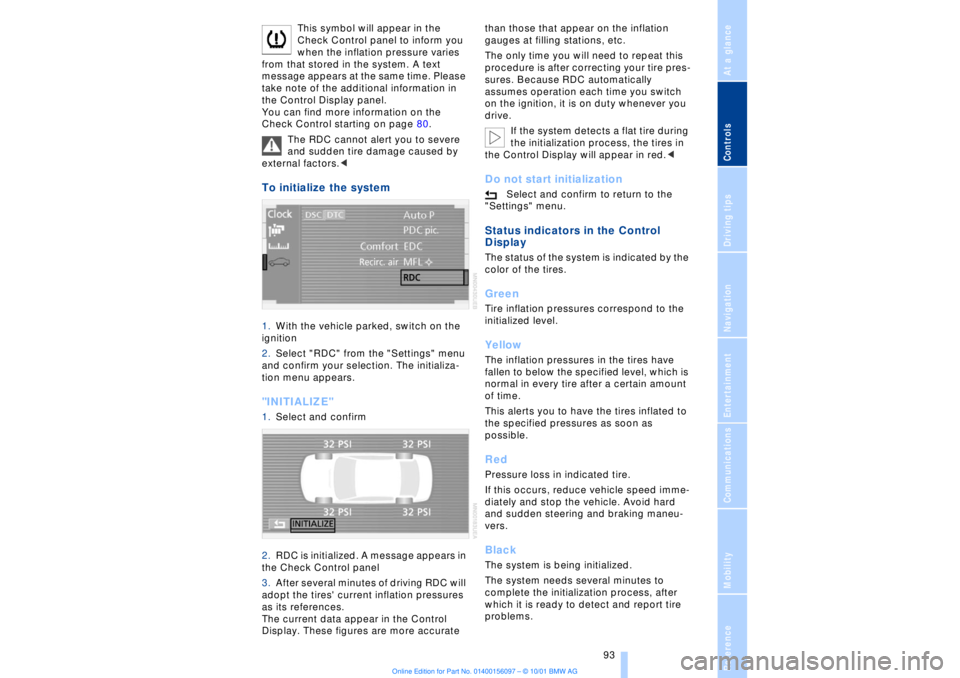
To initialize the system 1.With the vehicle parked, switch on the
ignition
2.Select "RDC" from the "Settings" menu
and confirm your selection. The initializa-
tion menu appears. "INITIALIZE" 1.Select and confirm
2.RDC is initialized. A message appears in
the Check Control panel
3.After several minutes of driving RDC will
adopt the tires' current inflation pressures
as its references.
The current data appear in the Control
Display. These figures are more accurate than those that appear on the inflation
gauges at filling stations, etc.
The only time you will need to repeat this
procedure is after correcting your tire pres-
sures. Because RDC automatically
assumes operation each time you switch
on the ignition, it is on duty whenever you
drive.
If the system detects a flat tire during
the initialization process, the tires in
the Control Display will appear in red.<
Do not start initialization
Select and confirm to return to the
"Settings" menu.
Status indicators in the Control
Display The status of the system is indicated by the
color of the tires. GreenTire inflation pressures correspond to the
initialized level.YellowThe inflation pressures in the tires have
fallen to below the specified level, which is
normal in every tire after a certain amount
of time.
This alerts you to have the tires inflated to
the specified pressures as soon as
possible. RedPressure loss in indicated tire.
If this occurs, reduce vehicle speed imme-
diately and stop the vehicle. Avoid hard
and sudden steering and braking maneu-
vers. BlackThe system is being initialized.
The system needs several minutes to
complete the initialization process, after
which it is ready to detect and report tire
problems.
Page 102 of 208
At a glanceControlsDriving tipsCommunicationsNavigationEntertainmentMobilityReference
101
Temperature adjustment
You can turn to select the
desired temperatures for the
driver's and passenger sides.
Your settings appear in the
Control Display's status line.
The figures in the display provide a general
indication of interior temperature. When
you start the vehicle, this system ensures
that the selected temperature is achieved
as quickly as possible. It then maintains
this temperature, regardless of the season.
Defrost windows and clear them of
condensation
This program quickly removes
ice and condensation from the
windshield and door windows.
To adjust air supply manually
You can adjust the air supply by
turning. The automatic air
supply control is operational
whenever you see your selec-
tion represented by a bar in the
Control Display's status line. The automatic
air distribution remains in operation as
before. You can reactivate the automatic
air supply mode with the AUTO button.
Air conditioner operation
The air conditioner cools and
dehumidifies the incoming air
before also reheating it as
required, according to temperature setting.
Depending on the weather, the windshield
may fog over briefly when the engine is
started.
The air conditioner comes on automatically
when you select the AUTO program.
Maximum cooling
Select this program to obtain
maximum cooling as quickly as
possible.
The temperature display reverts
to 61 7 (16 6) while the system switches
to the recirculated-air mode and starts to
provide maximum air supply through the instrument panel outlets only. For this
reason you should ensure that these
outlets are open before selecting this
program.
Outside air/AUC Automatic recircu-
lated-air control/Recirculated air
You can respond to unpleasant
odors or pollutants in the imme-
diate environment by tempo-
rarily suspending the flow of outside air.
The system then recirculates the air
currently within the vehicle. AUC executes
this function automatically.
Press the button repeatedly to run through
the following control sequence:
>Indicator lamps off: outside air flows into
the vehicle
>Left-hand indicator lamp on Ð AUC
mode: the system detects pollutants in the
outside air and responds by deactivating
the outside air supply when required. The
system then recirculates the air currently
within the vehicle.
Depending upon air quality, in the auto-
matic mode the system may start to alter-
nate between its outside-air and
recirculated-air modes
>Right-hand indicator lamp on Ð Recircu-
lated-air mode: the supply of outside air
into the vehicle is permanently blocked.
The system then recirculates the air
currently within the vehicle.
If condensation starts to form on the
inside window surfaces during opera-
tion in the recirculated-air mode, you
should switch it off while also increasing air
supply as required.<
Residual heat mode
The system uses the warmth
stored in the engine to heat the
interior when the ignition is off,
for instance, while the vehicle is
stopped at a school to pick up a
child.
You can adjust the automatic climate
control's settings when the ignition lock is
in the radio mode. The system blows
Page 137 of 208
Navigation
136
Wordmatch principleYour navigation system features a word-
match system designed to make it easier
for you to enter names. The system runs
ongoing checks, comparing your destina-
tion entries with the data stored on the map
CD as the basis for instant response. The
user benefits include:
>When you make an entry that consists of
more than one word, the system can iden-
tify the name regardless of the sequence in
which you enter the individual words.
Example:
Official version:
J.F. Kennedy Square
Possible entries:
Kennedy Square J.F.
or:
Square J.F. Kennedy
>Names of specific locations can also
vary from the official versions provided that
the spelling of the entry corresponds to a
standard form used in another country.
>When you are entering the names of
cities and streets the system will complete
them automatically as soon as enough
letters are available to ensure unambig-
uous identification.
Example:
For instance, if you were searching for Iowa
Ave NW in Washington, the system could
identify the street as soon as you typed in
the letter "o" and would proceed to
complete the entry automatically
>The system only accepts name entries
beginning with letters that are stored on the
map CD. The system will not accept non-
existent names and addresses.What to do if ÉWhat to do if É
>you request the current location of your
vehicle, but do not receive a precise
display?
The system is unable to receive enough GPS signals at your current location owing
to obstructions, your location is not yet
available on your CD, or the system is in the
process of calculating your location. Please
wait and then try again later on.
>the GPS logo disappears from the
Control Display screen?
Reception is interrupted; a building or
similar obstruction may be the cause.
>the guidance system refuses to import
an address from the destination directory
as its destination?
The address is in the list, but not on the
map CD currently in use. Choose an
address as close as possible to the original
one, using the destination entry map as
required.
>the guidance system adopts an address
without the street?
No specified center is defined for the
selected locality on your CD. Enter any
street, or a destination such as the railway
station, etc., then start the guidance
system.
>you want to enter an address for the
guidance system, but it is not possible to
select the letters for your desired entry?
The address is in the list, but not on the
map CD currently in use. In this case, the
system will not offer you any letters to
choose from. Choose an address as close
as possible to the original one, using the
destination entry map as required.
>you attempt to enter a destination
address using the target cursor, but the
guidance system refuses to accept your
entry?
Your current scale does not offer adequate
resolution. The system can only import
destinations at map scales to 0.6 miles
(1 km).
>the system stops furnishing directions
on which way to turn as you approach
intersections?
You are driving in an area that has not yet
been completely recorded on the map CD.
Instead of an arrow indicating a turn, you
will see an arrow which indicates the
general direction of your planned route;
Page 145 of 208
Radio
144 This cancels the scan function, and the
radio remains on the current station.
ScanTo start scan:
Press briefly or maintain pressure.
The scan mode begins with the currently
selected frequency.
The scan mode is stopped as soon as a
station is found.
The frequency of the station appears in the
bottom status line, refer to page 25.Next stationPress to select the desired direction
or
1.>>Radio (menu)<<
2.>>Next station<< or
>>Station back<<.<
The system scans for the next station.Storing and retrieving a
stationMemory locationsYour radio can store 30 stations:
>You can store as many as 18 stations in
the FM waveband
>You can store up to 12 stations in the
AM waveband.
Each time you confirm "AM" the
system alternately switches between
the AM waveband and the "Autostore"
mode.
Each time you confirm "FM" the system
alternately switches between "Memorized
Station" and the "Autostore" mode.<
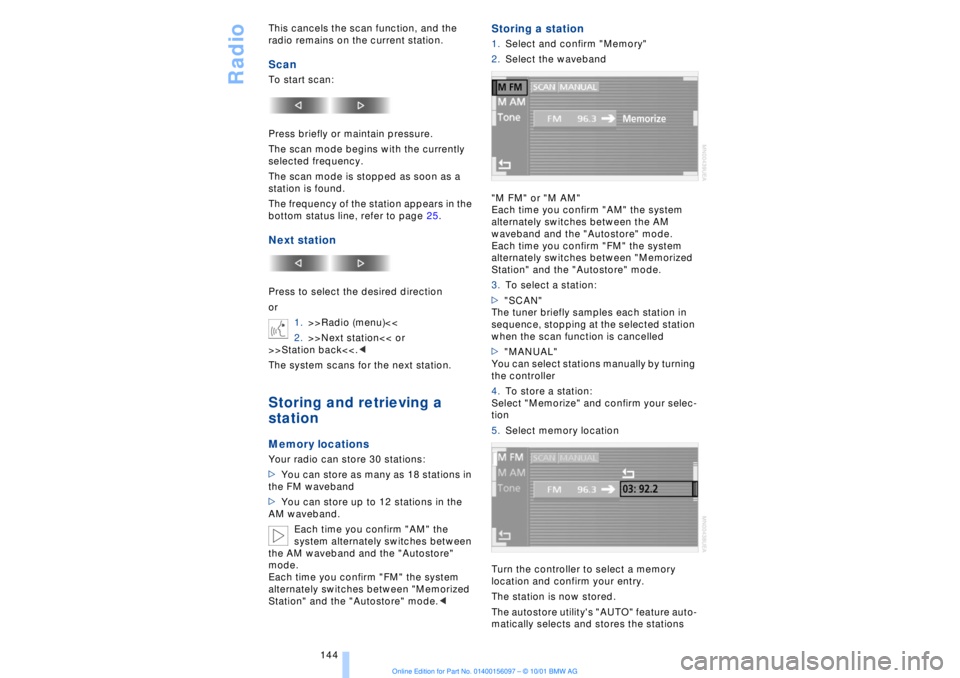
Storing a station 1.Select and confirm "Memory"
2.Select the waveband
"M FM" or "M AM"
Each time you confirm "AM" the system
alternately switches between the AM
waveband and the "Autostore" mode.
Each time you confirm "FM" the system
alternately switches between "Memorized
Station" and the "Autostore" mode.
3.To select a station:
>"SCAN"
The tuner briefly samples each station in
sequence, stopping at the selected station
when the scan function is cancelled
>"MANUAL"
You can select stations manually by turning
the controller
4.To store a station:
Select "Memorize" and confirm your selec-
tion
5.Select memory location
Turn the controller to select a memory
location and confirm your entry.
The station is now stored.
The autostore utility's "AUTO" feature auto-
matically selects and stores the stations
Page 147 of 208
CD Compact Disc
146
CD Compact Disc
You may experience playback prob-
lems, such as skips, when using CDs
that you have copied at home.<
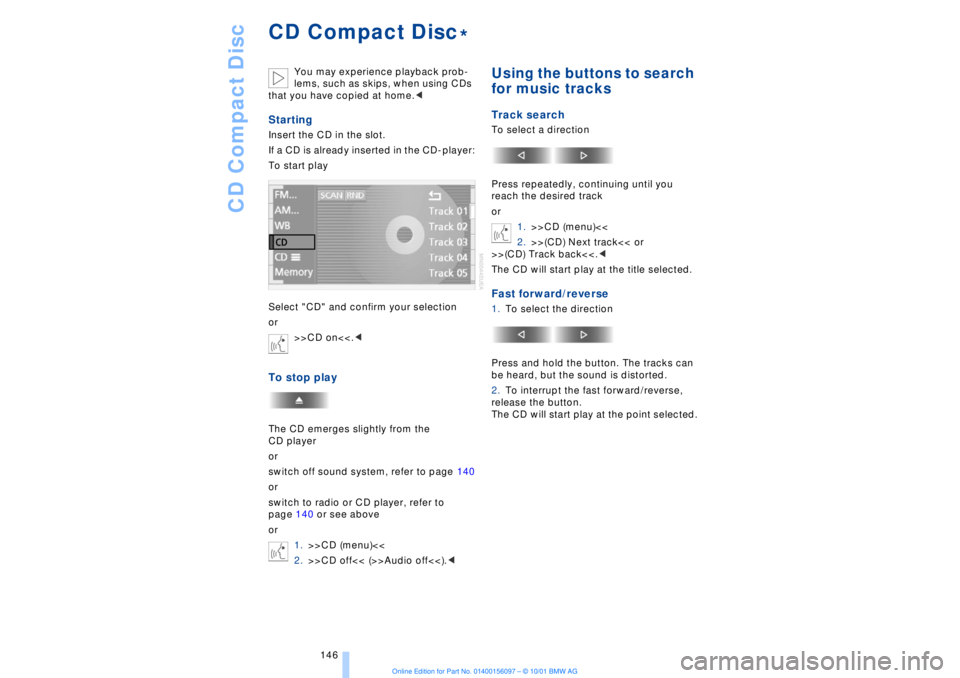
StartingInsert the CD in the slot.
If a CD is already inserted in the CD-player:
To start play
Select "CD" and confirm your selection
or
>>CD on<<.
or
switch off sound system, refer to page 140
or
switch to radio or CD player, refer to
page 140 or see above
or
1.>>CD (menu)<<
2.>>CD off<< (>>Audio off<<).<
Using the buttons to search
for music tracksTrack searchTo select a direction
Press repeatedly, continuing until you
reach the desired track
or
1.>>CD (menu)<<
2.>>(CD) Next track<< or
>>(CD) Track back<<.<
The CD will start play at the title selected.Fast forward/reverse1.To select the direction
Press and hold the button. The tracks can
be heard, but the sound is distorted.
2.To interrupt the fast forward/reverse,
release the button.
The CD will start play at the point selected.
*
Page 150 of 208
At a glanceControlsDriving tipsCommunicationsNavigationEntertainmentMobilityReference
149
Always refer all repair and maintenance
operations to qualified technicians.
You may experience playback prob-
lems, such as skips, when using CDs
that you have copied at home.<
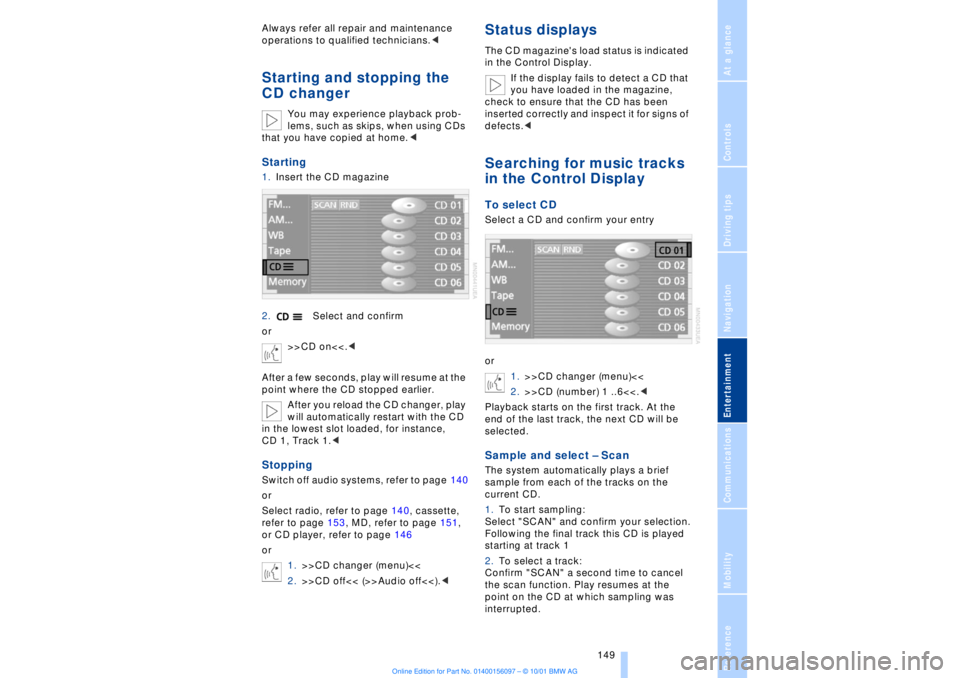
Starting1.Insert the CD magazine
2.Select and confirm
or
>>CD on<<.<
After a few seconds, play will resume at the
point where the CD stopped earlier.
After you reload the CD changer, play
will automatically restart with the CD
in the lowest slot loaded, for instance,
CD 1, Track 1.
Select radio, refer to page 140, cassette,
refer to page 153, MD, refer to page 151,
or CD player, refer to page 146
or
1.>>CD changer (menu)<<
2.>>CD off<< (>>Audio off<<).<
Status displaysThe CD magazine's load status is indicated
in the Control Display.
If the display fails to detect a CD that
you have loaded in the magazine,
check to ensure that the CD has been
inserted correctly and inspect it for signs of
defects.
or
1.>>CD changer (menu)<<
2.>>CD (number) 1 ..6<<.<
Playback starts on the first track. At the
end of the last track, the next CD will be
selected.Sample and select Ð ScanThe system automatically plays a brief
sample from each of the tracks on the
current CD.
1.To start sampling:
Select "SCAN" and confirm your selection.
Following the final track this CD is played
starting at track 1
2.To select a track:
Confirm "SCAN" a second time to cancel
the scan function. Play resumes at the
point on the CD at which sampling was
interrupted.
Page 152 of 208
At a glanceControlsDriving tipsCommunicationsNavigationEntertainmentMobilityReference
151
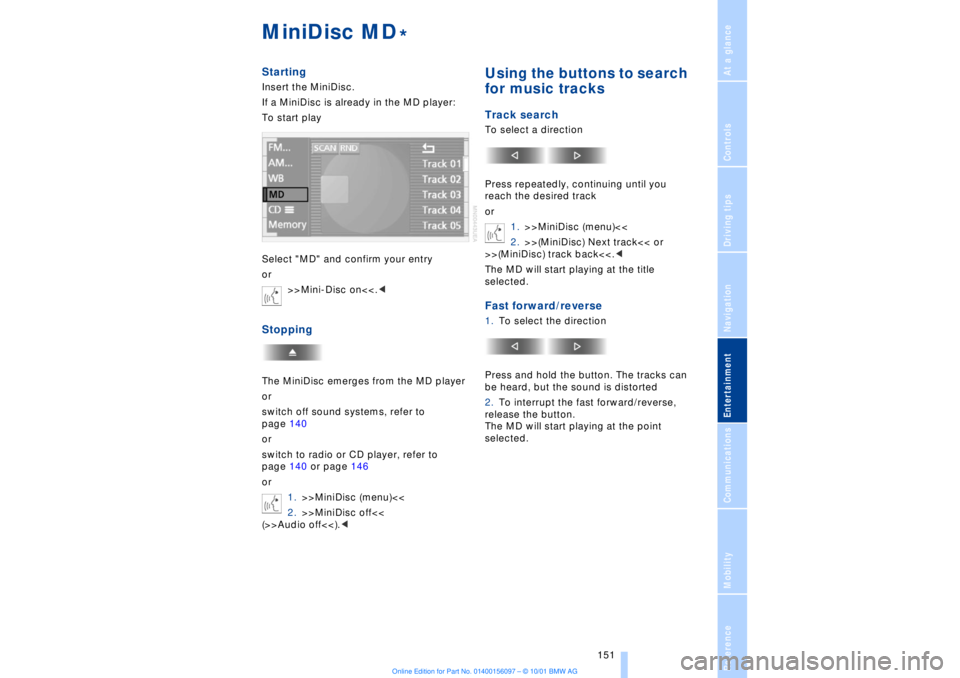
MiniDisc MDStartingInsert the MiniDisc.
If a MiniDisc is already in the MD player:
To start play
Select "MD" and confirm your entry
or
>>Mini-Disc on<<.
switch off sound systems, refer to
page 140
or
switch to radio or CD player, refer to
page 140 or page 146
or
1.>>MiniDisc (menu)<<
2.>>MiniDisc off<<
(>>Audio off<<).<
Using the buttons to search
for music tracksTrack searchTo select a direction
Press repeatedly, continuing until you
reach the desired track
or
1.>>MiniDisc (menu)<<
2.>>(MiniDisc) Next track<< or
>>(MiniDisc) track back<<.<
The MD will start playing at the title
selected.Fast forward/reverse1.To select the direction
Press and hold the button. The tracks can
be heard, but the sound is distorted
2.To interrupt the fast forward/reverse,
release the button.
The MD will start playing at the point
selected.
*
Page 154 of 208
At a glanceControlsDriving tipsCommunicationsNavigationEntertainmentMobilityReference
153
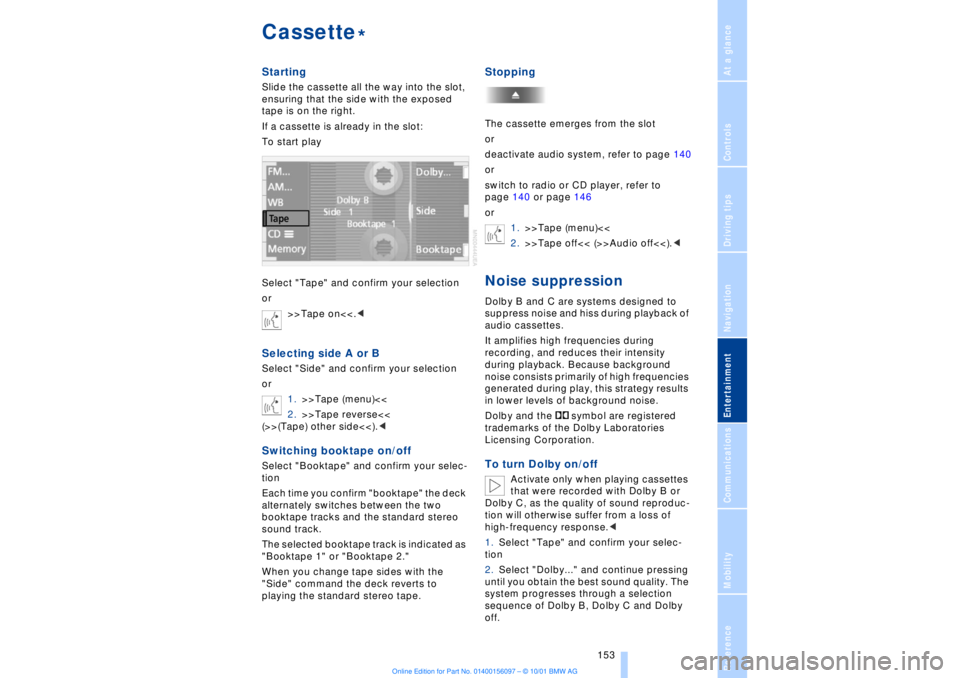
CassetteStartingSlide the cassette all the way into the slot,
ensuring that the side with the exposed
tape is on the right.
If a cassette is already in the slot:
To start play
Select "Tape" and confirm your selection
or
>>Tape on<<.
1.>>Tape (menu)<<
2.>>Tape reverse<<
(>>(Tape) other side<<).
Each time you confirm "booktape" the deck
alternately switches between the two
booktape tracks and the standard stereo
sound track.
The selected booktape track is indicated as
"Booktape 1" or "Booktape 2."
When you change tape sides with the
"Side" command the deck reverts to
playing the standard stereo tape.
StoppingThe cassette emerges from the slot
or
deactivate audio system, refer to page 140
or
switch to radio or CD player, refer to
page 140 or page 146
or
1.>>Tape (menu)<<
2.>>Tape off<< (>>Audio off<<).
audio cassettes.
It amplifies high frequencies during
recording, and reduces their intensity
during playback. Because background
noise consists primarily of high frequencies
generated during play, this strategy results
in lower levels of background noise.
Dolby and the symbol are registered
trademarks of the Dolby Laboratories
Licensing Corporation.To turn Dolby on/off
Activate only when playing cassettes
that were recorded with Dolby B or
Dolby C, as the quality of sound reproduc-
tion will otherwise suffer from a loss of
high-frequency response.<
1.Select "Tape" and confirm your selec-
tion
2.Select "Dolby..." and continue pressing
until you obtain the best sound quality. The
system progresses through a selection
sequence of Dolby B, Dolby C and Dolby
off.
*
Page 200 of 208
199
At a glanceControlsDriving tipsCommunicationsNavigationEntertainmentMobilityReference
HHandbrake, refer to Parking
brake 62
Hand lamp 111
Hands-free
microphone 161
Hands-free system 161
Hazard warning flashers 16
Headlamp control 96
Headlamp flasher 71
Headlamps, low beam 96
Headlamp washers 72, 73
Head restraints 48
Ð front head restraints,
active 48
Heated steering wheel 53
Heating and ventilation 99
Heating while stopped 101
Height 193
Height adjustment
Ð seats 46
Ð steering column 53
"Help" 19, 22
Help texts in Control
Display 23
High beams 97
Ð bulb replacement 182
High-mount brake
lamp 183
Home address 135
Hood release 175
Horn 13
Hydraulic Brake Assistant,
refer to DBC 91IIce warning 77
Ignition key 34
Ignition lock 61
"Indep. ventil." 106
Indicator lamps 15
"Individual" 104
Individual button assign-
ments on steering
wheel 53
Inflation pressure 170
Inflation pressure control,
tires 92
Info Display 14"Information" for
navigation 129
Instrument cluster, refer to
Info Display 14
Instrument lighting 97
Instrument panel 12, 16
Instrument panel switch 71
Interior lamps 97
Ð remote control 36
Interior motion sensor 41
Interior protection
Ð deactivating 36, 41
Interior rearview mirror 52
Ð automatic dimming 52
Intermittent wipe 71
JJack 184
Jump-starting 187KKey Memory 59
Key Pad control
buttons 160
Key Pad digit buttons 160
Key Pad with mobile
phone 160
Keys 34
Ð adapter for spare key 34
Kickdown 68L"Last" 164
"Last destin." 130
LATCH, refer to LATCH
child-restraint system 58
"Left"
Ð for heated seats 51
Ð with automatic climate
control 103
Length 193
Level control system 94
License plate lamp, bulb
replacement 183
Lighter 113
Lights on warning 96
Light switch 96
"Limit" 84Limit selection,
adjustment 84
Litter container 111
L mode on automatic
transmission 66
Loading 120
Loading the vehicle 120
"LOCATION" 135
"Location" 129, 135
Lock Code 162
Locking
Ð from the outside 35
Louvers 99
Low beams
Ð automatic 96
Lower back support, refer
to lumbar support 46
Lug bolts 185
Luggage compartment
capacity 194
Luggage compartment lid
Ð emergency release 40
Ð locking separately 39
Ð opening from the
inside 39
Ð opening from the
outside 38
Ð operating via remote
control 36
Luggage compartment lid
operation,
automatic 36, 39
Luggage compartment
net 40
Luggage rack, refer to
Roof-mounted luggage
rack 120
Lug wrench 184
Lumbar support 46
MM+S tires 173
Maintenance 179
Make-up mirror 53
Malfunction displays 80
"M AM" 144, 145
Manually controlled recir-
culated air 101