display BMW 750LI 2006 Owners Manual
[x] Cancel search | Manufacturer: BMW, Model Year: 2006, Model line: 750LI, Model: BMW 750LI 2006Pages: 247, PDF Size: 8.66 MB
Page 184 of 247
Using the phone
182
Using the phone
You have the option of controlling the phone
using various parts of the vehicle equipment:
>The button on the steering wheel
>The retracting telephone keypad
>iDrive
>The voice command system
*
The phone number appears in the upper status
line, refer to page20.
With the ignition switched off, you can continue
an ongoing call for a maximum of 16 minutes via
the hands-free system.
Requirements
>The logon data of the mobile phone are
stored in the vehicle and the mobile phone
is ready to operate.
>The ignition is switched on.
>The mobile phone is detected by the vehi-
cle.
Initiating communication
iDrive, for principle details, refer to page16.
1.Press the button to open the start
menu.
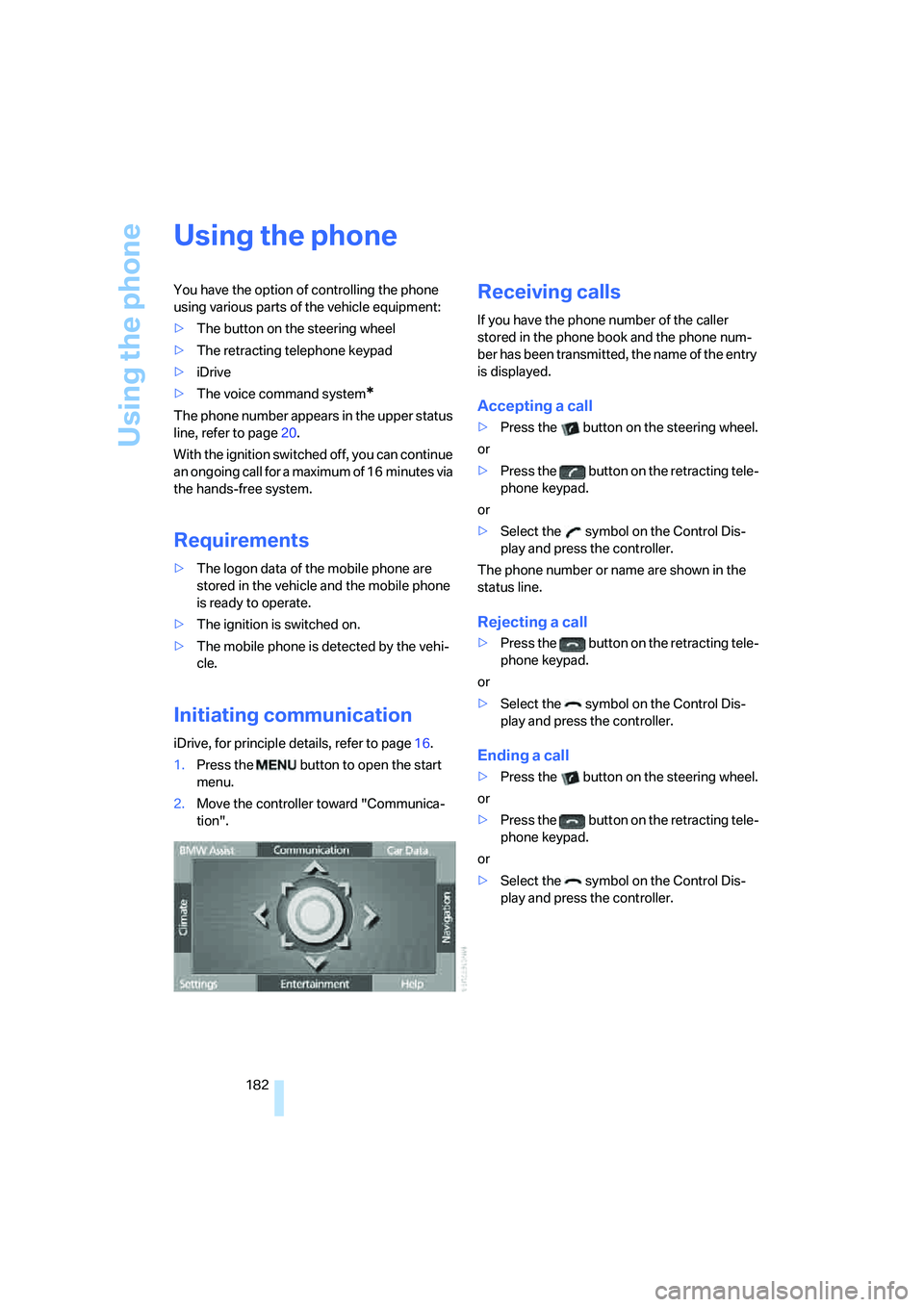
2.Move the controller toward "Communica-
tion".
Receiving calls
If you have the phone number of the caller
stored in the phone book and the phone num-
ber has been transmitted, the name of the entry
is displayed.
Accepting a call
>Press the button on the steering wheel.
or
>Press the button on the retracting tele-
phone keypad.
or
>Select the symbol on the Control Dis-
play and press the controller.
The phone number or name are shown in the
status line.
Rejecting a call
>Press the button on the retracting tele-
phone keypad.
or
>Select the symbol on the Control Dis-
play and press the controller.
Ending a call
>Press the button on the steering wheel.
or
>Press the button on the retracting tele-
phone keypad.
or
>Select the symbol on the Control Dis-
play and press the controller.
Page 185 of 247
183
Entertainment
Reference
At a glance
Controls
Driving tips Communications
Navigation
Mobility
Making a call
Dialing a phone number and
establishing a connection
Retracting telephone keypad
1.Enter the phone number.
2.Press the button.
Voice command system*
T h e s ys t e m r ec o g n i z es d i g it s f r o m z e ro t o n i n e .
You can say each digit individually or group
them into a sequence to speed up the entry
process:
After the last spoken sequence of digits has
been repeated by the system, you can delete
this sequence of digits:
With {Delete number} all numbers previously
entered are deleted:
Redialing
You can recall the last phone number you
selected:
Dialing a phone number from phone
book or a phone number stored in a list
Phone numbers you have called, missed calls,
and the entries of the phone book are stored in
lists when the mobile phone is connected to the
vehicle via Bluetooth. If the caller is entered in
the phone book, the name of the entry is dis-
played instead of the phone number. The fol-
lowing lists are available:
>"TOP 8":
The eight phone numbers in the phone
book that are called most frequently are automatically stored in the Top 8 list. The
number called most often appears at the
top of the list.
>"Last":
The last eight phone numbers you have
dialed are automatically stored. The last
number dialed is at the top of the list.
>"A-Z":
The entries in the phone book of the SIM
card or of the mobile phone, including name
and phone number, are displayed in alpha-
betical order.
>"Missed":
The phone numbers of the last eight calls
not accepted are stored, provided that the
phone number of the caller was transmitted.
A missed call is indicated by an envelope
symbol in the top status line.
Dialing phone numbers from phone
book
The list "A-Z" is available for you phone book
entries. The Control Display shows the entries
in the phone book of the SIM card or mobile
phone in alphabetical order.
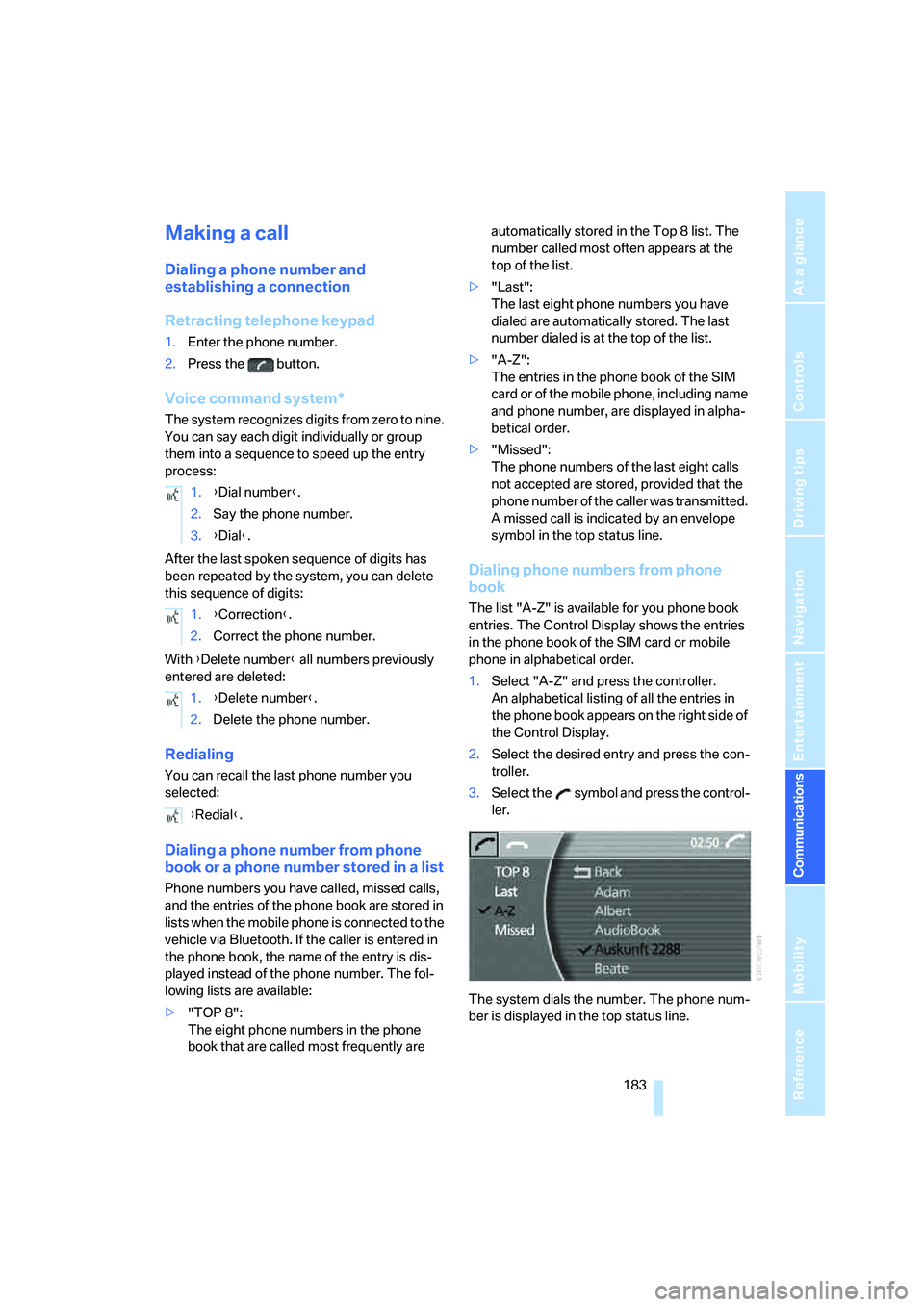
1.Select "A-Z" and press the controller.
An alphabetical listing of all the entries in
the phone book appears on the right side of
the Control Display.
2.Select the desired entry and press the con-
troller.
3.Select the symbol and press the control-
ler.
The system dials the number. The phone num-
ber is displayed in the top status line. 1.{Dial number}.
2.Say the phone number.
3.{Dial}.
1.{Correction}.
2.Correct the phone number.
1.{Delete number}.
2.Delete the phone number.
{Redial}.
Page 186 of 247
Using the phone
184 The connection can also be established
via the button on the steering wheel or the
telephone keypad.<
Dialing phone numbers stored in a list
To select an entry and establish a connection:
1.Select the list and press the controller.
>"TOP 8"
>"Last"
>"Missed"
2.Select the desired entry and press the con-
troller.
3.Select the symbol and press the control-
ler.
The system dials the number.
The phone number is displayed in the top sta-
tus line as this happens.
The connection can also be established
via the button on the steering wheel or the
telephone keypad.<
Deleting entries in lists
You can delete the lists of the most frequently
called phone numbers, missed calls and the last
subscribers called.
1.Select the desired list and press the con-
troller.
The stored entries are shown on the right
side of the Control Displays.
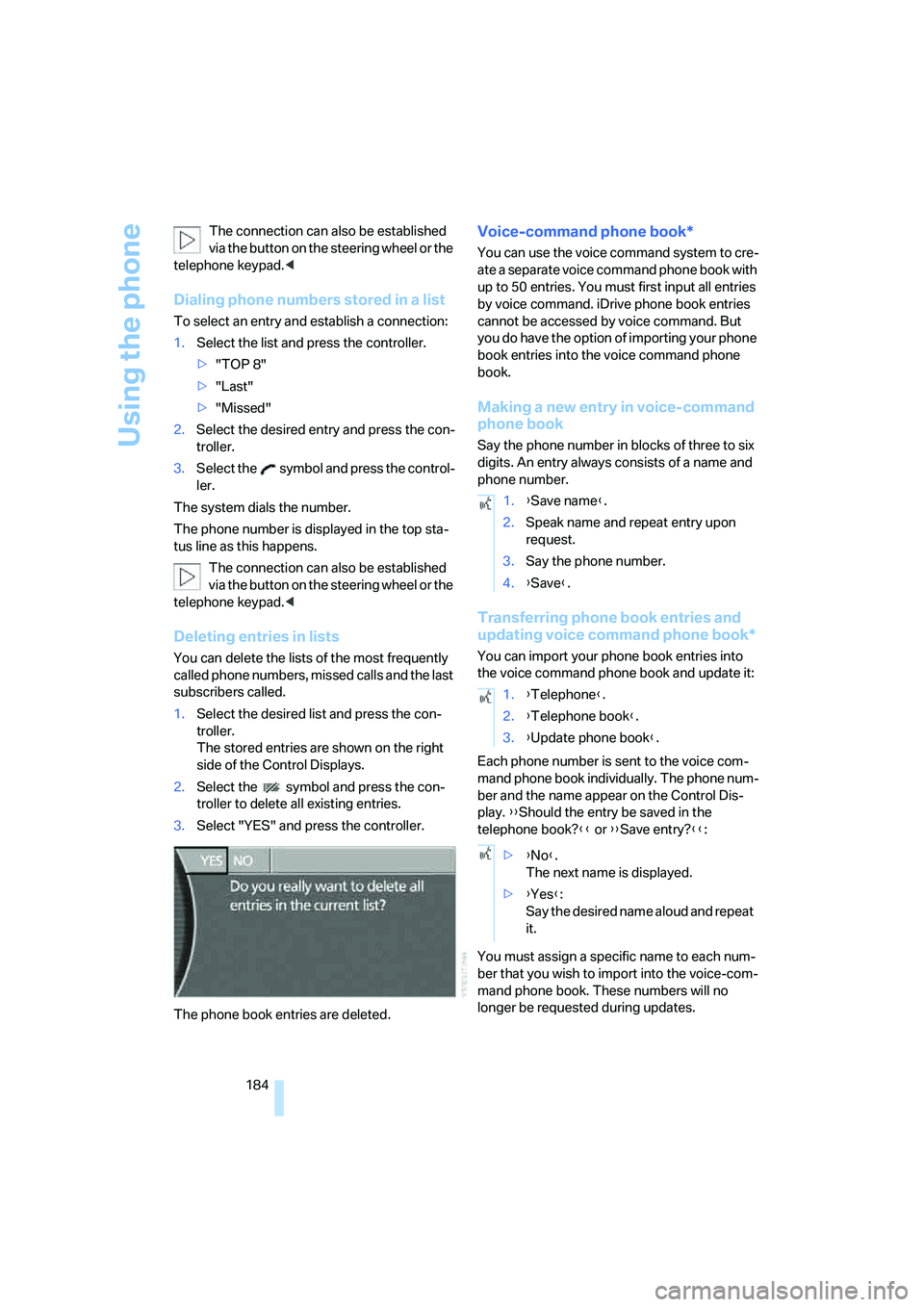
2.Select the symbol and press the con-
troller to delete all existing entries.
3.Select "YES" and press the controller.
The phone book entries are deleted.
Voice-command phone book*
You can use the voice command system to cre-
ate a separate voice command phone book with
up to 50 entries. You must first input all entries
by voice command. iDrive phone book entries
cannot be accessed by voice command. But
you do have the option of importing your phone
book entries into the voice command phone
book.
Making a new entry in voice-command
phone book
Say the phone number in blocks of three to six
digits. An entry always consists of a name and
phone number.
Transferring phone book entries and
updating voice command phone book*
You can import your phone book entries into
the voice command phone book and update it:
Each phone number is sent to the voice com-
mand phone book individually. The phone num-
ber and the name appear on the Control Dis-
play. {{Should the entry be saved in the
telephone book?}} or {{Save entry?}}:
You must assign a specific name to each num-
ber that you wish to import into the voice-com-
mand phone book. These numbers will no
longer be requested during updates.
1.{Save name}.
2.Speak name and repeat entry upon
request.
3.Say the phone number.
4.{Save}.
1.{Telephone}.
2.{Telephone book}.
3.{Update phone book}.
>{No}.
The next name is displayed.
>{Yes}:
Say the desired name aloud and repeat
it.
Page 187 of 247
185
Entertainment
Reference
At a glance
Controls
Driving tips Communications
Navigation
Mobility
Having entries read
You can have all the entries of your voice-com-
mand phone book read aloud in the order of
their input and select a certain entry to establish
a connection:
Dialing from voice-command phone
book
You can recall a saved entry by the name and
dial the phone number:
Deleting entry of voice-command
phone book
You can delete individual entries from the
voice-command phone book:
Deleting all entries of voice-command
phone book
You can delete all entries in the phone book:
Switching between mobile
phone and hands-free system
If you insert the mobile phone into or remove it
from the snap-in adapter during a call, this can
cause the call to be disconnected.
From mobile phone to hands-free
system
You can continue calls begun outside the Blue-
tooth range of the vehicle via the handsfree sys-
tem when the motor is running or the ignition is
switched on.
Depending on your mobile phone, the switch to
hands-free mode occurs automatically.
With mobile phones that do not switch over
automatically to hands-free operation:
>Press the button in the upper area of
the snap-in adapter.
>Depending on the mobile phone model
used, the conversation can also be contin-
ued via the handsfree system if necessary.
Follow the instructions given on the mobile
phone display, refer to the operating
instructions of your mobile phone.
From handsfree system to mobile
phone
When you telephone via the handsfree system,
you can also continue the call via the mobile
phone if necessary, depending on the mobile
phone model. Act according to what is shown
on the mobile phone display, refer to the oper-
ating instructions of your mobile phone. {Read out}.
>To scroll forward:
{Next}
>To scroll back:
{Previous}
>To repeat entry:
{Repeat}
>To call:
{Dial}
1.{Dial name}.
2.Say the name.
3.{Dial}.
1.{Telephone}.
2.{Delete entry}.
3.Say the name.
1.{Telephone}.
2.{Delete telephone book}.
Page 188 of 247
BMW Assist
186
BMW Assist
To avoid posing an unnecessary hazard,
both to your own vehicle's occupants and
to other road users, only make entries while the
vehicle is stationary.<
The contract of participation with BMW Assist
and the registration must be completed before
you can use BMW Assist.
Requirements
>Make sure that the vehicle can determine its
current position. Reception is best when
you have an unobstructed view to the sky.
>Leave radio ready state switched on while
connecting to the system.
The position of the vehicle can influence
the mobile communications/GPS recep-
tion. As a rule, mobile communications/GPS
reception is only possible when your vehicle is
out in the open.
When vehicle data is exchanged with the BMW
center, a corresponding message appears on
the Control Display.<
Initializing BMW Assist
To be able to use the services of BMW Assist,
you must first initialize the system.
iDrive, for principle details, refer to page16.
1.Press the button to open the start
menu.
2.Move the controller toward "BMW Assist".
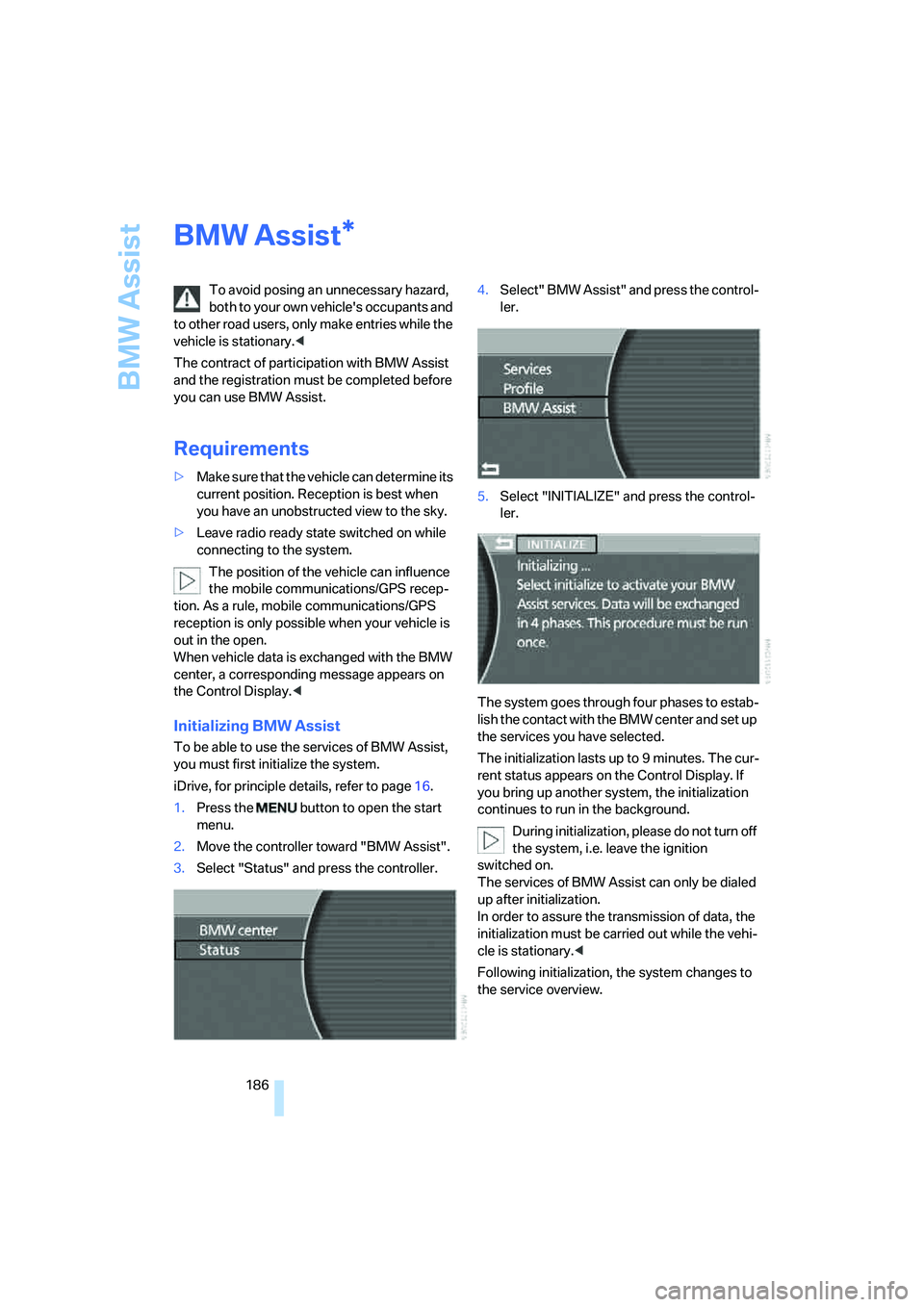
3.Select "Status" and press the controller.4.Select" BMW Assist" and press the control-
ler.
5.Select "INITIALIZE" and press the control-
ler.
The system goes through four phases to estab-
lish the contact with the BMW center and set up
the services you have selected.
The initialization lasts up to 9 minutes. The cur-
rent status appears on the Control Display. If
you bring up another system, the initialization
continues to run in the background.
During initialization, please do not turn off
the system, i.e. leave the ignition
switched on.
The services of BMW Assist can only be dialed
up after initialization.
In order to assure the transmission of data, the
initialization must be carried out while the vehi-
cle is stationary.<
Following initialization, the system changes to
the service overview.
*
Page 189 of 247
187
Entertainment
Reference
At a glance
Controls
Driving tips Communications
Navigation
Mobility
Services offered
Automatic service notification*
Information regarding the maintenance status
of your vehicle or legally mandated inspections
is automatically transferred before the relevant
deadline. You can check when the BMW center
was notified.
iDrive, for principle details, refer to page16.
1.Press the button to open the start
menu.
2.Move the controller toward "BMW Assist".
3.Select "BMW center" and press the con-
troller.
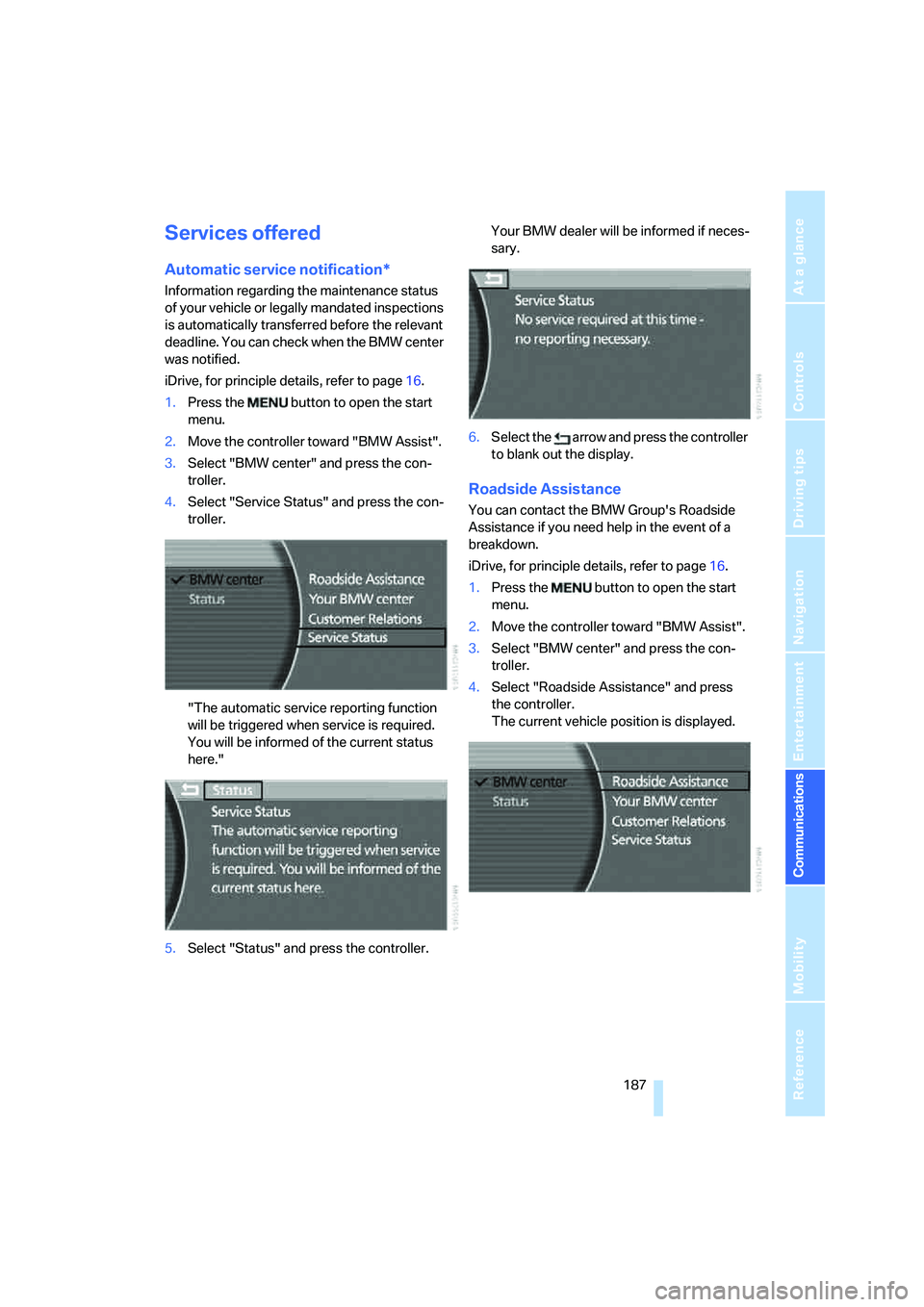
4.Select "Service Status" and press the con-
troller.
"The automatic service reporting function
will be triggered when service is required.
You will be informed of the current status
here."
5.Select "Status" and press the controller.Your BMW dealer will be informed if neces-
sary.
6.Select the arrow and press the controller
to blank out the display.
Roadside Assistance
You can contact the BMW Group's Roadside
Assistance if you need help in the event of a
breakdown.
iDrive, for principle details, refer to page16.
1.Press the button to open the start
menu.
2.Move the controller toward "BMW Assist".
3.Select "BMW center" and press the con-
troller.
4.Select "Roadside Assistance" and press
the controller.
The current vehicle position is displayed.
Page 190 of 247
BMW Assist
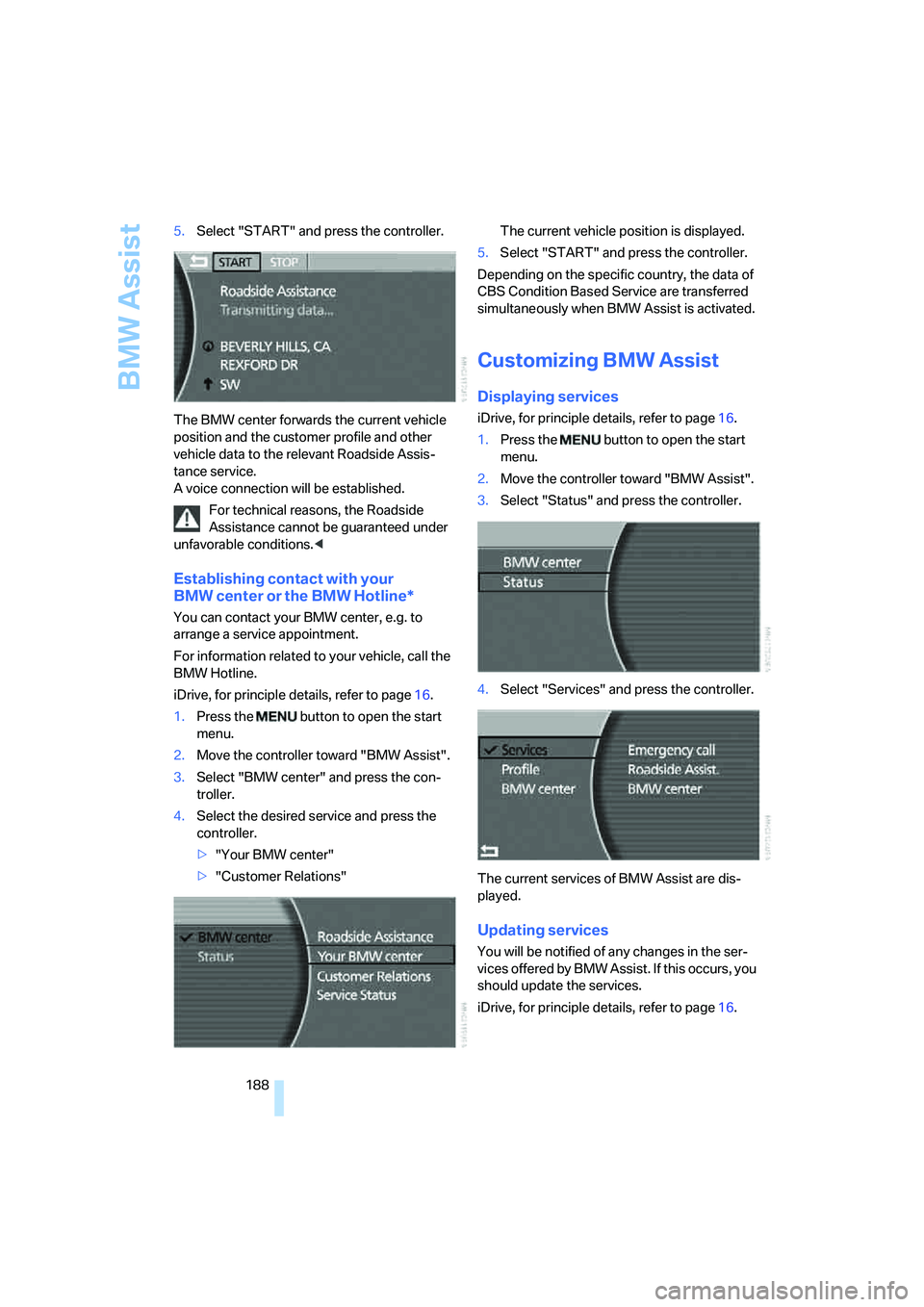
188 5.Select "START" and press the controller.
The BMW center forwards the current vehicle
position and the customer profile and other
vehicle data to the relevant Roadside Assis-
tance service.
A voice connection will be established.
For technical reasons, the Roadside
Assistance cannot be guaranteed under
unfavorable conditions.<
Establishing contact with your
BMW center or the BMW Hotline*
You can contact your BMW center, e.g. to
arrange a service appointment.
For information related to your vehicle, call the
BMW Hotline.
iDrive, for principle details, refer to page16.
1.Press the button to open the start
menu.
2.Move the controller toward "BMW Assist".
3.Select "BMW center" and press the con-
troller.
4.Select the desired service and press the
controller.
>"Your BMW center"
>"Customer Relations"The current vehicle position is displayed.
5.Select "START" and press the controller.
Depending on the specific country, the data of
CBS Condition Based Service are transferred
simultaneously when BMW Assist is activated.
Customizing BMW Assist
Displaying services
iDrive, for principle details, refer to page16.
1.Press the button to open the start
menu.
2.Move the controller toward "BMW Assist".
3.Select "Status" and press the controller.
4.Select "Services" and press the controller.
The current services of BMW Assist are dis-
played.
Updating services
You will be notified of any changes in the ser-
vices offered by BMW Assist. If this occurs, you
should update the services.
iDrive, for principle details, refer to page16.
Page 191 of 247
189
Entertainment
Reference
At a glance
Controls
Driving tips Communications
Navigation
Mobility
1.Press the button to open the start
menu.
2.Move the controller toward "BMW Assist".
3.Select "Status" and press the controller.
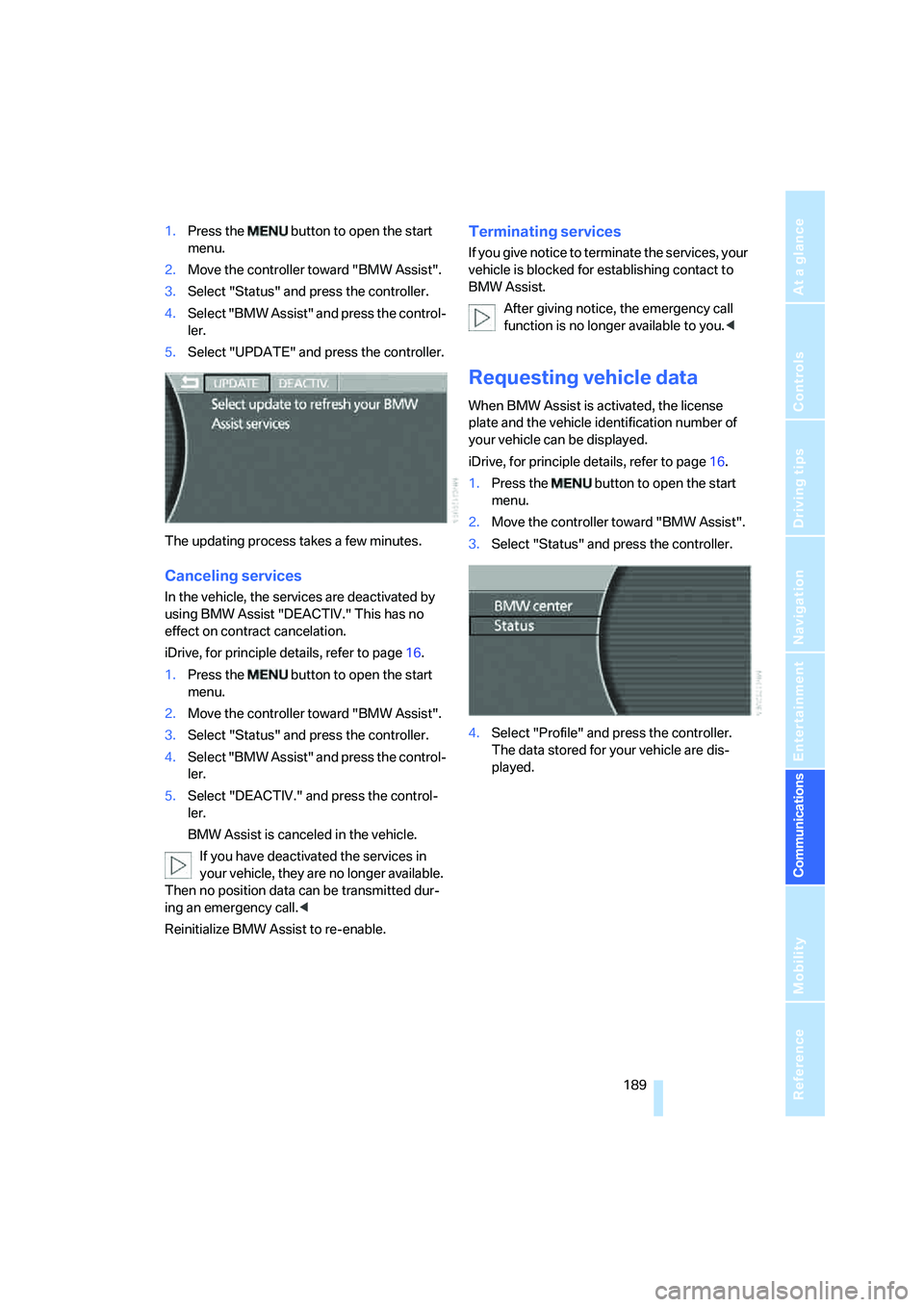
4.Select "BMW Assist" and press the control-
ler.
5.Select "UPDATE" and press the controller.
The updating process takes a few minutes.
Canceling services
In the vehicle, the services are deactivated by
using BMW Assist "DEACTIV." This has no
effect on contract cancelation.
iDrive, for principle details, refer to page16.
1.Press the button to open the start
menu.
2.Move the controller toward "BMW Assist".
3.Select "Status" and press the controller.
4.Select "BMW Assist" and press the control-
ler.
5.Select "DEACTIV." and press the control-
ler.
BMW Assist is canceled in the vehicle.
If you have deactivated the services in
your vehicle, they are no longer available.
Then no position data can be transmitted dur-
ing an emergency call.<
Reinitialize BMW Assist to re-enable.
Terminating services
If you give notice to terminate the services, your
vehicle is blocked for establishing contact to
BMW Assist.
After giving notice, the emergency call
function is no longer available to you.<
Requesting vehicle data
When BMW Assist is activated, the license
plate and the vehicle identification number of
your vehicle can be displayed.
iDrive, for principle details, refer to page16.
1.Press the button to open the start
menu.
2.Move the controller toward "BMW Assist".
3.Select "Status" and press the controller.
4.Select "Profile" and press the controller.
The data stored for your vehicle are dis-
played.
Page 194 of 247
Refueling
192
Refueling
Fuel filler door
Always switch off the engine before refu-
eling; otherwise, no fuel can be filled into
the tank and a message is displayed.<
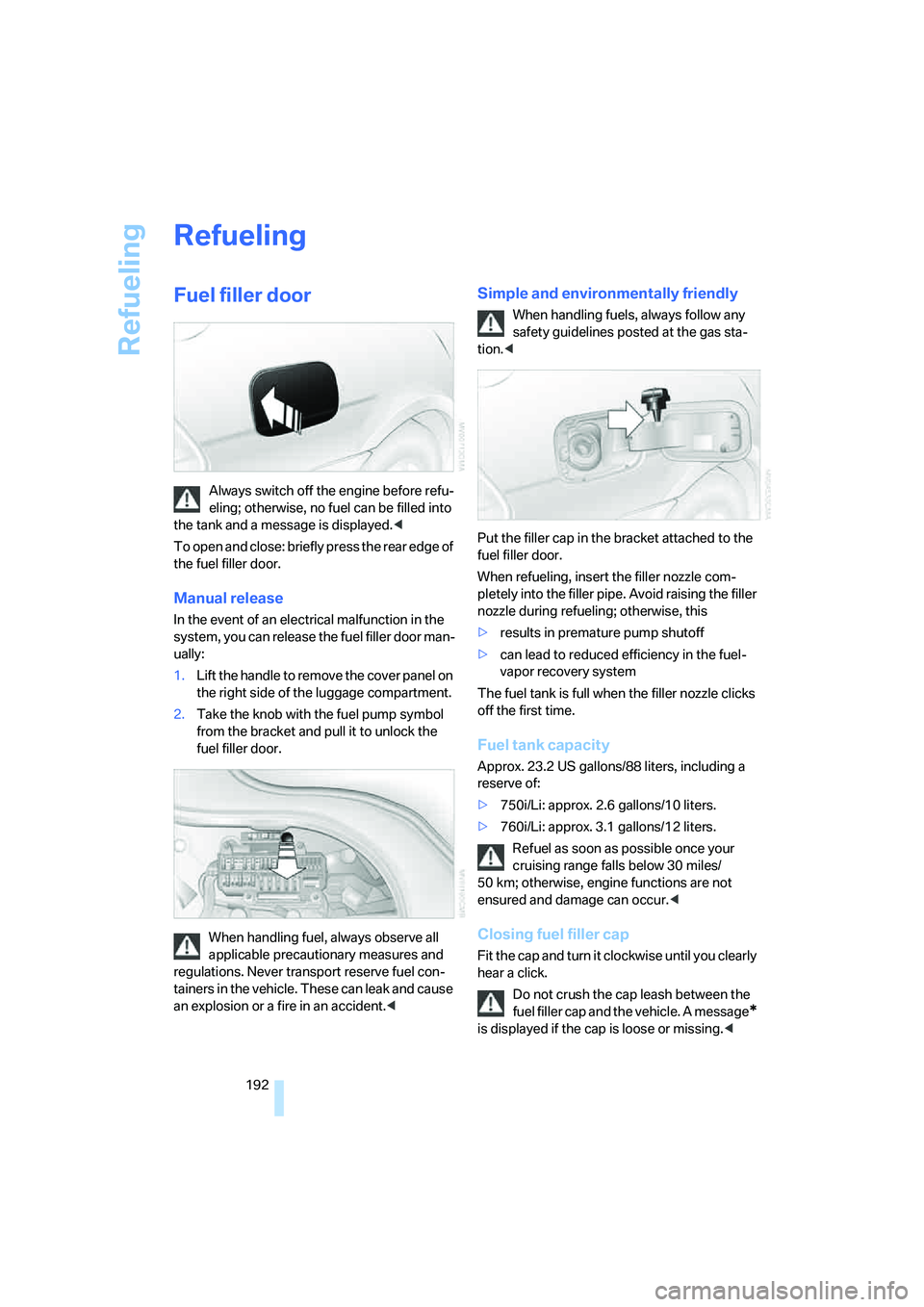
To open and close: briefly press the rear edge of
the fuel filler door.
Manual release
In the event of an electrical malfunction in the
system, you can release the fuel filler door man-
ually:
1.Lift the handle to remove the cover panel on
the right side of the luggage compartment.
2.Take the knob with the fuel pump symbol
from the bracket and pull it to unlock the
fuel filler door.
When handling fuel, always observe all
applicable precautionary measures and
regulations. Never transport reserve fuel con-
tainers in the vehicle. These can leak and cause
an explosion or a fire in an accident.<
Simple and environmentally friendly
When handling fuels, always follow any
safety guidelines posted at the gas sta-
tion.<
Put the filler cap in the bracket attached to the
fuel filler door.
When refueling, insert the filler nozzle com-
pletely into the filler pipe. Avoid raising the filler
nozzle during refueling; otherwise, this
>results in premature pump shutoff
>can lead to reduced efficiency in the fuel-
vapor recovery system
The fuel tank is full when the filler nozzle clicks
off the first time.
Fuel tank capacity
Approx. 23.2 US gallons/88 liters, including a
reserve of:
>750i/Li: approx. 2.6 gallons/10 liters.
>760i/Li: approx. 3.1 gallons/12 liters.
Refuel as soon as possible once your
cruising range falls below 30 miles/
50 km; otherwise, engine functions are not
ensured and damage can occur.<
Closing fuel filler cap
Fit the cap and turn it clockwise until you clearly
hear a click.
Do not crush the cap leash between the
fuel filler cap and the vehicle. A message
*
is displayed if the cap is loose or missing.<
Page 200 of 247
Wheels and tires
198
Temperature
The temperature grades are A, B, and C, A
being highest, and represent the tire's resis-
tance to the generation of heat and its ability to
dissipate heat when tested under controlled
conditions on a specified indoor laboratory test
wheel.
Sustained high temperature can cause the
material of the tire to degenerate and reduce
tire life, and excessive temperature can lead to
sudden tire failure. The grade C corresponds to
a level of performance which all passenger car
tires must meet under the Federal Motor Vehi-
cle Safety Standard No. 109. Grades B and A
represent higher levels of performance on the
laboratory test wheel than the minimum
required by law.
The temperature grade for this tire is
established for a tire that is properly
inflated and not overloaded. Excessive speed,
underinflation, or excessive loading, either sep-
arately or in combination, can cause heat
buildup and possible tire failure.<
RSC Run-flat tires
You will recognize run-flat tires by a circular
symbol containing the letters RSC on the side
of the tire, refer to page199.
M+S
Winter and all-season tires.
These have better winter properties than sum-
mer tires.
XL
Indicates specially reinforced tires.
Tire condition
Inspect your tires frequently for tread depth,
signs of damage and for foreign objects lodged
in the tread. Check the tread depth.
Minimum tread depth
The tread depth should not fall below 0.12 in/
3 mm, although, for example, European legisla-
tion only specifies a minimum tread depth of 0.063 in/1.6 mm.
At tread depths below 0.12 in/3 mm, there is an
increased risk of high-speed hydroplaning,
even when only small amounts of water are
present on the road surface.
Winter tires display a noticeable loss in their
ability to cope with cold-weather driving condi-
tions once the tread wears to below 0.16 in/
4 mm. To ensure continued safety, you should
always have such tires replaced.
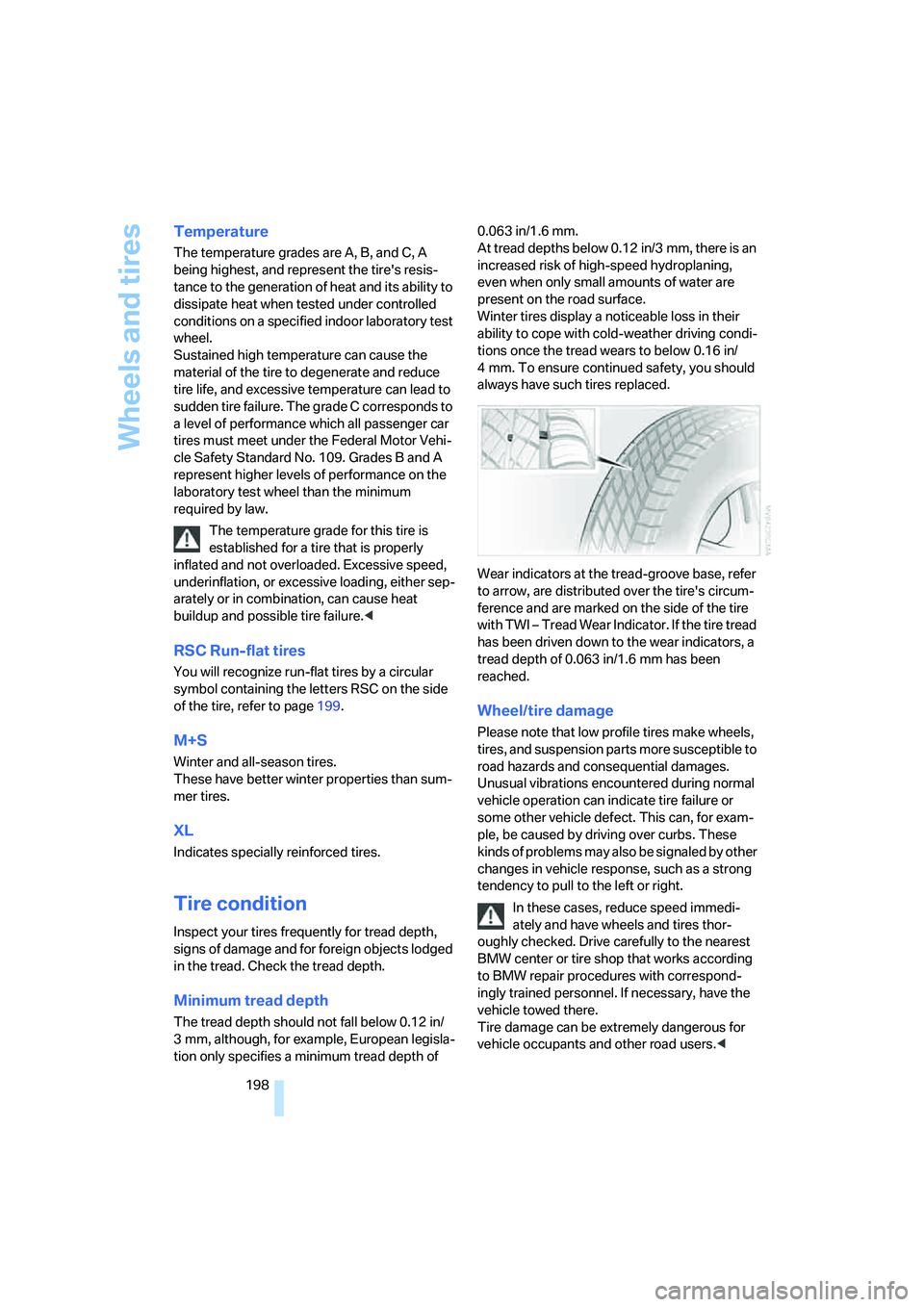
Wear indicators at the tread-groove base, refer
to arrow, are distributed over the tire's circum-
ference and are marked on the side of the tire
with TWI – Tread Wear Indicator. If the tire tread
has been driven down to the wear indicators, a
tread depth of 0.063 in/1.6 mm has been
reached.
Wheel/tire damage
Please note that low profile tires make wheels,
tires, and suspension parts more susceptible to
road hazards and consequential damages.
Unusual vibrations encountered during normal
vehicle operation can indicate tire failure or
some other vehicle defect. This can, for exam-
ple, be caused by driving over curbs. These
kinds of problems may also be signaled by other
changes in vehicle response, such as a strong
tendency to pull to the left or right.
In these cases, reduce speed immedi-
ately and have wheels and tires thor-
oughly checked. Drive carefully to the nearest
BMW center or tire shop that works according
to BMW repair procedures with correspond-
ingly trained personnel. If necessary, have the
vehicle towed there.
Tire damage can be extremely dangerous for
vehicle occupants and other road users.<