phone BMW 750LI 2006 Owner's Manual
[x] Cancel search | Manufacturer: BMW, Model Year: 2006, Model line: 750LI, Model: BMW 750LI 2006Pages: 247, PDF Size: 8.66 MB
Page 180 of 247
Telephone overview
178
Touch tone dialing
The touch tone code is required for access to
network services or for controlling devices, e.g.
remote checking of an answering machine.
This function is available when a connection
has been established.
Emergency call with
emergency call button*
When the vehicle is equipped with the full
mobile phone preparation package, you can
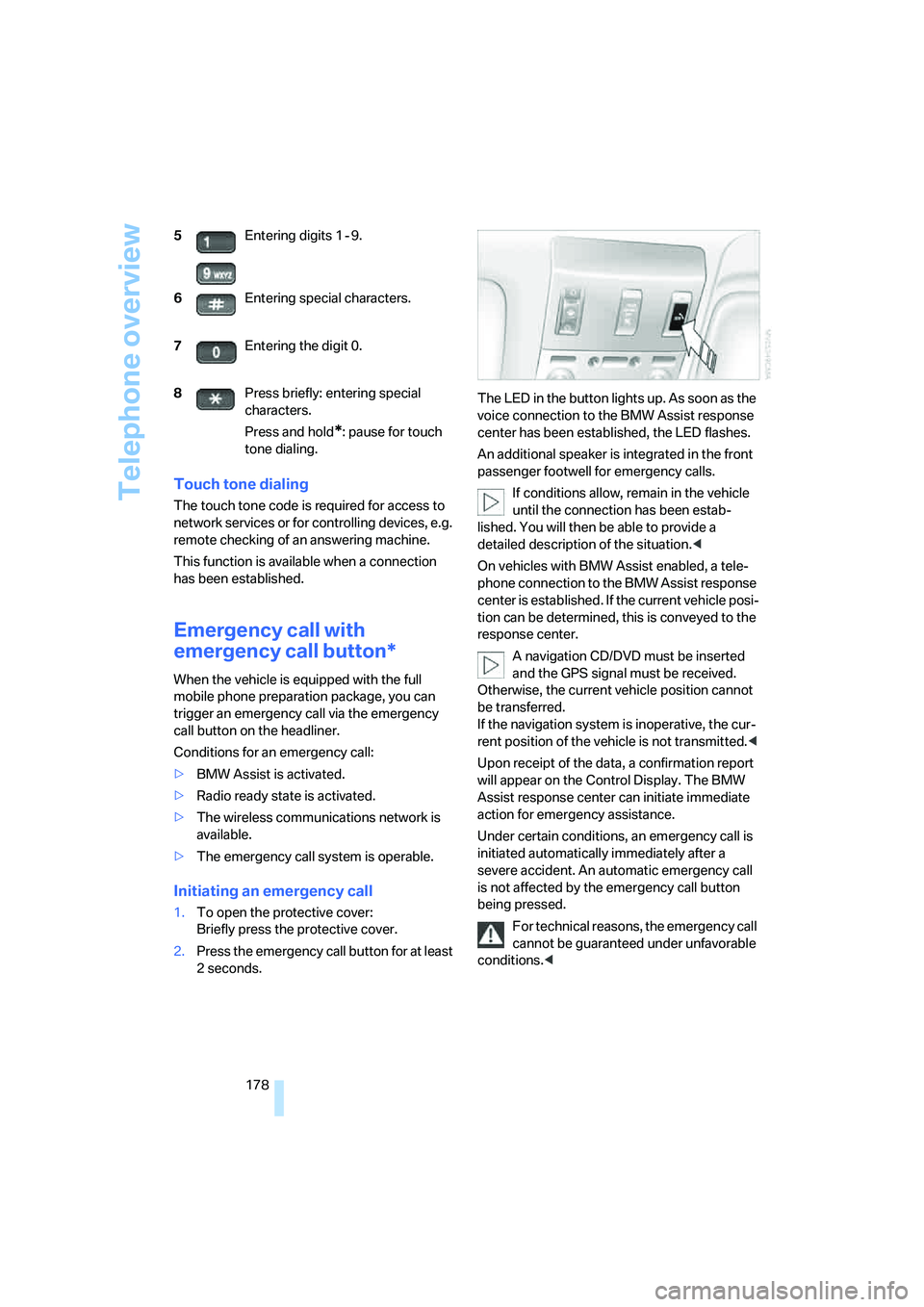
trigger an emergency call via the emergency
call button on the headliner.
Conditions for an emergency call:
>BMW Assist is activated.
>Radio ready state is activated.
>The wireless communications network is
available.
>The emergency call system is operable.
Initiating an emergency call
1.To open the protective cover:
Briefly press the protective cover.
2.Press the emergency call button for at least
2seconds.The LED in the button lights up. As soon as the
voice connection to the BMW Assist response
center has been established, the LED flashes.
An additional speaker is integrated in the front
passenger footwell for emergency calls.
If conditions allow, remain in the vehicle
until the connection has been estab-
lished. You will then be able to provide a
detailed description of the situation.<
On vehicles with BMW Assist enabled, a tele-
phone connection to the BMW Assist response
center is established. If the current vehicle posi-
tion can be determined, this is conveyed to the
response center.
A navigation CD/DVD must be inserted
and the GPS signal must be received.
Otherwise, the current vehicle position cannot
be transferred.
If the navigation system is inoperative, the cur-
rent position of the vehicle is not transmitted.<
Upon receipt of the data, a confirmation report
will appear on the Control Display. The BMW
Assist response center can initiate immediate
action for emergency assistance.
Under certain conditions, an emergency call is
initiated automatically immediately after a
severe accident. An automatic emergency call
is not affected by the emergency call button
being pressed.
For technical reasons, the emergency call
cannot be guaranteed under unfavorable
conditions.< 5Entering digits 1 - 9.
6Entering special characters.
7Entering the digit 0.
8Press briefly: entering special
characters.
Press and hold
*: pause for touch
tone dialing.
Page 181 of 247
179
Entertainment
Reference
At a glance
Controls
Driving tips Communications
Navigation
Mobility
Getting started
Inserting mobile phone
If you insert or remove the mobile phone during
a call, the call may be interrupted depending on
the mobile phone model.
1.Remove the protective cap from the mobile
phone's antenna connector if necessary, so
that the mobile phone can engage in the
snap-in adapter.
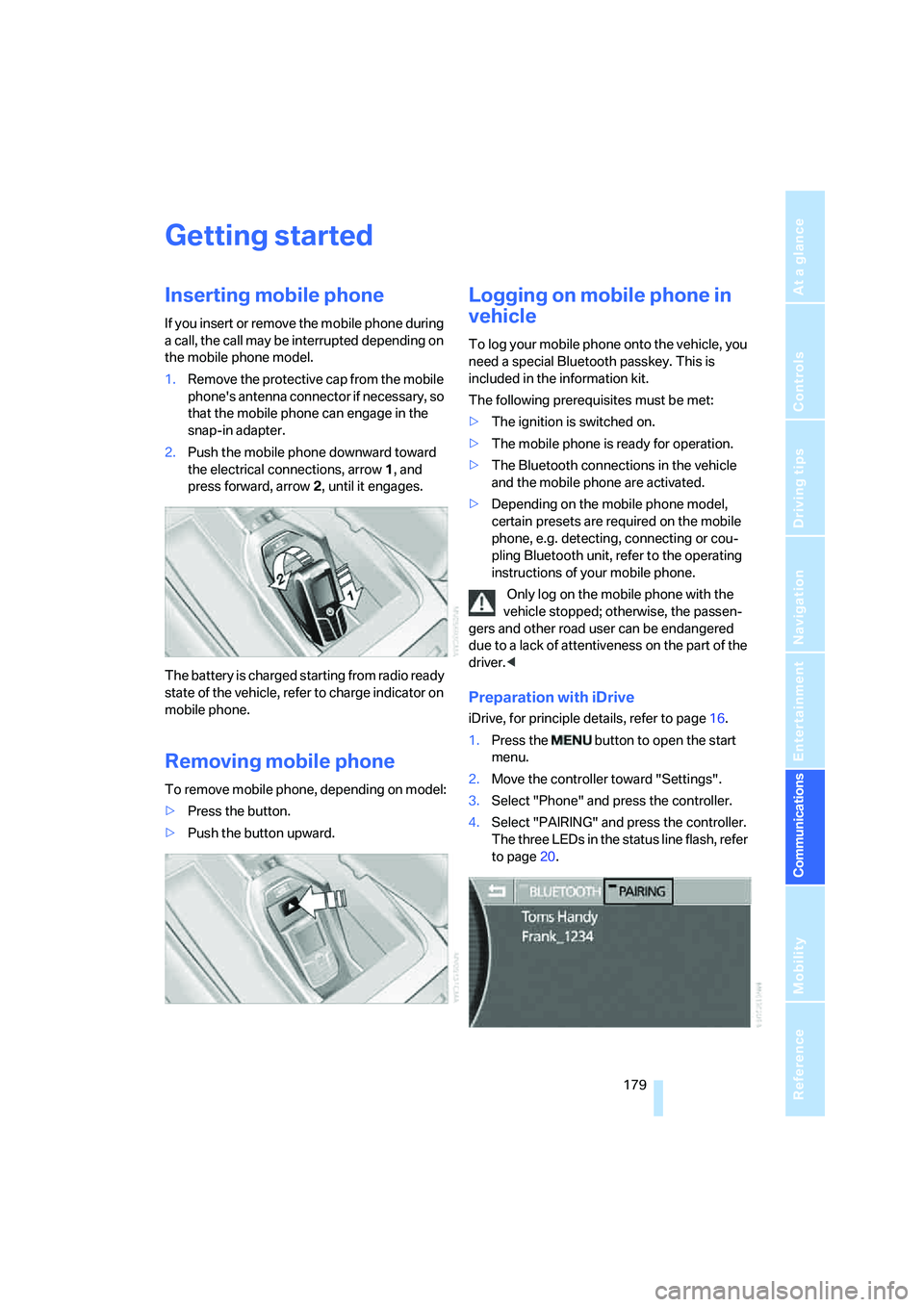
2.Push the mobile phone downward toward
the electrical connections, arrow1, and
press forward, arrow2, until it engages.
The battery is charged starting from radio ready
state of the vehicle, refer to charge indicator on
mobile phone.
Removing mobile phone
To remove mobile phone, depending on model:
>Press the button.
>Push the button upward.
Logging on mobile phone in
vehicle
To log your mobile phone onto the vehicle, you
need a special Bluetooth passkey. This is
included in the information kit.
The following prerequisites must be met:
>The ignition is switched on.
>The mobile phone is ready for operation.
>The Bluetooth connections in the vehicle
and the mobile phone are activated.
>Depending on the mobile phone model,
certain presets are required on the mobile
phone, e.g. detecting, connecting or cou-
pling Bluetooth unit, refer to the operating
instructions of your mobile phone.
Only log on the mobile phone with the
vehicle stopped; otherwise, the passen-
gers and other road user can be endangered
due to a lack of attentiveness on the part of the
driver.<
Preparation with iDrive
iDrive, for principle details, refer to page16.
1.Press the button to open the start
menu.
2.Move the controller toward "Settings".
3.Select "Phone" and press the controller.
4.Select "PAIRING" and press the controller.
The three LEDs in the status line flash, refer
to page20.
Page 182 of 247
Getting started
180
Establishing connection between
mobile phone and vehicle
5.Additional operations must be carried out
on the mobile phone and differ depending
on the model, refer to the operating instruc-
tions of your mobile phone, e.g. under
searching for, connecting to, or coupling to
a Bluetooth device.
6.Enter and confirm Bluetooth passkey using
your mobile phone keypad.
Following successful logon, the name of
your mobile phone will appear on the Con-
trol Display.
The next time you use the mobile phone within
Bluetooth range of the vehicle, it will be
detected within a short time with the ignition
switched on.
As soon as the vehicle detects a mobile phone,
the phone book entries stored on the SIM card
or in your mobile phone are transmitted to your
vehicle. This transfer is dependent on your
mobile phone, refer to the operating instruc-
tions of your mobile phone if necessary, and
can take several minutes.
During each connection, the phone book
entries present in the vehicle are calibrated with
the phone book entries currently stored in the
mobile phone. The entries in the vehicle are
added to or deleted as needed in the process of
this.
Up to four mobile phones can be logged on one
after the other. If you want to log on a fifth
mobile phone, first the logon data of a mobile
phone must be deleted, refer to page180.
Logging off a mobile phone
from vehicle
If you no longer want to operate a mobile phone
via the vehicle, you can delete the logon data of
the mobile phone.
iDrive, for principle details, refer to page16.
1.Press the button to open the start
menu.
2.Move the controller toward "Settings".
3.Select "Phone" and press the controller.
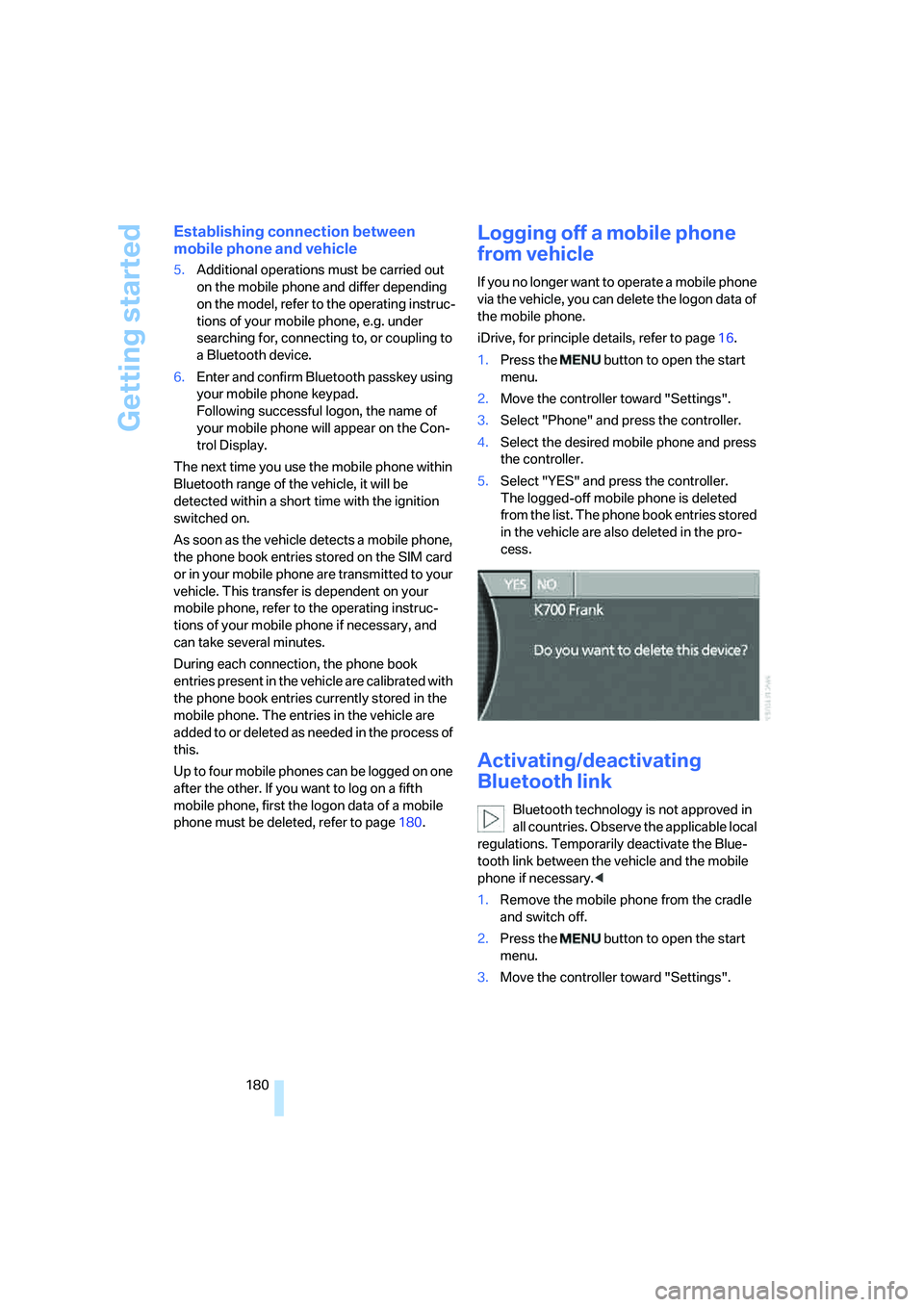
4.Select the desired mobile phone and press
the controller.
5.Select "YES" and press the controller.
The logged-off mobile phone is deleted
from the list. The phone book entries stored
in the vehicle are also deleted in the pro-
cess.
Activating/deactivating
Bluetooth link
Bluetooth technology is not approved in
all countries. Observe the applicable local
regulations. Temporarily deactivate the Blue-
tooth link between the vehicle and the mobile
phone if necessary.<
1.Remove the mobile phone from the cradle
and switch off.
2.Press the button to open the start
menu.
3.Move the controller toward "Settings".
Page 183 of 247
181
Entertainment
Reference
At a glance
Controls
Driving tips Communications
Navigation
Mobility
4.Select "Phone" and press the controller.
5.Select "BLUETOOTH" and press the con-
troller.
>The LED next to "BLUETOOTH" lights up
in green:
The Bluetooth connection is activated.
>The LED next to "BLUETOOTH" does not
light up:
The Bluetooth connection is deactivated.
Snap-in adapter*
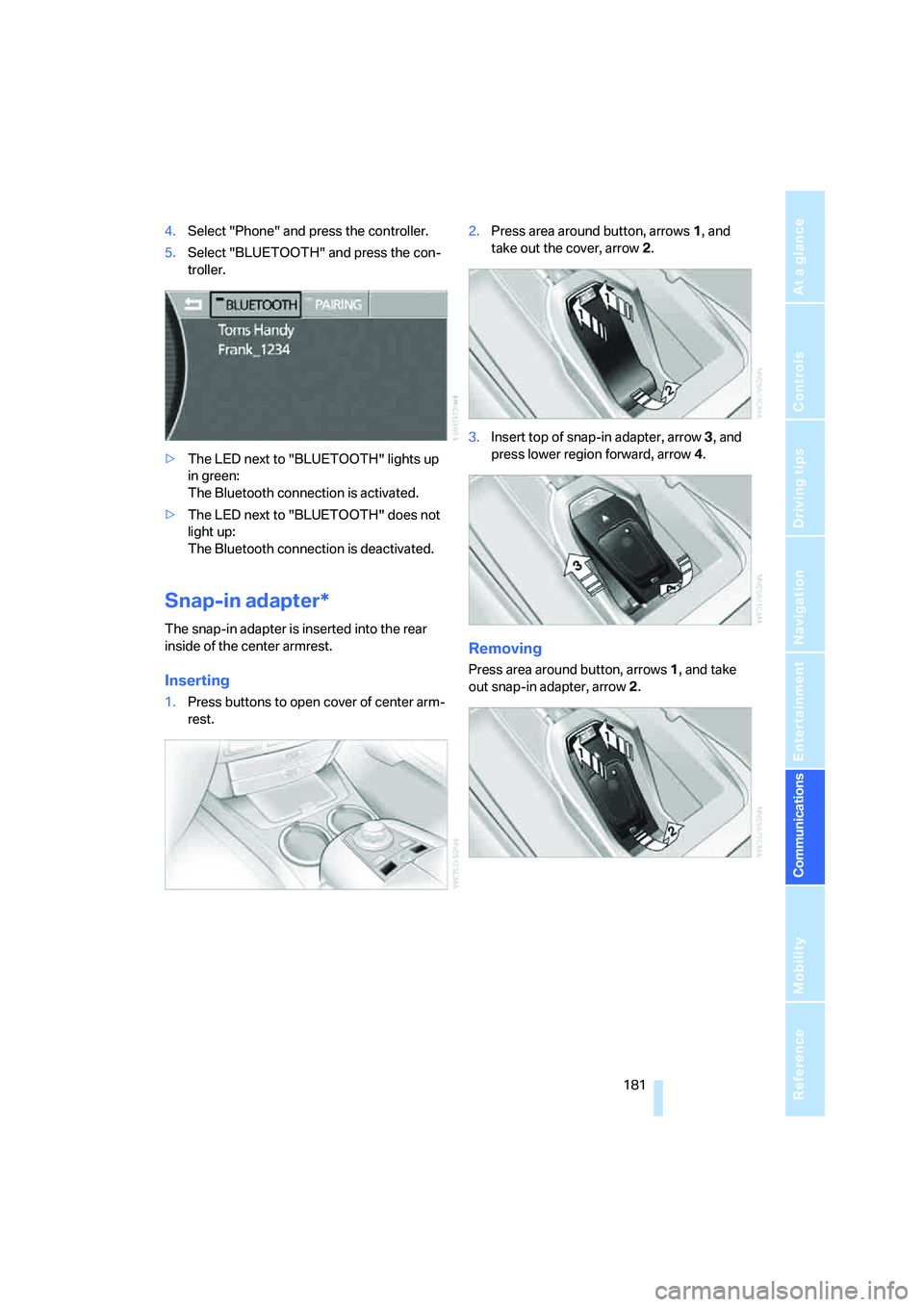
The snap-in adapter is inserted into the rear
inside of the center armrest.
Inserting
1.Press buttons to open cover of center arm-
rest.2.Press area around button, arrows1, and
take out the cover, arrow2.
3.Insert top of snap-in adapter, arrow3, and
press lower region forward, arrow4.
Removing
Press area around button, arrows1, and take
out snap-in adapter, arrow2.
Page 184 of 247
Using the phone
182
Using the phone
You have the option of controlling the phone
using various parts of the vehicle equipment:
>The button on the steering wheel
>The retracting telephone keypad
>iDrive
>The voice command system
*
The phone number appears in the upper status
line, refer to page20.
With the ignition switched off, you can continue
an ongoing call for a maximum of 16 minutes via
the hands-free system.
Requirements
>The logon data of the mobile phone are
stored in the vehicle and the mobile phone
is ready to operate.
>The ignition is switched on.
>The mobile phone is detected by the vehi-
cle.
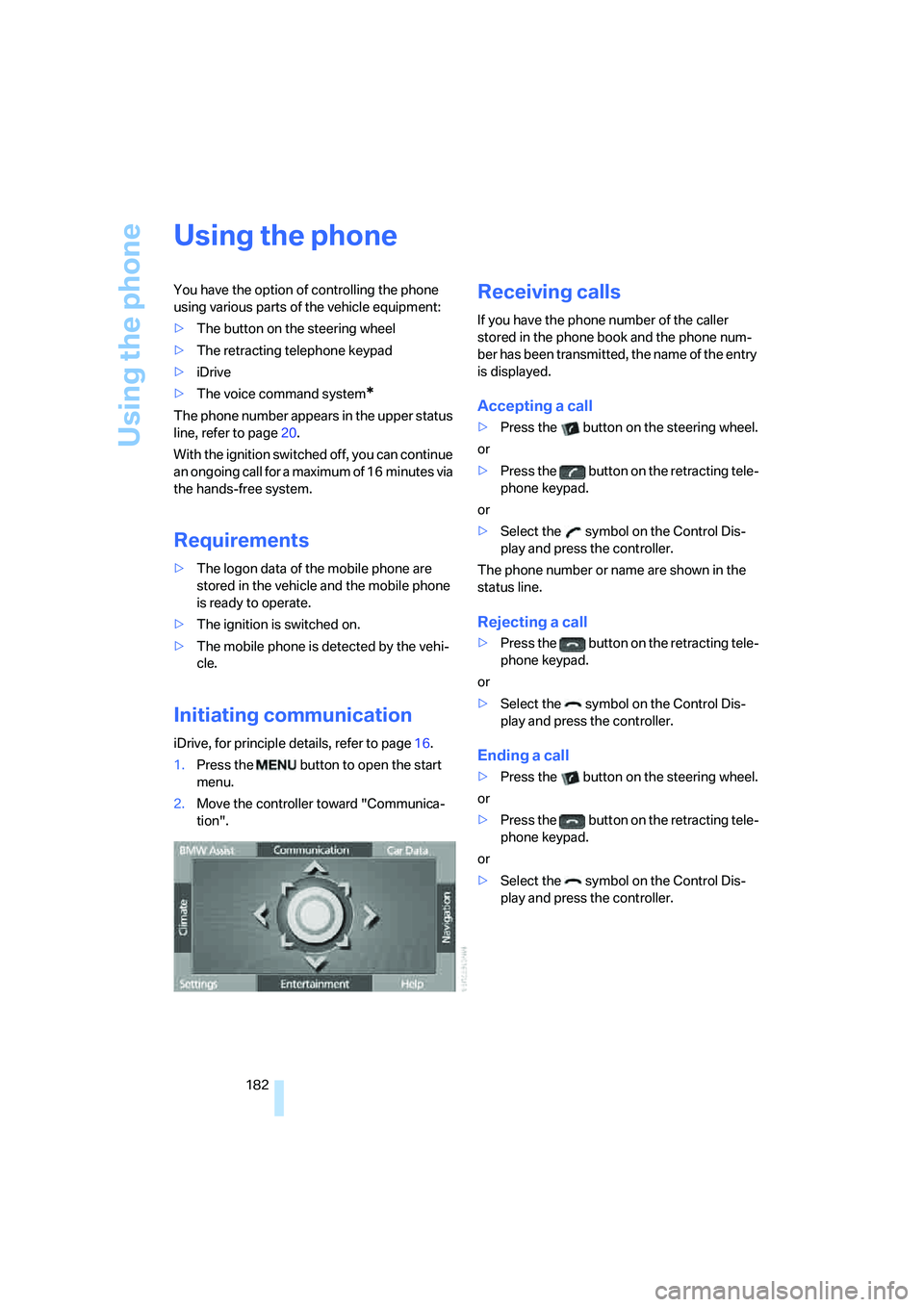
Initiating communication
iDrive, for principle details, refer to page16.
1.Press the button to open the start
menu.
2.Move the controller toward "Communica-
tion".
Receiving calls
If you have the phone number of the caller
stored in the phone book and the phone num-
ber has been transmitted, the name of the entry
is displayed.
Accepting a call
>Press the button on the steering wheel.
or
>Press the button on the retracting tele-
phone keypad.
or
>Select the symbol on the Control Dis-
play and press the controller.
The phone number or name are shown in the
status line.
Rejecting a call
>Press the button on the retracting tele-
phone keypad.
or
>Select the symbol on the Control Dis-
play and press the controller.
Ending a call
>Press the button on the steering wheel.
or
>Press the button on the retracting tele-
phone keypad.
or
>Select the symbol on the Control Dis-
play and press the controller.
Page 185 of 247
183
Entertainment
Reference
At a glance
Controls
Driving tips Communications
Navigation
Mobility
Making a call
Dialing a phone number and
establishing a connection
Retracting telephone keypad
1.Enter the phone number.
2.Press the button.
Voice command system*
T h e s ys t e m r ec o g n i z es d i g it s f r o m z e ro t o n i n e .
You can say each digit individually or group
them into a sequence to speed up the entry
process:
After the last spoken sequence of digits has
been repeated by the system, you can delete
this sequence of digits:
With {Delete number} all numbers previously
entered are deleted:
Redialing
You can recall the last phone number you
selected:
Dialing a phone number from phone
book or a phone number stored in a list
Phone numbers you have called, missed calls,
and the entries of the phone book are stored in
lists when the mobile phone is connected to the
vehicle via Bluetooth. If the caller is entered in
the phone book, the name of the entry is dis-
played instead of the phone number. The fol-
lowing lists are available:
>"TOP 8":
The eight phone numbers in the phone
book that are called most frequently are automatically stored in the Top 8 list. The
number called most often appears at the
top of the list.
>"Last":
The last eight phone numbers you have
dialed are automatically stored. The last
number dialed is at the top of the list.
>"A-Z":
The entries in the phone book of the SIM
card or of the mobile phone, including name
and phone number, are displayed in alpha-
betical order.
>"Missed":
The phone numbers of the last eight calls
not accepted are stored, provided that the
phone number of the caller was transmitted.
A missed call is indicated by an envelope
symbol in the top status line.
Dialing phone numbers from phone
book
The list "A-Z" is available for you phone book
entries. The Control Display shows the entries
in the phone book of the SIM card or mobile
phone in alphabetical order.
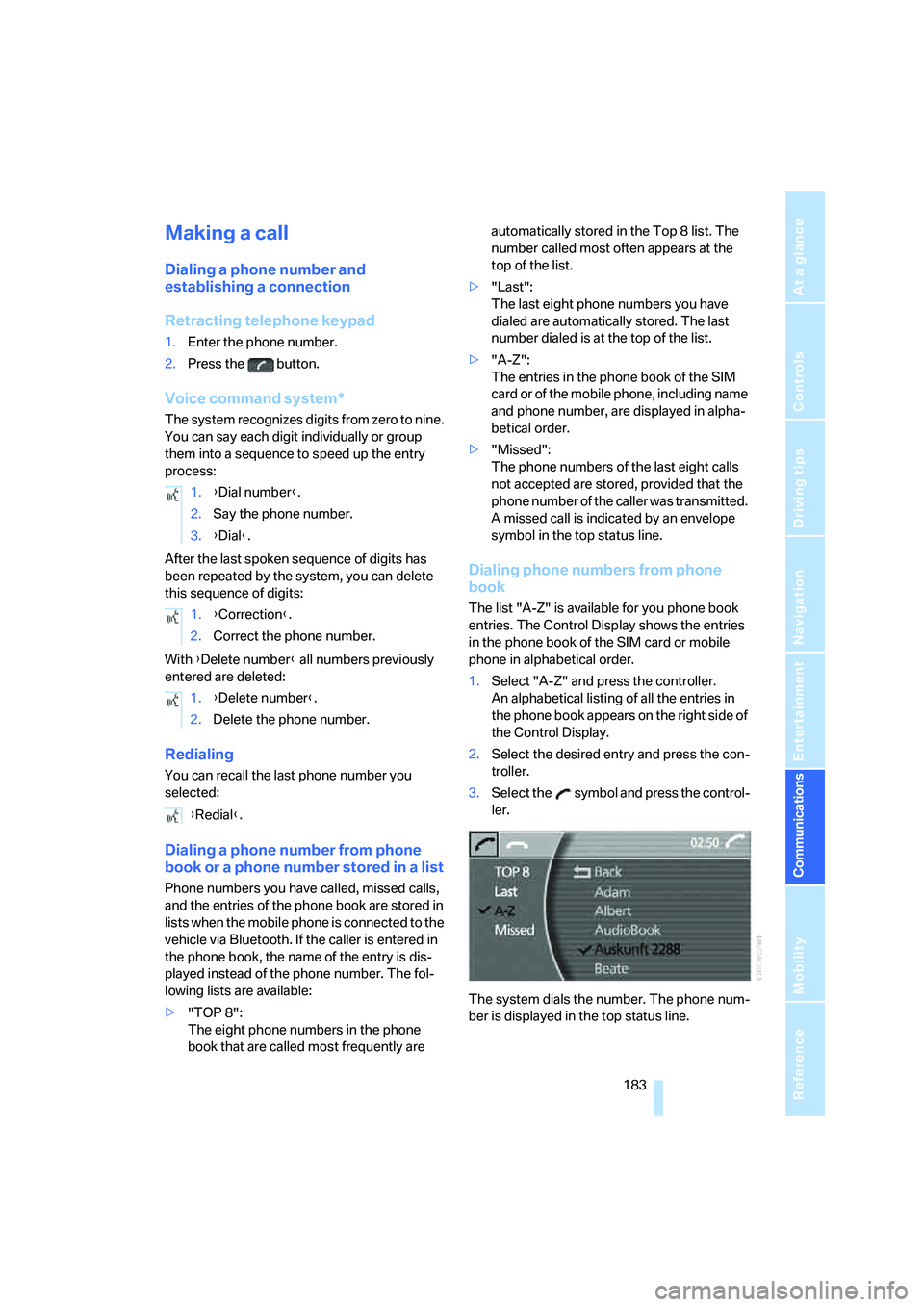
1.Select "A-Z" and press the controller.
An alphabetical listing of all the entries in
the phone book appears on the right side of
the Control Display.
2.Select the desired entry and press the con-
troller.
3.Select the symbol and press the control-
ler.
The system dials the number. The phone num-
ber is displayed in the top status line. 1.{Dial number}.
2.Say the phone number.
3.{Dial}.
1.{Correction}.
2.Correct the phone number.
1.{Delete number}.
2.Delete the phone number.
{Redial}.
Page 186 of 247
Using the phone
184 The connection can also be established
via the button on the steering wheel or the
telephone keypad.<
Dialing phone numbers stored in a list
To select an entry and establish a connection:
1.Select the list and press the controller.
>"TOP 8"
>"Last"
>"Missed"
2.Select the desired entry and press the con-
troller.
3.Select the symbol and press the control-
ler.
The system dials the number.
The phone number is displayed in the top sta-
tus line as this happens.
The connection can also be established
via the button on the steering wheel or the
telephone keypad.<
Deleting entries in lists
You can delete the lists of the most frequently
called phone numbers, missed calls and the last
subscribers called.
1.Select the desired list and press the con-
troller.
The stored entries are shown on the right
side of the Control Displays.
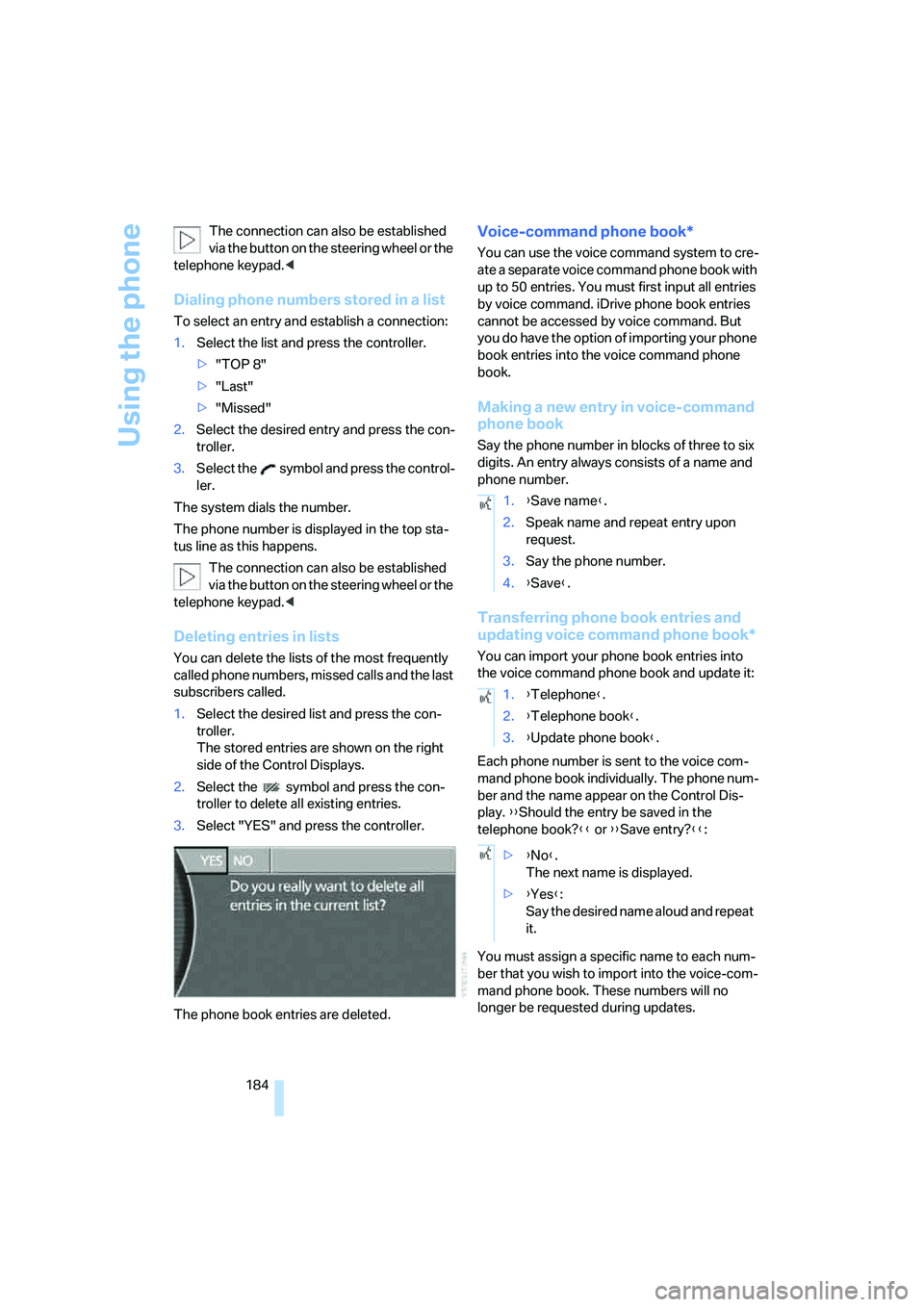
2.Select the symbol and press the con-
troller to delete all existing entries.
3.Select "YES" and press the controller.
The phone book entries are deleted.
Voice-command phone book*
You can use the voice command system to cre-
ate a separate voice command phone book with
up to 50 entries. You must first input all entries
by voice command. iDrive phone book entries
cannot be accessed by voice command. But
you do have the option of importing your phone
book entries into the voice command phone
book.
Making a new entry in voice-command
phone book
Say the phone number in blocks of three to six
digits. An entry always consists of a name and
phone number.
Transferring phone book entries and
updating voice command phone book*
You can import your phone book entries into
the voice command phone book and update it:
Each phone number is sent to the voice com-
mand phone book individually. The phone num-
ber and the name appear on the Control Dis-
play. {{Should the entry be saved in the
telephone book?}} or {{Save entry?}}:
You must assign a specific name to each num-
ber that you wish to import into the voice-com-
mand phone book. These numbers will no
longer be requested during updates.
1.{Save name}.
2.Speak name and repeat entry upon
request.
3.Say the phone number.
4.{Save}.
1.{Telephone}.
2.{Telephone book}.
3.{Update phone book}.
>{No}.
The next name is displayed.
>{Yes}:
Say the desired name aloud and repeat
it.
Page 187 of 247
185
Entertainment
Reference
At a glance
Controls
Driving tips Communications
Navigation
Mobility
Having entries read
You can have all the entries of your voice-com-
mand phone book read aloud in the order of
their input and select a certain entry to establish
a connection:
Dialing from voice-command phone
book
You can recall a saved entry by the name and
dial the phone number:
Deleting entry of voice-command
phone book
You can delete individual entries from the
voice-command phone book:
Deleting all entries of voice-command
phone book
You can delete all entries in the phone book:
Switching between mobile
phone and hands-free system
If you insert the mobile phone into or remove it
from the snap-in adapter during a call, this can
cause the call to be disconnected.
From mobile phone to hands-free
system
You can continue calls begun outside the Blue-
tooth range of the vehicle via the handsfree sys-
tem when the motor is running or the ignition is
switched on.
Depending on your mobile phone, the switch to
hands-free mode occurs automatically.
With mobile phones that do not switch over
automatically to hands-free operation:
>Press the button in the upper area of
the snap-in adapter.
>Depending on the mobile phone model
used, the conversation can also be contin-
ued via the handsfree system if necessary.
Follow the instructions given on the mobile
phone display, refer to the operating
instructions of your mobile phone.
From handsfree system to mobile
phone
When you telephone via the handsfree system,
you can also continue the call via the mobile
phone if necessary, depending on the mobile
phone model. Act according to what is shown
on the mobile phone display, refer to the oper-
ating instructions of your mobile phone. {Read out}.
>To scroll forward:
{Next}
>To scroll back:
{Previous}
>To repeat entry:
{Repeat}
>To call:
{Dial}
1.{Dial name}.
2.Say the name.
3.{Dial}.
1.{Telephone}.
2.{Delete entry}.
3.Say the name.
1.{Telephone}.
2.{Delete telephone book}.
Page 225 of 247
Reference 223
At a glance
Controls
Driving tips
Communications
Navigation
Entertainment
Mobility
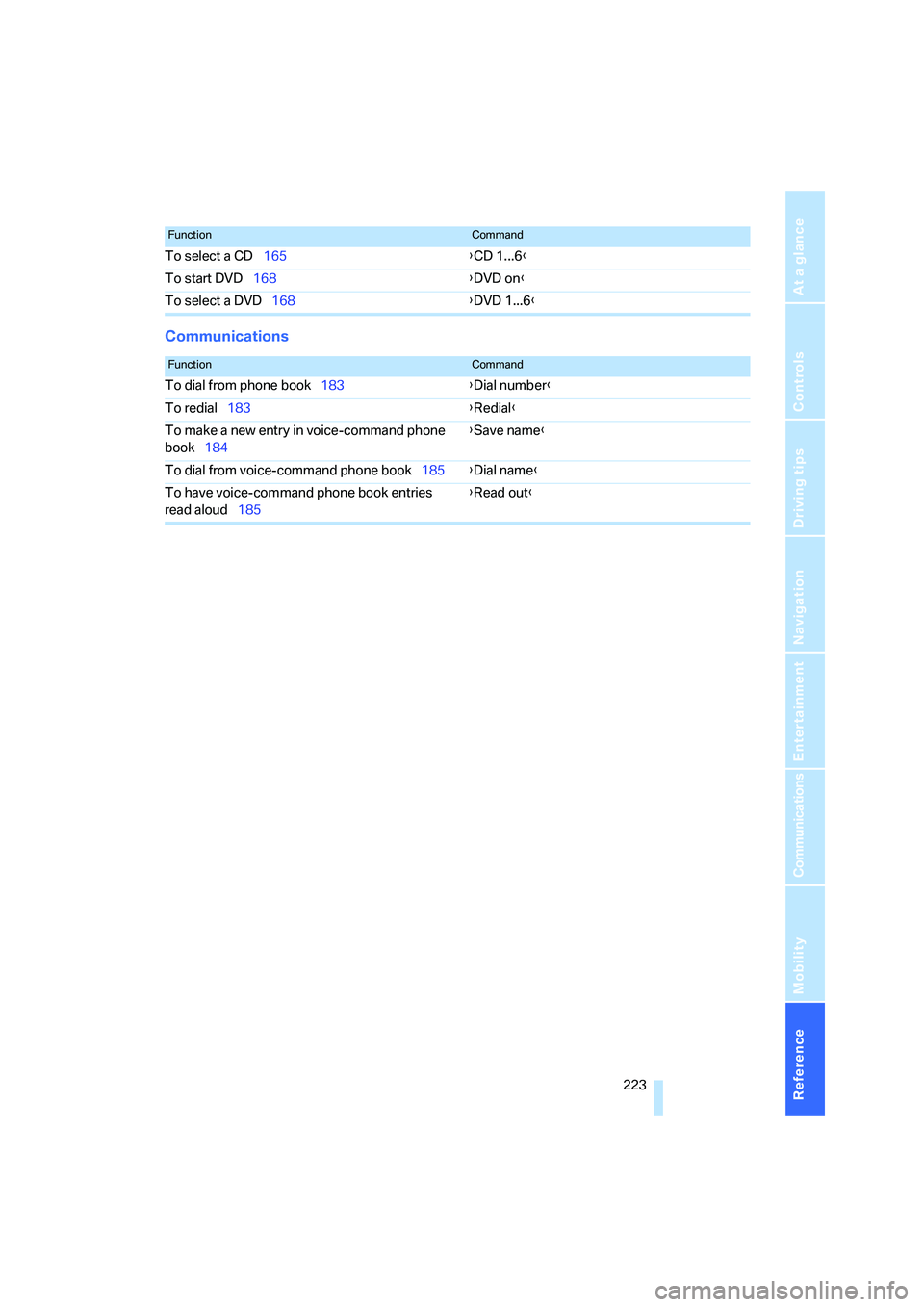
Communications
To select a CD165{CD 1...6}
To start DVD168{DVD on}
To select a DVD168{DVD 1...6}
FunctionCommand
FunctionCommand
To dial from phone book183{Dial number}
To redial183{Redial}
To make a new entry in voice-command phone
book184{Save name}
To dial from voice-command phone book185{Dial name}
To have voice-command phone book entries
read aloud185{Read out}
Page 226 of 247
Everything from A to Z
224
Everything from A to Z
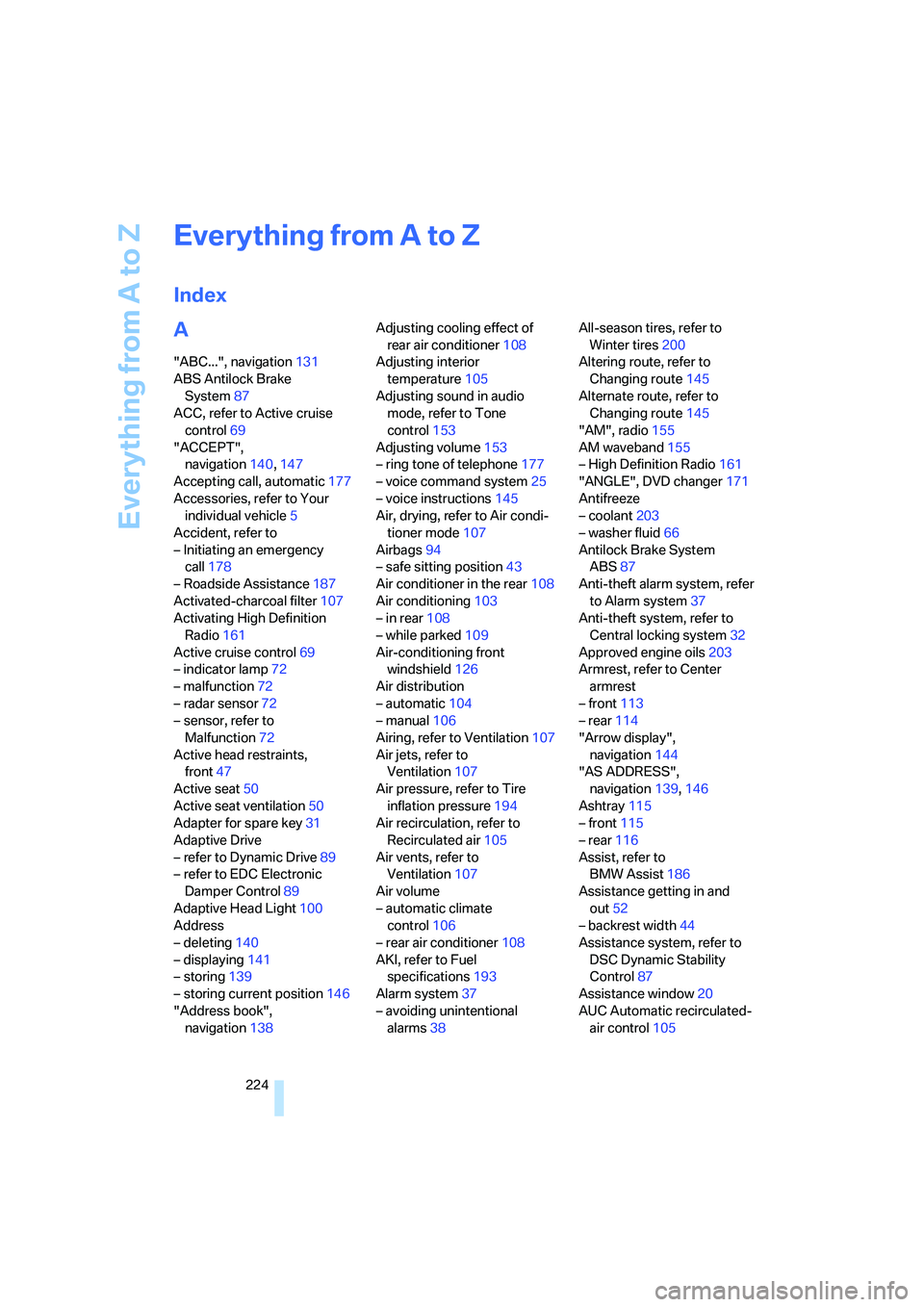
Index
A
"ABC...", navigation131
ABS Antilock Brake
System87
ACC, refer to Active cruise
control69
"ACCEPT",
navigation140,147
Accepting call, automatic177
Accessories, refer to Your
individual vehicle5
Accident, refer to
– Initiating an emergency
call178
– Roadside Assistance187
Activated-charcoal filter107
Activating High Definition
Radio161
Active cruise control69
– indicator lamp72
– malfunction72
– radar sensor72
– sensor, refer to
Malfunction72
Active head restraints,
front47
Active seat50
Active seat ventilation50
Adapter for spare key31
Adaptive Drive
– refer to Dynamic Drive89
– refer to EDC Electronic
Damper Control89
Adaptive Head Light100
Address
– deleting140
– displaying141
– storing139
– storing current position146
"Address book",
navigation138Adjusting cooling effect of
rear air conditioner108
Adjusting interior
temperature105
Adjusting sound in audio
mode, refer to Tone
control153
Adjusting volume153
– ring tone of telephone177
– voice command system25
– voice instructions145
Air, drying, refer to Air condi-
tioner mode107
Airbags94
– safe sitting position43
Air conditioner in the rear108
Air conditioning103
– in rear108
– while parked109
Air-conditioning front
windshield126
Air distribution
– automatic104
– manual106
Airing, refer to Ventilation107
Air jets, refer to
Ventilation107
Air pressure, refer to Tire
inflation pressure194
Air recirculation, refer to
Recirculated air105
Air vents, refer to
Ventilation107
Air volume
– automatic climate
control106
– rear air conditioner108
AKI, refer to Fuel
specifications193
Alarm system37
– avoiding unintentional
alarms38All-season tires, refer to
Winter tires200
Altering route, refer to
Changing route145
Alternate route, refer to
Changing route145
"AM", radio155
AM waveband155
– High Definition Radio161
"ANGLE", DVD changer171
Antifreeze
– coolant203
– washer fluid66
Antilock Brake System
ABS87
Anti-theft alarm system, refer
to Alarm system37
Anti-theft system, refer to
Central locking system32
Approved engine oils203
Armrest, refer to Center
armrest
– front113
– rear114
"Arrow display",
navigation144
"AS ADDRESS",
navigation139,146
Ashtray115
– front115
– rear116
Assist, refer to
BMW Assist186
Assistance getting in and
out52
– backrest width44
Assistance system, refer to
DSC Dynamic Stability
Control87
Assistance window20
AUC Automatic recirculated-
air control105