tow BMW 750LI 2007 E66 Repair Manual
[x] Cancel search | Manufacturer: BMW, Model Year: 2007, Model line: 750LI, Model: BMW 750LI 2007 E66Pages: 254, PDF Size: 7.98 MB
Page 171 of 254
Navigation
Entertainment
Driving tips
169Reference
At a glance
Controls
Communications
Mobility
External audio device
You can connect an external audio device, for
instance an MP3 player, and output the sound
to vehicle's speaker system. You can adjust the
tone using iDrive.
It is recommended that the external audio
device be set to a mid-level volume and neutral
tone settings. The tone may depend on the
quality of the audio data.
Connecting
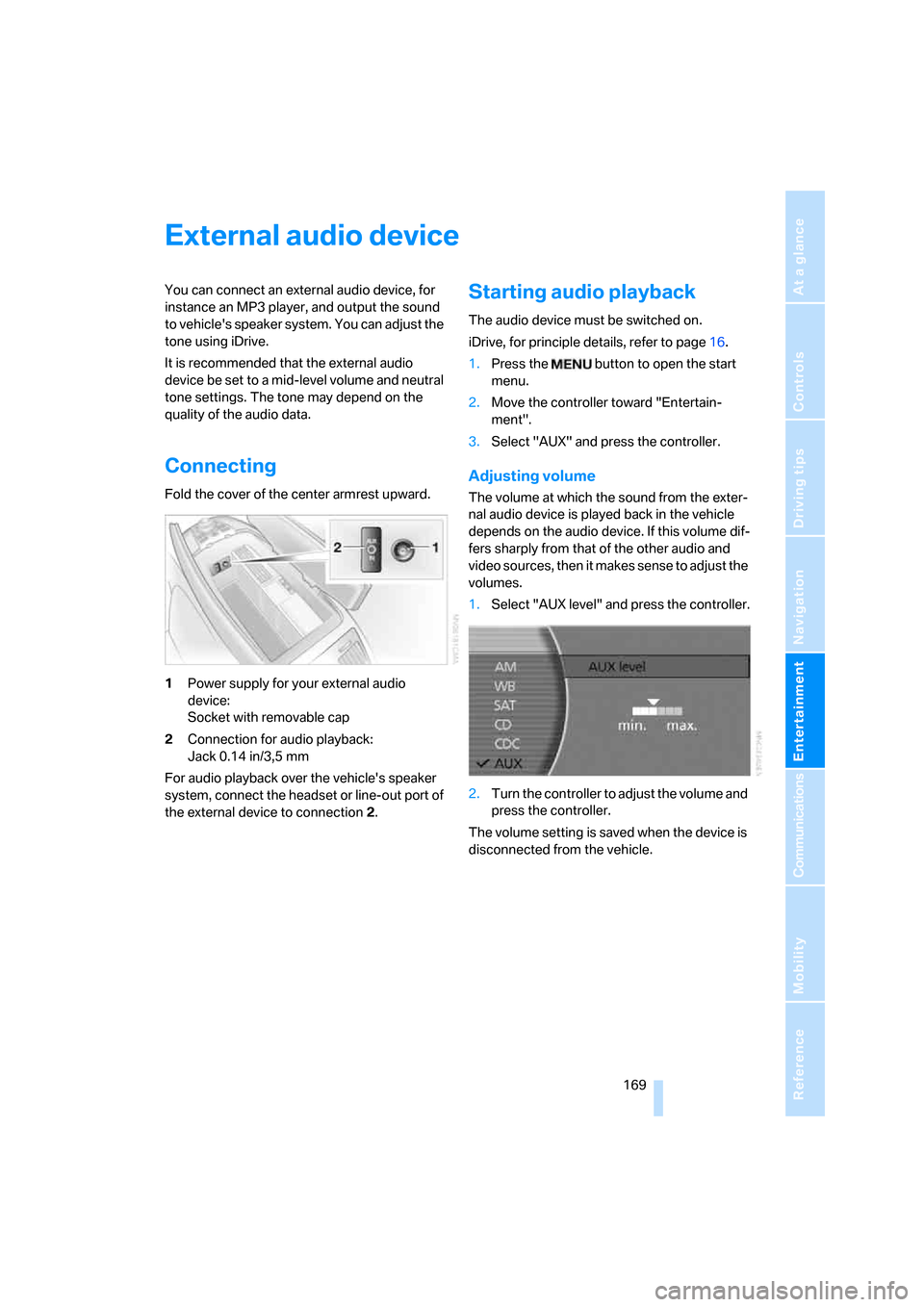
Fold the cover of the center armrest upward.
1Power supply for your external audio
device:
Socket with removable cap
2Connection for audio playback:
Jack 0.14 in/3,5 mm
For audio playback over the vehicle's speaker
system, connect the headset or line-out port of
the external device to connection 2.
Starting audio playback
The audio device must be switched on.
iDrive, for principle details, refer to page16.
1.Press the button to open the start
menu.
2.Move the controller toward "Entertain-
ment".
3.Select "AUX" and press the controller.
Adjusting volume
The volume at which the sound from the exter-
nal audio device is played back in the vehicle
depends on the audio device. If this volume dif-
fers sharply from that of the other audio and
video sources, then it makes sense to adjust the
volumes.
1.Select "AUX level" and press the controller.
2.Turn the controller to adjust the volume and
press the controller.
The volume setting is saved when the device is
disconnected from the vehicle.
Page 173 of 254
Navigation
Entertainment
Driving tips
171Reference
At a glance
Controls
Communications
Mobility
DVD country codes
Your DVD changer will only play back DVDs
coded for your home region, e.g. USA,
Canada = 1. The country code supported by
your DVD is indicated in the information sup-
plied with the DVD. This coding cannot be
changed. An overview of the six coding zones:
DVDs with the Code 0 can be played on
all devices.<
Playing DVDs
Playback is only possible on the rear seat
screen, refer to Rear seat screen
* on page21.
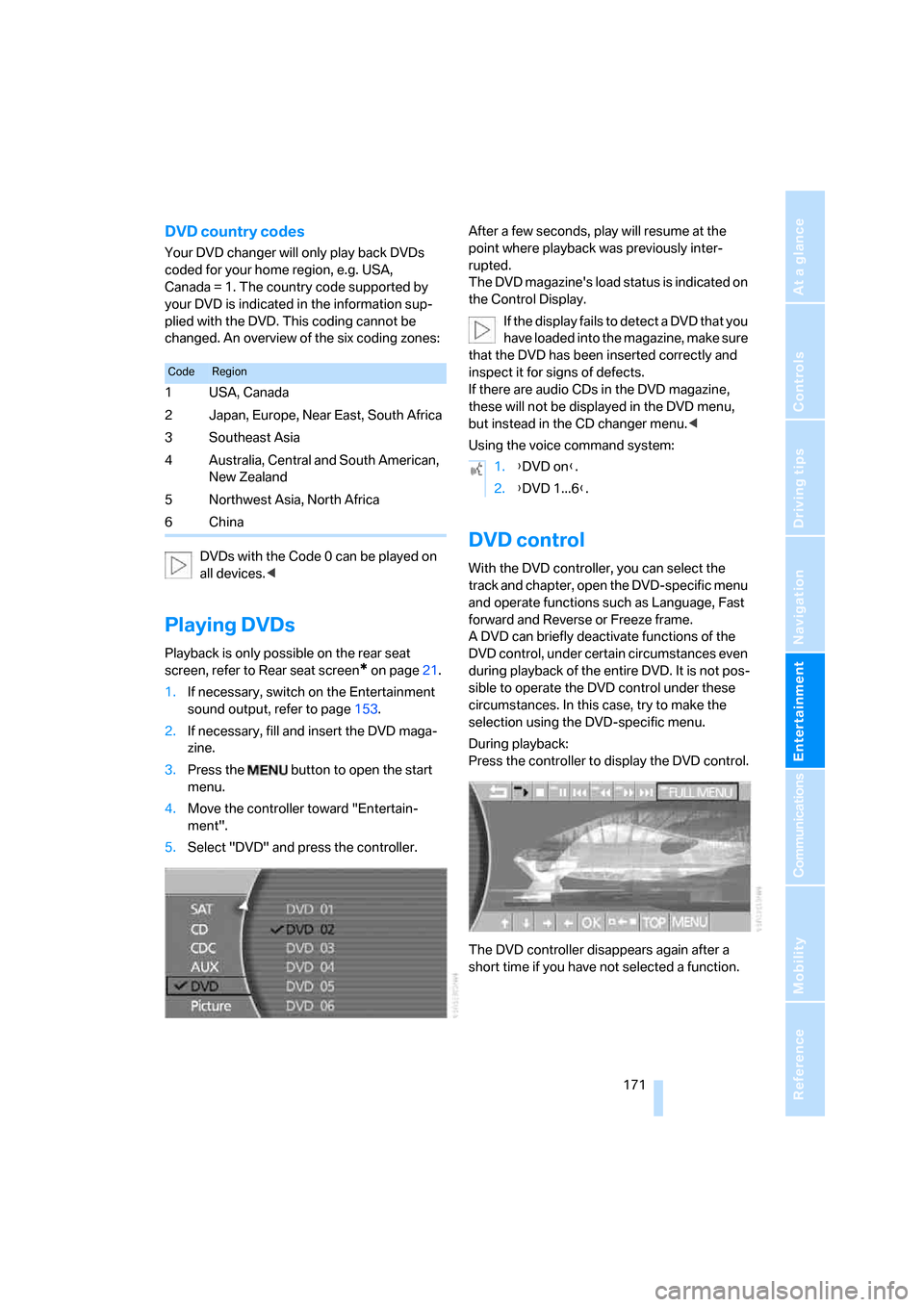
1.If necessary, switch on the Entertainment
sound output, refer to page153.
2.If necessary, fill and insert the DVD maga-
zine.
3.Press the button to open the start
menu.
4.Move the controller toward "Entertain-
ment".
5.Select "DVD" and press the controller.After a few seconds, play will resume at the
point where playback was previously inter-
rupted.
The DVD magazine's load status is indicated on
the Control Display.
If the display fails to detect a DVD that you
have loaded into the magazine, make sure
that the DVD has been inserted correctly and
inspect it for signs of defects.
If there are audio CDs in the DVD magazine,
these will not be displayed in the DVD menu,
but instead in the CD changer menu.<
Using the voice command system:
DVD control
With the DVD controller, you can select the
track and chapter, open the DVD-specific menu
and operate functions such as Language, Fast
forward and Reverse or Freeze frame.
A DVD can briefly deactivate functions of the
DVD control, under certain circumstances even
during playback of the entire DVD. It is not pos-
sible to operate the DVD control under these
circumstances. In this case, try to make the
selection using the DVD-specific menu.
During playback:
Press the controller to display the DVD control.
The DVD controller disappears again after a
short time if you have not selected a function.
CodeRegion
1USA, Canada
2 Japan, Europe, Near East, South Africa
3Southeast Asia
4 Australia, Central and South American,
New Zealand
5Northwest Asia, North Africa
6China
1.{DVD on}.
2.{DVD 1...6}.
Page 184 of 254
Getting started
182 2.Remove the protective cap from the mobile
phone's antenna connector if necessary, so
that the mobile phone can engage in the
snap-in adapter.
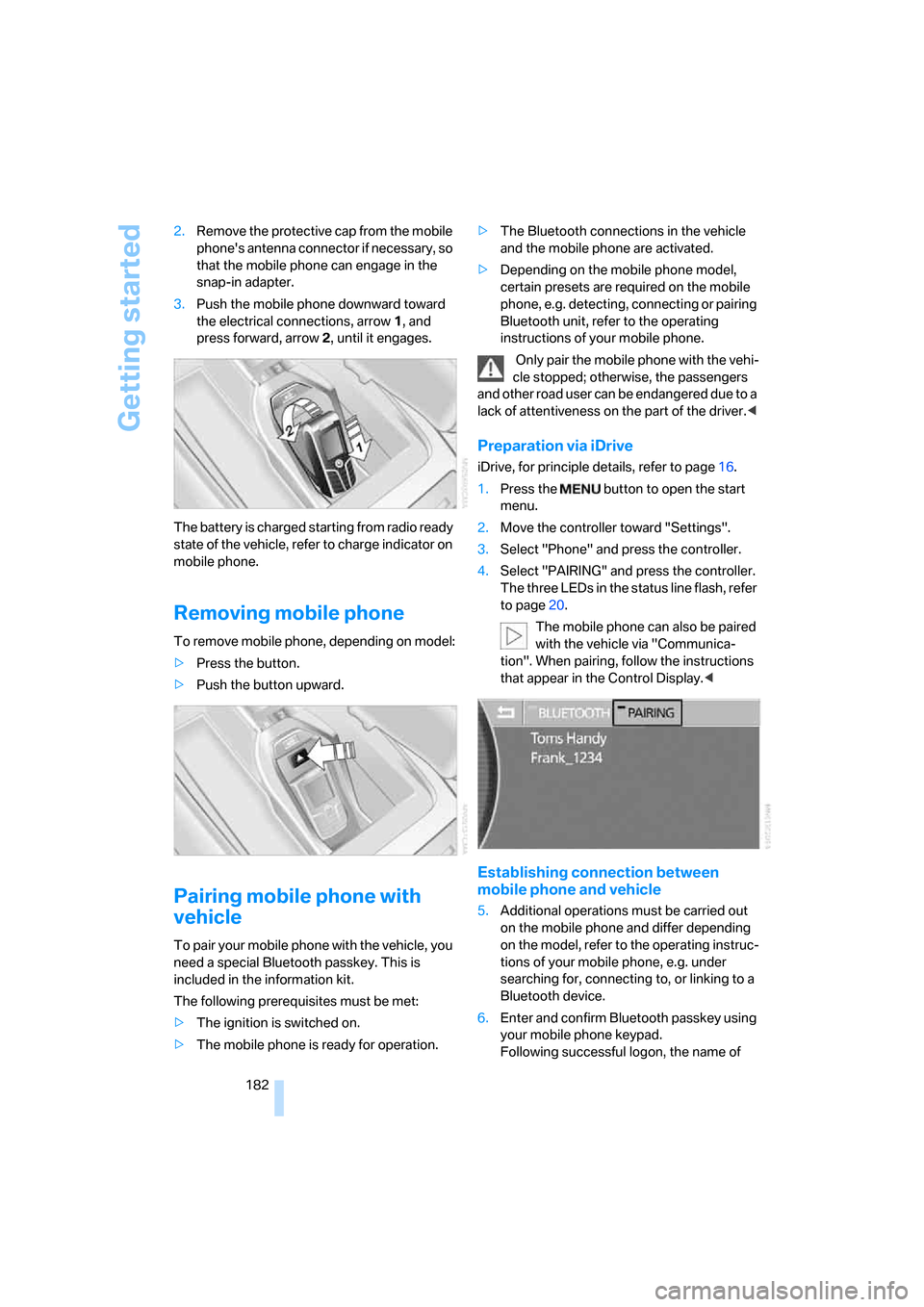
3.Push the mobile phone downward toward
the electrical connections, arrow1, and
press forward, arrow2, until it engages.
The battery is charged starting from radio ready
state of the vehicle, refer to charge indicator on
mobile phone.
Removing mobile phone
To remove mobile phone, depending on model:
>Press the button.
>Push the button upward.
Pairing mobile phone with
vehicle
To pair your mobile phone with the vehicle, you
need a special Bluetooth passkey. This is
included in the information kit.
The following prerequisites must be met:
>The ignition is switched on.
>The mobile phone is ready for operation.>The Bluetooth connections in the vehicle
and the mobile phone are activated.
>Depending on the mobile phone model,
certain presets are required on the mobile
phone, e.g. detecting, connecting or pairing
Bluetooth unit, refer to the operating
instructions of your mobile phone.
Only pair the mobile phone with the vehi-
cle stopped; otherwise, the passengers
and other road user can be endangered due to a
lack of attentiveness on the part of the driver.<
Preparation via iDrive
iDrive, for principle details, refer to page16.
1.Press the button to open the start
menu.
2.Move the controller toward "Settings".
3.Select "Phone" and press the controller.
4.Select "PAIRING" and press the controller.
The three LEDs in the status line flash, refer
to page20.
The mobile phone can also be paired
with the vehicle via "Communica-
tion". When pairing, follow the instructions
that appear in the Control Display.<
Establishing connection between
mobile phone and vehicle
5.Additional operations must be carried out
on the mobile phone and differ depending
on the model, refer to the operating instruc-
tions of your mobile phone, e.g. under
searching for, connecting to, or linking to a
Bluetooth device.
6.Enter and confirm Bluetooth passkey using
your mobile phone keypad.
Following successful logon, the name of
Page 185 of 254
183
Entertainment
Reference
At a glance
Controls
Driving tips Communications
Navigation
Mobility
your mobile phone will appear on the Con-
trol Display.
The next time you use the mobile phone within
Bluetooth range of the vehicle, it will be
detected within a short time with the ignition
switched on.
As soon as the vehicle detects a mobile phone,
the phone book entries stored on the SIM card
and/or in your mobile phone are transmitted to
your vehicle. This transfer is dependent on your
mobile phone, refer to the operating instruc-
tions of your mobile phone if necessary, and
can take several minutes.
During each connection, the phone book
entries present in the vehicle are calibrated with
the phone book entries currently stored in the
mobile phone. The entries in the vehicle are
added to or deleted as needed in the process of
this.
Up to four mobile phones can be paired one
after the other. If you want to pair a fifth mobile
phone, the logon data of one mobile phone
must first be deleted, refer to Unpairing mobile
phone from vehicle.
Unpairing mobile phone from
vehicle
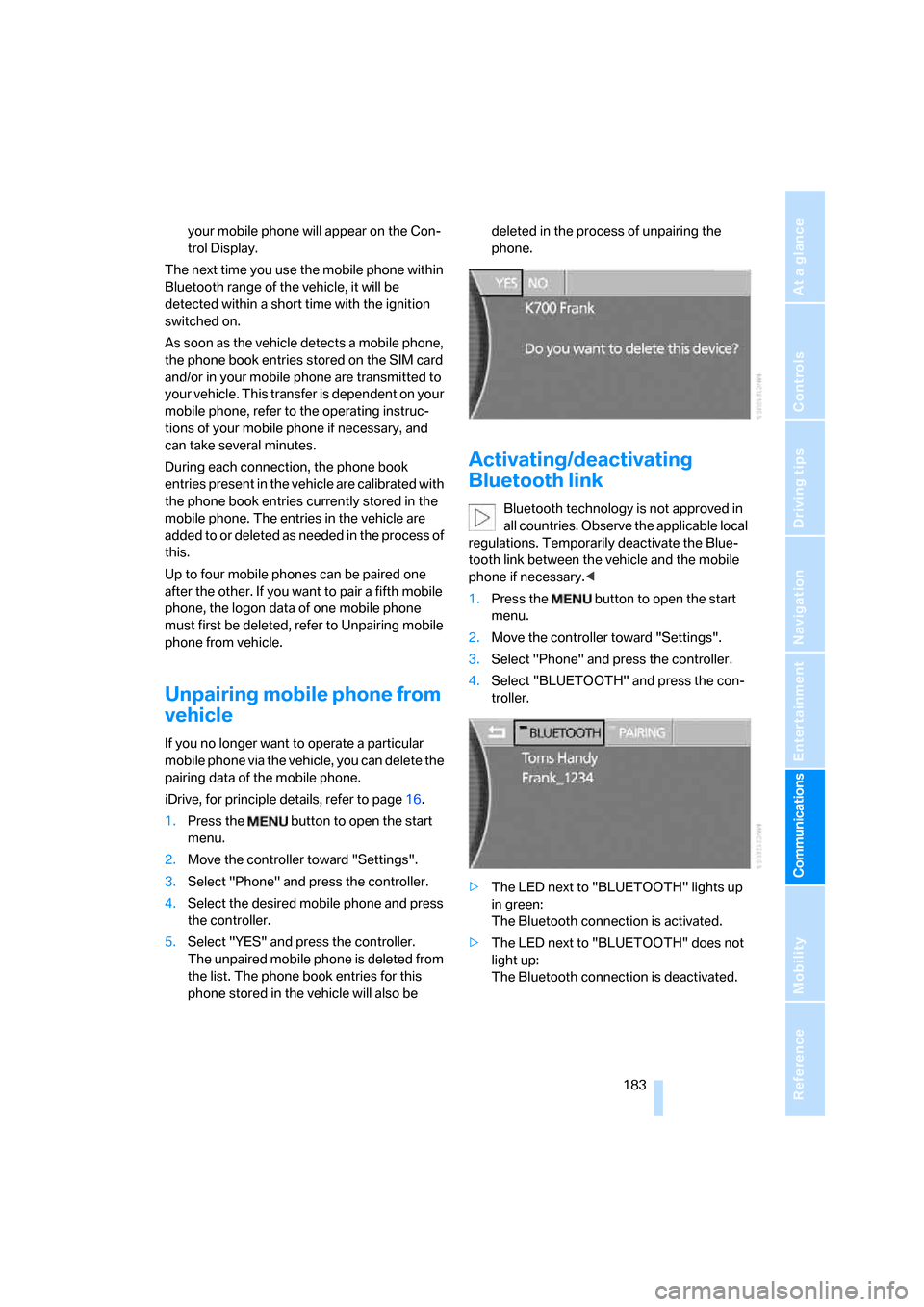
If you no longer want to operate a particular
mobile phone via the vehicle, you can delete the
pairing data of the mobile phone.
iDrive, for principle details, refer to page16.
1.Press the button to open the start
menu.
2.Move the controller toward "Settings".
3.Select "Phone" and press the controller.
4.Select the desired mobile phone and press
the controller.
5.Select "YES" and press the controller.
The unpaired mobile phone is deleted from
the list. The phone book entries for this
phone stored in the vehicle will also be deleted in the process of unpairing the
phone.
Activating/deactivating
Bluetooth link
Bluetooth technology is not approved in
all countries. Observe the applicable local
regulations. Temporarily deactivate the Blue-
tooth link between the vehicle and the mobile
phone if necessary.<
1.Press the button to open the start
menu.
2.Move the controller toward "Settings".
3.Select "Phone" and press the controller.
4.Select "BLUETOOTH" and press the con-
troller.
>The LED next to "BLUETOOTH" lights up
in green:
The Bluetooth connection is activated.
>The LED next to "BLUETOOTH" does not
light up:
The Bluetooth connection is deactivated.
Page 186 of 254
Using the phone
184
Using the phone
You have the option of controlling the phone
using various parts of the vehicle equipment:
>the button on the steering wheel, refer to
page11
>the retracting telephone keypad, refer to
page179
>iDrive, refer to Initiating communication
>the voice command system
*, refer to
page23
The phone number appears on the upper status
line, refer to page20.
With the ignition switched off, you can continue
an ongoing call for a maximum of 16 minutes via
the hands-free system.
Requirements
>The logon data of the mobile phone are
stored in the vehicle and the mobile phone
is ready to operate.
>The ignition is switched on.
>The mobile phone is detected by the vehi-
cle.
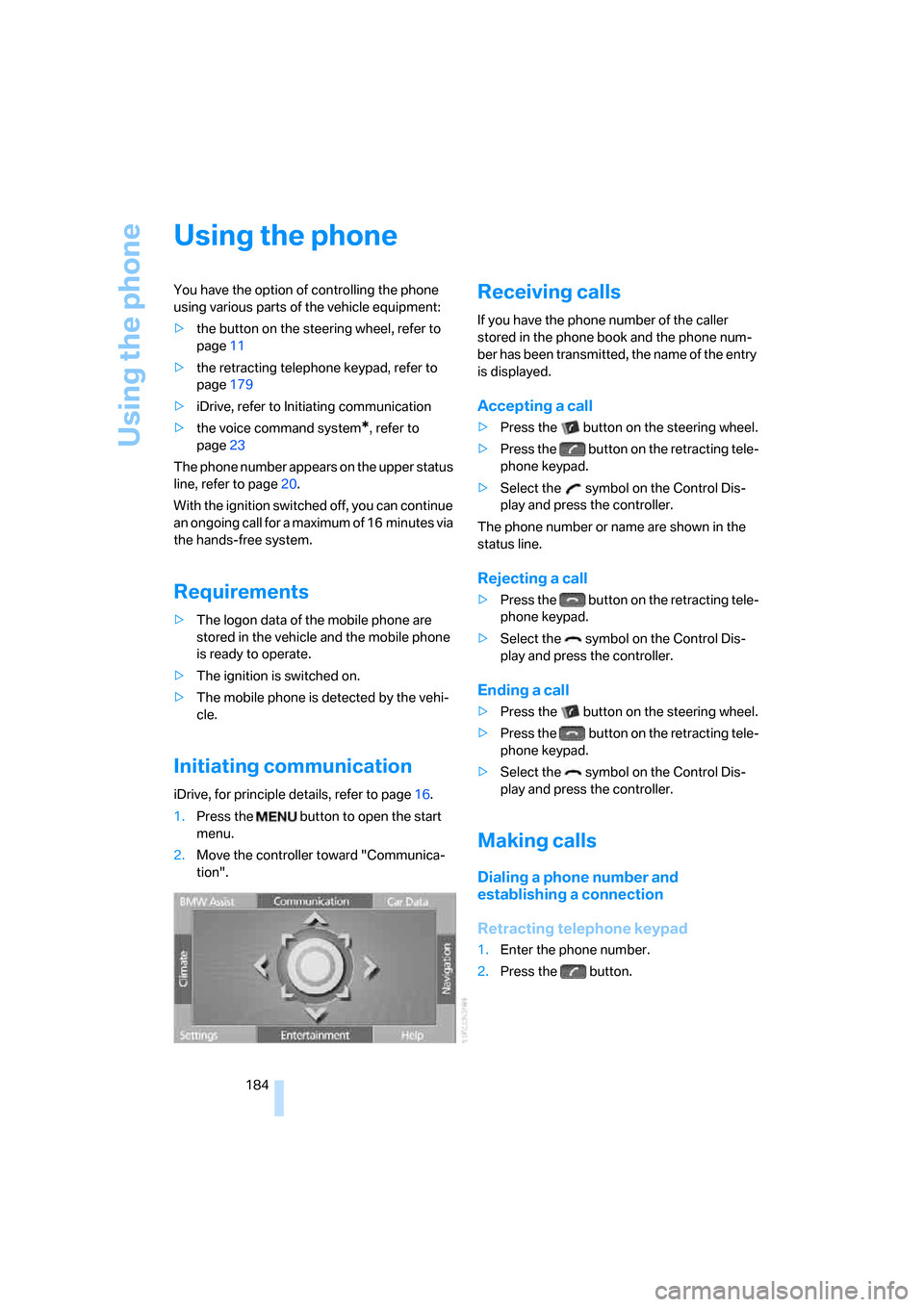
Initiating communication
iDrive, for principle details, refer to page16.
1.Press the button to open the start
menu.
2.Move the controller toward "Communica-
tion".
Receiving calls
If you have the phone number of the caller
stored in the phone book and the phone num-
ber has been transmitted, the name of the entry
is displayed.
Accepting a call
>Press the button on the steering wheel.
>Press the button on the retracting tele-
phone keypad.
>Select the symbol on the Control Dis-
play and press the controller.
The phone number or name are shown in the
status line.
Rejecting a call
>Press the button on the retracting tele-
phone keypad.
>Select the symbol on the Control Dis-
play and press the controller.
Ending a call
>Press the button on the steering wheel.
>Press the button on the retracting tele-
phone keypad.
>Select the symbol on the Control Dis-
play and press the controller.
Making calls
Dialing a phone number and
establishing a connection
Retracting telephone keypad
1.Enter the phone number.
2.Press the button.
Page 189 of 254
187
Entertainment
Reference
At a glance
Controls
Driving tips Communications
Navigation
Mobility
Having entries read
You can have all the entries of your voice-com-
mand phone book read aloud in the order of
their input and select a certain entry to establish
a connection:
Dialing from voice-command phone
book
You can recall a saved entry by the name and
dial the phone number:
Deleting entry of voice-command
phone book
You can delete individual entries from the
voice-command phone book:
Deleting all entries of voice-command
phone book
You can delete all entries in the phone book:
Switching between mobile
phone and hands-free system
You can switch back and forth from the mobile
phone to the hands-free system during a call.
From mobile phone to hands-free
system
You can continue calls begun outside the Blue-
tooth range of the vehicle via the hands-free
system when the motor is running or the igni-
tion is switched on.
To do so, place your mobile phone that has
already been paired with the vehicle into the
snap-in adapter, refer to page181.
Depending on your mobile phone, the switch to
hands-free mode occurs automatically.
With mobile phones that do not switch over
automatically to hands-free operation:
>Press the button in the upper area of
the snap-in adapter.
>Depending on the mobile phone model
used, the conversation can also be contin-
ued via the hands-free system if necessary.
Follow the instructions given on the mobile
phone display, refer to the operating
instructions of your mobile phone.
From hands-free system to mobile
phone
When you telephone via the hands-free system,
you can also continue the call via the mobile
phone if necessary.
iDrive, for principle details, refer to page16.
1.Press the button to open the start
menu.
2.Move the controller toward "Communica-
tion". {Read out}.
>To scroll forward:
{Next}
>To scroll back:
{Previous}
>To repeat entry:
{Repeat}
>To call:
{Dial}
1.{Dial name}.
2.Say the name.
3.{Dial}.
1.{Telephone}.
2.{Delete entry}.
3.Say the name.
4.Confirm the prompt with {Yes}.
1.{Telephone}.
2.{Delete telephone book}.
3.Confirm the prompt twice with {Yes}.
Page 192 of 254
BMW Assist
190 In addition, other services can be provided to
you, such as the information service or route
planning, traffic conditions and weather.
Press the SOS button in order to contact the
BMW Assist Response Center, see below.
Special features of the services offered
The following special features apply to the ser-
vices:
>The services offered are country-specific.
>Voice contact is established or data are
transferred, depending on the equipment
and the country. In some countries, it is
possible to do both.
>The data transmitted can be vehicle data,
for example, your current position or the
data of the CBS Condition Based Service.
Using services
Contacting the BMW Assist Response
Center
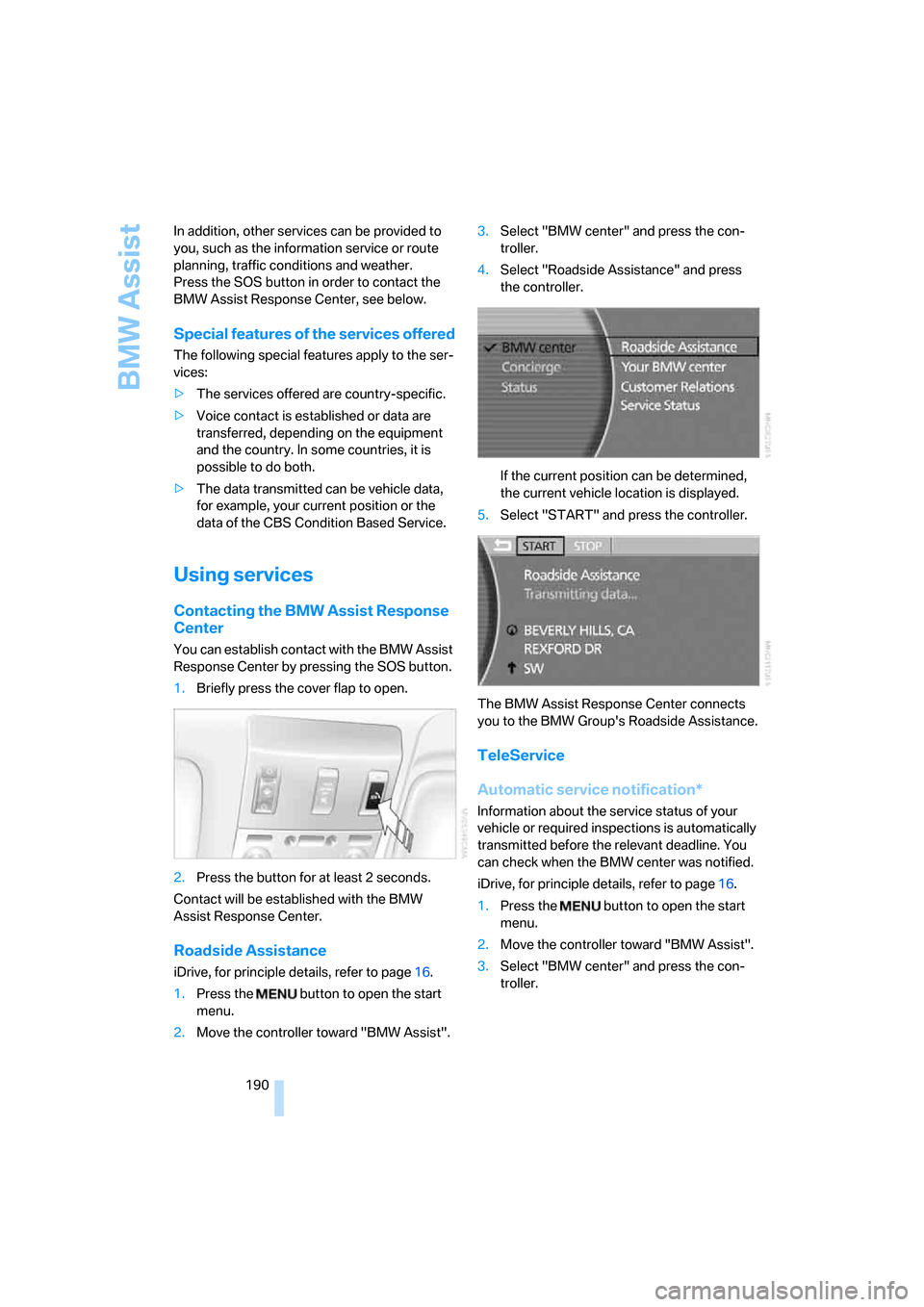
You can establish contact with the BMW Assist
Response Center by pressing the SOS button.
1.Briefly press the cover flap to open.
2.Press the button for at least 2 seconds.
Contact will be established with the BMW
Assist Response Center.
Roadside Assistance
iDrive, for principle details, refer to page16.
1.Press the button to open the start
menu.
2.Move the controller toward "BMW Assist".3.Select "BMW center" and press the con-
troller.
4.Select "Roadside Assistance" and press
the controller.
If the current position can be determined,
the current vehicle location is displayed.
5.Select "START" and press the controller.
The BMW Assist Response Center connects
you to the BMW Group's Roadside Assistance.
TeleService
Automatic service notification*
Information about the service status of your
vehicle or required inspections is automatically
transmitted before the relevant deadline. You
can check when the BMW center was notified.
iDrive, for principle details, refer to page16.
1.Press the button to open the start
menu.
2.Move the controller toward "BMW Assist".
3.Select "BMW center" and press the con-
troller.
Page 193 of 254
191
Entertainment
Reference
At a glance
Controls
Driving tips Communications
Navigation
Mobility
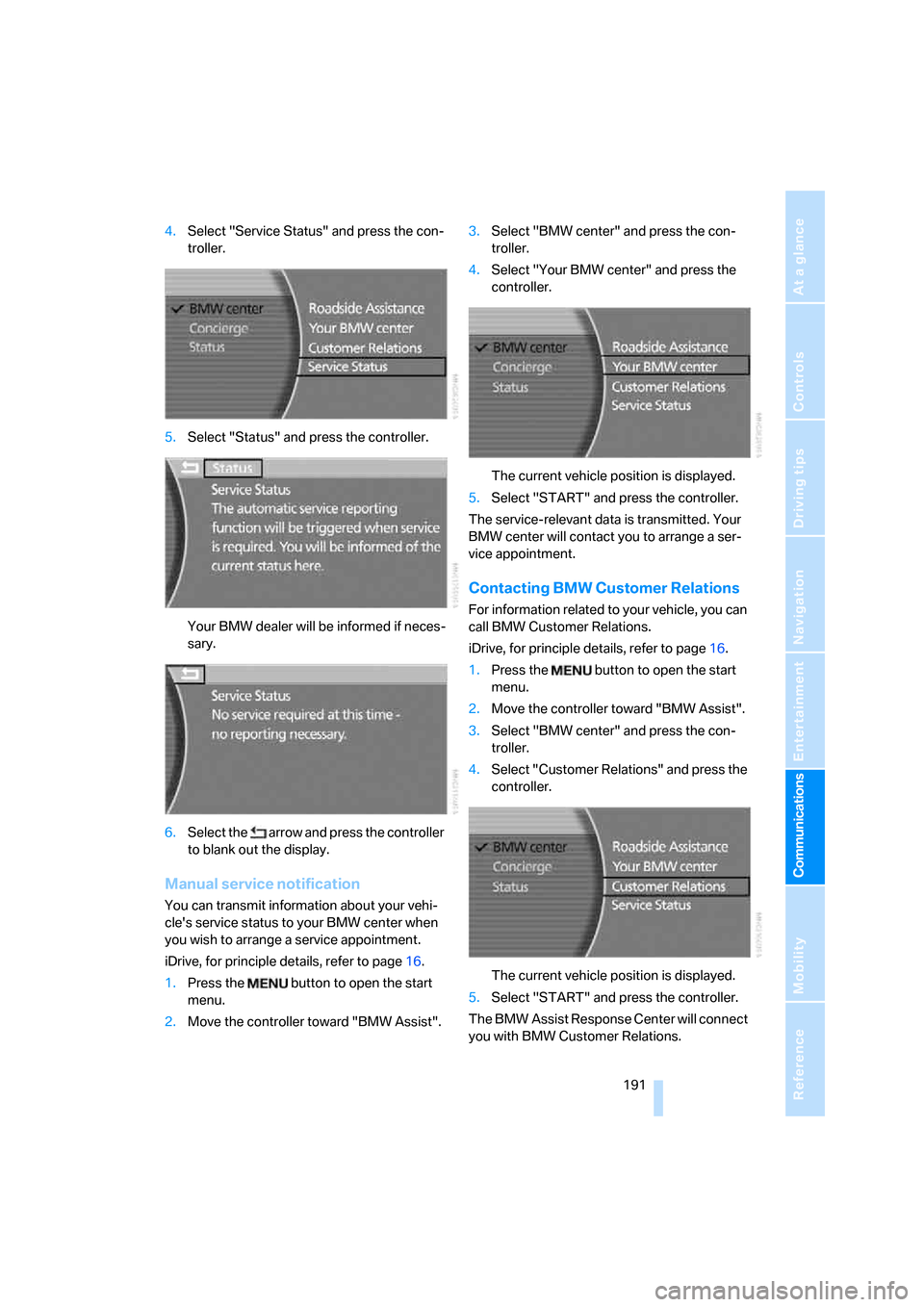
4.Select "Service Status" and press the con-
troller.
5.Select "Status" and press the controller.
Your BMW dealer will be informed if neces-
sary.
6.Select the arrow and press the controller
to blank out the display.
Manual service notification
You can transmit information about your vehi-
cle's service status to your BMW center when
you wish to arrange a service appointment.
iDrive, for principle details, refer to page16.
1.Press the button to open the start
menu.
2.Move the controller toward "BMW Assist".3.Select "BMW center" and press the con-
troller.
4.Select "Your BMW center" and press the
controller.
The current vehicle position is displayed.
5.Select "START" and press the controller.
The service-relevant data is transmitted. Your
BMW center will contact you to arrange a ser-
vice appointment.
Contacting BMW Customer Relations
For information related to your vehicle, you can
call BMW Customer Relations.
iDrive, for principle details, refer to page16.
1.Press the button to open the start
menu.
2.Move the controller toward "BMW Assist".
3.Select "BMW center" and press the con-
troller.
4.Select "Customer Relations" and press the
controller.
The current vehicle position is displayed.
5.Select "START" and press the controller.
The BMW Assist Response Center will connect
you with BMW Customer Relations.
Page 194 of 254
BMW Assist
192
Info service*
When you call BMW Assist's info service, you
can obtain information, for example about cur-
rent events, gas stations or hotels, as well as
receive the relevant telephone numbers and
addresses. Many hotels can be reserved
directly from the BMW info service.
The info service must be enabled separately by
the BMW Assist Response Center.
Calling up information
iDrive, for principle details, refer to page16.
1.Press the button to open the start
menu.
2.Move the controller toward "BMW Assist".
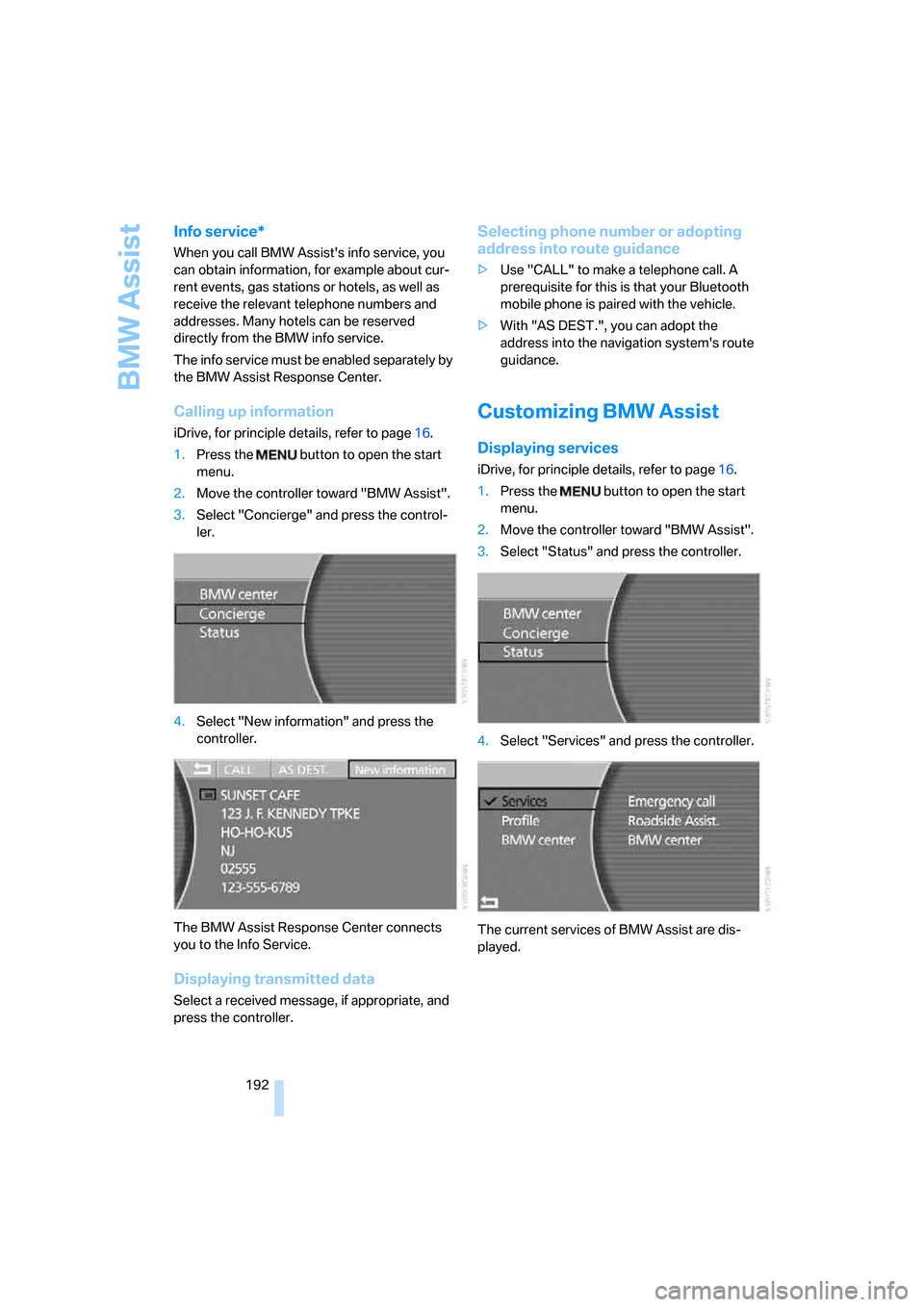
3.Select "Concierge" and press the control-
ler.
4.Select "New information" and press the
controller.
The BMW Assist Response Center connects
you to the Info Service.
Displaying transmitted data
Select a received message, if appropriate, and
press the controller.
Selecting phone number or adopting
address into route guidance
>Use "CALL" to make a telephone call. A
prerequisite for this is that your Bluetooth
mobile phone is paired with the vehicle.
>With "AS DEST.", you can adopt the
address into the navigation system's route
guidance.
Customizing BMW Assist
Displaying services
iDrive, for principle details, refer to page16.
1.Press the button to open the start
menu.
2.Move the controller toward "BMW Assist".
3.Select "Status" and press the controller.
4.Select "Services" and press the controller.
The current services of BMW Assist are dis-
played.
Page 195 of 254
193
Entertainment
Reference
At a glance
Controls
Driving tips Communications
Navigation
Mobility
Updating services
You will be notified of any changes in the ser-
vices offered by BMW Assist. If this occurs, you
should update the services.
iDrive, for principle details, refer to page16.
1.Press the button to open the start
menu.
2.Move the controller toward "BMW Assist".
3.Select "Status" and press the controller.
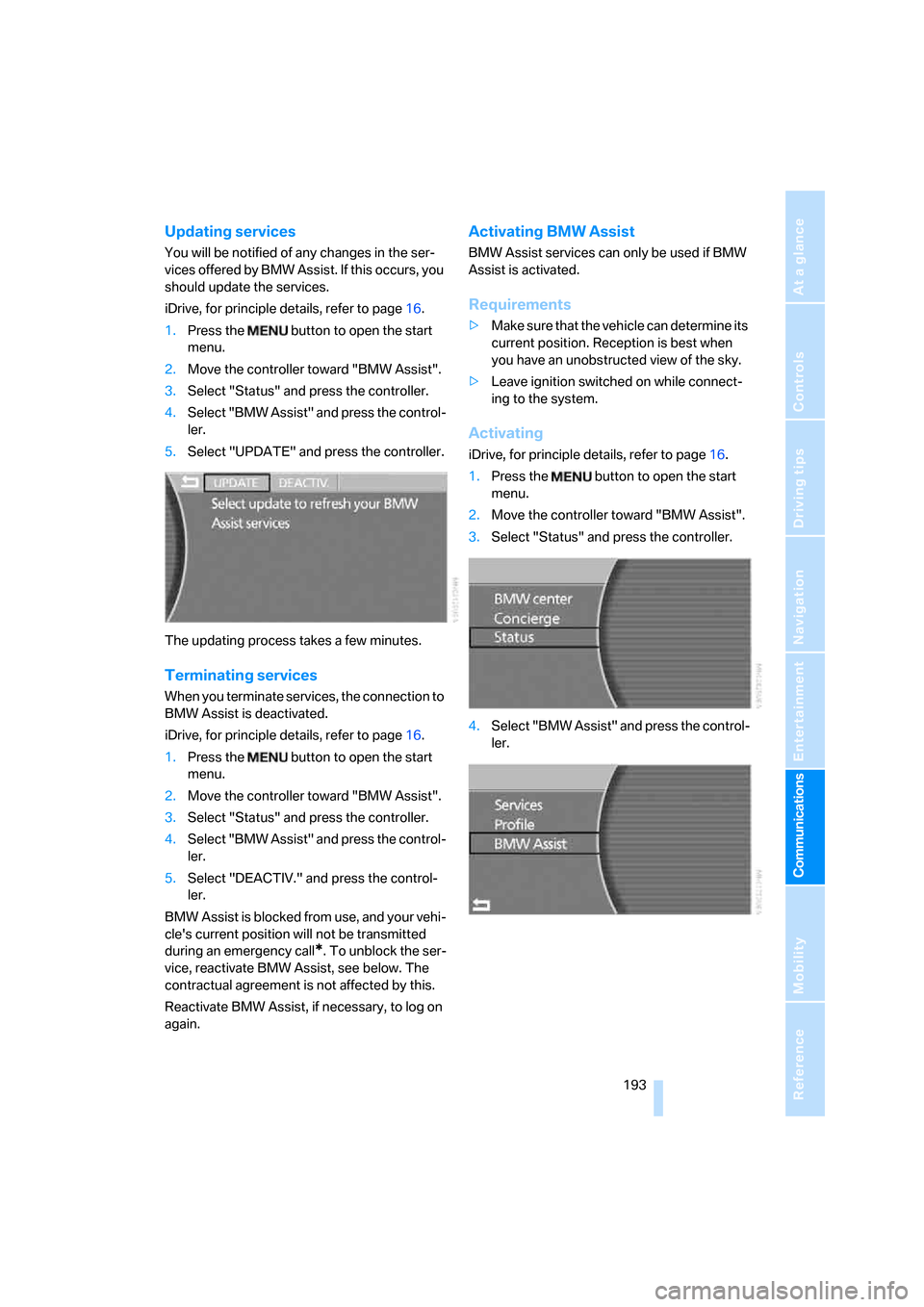
4.Select "BMW Assist" and press the control-
ler.
5.Select "UPDATE" and press the controller.
The updating process takes a few minutes.
Terminating services
When you terminate services, the connection to
BMW Assist is deactivated.
iDrive, for principle details, refer to page16.
1.Press the button to open the start
menu.
2.Move the controller toward "BMW Assist".
3.Select "Status" and press the controller.
4.Select "BMW Assist" and press the control-
ler.
5.Select "DEACTIV." and press the control-
ler.
BMW Assist is blocked from use, and your vehi-
cle's current position will not be transmitted
during an emergency call
*. To unblock the ser-
vice, reactivate BMW Assist, see below. The
contractual agreement is not affected by this.
Reactivate BMW Assist, if necessary, to log on
again.
Activating BMW Assist
BMW Assist services can only be used if BMW
Assist is activated.
Requirements
>Make sure that the vehicle can determine its
current position. Reception is best when
you have an unobstructed view of the sky.
>Leave ignition switched on while connect-
ing to the system.
Activating
iDrive, for principle details, refer to page16.
1.Press the button to open the start
menu.
2.Move the controller toward "BMW Assist".
3.Select "Status" and press the controller.
4.Select "BMW Assist" and press the control-
ler.