buttons BMW 760i 2005 E65 User Guide
[x] Cancel search | Manufacturer: BMW, Model Year: 2005, Model line: 760i, Model: BMW 760i 2005 E65Pages: 239, PDF Size: 8.03 MB
Page 72 of 239
Driving
70
Sport program and manual operation
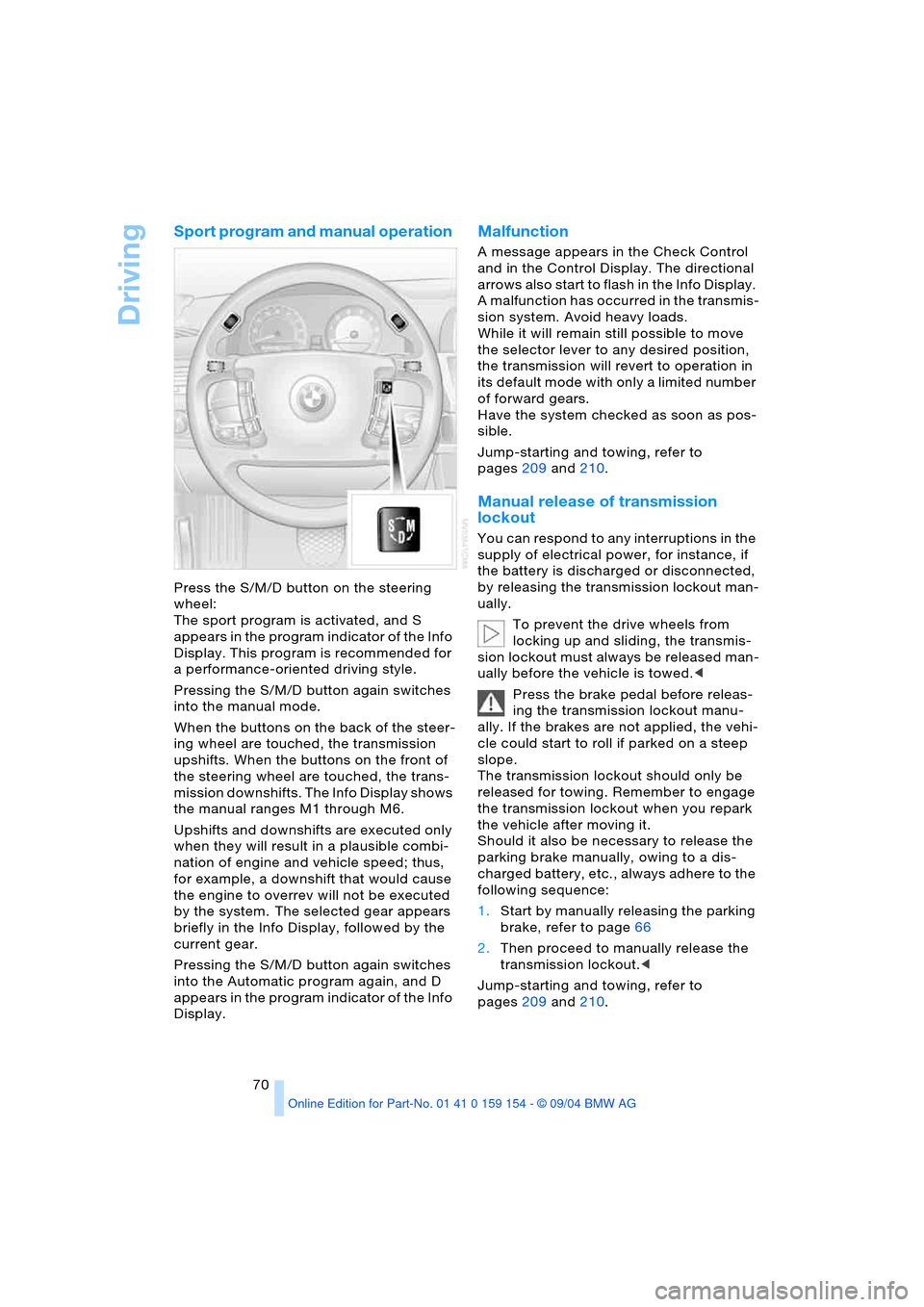
Press the S/M/D button on the steering
wheel:
The sport program is activated, and S
appears in the program indicator of the Info
Display. This program is recommended for
a performance-oriented driving style.
Pressing the S/M/D button again switches
into the manual mode.
When the buttons on the back of the steer-
ing wheel are touched, the transmission
upshifts. When the buttons on the front of
the steering wheel are touched, the trans-
mission downshifts. The Info Display shows
the manual ranges M1 through M6.
Upshifts and downshifts are executed only
when they will result in a plausible combi-
nation of engine and vehicle speed; thus,
for example, a downshift that would cause
the engine to overrev will not be executed
by the system. The selected gear appears
briefly in the Info Display, followed by the
current gear.
Pressing the S/M/D button again switches
into the Automatic program again, and D
appears in the program indicator of the Info
Display.
Malfunction
A message appears in the Check Control
and in the Control Display. The directional
arrows also start to flash in the Info Display.
A malfunction has occurred in the transmis-
sion system. Avoid heavy loads.
While it will remain still possible to move
the selector lever to any desired position,
the transmission will revert to operation in
its default mode with only a limited number
of forward gears.
Have the system checked as soon as pos-
sible.
Jump-starting and towing, refer to
pages209 and210.
Manual release of transmission
lockout
You can respond to any interruptions in the
supply of electrical power, for instance, if
the battery is discharged or disconnected,
by releasing the transmission lockout man-
ually.
To prevent the drive wheels from
locking up and sliding, the transmis-
sion lockout must always be released man-
ually before the vehicle is towed.<
Press the brake pedal before releas-
ing the transmission lockout manu-
ally. If the brakes are not applied, the vehi-
cle could start to roll if parked on a steep
slope.
The transmission lockout should only be
released for towing. Remember to engage
the transmission lockout when you repark
the vehicle after moving it.
Should it also be necessary to release the
parking brake manually, owing to a dis-
charged battery, etc., always adhere to the
following sequence:
1.Start by manually releasing the parking
brake, refer to page66
2.Then proceed to manually release the
transmission lockout.<
Jump-starting and towing, refer to
pages209 and210.
Page 84 of 239
Everything under control
82
Service requirement display
Info Display screen contents
The distance/period remaining until your
next service briefly appears when you
switch on the ignition.
The Info Display immediately
switches to its computer mode when
you press one of the two buttons in the turn
signal lever, refer to page85.<
Control Display
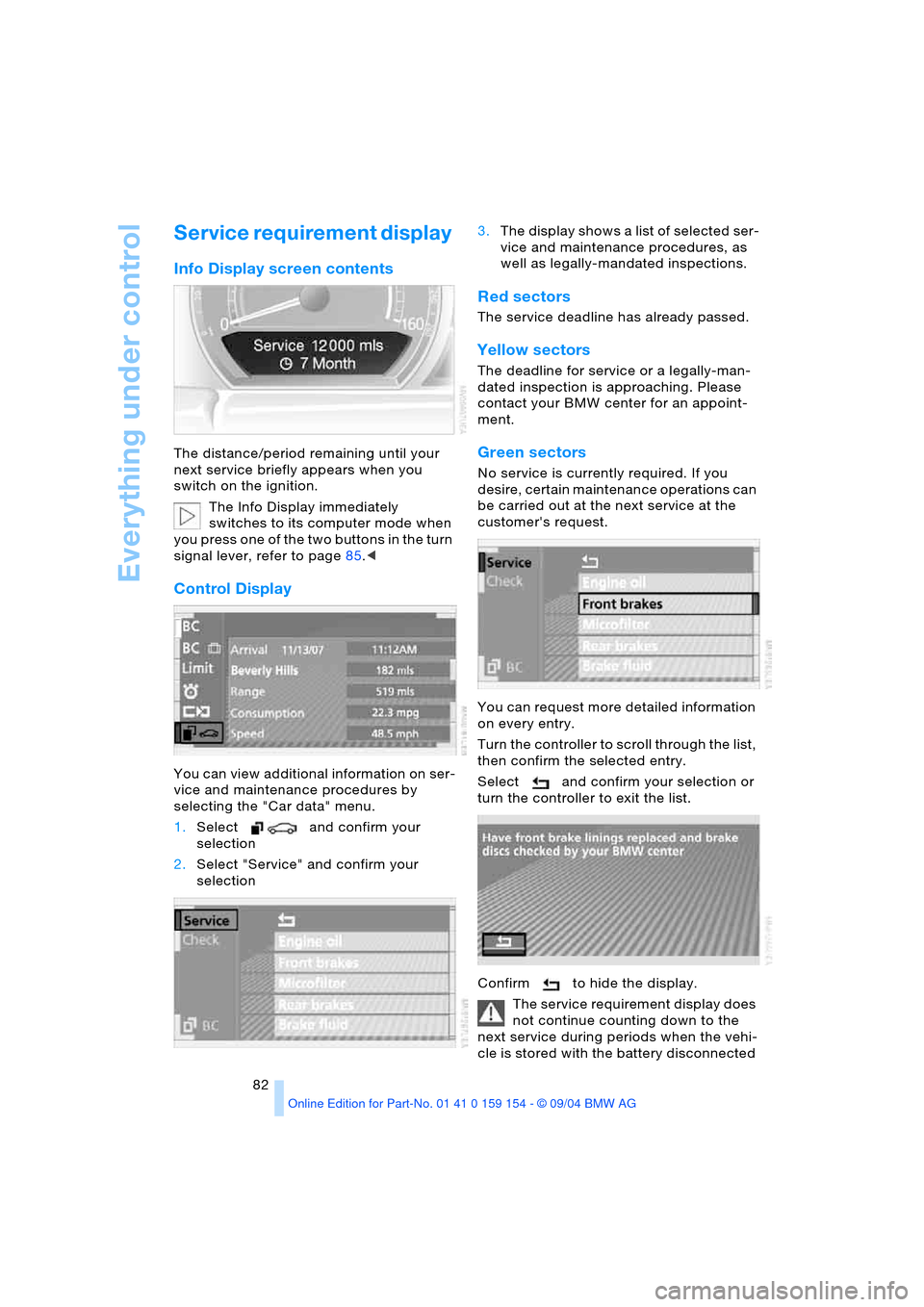
You can view additional information on ser-
vice and maintenance procedures by
selecting the "Car data" menu.
1.Select and confirm your
selection
2.Select "Service" and confirm your
selection 3.The display shows a list of selected ser-
vice and maintenance procedures, as
well as legally-mandated inspections.
Red sectors
The service deadline has already passed.
Yellow sectors
The deadline for service or a legally-man-
dated inspection is approaching. Please
contact your BMW center for an appoint-
ment.
Green sectors
No service is currently required. If you
desire, certain maintenance operations can
be carried out at the next service at the
customer's request.
You can request more detailed information
on every entry.
Turn the controller to scroll through the list,
then confirm the selected entry.
Select and confirm your selection or
turn the controller to exit the list.
Confirm to hide the display.
The service requirement display does
not continue counting down to the
next service during periods when the vehi-
cle is stored with the battery disconnected
Page 87 of 239
Controls
85Reference
At a glance
Driving tips
Communications
Navigation
Entertainment
Mobility
Confirm to hide the display.
Displays after completion of trip
Selected fault reports generated during the
trip are shown consecutively when you
switch off the ignition.
If indicated, the following message may
also appear:
"Parking lamps on!"
This message appears when you open the
driver's door after parking. A supplemen-
tary gong is also heard.
Even with the ignition and Info Display off,
you can reactivate the screen and display
the messages.
Press the CHECK button for approx.
8 seconds, refer to page84. The stored
status reports appear again in the display. If
several messages are present, you can
continue to briefly press the CHECK button
to view them in succession.
The Check Control function
>cancels itself automatically after a brief
period
>can be canceled by again pressing the
CHECK button for approximately
8seconds.
You can select the language in which
Check Control status reports and
messages from the computer will appear,
refer to page89.<
Computer
Requesting functions
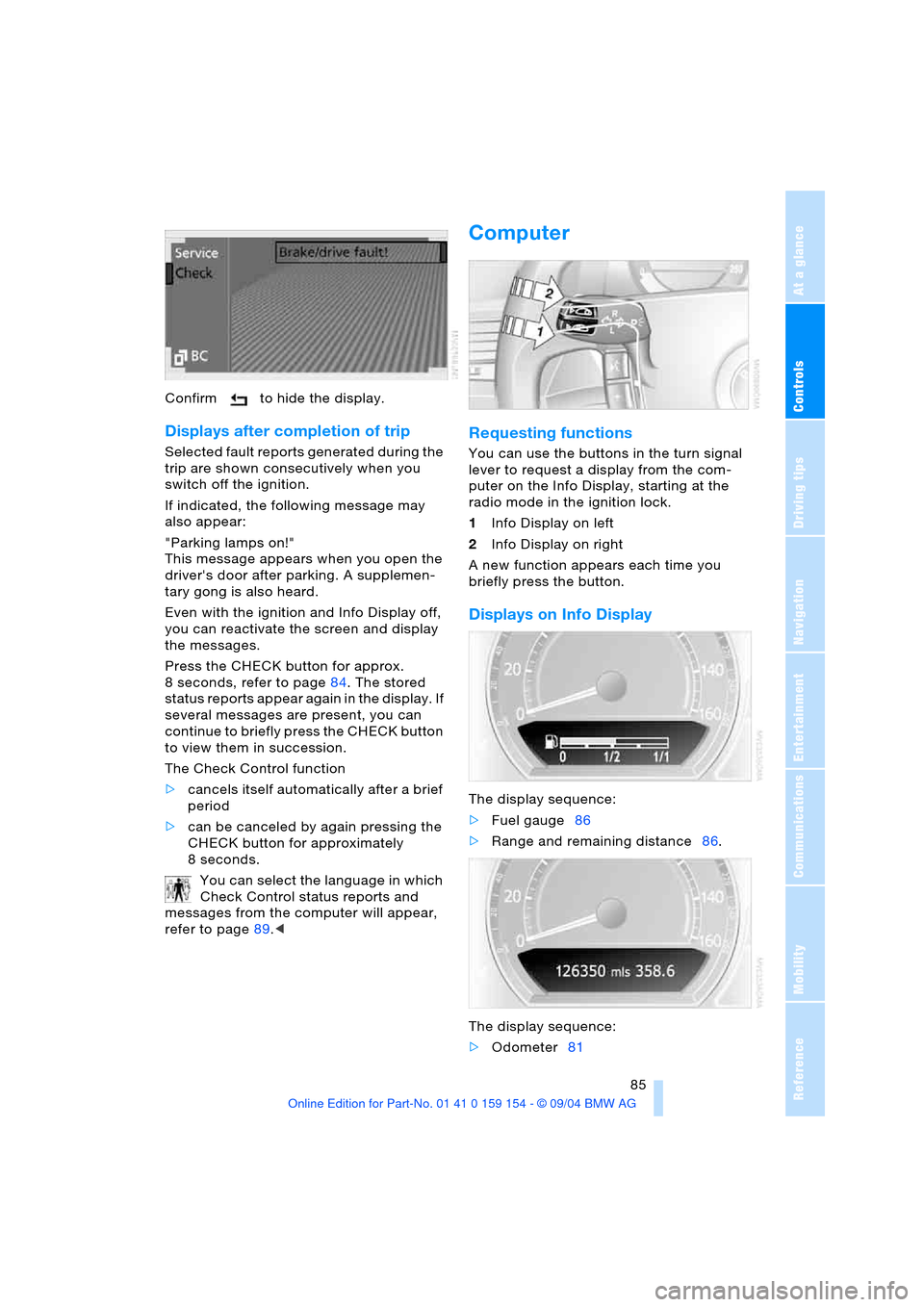
You can use the buttons in the turn signal
lever to request a display from the com-
puter on the Info Display, starting at the
radio mode in the ignition lock.
1Info Display on left
2Info Display on right
A new function appears each time you
briefly press the button.
Displays on Info Display
The display sequence:
>Fuel gauge86
>Range and remaining distance86.
The display sequence:
>Odometer81
Page 109 of 239
Controls
107Reference
At a glance
Driving tips
Communications
Navigation
Entertainment
Mobility
Switching off automatic climate
control*
The air supply, the heater and
the air conditioner are all
switched off. You can restart
the automatic climate control
by pressing any of its buttons
except the REST button.
Settings using Control Center
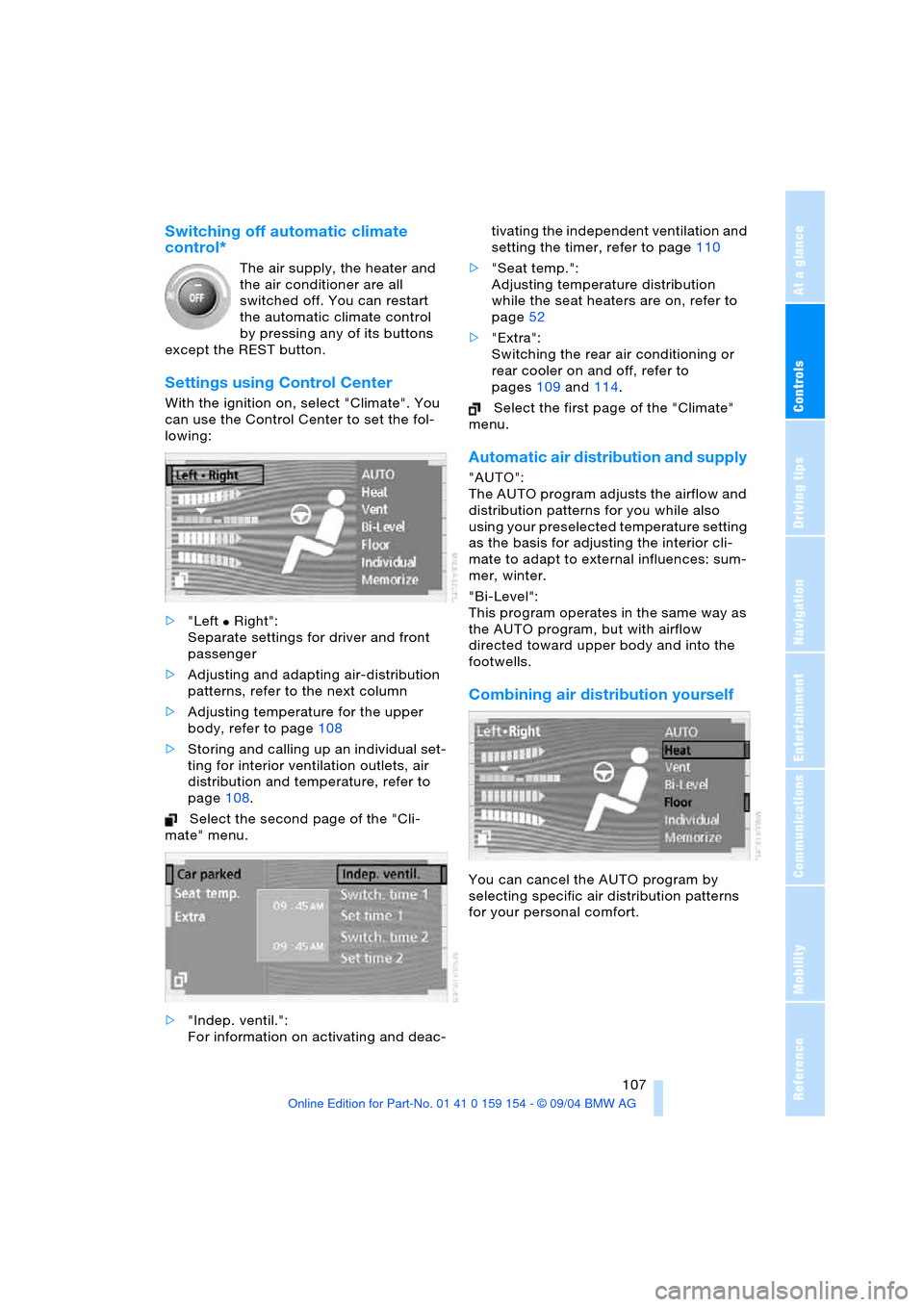
With the ignition on, select "Climate". You
can use the Control Center to set the fol-
lowing:
>"Left
Χ Right":
Separate settings for driver and front
passenger
>Adjusting and adapting air-distribution
patterns, refer to the next column
>Adjusting temperature for the upper
body, refer to page108
>Storing and calling up an individual set-
ting for interior ventilation outlets, air
distribution and temperature, refer to
page108.
Select the second page of the "Cli-
mate" menu.
>"Indep. ventil.":
For information on activating and deac-tivating the independent ventilation and
setting the timer, refer to page110
>"Seat temp.":
Adjusting temperature distribution
while the seat heaters are on, refer to
page52
>"Extra":
Switching the rear air conditioning or
rear cooler on and off, refer to
pages109 and114.
Select the first page of the "Climate"
menu.
Automatic air distribution and supply
"AUTO":
The AUTO program adjusts the airflow and
distribution patterns for you while also
using your preselected temperature setting
as the basis for adjusting the interior cli-
mate to adapt to external influences: sum-
mer, winter.
"Bi-Level":
This program operates in the same way as
the AUTO program, but with airflow
directed toward upper body and into the
footwells.
Combining air distribution yourself
You can cancel the AUTO program by
selecting specific air distribution patterns
for your personal comfort.
Page 150 of 239
On/off, tone
148
On/off, tone
Controls
Operation using buttons
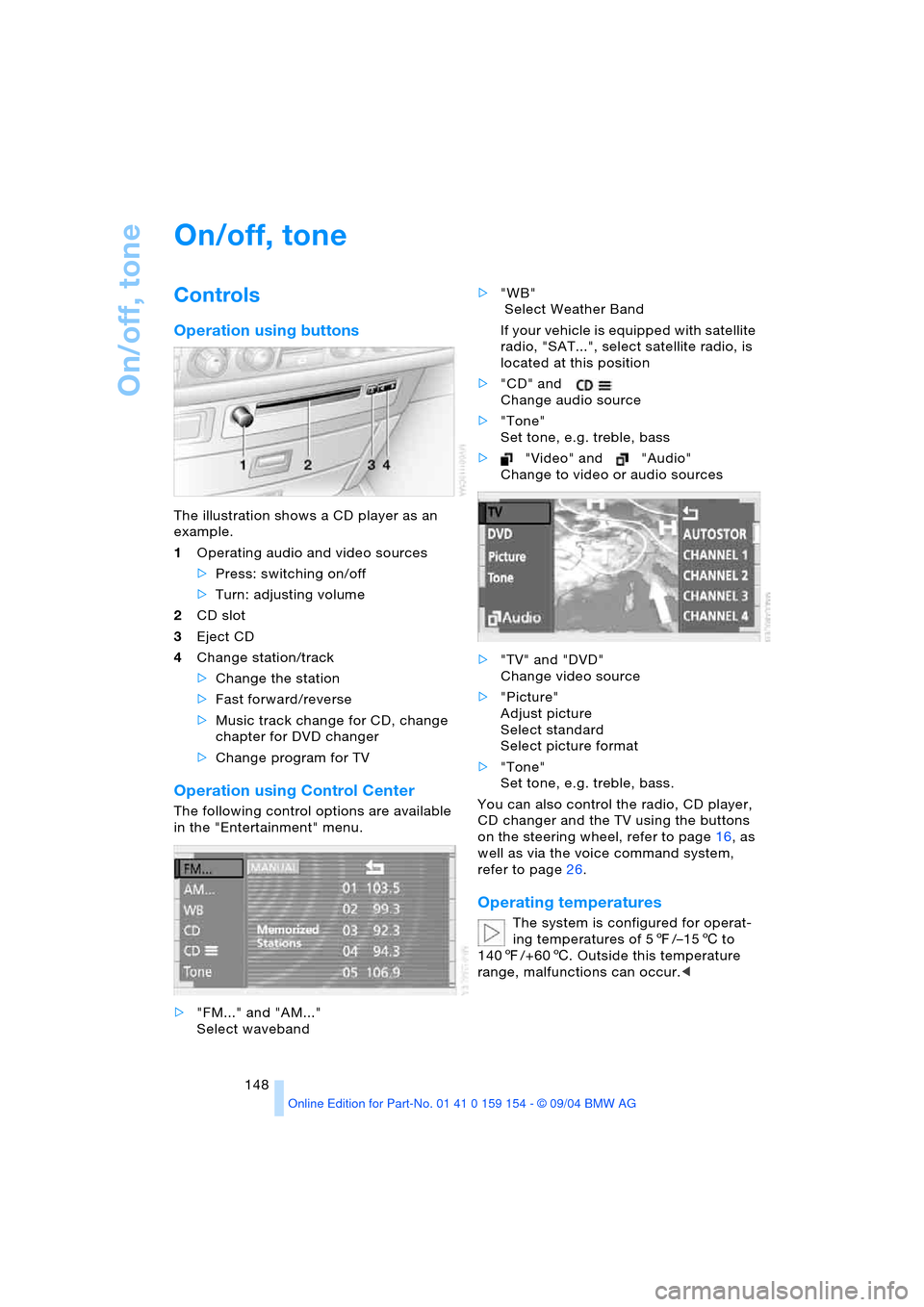
The illustration shows a CD player as an
example.
1Operating audio and video sources
>Press: switching on/off
>Turn: adjusting volume
2CD slot
3Eject CD
4Change station/track
>Change the station
>Fast forward/reverse
>Music track change for CD, change
chapter for DVD changer
>Change program for TV
Operation using Control Center
The following control options are available
in the "Entertainment" menu.
>"FM..." and "AM..."
Select waveband>"WB"
Select Weather Band
If your vehicle is equipped with satellite
radio, "SAT...", select satellite radio, is
located at this position
>"CD" and
Change audio source
>"Tone"
Set tone, e.g. treble, bass
>"Video" and "Audio"
Change to video or audio sources
>"TV" and "DVD"
Change video source
>"Picture"
Adjust picture
Select standard
Select picture format
>"Tone"
Set tone, e.g. treble, bass.
You can also control the radio, CD player,
CD changer and the TV using the buttons
on the steering wheel, refer to page16, as
well as via the voice command system,
refer to page26.
Operating temperatures
The system is configured for operat-
ing temperatures of 57/–156 to
1407/+606. Outside this temperature
range, malfunctions can occur.<
Page 155 of 239
Navigation
Entertainment
Driving tips
153Reference
At a glance
Controls
Communications
Mobility
2.Select "MANUAL" and confirm your
selection.
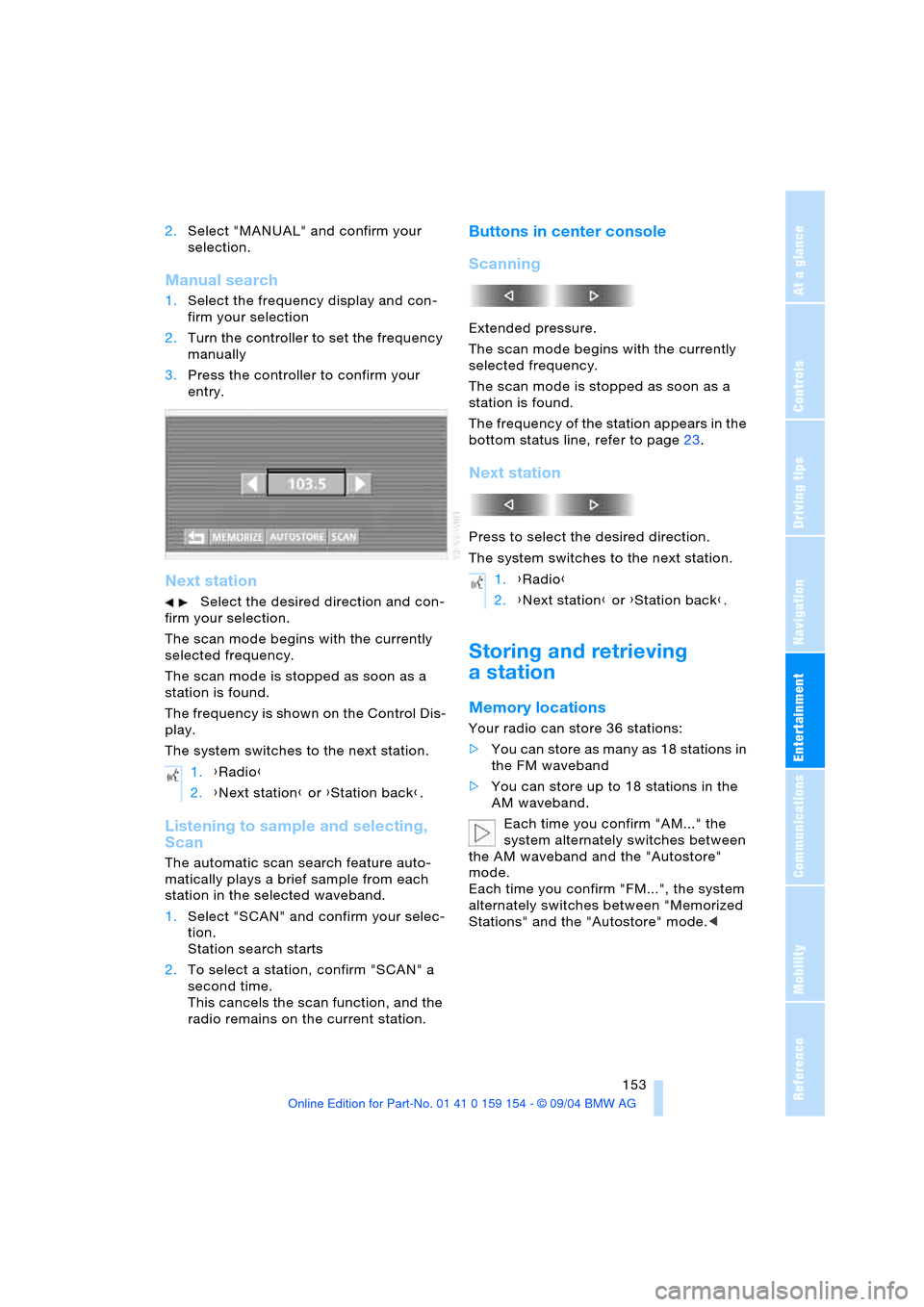
Manual search
1.Select the frequency display and con-
firm your selection
2.Turn the controller to set the frequency
manually
3.Press the controller to confirm your
entry.
Next station
Select the desired direction and con-
firm your selection.
The scan mode begins with the currently
selected frequency.
The scan mode is stopped as soon as a
station is found.
The frequency is shown on the Control Dis-
play.
The system switches to the next station.
Listening to sample and selecting,
Scan
The automatic scan search feature auto-
matically plays a brief sample from each
station in the selected waveband.
1.Select "SCAN" and confirm your selec-
tion.
Station search starts
2.To select a station, confirm "SCAN" a
second time.
This cancels the scan function, and the
radio remains on the current station.
Buttons in center console
Scanning
Extended pressure.
The scan mode begins with the currently
selected frequency.
The scan mode is stopped as soon as a
station is found.
The frequency of the station appears in the
bottom status line, refer to page23.
Next station
Press to select the desired direction.
The system switches to the next station.
Storing and retrieving
a station
Memory locations
Your radio can store 36 stations:
>You can store as many as 18 stations in
the FM waveband
>You can store up to 18 stations in the
AM waveband.
Each time you confirm "AM..." the
system alternately switches between
the AM waveband and the "Autostore"
mode.
Each time you confirm "FM...", the system
alternately switches between "Memorized
Stations" and the "Autostore" mode.< 1.{Radio}
2.{Next station} or {Station back}.
1.{Radio}
2.{Next station} or {Station back}.
Page 160 of 239
CD Compact Disc
158
CD Compact Disc
Listening to CDs
Insert the CD in the slot.
If a CD is already inserted in the CD player:
Start playback.
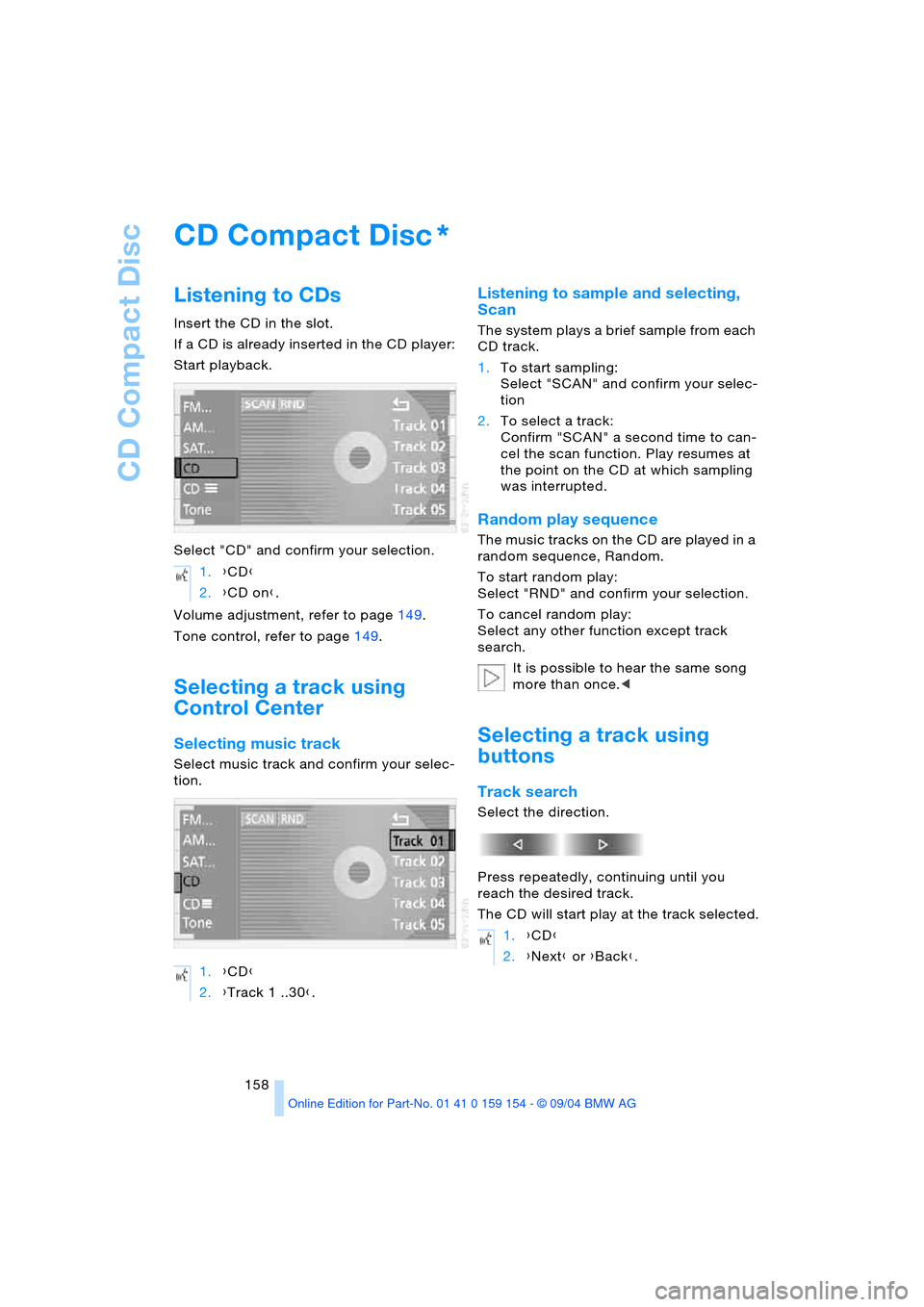
Select "CD" and confirm your selection.
Volume adjustment, refer to page149.
Tone control, refer to page149.
Selecting a track using
Control Center
Selecting music track
Select music track and confirm your selec-
tion.
Listening to sample and selecting,
Scan
The system plays a brief sample from each
CD track.
1.To start sampling:
Select "SCAN" and confirm your selec-
tion
2.To select a track:
Confirm "SCAN" a second time to can-
cel the scan function. Play resumes at
the point on the CD at which sampling
was interrupted.
Random play sequence
The music tracks on the CD are played in a
random sequence, Random.
To start random play:
Select "RND" and confirm your selection.
To cancel random play:
Select any other function except track
search.
It is possible to hear the same song
more than once.<
Selecting a track using
buttons
Track search
Select the direction.
Press repeatedly, continuing until you
reach the desired track.
The CD will start play at the track selected.
*
1.{CD}
2.{CD on}.
1.{CD}
2.{Track 1 ..30}.
1.{CD}
2.{Next} or {Back}.
Page 163 of 239
Navigation
Entertainment
Driving tips
161Reference
At a glance
Controls
Communications
Mobility
If the CD magazine has been newly filled,
playback begins with the lowest CD, e.g.
CD 1, track 1.
Volume adjustment, refer to page149.
Tone control, refer to page149.
If you play self-recorded audio CDs,
faults, e.g. drop-outs, can occur, or
the CD is not played at all.<
Status displays
The CD magazine's load status is indicated
on the Control Display.
If the display fails to detect a CD that
you have loaded in the magazine,
check to ensure that the CD has been
inserted correctly and inspect it for signs of
defects.<
Selecting a track using
Control Center
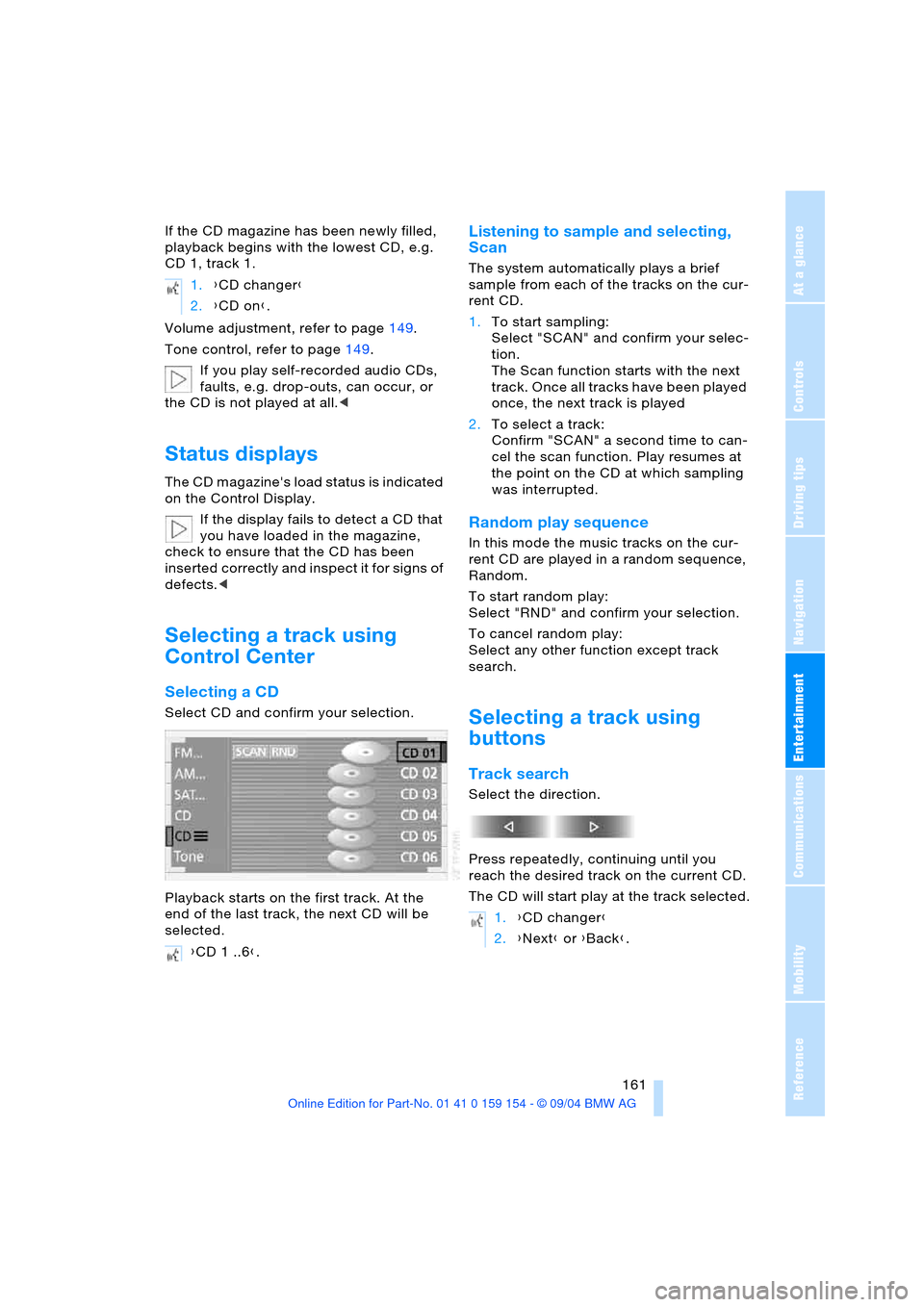
Selecting a CD
Select CD and confirm your selection.
Playback starts on the first track. At the
end of the last track, the next CD will be
selected.
Listening to sample and selecting,
Scan
The system automatically plays a brief
sample from each of the tracks on the cur-
rent CD.
1.To start sampling:
Select "SCAN" and confirm your selec-
tion.
The Scan function starts with the next
track. Once all tracks have been played
once, the next track is played
2.To select a track:
Confirm "SCAN" a second time to can-
cel the scan function. Play resumes at
the point on the CD at which sampling
was interrupted.
Random play sequence
In this mode the music tracks on the cur-
rent CD are played in a random sequence,
Random.
To start random play:
Select "RND" and confirm your selection.
To cancel random play:
Select any other function except track
search.
Selecting a track using
buttons
Track search
Select the direction.
Press repeatedly, continuing until you
reach the desired track on the current CD.
The CD will start play at the track selected. 1.{CD changer}
2.{CD on}.
{CD 1 ..6}.
1.{CD changer}
2.{Next} or {Back}.
Page 170 of 239
DVD changer
168
Searching for chapter
You can change to the next or previ-
ous chapter during playback.<
1.Display DVD controller, refer to
page166
2.Select the direction
and confirm repeatedly, continuing until
you reach the desired chapter
or with buttons
select the direction.
Press repeatedly, continuing until you
reach the desired chapter on the current
DVD.
Playback begins at the chapter selected.
Adjusting picture
1.During playback, press controller
2.Select and confirm your selection
3.Adjusting the picture, refer to page164.
Freezing frame
1.Display DVD controller, refer to
page166
2.At the desired point:
Select and confirm your selec-
tion.
The film is stopped
3.To restart the DVD:
Select or and confirm your
selection.
DVD playback is continued at the point
at which it was interrupted.
Selecting picture format
You can adjust the DVD format to your
screen.
The picture format is a DVD-specific func-
tion and is not offered by all DVDs.
1.Display DVD controller, refer to
page166
2.Select and confirm your selection
3.Select and confirm your selection
4.Select "Picture" and confirm your selec-
tion
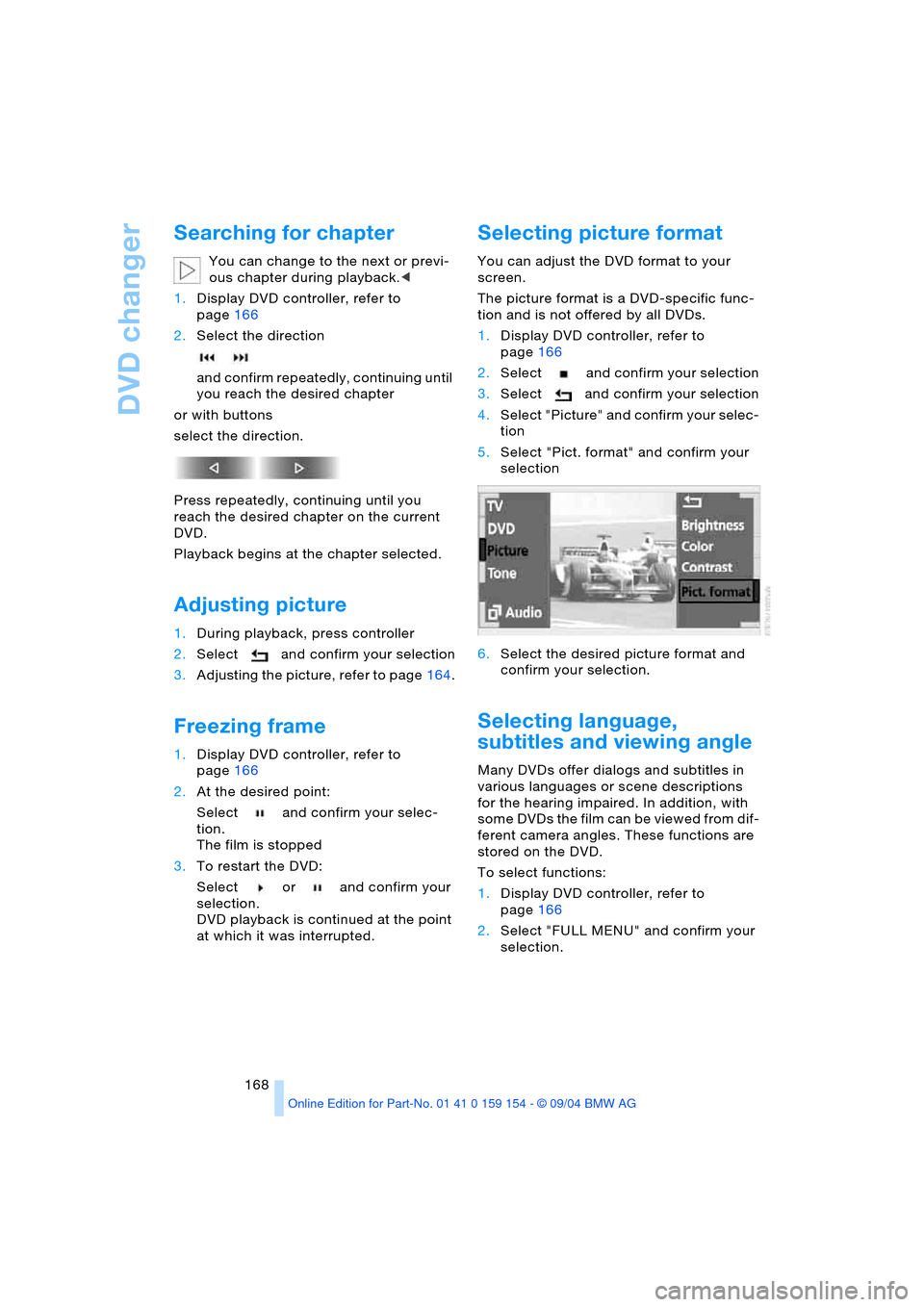
5.Select "Pict. format" and confirm your
selection
6.Select the desired picture format and
confirm your selection.
Selecting language,
subtitles and viewing angle
Many DVDs offer dialogs and subtitles in
various languages or scene descriptions
for the hearing impaired. In addition, with
some DVDs the film can be viewed from dif-
ferent camera angles. These functions are
stored on the DVD.
To select functions:
1.Display DVD controller, refer to
page166
2.Select "FULL MENU" and confirm your
selection.
Page 179 of 239
177
Entertainment
Reference
At a glance
Controls
Driving tips Communications
Navigation
Mobility
Hands-free system
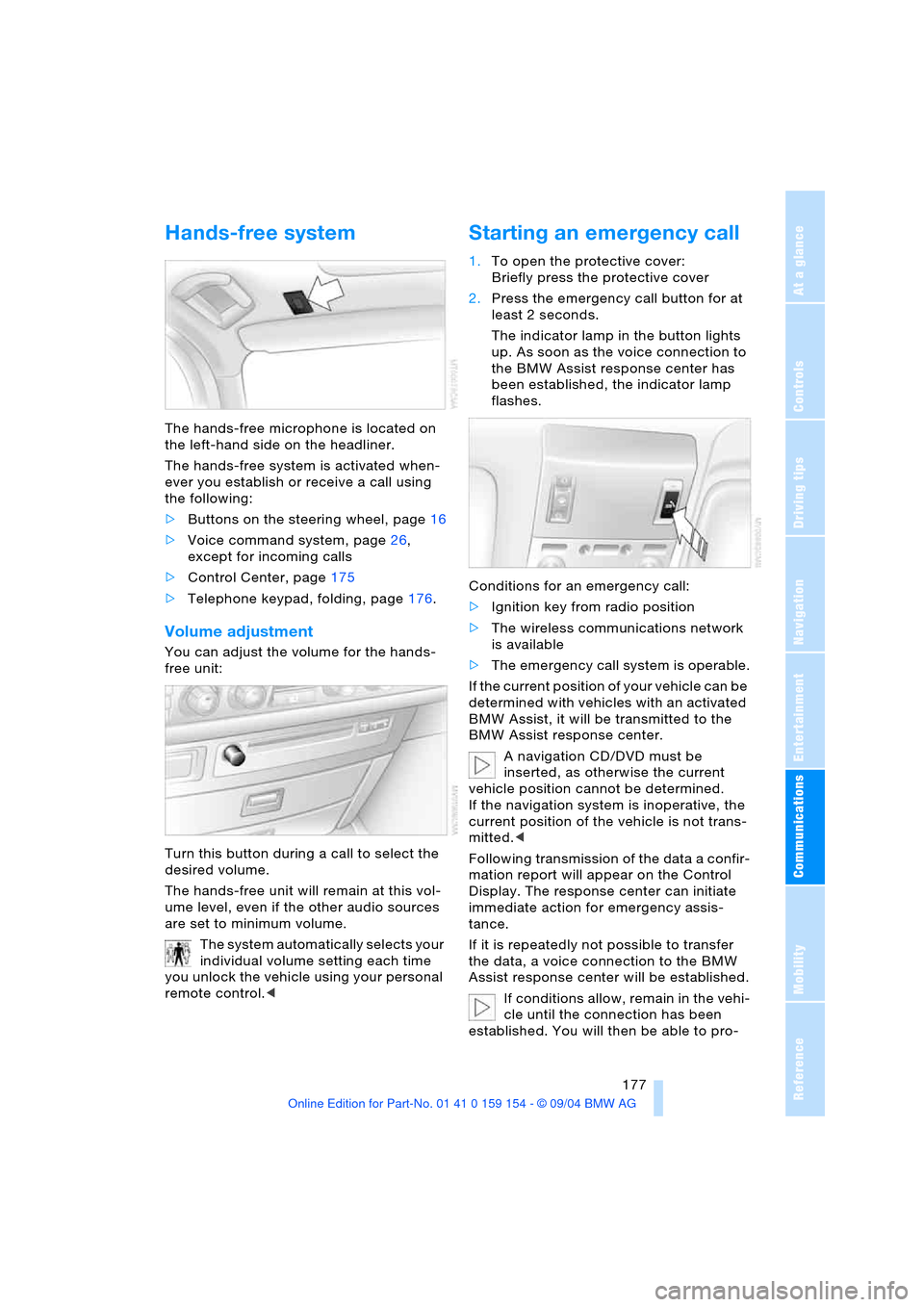
The hands-free microphone is located on
the left-hand side on the headliner.
The hands-free system is activated when-
ever you establish or receive a call using
the following:
>Buttons on the steering wheel, page16
>Voice command system, page26,
except for incoming calls
>Control Center, page175
>Telephone keypad, folding, page176.
Volume adjustment
You can adjust the volume for the hands-
free unit:
Turn this button during a call to select the
desired volume.
The hands-free unit will remain at this vol-
ume level, even if the other audio sources
are set to minimum volume.
The system automatically selects your
individual volume setting each time
you unlock the vehicle using your personal
remote control.<
Starting an emergency call
1.To open the protective cover:
Briefly press the protective cover
2.Press the emergency call button for at
least 2 seconds.
The indicator lamp in the button lights
up. As soon as the voice connection to
the BMW Assist response center has
been established, the indicator lamp
flashes.
Conditions for an emergency call:
>Ignition key from radio position
>The wireless communications network
is available
>The emergency call system is operable.
If the current position of your vehicle can be
determined with vehicles with an activated
BMW Assist, it will be transmitted to the
BMW Assist response center.
A navigation CD/DVD must be
inserted, as otherwise the current
vehicle position cannot be determined.
If the navigation system is inoperative, the
current position of the vehicle is not trans-
mitted.<
Following transmission of the data a confir-
mation report will appear on the Control
Display. The response center can initiate
immediate action for emergency assis-
tance.
If it is repeatedly not possible to transfer
the data, a voice connection to the BMW
Assist response center will be established.
If conditions allow, remain in the vehi-
cle until the connection has been
established. You will then be able to pro-