navigation BMW 760LI SEDAN 2003 User Guide
[x] Cancel search | Manufacturer: BMW, Model Year: 2003, Model line: 760LI SEDAN, Model: BMW 760LI SEDAN 2003Pages: 229, PDF Size: 4.35 MB
Page 24 of 229
Control Center
22
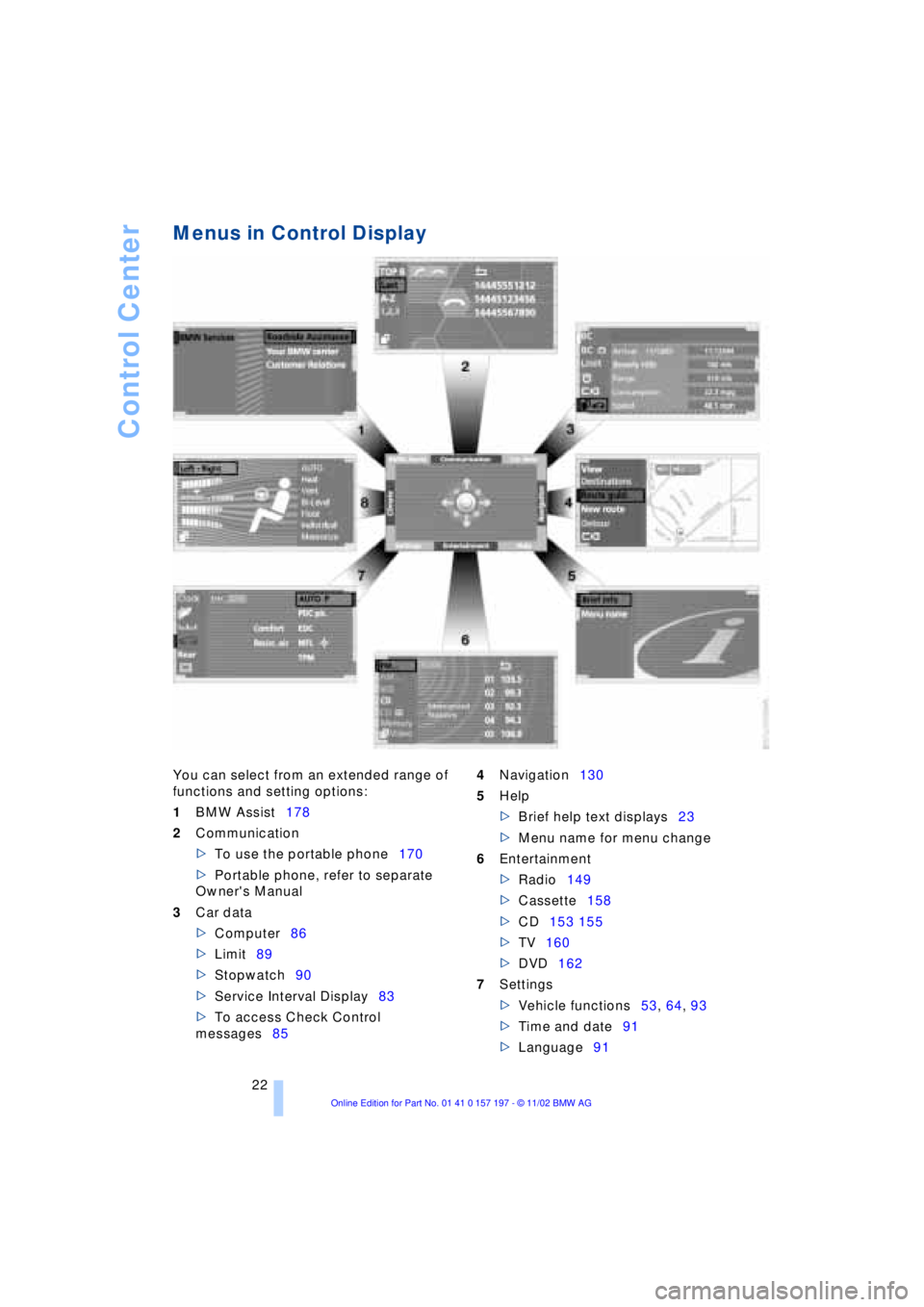
Menus in Control Display
You can select from an extended range of
functions and setting options:
1BMW Assist178
2Communication
>To use the portable phone170
>Portable phone, refer to separate
Owner's Manual
3Car data
>Computer86
>Limit89
>Stopwatch90
>Service Interval Display83
>To access Check Control
messages854Navigation130
5Help
>Brief help text displays23
>Menu name for menu change
6Entertainment
>Radio149
>Cassette158
>CD153 155
>TV160
>DVD162
7Settings
>Vehicle functions53, 64, 93
>Time and date91
>Language91
Page 25 of 229
At a glance
Controls
Driving tips
Communications
Navigation
Entertainment
Mobility
Reference
23
>Units of measure and display
format91
>Brightness92
>Lock Control Center in rear24
8Climate
>Automatic climate control105
>Heated seats51
>Parked-car ventilation system112
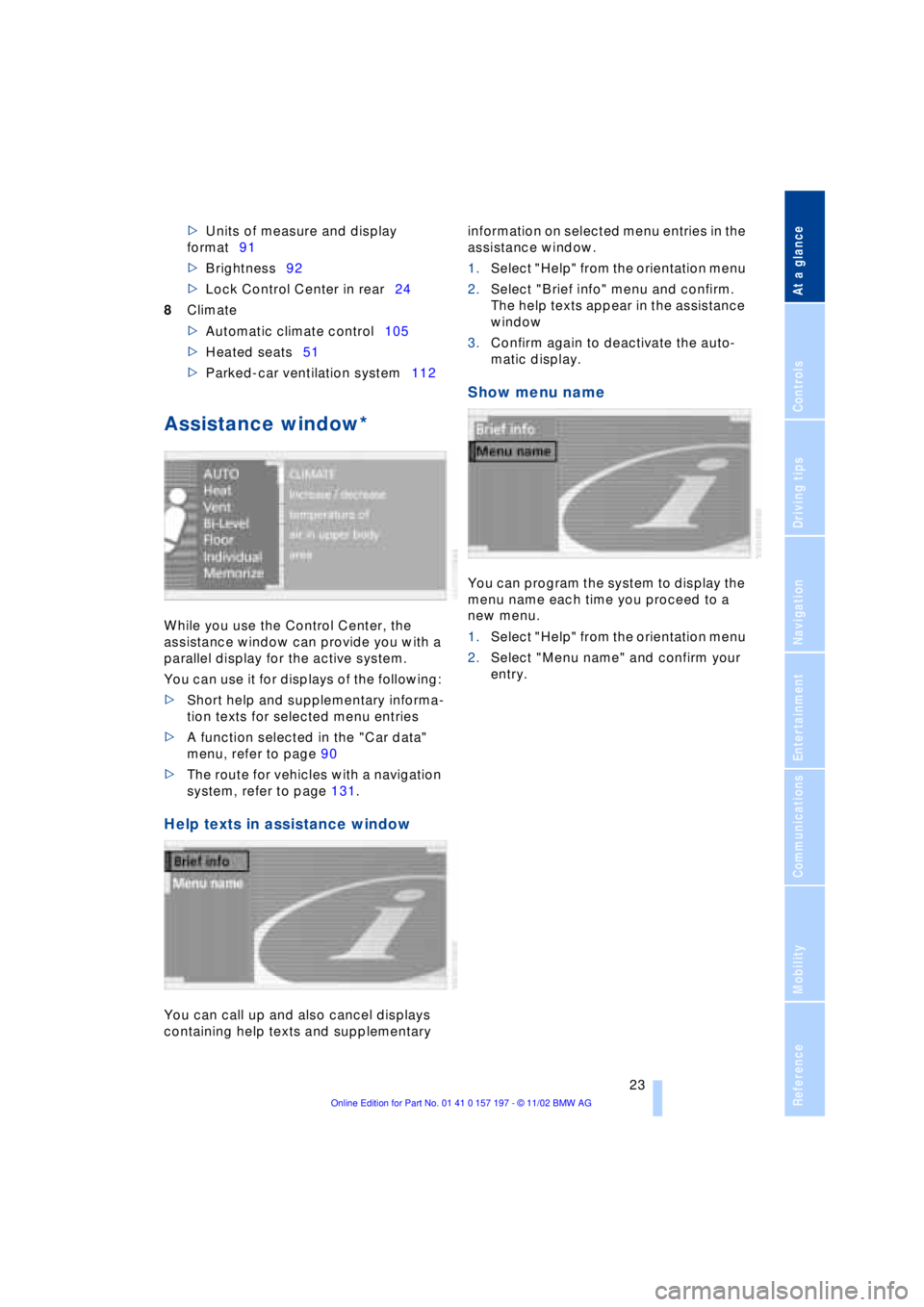
Assistance window*
While you use the Control Center, the
assistance window can provide you with a
parallel display for the active system.
You can use it for displays of the following:
>Short help and supplementary informa-
tion texts for selected menu entries
>A function selected in the "Car data"
menu, refer to page 90
>The route for vehicles with a navigation
system, refer to page 131.
Help texts in assistance window
You can call up and also cancel displays
containing help texts and supplementary information on selected menu entries in the
assistance window.
1.Select "Help" from the orientation menu
2.Select "Brief info" menu and confirm.
The help texts appear in the assistance
window
3.Confirm again to deactivate the auto-
matic display.
Show menu name
You can program the system to display the
menu name each time you proceed to a
new menu.
1.Select "Help" from the orientation menu
2.Select "Menu name" and confirm your
entry.
Page 26 of 229
Control Center
24
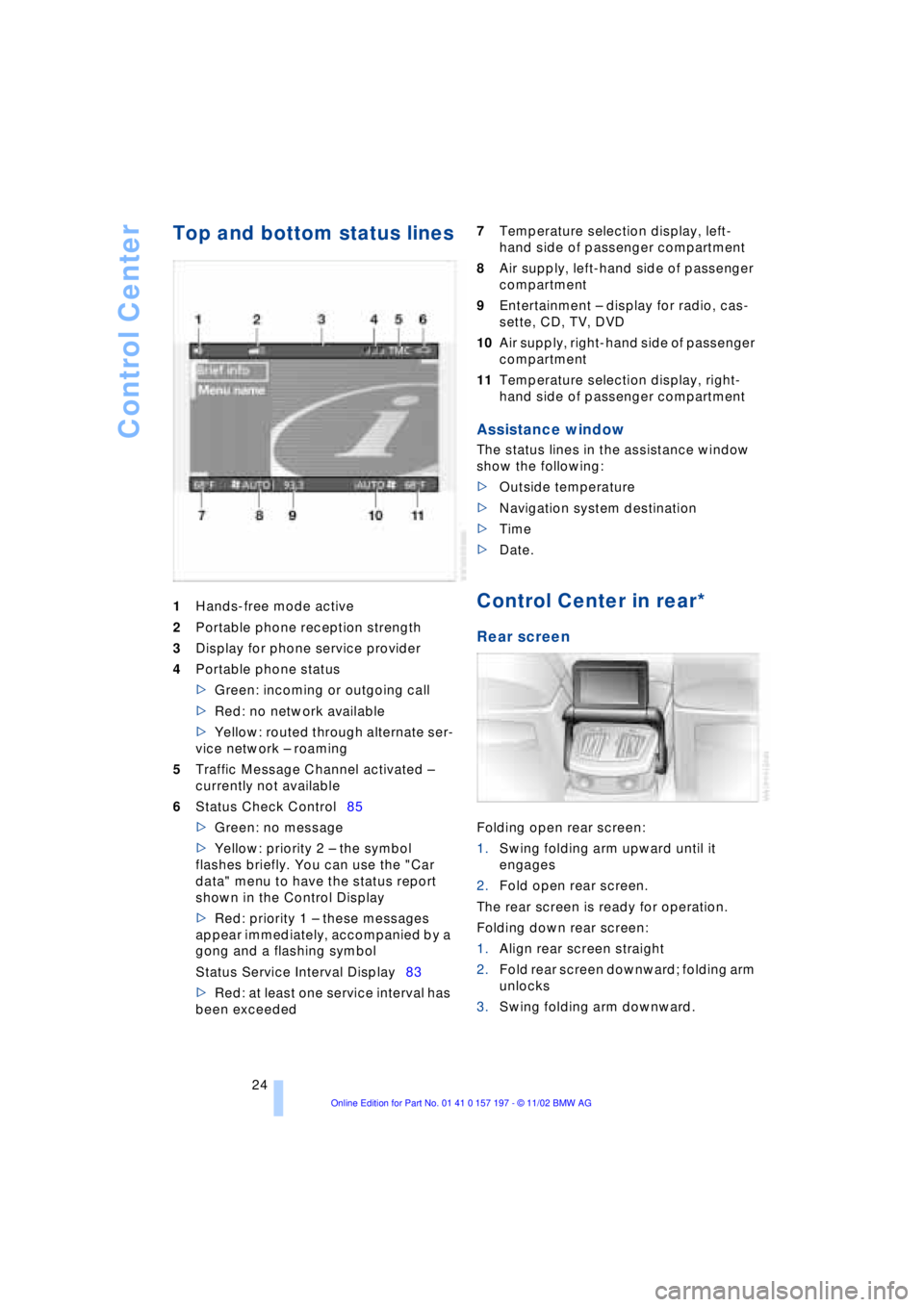
Top and bottom status lines
1Hands-free mode active
2Portable phone reception strength
3Display for phone service provider
4Portable phone status
>Green: incoming or outgoing call
>Red: no network available
>Yellow: routed through alternate ser-
vice network Ð roaming
5Traffic Message Channel activated Ð
currently not available
6Status Check Control85
>Green: no message
>Yellow: priority 2 Ð the symbol
flashes briefly. You can use the "Car
data" menu to have the status report
shown in the Control Display
>Red: priority 1 Ð these messages
appear immediately, accompanied by a
gong and a flashing symbol
Status Service Interval Display83
>Red: at least one service interval has
been exceeded 7Temperature selection display, left-
hand side of passenger compartment
8Air supply, left-hand side of passenger
compartment
9Entertainment Ð display for radio, cas-
sette, CD, TV, DVD
10Air supply, right-hand side of passenger
compartment
11Temperature selection display, right-
hand side of passenger compartment
Assistance window
The status lines in the assistance window
show the following:
>Outside temperature
>Navigation system destination
>Time
>Date.
Control Center in rear*
Rear screen
Folding open rear screen:
1.Swing folding arm upward until it
engages
2.Fold open rear screen.
The rear screen is ready for operation.
Folding down rear screen:
1.Align rear screen straight
2.Fold rear screen downward; folding arm
unlocks
3.Swing folding arm downward.
Page 27 of 229
At a glance
Controls
Driving tips
Communications
Navigation
Entertainment
Mobility
Reference
25
Swing the rear screen downward
when the ski bag is used, as other-
wise it could be damaged.
Do not swing the rear screen up or down
with the beverage holders open, as other-
wise it could be damaged.<
The rear screen switches off automat-
ically when it is swung downward.
Some functions are not available on the
rear screen, e.g. the BMW Assist function
can only be operated in the front Control
Display. Some functions only permit limited
operation on the rear screen, e.g. the
speed limit can only be displayed. Setting
is carried out via the front controller, refer
to page 89.<
Controller
The controller is located on the center arm-
rest.
Rear lock
The available functions are operated with
the respective controller.
In the Control Display you can limit or deac-
tivate operation of the rear screen.
1.Select the "Settings" menu and confirm
2.Select "Rear" and confirm.
3.Setting operation of rear screen:
>Select "Limited Release" and con-
firm to lock the functions used in the
front Control Display
When headphones are con-
nected, all audio and video func-
tions continue to be selectable in the
rear, with the exception of the audio or
video source activated in the front Con-
trol Display.<>Select "None Release" and confirm
to switch off the rear screen
>Select "Full Release" and confirm to
switch off all locks.
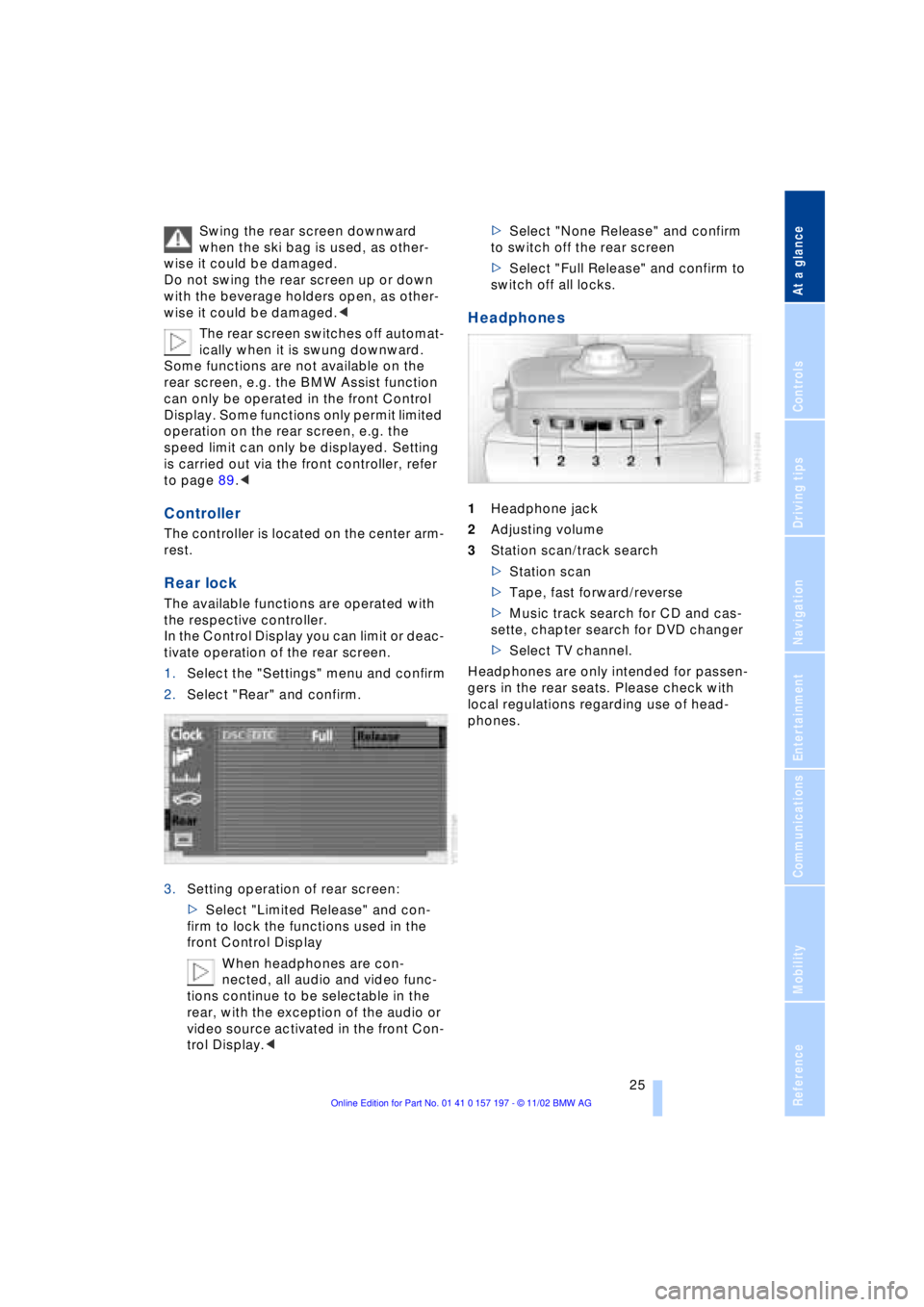
Headphones
1Headphone jack
2Adjusting volume
3Station scan/track search
>Station scan
>Tape, fast forward/reverse
>Music track search for CD and cas-
sette, chapter search for DVD changer
>Select TV channel.
Headphones are only intended for passen-
gers in the rear seats. Please check with
local regulations regarding use of head-
phones.
Page 28 of 229
Voice command
26
Voice command
Voice command system
The concept
The voice command system allows you to
control operation of various vehicle sys-
tems without ever removing your hands
from the steering wheel. The system oper-
ates on the basis of voice commands that
you will learn easily after using them a few
times. In many cases, the voice command
system supports you with announcements
or questions while you are making your
entries.
The voice command system transforms
your oral commands and dialog answers
into control signals for the selected sys-
tems.
Please take the time to acquaint your-
self with how a particular system
operates before proceeding to control it
using the voice command system.<
Symbols used
{...}Verbal instructions to use with the
voice command system.
{{...}} Identifies the answers generated by
the voice command system.
Systems available for use with voice
command
>{Telephone}, refer to page 170
>{Navigation}, refer to page 130
>{Radio}, refer to page 149
>{CD}, refer to page 153
>{CD changer}, refer to page 155
>{Tape}, refer to page 158
>{Notepad}, refer to page 28
>{DVD}, refer to page 162. Either the system that you are now oper-
ating or any current error messages will
appear in the Info Display, refer to page 27.
Voice commands
Activating voice command system
Briefly press the button in the steering
wheel.
A signal tone and "SVS active" in the Info
Display, refer to page 27, indicate that the
system is ready for use. You are automati-
cally in the main menu.
From here, you can call up all the equip-
ment that can be operated.
Canceling voice command entry
Briefly press the button in the steering
wheel
or
In dialogs in which any text can be spoken,
e.g. names, notes, canceling is only pos-
sible using the button.
The system automatically switches
over to its telephone mode if you
receive a call during voice input. "SVS off"
appears in the Info Display, refer to
page 27.<
Voice commands
The voice command system operates on
the basis of specific, predefined com-
mands; these commands should be
spoken precisely as indicated. You can
have the possible commands read back at
any stage. To do so, say the command
{Options}.
In addition to the commands described,
there are often other commands that run
the same function. Instead of {Options},
you can, for example, also say {What now}.
More detailed commands such as {Change
*
These sections contain information on
using the voice command system.
{Cancel}.
Page 29 of 229
At a glance
Controls
Driving tips
Communications
Navigation
Entertainment
Mobility
Reference
27
scale} instead of {Scale} are also often
possible.
Short commands
With the {Main menu} level, you can run
certain functions directly with short com-
mands, refer to page 29, without having to
open an equipment level.
For example, if you want to dial a phone
number, you do not have to say
rather you can say directly
Special commands
Special commands are available for spe-
cific systems. In this Owner's Manual you will find these commands in the sections
describing the individual systems.
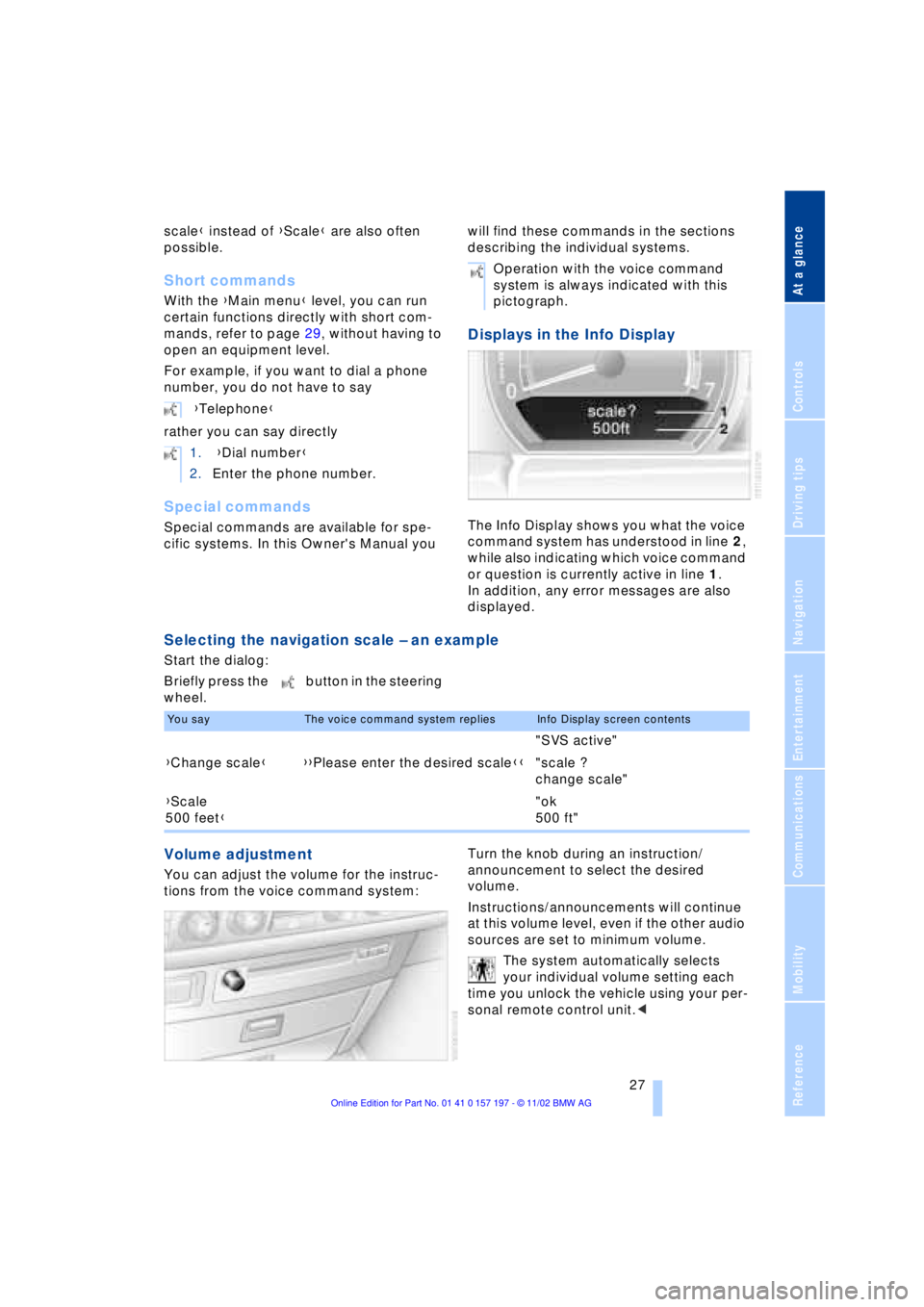
Displays in the Info Display
The Info Display shows you what the voice
command system has understood in line 2,
while also indicating which voice command
or question is currently active in line 1.
In addition, any error messages are also
displayed.
Selecting the navigation scale Ð an example
Start the dialog:
Briefly press the button in the steering
wheel.
Volume adjustment
You can adjust the volume for the instruc-
tions from the voice command system:Turn the knob during an instruction/
announcement to select the desired
volume.
Instructions/announcements will continue
at this volume level, even if the other audio
sources are set to minimum volume.
The system automatically selects
your individual volume setting each
time you unlock the vehicle using your per-
sonal remote control unit.< {Telephone}
1. {Dial number}
2.Enter the phone number.
Operation with the voice command
system is always indicated with this
pictograph.
You sayThe voice command system repliesInfo Display screen contents
"SVS active"
{Change scale}{{Please enter the desired scale}}"scale ?
change scale"
{Scale
500 feet}"ok
500 ft"
Page 31 of 229
At a glance
Controls
Driving tips
Communications
Navigation
Entertainment
Mobility
Reference
29
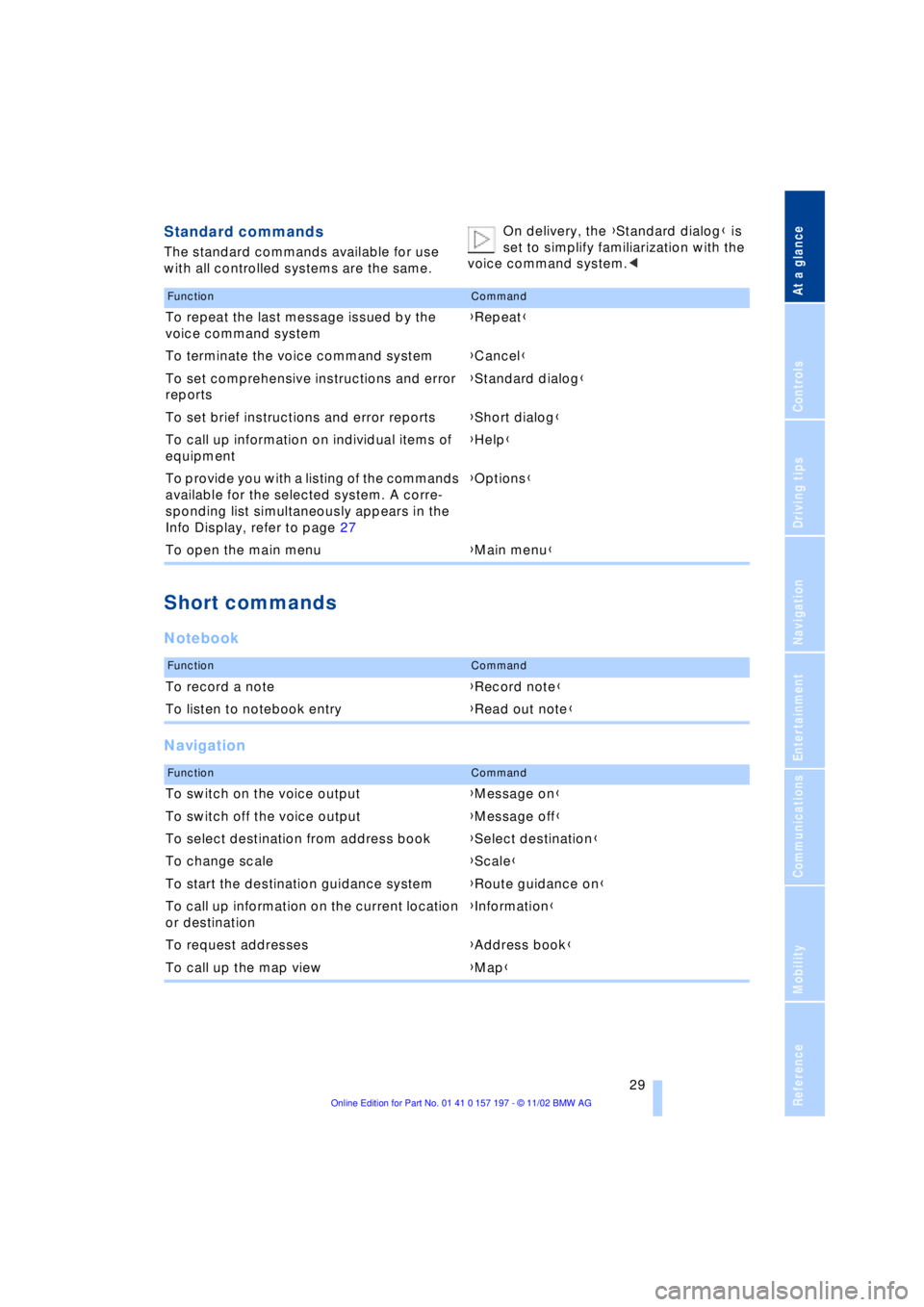
Standard commands
The standard commands available for use
with all controlled systems are the same.On delivery, the {Standard dialog} is
set to simplify familiarization with the
voice command system.<
Short commands
Notebook
Navigation
FunctionCommand
To repeat the last message issued by the
voice command system{Repeat}
To terminate the voice command system{Cancel}
To set comprehensive instructions and error
reports{Standard dialog}
To set brief instructions and error reports{Short dialog}
To call up information on individual items of
equipment{Help}
To provide you with a listing of the commands
available for the selected system. A corre-
sponding list simultaneously appears in the
Info Display, refer to page 27{Options}
To open the main menu{Main menu}
FunctionCommand
To record a note{Record note}
To listen to notebook entry{Read out note}
FunctionCommand
To switch on the voice output{Message on}
To switch off the voice output{Message off}
To select destination from address book{Select destination}
To change scale{Scale}
To start the destination guidance system{Route guidance on}
To call up information on the current location
or destination{Information}
To request addresses{Address book}
To call up the map view{Map}
Page 33 of 229

At a glance
Controls
Driving tips
Communications
Navigation
Entertainment
Mobility
Reference
31
Page 37 of 229
At a glance
Controls
Driving tips
Communications
Navigation
Entertainment
Mobility
Reference
35
Press lock button 1, slide up the cover and
insert the spare key 2 in the adapter. Close
the cover and insert the adapter in the igni-
tion lock.
Central locking system
The concept
The central locking system is ready for
operation whenever the driver's door is
closed. This simultaneously engages and
releases the locks on the following:
>Doors
>Luggage compartment lid
>Fuel filler door.
The central locking system can be oper-
ated from the outside
>via the remote control
>via the driver's door lock
and from inside via the button for the
central locking system.
When the system is locked from inside, the
fuel filler door remains unlocked. Refer to
page 37.
The anti-theft system is automatically acti-
vated whenever you activate the central
locking system from outside the vehicle.
The alarm system is armed/disarmed at the
same time.
In the event of an accident, the central
locking system unlocks automatically Ð only
those doors which were not locked sepa-
rately with the safety lock buttons, refer to
page 38. In addition, the hazard warning
flashers and interior lamps come on.
Opening and closing Ð from
outside
Using the remote control
When you engage/release the vehicle's
locks, you simultaneously activate/deacti-
vate the anti-theft system, arm/disarm the
alarm system
and switch the interior lamps
on/off. In addition, the remote control offers you
another function:
>Panic mode
In case of danger, you can trigger an
alarm.
You can have various confirmation
signals programmed into the system
to verify that the vehicle has been locked
securely.<
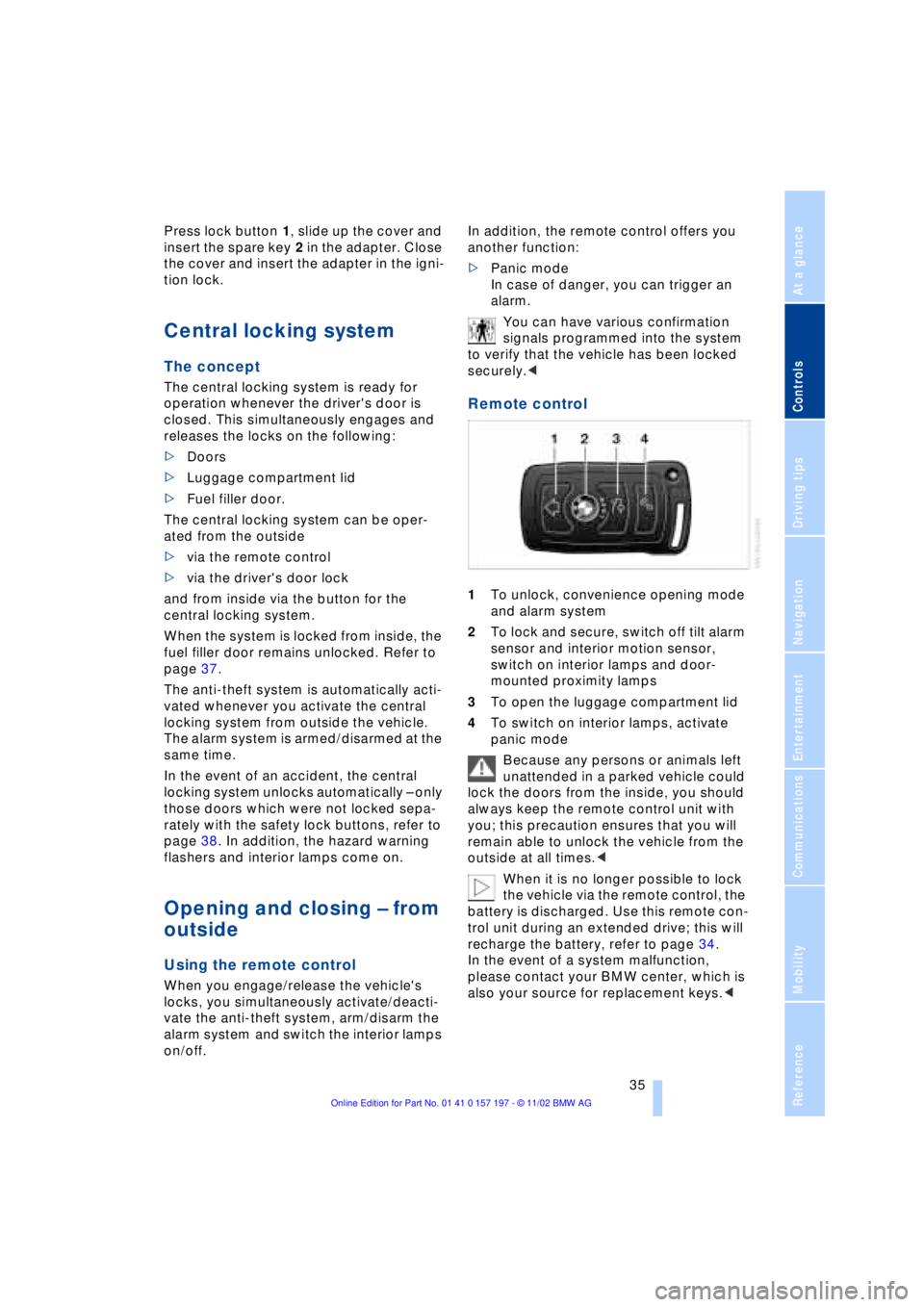
Remote control
1To unlock, convenience opening mode
and alarm system
2To lock and secure, switch off tilt alarm
sensor and interior motion sensor,
switch on interior lamps and door-
mounted proximity lamps
3To open the luggage compartment lid
4To switch on interior lamps, activate
panic mode
Because any persons or animals left
unattended in a parked vehicle could
lock the doors from the inside, you should
always keep the remote control unit with
you; this precaution ensures that you will
remain able to unlock the vehicle from the
outside at all times.<
When it is no longer possible to lock
the vehicle via the remote control, the
battery is discharged. Use this remote con-
trol unit during an extended drive; this will
recharge the battery, refer to page 34.
In the event of a system malfunction,
please contact your BMW center, which is
also your source for replacement keys.<
Page 39 of 229
At a glance
Controls
Driving tips
Communications
Navigation
Entertainment
Mobility
Reference
37
For US owners only
The transmitter and receiver units comply
with part 15 of the FCC/Federal Communi-
cation Commission regulations. Operation
is governed by the following:
FCC ID: LX8766S
LX8766E
LX8CAS
Compliance statement:
This device complies with part 15 of the
FCC Rules. Operation is subject to the fol-
lowing two conditions:
>This device may not cause harmful
interference, and
>this device must accept any interfer-
ence received, including interference
that may cause undesired operation.
Any unauthorized modifications or
changes to these devices could void
the user's authority to operate this equip-
ment.<
Using the key
One turn of the key in the driver's door lock
unlocks the driver's door only.
Turning the key a second time unlocks all of
the remaining doors, the luggage compart-
ment lid and the fuel filler door.
You can have various confirmation
signals programmed into the system
to verify that the vehicle has been locked
securely.<
Convenience operation
You also have the option of operating the
windows and the sliding/tilt sunroof from
the driver's door lock.>To open:
With the door closed, turn the key to the
Unlock position and hold it there.
>To close:
With the door closed, turn the key to the
Lock position and hold it there.
Watch during the closing process to
be sure that no one is injured.
Releasing the key stops the operation.<
Manual operation
in the event of an electrical malfunction
You can turn the key all the way to the right
or left in the door lock or engage or release
the locking mechanism in the driver's door.
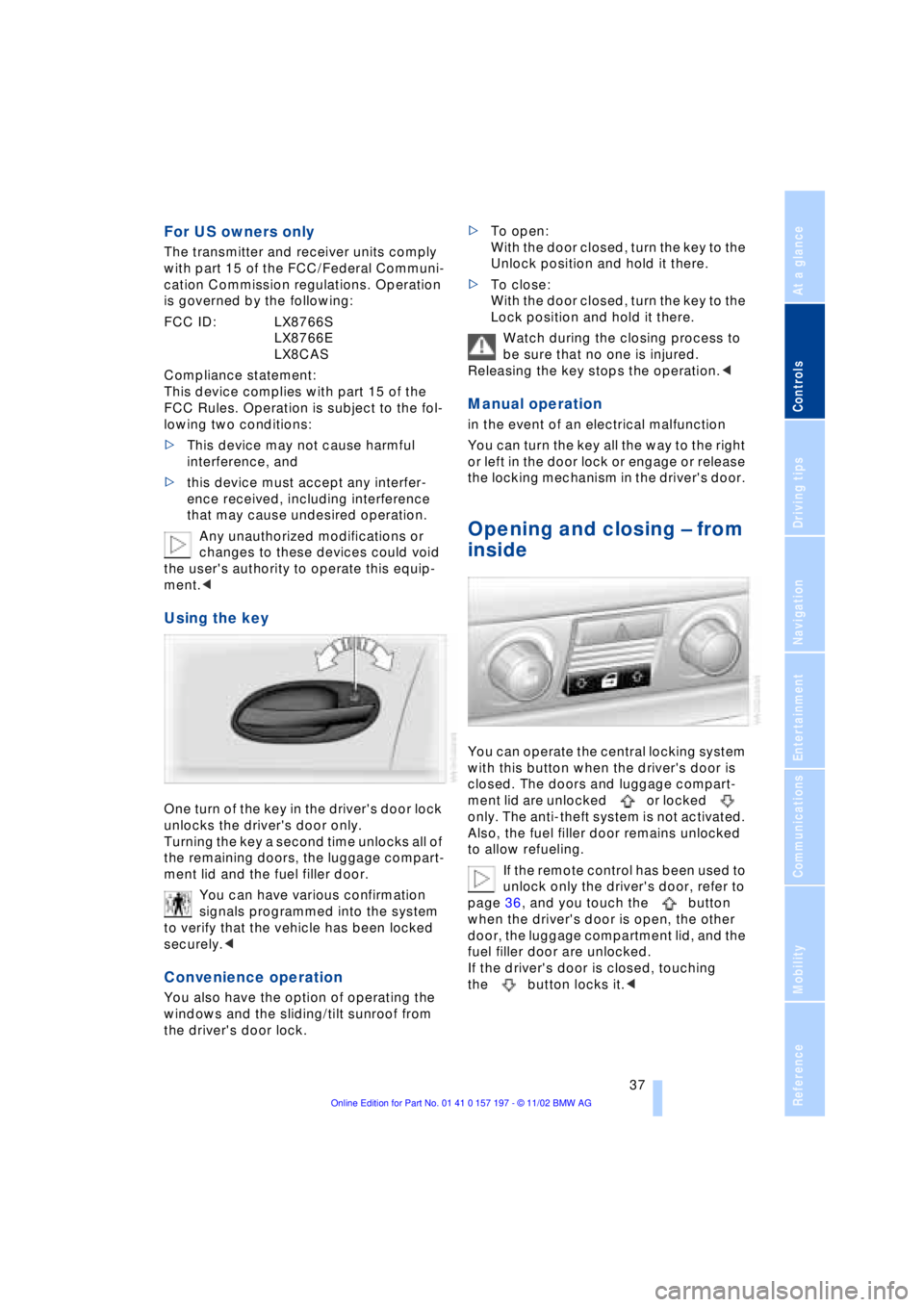
Opening and closing Ð from
inside
You can operate the central locking system
with this button when the driver's door is
closed. The doors and luggage compart-
ment lid are unlocked or locked
only. The anti-theft system is not activated.
Also, the fuel filler door remains unlocked
to allow refueling.
If the remote control has been used to
unlock only the driver's door, refer to
page 36, and you touch the button
when the driver's door is open, the other
door, the luggage compartment lid, and the
fuel filler door are unlocked.
If the driver's door is closed, touching
the button locks it.<