tow BMW 760LI SEDAN 2003 Owner's Manual
[x] Cancel search | Manufacturer: BMW, Model Year: 2003, Model line: 760LI SEDAN, Model: BMW 760LI SEDAN 2003Pages: 229, PDF Size: 4.35 MB
Page 137 of 229
At a glance
Controls
Driving tips
Communications
Navigation
Entertainment
Mobility
Reference
135
map, after a brief pause the name of the
street or locality marked by the cursor
will appear on the screen.
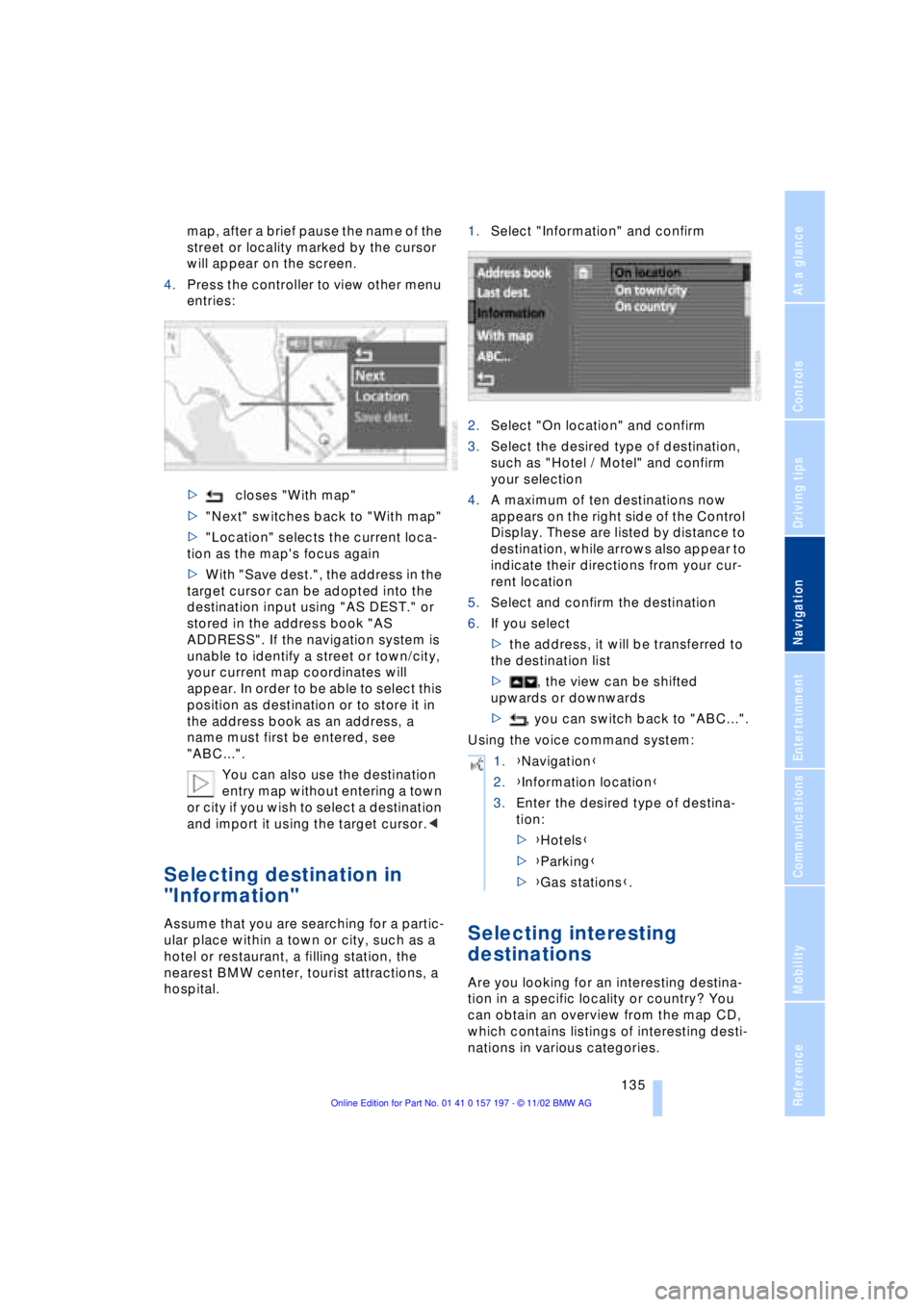
4.Press the controller to view other menu
entries:
>closes "With map"
>"Next" switches back to "With map"
>"Location" selects the current loca-
tion as the map's focus again
>With "Save dest.", the address in the
target cursor can be adopted into the
destination input using "AS DEST." or
stored in the address book "AS
ADDRESS". If the navigation system is
unable to identify a street or town/city,
your current map coordinates will
appear. In order to be able to select this
position as destination or to store it in
the address book as an address, a
name must first be entered, see
"ABC...".
You can also use the destination
entry map without entering a town
or city if you wish to select a destination
and import it using the target cursor.<
Selecting destination in
"Information"
Assume that you are searching for a partic-
ular place within a town or city, such as a
hotel or restaurant, a filling station, the
nearest BMW center, tourist attractions, a
hospital.1.Select "Information" and confirm
2.Select "On location" and confirm
3.Select the desired type of destination,
such as "Hotel / Motel" and confirm
your selection
4.A maximum of ten destinations now
appears on the right side of the Control
Display. These are listed by distance to
destination, while arrows also appear to
indicate their directions from your cur-
rent location
5.Select and confirm the destination
6.If you select
>the address, it will be transferred to
the destination list
>, the view can be shifted
upwards or downwards
>, you can switch back to "ABC...".
Using the voice command system:Selecting interesting
destinations
Are you looking for an interesting destina-
tion in a specific locality or country? You
can obtain an overview from the map CD,
which contains listings of interesting desti-
nations in various categories.
1.{Navigation}
2.{Information location}
3.Enter the desired type of destina-
tion:
>{Hotels}
>{Parking}
>{Gas stations}.
Page 138 of 229
Navigation
136 1.Select "Information" and confirm
2.Select "On town/city" or "On country"
and confirm. A screen for entering the
town/city appears on the Control Dis-
play
3.Enter the desired town/city or country,
select "Next" and confirm
4.Select your destination category, such
as "Airport" and confirm your selection.
"ABC..." appears on the Control Display
screen along with an alphabetical listing
containing all entries in the selected
destination category. You can obtain a
more selective display of the informa-
tion contained in the directory by
entering one or more letters
5.Select the desired entry.
Using the voice command system:
Recent destinations
Returning to a recent destination
The system stores the last ten destinations
entered.
Select "Last dest." and confirm.
A list of the stored addresses appears on
the right side of the Control Display.Confirm the desired destination and select
"AS DEST.". You can also edit existing
entries; for conditions refer to "ABC...".
>"AS ADDRESS" stores the destination
address in the address book
>"DELETE" removes the destination
address.
To delete all current entries:
Select and confirm.
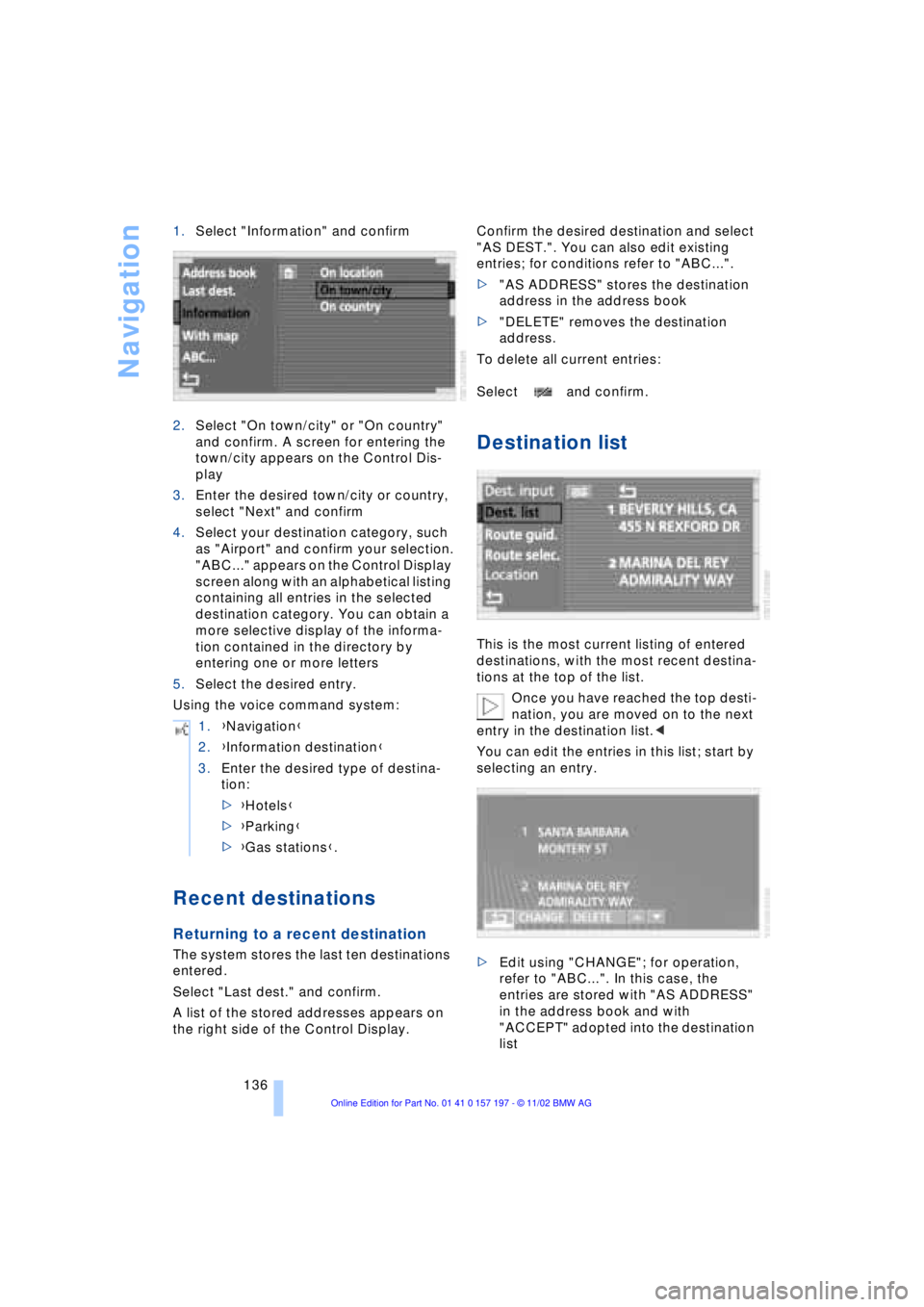
Destination list
This is the most current listing of entered
destinations, with the most recent destina-
tions at the top of the list.
Once you have reached the top desti-
nation, you are moved on to the next
entry in the destination list.<
You can edit the entries in this list; start by
selecting an entry.
>Edit using "CHANGE"; for operation,
refer to "ABC...". In this case, the
entries are stored with "AS ADDRESS"
in the address book and with
"ACCEPT" adopted into the destination
list 1.{Navigation}
2.{Information destination}
3.Enter the desired type of destina-
tion:
>{Hotels}
>{Parking}
>{Gas stations}.
Page 139 of 229
At a glance
Controls
Driving tips
Communications
Navigation
Entertainment
Mobility
Reference
137
>Use "DELETE" to remove an entry
>Use to move the address in the
destination list. This can change the
order of the destination list.
To delete all current entries:
Select and confirm.
Selecting route
The navigation system also provides you
with the option of selecting a specific travel
route. You can define criteria for deter-
mining your individual route.
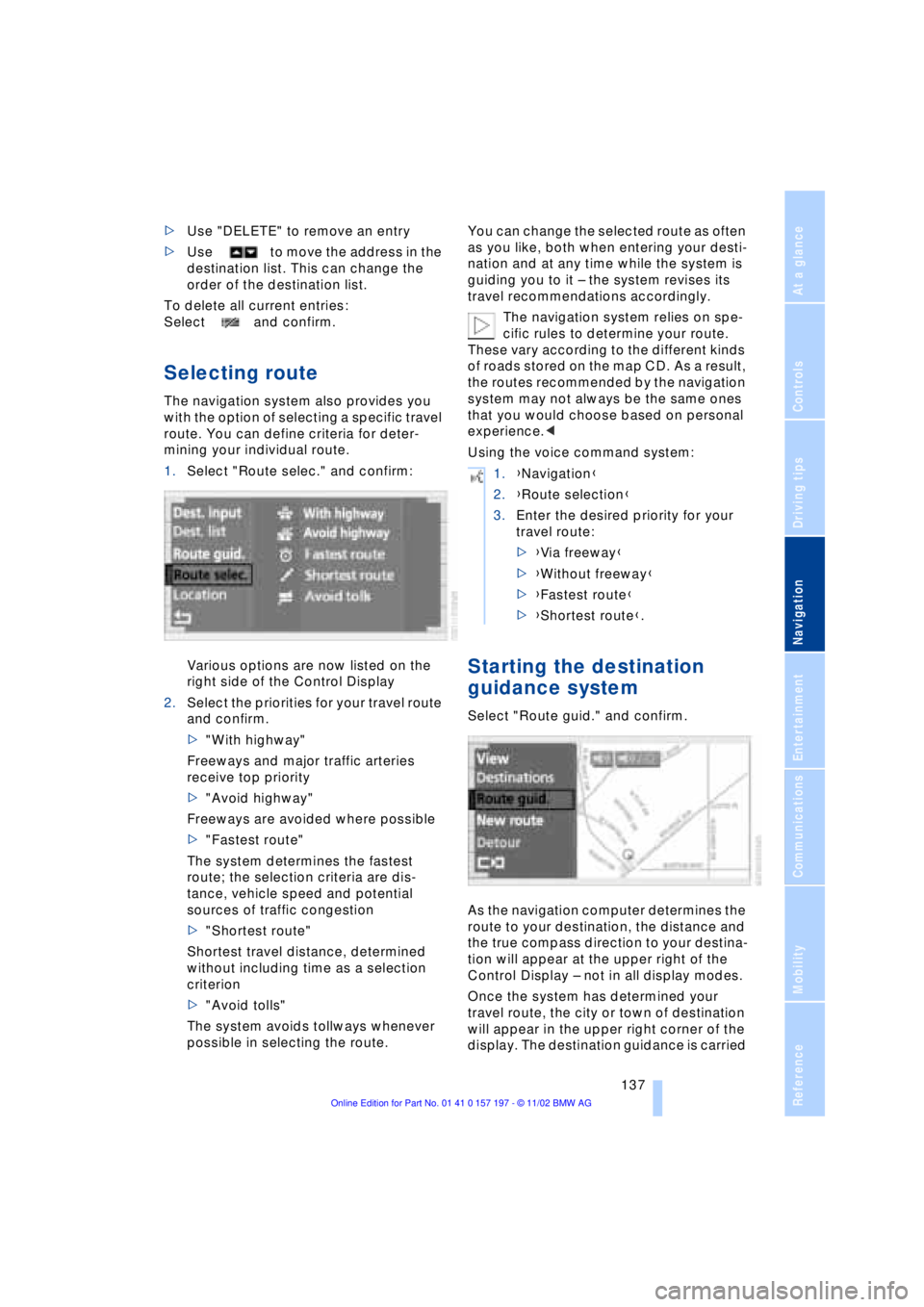
1.Select "Route selec." and confirm:
Various options are now listed on the
right side of the Control Display
2.Select the priorities for your travel route
and confirm.
>"With highway"
Freeways and major traffic arteries
receive top priority
>"Avoid highway"
Freeways are avoided where possible
>"Fastest route"
The system determines the fastest
route; the selection criteria are dis-
tance, vehicle speed and potential
sources of traffic congestion
>"Shortest route"
Shortest travel distance, determined
without including time as a selection
criterion
>"Avoid tolls"
The system avoids tollways whenever
possible in selecting the route.You can change the selected route as often
as you like, both when entering your desti-
nation and at any time while the system is
guiding you to it Ð the system revises its
travel recommendations accordingly.
The navigation system relies on spe-
cific rules to determine your route.
These vary according to the different kinds
of roads stored on the map CD. As a result,
the routes recommended by the navigation
system may not always be the same ones
that you would choose based on personal
experience.<
Using the voice command system:
Starting the destination
guidance system
Select "Route guid." and confirm.
As the navigation computer determines the
route to your destination, the distance and
the true compass direction to your destina-
tion will appear at the upper right of the
Control Display Ð not in all display modes.
Once the system has determined your
travel route, the city or town of destination
will appear in the upper right corner of the
display. The destination guidance is carried
1.{Navigation}
2.{Route selection}
3.Enter the desired priority for your
travel route:
>{Via freeway}
>{Without freeway}
>{Fastest route}
>{Shortest route}.
Page 140 of 229
Navigation
138 out in dependence on the selected view,
refer to Displaying route.
The system also provides you with voice
instructions.
You will also be guided to your desti-
nation if you select a different menu,
e.g. "Entertainment" or "Climate". You will
be informed of a required change in direc-
tion in good time before each intersection
with voice instructions.<
Displaying route
The "View" menu allows you to view your
current travel route at various resolutions.
Selecting display of route map
You can also select a map showing your
travel route while the system is guiding you
to your destination.
1.Select "View" and confirm your selec-
tion. All the menu items will disappear
after a few moments if no further entries
are made
2.Select "Map facing N." and confirm
your selection.
During active guidance, the route
map will appear automatically when
you enter an area that is not completely
covered by your map CD.<
Changing scale
Turn the controller to adjust the scale.
The map scale is provided at the lower right
of the Control Display.
Altering display direction
At scales of less than 1.2 miles (2 km) you
enjoy the option of deciding whether to
orient the map to north or toward your cur-
rent direction of travel. From 1.2 miles
(2 km) the map always points toward North.
1.Select "View" and confirm your selec-
tion. All the menu items will disappear
after a few moments if no further entries
are made
2.Select "Map dir. travel" or "Map facing
N." and confirm.
Canceling route map
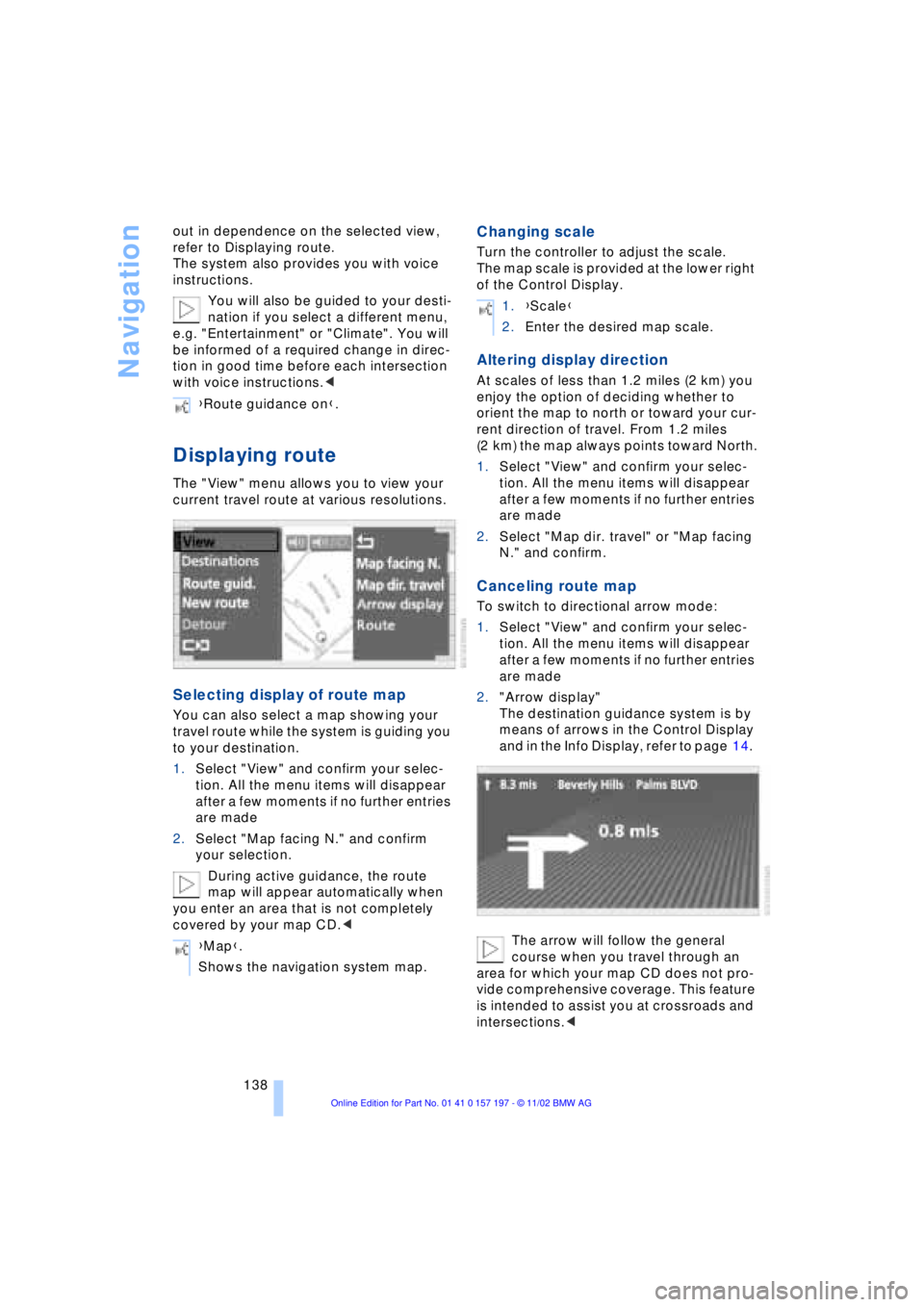
To switch to directional arrow mode:
1.Select "View" and confirm your selec-
tion. All the menu items will disappear
after a few moments if no further entries
are made
2."Arrow display"
The destination guidance system is by
means of arrows in the Control Display
and in the Info Display, refer to page 14.
The arrow will follow the general
course when you travel through an
area for which your map CD does not pro-
vide comprehensive coverage. This feature
is intended to assist you at crossroads and
intersections.< {Route guidance on}.
{Map}.
Shows the navigation system map.
1.{Scale}
2.Enter the desired map scale.
Page 141 of 229
At a glance
Controls
Driving tips
Communications
Navigation
Entertainment
Mobility
Reference
139
Displaying route list
You can access a listing of streets and
towns on your route whenever the guid-
ance system is active. This list is based on
the navigation system's suggested travel
route.
The distances remaining to be traveled on
each individual road are also displayed.
1.Select "View" and confirm your selec-
tion. All the menu items will disappear
after a few moments if no further entries
are made
2.Select "Route" and confirm.
If the system has not yet completely
defined the travel route, "..." will appear
in the list.
Select and confirm to switch off the
route list.
The route list is displayed again after
a short time if no other menu item has
been selected.<
Selecting new route
During active guidance you can revise the
navigation system's route recommenda-
tions to avoid particular stretches of road.
Enter the number of miles/kilometers that
you want to travel before returning to the
original route.
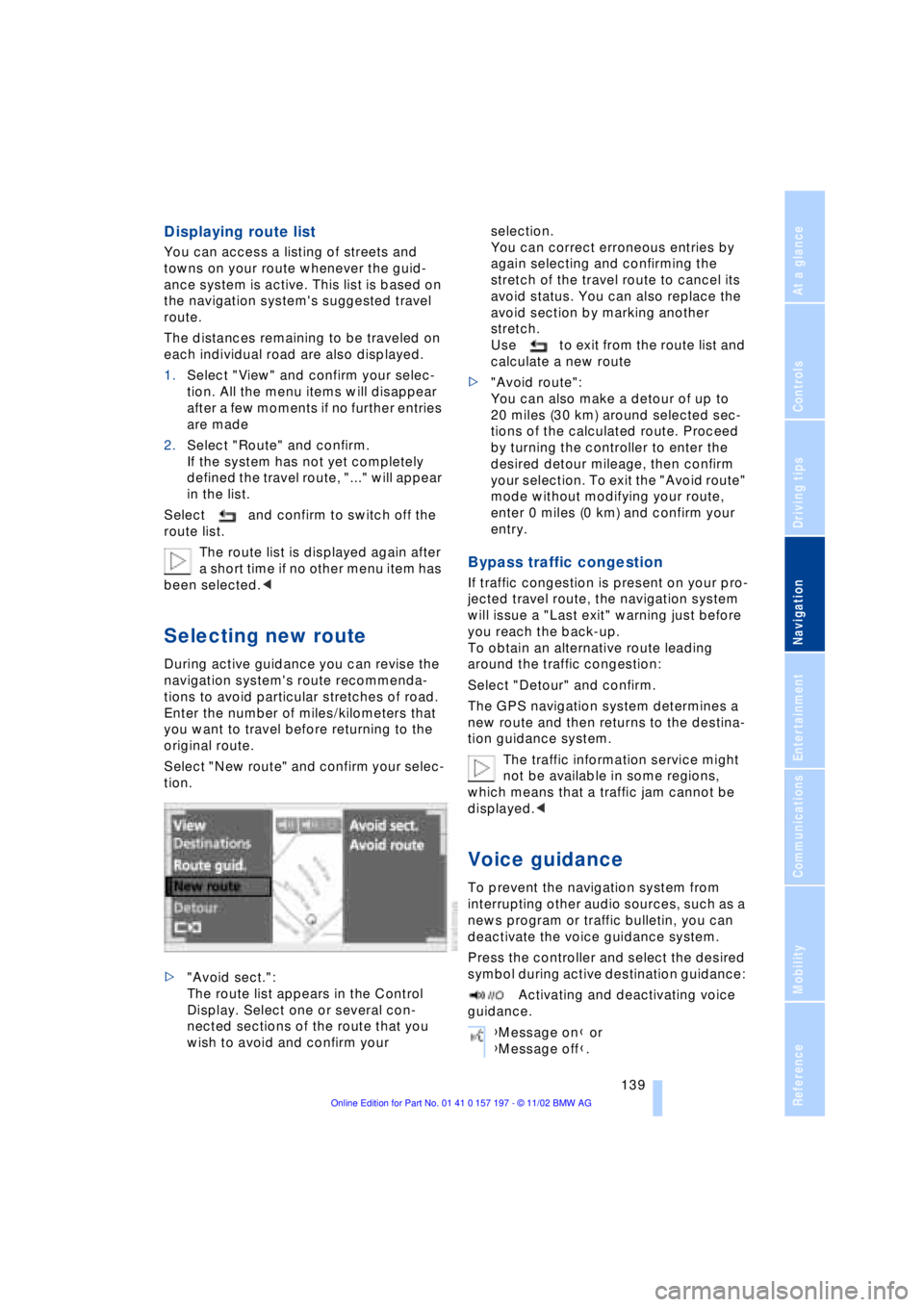
Select "New route" and confirm your selec-
tion.
>"Avoid sect.":
The route list appears in the Control
Display. Select one or several con-
nected sections of the route that you
wish to avoid and confirm your selection.
You can correct erroneous entries by
again selecting and confirming the
stretch of the travel route to cancel its
avoid status. You can also replace the
avoid section by marking another
stretch.
Use to exit from the route list and
calculate a new route
>"Avoid route":
You can also make a detour of up to
20 miles (30 km) around selected sec-
tions of the calculated route. Proceed
by turning the controller to enter the
desired detour mileage, then confirm
your selection. To exit the "Avoid route"
mode without modifying your route,
enter 0 miles (0 km) and confirm your
entry.
Bypass traffic congestion
If traffic congestion is present on your pro-
jected travel route, the navigation system
will issue a "Last exit" warning just before
you reach the back-up.
To obtain an alternative route leading
around the traffic congestion:
Select "Detour" and confirm.
The GPS navigation system determines a
new route and then returns to the destina-
tion guidance system.
The traffic information service might
not be available in some regions,
which means that a traffic jam cannot be
displayed.<
Voice guidance
To prevent the navigation system from
interrupting other audio sources, such as a
news program or traffic bulletin, you can
deactivate the voice guidance system.
Press the controller and select the desired
symbol during active destination guidance:
Activating and deactivating voice
guidance.
{Message on} or
{Message off}.
Page 144 of 229
Navigation
142
Location
Display of current location
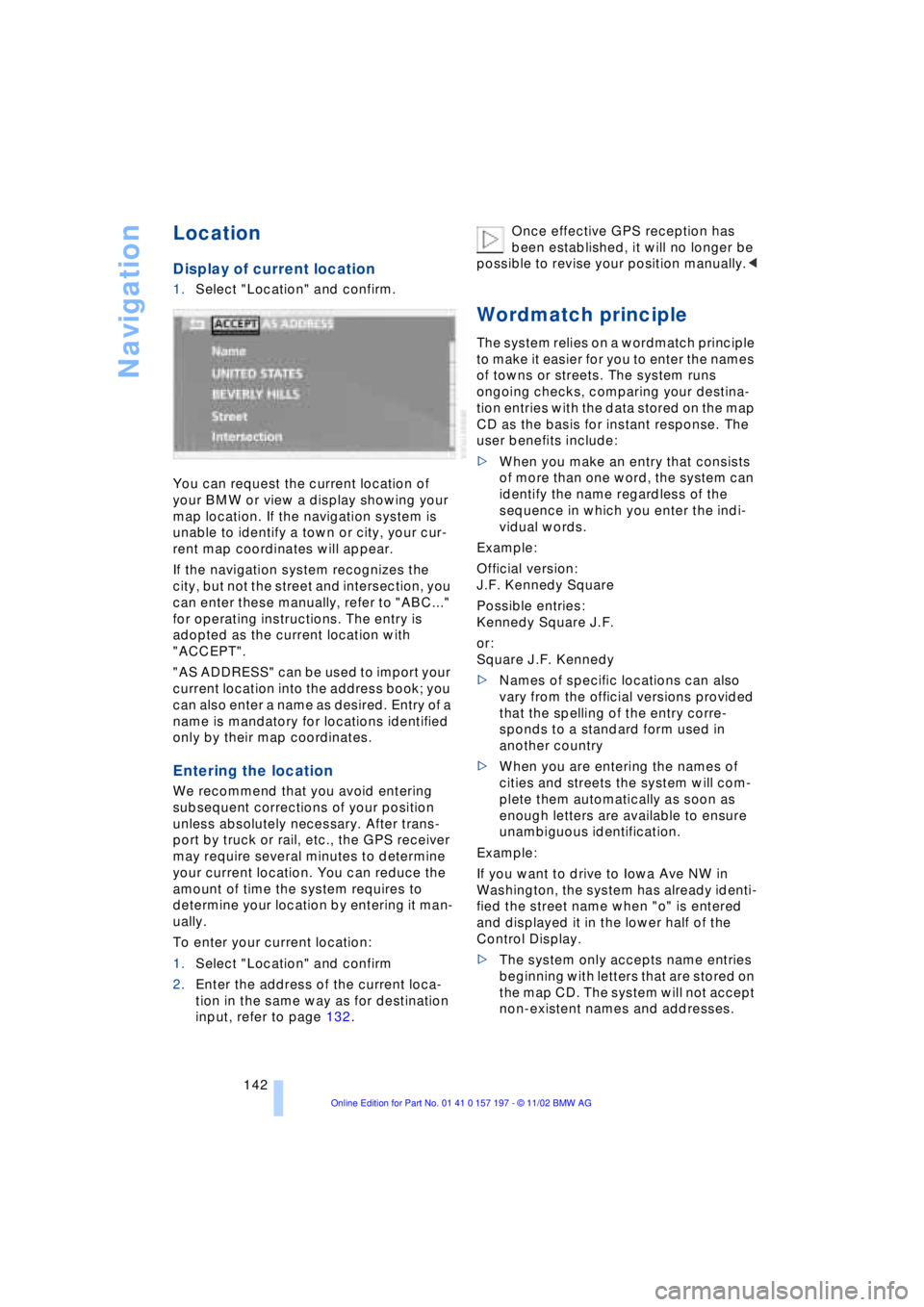
1.Select "Location" and confirm.
You can request the current location of
your BMW or view a display showing your
map location. If the navigation system is
unable to identify a town or city, your cur-
rent map coordinates will appear.
If the navigation system recognizes the
city, but not the street and intersection, you
can enter these manually, refer to "ABC..."
for operating instructions. The entry is
adopted as the current location with
"ACCEPT".
"AS ADDRESS" can be used to import your
current location into the address book; you
can also enter a name as desired. Entry of a
name is mandatory for locations identified
only by their map coordinates.
Entering the location
We recommend that you avoid entering
subsequent corrections of your position
unless absolutely necessary. After trans-
port by truck or rail, etc., the GPS receiver
may require several minutes to determine
your current location. You can reduce the
amount of time the system requires to
determine your location by entering it man-
ually.
To enter your current location:
1.Select "Location" and confirm
2.Enter the address of the current loca-
tion in the same way as for destination
input, refer to page 132.Once effective GPS reception has
been established, it will no longer be
possible to revise your position manually.<
Wordmatch principle
The system relies on a wordmatch principle
to make it easier for you to enter the names
of towns or streets. The system runs
ongoing checks, comparing your destina-
tion entries with the data stored on the map
CD as the basis for instant response. The
user benefits include:
>When you make an entry that consists
of more than one word, the system can
identify the name regardless of the
sequence in which you enter the indi-
vidual words.
Example:
Official version:
J.F. Kennedy Square
Possible entries:
Kennedy Square J.F.
or:
Square J.F. Kennedy
>Names of specific locations can also
vary from the official versions provided
that the spelling of the entry corre-
sponds to a standard form used in
another country
>When you are entering the names of
cities and streets the system will com-
plete them automatically as soon as
enough letters are available to ensure
unambiguous identification.
Example:
If you want to drive to Iowa Ave NW in
Washington, the system has already identi-
fied the street name when "o" is entered
and displayed it in the lower half of the
Control Display.
>The system only accepts name entries
beginning with letters that are stored on
the map CD. The system will not accept
non-existent names and addresses.
Page 158 of 229
CD changer
156
Inserting the CD magazine
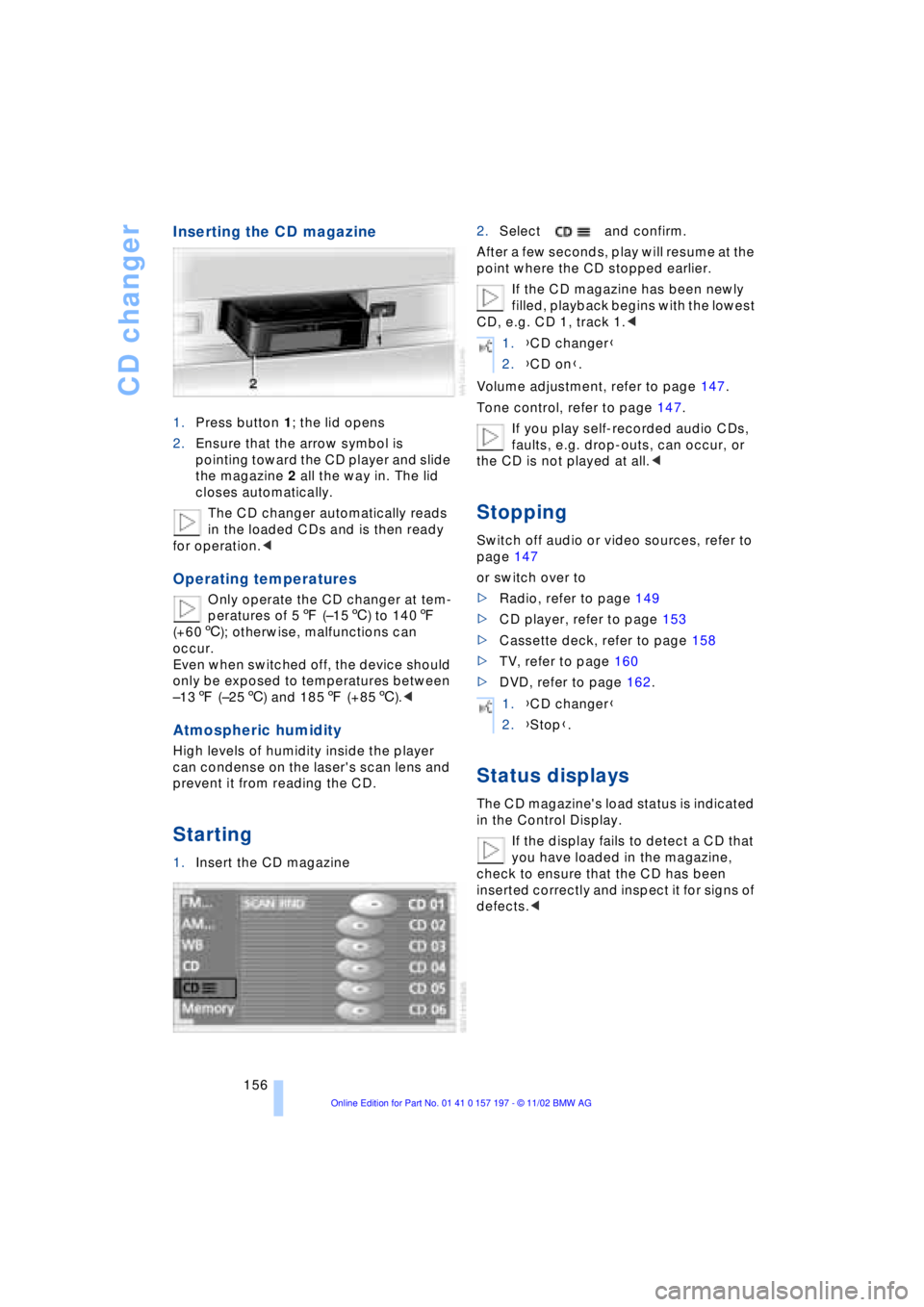
1.Press button 1; the lid opens
2.Ensure that the arrow symbol is
pointing toward the CD player and slide
the magazine 2 all the way in. The lid
closes automatically.
The CD changer automatically reads
in the loaded CDs and is then ready
for operation.<
Operating temperatures
Only operate the CD changer at tem-
peratures of 57 (Ð156) to 1407
(+606); otherwise, malfunctions can
occur.
Even when switched off, the device should
only be exposed to temperatures between
Ð137 (Ð256) and 1857 (+856).<
Atmospheric humidity
High levels of humidity inside the player
can condense on the laser's scan lens and
prevent it from reading the CD.
Starting
1.Insert the CD magazine2.Select and confirm.
After a few seconds, play will resume at the
point where the CD stopped earlier.
If the CD magazine has been newly
filled, playback begins with the lowest
CD, e.g. CD 1, track 1.<
Volume adjustment, refer to page 147.
Tone control, refer to page 147.
If you play self-recorded audio CDs,
faults, e.g. drop-outs, can occur, or
the CD is not played at all.<
Stopping
Switch off audio or video sources, refer to
page 147
or switch over to
>Radio, refer to page 149
>CD player, refer to page 153
>Cassette deck, refer to page 158
>TV, refer to page 160
>DVD, refer to page 162.
Status displays
The CD magazine's load status is indicated
in the Control Display.
If the display fails to detect a CD that
you have loaded in the magazine,
check to ensure that the CD has been
inserted correctly and inspect it for signs of
defects.<
1.{CD changer}
2.{CD on}.
1.{CD changer}
2.{Stop}.
Page 165 of 229
At a glance
Controls
Driving tips
Communications
Navigation
Entertainment
Mobility
Reference
163
Removing the DVD magazine
To insert or remove DVDs or CDs from the
storage magazine, you must first remove it
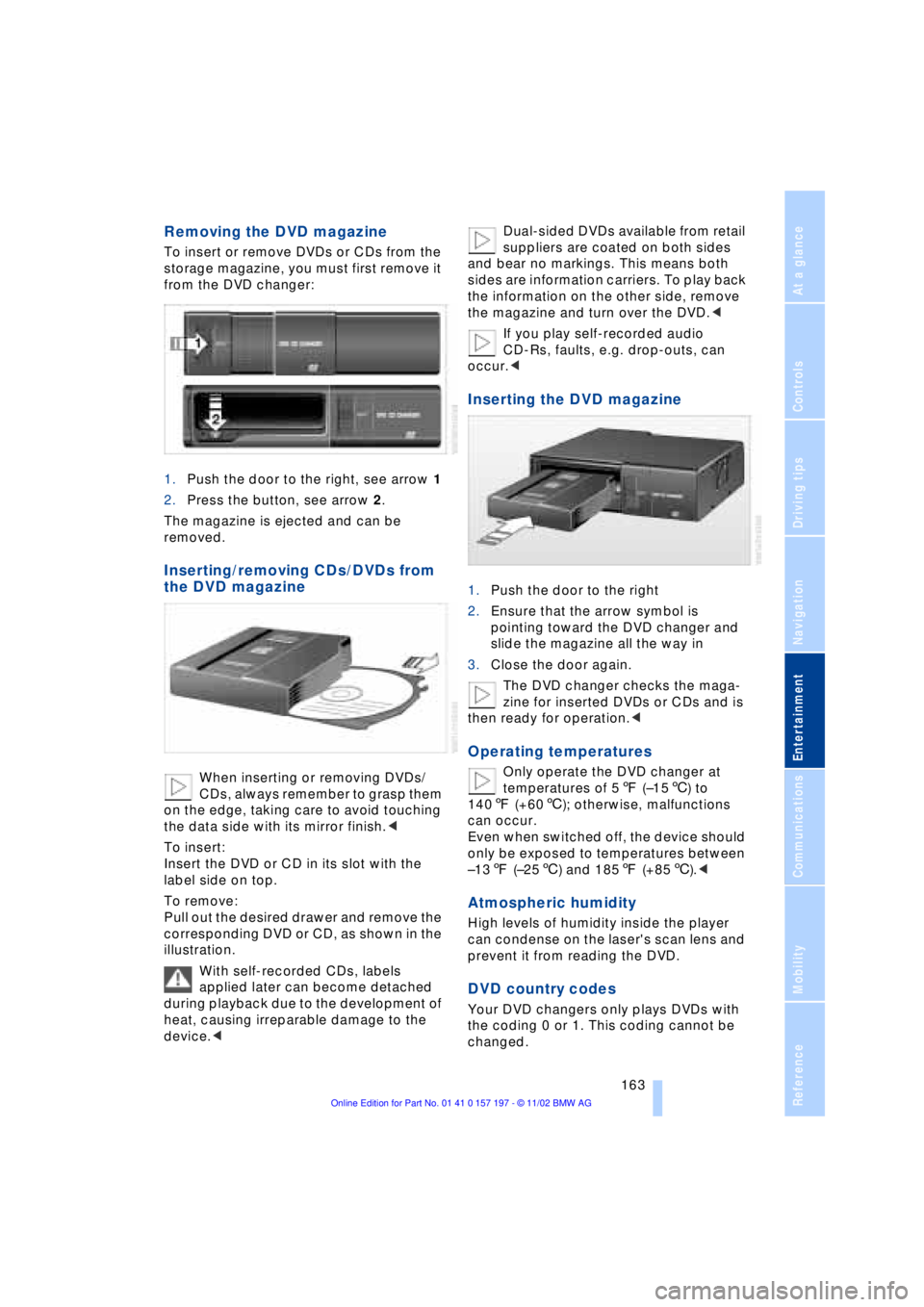
from the DVD changer:
1.Push the door to the right, see arrow 1
2.Press the button, see arrow 2.
The magazine is ejected and can be
removed.
Inserting/removing CDs/DVDs from
the DVD magazine
When inserting or removing DVDs/
CDs, always remember to grasp them
on the edge, taking care to avoid touching
the data side with its mirror finish.<
To insert:
Insert the DVD or CD in its slot with the
label side on top.
To remove:
Pull out the desired drawer and remove the
corresponding DVD or CD, as shown in the
illustration.
With self-recorded CDs, labels
applied later can become detached
during playback due to the development of
heat, causing irreparable damage to the
device.
and bear no markings. This means both
sides are information carriers. To play back
the information on the other side, remove
the magazine and turn over the DVD.<
If you play self-recorded audio
CD-Rs, faults, e.g. drop-outs, can
occur.<
Inserting the DVD magazine
1.Push the door to the right
2.Ensure that the arrow symbol is
pointing toward the DVD changer and
slide the magazine all the way in
3.Close the door again.
The DVD changer checks the maga-
zine for inserted DVDs or CDs and is
then ready for operation.<
Operating temperatures
Only operate the DVD changer at
temperatures of 57 (Ð156) to
1407 (+606); otherwise, malfunctions
can occur.
Even when switched off, the device should
only be exposed to temperatures between
Ð137 (Ð256) and 1857 (+856).<
Atmospheric humidity
High levels of humidity inside the player
can condense on the laser's scan lens and
prevent it from reading the DVD.
DVD country codes
Your DVD changers only plays DVDs with
the coding 0 or 1. This coding cannot be
changed.
Page 188 of 229
Wheels and tires
186
Tire condition
Tire tread Ð tire damage
Inspect your tires frequently for tread wear,
signs of damage and for foreign objects
lodged in the tread. Check the tread depth.
The tread depth should not drop below
0.12 in (3 mm), although, for example,
European legislation only specifies a
minimum tread depth of 0.06 in (1.6 mm).
At tread depths below 0.12 in (3 mm) there
is an increased risk of high-speed hydro-
planing, even when only small amounts of
water are present on the road surface.
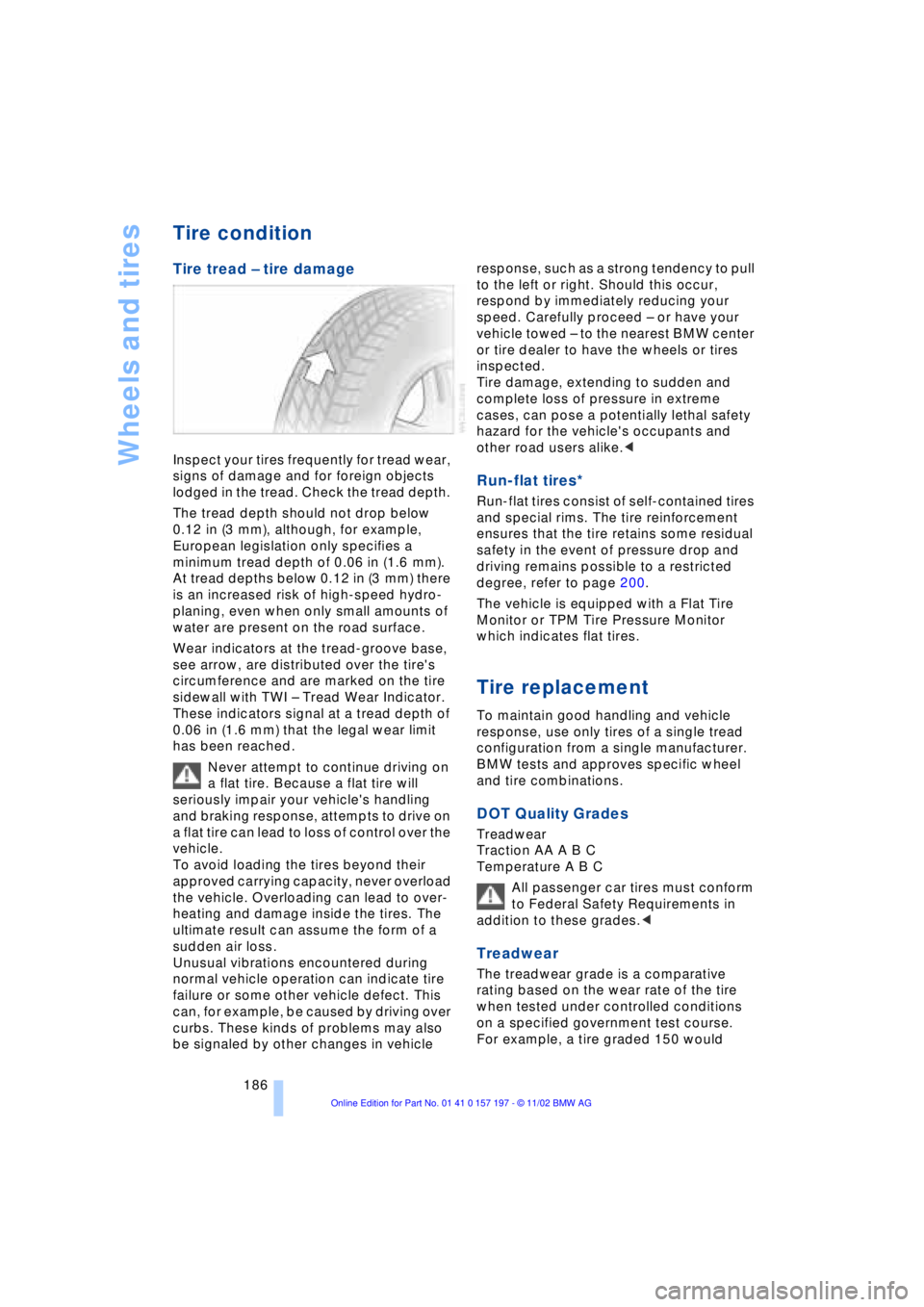
Wear indicators at the tread-groove base,
see arrow, are distributed over the tire's
circumference and are marked on the tire
sidewall with TWI Ð Tread Wear Indicator.
These indicators signal at a tread depth of
0.06 in (1.6 mm) that the legal wear limit
has been reached.
Never attempt to continue driving on
a flat tire. Because a flat tire will
seriously impair your vehicle's handling
and braking response, attempts to drive on
a flat tire can lead to loss of control over the
vehicle.
To avoid loading the tires beyond their
approved carrying capacity, never overload
the vehicle. Overloading can lead to over-
heating and damage inside the tires. The
ultimate result can assume the form of a
sudden air loss.
Unusual vibrations encountered during
normal vehicle operation can indicate tire
failure or some other vehicle defect. This
can, for example, be caused by driving over
curbs. These kinds of problems may also
be signaled by other changes in vehicle response, such as a strong tendency to pull
to the left or right. Should this occur,
respond by immediately reducing your
speed. Carefully proceed Ð or have your
vehicle towed Ð to the nearest BMW center
or tire dealer to have the wheels or tires
inspected.
Tire damage, extending to sudden and
complete loss of pressure in extreme
cases, can pose a potentially lethal safety
hazard for the vehicle's occupants and
other road users alike.<
Run-flat tires*
Run-flat tires consist of self-contained tires
and special rims. The tire reinforcement
ensures that the tire retains some residual
safety in the event of pressure drop and
driving remains possible to a restricted
degree, refer to page 200.
The vehicle is equipped with a Flat Tire
Monitor or TPM Tire Pressure Monitor
which indicates flat tires.
Tire replacement
To maintain good handling and vehicle
response, use only tires of a single tread
configuration from a single manufacturer.
BMW tests and approves specific wheel
and tire combinations.
DOT Quality Grades
Treadwear
Traction AA A B C
Temperature A B C
All passenger car tires must conform
to Federal Safety Requirements in
addition to these grades.<
Treadwear
The treadwear grade is a comparative
rating based on the wear rate of the tire
when tested under controlled conditions
on a specified government test course.
For example, a tire graded 150 would
Page 192 of 229
Under the hood
190
Engine compartment
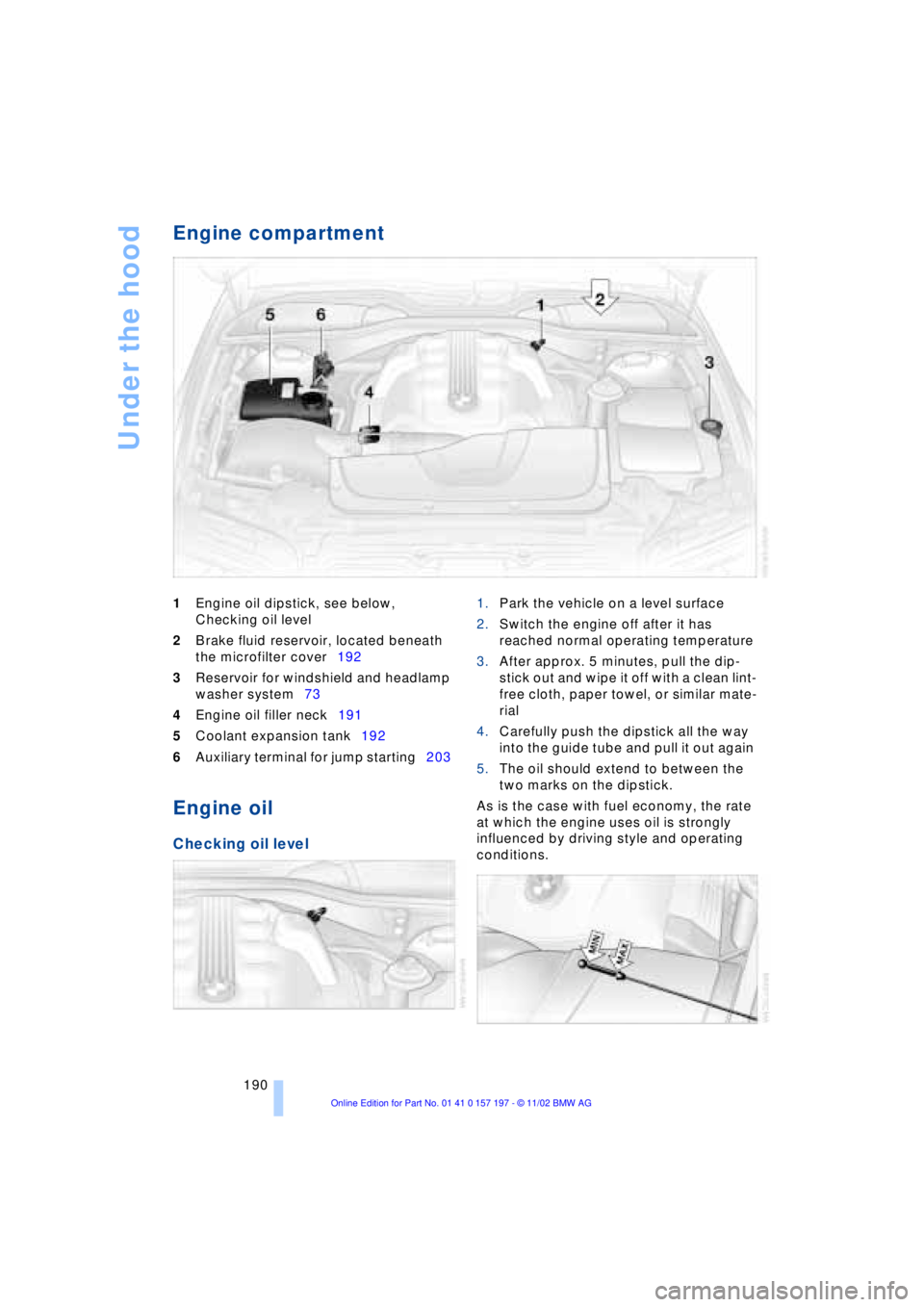
1Engine oil dipstick, see below,
Checking oil level
2Brake fluid reservoir, located beneath
the microfilter cover192
3Reservoir for windshield and headlamp
washer system73
4Engine oil filler neck191
5Coolant expansion tank192
6Auxiliary terminal for jump starting203
Engine oil
Checking oil level
1.Park the vehicle on a level surface
2.Switch the engine off after it has
reached normal operating temperature
3.After approx. 5 minutes, pull the dip-
stick out and wipe it off with a clean lint-
free cloth, paper towel, or similar mate-
rial
4.Carefully push the dipstick all the way
into the guide tube and pull it out again
5.The oil should extend to between the
two marks on the dipstick.
As is the case with fuel economy, the rate
at which the engine uses oil is strongly
influenced by driving style and operating
conditions.