CD changer BMW 760LI SEDAN 2003 Owners Manual
[x] Cancel search | Manufacturer: BMW, Model Year: 2003, Model line: 760LI SEDAN, Model: BMW 760LI SEDAN 2003Pages: 229, PDF Size: 4.35 MB
Page 6 of 229
Contents
Entertainment
146Controls
146Care instructions
147Switching on/off
147Using with ignition off
147Volume adjustment
147Tone control
Radio
149Starting
149Stopping
149Selecting frequency band
150Selecting a station
150Storing and retrieving a station
151Weather Band
CD Compact Disc
153Starting
153Stopping
154Searching for music tracks in the
Control Display
154Using the buttons to search for music
tracks
CD changer
156Starting
156Stopping
156Status displays
157Searching for music tracks in the
Control Display
157Using the buttons to search for music
tracks
Cassette
158Starting
158Stopping
158Selecting side A or B
158Switching "Booktape" on/off
158Noise suppression
159Searching for music tracks
TV
160Starting
160Stopping
160Storing programs
160Selecting programs
161Adjusting the picture
*
161Selecting standard
DVD changer
164Care instructions
164Starting
164Stopping
164Status displays
164DVD control
165Selecting a track
166Chapter search
166Adjusting picture
166Freezing frame
166Selecting picture format
166Selecting language, subtitles and
viewing angle
167Opening DVD-specific menu
Using the phone in your vehicle
170Safety notice
171Care instructions
171Controls
172Telephone keypad, folding
173Hands-free system
173Making an SOS call
174Telephoning with the
car phone
174Using the BMW portable phone
174Getting started
175Telephone directory
176Selecting a number from the Top 8 list
176Redialing
176Missed calls
BMW Assist
178Requirements
178Roadside Assistance of the BMW
Group
Refueling
182Fuel filler door
183Fuel specifications
Wheels and tires
184Tire inflation pressure
186Tire condition
186Tire replacement
187Wheel and tire combinations
Page 27 of 229
At a glance
Controls
Driving tips
Communications
Navigation
Entertainment
Mobility
Reference
25
Swing the rear screen downward
when the ski bag is used, as other-
wise it could be damaged.
Do not swing the rear screen up or down
with the beverage holders open, as other-
wise it could be damaged.<
The rear screen switches off automat-
ically when it is swung downward.
Some functions are not available on the
rear screen, e.g. the BMW Assist function
can only be operated in the front Control
Display. Some functions only permit limited
operation on the rear screen, e.g. the
speed limit can only be displayed. Setting
is carried out via the front controller, refer
to page 89.<
Controller
The controller is located on the center arm-
rest.
Rear lock
The available functions are operated with
the respective controller.
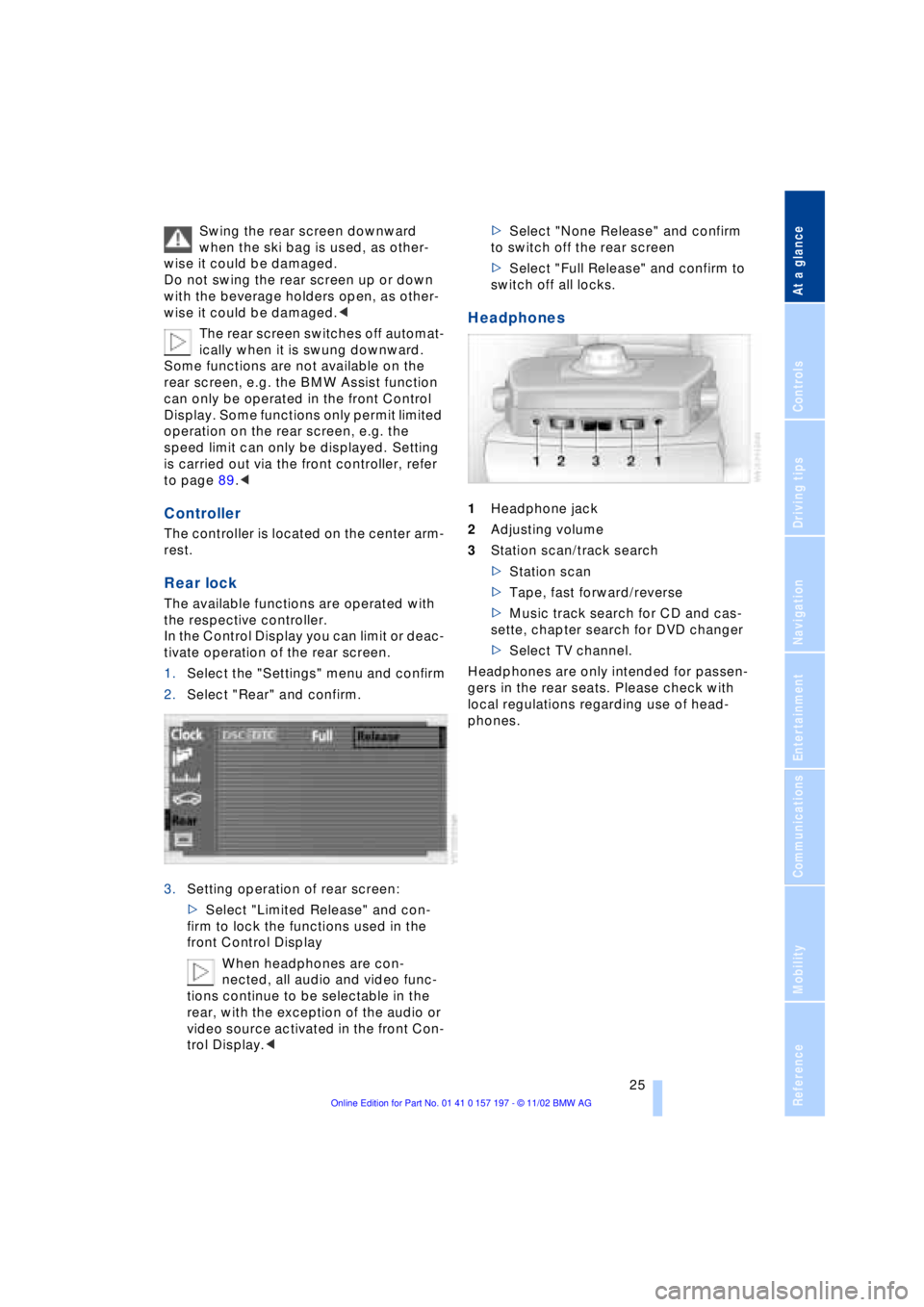
In the Control Display you can limit or deac-
tivate operation of the rear screen.
1.Select the "Settings" menu and confirm
2.Select "Rear" and confirm.
3.Setting operation of rear screen:
>Select "Limited Release" and con-
firm to lock the functions used in the
front Control Display
When headphones are con-
nected, all audio and video func-
tions continue to be selectable in the
rear, with the exception of the audio or
video source activated in the front Con-
trol Display.<>Select "None Release" and confirm
to switch off the rear screen
>Select "Full Release" and confirm to
switch off all locks.
Headphones
1Headphone jack
2Adjusting volume
3Station scan/track search
>Station scan
>Tape, fast forward/reverse
>Music track search for CD and cas-
sette, chapter search for DVD changer
>Select TV channel.
Headphones are only intended for passen-
gers in the rear seats. Please check with
local regulations regarding use of head-
phones.
Page 28 of 229
Voice command
26
Voice command
Voice command system
The concept
The voice command system allows you to
control operation of various vehicle sys-
tems without ever removing your hands
from the steering wheel. The system oper-
ates on the basis of voice commands that
you will learn easily after using them a few
times. In many cases, the voice command
system supports you with announcements
or questions while you are making your
entries.
The voice command system transforms
your oral commands and dialog answers
into control signals for the selected sys-
tems.
Please take the time to acquaint your-
self with how a particular system
operates before proceeding to control it
using the voice command system.<
Symbols used
{...}Verbal instructions to use with the
voice command system.
{{...}} Identifies the answers generated by
the voice command system.
Systems available for use with voice
command
>{Telephone}, refer to page 170
>{Navigation}, refer to page 130
>{Radio}, refer to page 149
>{CD}, refer to page 153
>{CD changer}, refer to page 155
>{Tape}, refer to page 158
>{Notepad}, refer to page 28
>{DVD}, refer to page 162. Either the system that you are now oper-
ating or any current error messages will
appear in the Info Display, refer to page 27.
Voice commands
Activating voice command system
Briefly press the button in the steering
wheel.
A signal tone and "SVS active" in the Info
Display, refer to page 27, indicate that the
system is ready for use. You are automati-
cally in the main menu.
From here, you can call up all the equip-
ment that can be operated.
Canceling voice command entry
Briefly press the button in the steering
wheel
or
In dialogs in which any text can be spoken,
e.g. names, notes, canceling is only pos-
sible using the button.
The system automatically switches
over to its telephone mode if you
receive a call during voice input. "SVS off"
appears in the Info Display, refer to
page 27.<
Voice commands
The voice command system operates on
the basis of specific, predefined com-
mands; these commands should be
spoken precisely as indicated. You can
have the possible commands read back at
any stage. To do so, say the command
{Options}.
In addition to the commands described,
there are often other commands that run
the same function. Instead of {Options},
you can, for example, also say {What now}.
More detailed commands such as {Change
*
These sections contain information on
using the voice command system.
{Cancel}.
Page 148 of 229
Entertainment
146
Entertainment
Controls
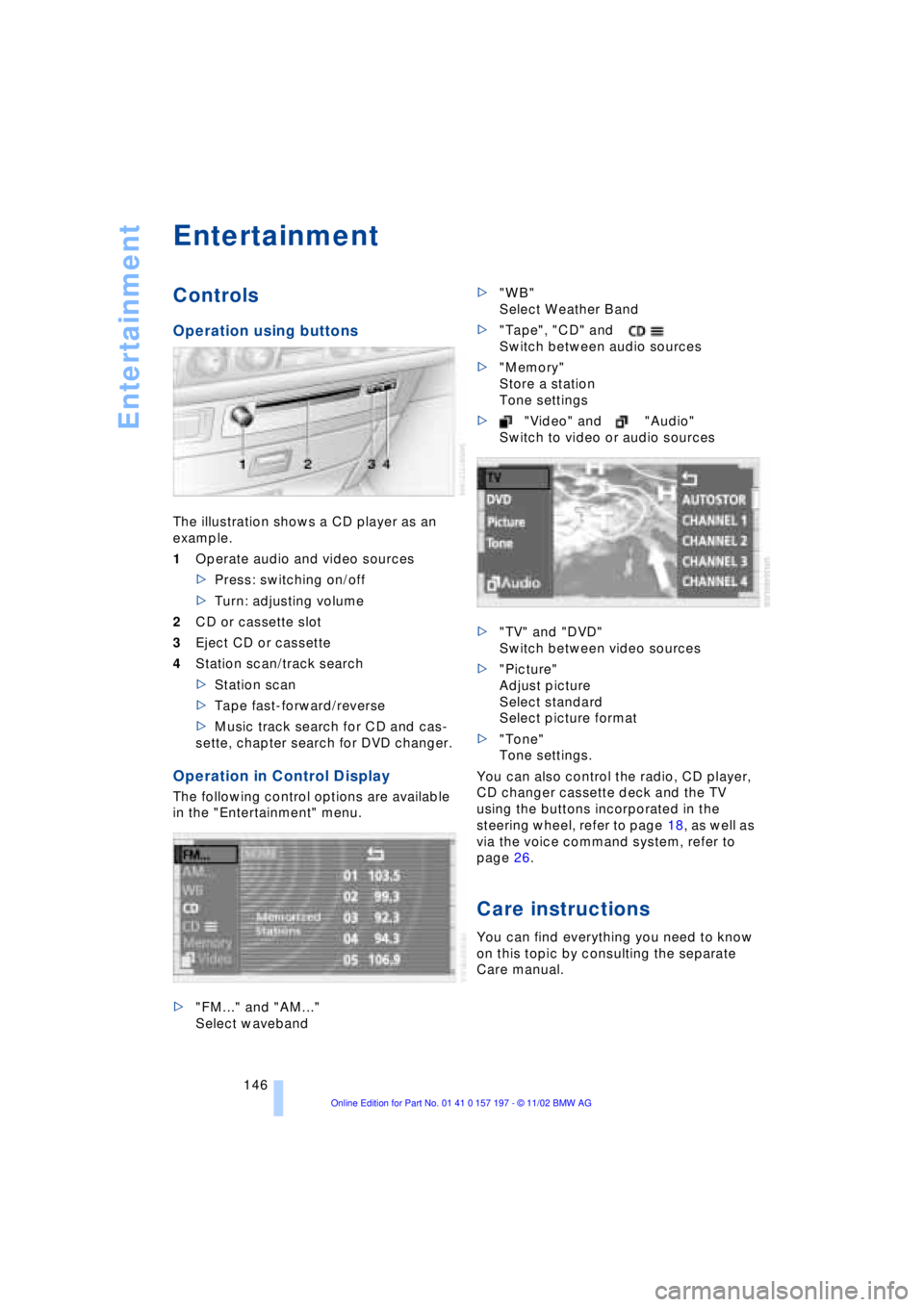
Operation using buttons
The illustration shows a CD player as an
example.
1Operate audio and video sources
>Press: switching on/off
>Turn: adjusting volume
2CD or cassette slot
3Eject CD or cassette
4Station scan/track search
>Station scan
>Tape fast-forward/reverse
>Music track search for CD and cas-
sette, chapter search for DVD changer.
Operation in Control Display
The following control options are available
in the "Entertainment" menu.
>"FM..." and "AM..."
Select waveband>"WB"
Select Weather Band
>"Tape", "CD" and
Switch between audio sources
>"Memory"
Store a station
Tone settings
>"Video" and "Audio"
Switch to video or audio sources
>"TV" and "DVD"
Switch between video sources
>"Picture"
Adjust picture
Select standard
Select picture format
>"Tone"
Tone settings.
You can also control the radio, CD player,
CD changer cassette deck and the TV
using the buttons incorporated in the
steering wheel, refer to page 18, as well as
via the voice command system, refer to
page 26.
Care instructions
You can find everything you need to know
on this topic by consulting the separate
Care manual.
Page 151 of 229
At a glance
Controls
Driving tips
Communications
Navigation
Entertainment
Mobility
Reference
149
Radio
Operating temperatures
Only operate the radio at tempera-
tures of 57 (Ð156) to 1407
(+606) otherwise, malfunctions can
occur.
Even when switched off, the device should
only be exposed to temperatures between
Ð137 (Ð256) and 1857 (+856).<
Starting
1.Switch on audio or video sources, refer
to page 147
If a video source is switched on,
select "Audio" and confirm.<
2.If another audio source is switched on,
select "FM..." or "AM..." and confirm.
Volume adjustment, refer to page 147.
Tone control, refer to page 147.
Stopping
Switch off audio or video sources, refer to
page 147
or switch over to
>CD player, refer to page 153
>CD changer, refer to page 155
>Cassette deck, refer to page 158
>TV, refer to page 160
>DVD, refer to page 162.
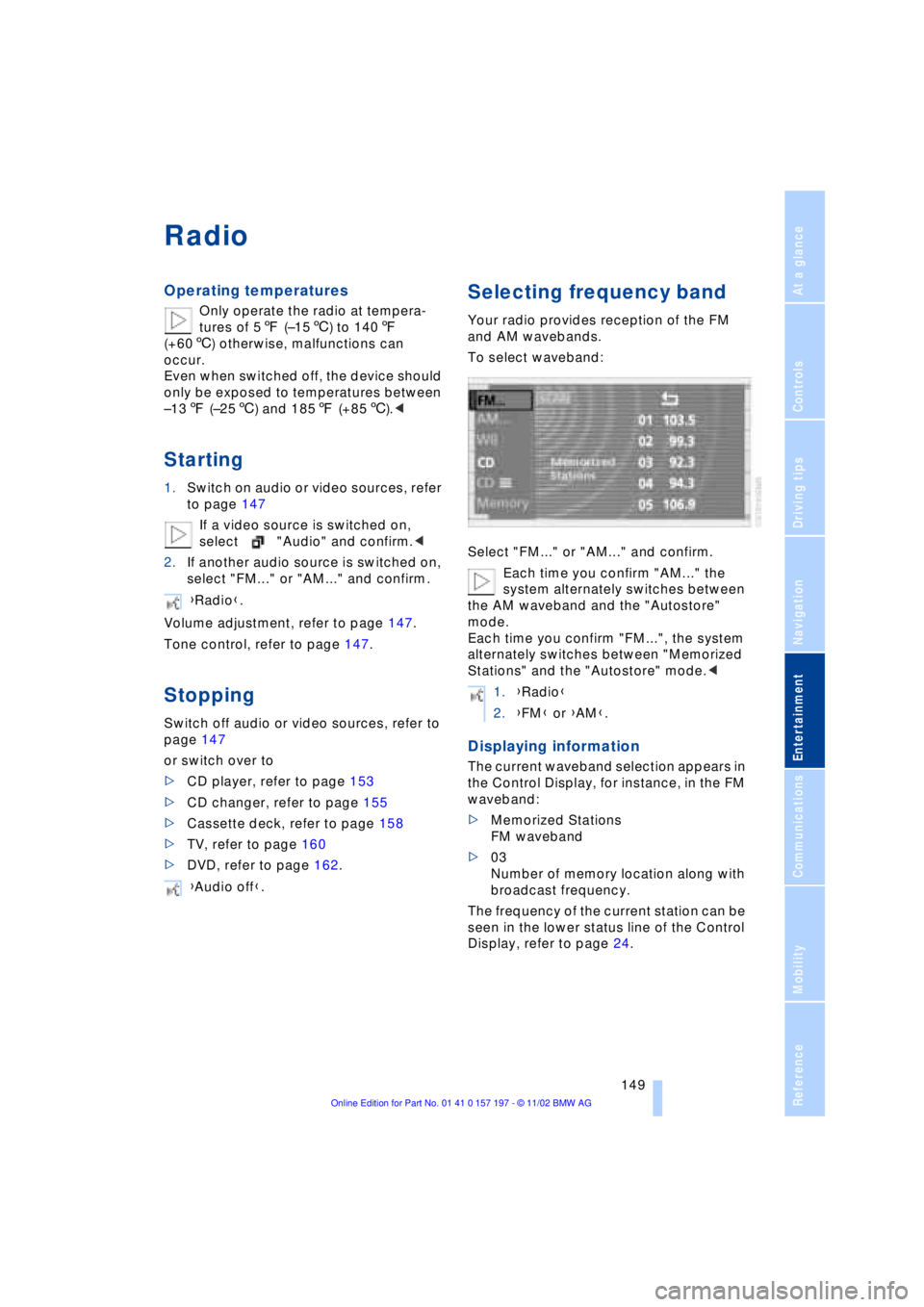
Selecting frequency band
Your radio provides reception of the FM
and AM wavebands.
To select waveband:
Select "FM..." or "AM..." and confirm.
Each time you confirm "AM..." the
system alternately switches between
the AM waveband and the "Autostore"
mode.
Each time you confirm "FM...", the system
alternately switches between "Memorized
Stations" and the "Autostore" mode.<
Displaying information
The current waveband selection appears in
the Control Display, for instance, in the FM
waveband:
>Memorized Stations
FM waveband
>03
Number of memory location along with
broadcast frequency.
The frequency of the current station can be
seen in the lower status line of the Control
Display, refer to page 24. {Radio}.
{Audio off}.
1.{Radio}
2.{FM} or {AM}.
Page 155 of 229
At a glance
Controls
Driving tips
Communications
Navigation
Entertainment
Mobility
Reference
153
CD Compact Disc
To prevent CDs from being copied
illegally, they are often provided with
copy protection by the manufacturer.
Please observe the information on your CD.
These CDs differ from the CD Audio Stan-
dard Red Book, on the basis of which all
CD players and changers are designed.
Under certain circumstances this can pre-
vent or restrict the playing of CDs on your
CD player. In this case please contact the
CD dealer or manufacturer.<
If you play self-recorded audio CDs,
faults, e.g. drop-outs, can occur, or
the CD is not played at all.<
With self-recorded CDs, labels
applied later can become detached
during playback due to the development of
heat, causing irreparable damage to the
device.<
Operating temperatures
Only operate the CD-player at tem-
peratures of 57 (Ð156) to 1407
(+606) otherwise, malfunctions can
occur.
Even when switched off, the device should
only be exposed to temperatures between
Ð137 (Ð256) and 1857 (+856).<
Atmospheric humidity
High levels of humidity inside the player
can condense on the laser's scan lens and
prevent it from reading the CD.
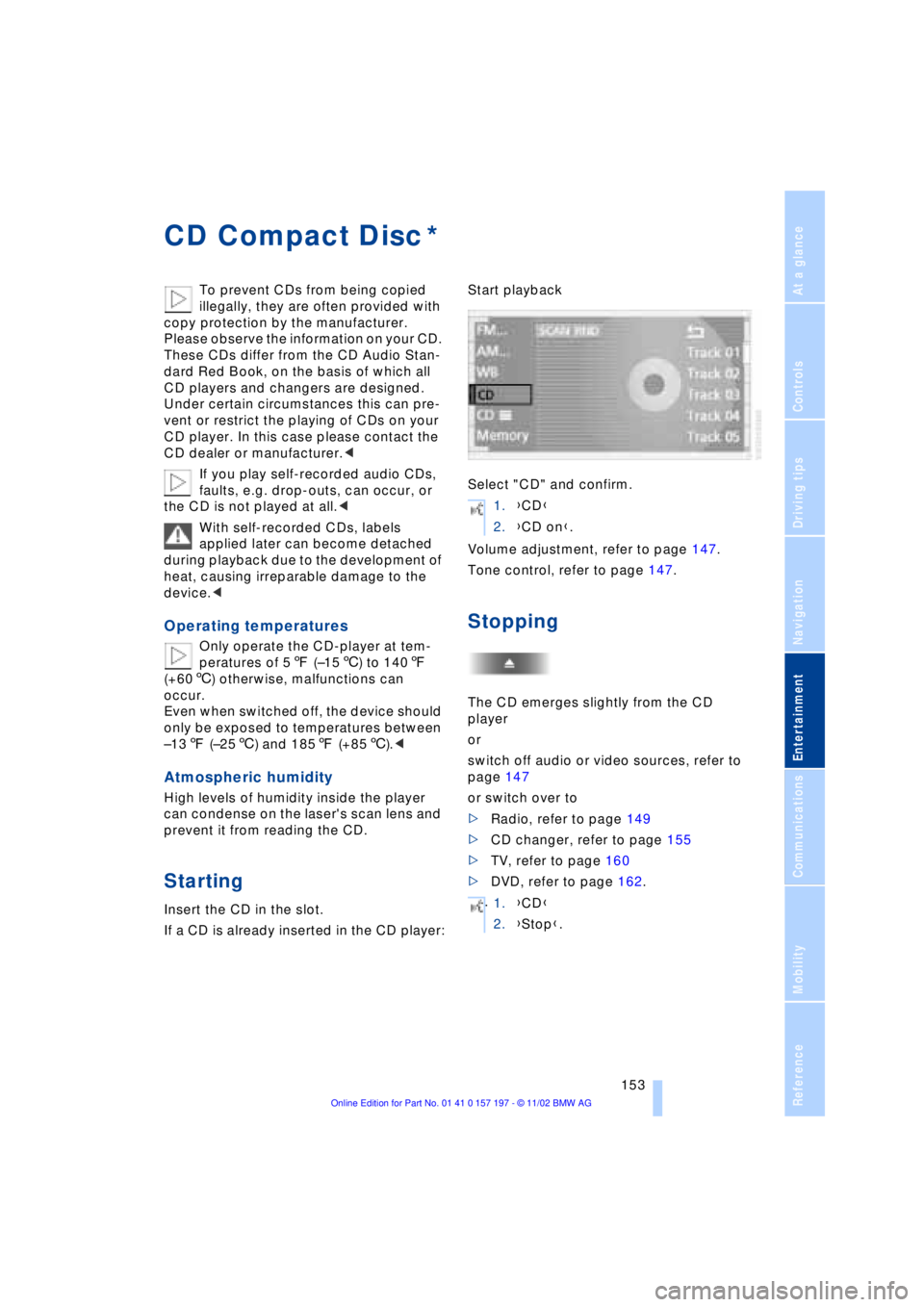
Starting
Insert the CD in the slot.
If a CD is already inserted in the CD player:Start playback
Select "CD" and confirm.
Volume adjustment, refer to page 147.
Tone control, refer to page 147.
Stopping
The CD emerges slightly from the CD
player
or
switch off audio or video sources, refer to
page 147
or switch over to
>Radio, refer to page 149
>CD changer, refer to page 155
>TV, refer to page 160
>DVD, refer to page 162.
*
1.{CD}
2.{CD on}.
.
1.{CD}
2.{Stop}.
Page 157 of 229
At a glance
Controls
Driving tips
Communications
Navigation
Entertainment
Mobility
Reference
155
CD changer
Precautions when using laser
equipment
The BMW CD changer is a Class 1 laser
product.
Never remove the cover from the
housing. Do not operate the unit if the
cover is damaged. Operation without the
cover can lead to serious eye injury from
invisible laser beams.
Always refer all repair and maintenance
operations to qualified technicians.<
Copy protection
To prevent CDs from being copied
illegally, they are often provided with
copy protection by the manufacturer.
Please observe the information on your CD.
These CDs differ from the CD Audio Stan-
dard Red Book, on the basis of which all
CD players and changers are designed.
Under certain circumstances, this can pre-
vent or restrict the playing of CDs on your
CD changer. In this case, please contact
the CD dealer or manufacturer.<
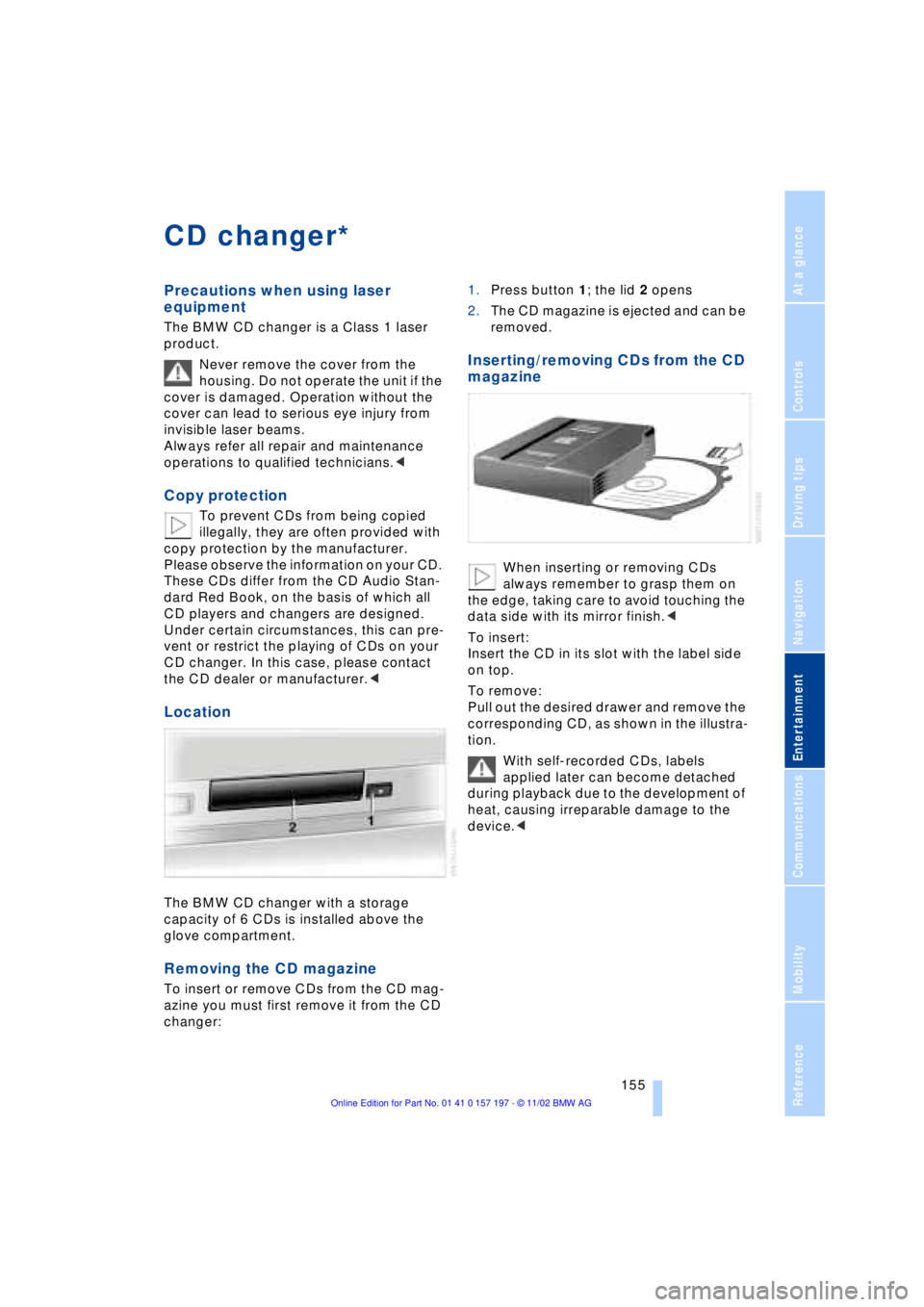
Location
The BMW CD changer with a storage
capacity of 6 CDs is installed above the
glove compartment.
Removing the CD magazine
To insert or remove CDs from the CD mag-
azine you must first remove it from the CD
changer:1.Press button 1; the lid 2 opens
2.The CD magazine is ejected and can be
removed.
Inserting/removing CDs from the CD
magazine
When inserting or removing CDs
always remember to grasp them on
the edge, taking care to avoid touching the
data side with its mirror finish.<
To insert:
Insert the CD in its slot with the label side
on top.
To remove:
Pull out the desired drawer and remove the
corresponding CD, as shown in the illustra-
tion.
With self-recorded CDs, labels
applied later can become detached
during playback due to the development of
heat, causing irreparable damage to the
device.<
*
Page 158 of 229
CD changer
156
Inserting the CD magazine
1.Press button 1; the lid opens
2.Ensure that the arrow symbol is
pointing toward the CD player and slide
the magazine 2 all the way in. The lid
closes automatically.
The CD changer automatically reads
in the loaded CDs and is then ready
for operation.<
Operating temperatures
Only operate the CD changer at tem-
peratures of 57 (Ð156) to 1407
(+606); otherwise, malfunctions can
occur.
Even when switched off, the device should
only be exposed to temperatures between
Ð137 (Ð256) and 1857 (+856).<
Atmospheric humidity
High levels of humidity inside the player
can condense on the laser's scan lens and
prevent it from reading the CD.
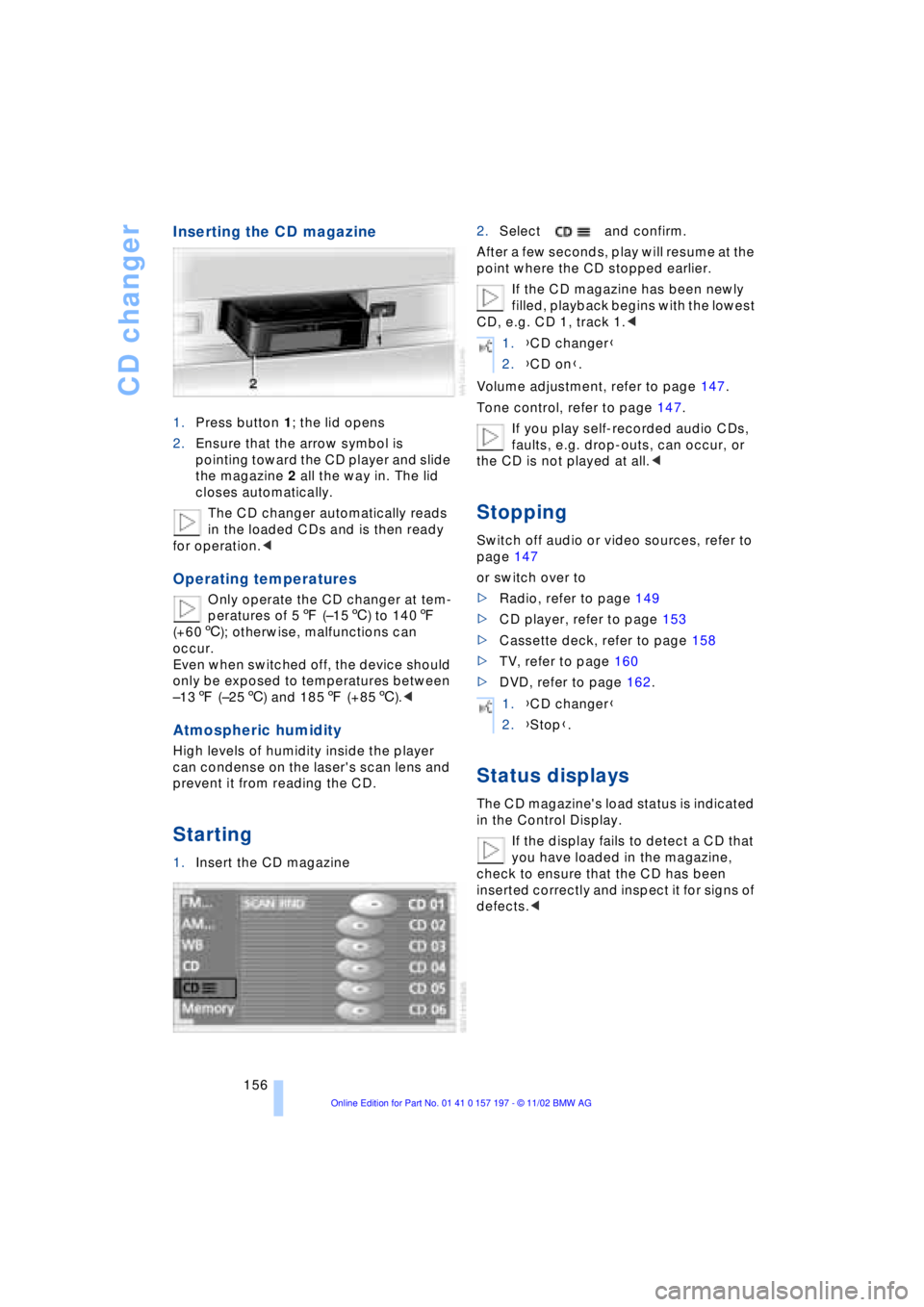
Starting
1.Insert the CD magazine2.Select and confirm.
After a few seconds, play will resume at the
point where the CD stopped earlier.
If the CD magazine has been newly
filled, playback begins with the lowest
CD, e.g. CD 1, track 1.<
Volume adjustment, refer to page 147.
Tone control, refer to page 147.
If you play self-recorded audio CDs,
faults, e.g. drop-outs, can occur, or
the CD is not played at all.<
Stopping
Switch off audio or video sources, refer to
page 147
or switch over to
>Radio, refer to page 149
>CD player, refer to page 153
>Cassette deck, refer to page 158
>TV, refer to page 160
>DVD, refer to page 162.
Status displays
The CD magazine's load status is indicated
in the Control Display.
If the display fails to detect a CD that
you have loaded in the magazine,
check to ensure that the CD has been
inserted correctly and inspect it for signs of
defects.<
1.{CD changer}
2.{CD on}.
1.{CD changer}
2.{Stop}.
Page 159 of 229
At a glance
Controls
Driving tips
Communications
Navigation
Entertainment
Mobility
Reference
157
Searching for music tracks
in the Control Display
Selecting CD
Select CD and confirm.
Playback starts on the first track. At the end
of the last track, the next CD will be
selected.
Sampling and selecting Ð Scan
The system automatically plays a brief
sample from each of the tracks on the cur-
rent CD.
1.To start sampling:
Select "SCAN" and confirm.
The Scan function starts with the next
track. Once all tracks have been played
once, the next track is played
2.To select a track:
Confirm "SCAN" a second time to
cancel the scan function. Play resumes
at the point on the CD at which sam-
pling was interrupted.
Random play sequence Ð Random
In this mode the music tracks on the
current CD are played in a random
sequence, Random.
To start random play:
Select "RND" and confirm your selection.
To cancel random play:
Select any other function except track
search.
Using the buttons to search
for music tracks
Track search
Select the direction
Press repeatedly, continuing until you
reach the desired track on the current CD.
The CD will start play at the title selected.
Fast forward/reverse
1.Select the direction
Press and hold the button. The tracks
can be heard, but the sound is distorted
2.To interrupt the fast forward/reverse
function, release the button.
The system will continue play at the
point on the CD at which the button was
released.
Selecting music track
{CD 1 ..6}.
1.{CD changer}
2.{Next} or {Back}.
1.{CD changer}
2.{Track 1 ..30}.
Page 160 of 229
Cassette
158
Cassette
Operating temperatures
Only operate the cassette deck at
temperatures of 57 (Ð156) to
1407 (+606); otherwise, malfunctions
can occur.
Even when switched off, the device should
only be exposed to temperatures between
Ð137 (Ð256) and 1857 (+856).<
Starting
Slide the cassette all the way into the slot,
ensuring that the side with the exposed
tape is on the right.
If a cassette is already in the slot:
Start playback
Select "Tape" and confirm.
Volume adjustment, refer to page 147.
Tone control, refer to page 147.
Stopping
The cassette emerges from the slot
or
switch off audio or video sources, refer to
page 147
or switch over to>Radio, refer to page 149
>CD changer, refer to page 155
>TV, refer to page 160
>DVD, refer to page 162.
Selecting side A or B
Select "Side" and confirm.
Switching "Booktape" on/
off
Select "Booktape" and confirm.
Each time you confirm "Booktape", the
deck alternately switches between the two
booktape tracks and the standard stereo
sound track.
The selected booktape track is indicated as
"Booktape 1" or "Booktape 2".
When you change tape sides with the
"Side" command the deck reverts to
playing the standard stereo tape.
Noise suppression
Dolby B or C are systems designed to sup-
press noise and hiss during playback of
audio cassettes.
It amplifies high frequencies during
recording, and reduces their intensity
during playback. Because background
noise consists primarily of high frequencies
generated during play, this strategy results
in lower levels of background noise.
Dolby and the symbol are registered
trademarks of the Dolby Laboratories
Licensing Corporation.
*
{Tape on}.
1.{Tape}
2.{Stop}.
1.{Tape}
2.{Reverse}.