ignition BMW 760LI SEDAN 2007 Service Manual
[x] Cancel search | Manufacturer: BMW, Model Year: 2007, Model line: 760LI SEDAN, Model: BMW 760LI SEDAN 2007Pages: 253, PDF Size: 8.59 MB
Page 180 of 253
Telephone overview
178
Telephone overview
The concept
Your BMW is equipped with a mobile phone
preparation package. After a suitable mobile
phone has been logged onto the vehicle once,
you can operate the mobile phone via iDrive, via
the button on the steering wheel, via the phone
keypad and by voice.
A mobile phone that has been logged on once is
automatically detected again with the engine
running or the ignition switched on as soon as it
is brought inside the vehicle. The logon data of
up to four mobile phones can be stored simulta-
neously. If several mobile phones are detected
simultaneously, the mobile phone logged on
most recently can be operated via the vehicle.
Using a phone in your vehicle
Using snap-in adapter*
The so-called snap-in adapter, a cradle for your
mobile phone, is inserted into the center arm-
rest. If the mobile phone is inserted into the
Snap-in adapter, the battery is charged and the
mobile phone is connected to the external
antenna of the vehicle whenever the ignition
key is in the radio ready state or higher. This
assures better network reception and uniform
sound quality. Ask your BMW center which
mobile phones snap-in adapters are offered for.
To use the Snap-in adapter, refer to page181.
BMW discourages the use of mobile
phones or other mobile communications
devices inside the vehicle without a direct con-
nection to an outside antenna. Otherwise, the
vehicle electronics and mobile communications
device can interfere with each other. In addition,
there is no assurance that the radiation gener-
ated during transmission will be discharged
from the vehicle interior.<
Avoid operating a mobile phone detected by
the vehicle with the keypad of the mobile
phone; otherwise, malfunctions can occur.The mobile phone can be operated by means
of:
>the button on the steering wheel, refer to
page11
>the retracting telephone keypad, refer to
page179
>iDrive, refer to Initiating communication,
page184
>the voice command system
*, refer to
page24
For information on operating your mobile
phone, please consult the separate operating
instructions.
For your safety
Only make entries when the traffic situa-
tion allows you to do so. Do not hold the
mobile phone in your hand while you are driving;
use the hands-free system instead. If you do
not comply with this precaution, your being dis-
tracted can endanger vehicle occupants and
other road users.<
Suitable mobile phones
Ask your BMW center which mobile phones
with a Bluetooth interface are supported by the
mobile phone preparation package or which
mobile phones snap-in adapters are available
for. These mobile phones support the functions
described in this Owner's Manual with a certain
software version. Malfunctions can occur with
other mobile phones.
*
Page 183 of 253
181
Entertainment
Reference
At a glance
Controls
Driving tips Communications
Navigation
Mobility
Getting started
Snap-in adapter*
The so-called snap-in adapter, a cradle for your
mobile phone, is inserted into the center arm-
rest. If the mobile phone is inserted into the
Snap-in adapter, the battery is charged and the
mobile phone is connected to the external
antenna of the vehicle whenever the ignition
key is in the radio ready state or higher. This
assures better network reception and uniform
sound quality. Ask your BMW center which
mobile phones snap-in adapters are offered for.
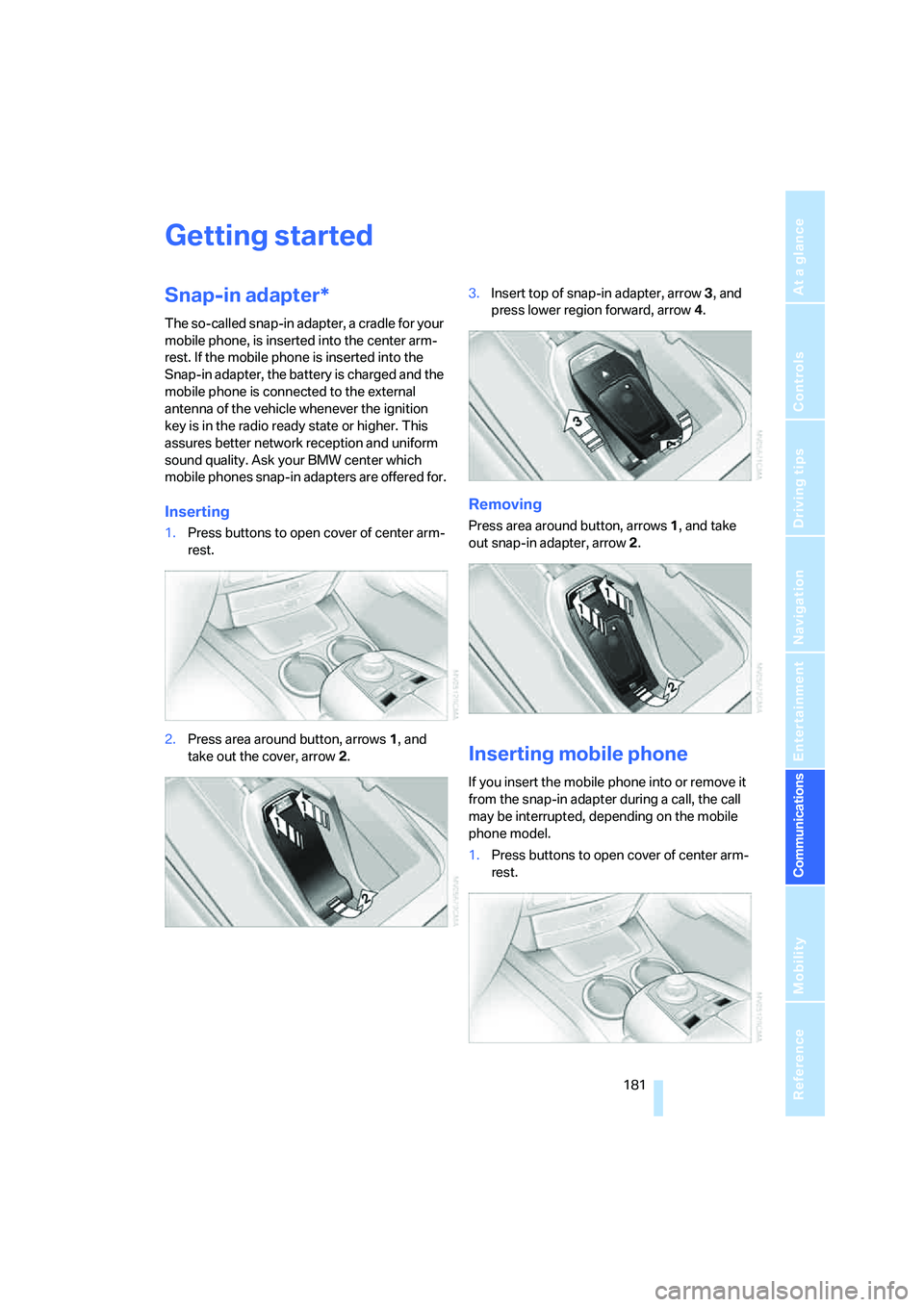
Inserting
1.Press buttons to open cover of center arm-
rest.
2.Press area around button, arrows1, and
take out the cover, arrow2.3.Insert top of snap-in adapter, arrow3, and
press lower region forward, arrow4.
Removing
Press area around button, arrows1, and take
out snap-in adapter, arrow2.
Inserting mobile phone
If you insert the mobile phone into or remove it
from the snap-in adapter during a call, the call
may be interrupted, depending on the mobile
phone model.
1.Press buttons to open cover of center arm-
rest.
Page 184 of 253
Getting started
182 2.Remove the protective cap from the mobile
phone's antenna connector if necessary, so
that the mobile phone can engage in the
snap-in adapter.
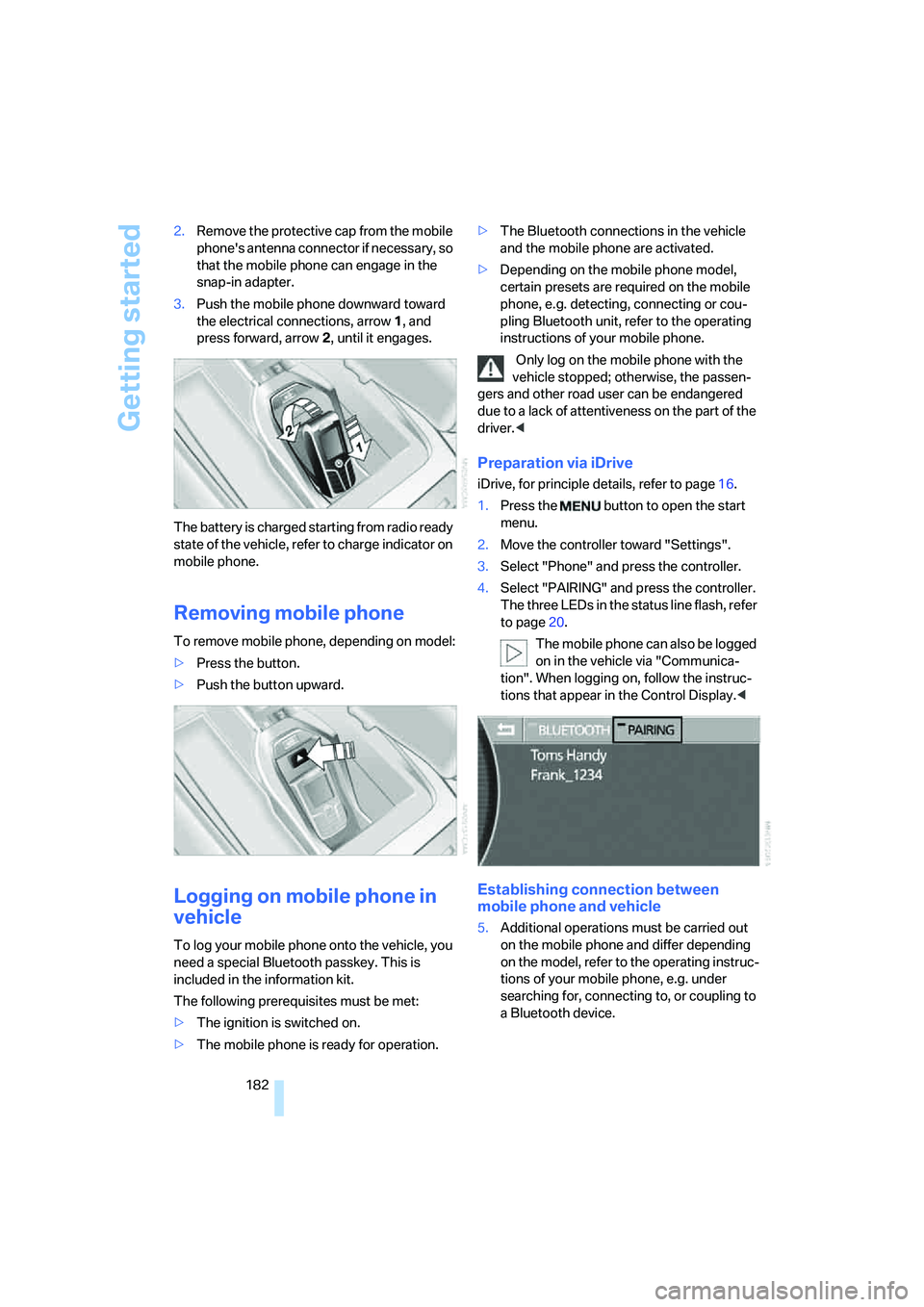
3.Push the mobile phone downward toward
the electrical connections, arrow1, and
press forward, arrow2, until it engages.
The battery is charged starting from radio ready
state of the vehicle, refer to charge indicator on
mobile phone.
Removing mobile phone
To remove mobile phone, depending on model:
>Press the button.
>Push the button upward.
Logging on mobile phone in
vehicle
To log your mobile phone onto the vehicle, you
need a special Bluetooth passkey. This is
included in the information kit.
The following prerequisites must be met:
>The ignition is switched on.
>The mobile phone is ready for operation.>The Bluetooth connections in the vehicle
and the mobile phone are activated.
>Depending on the mobile phone model,
certain presets are required on the mobile
phone, e.g. detecting, connecting or cou-
pling Bluetooth unit, refer to the operating
instructions of your mobile phone.
Only log on the mobile phone with the
vehicle stopped; otherwise, the passen-
gers and other road user can be endangered
due to a lack of attentiveness on the part of the
driver.<
Preparation via iDrive
iDrive, for principle details, refer to page16.
1.Press the button to open the start
menu.
2.Move the controller toward "Settings".
3.Select "Phone" and press the controller.
4.Select "PAIRING" and press the controller.
The three LEDs in the status line flash, refer
to page20.
The mobile phone can also be logged
on in the vehicle via "Communica-
tion". When logging on, follow the instruc-
tions that appear in the Control Display.<
Establishing connection between
mobile phone and vehicle
5.Additional operations must be carried out
on the mobile phone and differ depending
on the model, refer to the operating instruc-
tions of your mobile phone, e.g. under
searching for, connecting to, or coupling to
a Bluetooth device.
Page 185 of 253
183
Entertainment
Reference
At a glance
Controls
Driving tips Communications
Navigation
Mobility
6.Enter and confirm Bluetooth passkey using
your mobile phone keypad.
Following successful logon, the name of
your mobile phone will appear on the Con-
trol Display.
The next time you use the mobile phone within
Bluetooth range of the vehicle, it will be
detected within a short time with the ignition
switched on.
As soon as the vehicle detects a mobile phone,
the phone book entries stored on the SIM card
and/or in your mobile phone are transmitted to
your vehicle. This transfer is dependent on your
mobile phone, refer to the operating instruc-
tions of your mobile phone if necessary, and
can take several minutes.
During each connection, the phone book
entries present in the vehicle are calibrated with
the phone book entries currently stored in the
mobile phone. The entries in the vehicle are
added to or deleted as needed in the process of
this.
Up to four mobile phones can be logged on one
after the other. If you want to log on a fifth
mobile phone, the logon data of one mobile
phone must first be deleted, refer to Logging off
mobile phone from vehicle.
Logging off mobile phone
from vehicle
If you no longer want to operate a particular
mobile phone via the vehicle, you can delete the
logon data of the mobile phone.
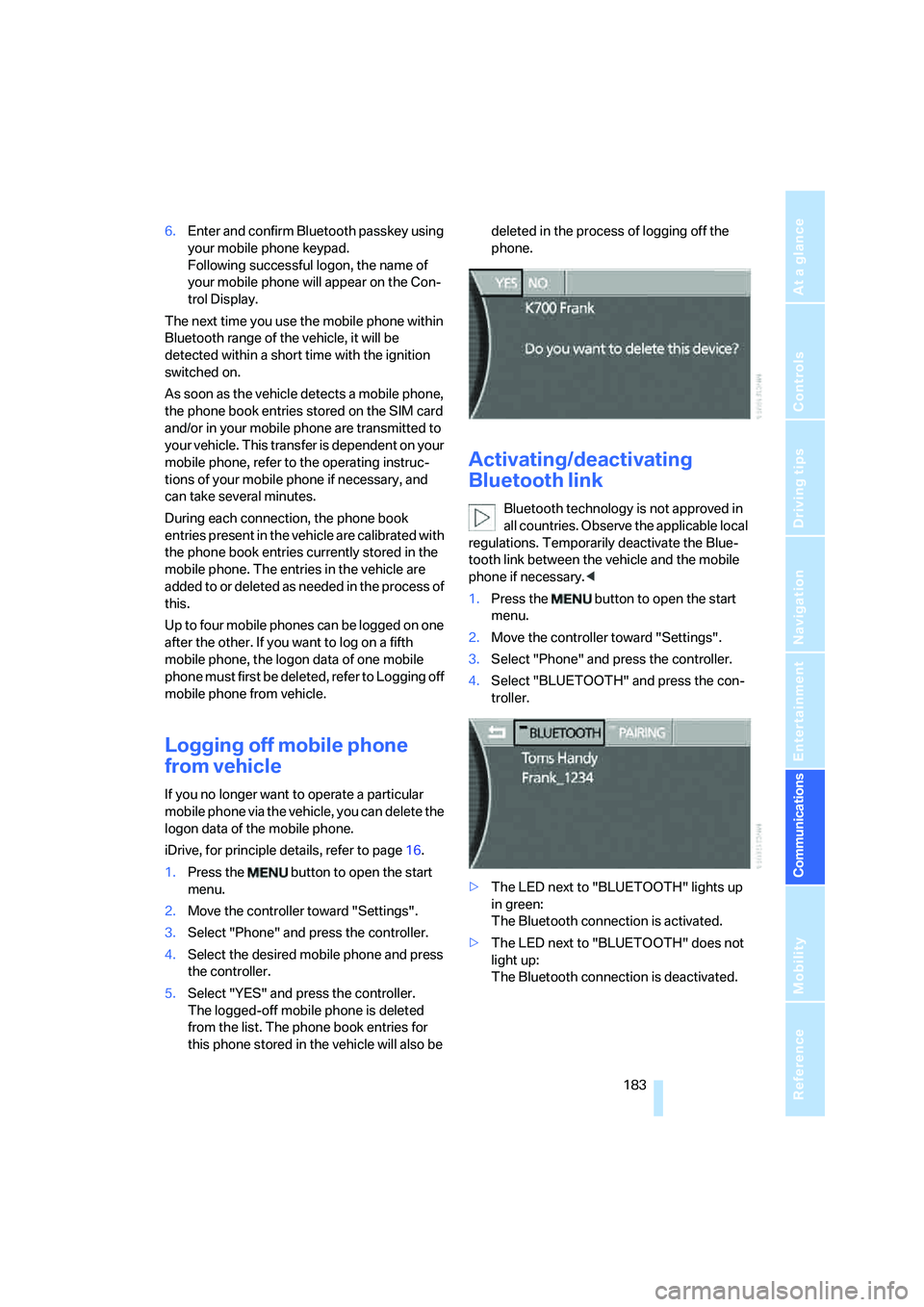
iDrive, for principle details, refer to page16.
1.Press the button to open the start
menu.
2.Move the controller toward "Settings".
3.Select "Phone" and press the controller.
4.Select the desired mobile phone and press
the controller.
5.Select "YES" and press the controller.
The logged-off mobile phone is deleted
from the list. The phone book entries for
this phone stored in the vehicle will also be deleted in the process of logging off the
phone.
Activating/deactivating
Bluetooth link
Bluetooth technology is not approved in
all countries. Observe the applicable local
regulations. Temporarily deactivate the Blue-
tooth link between the vehicle and the mobile
phone if necessary.<
1.Press the button to open the start
menu.
2.Move the controller toward "Settings".
3.Select "Phone" and press the controller.
4.Select "BLUETOOTH" and press the con-
troller.
>The LED next to "BLUETOOTH" lights up
in green:
The Bluetooth connection is activated.
>The LED next to "BLUETOOTH" does not
light up:
The Bluetooth connection is deactivated.
Page 186 of 253
Using the phone
184
Using the phone
You have the option of controlling the phone
using various parts of the vehicle equipment:
>the button on the steering wheel, refer to
page11
>the retracting telephone keypad, refer to
page179
>iDrive, refer to Initiating communication
>the voice command system
*, refer to
page24
The phone number appears in the upper status
line, refer to page20.
With the ignition switched off, you can continue
an ongoing call for a maximum of 16 minutes via
the hands-free system.
Requirements
>The logon data of the mobile phone are
stored in the vehicle and the mobile phone
is ready to operate.
>The ignition is switched on.
>The mobile phone is detected by the vehi-
cle.
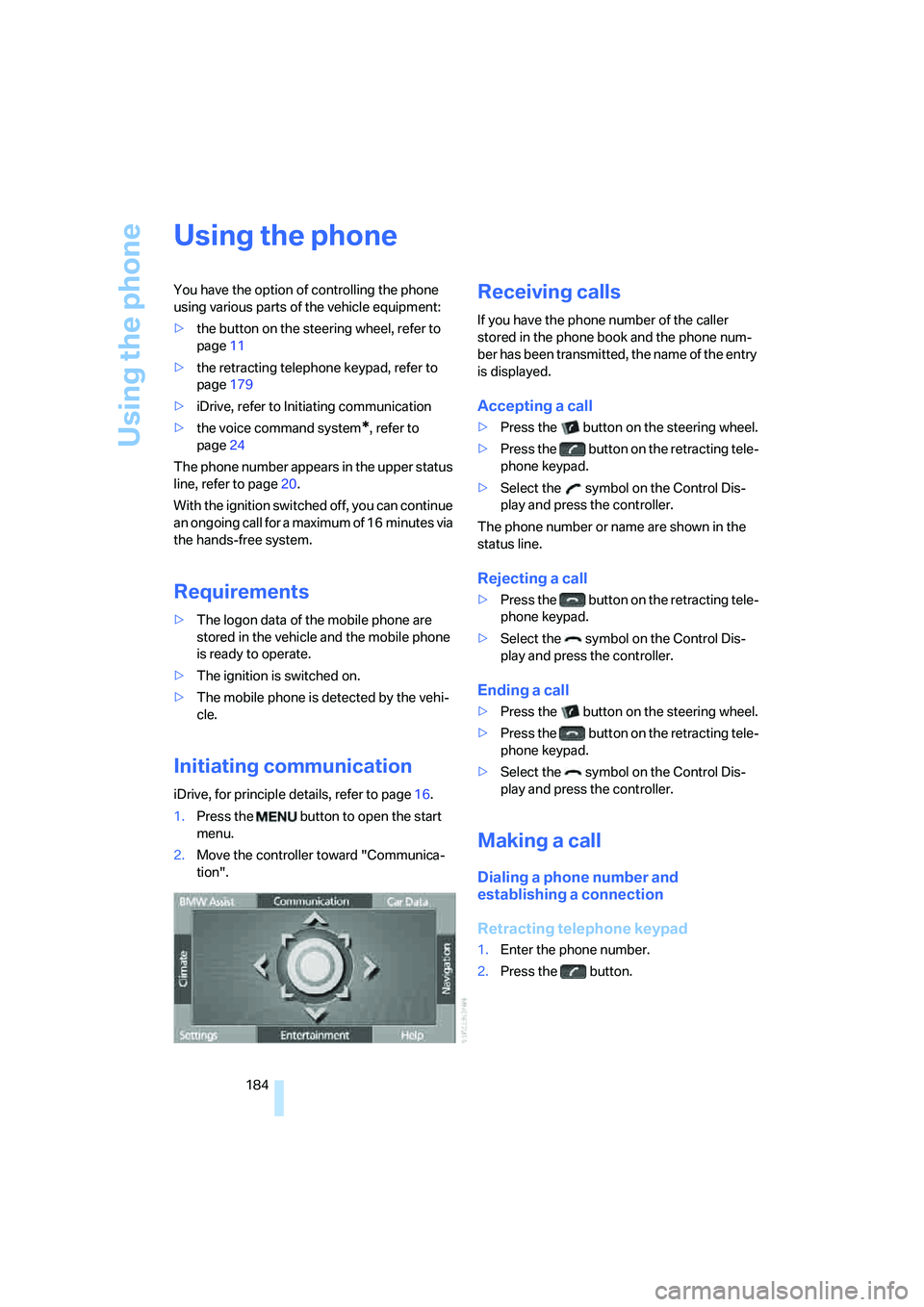
Initiating communication
iDrive, for principle details, refer to page16.
1.Press the button to open the start
menu.
2.Move the controller toward "Communica-
tion".
Receiving calls
If you have the phone number of the caller
stored in the phone book and the phone num-
ber has been transmitted, the name of the entry
is displayed.
Accepting a call
>Press the button on the steering wheel.
>Press the button on the retracting tele-
phone keypad.
>Select the symbol on the Control Dis-
play and press the controller.
The phone number or name are shown in the
status line.
Rejecting a call
>Press the button on the retracting tele-
phone keypad.
>Select the symbol on the Control Dis-
play and press the controller.
Ending a call
>Press the button on the steering wheel.
>Press the button on the retracting tele-
phone keypad.
>Select the symbol on the Control Dis-
play and press the controller.
Making a call
Dialing a phone number and
establishing a connection
Retracting telephone keypad
1.Enter the phone number.
2.Press the button.
Page 195 of 253
193
Entertainment
Reference
At a glance
Controls
Driving tips Communications
Navigation
Mobility
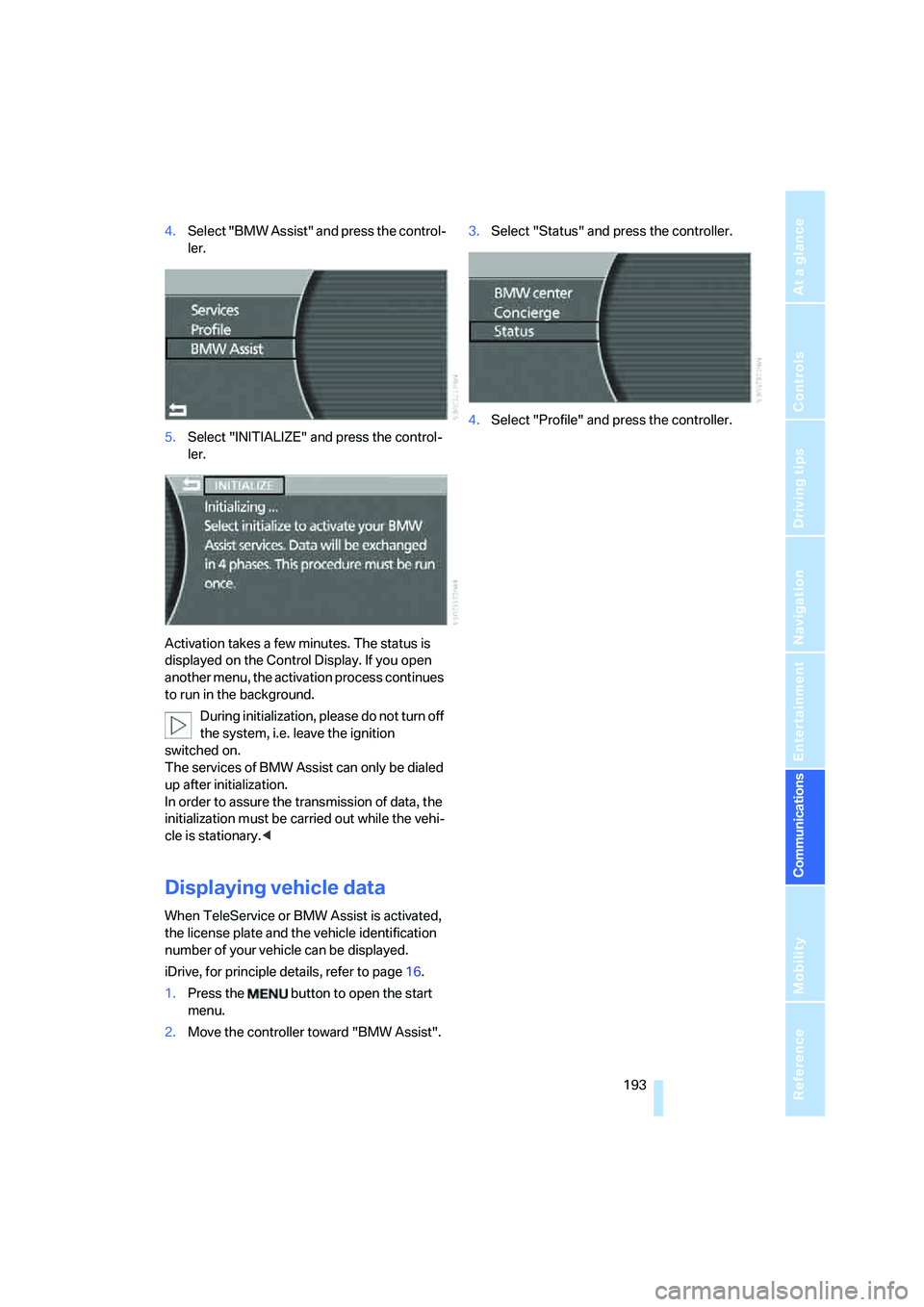
4.Select "BMW Assist" and press the control-
ler.
5.Select "INITIALIZE" and press the control-
ler.
Activation takes a few minutes. The status is
displayed on the Control Display. If you open
another menu, the activation process continues
to run in the background.
During initialization, please do not turn off
the system, i.e. leave the ignition
switched on.
The services of BMW Assist can only be dialed
up after initialization.
In order to assure the transmission of data, the
initialization must be carried out while the vehi-
cle is stationary.<
Displaying vehicle data
When TeleService or BMW Assist is activated,
the license plate and the vehicle identification
number of your vehicle can be displayed.
iDrive, for principle details, refer to page16.
1.Press the button to open the start
menu.
2.Move the controller toward "BMW Assist".3.Select "Status" and press the controller.
4.Select "Profile" and press the controller.
Page 220 of 253
Giving and receiving assistance
218
Giving and receiving assistance
Emergency call*
Conditions for an emergency call:
>Full preparation package mobile phone.
This equipment package makes it possible
to initiate an emergency call even if no
mobile phone is logged onto the vehicle.
>BMW Assist is activated. BMW Assist acti-
vation, refer to page192.
>Radio ready state or ignition must be
switched on.
>The BMW Assist system is logged on to a
mobile phone network.
>The emergency call system is operable.
Once your service contract for BMW Assist
expires, the BMW Assist system can be deacti-
vated by a BMW center without you having to
visit a workshop. Once the BMW Assist system
has been deactivated, emergency calls are not
possible. The BMW Assist system can be reac-
tivated by a BMW center after a new contract
has been signed.
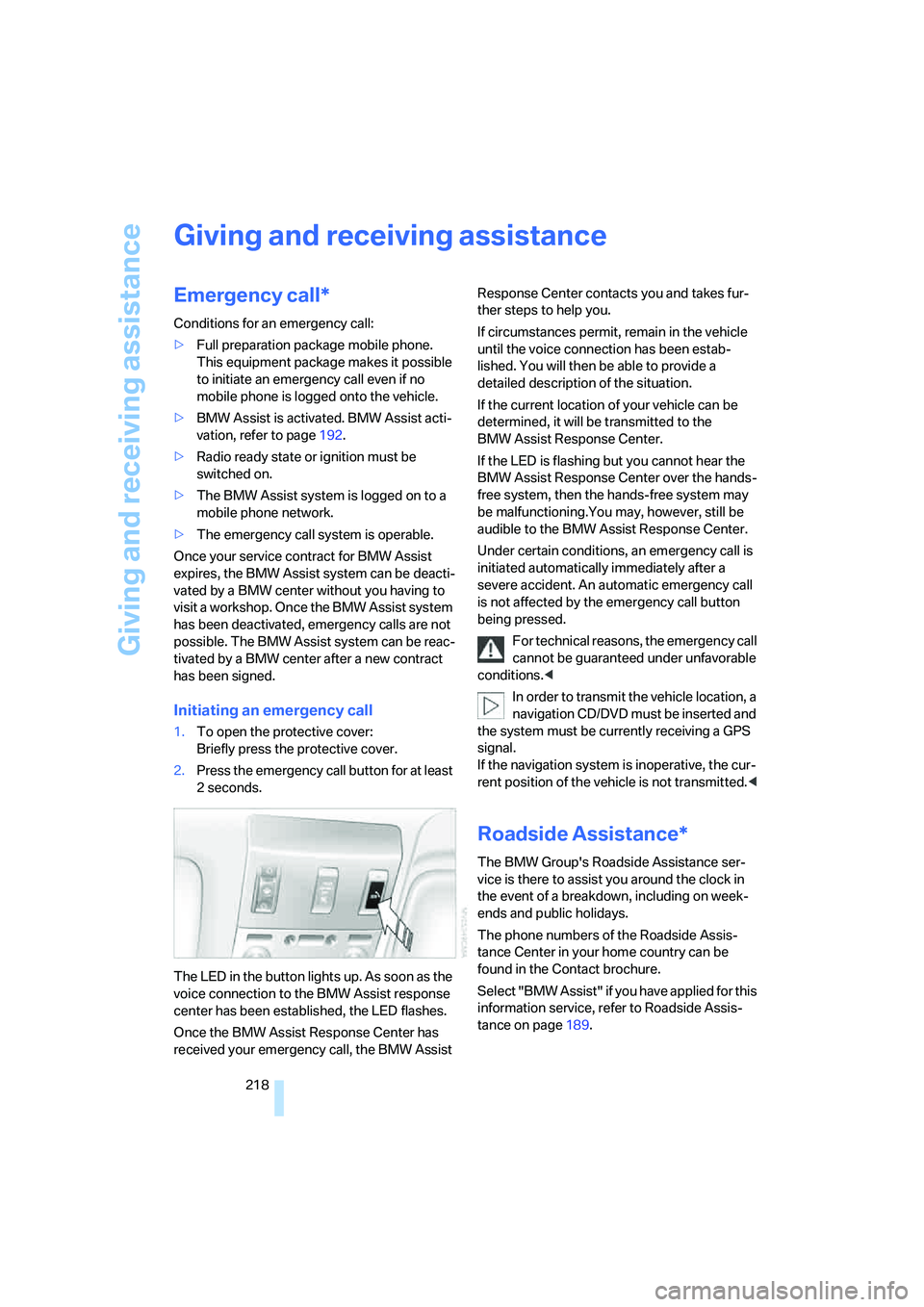
Initiating an emergency call
1.To open the protective cover:
Briefly press the protective cover.
2.Press the emergency call button for at least
2seconds.
The LED in the button lights up. As soon as the
voice connection to the BMW Assist response
center has been established, the LED flashes.
Once the BMW Assist Response Center has
received your emergency call, the BMW Assist Response Center contacts you and takes fur-
ther steps to help you.
If circumstances permit, remain in the vehicle
until the voice connection has been estab-
lished. You will then be able to provide a
detailed description of the situation.
If the current location of your vehicle can be
determined, it will be transmitted to the
BMW Assist Response Center.
If the LED is flashing but you cannot hear the
BMW Assist Response Center over the hands-
free system, then the hands-free system may
be malfunctioning.You may, however, still be
audible to the BMW Assist Response Center.
Under certain conditions, an emergency call is
initiated automatically immediately after a
severe accident. An automatic emergency call
is not affected by the emergency call button
being pressed.
For technical reasons, the emergency call
cannot be guaranteed under unfavorable
conditions.<
In order to transmit the vehicle location, a
navigation CD/DVD must be inserted and
the system must be currently receiving a GPS
signal.
If the navigation system is inoperative, the cur-
rent position of the vehicle is not transmitted.<
Roadside Assistance*
The BMW Group's Roadside Assistance ser-
vice is there to assist you around the clock in
the event of a breakdown, including on week-
ends and public holidays.
The phone numbers of the Roadside Assis-
tance Center in your home country can be
found in the Contact brochure.
Select "BMW Assist" if you have applied for this
information service, refer to Roadside Assis-
tance on page189.
Page 239 of 253
Reference 237
At a glance
Controls
Driving tips
Communications
Navigation
Entertainment
Mobility
H
Handbrake, refer to Parking
brake58
Hands-free system179
Hazard warning flashers15
"HD", High Definition
Radio162
Head airbags95
Headlamp control,
automatic100
Headlamp flasher65
– indicator lamp13
Headlamps100
– care, refer to Caring for your
vehicle brochure
– cleaning, refer to Wiper
system65
– replacing bulbs212
Head light, refer to Adaptive
Head Light101
Headphones22
Head restraints46
– front head restraints,
active47
– installation, front47
– removal, front47
– sitting safely43
Heater, windshield, refer to
Defrosting windows and
removing condensation106
Heating103
– exterior mirrors51
– mirrors51
– rear window, refer to Rear
window defroster107
– residual heat106
– seats49
– steering wheel52
– windshield washer
nozzles66
Heating and ventilation103
Heating when parked, refer to
Residual heat106
Heavy cargo, refer to Stowing
cargo124
Height, refer to
Dimensions225Height adjustment
– seats44
– steering wheel52
"Help"
– assistance window21
– menu guidance19
"Help text", assistance
window21
Help text on Control
Display21
"Hide map icons",
navigation137
"high", automatic climate
control105
High beams101
– headlamp flasher101
– indicator lamp11
High Definition Radio162
Hills123
Holder for cups115
Home address
– selecting140
– storing140
Hood206
Horn11
Hotel function, refer to
Locking separately35
Hot exhaust system122
Hour signal activation85
"House number",
navigation134
Hydraulic brake assistant,
refer to DBC87
Hydroplaning123
I
ID3 tag, refer to Displaying
track information167
iDrive16
– assistance window21
– automatic climate
control104
– changing date and time84
– changing language84
– changing settings84
– changing units of measure
and display format84
– confirming selection or
entry19
– controller16
– controls16
– displays, menus17
– menus17
– rear seat screen21
– selecting menu item19
– setting brightness85
– showing help text21
– start menu18
– status lines20
– symbols19
Ignition key30
Ignition lock57
Illuminated vanity mirror52
Imitation leather, refer to
Caring for your vehicle
brochure
"Indep. ventil.", automatic
climate control109
Indicator/warning lamps12
– airbags96
– alarm system37
– DSC88
– DTC88
– Flat Tire Monitor91
– fog lamps101
– safety belt warning49
– Tire Pressure Monitor93
Individually programmable
buttons11,52
Individual settings, refer to
Key Memory31
Page 246 of 253
Everything from A to Z
244 Service and Warranty
Information Booklet for
US models210
Service car, refer to Roadside
Assistance189,218
Service required78
Service requirement
display210
"Services", BMW Assist192
"Service Status", BMW
Assist190
"SET", setting speed limit82
"Set time 1", parked car
ventilation109
"Set time 2", parked car
ventilation109
Setting button, refer to
iDrive16
Setting language on Control
Display84
"Settings"
– activating/deactivating
Bluetooth link183
– logging on mobile phone in
vehicle182
Settings
– assistance window21
– BMW Night Vision98
– data and time84
– entertainment152
– Key Memory31
– language84
– units of measure84
Setting time, refer to
Preselecting activation
time109
Setting volume, speed-
dependent154
Shifting, for automatic
transmission with
Steptronic62
Shiftlock, refer to Selecting
transmission range62
Short commands of the voice
command system228
"Shortest route",
navigation141"Short info", programmable
buttons53
Shoulder support
adjustment45
Side airbags95
Side-mounted turn signals,
replacing bulbs213
Side window blind, refer to
Sun blinds112
Signal horn, refer to Horn11
Sitting safely43
– with airbags43
– with head restraint43
– with safety belts43
Ski bag117
Sliding/tilt sunroof, refer to
Glass sunroof, electric
41
Smokers' package, refer to
Ashtray115
Snap-in adapter181
Snow chains205
Socket
– for Onboard
Diagnostics211
– for remote control, refer to
Ignition lock57
Soft closure aid
– doors, refer to Automatic
soft closing35
– luggage compartment lid,
refer to Automatic soft
closing36
SOS, refer to Initiating an
emergency call218
Spare fuses217
Spare key30
– adapter30
Spare tire215
Spare wheel, refer to Spare
tire215
Special oils, refer to Approved
engine oils208
Speed
– average77
– limit82
Speed-dependent
volume154
Speed limit82Speedometer12
"Speed vol.", speed-
dependent volume
control154
"Split"
– assistance window for
onboard data83
– navigation, refer to Display in
assistance window130
Split screen view, refer to
Assistance window21
"Sport", EDC Electronic
Damper Control90
Sport program
– automatic transmission with
Steptronic63
– EDC Electronic Damper
Control90
Stability control, refer to
Driving stability control
systems87
Star button, refer to
Programming button
function52
"START", BMW Assist189
"START / RESET", trip
computer78
Start/Stop button57
Starting, refer to Starting
engine57
Starting difficulties
– jump starting219
– refer to Special starting
conditions58
Starting engine57
"State / Province",
navigation132
Stations
– refer to Radio156
– storing for radio158
"Status", BMW
Assist190,192
"Status: Resetting TPM...",
Tire Pressure Monitor93
"Status: Tire low!", Tire
Pressure Monitor93
"Status: TPM active", Tire
Pressure Monitor92
Page 247 of 253
Reference 245
At a glance
Controls
Driving tips
Communications
Navigation
Entertainment
Mobility
Status lines20
– in the assistance window21
Steering wheel
– adjustment52
– assistance getting in and
out52
– buttons on steering
wheel11
– heating52
– memory46
– programmable button52
– with multi-function
buttons11
Steptronic, refer to Automatic
transmission with
Steptronic63
"STOP", trip computer78
Stopwatch
– starting and stopping83
– taking an intermediate time
reading83
Storage, tires205
Storage
compartments114,115
– refer to Center armrest,
front113
– refer to Center armrest,
rear114
"STORE", radio159
"STORE DATE", deadlines for
state vehicle inspections80
Storing current position146
Storing desired speeds, refer
to Programmable cruise
control68
Storing destination by
voice141
Storing numbers, refer to
Phone book186
Storing sitting position, refer
to Seat, mirror and steering
wheel memory46
Storing vehicle, refer to Caring
for your vehicle brochure
Straps, refer to Loading124
"Street", navigation133
"SUBTITLE", DVD
changer173Summer tires, refer to Wheels
and tires198
Sun blinds112
Sunglasses compartment115
"SVS active", voice command
system24
Switches
– all around the steering
wheel10
– in the comfort area14
Switch for battery217
Switching cooling function on
and off manually107
Switching ignition on and
off57
Switching off engine
58
Switching off tilt alarm
sensor38
Switching on
– audio153
– CD changer165
– CD player163
– DVD changer171
– radio156
Symbols4
– indicator and warning
lamps13
T
Tachometer75
Tail lamps213
– replacing bulbs214
Tank capacity196
– also refer to Capacities227
Technical changes, refer to
For your own safety5
Technical data224
Telematics, refer to
BMW Assist188
Telephone
– accepting calls184
– refer to Telephone
overview178
Telephoning,
requirements184Temperature
– adjusting with automatic
climate control105
– changing units of
measure84
– outside temperature
warning75
– refer to Hot exhaust
system122
Temperature display
– interior temperature105
– outside temperature75
– setting units84
Temperature distribution,
seat heating49
Temperature of coolant, refer
to Coolant temperature76
Tempomat, refer to Active
cruise control69
Thawing windows, refer to
Defrosting windows and
removing condensation106
The right tires204
Thigh support adjustment,
refer to Seat adjustment44
Third brake lamp, refer to Tail
and brake lamps213
Three-point belt48
Through loading system117
Tightening torque for lug
bolts, refer to After
mounting216
Tilting down passenger-side
exterior mirror51
"Time", setting84
Time of arrival77
Timer, refer to Preselecting
switch-on times109
Tire inflation pressure198
– loss, refer to Indication of a
flat tire91
– loss, refer to Low tire
pressure message93
Tire Pressure Monitor91
– resetting system92
– system limits92
– warning light93
Tire Quality Grading202