audio BMW ACTIVEHYBRID 5 2012 User Guide
[x] Cancel search | Manufacturer: BMW, Model Year: 2012, Model line: ACTIVEHYBRID 5, Model: BMW ACTIVEHYBRID 5 2012Pages: 319, PDF Size: 12.54 MB
Page 196 of 319

CD/multimediaVehicle equipment
All standard, country-specific and optional
equipment that is offered in the model series is
described in this chapter. Therefore, equipment
is also described that is not available in a vehicle,
e. g., because of the selected optional equip‐
ment or country variant. This also applies for
safety-related functions and systems.
Controls1Change the entertainment source2CD/DVD drive3Eject CD/DVD4Change station/track5Programmable memory buttons6Volume, on/off
Sound output
Switching on/off
When the ignition is switched off: press ON/OFF
button on the radio.
Muting
When the ignition is switched on or the engine
is running: press the ON/OFF button on the
radio.
CD/DVD
Playback
Loading the CD/DVD player
Insert the CD/DVD with the printed side up.
Playback begins automatically.
Reading can take a few minutes with com‐
pressed audio files.
Starting playback
A CD/DVD is located in the CD/DVD player or
DVD changer.1."CD/Multimedia"2."CD/DVD"3.Select the desired CD or DVD.SymbolMeaning CD/DVD player ... DVD changer CD/DVD player, rear
Playable formats
▷DVD: DVD-ROM, DVD-R, DVD+R, DVD-
RW, DVD+RW, DVD-R DL, DVD+R DL, DVD
audio (video part only), DVD video.▷CD-ROM, CD-R, CD-RW, CD-DA, VCD,
SVCD.Seite 196EntertainmentCD/multimedia196
Online Edition for Part no. 01 40 2 900 579 - 03 12 490
Page 197 of 319
▷Compressed audio files: MP3, WMA, AAC,
M4A.
CD/DVD removal
1. Press the button.
The CD/DVD is partially ejected.2.Remove the CD/DVD.
Audio playback
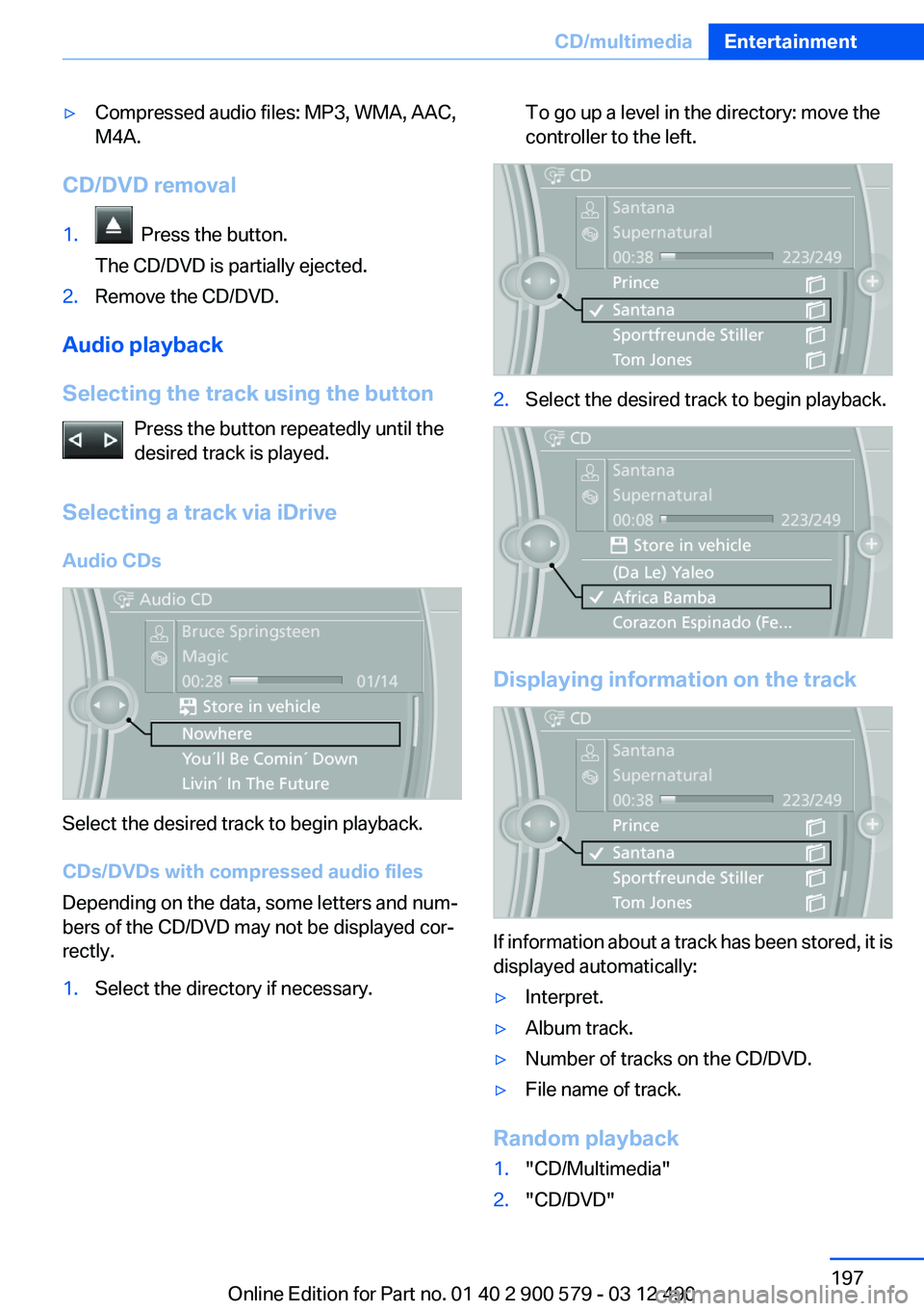
Selecting the track using the button Press the button repeatedly until the
desired track is played.
Selecting a track via iDrive
Audio CDs
Select the desired track to begin playback.
CDs/DVDs with compressed audio files
Depending on the data, some letters and num‐
bers of the CD/DVD may not be displayed cor‐
rectly.
1.Select the directory if necessary.To go up a level in the directory: move the
controller to the left.2.Select the desired track to begin playback.
Displaying information on the track
If information about a track has been stored, it is
displayed automatically:
▷Interpret.▷Album track.▷Number of tracks on the CD/DVD.▷File name of track.
Random playback
1."CD/Multimedia"2."CD/DVD"Seite 197CD/multimediaEntertainment197
Online Edition for Part no. 01 40 2 900 579 - 03 12 490
Page 199 of 319
SymbolFunction Fast forward Reverse
In fast forward/reverse: the speed increases ev‐
ery time the controller is pressed. To stop, start
playback.
DVD menu
1.If necessary, turn the controller to open the
video menu.2. "DVD menu"
The DVD menu is displayed. The display de‐
pends on the contents of the DVD.3.To select menu items: move the controller
and press it.
To change to the video menu: turn the controller
and press it.
DVD/VCD settings
For some DVDs, settings can only be made via
the DVD menu; refer also to the information on
the DVD.
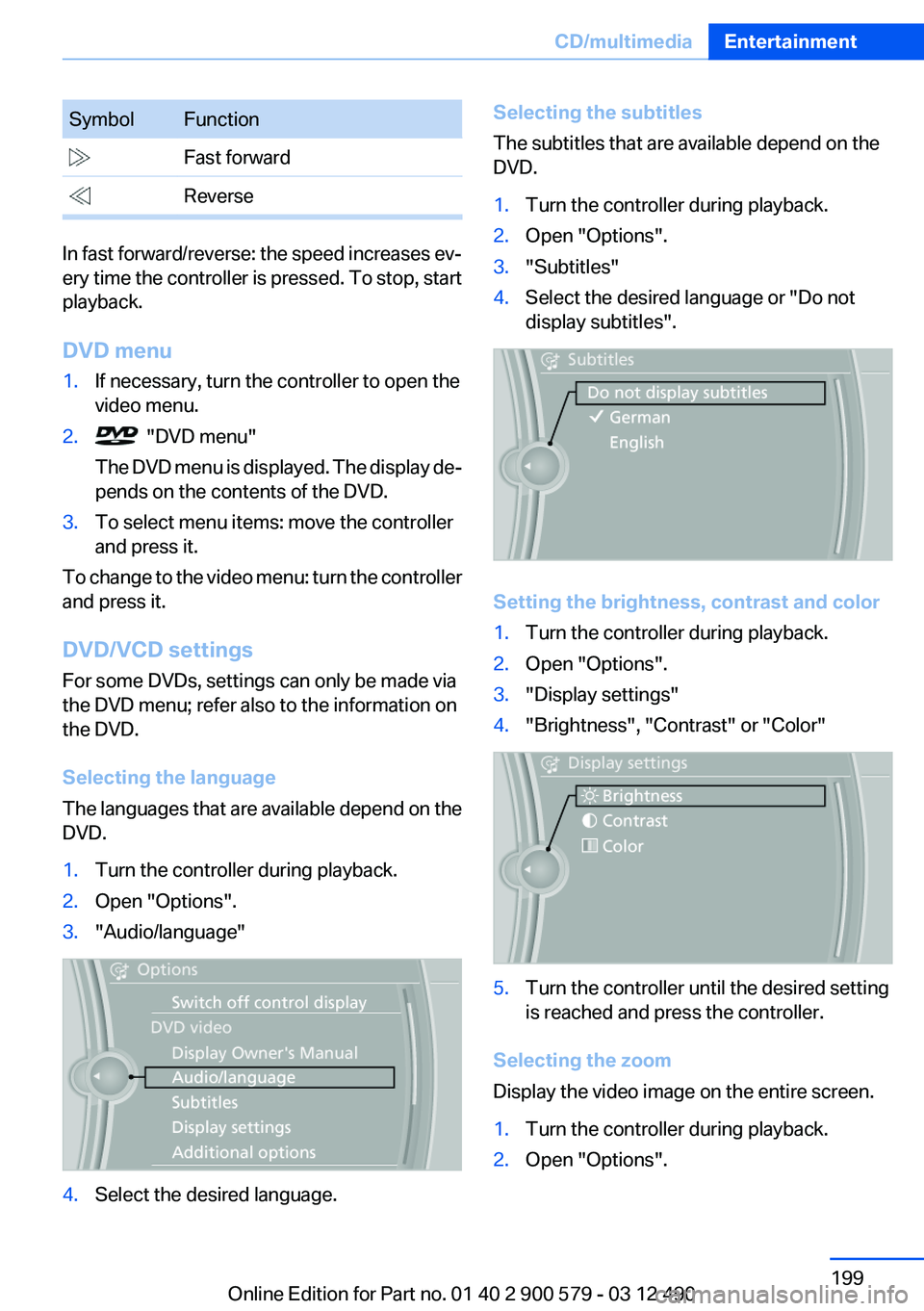
Selecting the language
The languages that are available depend on the
DVD.
1.Turn the controller during playback.2.Open "Options".3."Audio/language"4.Select the desired language.Selecting the subtitles
The subtitles that are available depend on the
DVD.1.Turn the controller during playback.2.Open "Options".3."Subtitles"4.Select the desired language or "Do not
display subtitles".
Setting the brightness, contrast and color
1.Turn the controller during playback.2.Open "Options".3."Display settings"4."Brightness", "Contrast" or "Color"5.Turn the controller until the desired setting
is reached and press the controller.
Selecting the zoom
Display the video image on the entire screen.
1.Turn the controller during playback.2.Open "Options".Seite 199CD/multimediaEntertainment199
Online Edition for Part no. 01 40 2 900 579 - 03 12 490
Page 201 of 319
The LED on the first empty compartment
flashes.2.Select another compartment if necessary.3.Wait for the LEDs on the DVD slot to flash.4.Insert a single CD or DVD in the middle.
The CD/DVD is drawn in automatically and
placed into the selected compartment.
Sliding in CDs/DVDs
Do not insert the CD/DVD until the LEDs
on the DVD slot are flashing; otherwise, the CD/
DVD or the DVD changer could be damaged.
Do not continue to push on the CD/DVD; this
may cause it to jam and prevent it from being
able to eject again.◀
Loading all empty DVD compartments
1. Press the button once and hold it
down.
The LEDs on the empty CD compartments
flash.2.Wait for the LEDs on the DVD slot to begin
flashing and then insert each CD or DVD into
the center of the slot.
The CDs/DVDs are drawn in automatically
and placed into the empty compartments.
Sliding in CDs/DVDs
Do not insert the CD/DVD until the LEDs
on the DVD slot are flashing; otherwise, the CD/
DVD or the DVD changer could be damaged.
Do not continue to push on the CD/DVD; this
may cause it to jam and prevent it from being
able to eject again.◀
After they are inserted, it may take several mi‐
nutes for the CDs/DVDs to be read in.
Removing a single CD/DVD
1. Press the button once.2.Select the DVD compartment.
The CD/DVD is partially ejected.3.Remove the CD/DVD.
Removing all CDs/DVDs
1. Press the button once and hold it down.2.Remove the CDs/DVDs.
Cancelling a function
Filling the DVD compartments or removing CDs/
DVDs can be canceled.
Press the corresponding button.
▷▷
Malfunctions
If the LEDs on the DVD slot and on the com‐
partments are flashing rapidly, a malfunction has
occurred.
To eliminate the malfunction:
1.Press one of the following buttons:▷▷
The CD/DVD last inserted is ejected.
2.Remove the CD/DVD.
The DVD changer is functional again after the
LEDs stop flashing rapidly.
Audio playback
The audio track of a DVD can be played back
even if video playback is not possible in the ve‐
hicle.
Only the main film without the previews or extras
can be played back.
Starting playback
A DVD is located in the DVD changer.
1."CD/Multimedia"Seite 201CD/multimediaEntertainment201
Online Edition for Part no. 01 40 2 900 579 - 03 12 490
Page 202 of 319
2."CD/DVD"3.Select the desired DVD.
Selecting a chapter using the buttonPress the button repeatedly until the
desired chapter is played.
Selecting a chapter using iDrive
1."CD/Multimedia"2."CD/DVD"3.Select the desired DVD.4.Select the desired chapter.
Fast forward/reverse Press and hold the button.
Selecting the language
The languages that are available depend on the
DVD.
1."CD/Multimedia"2."CD/DVD"3.Select the desired DVD.4.Open "Options".5."Audio/language"6.Select the desired language.
Notes
CD/DVD player and changer Do not remove the cover
BMW CD/DVD players and changers are
officially designated Class 1 laser products. Do
not operate if the cover is damaged; otherwise,
severe eye damage may occur.◀
CDs and DVDs Use of CDs/DVDs
▷Do not use self-recorded CDs/DVDs
with labels applied, as these can be‐
come detached during playback due
to heat buildup and can cause irrepar‐
able damage to the device.▷Only use round CDs/DVDs with a standard
diameter of 4.7 in/12 cm and do not play
CDs/DVDs with an adapter, e.g., single CDs;
otherwise, the CDs or the adapter may jam
and no longer eject.▷Do not use combined CDs/DVDs, e.g., DVD
Plus, as the CDs/DVDs can jam and will no
longer eject.◀
General malfunctions
▷CD/DVD changers and players have been
optimized for performance in vehicles. In
some instances they may be more sensitive
to faulty CDs/DVDs than stationary devices
would be.▷If a CD/DVD cannot be played, first check
whether it has been inserted correctly.
Humidity
High levels of humidity can lead to condensation
on the CD/DVD or the laser's scan lens, and
temporarily prevent playback.
Malfunctions involving individual CDs/
DVDs
If malfunctions occur only with particular CDs/
DVDs, this can be due to one of the following
causes:
Home-recorded CDs/DVDs
▷Possible reasons for malfunctions with
home-recorded CDs/DVDs are inconsistent
data creation or recording processes, or
poor quality or old age of the blank CD/DVD.▷Only label CDs/DVDs on the upper side with
a pen intended for this purpose.Seite 202EntertainmentCD/multimedia202
Online Edition for Part no. 01 40 2 900 579 - 03 12 490
Page 203 of 319
Damage▷Avoid fingerprints, dust, scratches and
moisture.▷Store CDs/DVDs in a sleeve.▷Do not subject CDs/DVDs to temperatures
over 122 ℉/50 ℃, high humidity or direct
sunlight.
CDs/DVDs with copy protection
CDs/DVDs are often provided with a copy pro‐
tection feature by the manufacturer. This can
mean that some CDs/DVDs cannot be played or
can only be played to a limited extent.
MACROVISION
This product contains copyrighted technology
that is based on multiple registered US patents
and the intellectual property of the Macrovision
Corporation and other manufacturers. The use
of this copy protection must be approved by
Macrovision. Media protected by this product -
unless otherwise agreed with Macrovision - may
only be used for private purposes. Copying of
this technology is prohibited.
DTS Digital Surround™ Manufactured under license under U.S.
Patent Numbers: 5,451,942;
5,956,674; 5,974,380; 5,978,762; 6,487,535 &
and other patents granted and registered in the
USA and worldwide. DTS and the logo are reg‐
istered trademarks & DTS Digital Surround and
the DTS logos are trademarks of DTS Inc. ©
DTS, Inc. All rights reserved.
Music collection
Storing music
General information
Music tracks from CDs/DVDs and USB devices
can be stored in the music collection on a hard
disc in the vehicle and played from there.
▷Audio CD: tracks are converted into a com‐
pressed audio format. If available, informa‐
tion on the album, such as the artist, is
stored as well.▷CD/DVD or USB device with compressed
audio files: the entire content of the CD/DVD
or the USB device is stored in the vehicle as
an album. The WMA, MP3, M4A, and AAC
formats are stored. Individual tracks and di‐
rectories can be deleted later, Deleting a
track and directory, refer to page 207.
Tracks with DRM copy protection can be
stored but cannot be played back.
Backing up music data
Regularly back up the music data; other‐
wise, it could be lost if there is a fault on the hard
disk.◀
Music recognition technology and re‐
lated data are provided by Gracenote®.
Gracenote is the industry standard in music rec‐
ognition technology and related content deliv‐
ery. For more information, please visit
www.gracenote.com.
CD and music-related data from Gracenote, Inc.,
copyright © 2000-2009 Gracenote. Gracenote
Software, copyright © 2000-2009 Gracenote.
This product and service may practice one or
more of the following U.S. Patents: #5,987,525;
#6,061,680; #6,154,773, #6,161,132,
#6,230,192, #6,230,207, #6,240,459,
#6,330,593, and other patents issued or pend‐
ing. Some services supplied under license from
Open Globe, Inc. for U.S. Patent: #6,304,523.
Storing from a CD/DVD
1.Insert a CD or DVD into the CD/DVD player.2."CD/Multimedia"3."CD/DVD"Seite 203CD/multimediaEntertainment203
Online Edition for Part no. 01 40 2 900 579 - 03 12 490
Page 204 of 319
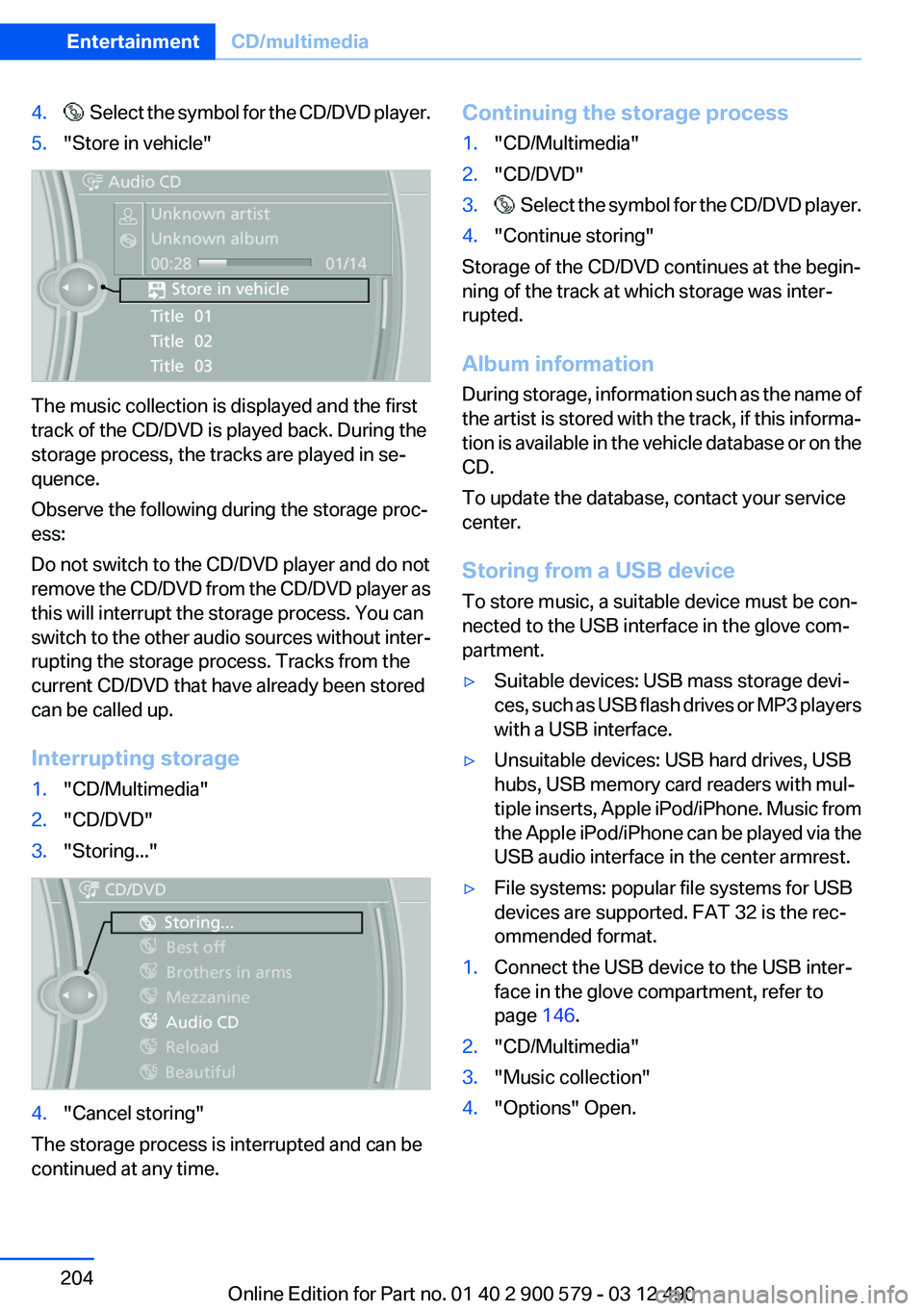
4. Select the symbol for the CD/DVD player.5."Store in vehicle"
The music collection is displayed and the first
track of the CD/DVD is played back. During the
storage process, the tracks are played in se‐
quence.
Observe the following during the storage proc‐
ess:
Do not switch to the CD/DVD player and do not
remove the CD/DVD from the CD/DVD player as
this will interrupt the storage process. You can
switch to the other audio sources without inter‐
rupting the storage process. Tracks from the
current CD/DVD that have already been stored
can be called up.
Interrupting storage
1."CD/Multimedia"2."CD/DVD"3."Storing..."4."Cancel storing"
The storage process is interrupted and can be
continued at any time.
Continuing the storage process1."CD/Multimedia"2."CD/DVD"3. Select the symbol for the CD/DVD player.4."Continue storing"
Storage of the CD/DVD continues at the begin‐
ning of the track at which storage was inter‐
rupted.
Album information
During storage, information such as the name of
the artist is stored with the track, if this informa‐
tion is available in the vehicle database or on the
CD.
To update the database, contact your service
center.
Storing from a USB device
To store music, a suitable device must be con‐
nected to the USB interface in the glove com‐
partment.
▷Suitable devices: USB mass storage devi‐
ces, such as USB flash drives or MP3 players
with a USB interface.▷Unsuitable devices: USB hard drives, USB
hubs, USB memory card readers with mul‐
tiple inserts, Apple iPod/iPhone. Music from
the Apple iPod/iPhone can be played via the
USB audio interface in the center armrest.▷File systems: popular file systems for USB
devices are supported. FAT 32 is the rec‐
ommended format.1.Connect the USB device to the USB inter‐
face in the glove compartment, refer to
page 146.2."CD/Multimedia"3."Music collection"4."Options" Open.Seite 204EntertainmentCD/multimedia204
Online Edition for Part no. 01 40 2 900 579 - 03 12 490
Page 206 of 319
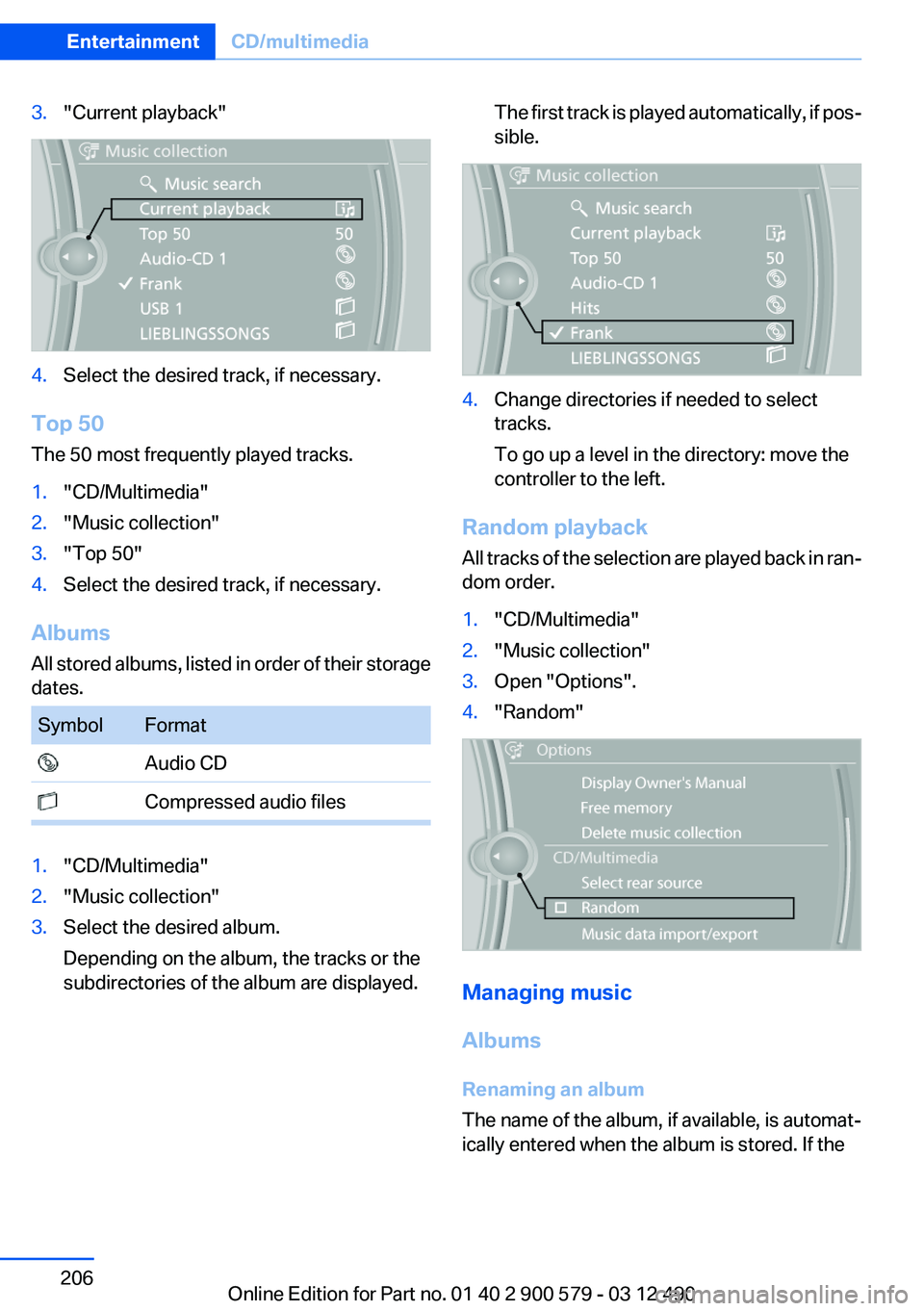
3."Current playback"4.Select the desired track, if necessary.
Top 50
The 50 most frequently played tracks.
1."CD/Multimedia"2."Music collection"3."Top 50"4.Select the desired track, if necessary.
Albums
All stored albums, listed in order of their storage
dates.
SymbolFormat Audio CD Compressed audio files1."CD/Multimedia"2."Music collection"3.Select the desired album.
Depending on the album, the tracks or the
subdirectories of the album are displayed.The first track is played automatically, if pos‐
sible.4.Change directories if needed to select
tracks.
To go up a level in the directory: move the
controller to the left.
Random playback
All tracks of the selection are played back in ran‐
dom order.
1."CD/Multimedia"2."Music collection"3.Open "Options".4."Random"
Managing music
Albums
Renaming an album
The name of the album, if available, is automat‐
ically entered when the album is stored. If the
Seite 206EntertainmentCD/multimedia206
Online Edition for Part no. 01 40 2 900 579 - 03 12 490
Page 208 of 319
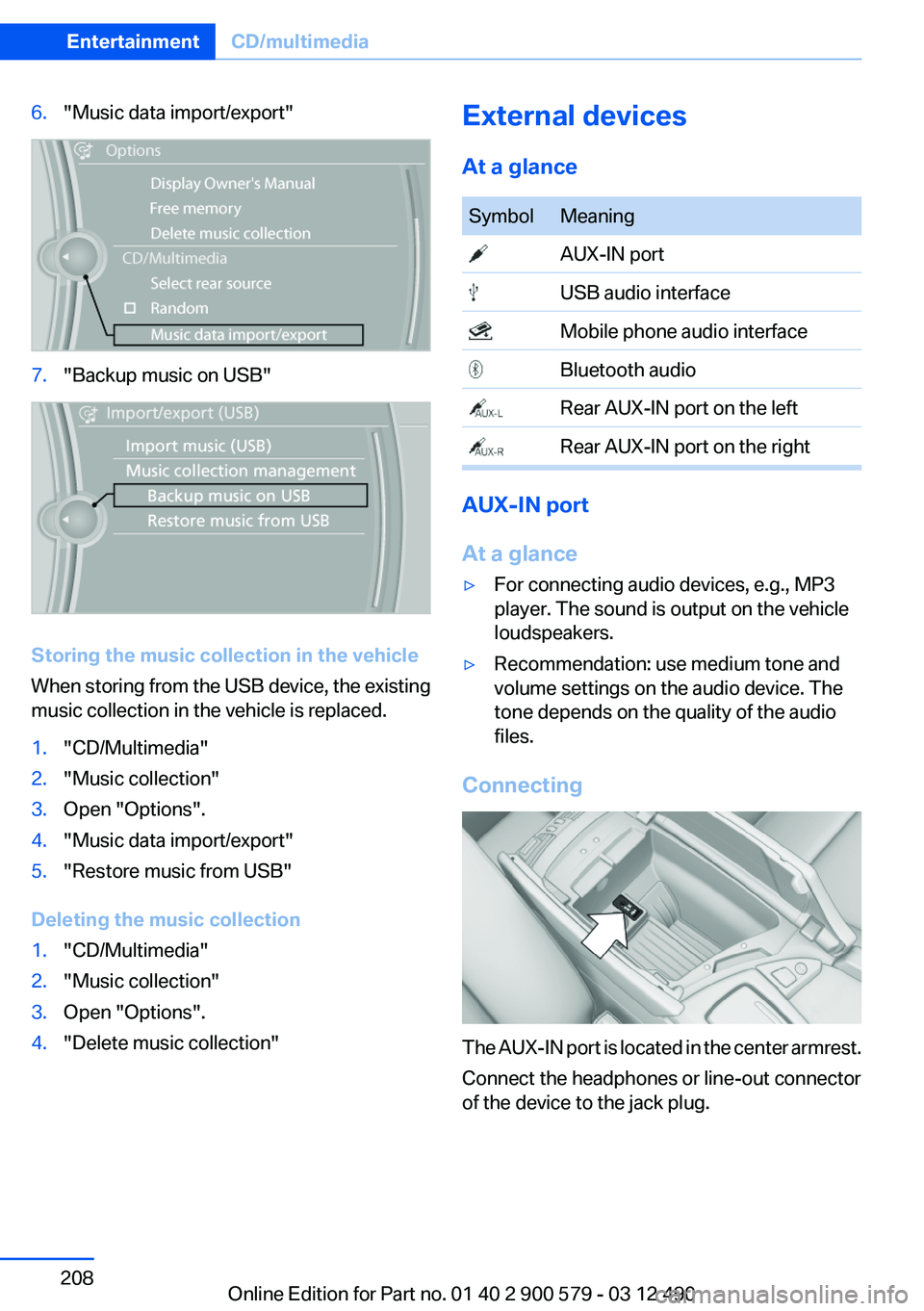
6."Music data import/export"7."Backup music on USB"
Storing the music collection in the vehicle
When storing from the USB device, the existing
music collection in the vehicle is replaced.
1."CD/Multimedia"2."Music collection"3.Open "Options".4."Music data import/export"5."Restore music from USB"
Deleting the music collection
1."CD/Multimedia"2."Music collection"3.Open "Options".4."Delete music collection"External devices
At a glanceSymbolMeaning AUX-IN port USB audio interface Mobile phone audio interface Bluetooth audio Rear AUX-IN port on the left Rear AUX-IN port on the right
AUX-IN port
At a glance
▷For connecting audio devices, e.g., MP3
player. The sound is output on the vehicle
loudspeakers.▷Recommendation: use medium tone and
volume settings on the audio device. The
tone depends on the quality of the audio
files.
Connecting
The AUX-IN port is located in the center armrest.
Connect the headphones or line-out connector
of the device to the jack plug.
Seite 208EntertainmentCD/multimedia208
Online Edition for Part no. 01 40 2 900 579 - 03 12 490
Page 209 of 319
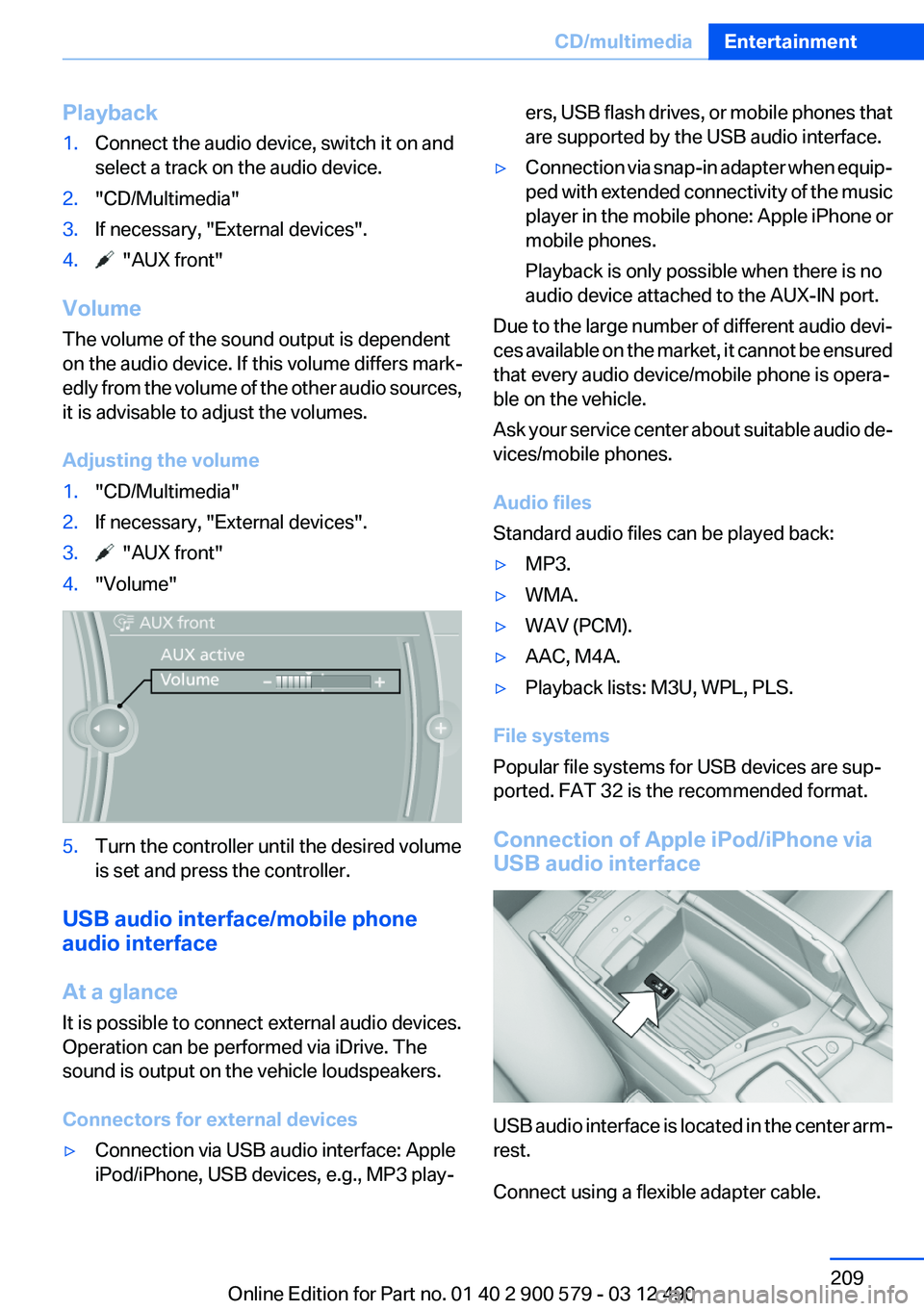
Playback1.Connect the audio device, switch it on and
select a track on the audio device.2."CD/Multimedia"3.If necessary, "External devices".4. "AUX front"
Volume
The volume of the sound output is dependent
on the audio device. If this volume differs mark‐
edly from the volume of the other audio sources,
it is advisable to adjust the volumes.
Adjusting the volume
1."CD/Multimedia"2.If necessary, "External devices".3. "AUX front"4."Volume"5.Turn the controller until the desired volume
is set and press the controller.
USB audio interface/mobile phone
audio interface
At a glance
It is possible to connect external audio devices.
Operation can be performed via iDrive. The
sound is output on the vehicle loudspeakers.
Connectors for external devices
▷Connection via USB audio interface: Apple
iPod/iPhone, USB devices, e.g., MP3 play‐ers, USB flash drives, or mobile phones that
are supported by the USB audio interface.▷Connection via snap-in adapter when equip‐
ped with extended connectivity of the music
player in the mobile phone: Apple iPhone or
mobile phones.
Playback is only possible when there is no
audio device attached to the AUX-IN port.
Due to the large number of different audio devi‐
ces available on the market, it cannot be ensured
that every audio device/mobile phone is opera‐
ble on the vehicle.
Ask your service center about suitable audio de‐
vices/mobile phones.
Audio files
Standard audio files can be played back:
▷MP3.▷WMA.▷WAV (PCM).▷AAC, M4A.▷Playback lists: M3U, WPL, PLS.
File systems
Popular file systems for USB devices are sup‐
ported. FAT 32 is the recommended format.
Connection of Apple iPod/iPhone via
USB audio interface
USB audio interface is located in the center arm‐
rest.
Connect using a flexible adapter cable.
Seite 209CD/multimediaEntertainment209
Online Edition for Part no. 01 40 2 900 579 - 03 12 490