key BMW ACTIVEHYBRID 5 2012 User Guide
[x] Cancel search | Manufacturer: BMW, Model Year: 2012, Model line: ACTIVEHYBRID 5, Model: BMW ACTIVEHYBRID 5 2012Pages: 319, PDF Size: 12.54 MB
Page 215 of 319
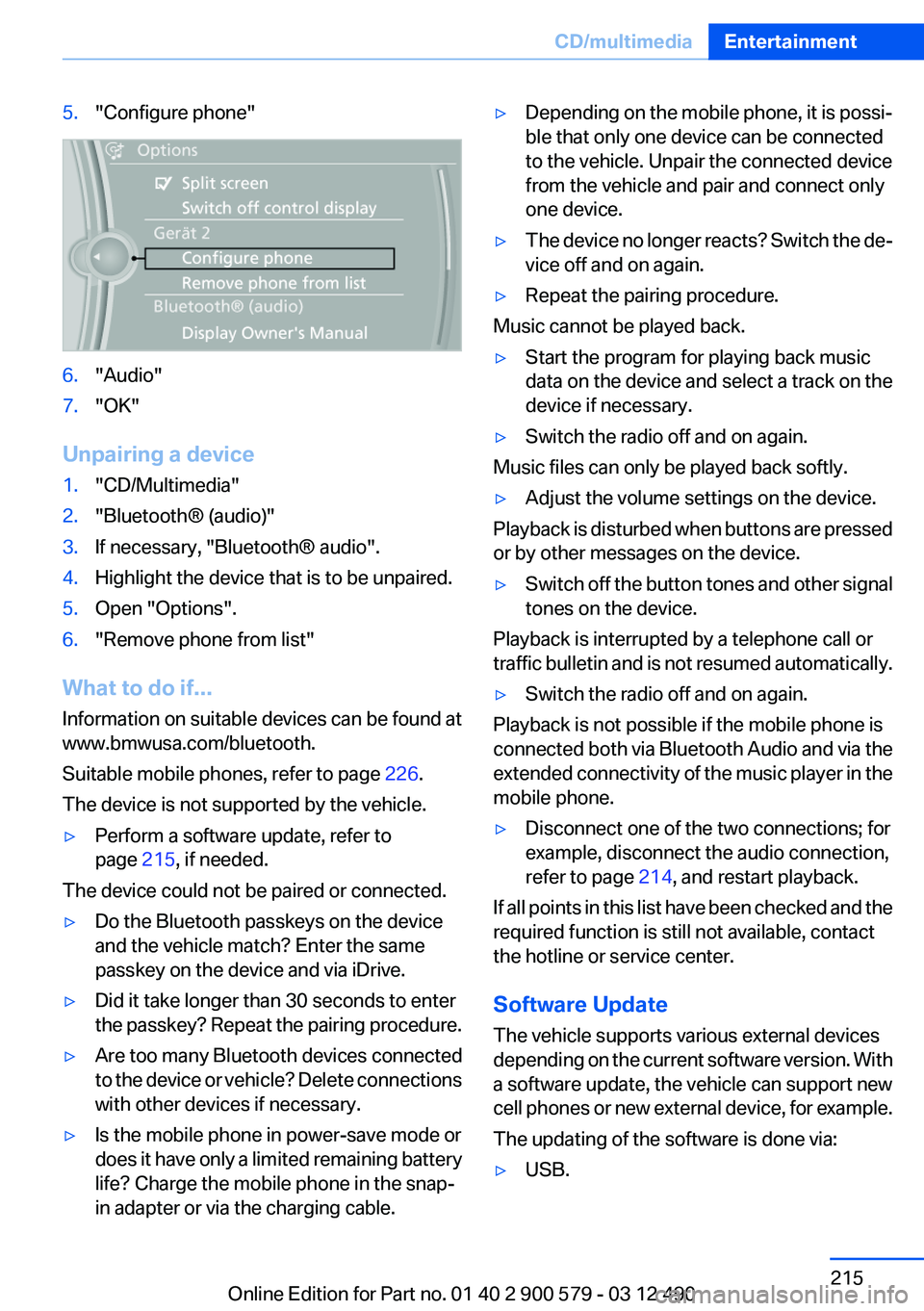
5."Configure phone"6."Audio"7."OK"
Unpairing a device
1."CD/Multimedia"2."Bluetooth® (audio)"3.If necessary, "Bluetooth® audio".4.Highlight the device that is to be unpaired.5.Open "Options".6."Remove phone from list"
What to do if...
Information on suitable devices can be found at
www.bmwusa.com/bluetooth.
Suitable mobile phones, refer to page 226.
The device is not supported by the vehicle.
▷Perform a software update, refer to
page 215, if needed.
The device could not be paired or connected.
▷Do the Bluetooth passkeys on the device
and the vehicle match? Enter the same
passkey on the device and via iDrive.▷Did it take longer than 30 seconds to enter
the passkey? Repeat the pairing procedure.▷Are too many Bluetooth devices connected
to the device or vehicle? Delete connections
with other devices if necessary.▷Is the mobile phone in power-save mode or
does it have only a limited remaining battery
life? Charge the mobile phone in the snap-
in adapter or via the charging cable.▷Depending on the mobile phone, it is possi‐
ble that only one device can be connected
to the vehicle. Unpair the connected device
from the vehicle and pair and connect only
one device.▷The device no longer reacts? Switch the de‐
vice off and on again.▷Repeat the pairing procedure.
Music cannot be played back.
▷Start the program for playing back music
data on the device and select a track on the
device if necessary.▷Switch the radio off and on again.
Music files can only be played back softly.
▷Adjust the volume settings on the device.
Playback is disturbed when buttons are pressed
or by other messages on the device.
▷Switch off the button tones and other signal
tones on the device.
Playback is interrupted by a telephone call or
traffic bulletin and is not resumed automatically.
▷Switch the radio off and on again.
Playback is not possible if the mobile phone is
connected both via Bluetooth Audio and via the
extended connectivity of the music player in the
mobile phone.
▷Disconnect one of the two connections; for
example, disconnect the audio connection,
refer to page 214, and restart playback.
If all points in this list have been checked and the
required function is still not available, contact
the hotline or service center.
Software Update
The vehicle supports various external devices
depending on the current software version. With
a software update, the vehicle can support new
cell phones or new external device, for example.
The updating of the software is done via:
▷USB.Seite 215CD/multimediaEntertainment215
Online Edition for Part no. 01 40 2 900 579 - 03 12 490
Page 218 of 319
Notes▷Do not cover lower screen edge, since this
is where the sensors and the infrared inter‐
face are installed.▷When loading the rear seats and adjusting
the backrest of the front seat, fold in the
screens.▷When cleaning the screen, follow the care
instructions, refer to page 292.
Remote control
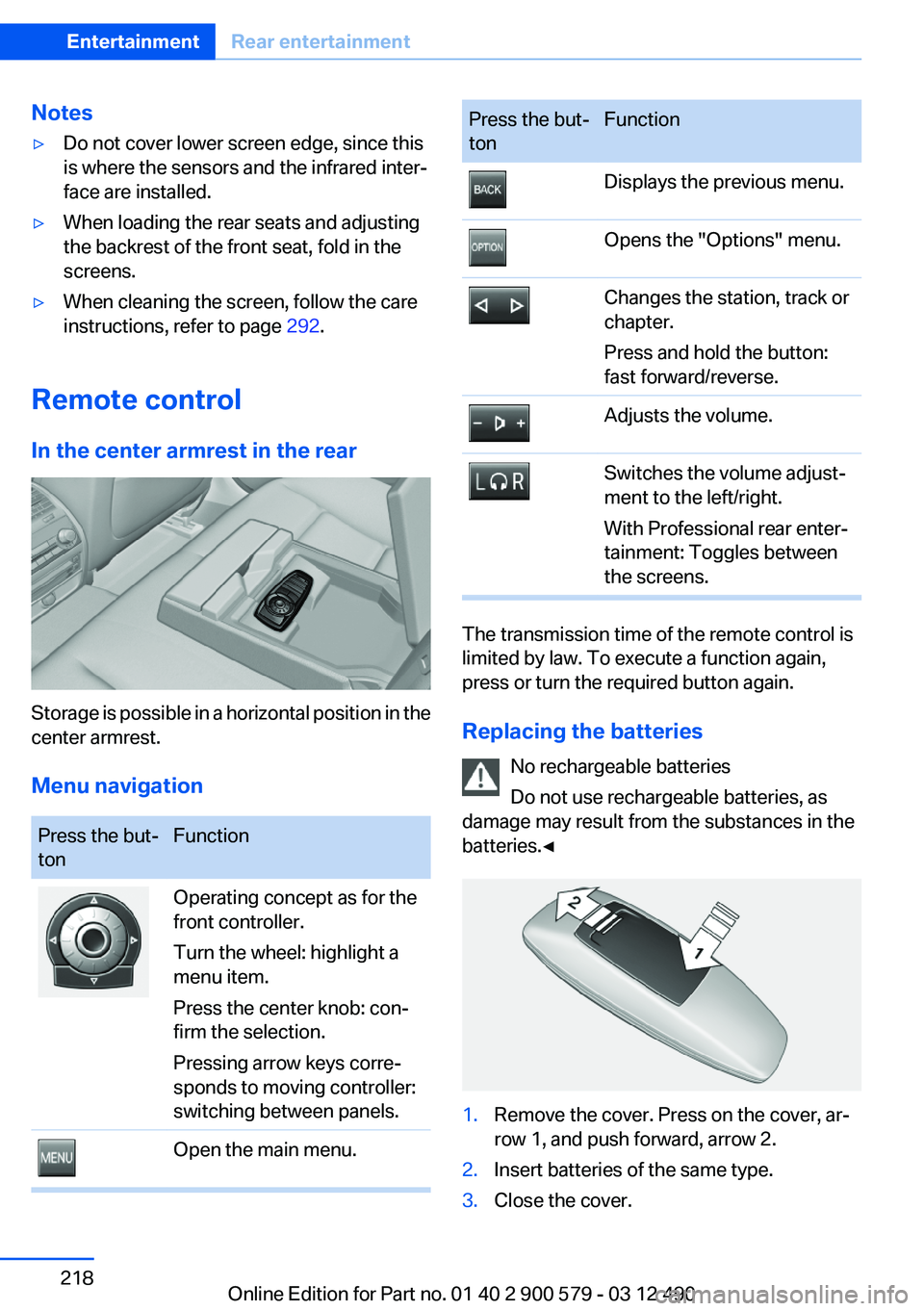
In the center armrest in the rear
Storage is possible in a horizontal position in the
center armrest.
Menu navigation
Press the but‐
tonFunctionOperating concept as for the
front controller.
Turn the wheel: highlight a
menu item.
Press the center knob: con‐
firm the selection.
Pressing arrow keys corre‐
sponds to moving controller:
switching between panels.Open the main menu.Press the but‐
tonFunctionDisplays the previous menu.Opens the "Options" menu.Changes the station, track or
chapter.
Press and hold the button:
fast forward/reverse.Adjusts the volume.Switches the volume adjust‐
ment to the left/right.
With Professional rear enter‐
tainment: Toggles between
the screens.
The transmission time of the remote control is
limited by law. To execute a function again,
press or turn the required button again.
Replacing the batteries No rechargeable batteries
Do not use rechargeable batteries, as
damage may result from the substances in the
batteries.◀
1.Remove the cover. Press on the cover, ar‐
row 1, and push forward, arrow 2.2.Insert batteries of the same type.3.Close the cover.Seite 218EntertainmentRear entertainment218
Online Edition for Part no. 01 40 2 900 579 - 03 12 490
Page 226 of 319
TelephoneVehicle equipment
All standard, country-specific and optional
equipment that is offered in the model series is
described in this chapter. Therefore, equipment
is also described that is not available in a vehicle,
e. g., because of the selected optional equip‐
ment or country variant. This also applies for
safety-related functions and systems.
At a glance
The concept
Mobile phones or other external devices such as
audio players can be connected to the vehicle
via Bluetooth.
After these devices are paired once, they are
recognized automatically when the ignition is
switched on as soon as they are inside the ve‐
hicle and can be operated via iDrive, the buttons
on the steering wheel, and via voice activation.
Depending on their functionality, external devi‐
ces can be used via the vehicle as a telephone
or as an audio source. The telephone functions
are described in the following.
Up to four external devices can be paired.
Certain functions may need to be enabled by the
mobile phone provider or service provider.
Using the mobile phone while driving
Make entries only when traffic and road
conditions allow. Do not hold the mobile phone
in your hand while you are driving; use the
hands-free system instead. If you do not ob‐
serve this precaution, you can endanger the ve‐
hicle occupants and other road users.◀
Snap-in adapter
The snap-in adapter is used to:▷Hold the mobile phone.▷Recharge the battery.▷Connect the mobile phone to an outside an‐
tenna of the vehicle.
This provides for better network reception
and consistent sound quality.
Approved mobile phones
Details on which mobile phones and external
devices with a Bluetooth interface are sup‐
ported by the mobile phone preparation pack‐
age can be obtained at www.bmwusa.com/blue‐
tooth.
Displaying the vehicle identification
number and software part number
The vehicle identification number and software
part number are needed to determine which mo‐
bile phones are supported by the mobile phone
preparation package. The software version of
the mobile phone may also be required.
1."Telephone"2.Open "Options".3."Bluetooth® info"4."Display system information"
These approved mobile phones with a certain
software version, support the vehicle functions
described below.
Malfunctions may occur with other mobile
phones or software versions.
Do not operate a mobile phone that is connected
to the vehicle on the mobile phone keypad, as
this may lead to a malfunction.
A software update can be performed if neces‐
sary.
Notes
At high temperatures, the charge function of the
mobile phone can be limited where appropriate
and the functions are no longer executed.
Seite 226CommunicationTelephone226
Online Edition for Part no. 01 40 2 900 579 - 03 12 490
Page 227 of 319
When the mobile phone is used via the vehicle,
heed the operating manual of the mobile phone.
Pairing/unpairing the mobile
phone
General information
The following functions are available:▷Use of a mobile phone as a telephone.▷Use of a mobile phone as an additional tele‐
phone.▷Use of a mobile phone as an audio source.▷Use of an audio device as an audio source.
Requirements
▷The mobile phone is suitable.▷The mobile phone is ready for operation.▷Bluetooth is activated in the vehicle and on
the mobile phone.▷Bluetooth presettings may need to be made
on the mobile phone, e.g., for a connection
without confirmation or visibility, refer to the
mobile phone operating instructions.▷Deactivate Bluetooth audio if necessary.▷A number with at least four and a maximum
of 16 digits was defined as the Bluetooth
passkey. It is only required once for pairing.▷The ignition is switched on.
Activating/deactivating Bluetooth
Bluetooth is not permitted everywhere. Comply
with all safety guidelines and regulations.
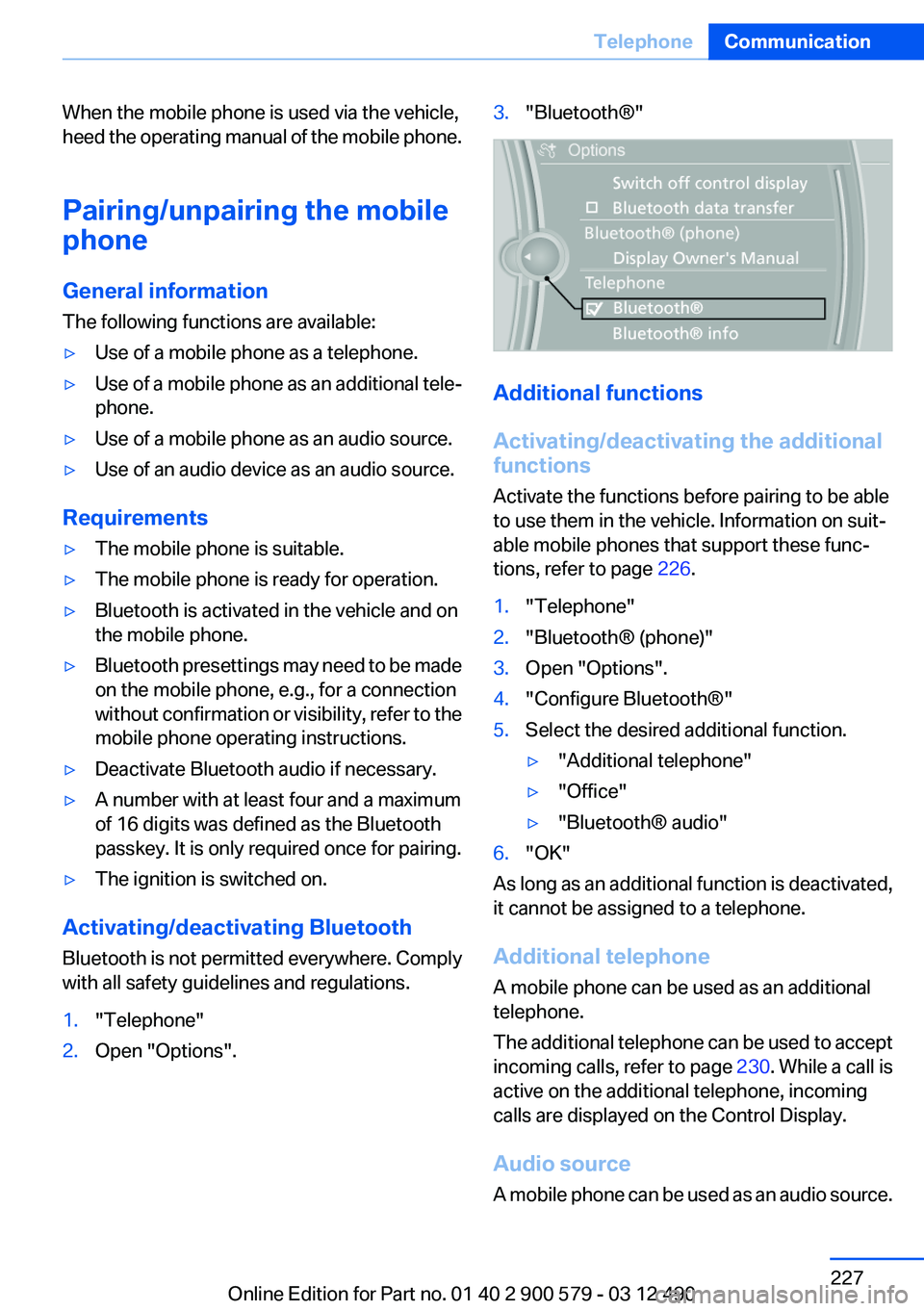
1."Telephone"2.Open "Options".3."Bluetooth®"
Additional functions
Activating/deactivating the additional
functions
Activate the functions before pairing to be able
to use them in the vehicle. Information on suit‐
able mobile phones that support these func‐
tions, refer to page 226.
1."Telephone"2."Bluetooth® (phone)"3.Open "Options".4."Configure Bluetooth®"5.Select the desired additional function.▷"Additional telephone"▷"Office"▷"Bluetooth® audio"6."OK"
As long as an additional function is deactivated,
it cannot be assigned to a telephone.
Additional telephone
A mobile phone can be used as an additional
telephone.
The additional telephone can be used to accept
incoming calls, refer to page 230. While a call is
active on the additional telephone, incoming
calls are displayed on the Control Display.
Audio source
A mobile phone can be used as an audio source.
Seite 227TelephoneCommunication227
Online Edition for Part no. 01 40 2 900 579 - 03 12 490
Page 228 of 319
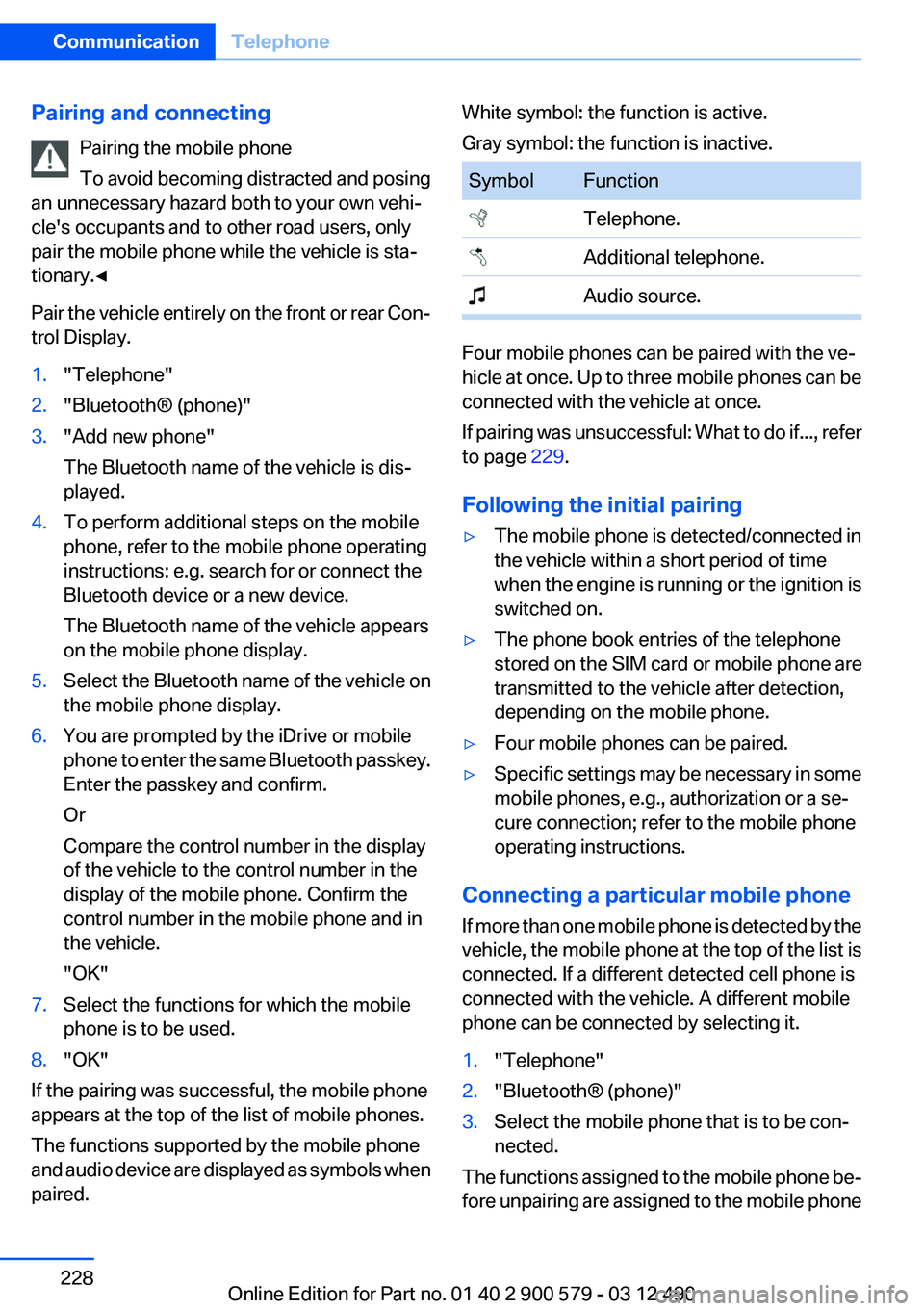
Pairing and connectingPairing the mobile phone
To avoid becoming distracted and posing
an unnecessary hazard both to your own vehi‐
cle's occupants and to other road users, only
pair the mobile phone while the vehicle is sta‐
tionary.◀
Pair the vehicle entirely on the front or rear Con‐
trol Display.1."Telephone"2."Bluetooth® (phone)"3."Add new phone"
The Bluetooth name of the vehicle is dis‐
played.4.To perform additional steps on the mobile
phone, refer to the mobile phone operating
instructions: e.g. search for or connect the
Bluetooth device or a new device.
The Bluetooth name of the vehicle appears
on the mobile phone display.5.Select the Bluetooth name of the vehicle on
the mobile phone display.6.You are prompted by the iDrive or mobile
phone to enter the same Bluetooth passkey.
Enter the passkey and confirm.
Or
Compare the control number in the display
of the vehicle to the control number in the
display of the mobile phone. Confirm the
control number in the mobile phone and in
the vehicle.
"OK"7.Select the functions for which the mobile
phone is to be used.8."OK"
If the pairing was successful, the mobile phone
appears at the top of the list of mobile phones.
The functions supported by the mobile phone
and audio device are displayed as symbols when
paired.
White symbol: the function is active.
Gray symbol: the function is inactive.SymbolFunction Telephone. Additional telephone. Audio source.
Four mobile phones can be paired with the ve‐
hicle at once. Up to three mobile phones can be
connected with the vehicle at once.
If pairing was unsuccessful: What to do if..., refer
to page 229.
Following the initial pairing
▷The mobile phone is detected/connected in
the vehicle within a short period of time
when the engine is running or the ignition is
switched on.▷The phone book entries of the telephone
stored on the SIM card or mobile phone are
transmitted to the vehicle after detection,
depending on the mobile phone.▷Four mobile phones can be paired.▷Specific settings may be necessary in some
mobile phones, e.g., authorization or a se‐
cure connection; refer to the mobile phone
operating instructions.
Connecting a particular mobile phone
If more than one mobile phone is detected by the
vehicle, the mobile phone at the top of the list is
connected. If a different detected cell phone is
connected with the vehicle. A different mobile
phone can be connected by selecting it.
1."Telephone"2."Bluetooth® (phone)"3.Select the mobile phone that is to be con‐
nected.
The functions assigned to the mobile phone be‐
fore unpairing are assigned to the mobile phone
Seite 228CommunicationTelephone228
Online Edition for Part no. 01 40 2 900 579 - 03 12 490
Page 229 of 319
when it is reconnected. If the mobile phone is
already connected, these functions are deacti‐
vated.
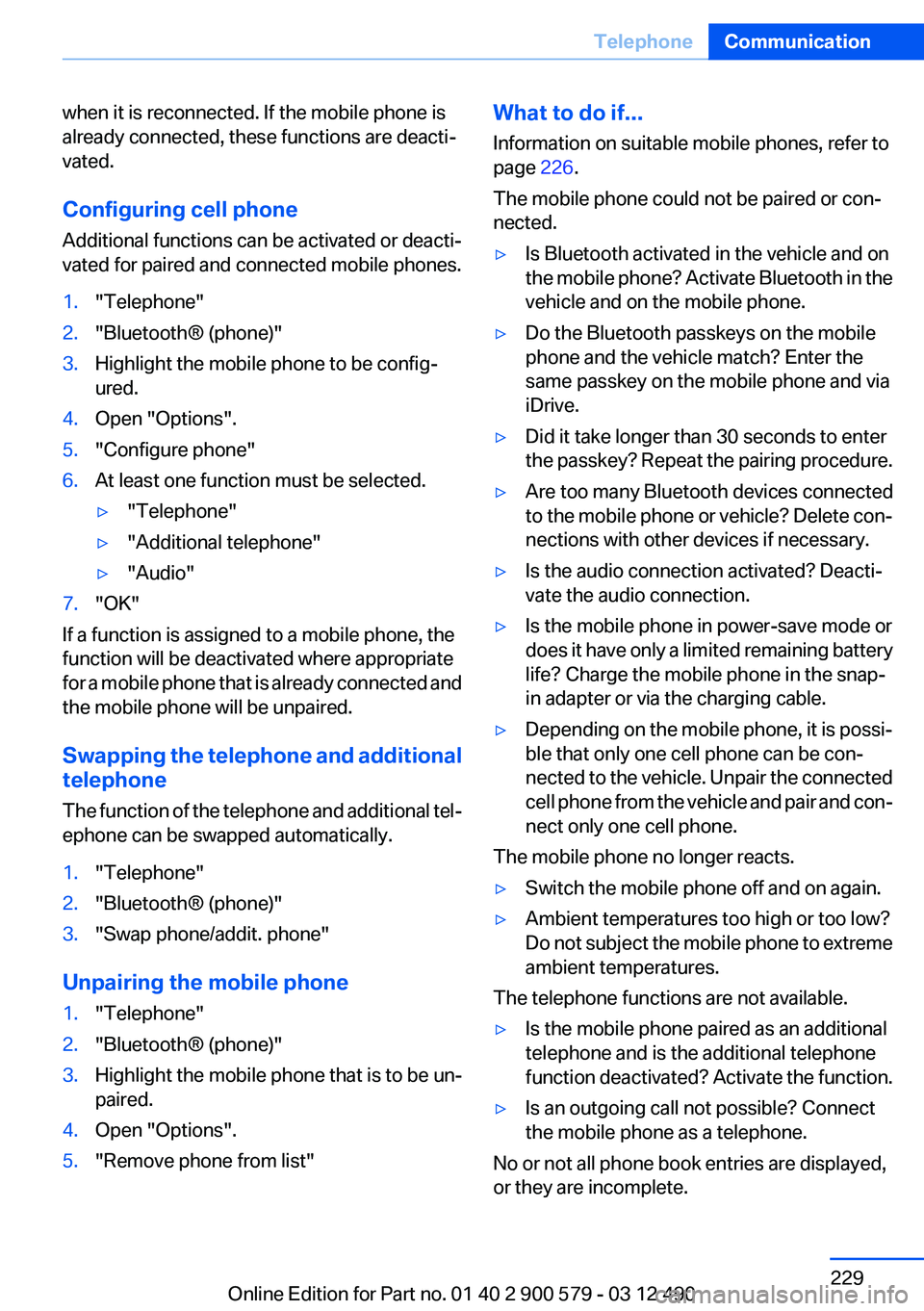
Configuring cell phone
Additional functions can be activated or deacti‐
vated for paired and connected mobile phones.1."Telephone"2."Bluetooth® (phone)"3.Highlight the mobile phone to be config‐
ured.4.Open "Options".5."Configure phone"6.At least one function must be selected.▷"Telephone"▷"Additional telephone"▷"Audio"7."OK"
If a function is assigned to a mobile phone, the
function will be deactivated where appropriate
for a mobile phone that is already connected and
the mobile phone will be unpaired.
Swapping the telephone and additional
telephone
The function of the telephone and additional tel‐
ephone can be swapped automatically.
1."Telephone"2."Bluetooth® (phone)"3."Swap phone/addit. phone"
Unpairing the mobile phone
1."Telephone"2."Bluetooth® (phone)"3.Highlight the mobile phone that is to be un‐
paired.4.Open "Options".5."Remove phone from list"What to do if...
Information on suitable mobile phones, refer to
page 226.
The mobile phone could not be paired or con‐
nected.▷Is Bluetooth activated in the vehicle and on
the mobile phone? Activate Bluetooth in the
vehicle and on the mobile phone.▷Do the Bluetooth passkeys on the mobile
phone and the vehicle match? Enter the
same passkey on the mobile phone and via
iDrive.▷Did it take longer than 30 seconds to enter
the passkey? Repeat the pairing procedure.▷Are too many Bluetooth devices connected
to the mobile phone or vehicle? Delete con‐
nections with other devices if necessary.▷Is the audio connection activated? Deacti‐
vate the audio connection.▷Is the mobile phone in power-save mode or
does it have only a limited remaining battery
life? Charge the mobile phone in the snap-
in adapter or via the charging cable.▷Depending on the mobile phone, it is possi‐
ble that only one cell phone can be con‐
nected to the vehicle. Unpair the connected
cell phone from the vehicle and pair and con‐
nect only one cell phone.
The mobile phone no longer reacts.
▷Switch the mobile phone off and on again.▷Ambient temperatures too high or too low?
Do not subject the mobile phone to extreme
ambient temperatures.
The telephone functions are not available.
▷Is the mobile phone paired as an additional
telephone and is the additional telephone
function deactivated? Activate the function.▷Is an outgoing call not possible? Connect
the mobile phone as a telephone.
No or not all phone book entries are displayed,
or they are incomplete.
Seite 229TelephoneCommunication229
Online Edition for Part no. 01 40 2 900 579 - 03 12 490
Page 232 of 319
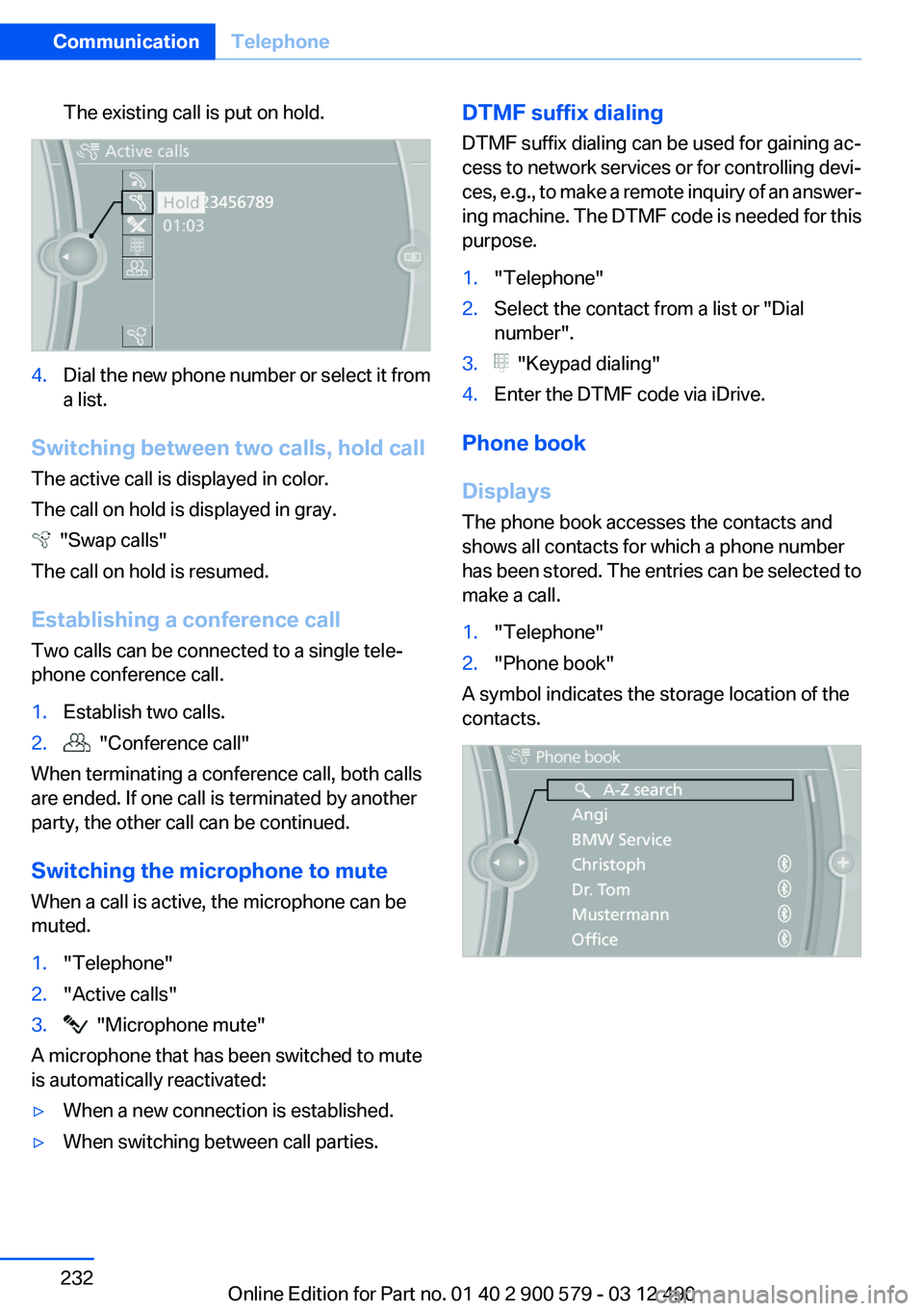
The existing call is put on hold.4.Dial the new phone number or select it from
a list.
Switching between two calls, hold call
The active call is displayed in color.
The call on hold is displayed in gray.
"Swap calls"
The call on hold is resumed.
Establishing a conference call
Two calls can be connected to a single tele‐
phone conference call.
1.Establish two calls.2. "Conference call"
When terminating a conference call, both calls
are ended. If one call is terminated by another
party, the other call can be continued.
Switching the microphone to mute
When a call is active, the microphone can be
muted.
1."Telephone"2."Active calls"3. "Microphone mute"
A microphone that has been switched to mute
is automatically reactivated:
▷When a new connection is established.▷When switching between call parties.DTMF suffix dialing
DTMF suffix dialing can be used for gaining ac‐
cess to network services or for controlling devi‐
ces, e.g., to make a remote inquiry of an answer‐
ing machine. The DTMF code is needed for this
purpose.1."Telephone"2.Select the contact from a list or "Dial
number".3. "Keypad dialing"4.Enter the DTMF code via iDrive.
Phone book
Displays
The phone book accesses the contacts and
shows all contacts for which a phone number
has been stored. The entries can be selected to
make a call.
1."Telephone"2."Phone book"
A symbol indicates the storage location of the
contacts.
Seite 232CommunicationTelephone232
Online Edition for Part no. 01 40 2 900 579 - 03 12 490
Page 309 of 319
Bar for tow-starting/tow‐ing 286
Bass 186
Battery replacement, auxiliary air conditioning remote con‐
trol 138
Battery replacement, remote control for parked-car heat‐
ing/ventilation 140
Battery replacement, remote control, rear entertain‐
ment 218
Battery replacement, vehicle battery 281
Battery replacement, vehicle remote control 32
Battery, vehicle 281
Belts, safety belts 53
Beverage holder, cu‐ pholder 148
Blinds, sun protection 46
Bluetooth audio 212
Bluetooth connection, activat‐ ing/deactivating 227
BMW ActiveHybrid 27
BMW Assist 249
BMW Homepage 6
BMW Internet page 6
BMW Live 252
BMW Maintenance Sys‐ tem 273
BMW Search 251
Bottle holder, refer to Cu‐ pholder 148
Brake assistant 107
Brake discs, breaking in 154
Brake force display 105
Brake lamps, brake force dis‐ play 105
Brake lamps, bulb replace‐ ment 280
Brake lights, adaptive 105
Brake pads, breaking in 154
Braking, notes 157
Breakdown assis‐ tance 283, 284 Breaking in 154
Brightness of Control Dis‐ play 87
Bulb replacement 275
Bulb replacement, front 276
Bulb replacement, rear 279
Bulbs and lamps 275
Button, Start/Stop 64
Bypassing, refer to Jump- starting 284
C
Calendar 243
California Proposition 65 Warning 7
Camera, backup camera 118
Camera, care 292
Camera, Side View 121
Camera, Top View 120
Can holder, refer to Cu‐ pholder 148
Car battery 281
Car care products 290
Care, displays 292
Care, vehicle 290
Cargo 158
Cargo area lid 39
Cargo area, storage compart‐ ments 149
Cargo straps, securing cargo 159
Car key, refer to Remote con‐ trol 32
Carpet, care 291
Car wash 289
Catalytic converter, refer to Hot exhaust system 156
CBS Condition Based Serv‐ ice 273
CD/DVD 196
CD/DVD player, rear 217
CDs, storing 203
Cell phone 226
Center armrest 147
Center console 14 Central locking system 35
Central screen, refer to Control Display 16
Changes, technical, refer to Safety 7
Changing parts 275
Changing wheels 281
Changing wheels/tires 265
CHARGE, energy recovery 68
Charge indicator, high-voltage battery 81
Check Control 77
Children, seating position 60
Children, transporting safely 60
Child restraint fixing sys‐ tem 60
Child restraint fixing system LATCH 61
Child restraint fixing systems, mounting 60
Child safety locks 63
Child seat, mounting 60
Child seats 60
Chrome parts, care 291
Cigarette lighter 143
Cleaning, displays 292
Climate control 130
Climate control wind‐ shield 156
Clock 80
Closing/opening from in‐ side 39
Closing/opening via door lock 38
Closing/opening with remote control 36
Clothes hooks 149
Combination switch, refer to Turn signals 70
Combination switch, refer to Wiper system 71
Combustion engine, start‐ ing 66
COMFORT+ program, Driving Experience Switch 110 Seite 309Everything from A to ZReference309
Online Edition for Part no. 01 40 2 900 579 - 03 12 490
Page 312 of 319
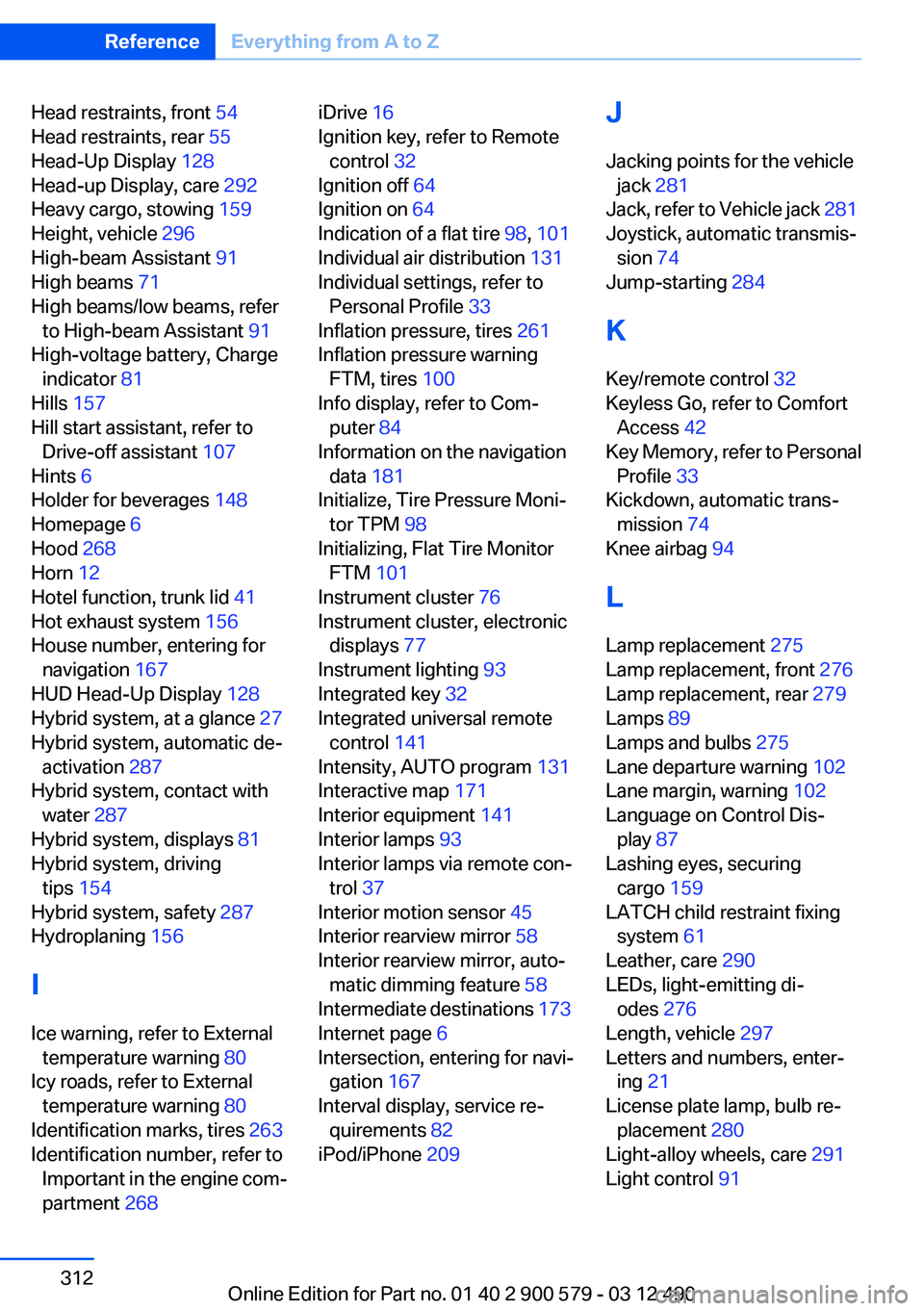
Head restraints, front 54
Head restraints, rear 55
Head-Up Display 128
Head-up Display, care 292
Heavy cargo, stowing 159
Height, vehicle 296
High-beam Assistant 91
High beams 71
High beams/low beams, refer to High-beam Assistant 91
High-voltage battery, Charge indicator 81
Hills 157
Hill start assistant, refer to Drive-off assistant 107
Hints 6
Holder for beverages 148
Homepage 6
Hood 268
Horn 12
Hotel function, trunk lid 41
Hot exhaust system 156
House number, entering for navigation 167
HUD Head-Up Display 128
Hybrid system, at a glance 27
Hybrid system, automatic de‐ activation 287
Hybrid system, contact with water 287
Hybrid system, displays 81
Hybrid system, driving tips 154
Hybrid system, safety 287
Hydroplaning 156
I
Ice warning, refer to External temperature warning 80
Icy roads, refer to External temperature warning 80
Identification marks, tires 263
Identification number, refer to Important in the engine com‐
partment 268 iDrive 16
Ignition key, refer to Remote control 32
Ignition off 64
Ignition on 64
Indication of a flat tire 98, 101
Individual air distribution 131
Individual settings, refer to Personal Profile 33
Inflation pressure, tires 261
Inflation pressure warning FTM, tires 100
Info display, refer to Com‐ puter 84
Information on the navigation data 181
Initialize, Tire Pressure Moni‐ tor TPM 98
Initializing, Flat Tire Monitor FTM 101
Instrument cluster 76
Instrument cluster, electronic displays 77
Instrument lighting 93
Integrated key 32
Integrated universal remote control 141
Intensity, AUTO program 131
Interactive map 171
Interior equipment 141
Interior lamps 93
Interior lamps via remote con‐ trol 37
Interior motion sensor 45
Interior rearview mirror 58
Interior rearview mirror, auto‐ matic dimming feature 58
Intermediate destinations 173
Internet page 6
Intersection, entering for navi‐ gation 167
Interval display, service re‐ quirements 82
iPod/iPhone 209 J
Jacking points for the vehicle jack 281
Jack, refer to Vehicle jack 281
Joystick, automatic transmis‐ sion 74
Jump-starting 284
K
Key/remote control 32
Keyless Go, refer to Comfort Access 42
Key Memory, refer to Personal Profile 33
Kickdown, automatic trans‐ mission 74
Knee airbag 94
L
Lamp replacement 275
Lamp replacement, front 276
Lamp replacement, rear 279
Lamps 89
Lamps and bulbs 275
Lane departure warning 102
Lane margin, warning 102
Language on Control Dis‐ play 87
Lashing eyes, securing cargo 159
LATCH child restraint fixing system 61
Leather, care 290
LEDs, light-emitting di‐ odes 276
Length, vehicle 297
Letters and numbers, enter‐ ing 21
License plate lamp, bulb re‐ placement 280
Light-alloy wheels, care 291
Light control 91 Seite 312ReferenceEverything from A to Z312
Online Edition for Part no. 01 40 2 900 579 - 03 12 490
Page 313 of 319
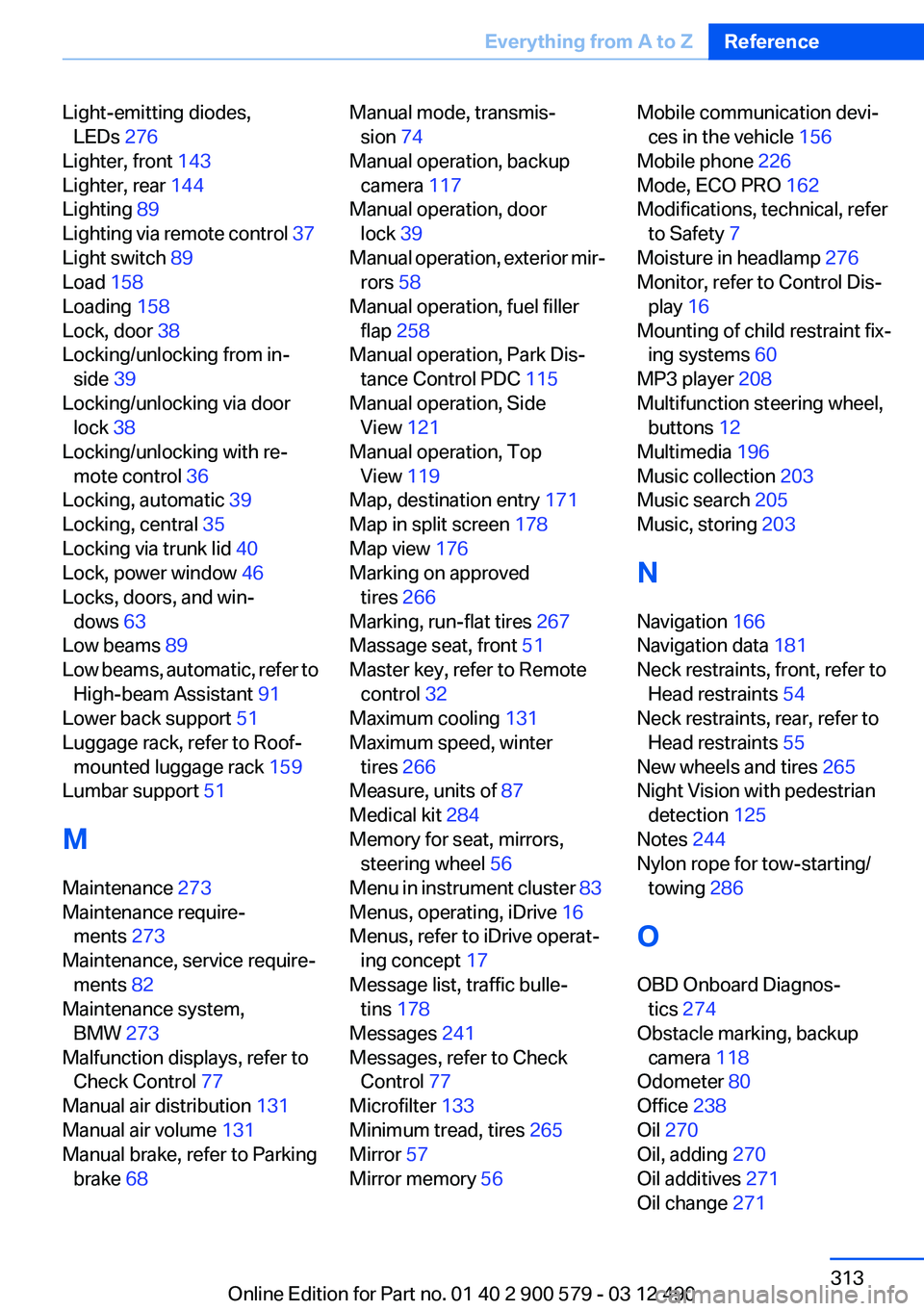
Light-emitting diodes,LEDs 276
Lighter, front 143
Lighter, rear 144
Lighting 89
Lighting via remote control 37
Light switch 89
Load 158
Loading 158
Lock, door 38
Locking/unlocking from in‐ side 39
Locking/unlocking via door lock 38
Locking/unlocking with re‐ mote control 36
Locking, automatic 39
Locking, central 35
Locking via trunk lid 40
Lock, power window 46
Locks, doors, and win‐ dows 63
Low beams 89
Low beams, automatic, refer to High-beam Assistant 91
Lower back support 51
Luggage rack, refer to Roof- mounted luggage rack 159
Lumbar support 51
M
Maintenance 273
Maintenance require‐ ments 273
Maintenance, service require‐ ments 82
Maintenance system, BMW 273
Malfunction displays, refer to Check Control 77
Manual air distribution 131
Manual air volume 131
Manual brake, refer to Parking brake 68 Manual mode, transmis‐
sion 74
Manual operation, backup camera 117
Manual operation, door lock 39
Manual operation, exterior mir‐ rors 58
Manual operation, fuel filler flap 258
Manual operation, Park Dis‐ tance Control PDC 115
Manual operation, Side View 121
Manual operation, Top View 119
Map, destination entry 171
Map in split screen 178
Map view 176
Marking on approved tires 266
Marking, run-flat tires 267
Massage seat, front 51
Master key, refer to Remote control 32
Maximum cooling 131
Maximum speed, winter tires 266
Measure, units of 87
Medical kit 284
Memory for seat, mirrors, steering wheel 56
Menu in instrument cluster 83
Menus, operating, iDrive 16
Menus, refer to iDrive operat‐ ing concept 17
Message list, traffic bulle‐ tins 178
Messages 241
Messages, refer to Check Control 77
Microfilter 133
Minimum tread, tires 265
Mirror 57
Mirror memory 56 Mobile communication devi‐
ces in the vehicle 156
Mobile phone 226
Mode, ECO PRO 162
Modifications, technical, refer to Safety 7
Moisture in headlamp 276
Monitor, refer to Control Dis‐ play 16
Mounting of child restraint fix‐ ing systems 60
MP3 player 208
Multifunction steering wheel, buttons 12
Multimedia 196
Music collection 203
Music search 205
Music, storing 203
N
Navigation 166
Navigation data 181
Neck restraints, front, refer to Head restraints 54
Neck restraints, rear, refer to Head restraints 55
New wheels and tires 265
Night Vision with pedestrian detection 125
Notes 244
Nylon rope for tow-starting/ towing 286
O
OBD Onboard Diagnos‐ tics 274
Obstacle marking, backup camera 118
Odometer 80
Office 238
Oil 270
Oil, adding 270
Oil additives 271
Oil change 271 Seite 313Everything from A to ZReference313
Online Edition for Part no. 01 40 2 900 579 - 03 12 490