instrument cluster BMW ACTIVEHYBRID 5 2012 Owner's Manual
[x] Cancel search | Manufacturer: BMW, Model Year: 2012, Model line: ACTIVEHYBRID 5, Model: BMW ACTIVEHYBRID 5 2012Pages: 319, PDF Size: 12.54 MB
Page 174 of 319
Intermediate destination options1."Map"2. "Guidance"3."Display all trip destinations"4.Select an intermediate destination.▷"Edit destination"▷"Reposition dest. in the trip": move an
intermediate destination to another po‐
sition in the list.▷"Delete dest. in the trip"▷"Go to next dest. in the trip"
Some options are not available for certain trips.
With the Professional navigation
system: deleting a stored trip
1."Stored trips"2.Highlight the desired trip.3.Open "Options".4."Delete all trips" or "Delete trip"
With the Professional navigation
system: calling up the last trip
1."Navigation"2."Stored trips"3."Last trip"4."Start guidance"
Destination guidance
Starting destination guidance
1."Navigation"2.Enter the destination, refer to page 166.3."Accept destination"4."Start guidance"▷The route is shown on the Control Display.▷The distance to the destination/intermedi‐
ate destination and the estimated time of ar‐
rival are displayed in the map view.▷The arrow view is shown in the instrument
cluster, in the Head-up Display, and on the
Control Display where appropriate.
Terminating destination guidance
1."Navigation"2."Map"3. "Guidance"4."Stop guidance"
Continuing destination guidance
If the destination was not reached during the last
trip, destination guidance can be resumed.
"Resume guidance"
Route criteria
General information
▷The route calculated can be influenced by
selecting certain criteria.▷The route criteria can be changed when the
destination is entered and during destina‐
tion guidance.▷Road types are part of the navigation data
and are taken into consideration when plan‐
ning a route, such as when avoiding high‐
ways.▷The recommended route may differ from the
route you would take based on personal ex‐
perience.▷The settings are stored for the remote con‐
trol currently in use.▷Destination guidance with traffic bulletins,
refer to page 180.
Changing the route criteria
1."Navigation"2."Map"3. "Route preference"4.Select the criterion:Seite 174NavigationNavigation system174
Online Edition for Part no. 01 40 2 900 579 - 03 12 490
Page 175 of 319
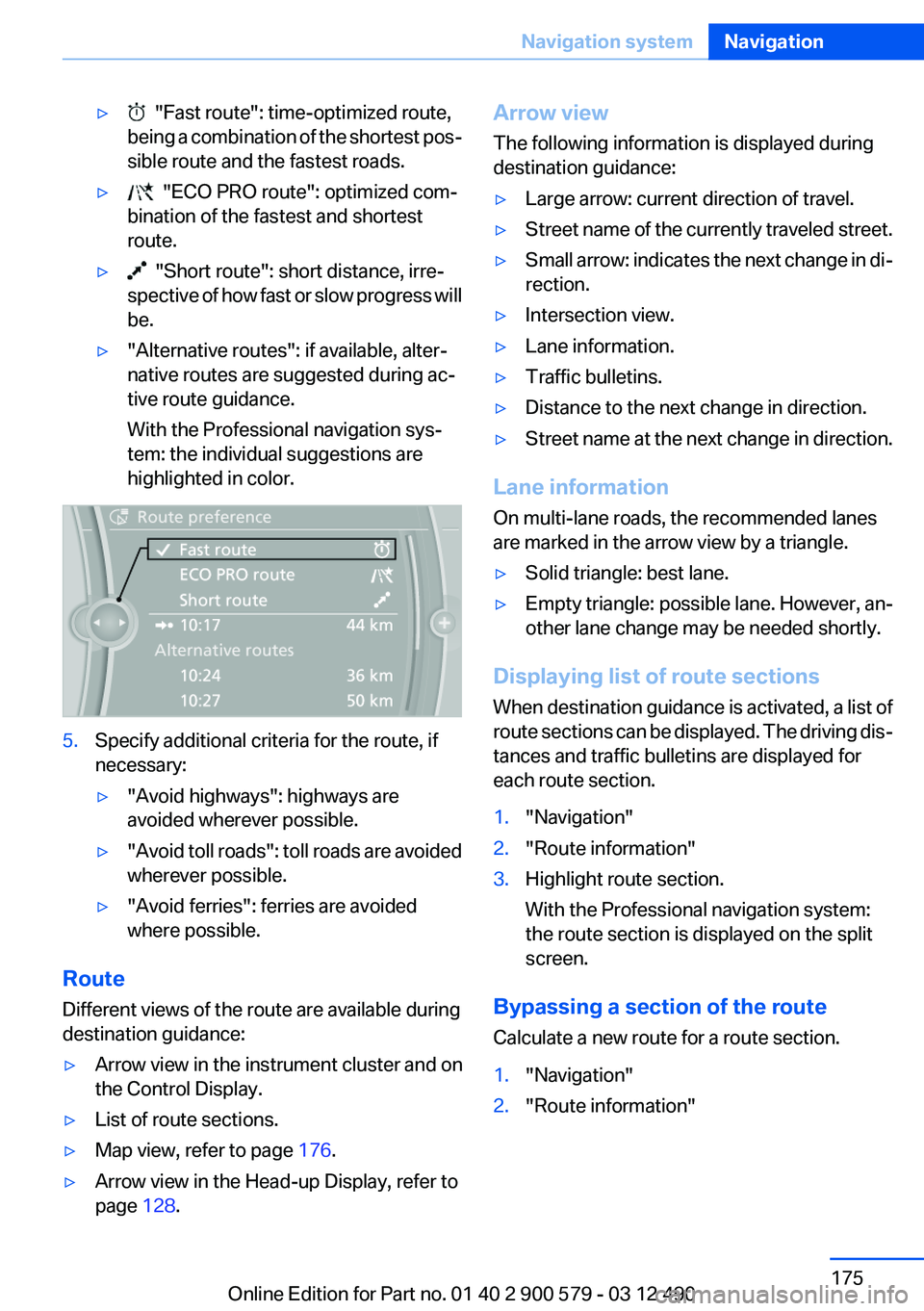
▷ "Fast route": time-optimized route,
being a combination of the shortest pos‐
sible route and the fastest roads.▷ "ECO PRO route": optimized com‐
bination of the fastest and shortest
route.▷ "Short route": short distance, irre‐
spective of how fast or slow progress will
be.▷"Alternative routes": if available, alter‐
native routes are suggested during ac‐
tive route guidance.
With the Professional navigation sys‐
tem: the individual suggestions are
highlighted in color.5.Specify additional criteria for the route, if
necessary:▷"Avoid highways": highways are
avoided wherever possible.▷" Avoid toll roads": toll roads are avoided
wherever possible.▷"Avoid ferries": ferries are avoided
where possible.
Route
Different views of the route are available during
destination guidance:
▷Arrow view in the instrument cluster and on
the Control Display.▷List of route sections.▷Map view, refer to page 176.▷Arrow view in the Head-up Display, refer to
page 128.Arrow view
The following information is displayed during
destination guidance:▷Large arrow: current direction of travel.▷Street name of the currently traveled street.▷Small arrow: indicates the next change in di‐
rection.▷Intersection view.▷Lane information.▷Traffic bulletins.▷Distance to the next change in direction.▷Street name at the next change in direction.
Lane information
On multi-lane roads, the recommended lanes
are marked in the arrow view by a triangle.
▷Solid triangle: best lane.▷Empty triangle: possible lane. However, an‐
other lane change may be needed shortly.
Displaying list of route sections
When destination guidance is activated, a list of
route sections can be displayed. The driving dis‐
tances and traffic bulletins are displayed for
each route section.
1."Navigation"2."Route information"3.Highlight route section.
With the Professional navigation system:
the route section is displayed on the split
screen.
Bypassing a section of the route
Calculate a new route for a route section.
1."Navigation"2."Route information"Seite 175Navigation systemNavigation175
Online Edition for Part no. 01 40 2 900 579 - 03 12 490
Page 231 of 319
Via the button on the steering wheelPress the button.
Via the instrument cluster
"Accept"
Rejecting a call
Via iDrive
"Reject"
Via the instrument cluster
"Reject"
Ending a call
Via iDrive
"End call"
Via the button on the steering wheel Press the button.
Via the instrument cluster
"End call"
Entering a phone number
Dialing a number
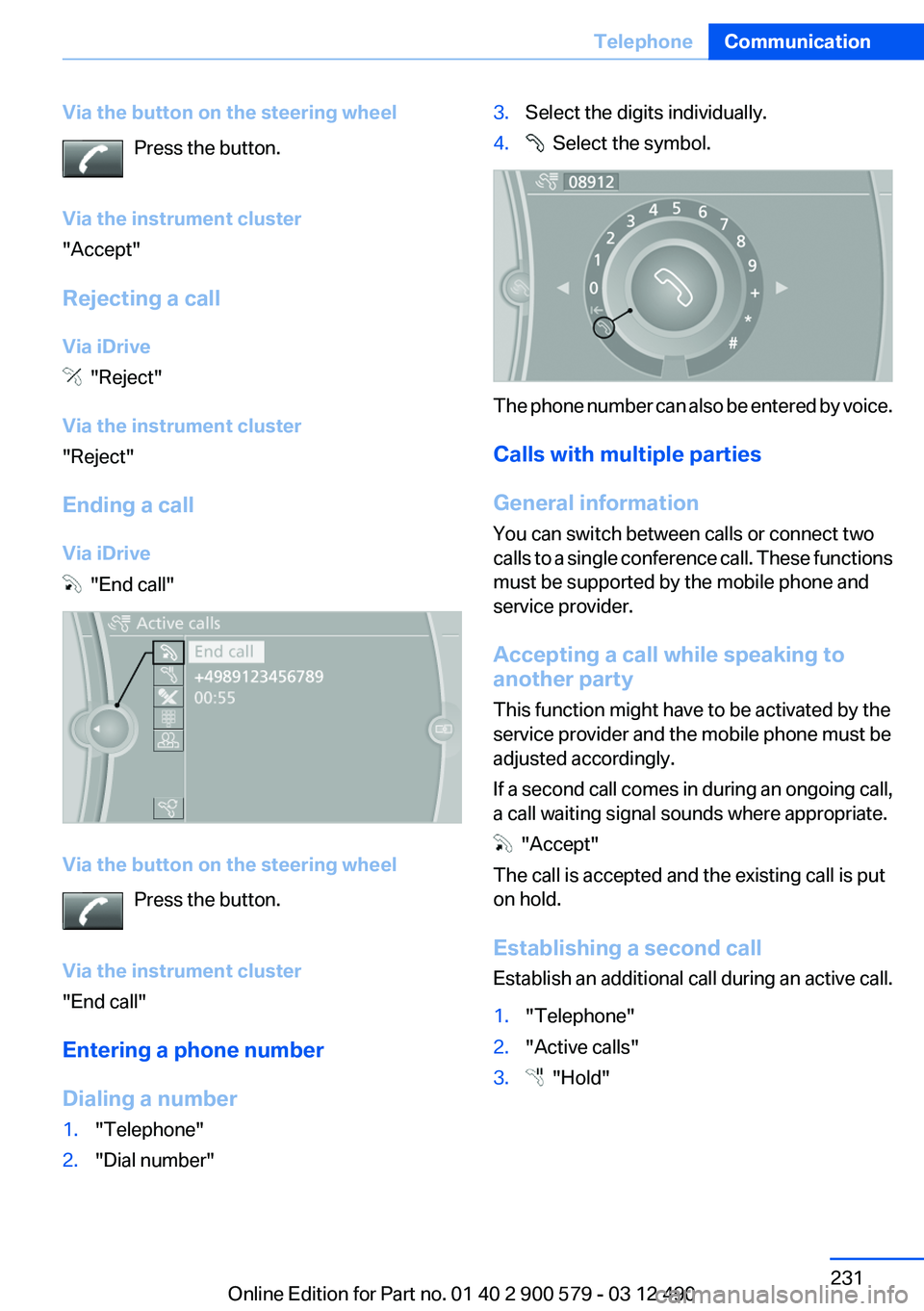
1."Telephone"2."Dial number"3.Select the digits individually.4. Select the symbol.
The phone number can also be entered by voice.
Calls with multiple parties
General information
You can switch between calls or connect two
calls to a single conference call. These functions
must be supported by the mobile phone and
service provider.
Accepting a call while speaking to
another party
This function might have to be activated by the
service provider and the mobile phone must be
adjusted accordingly.
If a second call comes in during an ongoing call,
a call waiting signal sounds where appropriate.
"Accept"
The call is accepted and the existing call is put
on hold.
Establishing a second call
Establish an additional call during an active call.
1."Telephone"2."Active calls"3. "Hold"Seite 231TelephoneCommunication231
Online Edition for Part no. 01 40 2 900 579 - 03 12 490
Page 233 of 319
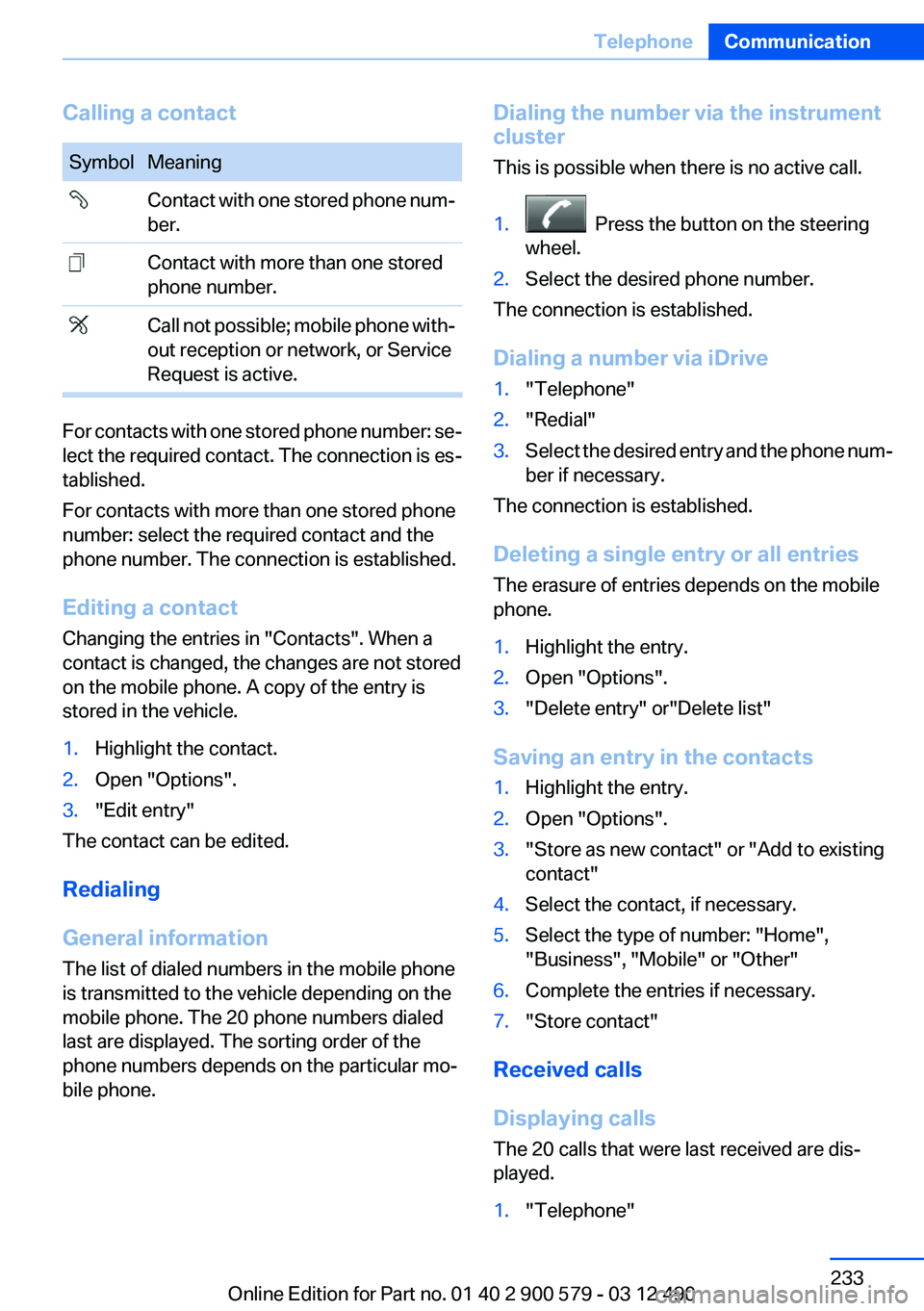
Calling a contactSymbolMeaning Contact with one stored phone num‐
ber. Contact with more than one stored
phone number. Call not possible; mobile phone with‐
out reception or network, or Service
Request is active.
For contacts with one stored phone number: se‐
lect the required contact. The connection is es‐
tablished.
For contacts with more than one stored phone
number: select the required contact and the
phone number. The connection is established.
Editing a contact
Changing the entries in "Contacts". When a
contact is changed, the changes are not stored
on the mobile phone. A copy of the entry is
stored in the vehicle.
1.Highlight the contact.2.Open "Options".3."Edit entry"
The contact can be edited.
Redialing
General information
The list of dialed numbers in the mobile phone
is transmitted to the vehicle depending on the
mobile phone. The 20 phone numbers dialed
last are displayed. The sorting order of the
phone numbers depends on the particular mo‐
bile phone.
Dialing the number via the instrument
cluster
This is possible when there is no active call.1. Press the button on the steering
wheel.2.Select the desired phone number.
The connection is established.
Dialing a number via iDrive
1."Telephone"2."Redial"3.Select the desired entry and the phone num‐
ber if necessary.
The connection is established.
Deleting a single entry or all entries
The erasure of entries depends on the mobile
phone.
1.Highlight the entry.2.Open "Options".3."Delete entry" or"Delete list"
Saving an entry in the contacts
1.Highlight the entry.2.Open "Options".3."Store as new contact" or "Add to existing
contact"4.Select the contact, if necessary.5.Select the type of number: "Home",
"Business", "Mobile" or "Other"6.Complete the entries if necessary.7."Store contact"
Received calls
Displaying calls
The 20 calls that were last received are dis‐
played.
1."Telephone"Seite 233TelephoneCommunication233
Online Edition for Part no. 01 40 2 900 579 - 03 12 490
Page 270 of 319
Engine oilVehicle equipment
All standard, country-specific and optional
equipment that is offered in the model series is
described in this chapter. Therefore, equipment
is also described that is not available in a vehicle,
e. g., because of the selected optional equip‐
ment or country variant. This also applies for
safety-related functions and systems.
General information
The engine oil consumption is dependent on the
driving style and driving conditions.
Therefore, regularly check the engine oil level
after refueling.
Checking the oil level
The concept
The oil level is monitored electronically during
driving and shown on the Control Display.
If the oil level reaches the minimum level, a
check control message is displayed.
Displaying the oil level1."Vehicle Info"2."Vehicle status"3. "Engine oil level"
Possible messages
▷"Engine oil level OK"▷"Engine oil at minimum. Add 1 quart of
engine oil!"
When the display appears in the instrument
cluster, add 1 US quart/liter of oil within the
next 125 miles/200 km.▷"Engine oil level below minimum. Add 1
quart!"Immediately add 1 US quart/liter of oil.
Detailed measurement
Requirements:
▷Vehicle is on a level road and the engine is
running at operating temperature.▷Automatic transmission: Selector lever in
transmission position N or P and gas pedal
not depressed.
In order to perform a detailed measurement of
the engine oil level:
1."Vehicle Info"2."Vehicle status"3. "Measure engine oil level"4."Start measurement"
The oil level is checked and displayed via a scale.
During the detailed measurement, the idle
speed is increased somewhat.
Duration: approx. 1 minute.
Adding engine oil
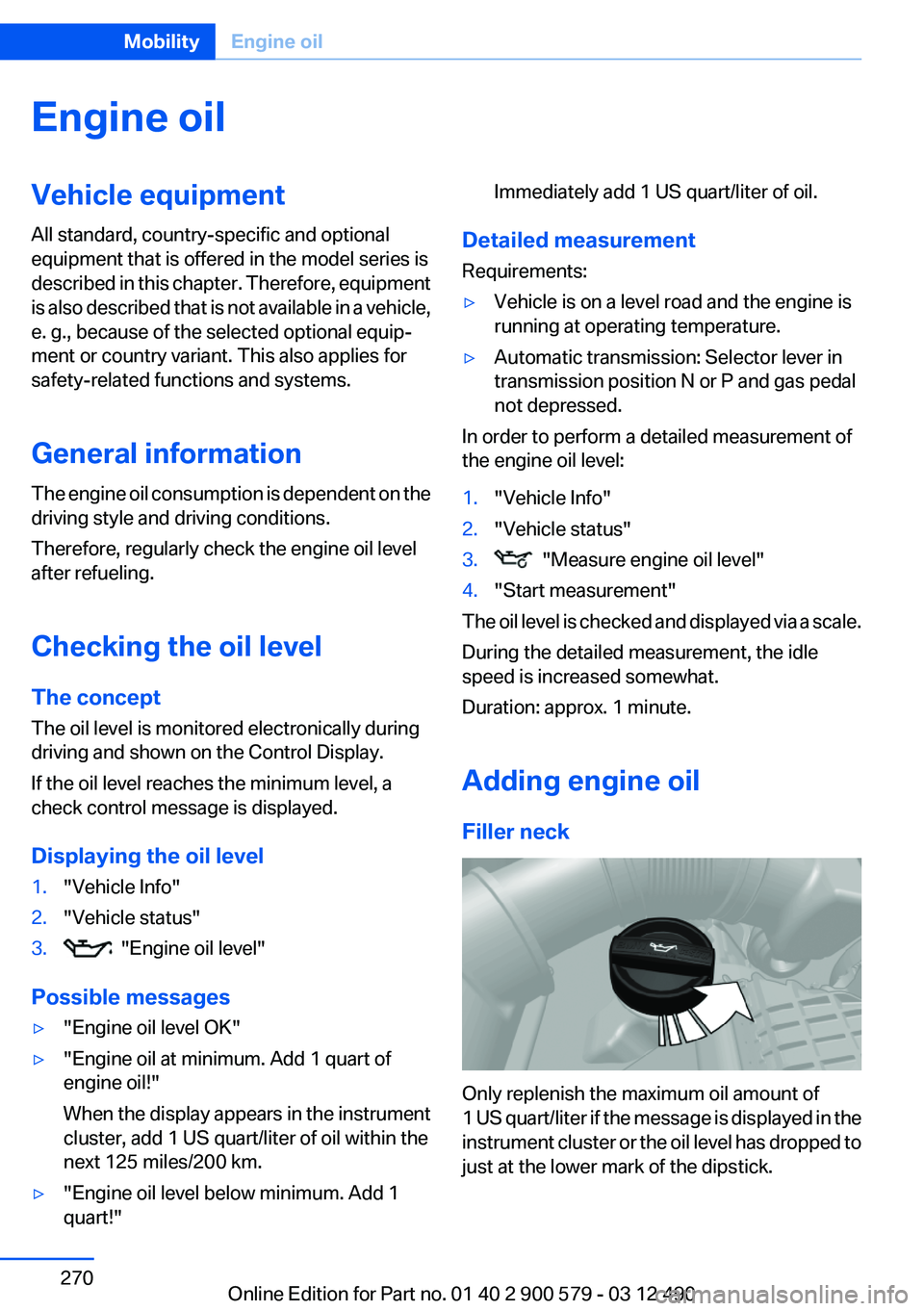
Filler neck
Only replenish the maximum oil amount of
1 US quart/liter if the message is displayed in the
instrument cluster or the oil level has dropped to
just at the lower mark of the dipstick.
Seite 270MobilityEngine oil270
Online Edition for Part no. 01 40 2 900 579 - 03 12 490
Page 291 of 319
Damage from Velcro® fasteners
Open Velcro® fasteners on pants or other
articles of clothing can damage the seat covers.
Ensure that any Velcro® fasteners are closed. ◀
Caring for special components
Light-alloy wheels
Use wheel cleaner, particularly during the winter
months. Do not use aggressive, acidic, strongly
alkaline or abrasive cleaners, or steam jets
above 140 ℉/60 ℃; follow the manufacturer's
instructions.
Chrome surfaces
Carefully clean components such as the radiator
grille or door handles with an ample supply of
water, possibly with shampoo added, particu‐
larly when they have been exposed to road salt.
Rubber components
Aside from water, treat only with rubber cleans‐
ers.
When cleaning rubber seals, do not use any sil‐
icon-containing car care products in order to
avoid damage or reduced noise damping.
Fine wood parts
Clean fine wood facing and fine wood compo‐
nents only with a moist rag. Then dry with a soft
cloth.
Plastic components
These include:▷Imitation leather surfaces.▷Headliner.▷Lamp lenses.▷Instrument cluster cover.▷Matte black spray-coated components.▷Painted parts in the interior.
Clean with a microfiber cloth.
Lightly dampen the cloth with water.
Do not soak the headliner.
Do not use cleansers that contain alcohol
or solvents
Do not use cleansers that contain alcohol or sol‐
vents, such as lacquer thinners, heavy-duty
grease removers, fuel, or such; this could lead to
surface damage.◀
Safety belts
Dirty belt straps impede the reeling action and
thus have a negative impact on safety.
Chemical cleaning
Do not clean chemically; this can destroy
the webbing.◀
Use only a mild soapy solution, with the safety
belts clipped into their buckles.
Do not allow the reels to retract the safety belts
until they are dry.
Floor carpets and floor mats No objects in the area around the pedals
Keep floor mats, carpets, and any other
objects out of the area of motion of the pedals;
otherwise, the function of the pedals could be
impeded while driving
Do not place additional floor mats over existing
mats or other objects.
Only use floor mats that have been approved for
the vehicle and can be properly fixed in place.
Ensure that the floor mats are securely fastened
again after they were removed for cleaning, for
example.◀
Floor mats can be removed from the passenger
compartment for cleaning.
If the floor carpets are very dirty, clean with a
microfiber cloth and water or a textile cleaner. To
prevent matting of the carpet, rub back and forth
in the direction of travel only.Seite 291CareMobility291
Online Edition for Part no. 01 40 2 900 579 - 03 12 490
Page 299 of 319
Short commands of the voice activation
systemVehicle equipment
All standard, country-specific and optional
equipment that is offered in the model series is
described in this chapter. Therefore, equipment
is also described that is not available in a vehicle,
e. g., because of the selected optional equip‐
ment or country variant. This also applies for
safety-related functions and systems.
General information
Instructions for voice activation system, refer to
page 22.To have the available spoken instructions read
out loud: ›Voice commands‹
The following short commands are valid for ve‐
hicles with voice activation system. They do not
work in equipment packages with which only the
mobile phone can be operated by voice activa‐
tion.
Adjusting
Vehicle
FunctionCommandOpen the main menu.›Main menu‹Open the options.›Options‹Open the settings.›Settings‹Info display of the instrument cluster.›Info Display‹Settings on the Control Display.›Control display‹Open the time and date.›Time and date‹Open the language and units.›Language and units‹Open the speed limit.›Speed‹Open the light.›Lighting‹Open the door lock.›Door locks‹Open the profiles.›Profiles‹Seite 299Short commands of the voice activation systemReference299
Online Edition for Part no. 01 40 2 900 579 - 03 12 490
Page 310 of 319
Comfort Access 42
COMFORT program, Driving Experience Switch 110
Computer 84
Concierge service 250
Condensation on win‐ dows 131
Condensation under the vehi‐ cle 157
Condition Based Service CBS 273
Confirmation signal 37
Contacts 239, 247
Contact with water, hybrid systems 287
Control Display 16
Control Display, settings 86
Controller 16
Control systems, driving sta‐ bility 107
Convenient opening 36
Coolant 272
Coolant temperature 80
Cooling function 132
Cooling, maximum 131
Cooling system 272
Corrosion on brake discs 157
Cruise control 112
Cruising range 80
Cupholder 148
Current location, storing 168
Customer Relations 252
D
Damage, tires 265
Damping control, dy‐ namic 108
Data, technical 296
Date 80
Daytime running lights 90
Deactivating drive readi‐ ness 66
Defrosting, refer to Windows, defrosting 131
Dehumidifying, air 132 Destination distance 85
Destination guidance 174
Destination guidance with in‐ termediate destinations 173
Destination input, naviga‐ tion 166
Digital clock 80
Digital radio 189
Dimensions 296
Dimmable exterior mirrors 58
Dimmable interior rearview mirror 58
Direction indicator, refer to Turn signals 70
Display, ECO PRO 162
Display, electronic, instrument cluster 77
Display in windshield 128
Display lighting, refer to Instru‐ ment lighting 93
Displays 76
Displays, cleaning 292
Displays, hybrid system 81
Disposal, coolant 272
Disposal, vehicle battery 282
Distance control, refer to PDC 114
Distance to destination 85
Divided screen view, split screen 20
Door lock, refer to Remote control 32
Doors, Automatic Soft Clos‐ ing 39
DRIVE 67
Drive-off assistant 107
Drive-off assistant, refer to DSC 107
Drive readiness in detail 65
Drive readiness states 64
Driving 0
Driving Experience Switch 109
Driving instructions, breaking in 154
Driving notes, general 155 Driving stability control sys‐
tems 107
Driving tips 155
Driving tips, hybrid sys‐ tem 154
Driving with the combustion engine 67
DSC Dynamic Stability Con‐ trol 107
DTC driving dynamics 108
DTC Dynamic Traction Con‐ trol 108
DVD/CD 196
DVD/CD notes 202
DVD/CD player, rear 217
DVD changer 200
DVD settings 199
DVDs, storing 203
DVD, video 198
Dynamic Damping Con‐ trol 108
Dynamic destination guid‐ ance 181
Dynamic Stability Control DSC 107
Dynamic Traction Control DTC 108
E
eBOOST 68
ECO PRO 162
eDRIVE, electric driving 27
EfficientDynamics menu, refer to ECO PRO 162
Electric drive readiness, Silent Start 65
Electric driving, eDRIVE 27
Electronic displays, instru‐ ment cluster 77
Electronic Stability Program ESP, refer to DSC 107
Emergency detection, remote control 33
Emergency release, door lock 39 Seite 310ReferenceEverything from A to Z310
Online Edition for Part no. 01 40 2 900 579 - 03 12 490
Page 312 of 319
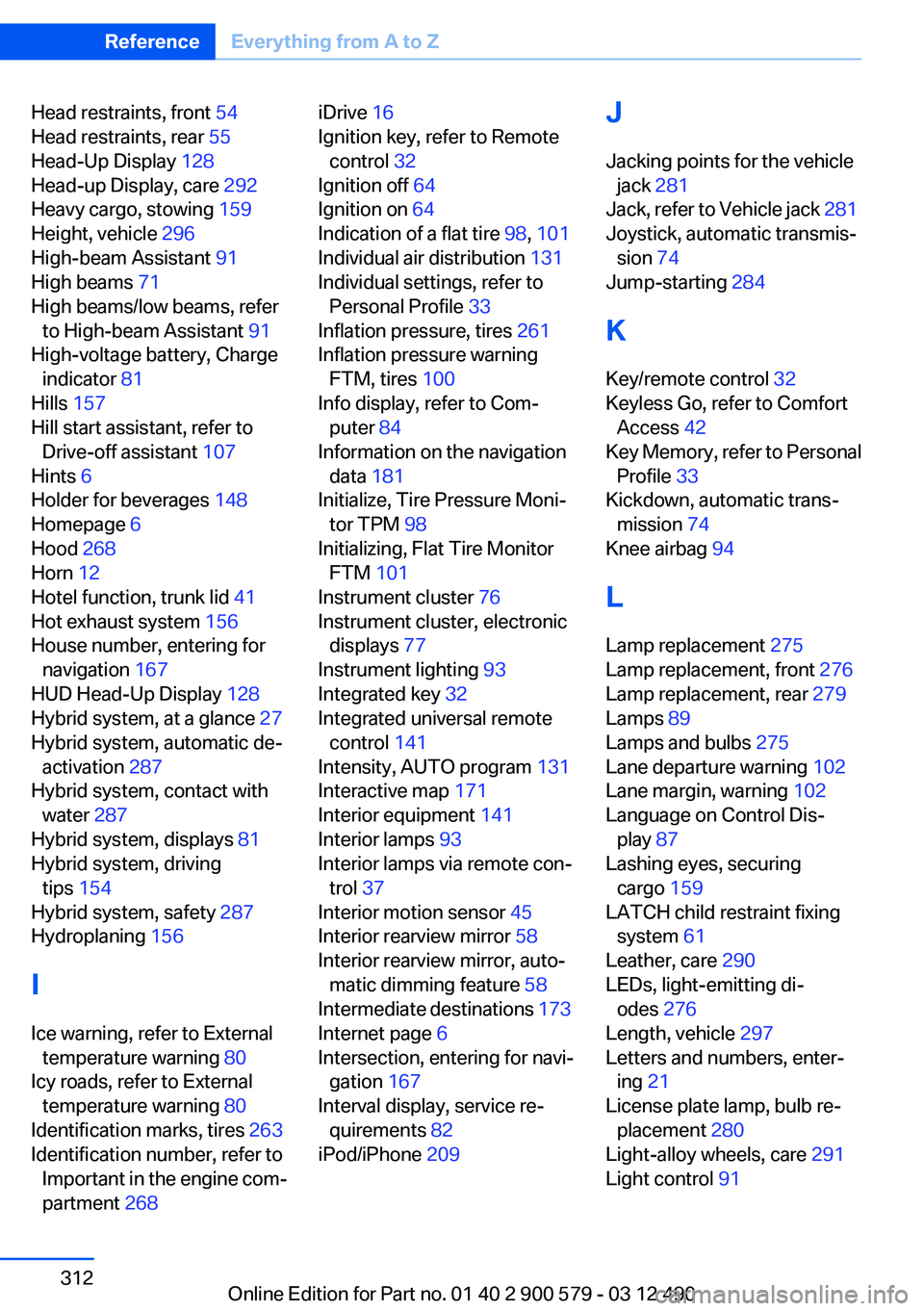
Head restraints, front 54
Head restraints, rear 55
Head-Up Display 128
Head-up Display, care 292
Heavy cargo, stowing 159
Height, vehicle 296
High-beam Assistant 91
High beams 71
High beams/low beams, refer to High-beam Assistant 91
High-voltage battery, Charge indicator 81
Hills 157
Hill start assistant, refer to Drive-off assistant 107
Hints 6
Holder for beverages 148
Homepage 6
Hood 268
Horn 12
Hotel function, trunk lid 41
Hot exhaust system 156
House number, entering for navigation 167
HUD Head-Up Display 128
Hybrid system, at a glance 27
Hybrid system, automatic de‐ activation 287
Hybrid system, contact with water 287
Hybrid system, displays 81
Hybrid system, driving tips 154
Hybrid system, safety 287
Hydroplaning 156
I
Ice warning, refer to External temperature warning 80
Icy roads, refer to External temperature warning 80
Identification marks, tires 263
Identification number, refer to Important in the engine com‐
partment 268 iDrive 16
Ignition key, refer to Remote control 32
Ignition off 64
Ignition on 64
Indication of a flat tire 98, 101
Individual air distribution 131
Individual settings, refer to Personal Profile 33
Inflation pressure, tires 261
Inflation pressure warning FTM, tires 100
Info display, refer to Com‐ puter 84
Information on the navigation data 181
Initialize, Tire Pressure Moni‐ tor TPM 98
Initializing, Flat Tire Monitor FTM 101
Instrument cluster 76
Instrument cluster, electronic displays 77
Instrument lighting 93
Integrated key 32
Integrated universal remote control 141
Intensity, AUTO program 131
Interactive map 171
Interior equipment 141
Interior lamps 93
Interior lamps via remote con‐ trol 37
Interior motion sensor 45
Interior rearview mirror 58
Interior rearview mirror, auto‐ matic dimming feature 58
Intermediate destinations 173
Internet page 6
Intersection, entering for navi‐ gation 167
Interval display, service re‐ quirements 82
iPod/iPhone 209 J
Jacking points for the vehicle jack 281
Jack, refer to Vehicle jack 281
Joystick, automatic transmis‐ sion 74
Jump-starting 284
K
Key/remote control 32
Keyless Go, refer to Comfort Access 42
Key Memory, refer to Personal Profile 33
Kickdown, automatic trans‐ mission 74
Knee airbag 94
L
Lamp replacement 275
Lamp replacement, front 276
Lamp replacement, rear 279
Lamps 89
Lamps and bulbs 275
Lane departure warning 102
Lane margin, warning 102
Language on Control Dis‐ play 87
Lashing eyes, securing cargo 159
LATCH child restraint fixing system 61
Leather, care 290
LEDs, light-emitting di‐ odes 276
Length, vehicle 297
Letters and numbers, enter‐ ing 21
License plate lamp, bulb re‐ placement 280
Light-alloy wheels, care 291
Light control 91 Seite 312ReferenceEverything from A to Z312
Online Edition for Part no. 01 40 2 900 579 - 03 12 490
Page 313 of 319
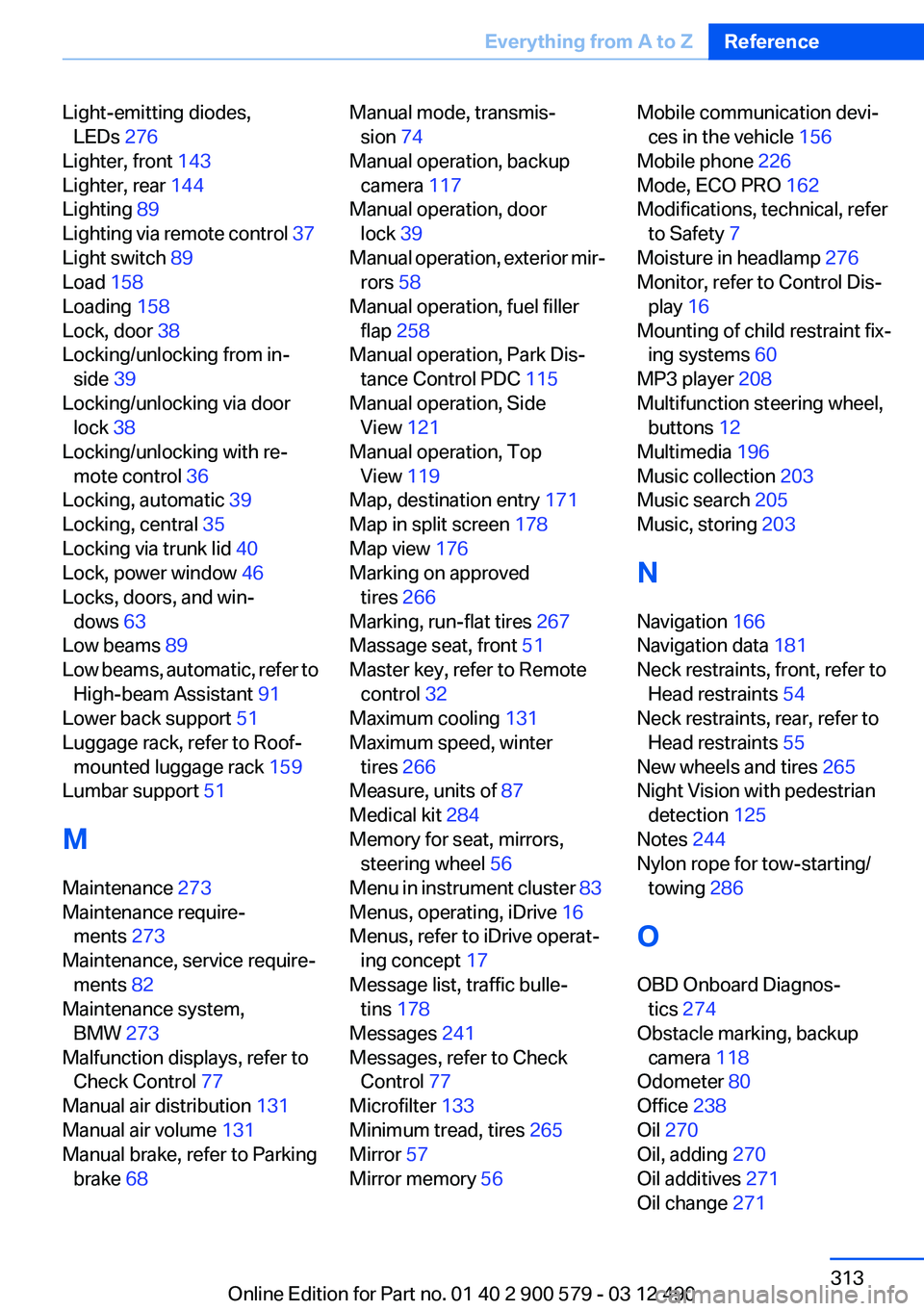
Light-emitting diodes,LEDs 276
Lighter, front 143
Lighter, rear 144
Lighting 89
Lighting via remote control 37
Light switch 89
Load 158
Loading 158
Lock, door 38
Locking/unlocking from in‐ side 39
Locking/unlocking via door lock 38
Locking/unlocking with re‐ mote control 36
Locking, automatic 39
Locking, central 35
Locking via trunk lid 40
Lock, power window 46
Locks, doors, and win‐ dows 63
Low beams 89
Low beams, automatic, refer to High-beam Assistant 91
Lower back support 51
Luggage rack, refer to Roof- mounted luggage rack 159
Lumbar support 51
M
Maintenance 273
Maintenance require‐ ments 273
Maintenance, service require‐ ments 82
Maintenance system, BMW 273
Malfunction displays, refer to Check Control 77
Manual air distribution 131
Manual air volume 131
Manual brake, refer to Parking brake 68 Manual mode, transmis‐
sion 74
Manual operation, backup camera 117
Manual operation, door lock 39
Manual operation, exterior mir‐ rors 58
Manual operation, fuel filler flap 258
Manual operation, Park Dis‐ tance Control PDC 115
Manual operation, Side View 121
Manual operation, Top View 119
Map, destination entry 171
Map in split screen 178
Map view 176
Marking on approved tires 266
Marking, run-flat tires 267
Massage seat, front 51
Master key, refer to Remote control 32
Maximum cooling 131
Maximum speed, winter tires 266
Measure, units of 87
Medical kit 284
Memory for seat, mirrors, steering wheel 56
Menu in instrument cluster 83
Menus, operating, iDrive 16
Menus, refer to iDrive operat‐ ing concept 17
Message list, traffic bulle‐ tins 178
Messages 241
Messages, refer to Check Control 77
Microfilter 133
Minimum tread, tires 265
Mirror 57
Mirror memory 56 Mobile communication devi‐
ces in the vehicle 156
Mobile phone 226
Mode, ECO PRO 162
Modifications, technical, refer to Safety 7
Moisture in headlamp 276
Monitor, refer to Control Dis‐ play 16
Mounting of child restraint fix‐ ing systems 60
MP3 player 208
Multifunction steering wheel, buttons 12
Multimedia 196
Music collection 203
Music search 205
Music, storing 203
N
Navigation 166
Navigation data 181
Neck restraints, front, refer to Head restraints 54
Neck restraints, rear, refer to Head restraints 55
New wheels and tires 265
Night Vision with pedestrian detection 125
Notes 244
Nylon rope for tow-starting/ towing 286
O
OBD Onboard Diagnos‐ tics 274
Obstacle marking, backup camera 118
Odometer 80
Office 238
Oil 270
Oil, adding 270
Oil additives 271
Oil change 271 Seite 313Everything from A to ZReference313
Online Edition for Part no. 01 40 2 900 579 - 03 12 490