radio BMW ACTIVEHYBRID 5 2012 Owner's Guide
[x] Cancel search | Manufacturer: BMW, Model Year: 2012, Model line: ACTIVEHYBRID 5, Model: BMW ACTIVEHYBRID 5 2012Pages: 319, PDF Size: 12.54 MB
Page 194 of 319
Managing the favorites
Activating/deactivating the favorites
Favorites can be activated and deactivated
globally and individually.1."Satellite radio"2. "Manage favorites"3.Select "Activate alert" or the desired favor‐
ites.
The setting is stored for the remote control cur‐
rently in use.
Deleting favorites
1."Satellite radio"2. "Manage favorites"3.Highlight the desired favorite.4.Open "Options".5."Delete entry"
Traffic Jump
Traffic and weather information for a selected
region is broadcast every few minutes.
Selecting a region
1."Radio"2."Satellite radio"3.Open "Options".4."Set jump"5.Select the desired region.
The region is stored for the remote control cur‐
rently in use.
Activating/deactivating the jump
1."Radio"2."Satellite radio"3. "Jump to:"
Information for the selected region is broadcast
as soon as it is available.
A new panel opens.
Canceling the Traffic Jump: "Cancel".
SymbolMeaning Information will be broadcast shortly. Information is currently being broad‐
cast.
Select one of the symbols to deactivate Traffic
Jump.
Automatic update
About twice a year, Sirius performs an update of
the channel names and positions. The update
takes place automatically and may take several
minutes.
Notes
▷Reception may not be available in some sit‐
uations, such as under certain environmen‐
tal or topographic conditions. The satellite
radio has no influence on this.▷The signal may not be available in tunnels or
underground garages next to tall buildings
or near trees, mountains or other powerful
sources of radio interference.
Stored stations
General information
It is possible to store up to 40 stations.
Calling up a station
1."Radio"2."Presets"3.Select the desired station.
Storing a station
The station currently selected is stored.
1."Radio"2."Presets"Seite 194EntertainmentRadio194
Online Edition for Part no. 01 40 2 900 579 - 03 12 490
Page 195 of 319
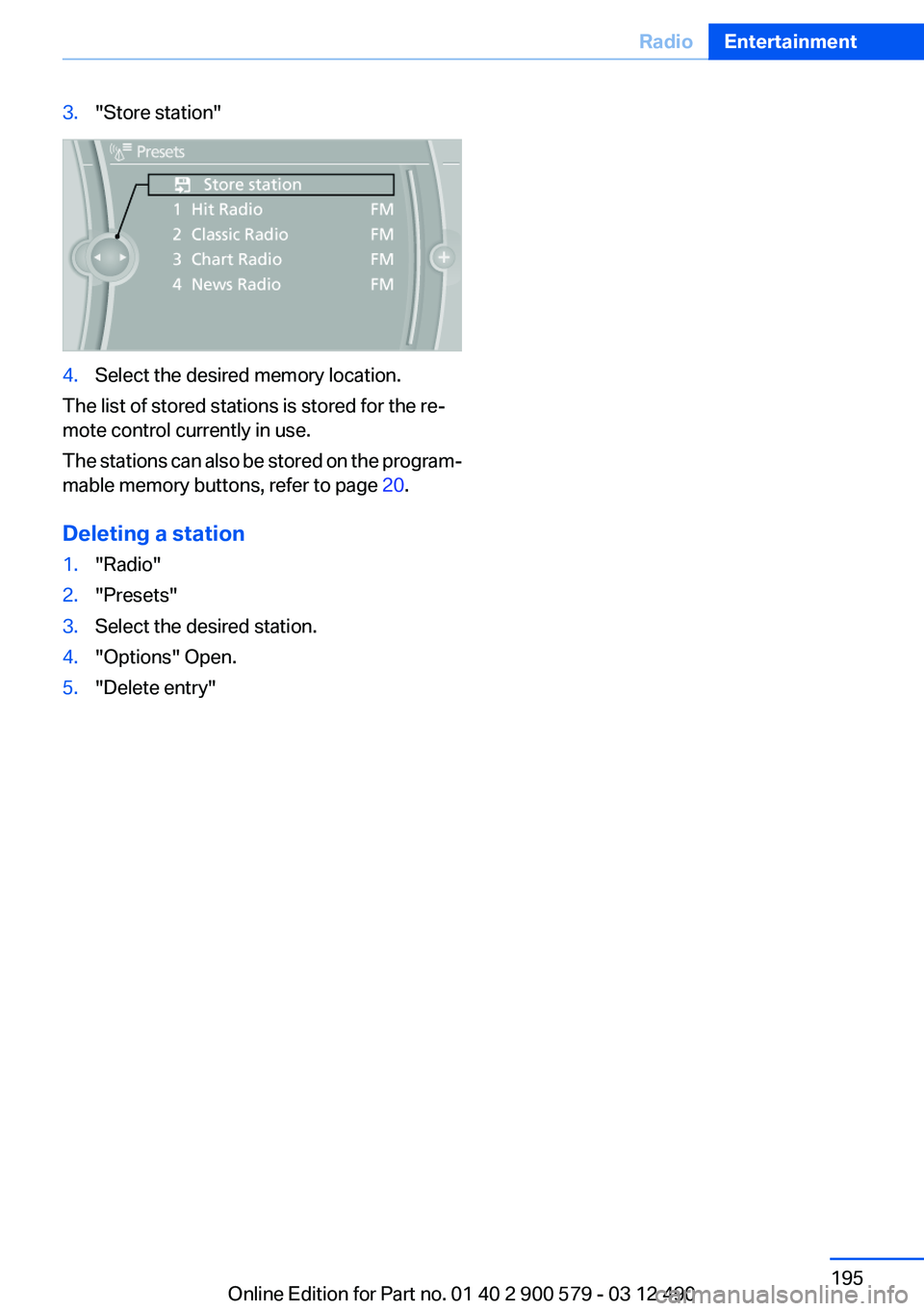
3."Store station"4.Select the desired memory location.
The list of stored stations is stored for the re‐
mote control currently in use.
The stations can also be stored on the program‐
mable memory buttons, refer to page 20.
Deleting a station
1."Radio"2."Presets"3.Select the desired station.4."Options" Open.5."Delete entry"Seite 195RadioEntertainment195
Online Edition for Part no. 01 40 2 900 579 - 03 12 490
Page 196 of 319

CD/multimediaVehicle equipment
All standard, country-specific and optional
equipment that is offered in the model series is
described in this chapter. Therefore, equipment
is also described that is not available in a vehicle,
e. g., because of the selected optional equip‐
ment or country variant. This also applies for
safety-related functions and systems.
Controls1Change the entertainment source2CD/DVD drive3Eject CD/DVD4Change station/track5Programmable memory buttons6Volume, on/off
Sound output
Switching on/off
When the ignition is switched off: press ON/OFF
button on the radio.
Muting
When the ignition is switched on or the engine
is running: press the ON/OFF button on the
radio.
CD/DVD
Playback
Loading the CD/DVD player
Insert the CD/DVD with the printed side up.
Playback begins automatically.
Reading can take a few minutes with com‐
pressed audio files.
Starting playback
A CD/DVD is located in the CD/DVD player or
DVD changer.1."CD/Multimedia"2."CD/DVD"3.Select the desired CD or DVD.SymbolMeaning CD/DVD player ... DVD changer CD/DVD player, rear
Playable formats
▷DVD: DVD-ROM, DVD-R, DVD+R, DVD-
RW, DVD+RW, DVD-R DL, DVD+R DL, DVD
audio (video part only), DVD video.▷CD-ROM, CD-R, CD-RW, CD-DA, VCD,
SVCD.Seite 196EntertainmentCD/multimedia196
Online Edition for Part no. 01 40 2 900 579 - 03 12 490
Page 215 of 319
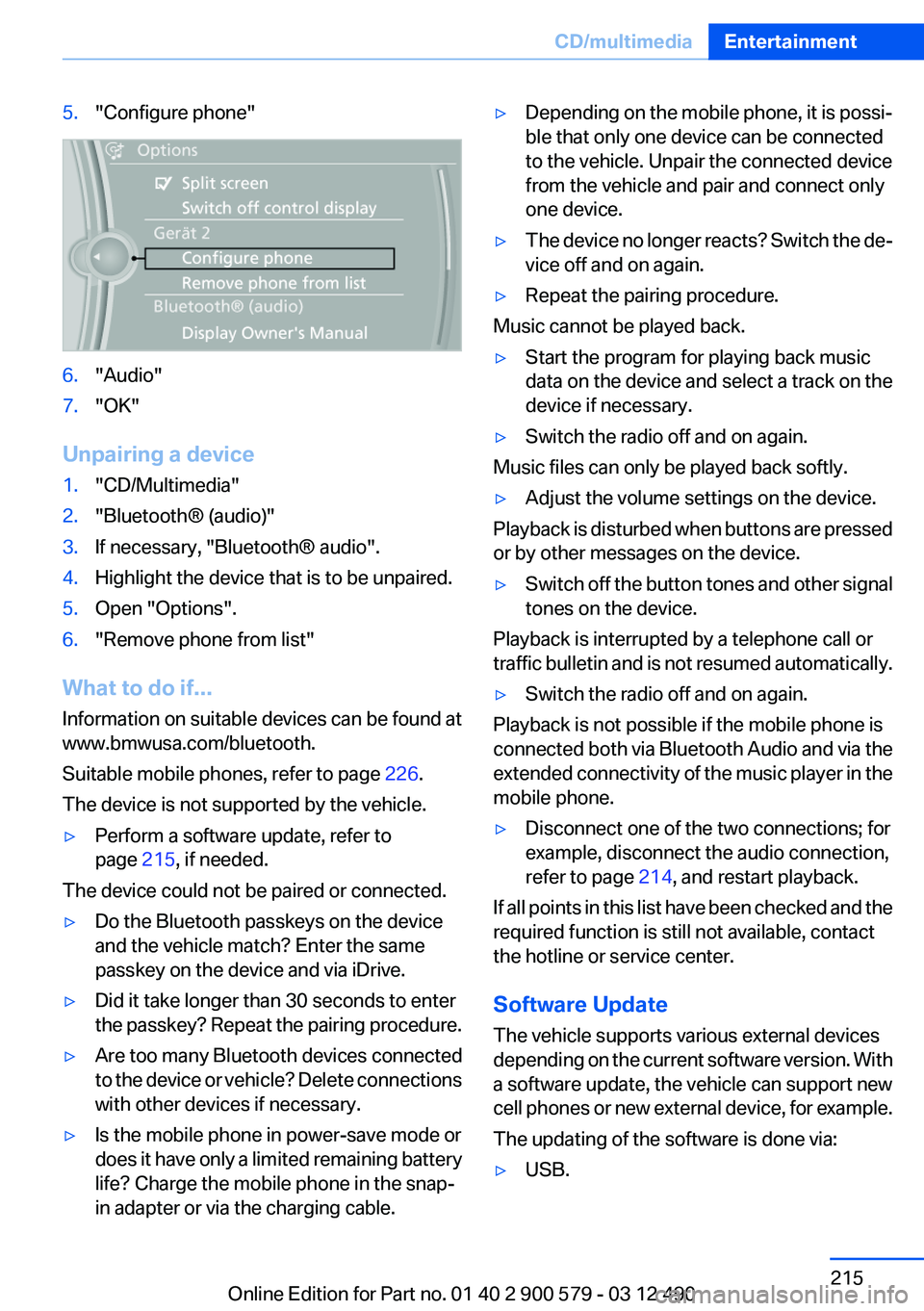
5."Configure phone"6."Audio"7."OK"
Unpairing a device
1."CD/Multimedia"2."Bluetooth® (audio)"3.If necessary, "Bluetooth® audio".4.Highlight the device that is to be unpaired.5.Open "Options".6."Remove phone from list"
What to do if...
Information on suitable devices can be found at
www.bmwusa.com/bluetooth.
Suitable mobile phones, refer to page 226.
The device is not supported by the vehicle.
▷Perform a software update, refer to
page 215, if needed.
The device could not be paired or connected.
▷Do the Bluetooth passkeys on the device
and the vehicle match? Enter the same
passkey on the device and via iDrive.▷Did it take longer than 30 seconds to enter
the passkey? Repeat the pairing procedure.▷Are too many Bluetooth devices connected
to the device or vehicle? Delete connections
with other devices if necessary.▷Is the mobile phone in power-save mode or
does it have only a limited remaining battery
life? Charge the mobile phone in the snap-
in adapter or via the charging cable.▷Depending on the mobile phone, it is possi‐
ble that only one device can be connected
to the vehicle. Unpair the connected device
from the vehicle and pair and connect only
one device.▷The device no longer reacts? Switch the de‐
vice off and on again.▷Repeat the pairing procedure.
Music cannot be played back.
▷Start the program for playing back music
data on the device and select a track on the
device if necessary.▷Switch the radio off and on again.
Music files can only be played back softly.
▷Adjust the volume settings on the device.
Playback is disturbed when buttons are pressed
or by other messages on the device.
▷Switch off the button tones and other signal
tones on the device.
Playback is interrupted by a telephone call or
traffic bulletin and is not resumed automatically.
▷Switch the radio off and on again.
Playback is not possible if the mobile phone is
connected both via Bluetooth Audio and via the
extended connectivity of the music player in the
mobile phone.
▷Disconnect one of the two connections; for
example, disconnect the audio connection,
refer to page 214, and restart playback.
If all points in this list have been checked and the
required function is still not available, contact
the hotline or service center.
Software Update
The vehicle supports various external devices
depending on the current software version. With
a software update, the vehicle can support new
cell phones or new external device, for example.
The updating of the software is done via:
▷USB.Seite 215CD/multimediaEntertainment215
Online Edition for Part no. 01 40 2 900 579 - 03 12 490
Page 219 of 319
Take the used battery to a recycling cen‐
ter or to your service center.
Controls
Almost all functions can be operated in the same
manner as they are in the front. Special features
of operating the system in the rear are described
here.
Audio/video playback
Audio
Audio can be played back via rear entertainment
from any source in the vehicle.
Operation is the same as for the front audio play‐
back, refer to page 197.
Video
Video can be played back in the rear from the
following sources:▷DVD changer.▷Rear CD/DVD player.▷External device in rear.
If a video image is being played back in the rear,
the rear CD/DVD player cannot be selected in
the front.
Operation is the same as for the front video play‐
back, refer to page 198.
Radio
When the same radio source is selected in the
front and rear (e.g., FM/AM), the same radio sta‐
tion is played.
Operation is the same as for the front radio, refer
to page 188.
CD/multimedia
CD/DVD
When the same audio source (front CD/DVD
player, rear CD/DVD player, DVD changer) is se‐
lected in the front and rear, the same material is
played.
Operation is the same as for the front CD/DVD,
refer to page 196.
Notes on CDs/DVDs, refer to page 202.
Music collection
Music can only be stored and data can only be
exported and imported via the front CD/DVD
player or the USB interface in the glove com‐
partment.
When music collections are selected in the front
and rear, they are played back separately.
Operation is the same as for the front music col‐
lection, refer to page 203.
Tone
Only treble and bass can be set in the rear. The
settings are made separately for the left and
right headphones.
Operation is the same as for the front tone, refer
to page 186.
Contacts
Operation is the same as for the front contacts.
Navigation
Route planning can be performed separately on
the left and right sides in the rear. Destination
guidance can only be started from the front.
Operation is the same as for the front navigation,
refer to page 166.
Suggesting a destination
A destination or trip can be sent to the front as
a suggestion. The suggestion can be adopted,
stored, or declined in the front. This function is
not available with the following setting: "Driver
control".1.Enter the destination.2."Suggest destination"Seite 219Rear entertainmentEntertainment219
Online Edition for Part no. 01 40 2 900 579 - 03 12 490
Page 220 of 319
ConnectedDrive
Operation is the same as for the front Connec‐
tedDrive, refer to page 249.
Adjusting
The following settings are available:▷"Rear displays"▷"Language/Units": language can be set
globally for all screens.▷"Tone"▷If necessary, "Climate".
Vehicle info
Computer content can be displayed. Operation
is only possible in the front.
Options menu
The split screen is not available and there is no
Integrated Owner's Manual.
Operation is the same as for the front menu op‐
tions, refer to page 18.
Enabling
Enabling operation in the rear
Only possible via the iDrive in the front.
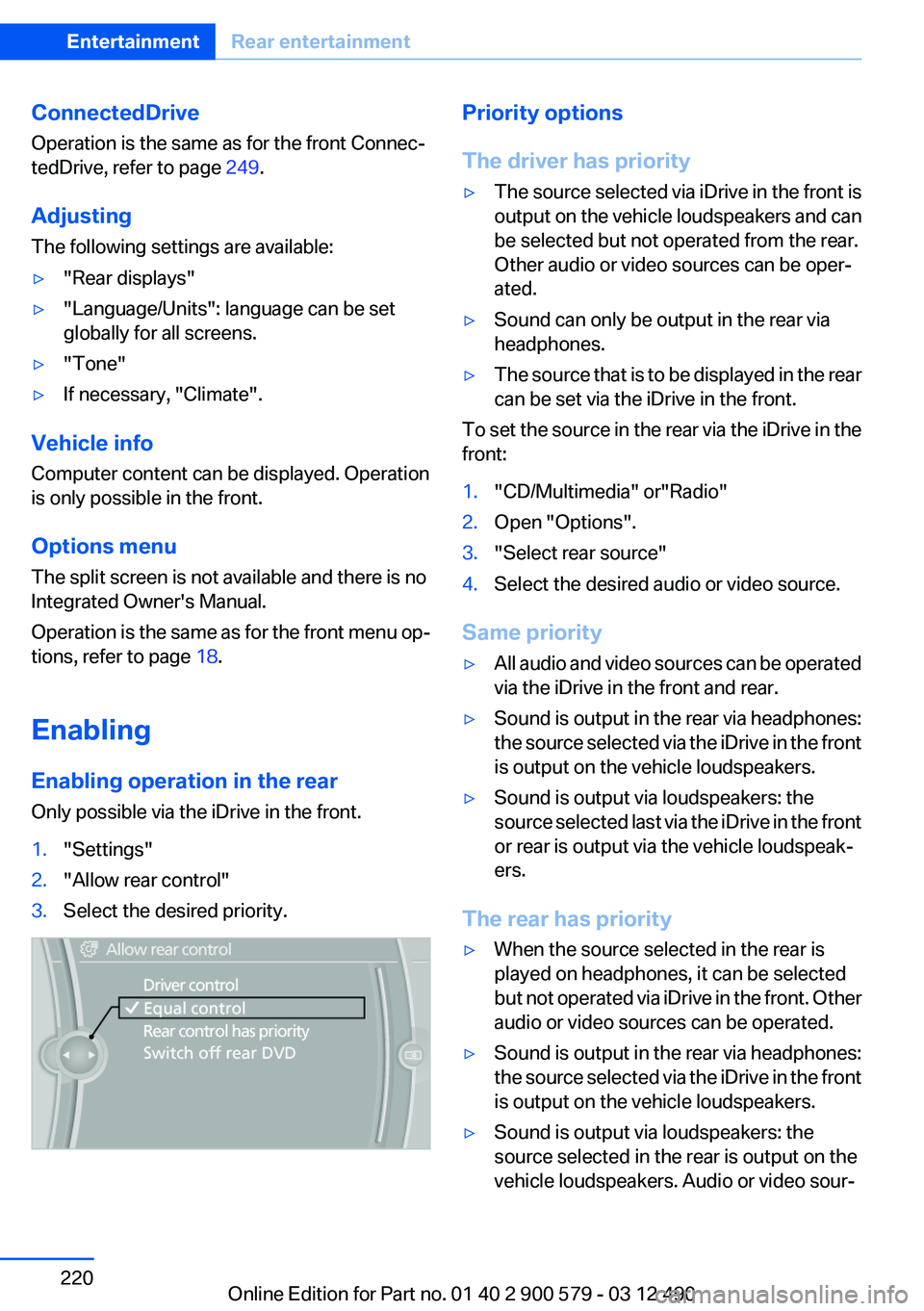
1."Settings"2."Allow rear control"3.Select the desired priority.Priority options
The driver has priority▷The source selected via iDrive in the front is
output on the vehicle loudspeakers and can
be selected but not operated from the rear.
Other audio or video sources can be oper‐
ated.▷Sound can only be output in the rear via
headphones.▷The source that is to be displayed in the rear
can be set via the iDrive in the front.
To set the source in the rear via the iDrive in the
front:
1."CD/Multimedia" or"Radio"2.Open "Options".3."Select rear source"4.Select the desired audio or video source.
Same priority
▷All audio and video sources can be operated
via the iDrive in the front and rear.▷Sound is output in the rear via headphones:
the source selected via the iDrive in the front
is output on the vehicle loudspeakers.▷Sound is output via loudspeakers: the
source selected last via the iDrive in the front
or rear is output via the vehicle loudspeak‐
ers.
The rear has priority
▷When the source selected in the rear is
played on headphones, it can be selected
but not operated via iDrive in the front. Other
audio or video sources can be operated.▷Sound is output in the rear via headphones:
the source selected via the iDrive in the front
is output on the vehicle loudspeakers.▷Sound is output via loudspeakers: the
source selected in the rear is output on the
vehicle loudspeakers. Audio or video sour‐Seite 220EntertainmentRear entertainment220
Online Edition for Part no. 01 40 2 900 579 - 03 12 490
Page 222 of 319
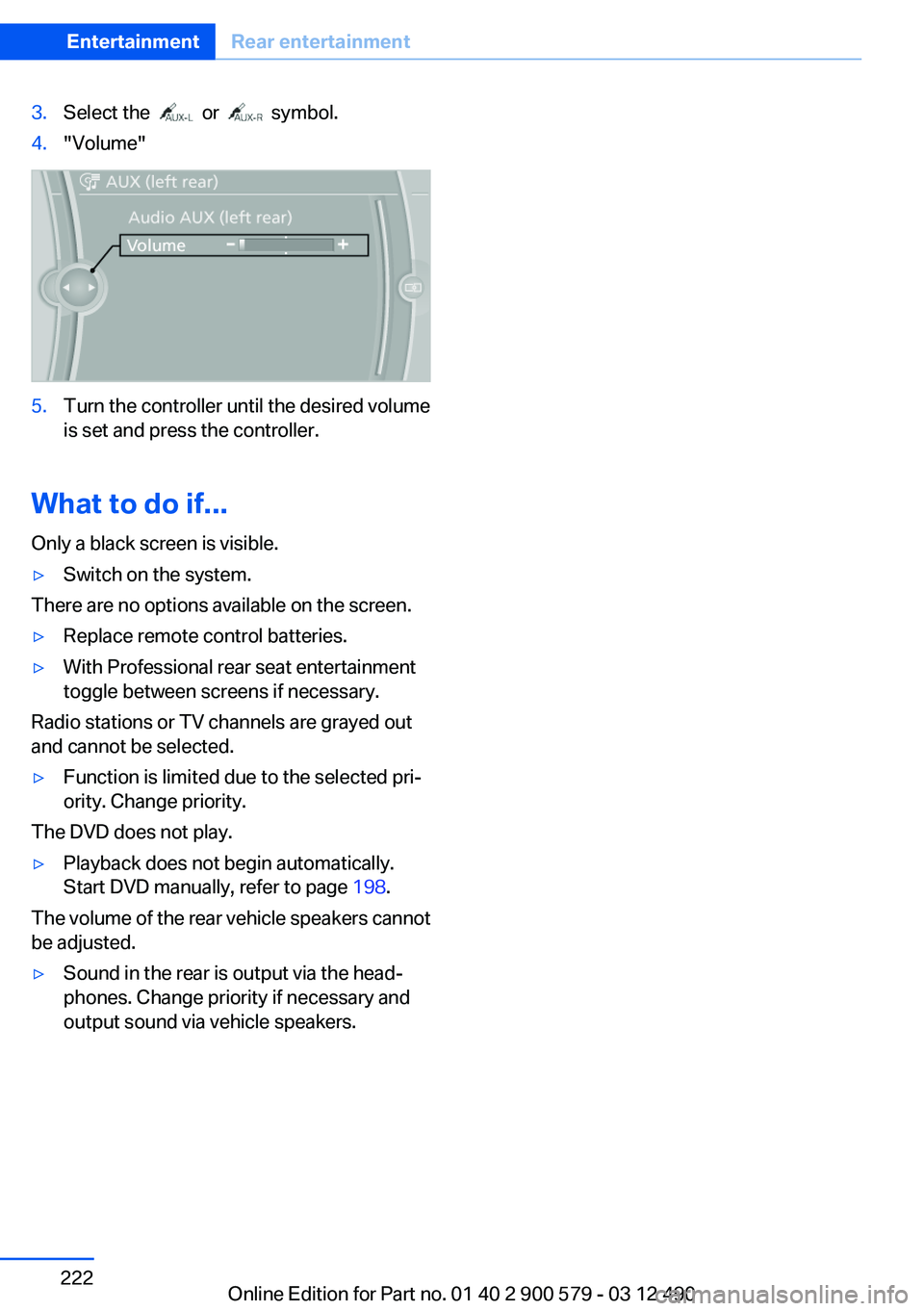
3.Select the or symbol.4."Volume"5.Turn the controller until the desired volume
is set and press the controller.
What to do if...
Only a black screen is visible.
▷Switch on the system.
There are no options available on the screen.
▷Replace remote control batteries.▷With Professional rear seat entertainment
toggle between screens if necessary.
Radio stations or TV channels are grayed out
and cannot be selected.
▷Function is limited due to the selected pri‐
ority. Change priority.
The DVD does not play.
▷Playback does not begin automatically.
Start DVD manually, refer to page 198.
The volume of the rear vehicle speakers cannot
be adjusted.
▷Sound in the rear is output via the head‐
phones. Change priority if necessary and
output sound via vehicle speakers.Seite 222EntertainmentRear entertainment222
Online Edition for Part no. 01 40 2 900 579 - 03 12 490
Page 282 of 319
Power failure
After a temporary power loss, some equipment
needs to be reinitialized.
Individual settings need to be reprogrammed:▷Seat, mirror, and steering wheel memory:
store the positions again.▷Time: update.▷Date: update.▷Radio station: save again.▷Navigation system: wait for the operability of
the navigation.
Disposing of old batteries
Have old batteries disposed of by your
service center or bring them to a recy‐
cling center.
Maintain the battery in an upright position for
transport and storage. Secure the battery so
that it does not tip over during transport.
Fuses
Notes Replacing fuses
Never attempt to repair a blown fuse and
do not replace a defective fuse with a substitute
of another color or amperage rating; this could
lead to a circuit overload, ultimately resulting in
a fire in the vehicle.◀
Plastic tweezers and information on the fuse
types and locations are stored in the fuse box in
the cargo area.
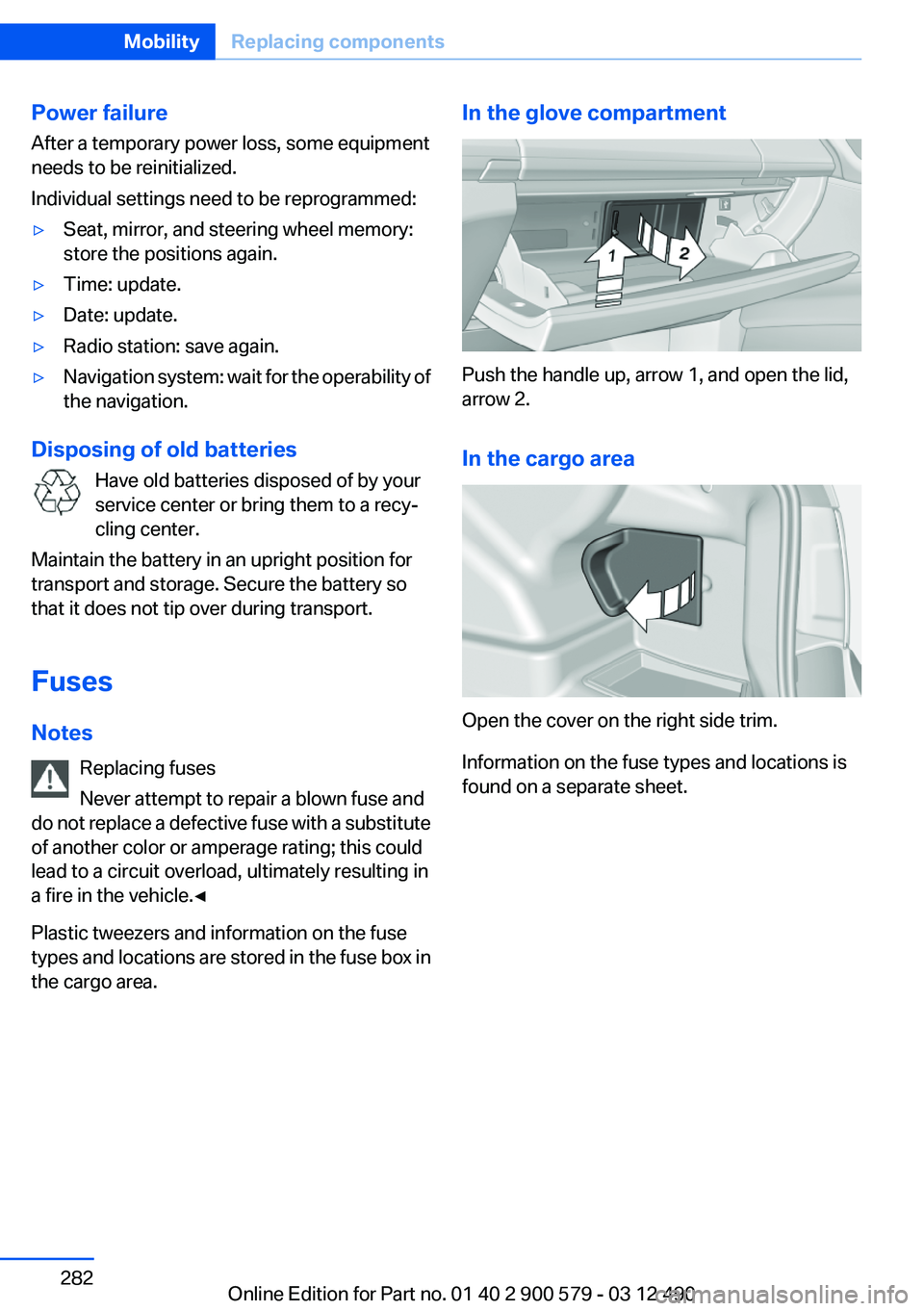
In the glove compartment
Push the handle up, arrow 1, and open the lid,
arrow 2.
In the cargo area
Open the cover on the right side trim.
Information on the fuse types and locations is
found on a separate sheet.
Seite 282MobilityReplacing components282
Online Edition for Part no. 01 40 2 900 579 - 03 12 490
Page 283 of 319
Breakdown assistanceVehicle equipment
All standard, country-specific and optional
equipment that is offered in the model series is
described in this chapter. Therefore, equipment
is also described that is not available in a vehicle,
e. g., because of the selected optional equip‐
ment or country variant. This also applies for
safety-related functions and systems.
Hazard warning flashers
The button is located in the center console.
Emergency Request
Requirements
▷Equipment version with full preparation
package mobile phone.
An Emergency Request can be made, even
if no mobile phones are paired with the ve‐
hicle.▷BMW Assist is activated.▷The radio ready state is switched on.▷The BMW Assist system is logged in to a
wireless communications network sup‐
ported by BMW Assist.▷The Assist system is functional.
Only press the SOS button in an emergency.
Emergency Request not guaranteed
For technical reasons, the Emergency Re‐
quest cannot be guaranteed under unfavorable
conditions.◀
Service contract▷After your contract with BMW Assist has ex‐
pired, the BMW Assist system can be deac‐
tivated by the service center without you
having to visit a workshop.
After deactivation, an Emergency Request
is no longer possible.▷Under certain circumstances, the system
can be reactivated by a service center after
you sign a new contract.
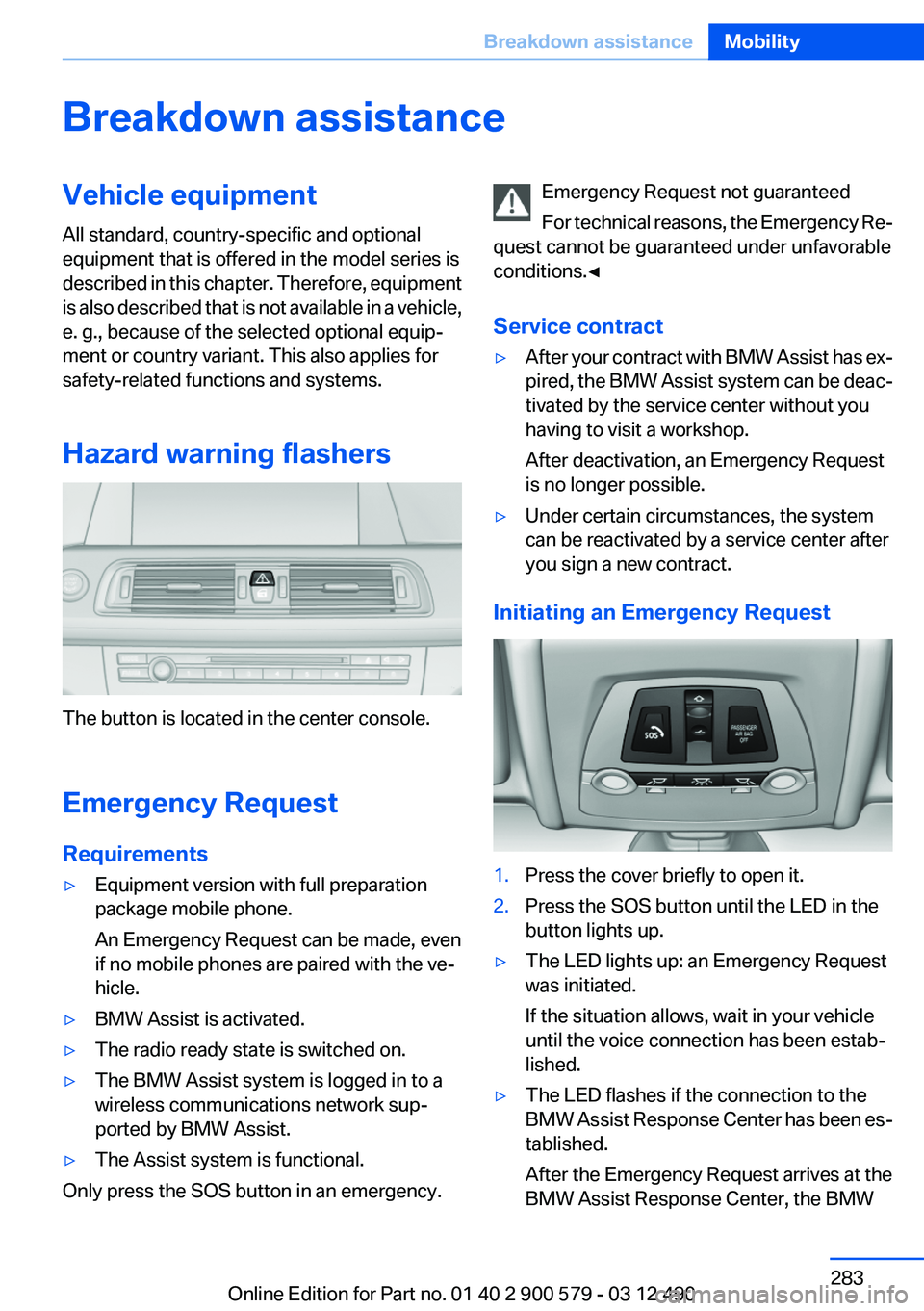
Initiating an Emergency Request
1.Press the cover briefly to open it.2.Press the SOS button until the LED in the
button lights up.▷The LED lights up: an Emergency Request
was initiated.
If the situation allows, wait in your vehicle
until the voice connection has been estab‐
lished.▷The LED flashes if the connection to the
BMW Assist Response Center has been es‐
tablished.
After the Emergency Request arrives at the
BMW Assist Response Center, the BMWSeite 283Breakdown assistanceMobility283
Online Edition for Part no. 01 40 2 900 579 - 03 12 490
Page 285 of 319
Do not touch live parts
To avoid the risk of potentially fatal injury,
always avoid all contact with electrical compo‐
nents while the engine is running.◀
Preparation1.Check whether the battery of the other ve‐
hicle has a voltage of 12 volts. This informa‐
tion can be found on the battery.2.Switch off the engine of the assisting vehi‐
cle.3.Switch off any electronic systems/power
consumers in both vehicles.
Bodywork contact between vehicles
Make sure that there is no contact be‐
tween the bodywork of the two vehicles; other‐
wise, there is the danger of short circuits.◀
Starting aid terminals Connecting order
Connect the jumper cables in the correct
order; otherwise, there is the danger of injury
from sparking.◀
The so-called starting aid terminal in the engine
compartment acts as the battery's positive ter‐
minal.
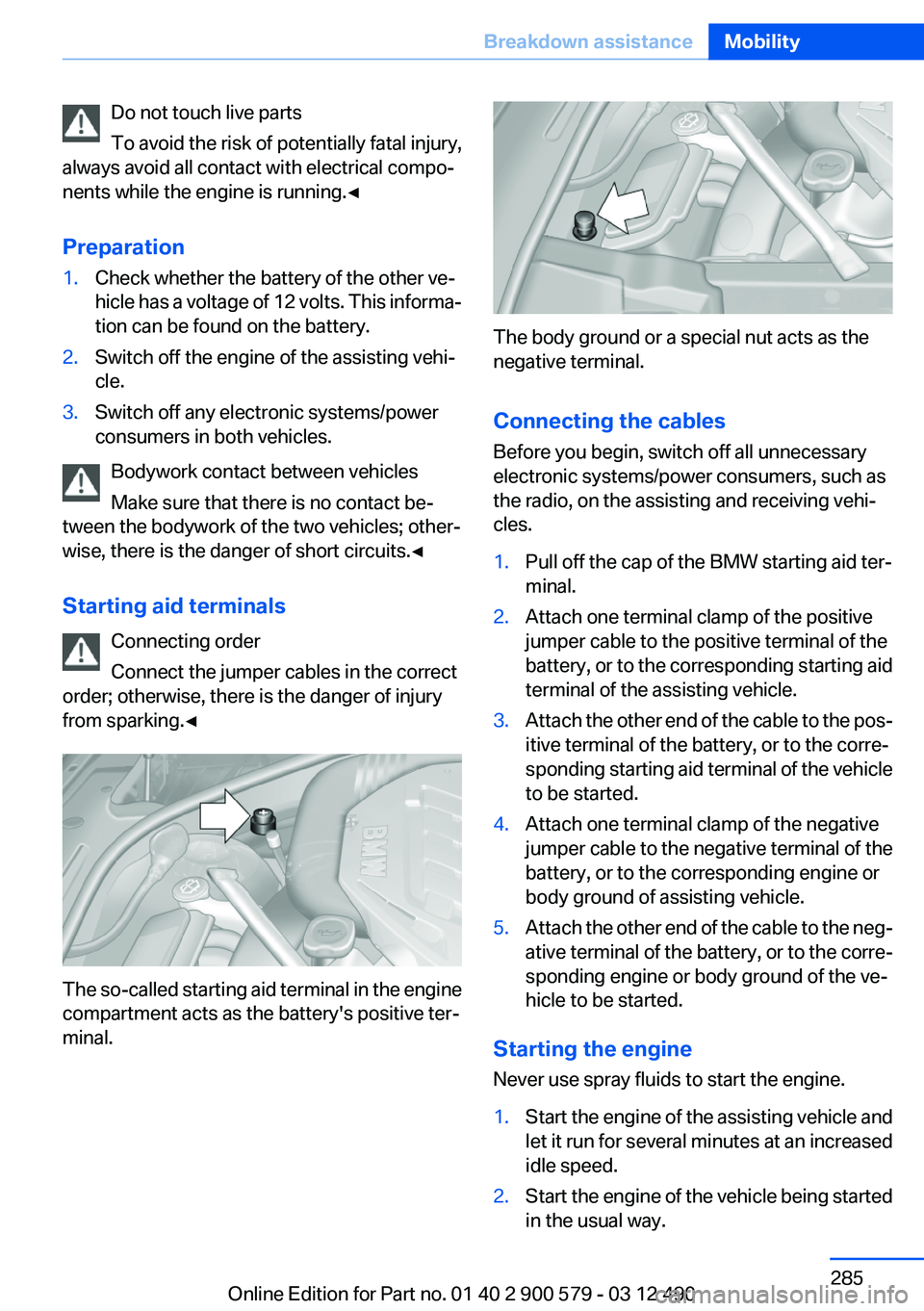
The body ground or a special nut acts as the
negative terminal.
Connecting the cables
Before you begin, switch off all unnecessary
electronic systems/power consumers, such as
the radio, on the assisting and receiving vehi‐
cles.
1.Pull off the cap of the BMW starting aid ter‐
minal.2.Attach one terminal clamp of the positive
jumper cable to the positive terminal of the
battery, or to the corresponding starting aid
terminal of the assisting vehicle.3.Attach the other end of the cable to the pos‐
itive terminal of the battery, or to the corre‐
sponding starting aid terminal of the vehicle
to be started.4.Attach one terminal clamp of the negative
jumper cable to the negative terminal of the
battery, or to the corresponding engine or
body ground of assisting vehicle.5.Attach the other end of the cable to the neg‐
ative terminal of the battery, or to the corre‐
sponding engine or body ground of the ve‐
hicle to be started.
Starting the engine
Never use spray fluids to start the engine.
1.Start the engine of the assisting vehicle and
let it run for several minutes at an increased
idle speed.2.Start the engine of the vehicle being started
in the usual way.Seite 285Breakdown assistanceMobility285
Online Edition for Part no. 01 40 2 900 579 - 03 12 490