length BMW ACTIVEHYBRID 5 2012 Owners Manual
[x] Cancel search | Manufacturer: BMW, Model Year: 2012, Model line: ACTIVEHYBRID 5, Model: BMW ACTIVEHYBRID 5 2012Pages: 319, PDF Size: 12.54 MB
Page 64 of 319
DrivingVehicle equipment
All standard, country-specific and optional
equipment that is offered in the model series is
described in this chapter. Therefore, equipment
is also described that is not available in a vehicle,
e. g., because of the selected optional equip‐
ment or country variant. This also applies for
safety-related functions and systems.
Start/Stop button, drive
readiness states
The concept The following ready states can be
attained by pressing the Start/
Stop button:▷Radio ready state on/off.▷Ignition on/off.▷Activating/deactivating drive readiness.
To activate drive readiness, press the brake
pedal.
Switching radio ready state on/off
The radio ready state is activated by pressing
the Start/Stop button in the following situations:
▷When the engine is running.▷When the engine is switched off automati‐
cally using the Auto Start/Stop function and
the brake is not applied.
Some electronic systems/power consumers re‐
main ready for operation.
Radio ready state is switched off automatically:
▷After approx. 8 minutes.▷When the vehicle is locked using the central
locking system.▷Shortly before the battery is discharged
completely, so that the engine can still be
started.
Ignition on
Press the Start/Stop button, and do not press on
the brake pedal at the same time.
All vehicle systems are ready for operation.
Most of the indicator and warning lamps in the
instrument cluster light up for varying lengths of
time.
To save battery power when the engine is off,
switch off the ignition and any unnecessary
electronic systems/power consumers.
The ignition is switched off automatically in the
following situations:
▷When locking the vehicle, if the low beams
are switched on.▷Shortly before the battery is discharged
completely, so that the engine can still be
started.▷If the engine is switched off and the ignition
is switched on, the system automatically
switches to the radio ready state when the
door is opened if the lights are switched off
or the daytime running lights are switched
on.
Ignition off
Press the Start/Stop button again, and do not
press on the brake pedal at the same time.
All indicator lamps in the instrument cluster go
out.
To save battery power when the engine is off,
switch off the ignition and any unnecessary
electronic systems/power consumers.
Seite 64ControlsDriving64
Online Edition for Part no. 01 40 2 900 579 - 03 12 490
Page 122 of 319
When parking, also take note of the visual and
acoustic information issued by the PDC and the
parking assistant and accelerate or brake ac‐
cordingly.
A component of the parking assistant is the PDC
Park Distance Control, refer to page 114.
Personal responsibility
The parking assistant does not relieve the
driver of responsibility for the vehicle during the
parking procedure.
Watch the parking space and parking procedure
closely and intervene if necessary; otherwise,
there is the danger of an accident.◀
Requirements
For measuring parking spaces▷Maximum speed while driving forward ap‐
prox. 22 mph/35 km/h.▷Maximum distance to row of parked vehi‐
cles: 5 ft/1.5 m.
Suitable parking space
▷Gap between two objects with a minimum
length of approx. 5 ft/1.5 m.▷Minimum length: own vehicle length plus
approx. 4 ft/1.2 m.▷Minimum depth: approx. 5 ft/1.5 m.
For parking procedure
Closed doors.
Switching on
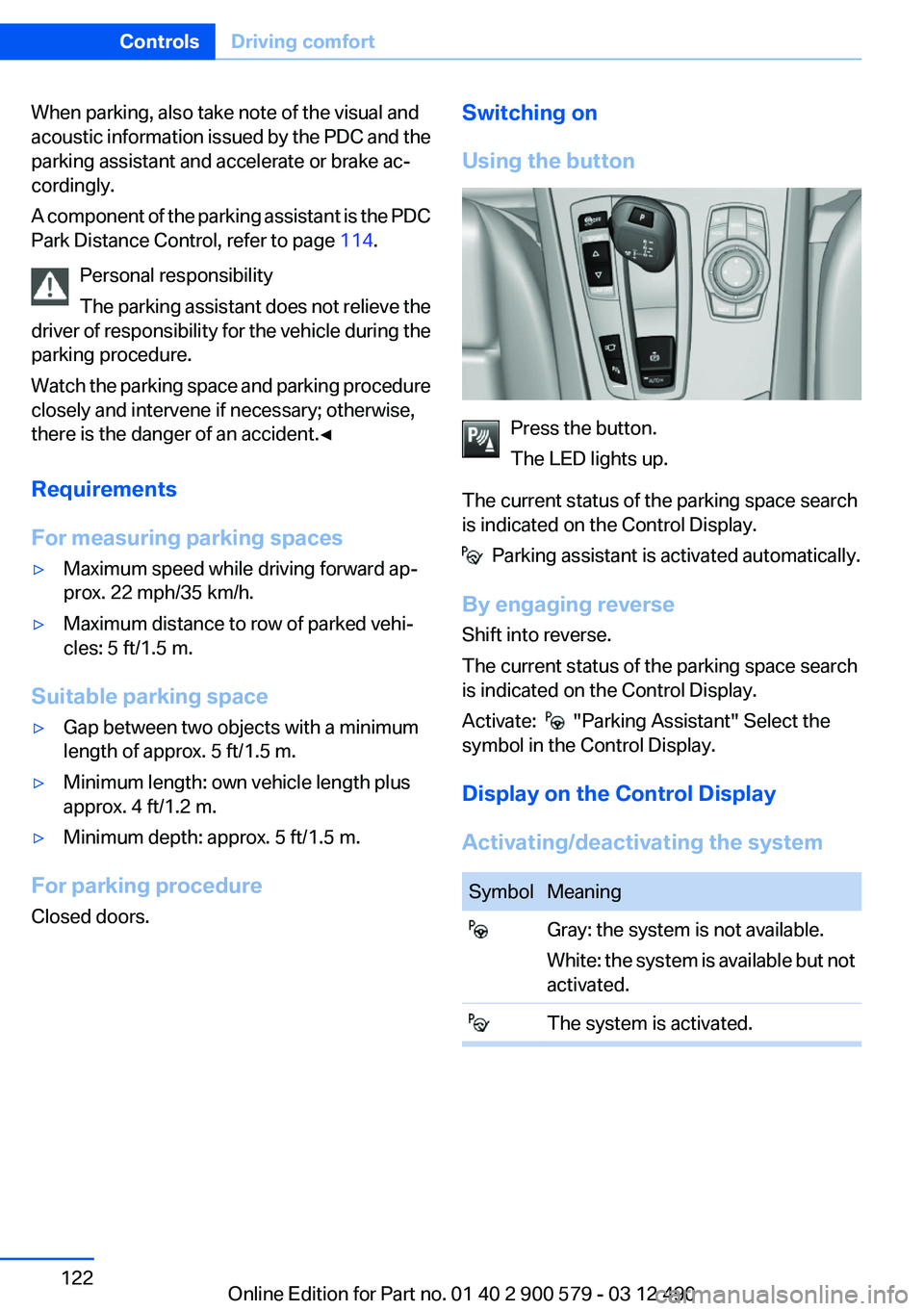
Using the button
Press the button.
The LED lights up.
The current status of the parking space search
is indicated on the Control Display.
Parking assistant is activated automatically.
By engaging reverse
Shift into reverse.
The current status of the parking space search
is indicated on the Control Display.
Activate:
"Parking Assistant" Select the
symbol in the Control Display.
Display on the Control Display
Activating/deactivating the system
SymbolMeaning Gray: the system is not available.
White: the system is available but not
activated. The system is activated.Seite 122ControlsDriving comfort122
Online Edition for Part no. 01 40 2 900 579 - 03 12 490
Page 172 of 319
Saying the entries▷With the Professional navigation system:
the town/city, street, and house number can
be entered as a single command.▷Countries, towns and cities, streets, and in‐
tersections can be said as whole words or
spelled, refer to page 87, in the language of
the system.
Example: to enter a town/city in a US state
as a whole word, the language of the system
must be English.▷Spell the entry if the spoken language and
the language of the system differ.▷Say the letters smoothly, and avoid exag‐
gerating the pronunciation and inserting
lengthy pauses between the letters.▷The options available for entering data de‐
pend on the navigation data and the country
and language settings.
With the Professional navigation
system: entering an address in a
command
1. Press the button on the steering
wheel.2.›Enter address‹3.Wait for a request from the system.4.Say the address in the suggested order.5.Continue making the entry as prompted by
the system.
If necessary, individually name the separate
components of the address, such as the town/
city.
Entering a town/city separately
The name of the town/city can be spoken as a
word or spelled out.
With the destination entry menu displayed:1. Press the button on the steering
wheel.2.›City‹ or ›Spell city‹.3.Wait for the system to prompt you for the
town/city.4.Say the name of the town/city, or say at least
the first three letters.
Depending on the entry, up to 20 towns/cit‐
ies may be suggested.5.Select the town/city.▷To select a recommended town/
city: ›Yes‹▷To select a different town/city: ›New
entry‹▷Select an entry: ›Entry ...‹ e.g., entry 2▷To spell an entry: ›Spell city‹6.Continue making the entry as prompted by
the system.
If there are several towns/cities with the same
name:
Towns/cities of the same name are grouped in a
list and displayed as one location followed by an
ellipsis.
1.Select an entry: ›Yes‹ or ›Entry ...‹ e.g., en‐
try 2.2.Select the desired town/city.
Entering a street or intersection
separately
Enter a street and intersection in the same way
as you would enter a town/city.
Entering a house number separately
Depending on the data in the navigation system,
house numbers up to number 2,000 can be en‐
tered.
1.›House number‹2.Say the house number.Seite 172NavigationNavigation system172
Online Edition for Part no. 01 40 2 900 579 - 03 12 490
Page 180 of 319
Traffic bulletins on the map
General information
"Traffic conditions/gray map" Active: indication
on the control display is switched to shades of
gray. This enables a better view of the traffic
bulletins. Day/night mode is not taken into ac‐
count in this setting. Symbols and special des‐
tinations are not displayed.1."Navigation"2."Map"3.Open "Options".4."Settings"5."Traffic conditions/gray map"
Symbols in the map view
Depending on the scale of the map and the lo‐
cation of the traffic obstruction along the route,
the symbols for the traffic obstructions are dis‐
played.
Additional information in the map view
Depending on the map scale, a traffic obstruc‐
tion's length, direction, and impact are displayed
in the map using triangles or gray bars along the
calculated route.
▷Red: congestion.▷Orange: stop-and-go traffic.▷Yellow: heavy traffic.▷Green: clear roads.▷Gray: general traffic bulletins, e.g., construc‐
tion site.
The displayed information depends on the par‐
ticular traffic information service.
Filtering traffic bulletins
You can set which traffic bulletins appear on the
map.
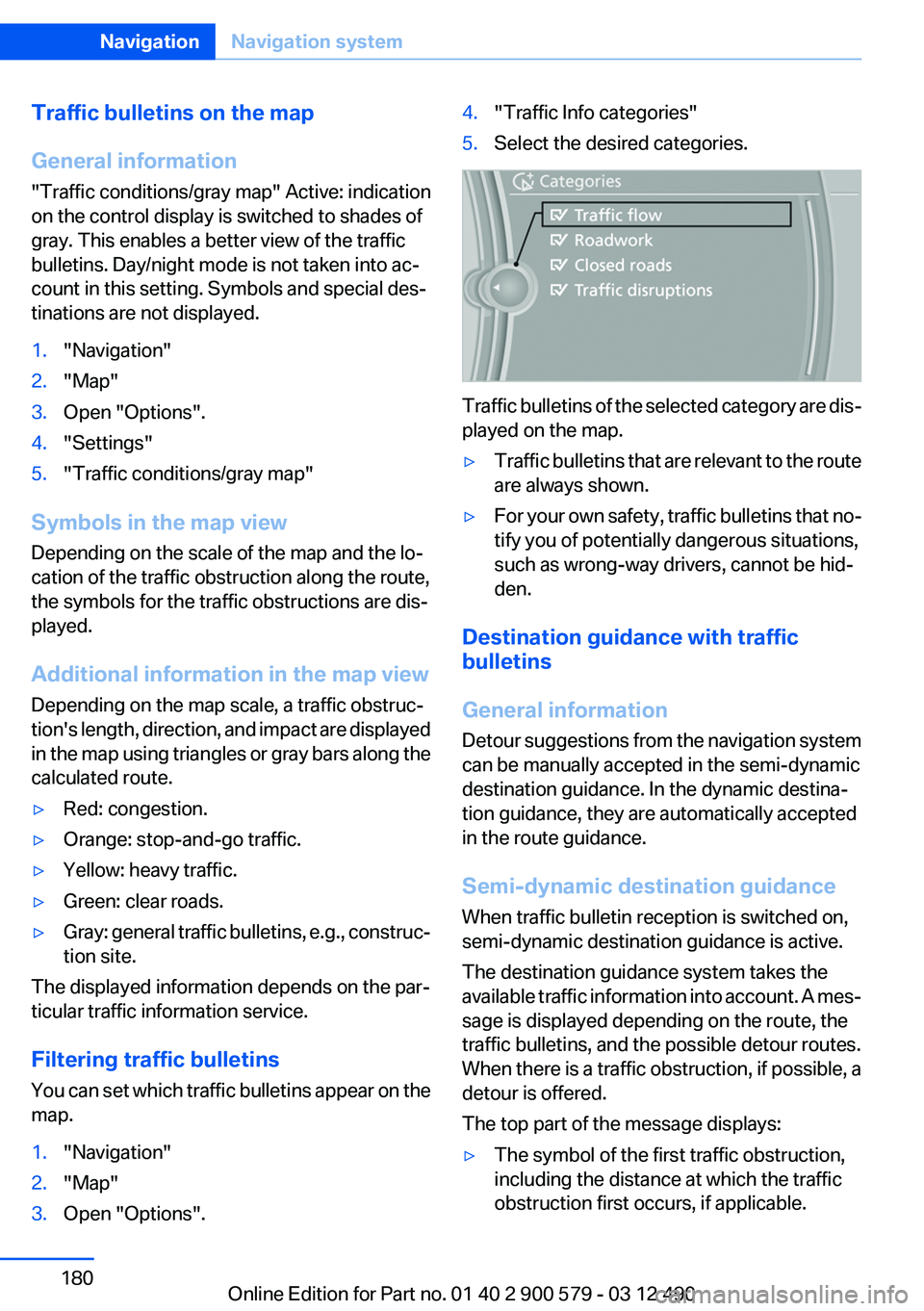
1."Navigation"2."Map"3.Open "Options".4."Traffic Info categories"5.Select the desired categories.
Traffic bulletins of the selected category are dis‐
played on the map.
▷Traffic bulletins that are relevant to the route
are always shown.▷For your own safety, traffic bulletins that no‐
tify you of potentially dangerous situations,
such as wrong-way drivers, cannot be hid‐
den.
Destination guidance with traffic
bulletins
General information
Detour suggestions from the navigation system
can be manually accepted in the semi-dynamic
destination guidance. In the dynamic destina‐
tion guidance, they are automatically accepted
in the route guidance.
Semi-dynamic destination guidance
When traffic bulletin reception is switched on,
semi-dynamic destination guidance is active.
The destination guidance system takes the
available traffic information into account. A mes‐
sage is displayed depending on the route, the
traffic bulletins, and the possible detour routes.
When there is a traffic obstruction, if possible, a
detour is offered.
The top part of the message displays:
▷The symbol of the first traffic obstruction,
including the distance at which the traffic
obstruction first occurs, if applicable.Seite 180NavigationNavigation system180
Online Edition for Part no. 01 40 2 900 579 - 03 12 490
Page 181 of 319
▷The overall length of the traffic obstructions
on the route.▷The extended driving time due to the traffic
obstructions.
The bottom part of the message displays:
▷The recommended detour with the distance
remaining until the detour starts.▷The difference in the route length compared
to the original route.▷Time gained using the detour compared to
the original route with the traffic obstruc‐
tions.
With the Professional navigation system: in ad‐
dition to displaying the original route in white,
the split screen also displays the detour.
Accepting the detour
"Detour"
In the event of special hazards, e. g., objects on
the road, a message is displayed without a de‐
tour suggestion.
Detours can also be accepted if the traffic mes‐
sages are called up in the list.
1."Navigation"2."Map"3. "Traffic Info"4."Detour information"5. "Detour"
Dynamic destination guidance
The route is automatically changed in the event
of traffic obstructions.
▷The system does not point out traffic ob‐
structions along the original route.▷Traffic bulletins continue to be displayed on
the map.▷Depending on road type and the kind and
extent of the traffic obstruction, the calcu‐
lated route may lead through the traffic ob‐
struction.▷Dangerous situations are displayed regard‐
less of the setting.
Activating dynamic destination guidance
1."Navigation"2.Open "Options".3."Dynamic guidance"
Navigation data
Information on the navigation data
1."Navigation"2.Open "Options".3." Navigation system version": information on
the data version is displayed.
Updating the navigation data
General information
Navigation data are stored in the vehicle and can
be updated.
Current navigation data and the authorization
code are available from your service center.
▷Depending on the data volume, a data up‐
date may take several hours.▷Update during the trip to preserve battery.▷During the update, only the basic functions
of the navigation system are available.▷The status of the update can be viewed.▷The system restarts after the update.▷Remove the data carrier with the navigation
data after the update.
Professional navigation system:
performing an update
1.Insert the navigation DVD into the DVD
player with the labeled side facing up.2.Follow the instructions on the Control Dis‐
play.Seite 181Navigation systemNavigation181
Online Edition for Part no. 01 40 2 900 579 - 03 12 490
Page 238 of 319
OfficeVehicle equipment
All standard, country-specific and optional
equipment that is offered in the model series is
described in this chapter. Therefore, equipment
is also described that is not available in a vehicle,
e. g., because of the selected optional equip‐
ment or country variant. This also applies for
safety-related functions and systems.
At a glance
General information
Contacts, appointments, tasks, notes, text mes‐
sages, and e-mails from the mobile phone can
be displayed on the Control Display if the mobile
phone provides compatible support of these
functions and the necessary Bluetooth stand‐
ards.
Information about which mobile phones support
Office functions can be found at
www.bmwusa.com/bluetooth. A limited number
of compatible mobile phones is available for Of‐
fice.
Contents are only displayed in full length when
the vehicle is stationary.
The mobile phone has read-access only.
Do not use Office while driving
To avoid becoming distracted and posing
an unnecessary hazard to your vehicle's occu‐
pants and to other road users, never attempt to
use the controls or enter information unless traf‐
fic and road conditions allow this.◀
Requirements▷A suitable mobile phone is paired with the
vehicle and connected. In some mobile
phones, data access must be confirmed on
the mobile phone.▷The time, time zone, and date, refer to
page 86, are correctly set on the Control
Display and on the mobile phone to correctly
display appointments, for example.▷Office is activated, refer to page 227.
Updating
Data are updated every time the mobile phone
is connected to the vehicle. Appointment en‐
tries, tasks, notes and reminders can be updated
separately.
1."Office"2."Current office", "Calendar", "Tasks",
"Notes" or "Reminders"3.Open "Options".4."Update data"
Cell phone data are transmitted again to the
vehicle.
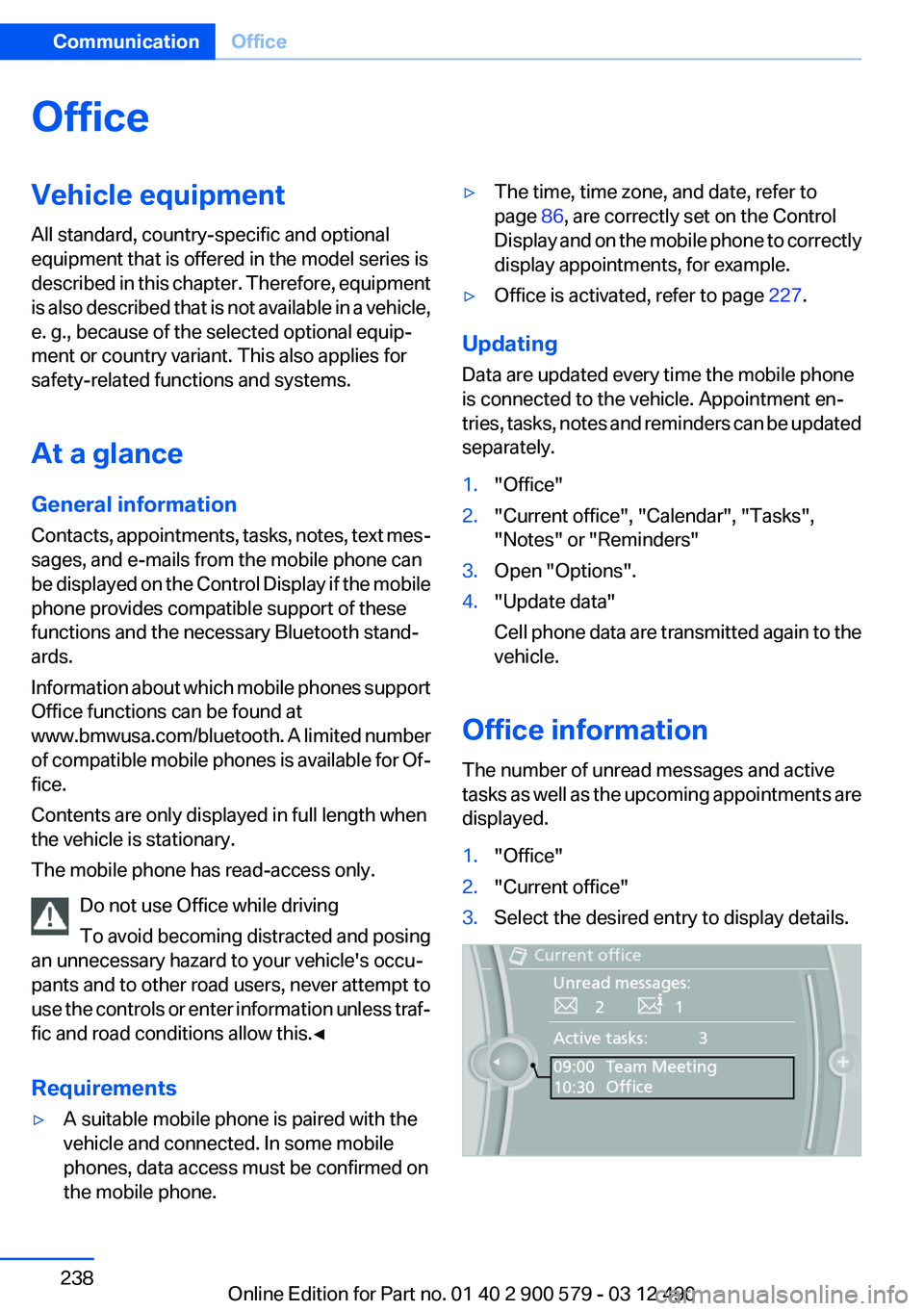
Office information
The number of unread messages and active
tasks as well as the upcoming appointments are
displayed.
1."Office"2."Current office"3.Select the desired entry to display details.Seite 238CommunicationOffice238
Online Edition for Part no. 01 40 2 900 579 - 03 12 490
Page 241 of 319
tures depends on the mobile phone. The mobile
phone must support this function.1."Telephone"2."Bluetooth® (phone)"3."Options"4."Configure Bluetooth®"5."Show images"
Display of all contact pictures is activated or de‐
activated.
Exporting/importing contacts
Contacts can be exported and imported via the
Personal Profile, refer to page 33. The contacts
stored in the vehicle are exported, but not those
from the mobile phone.
Deleting contacts
Only contacts that are stored in the vehicle are
deleted. The contacts on the mobile phone can‐
not be deleted.
1."Office"2."Contacts"3.Highlight the contact.4.Open "Options".5."Delete contact"or "Delete all contacts".6.If necessary "Yes"
Messages
General information
Whether or not text messages and e-mails from
the mobile phone are displayed depends on
whether transmission from the mobile phone to
the vehicle is supported. Text messages and e-
mails may not be supported by the service pro‐
vider, or the function may need to be enabled
separately. After the mobile phone is first paired,
transmission may take several minutes. Mes‐
sages are only displayed in full length when the
vehicle is stationary. Messages from the addi‐
tional telephone are not transmitted.
Displaying messages1."Office"2."Messages"
A symbol identifies the type of message.
SymbolMessage type Text messages. My Info Message from the Concierge serv‐
ice. E-mail from mobile phone.
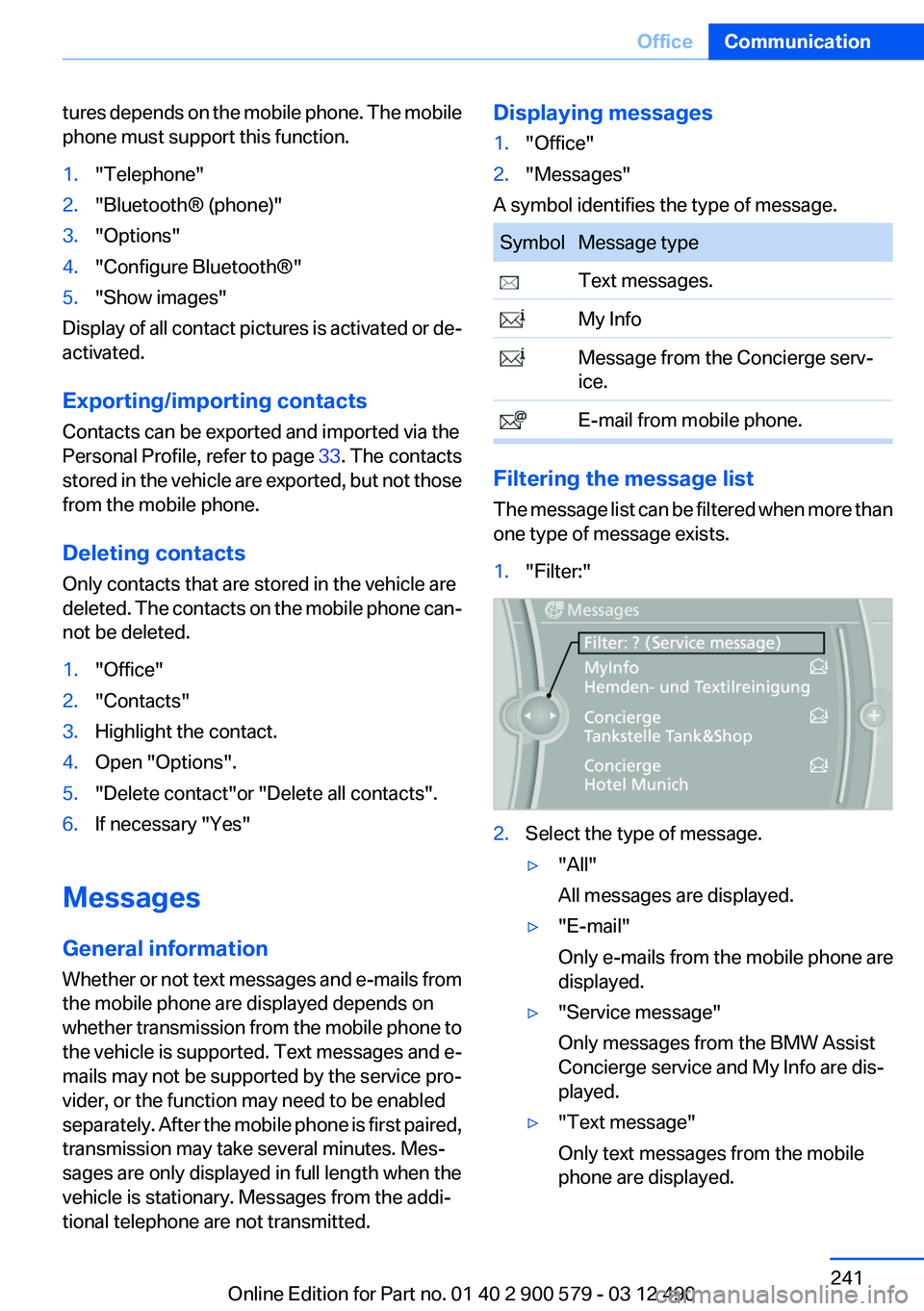
Filtering the message list
The message list can be filtered when more than
one type of message exists.
1."Filter:"2.Select the type of message.▷"All"
All messages are displayed.▷"E-mail"
Only e-mails from the mobile phone are
displayed.▷"Service message"
Only messages from the BMW Assist
Concierge service and My Info are dis‐
played.▷"Text message"
Only text messages from the mobile
phone are displayed.Seite 241OfficeCommunication241
Online Edition for Part no. 01 40 2 900 579 - 03 12 490
Page 246 of 319
▷Depending on the number of stored ap‐
pointments, task notes, and messages in
the mobile phone, not all are displayed in the
vehicle.
Not all appointments and tasks from the mobile
phone are displayed at the right time?
▷The time zone, time or date is incorrectly set
on the Control Display and mobile phone.
The e-mail attachment is not displayed.
▷E-mails are transmitted without an attach‐
ment.
Entries are not displayed in full length.
▷Text were already transmitted from the mo‐
bile phone in a shortened form.▷Synchronization between the mobile phone
and vehicle may take several minutes.
The contact pictures are not being displayed?
▷Up to 200 contact pictures can be stored in
the vehicle.
The E-mail is displayed with a delay?
▷Check the e-mail settings on the mobile
phone and adjust if necessary.
If all points in this list have been checked and the
required function is still not available, contact
the hotline or service center.
Seite 246CommunicationOffice246
Online Edition for Part no. 01 40 2 900 579 - 03 12 490
Page 297 of 319
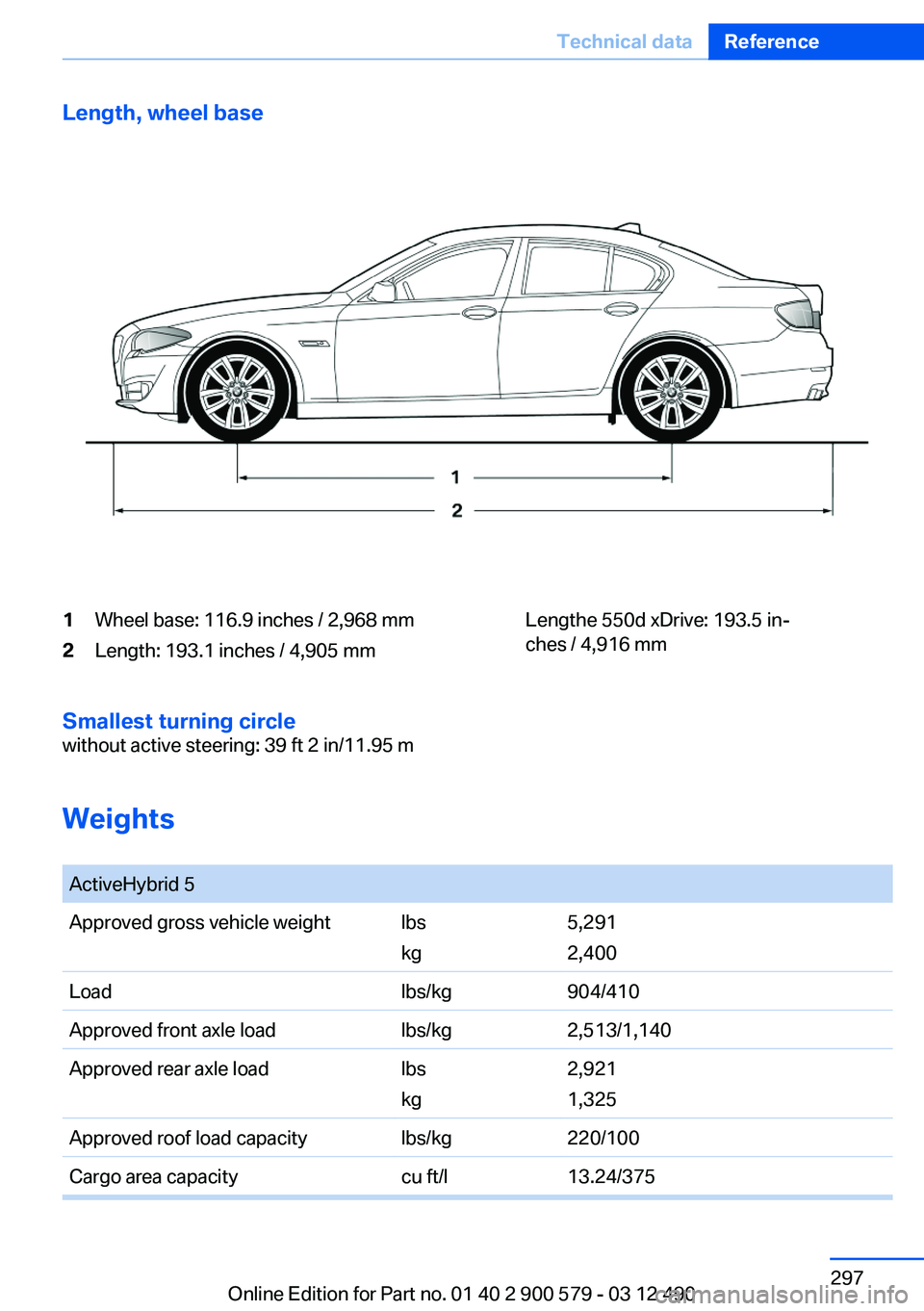
Length, wheel base1Wheel base: 116.9 inches / 2,968 mm2Length: 193.1 inches / 4,905 mmLengthe 550d xDrive: 193.5 in‐
ches / 4,916 mm
Smallest turning circle
without active steering: 39 ft 2 in/11.95 m
Weights
ActiveHybrid 5Approved gross vehicle weightlbs
kg5,291
2,400Loadlbs/kg904/410Approved front axle loadlbs/kg2,513/1,140Approved rear axle loadlbs
kg2,921
1,325Approved roof load capacitylbs/kg220/100Cargo area capacitycu ft/l13.24/375Seite 297Technical dataReference297
Online Edition for Part no. 01 40 2 900 579 - 03 12 490
Page 312 of 319
Head restraints, front 54
Head restraints, rear 55
Head-Up Display 128
Head-up Display, care 292
Heavy cargo, stowing 159
Height, vehicle 296
High-beam Assistant 91
High beams 71
High beams/low beams, refer to High-beam Assistant 91
High-voltage battery, Charge indicator 81
Hills 157
Hill start assistant, refer to Drive-off assistant 107
Hints 6
Holder for beverages 148
Homepage 6
Hood 268
Horn 12
Hotel function, trunk lid 41
Hot exhaust system 156
House number, entering for navigation 167
HUD Head-Up Display 128
Hybrid system, at a glance 27
Hybrid system, automatic de‐ activation 287
Hybrid system, contact with water 287
Hybrid system, displays 81
Hybrid system, driving tips 154
Hybrid system, safety 287
Hydroplaning 156
I
Ice warning, refer to External temperature warning 80
Icy roads, refer to External temperature warning 80
Identification marks, tires 263
Identification number, refer to Important in the engine com‐
partment 268 iDrive 16
Ignition key, refer to Remote control 32
Ignition off 64
Ignition on 64
Indication of a flat tire 98, 101
Individual air distribution 131
Individual settings, refer to Personal Profile 33
Inflation pressure, tires 261
Inflation pressure warning FTM, tires 100
Info display, refer to Com‐ puter 84
Information on the navigation data 181
Initialize, Tire Pressure Moni‐ tor TPM 98
Initializing, Flat Tire Monitor FTM 101
Instrument cluster 76
Instrument cluster, electronic displays 77
Instrument lighting 93
Integrated key 32
Integrated universal remote control 141
Intensity, AUTO program 131
Interactive map 171
Interior equipment 141
Interior lamps 93
Interior lamps via remote con‐ trol 37
Interior motion sensor 45
Interior rearview mirror 58
Interior rearview mirror, auto‐ matic dimming feature 58
Intermediate destinations 173
Internet page 6
Intersection, entering for navi‐ gation 167
Interval display, service re‐ quirements 82
iPod/iPhone 209 J
Jacking points for the vehicle jack 281
Jack, refer to Vehicle jack 281
Joystick, automatic transmis‐ sion 74
Jump-starting 284
K
Key/remote control 32
Keyless Go, refer to Comfort Access 42
Key Memory, refer to Personal Profile 33
Kickdown, automatic trans‐ mission 74
Knee airbag 94
L
Lamp replacement 275
Lamp replacement, front 276
Lamp replacement, rear 279
Lamps 89
Lamps and bulbs 275
Lane departure warning 102
Lane margin, warning 102
Language on Control Dis‐ play 87
Lashing eyes, securing cargo 159
LATCH child restraint fixing system 61
Leather, care 290
LEDs, light-emitting di‐ odes 276
Length, vehicle 297
Letters and numbers, enter‐ ing 21
License plate lamp, bulb re‐ placement 280
Light-alloy wheels, care 291
Light control 91 Seite 312ReferenceEverything from A to Z312
Online Edition for Part no. 01 40 2 900 579 - 03 12 490